
SBCUSD Parent Portal Account SetUp SBCUSD Family Engagement
SBCUSD Parent Portal Account Set-Up SBCUSD Family Engagement Team in collaboration with the SBCUSD Information Technology Department
Why is it important to create a Parent Portal Account? ● Two way communication between families and school. ● Secure & convenient way to access student information: attendance, grades, student testing scores, teacher contact information, view report cards. ● Set preference notifications to receive updates as soon as the teacher adds new information. ● Complete your student data confirmation: confirm or update home address, telephone number, medical information, emergency contacts, update authorizations. ● Select your Student Prefered Learning Model(Distance Learning or Blended instruction Model) ● Teaching students to take ownership of their education!
Agenda 1. Steps to create a new parent portal account. 2. How to link Parent Portal to student. ● (Student ID, Primary number, and Verification Code) 1. Student Data Confirmation Introduction ● (All families must complete for each of their students)
To complete the setup of your Parent Portal account, you will need the following information: 1. Parent Personal Email. (You will be using it while creating the Aeries Parent Portal Account). 2. You will need the following three items: Student ID number, primary phone contact, student verification code(VPC) (The VPC codes is unique to your student, do not share this information. ) 3. Recommendation: use one device only to complete the entire process. (smartphone, computer, tablet)
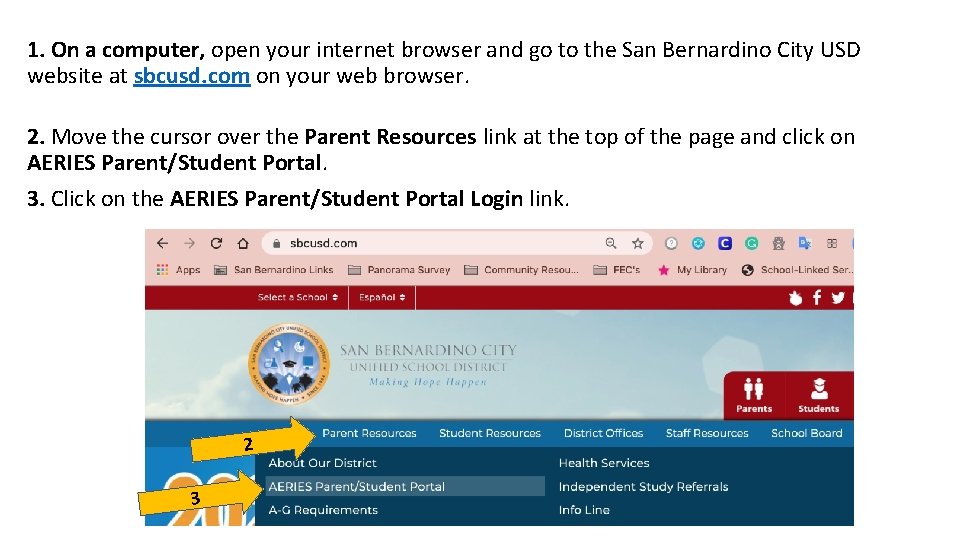
1. On a computer, open your internet browser and go to the San Bernardino City USD website at sbcusd. com on your web browser. 2. Move the cursor over the Parent Resources link at the top of the page and click on AERIES Parent/Student Portal. 3. Click on the AERIES Parent/Student Portal Login link. 2 3
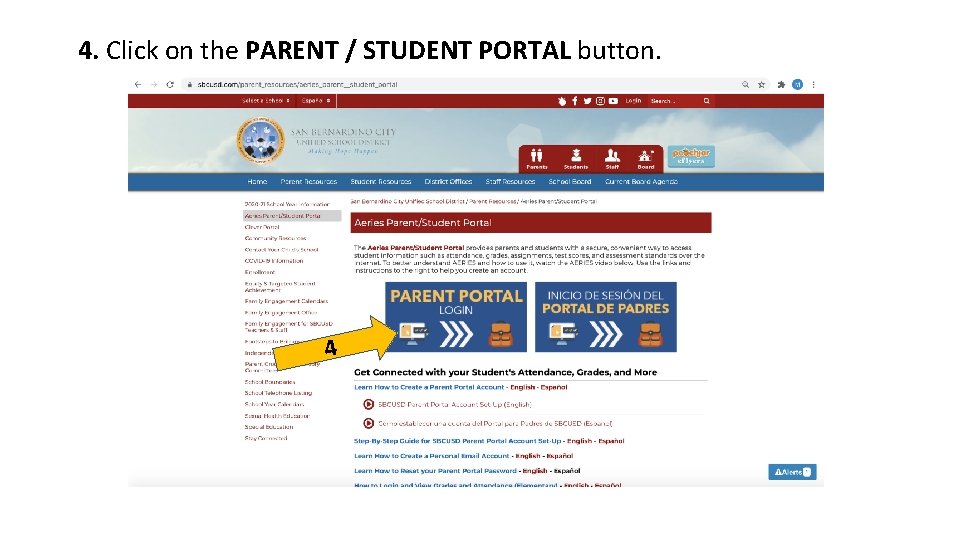
4. Click on the PARENT / STUDENT PORTAL button. 4
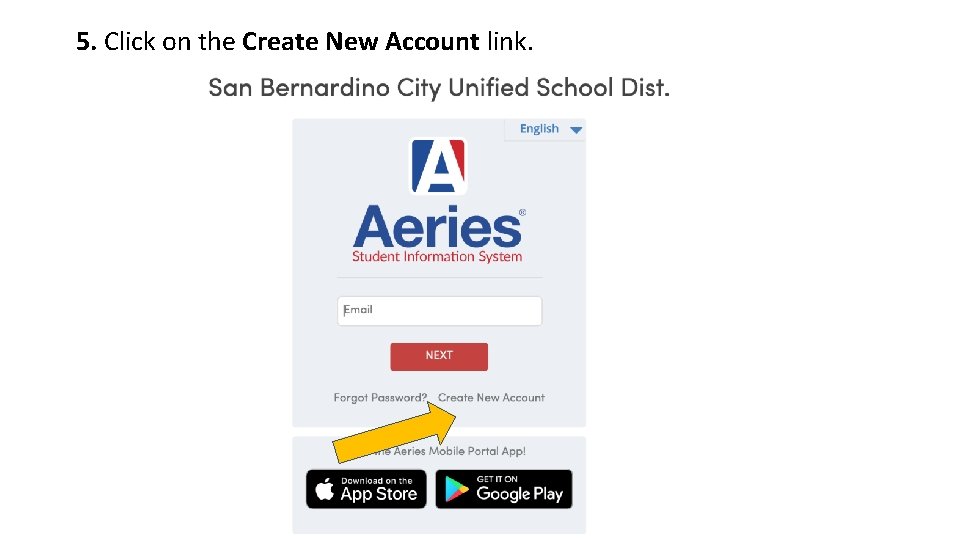
5. Click on the Create New Account link.
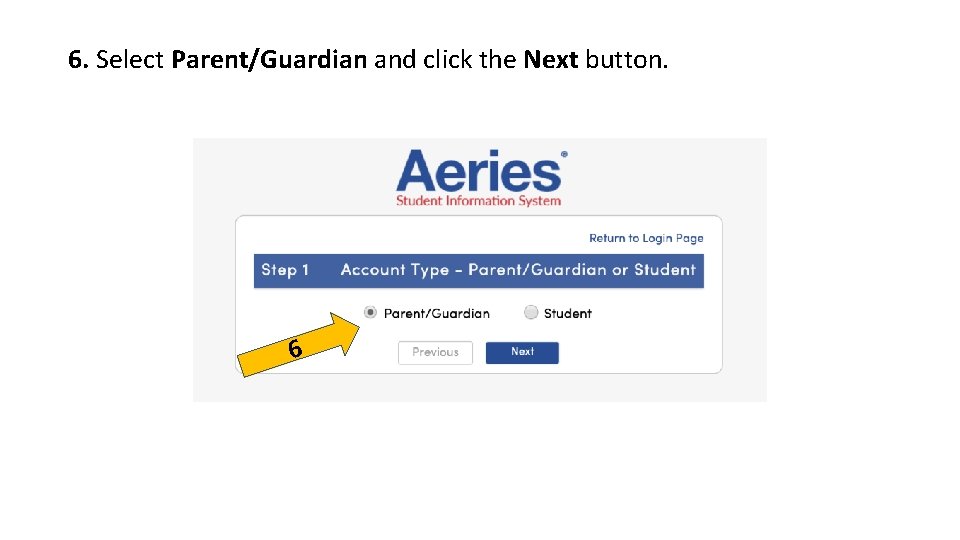
6. Select Parent/Guardian and click the Next button. 6
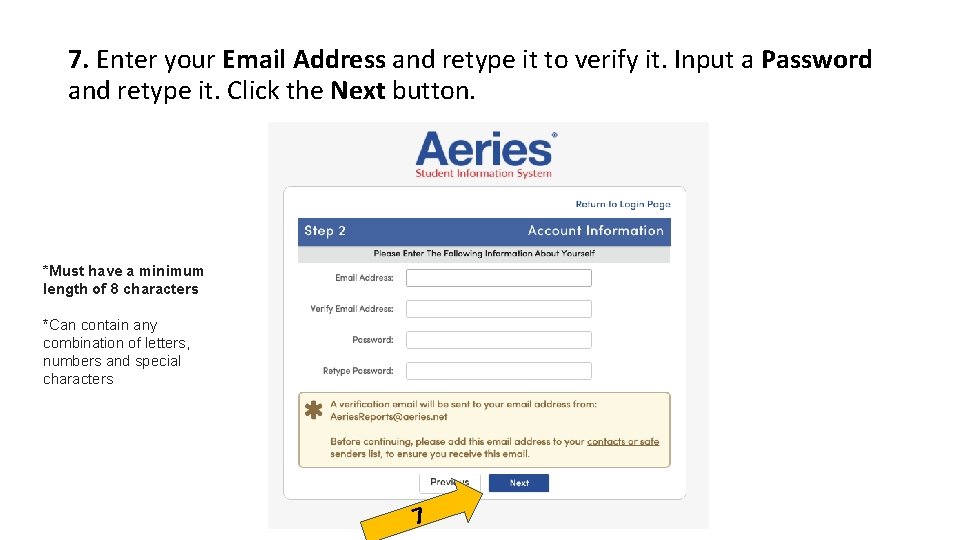
7. Enter your Email Address and retype it to verify it. Input a Password and retype it. Click the Next button. *Must have a minimum length of 8 characters *Can contain any combination of letters, numbers and special characters 7
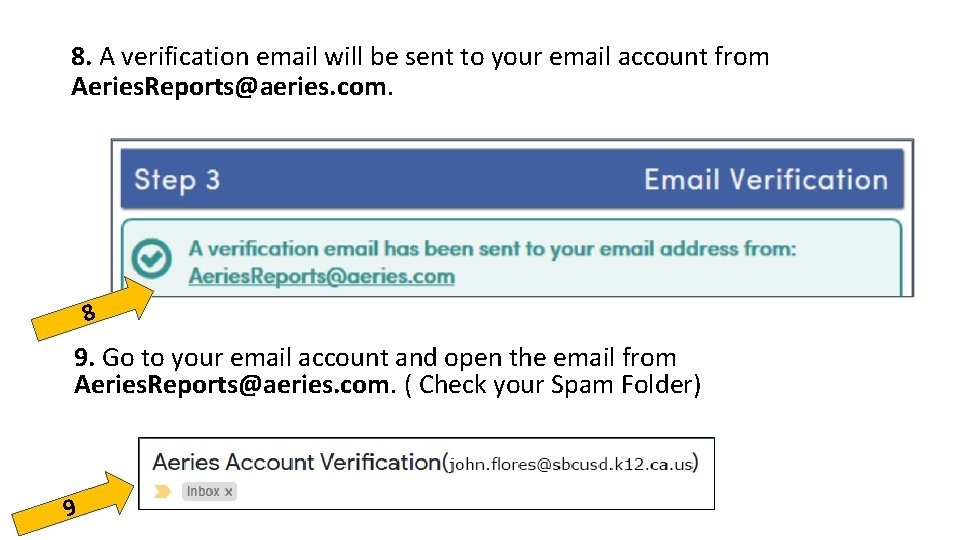
8. A verification email will be sent to your email account from Aeries. Reports@aeries. com. 8 9. Go to your email account and open the email from Aeries. Reports@aeries. com. ( Check your Spam Folder) 9
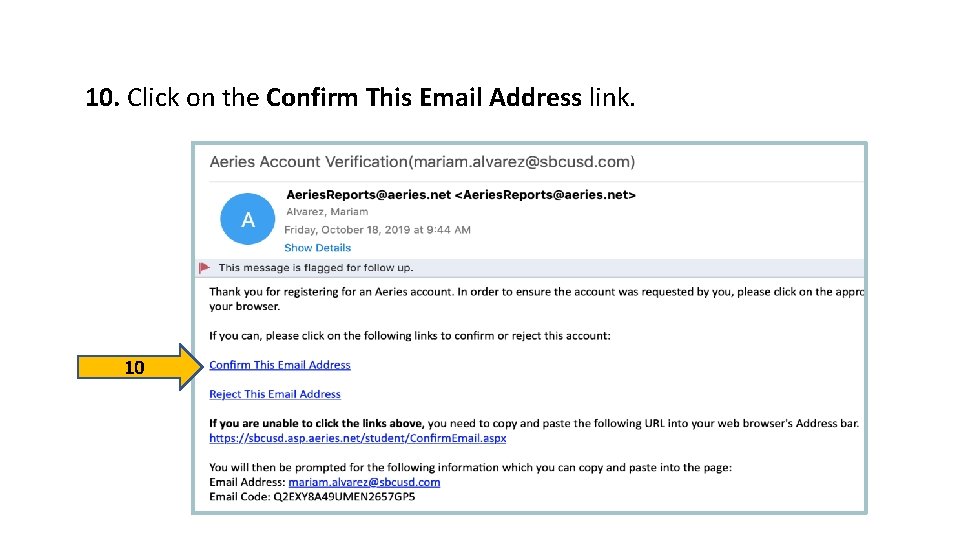
10. Click on the Confirm This Email Address link. 10
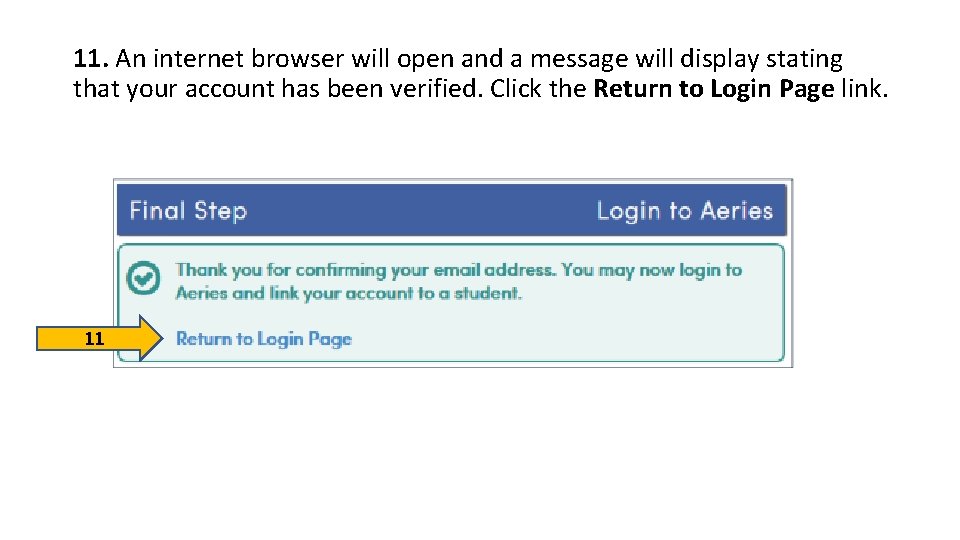
11. An internet browser will open and a message will display stating that your account has been verified. Click the Return to Login Page link. 11
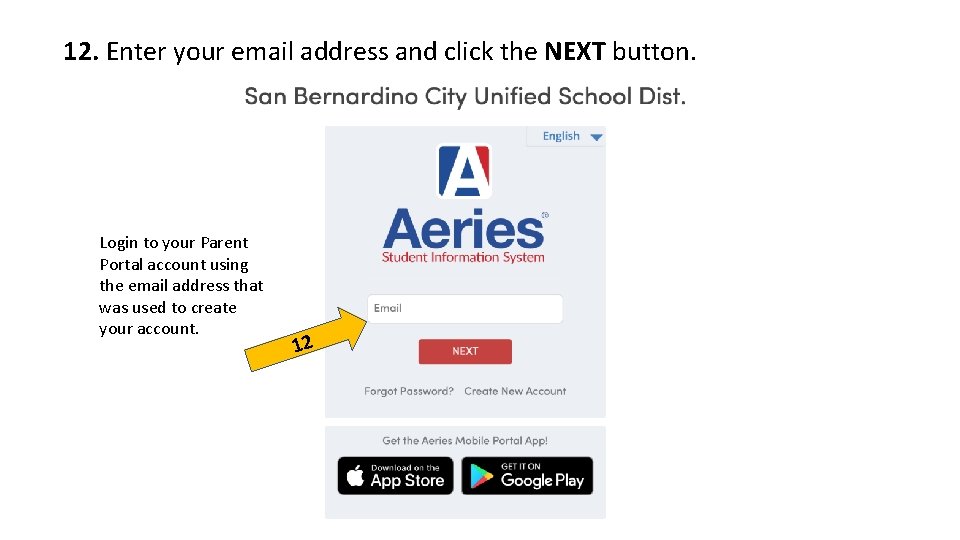
12. Enter your email address and click the NEXT button. Login to your Parent Portal account using the email address that was used to create your account. 12
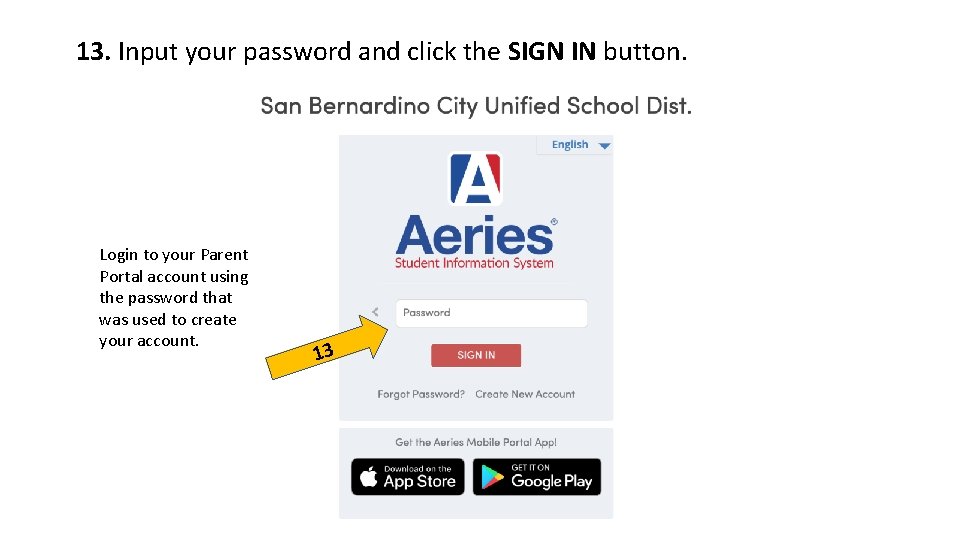
13. Input your password and click the SIGN IN button. Login to your Parent Portal account using the password that was used to create your account. 13
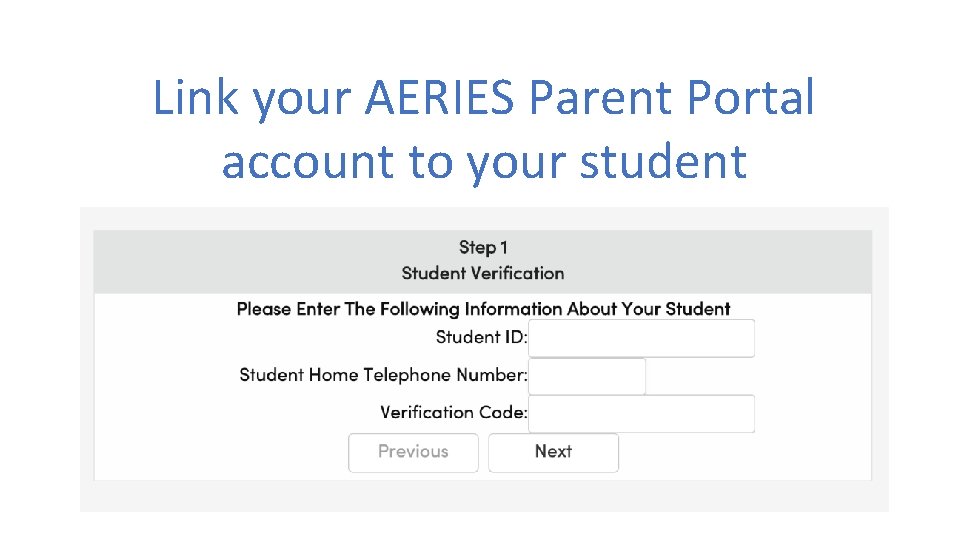
Link your AERIES Parent Portal account to your student
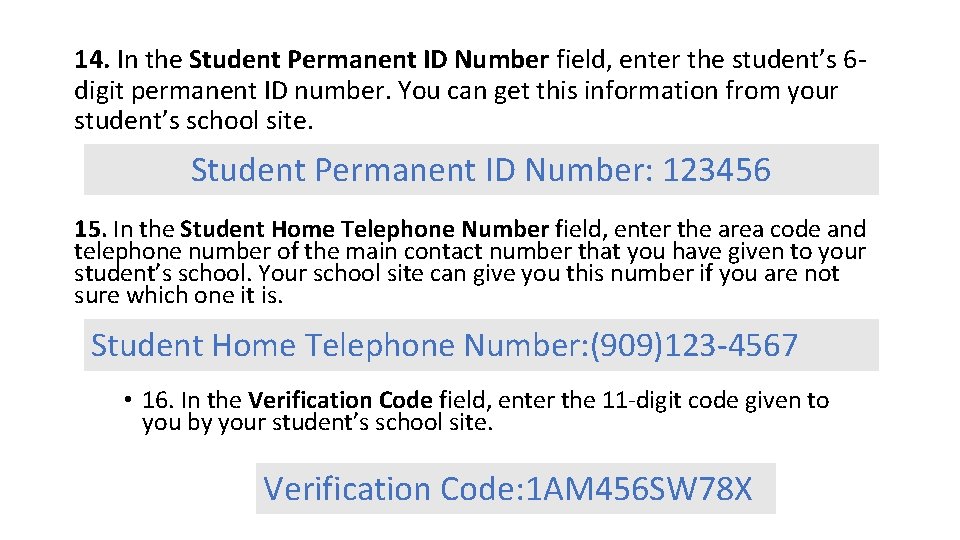
14. In the Student Permanent ID Number field, enter the student’s 6 digit permanent ID number. You can get this information from your student’s school site. Student Permanent ID Number: 123456 15. In the Student Home Telephone Number field, enter the area code and telephone number of the main contact number that you have given to your student’s school. Your school site can give you this number if you are not sure which one it is. Student Home Telephone Number: (909)123 -4567 • 16. In the Verification Code field, enter the 11 -digit code given to you by your student’s school site. Verification Code: 1 AM 456 SW 78 X
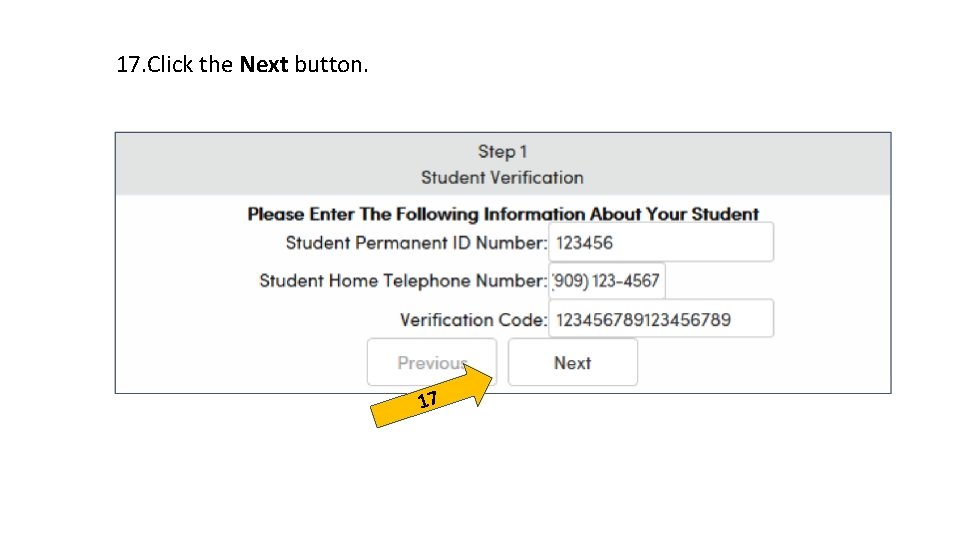
17. Click the Next button. 17
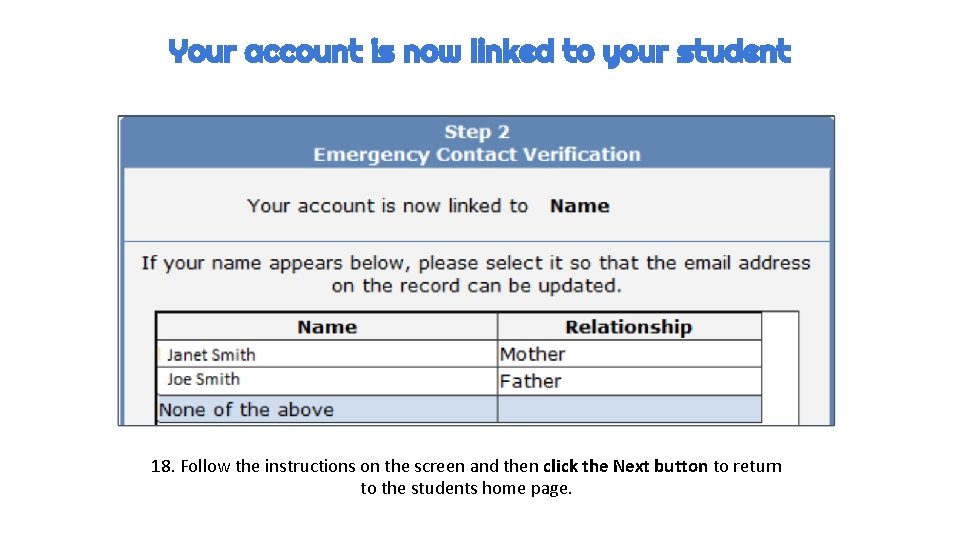
Your account is now linked to your student 18. Follow the instructions on the screen and then click the Next button to return to the students home page.
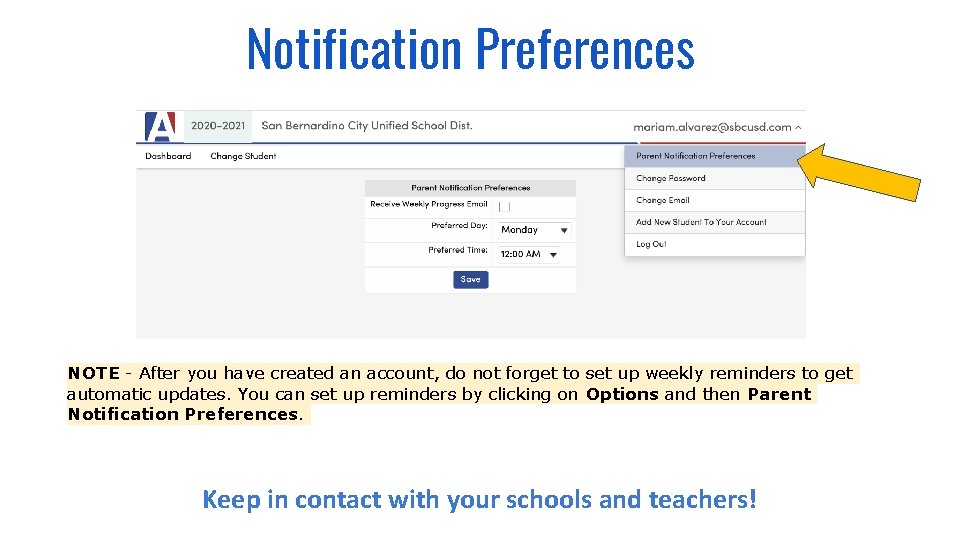
Notification Preferences NOTE - After you have created an account, do not forget to set up weekly reminders to get automatic updates. You can set up reminders by clicking on Options and then Parent Notification Preferences. Keep in contact with your schools and teachers!
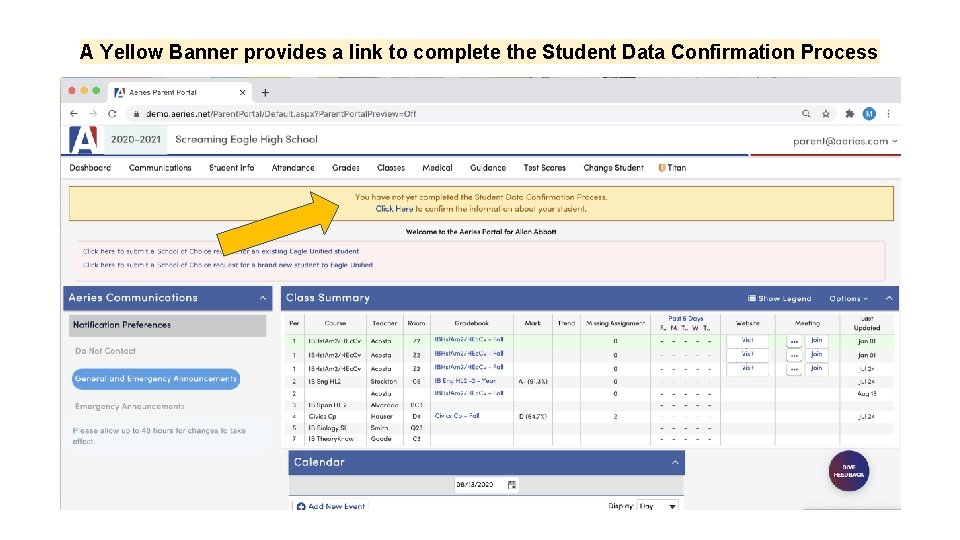
A Yellow Banner provides a link to complete the Student Data Confirmation Process 1. Click on Click Here in the yellow banner
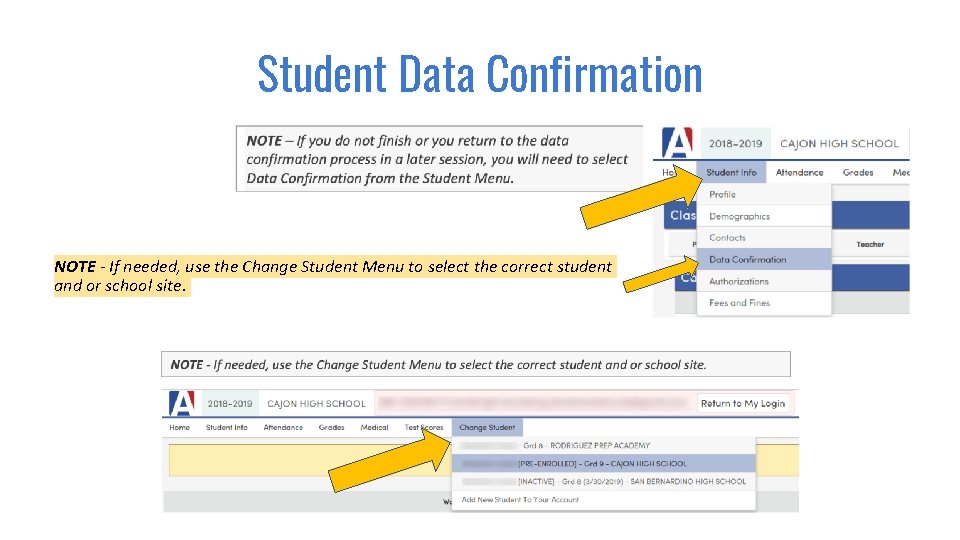
Student Data Confirmation NOTE - If needed, use the Change Student Menu to select the correct student and or school site.
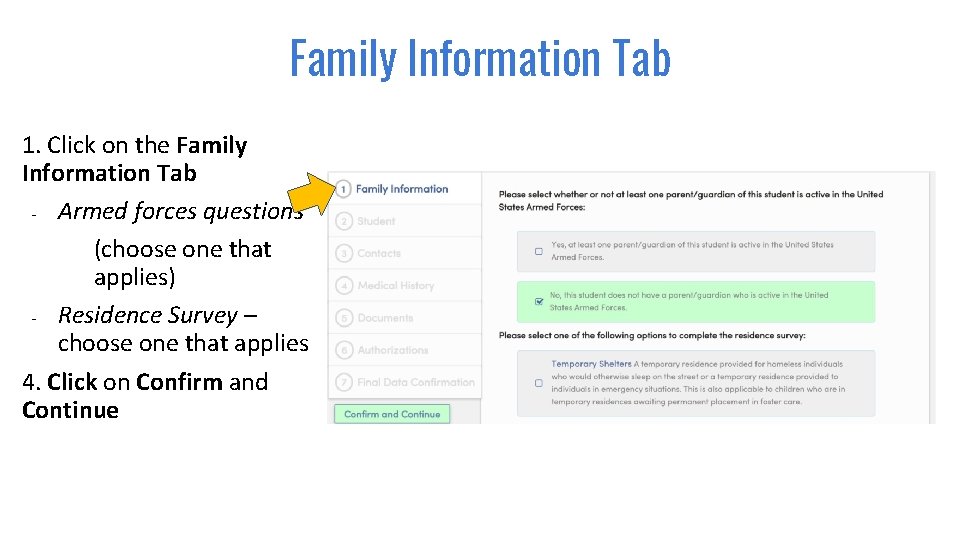
Family Information Tab 1. Click on the Family Information Tab - Armed forces questions (choose one that applies) - Residence Survey – choose one that applies 4. Click on Confirm and Continue
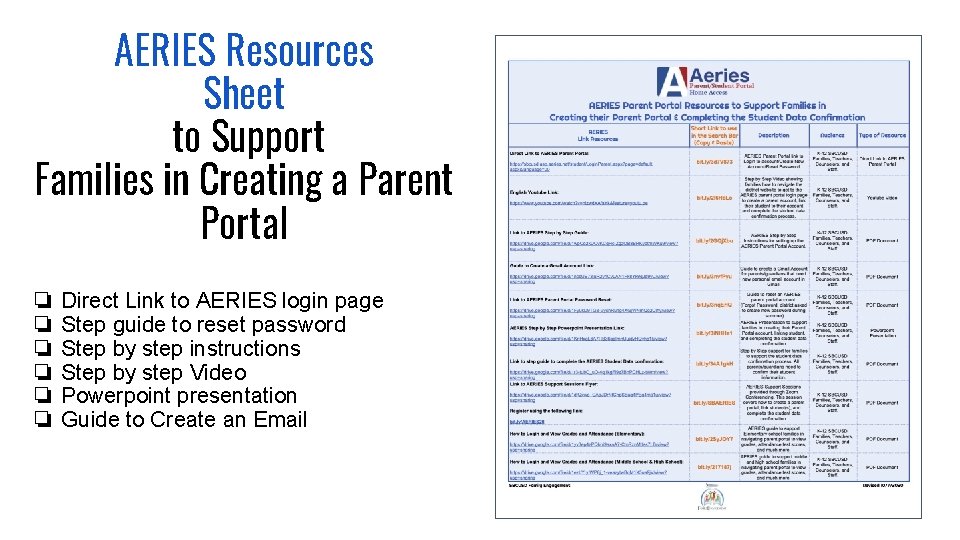
AERIES Resources Sheet to Support Families in Creating a Parent Portal ❏ ❏ ❏ Direct Link to AERIES login page Step guide to reset password Step by step instructions Step by step Video Powerpoint presentation Guide to Create an Email
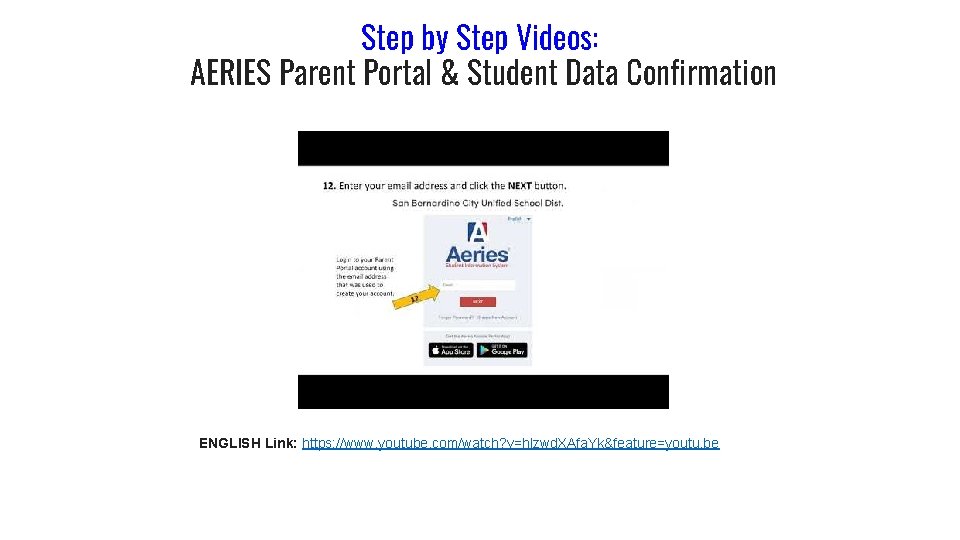
Step by Step Videos: AERIES Parent Portal & Student Data Confirmation ENGLISH Link: https: //www. youtube. com/watch? v=hlzwd. XAfa. Yk&feature=youtu. be
Family Engagement Resources How to Create an Email Account? The SBCUSD Family Engagement team is here to support you with creating a new email account or retrieving a pre-existing email account. We will be utilizing Google and Gmail services. Please contact us if you need email account support. Cathleen or Olivia (909) 283 -0879 (909) 353 -3455 Office hours: Monday-Friday 10: 00 am-11: 00 am and 3: 00 pm-4: 00 pm
Family Engagement Resources SBCUSD AERIES Parent Portal for parents/guardians and staff to support with aeries account set up and completing the student data confirmation process. Join one of our sessions and learn about: creating a parent portal account, linking your account with your student and how to complete the student data confirmation Register using the following link: bit. ly/AERIES 20 once registered, a Family Engagement team member will contact you to provide the information on how to join one of our sessions. link to zoom meeting will be provided through text or email. For more information, please contact the Family Engagement Office at (909)353 -4038 or (909)880 -4057.

- Slides: 27