
SAVI Advanced and SAVI Indices New SAVI tools

- Slides: 15
SAVI Advanced and SAVI Indices New SAVI tools published this year Jay Colbert Indianapolis
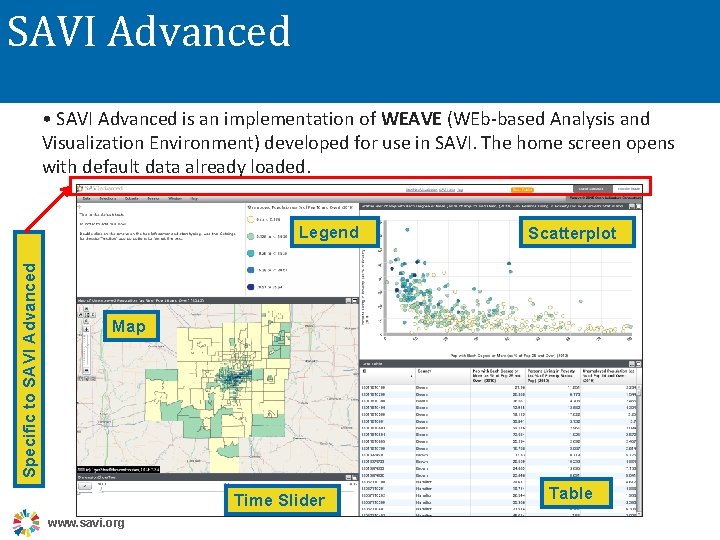
SAVI Advanced • SAVI Advanced is an implementation of WEAVE (WEb-based Analysis and Visualization Environment) developed for use in SAVI. The home screen opens with default data already loaded. Specific to SAVI Advanced Legend Scatterplot Map Time Slider www. savi. org Table
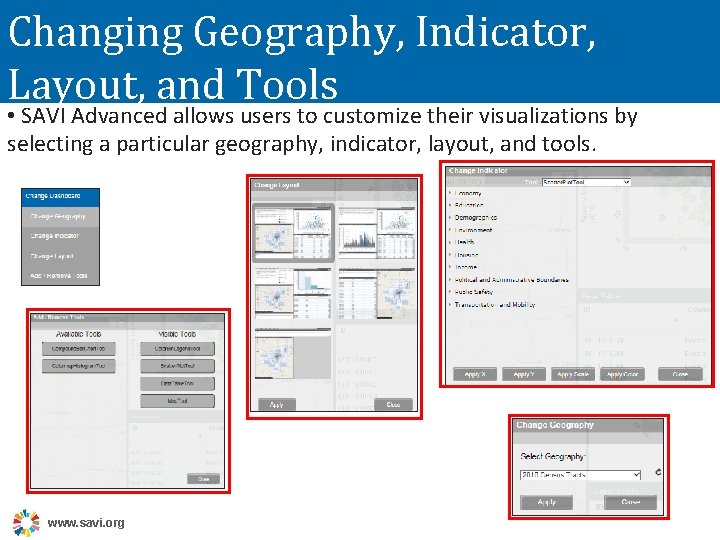
Changing Geography, Indicator, Layout, and Tools • SAVI Advanced allows users to customize their visualizations by selecting a particular geography, indicator, layout, and tools. www. savi. org
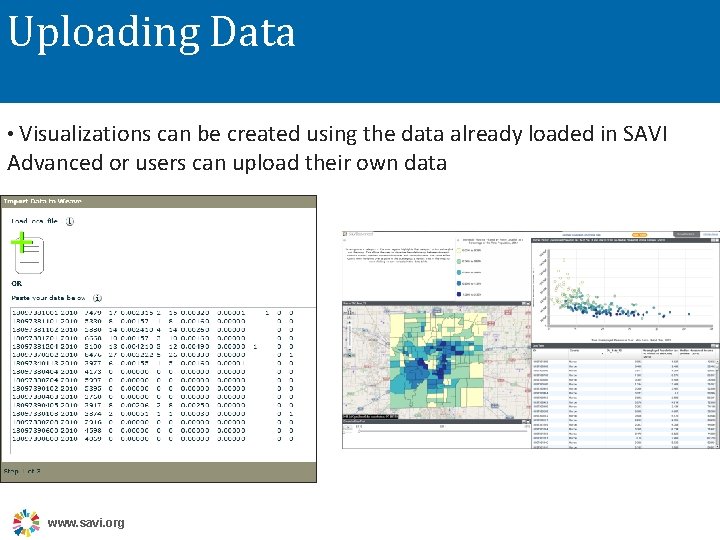
Uploading Data • Visualizations can be created using the data already loaded in SAVI Advanced or users can upload their own data www. savi. org
Uploading Images • Images can be uploaded using SAVI Advanced along with text describing the significance of the image. • Once saved, images can then be incorporated into a data story, adding interest and emphasis to a narrative. Add your own custom text to any visualization www. savi. org
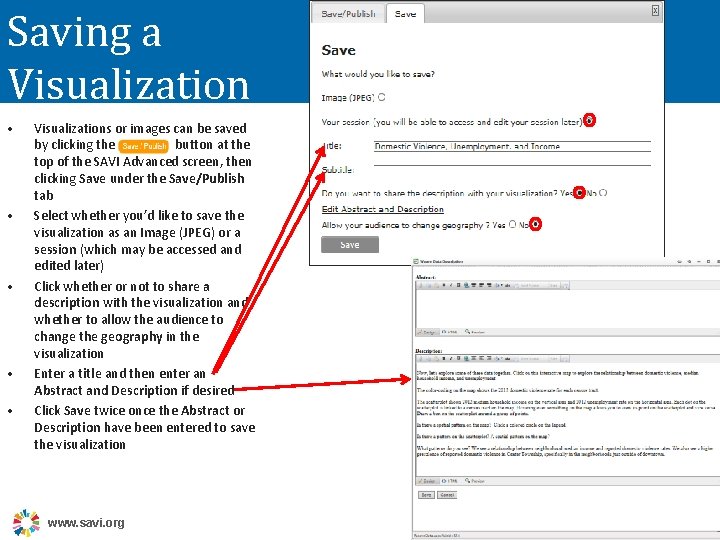
Saving a Visualization • • • Visualizations or images can be saved by clicking the button at the top of the SAVI Advanced screen, then clicking Save under the Save/Publish tab Select whether you’d like to save the visualization as an Image (JPEG) or a session (which may be accessed and edited later) Click whether or not to share a description with the visualization and whether to allow the audience to change the geography in the visualization Enter a title and then enter an Abstract and Description if desired Click Save twice once the Abstract or Description have been entered to save the visualization www. savi. org
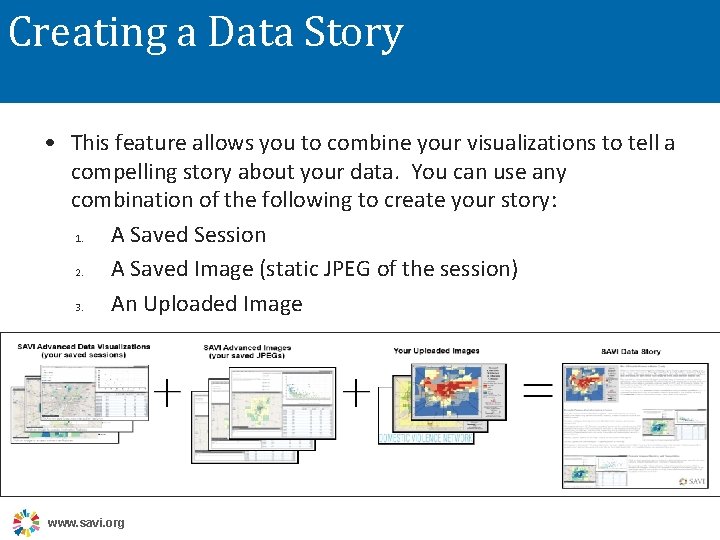
Creating a Data Story • This feature allows you to combine your visualizations to tell a compelling story about your data. You can use any combination of the following to create your story: 1. A Saved Session 2. A Saved Image (static JPEG of the session) 3. An Uploaded Image www. savi. org
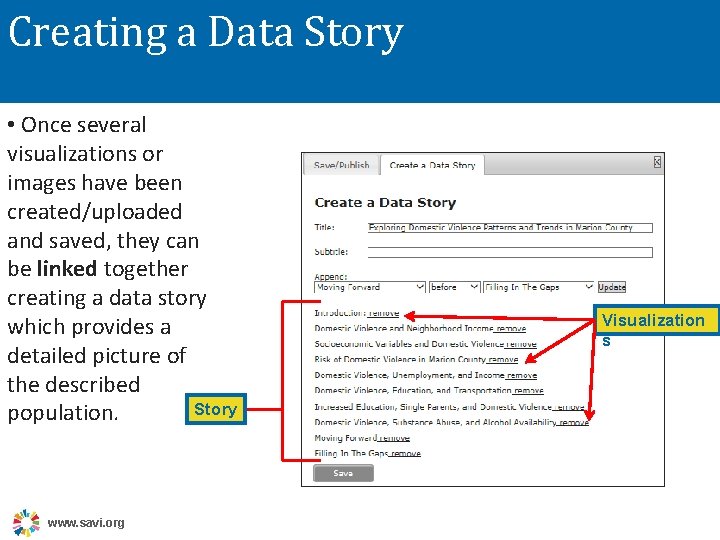
Creating a Data Story • Once several visualizations or images have been created/uploaded and saved, they can be linked together creating a data story which provides a detailed picture of the described Story population. www. savi. org Visualization s
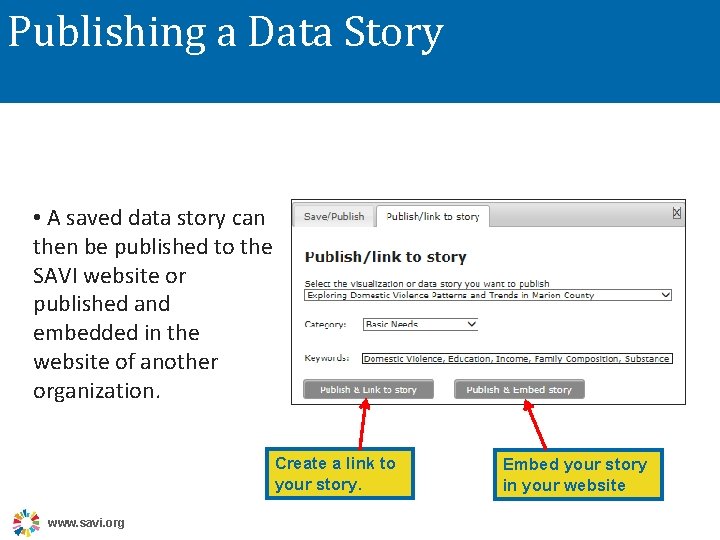
Publishing a Data Story • A saved data story can then be published to the SAVI website or published and embedded in the website of another organization. Create a link to your story. www. savi. org Embed your story in your website
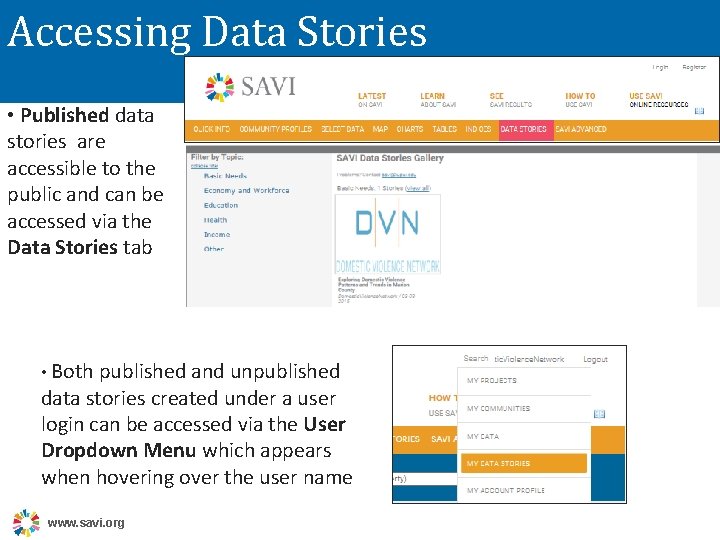
Accessing Data Stories • Published data stories are accessible to the public and can be accessed via the Data Stories tab • Both published and unpublished data stories created under a user login can be accessed via the User Dropdown Menu which appears when hovering over the user name www. savi. org
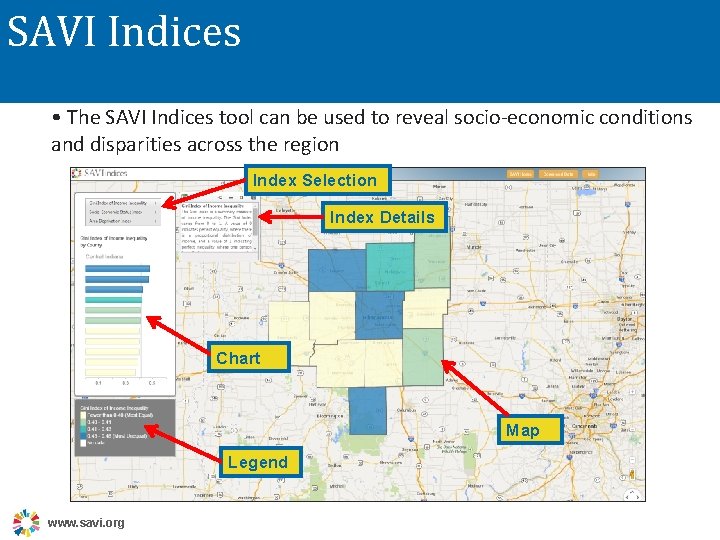
SAVI Indices • The SAVI Indices tool can be used to reveal socio-economic conditions and disparities across the region Index Selection Index Details Chart Map Legend www. savi. org
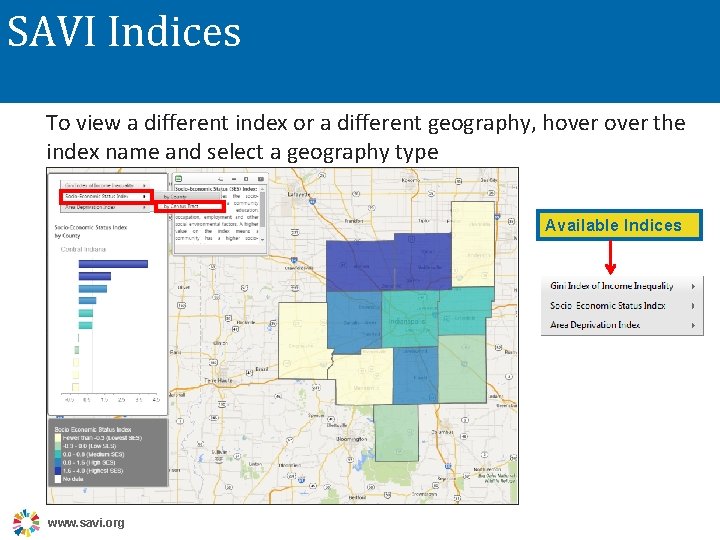
SAVI Indices To view a different index or a different geography, hover the index name and select a geography type Available Indices www. savi. org
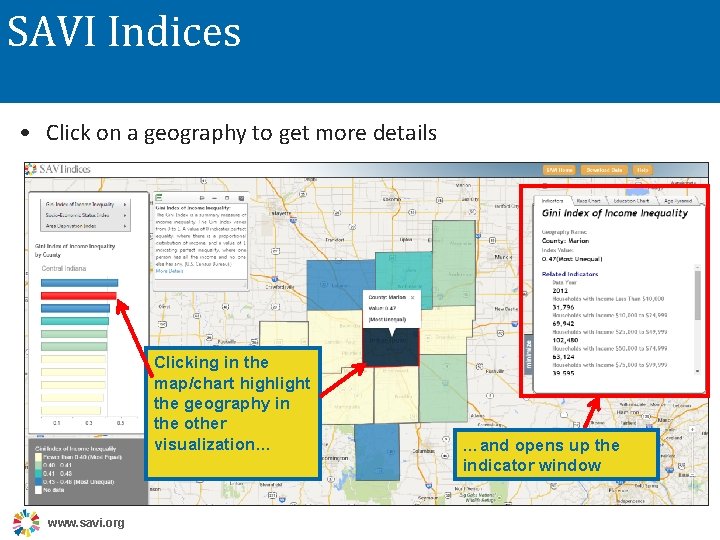
SAVI Indices • Click on a geography to get more details Clicking in the map/chart highlight the geography in the other visualization… www. savi. org …and opens up the indicator window
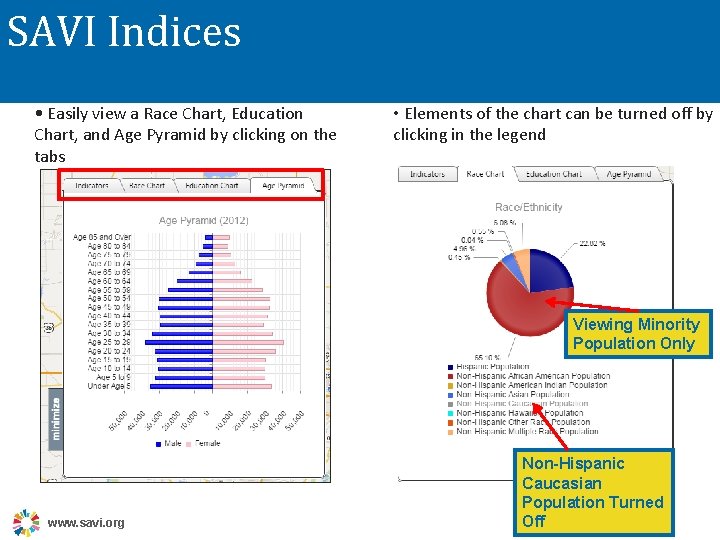
SAVI Indices • Easily view a Race Chart, Education Chart, and Age Pyramid by clicking on the tabs • Elements of the chart can be turned off by clicking in the legend Viewing Minority Population Only www. savi. org Non-Hispanic Caucasian Population Turned Off
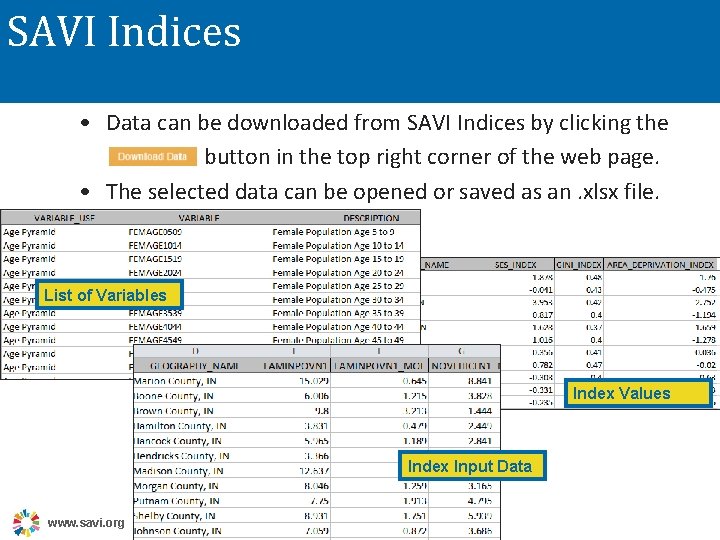
SAVI Indices • Data can be downloaded from SAVI Indices by clicking the button in the top right corner of the web page. • The selected data can be opened or saved as an. xlsx file. List of Variables Index Values Index Input Data www. savi. org