
Save this in your H drive Name it
- Slides: 28
Save this in your H: drive • Name it Powerpoint Practice • Each slide teaches you something new about Powerpoint. • Work at your own pace • You can change anything on these slides now that it is yours
Spell check • Always spell check your Powerpoint! • Press the ABC button to check spelling below and to fix my mistakes. • You can right-click a word to fix spelling or to look up the defnion. Which words did I spell wrng?
HELP! • The most import feature of any software is the HELP. You can type things in your own words to teach yourself anything!
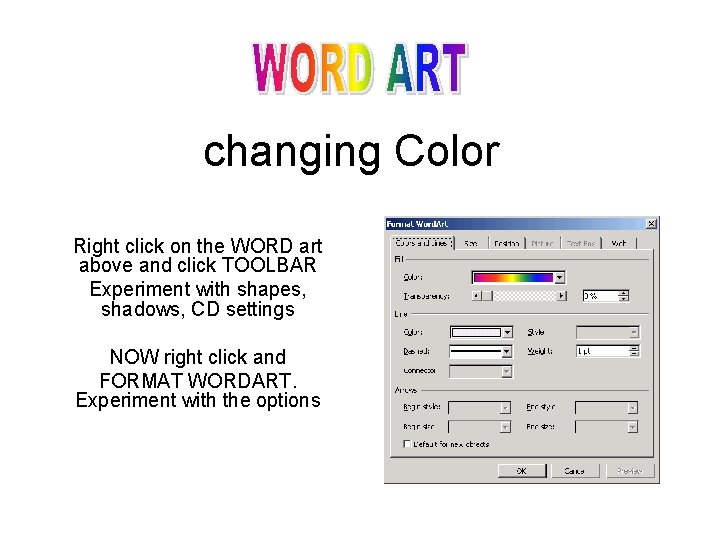
changing Color Right click on the WORD art above and click TOOLBAR Experiment with shapes, shadows, CD settings NOW right click and FORMAT WORDART. Experiment with the options
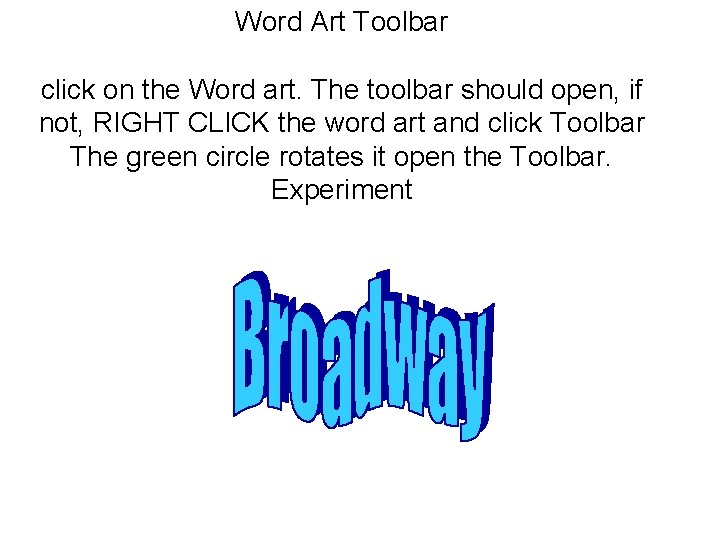
Word Art Toolbar click on the Word art. The toolbar should open, if not, RIGHT CLICK the word art and click Toolbar The green circle rotates it open the Toolbar. Experiment
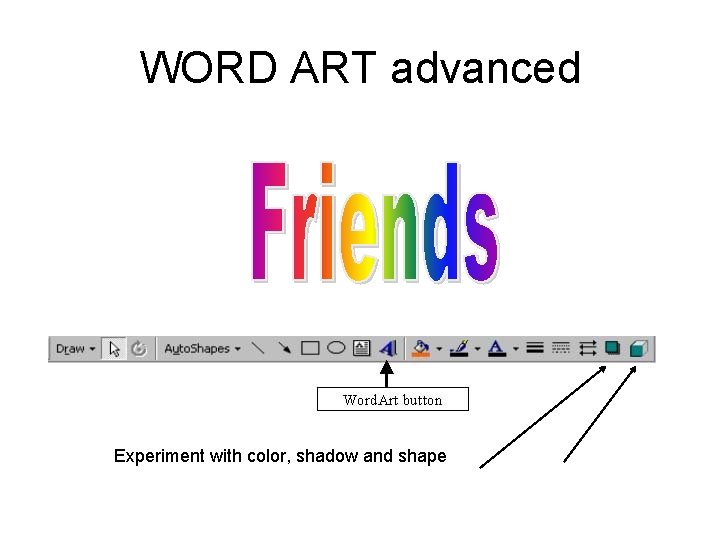
WORD ART advanced Experiment with color, shadow and shape
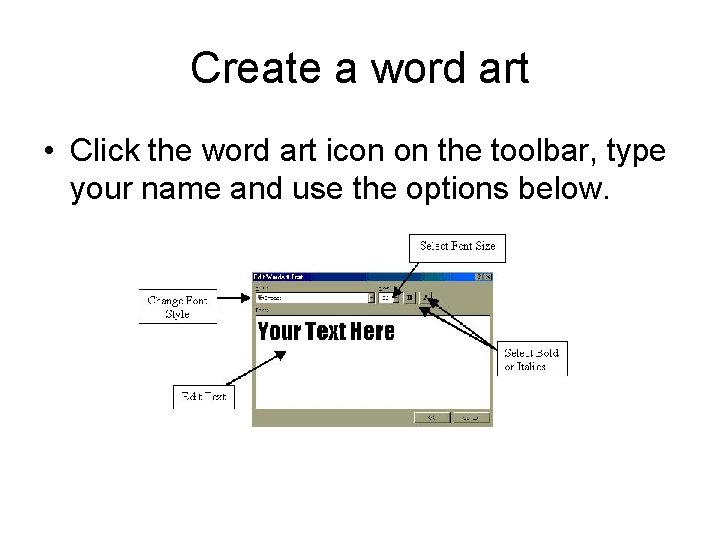
Create a word art • Click the word art icon on the toolbar, type your name and use the options below.
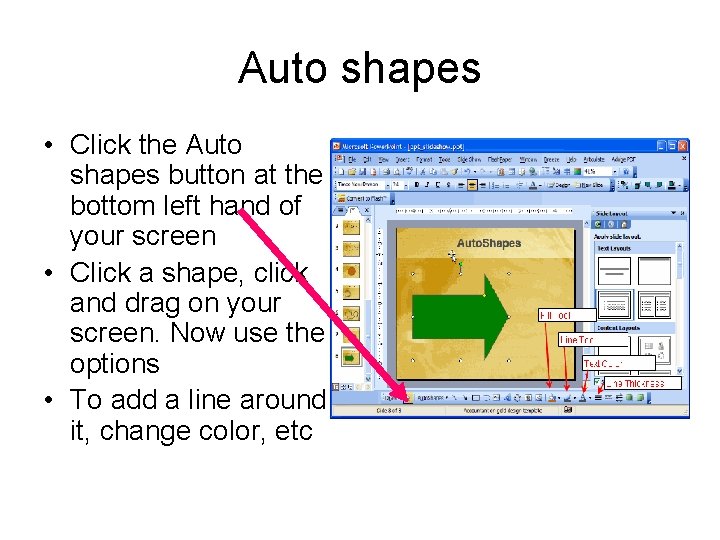
Auto shapes • Click the Auto shapes button at the bottom left hand of your screen • Click a shape, click and drag on your screen. Now use the options • To add a line around it, change color, etc
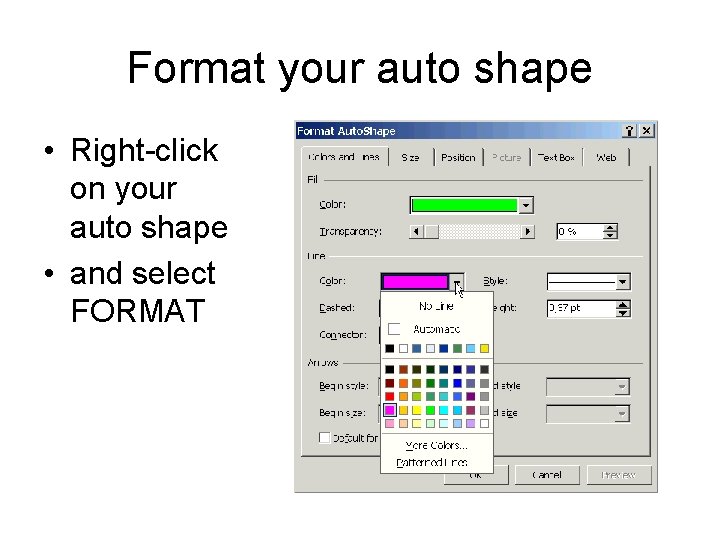
Format your auto shape • Right-click on your auto shape • and select FORMAT
Slide Transitions • This is what happens between slides. You select an effect. Right click on this slide and select Slide transitions, Experiment
Practice bullets Put bullets in this: Elmira is a city in Chemung County, New York, USA. It is the principal city of the 'Elmira, New York Metropolitan Statistical Area' which encompasses Chemung County, New York. The population was 30, 940 at the 2000 census. It is the county seat of Chemung County. The City of Elmira is located in the south-central part of the county, surrounded on three sides by the Town of Elmira. It is in the Southern Tier of New York a short distance north of the Pennsylvania state line.
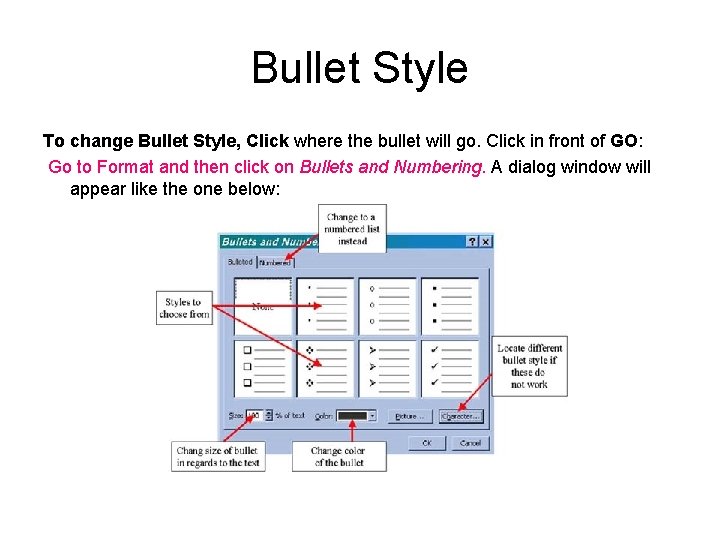
Bullet Style To change Bullet Style, Click where the bullet will go. Click in front of GO: Go to Format and then click on Bullets and Numbering. A dialog window will appear like the one below:
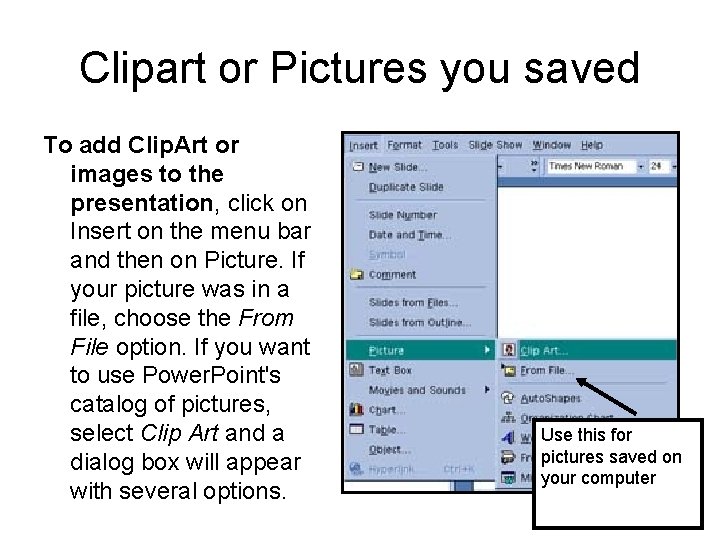
Clipart or Pictures you saved To add Clip. Art or images to the presentation, click on Insert on the menu bar and then on Picture. If your picture was in a file, choose the From File option. If you want to use Power. Point's catalog of pictures, select Clip Art and a dialog box will appear with several options. Use this for pictures saved on your computer
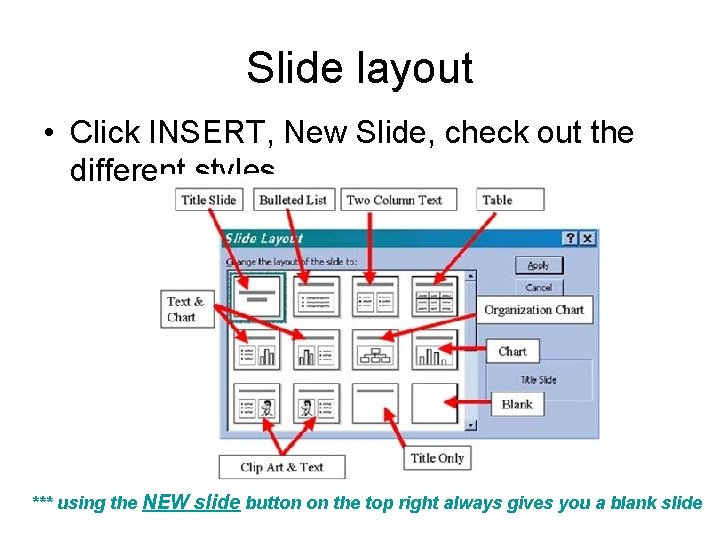
Slide layout • Click INSERT, New Slide, check out the different styles *** using the NEW slide button on the top right always gives you a blank slide
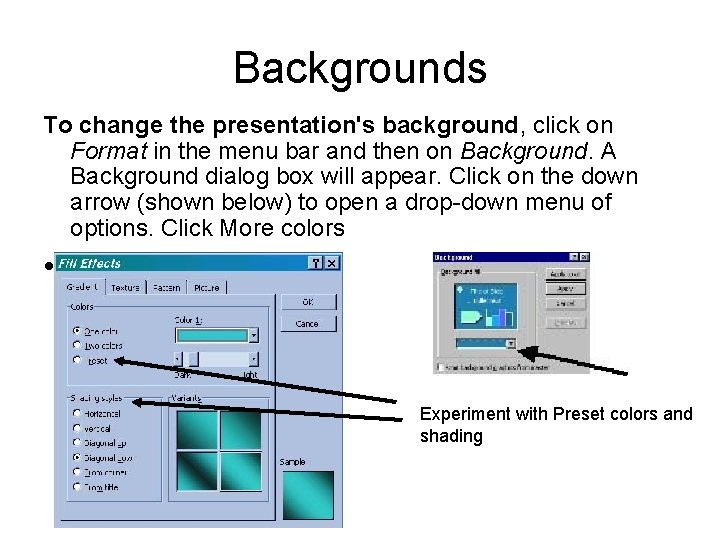
Backgrounds To change the presentation's background, click on Format in the menu bar and then on Background. A Background dialog box will appear. Click on the down arrow (shown below) to open a drop-down menu of options. Click More colors • Experiment with Preset colors and shading
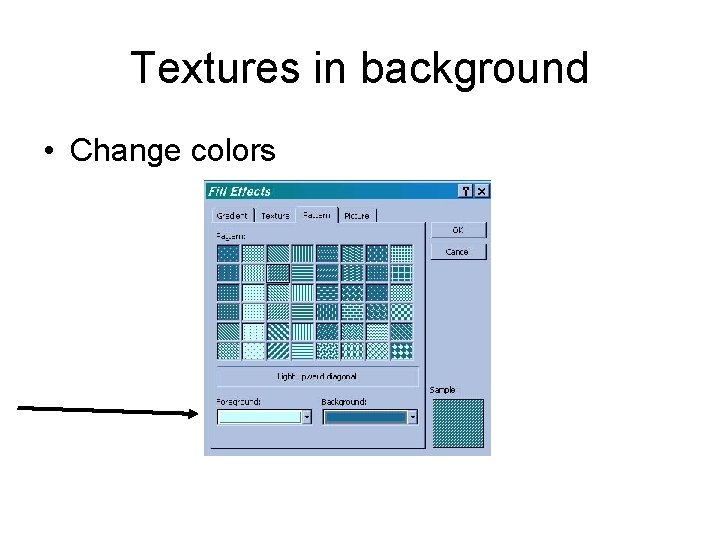
Textures in background • Change colors
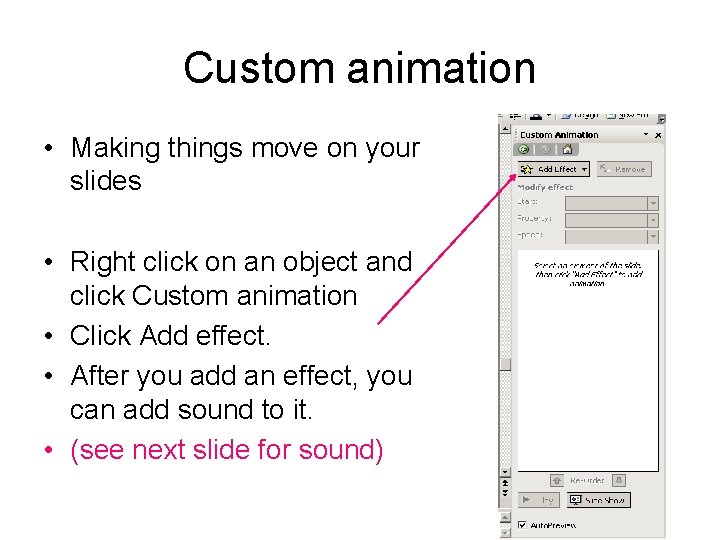
Custom animation • Making things move on your slides • Right click on an object and click Custom animation • Click Add effect. • After you add an effect, you can add sound to it. • (see next slide for sound)
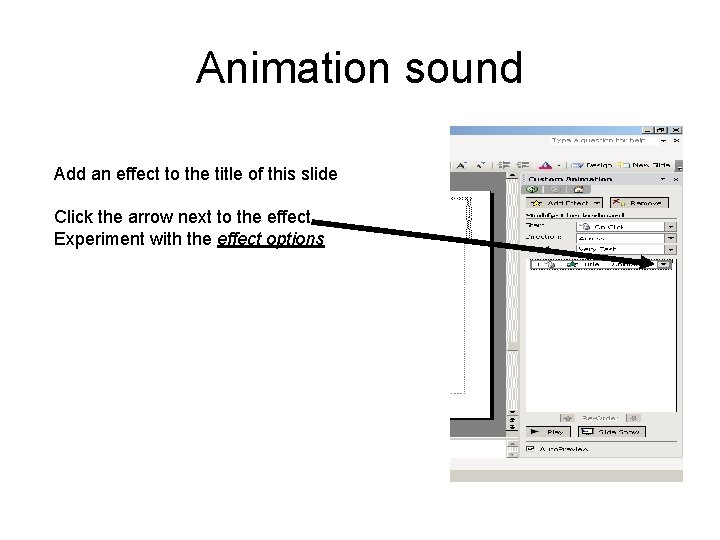
Animation sound Add an effect to the title of this slide Click the arrow next to the effect Experiment with the effect options
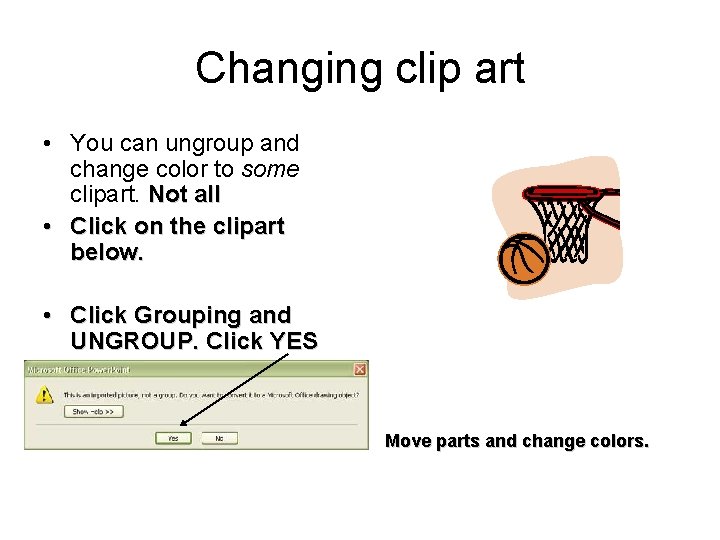
Changing clip art • You can ungroup and change color to some clipart. Not all • Click on the clipart below. • Click Grouping and UNGROUP. Click YES Move parts and change colors.
Making your Powerpoint run automatically • Click Slide show • Click Set up show
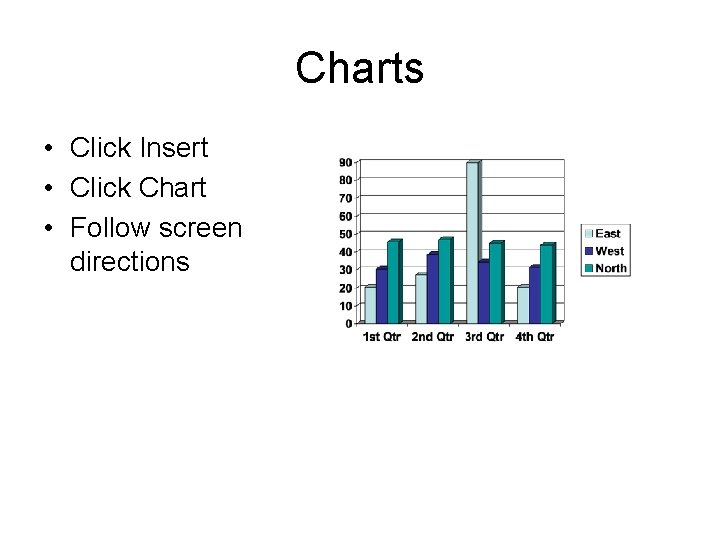
Charts • Click Insert • Click Chart • Follow screen directions
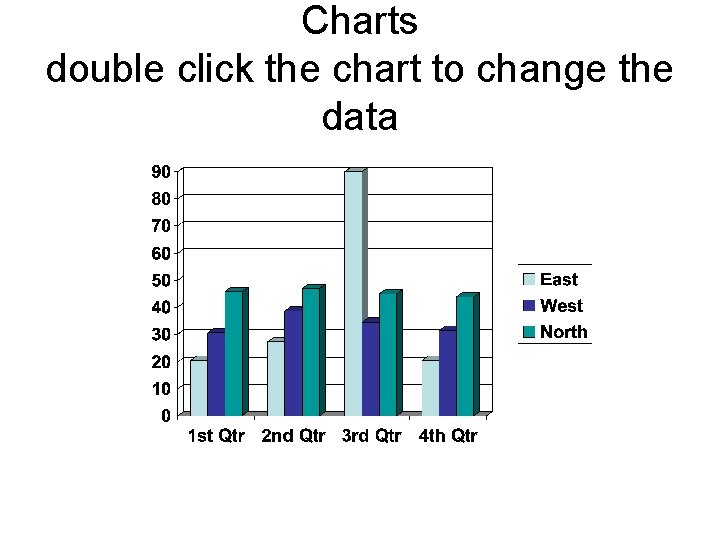
Charts double click the chart to change the data
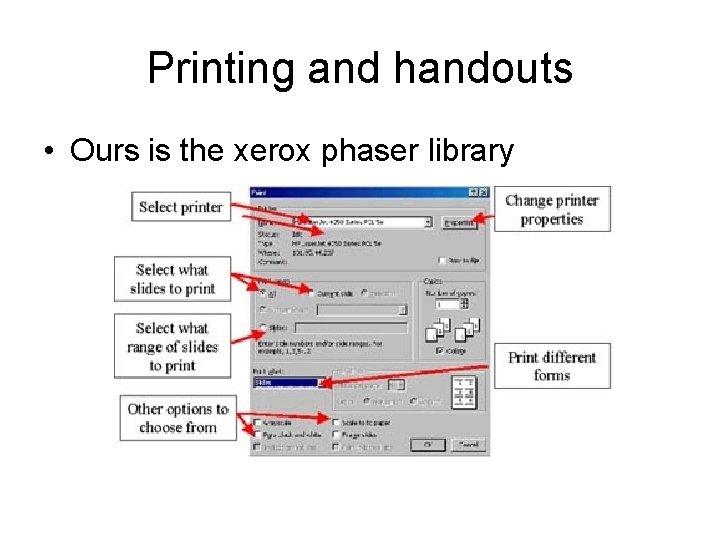
Printing and handouts • Ours is the xerox phaser library
narration • Recording your voice – You will need a microphone – Click slide show – Click narration • Follow screen directions • Talk slowly • Keep microphone under your mouse so you don’t get air noise
Playing a CD • Click INSERT • Movies and Sounds • Play CD audio • Sounds must enhance the topic of your powerpoint, don’t use them if they don’t relate to the topic
How NOT to use Power. Point Later in this Powerpoint you will learn how to add a movie to your Powerpoint
Find an appropriate You. Tube video • Put it on this slide. • You can use the handout.
Questions? • FIRST: Use the help and try to figure it out • Please ask Mrs. Eagen if you need help after using help.