
Save a copy Lesson 3 Exploring the toolbar
Save a copy Lesson 3: Exploring the toolbar Year 1 – Creating Media – Digital writing
Objectives Lesson 3: Exploring the toolbar Lesson objective: To identify that the look of text can be changed on a computer ● I can type capital letters ● I can explain what the keys that I have learnt about already do ● I can identify the toolbar and use bold, italic, and underline 2
Key vocabulary Lesson 3: Exploring the toolbar Key vocabulary ● Word processor ● Bold ● Keyboard ● Italic ● Keys ● Underline ● Capital letters ● Google Docs ● Toolbar ● Microsoft Word 3
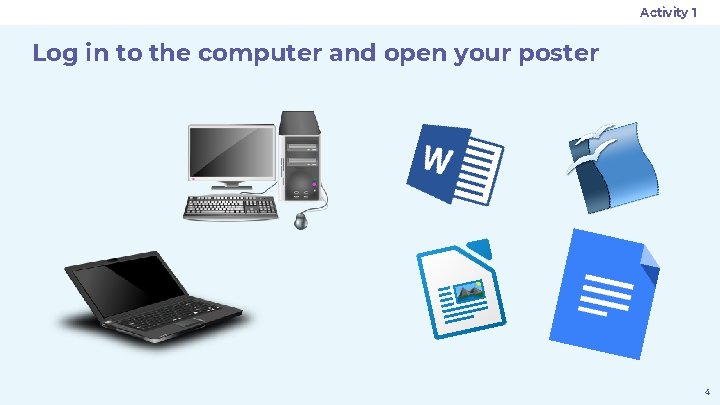
Activity 1 Log in to the computer and open your poster 4
Activity 2 Think, pair, share What do you need at the start of sentences? What do you need for names of people, places, and days of the week? 5
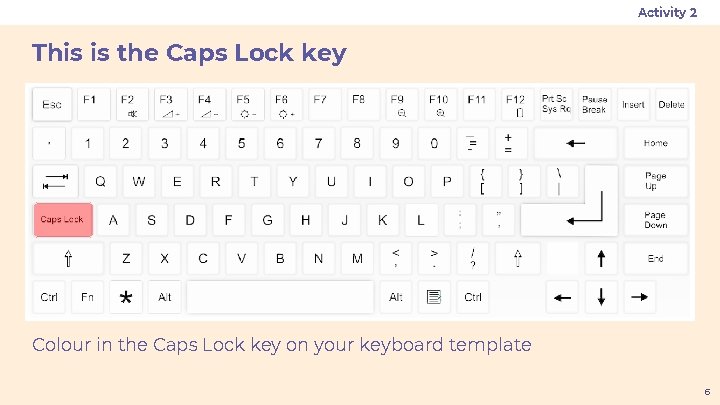
Activity 2 This is the Caps Lock key Colour in the Caps Lock key on your keyboard template 6
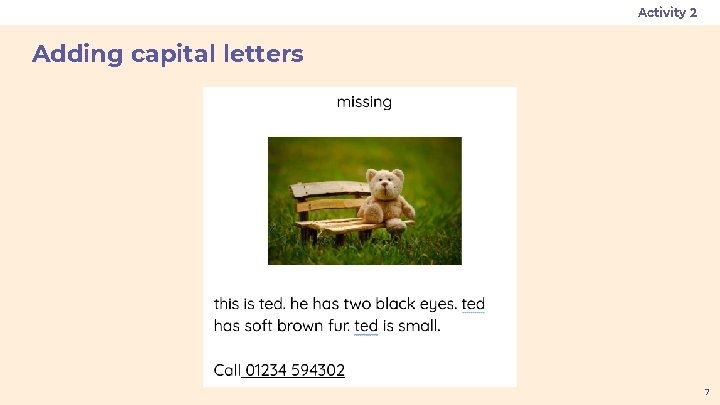
Activity 2 Adding capital letters 7
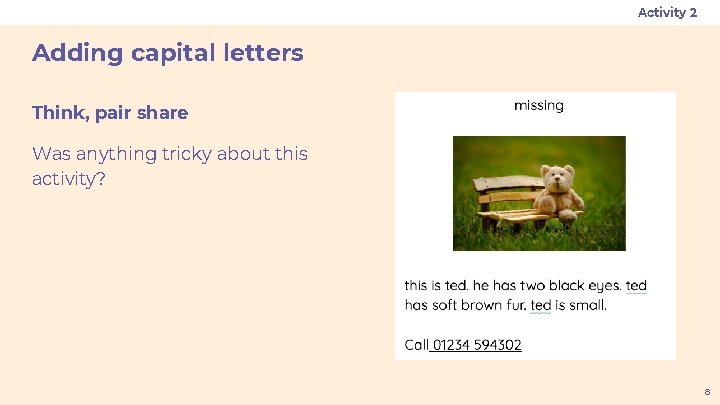
Activity 2 Adding capital letters Think, pair share Was anything tricky about this activity? 8
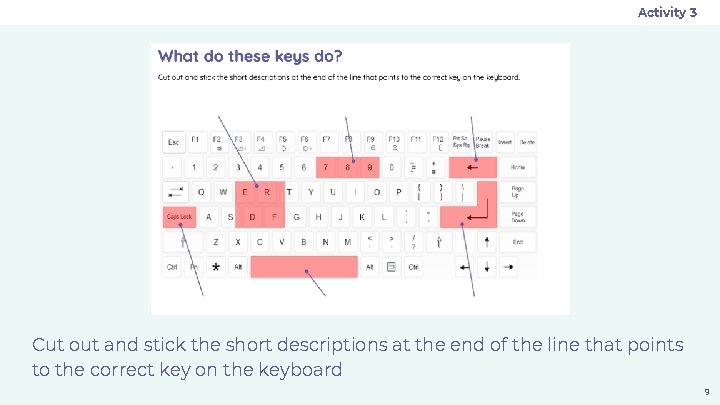
Activity 3 Cut out and stick the short descriptions at the end of the line that points to the correct key on the keyboard 9
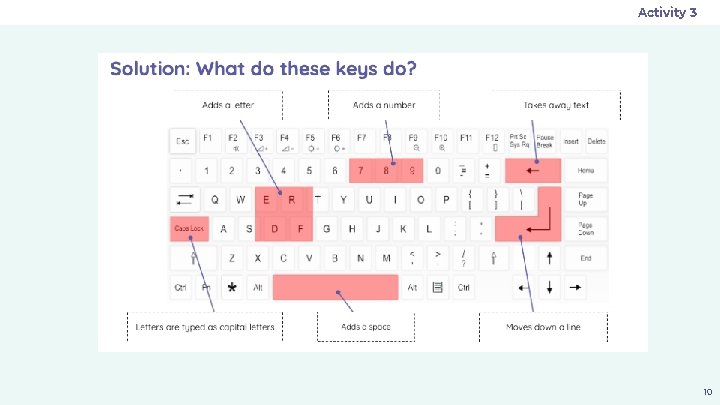
Activity 3 10
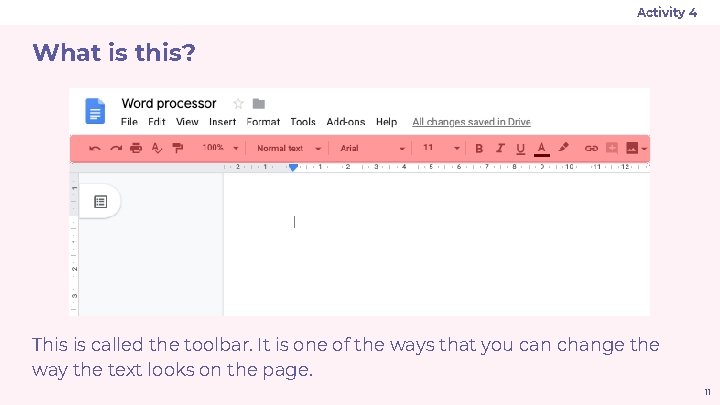
Activity 4 What is this? This is called the toolbar. It is one of the ways that you can change the way the text looks on the page. 11
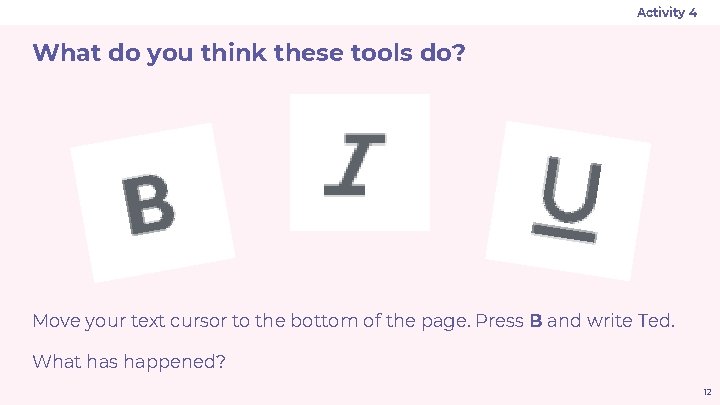
Activity 4 What do you think these tools do? Move your text cursor to the bottom of the page. Press B and write Ted. What has happened? 12
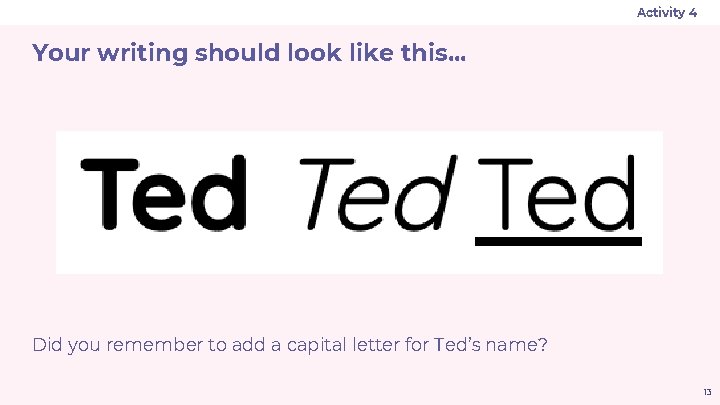
Activity 4 Your writing should look like this. . . Did you remember to add a capital letter for Ted’s name? 13
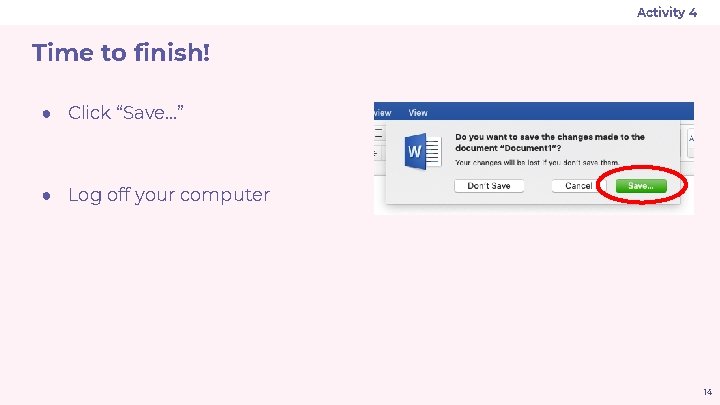
Activity 4 Time to finish! ● Click “Save…” ● Log off your computer 14
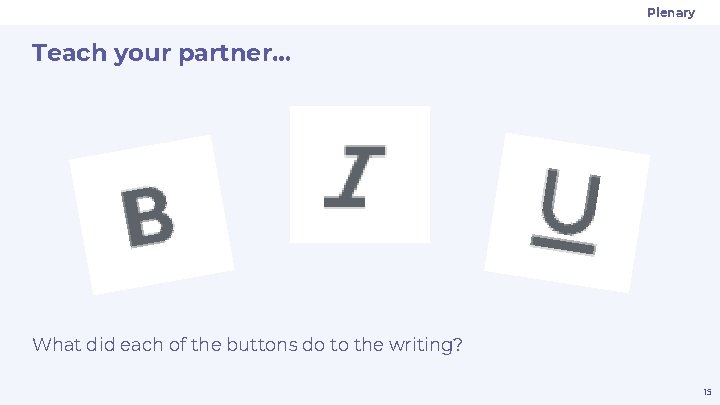
Plenary Teach your partner… What did each of the buttons do to the writing? 15
Assessment How confident are you? (1– 3) ● I can type capital letters ● I can explain what the keys that I have learnt about already do ● I can identify the toolbar and use bold, italic, and underline 3 - Very confident 2 - Unsure 1 - Not confident 16
Summary Next lesson In this lesson, you… Next lesson, you will… Added capital letters to text and looked back at some of the keys on the keyboard. You also looked at the toolbar and found out what some of the buttons do. Select writing to make it easier for you to change things more quickly, and look at different buttons on the toolbar to explore what they do to the writing. 17
- Slides: 17