
SAP 3 D Visual Enterprise Author 9 Frequently






- Slides: 26
SAP 3 D Visual Enterprise Author 9 Frequently Asked Questions Vladimir Noskov September, 2016 Customer
Agenda Installation and Configuration Functionality VDS v 4 Change Management Useful Links © 2016 SAP SE or an SAP affiliate company. All rights reserved. Customer 2
Installation and Configuration
What is the recommended system configuration? The recommended configuration for SAP 3 D Visual Enterprise Author is the following: ● 64 -bit multi-core Intel® Core i-7 ® processor ● 16 GB or higher of RAM ● Video card with the following: – 24 -bit color with pixel and 3 D vertex shader support – 3 D hardware accelerator video card, capable of displaying 24 -bit color and supporting Shader Model 3. 0 with at least 512 MB of RAM supporting Shader Model 3. 0 ● 64 bit Operating System © 2016 SAP SE or an SAP affiliate company. All rights reserved. Customer 4
How do I upgrade SAP 3 D Visual Enterprise Author from 8 to 9? Installation of SAP 3 D Visual Enterprise Author 9 will not uninstall previous versions. These must be uninstalled manually if they are not required. When you open SAP 3 D Visual Enterprise Author 9 for the first time, the user interface settings and licensing information will be automatically copied from SAP 3 D Visual Enterprise Author 8 if found. © 2016 SAP SE or an SAP affiliate company. All rights reserved. Customer 5
Does the installer support silent installation? Run the installer with special arguments: ● /Silent: Runs in completely silent mode, nothing is visible ● /no. DLG: Only progress page is displayed © 2016 SAP SE or an SAP affiliate company. All rights reserved. Customer 6
How do I activate SAP 3 D Visual Enterprise Author 9? SAP software and licenses are delivered via the SAP Service Marketplace (SMP) – http: //www. service. sap. com If you have purchased SAP software, one or more people in your organization are set up as users on SMP. If you purchased through a partner, that partner can obtain your licenses for you. The licenses are available through a “license self-service” page on the portal http: //service. sap. com/licensekeys You or your system administrator must log into the SMP to get license keys in some situations. © 2016 SAP SE or an SAP affiliate company. All rights reserved. Customer 7
Is there a network license option available? Yes - Network licensing is available for SAP 3 D Visual Enterprise Author using the RLM - Reprise Network Licencing Manager. This is available free from the SAP Store as part of SAP 3 D Visual Enterprise, third party plug-ins 2. 0 SP 01 For installation instructions, see Section 3. 2. 3 of the SAP 3 D Visual Enterprise Author Administration Guide. © 2016 SAP SE or an SAP affiliate company. All rights reserved. Customer 8
Functionality
Where do I find a list of new functionality in SAP 3 D Visual Enterprise Author 9? You will find this in the “SAP 3 D Visual Enterprise Author 9. 0 Overview” document on SCN: https: //wiki. scn. sap. com/wiki/display/SVE/SAP+3 D+Visual+Enterprise+Author+9. 0 © 2016 SAP SE or an SAP affiliate company. All rights reserved. Customer 10
I cannot find the tool that I used to work with in Version 8 SAP 3 D Visual Enterprise Author version 9 introduces the foundations of Simplified Authoring - a set of tools and features designed to address all the core requirements of Authoring Visual Work Instructions and technical illustrations with reduced complexity. This supports simplified cross-platform authoring. All tools and features in the Standard layout will work with all viewers, on all platforms, and the authoring will be change-manageable upon changes in CAD. The default layout in SAP 3 D Visual Enterprise Author 9 is “Standard (VDS)”. The alternative is “Legacy (RH)”, which provides all the authoring tools and features of VEA 8. For full information, read the document „VDS format support: Standard and Legacy Layouts” https: //wiki. scn. sap. com/wiki/display/SVE/SAP+3 D+Visual+Enterprise+Author+9. 0 Please provide us with feedback: Are there items of functionality you believe need to be included in the Standard (VDS) layout, and why? With what priority – which workflows are affected and how many customers/users? © 2016 SAP SE or an SAP affiliate company. All rights reserved. Customer 11
I have many RH files, should I convert them to VDS? You can continue working with existing RH files in Legacy (RH) layout if your workflow does not require viewing on Mobile or HTML viewers. If you are planning the delivery of viewables to Mobile or HTML viewers, you should switch to Standard (VDS) layout and convert RH files to VDS. You can convert on an on-demand basis, or by using SAP 3 D Visual Enterprise Author batch convert functionality. Note: RH files does not support the unique identifiers required for the Authoring Change Management workflow. To enable the Authoring Change Management workflow, you must convert original CAD models to VDS. © 2016 SAP SE or an SAP affiliate company. All rights reserved. Customer 12
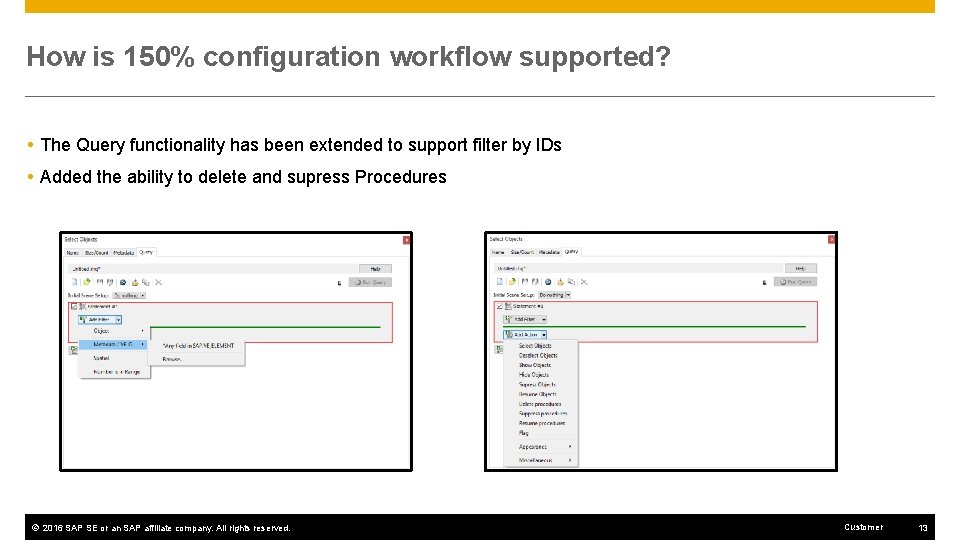
How is 150% configuration workflow supported? The Query functionality has been extended to support filter by IDs Added the ability to delete and supress Procedures © 2016 SAP SE or an SAP affiliate company. All rights reserved. Customer 13
VDS v 4
Why is VDS the main file format in Version 9? The main goal of the Visual Enterprise 9. 0 platform is to support omni-channel authoring, with one file format that supports change management and rapid change propagation. When designing these features, it became apparent that we need a file format capable of storing authoring data separately from original data, and in a way suitable for easy consumption, data updates, and future improvements. As existing file formats did not support such features, this was not possible without designing and introducing a new file format. Although designed and built from scratch, the VDS 4 file format can still be seen as a natural evolution of the existing VDS 3 which is already adopted on Visual Enterprise mobile platforms as the only supported visualization file format. Backed by a powerful API designed for easy utilization of new features by third party developers, the VDS 4 file format becomes a main strategic vehicle for future development of Visual Enterprise products. © 2016 SAP SE or an SAP affiliate company. All rights reserved. Customer 15
What is VDS shattered? VDS shattered means that each part and assembly is stored as a separate file that is combined dynamically at viewing time. Assemblies and sub-assemblies reference other files that contain the geometry rather than storing an own copy. For minor changes, you can visualize the change without the need to reprocess an entire assembly. This works by performing a BOM explosion to select the files that make up the entire scene and constructing the viewable at runtime. © 2016 SAP SE or an SAP affiliate company. All rights reserved. Customer 16
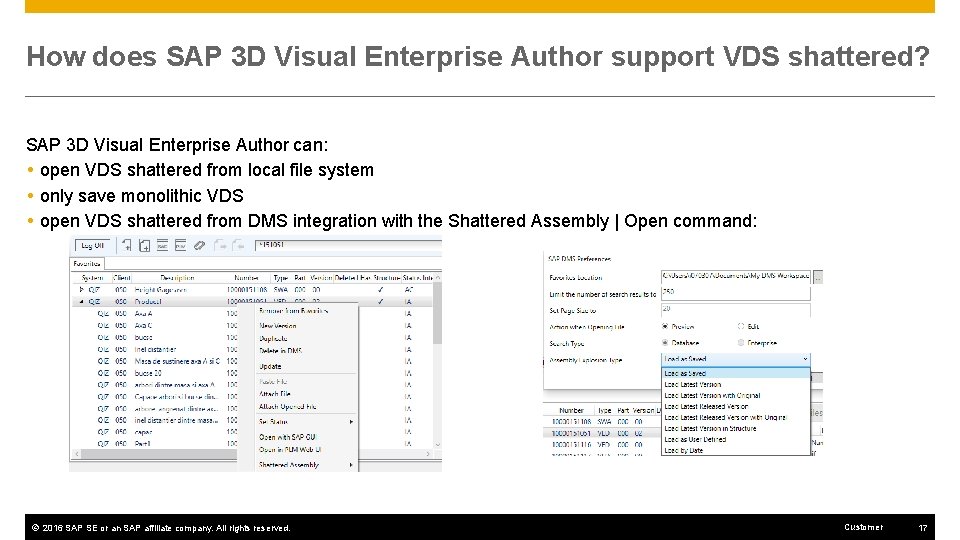
How does SAP 3 D Visual Enterprise Author support VDS shattered? SAP 3 D Visual Enterprise Author can: open VDS shattered from local file system only save monolithic VDS open VDS shattered from DMS integration with the Shattered Assembly | Open command: © 2016 SAP SE or an SAP affiliate company. All rights reserved. Customer 17
How does VDS localization work? The SAP 3 D Visual Enterprise 9. 0 platform provides format support for multiple languages without the requirement to manage multiple copies of the authored content. This is achieved with a localization utility Vds. Localiser. exe provided with SAP 3 D Visual Enterprise Author 9 and SAP 3 D Visual Enterprise Generator 9. The utility exports strings to an Xliff file. This is a standard XML file format widely used for localization of software, and is also used widely within SAP for localization. After translation, this same utility allows you to import localized strings back to the VDS file. When a user loads a file for viewing into a Visual Enterprise product, the locale in which the current application is running determines which strings are displayed in the user interface. For full information, read the document „Localization of Authored Content” https: //wiki. scn. sap. com/wiki/display/SVE/SAP+3 D+Visual+Enterprise+Author+9. 0 © 2016 SAP SE or an SAP affiliate company. All rights reserved. Customer 18
Change Management
How is the new Change Management different from version 8? Version 8. Authoring Change Management is based on Part Names. Parts are matched based on their names in the scene tree. This strategy can be unreliable because names could change either in file with authored content or in the new version of CAD master data. In addition, there is a problem with the detection of structural changes such as: deleted, added parts or collapsed sub-assemblies, and parts relocated to a new place in the scene hierarchy. Without reference, SAP 3 D Visual Enterprise Author cannot determine whether it was author intent or a change in CAD master data. Version 9. Authoring Change Management is based on Persistent Identifiers and the new VDS data model. Each component has its own Persistent Identifier which is read from CAD master data or generated for user-created content. Internally authoring is connected to the original (CAD) data using identifiers and is stored in the form of a replay able modifier. When CAD master data is updated, Persistent Identifiers allow SAP 3 D Visual Enterprise Author to automatically match components and re-attach authoring to the new version. Note: Version 8 Change Management Workflow is still available in Legacy (RH) layout © 2016 SAP SE or an SAP affiliate company. All rights reserved. Customer 20
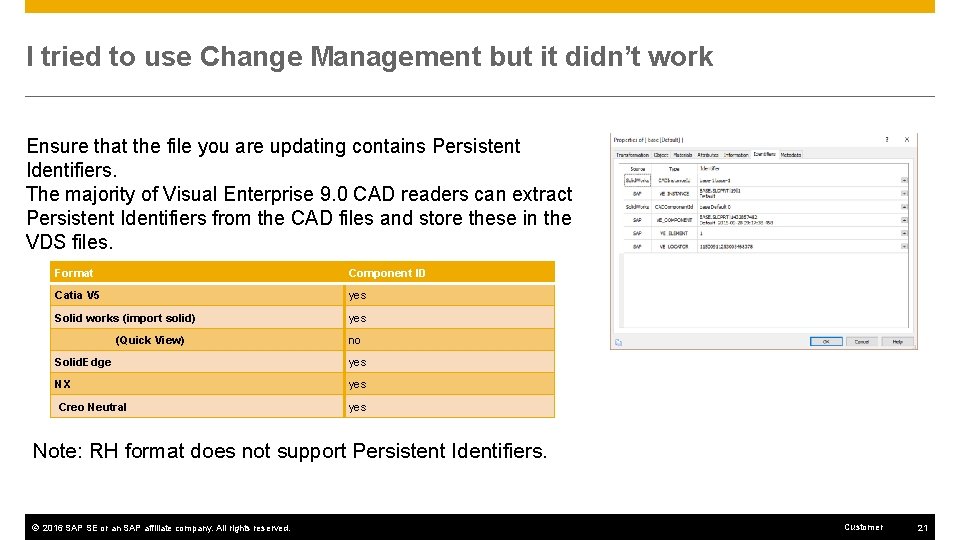
I tried to use Change Management but it didn’t work Ensure that the file you are updating contains Persistent Identifiers. The majority of Visual Enterprise 9. 0 CAD readers can extract Persistent Identifiers from the CAD files and store these in the VDS files. Format Component ID Catia V 5 yes Solid works (import solid) yes (Quick View) no Solid. Edge yes NX yes Creo Neutral yes Note: RH format does not support Persistent Identifiers. © 2016 SAP SE or an SAP affiliate company. All rights reserved. Customer 21
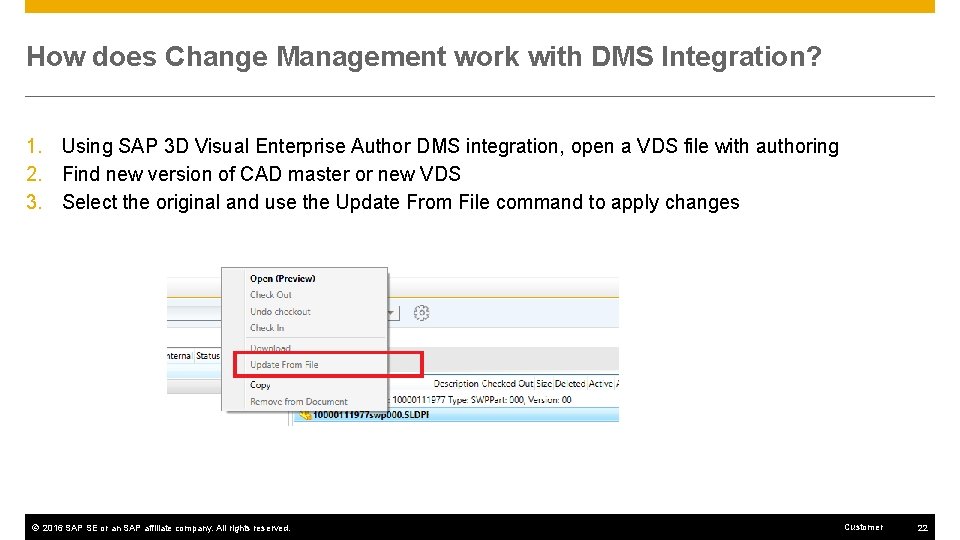
How does Change Management work with DMS Integration? 1. Using SAP 3 D Visual Enterprise Author DMS integration, open a VDS file with authoring 2. Find new version of CAD master or new VDS 3. Select the original and use the Update From File command to apply changes © 2016 SAP SE or an SAP affiliate company. All rights reserved. Customer 22
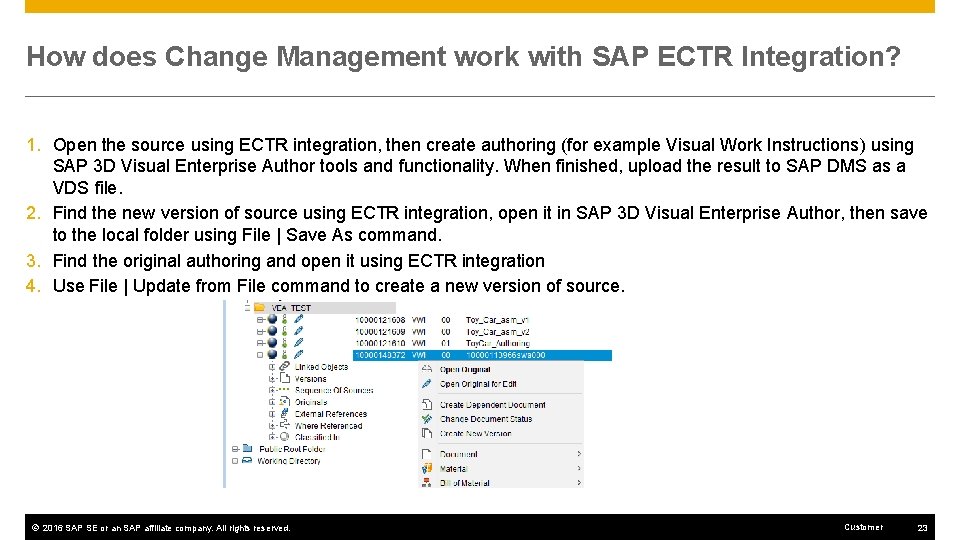
How does Change Management work with SAP ECTR Integration? 1. Open the source using ECTR integration, then create authoring (for example Visual Work Instructions) using SAP 3 D Visual Enterprise Author tools and functionality. When finished, upload the result to SAP DMS as a VDS file. 2. Find the new version of source using ECTR integration, open it in SAP 3 D Visual Enterprise Author, then save to the local folder using File | Save As command. 3. Find the original authoring and open it using ECTR integration 4. Use File | Update from File command to create a new version of source. © 2016 SAP SE or an SAP affiliate company. All rights reserved. Customer 23
Useful Links
Useful links Administration Guide: https: //websmp 210. sap-ag. de/~sapidb/012002523100009761172016 E/VEA_Admin_Guide_9. pdf User Guides: https: //wiki. scn. sap. com/wiki/display/SVE/SAP+3 D+Visual+Enterprise+Author+9. 0 More documents on SAP 3 D Visual Enterprise 9. 0 SAP Jam website https: //jam 4. sapjam. com/groups/about_page/s 8 v. Mz. Wna. TUh. Ojw. CDp. Loa. OX © 2016 SAP SE or an SAP affiliate company. All rights reserved. Customer 25
Thank you