
Safety Beyond Compliance 1 Wellnomics Risk Management Screen
“Safety Beyond Compliance” 1
Wellnomics Risk Management Screen Shots } This presentation contains screens shots of the Wellnomics Risk Management System and is intended as a precursor to a live demonstration. } The slides are not exhaustive and only represent the concept and not the full system content. } Contact Balanced Ergonomics for more details. 02 94522444 or email info@balancedergonomics. com www. balancedergonomics. com
How it Works 3
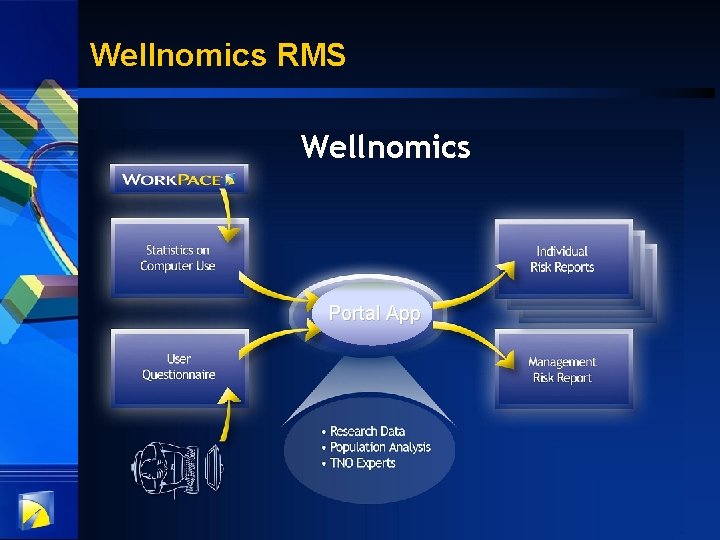
Wellnomics RMS Wellnomics Portal App 4
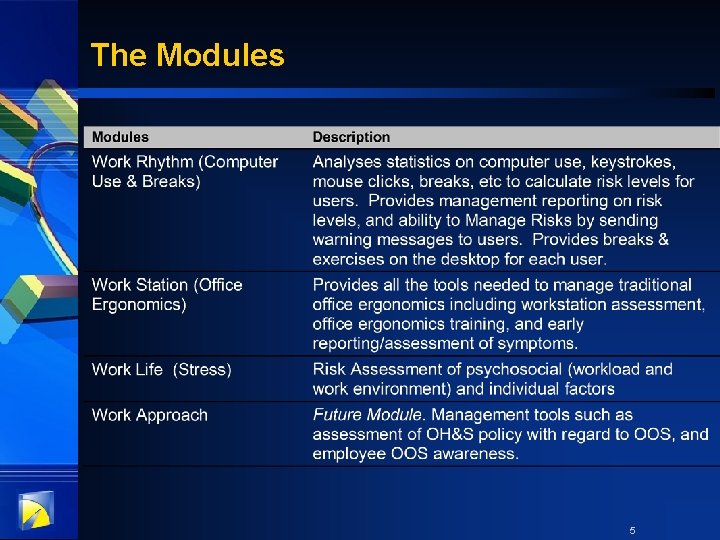
The Modules 5
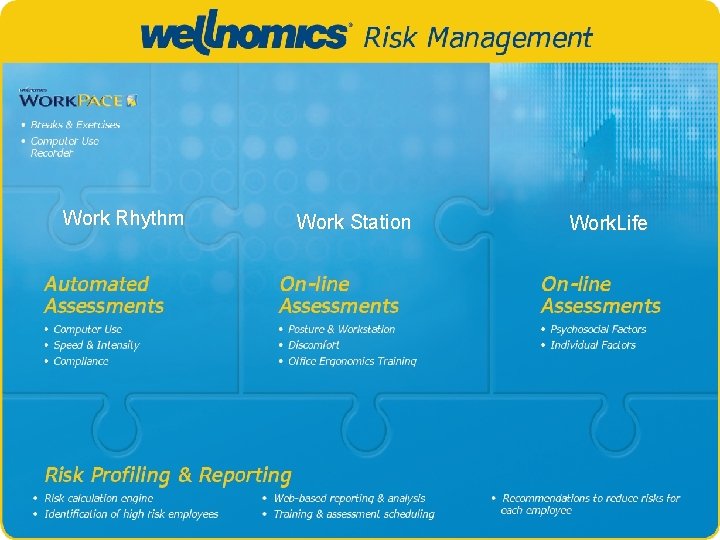
Work Rhythm Work Station Work. Life 6
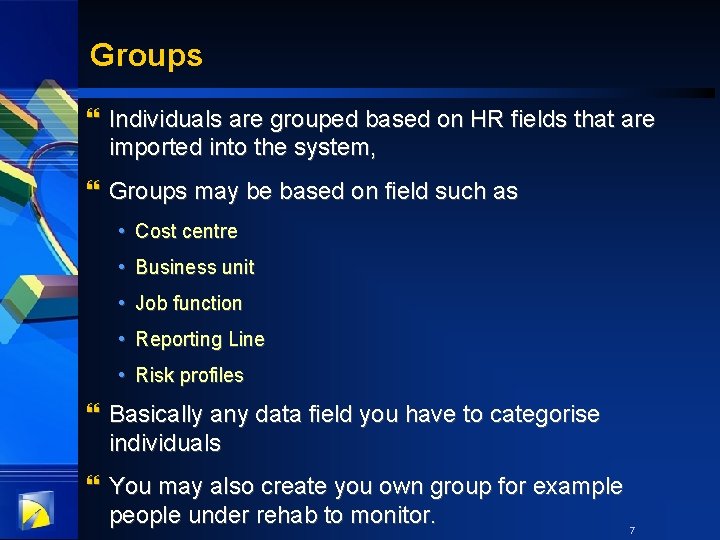
Groups } Individuals are grouped based on HR fields that are imported into the system, } Groups may be based on field such as • Cost centre • Business unit • Job function • Reporting Line • Risk profiles } Basically any data field you have to categorise individuals } You may also create you own group for example people under rehab to monitor. 7
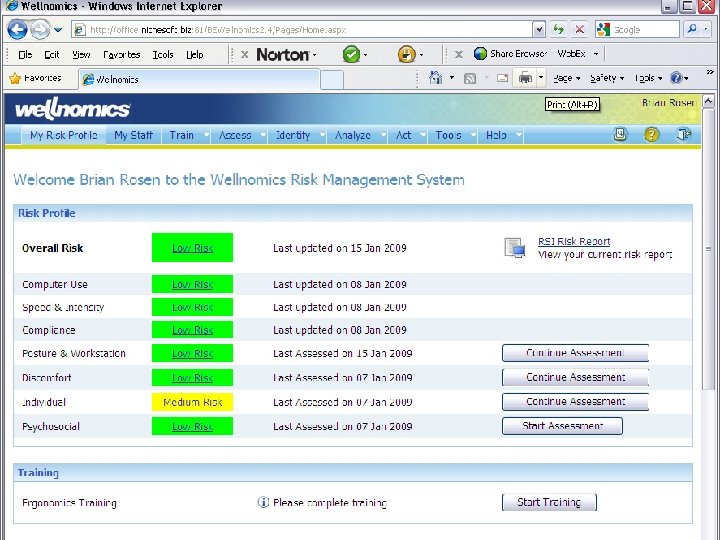
User Login } The following screen represents the administrators/managers view when they first log in. It shows their owe risk profile and assessment status.
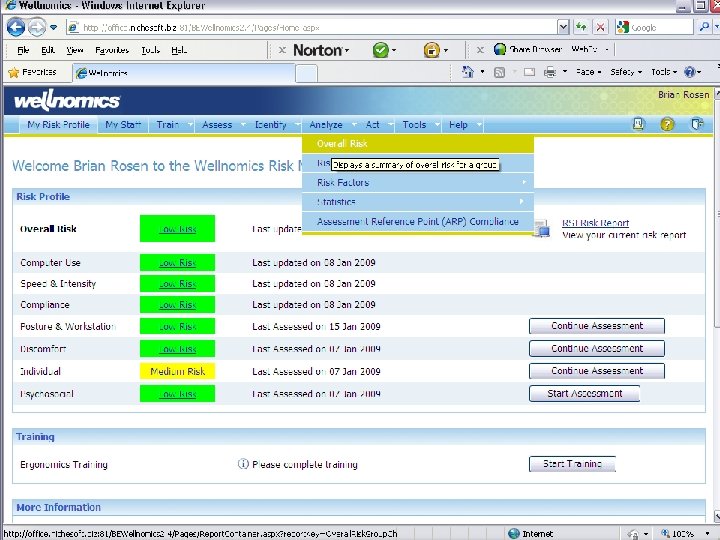
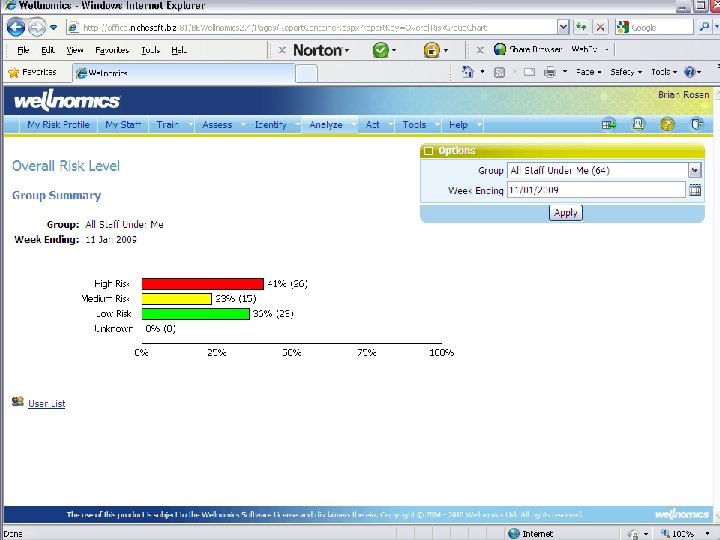
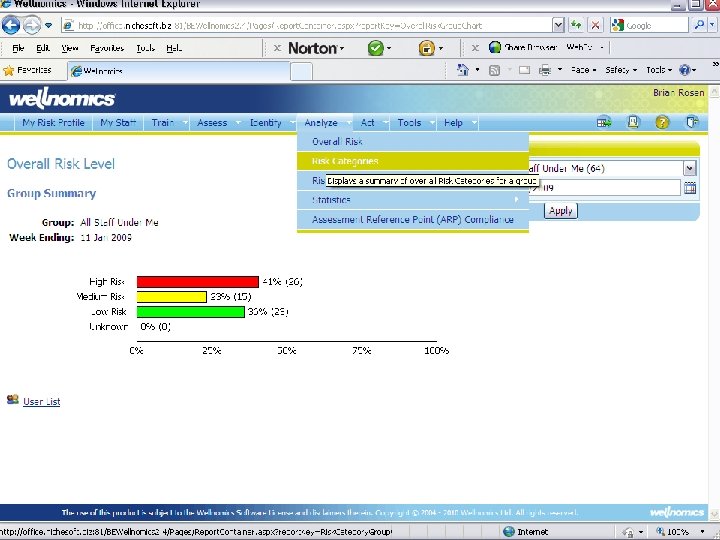
Overall risk } The next slide shows the summary risk for all the people under this manager. Could also be the risk for the whole organisation if you are in OH&S etc.
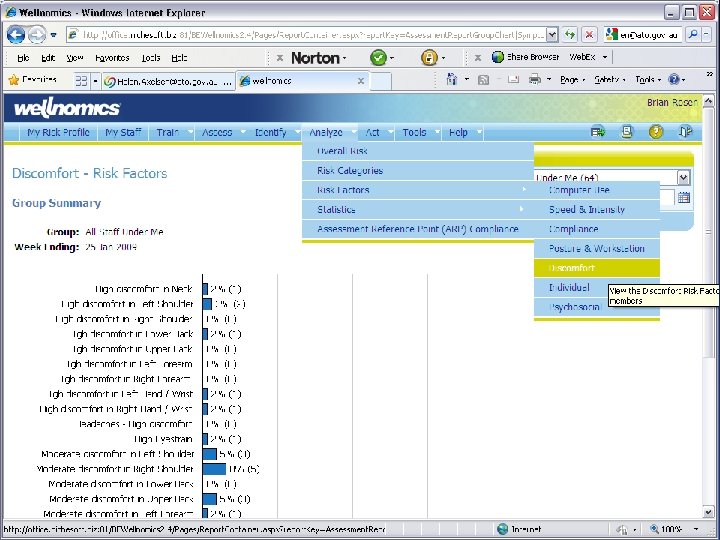
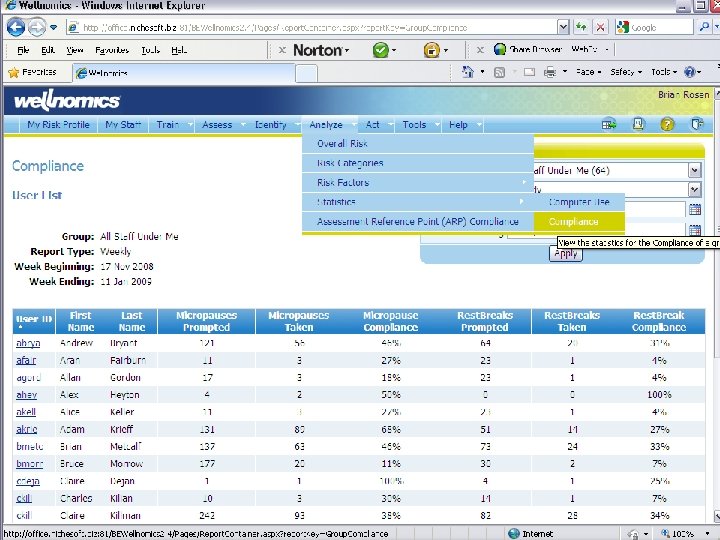
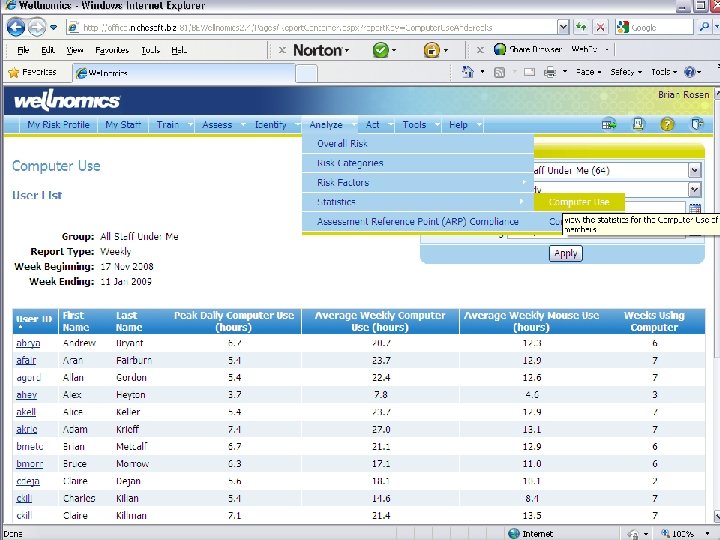
Risk Categories } The next few slides break the risks down into categories. 13
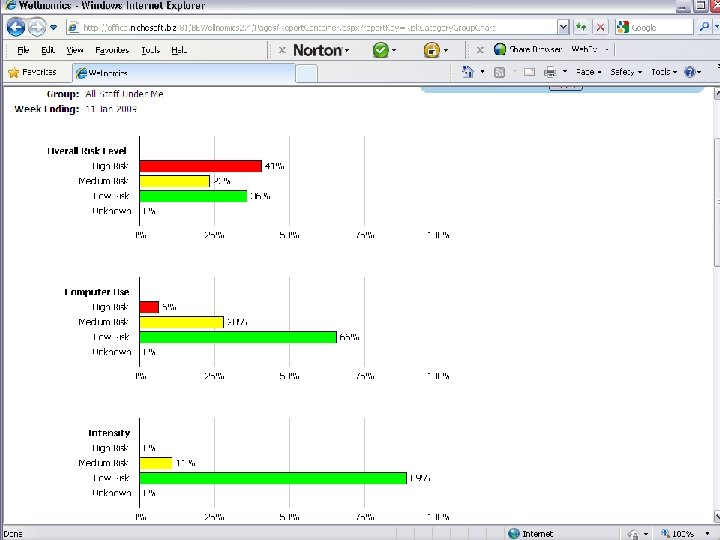
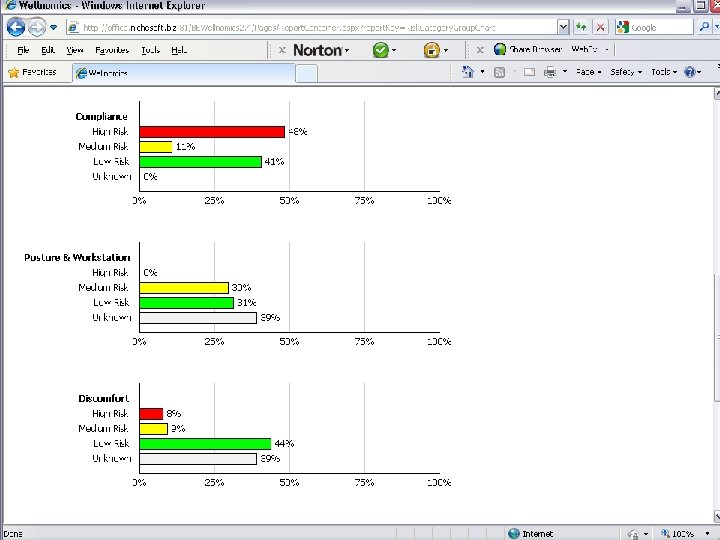
} We can choose to analyse each risk category 17
18
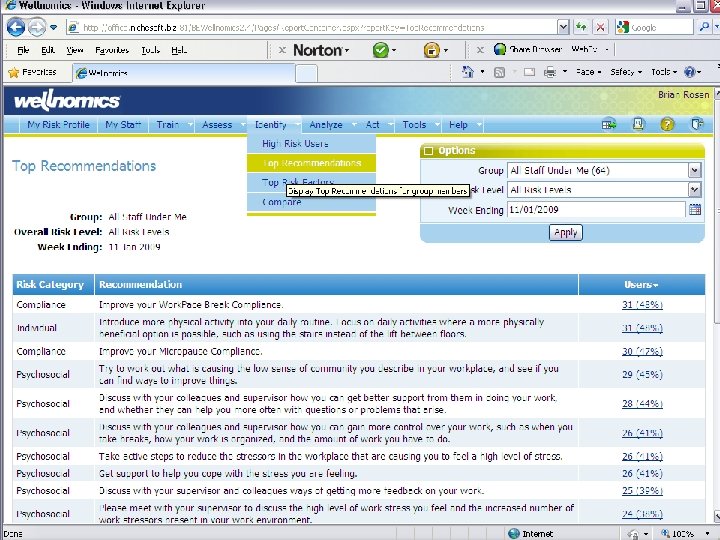
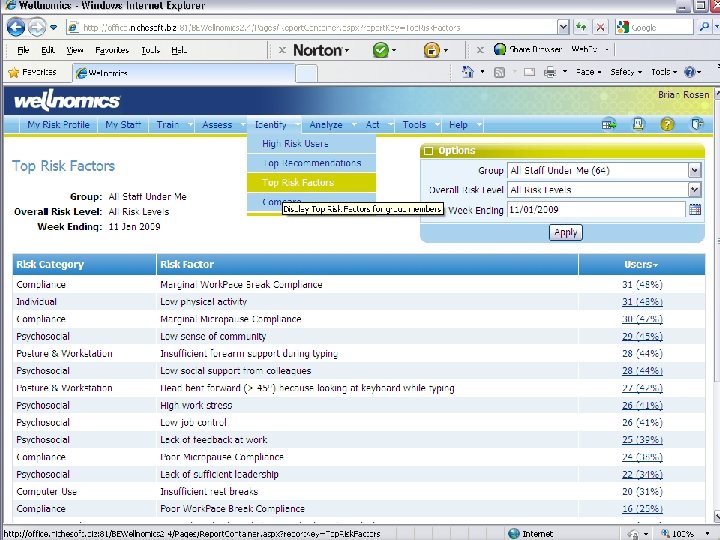
Snap shot of common risks } You may display the common risks and recommendations that exist in the group being analysed. 21
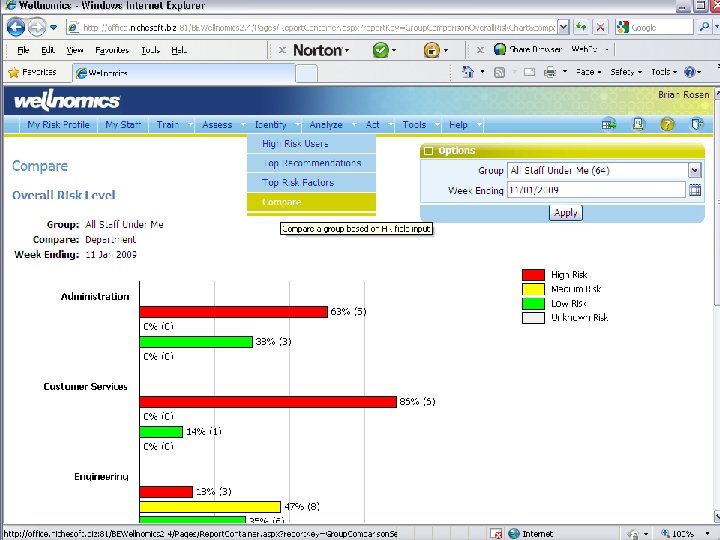
Compare groups } You can compare different groups. 24
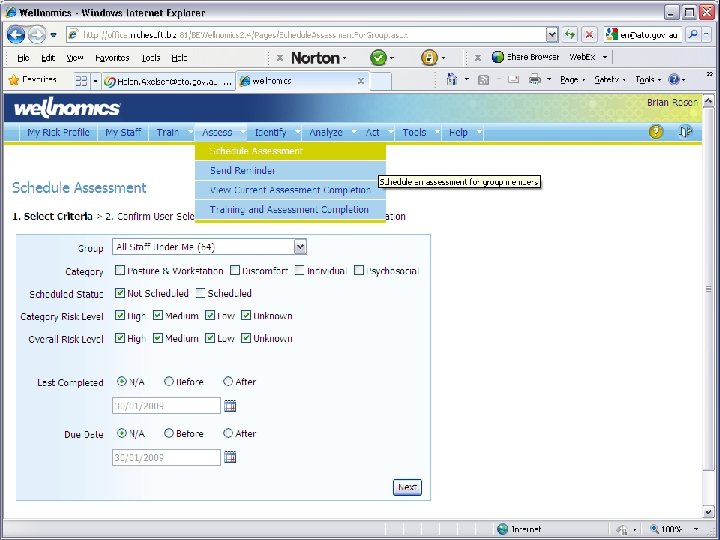
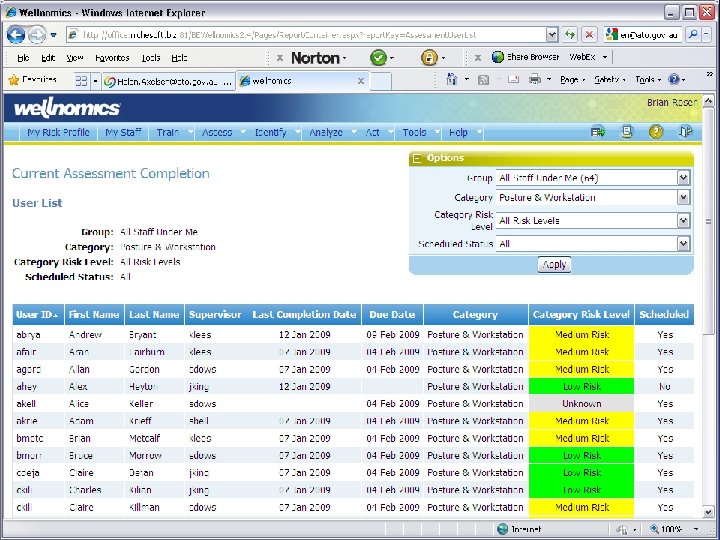
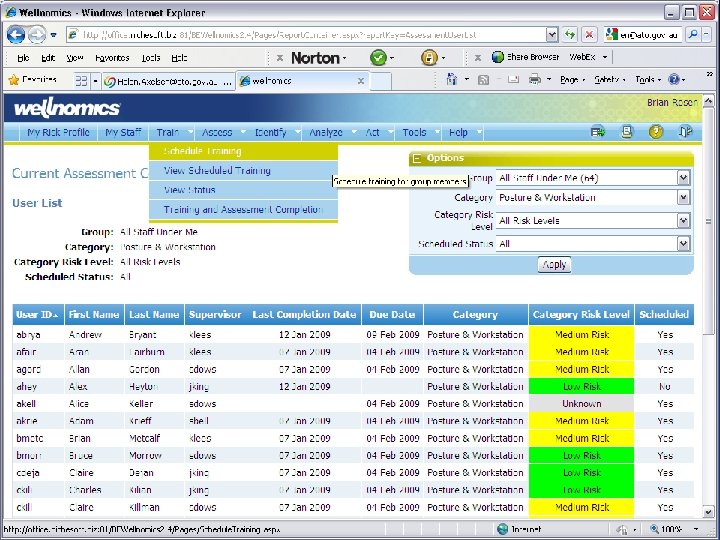
Assessments } You may schedule assessments and training for individuals. People with different risk profiles etc.
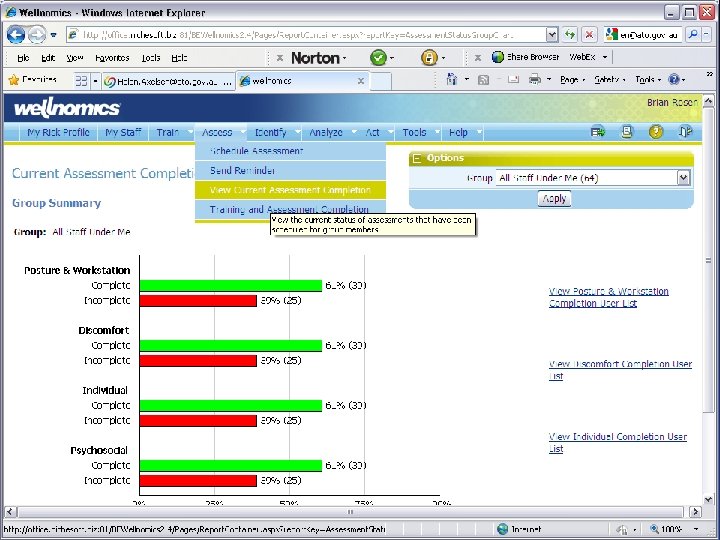
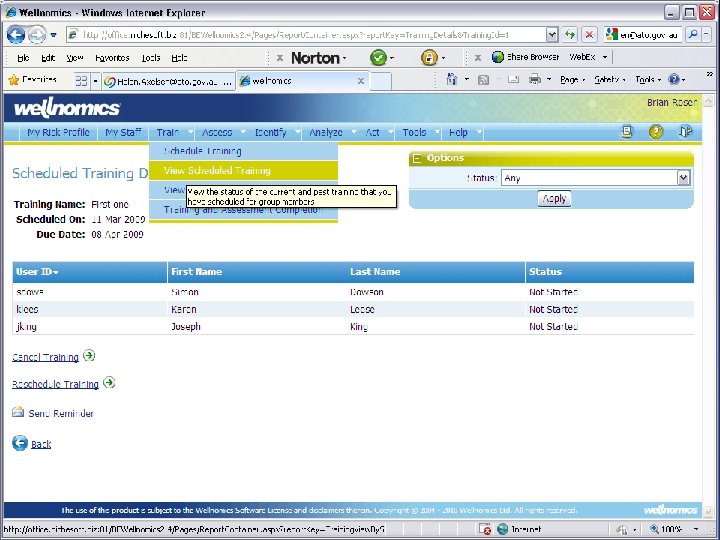
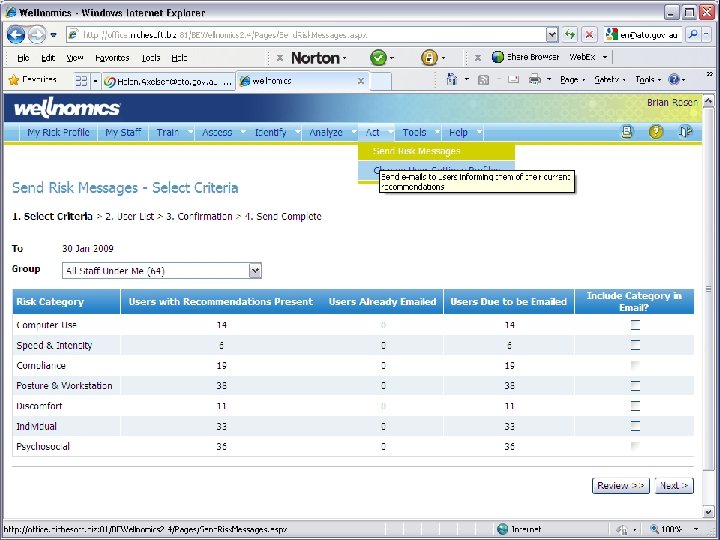
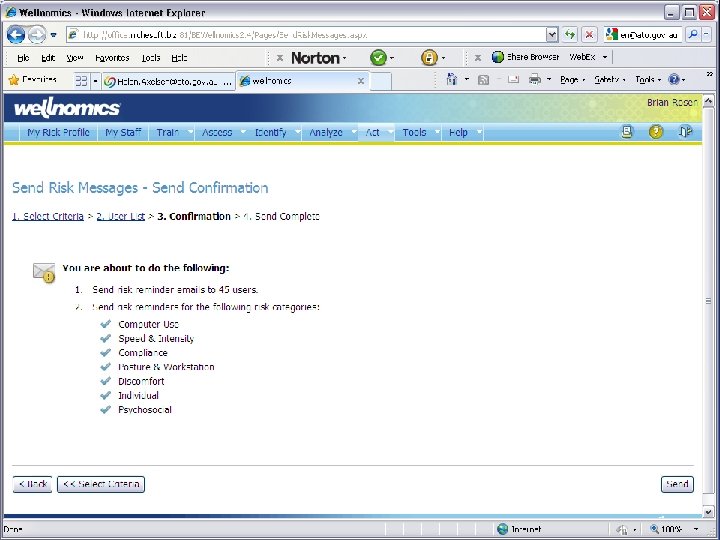
Managing assessments and follow ups. } You can send out automated messages to get users to complete or follow up on their assessments. 32
34
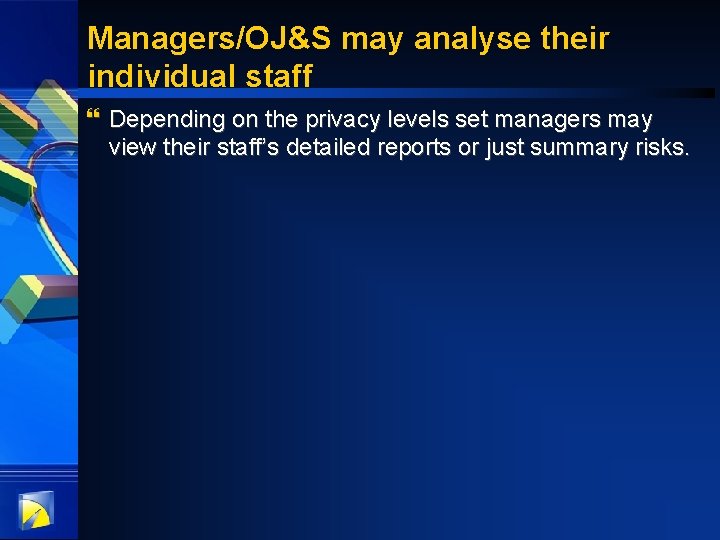
Managers/OJ&S may analyse their individual staff } Depending on the privacy levels set managers may view their staff’s detailed reports or just summary risks.
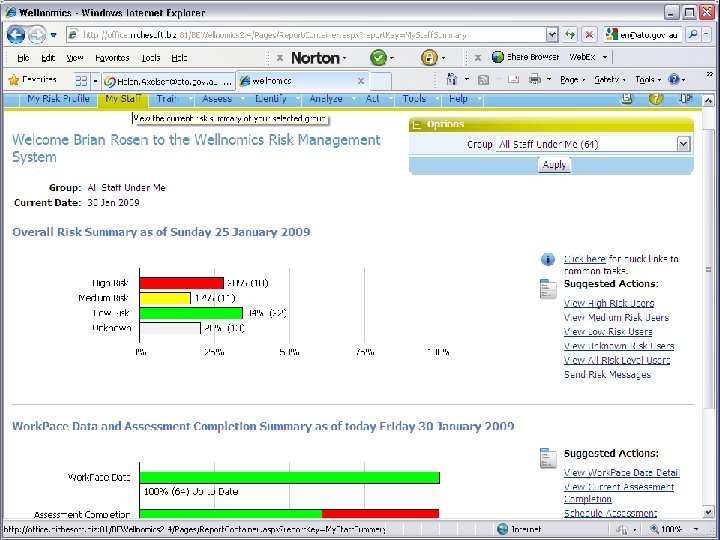
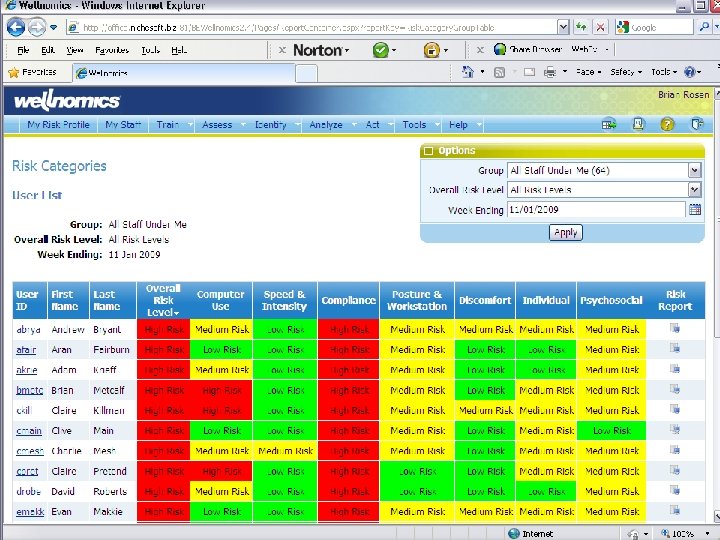
Detailed staff risk profiles } By clicking on one of the suggested action the manager/OH&S staff member may view a break down of category risks and reports. 37
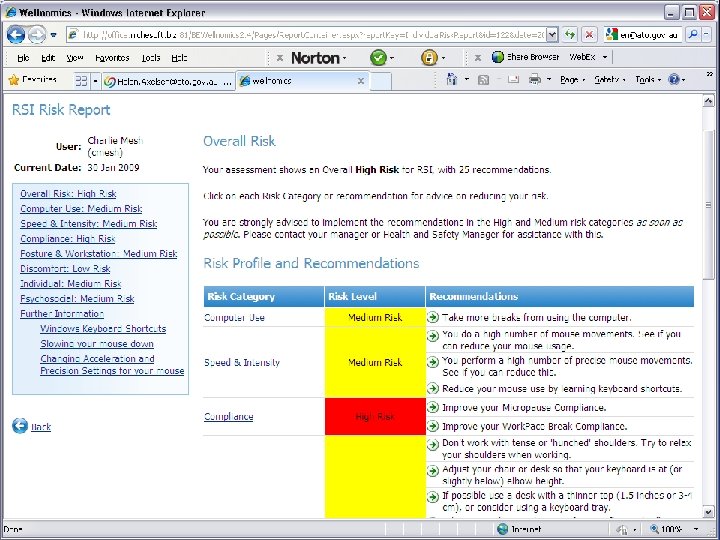
Individual risk reports } From many different hyperlinks throughout the console you may view an individuals risk report by clicking on the risk report icon. 39
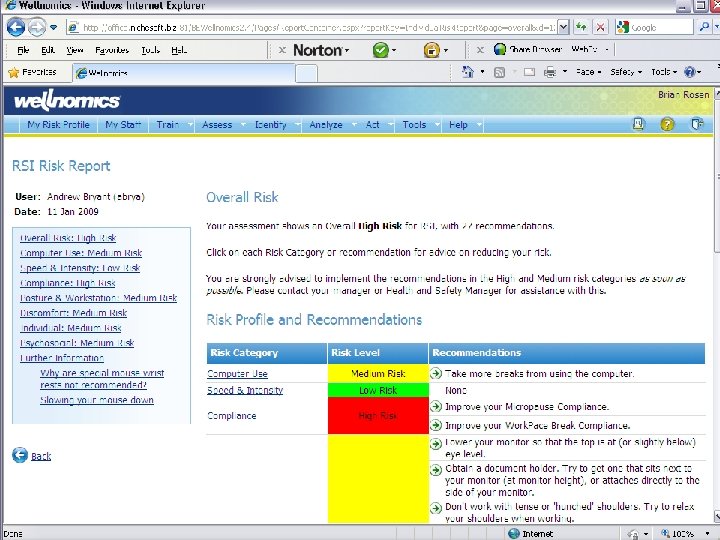
} See sample risk Report
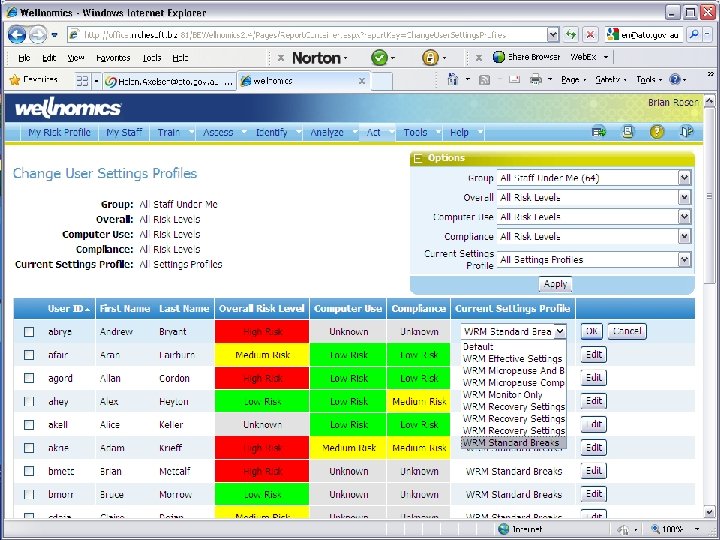
Work. Pace settings } Users may have their Work. Pace breaks remotely set if desired. This is useful for example when a user moves into a call centre environment they may require different settings. Or is on a return to work or rehab program.
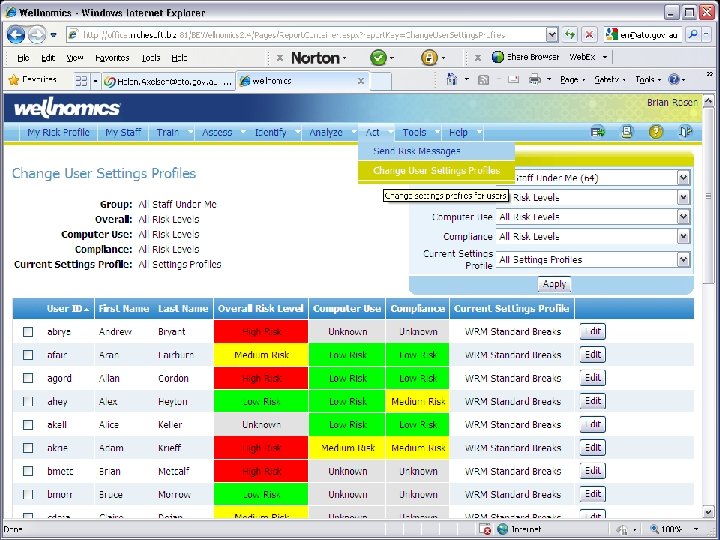
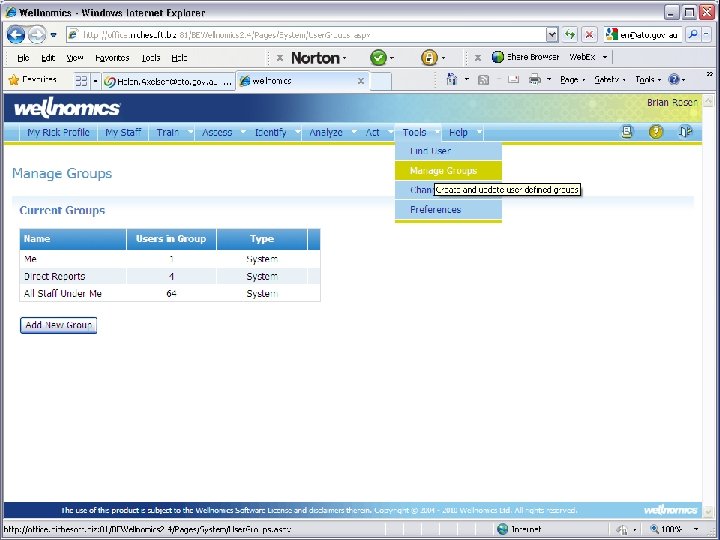
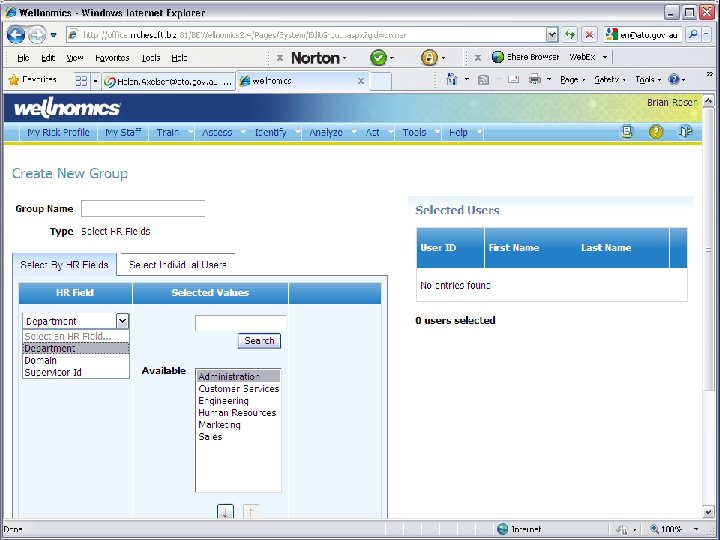
Groups } You may create groups yourself by adding individuals or selecting HR fields.
48
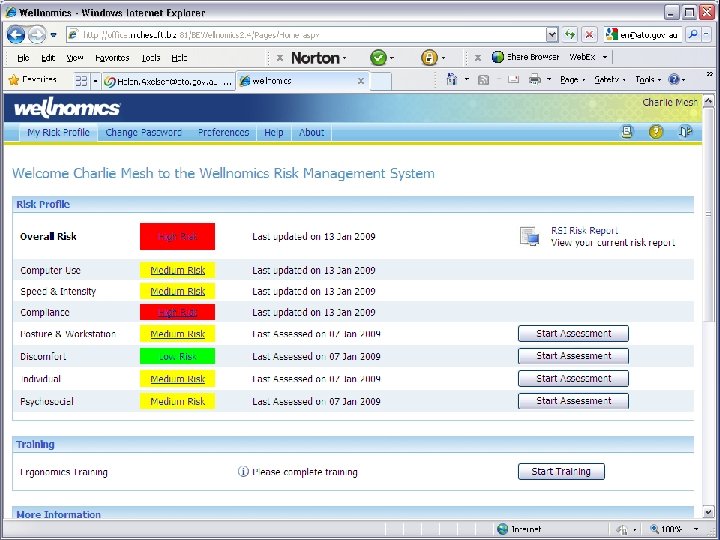
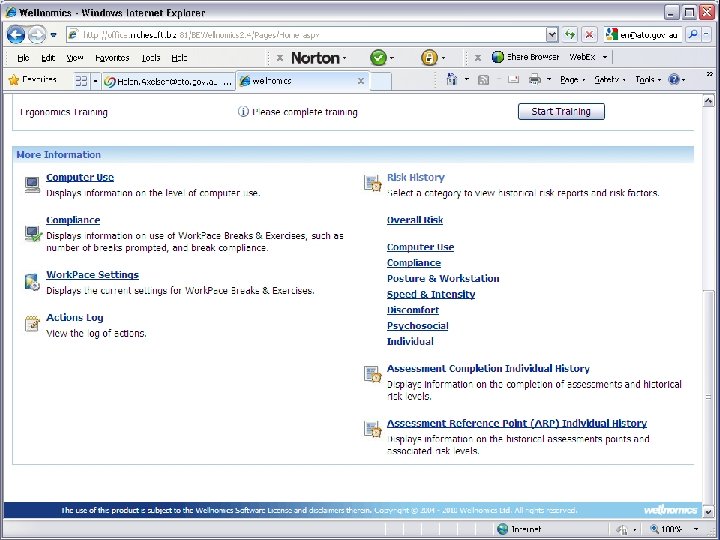
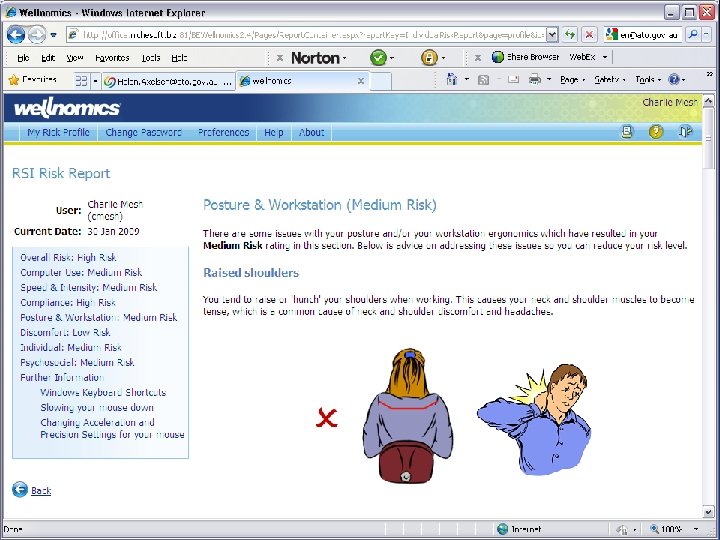
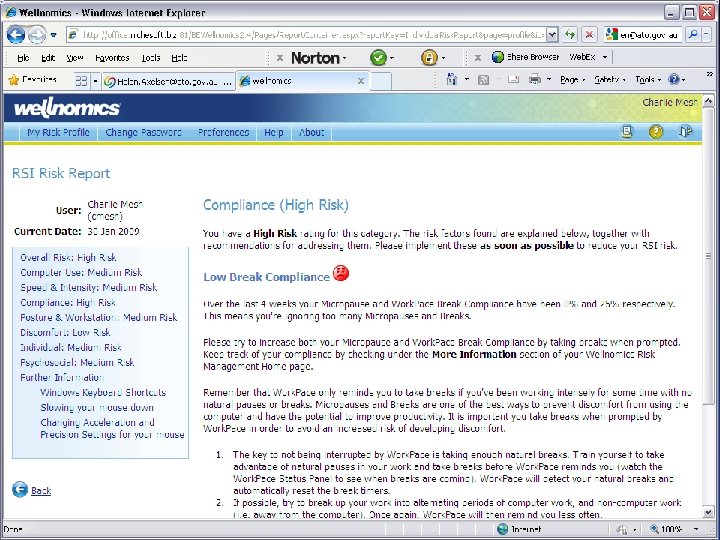
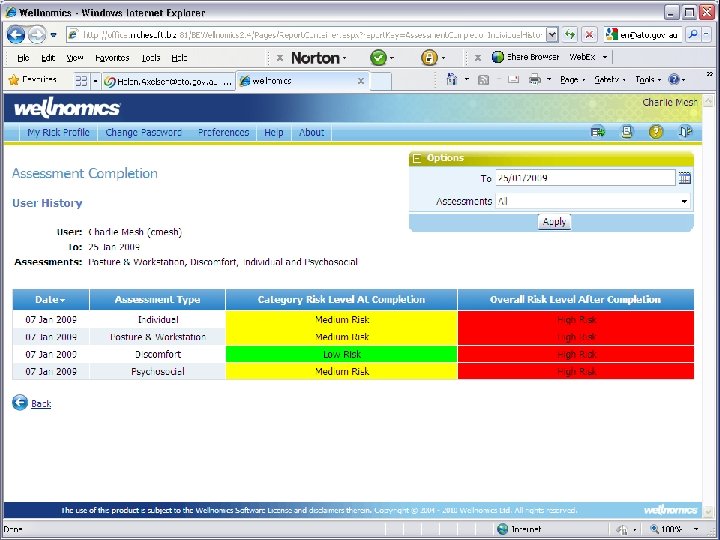
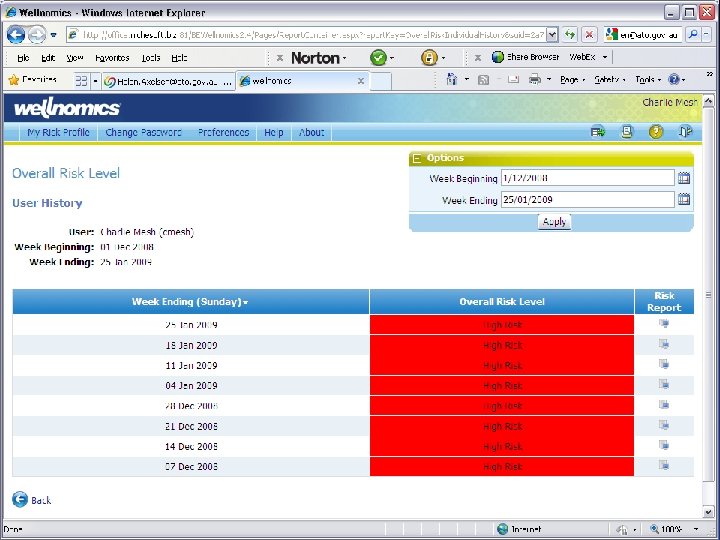
Individual Login } The following screen shots represent a staff members individual login ( a staff member with no direct reports) they can only see their own data. Not exhaustive just samples. 49
50
51
52
53
54
55
56
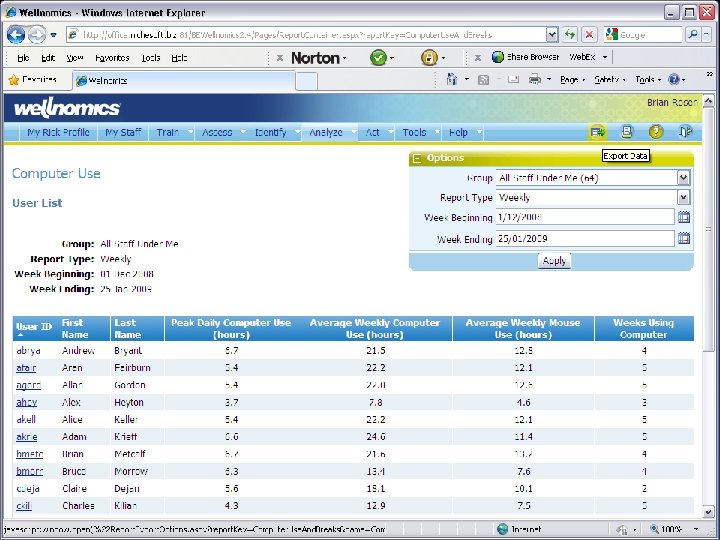
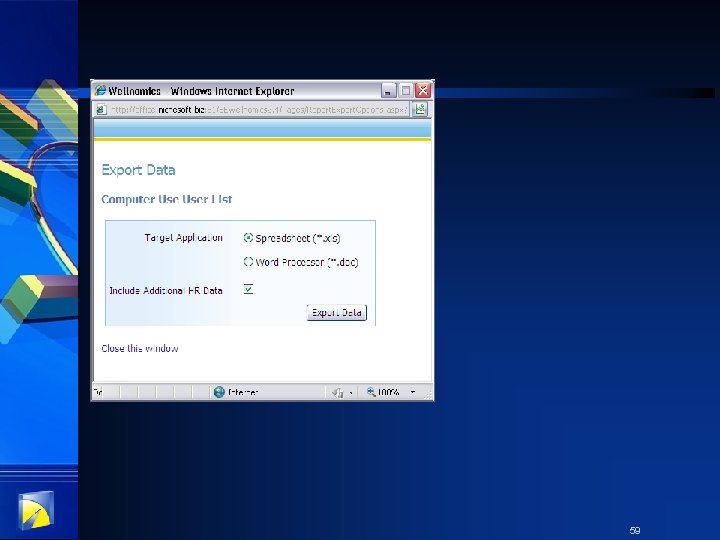
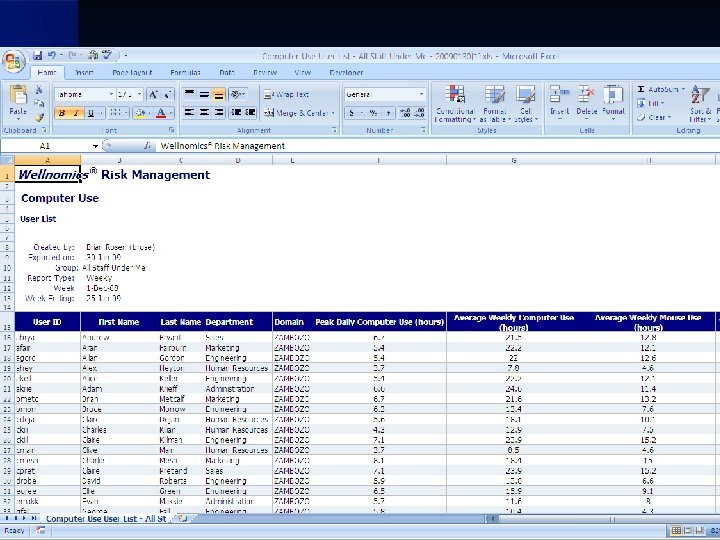
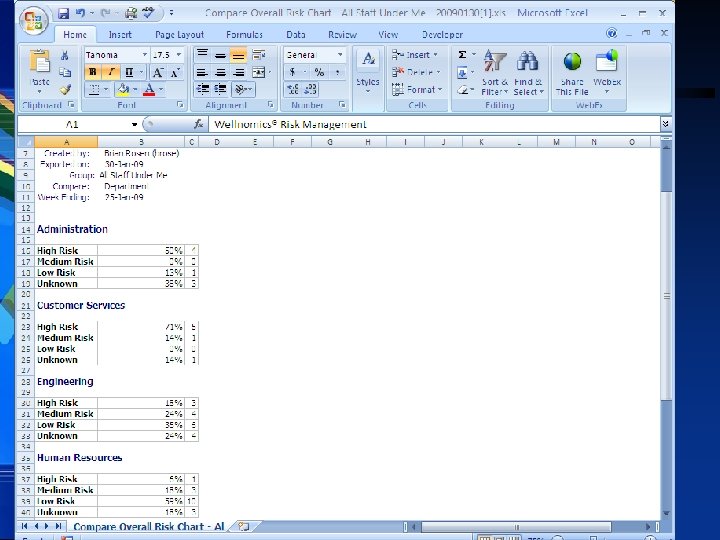
Export data } You may also export data into excel or word if you like. 57
58
59
60
} Questions please contact Balanced Ergonomics. 61
- Slides: 61