
Sacred Heart Catholic High School ICT Department Multiple
- Slides: 6
Sacred Heart Catholic High School ICT Department Multiple IF’s Lesson 6 Activity 2
Recap • We have learned so far how to write some code which will allow the computer to make a decision. • We can also tell it what to do if the condition is true or false. • This only gives us TWO possible options. • What if we want more than two?
Example • Suppose we want a program that allows the user to enter a number, and then decides on the following: – If the number is less than 10, print “Poor” – If the number is between 10 and 20, print “OK” – And if the number is more than 20, print “Great” • There is now more than one decision to make. The next slide shows you how this can be done.
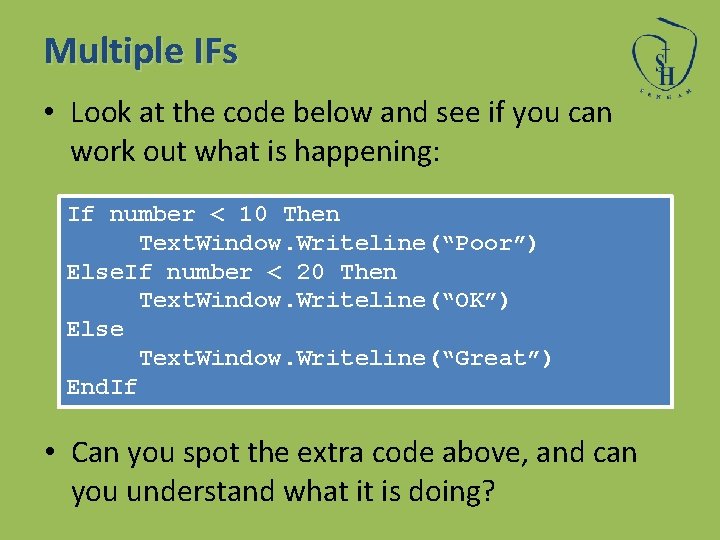
Multiple IFs • Look at the code below and see if you can work out what is happening: If number < 10 Then Text. Window. Writeline(“Poor”) Else. If number < 20 Then Text. Window. Writeline(“OK”) Else Text. Window. Writeline(“Great”) End. If • Can you spot the extra code above, and can you understand what it is doing?
The Else. If statement • As shown on the previous slide, the Else. If statement can be added to include more decisions within the same overall If statement. • You can add as many Else. If statements as you need.
Your Task • Create a program to allow a teacher to enter a mark out of 100 • The program should then output the grade depending on the following grade boundaries: A* 80 A 70 B 60 C 50 D 40 E 30 U Less than 30