
Sacred Heart Catholic High School ICT Department Introduction
- Slides: 6
Sacred Heart Catholic High School ICT Department Introduction to Programming Using “Small Basic”
Computer Languages • Computer Programming is the process of creating software (programs) using programming languages. • Just like we speak and understand English or Spanish or French, computers can understand programs written in certain languages. • These are called programming languages. • The language we are going to use is called “Small Basic”
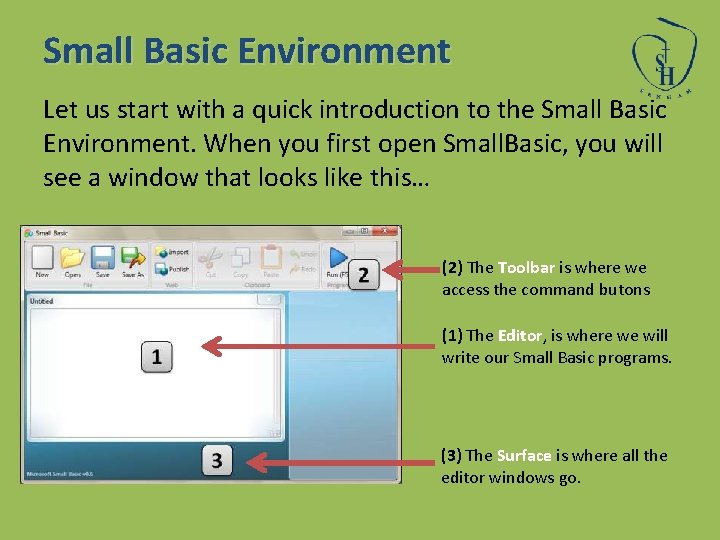
Small Basic Environment Let us start with a quick introduction to the Small Basic Environment. When you first open Small. Basic, you will see a window that looks like this… (2) The Toolbar is where we access the command butons (1) The Editor, is where we will write our Small Basic programs. (3) The Surface is where all the editor windows go.
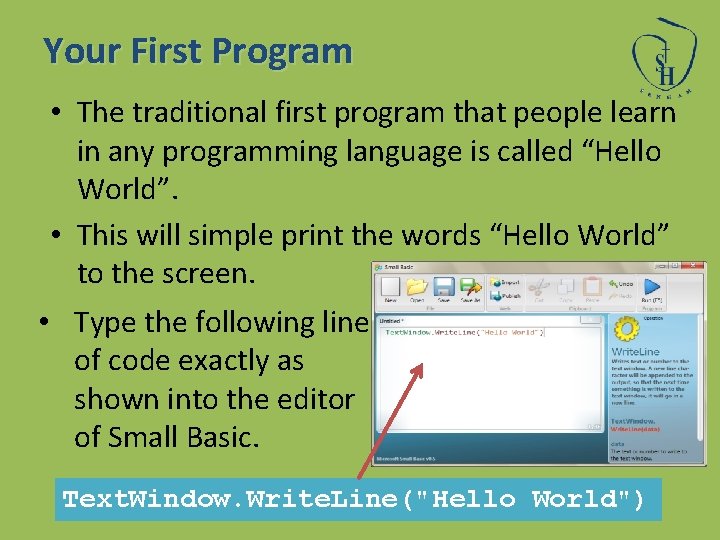
Your First Program • The traditional first program that people learn in any programming language is called “Hello World”. • This will simple print the words “Hello World” to the screen. • Type the following line of code exactly as shown into the editor of Small Basic. Text. Window. Write. Line("Hello World")
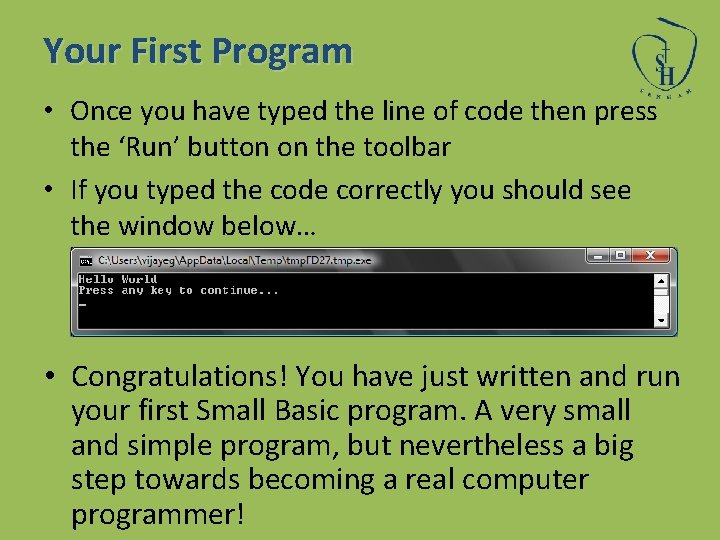
Your First Program • Once you have typed the line of code then press the ‘Run’ button on the toolbar • If you typed the code correctly you should see the window below… • Congratulations! You have just written and run your first Small Basic program. A very small and simple program, but nevertheless a big step towards becoming a real computer programmer!
Saving Your Program • If you want to close Small Basic and come back later, you can save the program. • It is good practice to save programs from time to time, so that you don’t lose information in the event of an accidental shutdown or a power failure. • You can save the current program by either clicking on the “save” icon on the toolbar or by using the shortcut “Ctrl+S” (press the S key while holding down the Ctrl key).