
Roadmap Analogy Template Copyright Chillibreeze 2019 Road Map

Roadmap Analogy Template Copyright © Chillibreeze 2019
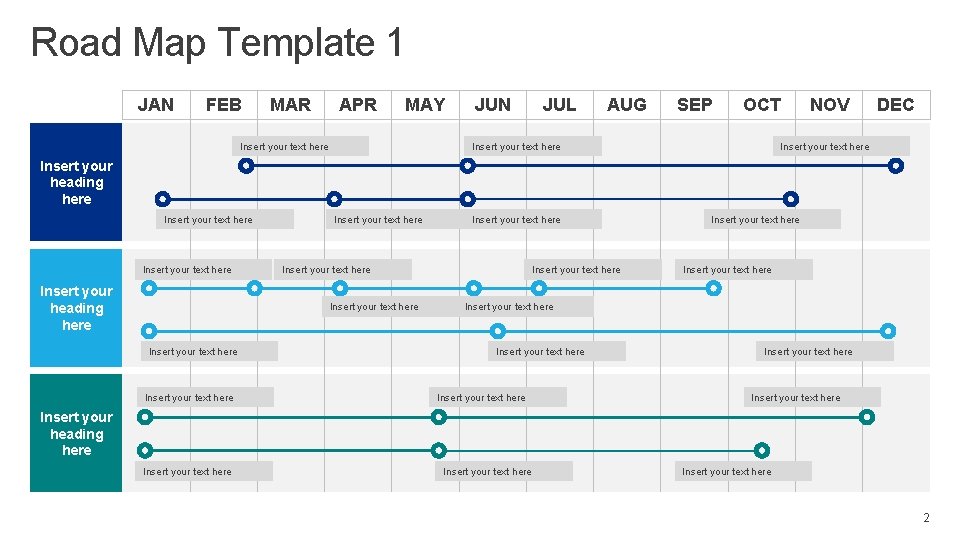
Road Map Template 1 JAN FEB MAR APR MAY Insert your text here JUN JUL AUG SEP OCT Insert your text here NOV DEC Insert your text here Insert your heading here Insert your text here Insert your text here Insert your text here Insert your text here Insert your heading here Insert your text here 2
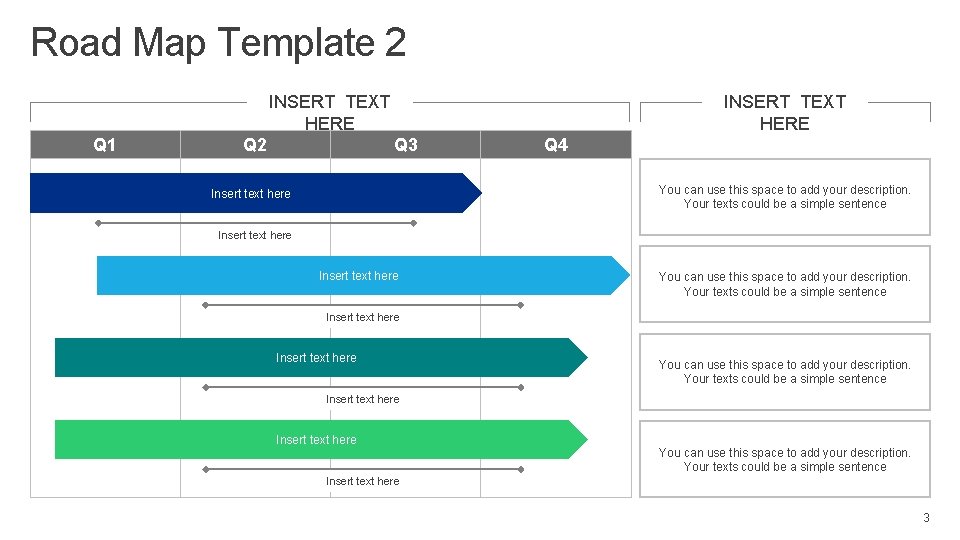
Road Map Template 2 INSERT TEXT HERE Q 1 Q 2 INSERT TEXT HERE Q 3 Q 4 You can use this space to add your description. Your texts could be a simple sentence Insert text here You can use this space to add your description. Your texts could be a simple sentence Insert text here 3
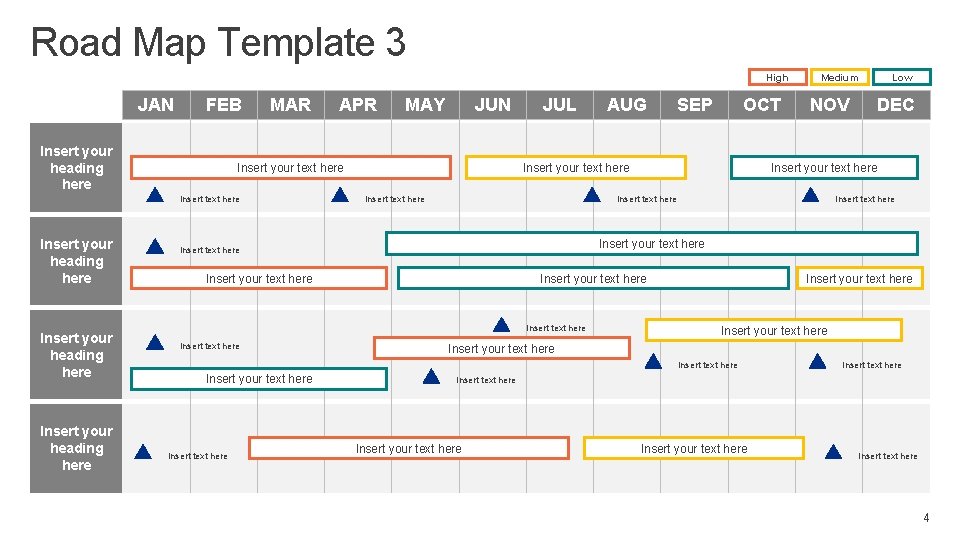
Road Map Template 3 High JAN FEB Insert your heading here MAR Insert your heading here MAY JUN Insert your text here Insert your heading here APR JUL SEP OCT Insert your text here Insert text here DEC Insert your text here Insert your text here Insert text here Low Insert your text here NOV Insert text here AUG Medium Insert text here Insert your text here Insert text here 4
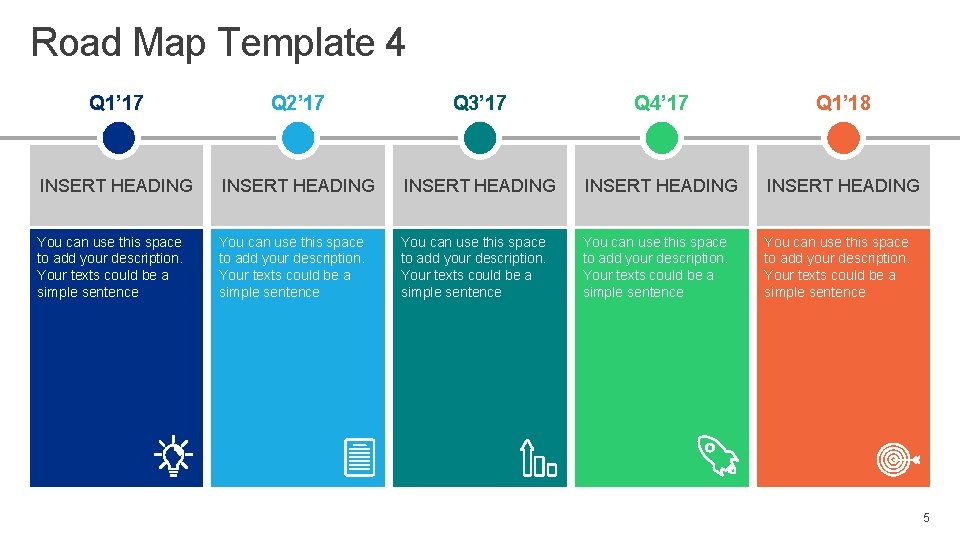
Road Map Template 4 Q 1’ 17 Q 2’ 17 Q 3’ 17 Q 4’ 17 Q 1’ 18 INSERT HEADING INSERT HEADING You can use this space to add your description. Your texts could be a simple sentence 5
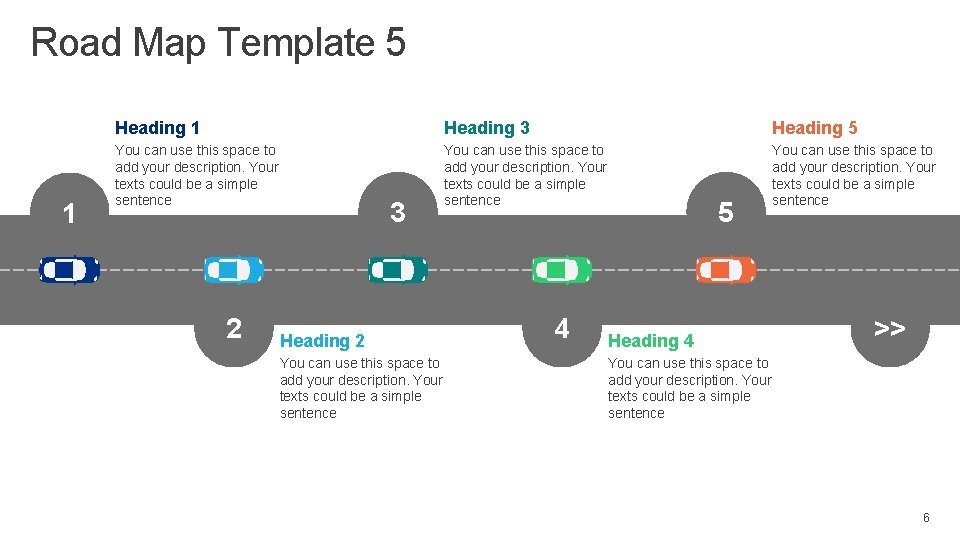
Road Map Template 5 1 Heading 3 Heading 5 You can use this space to add your description. Your texts could be a simple sentence 2 3 Heading 2 You can use this space to add your description. Your texts could be a simple sentence 4 5 Heading 4 >> You can use this space to add your description. Your texts could be a simple sentence 6
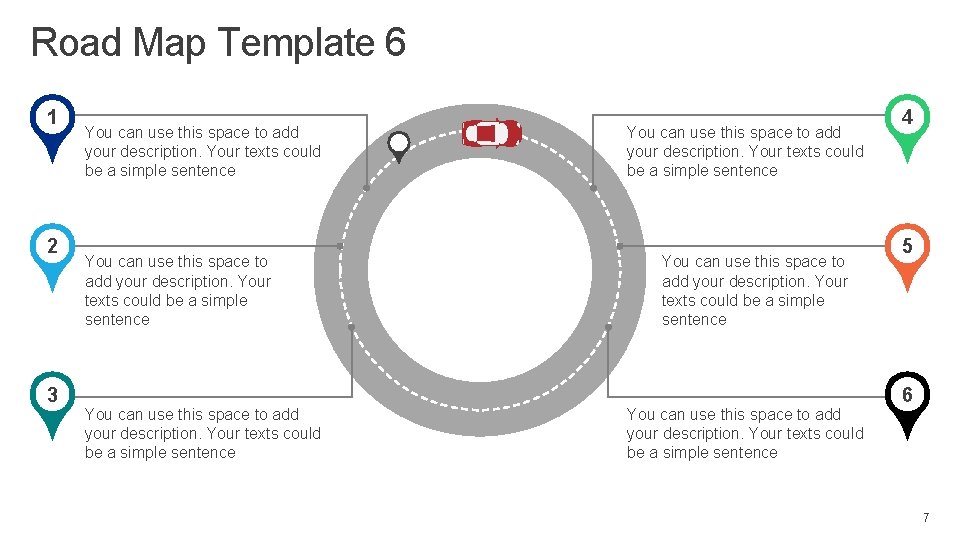
Road Map Template 6 1 2 3 You can use this space to add your description. Your texts could be a simple sentence 4 5 6 7
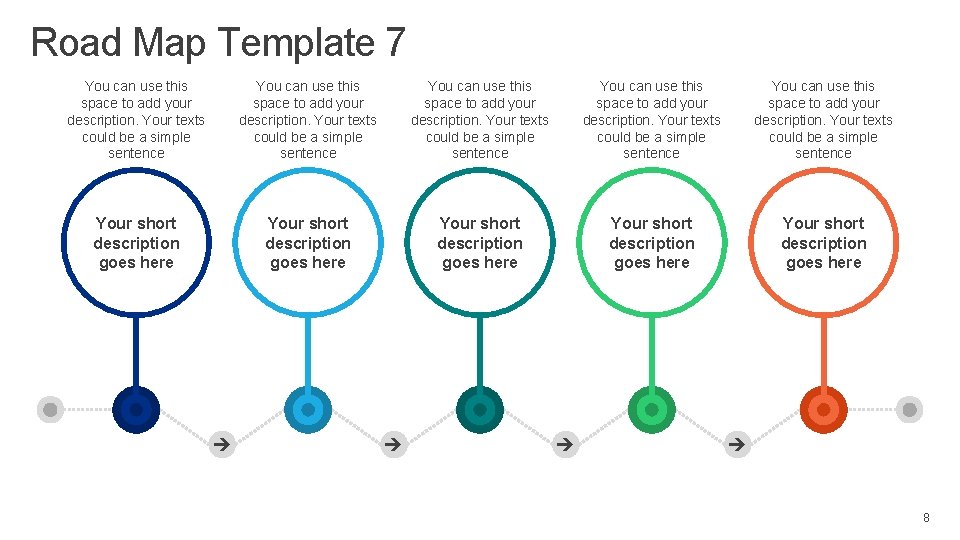
Road Map Template 7 You can use this space to add your description. Your texts could be a simple sentence Your short description goes here Your short description goes here 8
Editable Icons How to change colors • Double click to select the blue shape • While still selected Right click and chose Shape Fill and select your color of choice or • While still selected go to Home tab and click on Shape Fill to change color 9
Use this as your Section Divider slide
FOR THE LATEST TEMPLATE DESIGN ON ROADMAP GRAPHICS visit
www. chillibreeze. com
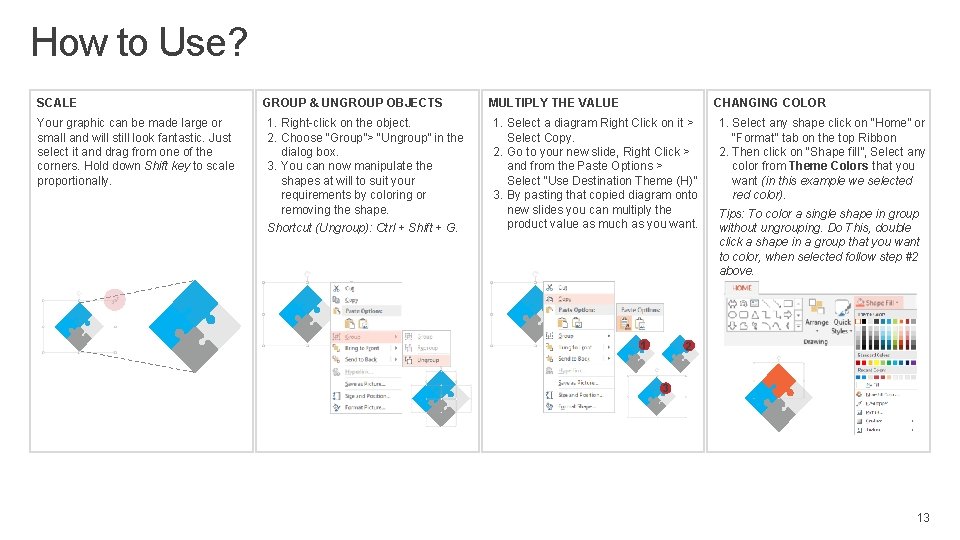
How to Use? SCALE Your graphic can be made large or small and will still look fantastic. Just select it and drag from one of the corners. Hold down Shift key to scale proportionally. GROUP & UNGROUP OBJECTS 1. Right-click on the object. 2. Choose “Group”> “Ungroup” in the dialog box. 3. You can now manipulate the shapes at will to suit your requirements by coloring or removing the shape. Shortcut (Ungroup): Ctrl + Shift + G. MULTIPLY THE VALUE CHANGING COLOR 1. Select a diagram Right Click on it > Select Copy. 2. Go to your new slide, Right Click > and from the Paste Options > Select “Use Destination Theme (H)” 3. By pasting that copied diagram onto new slides you can multiply the product value as much as you want. 1 1. Select any shape click on “Home” or “Format” tab on the top Ribbon 2. Then click on “Shape fill”, Select any color from Theme Colors that you want (in this example we selected red color). Tips: To color a single shape in group without ungrouping. Do This, double click a shape in a group that you want to color, when selected follow step #2 above. 2 3 13
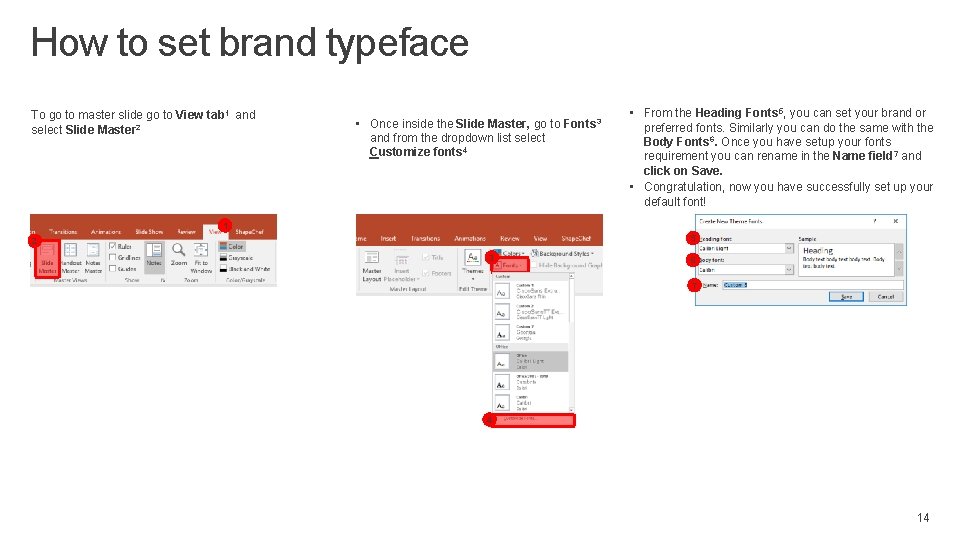
How to set brand typeface To go to master slide go to View tab 1 and select Slide Master 2 • Once inside the Slide Master, go to Fonts 3 and from the dropdown list select Customize fonts 4 • From the Heading Fonts 5, you can set your brand or preferred fonts. Similarly you can do the same with the Body Fonts 6. Once you have setup your fonts requirement you can rename in the Name field 7 and click on Save. • Congratulation, now you have successfully set up your default font! 1 5 2 3 6 7 4 14
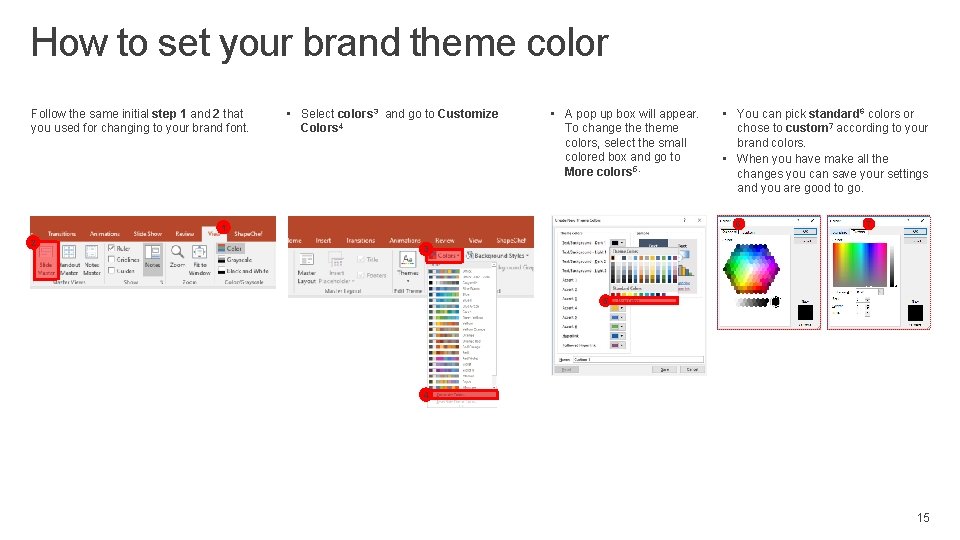
How to set your brand theme color Follow the same initial step 1 and 2 that you used for changing to your brand font. • Select colors 3 and go to Customize Colors 4 • A pop up box will appear. To change theme colors, select the small colored box and go to More colors 5. 6 1 2 • You can pick standard 6 colors or chose to custom 7 according to your brand colors. • When you have make all the changes you can save your settings and you are good to go. 7 3 5 4 15
- Slides: 15