
Rietveld Refinement of HB2 A Data Using Full
Rietveld Refinement of HB-2 A Data Using Full. Prof Software HB-2 A Instrument Team High Flux Isotope Reactor July 2017 ORNL is managed by UT-Battelle for the US Department of Energy
Starting Requirements • Full. Prof Software: https: //www. ill. eu/sites/fullprof/php/downloads. html – Click the link and follow the instructions to download the specific version for your computer • Your Data File (. dat): Please see User Guides for Experiment HB-2 a to obtain your experimental data – “Data Reduction Instructions” – This tutorial uses the Ge 115 Silicon standard located in Experiment 535 on Grafiti for HB-2 A data. • Crystallographic Information File (. cif) for your crystal structure from ICSD (Skip the last two bullets if you downloaded the files with the tutorial) • Wavelength used for your experiment 2 Presentation name
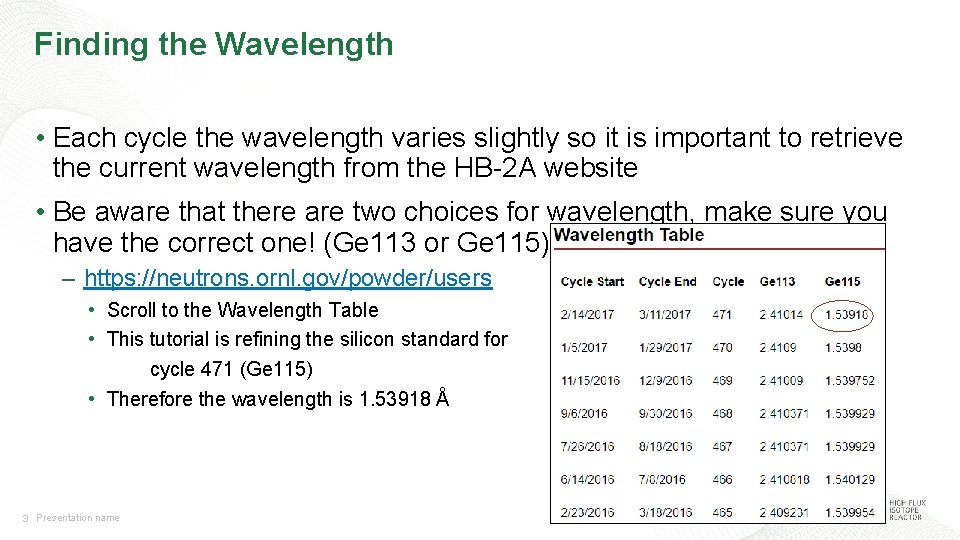
Finding the Wavelength • Each cycle the wavelength varies slightly so it is important to retrieve the current wavelength from the HB-2 A website • Be aware that there are two choices for wavelength, make sure you have the correct one! (Ge 113 or Ge 115) – https: //neutrons. ornl. gov/powder/users • Scroll to the Wavelength Table • This tutorial is refining the silicon standard for cycle 471 (Ge 115) • Therefore the wavelength is 1. 53918 Å 3 Presentation name

Import Your. cif to EDPCR 1. Click “EDPCR” 2. Click Cif->PCR 4 Presentation name
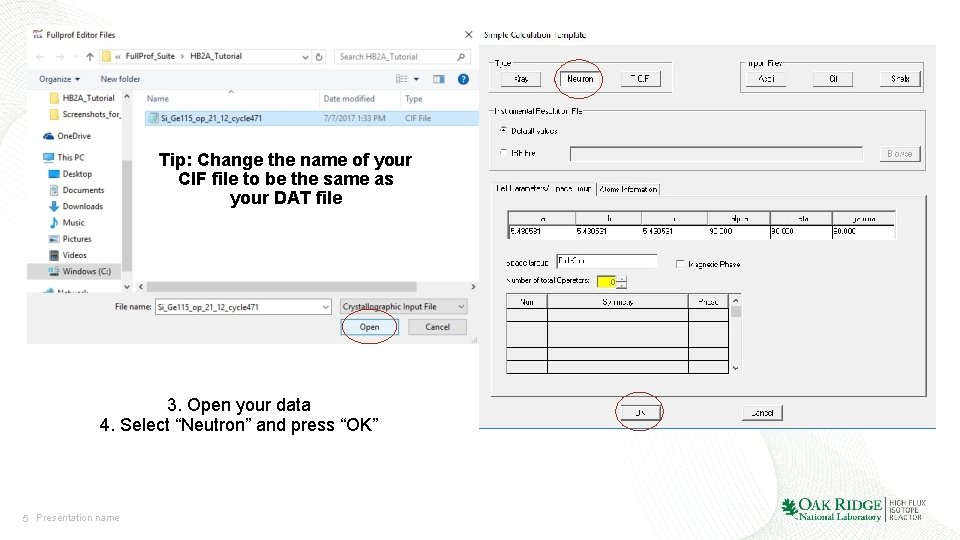
Tip: Change the name of your CIF file to be the same as your DAT file 3. Open your data 4. Select “Neutron” and press “OK” 5 Presentation name
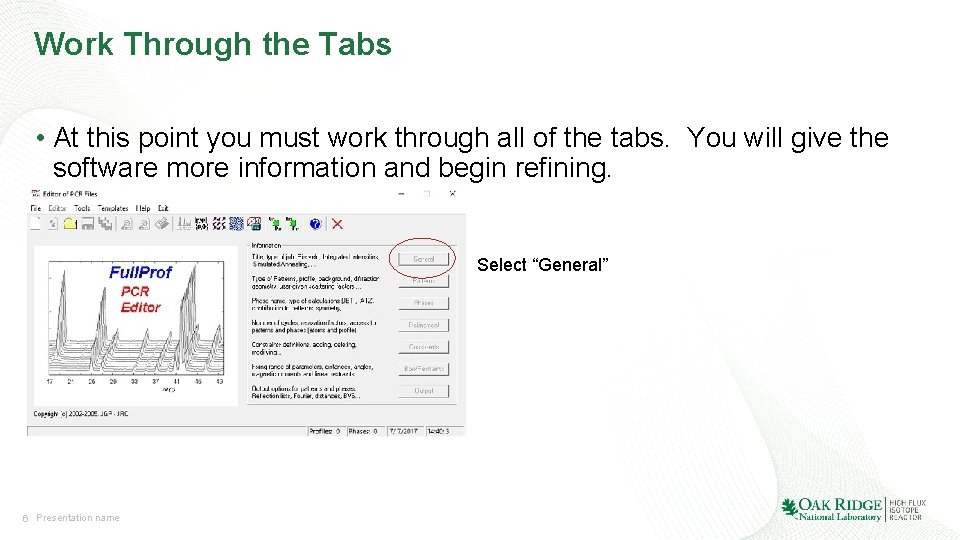
Work Through the Tabs • At this point you must work through all of the tabs. You will give the software more information and begin refining. Select “General” 6 Presentation name
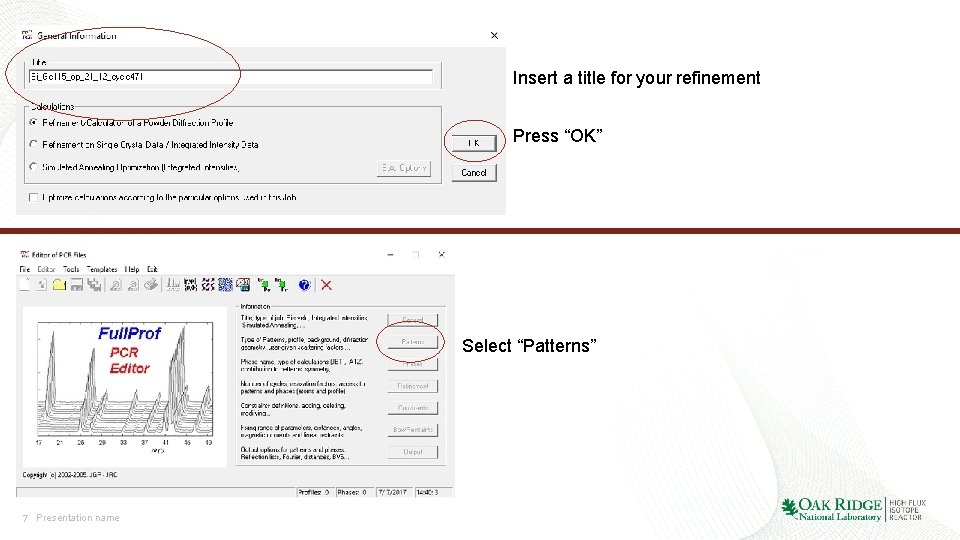
Insert a title for your refinement Press “OK” Select “Patterns” 7 Presentation name
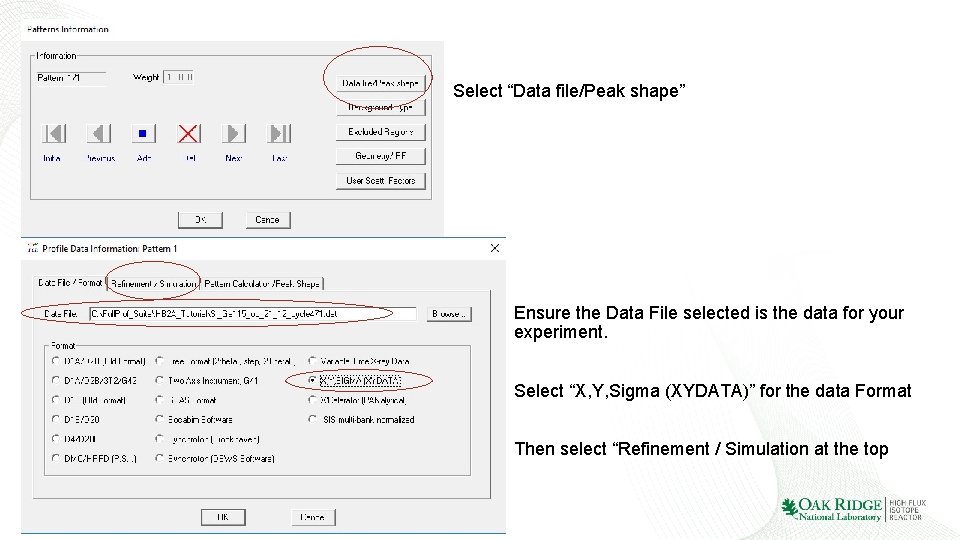
Select “Data file/Peak shape” Ensure the Data File selected is the data for your experiment. Select “X, Y, Sigma (XYDATA)” for the data Format Then select “Refinement / Simulation at the top 8 Presentation name
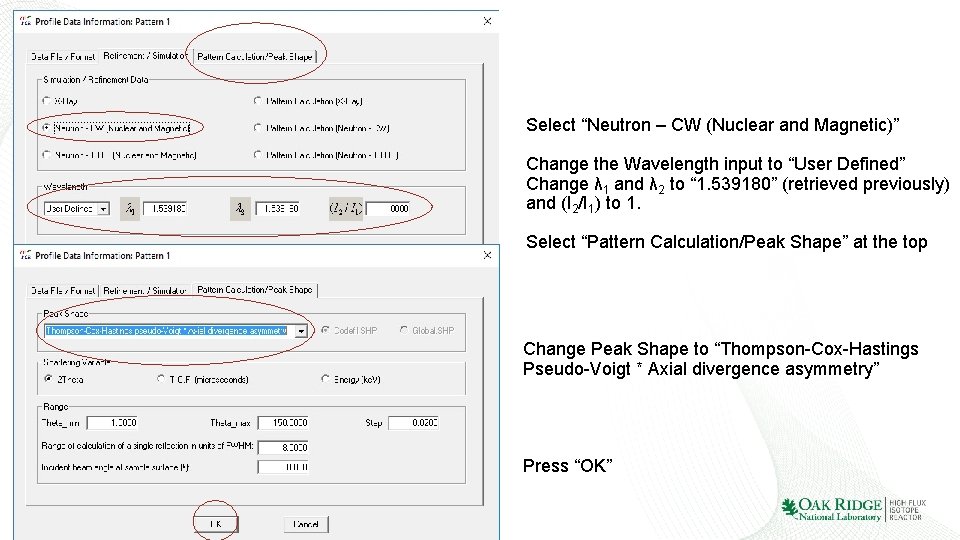
Select “Neutron – CW (Nuclear and Magnetic)” Change the Wavelength input to “User Defined” Change λ 1 and λ 2 to “ 1. 539180” (retrieved previously) and (I 2/I 1) to 1. Select “Pattern Calculation/Peak Shape” at the top Change Peak Shape to “Thompson-Cox-Hastings Pseudo-Voigt * Axial divergence asymmetry” Press “OK” 9 Presentation name
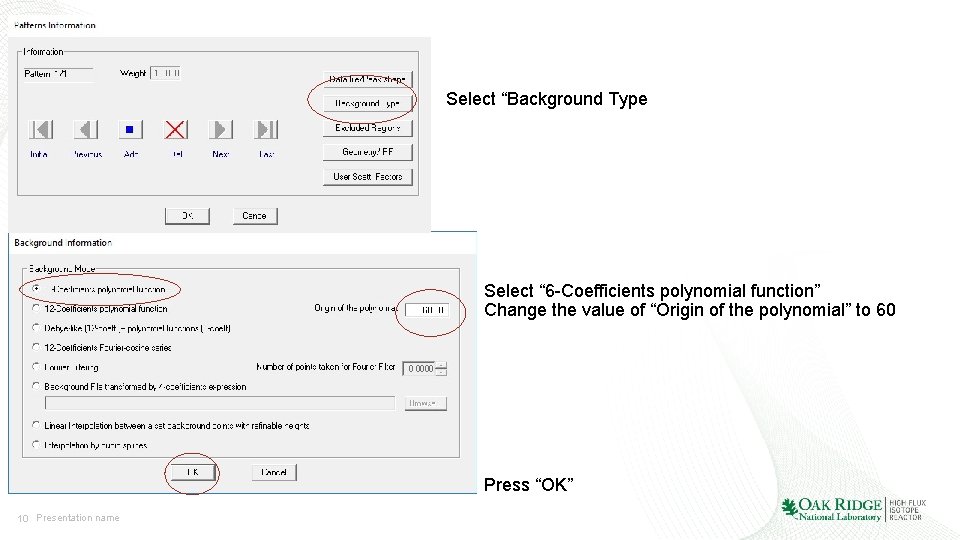
Select “Background Type Select “ 6 -Coefficients polynomial function” Change the value of “Origin of the polynomial” to 60 Press “OK” 10 Presentation name
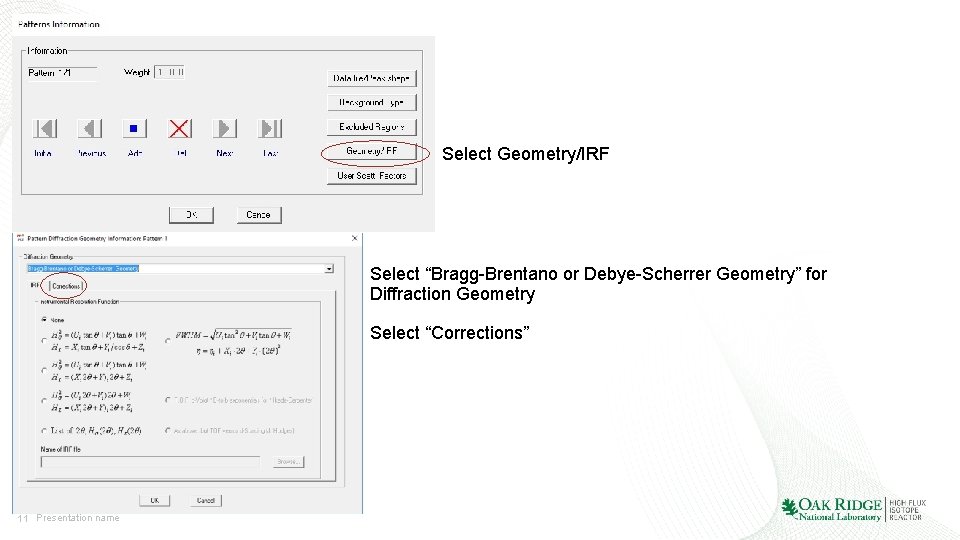
Select Geometry/IRF Select “Bragg-Brentano or Debye-Scherrer Geometry” for Diffraction Geometry Select “Corrections” 11 Presentation name
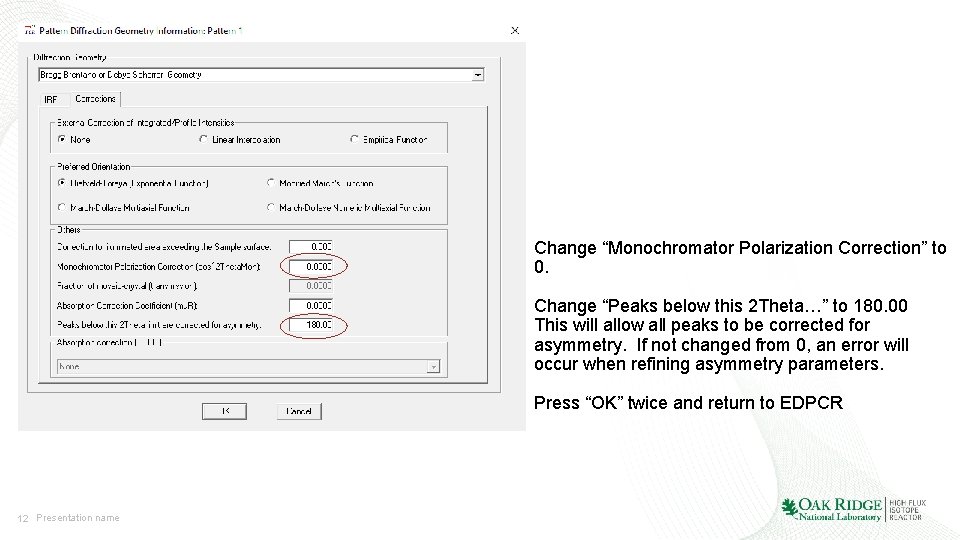
Change “Monochromator Polarization Correction” to 0. Change “Peaks below this 2 Theta…” to 180. 00 This will allow all peaks to be corrected for asymmetry. If not changed from 0, an error will occur when refining asymmetry parameters. Press “OK” twice and return to EDPCR 12 Presentation name
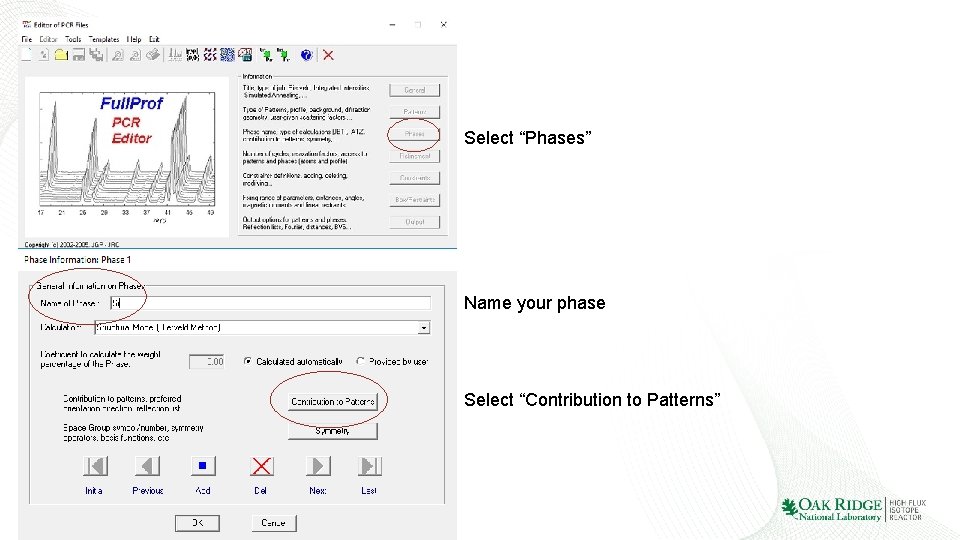
Select “Phases” Name your phase Select “Contribution to Patterns” 13 Presentation name
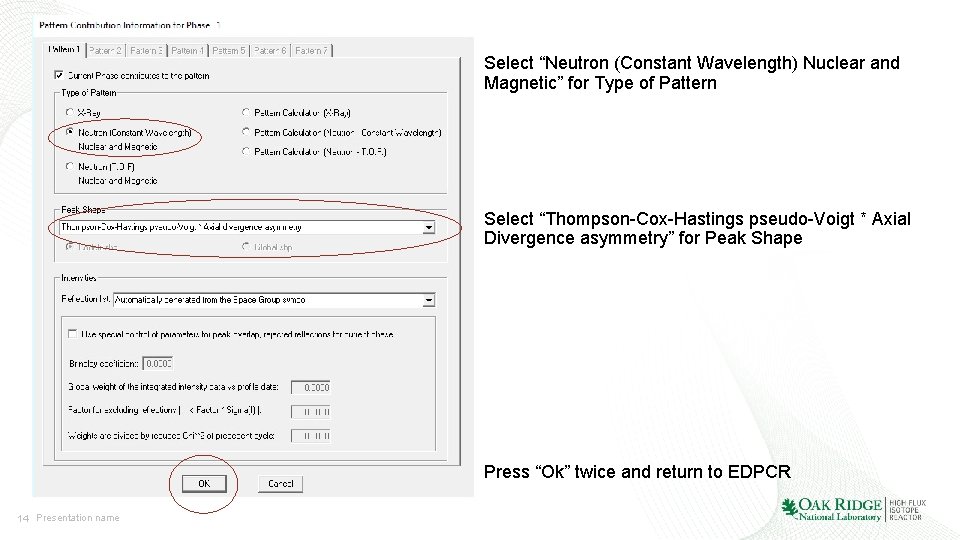
Select “Neutron (Constant Wavelength) Nuclear and Magnetic” for Type of Pattern Select “Thompson-Cox-Hastings pseudo-Voigt * Axial Divergence asymmetry” for Peak Shape Press “Ok” twice and return to EDPCR 14 Presentation name
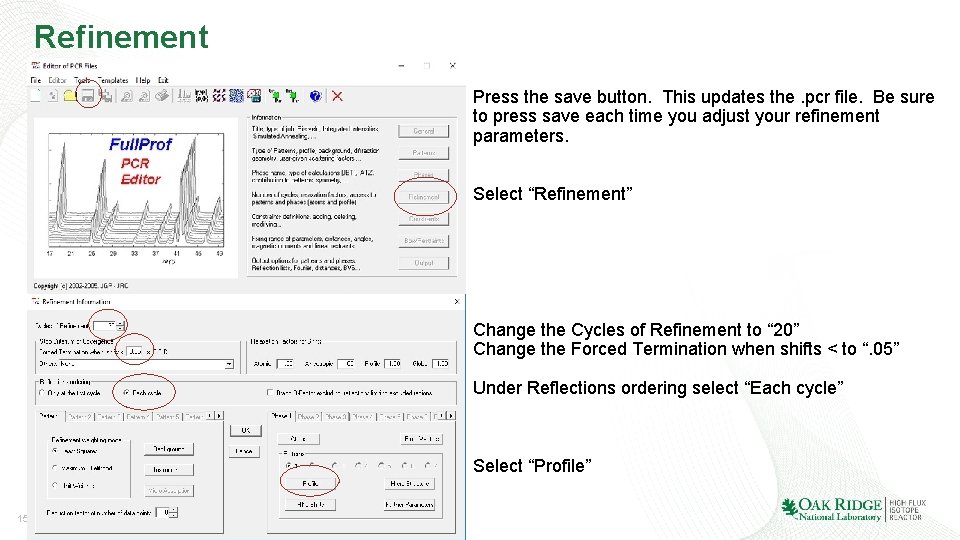
Refinement Press the save button. This updates the. pcr file. Be sure to press save each time you adjust your refinement parameters. Select “Refinement” Change the Cycles of Refinement to “ 20” Change the Forced Termination when shifts < to “. 05” Under Reflections ordering select “Each cycle” Select “Profile” 15 Presentation name
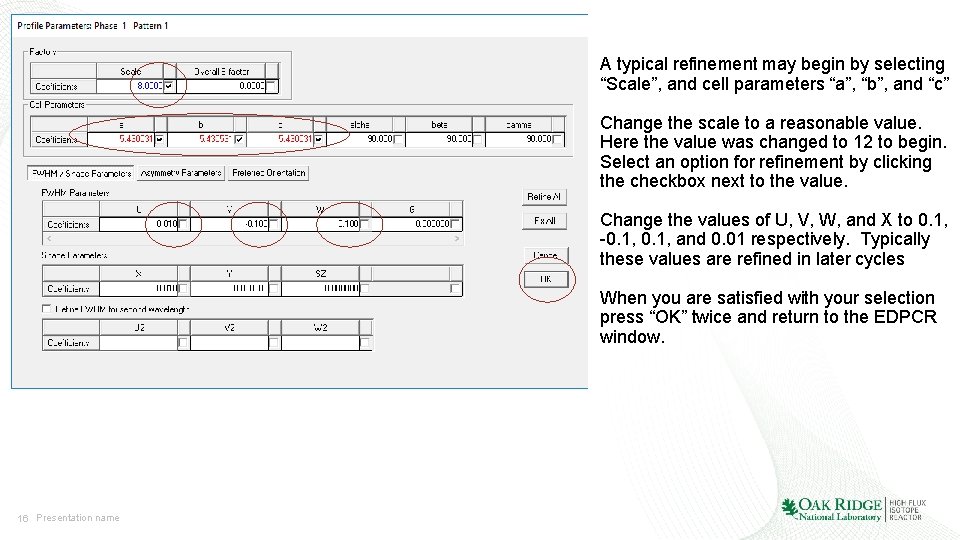
A typical refinement may begin by selecting “Scale”, and cell parameters “a”, “b”, and “c” Change the scale to a reasonable value. Here the value was changed to 12 to begin. Select an option for refinement by clicking the checkbox next to the value. Change the values of U, V, W, and X to 0. 1, -0. 1, and 0. 01 respectively. Typically these values are refined in later cycles When you are satisfied with your selection press “OK” twice and return to the EDPCR window. 16 Presentation name
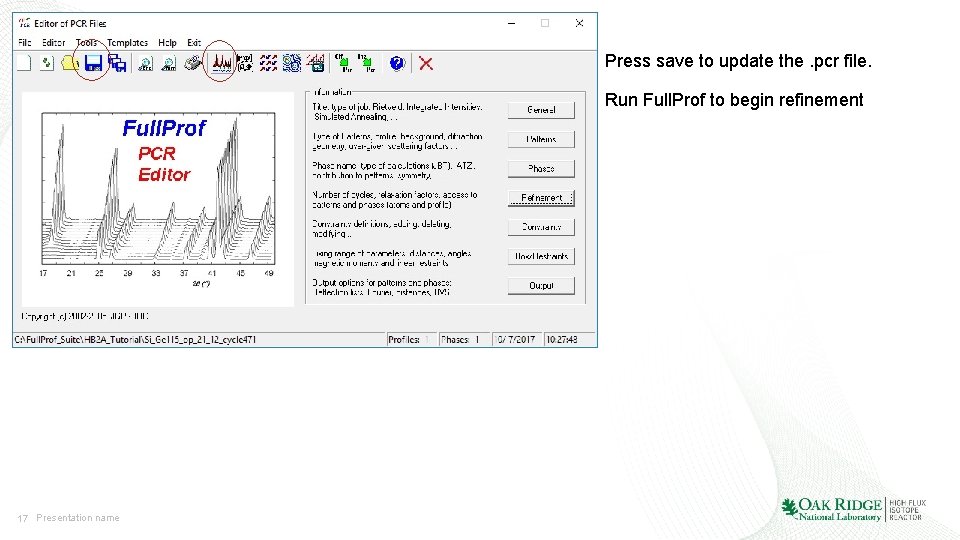
Press save to update the. pcr file. Run Full. Prof to begin refinement 17 Presentation name
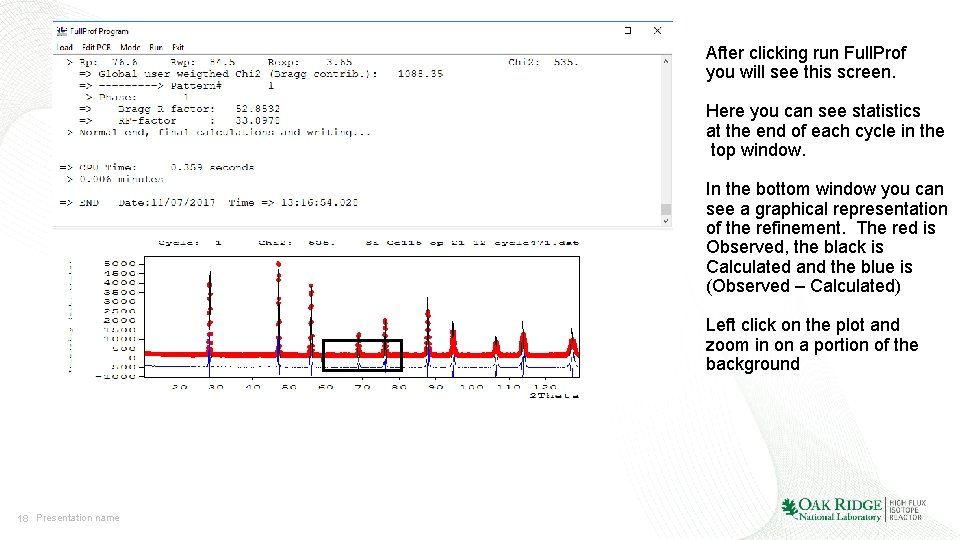
After clicking run Full. Prof you will see this screen. Here you can see statistics at the end of each cycle in the top window. In the bottom window you can see a graphical representation of the refinement. The red is Observed, the black is Calculated and the blue is (Observed – Calculated) Left click on the plot and zoom in on a portion of the background 18 Presentation name
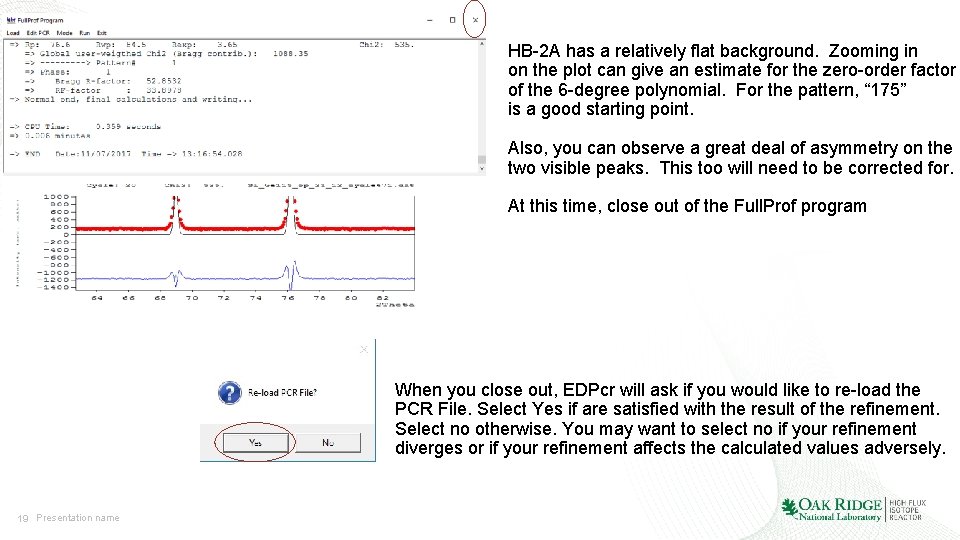
HB-2 A has a relatively flat background. Zooming in on the plot can give an estimate for the zero-order factor of the 6 -degree polynomial. For the pattern, “ 175” is a good starting point. Also, you can observe a great deal of asymmetry on the two visible peaks. This too will need to be corrected for. At this time, close out of the Full. Prof program When you close out, EDPcr will ask if you would like to re-load the PCR File. Select Yes if are satisfied with the result of the refinement. Select no otherwise. You may want to select no if your refinement diverges or if your refinement affects the calculated values adversely. 19 Presentation name
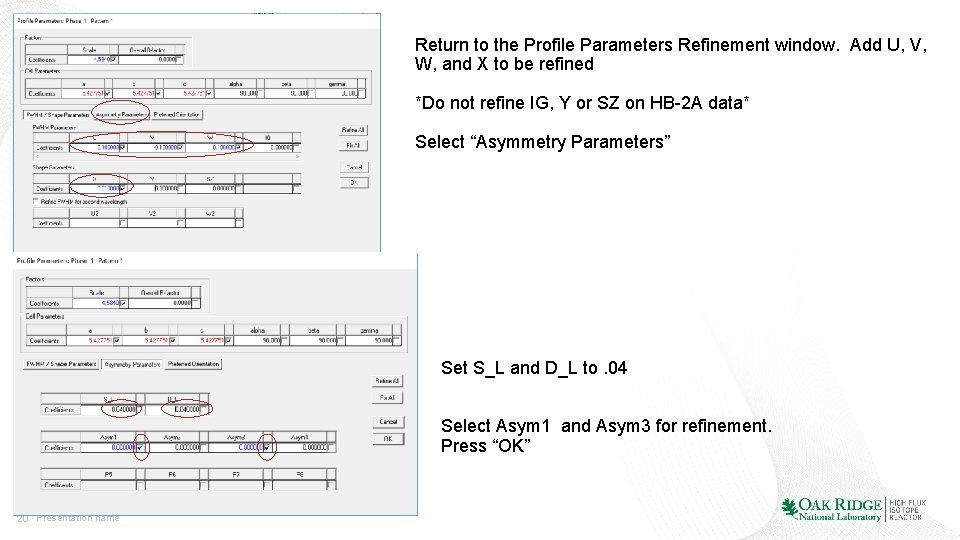
Return to the Profile Parameters Refinement window. Add U, V, W, and X to be refined *Do not refine IG, Y or SZ on HB-2 A data* Select “Asymmetry Parameters” Set S_L and D_L to. 04 Select Asym 1 and Asym 3 for refinement. Press “OK” 20 Presentation name
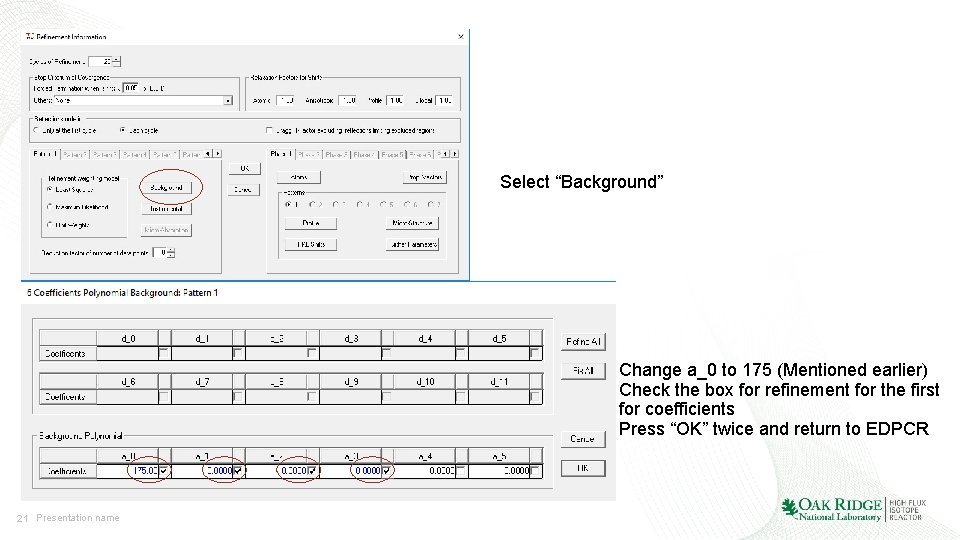
Select “Background” Change a_0 to 175 (Mentioned earlier) Check the box for refinement for the first for coefficients Press “OK” twice and return to EDPCR 21 Presentation name
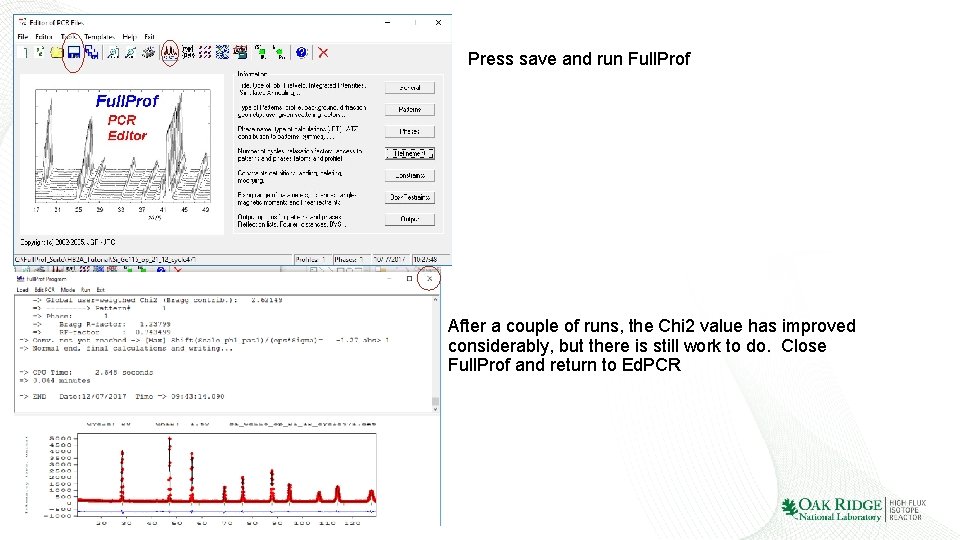
Press save and run Full. Prof After a couple of runs, the Chi 2 value has improved considerably, but there is still work to do. Close Full. Prof and return to Ed. PCR 22 Presentation name
Finishing the Refinement • Add the remaining background coefficients • Add the remaining 2 asymmetry parameters and refine (Run Full. Prof) 23 Presentation name
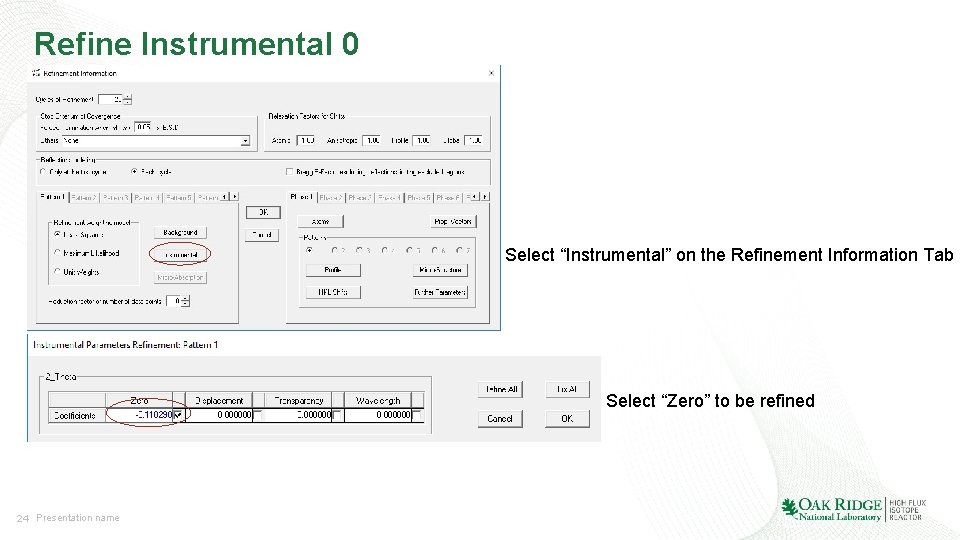
Refine Instrumental 0 Select “Instrumental” on the Refinement Information Tab Select “Zero” to be refined 24 Presentation name
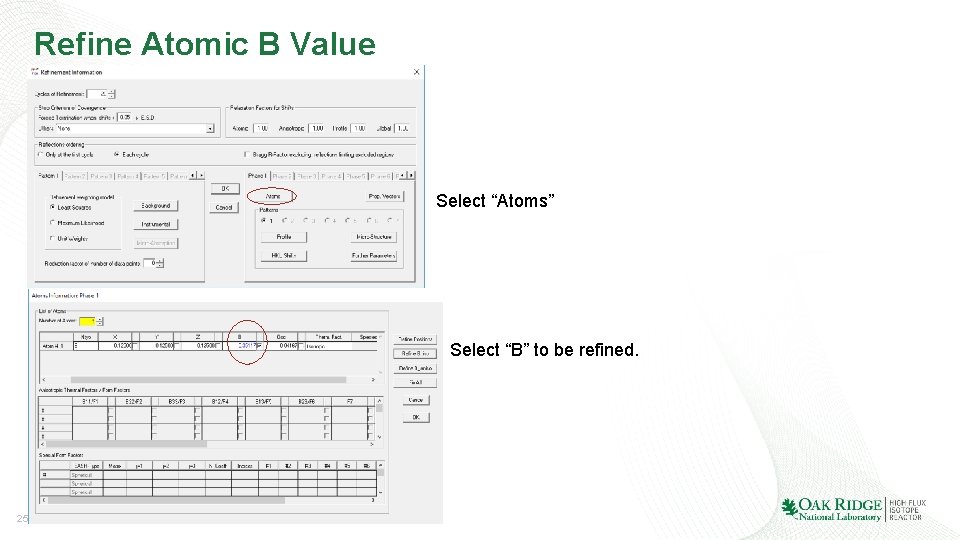
Refine Atomic B Value Select “Atoms” Select “B” to be refined. 25 Presentation name
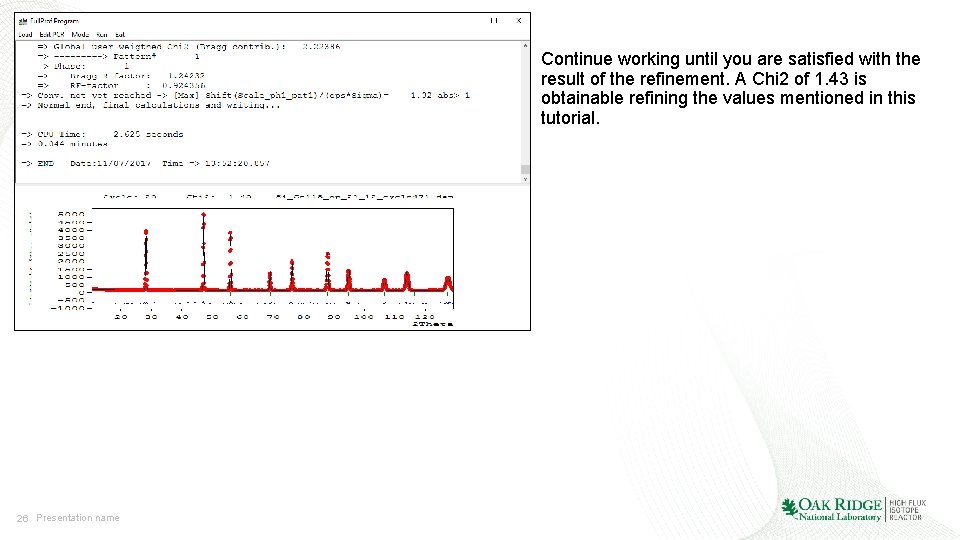
Continue working until you are satisfied with the result of the refinement. A Chi 2 of 1. 43 is obtainable refining the values mentioned in this tutorial. 26 Presentation name
In summary • Begin refinement refining the parameters which make the largest impact on fit (Scale, lattice parameters) • Refine background asymmetry next • Refine zero point and B value last • If the refinement diverges, try a different refinement order or refining fewer parameters at once 27 Presentation name
- Slides: 27