
Revit User Interface Ardrey Kell High School Drafting
- Slides: 17
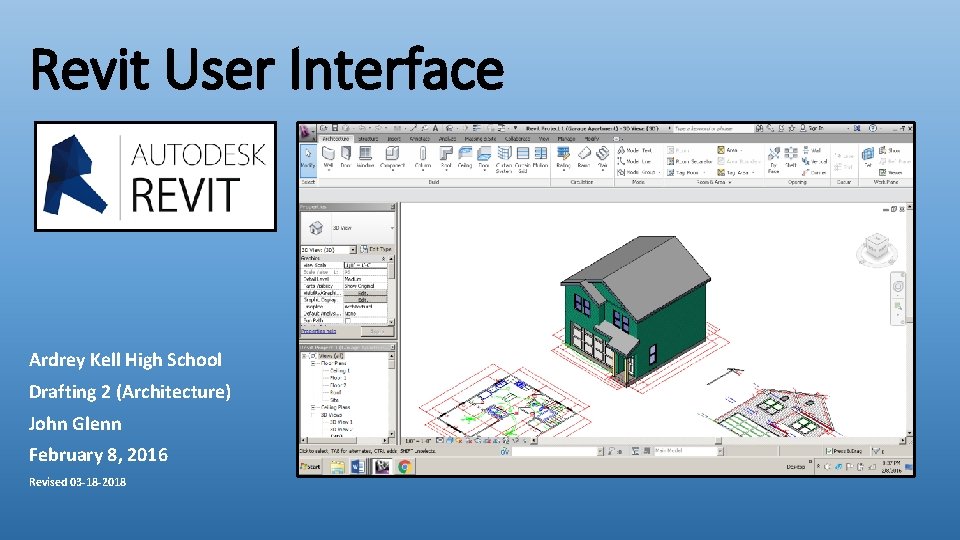
Revit User Interface Ardrey Kell High School Drafting 2 (Architecture) John Glenn February 8, 2016 Revised 03 -18 -2018
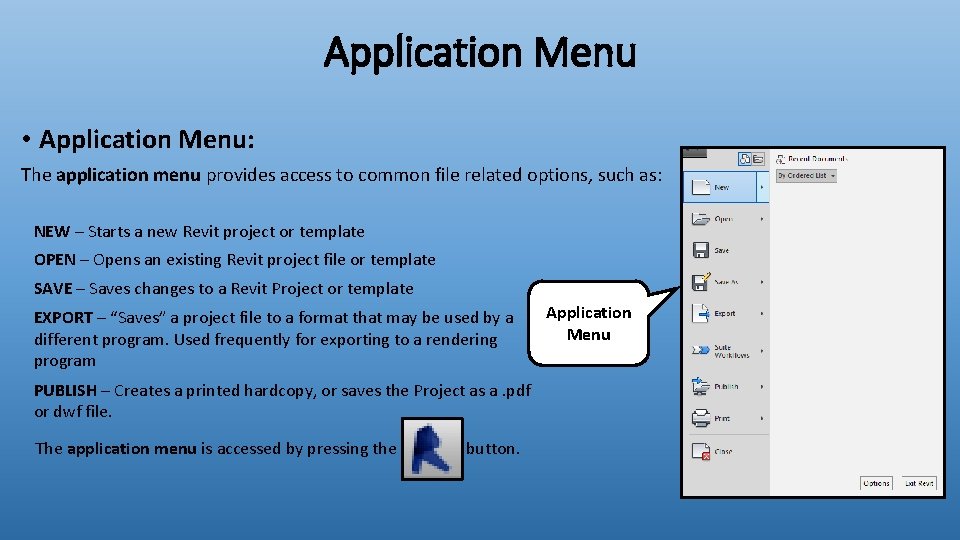
Application Menu • Application Menu: The application menu provides access to common file related options, such as: NEW – Starts a new Revit project or template OPEN – Opens an existing Revit project file or template SAVE – Saves changes to a Revit Project or template EXPORT – “Saves” a project file to a format that may be used by a different program. Used frequently for exporting to a rendering program PUBLISH – Creates a printed hardcopy, or saves the Project as a. pdf or dwf file. The application menu is accessed by pressing the button. Application Menu
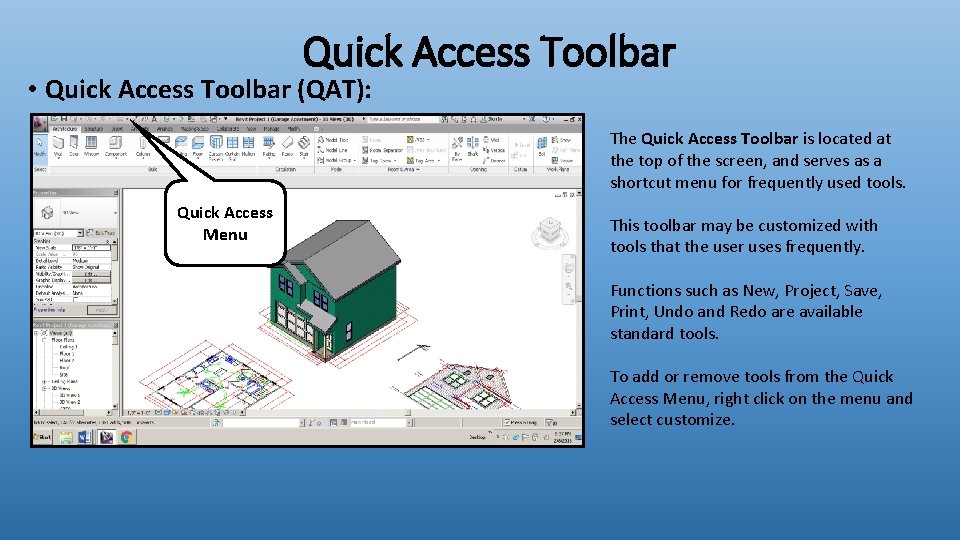
Quick Access Toolbar • Quick Access Toolbar (QAT): The Quick Access Toolbar is located at the top of the screen, and serves as a shortcut menu for frequently used tools. Quick Access Menu This toolbar may be customized with tools that the user uses frequently. Functions such as New, Project, Save, Print, Undo and Redo are available standard tools. To add or remove tools from the Quick Access Menu, right click on the menu and select customize.
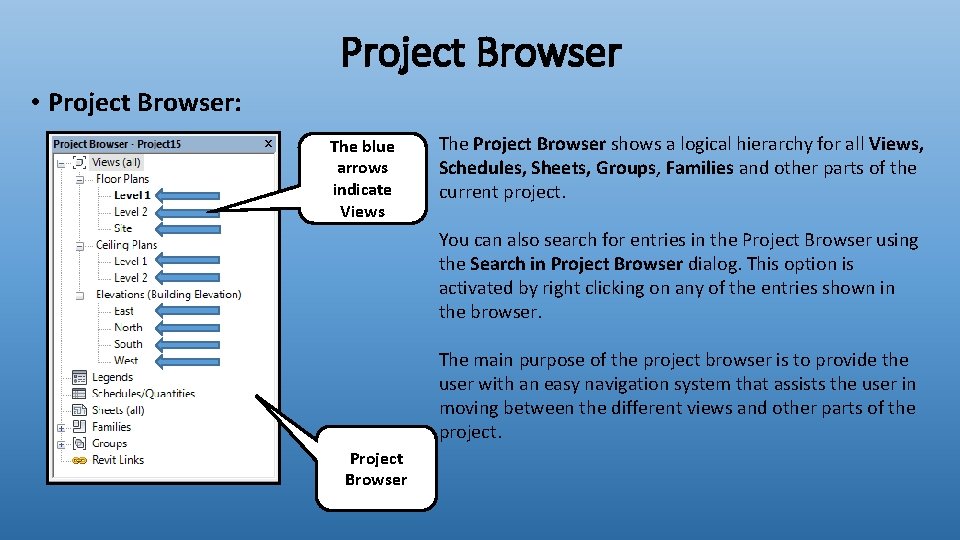
Project Browser • Project Browser: The blue arrows indicate Views The Project Browser shows a logical hierarchy for all Views, Schedules, Sheets, Groups, Families and other parts of the current project. You can also search for entries in the Project Browser using the Search in Project Browser dialog. This option is activated by right clicking on any of the entries shown in the browser. The main purpose of the project browser is to provide the user with an easy navigation system that assists the user in moving between the different views and other parts of the project. Project Browser
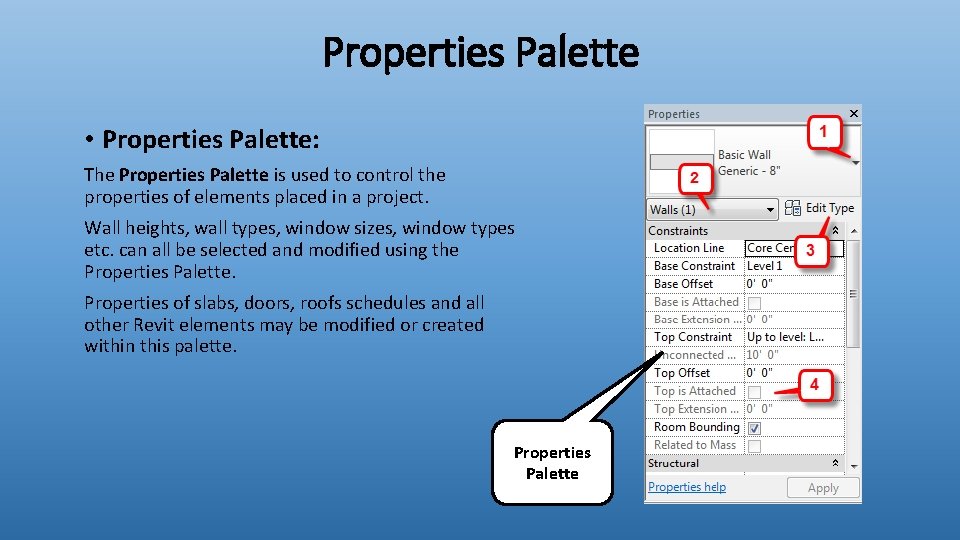
Properties Palette • Properties Palette: The Properties Palette is used to control the properties of elements placed in a project. Wall heights, wall types, window sizes, window types etc. can all be selected and modified using the Properties Palette. Properties of slabs, doors, roofs schedules and all other Revit elements may be modified or created within this palette. Properties Palette
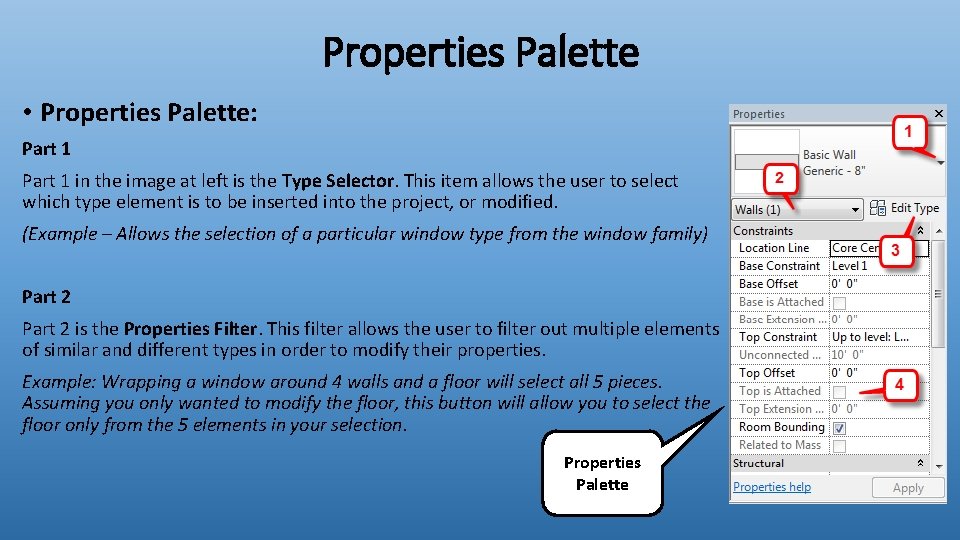
Properties Palette • Properties Palette: Part 1 in the image at left is the Type Selector. This item allows the user to select which type element is to be inserted into the project, or modified. (Example – Allows the selection of a particular window type from the window family) Part 2 is the Properties Filter. This filter allows the user to filter out multiple elements of similar and different types in order to modify their properties. Example: Wrapping a window around 4 walls and a floor will select all 5 pieces. Assuming you only wanted to modify the floor, this button will allow you to select the floor only from the 5 elements in your selection. Properties Palette
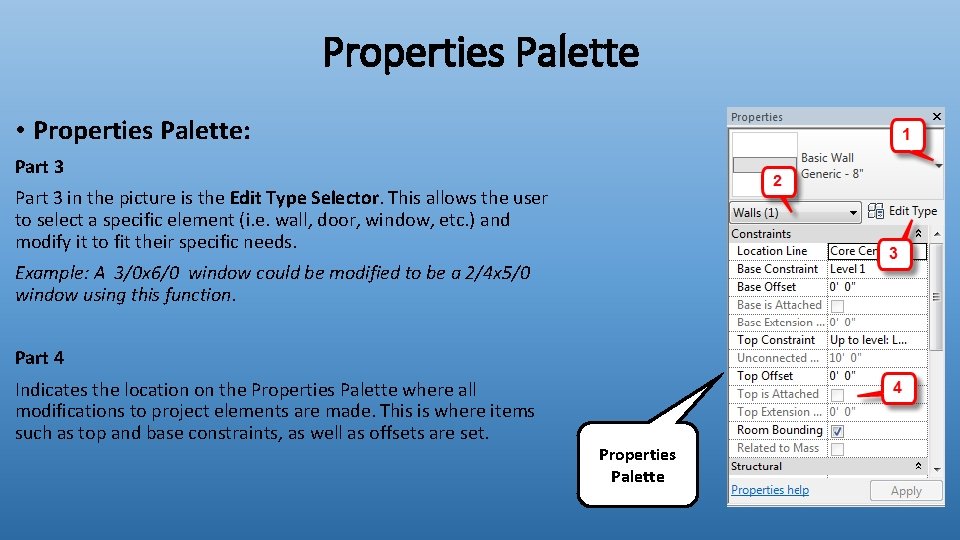
Properties Palette • Properties Palette: Part 3 in the picture is the Edit Type Selector. This allows the user to select a specific element (i. e. wall, door, window, etc. ) and modify it to fit their specific needs. Example: A 3/0 x 6/0 window could be modified to be a 2/4 x 5/0 window using this function. Part 4 Indicates the location on the Properties Palette where all modifications to project elements are made. This is where items such as top and base constraints, as well as offsets are set. Properties Palette
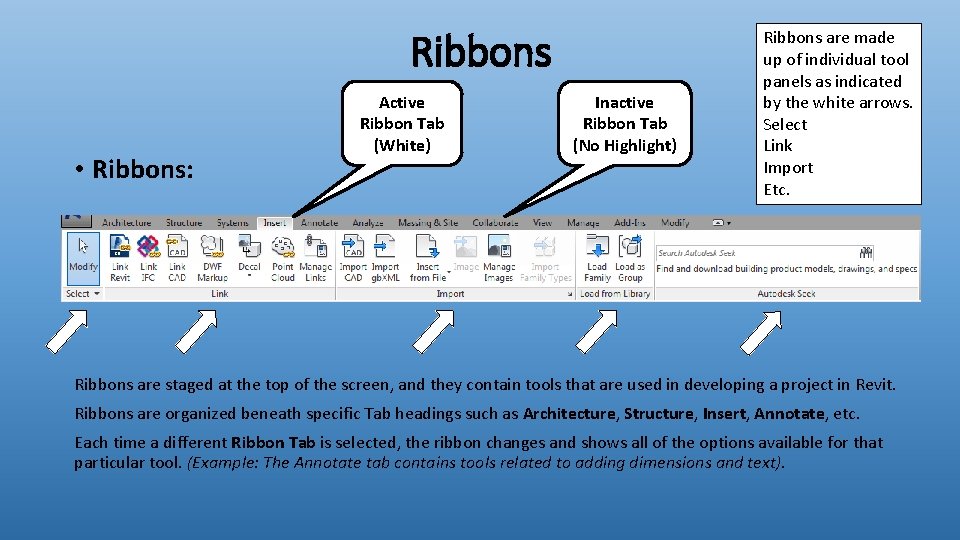
Ribbons • Ribbons: Active Ribbon Tab (White) Inactive Ribbon Tab (No Highlight) Ribbons are made up of individual tool panels as indicated by the white arrows. Select Link Import Etc. Ribbons are staged at the top of the screen, and they contain tools that are used in developing a project in Revit. Ribbons are organized beneath specific Tab headings such as Architecture, Structure, Insert, Annotate, etc. Each time a different Ribbon Tab is selected, the ribbon changes and shows all of the options available for that particular tool. (Example: The Annotate tab contains tools related to adding dimensions and text).
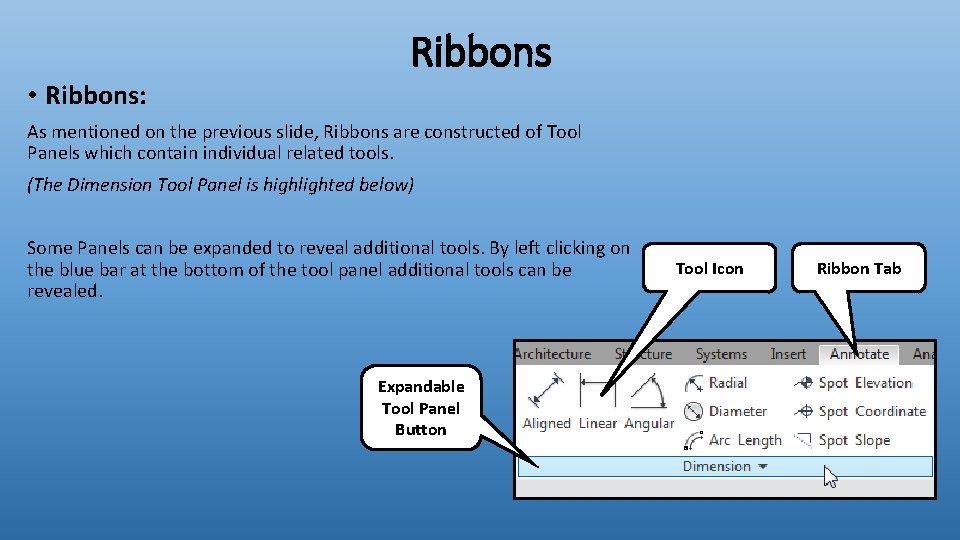
Ribbons • Ribbons: As mentioned on the previous slide, Ribbons are constructed of Tool Panels which contain individual related tools. (The Dimension Tool Panel is highlighted below) Some Panels can be expanded to reveal additional tools. By left clicking on the blue bar at the bottom of the tool panel additional tools can be revealed. Expandable Tool Panel Button Tool Icon Ribbon Tab
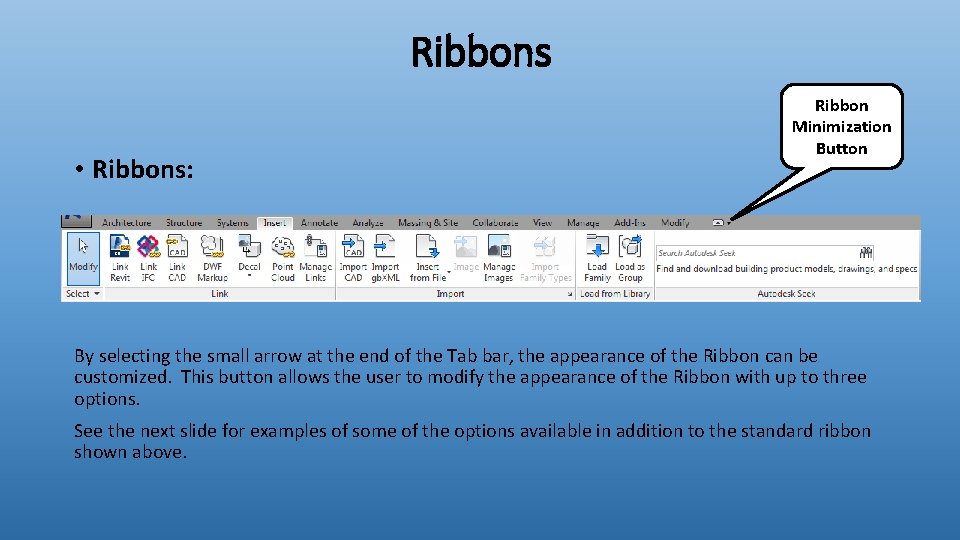
Ribbons • Ribbons: Ribbon Minimization Button By selecting the small arrow at the end of the Tab bar, the appearance of the Ribbon can be customized. This button allows the user to modify the appearance of the Ribbon with up to three options. See the next slide for examples of some of the options available in addition to the standard ribbon shown above.
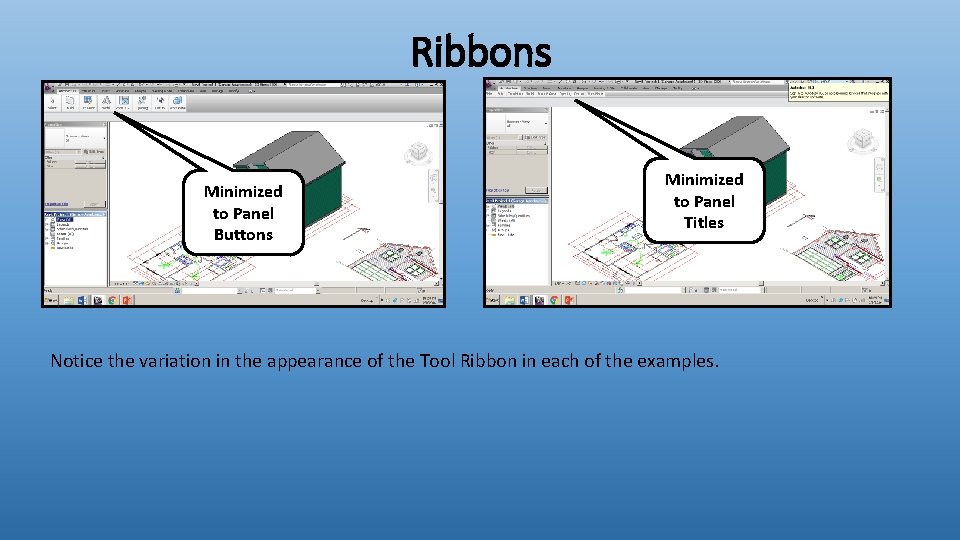
Ribbons Minimized to Panel Buttons Minimized to Panel Titles Notice the variation in the appearance of the Tool Ribbon in each of the examples.
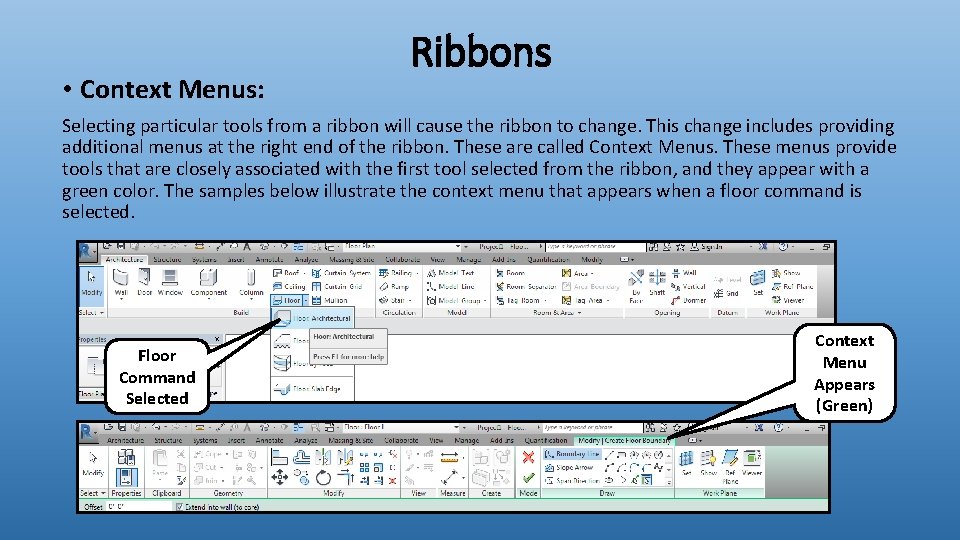
• Context Menus: Ribbons Selecting particular tools from a ribbon will cause the ribbon to change. This change includes providing additional menus at the right end of the ribbon. These are called Context Menus. These menus provide tools that are closely associated with the first tool selected from the ribbon, and they appear with a green color. The samples below illustrate the context menu that appears when a floor command is selected. Floor Command Selected Context Menu Appears (Green)
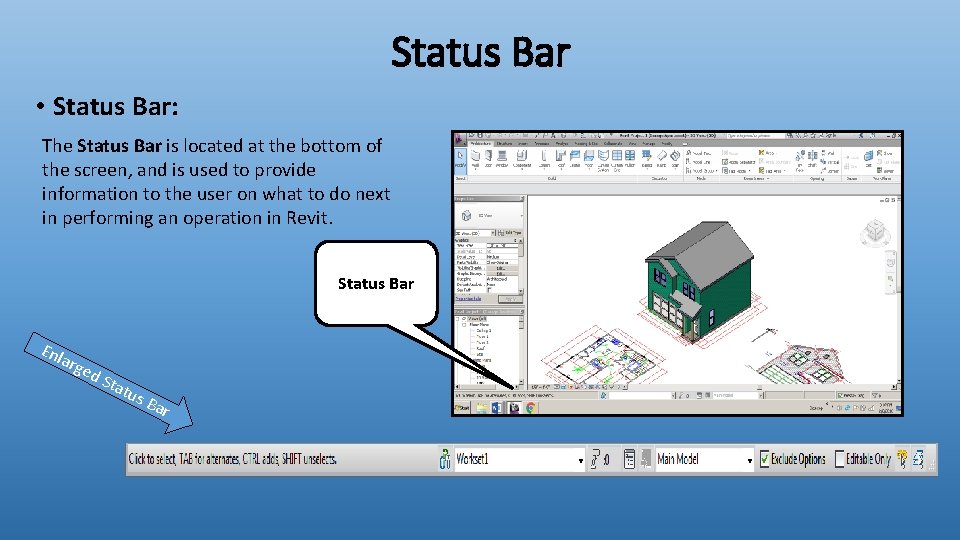
Status Bar • Status Bar: The Status Bar is located at the bottom of the screen, and is used to provide information to the user on what to do next in performing an operation in Revit. Status Bar Enl arg ed Sta tu s. B ar
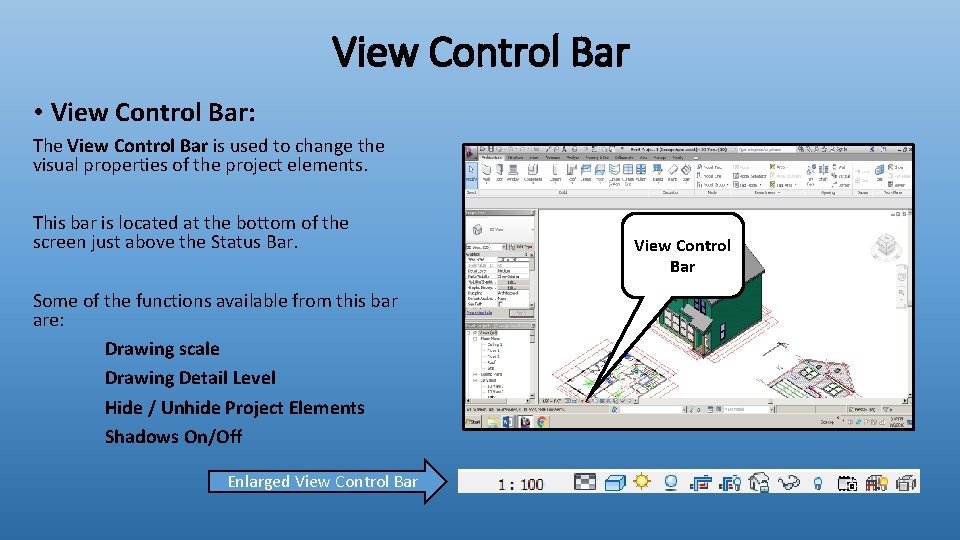
View Control Bar • View Control Bar: The View Control Bar is used to change the visual properties of the project elements. This bar is located at the bottom of the screen just above the Status Bar. Some of the functions available from this bar are: Drawing scale Drawing Detail Level Hide / Unhide Project Elements Shadows On/Off Enlarged View Control Bar
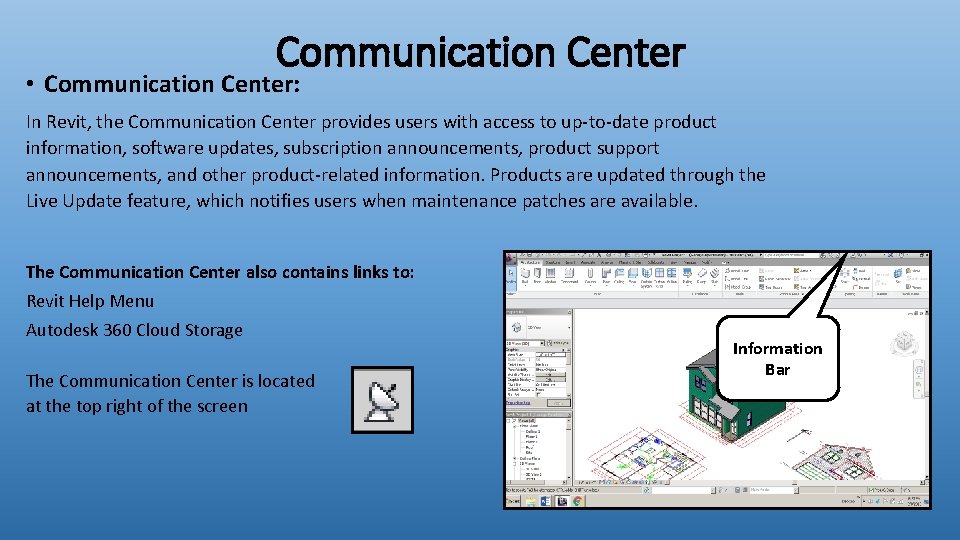
Communication Center • Communication Center: In Revit, the Communication Center provides users with access to up-to-date product information, software updates, subscription announcements, product support announcements, and other product-related information. Products are updated through the Live Update feature, which notifies users when maintenance patches are available. The Communication Center also contains links to: Revit Help Menu Autodesk 360 Cloud Storage The Communication Center is located at the top right of the screen Information Bar
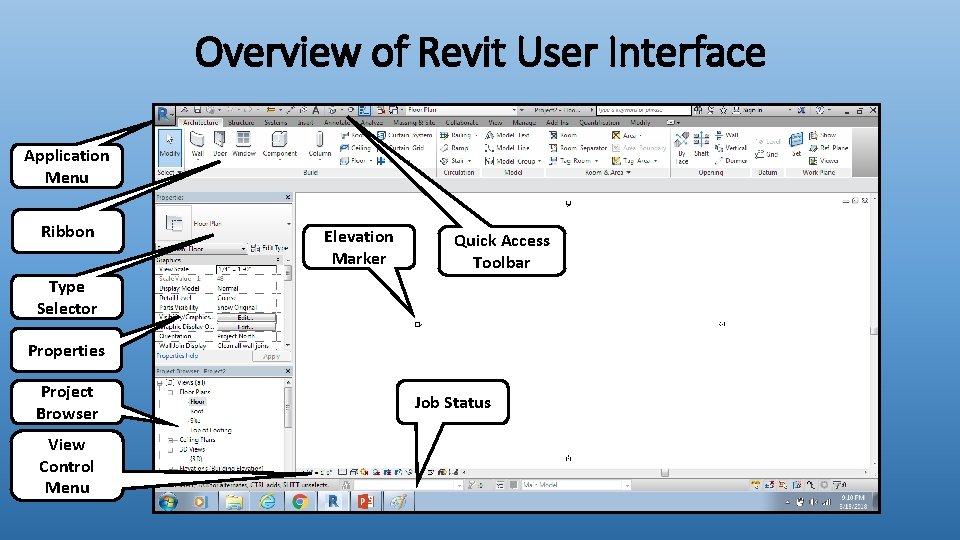
Overview of Revit User Interface Application Menu Ribbon Elevation Marker Quick Access Toolbar Type Selector Properties Project Browser View Control Menu Job Status
END OF PRESENTATION