
Revit Imports Using SDS2 Connect Presenter Matt Bailey
Revit Imports Using SDS/2 Connect Presenter: Matt Bailey mbailey@connectedsg. com Connected Structural Group 702 -804 -1535 Moderator: Brian Cobb Scan QR Code to Download Slides
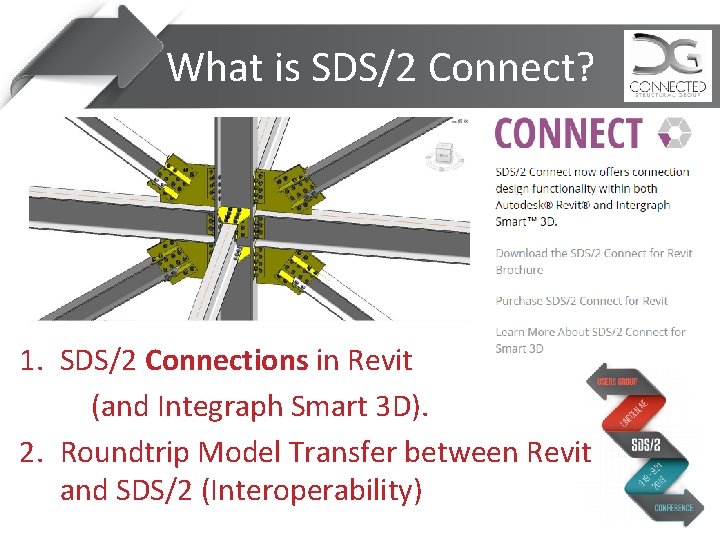
What is SDS/2 Connect? 1. SDS/2 Connections in Revit (and Integraph Smart 3 D). 2. Roundtrip Model Transfer between Revit and SDS/2 (Interoperability)
What is SDS/2 Connect? 1. How many Users have Imported a Revit Model using SDS/2 Connect (Roundtrip)
What is SDS/2 Connect? 2. How many Users have Failed at Importing a Revit Model using SDS/2 Connect (Roundtrip)
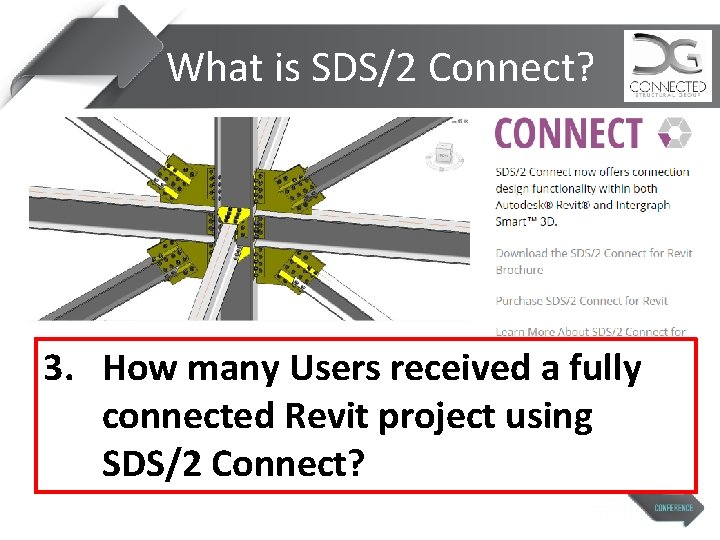
What is SDS/2 Connect? 3. How many Users received a fully connected Revit project using SDS/2 Connect?
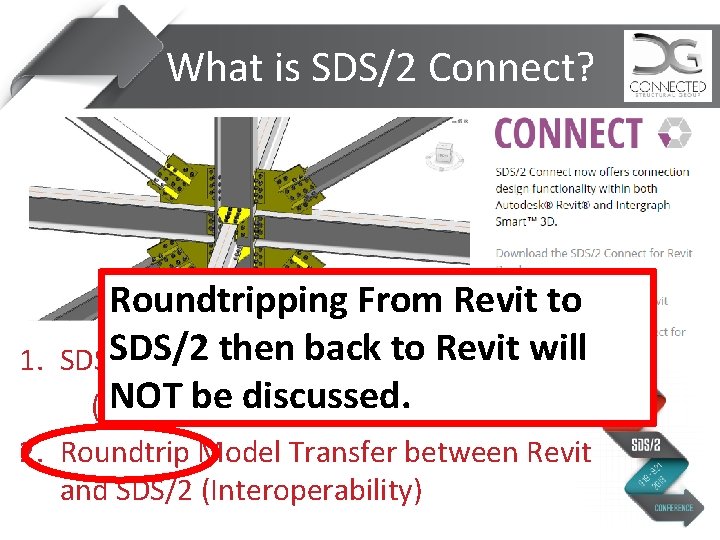
What is SDS/2 Connect? Roundtripping From Revit to SDS/2 then back to Revit will 1. SDS/2 Connections in Revit NOT be discussed. (and Integraph Smart 3 D). 2. Roundtrip Model Transfer between Revit and SDS/2 (Interoperability)
Why not IFC or CIS/2? • CIS/2 Format is becoming obsolete – No CIS/2 Export from Revit • IFC File Size is large • SDS/2 Connect Caters export for SDS/2 – Better Revit Family Interpretation (Section Sizes) – Better work point translation – Export only Steel Elements
Benefit of IFC? • IFC Import via Design. LINK – Translate model location when importing • IFC Import via Reference Models – Overlay to verify SDS/2 elements – Update at a later date Why don’t I use IFC? IFC Member Ends will likely not align with the center of column or exact level. Much more extensive model checking is required when used as an import.
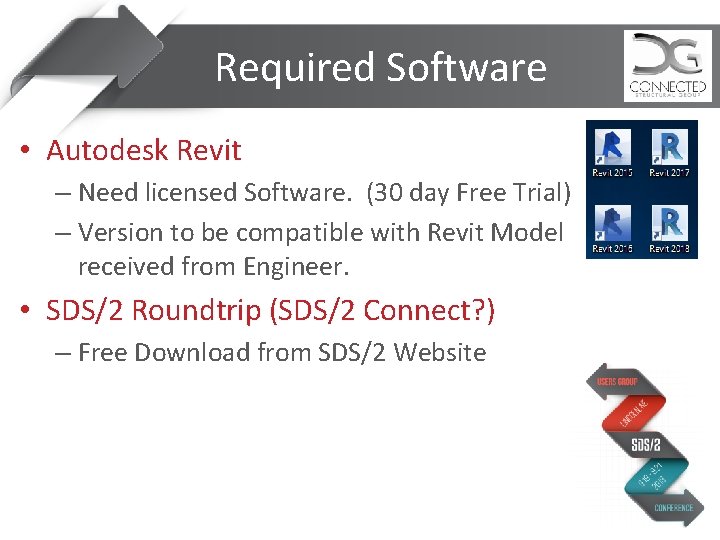
Required Software • Autodesk Revit – Need licensed Software. (30 day Free Trial) – Version to be compatible with Revit Model received from Engineer. • SDS/2 Roundtrip (SDS/2 Connect? ) – Free Download from SDS/2 Website
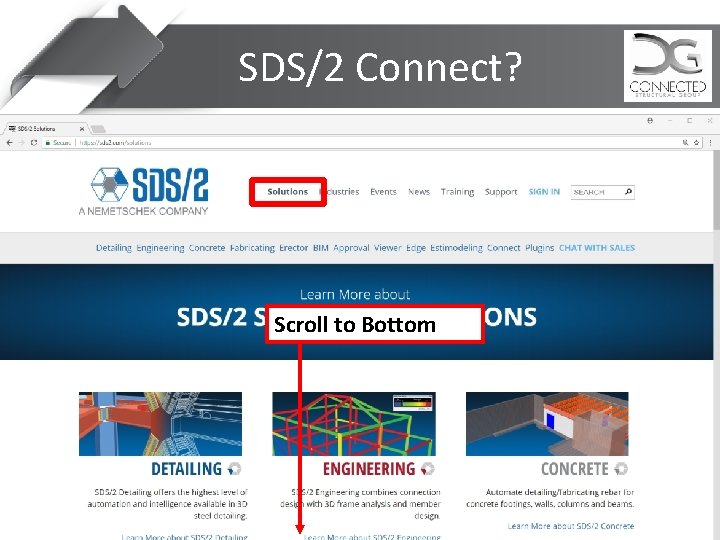
SDS/2 Connect? Scroll to Bottom
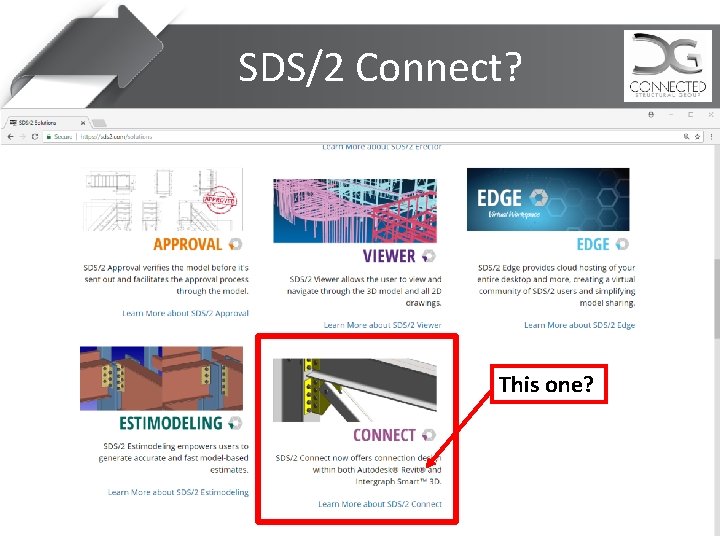
SDS/2 Connect? This one?
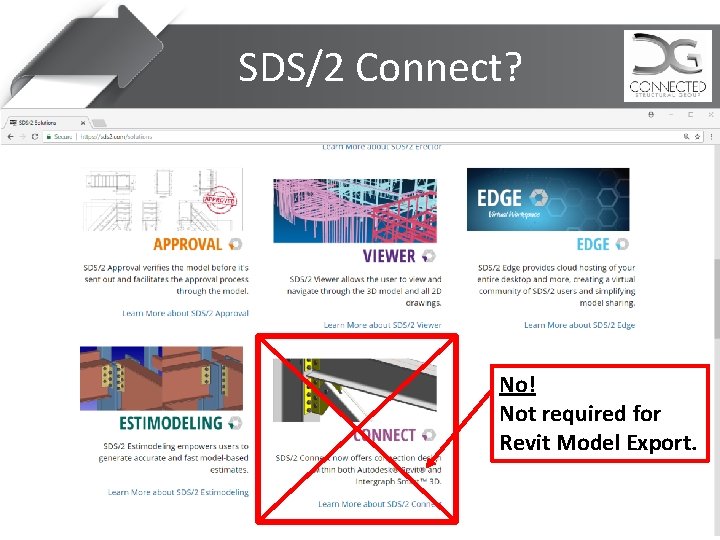
SDS/2 Connect? No! Not required for Revit Model Export.
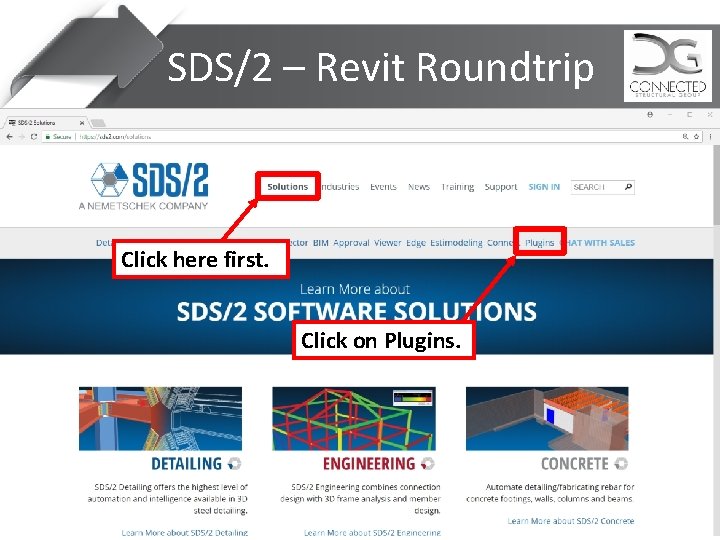
SDS/2 – Revit Roundtrip Click here first. Click on Plugins.
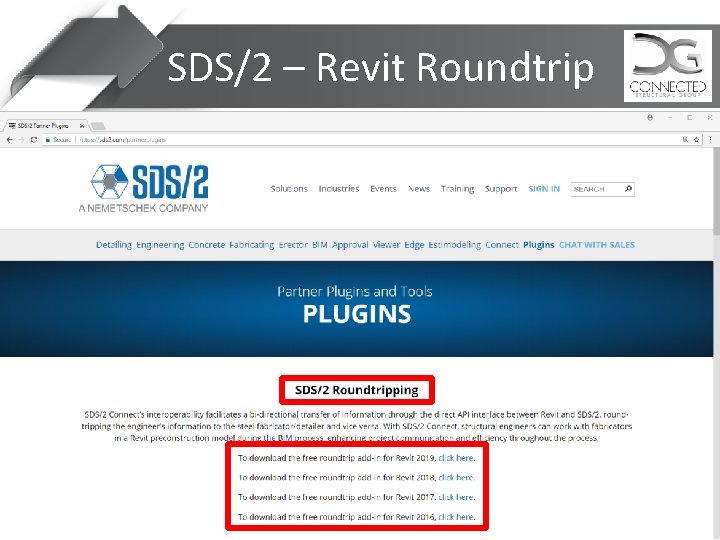
SDS/2 – Revit Roundtrip
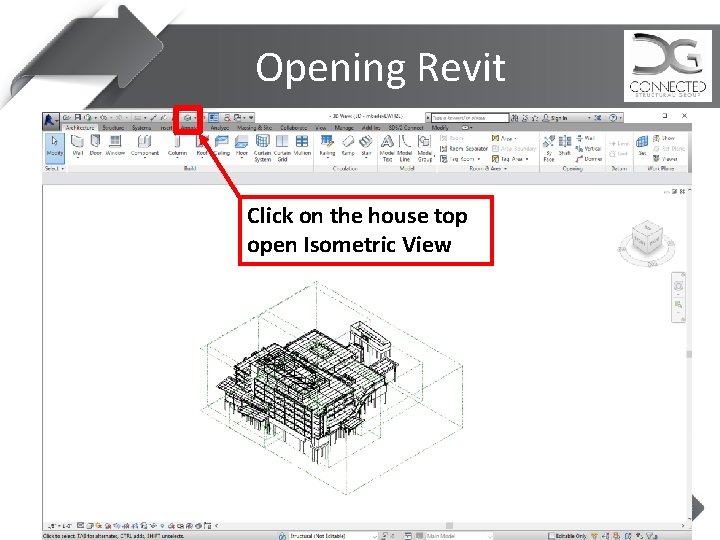
Opening Revit Click on the house top open Isometric View
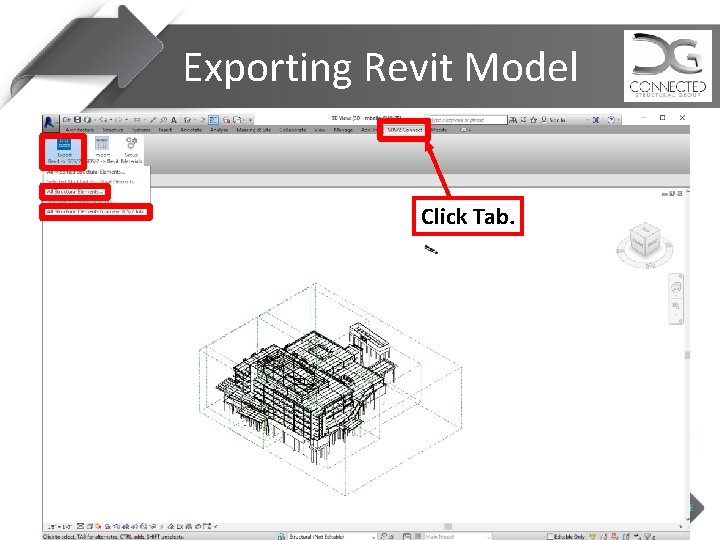
Exporting Revit Model Click Tab.
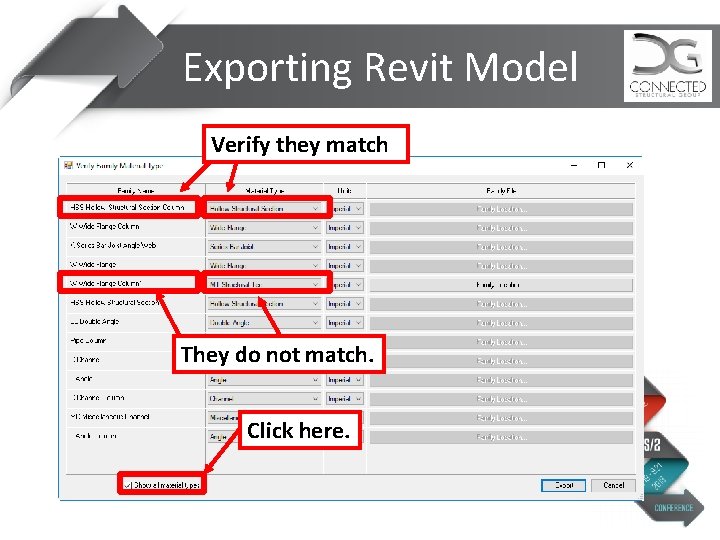
Exporting Revit Model Verify they match They do not match. Click here.
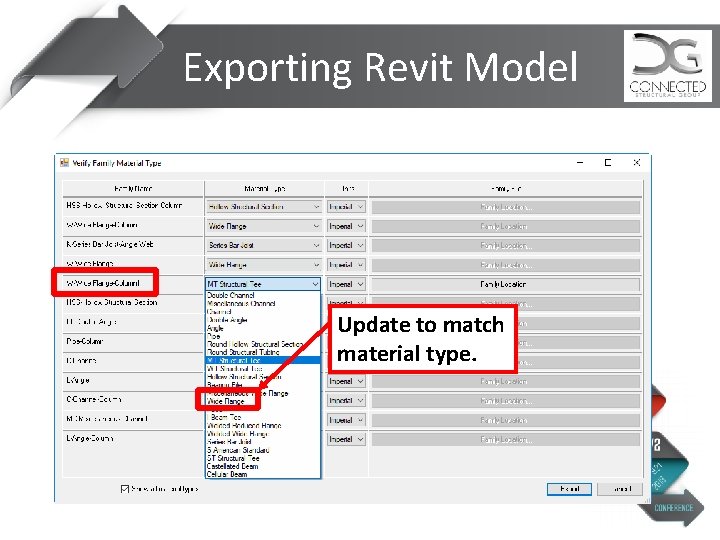
Exporting Revit Model Update to match material type.
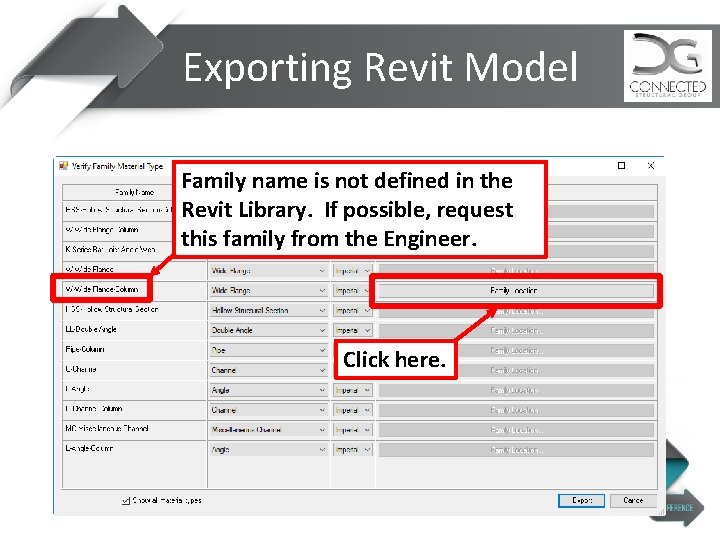
Exporting Revit Model Family name is not defined in the Revit Library. If possible, request this family from the Engineer. Click here.
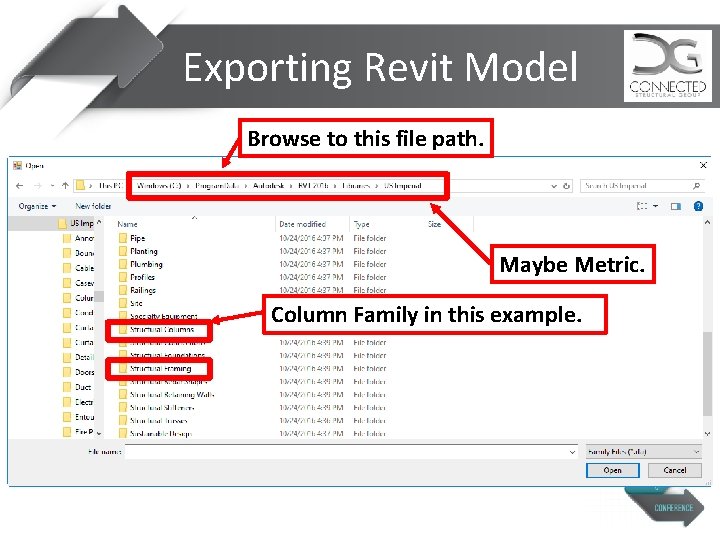
Exporting Revit Model Browse to this file path. Maybe Metric. Column Family in this example.
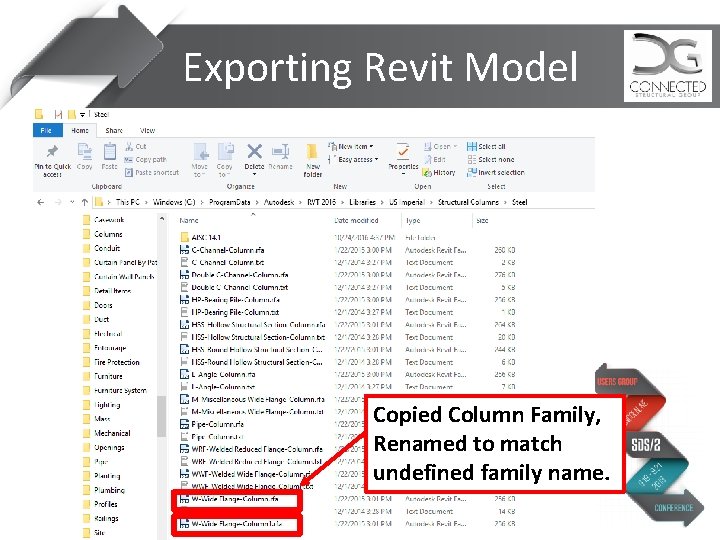
Exporting Revit Model Copied Column Family, Renamed to match undefined family name.
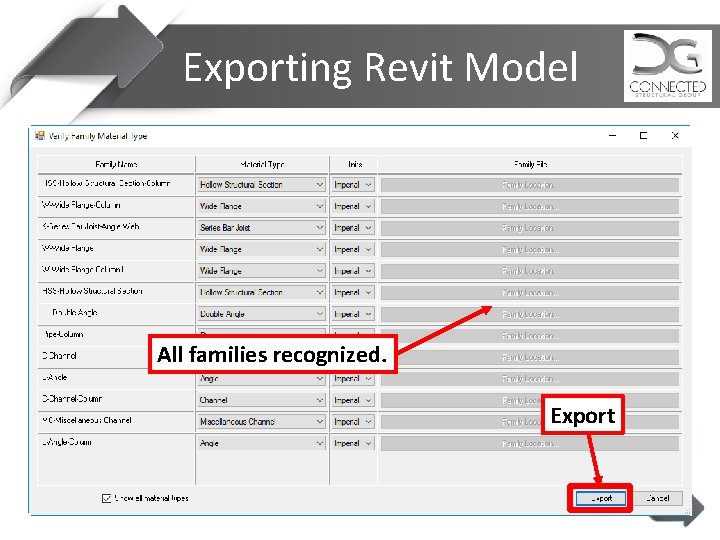
Exporting Revit Model All families recognized. Export
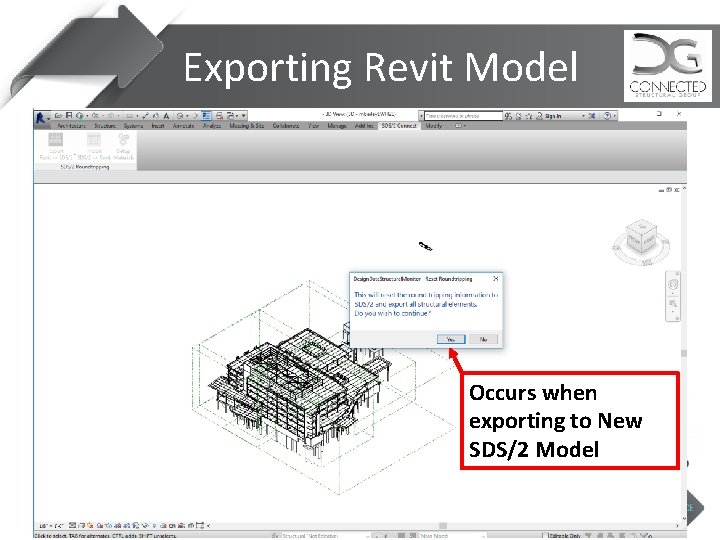
Exporting Revit Model Occurs when exporting to New SDS/2 Model
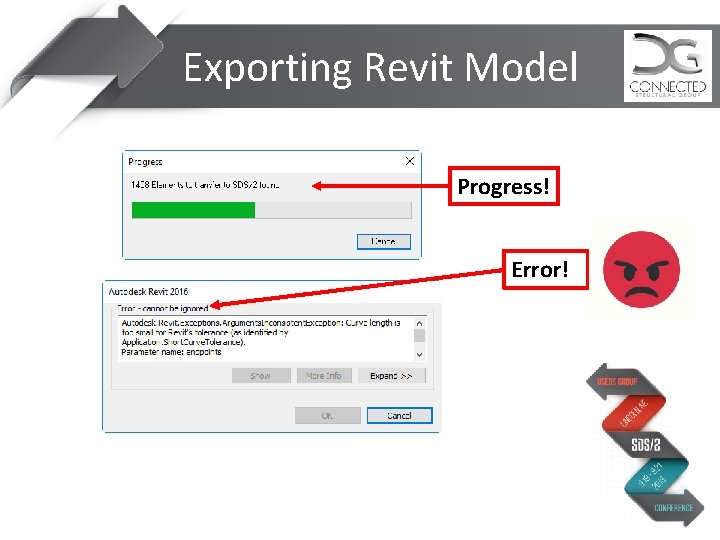
Exporting Revit Model Progress! Error!
Exporting Revit Model
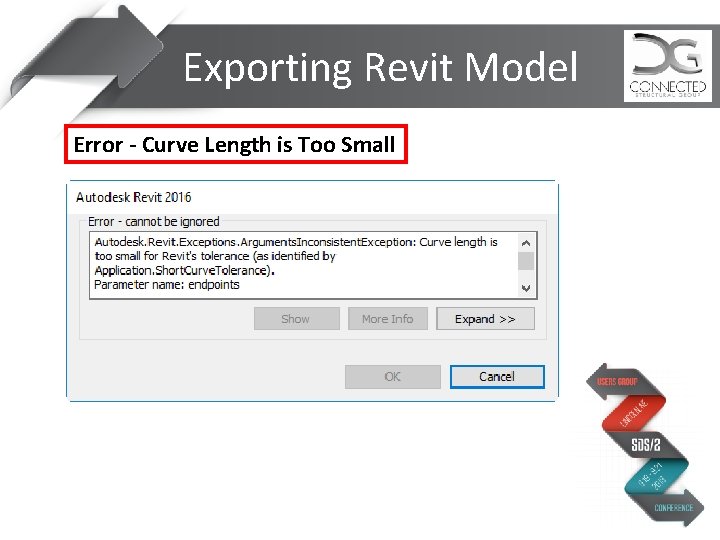
Exporting Revit Model Error - Curve Length is Too Small
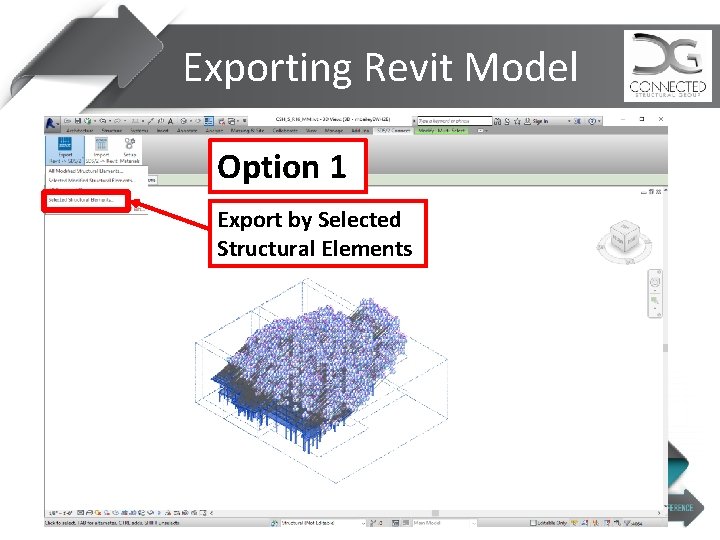
Exporting Revit Model Option 1 Export by Selected Structural Elements
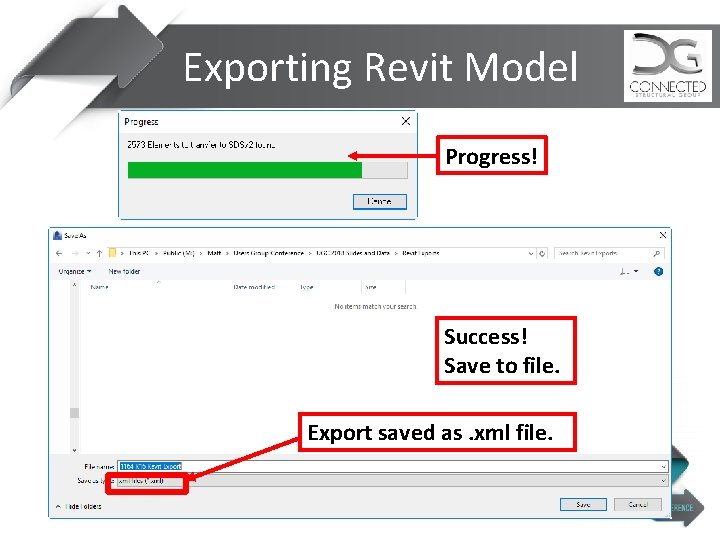
Exporting Revit Model Progress! Success! Save to file. Export saved as. xml file.
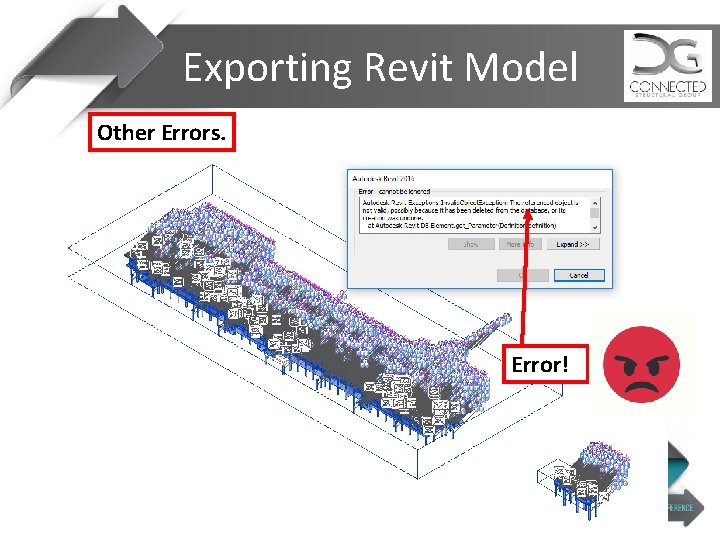
Exporting Revit Model Other Errors. Error!
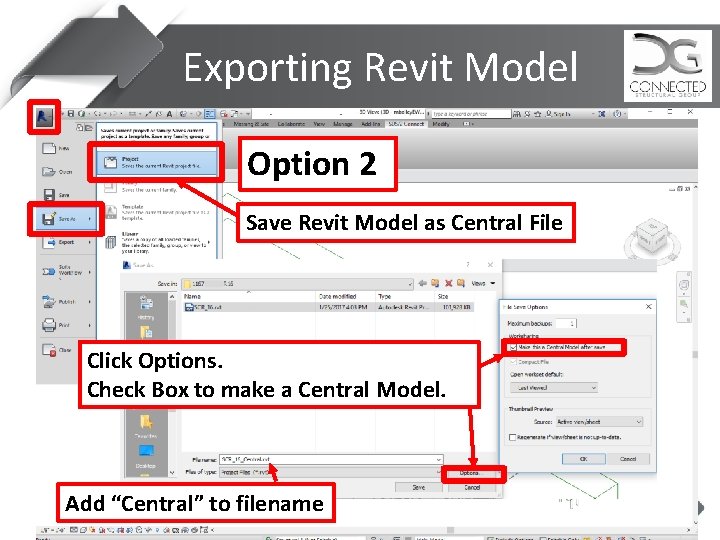
Exporting Revit Model Option 2 Save Revit Model as Central File Click Options. Check Box to make a Central Model. Add “Central” to filename
Exporting Revit Model Ultimate Goal 1. Get the XML file! 2. Don’t waste time in Revit
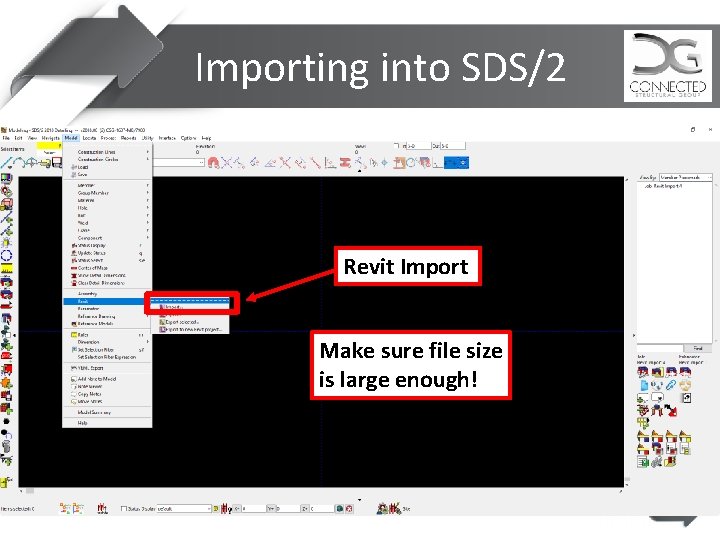
Importing into SDS/2 Revit Import Make sure file size is large enough!
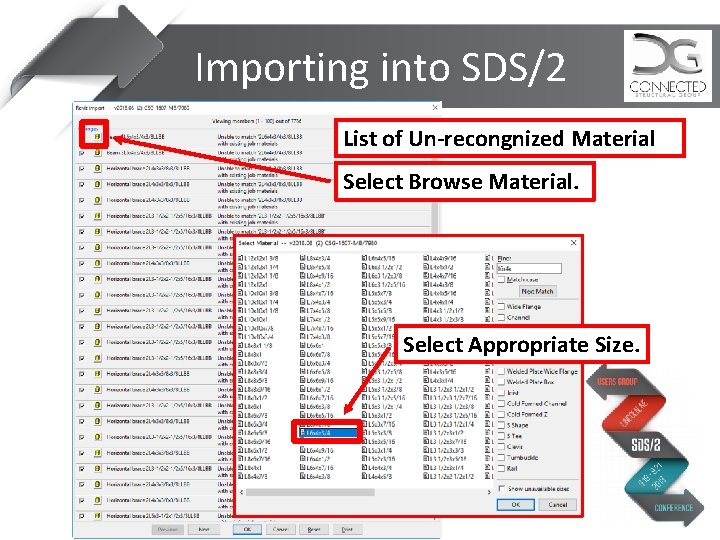
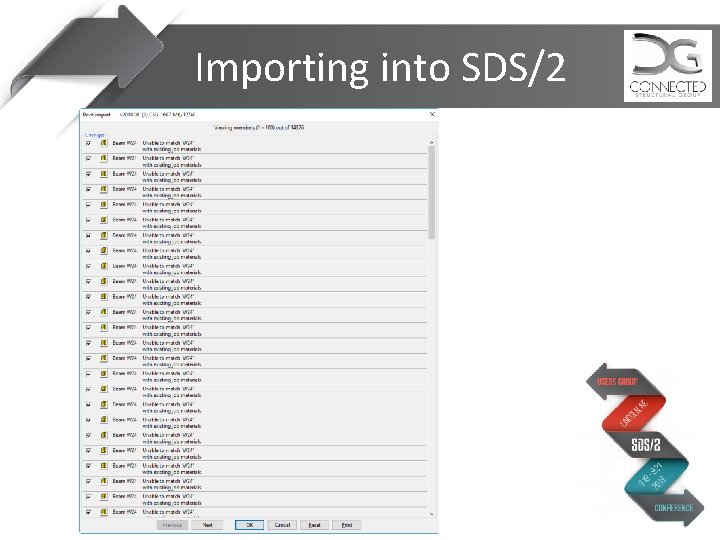
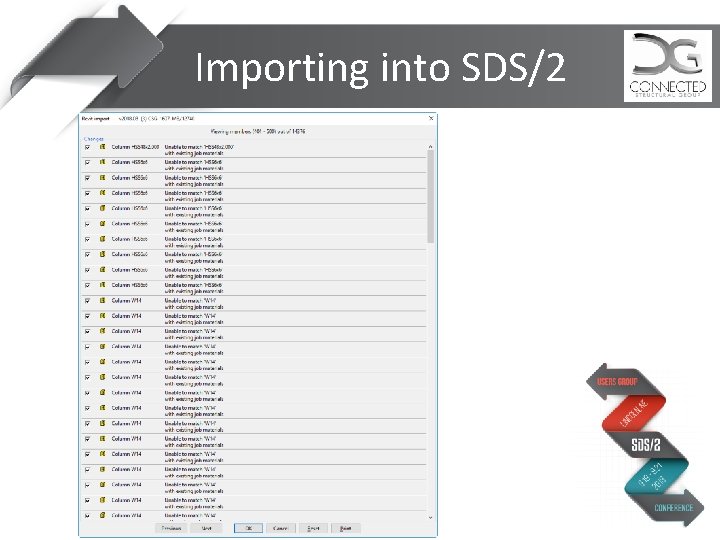
Importing into SDS/2 List of Un-recongnized Material Select Browse Material. Select Appropriate Size.
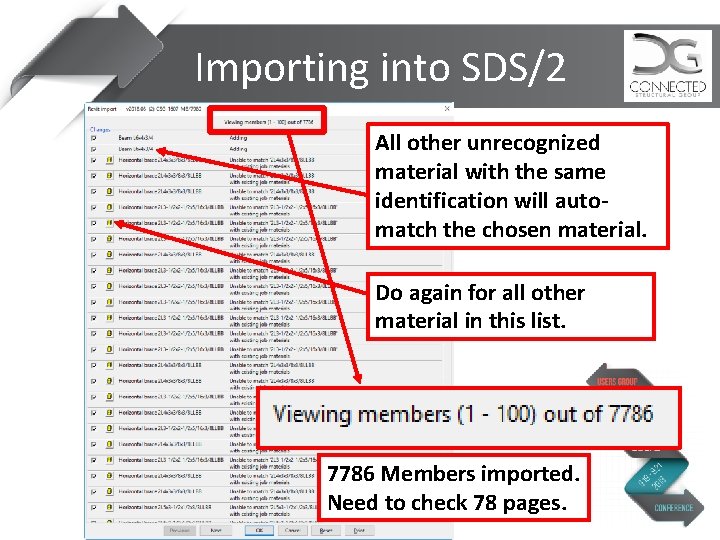
Importing into SDS/2 All other unrecognized material with the same identification will automatch the chosen material. Do again for all other material in this list. 7786 Members imported. Need to check 78 pages.
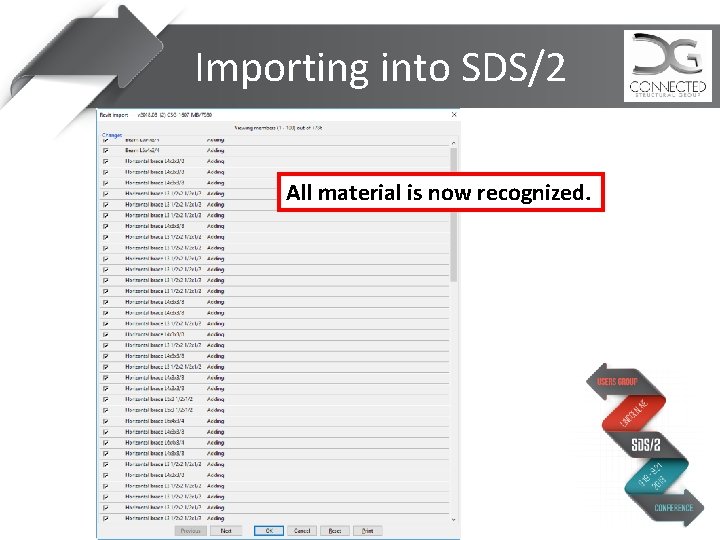
Importing into SDS/2 All material is now recognized.
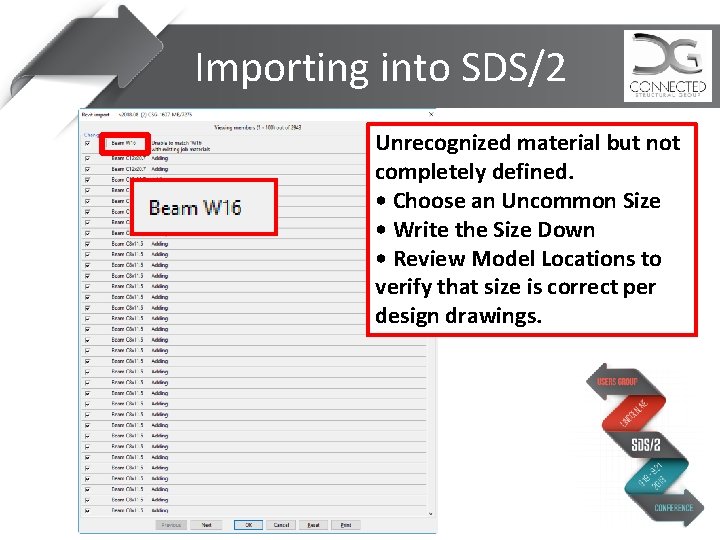
Importing into SDS/2 Unrecognized material but not completely defined. • Choose an Uncommon Size • Write the Size Down • Review Model Locations to verify that size is correct per design drawings.
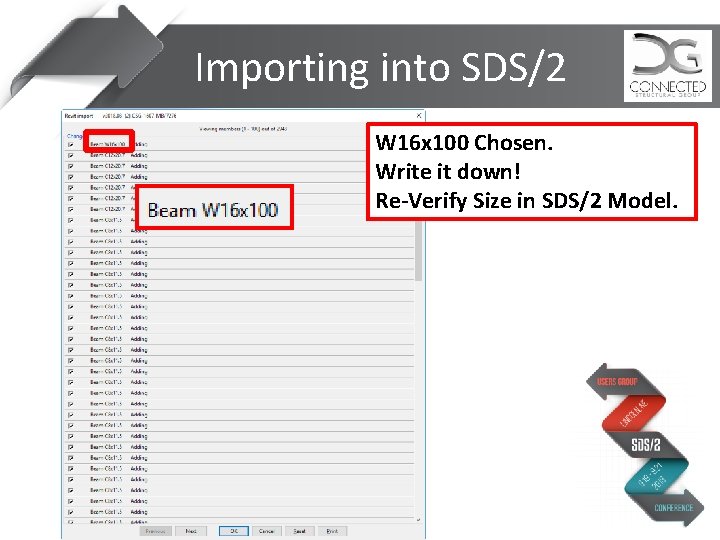
Importing into SDS/2 W 16 x 100 Chosen. Write it down! Re-Verify Size in SDS/2 Model.
Importing into SDS/2
Importing into SDS/2
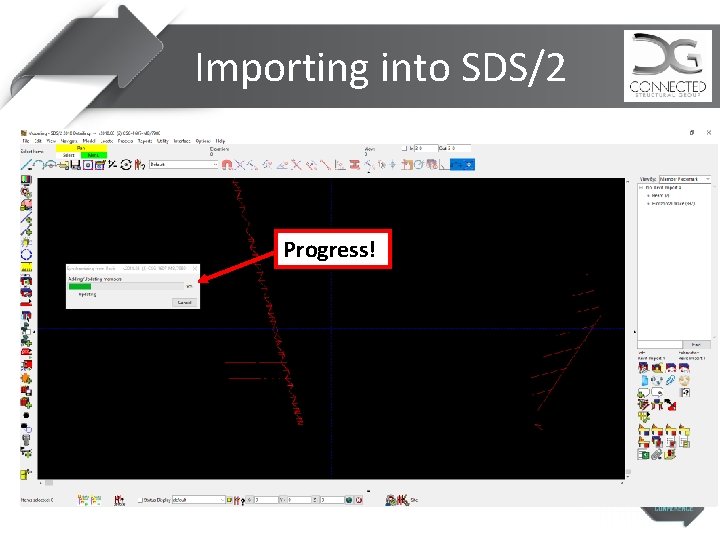
Importing into SDS/2 Progress!
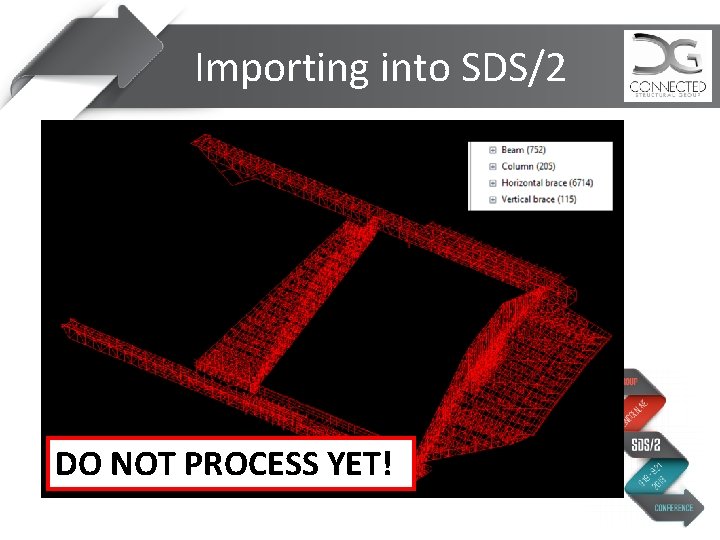
Importing into SDS/2 DO NOT PROCESS YET!
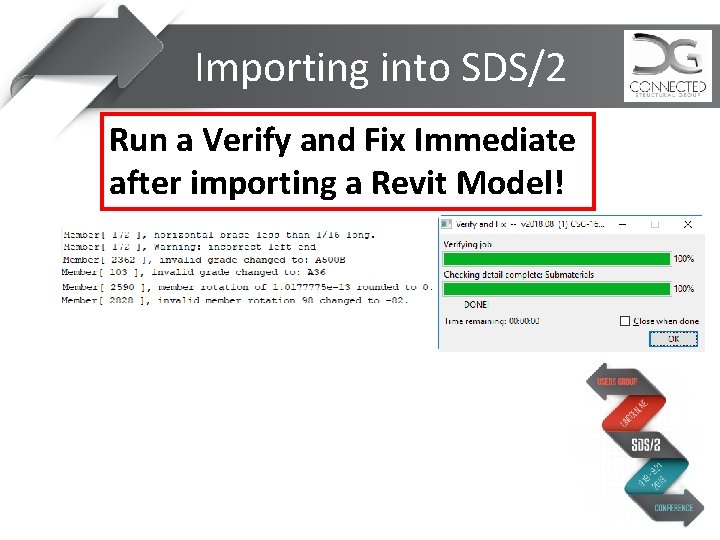
Importing into SDS/2 Run a Verify and Fix Immediate after importing a Revit Model!
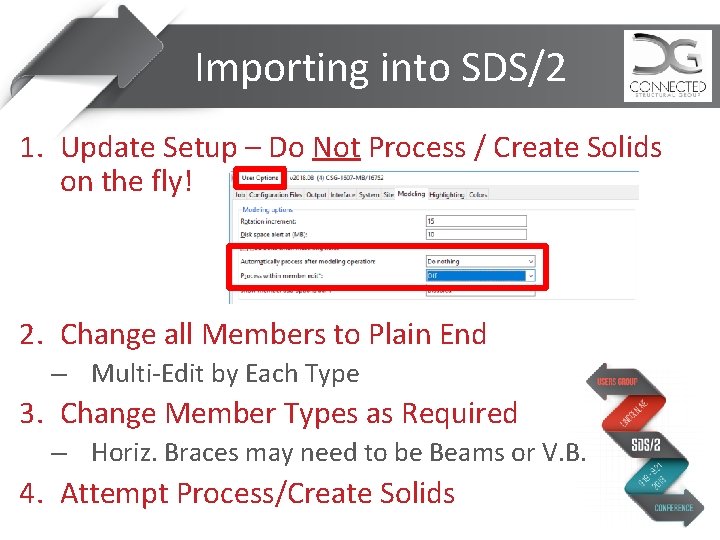
Importing into SDS/2 1. Update Setup – Do Not Process / Create Solids on the fly! 2. Change all Members to Plain End – Multi-Edit by Each Type 3. Change Member Types as Required – Horiz. Braces may need to be Beams or V. B. 4. Attempt Process/Create Solids
Importing into SDS/2
Importing into SDS/2
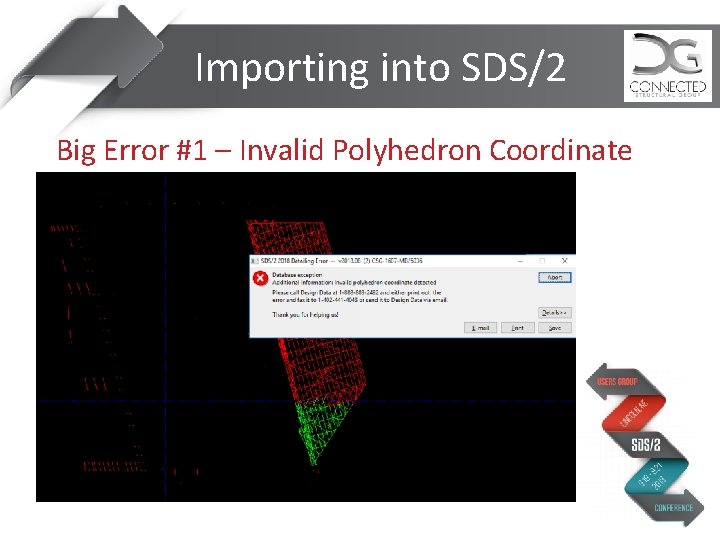
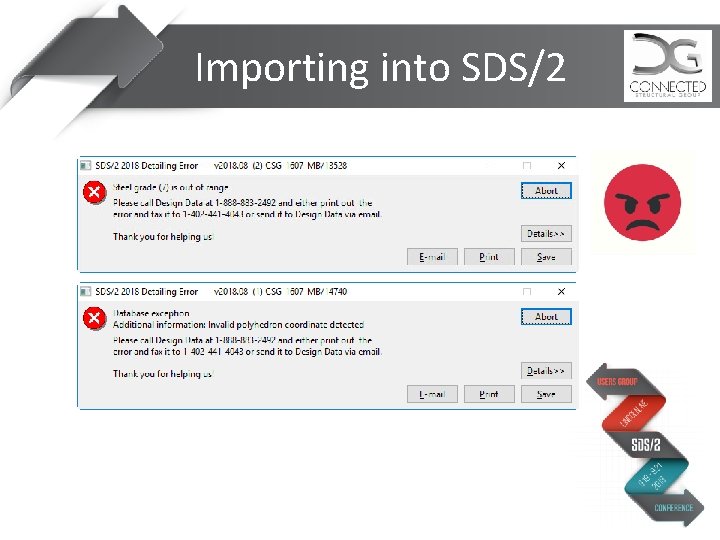
Importing into SDS/2 Big Error #1 – Invalid Polyhedron Coordinate
Importing into SDS/2 • • • Big Error #1 - Invalid Polyhedron Coordinate Revit Allows Overlapping Members, but SDS/2 will Error when Processing Error Report will identify a single member number which overlaps with another Probe Model to Find locations of overlapping members. Move/Delete overlapping members. Then Process will Complete.
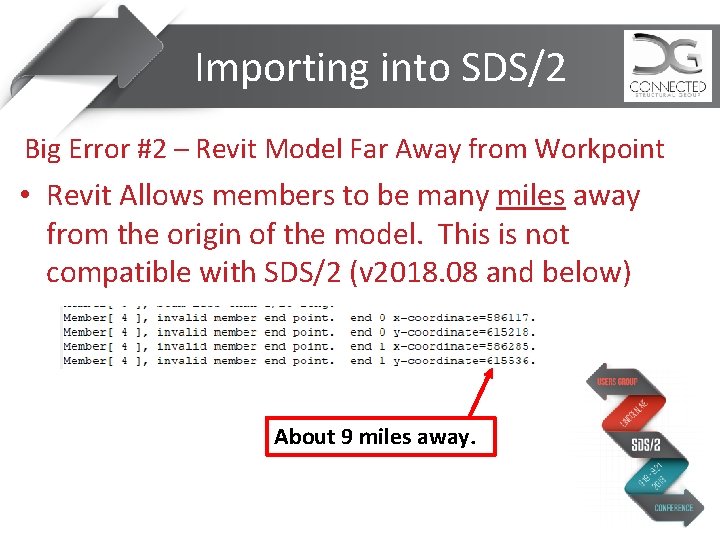
Importing into SDS/2 Big Error #2 – Revit Model Far Away from Workpoint • Revit Allows members to be many miles away from the origin of the model. This is not compatible with SDS/2 (v 2018. 08 and below) About 9 miles away.
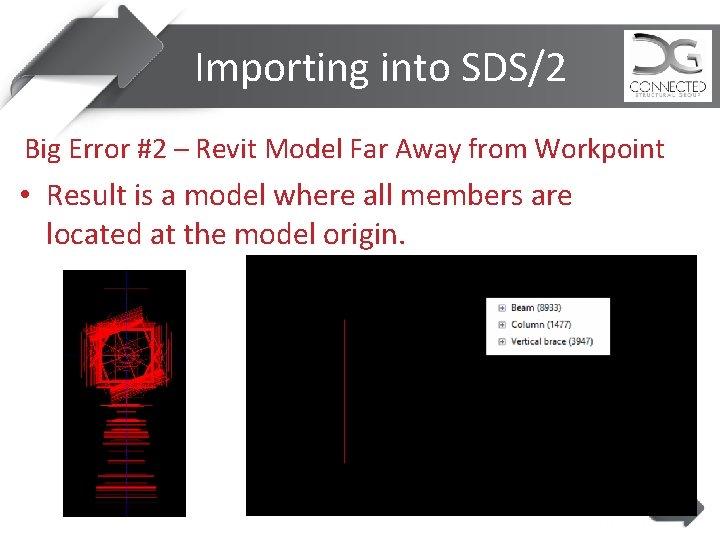
Importing into SDS/2 Big Error #2 – Revit Model Far Away from Workpoint • Result is a model where all members are located at the model origin.
Importing into SDS/2 Big Error #2 – Revit Model Far Away from Workpoint • Solution? 1. Go into Revit and move entire building to the project base point. 2. Export Again 3. Import into New SDS/2 Model • Note: This may not be possible.
Importing into SDS/2 Big Error #2 – Revit Model Far Away from Workpoint • How? – Change the model in Revit. Seriously? Will that work?
Importing into SDS/2 Big Error #2 – Revit Model Far Away from Workpoint
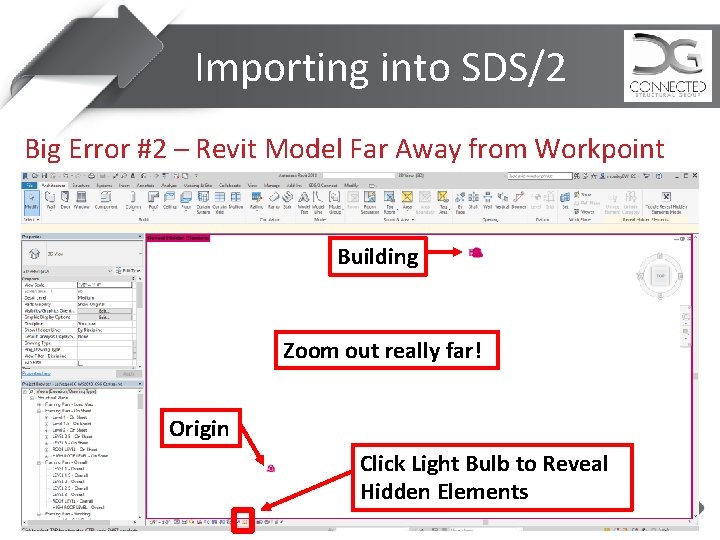
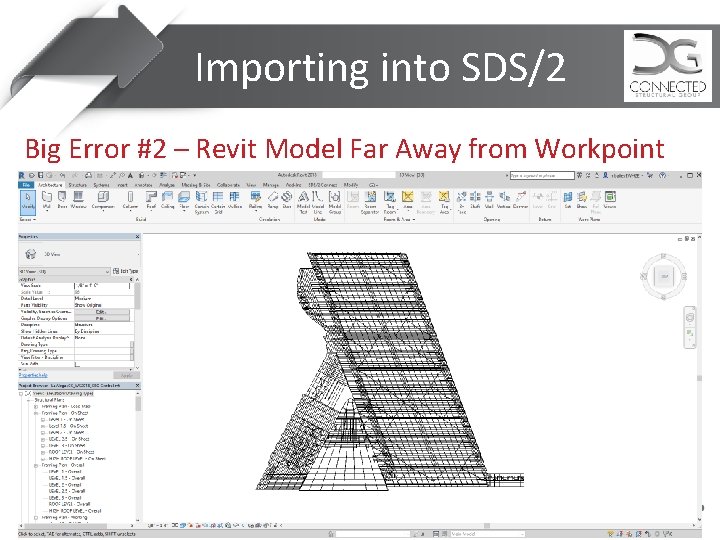
Importing into SDS/2 Big Error #2 – Revit Model Far Away from Workpoint Building Zoom out really far! Origin Click Light Bulb to Reveal Hidden Elements
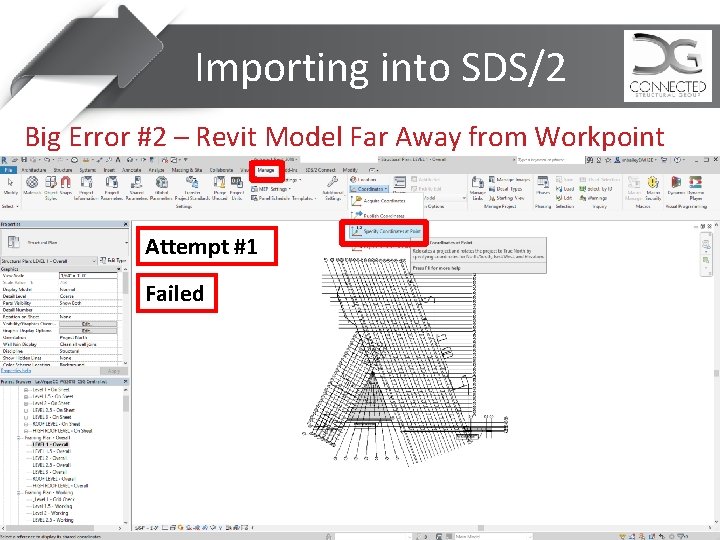
Importing into SDS/2 Big Error #2 – Revit Model Far Away from Workpoint Attempt #1 Failed
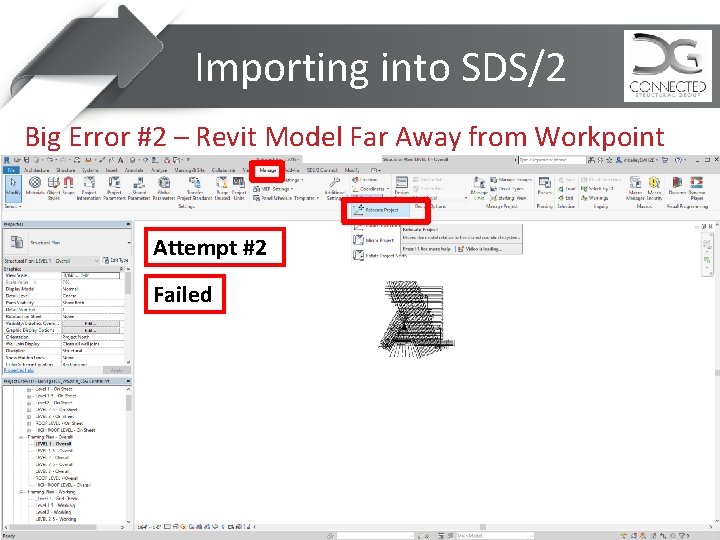
Importing into SDS/2 Big Error #2 – Revit Model Far Away from Workpoint Attempt #2 Failed
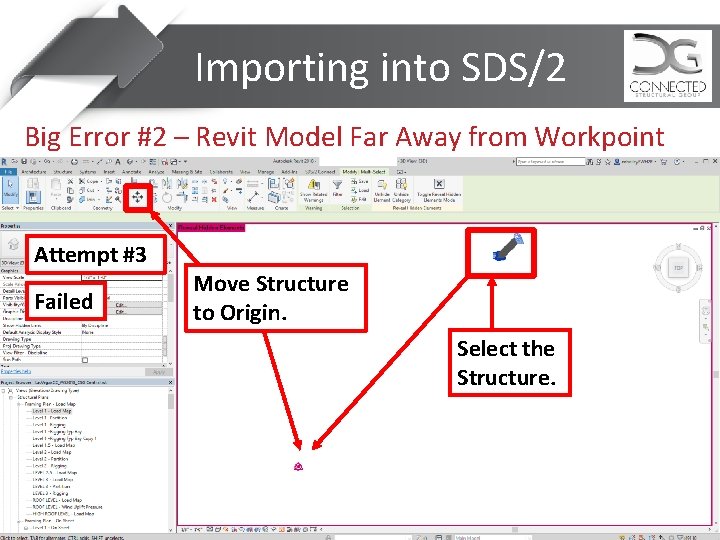
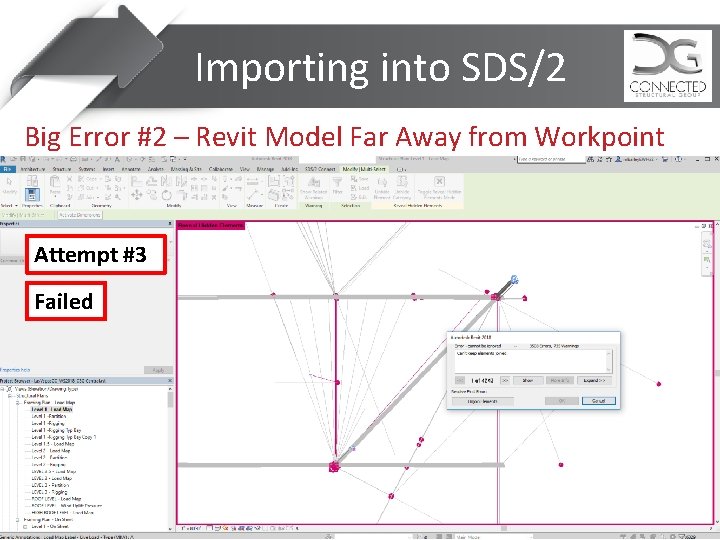
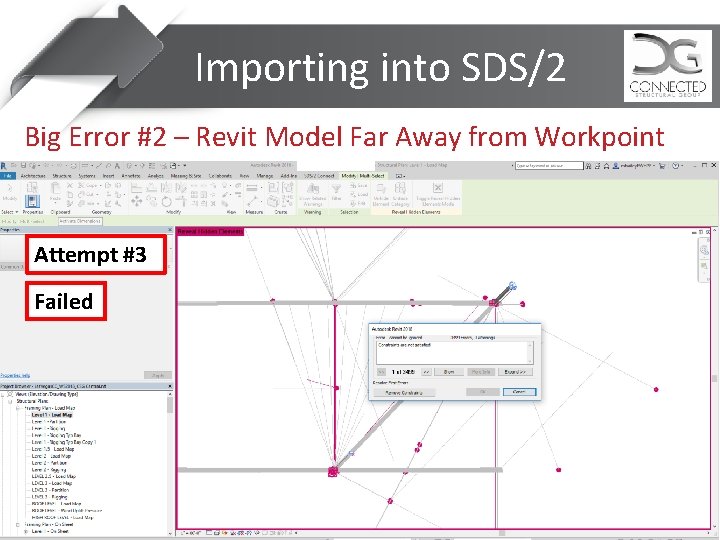
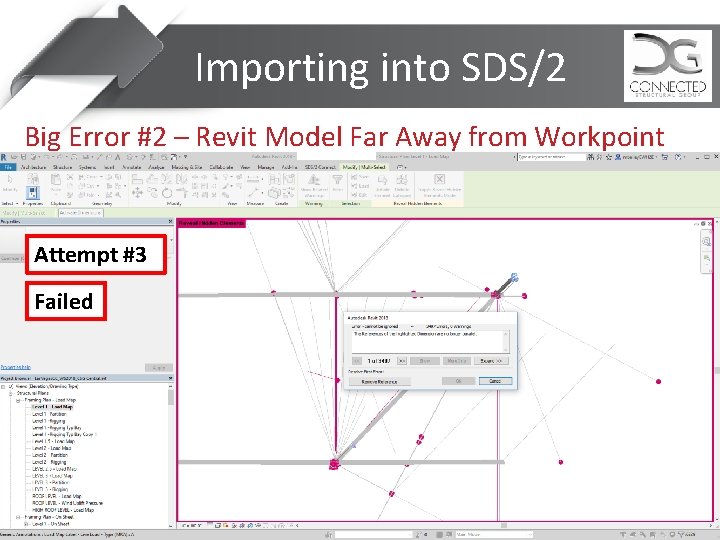
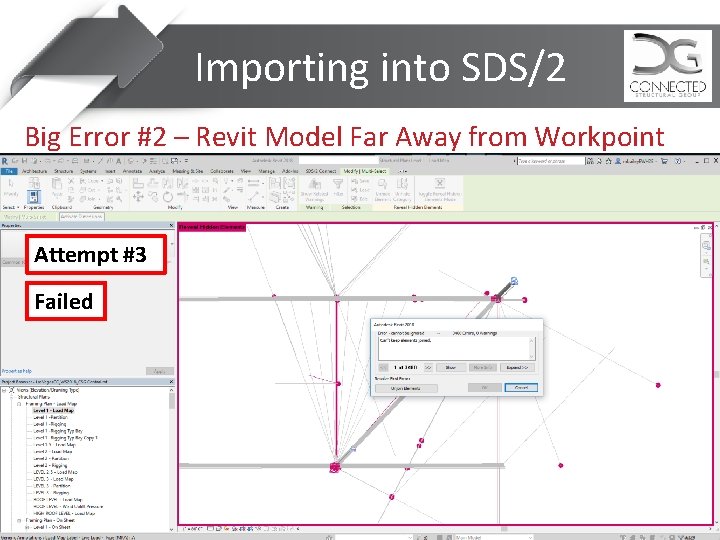
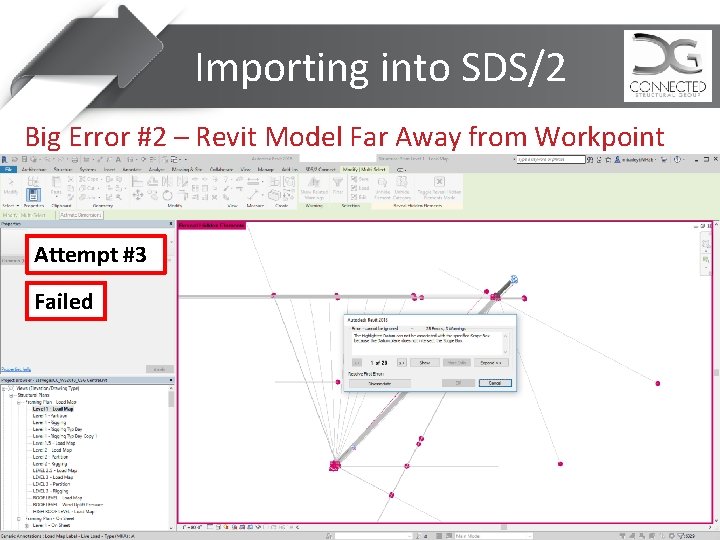
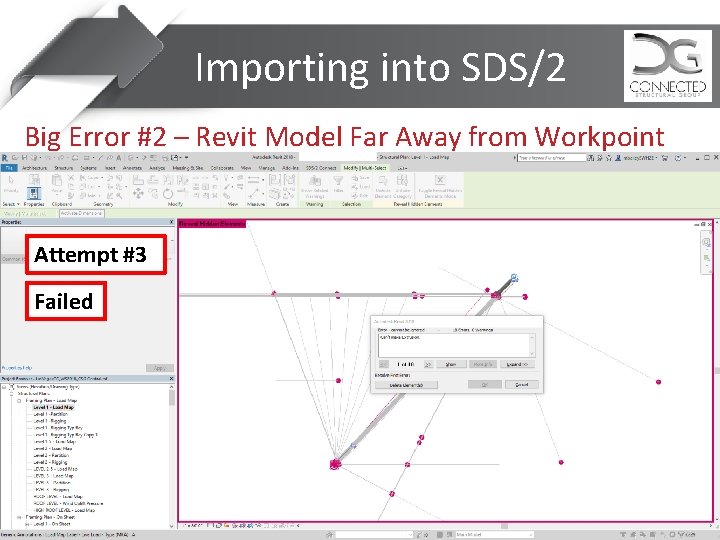
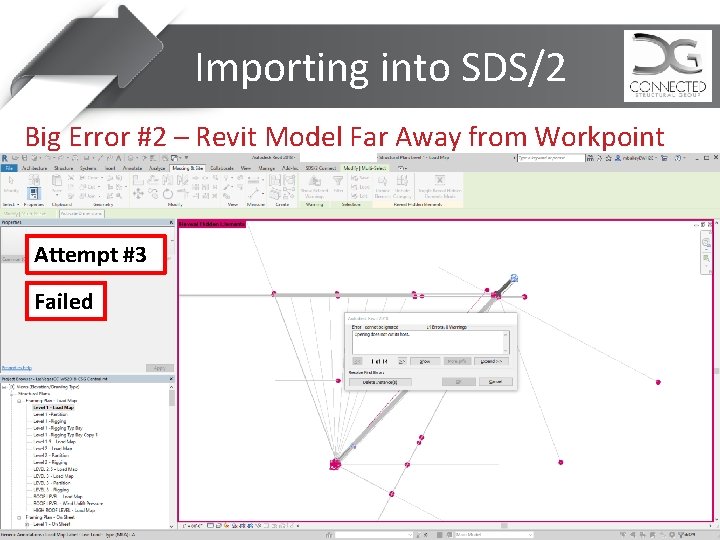
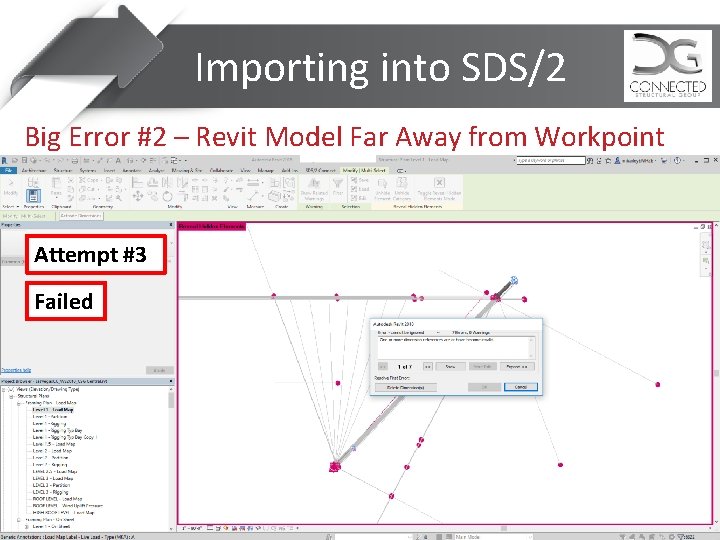
Importing into SDS/2 Big Error #2 – Revit Model Far Away from Workpoint Attempt #3 Failed Move Structure to Origin. Select the Structure.
Importing into SDS/2 Big Error #2 – Revit Model Far Away from Workpoint Attempt #3 Failed
Importing into SDS/2 Big Error #2 – Revit Model Far Away from Workpoint Attempt #3 Failed
Importing into SDS/2 Big Error #2 – Revit Model Far Away from Workpoint Attempt #3 Failed
Importing into SDS/2 Big Error #2 – Revit Model Far Away from Workpoint Attempt #3 Failed
Importing into SDS/2 Big Error #2 – Revit Model Far Away from Workpoint Attempt #3 Failed
Importing into SDS/2 Big Error #2 – Revit Model Far Away from Workpoint Attempt #3 Failed
Importing into SDS/2 Big Error #2 – Revit Model Far Away from Workpoint Attempt #3 Failed
Importing into SDS/2 Big Error #2 – Revit Model Far Away from Workpoint Attempt #3 Failed
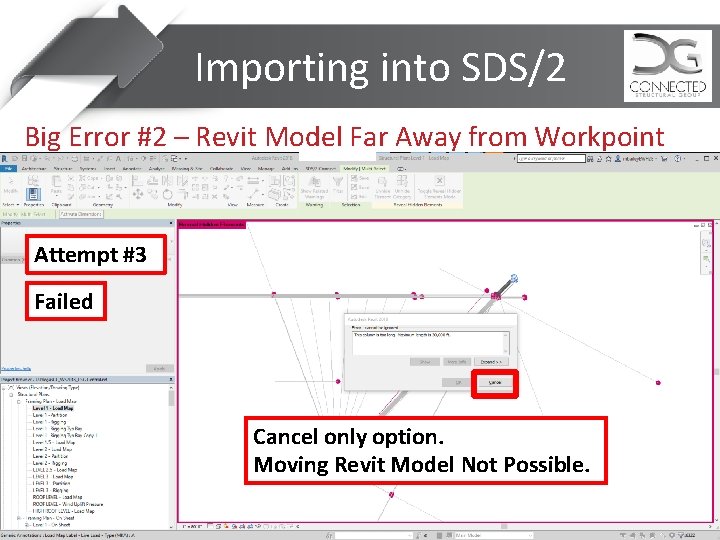
Importing into SDS/2 Big Error #2 – Revit Model Far Away from Workpoint Attempt #3 Failed Cancel only option. Moving Revit Model Not Possible.
Importing into SDS/2 Big Error #2 – Revit Model Far Away from Workpoint Solution? Use IFC File? Issue has currently been addressed to SDS/2
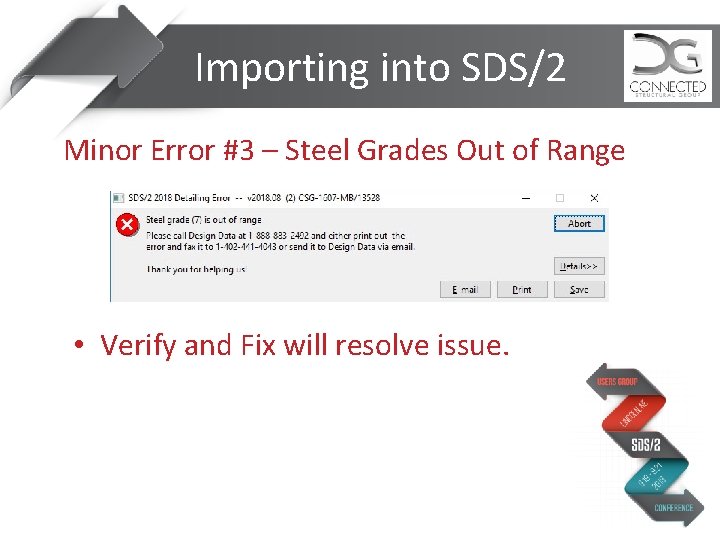
Importing into SDS/2 Minor Error #3 – Steel Grades Out of Range • Verify and Fix will resolve issue.
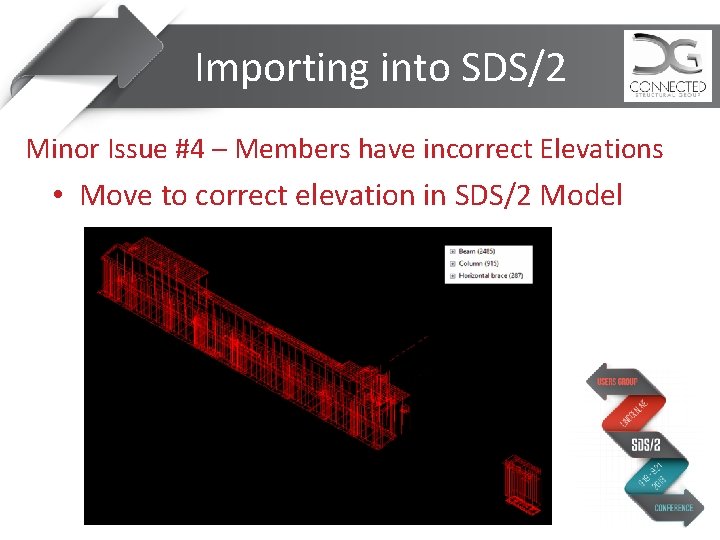
Importing into SDS/2 Minor Issue #4 – Members have incorrect Elevations • Move to correct elevation in SDS/2 Model
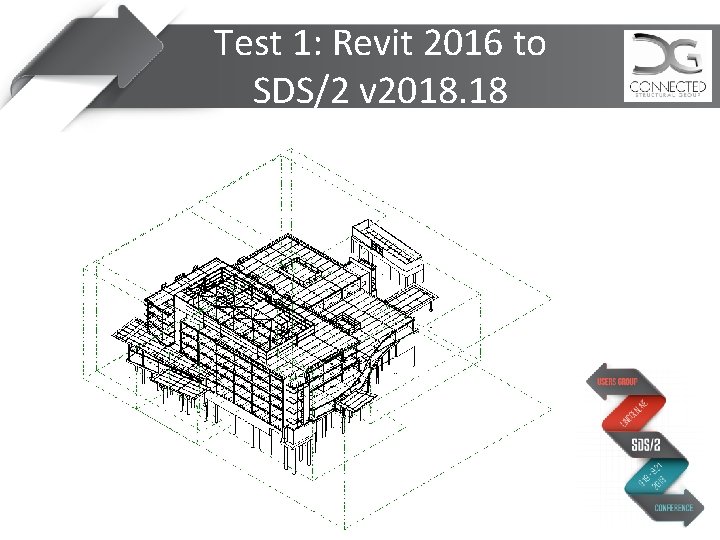
Test 1: Revit 2016 to SDS/2 v 2018. 18
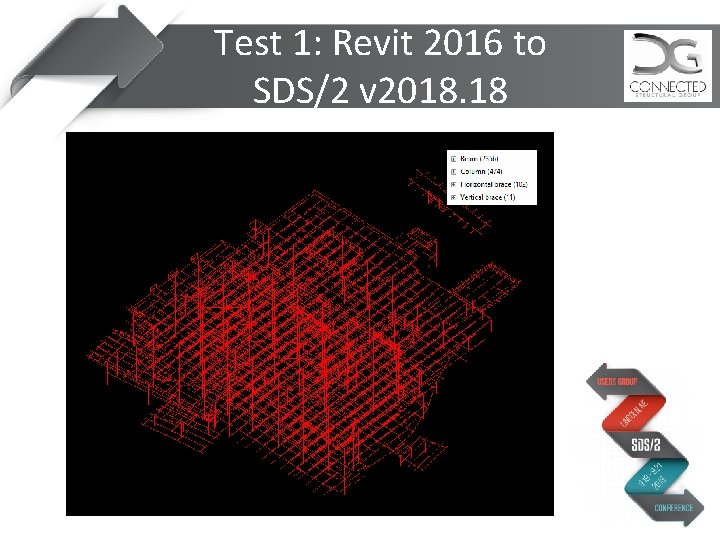
Test 1: Revit 2016 to SDS/2 v 2018. 18
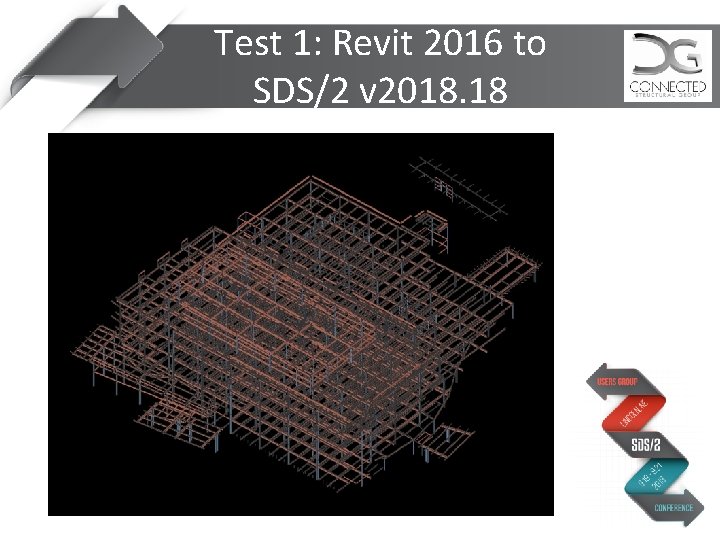
Test 1: Revit 2016 to SDS/2 v 2018. 18
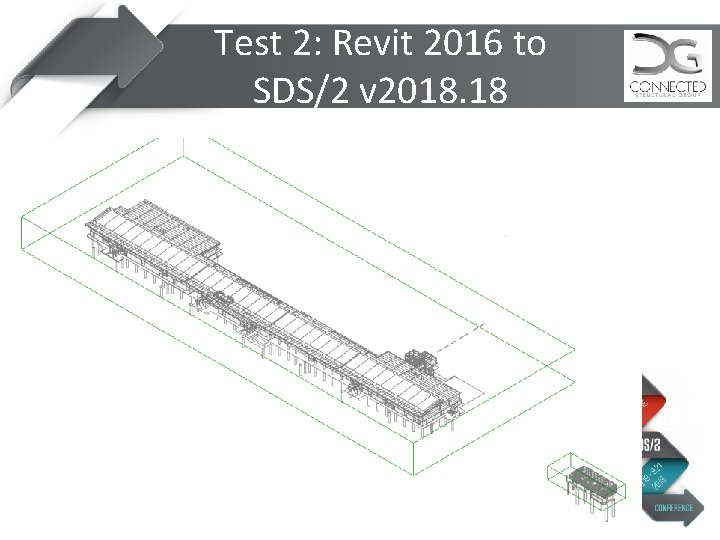
Test 2: Revit 2016 to SDS/2 v 2018. 18
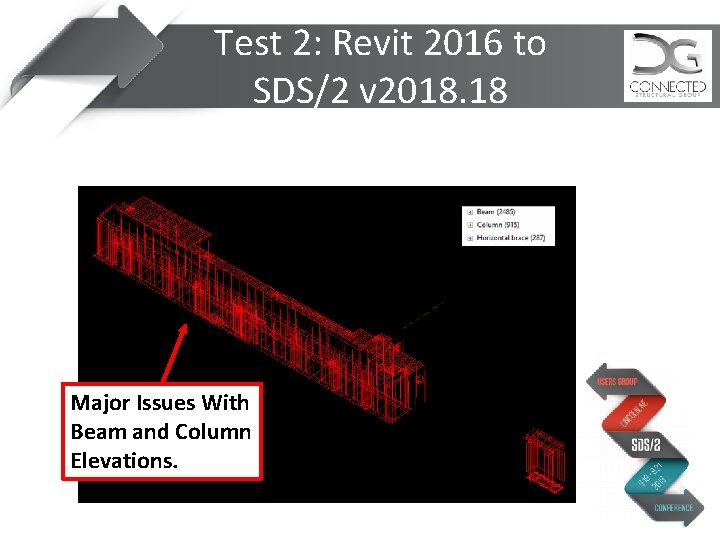
Test 2: Revit 2016 to SDS/2 v 2018. 18 Major Issues With Beam and Column Elevations.
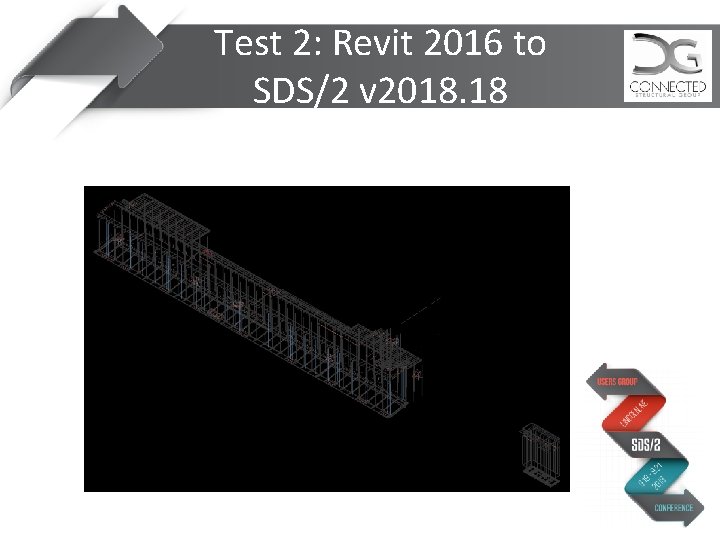
Test 2: Revit 2016 to SDS/2 v 2018. 18
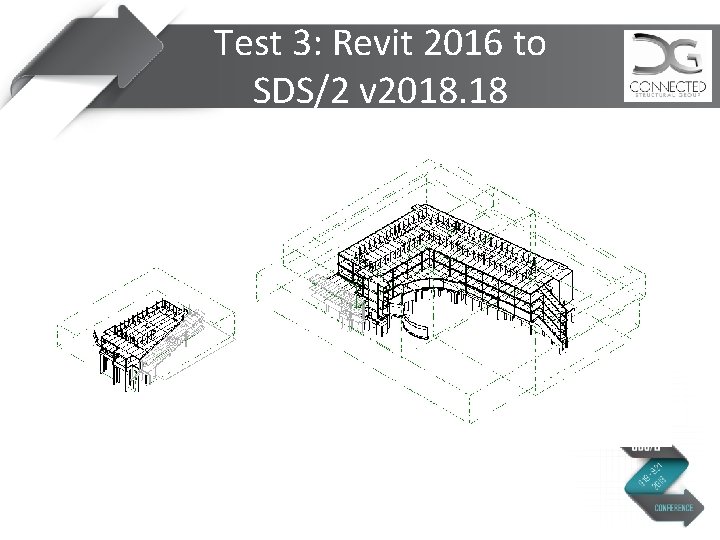
Test 3: Revit 2016 to SDS/2 v 2018. 18
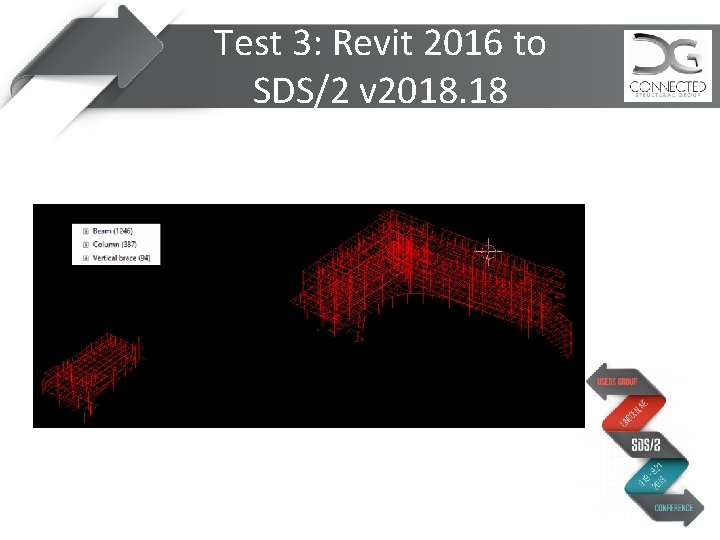
Test 3: Revit 2016 to SDS/2 v 2018. 18
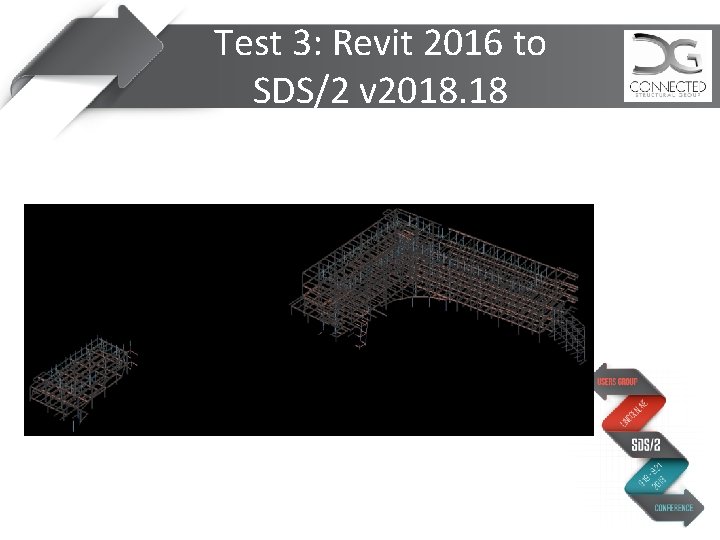
Test 3: Revit 2016 to SDS/2 v 2018. 18
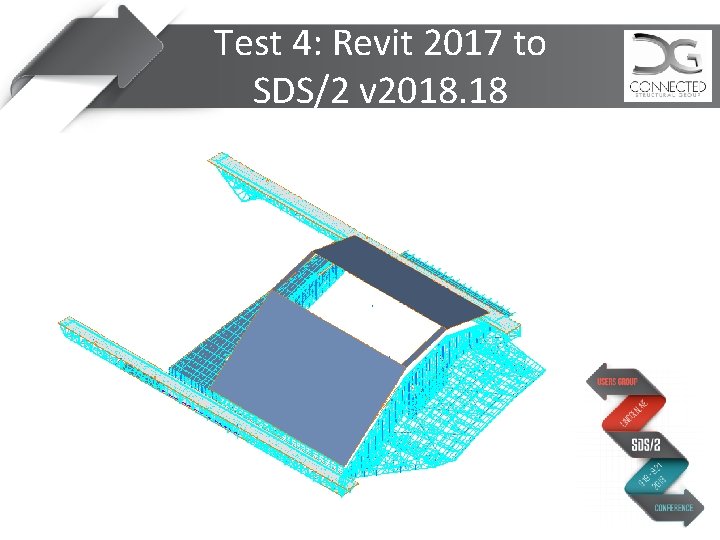
Test 4: Revit 2017 to SDS/2 v 2018. 18
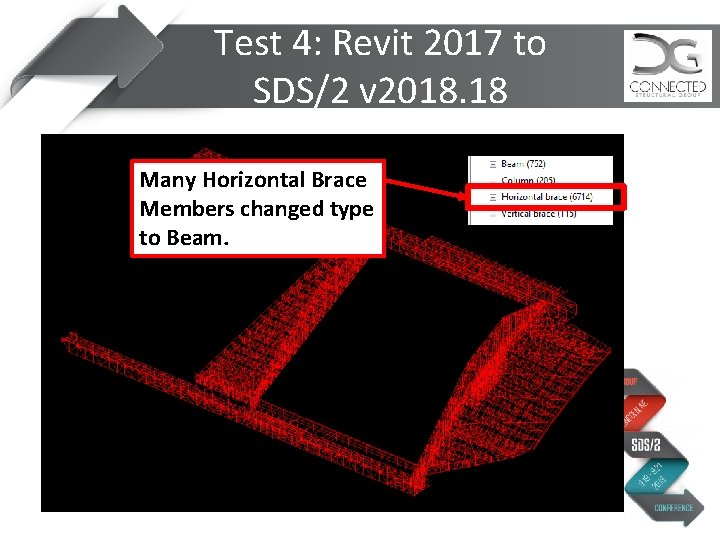
Test 4: Revit 2017 to SDS/2 v 2018. 18 Many Horizontal Brace Members changed type to Beam.
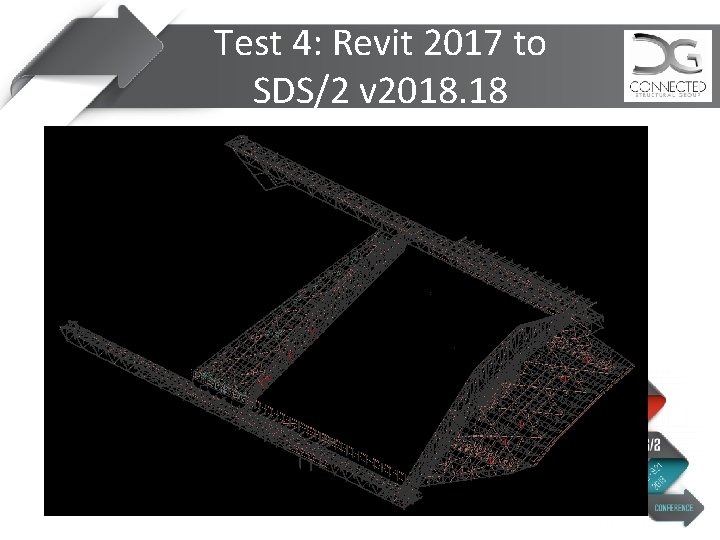
Test 4: Revit 2017 to SDS/2 v 2018. 18
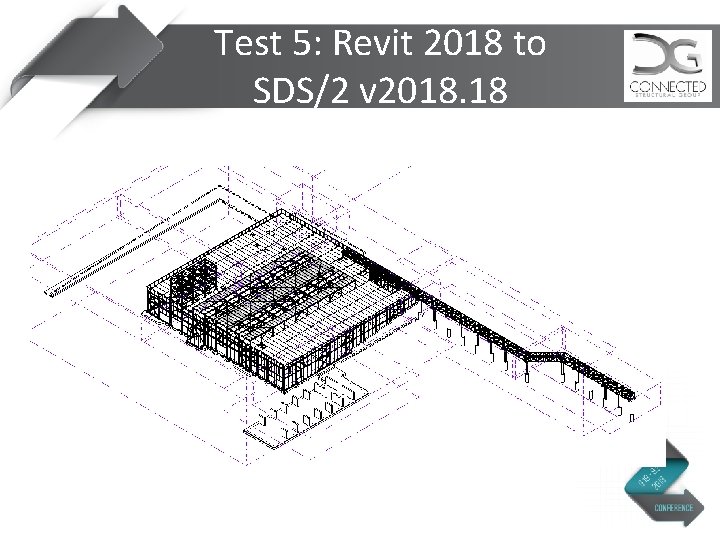
Test 5: Revit 2018 to SDS/2 v 2018. 18
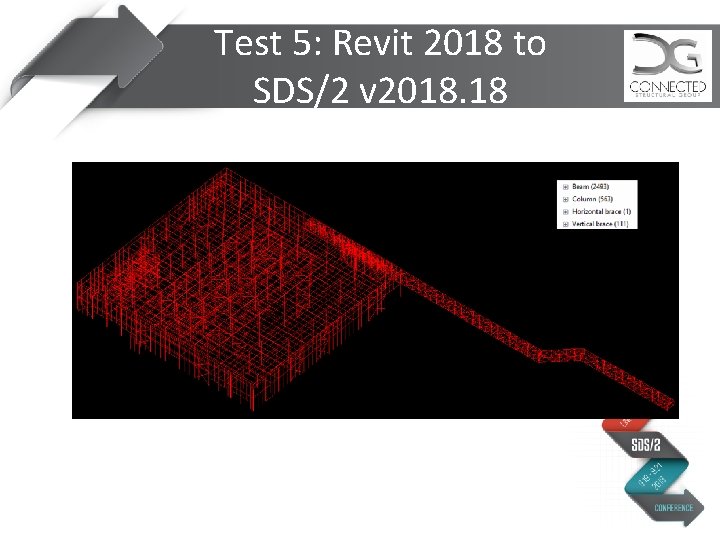
Test 5: Revit 2018 to SDS/2 v 2018. 18
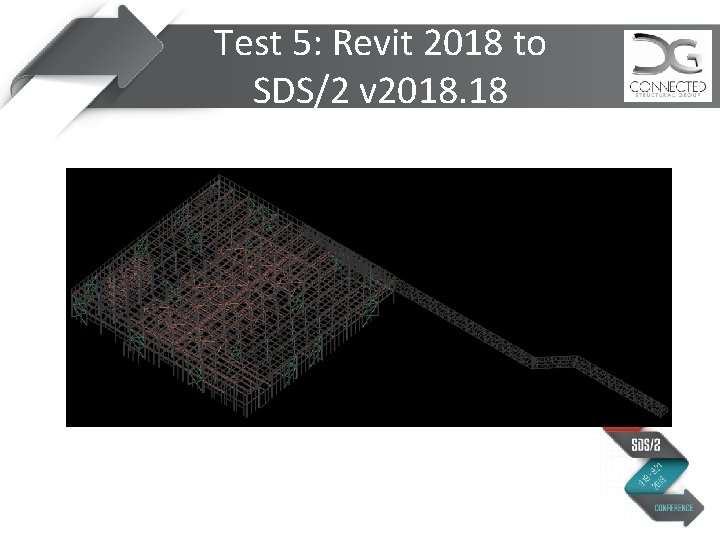
Test 5: Revit 2018 to SDS/2 v 2018. 18
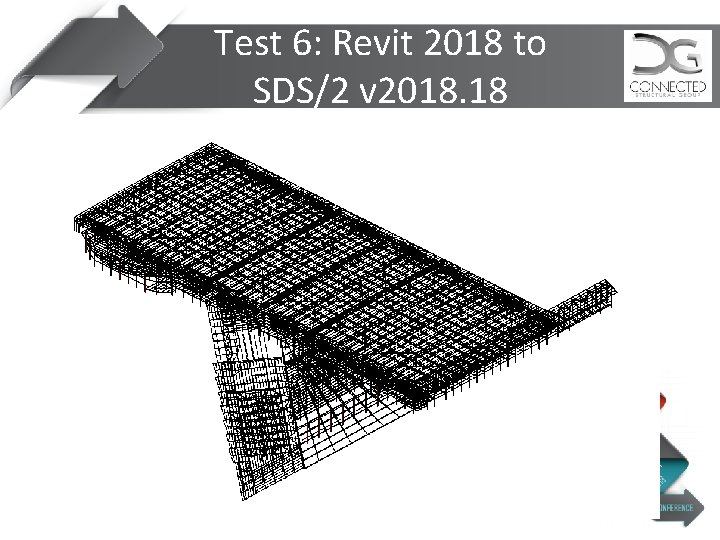
Test 6: Revit 2018 to SDS/2 v 2018. 18
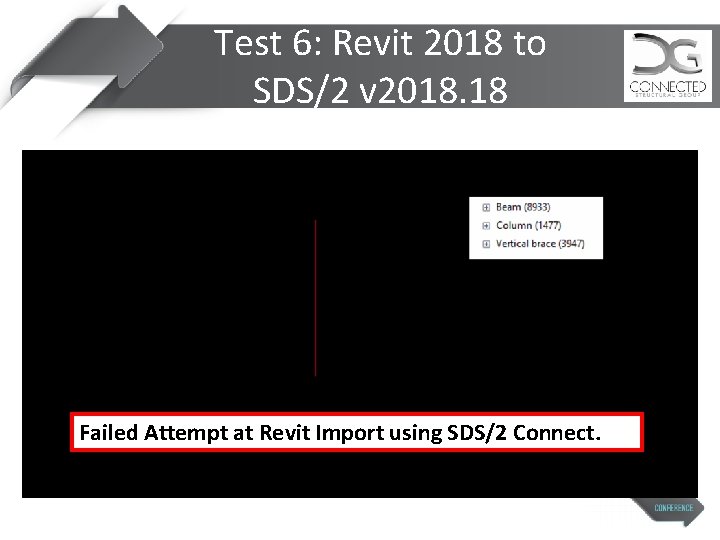
Test 6: Revit 2018 to SDS/2 v 2018. 18 Failed Attempt at Revit Import using SDS/2 Connect.
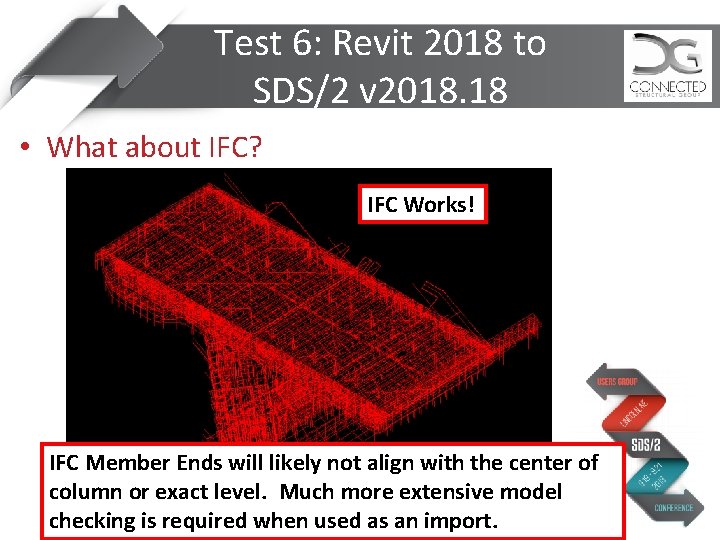
Test 6: Revit 2018 to SDS/2 v 2018. 18 • What about IFC? IFC Works! IFC Member Ends will likely not align with the center of column or exact level. Much more extensive model checking is required when used as an import.
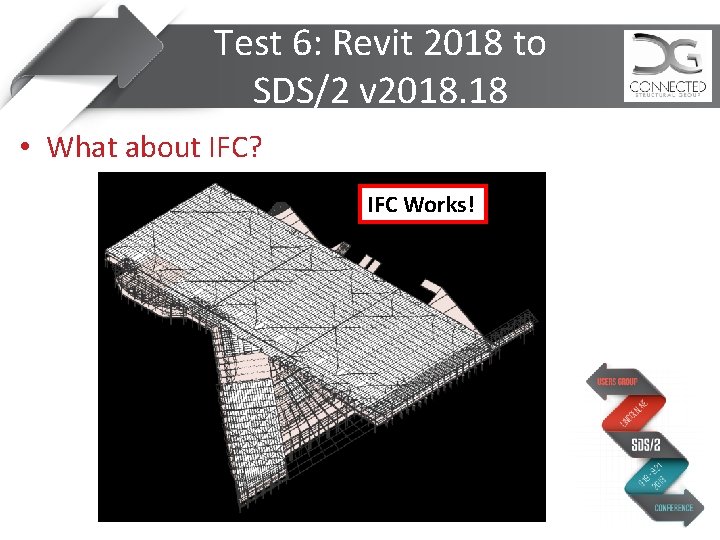
Test 6: Revit 2018 to SDS/2 v 2018. 18 • What about IFC? IFC Works!
Accuracy • Dependent of Revit Modeler – End Point Locations – Section Sizes – Slopes / Offsets
Immediate Benefits • Estimodeling – Member Count – Tonnage • “Accurate” Locations and Sizes – Check Model to ensure accuracy • View model for issues • Save Time Modeling!
Still to do in SDS/2 1. 2. 3. 4. 5. Create Grid Lines and Plan Views. Check Steel Grades Check for Double Angle Bracing Check Member Rotations Check Work Point Locations
Revit Imports Using SDS/2 Connect Presenter: Matt Bailey mbailey@connectedsg. com Connected Structural Group 702 -804 -1535
Revit Imports Using SDS/2 Connect Questions? Presenter: Matt Bailey mbailey@connectedsg. com Connected Structural Group 702 -804 -1535
- Slides: 92