
Review You have to remember that To create

Review ü You have to remember that § To create an AVD(Android Virtual Device) § The Structure of Android Project § XML Layout § The advantage of XML Layout § Android Emulator § To use Eclipse in Android Project
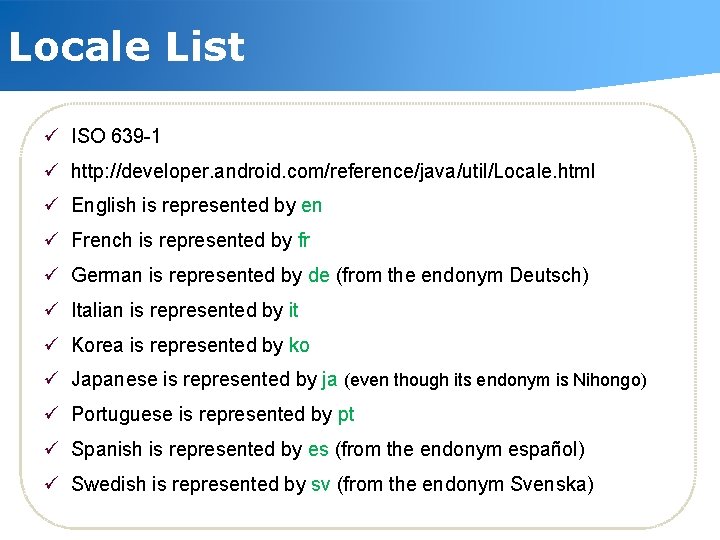
Locale List ü ISO 639 -1 ü http: //developer. android. com/reference/java/util/Locale. html ü English is represented by en ü French is represented by fr ü German is represented by de (from the endonym Deutsch) ü Italian is represented by it ü Korea is represented by ko ü Japanese is represented by ja (even though its endonym is Nihongo) ü Portuguese is represented by pt ü Spanish is represented by es (from the endonym español) ü Swedish is represented by sv (from the endonym Svenska)
Contents ü Course Objects § Understand the views and layout, utilizing management Find out about the different techniques. ü Contents § View, View. Group § Text. View § Image. View § Button § Edit. Text § Linear Layout
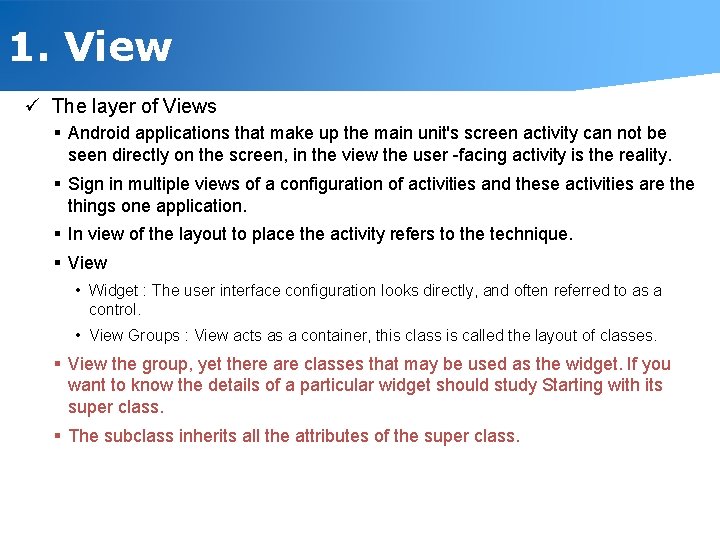
1. View ü The layer of Views § Android applications that make up the main unit's screen activity can not be seen directly on the screen, in the view the user -facing activity is the reality. § Sign in multiple views of a configuration of activities and these activities are things one application. § In view of the layout to place the activity refers to the technique. § View • Widget : The user interface configuration looks directly, and often referred to as a control. • View Groups : View acts as a container, this class is called the layout of classes. § View the group, yet there are classes that may be used as the widget. If you want to know the details of a particular widget should study Starting with its super class. § The subclass inherits all the attributes of the super class.
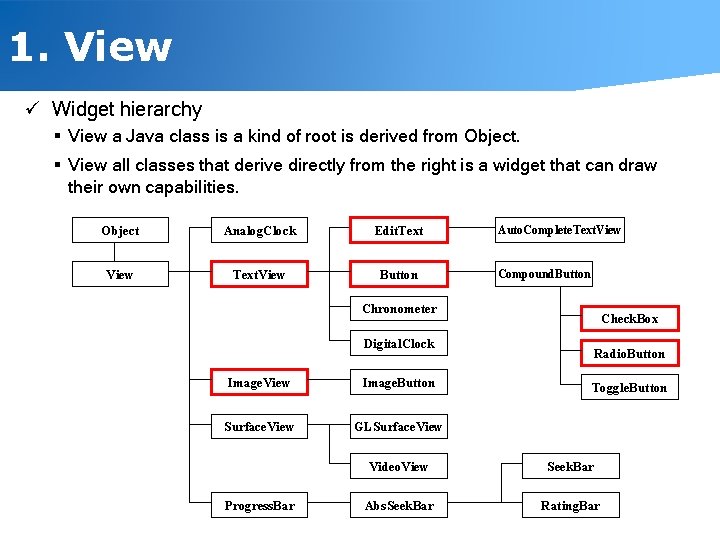
1. View ü Widget hierarchy § View a Java class is a kind of root is derived from Object. § View all classes that derive directly from the right is a widget that can draw their own capabilities. Object Analog. Clock View Text. View Edit. Text Button Auto. Complete. Text. View Compound. Button Chronometer Digital. Clock Image. View Image. Button Surface. View GLSurface. View Progress. Bar Check. Box Radio. Button Toggle. Button Video. View Seek. Bar Abs. Seek. Bar Rating. Bar
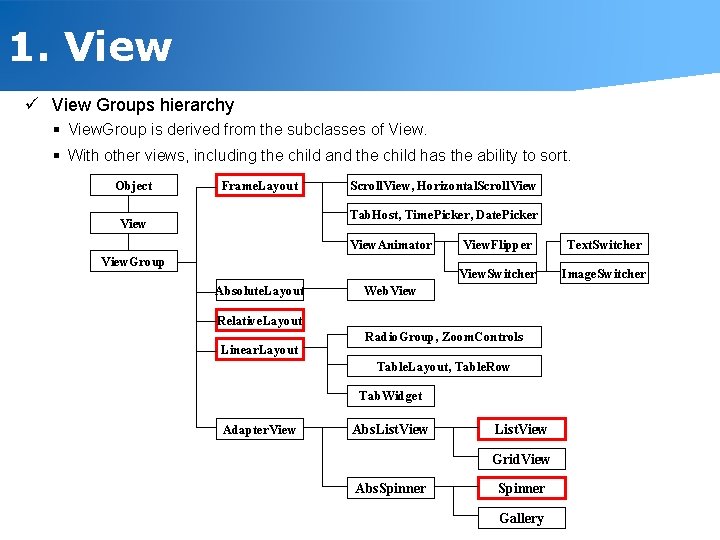
1. View ü View Groups hierarchy § View. Group is derived from the subclasses of View. § With other views, including the child and the child has the ability to sort. Object Frame. Layout Scroll. View, Horizontal. Scroll. View Tab. Host, Time. Picker, Date. Picker View. Animator View. Group Absolute. Layout View. Flipper Text. Switcher View. Switcher Image. Switcher Web. View Relative. Layout Linear. Layout Radio. Group, Zoom. Controls Table. Layout, Table. Row Tab. Widget Adapter. View Abs. List. View Grid. View Abs. Spinner Gallery
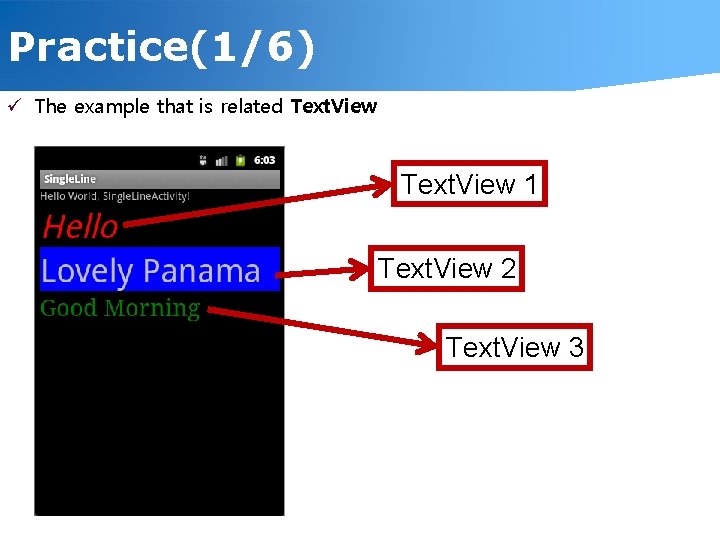
Practice(1/6) ü The example that is related Text. View 1 Text. View 2 Text. View 3
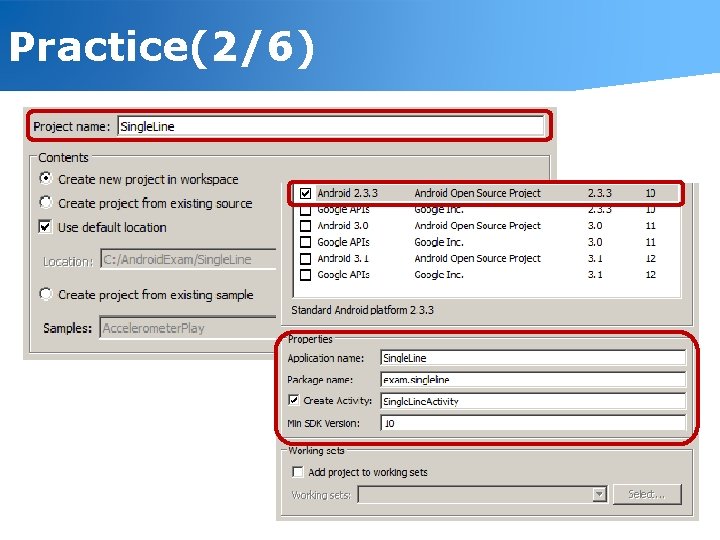
Practice(2/6)
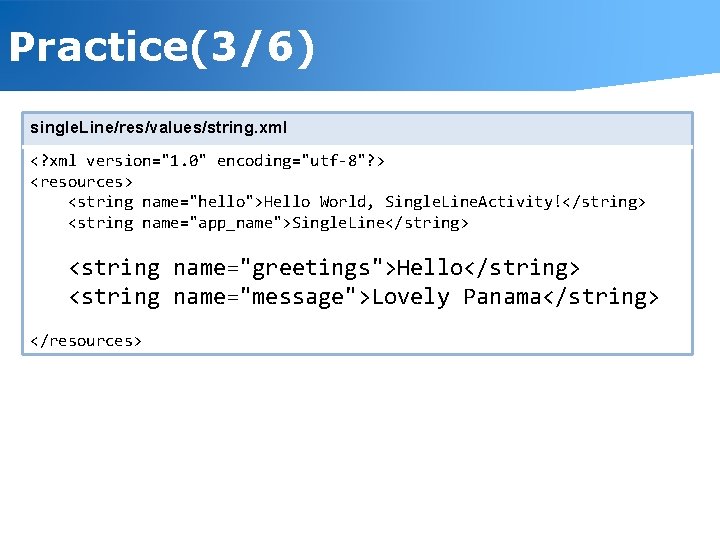
Practice(3/6) single. Line/res/values/string. xml <? xml version="1. 0" encoding="utf-8"? > <resources> <string name="hello">Hello World, Single. Line. Activity!</string> <string name="app_name">Single. Line</string> <string name="greetings">Hello</string> <string name="message">Lovely Panama</string> </resources>
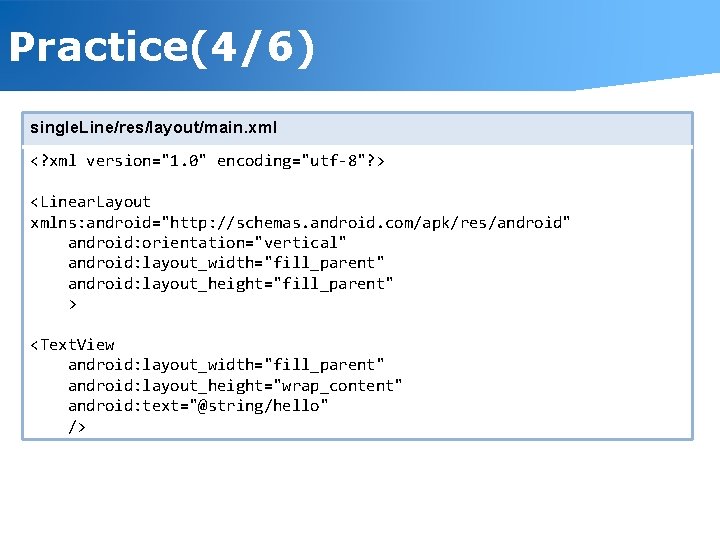
Practice(4/6) single. Line/res/layout/main. xml <? xml version="1. 0" encoding="utf-8"? > <Linear. Layout xmlns: android="http: //schemas. android. com/apk/res/android" android: orientation="vertical" android: layout_width="fill_parent" android: layout_height="fill_parent" > <Text. View android: layout_width="fill_parent" android: layout_height="wrap_content" android: text="@string/hello" />
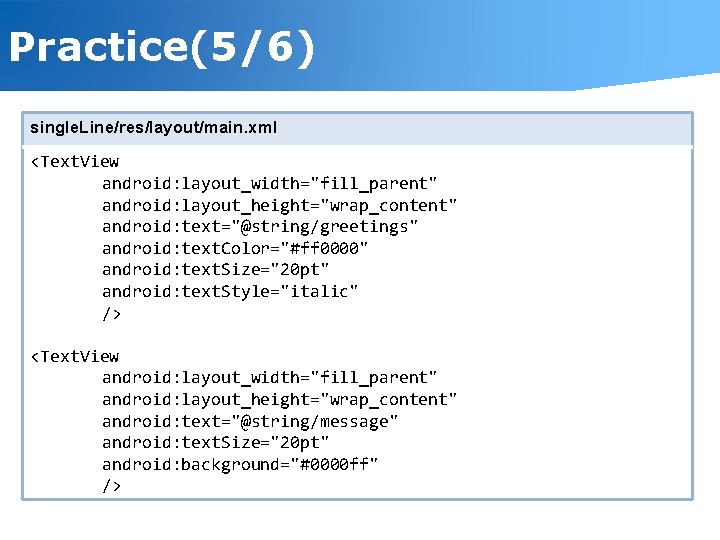
Practice(5/6) single. Line/res/layout/main. xml <Text. View android: layout_width="fill_parent" android: layout_height="wrap_content" android: text="@string/greetings" android: text. Color="#ff 0000" android: text. Size="20 pt" android: text. Style="italic" /> <Text. View android: layout_width="fill_parent" android: layout_height="wrap_content" android: text="@string/message" android: text. Size="20 pt" android: background="#0000 ff" />
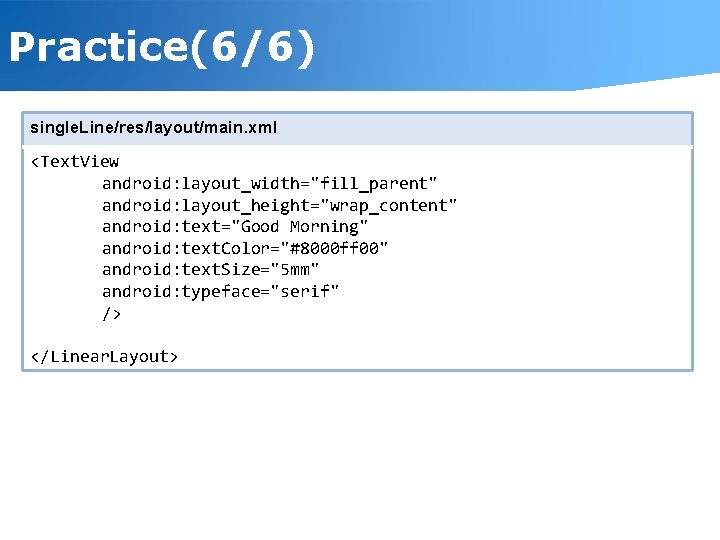
Practice(6/6) single. Line/res/layout/main. xml <Text. View android: layout_width="fill_parent" android: layout_height="wrap_content" android: text="Good Morning" android: text. Color="#8000 ff 00" android: text. Size="5 mm" android: typeface="serif" /> </Linear. Layout>
1. View ü Attribute of View § id • Defines a view called the name, and code references a view from an XML document using the id, so intuitive, a good idea to name. • Form : @[+]id/ID - @ : id of the resource (R. java) means that in the definition or reference, and shall be unconditional. - + : ID means that the new definition, and can see the poem is omitted. - id : Reserved - / : But after writing your name, ID, so the command must comply with the rules for its own name, and the view will not overlap each other. ex) android: id=“@+id/name” : id is given which is called name in text view. • If you specify an XML document ID to R. java this name is defined as an integer constant. • When referenced in the code view find. View. By. Id method invocation, argument passing reference to the view id. • It is compulsory to all views that do not need to specify the id, the code does not require reference to the widget id is usually omitted.
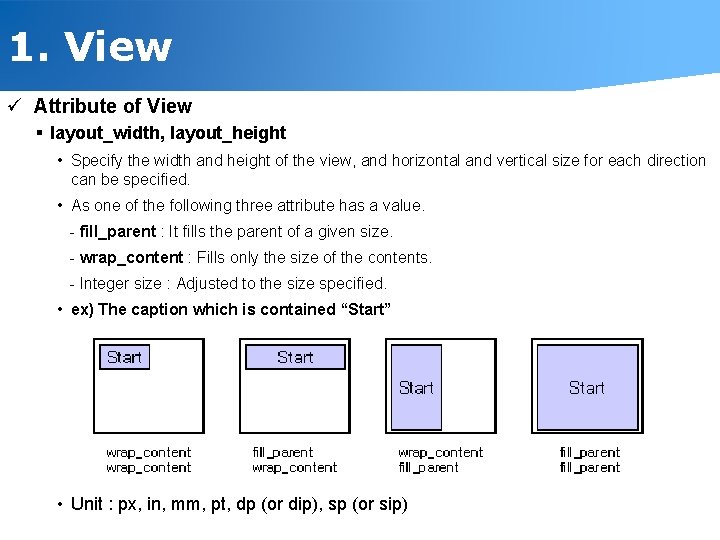
1. View ü Attribute of View § layout_width, layout_height • Specify the width and height of the view, and horizontal and vertical size for each direction can be specified. • As one of the following three attribute has a value. - fill_parent : It fills the parent of a given size. - wrap_content : Fills only the size of the contents. - Integer size : Adjusted to the size specified. • ex) The caption which is contained “Start” • Unit : px, in, mm, pt, dp (or dip), sp (or sip)
Unit ü px Pixels - corresponds to actual pixels on the screen. ü in Inches - based on the physical size of the screen. ü mm Millimeters - based on the physical size of the screen. ü pt Points - 1/72 of an inch based on the physical size of the screen. ü dp Density-independent Pixels - an abstract unit that is based on the physical density of the screen. These units are relative to a 160 dpi screen, so one dp is one pixel on a 160 dpi screen. The ratio of dp-to-pixel will change with the screen density, but not necessarily in direct proportion. Note: The compiler accepts both "dip" and "dp", though "dp" is more consistent with "sp". ü sp Scale-independent Pixels - this is like the dp unit, but it is also scaled by the user's font size preference. It is recommend you use this unit when specifying font sizes, so they will be adjusted for both the screen density and user's preference.
1. View ü Attribute of View § Background • View, which specifies the background color and images can be specified as many as. • When designating the four types of color is applied and to specify the background color as well be applied to all properties. - #RGB - #ARGB - #RRGGBB - #AARRGGBB ex) #ff 0000 (#f 00) : Red, #0000 ff : Blue § Padding • Specify the interval between the contents view. (I. E. padding ) • Specifies the padding property values for the four directions can be adjusted margins. • Value of attribute : padding. Left, padding. Top, padding. Right, padding. Bottom
1. View ü Attribute of View § Visibility • Specifies whether the view displays, and down to the attribute has a value of one of the three. - visible : A Status that can be seen. - invisible : Hidden state, occupies seat. - gone : Hidden state, is taking place. § clickable, long. Clickable • Want to receive mouse click events, Long Click to specify whether the event should be. - click : With your fingers while holding the view - long. Click : I wait for my status as a view of the finger holding down the • The authenticity of one of them, so no true or false to specify the value. § Focusable • Specifies whether keyboard focus should be. • The default value is set to false, and if necessary to change the property to true. • Editor, like a button or a derived class of the user input is required, has been designated to be true by default.
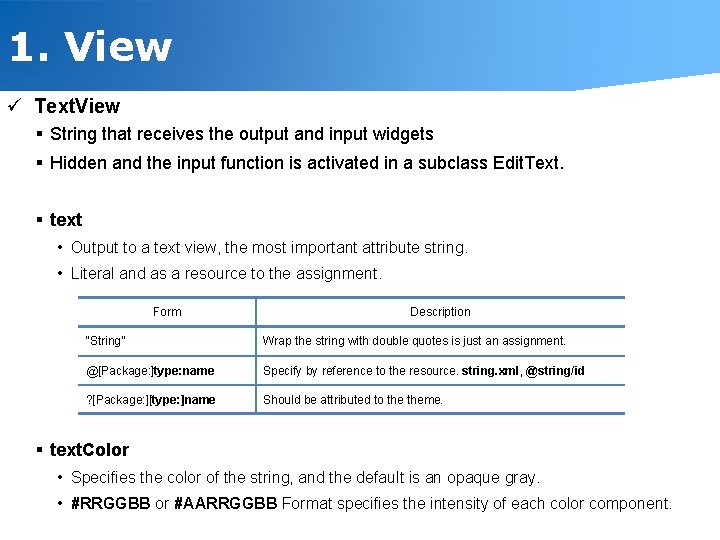
1. View ü Text. View § String that receives the output and input widgets § Hidden and the input function is activated in a subclass Edit. Text. § text • Output to a text view, the most important attribute string. • Literal and as a resource to the assignment. Form Description “String” Wrap the string with double quotes is just an assignment. @[Package: ]type: name Specify by reference to the resource. string. xml, @string/id ? [Package: ][type: ]name Should be attributed to theme. § text. Color • Specifies the color of the string, and the default is an opaque gray. • #RRGGBB or #AARRGGBB Format specifies the intensity of each color component.
1. View ü Text. View § text. Size • Specify the font size of text, and when you specify a number followed by a mistake of type sp, dp, px, in, mm, and is specified as a unit. § text. Style • Specify the properties of the font. • normal, bold, italic or write to one of the '|', surrounded by more than one can specify a constant value. ex: “bold|italic”, “normal|italic” § type. Face • Specifies the font's appearance, and, normal, sans, serif, monospace, select one of the possible. • In a mobile environment, there are restrictions on the number of embedded fonts. § width, height • The size of the text view is the width and height are specified as a value and units. • Text view alone, if there is a little child in the layout as most of these properties because there are rarely used.
1. View(Image. View) ü Image. View § Desktop icon or bitmap output, resources, files and content, as well as a provider or can be displayed as an image on the web. § src • Specifies the output image is the most important properties. • Resources, mainly the image has a copy @drawable/ID to the output image format is used. § max. Height, max. Width • Specifies the maximum size of output image § adjust. Viewbounds • To keep the aspect ratio of the image will be adjusted appropriately by the image view, you specify the size, and attribute values either true or false is used. § Other • crop. To. Padding, tint, scale. Type
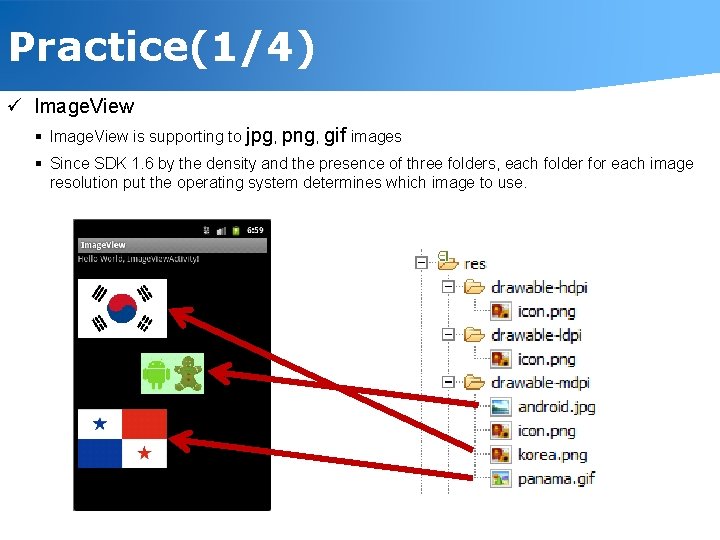
Practice(1/4) ü Image. View § Image. View is supporting to jpg, png, gif images § Since SDK 1. 6 by the density and the presence of three folders, each folder for each image resolution put the operating system determines which image to use.
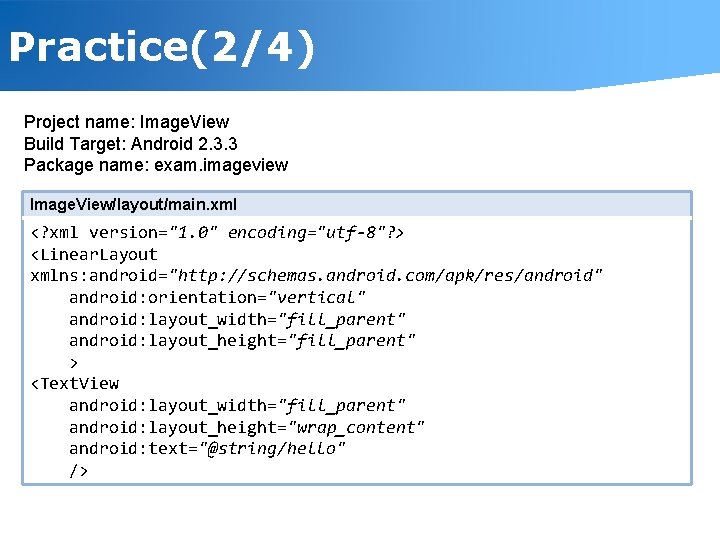
Practice(2/4) Project name: Image. View Build Target: Android 2. 3. 3 Package name: exam. imageview Image. View/layout/main. xml <? xml version="1. 0" encoding="utf-8"? > <Linear. Layout xmlns: android="http: //schemas. android. com/apk/res/android" android: orientation="vertical" android: layout_width="fill_parent" android: layout_height="fill_parent" > <Text. View android: layout_width="fill_parent" android: layout_height="wrap_content" android: text="@string/hello" />
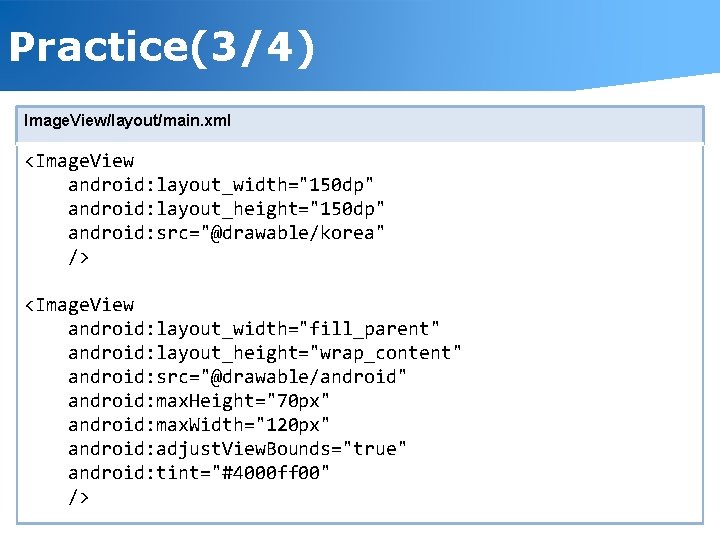
Practice(3/4) Image. View/layout/main. xml <Image. View android: layout_width="150 dp" android: layout_height="150 dp" android: src="@drawable/korea" /> <Image. View android: layout_width="fill_parent" android: layout_height="wrap_content" android: src="@drawable/android" android: max. Height="70 px" android: max. Width="120 px" android: adjust. View. Bounds="true" android: tint="#4000 ff 00" />
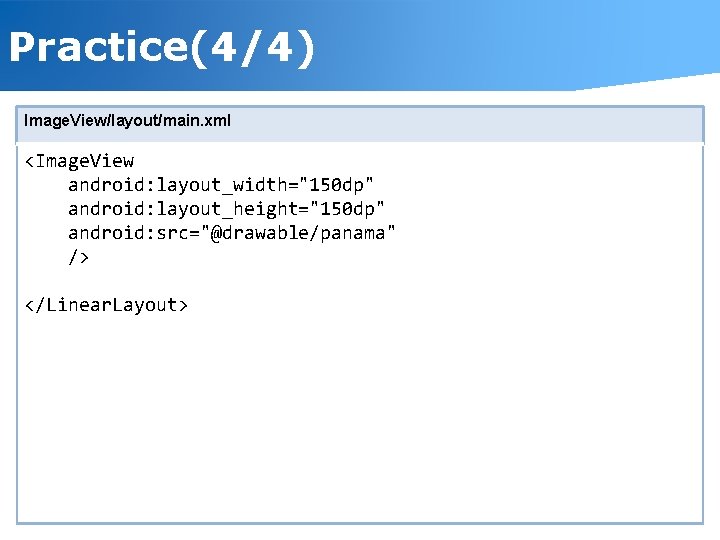
Practice(4/4) Image. View/layout/main. xml <Image. View android: layout_width="150 dp" android: layout_height="150 dp" android: src="@drawable/panama" /> </Linear. Layout>
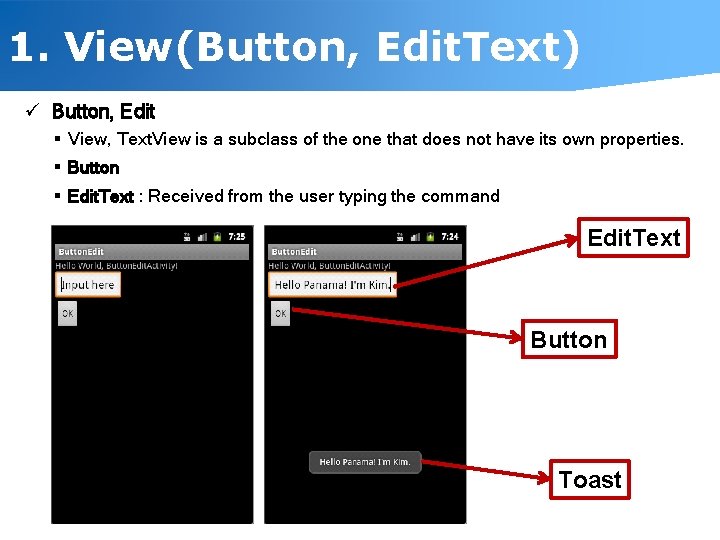
1. View(Button, Edit. Text) ü Button, Edit § View, Text. View is a subclass of the one that does not have its own properties. § Button § Edit. Text : Received from the user typing the command Edit. Text Button Toast
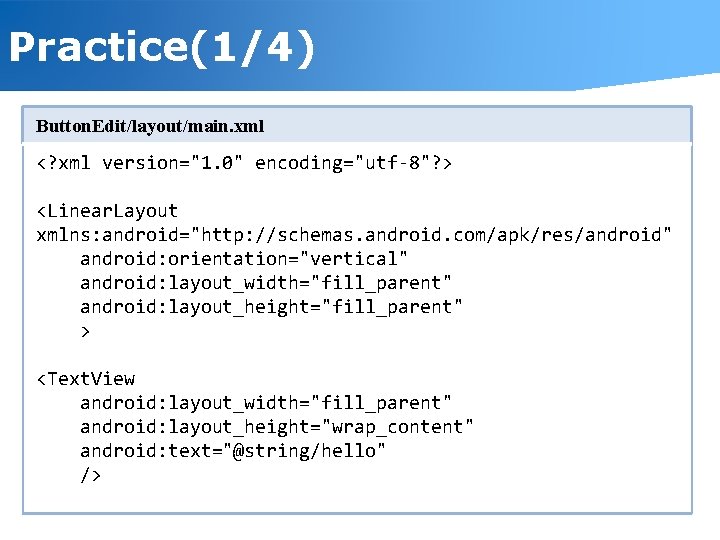
Practice(1/4) Button. Edit/layout/main. xml <? xml version="1. 0" encoding="utf-8"? > <Linear. Layout xmlns: android="http: //schemas. android. com/apk/res/android" android: orientation="vertical" android: layout_width="fill_parent" android: layout_height="fill_parent" > <Text. View android: layout_width="fill_parent" android: layout_height="wrap_content" android: text="@string/hello" />
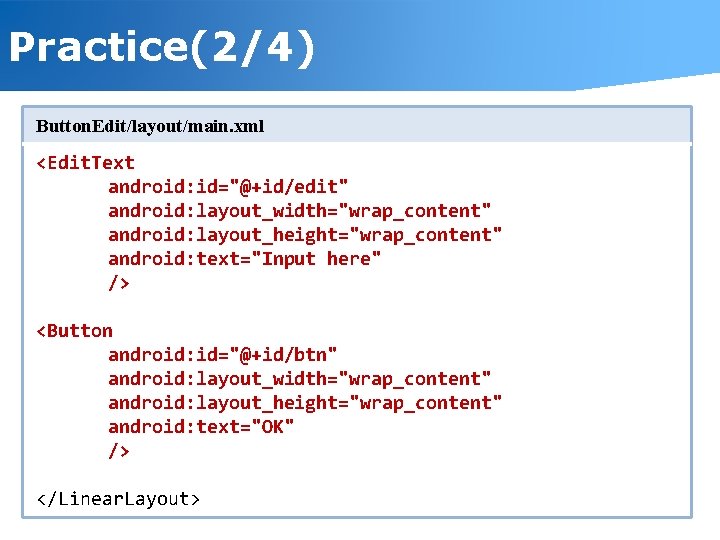
Practice(2/4) Button. Edit/layout/main. xml <Edit. Text android: id="@+id/edit" android: layout_width="wrap_content" android: layout_height="wrap_content" android: text="Input here" /> <Button android: id="@+id/btn" android: layout_width="wrap_content" android: layout_height="wrap_content" android: text="OK" /> </Linear. Layout>
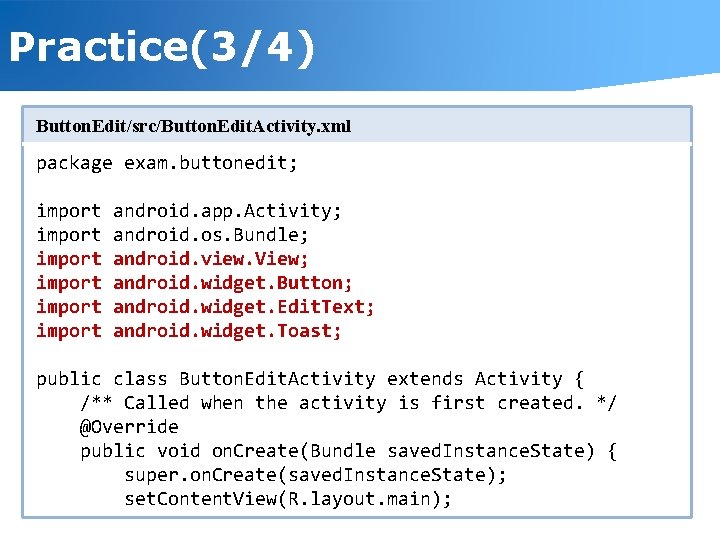
Practice(3/4) Button. Edit/src/Button. Edit. Activity. xml package exam. buttonedit; import import android. app. Activity; android. os. Bundle; android. view. View; android. widget. Button; android. widget. Edit. Text; android. widget. Toast; public class Button. Edit. Activity extends Activity { /** Called when the activity is first created. */ @Override public void on. Create(Bundle saved. Instance. State) { super. on. Create(saved. Instance. State); set. Content. View(R. layout. main);
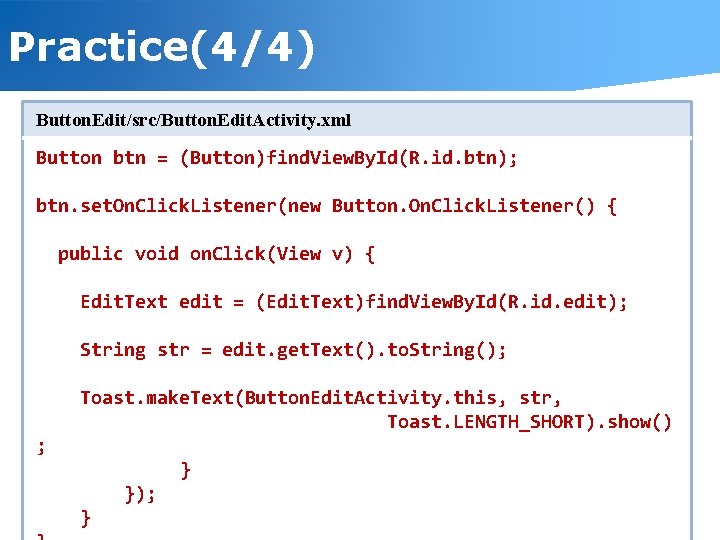
Practice(4/4) Button. Edit/src/Button. Edit. Activity. xml Button btn = (Button)find. View. By. Id(R. id. btn); btn. set. On. Click. Listener(new Button. On. Click. Listener() { public void on. Click(View v) { Edit. Text edit = (Edit. Text)find. View. By. Id(R. id. edit); String str = edit. get. Text(). to. String(); Toast. make. Text(Button. Edit. Activity. this, str, Toast. LENGTH_SHORT). show() ; } }); }
Preview ü Tomorrow, We are going to study § Linear Layout § Absolute Layout § Frame Layout § Table Layout § Nested Layout § Layout Management § The Application that is sending e-mail.
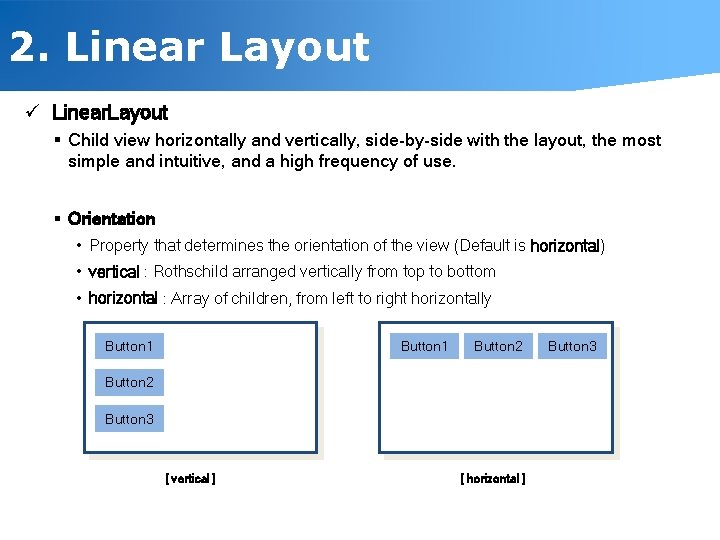
2. Linear Layout ü Linear. Layout § Child view horizontally and vertically, side-by-side with the layout, the most simple and intuitive, and a high frequency of use. § Orientation • Property that determines the orientation of the view (Default is horizontal) • vertical : Rothschild arranged vertically from top to bottom • horizontal : Array of children, from left to right horizontally Button 1 Button 2 Button 3 [ vertical ] [ horizontal ] Button 3
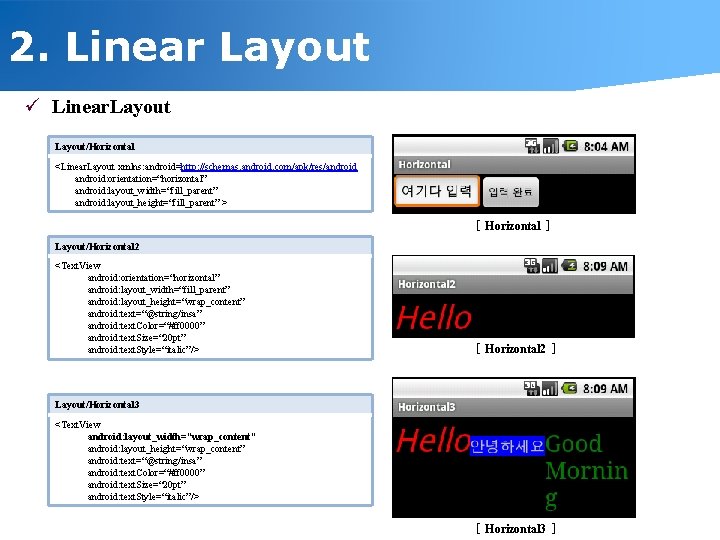
2. Linear Layout ü Linear. Layout/Horizontal <Linear. Layout xmlns: android=http: //schemas. android. com/apk/res/android: orientation=“horizontal” android: layout_width=“fill_parent” android: layout_height=“fill_parent” > [ Horizontal ] Layout/Horizontal 2 <Text. View android: orientation=“horizontal” android: layout_width=“fill_parent” android: layout_height=“wrap_content” android: text=“@string/insa” android: text. Color=“#ff 0000” android: text. Size=“ 20 pt” android: text. Style=“italic”/> [ Horizontal 2 ] Layout/Horizontal 3 <Text. View android: layout_width=“wrap_content” android: layout_height=“wrap_content” android: text=“@string/insa” android: text. Color=“#ff 0000” android: text. Size=“ 20 pt” android: text. Style=“italic”/> [ Horizontal 3 ]
- Slides: 33