
Retroactive Wage Adjustment RWA SelfService Page How to
- Slides: 11
Retroactive Wage Adjustment (RWA) Self-Service Page How to Access and Download Data on the BSC Self-Service Portal April 7, 2014
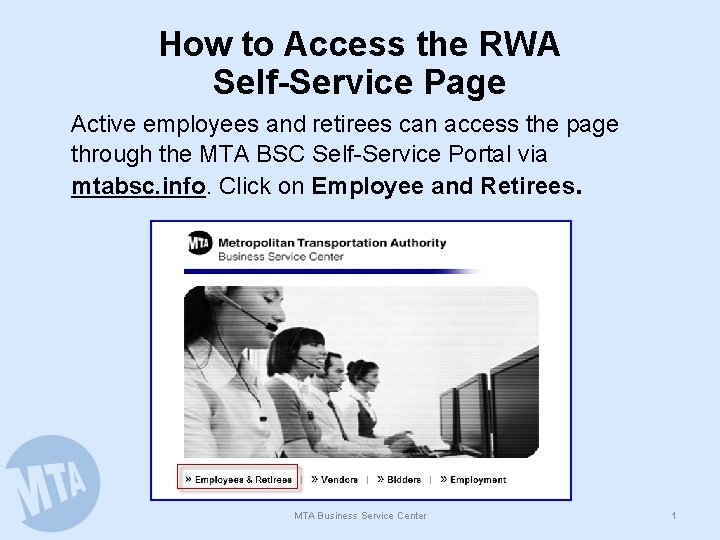
How to Access the RWA Self-Service Page Active employees and retirees can access the page through the MTA BSC Self-Service Portal via mtabsc. info. Click on Employee and Retirees. MTA Business Service Center 1
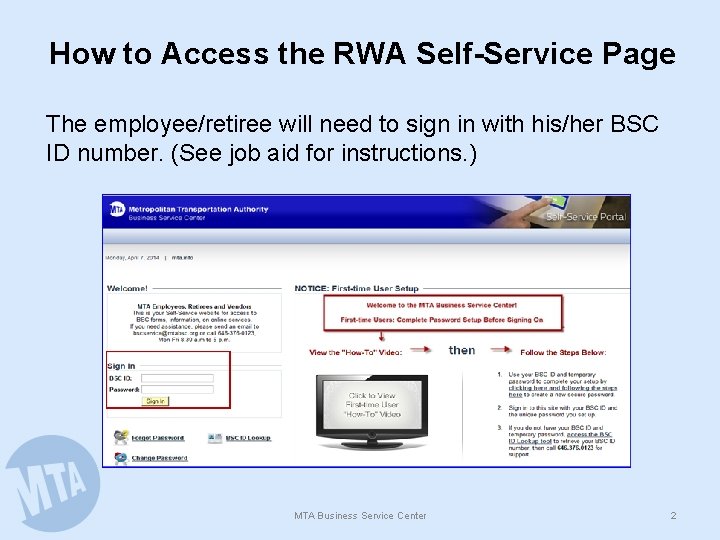
How to Access the RWA Self-Service Page The employee/retiree will need to sign in with his/her BSC ID number. (See job aid for instructions. ) MTA Business Service Center 2
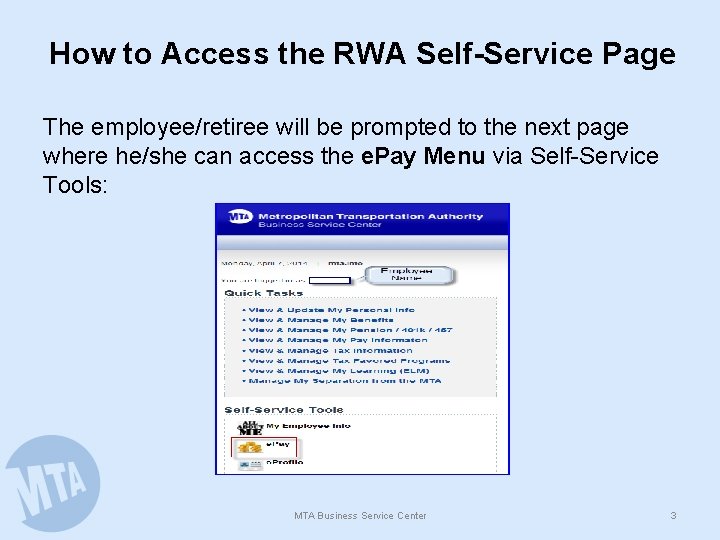
How to Access the RWA Self-Service Page The employee/retiree will be prompted to the next page where he/she can access the e. Pay Menu via Self-Service Tools: MTA Business Service Center 3
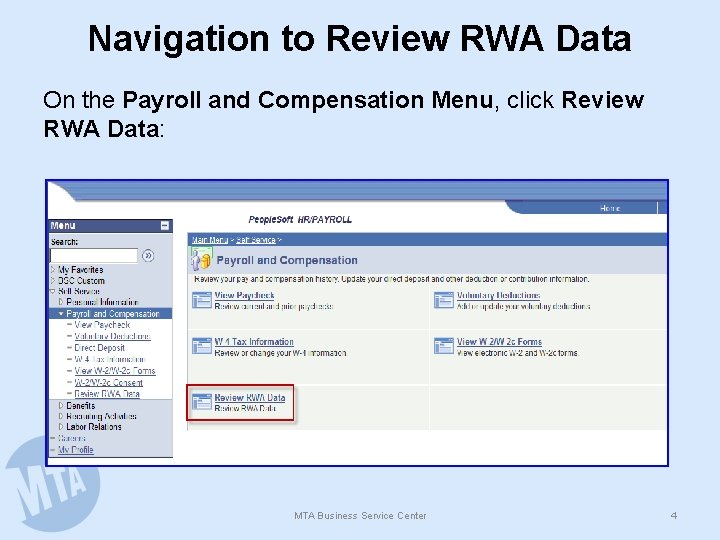
Navigation to Review RWA Data On the Payroll and Compensation Menu, click Review RWA Data: MTA Business Service Center 4
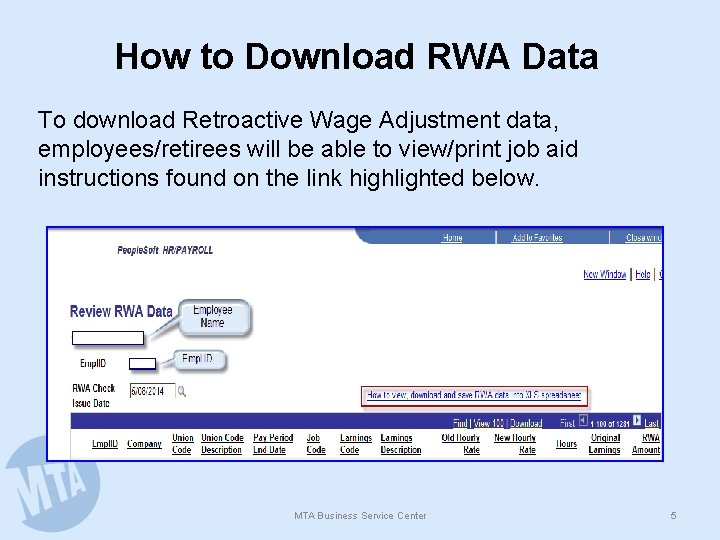
How to Download RWA Data To download Retroactive Wage Adjustment data, employees/retirees will be able to view/print job aid instructions found on the link highlighted below. MTA Business Service Center 5
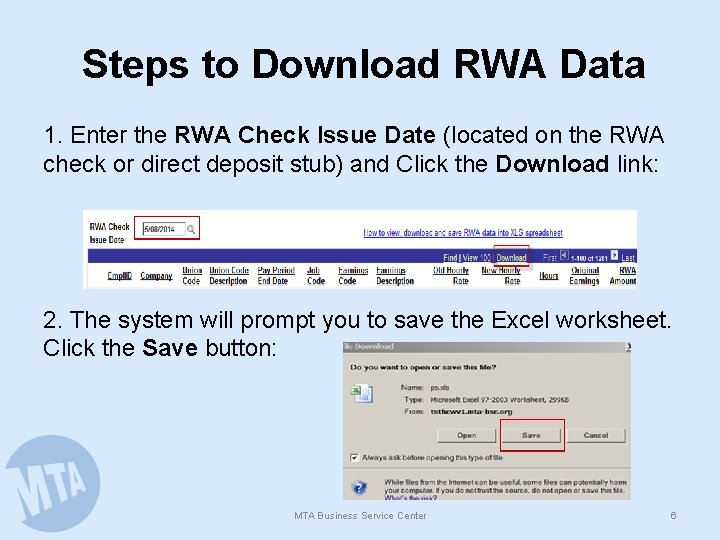
Steps to Download RWA Data 1. Enter the RWA Check Issue Date (located on the RWA check or direct deposit stub) and Click the Download link: 2. The system will prompt you to save the Excel worksheet. Click the Save button: MTA Business Service Center 6
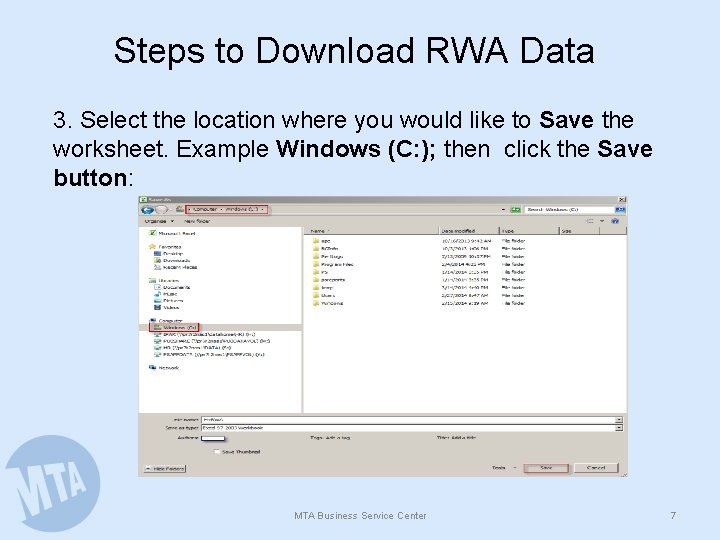
Steps to Download RWA Data 3. Select the location where you would like to Save the worksheet. Example Windows (C: ); then click the Save button: MTA Business Service Center 7
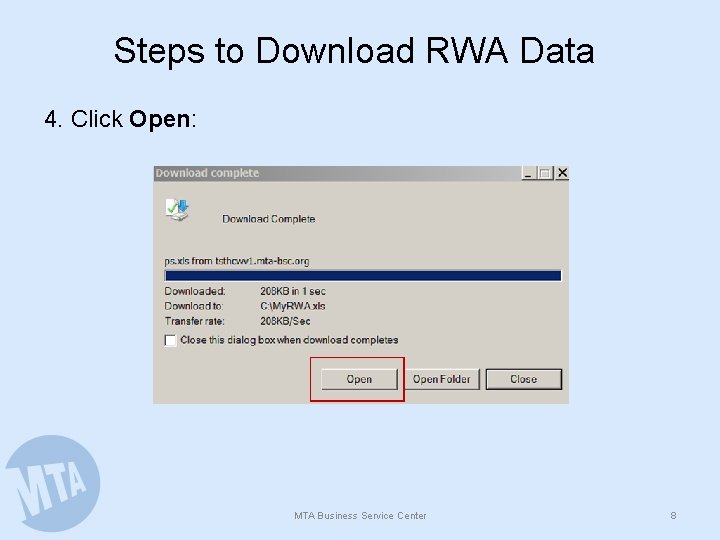
Steps to Download RWA Data 4. Click Open: MTA Business Service Center 8
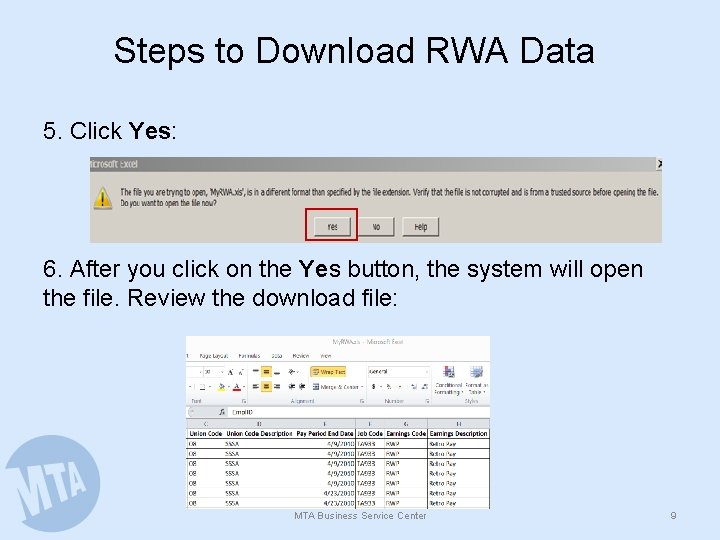
Steps to Download RWA Data 5. Click Yes: 6. After you click on the Yes button, the system will open the file. Review the download file: MTA Business Service Center 9
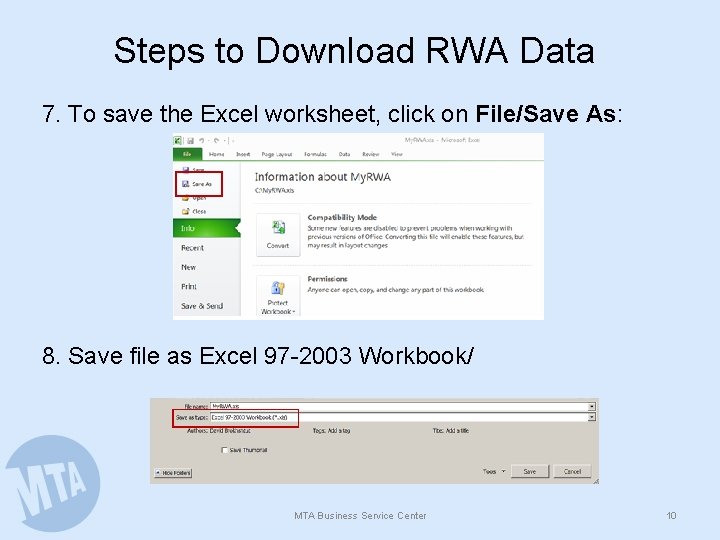
Steps to Download RWA Data 7. To save the Excel worksheet, click on File/Save As: 8. Save file as Excel 97 -2003 Workbook/ MTA Business Service Center 10