
REPSOL ELECTRONIC INVOICING SIMPLIFIED FLOW CONTENT I WHAT
- Slides: 61
REPSOL ELECTRONIC INVOICING SIMPLIFIED FLOW
CONTENT I. WHAT IS ADQUIRA MARKETPLACE? II. ELECTRONIC INVOICING BY SIMPLIFIED FLOW TO A COMPANY OF THE REPSOL GROUP “EXCEPT THOSE DECLARED IN SECTION III”. q q Creating invoices through the MKP • Creation of single invoice • Uploading invoices from Excel file • Mass File Attachment to Invoices • Copy of invoices Create invoices from a PDF file • Single Creation • Multiple invoice creation from PDF
q Send electronic invoices in e-invoice format • • Single creation Multiple invoice creation in e-invoice format q Invoice statuses q Description of errors returned for invoices III. ELECTRONIC INVOICING BY SIMPLIFIED FLOW (“COMPANIES: REPSOL S. A, REPSOL QUÍMICA, REPSOL LUBRICANTES Y ESPECIALIDADES, REPSOL COMERCIAL PRODUCTOS PETROLÍFEROS S. A, REPSOL BUTANO S. A”) q Creating invoices through the MKP • Creation of single invoice • Uploading invoices from Excel file • Bulk upload of invoice attachments • Copy of invoices
q Send electronic invoices in e-invoice format • • Single creation Multiple invoice creation in e-invoice format q Multi-order billing by simplified flow q Invoice statuses q Description of error messages for Repsol S. A, Repsol comercial productos petrolíferos S. A. , Repsol butano S. A. , Repsol química S. A. and Repsol lubricantes y especialidades
I. WHAT IS MARKETPLACE? ü Adquira Marketplace is a virtual marketplace where buying and supplying companies can do business easily, optimizing the buying and selling processes. üAdquira Marketplace offers the possibility of issuing electronic invoices to REPSOL group companies for orders that have not been managed through the application. These invoices can be issued in different formats: § e-invoice format. § Image format by means of a PDF file or generate the electronic invoices through the platform. For both the E-invoice and PDF formats, only one invoice can be sent per file (XML or PDF).
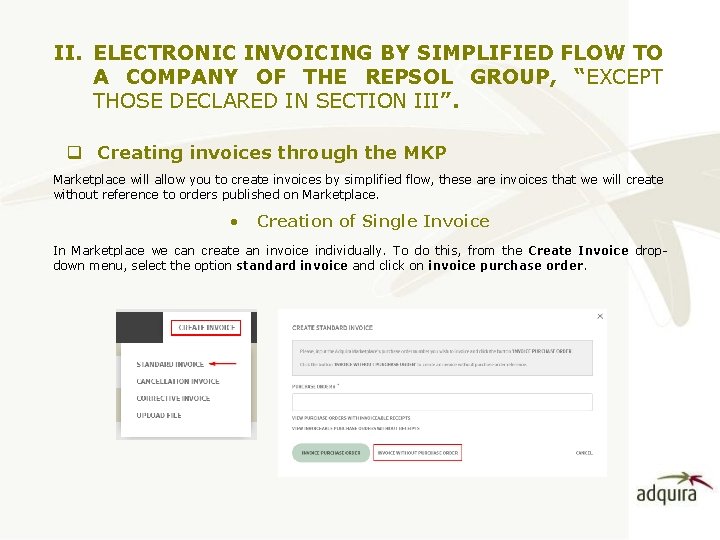
II. ELECTRONIC INVOICING BY SIMPLIFIED FLOW TO A COMPANY OF THE REPSOL GROUP, “EXCEPT THOSE DECLARED IN SECTION III”. q Creating invoices through the MKP Marketplace will allow you to create invoices by simplified flow, these are invoices that we will create without reference to orders published on Marketplace. • Creation of Single Invoice In Marketplace we can create an invoice individually. To do this, from the Create Invoice dropdown menu, select the option standard invoice and click on invoice purchase order.
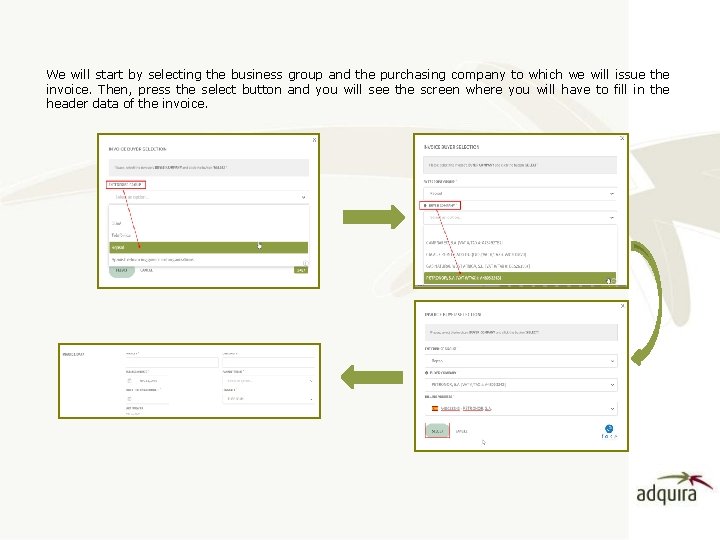
We will start by selecting the business group and the purchasing company to which we will issue the invoice. Then, press the select button and you will see the screen where you will have to fill in the header data of the invoice.
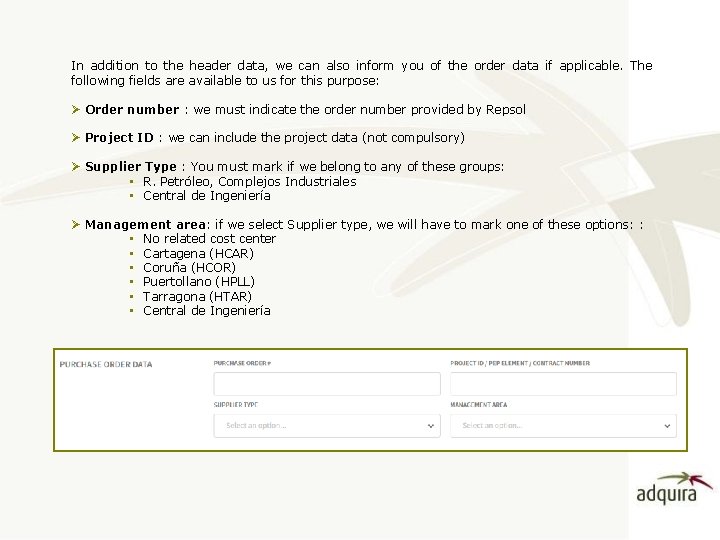
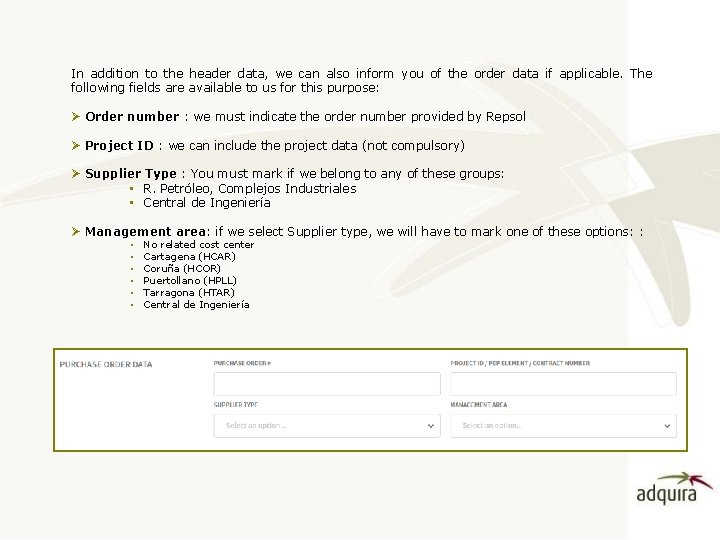
In addition to the header data, we can also inform you of the order data if applicable. The following fields are available to us for this purpose: Ø Order number : we must indicate the order number provided by Repsol Ø Project ID : we can include the project data (not compulsory) Ø Supplier Type : You must mark if we belong to any of these groups: • R. Petróleo, Complejos Industriales • Central de Ingeniería Ø Management area: if we select Supplier type, we will have to mark one of these options: : • No related cost center • Cartagena (HCAR) • Coruña (HCOR) • Puertollano (HPLL) • Tarragona (HTAR) • Central de Ingeniería
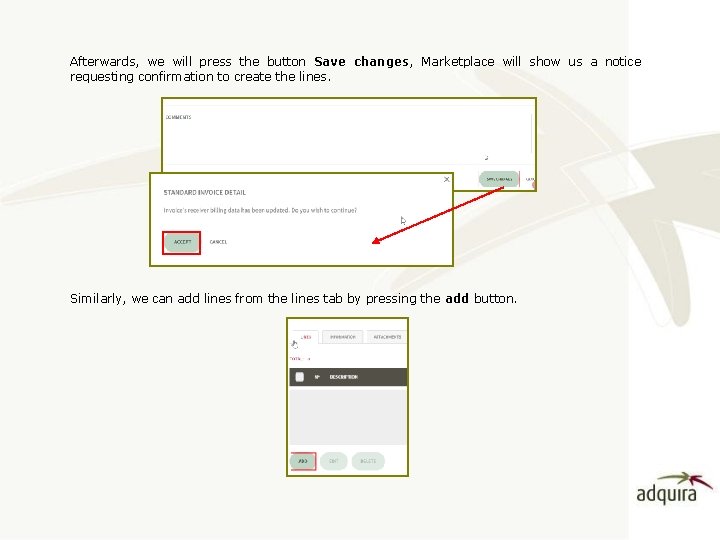
Afterwards, we will press the button Save changes, Marketplace will show us a notice requesting confirmation to create the lines. Similarly, we can add lines from the lines tab by pressing the add button.
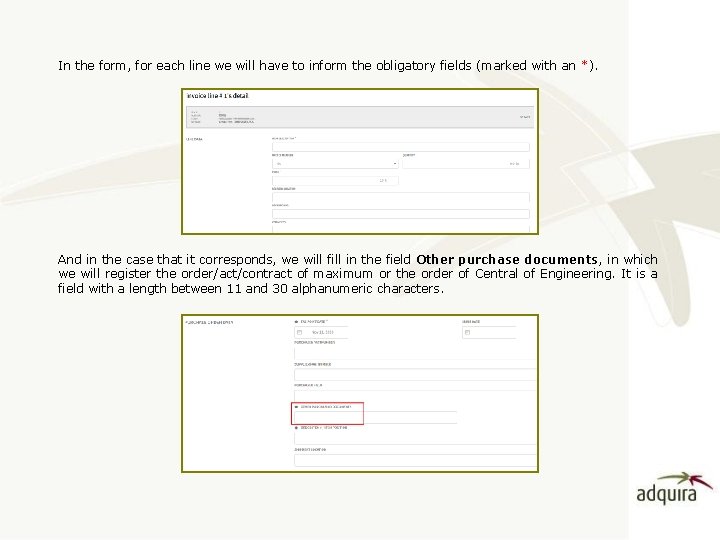
In the form, for each line we will have to inform the obligatory fields (marked with an *). And in the case that it corresponds, we will fill in the field Other purchase documents, in which we will register the order/act/contract of maximum or the order of Central of Engineering. It is a field with a length between 11 and 30 alphanumeric characters.
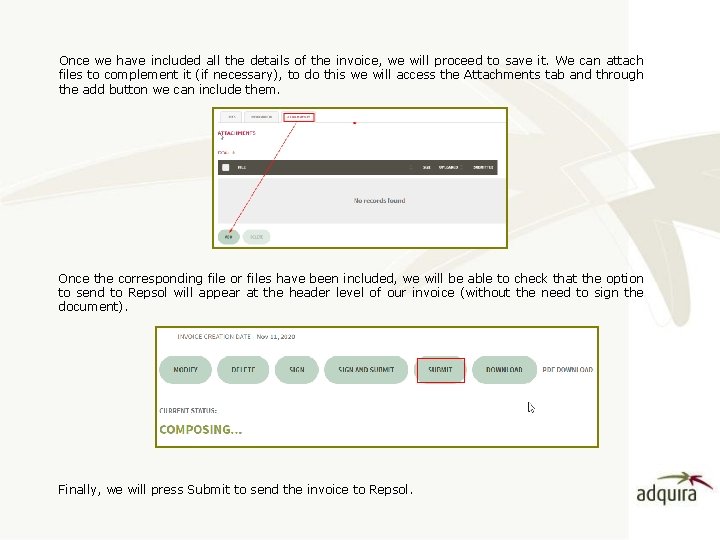
Once we have included all the details of the invoice, we will proceed to save it. We can attach files to complement it (if necessary), to do this we will access the Attachments tab and through the add button we can include them. Once the corresponding file or files have been included, we will be able to check that the option to send to Repsol will appear at the header level of our invoice (without the need to sign the document). Finally, we will press Submit to send the invoice to Repsol.
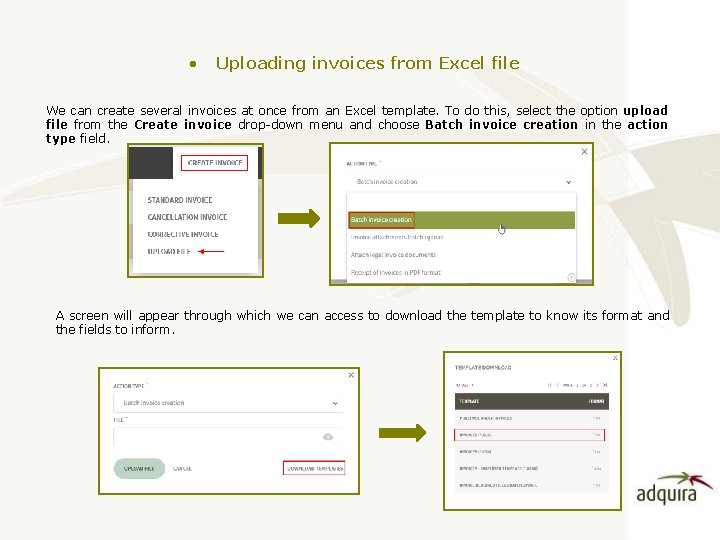
• Uploading invoices from Excel file We can create several invoices at once from an Excel template. To do this, select the option upload file from the Create invoice drop-down menu and choose Batch invoice creation in the action type field. A screen will appear through which we can access to download the template to know its format and the fields to inform.
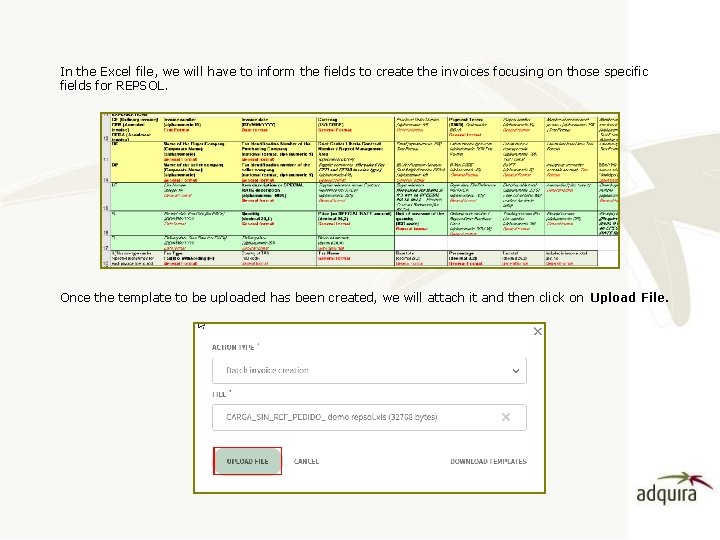
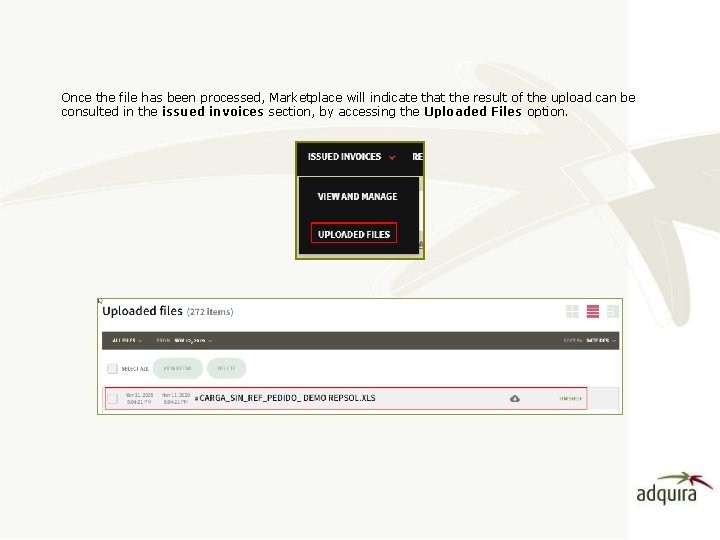
In the Excel file, we will have to inform the fields to create the invoices focusing on those specific fields for REPSOL. Once the template to be uploaded has been created, we will attach it and then click on Upload File.
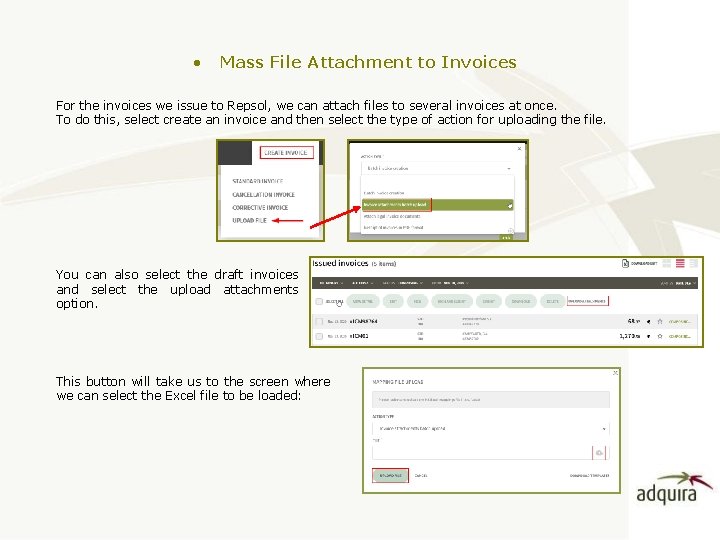
Once the file has been processed, Marketplace will indicate that the result of the upload can be consulted in the issued invoices section, by accessing the Uploaded Files option.
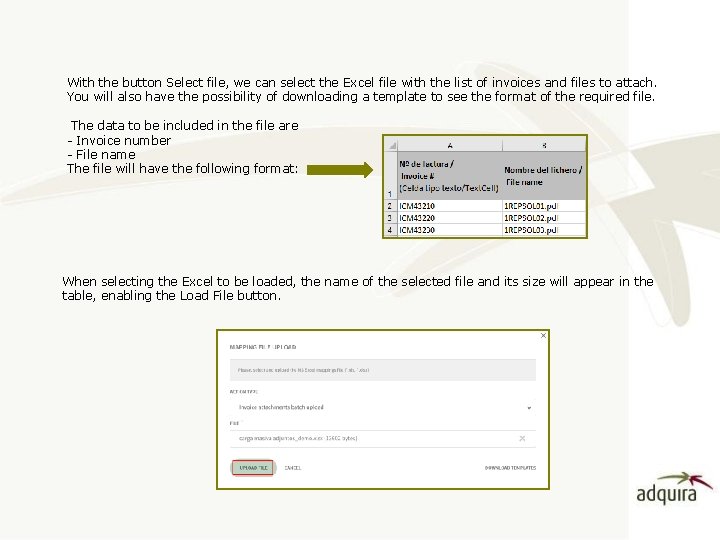
• Mass File Attachment to Invoices For the invoices we issue to Repsol, we can attach files to several invoices at once. To do this, select create an invoice and then select the type of action for uploading the file. You can also select the draft invoices and select the upload attachments option. This button will take us to the screen where we can select the Excel file to be loaded:
With the button Select file, we can select the Excel file with the list of invoices and files to attach. You will also have the possibility of downloading a template to see the format of the required file. The data to be included in the file are - Invoice number - File name The file will have the following format: When selecting the Excel to be loaded, the name of the selected file and its size will appear in the table, enabling the Load File button.
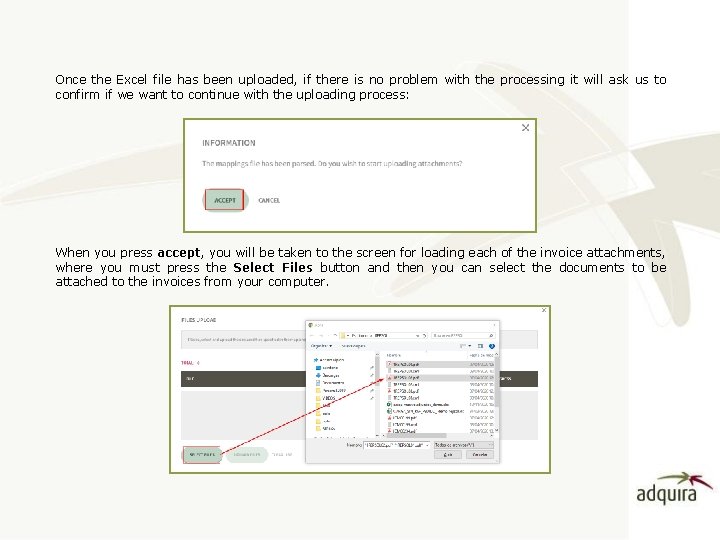
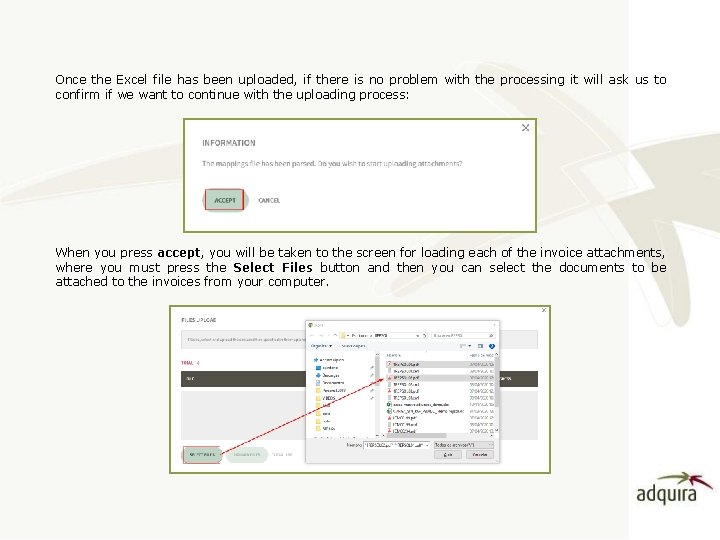
Once the Excel file has been uploaded, if there is no problem with the processing it will ask us to confirm if we want to continue with the uploading process: When you press accept, you will be taken to the screen for loading each of the invoice attachments, where you must press the Select Files button and then you can select the documents to be attached to the invoices from your computer.
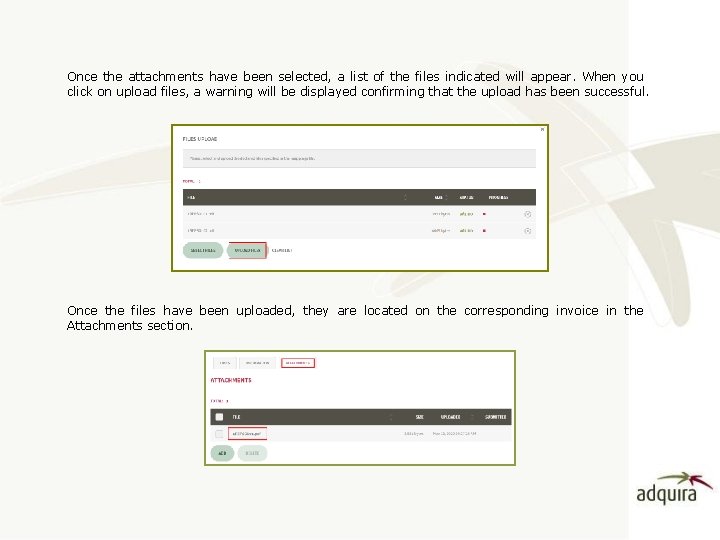
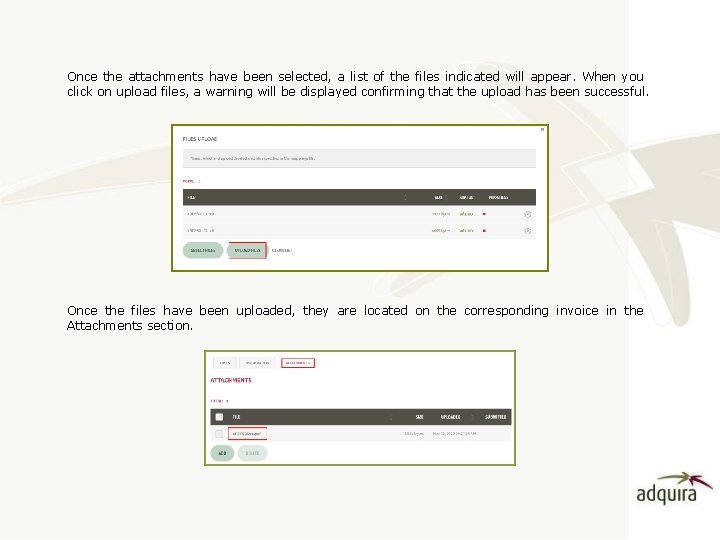
Once the attachments have been selected, a list of the files indicated will appear. When you click on upload files, a warning will be displayed confirming that the upload has been successful. Once the files have been uploaded, they are located on the corresponding invoice in the Attachments section.
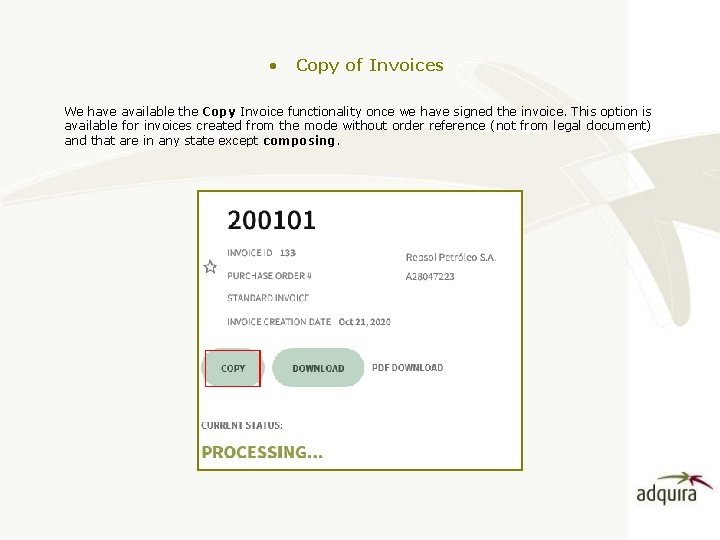
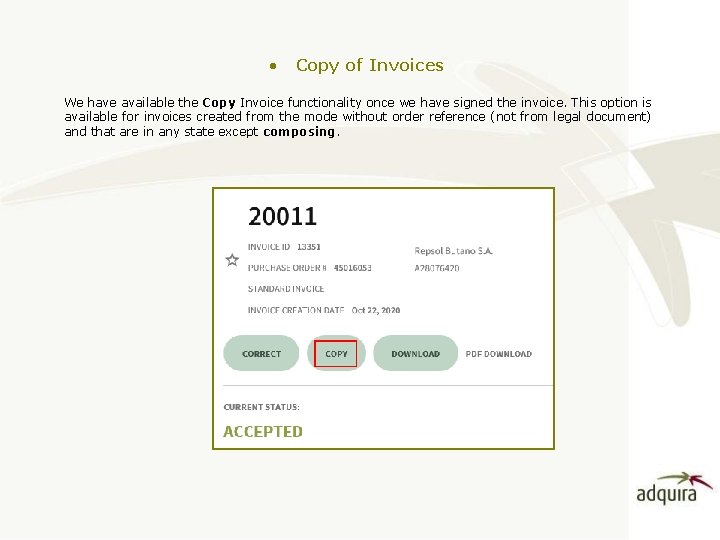
• Copy of Invoices We have available the Copy Invoice functionality once we have signed the invoice. This option is available for invoices created from the mode without order reference (not from legal document) and that are in any state except composing.
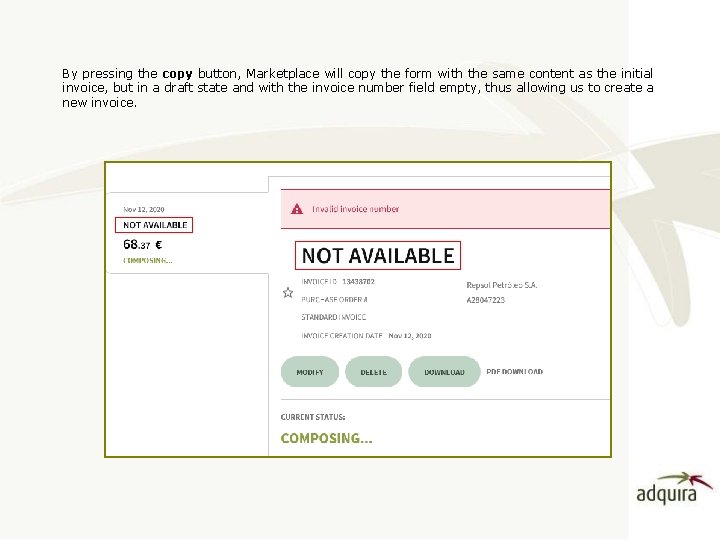
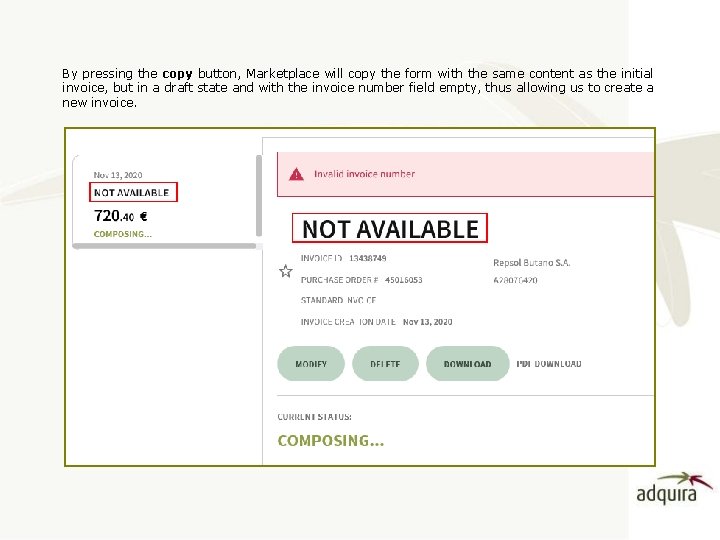
By pressing the copy button, Marketplace will copy the form with the same content as the initial invoice, but in a draft state and with the invoice number field empty, thus allowing us to create a new invoice.
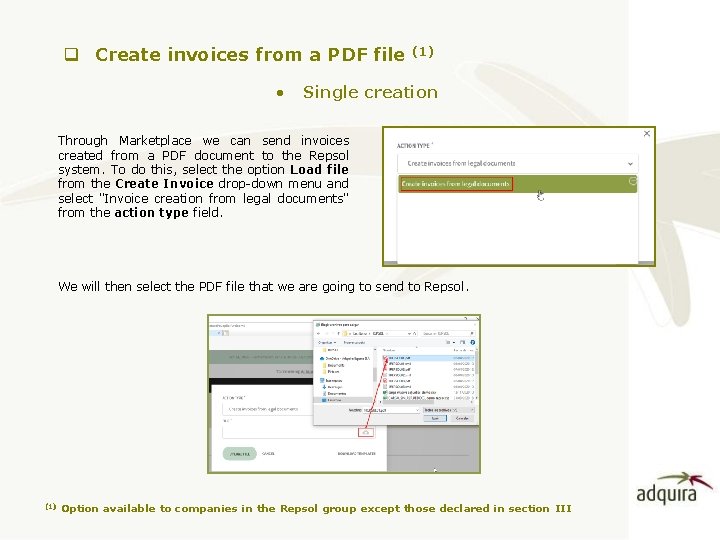
q Create invoices from a PDF file • (1) Single creation Through Marketplace we can send invoices created from a PDF document to the Repsol system. To do this, select the option Load file from the Create Invoice drop-down menu and select "Invoice creation from legal documents" from the action type field. We will then select the PDF file that we are going to send to Repsol. (1) Option available to companies in the Repsol group except those declared in section III
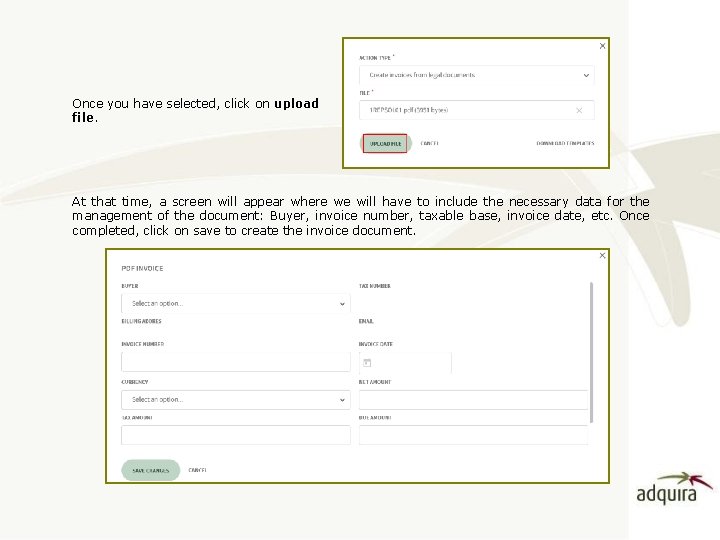
Once you have selected, click on upload file. At that time, a screen will appear where we will have to include the necessary data for the management of the document: Buyer, invoice number, taxable base, invoice date, etc. Once completed, click on save to create the invoice document.
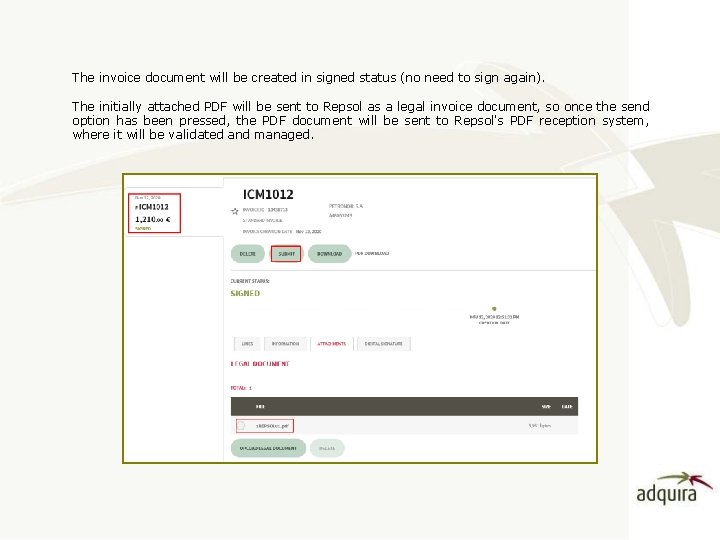
The invoice document will be created in signed status (no need to sign again). The initially attached PDF will be sent to Repsol as a legal invoice document, so once the send option has been pressed, the PDF document will be sent to Repsol's PDF reception system, where it will be validated and managed.
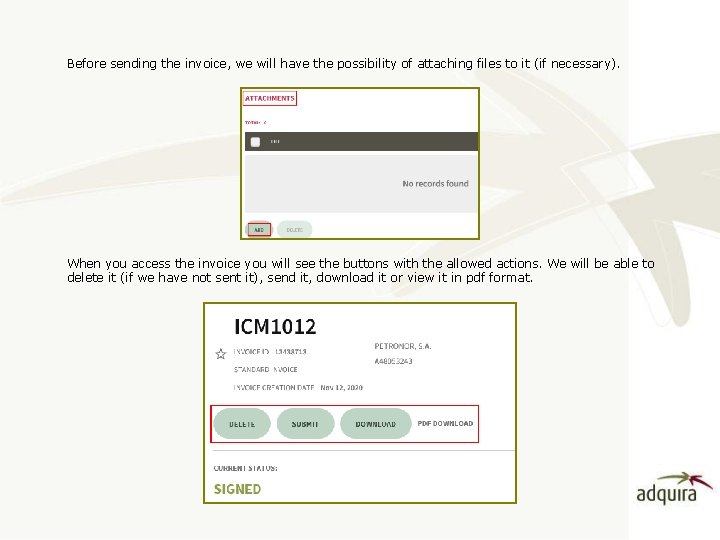
Before sending the invoice, we will have the possibility of attaching files to it (if necessary). When you access the invoice you will see the buttons with the allowed actions. We will be able to delete it (if we have not sent it), send it, download it or view it in pdf format.
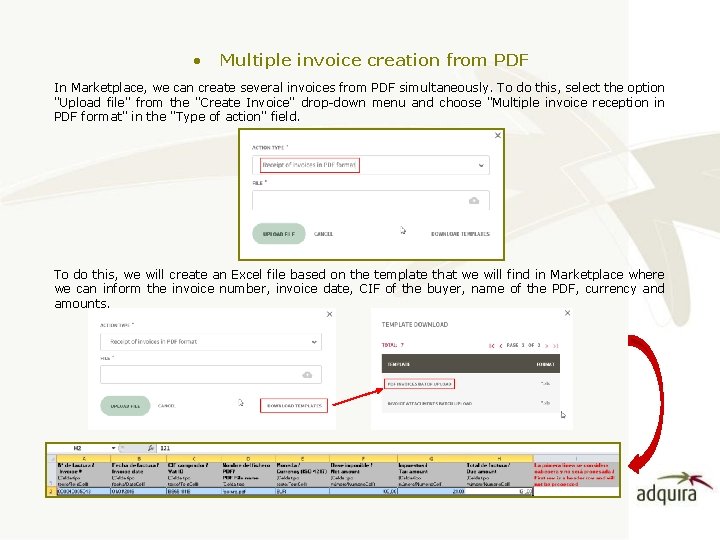
• Multiple invoice creation from PDF In Marketplace, we can create several invoices from PDF simultaneously. To do this, select the option "Upload file" from the "Create Invoice" drop-down menu and choose "Multiple invoice reception in PDF format" in the "Type of action" field. To do this, we will create an Excel file based on the template that we will find in Marketplace where we can inform the invoice number, invoice date, CIF of the buyer, name of the PDF, currency and amounts.
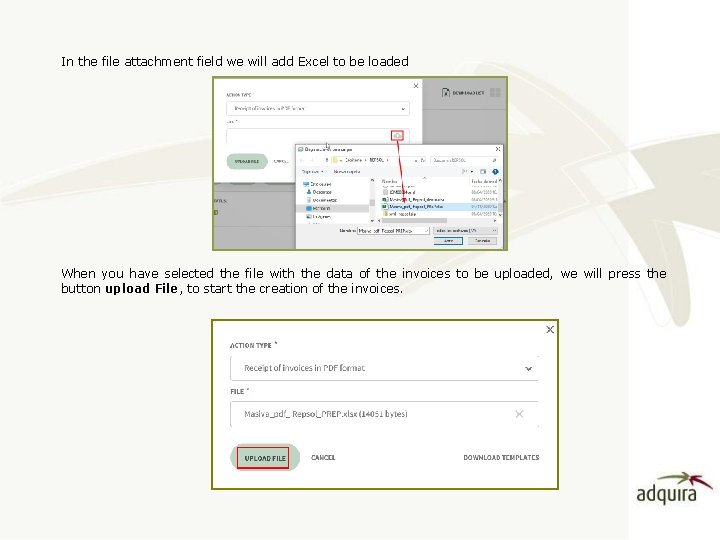
In the file attachment field we will add Excel to be loaded When you have selected the file with the data of the invoices to be uploaded, we will press the button upload File, to start the creation of the invoices.
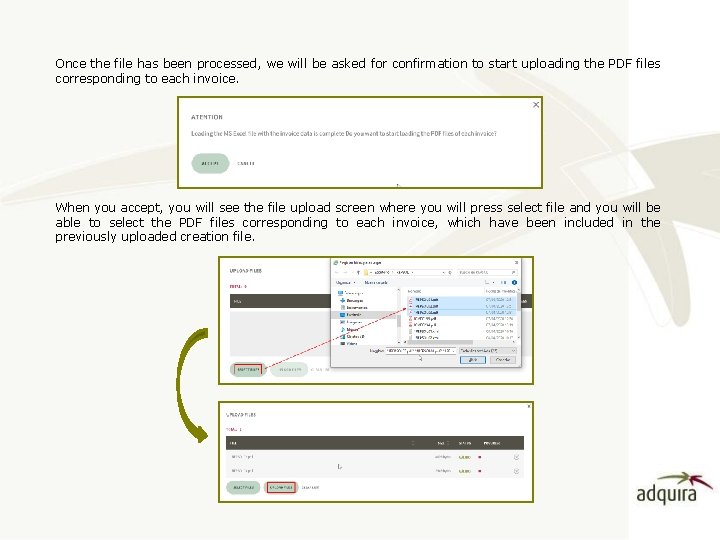
Once the file has been processed, we will be asked for confirmation to start uploading the PDF files corresponding to each invoice. When you accept, you will see the file upload screen where you will press select file and you will be able to select the PDF files corresponding to each invoice, which have been included in the previously uploaded creation file.
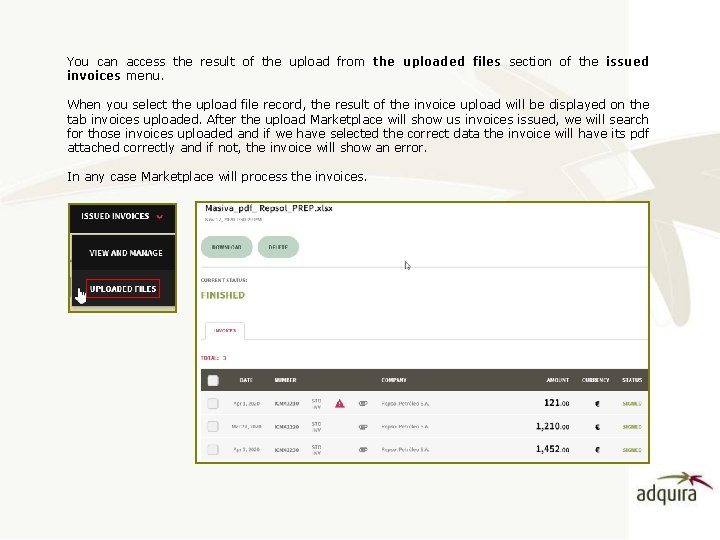
You can access the result of the upload from the uploaded files section of the issued invoices menu. When you select the upload file record, the result of the invoice upload will be displayed on the tab invoices uploaded. After the upload Marketplace will show us invoices issued, we will search for those invoices uploaded and if we have selected the correct data the invoice will have its pdf attached correctly and if not, the invoice will show an error. In any case Marketplace will process the invoices.
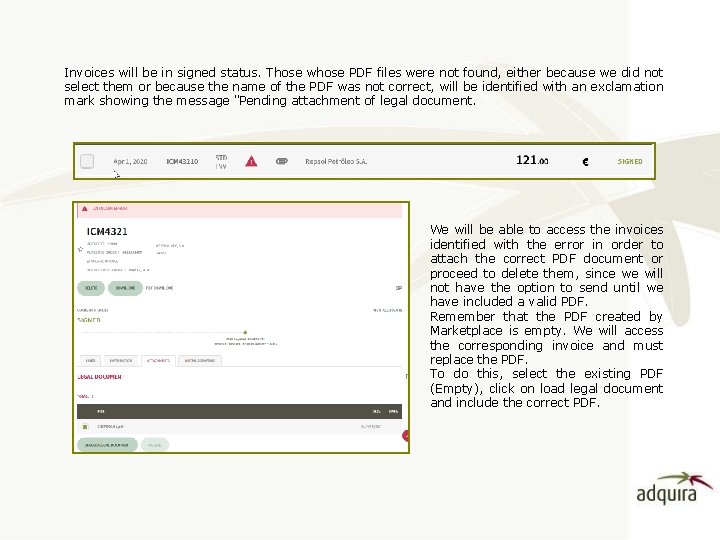
Invoices will be in signed status. Those whose PDF files were not found, either because we did not select them or because the name of the PDF was not correct, will be identified with an exclamation mark showing the message "Pending attachment of legal document. We will be able to access the invoices identified with the error in order to attach the correct PDF document or proceed to delete them, since we will not have the option to send until we have included a valid PDF. Remember that the PDF created by Marketplace is empty. We will access the corresponding invoice and must replace the PDF. To do this, select the existing PDF (Empty), click on load legal document and include the correct PDF.
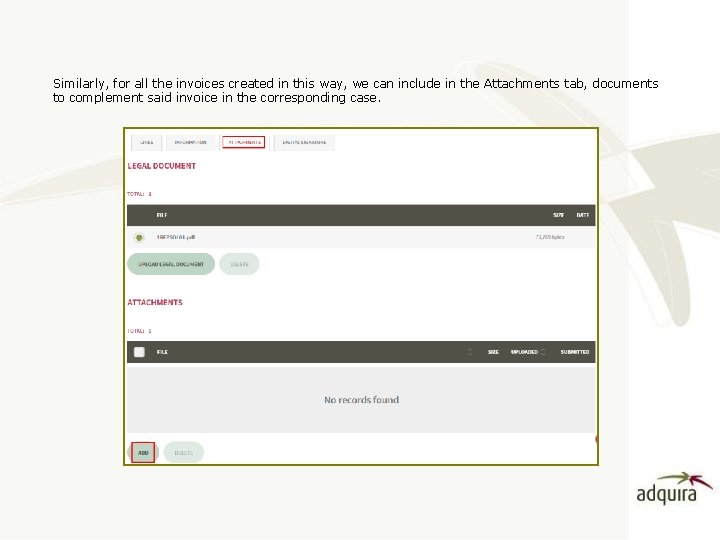
Similarly, for all the invoices created in this way, we can include in the Attachments tab, documents to complement said invoice in the corresponding case.
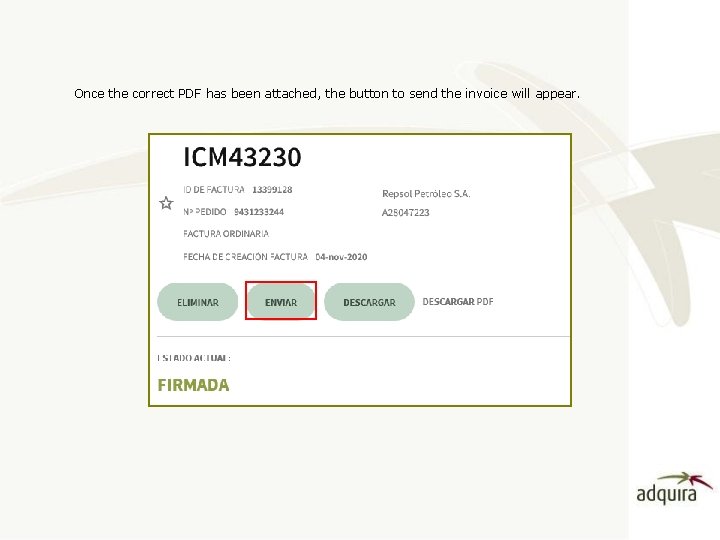
Once the correct PDF has been attached, the button to send the invoice will appear.
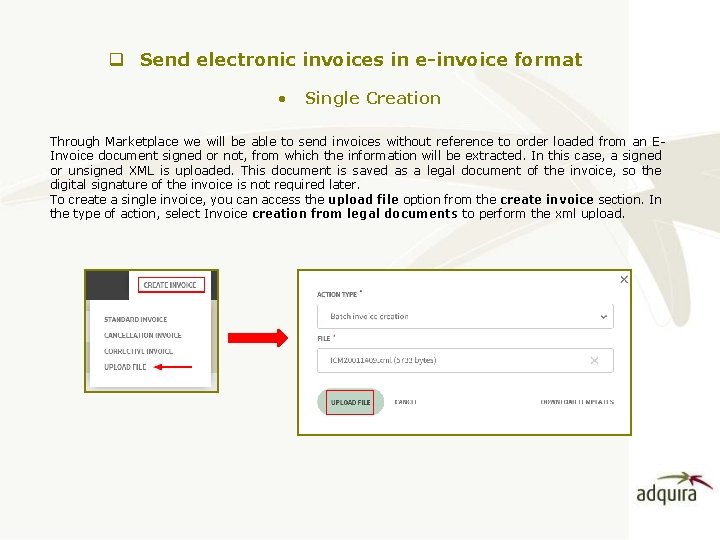
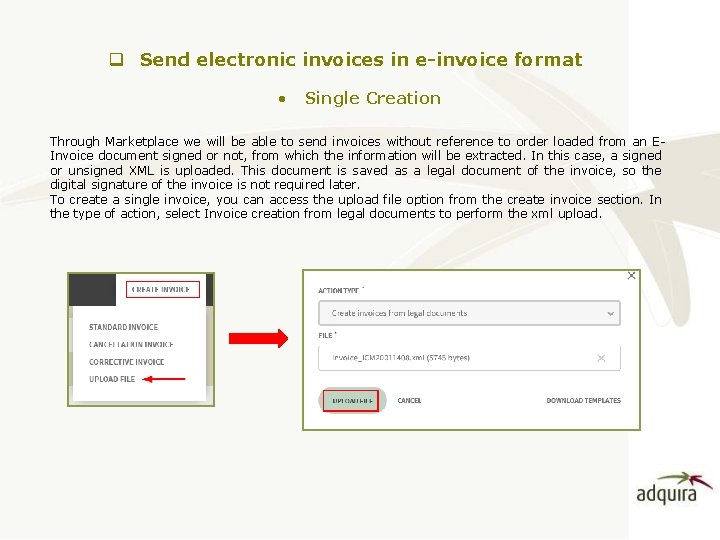
q Send electronic invoices in e-invoice format • Single Creation Through Marketplace we will be able to send invoices without reference to order loaded from an EInvoice document signed or not, from which the information will be extracted. In this case, a signed or unsigned XML is uploaded. This document is saved as a legal document of the invoice, so the digital signature of the invoice is not required later. To create a single invoice, you can access the upload file option from the create invoice section. In the type of action, select Invoice creation from legal documents to perform the xml upload.
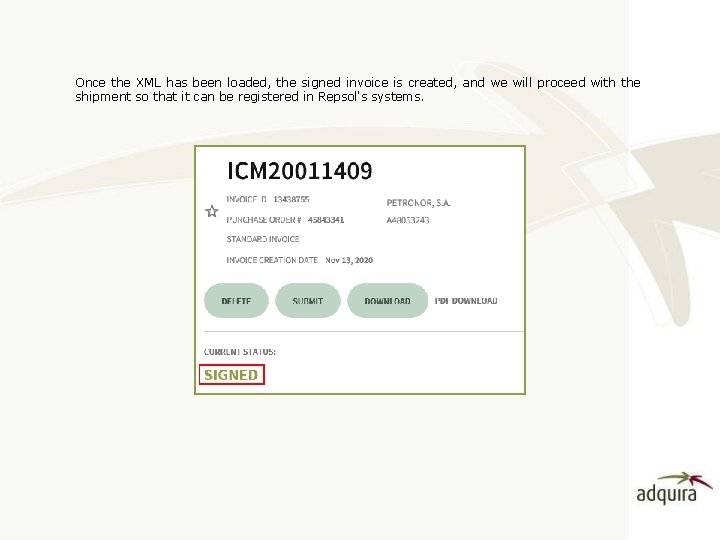
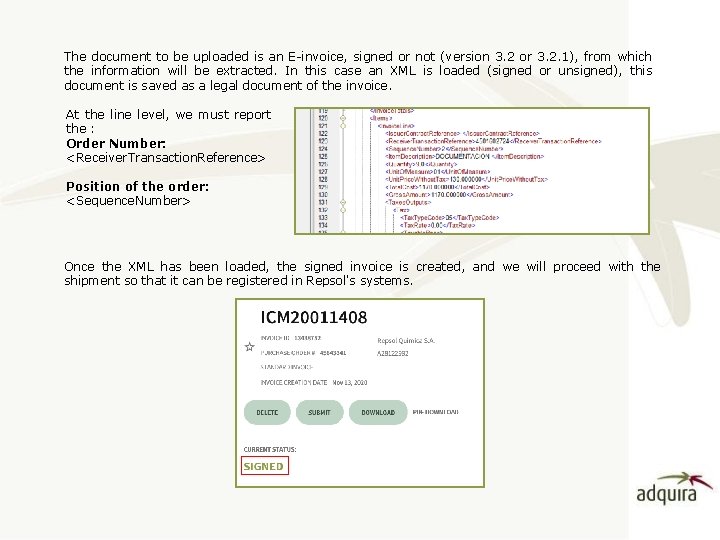
Once the XML has been loaded, the signed invoice is created, and we will proceed with the shipment so that it can be registered in Repsol's systems.
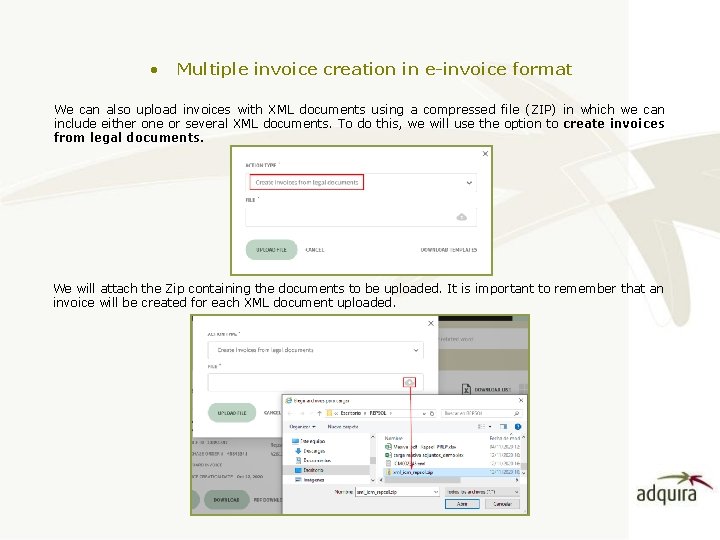
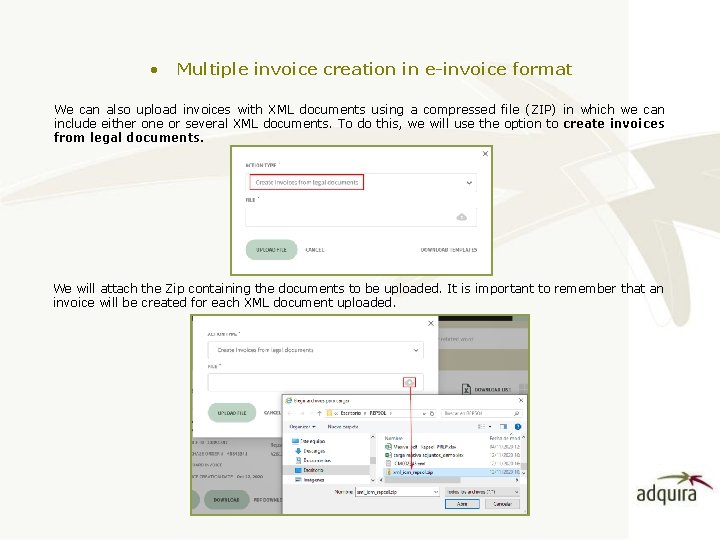
• Multiple invoice creation in e-invoice format We can also upload invoices with XML documents using a compressed file (ZIP) in which we can include either one or several XML documents. To do this, we will use the option to create invoices from legal documents. We will attach the Zip containing the documents to be uploaded. It is important to remember that an invoice will be created for each XML document uploaded.
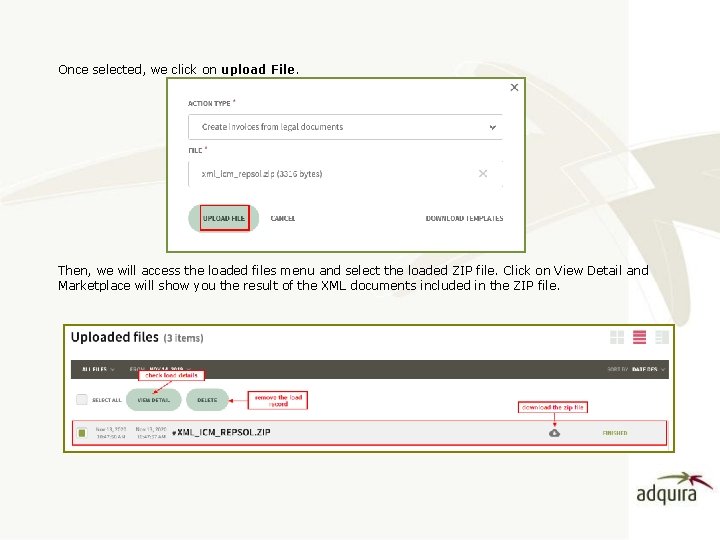
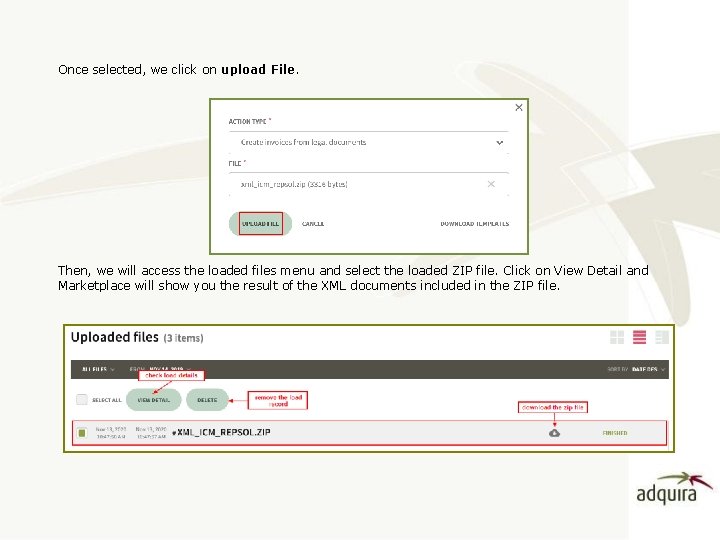
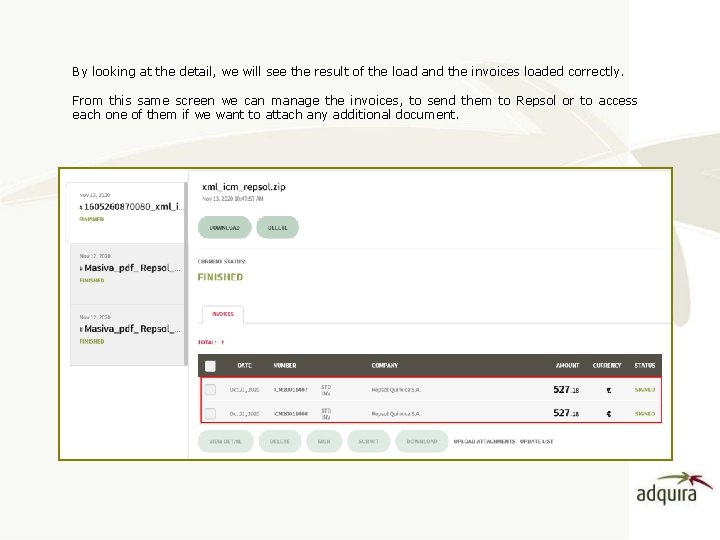
Once selected, we click on upload File. Then, we will access the loaded files menu and select the loaded ZIP file. Click on View Detail and Marketplace will show you the result of the XML documents included in the ZIP file.
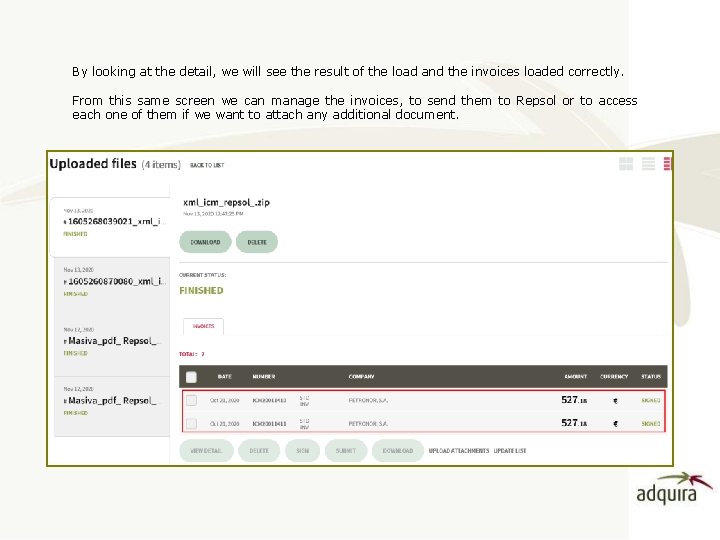
By looking at the detail, we will see the result of the load and the invoices loaded correctly. From this same screen we can manage the invoices, to send them to Repsol or to access each one of them if we want to attach any additional document.
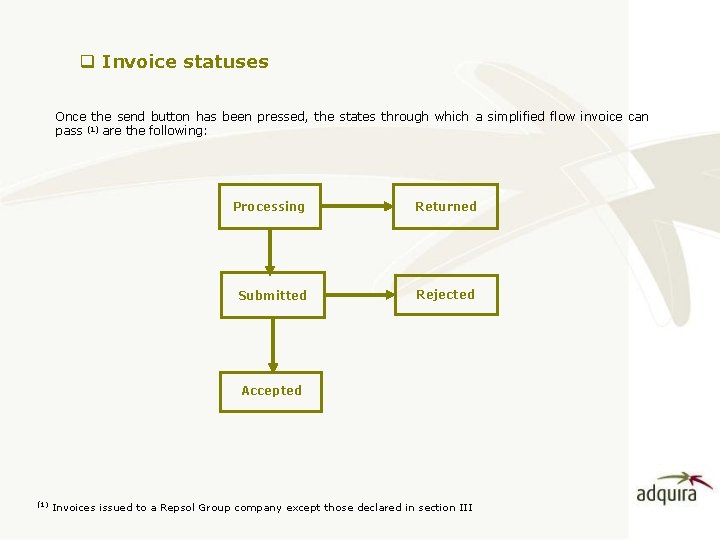
q Invoice statuses Once the send button has been pressed, the states through which a simplified flow invoice can pass (1) are the following: Processing Returned Submitted Rejected Accepted (1) Invoices issued to a Repsol Group company except those declared in section III
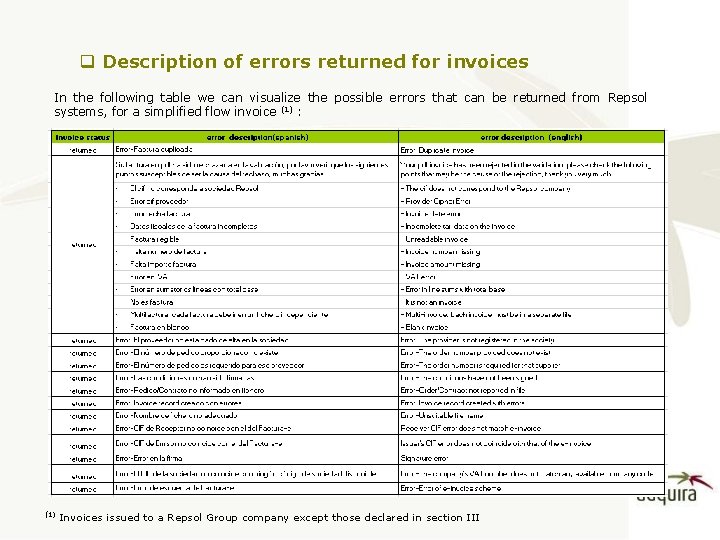
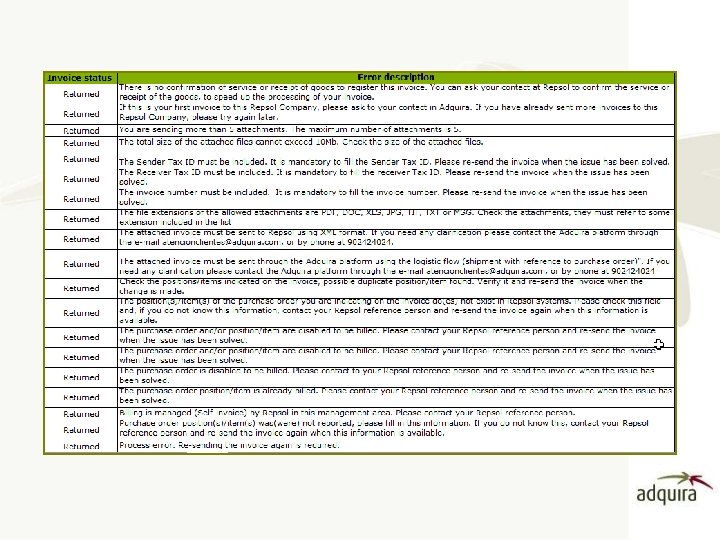
q Description of errors returned for invoices In the following table we can visualize the possible errors that can be returned from Repsol systems, for a simplified flow invoice (1) : (1) Invoices issued to a Repsol Group company except those declared in section III
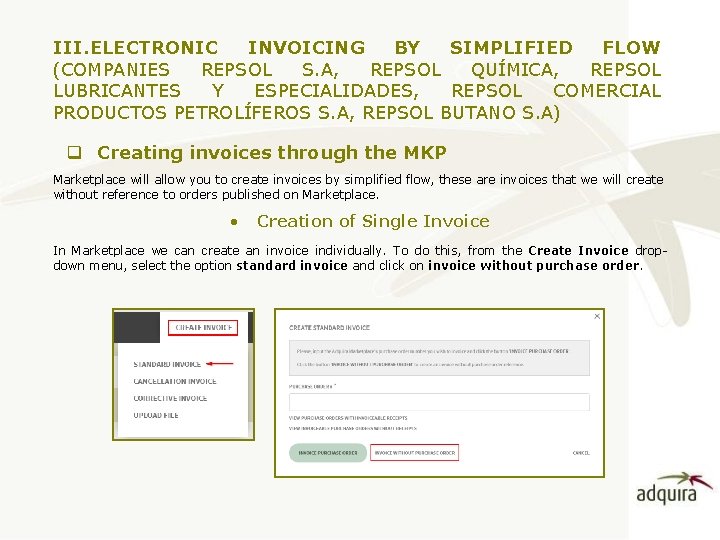
III. ELECTRONIC INVOICING BY SIMPLIFIED FLOW (COMPANIES REPSOL S. A, REPSOL QUÍMICA, REPSOL LUBRICANTES Y ESPECIALIDADES, REPSOL COMERCIAL PRODUCTOS PETROLÍFEROS S. A, REPSOL BUTANO S. A) q Creating invoices through the MKP Marketplace will allow you to create invoices by simplified flow, these are invoices that we will create without reference to orders published on Marketplace. • Creation of Single Invoice In Marketplace we can create an invoice individually. To do this, from the Create Invoice dropdown menu, select the option standard invoice and click on invoice without purchase order.
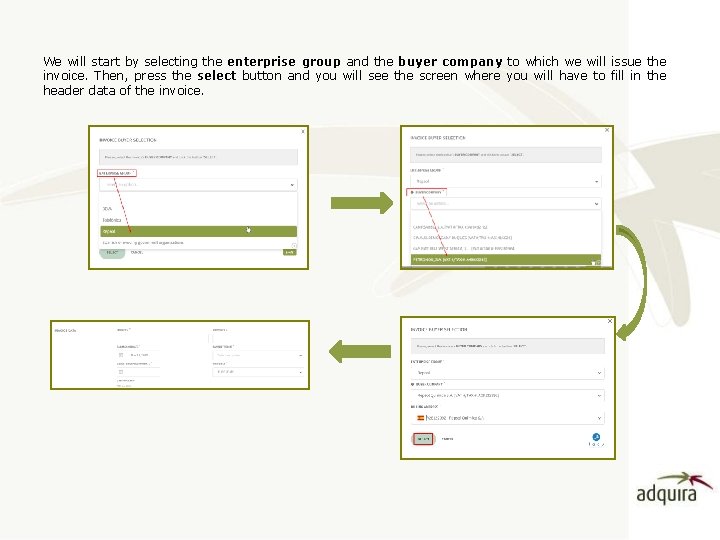
We will start by selecting the enterprise group and the buyer company to which we will issue the invoice. Then, press the select button and you will see the screen where you will have to fill in the header data of the invoice.
In addition to the header data, we can also inform you of the order data if applicable. The following fields are available to us for this purpose: Ø Order number : we must indicate the order number provided by Repsol Ø Project ID : we can include the project data (not compulsory) Ø Supplier Type : You must mark if we belong to any of these groups: • R. Petróleo, Complejos Industriales • Central de Ingeniería Ø Management area: if we select Supplier type, we will have to mark one of these options: : • • • No related cost center Cartagena (HCAR) Coruña (HCOR) Puertollano (HPLL) Tarragona (HTAR) Central de Ingeniería
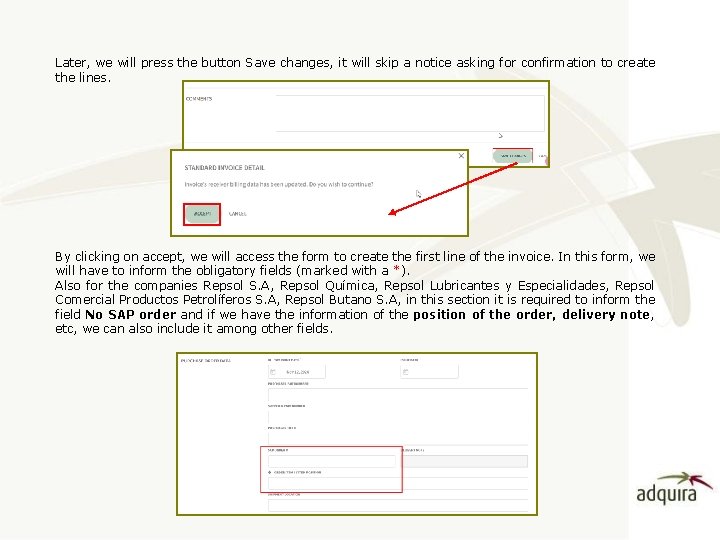
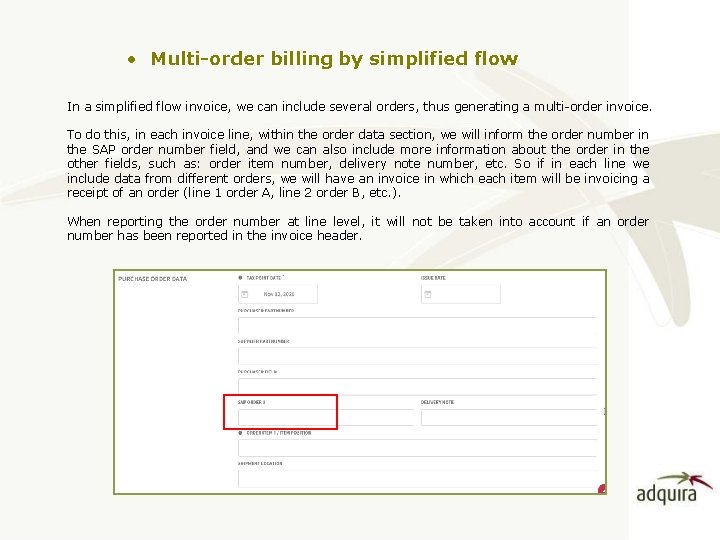
Later, we will press the button Save changes, it will skip a notice asking for confirmation to create the lines. By clicking on accept, we will access the form to create the first line of the invoice. In this form, we will have to inform the obligatory fields (marked with a *). Also for the companies Repsol S. A, Repsol Química, Repsol Lubricantes y Especialidades, Repsol Comercial Productos Petrolíferos S. A, Repsol Butano S. A, in this section it is required to inform the field No SAP order and if we have the information of the position of the order, delivery note, etc, we can also include it among other fields.
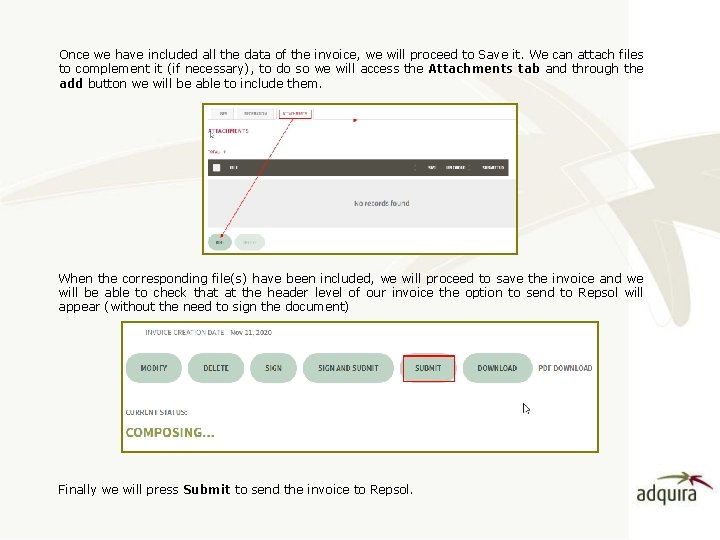
Once we have included all the data of the invoice, we will proceed to Save it. We can attach files to complement it (if necessary), to do so we will access the Attachments tab and through the add button we will be able to include them. When the corresponding file(s) have been included, we will proceed to save the invoice and we will be able to check that at the header level of our invoice the option to send to Repsol will appear (without the need to sign the document) Finally we will press Submit to send the invoice to Repsol.
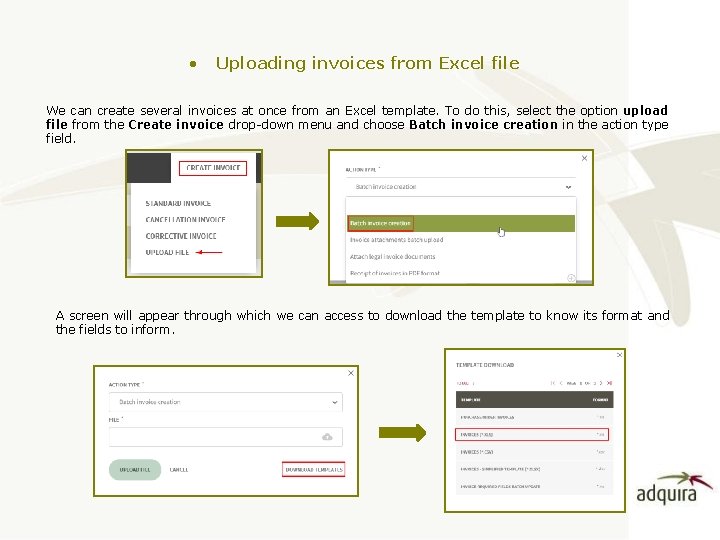
• Uploading invoices from Excel file We can create several invoices at once from an Excel template. To do this, select the option upload file from the Create invoice drop-down menu and choose Batch invoice creation in the action type field. A screen will appear through which we can access to download the template to know its format and the fields to inform.
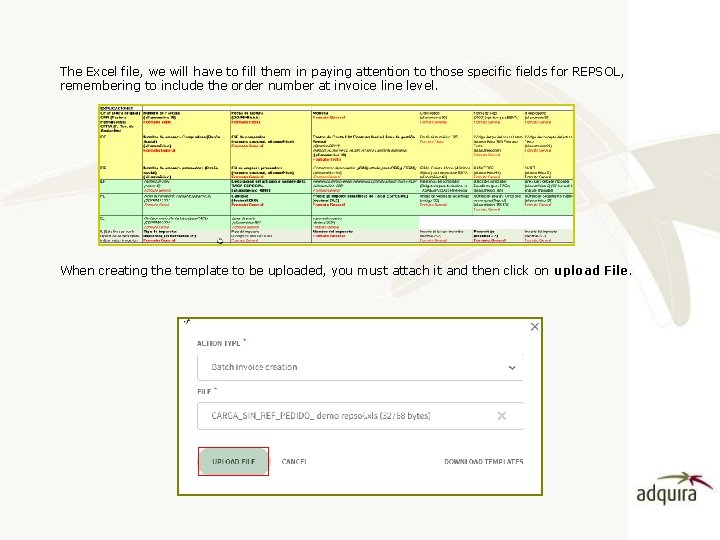
The Excel file, we will have to fill them in paying attention to those specific fields for REPSOL, remembering to include the order number at invoice line level. When creating the template to be uploaded, you must attach it and then click on upload File.
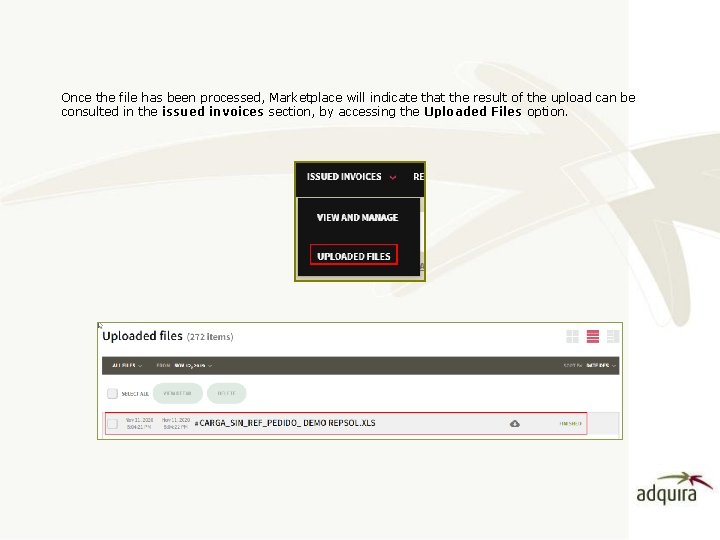
Once the file has been processed, Marketplace will indicate that the result of the upload can be consulted in the issued invoices section, by accessing the Uploaded Files option.
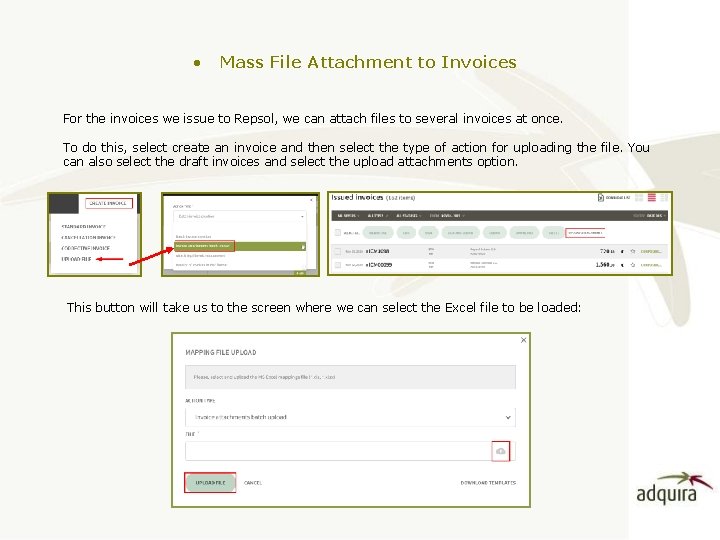
• Mass File Attachment to Invoices For the invoices we issue to Repsol, we can attach files to several invoices at once. To do this, select create an invoice and then select the type of action for uploading the file. You can also select the draft invoices and select the upload attachments option. This button will take us to the screen where we can select the Excel file to be loaded:
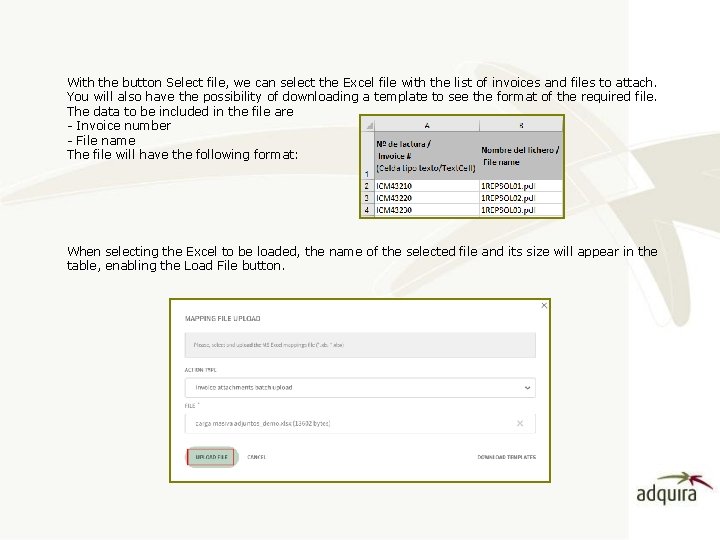
With the button Select file, we can select the Excel file with the list of invoices and files to attach. You will also have the possibility of downloading a template to see the format of the required file. The data to be included in the file are - Invoice number - File name The file will have the following format: When selecting the Excel to be loaded, the name of the selected file and its size will appear in the table, enabling the Load File button.
Once the Excel file has been uploaded, if there is no problem with the processing it will ask us to confirm if we want to continue with the uploading process: When you press accept, you will be taken to the screen for loading each of the invoice attachments, where you must press the Select Files button and then you can select the documents to be attached to the invoices from your computer.
Once the attachments have been selected, a list of the files indicated will appear. When you click on upload files, a warning will be displayed confirming that the upload has been successful. Once the files have been uploaded, they are located on the corresponding invoice in the Attachments section.
• Copy of Invoices We have available the Copy Invoice functionality once we have signed the invoice. This option is available for invoices created from the mode without order reference (not from legal document) and that are in any state except composing.
By pressing the copy button, Marketplace will copy the form with the same content as the initial invoice, but in a draft state and with the invoice number field empty, thus allowing us to create a new invoice.
q Send electronic invoices in e-invoice format • Single Creation Through Marketplace we will be able to send invoices without reference to order loaded from an EInvoice document signed or not, from which the information will be extracted. In this case, a signed or unsigned XML is uploaded. This document is saved as a legal document of the invoice, so the digital signature of the invoice is not required later. To create a single invoice, you can access the upload file option from the create invoice section. In the type of action, select Invoice creation from legal documents to perform the xml upload.
The document to be uploaded is an E-invoice, signed or not (version 3. 2 or 3. 2. 1), from which the information will be extracted. In this case an XML is loaded (signed or unsigned), this document is saved as a legal document of the invoice. At the line level, we must report the : Order Number: <Receiver. Transaction. Reference> Position of the order: <Sequence. Number> Once the XML has been loaded, the signed invoice is created, and we will proceed with the shipment so that it can be registered in Repsol's systems.
• Multiple invoice creation in e-invoice format We can also upload invoices with XML documents using a compressed file (ZIP) in which we can include either one or several XML documents. To do this, we will use the option to create invoices from legal documents. We will attach the Zip containing the documents to be uploaded. It is important to remember that an invoice will be created for each XML document uploaded.
Once selected, we click on upload File. Then, we will access the loaded files menu and select the loaded ZIP file. Click on View Detail and Marketplace will show you the result of the XML documents included in the ZIP file.
By looking at the detail, we will see the result of the load and the invoices loaded correctly. From this same screen we can manage the invoices, to send them to Repsol or to access each one of them if we want to attach any additional document.
• Multi-order billing by simplified flow In a simplified flow invoice, we can include several orders, thus generating a multi-order invoice. To do this, in each invoice line, within the order data section, we will inform the order number in the SAP order number field, and we can also include more information about the order in the other fields, such as: order item number, delivery note number, etc. So if in each line we include data from different orders, we will have an invoice in which each item will be invoicing a receipt of an order (line 1 order A, line 2 order B, etc. ). When reporting the order number at line level, it will not be taken into account if an order number has been reported in the invoice header.
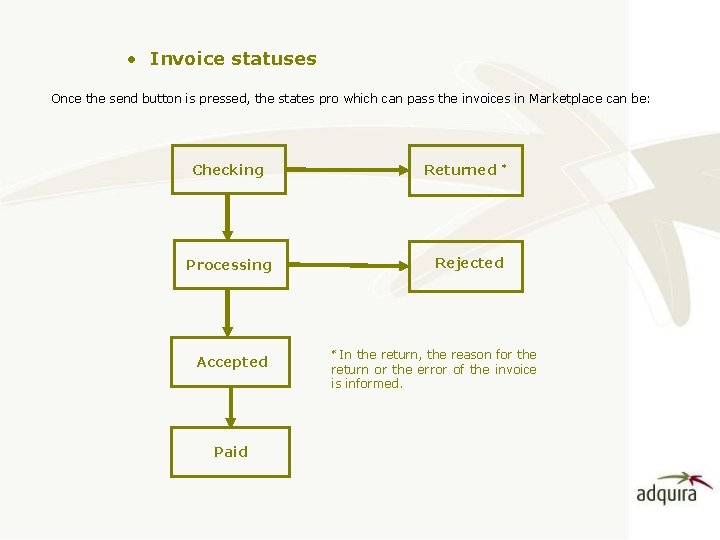
• Invoice statuses Once the send button is pressed, the states pro which can pass the invoices in Marketplace can be: Checking Returned Rejected Processing Accepted Paid * In the return, the reason for the return or the error of the invoice is informed. *
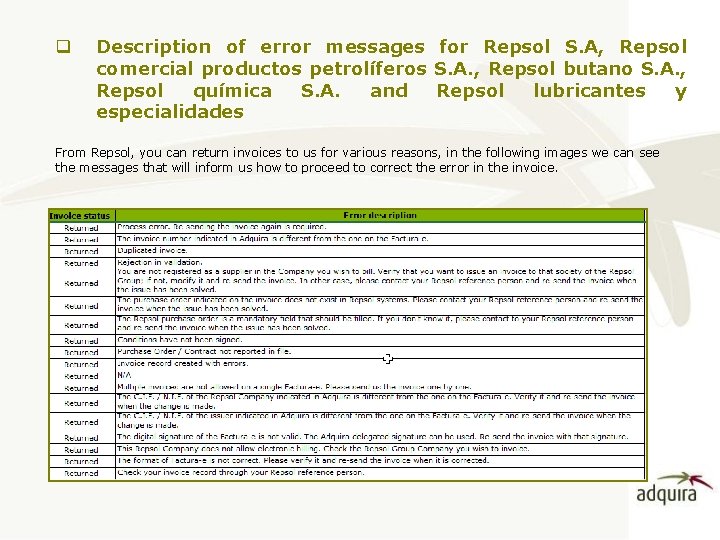
q Description of error messages for Repsol S. A, Repsol comercial productos petrolíferos S. A. , Repsol butano S. A. , Repsol química S. A. and Repsol lubricantes y especialidades From Repsol, you can return invoices to us for various reasons, in the following images we can see the messages that will inform us how to proceed to correct the error in the invoice.