
Repetition Statements Visual Basic 2010 How to Program
Repetition Statements Visual Basic 2010 How to Program
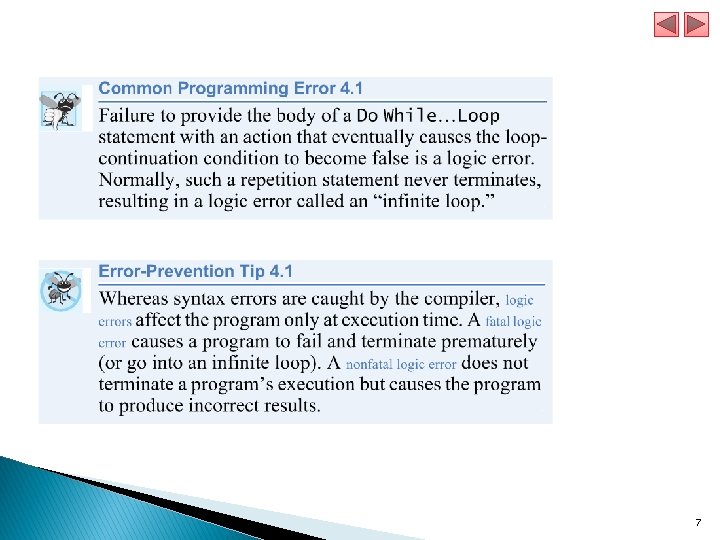
Repetition Statements A repetition statement (also called a looping statement, an iteration statement or a loop) allows you to specify that an action should be repeated, depending on the value of a loop-continuation condition or a loop-termination condition. 2
Repetition Statement Counter-controlled repetition statements includes the Do While…Loop – Do. . . Loop While – For. . . Next statement. Counter-controlled repetition requires: ◦ the name of a control variable (or loop counter) that is used to determine whether the loop continues to iterate ◦ the initial value of the control variable ◦ the increment (or decrement) by which the control variable is modified each time through the loop ◦ the condition that tests for the final value of the control variable (that is, whether looping should continue). 3
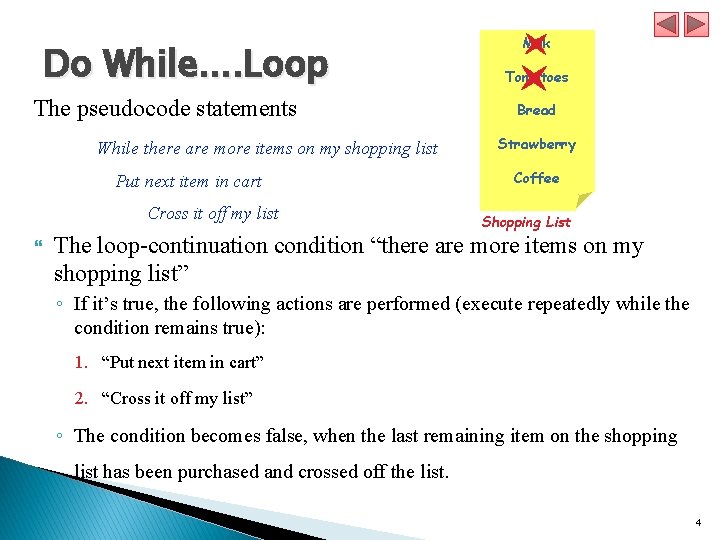
Do While. . Loop The pseudocode statements While there are more items on my shopping list Put next item in cart Cross it off my list Milk Tomatoes Bread Strawberry Coffee Shopping List The loop-continuation condition “there are more items on my shopping list” ◦ If it’s true, the following actions are performed (execute repeatedly while the condition remains true): 1. “Put next item in cart” 2. “Cross it off my list” ◦ The condition becomes false, when the last remaining item on the shopping list has been purchased and crossed off the list. 4
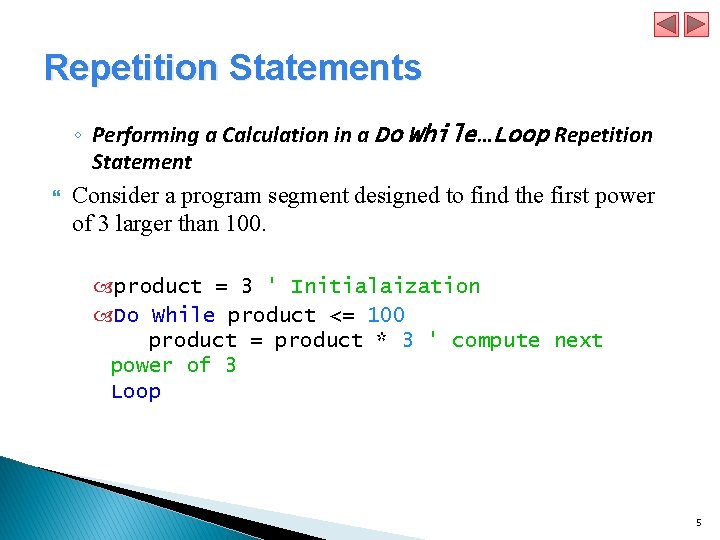
Repetition Statements ◦ Performing a Calculation in a Do While…Loop Repetition Statement Consider a program segment designed to find the first power of 3 larger than 100. product = 3 ' Initialaization Do While product <= 100 product = product * 3 ' compute next power of 3 Loop 5
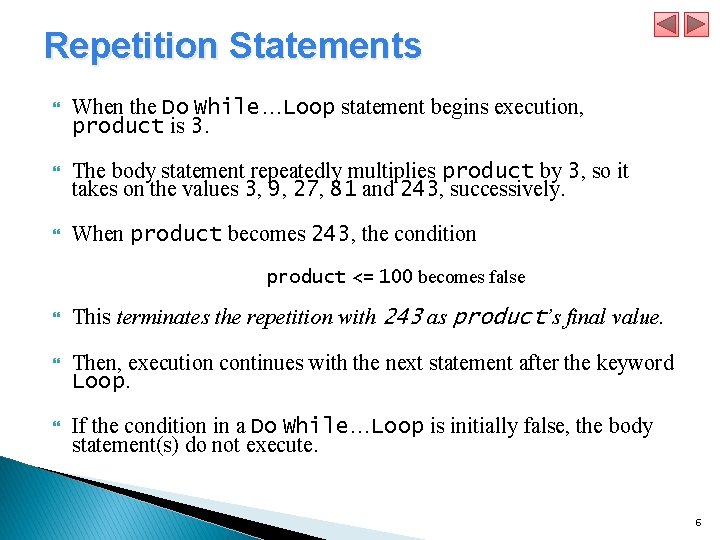
Repetition Statements When the Do While…Loop statement begins execution, product is 3. The body statement repeatedly multiplies product by 3, so it takes on the values 3, 9, 27, 81 and 243, successively. When product becomes 243, the condition product <= 100 becomes false This terminates the repetition with 243 as product’s final value. Then, execution continues with the next statement after the keyword Loop. If the condition in a Do While…Loop is initially false, the body statement(s) do not execute. 6
7
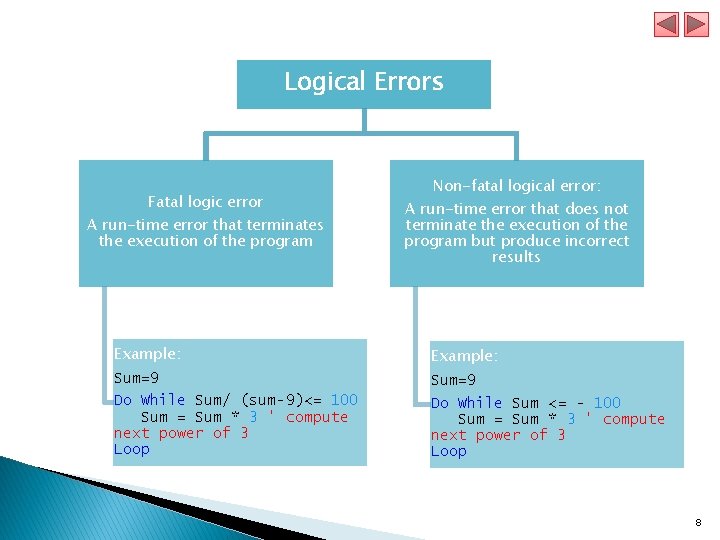
Logical Errors Fatal logic error A run-time error that terminates the execution of the program Non-fatal logical error: A run-time error that does not terminate the execution of the program but produce incorrect results Example: Sum=9 Do While Sum/ (sum-9)<= 100 Sum = Sum * 3 ' compute next power of 3 Loop Sum=9 Do While Sum <= - 100 Sum = Sum * 3 ' compute next power of 3 Loop 8
Do…Loop While and Repetition Statements The Do…Loop While repetition statement is similar to the Do While…Loop statement. In the Do While…Loop statement, the loopcontinuation condition is tested at the beginning of the loop, before the body of the loop is performed, so these are referred to as pre-test loops. 9
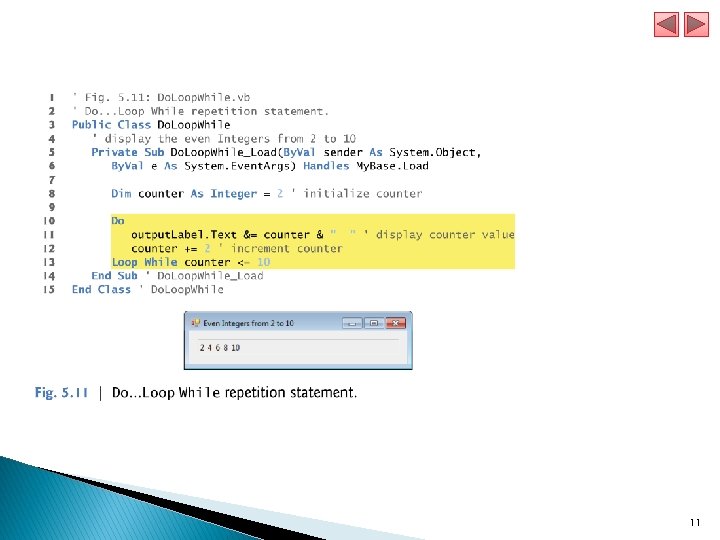
Do…Loop While Repetition Statement The Do…Loop While statement tests the loop-continuation condition after the loop body is performed, so it’s referred to as a post-test loop. In a Do…Loop While statement, the loop body is always executed at least once. When a Do…Loop While statement terminates, execution continues with the statement after the Loop While clause. The program in Fig. 5. 11 uses a Do…Loop While statement to output the even integers from 2 to 10. 10
11
Do…Loop While and Repetition Statement When lines 11– 12 execute, it displays the value of counter (at this point, 2), then increments counter by 2. Then the loop-continuation condition in line 13 is evaluated. Variable counter is 4 <= 10, so the Do…Loop While statement executes lines 11– 12 again. In the 5 th iteration of the statement, line 11 outputs the value 10, and line 12 increments counter to 12. At this point, the loop-continuation condition in line 13 evaluates to false, and the program exits the Do…Loop While statement. 12
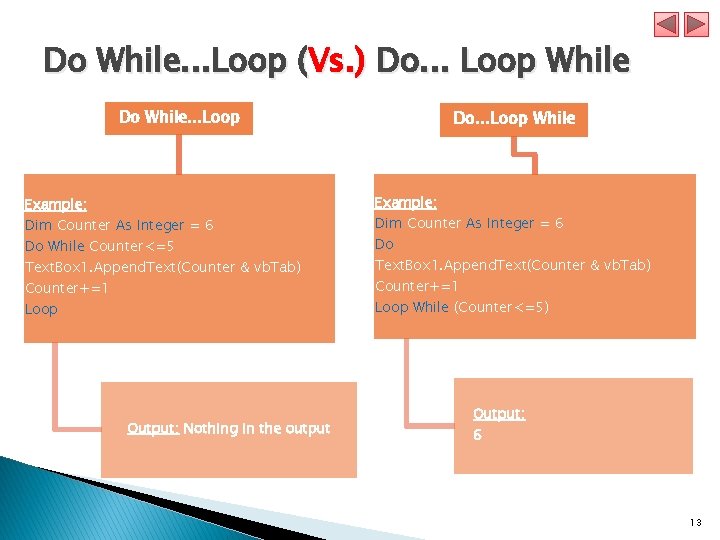
Do While. . . Loop (Vs. ) Do. . . Loop While Do While. . . Loop Do. . . Loop While Example: Dim Counter As Integer = 6 Do While Counter<=5 Text. Box 1. Append. Text(Counter & vb. Tab) Counter+=1 Loop Output: Nothing in the output Dim Counter As Integer = 6 Do Text. Box 1. Append. Text(Counter & vb. Tab) Counter+=1 Loop While (Counter<=5) Output: 6 13
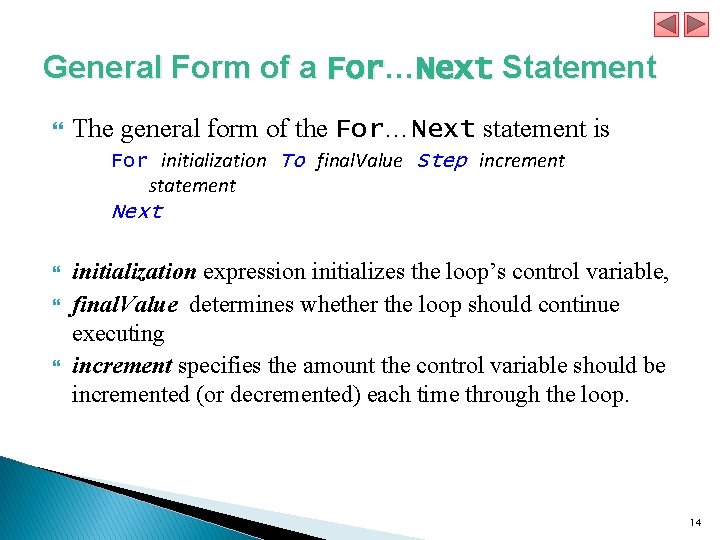
General Form of a For…Next Statement The general form of the For…Next statement is For initialization To final. Value Step increment statement Next initialization expression initializes the loop’s control variable, final. Value determines whether the loop should continue executing increment specifies the amount the control variable should be incremented (or decremented) each time through the loop. 14
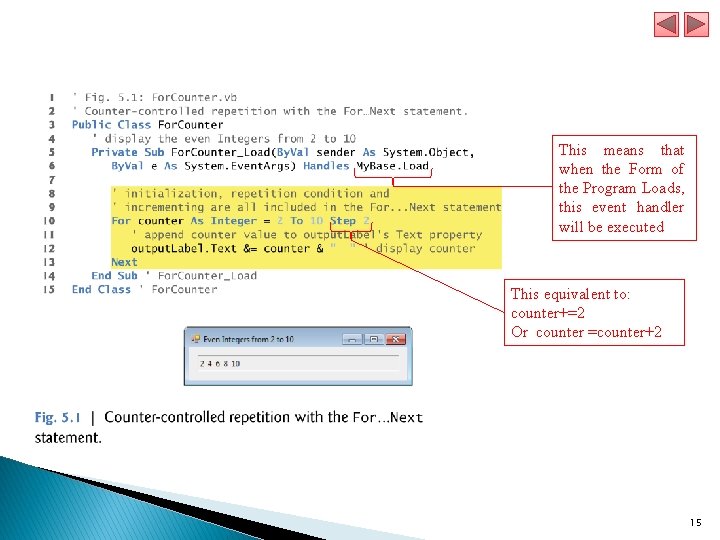
This means that when the Form of the Program Loads, this event handler will be executed This equivalent to: counter+=2 Or counter =counter+2 15
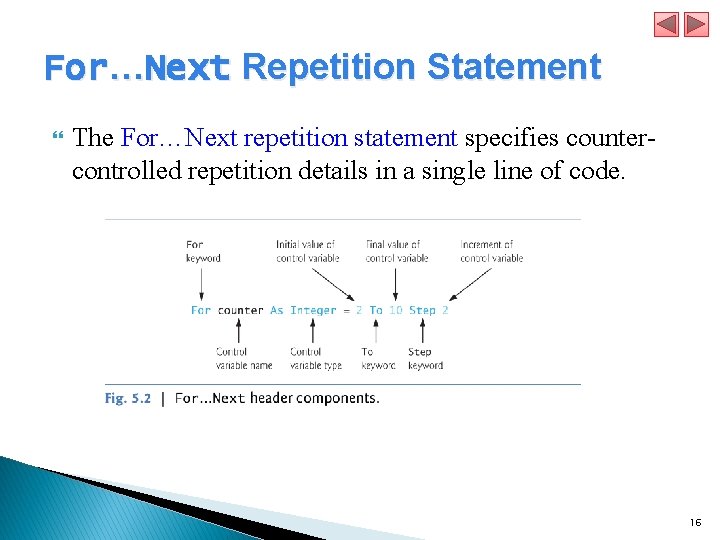
For…Next Repetition Statement The For…Next repetition statement specifies countercontrolled repetition details in a single line of code. 16
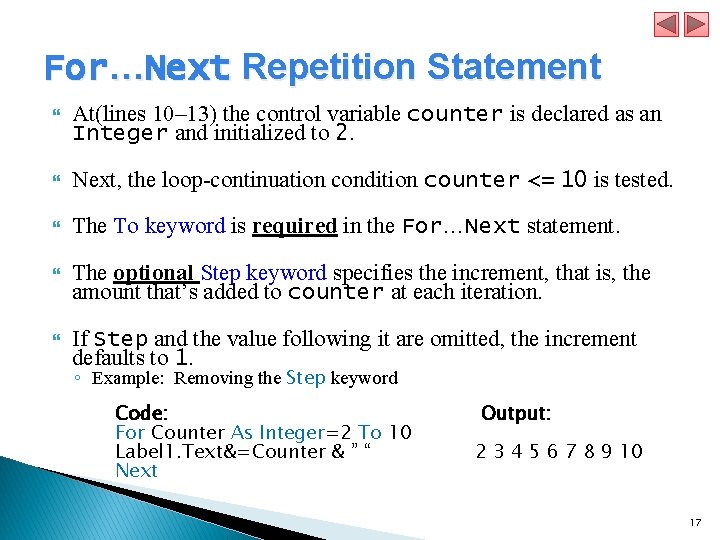
For…Next Repetition Statement At(lines 10– 13) the control variable counter is declared as an Integer and initialized to 2. Next, the loop-continuation condition counter <= 10 is tested. The To keyword is required in the For…Next statement. The optional Step keyword specifies the increment, that is, the amount that’s added to counter at each iteration. If Step and the value following it are omitted, the increment defaults to 1. ◦ Example: Removing the Step keyword Code: For Counter As Integer=2 To 10 Label 1. Text&=Counter & ” “ Next Output: 2 3 4 5 6 7 8 9 10 17
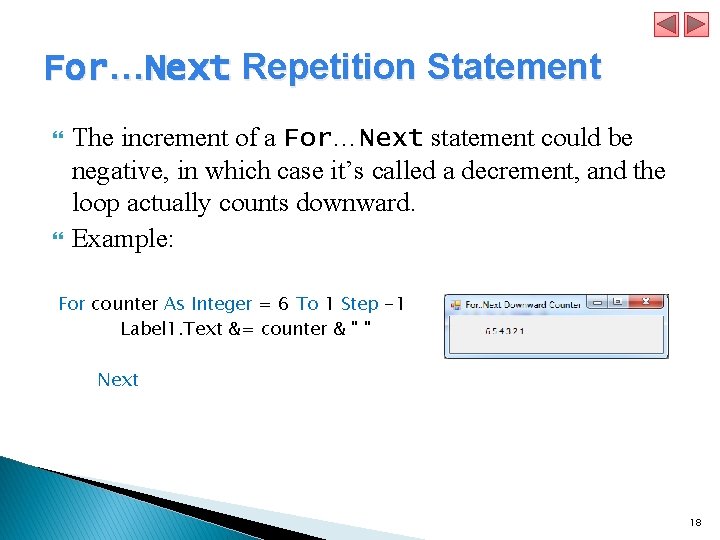
For…Next Repetition Statement The increment of a For…Next statement could be negative, in which case it’s called a decrement, and the loop actually counts downward. Example: For counter As Integer = 6 To 1 Step -1 Label 1. Text &= counter & " " Next 18
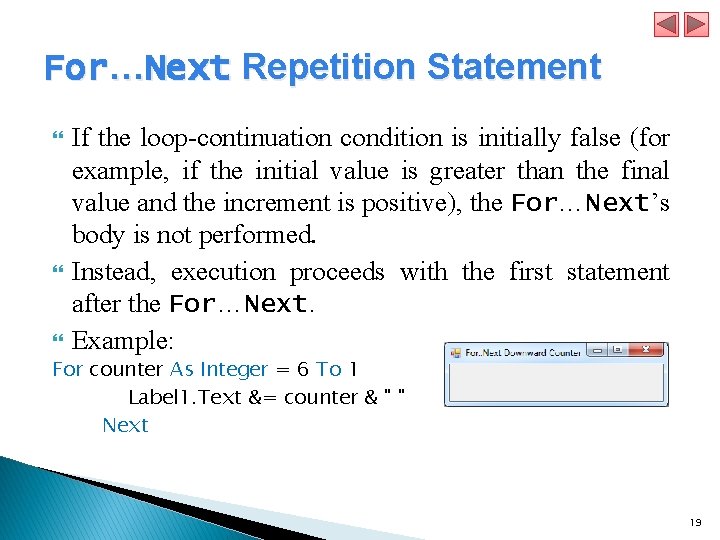
For…Next Repetition Statement If the loop-continuation condition is initially false (for example, if the initial value is greater than the final value and the increment is positive), the For…Next’s body is not performed. Instead, execution proceeds with the first statement after the For…Next. Example: For counter As Integer = 6 To 1 Label 1. Text &= counter & " " Next 19
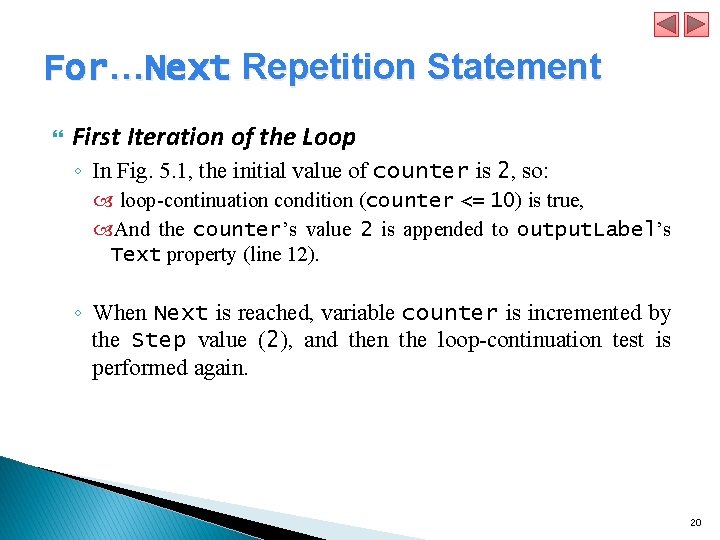
For…Next Repetition Statement First Iteration of the Loop ◦ In Fig. 5. 1, the initial value of counter is 2, so: loop-continuation condition (counter <= 10) is true, And the counter’s value 2 is appended to output. Label’s Text property (line 12). ◦ When Next is reached, variable counter is incremented by the Step value (2), and then the loop-continuation test is performed again. 20
For…Next Repetition Statement Second and Subsequent Iterations of the Loop ◦ Now, the control variable is equal to 4. ◦ This value still does not exceed the final value, so the program performs the body statement again. ◦ This process continues until the counter value 10 is displayed which means: The control variable counter is incremented to 12 The loop-continuation test fails and the loop to terminate. ◦ The program continues by performing the first statement after the For…Next statement (line 14). 21
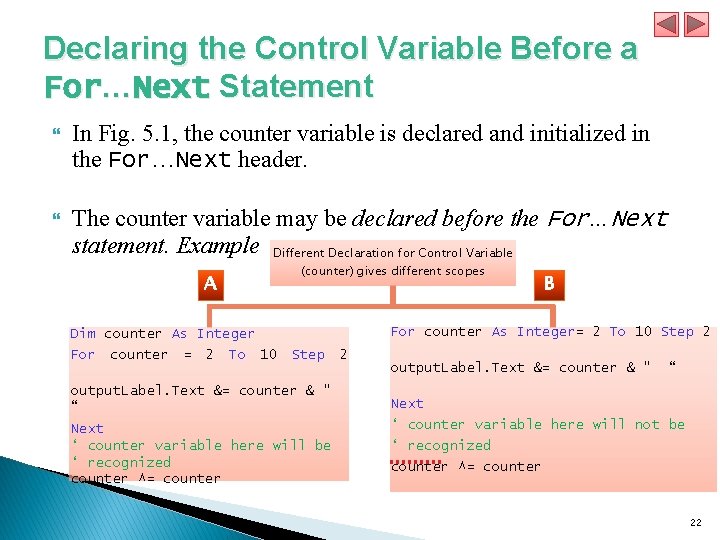
Declaring the Control Variable Before a For…Next Statement In Fig. 5. 1, the counter variable is declared and initialized in the For…Next header. The counter variable may be declared before the For…Next statement. Example Different Declaration for Control Variable A Dim counter As Integer For counter = 2 To 10 (counter) gives different scopes B For counter As Integer= 2 To 10 Step 2 Step output. Label. Text &= counter & " “ Next ‘ counter variable here will be ‘ recognized counter ^= counter 2 output. Label. Text &= counter & " “ Next ‘ counter variable here will not be ‘ recognized counter ^= counter 22
Declaring the Control Variable Before a For…Next Statement The difference between the two forms of declaration in the previous example: ◦ If the control variable is declared as in A it can be used inside the For…Next body and after it ◦ If the control variable is declared as in B the control variable can be used only inside the body of the For…Next The variable’s scope specifies where the variable can be used in a program. 23
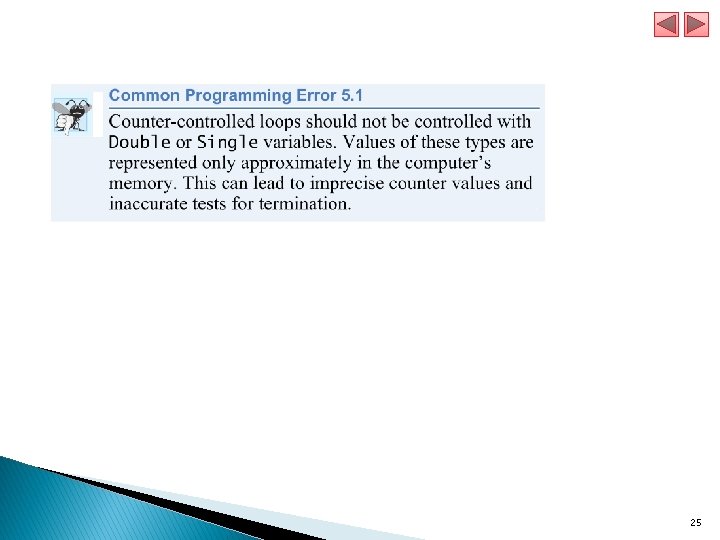
Using Expressions in the For…Next Statement’s Header The starting value, ending value and increment portions of a For…Next statement can contain arithmetic expressions. The expressions are evaluated once and used as the For. . Next header. ◦ For example, assume that x = 2 and y = 10. ◦ The header For j As Integer = x To 4 * x * y Step y x is equivalent to the header For j As Integer = 2 To 80 Step 5 24
25
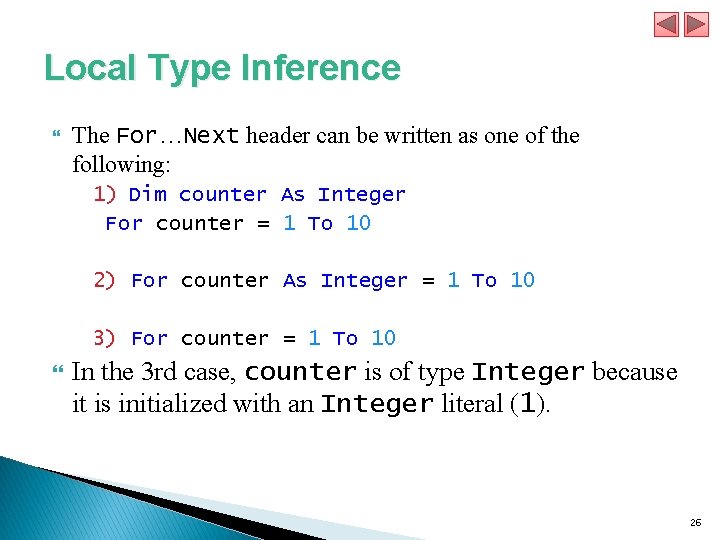
Local Type Inference The For…Next header can be written as one of the following: 1) Dim counter As Integer For counter = 1 To 10 2) For counter As Integer = 1 To 10 3) For counter = 1 To 10 In the 3 rd case, counter is of type Integer because it is initialized with an Integer literal (1). 26

Examples Using the For…Next Statement The following examples demonstrate different ways of varying the control variable in a For…Next statement. ◦ Vary the control variable from 1 to 100 in increments of 1. For i = 1 To 100 or For i = 1 To 100 Step 1 ◦ Vary the control variable from 100 to 1 in increments of -1 (decrements of 1). For i = 100 To 1 Step -1 ◦ Vary the control variable over the sequence of the following values: 99, 88, 77, 66, 55, 44, 33, 22, 11, 0. For i = 99 To 0 Step -11 27
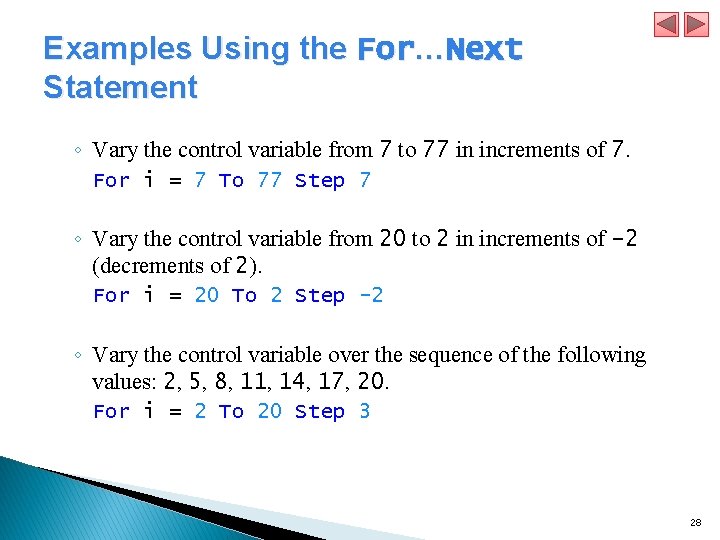
Examples Using the For…Next Statement ◦ Vary the control variable from 7 to 77 in increments of 7. For i = 7 To 77 Step 7 ◦ Vary the control variable from 20 to 2 in increments of -2 (decrements of 2). For i = 20 To 2 Step -2 ◦ Vary the control variable over the sequence of the following values: 2, 5, 8, 11, 14, 17, 20. For i = 2 To 20 Step 3 28
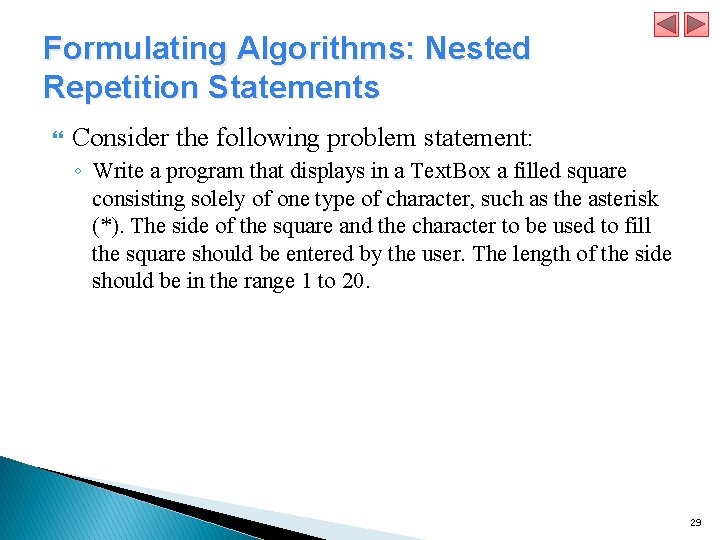
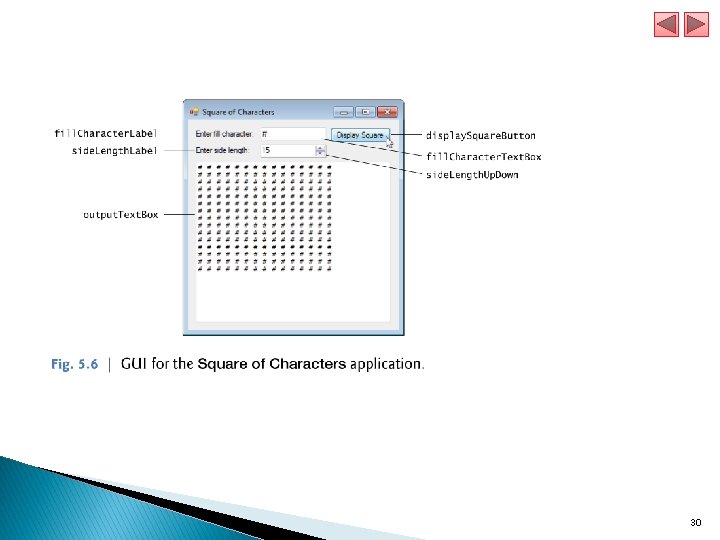
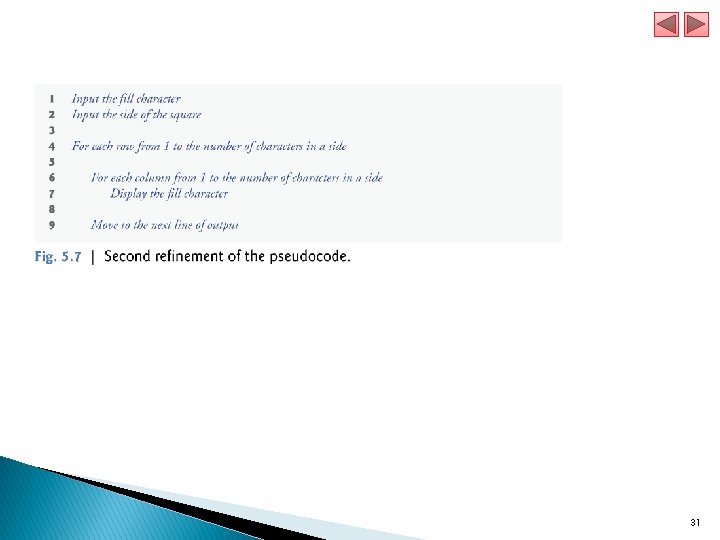
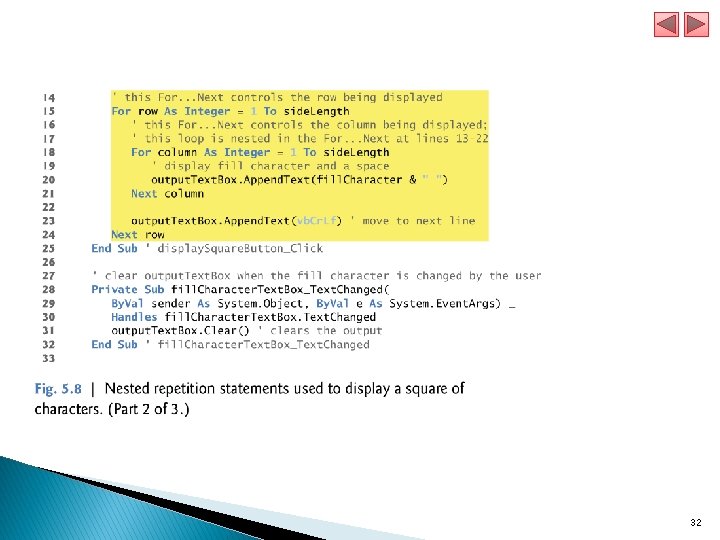
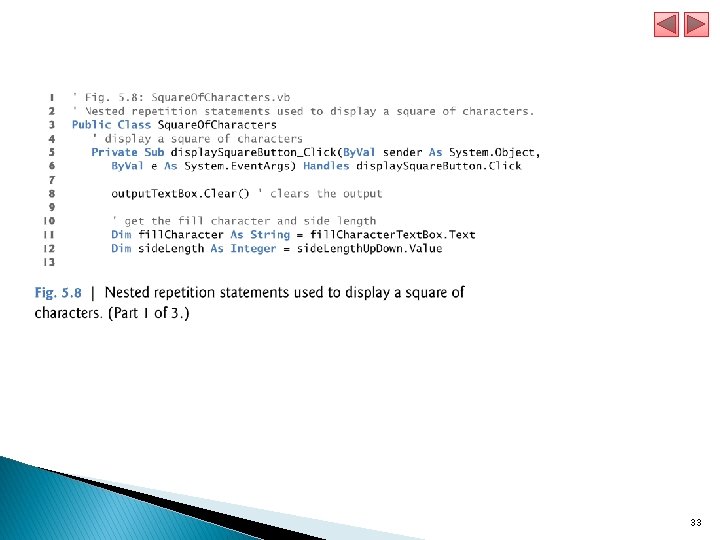
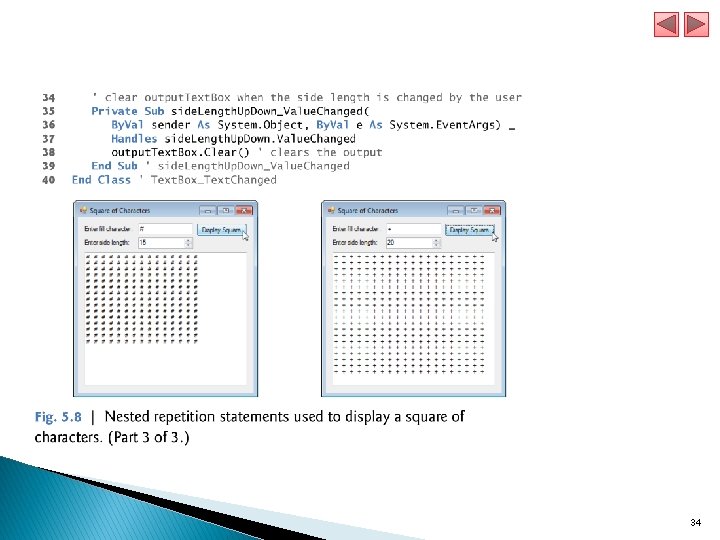
Formulating Algorithms: Nested Repetition Statements Consider the following problem statement: ◦ Write a program that displays in a Text. Box a filled square consisting solely of one type of character, such as the asterisk (*). The side of the square and the character to be used to fill the square should be entered by the user. The length of the side should be in the range 1 to 20. 29
30
31
32
33
34
Practice Part
The Assignment Statement is used to assign values to a property of an object such as a control. The general form of the assignment statement is shown here. Object. Property = Value Assign a student name to the Text property of the Text. Box control named Name. Text. Box and a student’s major to the Text. Box control named Major. Text. Box. The assignment statements to do this are: Name. Text. Box. Text = “Nora Ali" Major. Text. Box. Text = “IT" Notice that the value is enclosed within double-quote marks – this indicates the value is a string of characters and only string data is stored to the Text property of a Text. Box control. 36
The Clear Method The Clear method is used to clear the contents of a Text. Box control. The general way to execute a method is shown here: Name. Text. Box. Clear() Or Name. Text. Box. text = “” 37
Is Numerical Function Is. Numeric which has the following declaration: Public Function Is. Numeric(By. Val Expression As Object) As Boolean Return boolean value: § True: If it gets number § False: Otherwise 38
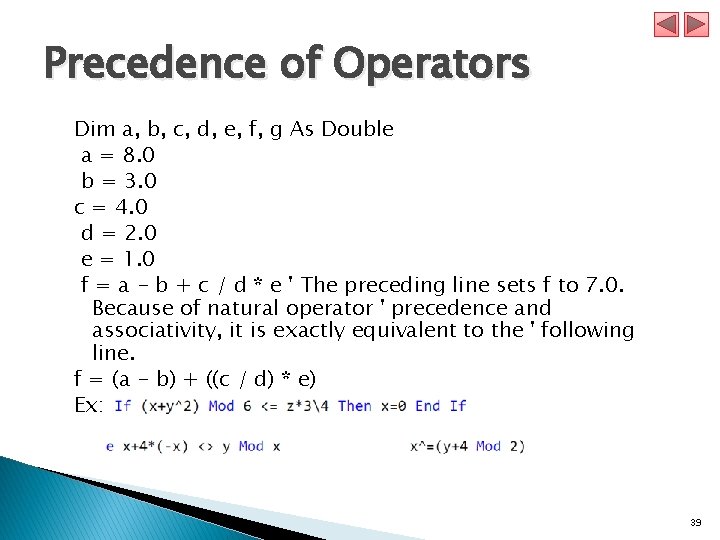
Precedence of Operators Dim a, b, c, d, e, f, g As Double a = 8. 0 b = 3. 0 c = 4. 0 d = 2. 0 e = 1. 0 f = a - b + c / d * e ' The preceding line sets f to 7. 0. Because of natural operator ' precedence and associativity, it is exactly equivalent to the ' following line. f = (a - b) + ((c / d) * e) Ex: 39
The Close Method The Close method is used to close a form. To close a form use the keyword Me to refer to the form. Me. Close() 40
Saving Your Project VB will save your project files every time you build or execute a project after your initial save. VB projects consist of many different files and folders within folders. Save files as you work by clicking the Save All button on the button toolbar. DO NOT USE the File-Save As menu at any time to try to save the project – if you do, you will likely only save an individual file, not the entire project, and you will not have a complete project saved. 41
Adding Other Properties Border. Style property – Labels, Text. Box and Picture. Box controls all have a Border. Style property – this property makes controls appear as either flat or three-dimensional. Border. Style property -- set to an appropriate value to enhance the appearance of a form and add a professional touch to a project. Border. Style property values: § None – flat appearance with no border. § Fixed. Single – a flat appearance with black border. § Fixed 3 D – for a Text. Box, this looks about like Fixed. Single. For a Label control, the appearance is a three-dimensional, recessed appearance. The Text. Box control default value for Border. Style is Fixed 3 D. The Label and Picture. Box controls default value for Border. Style is None. 42
Msgbox Dialog title Prompt. Text Icon Buttons 43
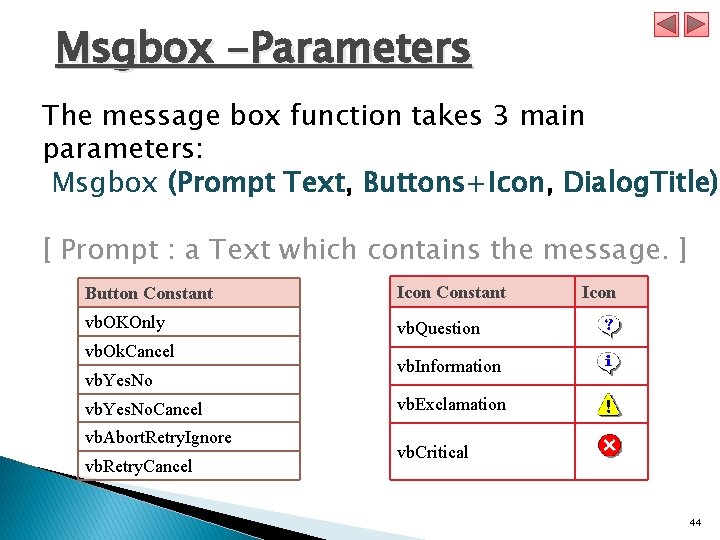
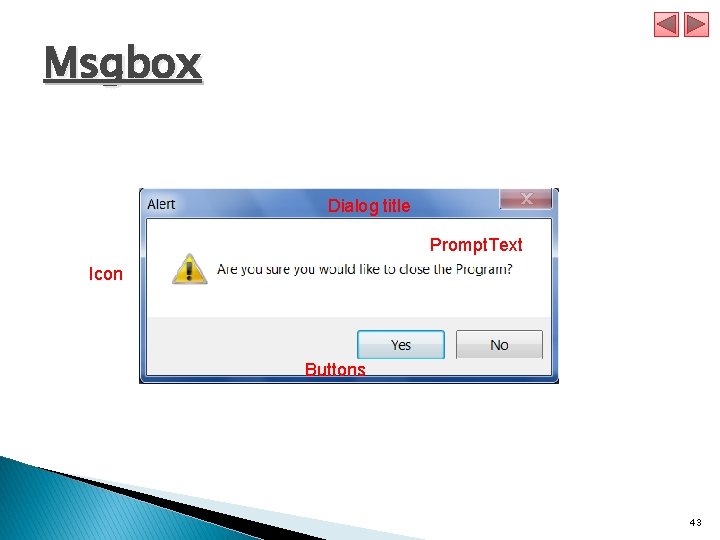
Msgbox -Parameters The message box function takes 3 main parameters: Msgbox (Prompt Text, Buttons+Icon, Dialog. Title) [ Prompt : a Text which contains the message. ] Button Constant Icon Constant vb. OKOnly vb. Question vb. Ok. Cancel vb. Yes. No. Cancel vb. Abort. Retry. Ignore vb. Retry. Cancel Icon vb. Information vb. Exclamation vb. Critical 44
Msgbox -Example Msg. Box("Are you sure you would like to close the Program? ", vb. Yes. No + vb. Exclamation, "Alert") 45
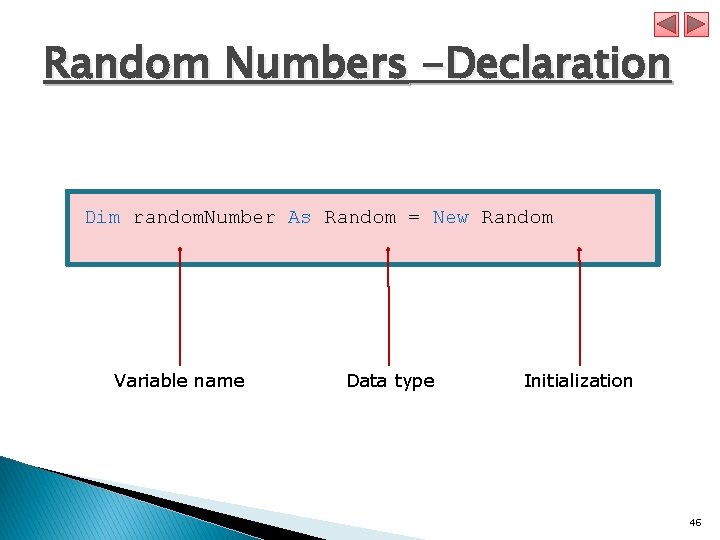
Random Numbers -Declaration Dim random. Number As Random = New Random Variable name Data type Initialization 46
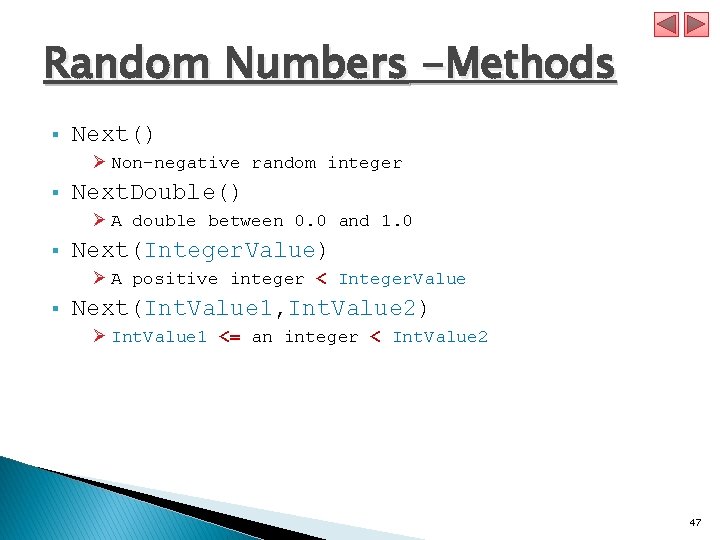
Random Numbers -Methods § Next() Ø Non-negative random integer § Next. Double() Ø A double between 0. 0 and 1. 0 § Next(Integer. Value) Ø A positive integer < Integer. Value § Next(Int. Value 1, Int. Value 2) Ø Int. Value 1 <= an integer < Int. Value 2 47
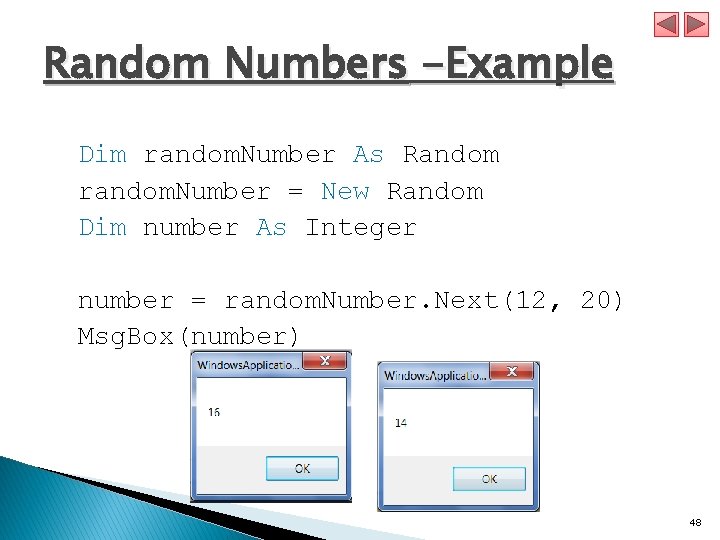
Random Numbers -Example Dim random. Number As Random random. Number = New Random Dim number As Integer number = random. Number. Next(12, 20) Msg. Box(number) 48
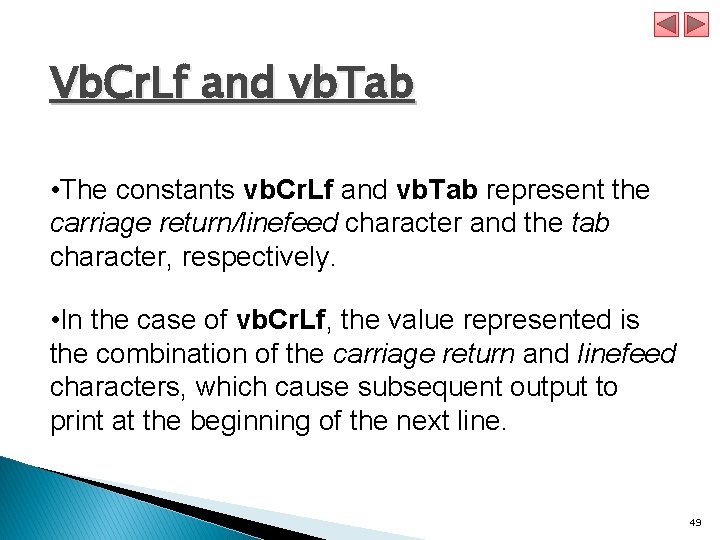
Vb. Cr. Lf and vb. Tab • The constants vb. Cr. Lf and vb. Tab represent the carriage return/linefeed character and the tab character, respectively. • In the case of vb. Cr. Lf, the value represented is the combination of the carriage return and linefeed characters, which cause subsequent output to print at the beginning of the next line. 49
Combo. Box • Add a Combobox control • Add items to the list • assign the choice to a variable choice = combo. Box 1. Text() 50
- Slides: 50