
Repeating Patterns Lesson 1 1 Digital Images Starter
- Slides: 20
Repeating Patterns Lesson 1 1
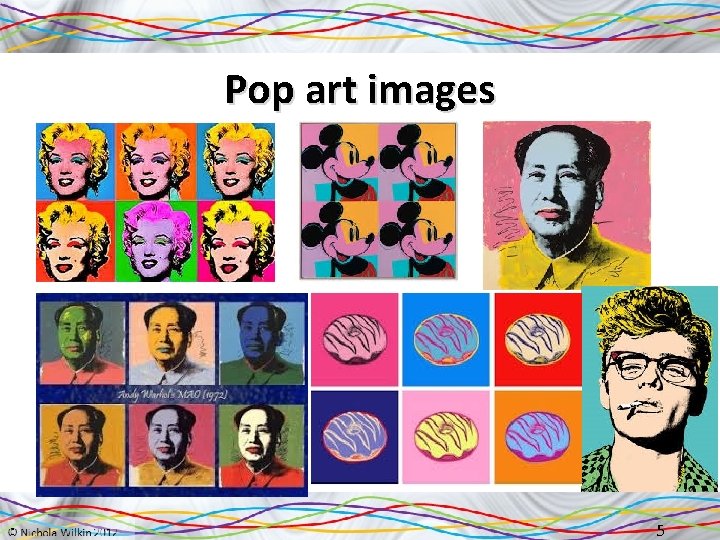
Digital Images - Starter • Use the internet to find out some facts about Andy Warhol: – When and where was he born? – When and where did he die? – What is he famous for? – Use Google Images to search for images of his paintings. What do you notice about them? 2
The answers are on the next slide so don't click until you have completed the previous task 3
Starter Answers • Use the internet to find out some facts about Andy Warhol: – When and where was he born? – New York August 6, 1928 – When and where did he die? – Pittsburgh February 22, 1987 – What is he famous for? – POP ART – Use Google Images to search for images of his paintings. What do you notice about them? – Lots of them are simple, but colours are changed 4
Pop art images 5
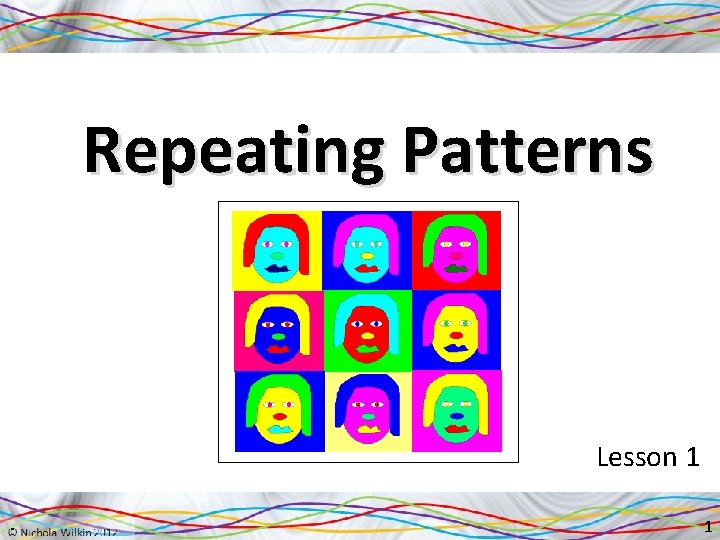
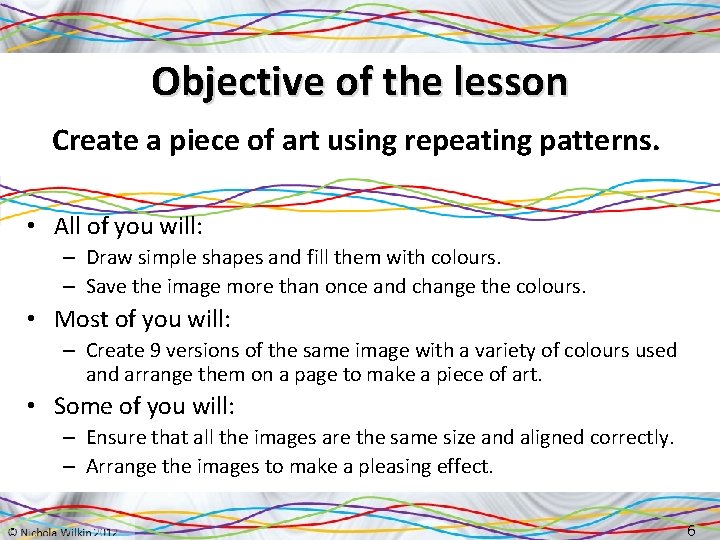
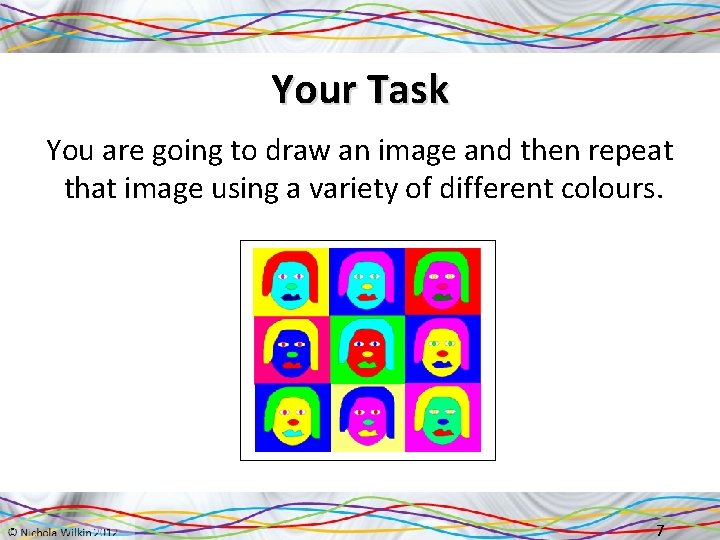
Objective of the lesson Create a piece of art using repeating patterns. • All of you will: – Draw simple shapes and fill them with colours. – Save the image more than once and change the colours. • Most of you will: – Create 9 versions of the same image with a variety of colours used and arrange them on a page to make a piece of art. • Some of you will: – Ensure that all the images are the same size and aligned correctly. – Arrange the images to make a pleasing effect. 6
Your Task You are going to draw an image and then repeat that image using a variety of different colours. 7
Paint • You are going to use a program called Paint to draw a self portrait. NOT paint. net • Most of you will have Paint on your computer as it is a standard Windows program. If you do not have this program (or are using a mac) then use the online version. https: //jspaint. app this also works on tablets and mobile phones. • We are going to be using blocks of colour and so are only going to be using the drawing tool and the fill tool and not some of the other tools such as the spray can as this will not give us the effect we want. 8
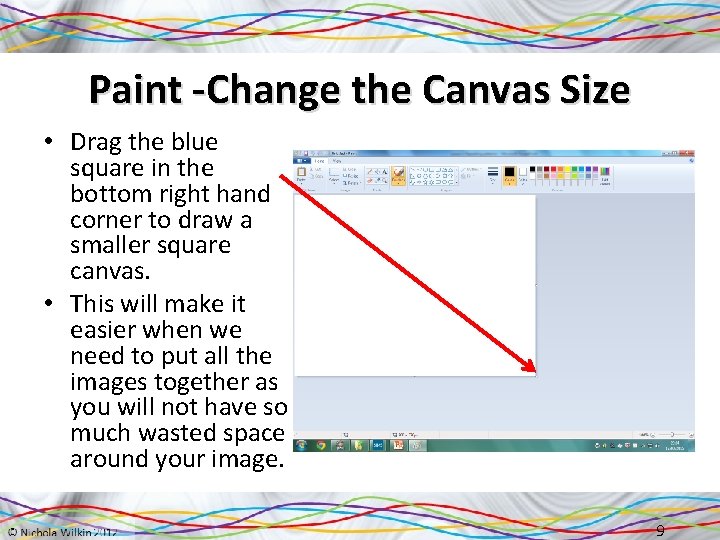
Paint -Change the Canvas Size • Drag the blue square in the bottom right hand corner to draw a smaller square canvas. • This will make it easier when we need to put all the images together as you will not have so much wasted space around your image. 9
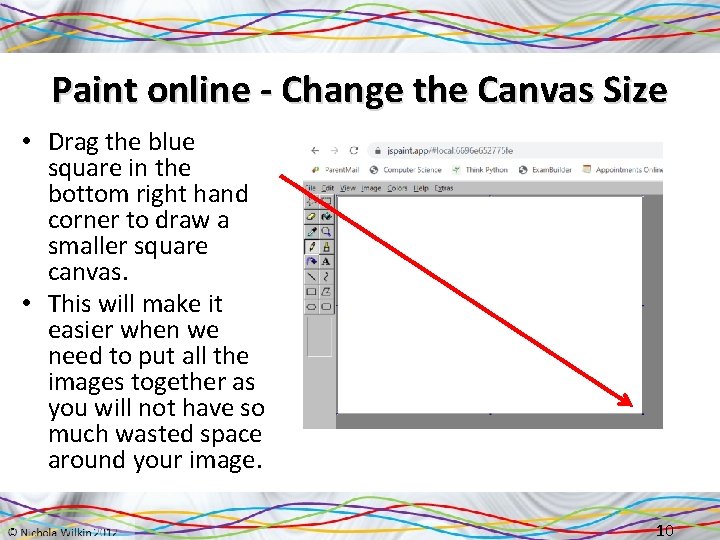
Paint online - Change the Canvas Size • Drag the blue square in the bottom right hand corner to draw a smaller square canvas. • This will make it easier when we need to put all the images together as you will not have so much wasted space around your image. 10
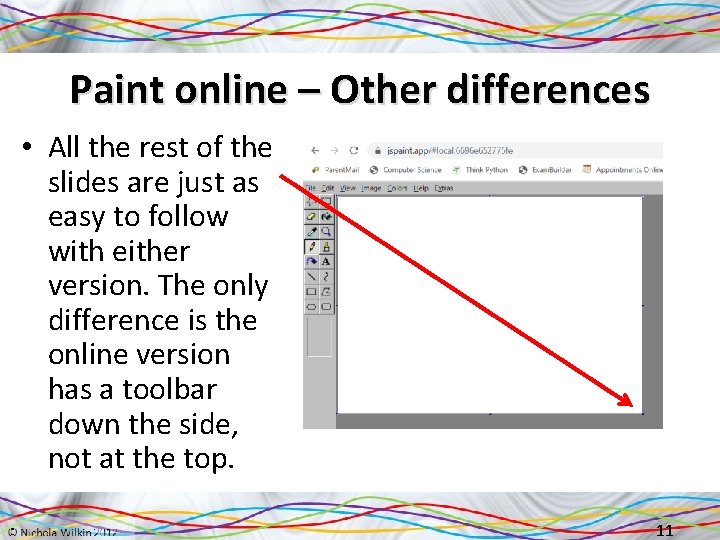
Paint online – Other differences • All the rest of the slides are just as easy to follow with either version. The only difference is the online version has a toolbar down the side, not at the top. 11
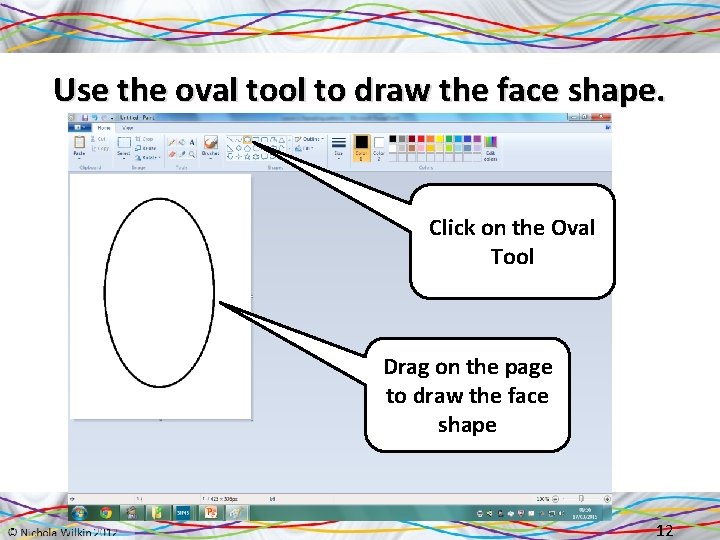
Use the oval tool to draw the face shape. Click on the Oval Tool Drag on the page to draw the face shape 12
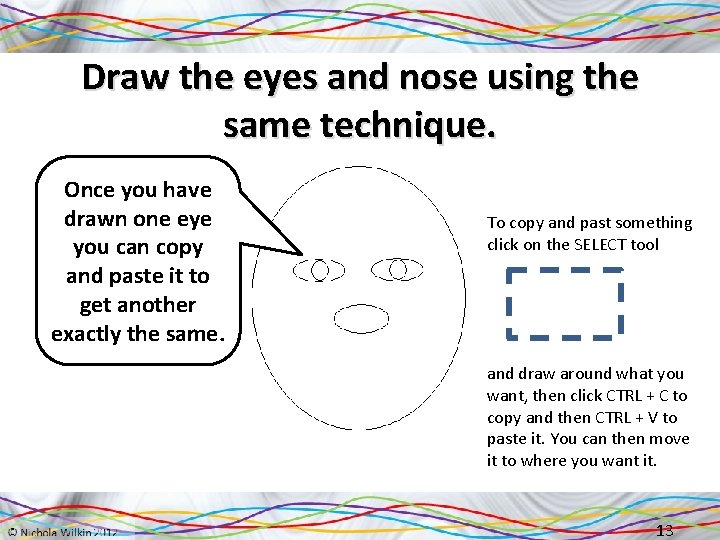
Draw the eyes and nose using the same technique. Once you have drawn one eye you can copy and paste it to get another exactly the same. To copy and past something click on the SELECT tool and draw around what you want, then click CTRL + C to copy and then CTRL + V to paste it. You can then move it to where you want it. 13
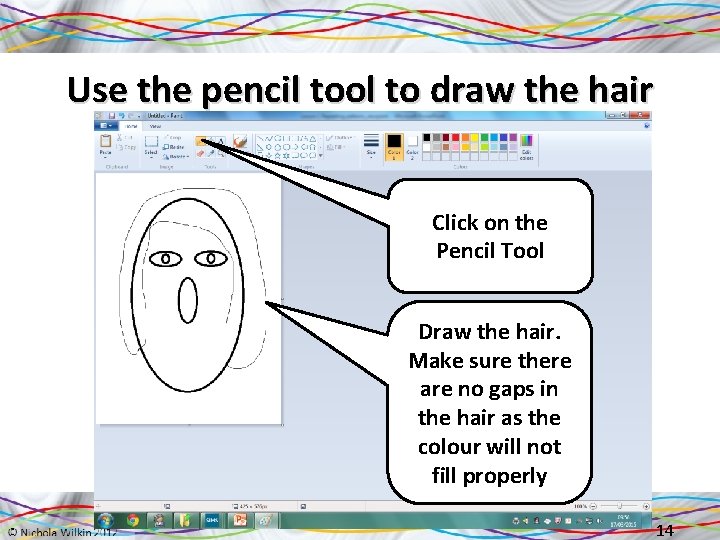
Use the pencil tool to draw the hair Click on the Pencil Tool Draw the hair. Make sure there are no gaps in the hair as the colour will not fill properly 14
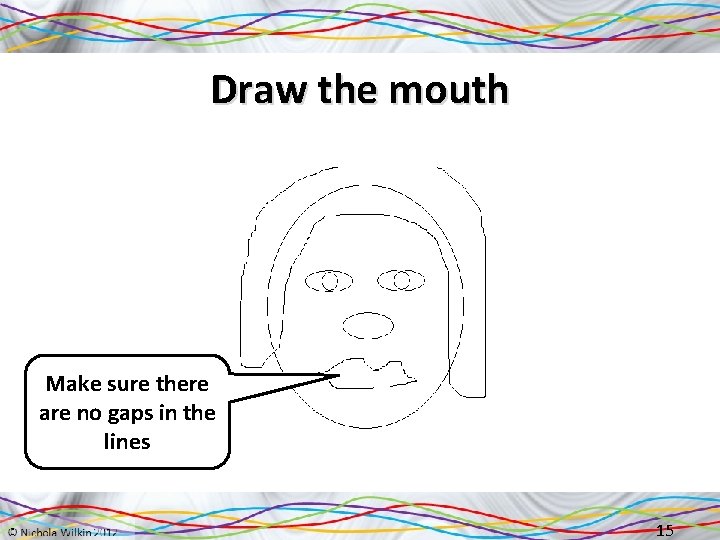
Draw the mouth Make sure there are no gaps in the lines 15
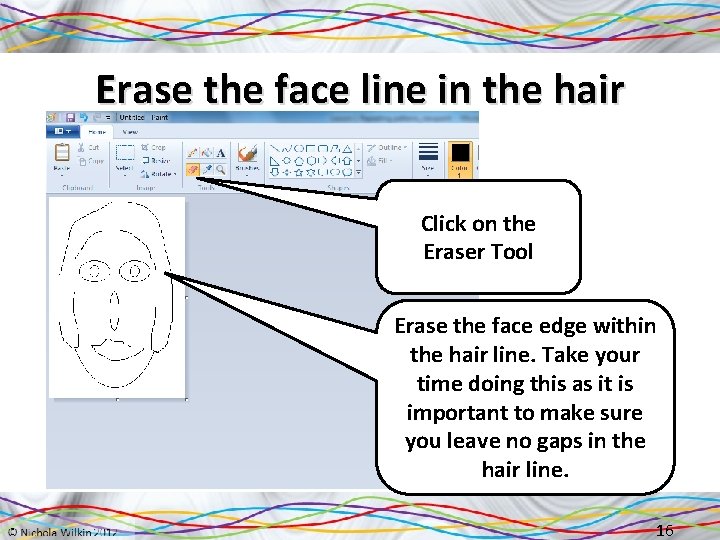
Erase the face line in the hair Click on the Eraser Tool Erase the face edge within the hair line. Take your time doing this as it is important to make sure you leave no gaps in the hair line. 16
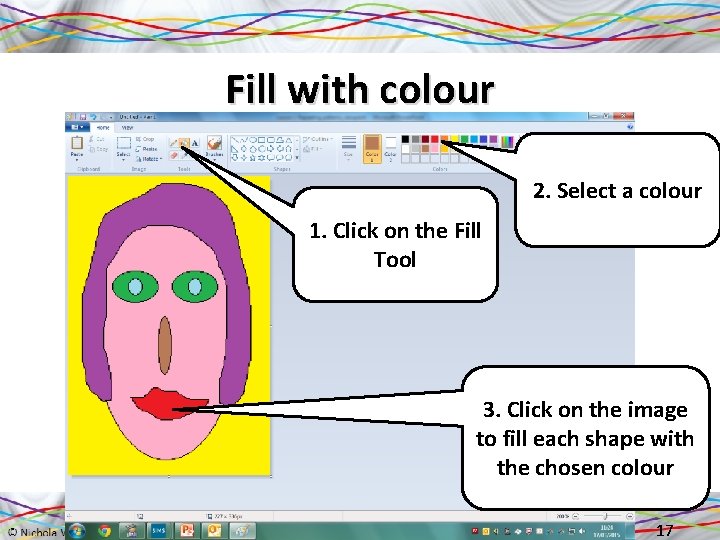
Fill with colour 2. Select a colour 1. Click on the Fill Tool 3. Click on the image to fill each shape with the chosen colour 17
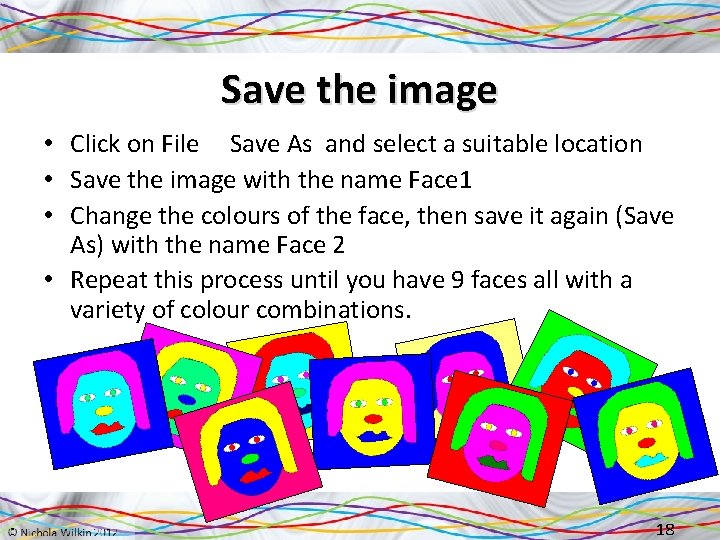
Save the image • Click on File Save As and select a suitable location • Save the image with the name Face 1 • Change the colours of the face, then save it again (Save As) with the name Face 2 • Repeat this process until you have 9 faces all with a variety of colour combinations. 18
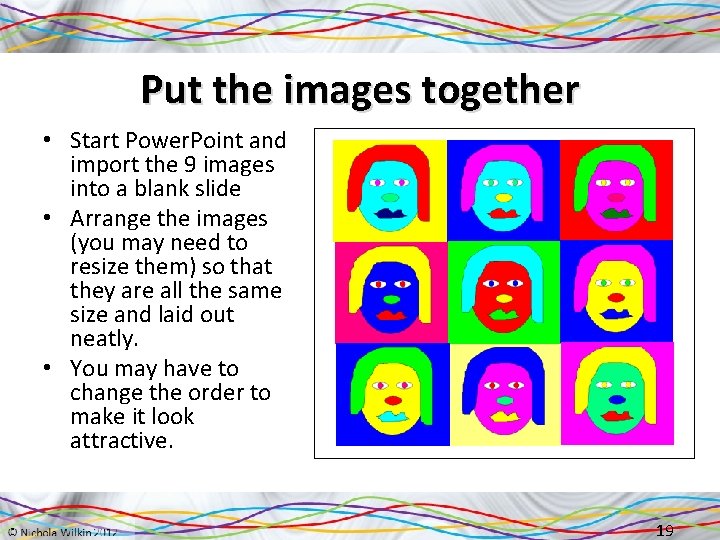
Put the images together • Start Power. Point and import the 9 images into a blank slide • Arrange the images (you may need to resize them) so that they are all the same size and laid out neatly. • You may have to change the order to make it look attractive. 19
Terminology • At the end of this unit we may need to carry out an assessment so we will add in some terms that we need you to look up. Make sure you understand the term, then write the term and meaning down on a document and save it as Digital Art Terms. You will need it again each week. • Terms to find – – – Pixellated Resolution Shading Blending 20