
Remote invigilation technical guidance Everything you need to

- Slides: 14
Remote invigilation technical guidance Everything you need to know about how remote assessments will work, any technical requirements and tips to make sure they run smoothly for your staff.
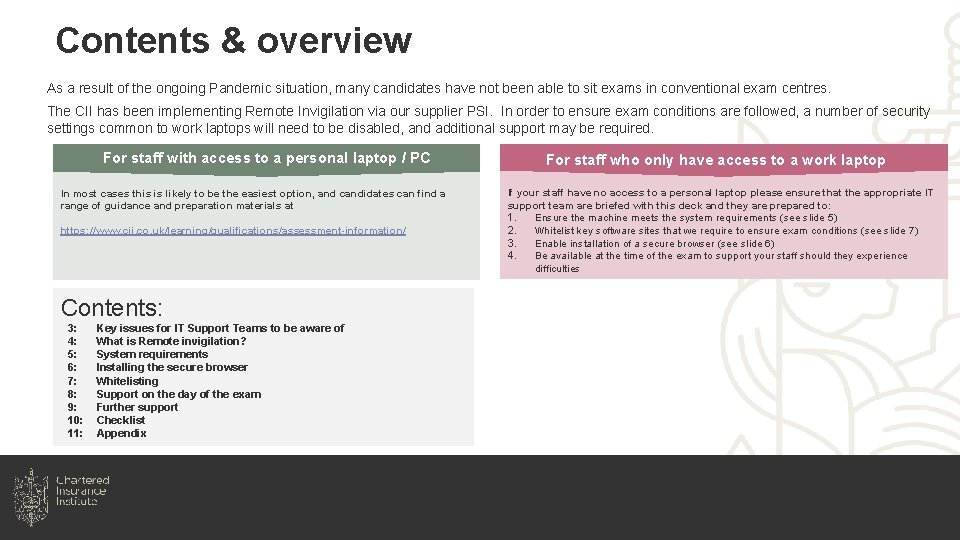
Contents & overview As a result of the ongoing Pandemic situation, many candidates have not been able to sit exams in conventional exam centres. The CII has been implementing Remote Invigilation via our supplier PSI. In order to ensure exam conditions are followed, a number of security settings common to work laptops will need to be disabled, and additional support may be required. For staff with access to a personal laptop / PC In most cases this is likely to be the easiest option, and candidates can find a range of guidance and preparation materials at https: //www. cii. co. uk/learning/qualifications/assessment-information/ Contents: 3: 4: 5: 6: 7: 8: 9: 10: 11: Key issues for IT Support Teams to be aware of What is Remote invigilation? System requirements Installing the secure browser Whitelisting Support on the day of the exam Further support Checklist Appendix For staff who only have access to a work laptop If your staff have no access to a personal laptop please ensure that the appropriate IT support team are briefed with this deck and they are prepared to: 1. Ensure the machine meets the system requirements (see slide 5) 2. Whitelist key software sites that we require to ensure exam conditions (see slide 7) 3. Enable installation of a secure browser (see slide 6) 4. Be available at the time of the exam to support your staff should they experience difficulties
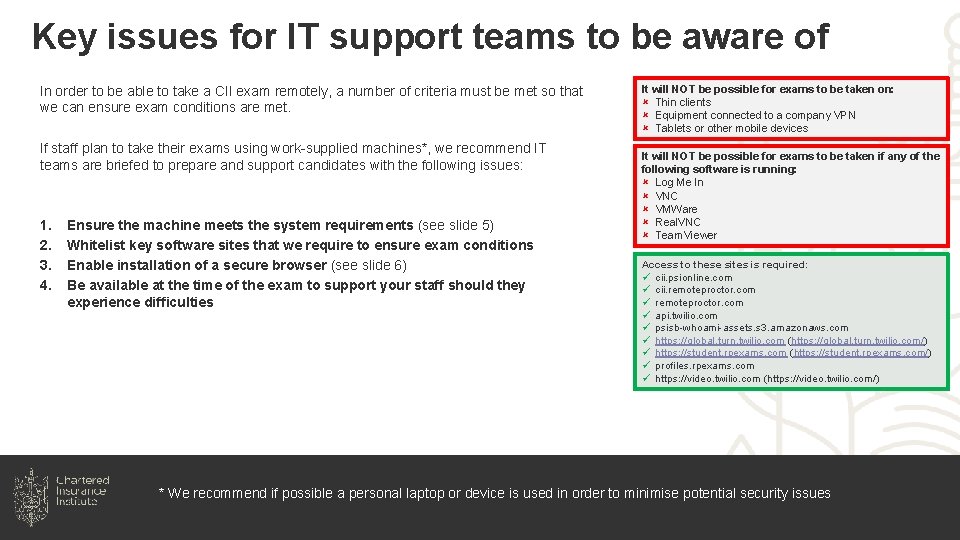
Key issues for IT support teams to be aware of In order to be able to take a CII exam remotely, a number of criteria must be met so that we can ensure exam conditions are met. If staff plan to take their exams using work-supplied machines*, we recommend IT teams are briefed to prepare and support candidates with the following issues: 1. 2. 3. 4. Ensure the machine meets the system requirements (see slide 5) Whitelist key software sites that we require to ensure exam conditions Enable installation of a secure browser (see slide 6) Be available at the time of the exam to support your staff should they experience difficulties It will NOT be possible for exams to be taken on: û Thin clients û Equipment connected to a company VPN û Tablets or other mobile devices It will NOT be possible for exams to be taken if any of the following software is running: û Log Me In û VNC û VMWare û Real. VNC û Team. Viewer Access to these sites is required: ü cii. psionline. com ü cii. remoteproctor. com ü api. twilio. com ü psisb-whoami-assets. s 3. amazonaws. com ü https: //global. turn. twilio. com (https: //global. turn. twilio. com/) ü https: //student. rpexams. com (https: //student. rpexams. com/) ü profiles. rpexams. com ü https: //video. twilio. com (https: //video. twilio. com/) * We recommend if possible a personal laptop or device is used in order to minimise potential security issues
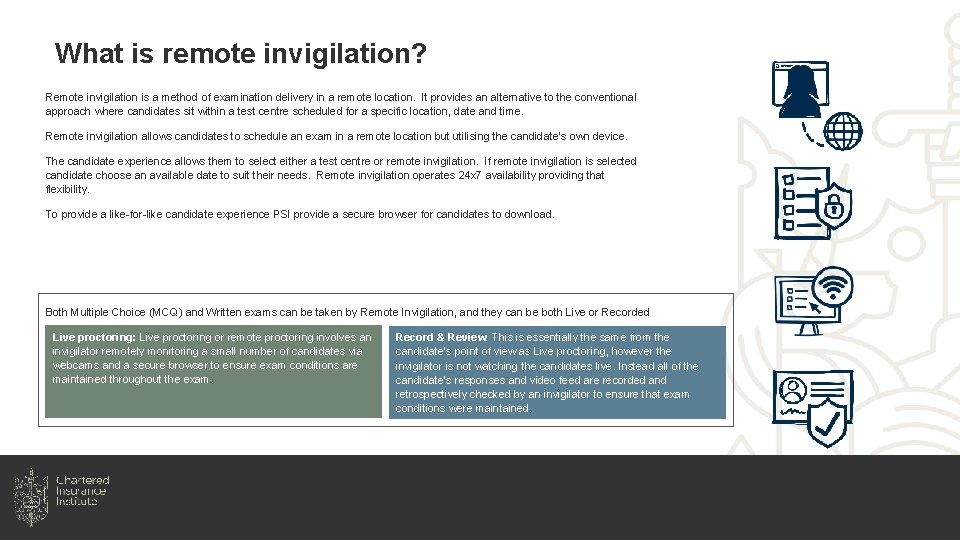
What is remote invigilation? Remote invigilation is a method of examination delivery in a remote location. It provides an alternative to the conventional approach where candidates sit within a test centre scheduled for a specific location, date and time. Remote invigilation allows candidates to schedule an exam in a remote location but utilising the candidate’s own device. The candidate experience allows them to select either a test centre or remote invigilation. If remote invigilation is selected candidate choose an available date to suit their needs. Remote invigilation operates 24 x 7 availability providing that flexibility. To provide a like-for-like candidate experience PSI provide a secure browser for candidates to download. Both Multiple Choice (MCQ) and Written exams can be taken by Remote Invigilation, and they can be both Live or Recorded Live proctoring: Live proctoring or remote proctoring involves an invigilator remotely monitoring a small number of candidates via webcams and a secure browser to ensure exam conditions are maintained throughout the exam. Record & Review: This is essentially the same from the candidate’s point of view as Live proctoring, however the invigilator is not watching the candidates live. Instead all of the candidate’s responses and video feed are recorded and retrospectively checked by an invigilator to ensure that exam conditions were maintained.
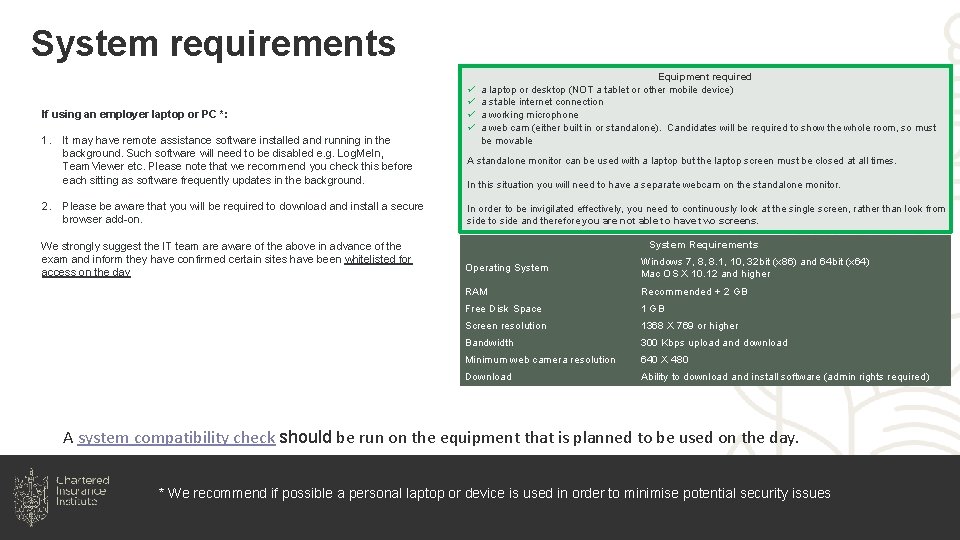
System requirements If using an employer laptop or PC *: 1. 2. ü ü Equipment required a laptop or desktop (NOT a tablet or other mobile device) a stable internet connection a working microphone a web cam (either built in or standalone). Candidates will be required to show the whole room, so must be movable It may have remote assistance software installed and running in the background. Such software will need to be disabled e. g. Log. Me. In, Team. Viewer etc. Please note that we recommend you check this before each sitting as software frequently updates in the background. A standalone monitor can be used with a laptop but the laptop screen must be closed at all times. Please be aware that you will be required to download and install a secure browser add-on. In order to be invigilated effectively, you need to continuously look at the single screen, rather than look from side to side and therefore you are not able to have two screens. We strongly suggest the IT team are aware of the above in advance of the exam and inform they have confirmed certain sites have been whitelisted for access on the day In this situation you will need to have a separate webcam on the standalone monitor. System Requirements Operating System Windows 7, 8, 8. 1, 10, 32 bit (x 86) and 64 bit (x 64) Mac OS X 10. 12 and higher RAM Recommended + 2 GB Free Disk Space 1 GB Screen resolution 1368 X 769 or higher Bandwidth 300 Kbps upload and download Minimum web camera resolution 640 X 480 Download Ability to download and install software (admin rights required) A system compatibility check should be run on the equipment that is planned to be used on the day. * We recommend if possible a personal laptop or device is used in order to minimise potential security issues
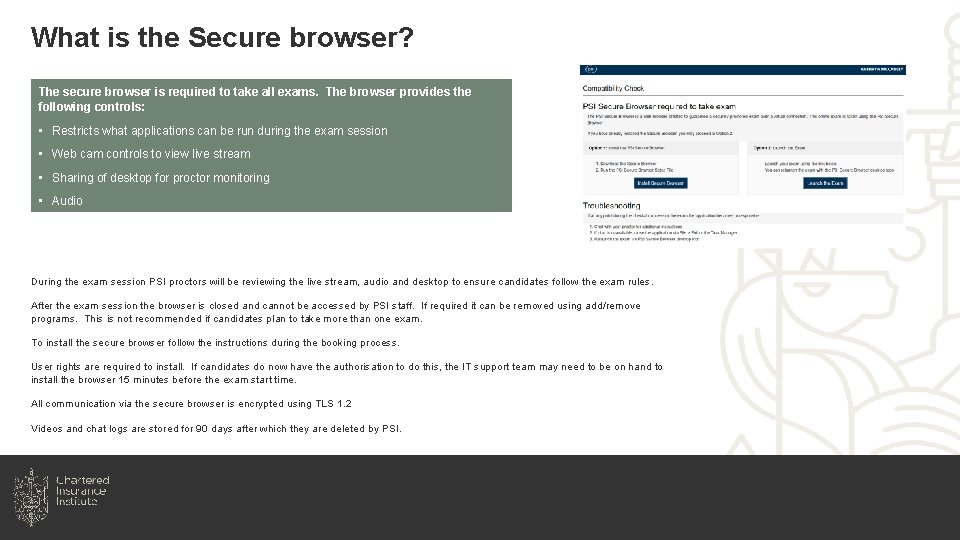
What is the Secure browser? The secure browser is required to take all exams. The browser provides the following controls: • Restricts what applications can be run during the exam session • Web cam controls to view live stream • Sharing of desktop for proctor monitoring • Audio During the exam session PSI proctors will be reviewing the live stream, audio and desktop to ensure candidates follow the exam rules. After the exam session the browser is closed and cannot be accessed by PSI staff. If required it can be removed using add/remove programs. This is not recommended if candidates plan to take more than one exam. To install the secure browser follow the instructions during the booking process. User rights are required to install. If candidates do now have the authorisation to do this, the IT support team may need to be on hand to install the browser 15 minutes before the exam start time. All communication via the secure browser is encrypted using TLS 1. 2 Videos and chat logs are stored for 90 days after which they are deleted by PSI.
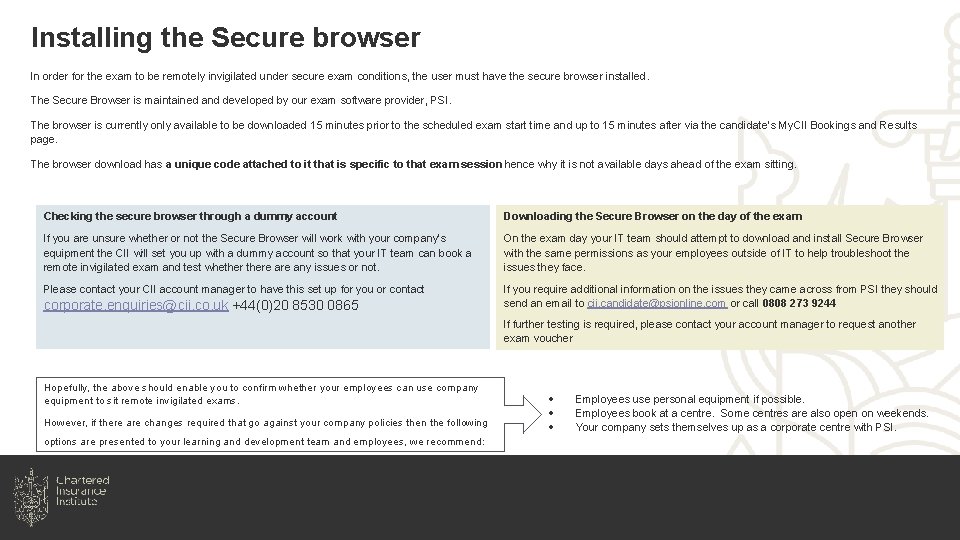
Installing the Secure browser In order for the exam to be remotely invigilated under secure exam conditions, the user must have the secure browser installed. The Secure Browser is maintained and developed by our exam software provider, PSI. The browser is currently only available to be downloaded 15 minutes prior to the scheduled exam start time and up to 15 minutes after via the candidate’s My. CII Bookings and Results page. The browser download has a unique code attached to it that is specific to that exam session hence why it is not available days ahead of the exam sitting. Checking the secure browser through a dummy account Downloading the Secure Browser on the day of the exam If you are unsure whether or not the Secure Browser will work with your company’s equipment the CII will set you up with a dummy account so that your IT team can book a remote invigilated exam and test whethere any issues or not. On the exam day your IT team should attempt to download and install Secure Browser with the same permissions as your employees outside of IT to help troubleshoot the issues they face. Please contact your CII account manager to have this set up for you or contact If you require additional information on the issues they came across from PSI they should send an email to cii. candidate@psionline. com or call 0808 273 9244 corporate. enquiries@cii. co. uk +44(0)20 8530 0865 If further testing is required, please contact your account manager to request another exam voucher Hopefully, the above should enable you to confirm whether your employees can use company equipment to sit remote invigilated exams. However, if there are changes required that go against your company policies then the following options are presented to your learning and development team and employees, we recommend: : Employees use personal equipment if possible. Employees book at a centre. Some centres are also open on weekends. Your company sets themselves up as a corporate centre with PSI.
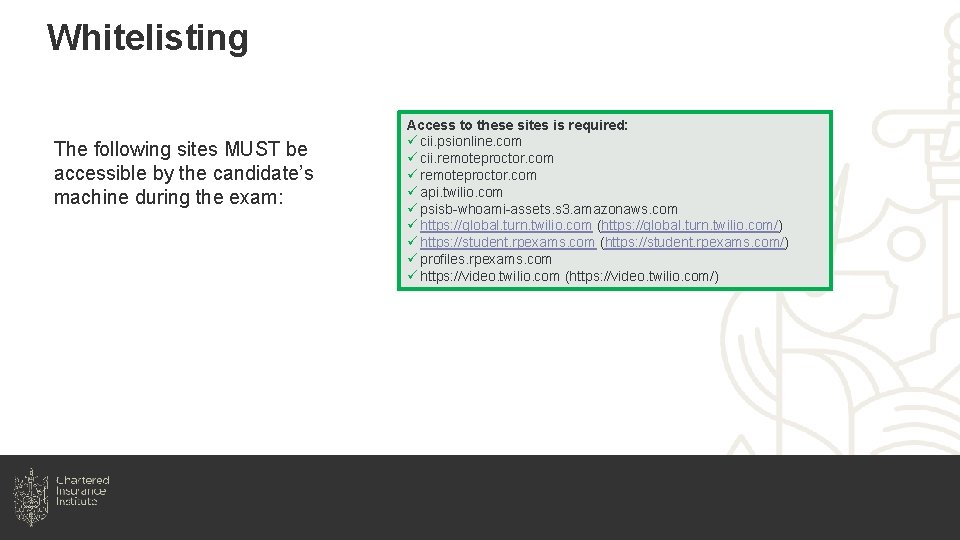
Whitelisting The following sites MUST be accessible by the candidate’s machine during the exam: Access to these sites is required: ü cii. psionline. com ü cii. remoteproctor. com ü api. twilio. com ü psisb-whoami-assets. s 3. amazonaws. com ü https: //global. turn. twilio. com (https: //global. turn. twilio. com/) ü https: //student. rpexams. com (https: //student. rpexams. com/) ü profiles. rpexams. com ü https: //video. twilio. com (https: //video. twilio. com/)
Support on the day of the exam Even if all of the requirements outlined in this presentation are met in advance of the exam, there always opportunities for unexpected technical issues which may be outside our control. Many of the CII’s remotely invigilated exams (typically those in a Multiple Choice format) can be taken at any time, including evenings and weekends. We recommend if at all possible help desk are made aware in advance of when candidates plan to take their assessment, are briefed with this deck and appropriate resources are available to support candidates with any unforeseen technical issues immediately before and at the time of their exam.
Further support How to book your exams (videos) Systems compatibility check Secure Browser knowledgebase from PSI R 06 Technical requirements overview General Remote invigilation guidance Remote Invigilation FAQs Secure browser installation video how-to and download (Rpnow) PSI Technical Support team contacts: cii. candidate@psionline. com 0808 273 9244
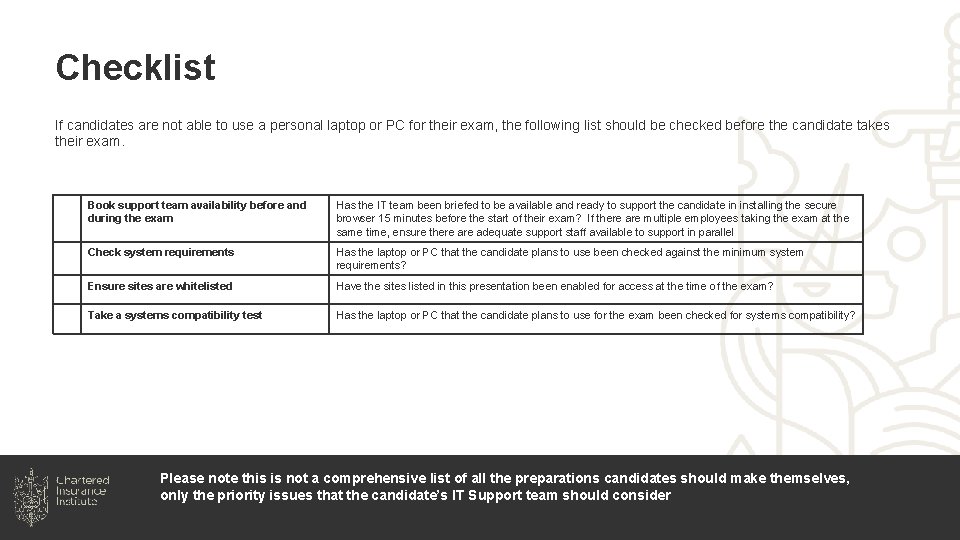
Checklist If candidates are not able to use a personal laptop or PC for their exam, the following list should be checked before the candidate takes their exam. Book support team availability before and during the exam Has the IT team been briefed to be available and ready to support the candidate in installing the secure browser 15 minutes before the start of their exam? If there are multiple employees taking the exam at the same time, ensure there adequate support staff available to support in parallel Check system requirements Has the laptop or PC that the candidate plans to use been checked against the minimum system requirements? Ensure sites are whitelisted Have the sites listed in this presentation been enabled for access at the time of the exam? Take a systems compatibility test Has the laptop or PC that the candidate plans to use for the exam been checked for systems compatibility? Please note this is not a comprehensive list of all the preparations candidates should make themselves, only the priority issues that the candidate’s IT Support team should consider
Appendices
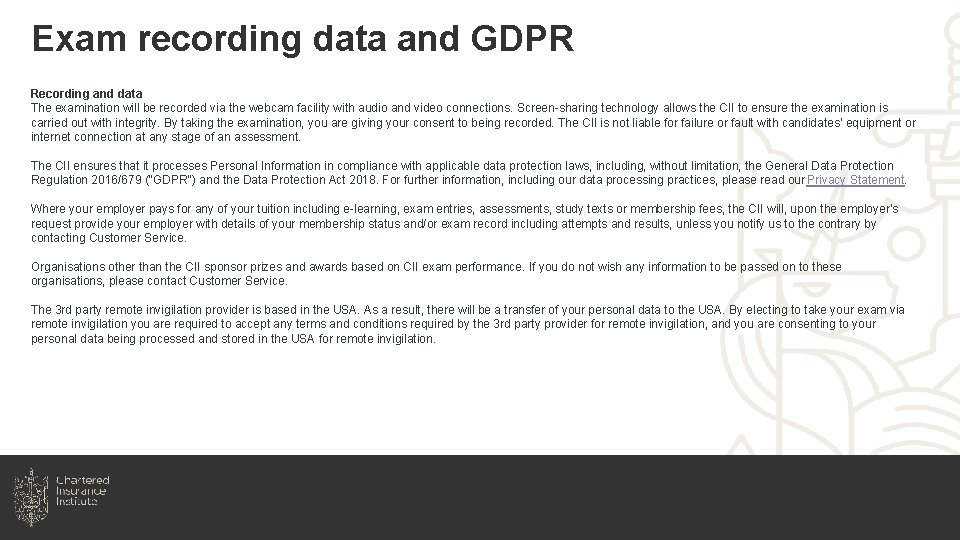
Exam recording data and GDPR Recording and data The examination will be recorded via the webcam facility with audio and video connections. Screen-sharing technology allows the CII to ensure the examination is carried out with integrity. By taking the examination, you are giving your consent to being recorded. The CII is not liable for failure or fault with candidates’ equipment or internet connection at any stage of an assessment. The CII ensures that it processes Personal Information in compliance with applicable data protection laws, including, without limitation, the General Data Protection Regulation 2016/679 ("GDPR") and the Data Protection Act 2018. For further information, including our data processing practices, please read our Privacy Statement. Where your employer pays for any of your tuition including e-learning, exam entries, assessments, study texts or membership fees, the CII will, upon the employer's request provide your employer with details of your membership status and/or exam record including attempts and results, unless you notify us to the contrary by contacting Customer Service. Organisations other than the CII sponsor prizes and awards based on CII exam performance. If you do not wish any information to be passed on to these organisations, please contact Customer Service. The 3 rd party remote invigilation provider is based in the USA. As a result, there will be a transfer of your personal data to the USA. By electing to take your exam via remote invigilation you are required to accept any terms and conditions required by the 3 rd party provider for remote invigilation, and you are consenting to your personal data being processed and stored in the USA for remote invigilation.
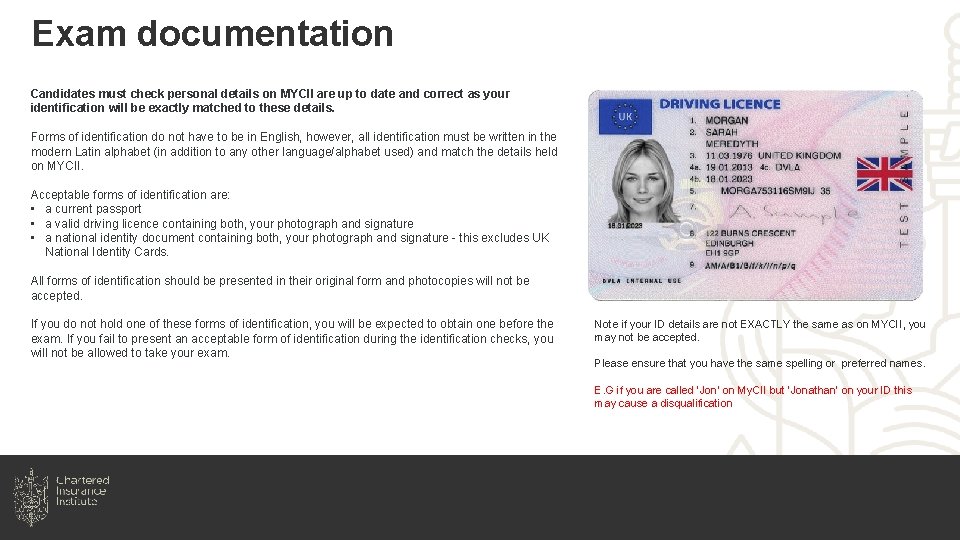
Exam documentation Candidates must check personal details on MYCII are up to date and correct as your identification will be exactly matched to these details. Forms of identification do not have to be in English, however, all identification must be written in the modern Latin alphabet (in addition to any other language/alphabet used) and match the details held on MYCII. Acceptable forms of identification are: • a current passport • a valid driving licence containing both, your photograph and signature • a national identity document containing both, your photograph and signature - this excludes UK National Identity Cards. All forms of identification should be presented in their original form and photocopies will not be accepted. If you do not hold one of these forms of identification, you will be expected to obtain one before the exam. If you fail to present an acceptable form of identification during the identification checks, you will not be allowed to take your exam. Note if your ID details are not EXACTLY the same as on MYCII, you may not be accepted. Please ensure that you have the same spelling or preferred names. E. G if you are called ‘Jon’ on My. CII but ‘Jonathan’ on your ID this may cause a disqualification