
Reminder Dialogs Introduction Reminder Dialogs allow a user
- Slides: 68
Reminder Dialogs
Introduction • Reminder Dialogs allow a user to resolve the reminder by entering data into the progress note and PCC • Saves a step and user does not need to do any typing • Dialogs can be turned into templates to be used on the notes tab
Introduction • Dialogs are usually a resolution to a reminder – i. e. documentation of a diabetic foot exam • However, they may be used to enter PCC data even if there isn’t a reminder, as in patient education
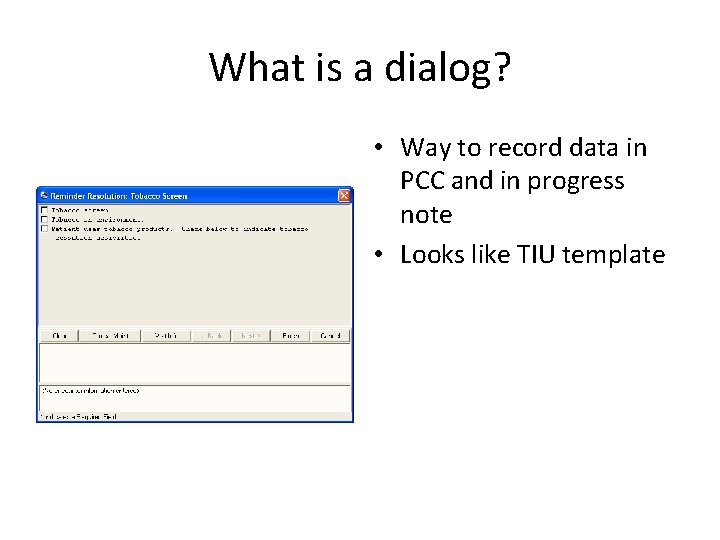
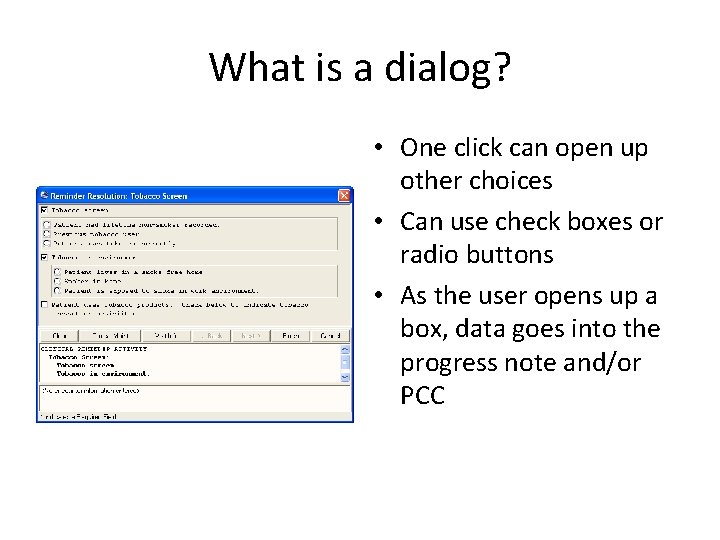
What is a dialog? • Way to record data in PCC and in progress note • Looks like TIU template
What is a dialog? • One click can open up other choices • Can use check boxes or radio buttons • As the user opens up a box, data goes into the progress note and/or PCC
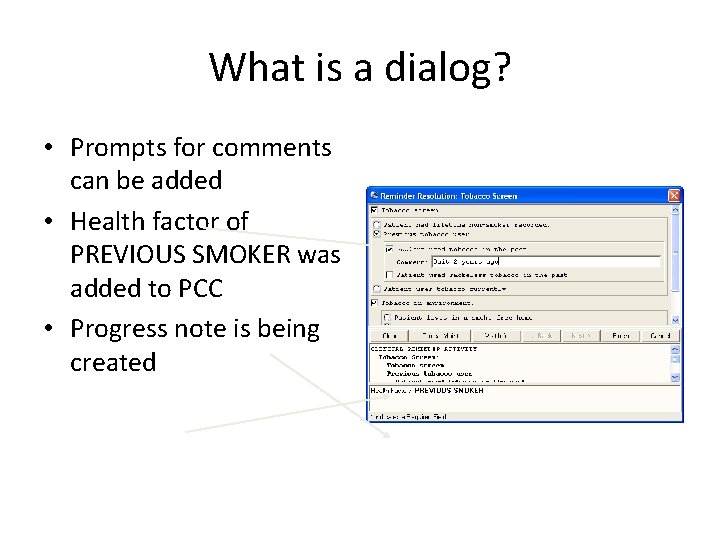
What is a dialog? • Prompts for comments can be added • Health factor of PREVIOUS SMOKER was added to PCC • Progress note is being created
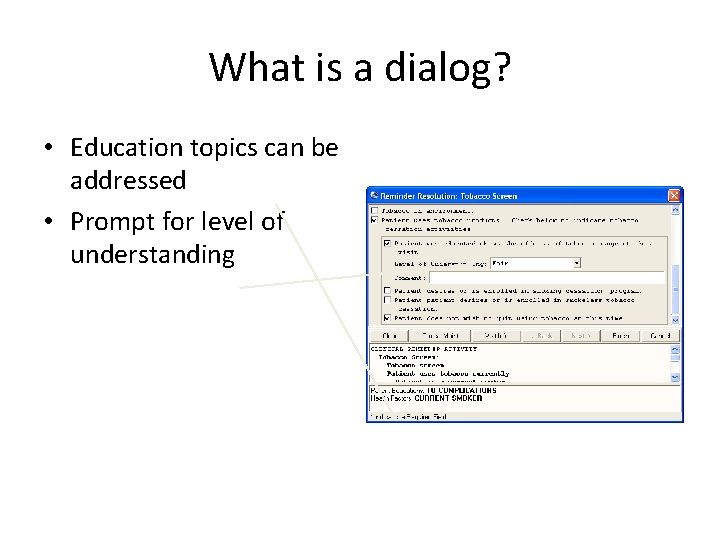
What is a dialog? • Education topics can be addressed • Prompt for level of understanding
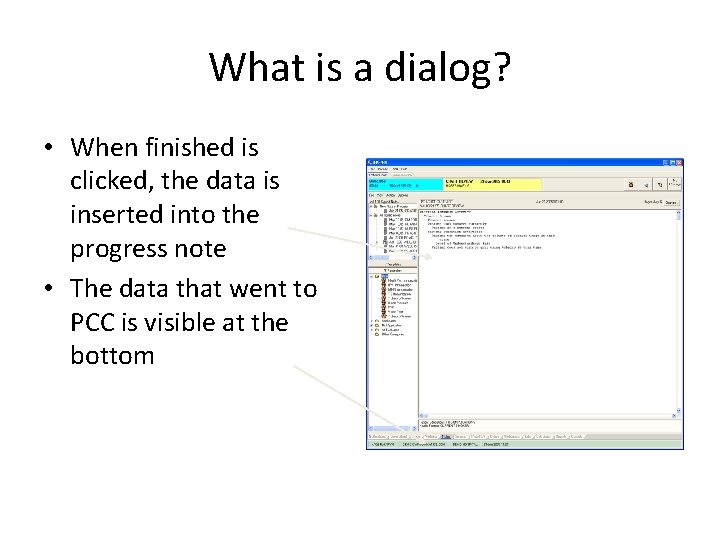
What is a dialog? • When finished is clicked, the data is inserted into the progress note • The data that went to PCC is visible at the bottom
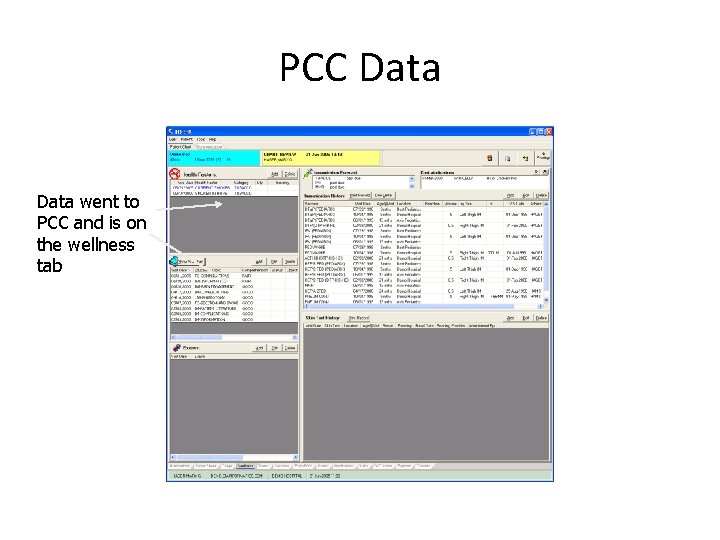
PCC Data went to PCC and is on the wellness tab
3 ways to get a dialog • Import one through Reminder Exchange • Auto-generate one after a reminder is created • Create one from scratch making each piece
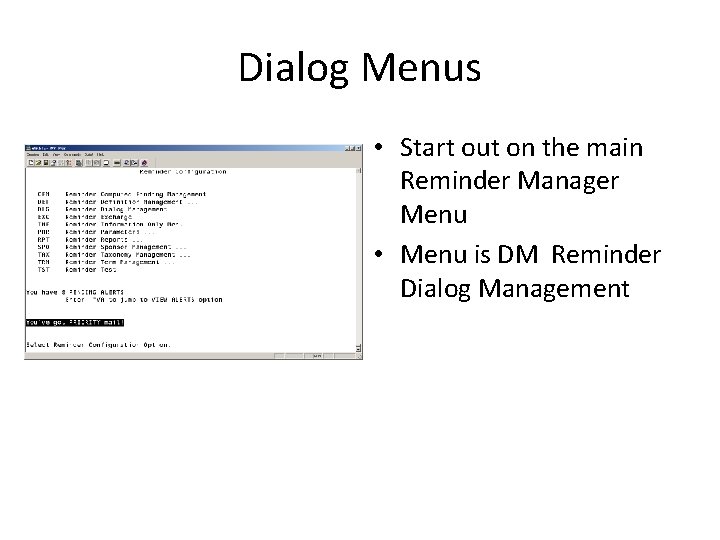
Dialog Menus • Start out on the main Reminder Manager Menu • Menu is DM Reminder Dialog Management
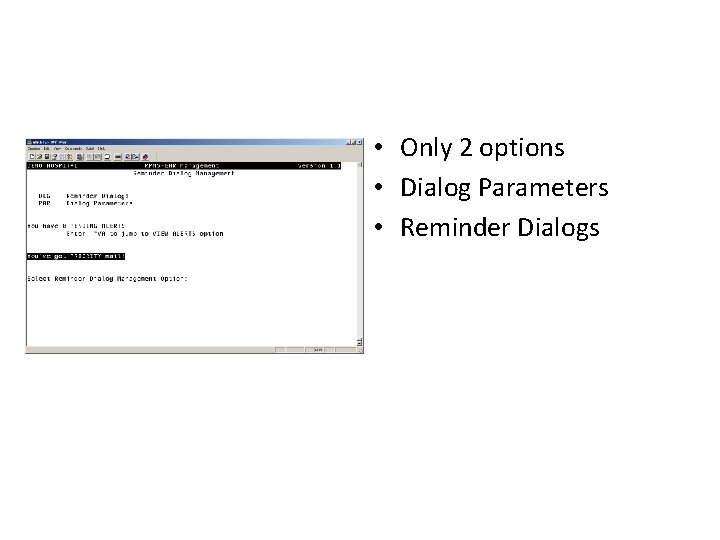
• Only 2 options • Dialog Parameters • Reminder Dialogs
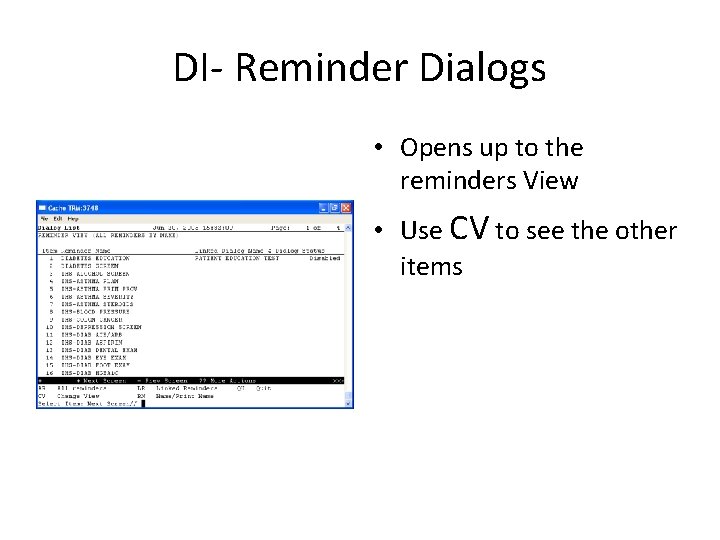
DI- Reminder Dialogs • Opens up to the reminders View • Use CV to see the other items
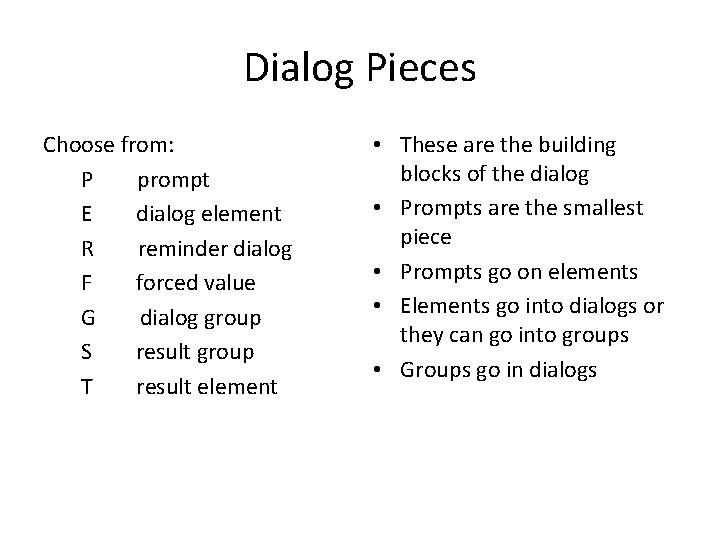
Dialog Pieces Choose from: P prompt E dialog element R reminder dialog F forced value G dialog group S result group T result element • These are the building blocks of the dialog • Prompts are the smallest piece • Prompts go on elements • Elements go into dialogs or they can go into groups • Groups go in dialogs
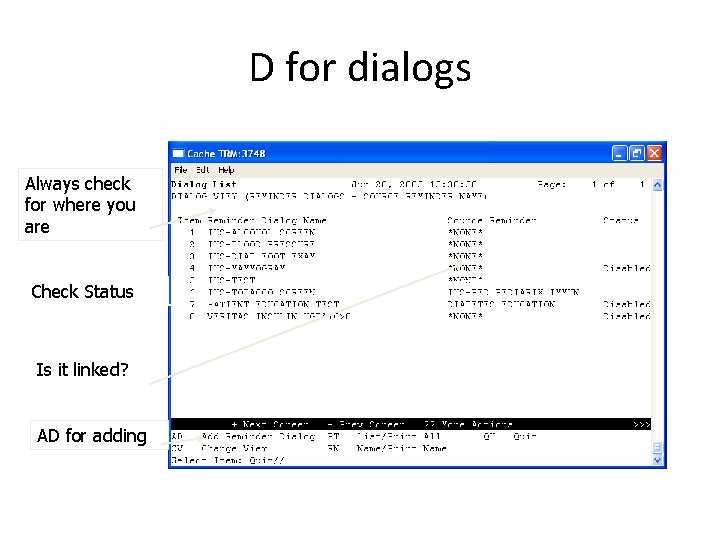
D for dialogs Always check for where you are Check Status Is it linked? AD for adding
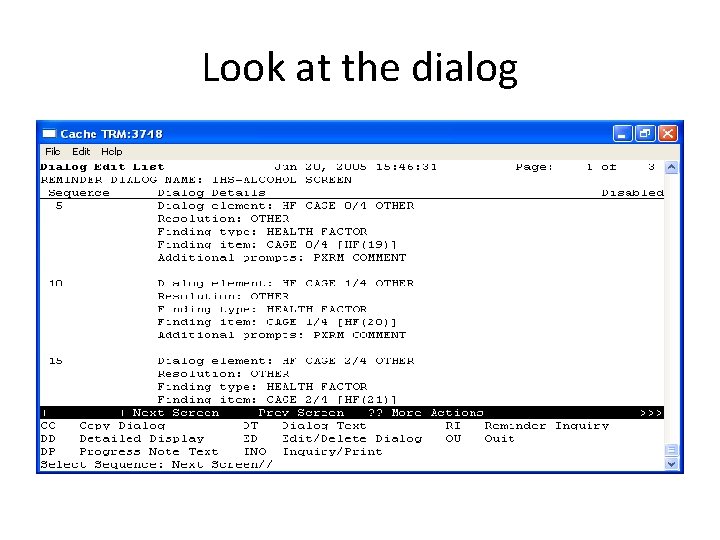
Look at the dialog
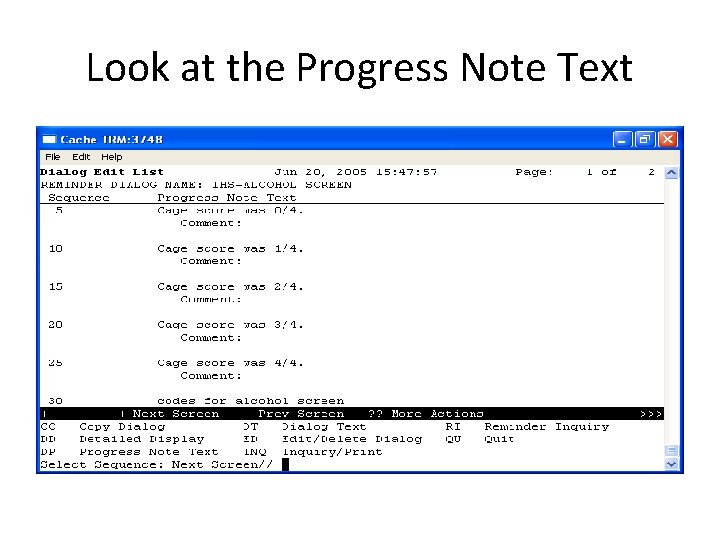
Look at the Progress Note Text
Clean it up – Delete items not needed Edit what it says in the progress note Add new elements if desired Auto-generate does NOT make any groups. It does make the elements • You can choose to re-make the dialog and put the elements into groups if desired • •
Display text and progress note text • These two can be different • The display text is what the person entering the note sees • Example: DIALOG/PROGRESS NOTE TEXT: Alcohol Screening - Enter results of the CAGE test ALTERNATE PROGRESS NOTE TEXT: CAGE test scores
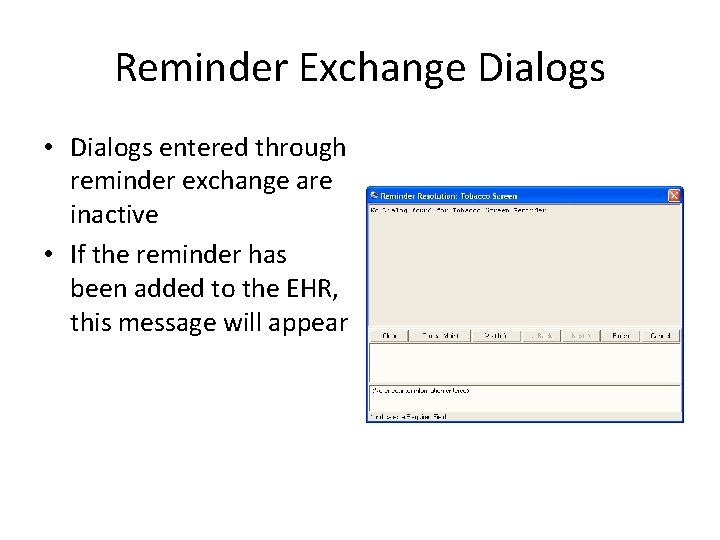
Reminder Exchange Dialogs • Dialogs entered through reminder exchange are inactive • If the reminder has been added to the EHR, this message will appear
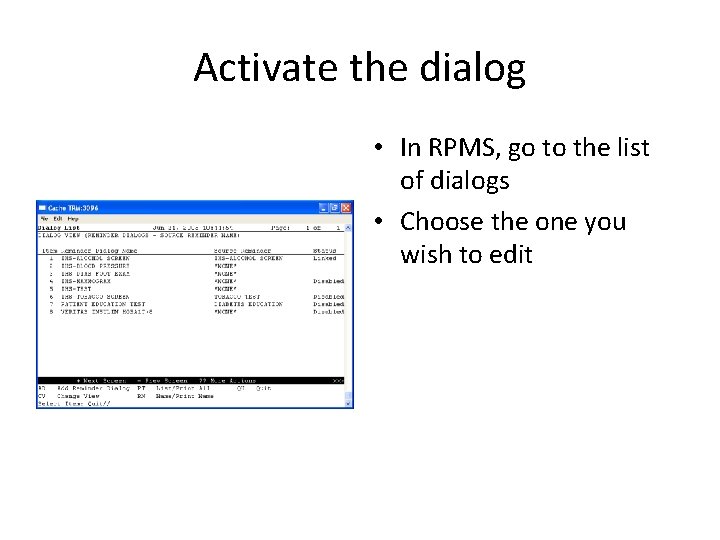
Activate the dialog • In RPMS, go to the list of dialogs • Choose the one you wish to edit
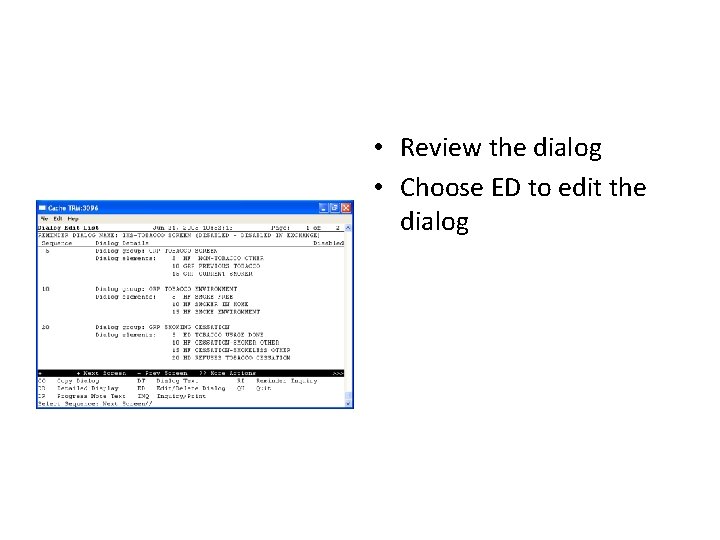
• Review the dialog • Choose ED to edit the dialog
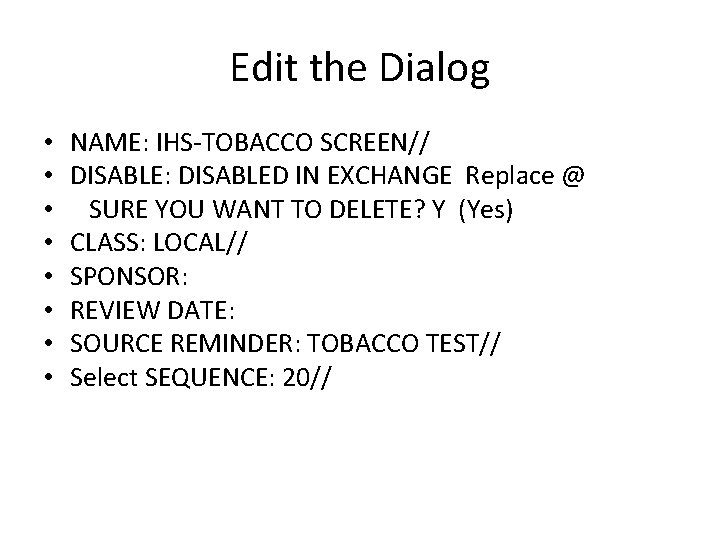
Edit the Dialog • • NAME: IHS-TOBACCO SCREEN// DISABLE: DISABLED IN EXCHANGE Replace @ SURE YOU WANT TO DELETE? Y (Yes) CLASS: LOCAL// SPONSOR: REVIEW DATE: SOURCE REMINDER: TOBACCO TEST// Select SEQUENCE: 20//
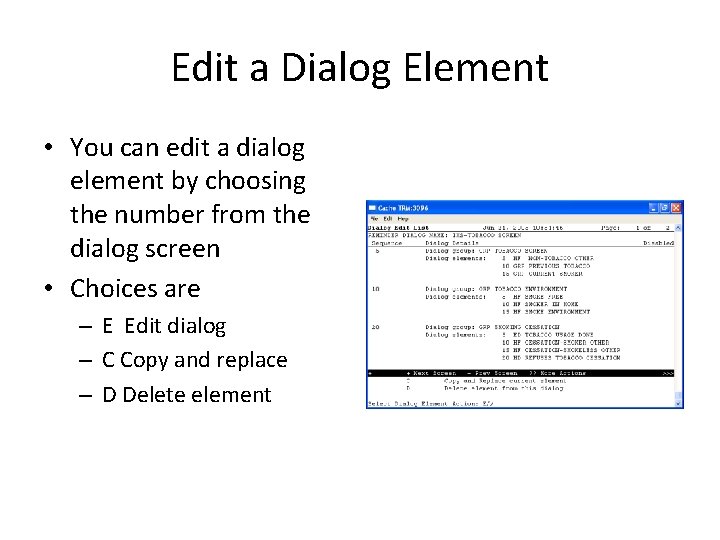
Edit a Dialog Element • You can edit a dialog element by choosing the number from the dialog screen • Choices are – E Edit dialog – C Copy and replace – D Delete element
Make a dialog from Scratch • What do you need? • Write it on paper first • Work from the bottom up, prompts, elements, groups, dialog
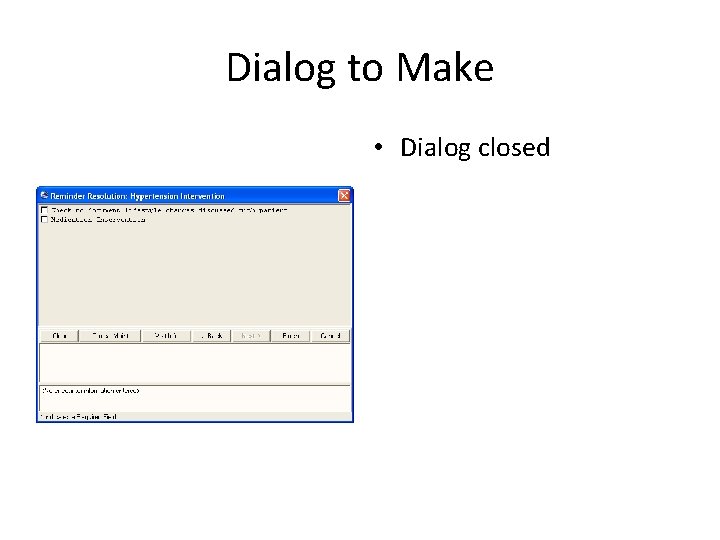
Dialog to Make • Dialog closed
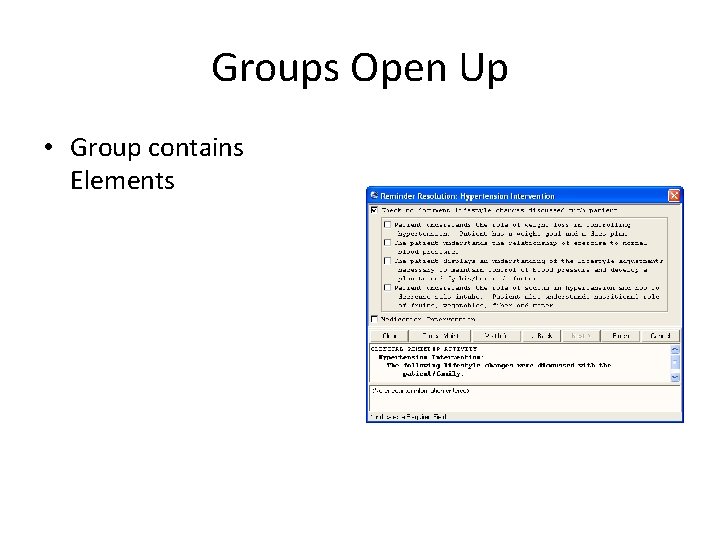
Groups Open Up • Group contains Elements
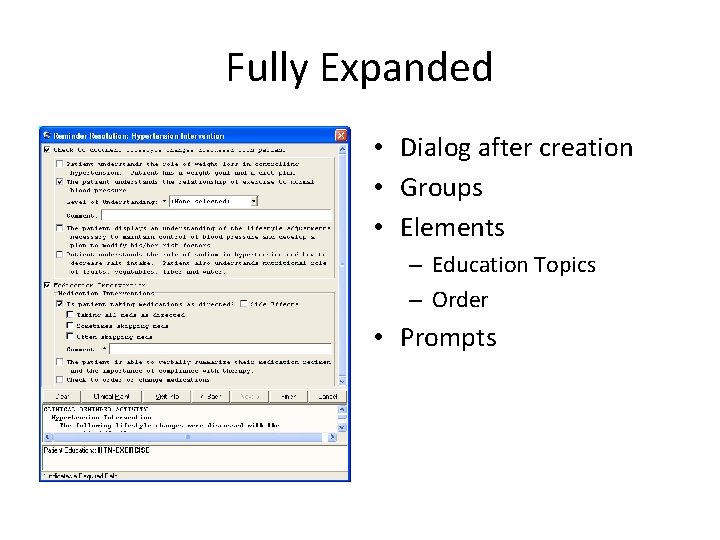
Fully Expanded • Dialog after creation • Groups • Elements – Education Topics – Order • Prompts
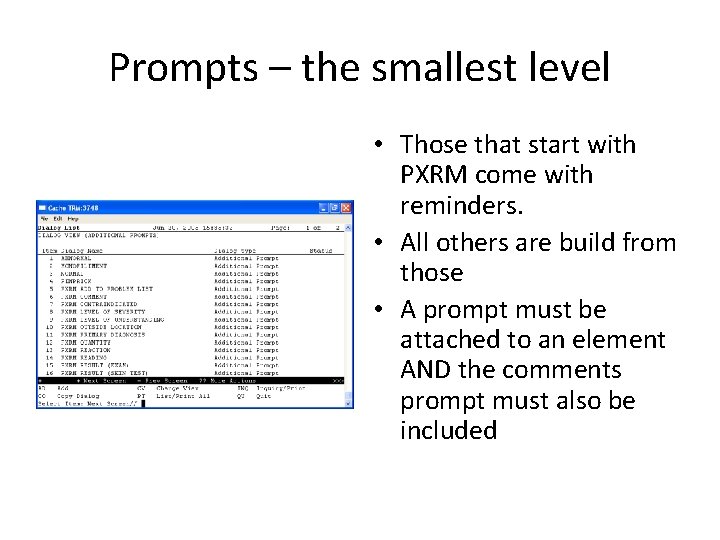
Prompts – the smallest level • Those that start with PXRM come with reminders. • All others are build from those • A prompt must be attached to an element AND the comments prompt must also be included
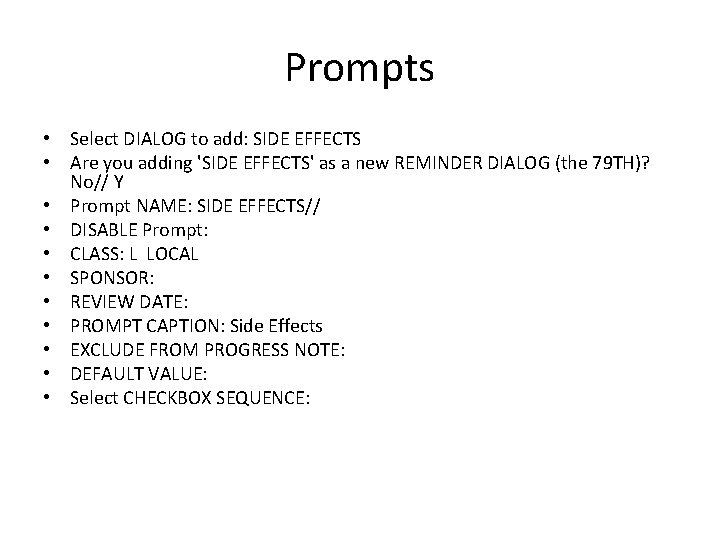
Prompts • Select DIALOG to add: SIDE EFFECTS • Are you adding 'SIDE EFFECTS' as a new REMINDER DIALOG (the 79 TH)? No// Y • Prompt NAME: SIDE EFFECTS// • DISABLE Prompt: • CLASS: L LOCAL • SPONSOR: • REVIEW DATE: • PROMPT CAPTION: Side Effects • EXCLUDE FROM PROGRESS NOTE: • DEFAULT VALUE: • Select CHECKBOX SEQUENCE:
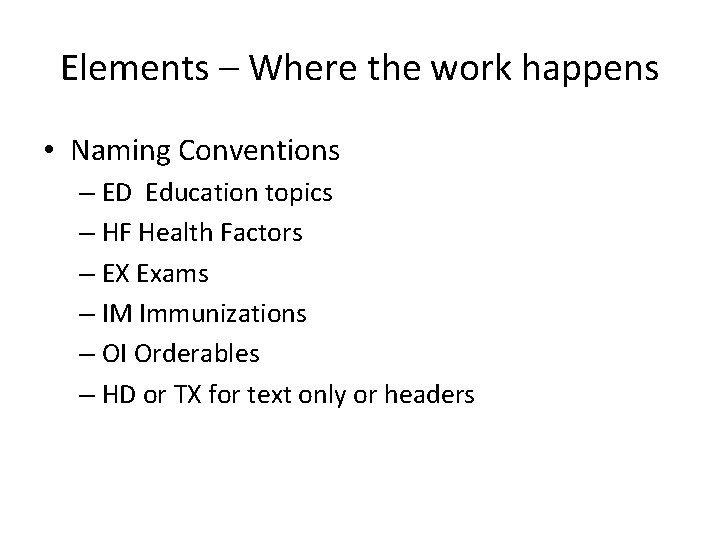
Elements – Where the work happens • Naming Conventions – ED Education topics – HF Health Factors – EX Exams – IM Immunizations – OI Orderables – HD or TX for text only or headers
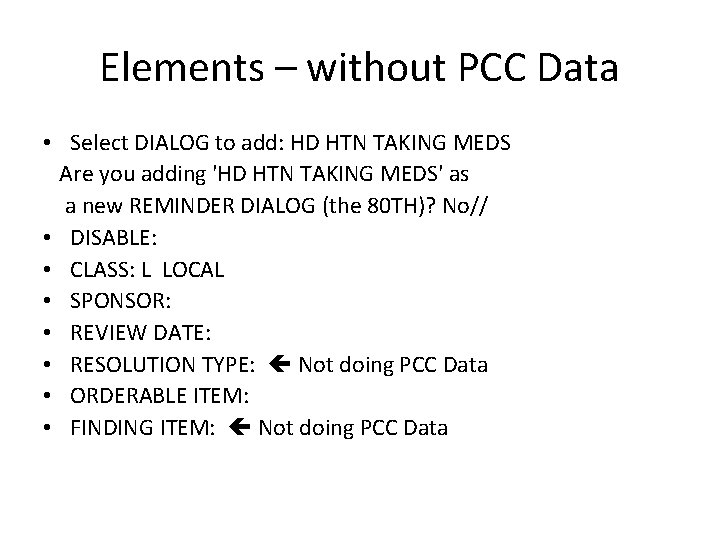
Elements – without PCC Data • Select DIALOG to add: HD HTN TAKING MEDS Are you adding 'HD HTN TAKING MEDS' as a new REMINDER DIALOG (the 80 TH)? No// • DISABLE: • CLASS: L LOCAL • SPONSOR: • REVIEW DATE: • RESOLUTION TYPE: Not doing PCC Data • ORDERABLE ITEM: • FINDING ITEM: Not doing PCC Data
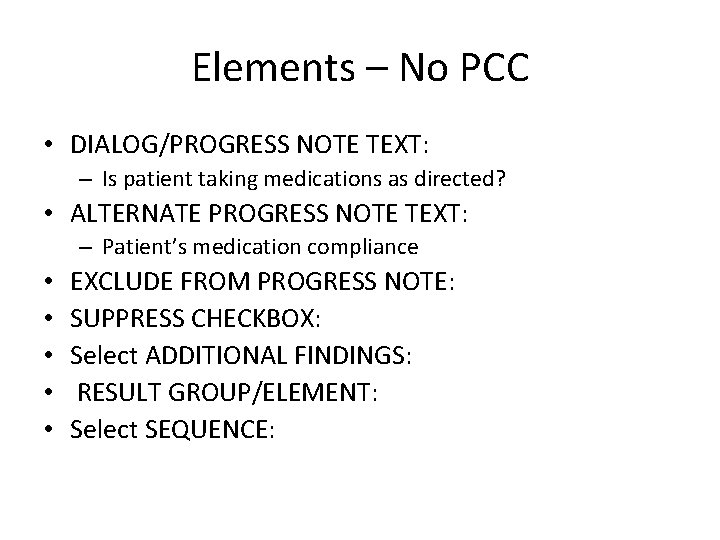
Elements – No PCC • DIALOG/PROGRESS NOTE TEXT: – Is patient taking medications as directed? • ALTERNATE PROGRESS NOTE TEXT: – Patient’s medication compliance • • • EXCLUDE FROM PROGRESS NOTE: SUPPRESS CHECKBOX: Select ADDITIONAL FINDINGS: RESULT GROUP/ELEMENT: Select SEQUENCE:
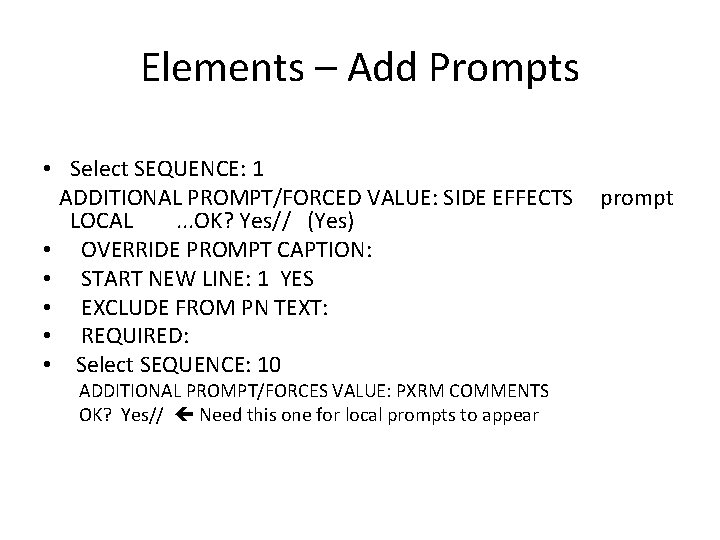
Elements – Add Prompts • Select SEQUENCE: 1 ADDITIONAL PROMPT/FORCED VALUE: SIDE EFFECTS LOCAL. . . OK? Yes// (Yes) • OVERRIDE PROMPT CAPTION: • START NEW LINE: 1 YES • EXCLUDE FROM PN TEXT: • REQUIRED: • Select SEQUENCE: 10 ADDITIONAL PROMPT/FORCES VALUE: PXRM COMMENTS OK? Yes// Need this one for local prompts to appear prompt
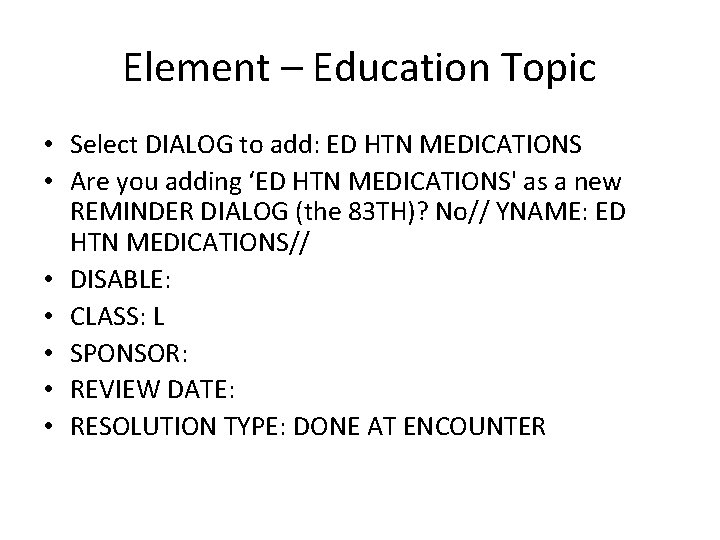
Element – Education Topic • Select DIALOG to add: ED HTN MEDICATIONS • Are you adding ‘ED HTN MEDICATIONS' as a new REMINDER DIALOG (the 83 TH)? No// YNAME: ED HTN MEDICATIONS// • DISABLE: • CLASS: L • SPONSOR: • REVIEW DATE: • RESOLUTION TYPE: DONE AT ENCOUNTER
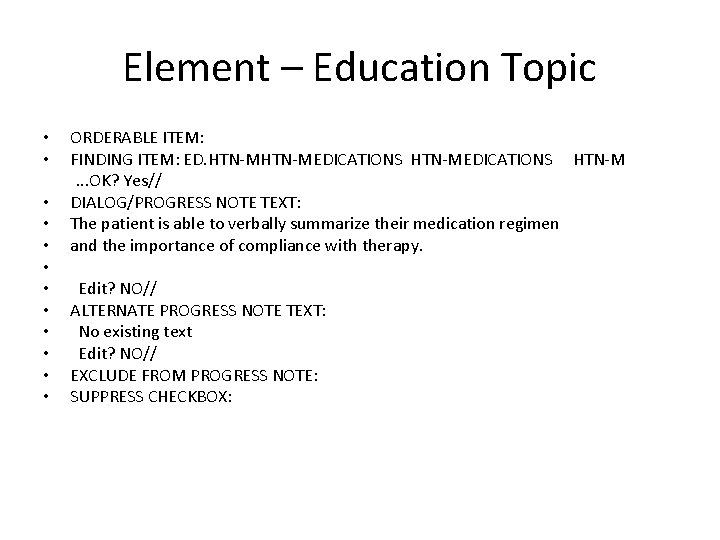
Element – Education Topic • • • ORDERABLE ITEM: FINDING ITEM: ED. HTN-MEDICATIONS HTN-M. . . OK? Yes// DIALOG/PROGRESS NOTE TEXT: The patient is able to verbally summarize their medication regimen and the importance of compliance with therapy. Edit? NO// ALTERNATE PROGRESS NOTE TEXT: No existing text Edit? NO// EXCLUDE FROM PROGRESS NOTE: SUPPRESS CHECKBOX:
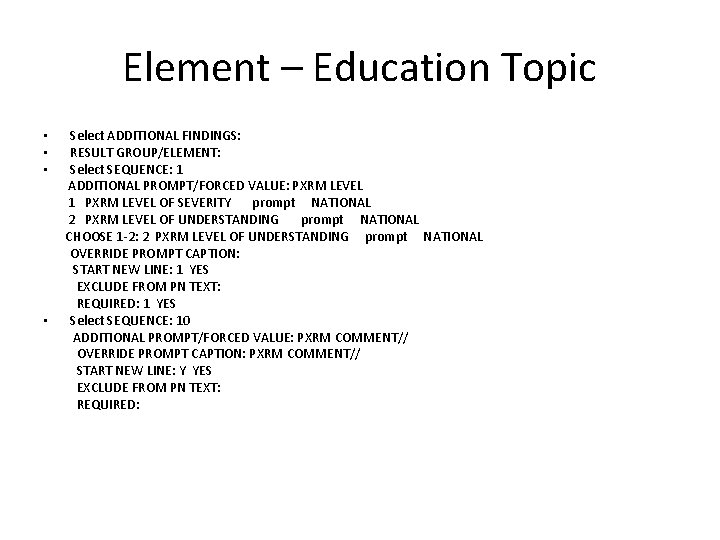
Element – Education Topic • • Select ADDITIONAL FINDINGS: RESULT GROUP/ELEMENT: Select SEQUENCE: 1 ADDITIONAL PROMPT/FORCED VALUE: PXRM LEVEL 1 PXRM LEVEL OF SEVERITY prompt NATIONAL 2 PXRM LEVEL OF UNDERSTANDING prompt NATIONAL CHOOSE 1 -2: 2 PXRM LEVEL OF UNDERSTANDING prompt NATIONAL OVERRIDE PROMPT CAPTION: START NEW LINE: 1 YES EXCLUDE FROM PN TEXT: REQUIRED: 1 YES Select SEQUENCE: 10 ADDITIONAL PROMPT/FORCED VALUE: PXRM COMMENT// OVERRIDE PROMPT CAPTION: PXRM COMMENT// START NEW LINE: Y YES EXCLUDE FROM PN TEXT: REQUIRED:
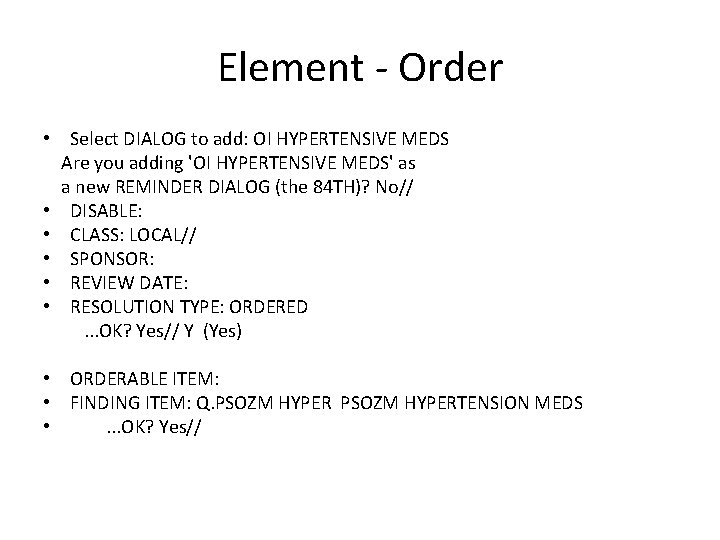
Element - Order • Select DIALOG to add: OI HYPERTENSIVE MEDS Are you adding 'OI HYPERTENSIVE MEDS' as a new REMINDER DIALOG (the 84 TH)? No// • DISABLE: • CLASS: LOCAL// • SPONSOR: • REVIEW DATE: • RESOLUTION TYPE: ORDERED. . . OK? Yes// Y (Yes) • ORDERABLE ITEM: • FINDING ITEM: Q. PSOZM HYPERTENSION MEDS • . . . OK? Yes//
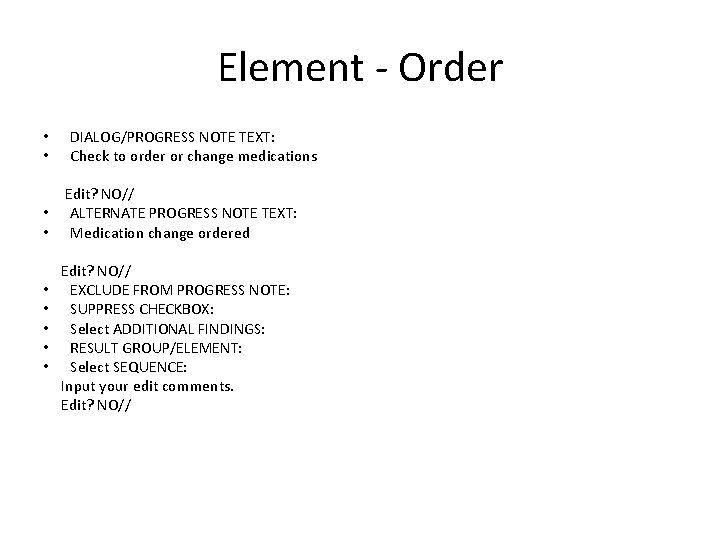
Element - Order • • DIALOG/PROGRESS NOTE TEXT: Check to order or change medications Edit? NO// • ALTERNATE PROGRESS NOTE TEXT: • Medication change ordered • • • Edit? NO// EXCLUDE FROM PROGRESS NOTE: SUPPRESS CHECKBOX: Select ADDITIONAL FINDINGS: RESULT GROUP/ELEMENT: Select SEQUENCE: Input your edit comments. Edit? NO//
Group – Makes it prettier • A group allows you to put several elements together. Groups can be hidden until clicked so they act like templates • Users may select 1 or more items in the group
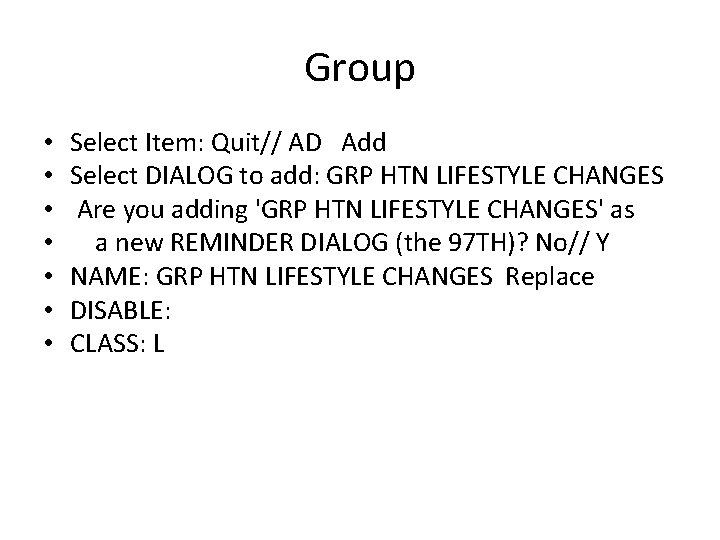
Group • • Select Item: Quit// AD Add Select DIALOG to add: GRP HTN LIFESTYLE CHANGES Are you adding 'GRP HTN LIFESTYLE CHANGES' as a new REMINDER DIALOG (the 97 TH)? No// Y NAME: GRP HTN LIFESTYLE CHANGES Replace DISABLE: CLASS: L
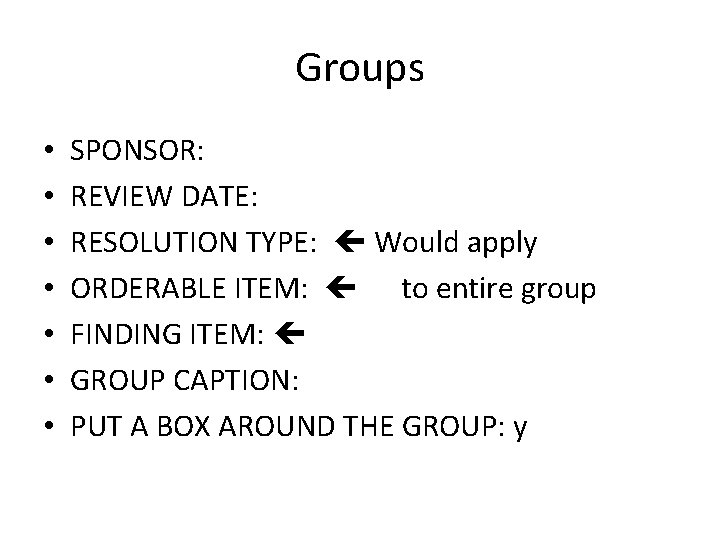
Groups • • SPONSOR: REVIEW DATE: RESOLUTION TYPE: Would apply ORDERABLE ITEM: to entire group FINDING ITEM: GROUP CAPTION: PUT A BOX AROUND THE GROUP: y
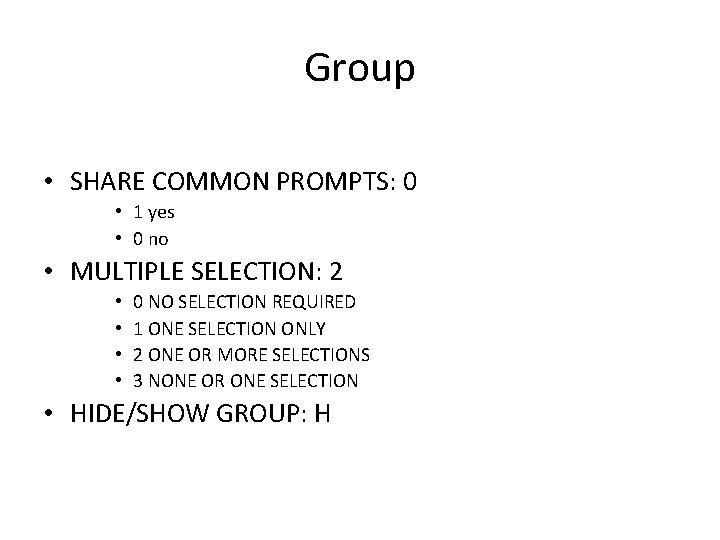
Group • SHARE COMMON PROMPTS: 0 • 1 yes • 0 no • MULTIPLE SELECTION: 2 • • 0 NO SELECTION REQUIRED 1 ONE SELECTION ONLY 2 ONE OR MORE SELECTIONS 3 NONE OR ONE SELECTION • HIDE/SHOW GROUP: H
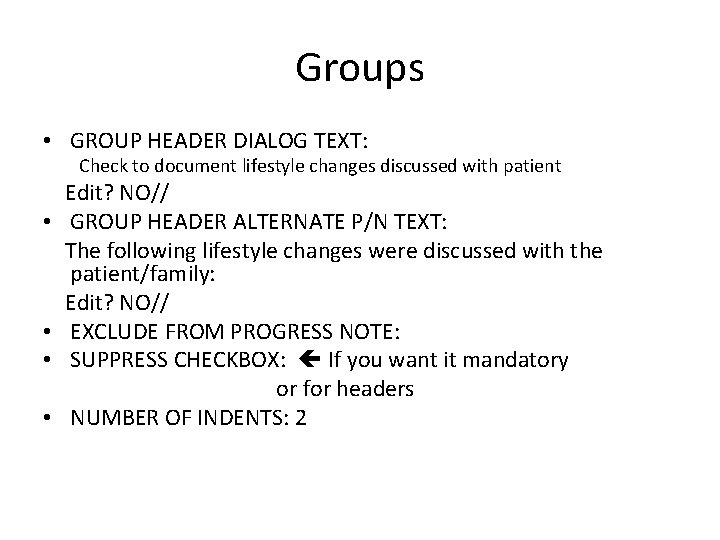
Groups • GROUP HEADER DIALOG TEXT: Check to document lifestyle changes discussed with patient • • Edit? NO// GROUP HEADER ALTERNATE P/N TEXT: The following lifestyle changes were discussed with the patient/family: Edit? NO// EXCLUDE FROM PROGRESS NOTE: SUPPRESS CHECKBOX: If you want it mandatory or for headers NUMBER OF INDENTS: 2
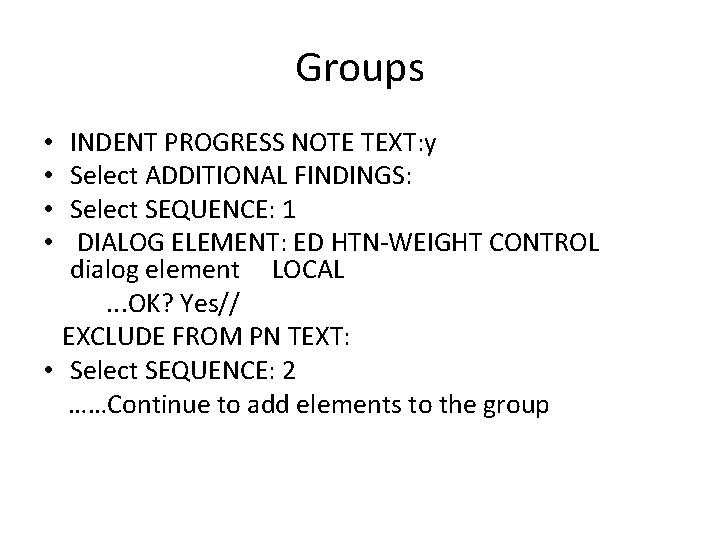
Groups INDENT PROGRESS NOTE TEXT: y Select ADDITIONAL FINDINGS: Select SEQUENCE: 1 DIALOG ELEMENT: ED HTN-WEIGHT CONTROL dialog element LOCAL. . . OK? Yes// EXCLUDE FROM PN TEXT: • Select SEQUENCE: 2 ……Continue to add elements to the group • •
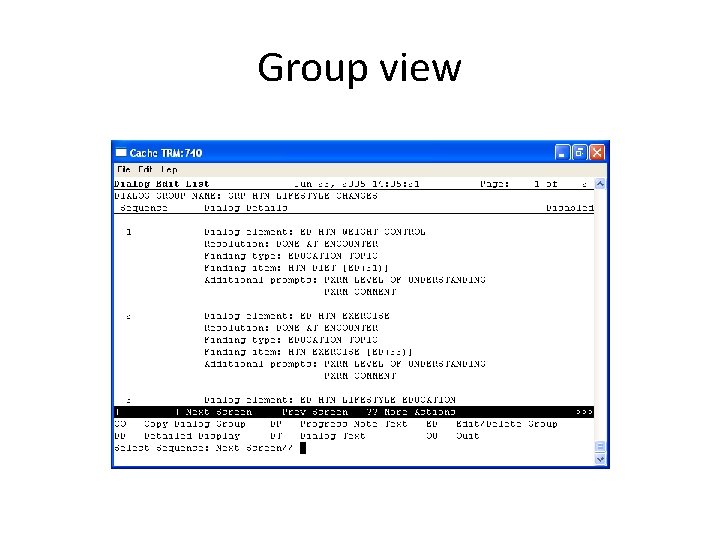
Group view
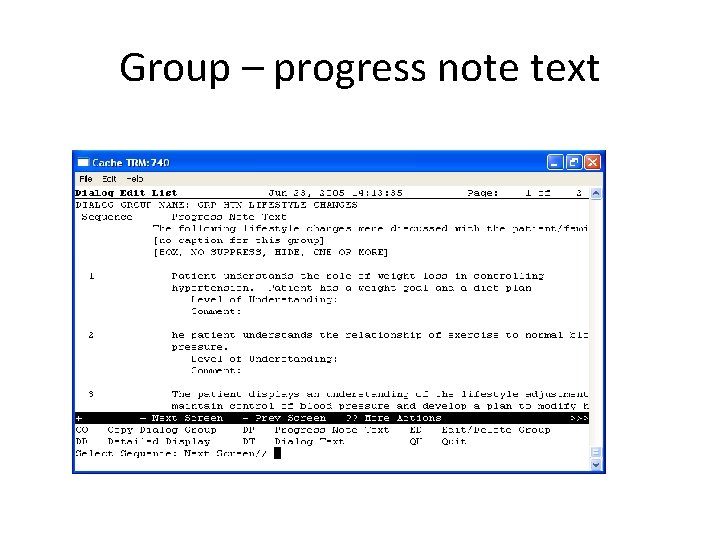
Group – progress note text
Dialog – The upper level • The dialog is now ready to be created • Dialog can be made up of elements and/or groups
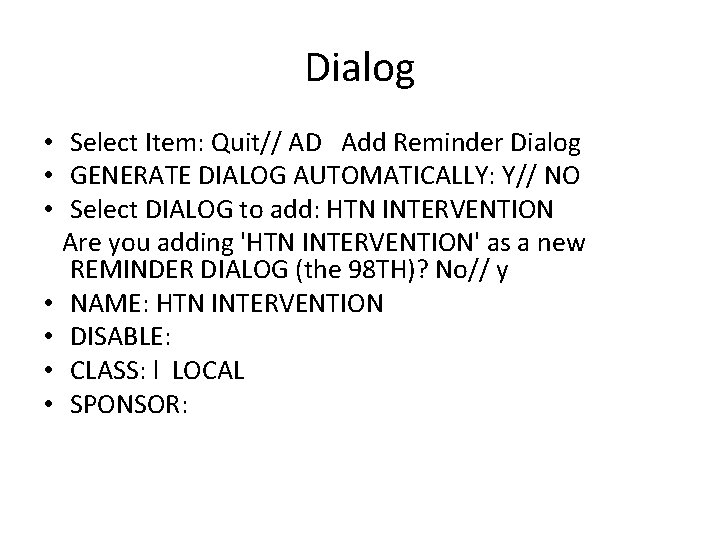
Dialog • Select Item: Quit// AD Add Reminder Dialog • GENERATE DIALOG AUTOMATICALLY: Y// NO • Select DIALOG to add: HTN INTERVENTION Are you adding 'HTN INTERVENTION' as a new REMINDER DIALOG (the 98 TH)? No// y • NAME: HTN INTERVENTION • DISABLE: • CLASS: l LOCAL • SPONSOR:
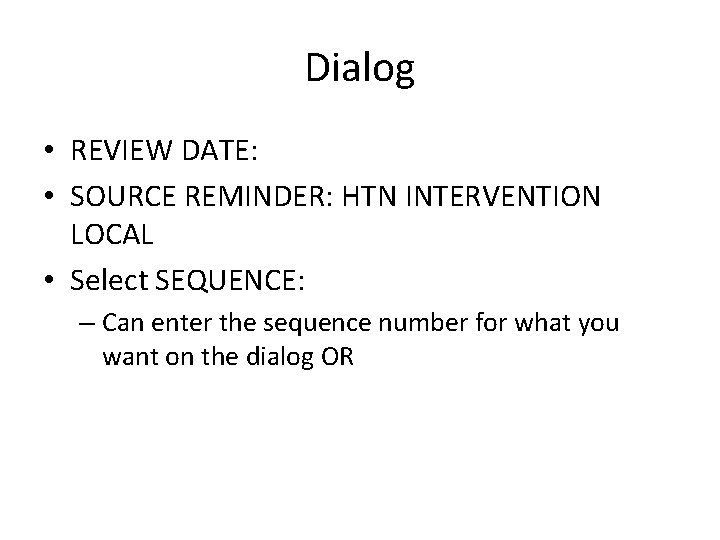
Dialog • REVIEW DATE: • SOURCE REMINDER: HTN INTERVENTION LOCAL • Select SEQUENCE: – Can enter the sequence number for what you want on the dialog OR
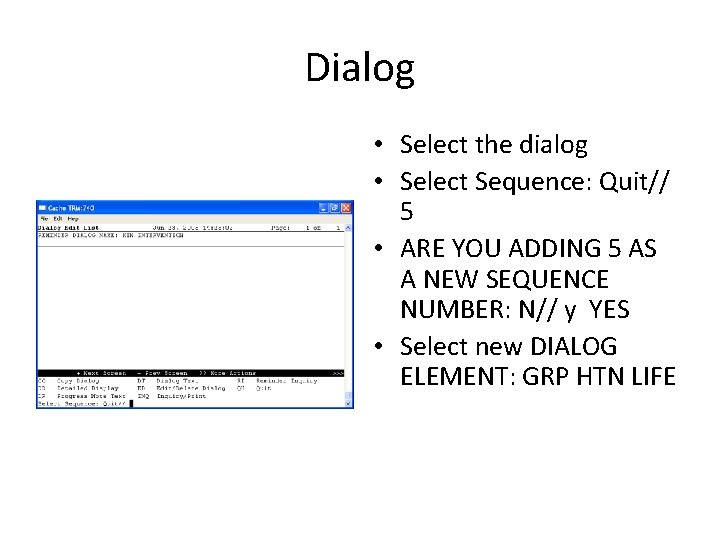
Dialog • Select the dialog • Select Sequence: Quit// 5 • ARE YOU ADDING 5 AS A NEW SEQUENCE NUMBER: N// y YES • Select new DIALOG ELEMENT: GRP HTN LIFE
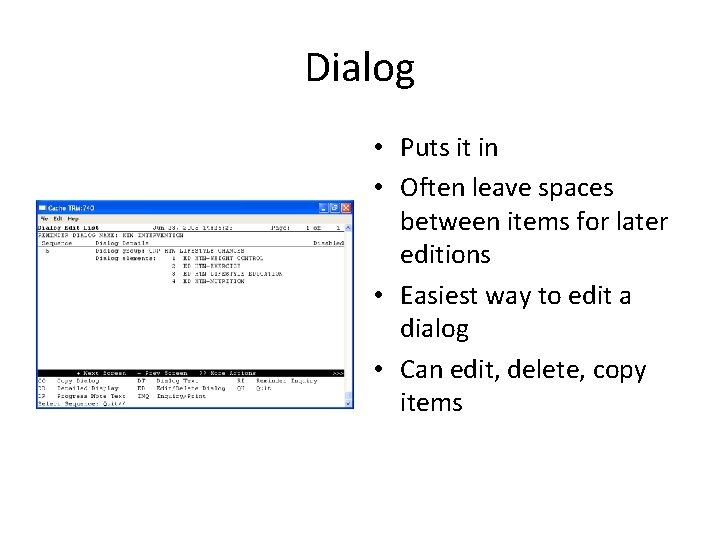
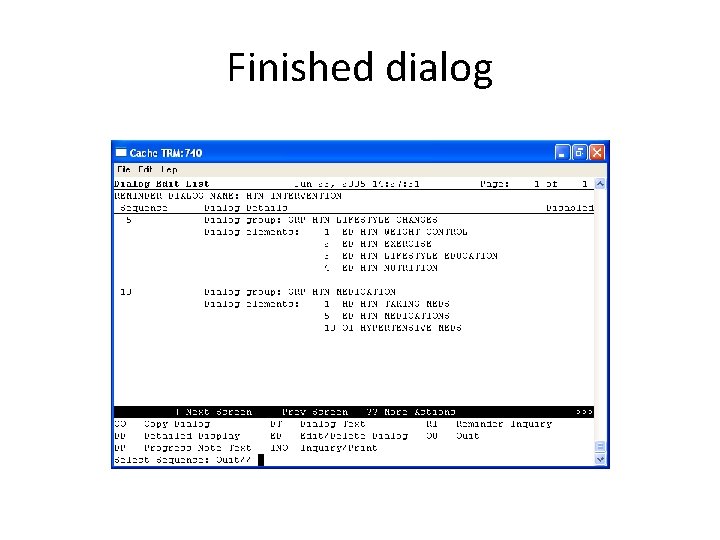
Dialog • Puts it in • Often leave spaces between items for later editions • Easiest way to edit a dialog • Can edit, delete, copy items
Finished dialog
Attaching to a Reminder • A dialog made this way does not need to be attached to a reminder • It can be a dialog template to be used in notes • If it has a source reminder, you must go back to the reminder and attach it. • Select CV to change view and go to R for reminders
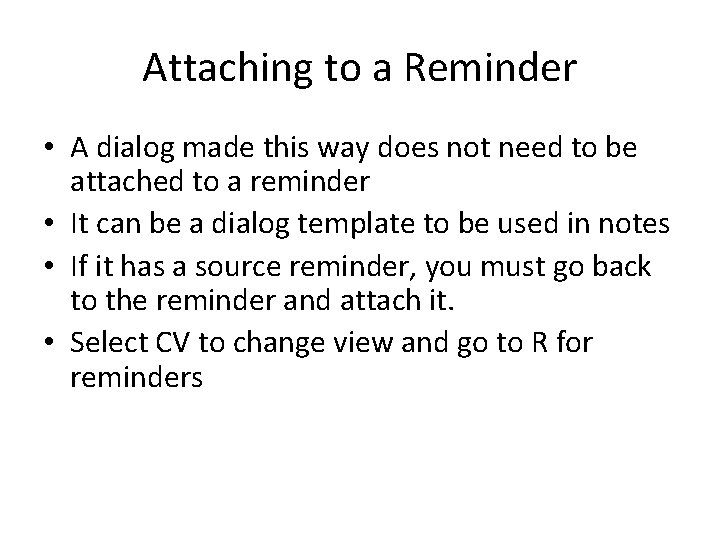
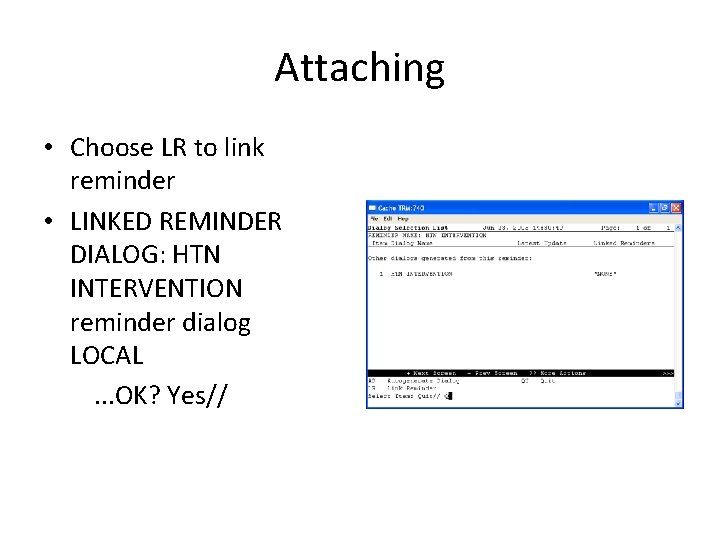
Attaching • Choose LR to link reminder • LINKED REMINDER DIALOG: HTN INTERVENTION reminder dialog LOCAL. . . OK? Yes//
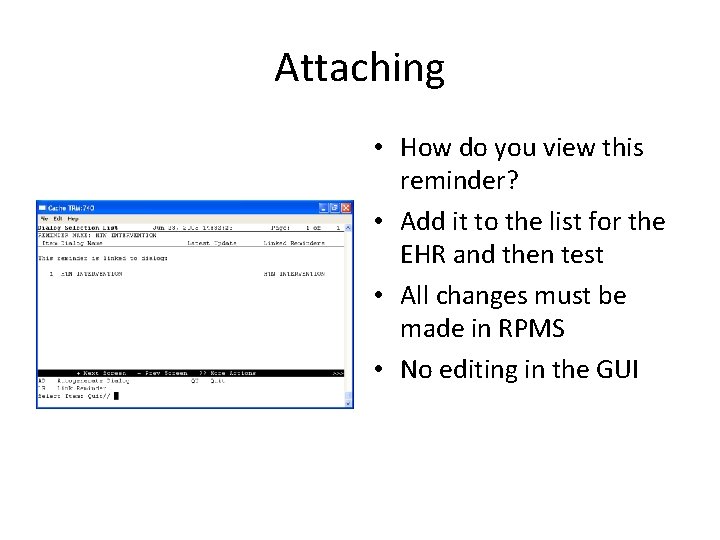
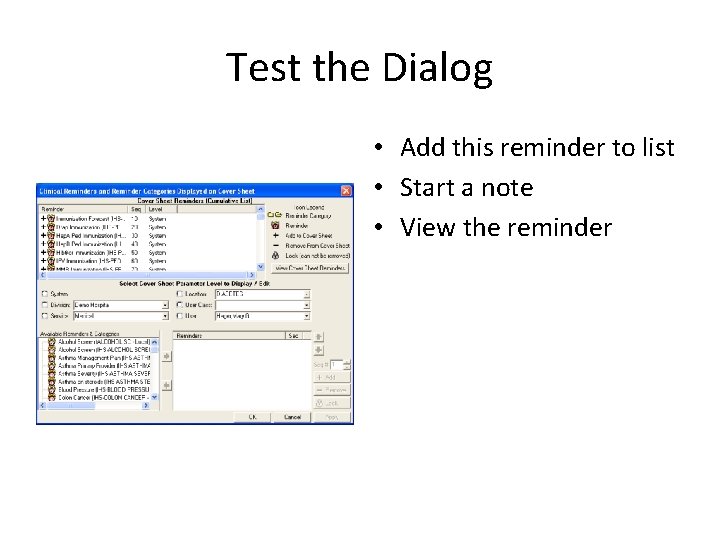
Attaching • How do you view this reminder? • Add it to the list for the EHR and then test • All changes must be made in RPMS • No editing in the GUI
Test the Dialog • Add this reminder to list • Start a note • View the reminder
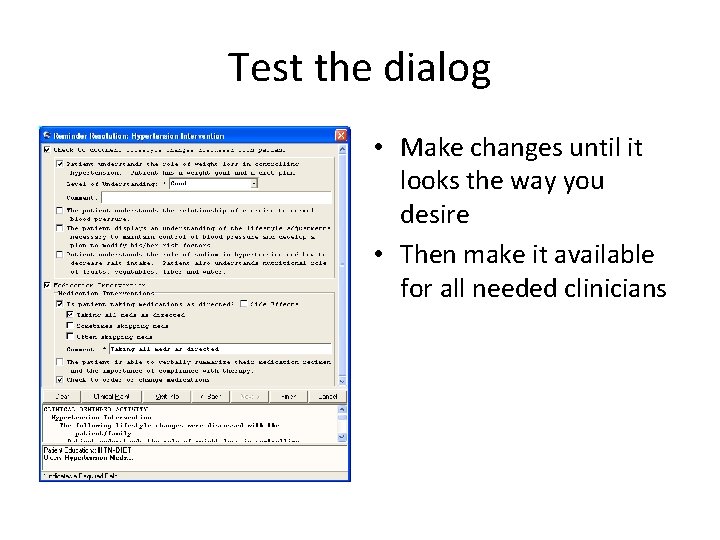
Test the dialog • Make changes until it looks the way you desire • Then make it available for all needed clinicians
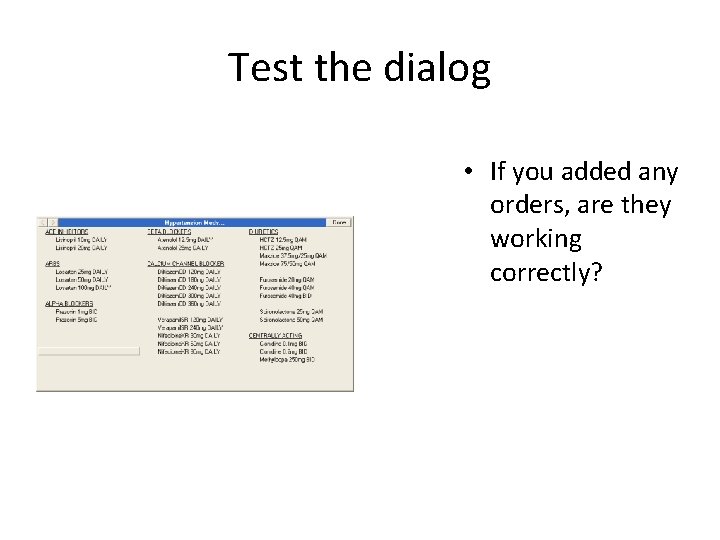
Test the dialog • If you added any orders, are they working correctly?
Making a Dialog TIU Template • A dialog can be used as a note template • Education dialogs are good examples since you don’t always know when you are going to do the education • They are still made in RPMS but not attached to a reminder • When finished, they must be available to TIU
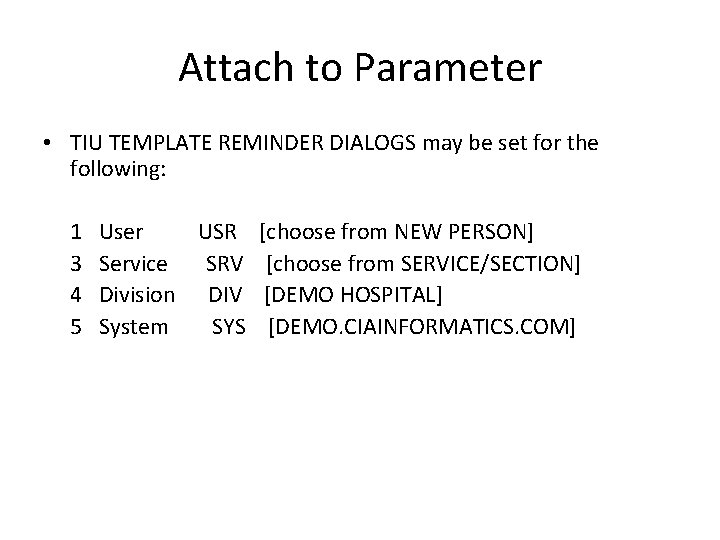
Attach to Parameter • TIU TEMPLATE REMINDER DIALOGS may be set for the following: 1 3 4 5 User USR Service SRV Division DIV System SYS [choose from NEW PERSON] [choose from SERVICE/SECTION] [DEMO HOSPITAL] [DEMO. CIAINFORMATICS. COM]
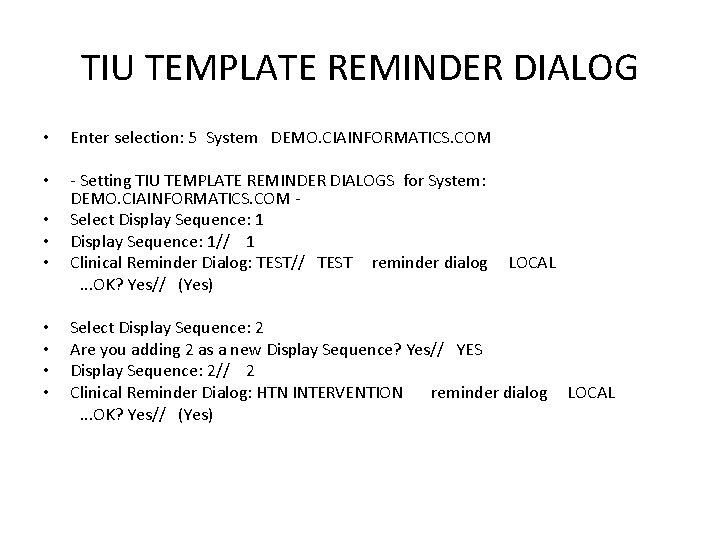
TIU TEMPLATE REMINDER DIALOG • Enter selection: 5 System DEMO. CIAINFORMATICS. COM • - Setting TIU TEMPLATE REMINDER DIALOGS for System: DEMO. CIAINFORMATICS. COM Select Display Sequence: 1// 1 Clinical Reminder Dialog: TEST// TEST reminder dialog. . . OK? Yes// (Yes) • • LOCAL Select Display Sequence: 2 Are you adding 2 as a new Display Sequence? Yes// YES Display Sequence: 2// 2 Clinical Reminder Dialog: HTN INTERVENTION reminder dialog. . . OK? Yes// (Yes) LOCAL
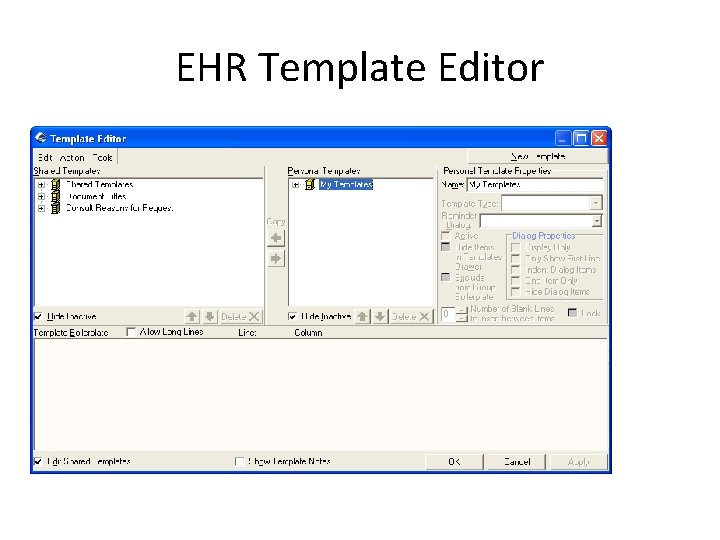
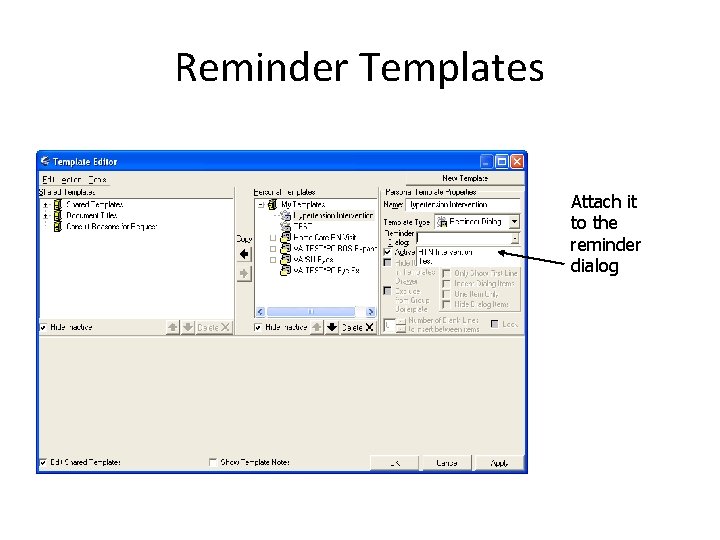
EHR Template Editor
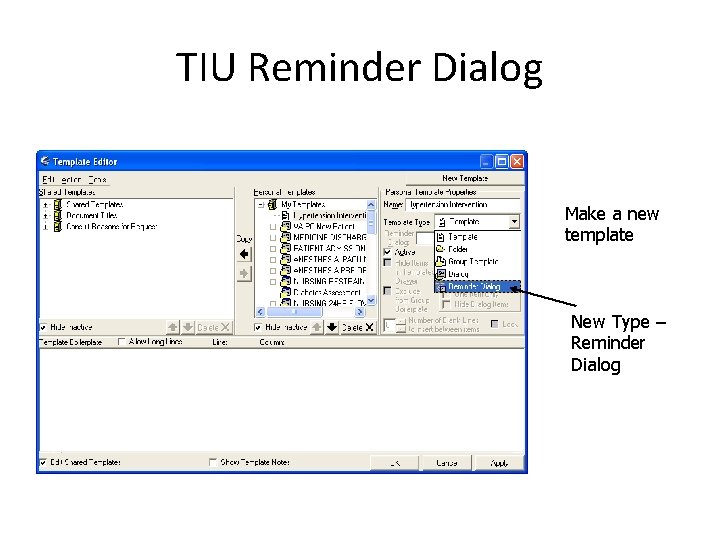
TIU Reminder Dialog Make a new template New Type – Reminder Dialog
Reminder Templates Attach it to the reminder dialog
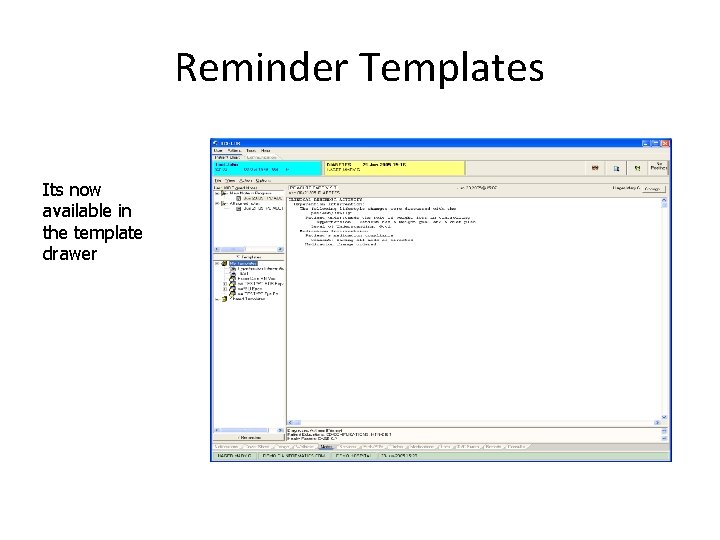
Reminder Templates Its now available in the template drawer
Reminder Templates • These templates CANNOT be part of any other TIU template • If you add it as a “sub template”, TIU will skip over it
• Questions