
Relative Positioning position relative So Far float has
- Slides: 7
Relative Positioning position: relative;
So Far: float: has tags surrounding the floated tag flow up and around the floated tag position: absolute: positions tag based on the edge of the web page (or the surrounding tag, if it’s inside a <div> tag position: fixed; positions tag based on the edge of the browser (so doesn’t scroll) Now: we’re going to position based on where the tag would have been with no positioning (got that? )
position: relative; Positions based on where the tag would have occurred in the web page without any positioning. Best way to do this: 1. make your web page with your tags 2. look at where the tags occur (especially the tag you want to reposition) 3. Look at where you actually want that tag to occur 4. Add the position: relative; positioning
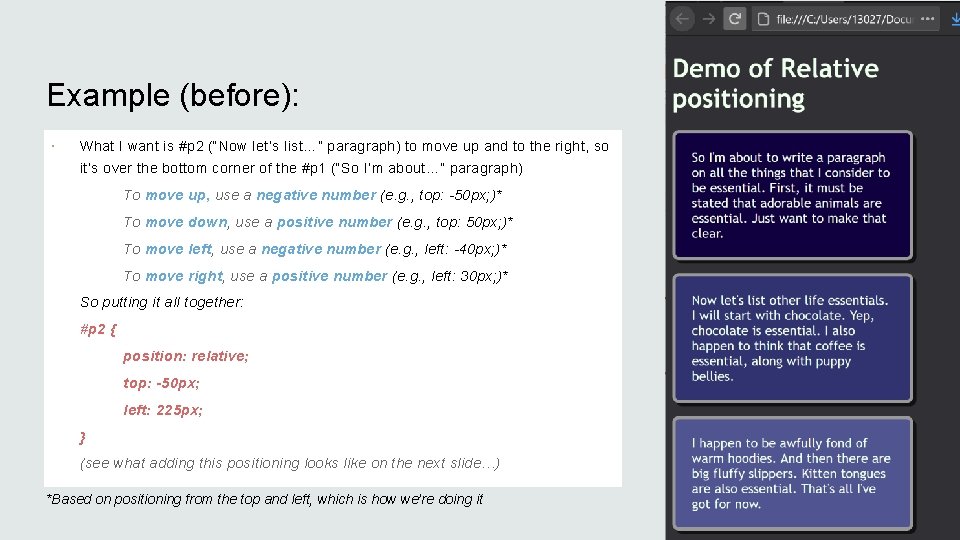
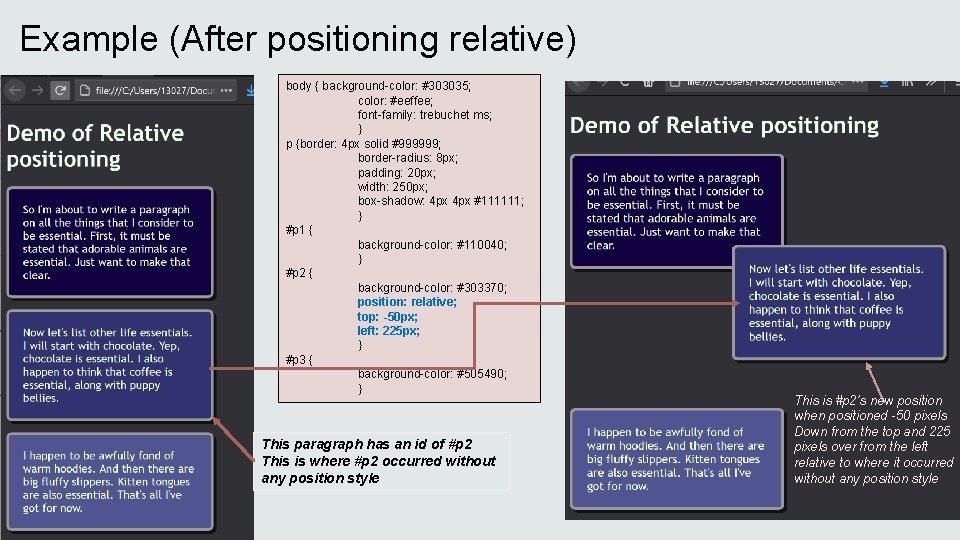
Example (before): What I want is #p 2 (“Now let’s list…” paragraph) to move up and to the right, so it’s over the bottom corner of the #p 1 (“So I’m about…” paragraph) To move up, use a negative number (e. g. , top: -50 px; )* To move down, use a positive number (e. g. , top: 50 px; )* To move left, use a negative number (e. g. , left: -40 px; )* To move right, use a positive number (e. g. , left: 30 px; )* So putting it all together: #p 2 { position: relative; top: -50 px; left: 225 px; } (see what adding this positioning looks like on the next slide…) *Based on positioning from the top and left, which is how we’re doing it
Example (After positioning relative) body { background-color: #303035; color: #eeffee; font-family: trebuchet ms; } p {border: 4 px solid #999999; border-radius: 8 px; padding: 20 px; width: 250 px; box-shadow: 4 px #111111; } #p 1 { background-color: #110040; } #p 2 { background-color: #303370; position: relative; top: -50 px; left: 225 px; } #p 3 { background-color: #505490; } This paragraph has an id of #p 2 This is where #p 2 occurred without any position style This is #p 2’s new position when positioned -50 pixels Down from the top and 225 pixels over from the left relative to where it occurred without any position style
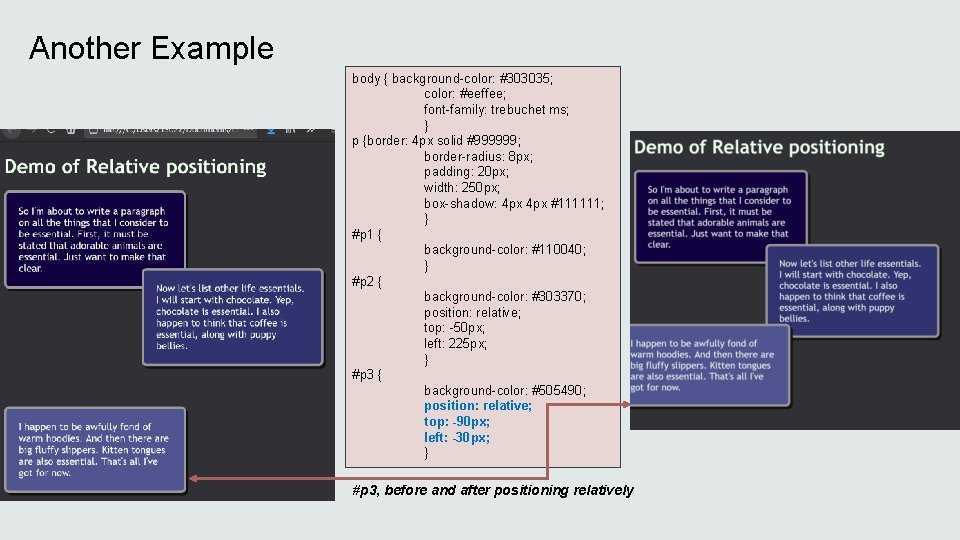
Another Example body { background-color: #303035; color: #eeffee; font-family: trebuchet ms; } p {border: 4 px solid #999999; border-radius: 8 px; padding: 20 px; width: 250 px; box-shadow: 4 px #111111; } #p 1 { background-color: #110040; } #p 2 { background-color: #303370; position: relative; top: -50 px; left: 225 px; } #p 3 { background-color: #505490; position: relative; top: -90 px; left: -30 px; } #p 3, before and after positioning relatively
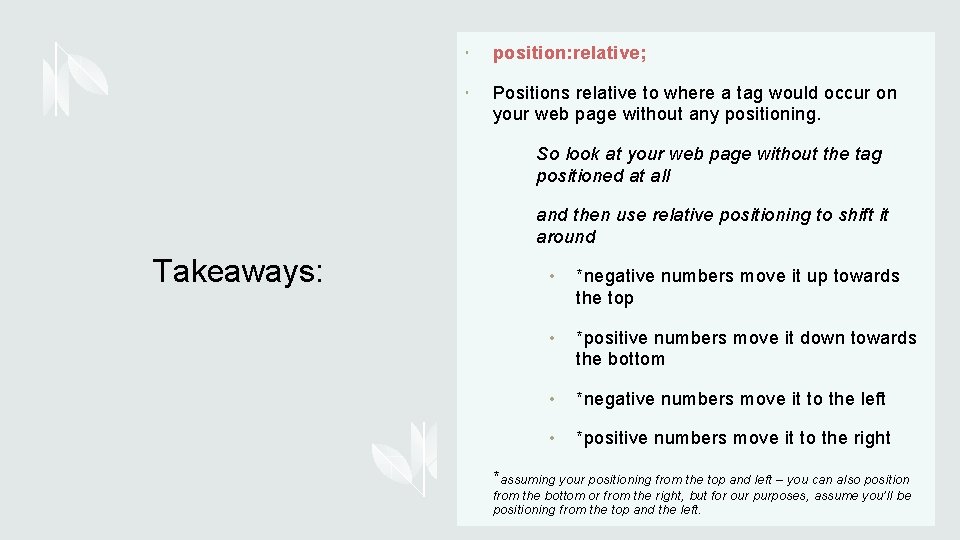
position: relative; Positions relative to where a tag would occur on your web page without any positioning. So look at your web page without the tag positioned at all and then use relative positioning to shift it around Takeaways: • *negative numbers move it up towards the top • *positive numbers move it down towards the bottom • *negative numbers move it to the left • *positive numbers move it to the right *assuming your positioning from the top and left – you can also position from the bottom or from the right, but for our purposes, assume you’ll be positioning from the top and the left.