
REGISTRATION ORIENTATION 2016 2017 Emily Wade On Ramps


- Slides: 35
REGISTRATION & ORIENTATION 2016 -2017 Emily Wade, On. Ramps Product Manager
PART 1: Registration
Aug 22 – Sep 9 Course Enrollment • Students register for On. Ramps course on the On. Ramps Student Portal website. • Registration is facilitated by the Instructor in the highschool classroom. • After Sep 9, student must obtain permission from UT Instructor of Record to enroll. • After Sep 9, Instructor must request student withdrawal if student leaves their classroom.
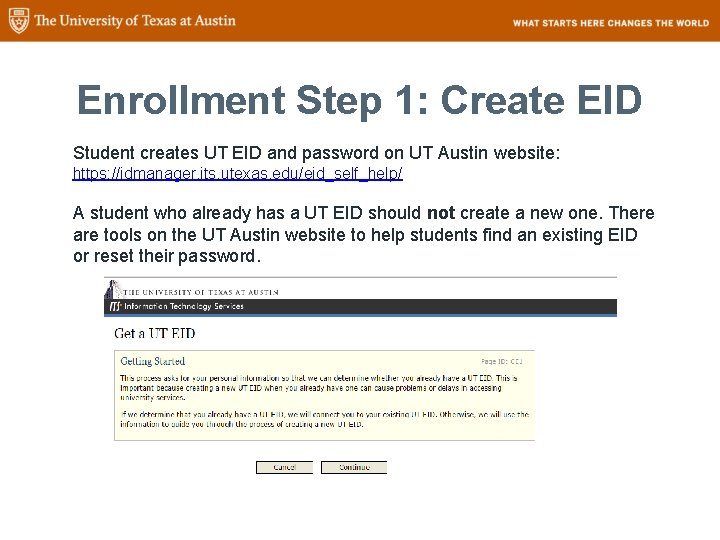
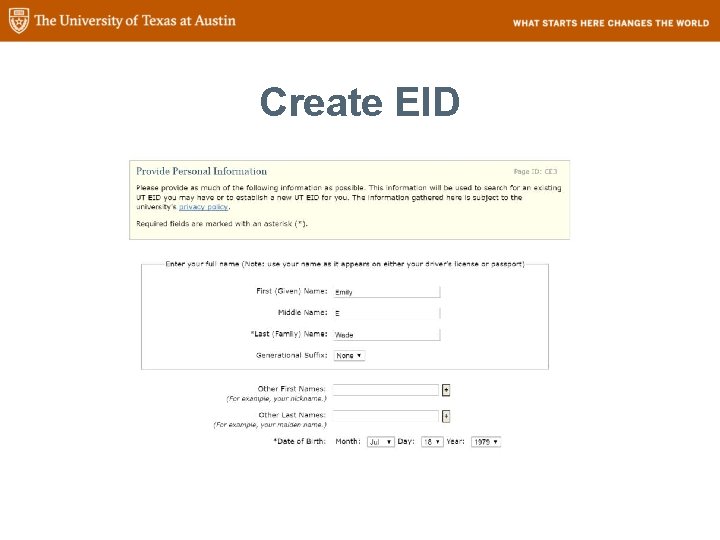
Enrollment Step 1: Create EID Student creates UT EID and password on UT Austin website: https: //idmanager. its. utexas. edu/eid_self_help/ A student who already has a UT EID should not create a new one. There are tools on the UT Austin website to help students find an existing EID or reset their password.
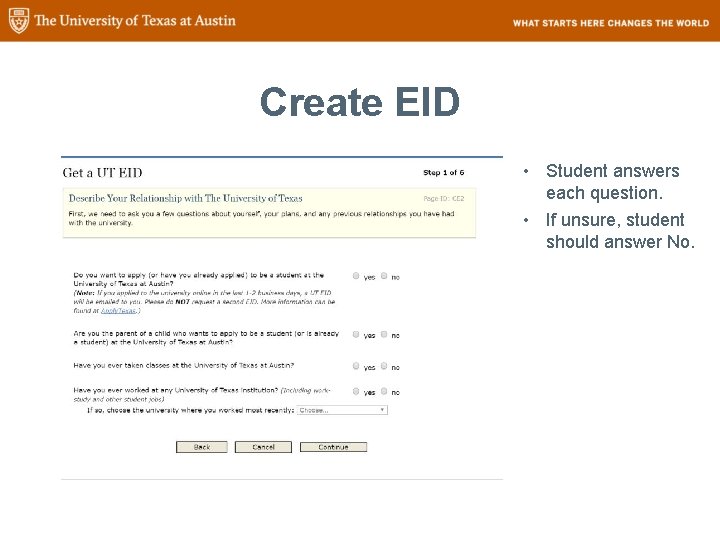
Create EID • Student answers each question. • If unsure, student should answer No.
Create EID
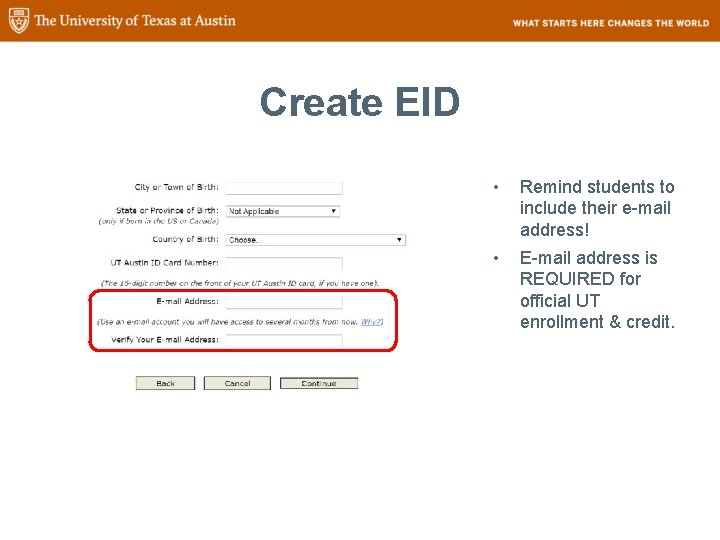
Create EID • Remind students to include their e-mail address! • E-mail address is REQUIRED for official UT enrollment & credit.
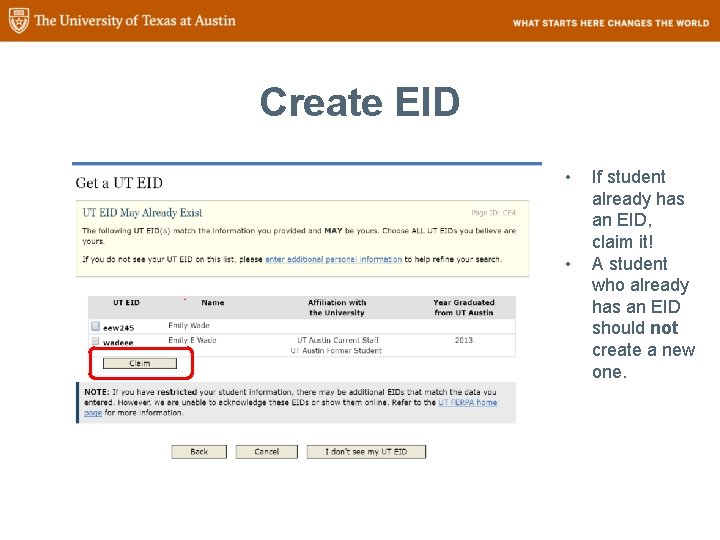
Create EID • • If student already has an EID, claim it! A student who already has an EID should not create a new one.
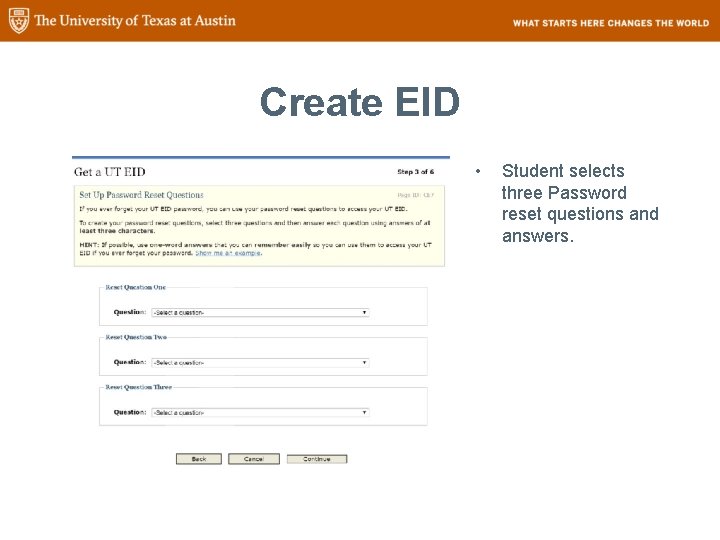
Create EID • Student selects three Password reset questions and answers.
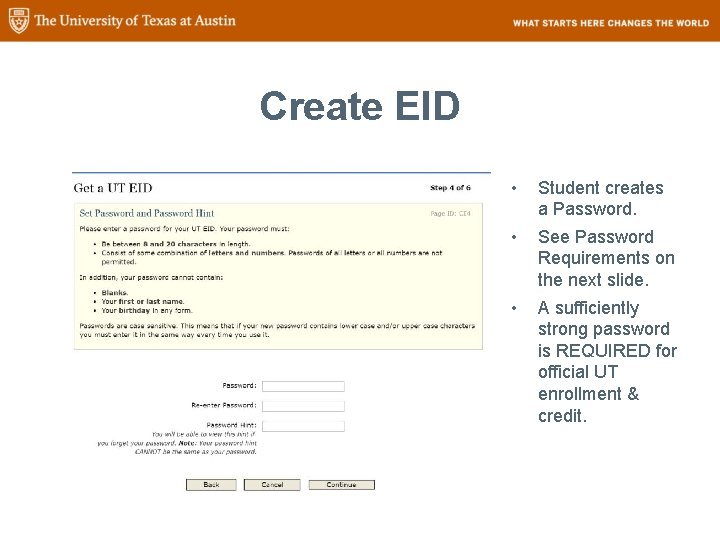
Create EID • Student creates a Password. • See Password Requirements on the next slide. • A sufficiently strong password is REQUIRED for official UT enrollment & credit.
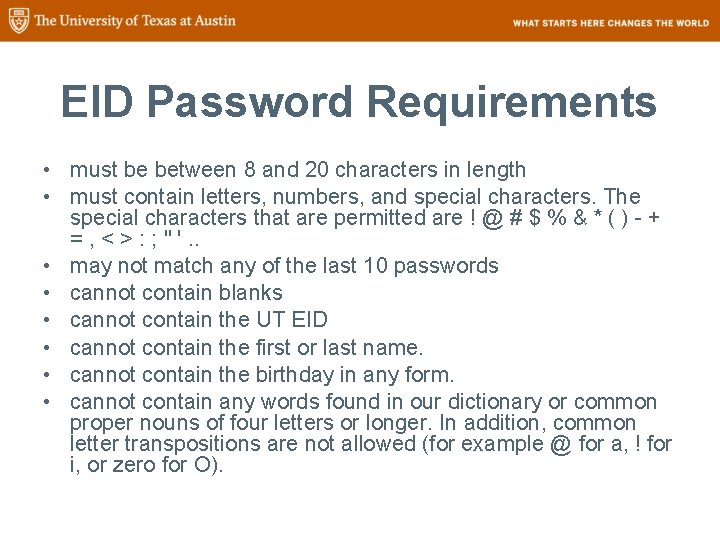
EID Password Requirements • must be between 8 and 20 characters in length • must contain letters, numbers, and special characters. The special characters that are permitted are ! @ # $ % & * ( ) - + = , < > : ; " '. . • may not match any of the last 10 passwords • cannot contain blanks • cannot contain the UT EID • cannot contain the first or last name. • cannot contain the birthday in any form. • cannot contain any words found in our dictionary or common proper nouns of four letters or longer. In addition, common letter transpositions are not allowed (for example @ for a, ! for i, or zero for O).
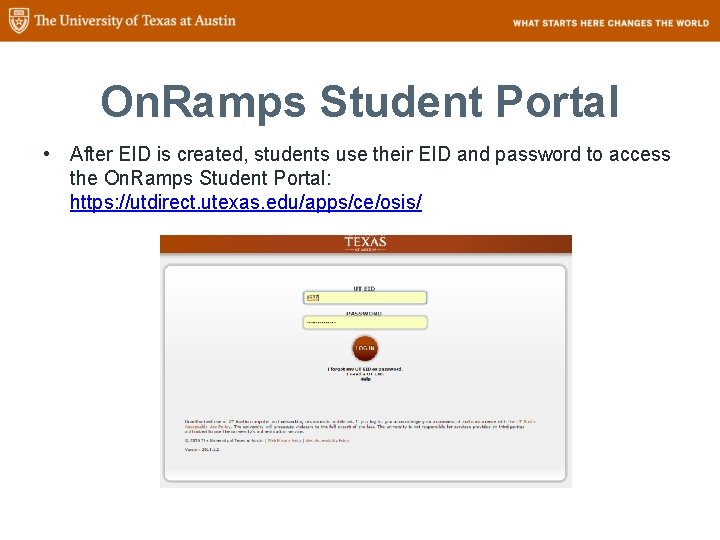
On. Ramps Student Portal • After EID is created, students use their EID and password to access the On. Ramps Student Portal: https: //utdirect. utexas. edu/apps/ce/osis/
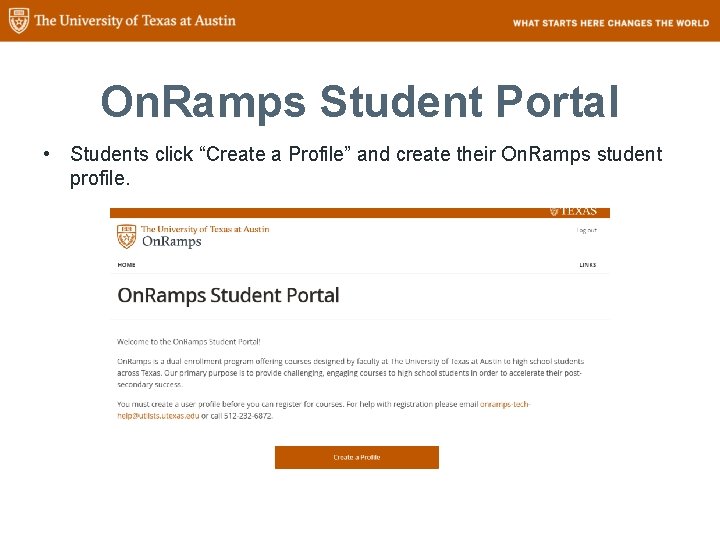
On. Ramps Student Portal • Students click “Create a Profile” and create their On. Ramps student profile.
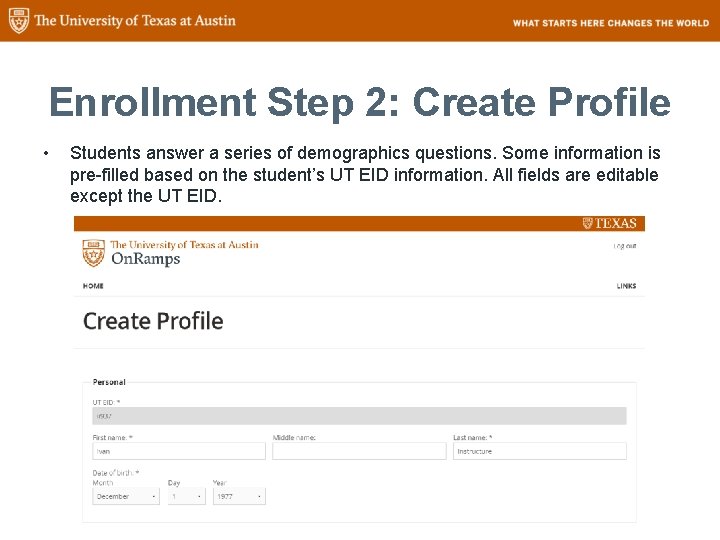
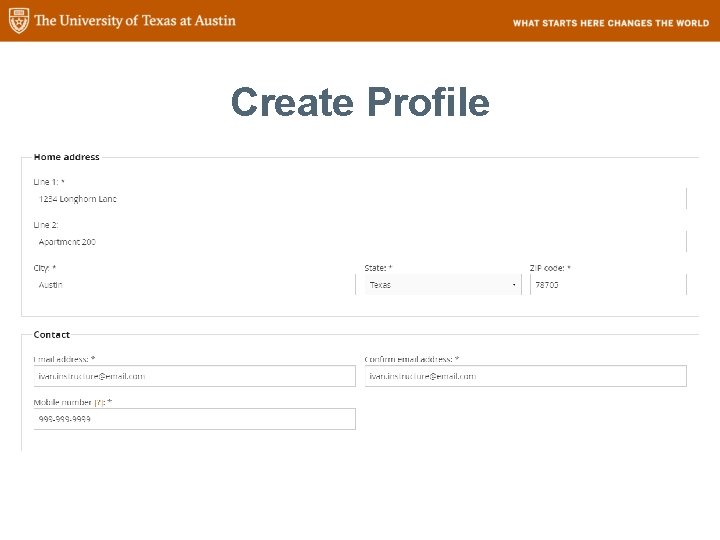
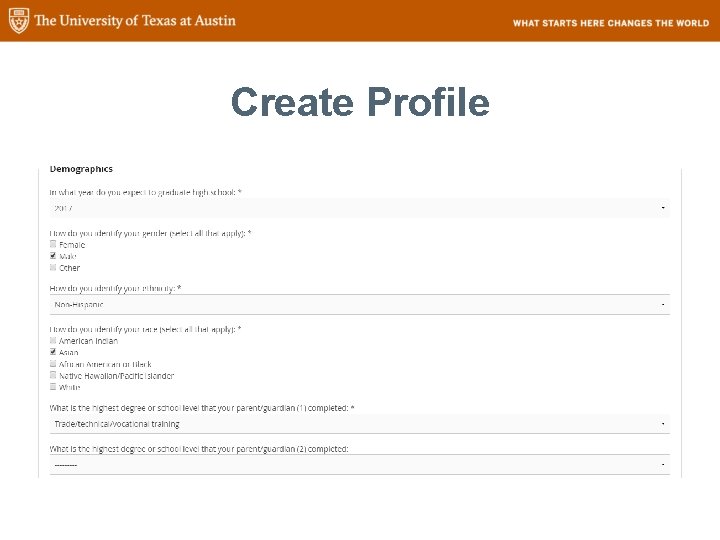
Enrollment Step 2: Create Profile • Students answer a series of demographics questions. Some information is pre-filled based on the student’s UT EID information. All fields are editable except the UT EID.
Create Profile
Create Profile
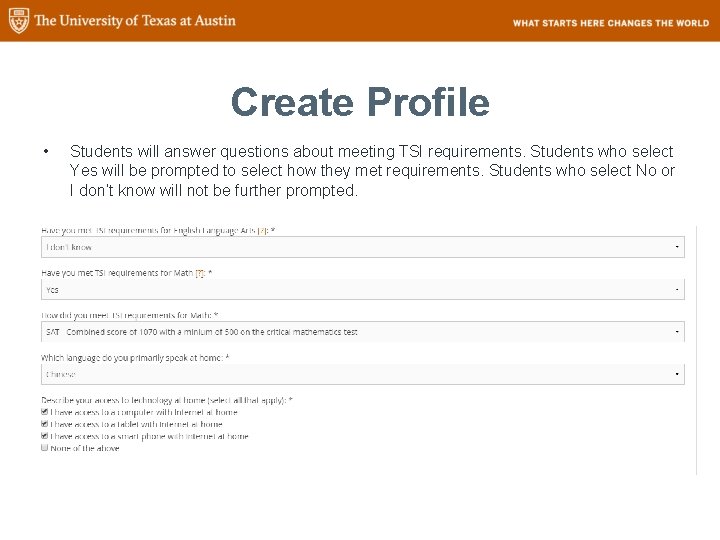
Create Profile • Students will answer questions about meeting TSI requirements. Students who select Yes will be prompted to select how they met requirements. Students who select No or I don’t know will not be further prompted.
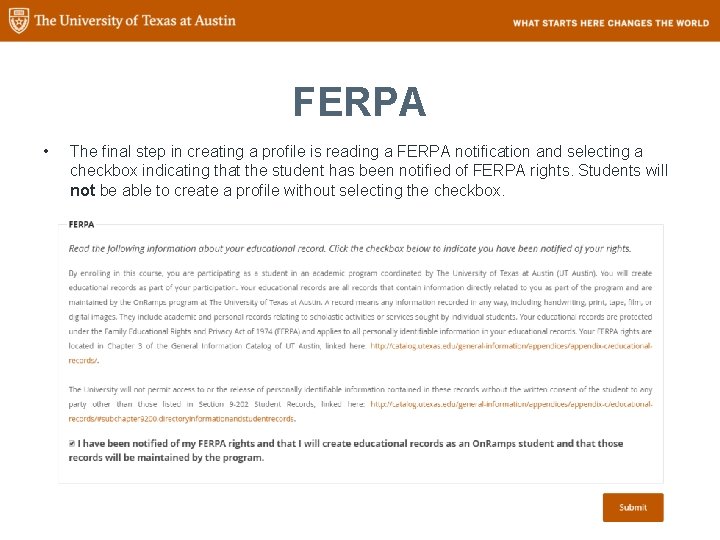
FERPA • The final step in creating a profile is reading a FERPA notification and selecting a checkbox indicating that the student has been notified of FERPA rights. Students will not be able to create a profile without selecting the checkbox.
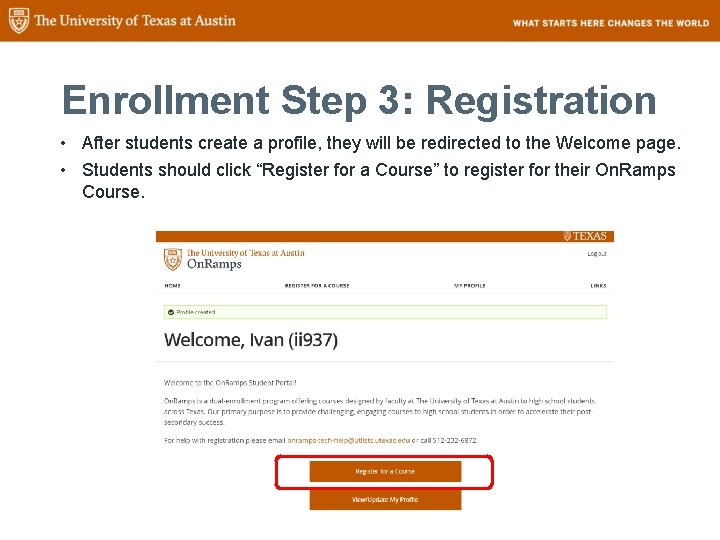
Enrollment Step 3: Registration • After students create a profile, they will be redirected to the Welcome page. • Students should click “Register for a Course” to register for their On. Ramps Course.
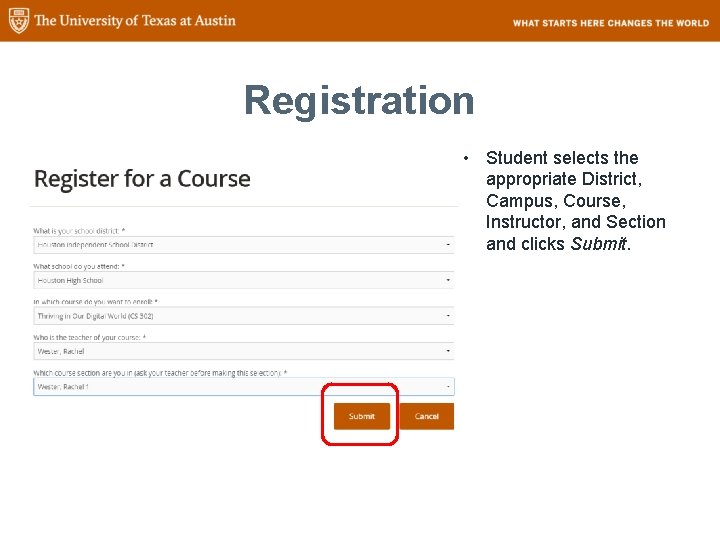
Registration • Student selects the appropriate District, Campus, Course, Instructor, and Section and clicks Submit.
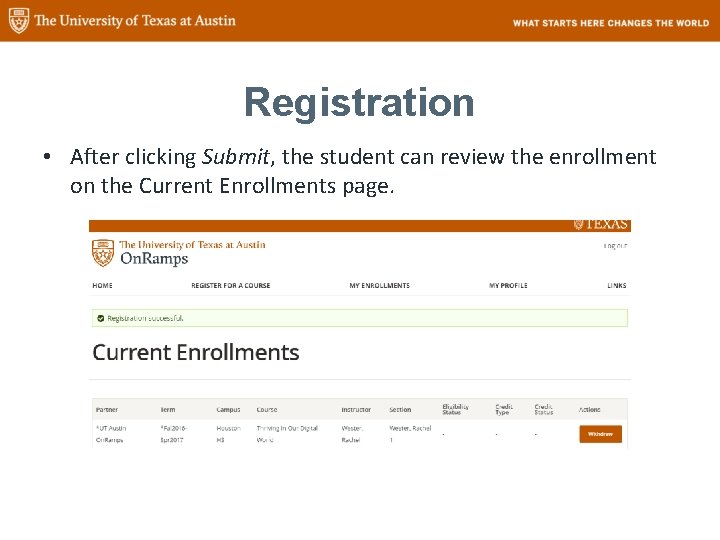
Registration • After clicking Submit, the student can review the enrollment on the Current Enrollments page.
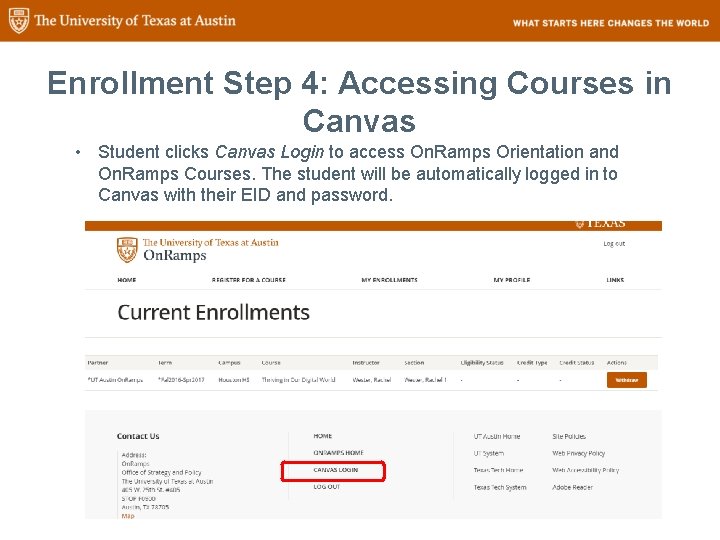
Enrollment Step 4: Accessing Courses in Canvas • Student clicks Canvas Login to access On. Ramps Orientation and On. Ramps Courses. The student will be automatically logged in to Canvas with their EID and password.
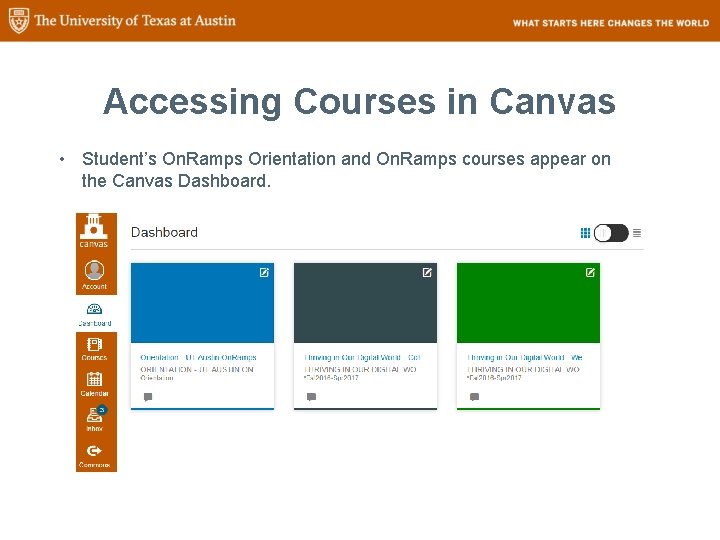
Accessing Courses in Canvas • Student’s On. Ramps Orientation and On. Ramps courses appear on the Canvas Dashboard.
PART 2: On. Ramps Orientation
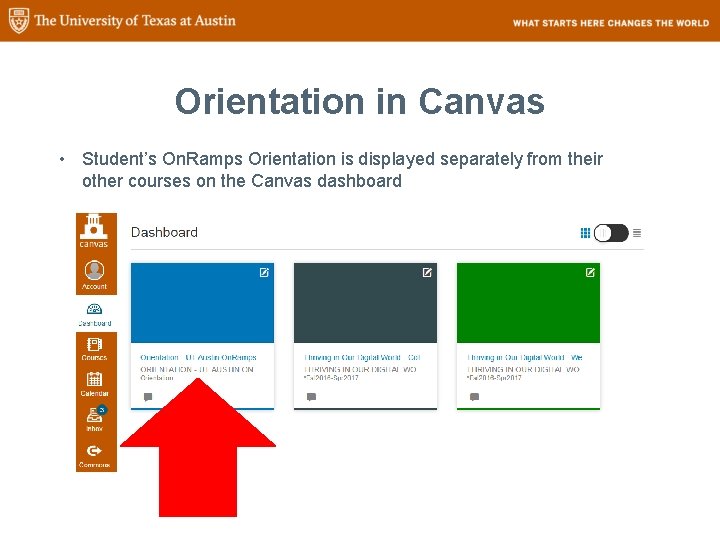
Orientation in Canvas • Student’s On. Ramps Orientation is displayed separately from their other courses on the Canvas dashboard
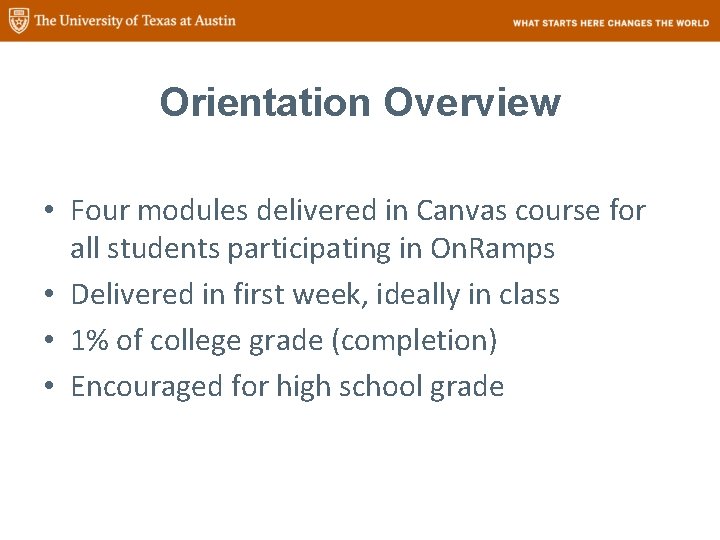
Orientation Overview • Four modules delivered in Canvas course for all students participating in On. Ramps • Delivered in first week, ideally in class • 1% of college grade (completion) • Encouraged for high school grade
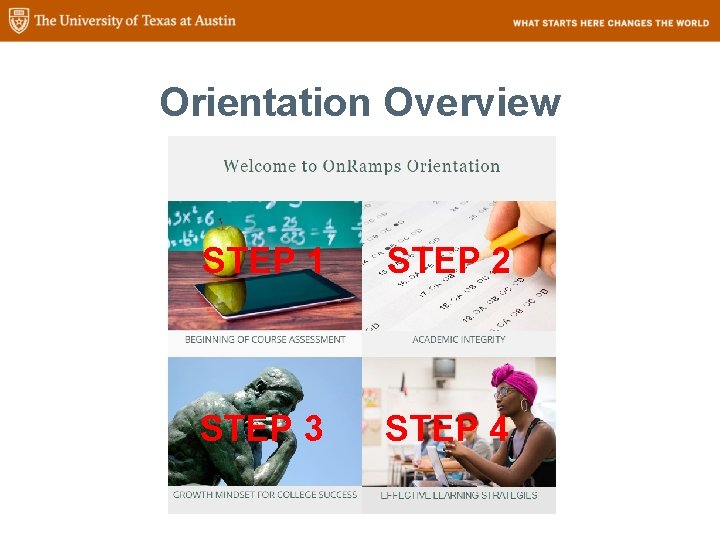
Orientation Overview STEP 1 STEP 2 STEP 3 STEP 4
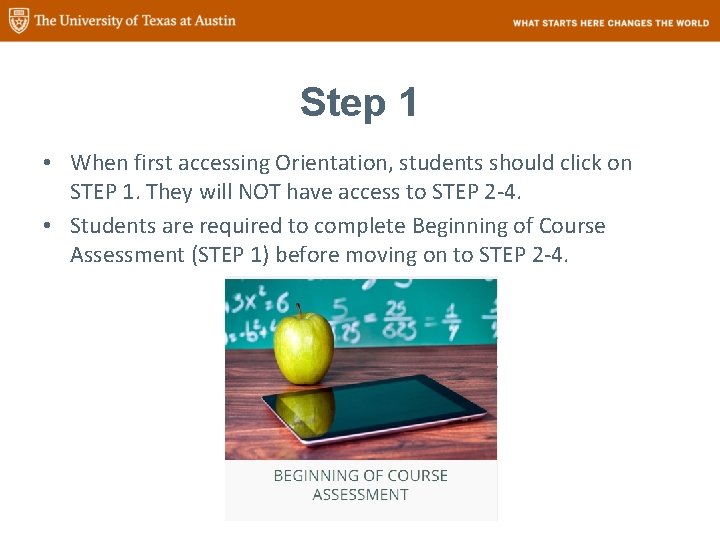
Step 1 • When first accessing Orientation, students should click on STEP 1. They will NOT have access to STEP 2 -4. • Students are required to complete Beginning of Course Assessment (STEP 1) before moving on to STEP 2 -4.
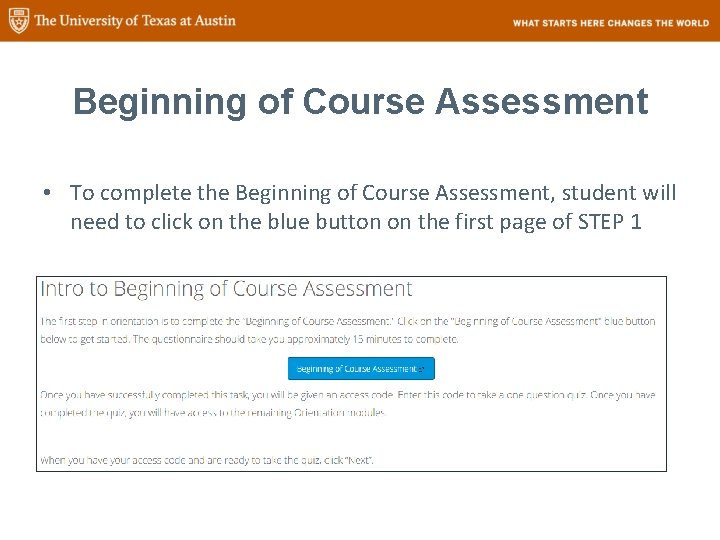
Beginning of Course Assessment • To complete the Beginning of Course Assessment, student will need to click on the blue button on the first page of STEP 1
Beginning of Course Assessment • The Beginning of Course Assessment will open in a new tab in the student’s browser. • At the end of the questionnaire, students will be given an access code. • To access STEP 2 -4, students will need to return to the Intro to Beginning of Course Assessment page (a link will also be provided at the end of the Beginning of Course Assessment) and should click “NEXT. ”
Step 1 Quiz • Students will be prompted to enter their access code the Beginning of Course Assessment Quiz. • The Beginning of Course Assessment Quiz is a one question quiz. • Students will be asked if they completed the Beginning of Course Assessment. • When they answer “yes, ” they will be given access to STEP 2 -4.
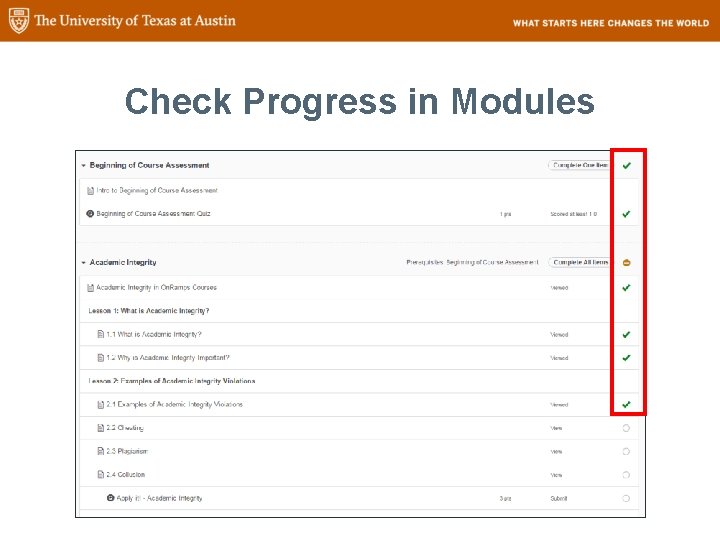
Step 2 -4 • Students will need to complete all quizzes in all steps to receive credit. • To monitor their progress, students can click on “modules” in the navigation bar to see what they have completed. • Green check marks will appear next to completed tasks. (see next slide).
Check Progress in Modules
Additional Information • For additional information on On. Ramps orientation, consult the Instructor’s Guide.
Questions? Contact your Course Coordinator or Emily Wade eewade@austin. utexas. edu 512. 232. 1771