
Registration Guide 5 Simple Steps Step 1 Step










- Slides: 35
Registration Guide - 5 Simple Steps Step 1 Step 2 Step 3 COMPETENT AUTHORITY TO NOMINATE RESPONSIBLE OFFICIALS AS PRIMARY AND SECONDARY USERS VIDE AN INTERNAL OFFICE NOTE. DRAFT FORMAT -https: // img 1. digitallocker. gov. in/gem/resources/pdf/creation-of-parimary-user-and-secondary. pdf PRIMARY USER IS REQUIRED TO FILL UP THE ORGANIZATION AND OTHER DETAILS ON GEM PORTAL https: //gem. gov. in/register/buyer/signup THE PRIMARY USER IS RECOMMENDED TO FAMILIARIZE WITH: Ø GFR rule 149: 2017 Edition Ø Special Terms and Conditions of Ge. M Ø Workflow / Timelines of Ge. M operation Ø Primary User – User Manual PRIMARY USER IS REQUIRED TO OPEN INBOX MAIL FROM HIS/HER OFFICIAL E-MAIL ID AS FILLED IN STEP 2 AND CLICK ON VERIFY EMAIL LINK. Step 4 4 PRIMARY USER IS REQUIRED TO LOGIN WITH USER ID AND PASSWORD https: //gem. gov. in/login CREATED IN STEP 2 (Not Personal name or Personal Email ID) Step 5 5 Step PRIMARY USER IS REQUIRED TO FILL UP OTHER ORGANIZATION DETAILS AND DETAILS OF VERIFYING OFFICER AND CREATE SECONDARY USERS AS NOMINATED i. e. BUYER, CONSIGNEE, DDO, AND PAO AS THE CASE MAY BE. The Organization is now functionally REGISTERED with Note: Verifying Officer has no role to play in Registration process except Disable Primary User, only if required.
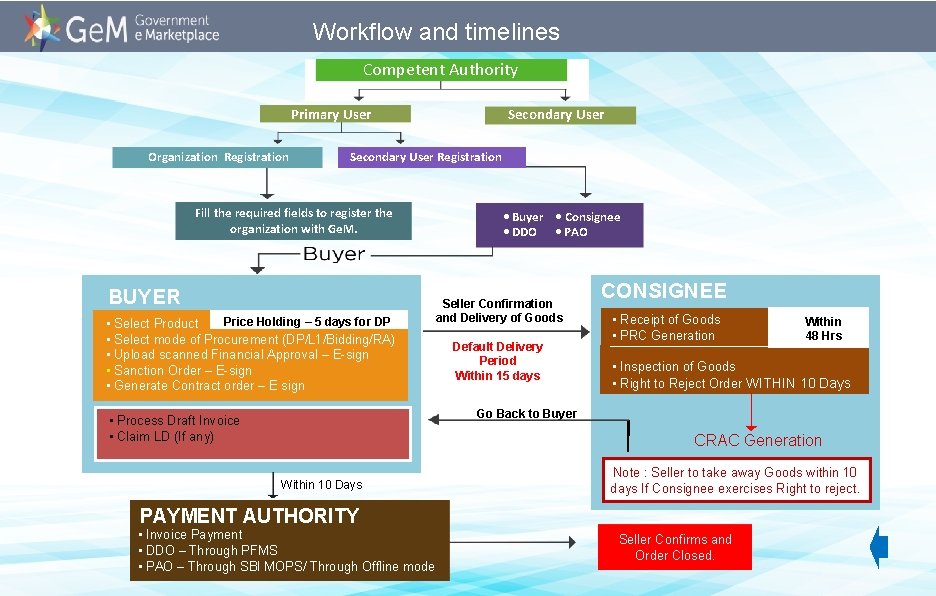
Workflow and timelines Competent Authority Secondary User Primary User Organization Registration Secondary User Registration Fill the required fields to register the organization with Ge. M. BUYER Price Holding – 5 days for DP • Select Product • Select mode of Procurement (DP/L 1/Bidding/RA) • Upload scanned Financial Approval – E-sign • Sanction Order – E-sign • Generate Contract order – E sign • Buyer • Consignee • DDO • PAO Seller Confirmation and Delivery of Goods Default Delivery Period Within 15 days CONSIGNEE • Receipt of Goods • PRC Generation Within 48 Hrs • Inspection of Goods • Right to Reject Order WITHIN 10 Days Go Back to Buyer • Process Draft Invoice • Claim LD (If any) CRAC Generation Within 10 Days Note : Seller to take away Goods within 10 days If Consignee exercises Right to reject. PAYMENT AUTHORITY • Invoice Payment • DDO – Through PFMS • PAO – Through SBI MOPS/ Through Offline mode Seller Confirms and Order Closed.
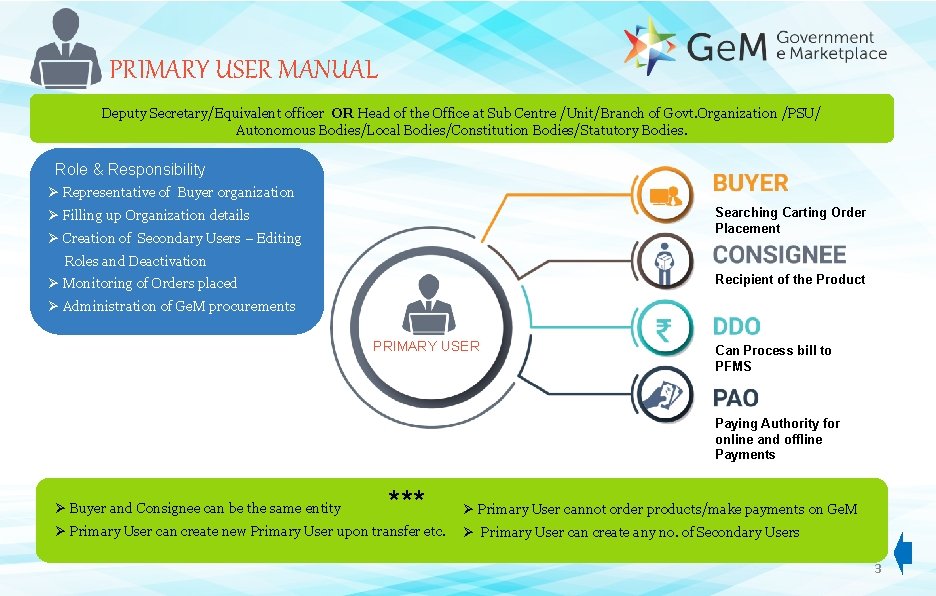
PRIMARY USER MANUAL Deputy Secretary/Equivalent officer OR Head of the Office at Sub Centre /Unit/Branch of Govt. Organization /PSU/ Autonomous Bodies/Local Bodies/Constitution Bodies/Statutory Bodies. Role & Responsibility Ø Representative of Buyer organization Searching Carting Order Placement Ø Filling up Organization details Ø Creation of Secondary Users – Editing Roles and Deactivation Recipient of the Product Ø Monitoring of Orders placed Ø Administration of Ge. M procurements PRIMARY USER Can Process bill to PFMS Paying Authority for online and offline Payments Ø Buyer and Consignee can be the same entity *** Ø Primary User can create new Primary User upon transfer etc. Ø Primary User cannot order products/make payments on Ge. M Ø Primary User can create any no. of Secondary Users 3
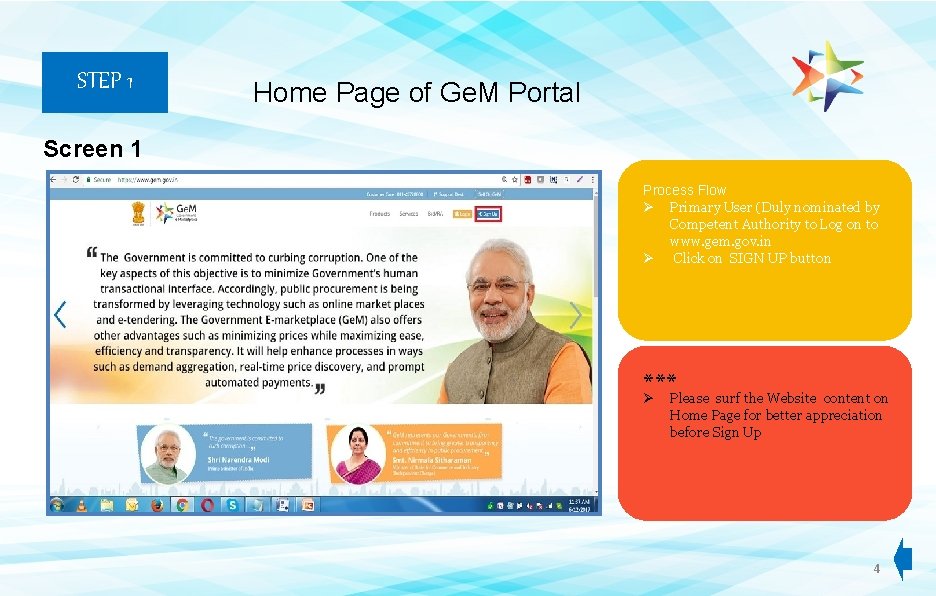
STEP 1 Home Page of Ge. M Portal Screen 1 Process Flow Ø Primary User (Duly nominated by Competent Authority to Log on to www. gem. gov. in Ø Click on SIGN UP button *** Ø Please surf the Website content on Home Page for better appreciation before Sign Up 4
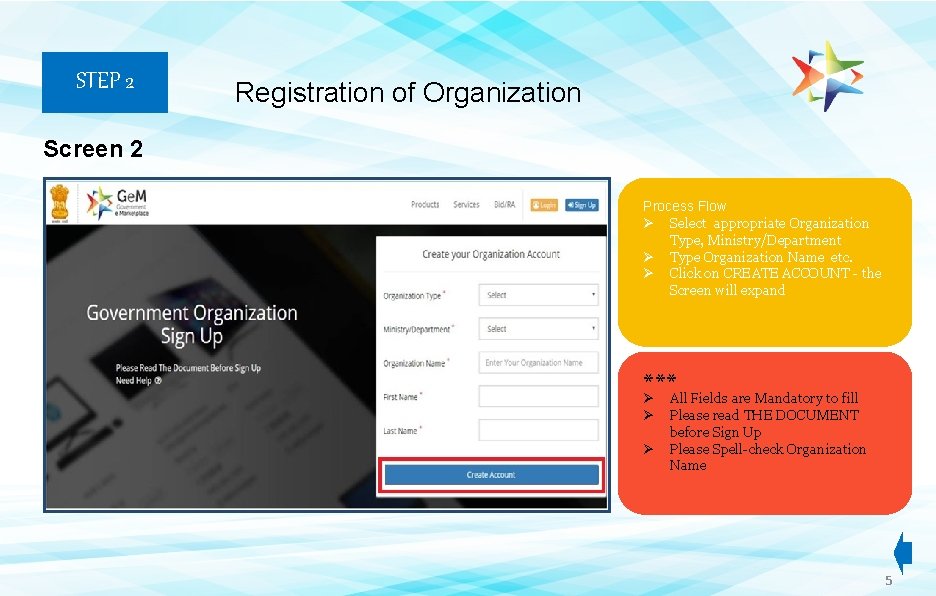
STEP 2 Registration of Organization Screen 2 Process Flow Ø Select appropriate Organization Type, Ministry/Department Ø Type Organization Name etc. Ø Click on CREATE ACCOUNT - the Screen will expand *** Ø Ø Ø All Fields are Mandatory to fill Please read THE DOCUMENT before Sign Up Please Spell-check Organization Name 5
STEP 2. 1 Registration of Organization Screen 2. 1 Process Flow Ø Create User ID , Password Ø Provide E-Mail ID Ø Provide Mobile No. Ø E-sign by entering OTP received Ø *** User ID created to be official in nature for subsequent use Ø Password should be of minimum eight characters with one upper case, one special character & one numeric character Ø E-mail ID created should be official - . gov or. nic preferably Ø For other official ID take approval by mailing to DGS&D. Ø Mobile Number provided should be Aadhar linked 6
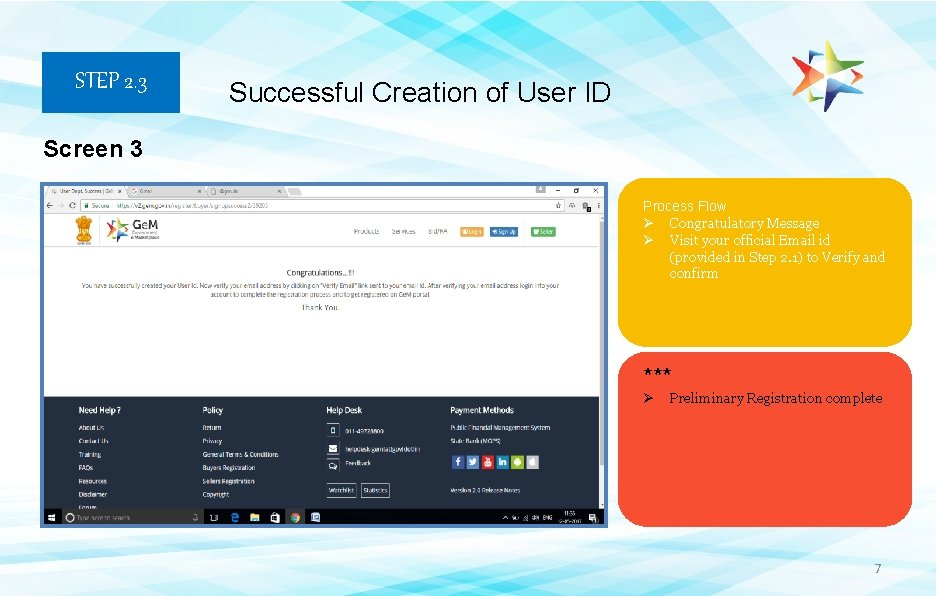
STEP 2. 3 Successful Creation of User ID Screen 3 Process Flow Ø Congratulatory Message Ø Visit your official Email id (provided in Step 2. 1) to Verify and confirm *** Ø Preliminary Registration complete 7
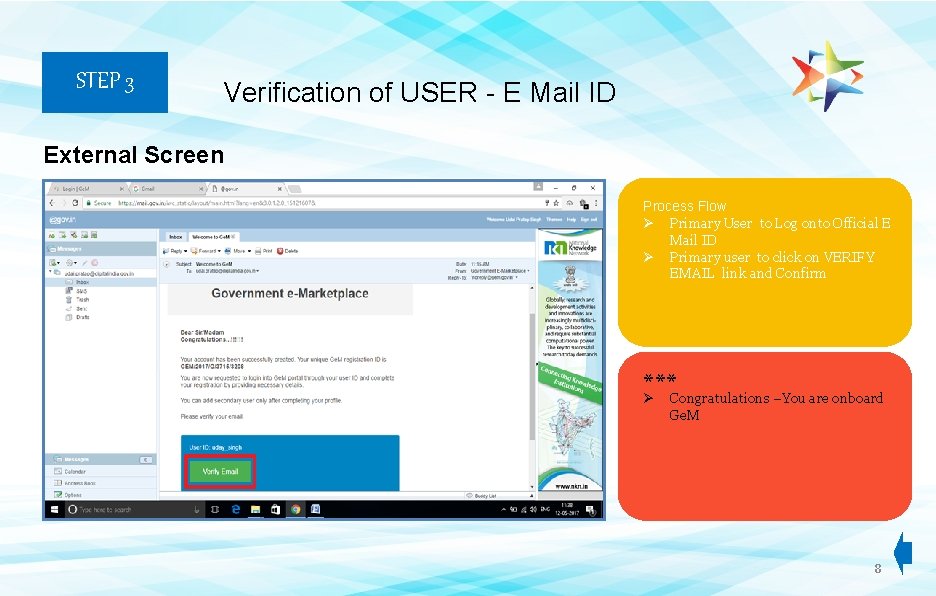
STEP 3 Verification of USER - E Mail ID External Screen Process Flow Ø Primary User to Log onto Official E Mail ID Ø Primary user to click on VERIFY EMAIL link and Confirm *** Ø Congratulations –You are onboard Ge. M 8
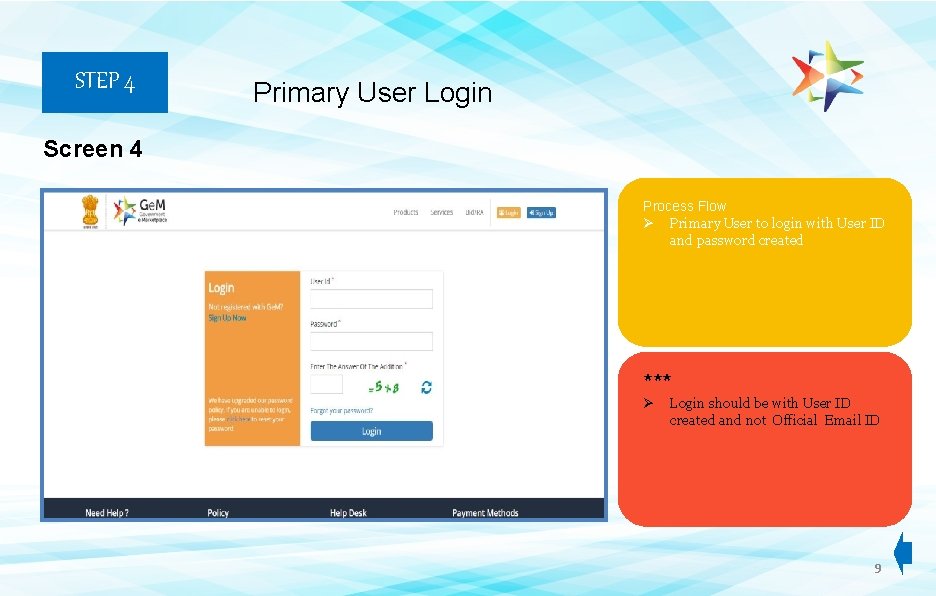
STEP 4 Primary User Login Screen 4 Process Flow Ø Primary User to login with User ID and password created *** Ø Login should be with User ID created and not Official Email ID 9
STEP 5 Filling up Organizational Details Screen 5 Process Flow Ø Default Screen Ø Primary User to diligently fill up all Organization Details Ø Must Fill all mandatory fields Ø Click on SAVE button to confirm *** Ø Ø Ø One time effort Creation of Database Click on SAVE button in order that process once completed is not duplicated. 10
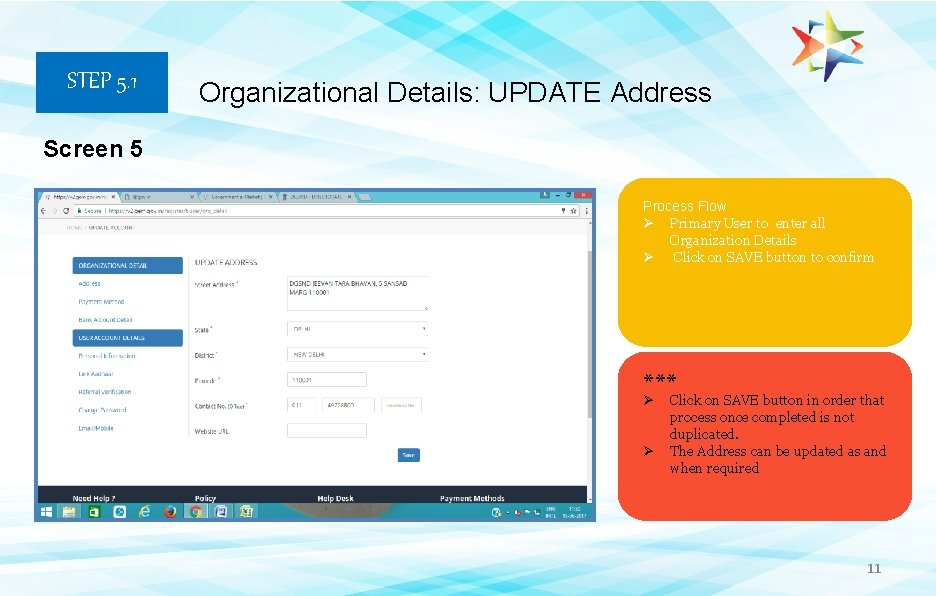
STEP 5. 1 Organizational Details: UPDATE Address Screen 5 Process Flow Ø Primary User to enter all Organization Details Ø Click on SAVE button to confirm *** Ø Ø Click on SAVE button in order that process once completed is not duplicated. The Address can be updated as and when required 11
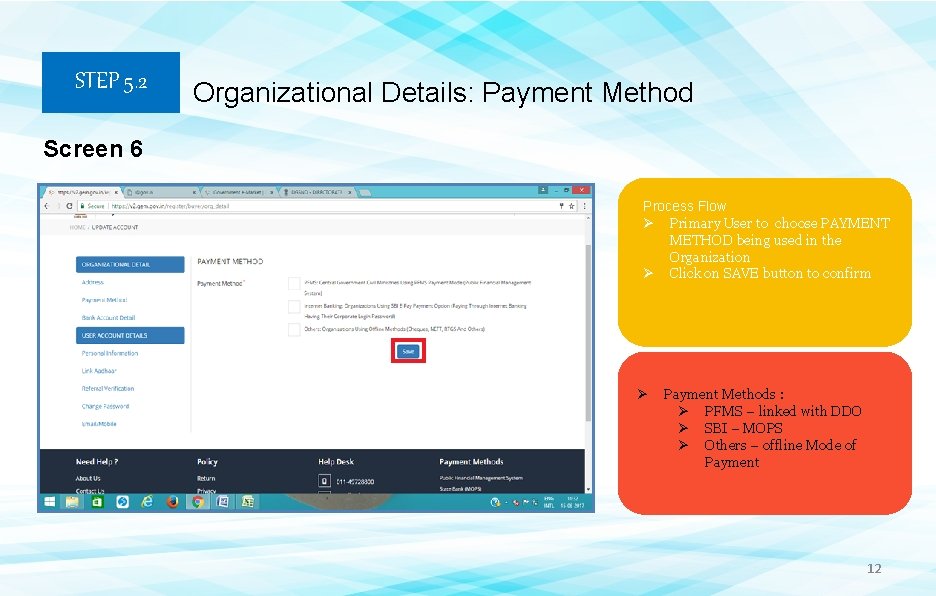
STEP 5. 2 Organizational Details: Payment Method Screen 6 Process Flow Ø Primary User to choose PAYMENT METHOD being used in the Organization Ø Click on SAVE button to confirm Ø Payment Methods : Ø PFMS – linked with DDO Ø SBI – MOPS Ø Others – offline Mode of Payment 12
STEP 5. 2. 1 Organizational Details: Payment Method Screen 6 Process Flow Ø In this case – Primary user department is using PFMS method of payment Ø Click on SAVE button to confirm *** Ø On clicking SAVE a new Screen will appear 13
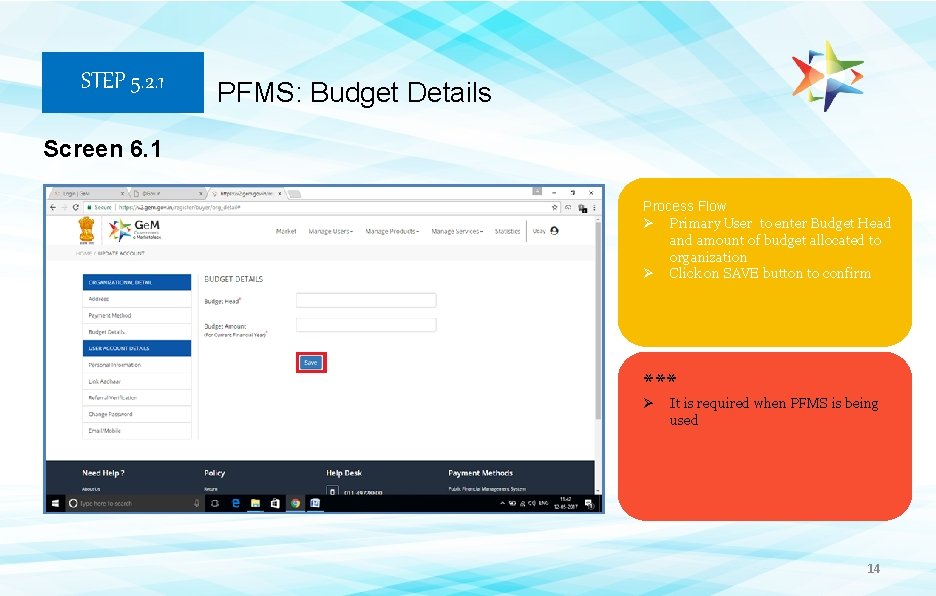
STEP 5. 2. 1 PFMS: Budget Details Screen 6. 1 Process Flow Ø Primary User to enter Budget Head and amount of budget allocated to organization Ø Click on SAVE button to confirm *** Ø It is required when PFMS is being used 14
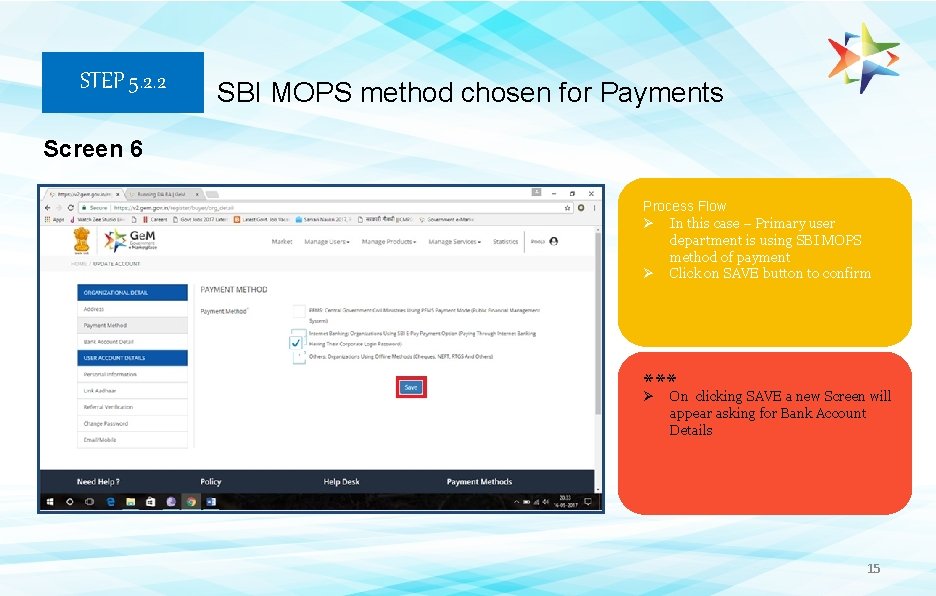
STEP 5. 2. 2 SBI MOPS method chosen for Payments Screen 6 Process Flow Ø In this case – Primary user department is using SBI MOPS method of payment Ø Click on SAVE button to confirm *** Ø On clicking SAVE a new Screen will appear asking for Bank Account Details 15
STEP 5. 2. 3 Other Mode chosen for Payment Screen 6 Process Flow Ø In this case – Primary user department is using OTHER mode of payment Ø Click on SAVE button to confirm *** Ø On clicking SAVE a new Screen will appear asking for Bank Account Details 16
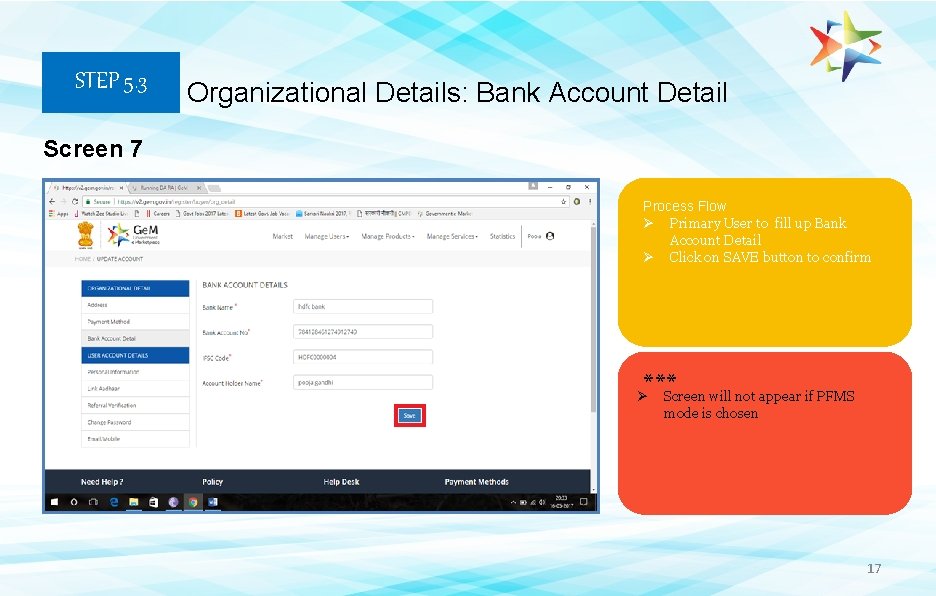
STEP 5. 3 Organizational Details: Bank Account Detail Screen 7 Process Flow Ø Primary User to fill up Bank Account Detail Ø Click on SAVE button to confirm *** Screen will not appear if PFMS Ø mode is chosen 17
STEP 5. 4 USER Account Details: Personal Information Screen 8 Process Flow Ø Primary User to fill up Personal Information Ø Click on SAVE button to confirm *** Populates Automatically Ø Ø Best utilized when change is to be incorporated 18
STEP 5. 5 USER Account Details: Link Aadhar Screen 9 Process Flow Ø Primary User to provide Aadhar Number Ø Enter OTP generated on Aadhar linked Mobile No. Ø Click on SAVE button to confirm *** Ø This process is required to enter and confirm the Aadhar No. 19
STEP 5. 6 USER Account Details: Referral Verification Screen 10 Process Flow Ø Primary User to provide particulars of Verification Authority as approved by Competent Authority *** Ø Ø Verification authority can be Under Secretary or Equivalent Verifying Officer has no role to play in Registration process except Disable Primary User, only if required 20
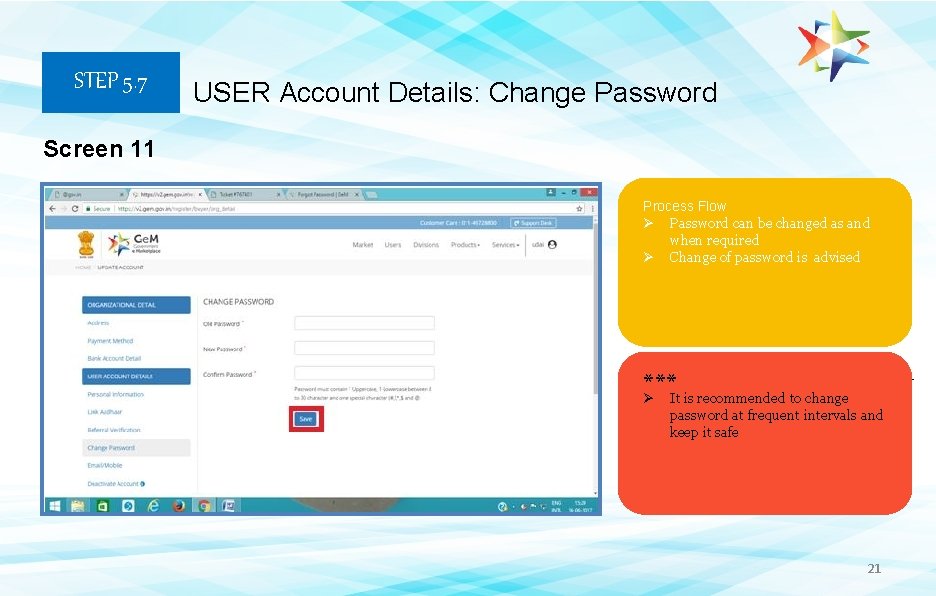
STEP 5. 7 USER Account Details: Change Password Screen 11 Process Flow Ø Password can be changed as and when required Ø Change of password is advised *** 1. Primary user must have a phone number Ø Linked It is recommended to change with Aadhar Card password at frequent intervals and keep it safe 21
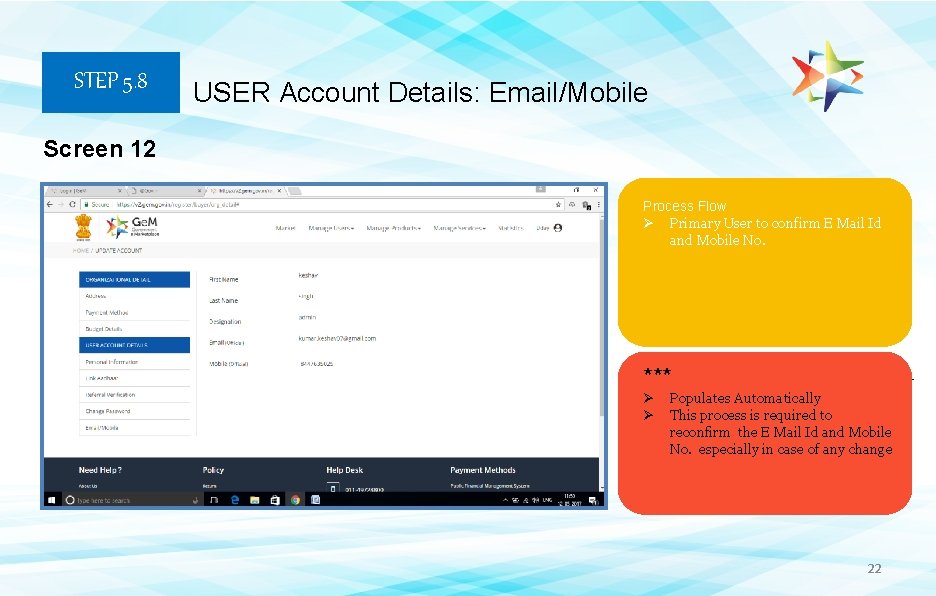
STEP 5. 8 USER Account Details: Email/Mobile Screen 12 Process Flow Ø Primary User to confirm E Mail Id and Mobile No. *** 1. Primary user must have a phone number Ø Linked Populates Automatically with Aadhar Card Ø This process is required to reconfirm the E Mail Id and Mobile No. especially in case of any change 22
STEP 5. 9 Creation of Secondary Users Screen 12 Process Flow Ø Primary User to create Secondary Users for Operation of Ge. M procurements Ø Primary User to click on USERS Ø Click on Add User and a new screen will appear *** Ø Secondary Users – Buyer, Consignee, DDO/PAO to be created with Divisions 23
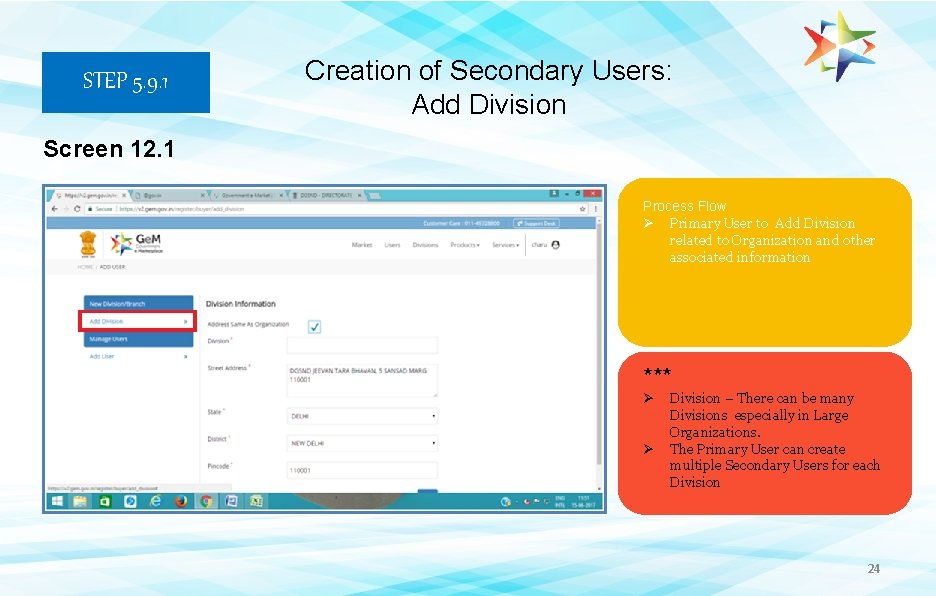
STEP 5. 9. 1 Creation of Secondary Users: Add Division Screen 12. 1 Process Flow Ø Primary User to Add Division related to Organization and other associated information *** Ø Ø Division – There can be many Divisions especially in Large Organizations. The Primary User can create multiple Secondary Users for each Division 24
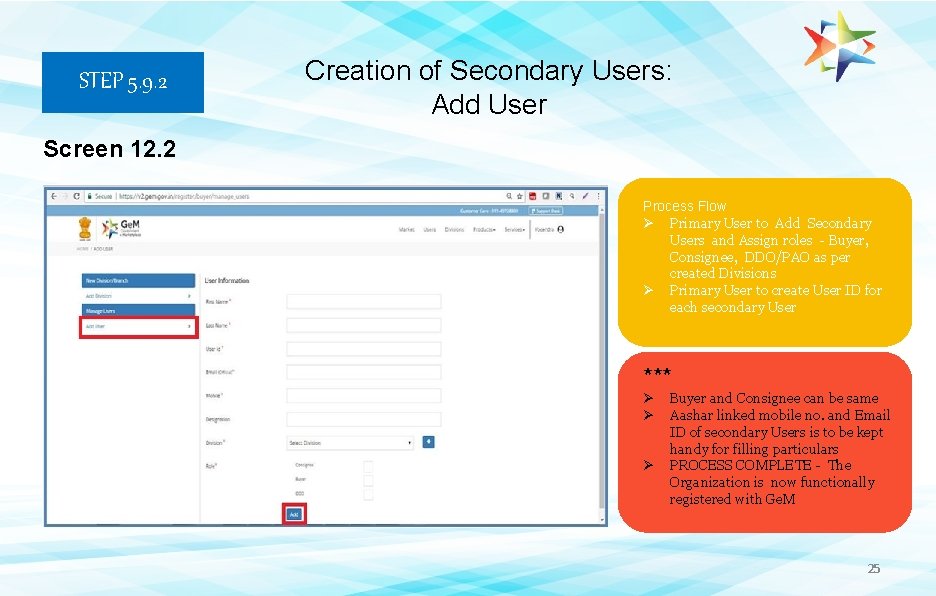
STEP 5. 9. 2 Creation of Secondary Users: Add User Screen 12. 2 Process Flow Ø Primary User to Add Secondary Users and Assign roles - Buyer, Consignee, DDO/PAO as per created Divisions Ø Primary User to create User ID for each secondary User *** Ø Ø Ø Buyer and Consignee can be same Aashar linked mobile no. and Email ID of secondary Users is to be kept handy for filling particulars PROCESS COMPLETE - The Organization is now functionally registered with Ge. M 25
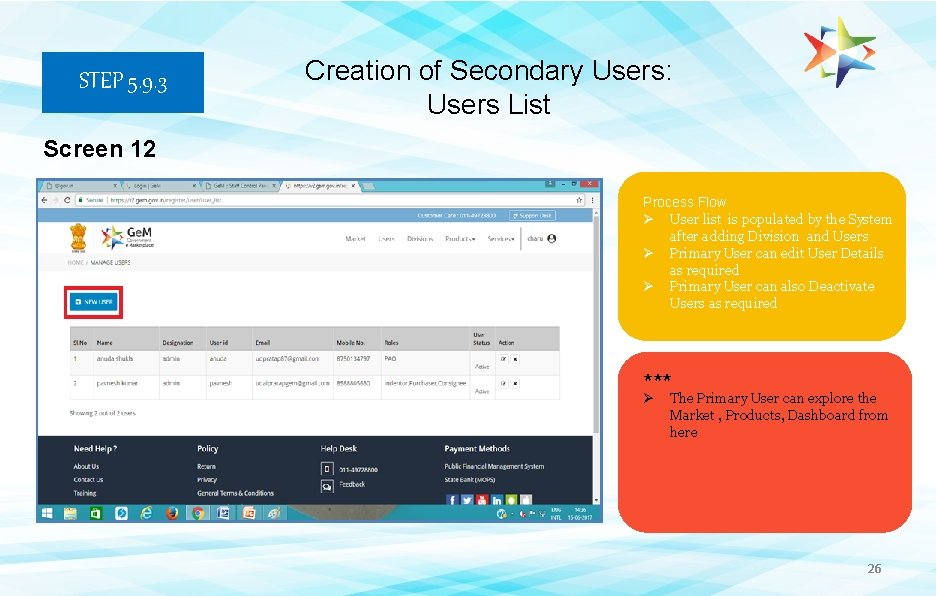
STEP 5. 9. 3 Creation of Secondary Users: Users List Screen 12 Process Flow Ø User list is populated by the System after adding Division and Users Ø Primary User can edit User Details as required Ø Primary User can also Deactivate Users as required *** Ø The Primary User can explore the Market , Products, Dashboard from here 26
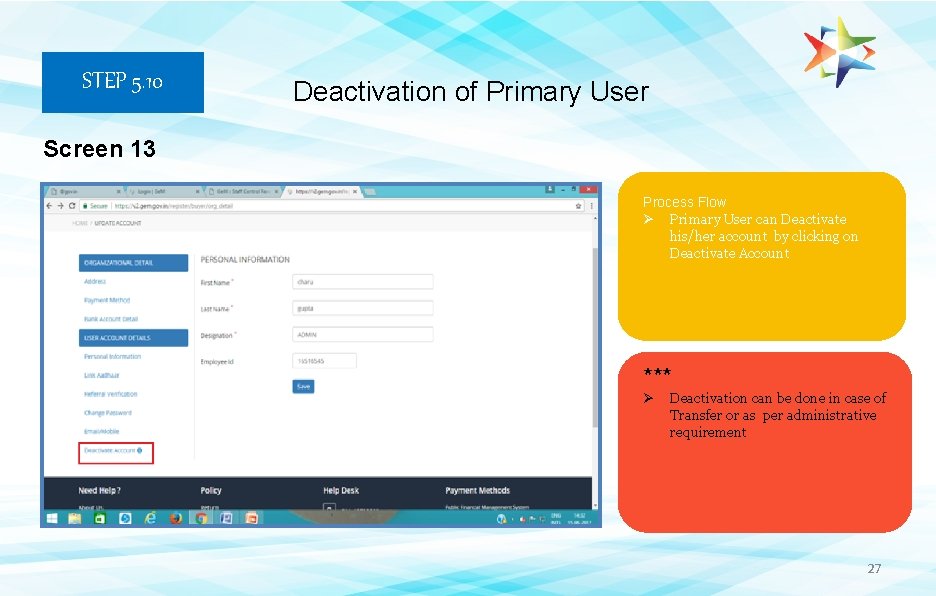
STEP 5. 10 Deactivation of Primary User Screen 13 Process Flow Ø Primary User can Deactivate his/her account by clicking on Deactivate Account *** Ø Deactivation can be done in case of Transfer or as per administrative requirement 27
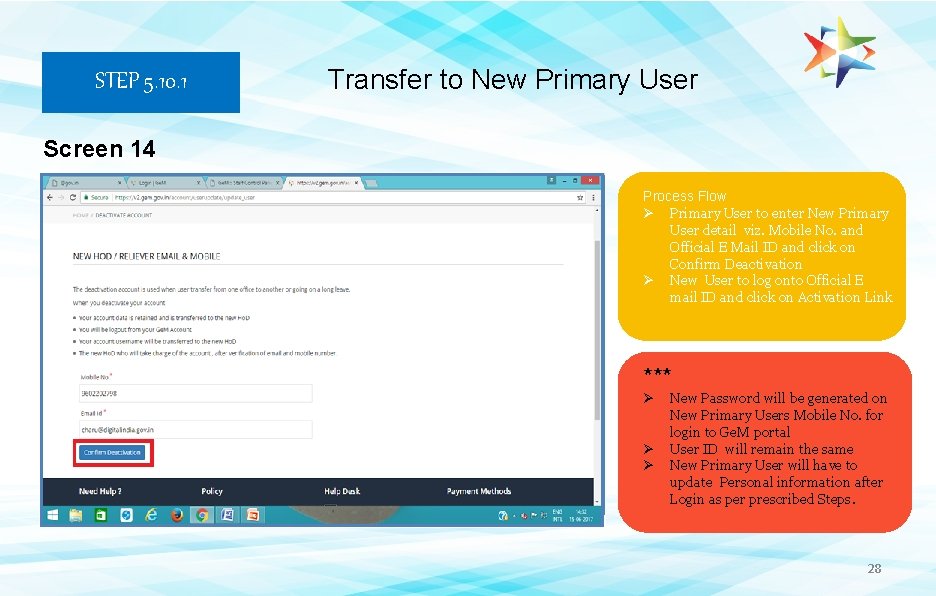
STEP 5. 10. 1 Transfer to New Primary User Screen 14 Process Flow Ø Primary User to enter New Primary User detail viz. Mobile No. and Official E Mail ID and click on Confirm Deactivation Ø New User to log onto Official E mail ID and click on Activation Link *** Ø Ø Ø New Password will be generated on New Primary Users Mobile No. for login to Ge. M portal User ID will remain the same New Primary User will have to update Personal information after Login as per prescribed Steps. 28
Welcome Onboard *** The Buyer and other Secondary Users can now Login with User Id created by Primary User and make Hassle Free Procurements on Ge. M 29
SPECIAL TERMS & CONDITIONS FOR GEM PROCUREMENT: E-signature All Inclusive Price Guarantee/Warranty Performance Security and Performance Consignee’s Right to Rejection (Return Policy): The offer(s) and resultant Contract(s) and all Supporting Documents are required to be esigned on-line by the respective User/Functionary of the Seller and Buyer. The E-sign is at par with digital signatures as per Information Technology Act Amendment 2008. No INK Signed copies of these Documents are required for processing/legality as per OM. . . Prices shall be quoted by Sellers on all inclusive basis i. e. including excise duty taking into account the MODVAT benefits if any, sales tax (ST/CST/VAT/), Service Tax, Customs duty, Entry Tax etc. Statutory variation, if any, shall be to the Seller’s account and no variation in contract price, on account of such variations shall be allowed during the delivery period. All Products supplied under the Contract(s) shall have Guarantee/Warrantee for ONE year period from the date of receipt. Seller at the time of listing /offering their products may choose to provide longer guarantee period (i. e. more than 1 year) There shall be no Performance security/PBG requirement for contracts placed under Direct Purchase Option on Ge. M as of now. However, for procurement through reverse Auction/e-bidding, Security Deposit/Performance Bank Guarantee (PBG) @2% of contract value, shall be applicable in respect of contracts valuing above Rs. 25 Lakh. The Goods delivered shall bear the self certified Warranty/Guaranty. Buyer shall have the right to reject on proper Justification any consignment of the Goods received within a period of 10 days of receipt. No payment shall be made for rejected goods and the Seller would be liable to take back such rejected Goods within 10 days without any charge.
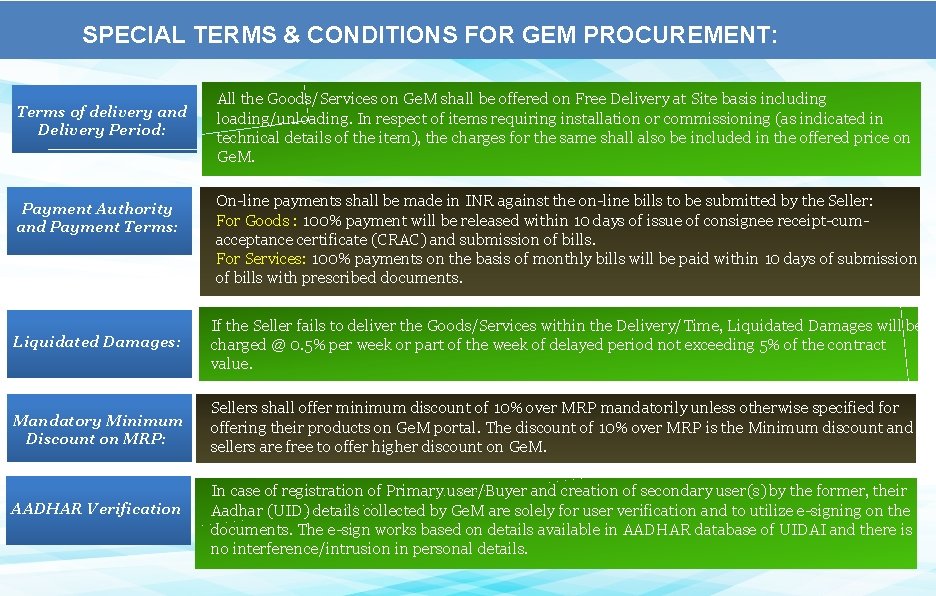
SPECIAL TERMS & CONDITIONS FOR GEM PROCUREMENT: Terms of delivery and Delivery Period: Payment Authority and Payment Terms: All the Goods/Services on Ge. M shall be offered on Free Delivery at Site basis including loading/unloading. In respect of items requiring installation or commissioning (as indicated in technical details of the item), the charges for the same shall also be included in the offered price on Ge. M. On-line payments shall be made in INR against the on-line bills to be submitted by the Seller: For Goods : 100% payment will be released within 10 days of issue of consignee receipt-cumacceptance certificate (CRAC) and submission of bills. For Services: 100% payments on the basis of monthly bills will be paid within 10 days of submission of bills with prescribed documents. Liquidated Damages: If the Seller fails to deliver the Goods/Services within the Delivery/Time, Liquidated Damages will be charged @ 0. 5% per week or part of the week of delayed period not exceeding 5% of the contract value. Mandatory Minimum Discount on MRP: Sellers shall offer minimum discount of 10% over MRP mandatorily unless otherwise specified for offering their products on Ge. M portal. The discount of 10% over MRP is the Minimum discount and sellers are free to offer higher discount on Ge. M. AADHAR Verification In case of registration of Primary user/Buyer and creation of secondary user(s) by the former, their Aadhar (UID) details collected by Ge. M are solely for user verification and to utilize e-signing on the documents. The e-sign works based on details available in AADHAR database of UIDAI and there is no interference/intrusion in personal details.
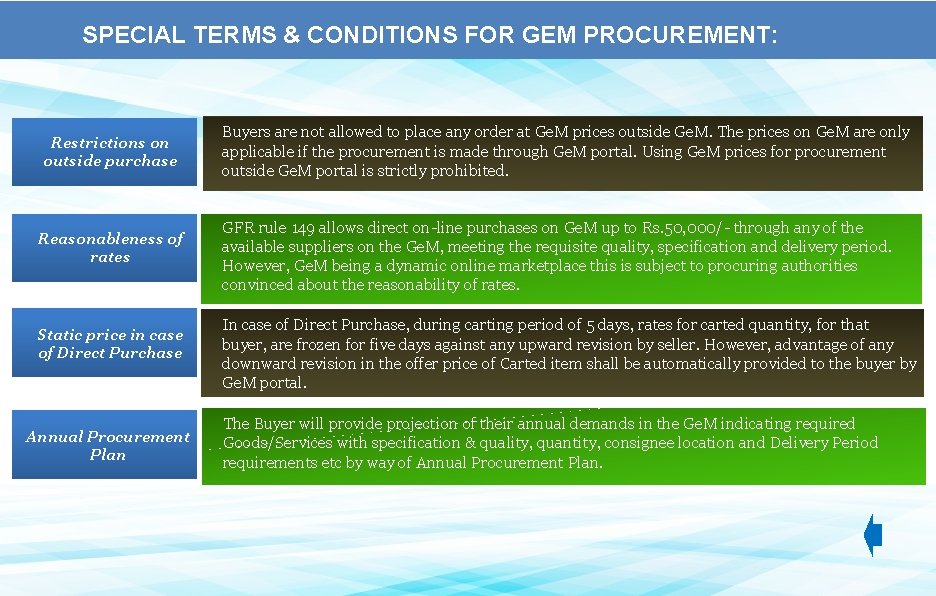
SPECIAL TERMS & CONDITIONS FOR GEM PROCUREMENT: Restrictions on outside purchase Reasonableness of rates Static price in case of Direct Purchase Annual Procurement Plan Buyers are not allowed to place any order at Ge. M prices outside Ge. M. The prices on Ge. M are only applicable if the procurement is made through Ge. M portal. Using Ge. M prices for procurement outside Ge. M portal is strictly prohibited. GFR rule 149 allows direct on-line purchases on Ge. M up to Rs. 50, 000/- through any of the available suppliers on the Ge. M, meeting the requisite quality, specification and delivery period. However, Ge. M being a dynamic online marketplace this is subject to procuring authorities convinced about the reasonability of rates. In case of Direct Purchase, during carting period of 5 days, rates for carted quantity, for that buyer, are frozen for five days against any upward revision by seller. However, advantage of any downward revision in the offer price of Carted item shall be automatically provided to the buyer by Ge. M portal. The Buyer will provide projection of their annual demands in the Ge. M indicating required Goods/Services with specification & quality, quantity, consignee location and Delivery Period requirements etc by way of Annual Procurement Plan.
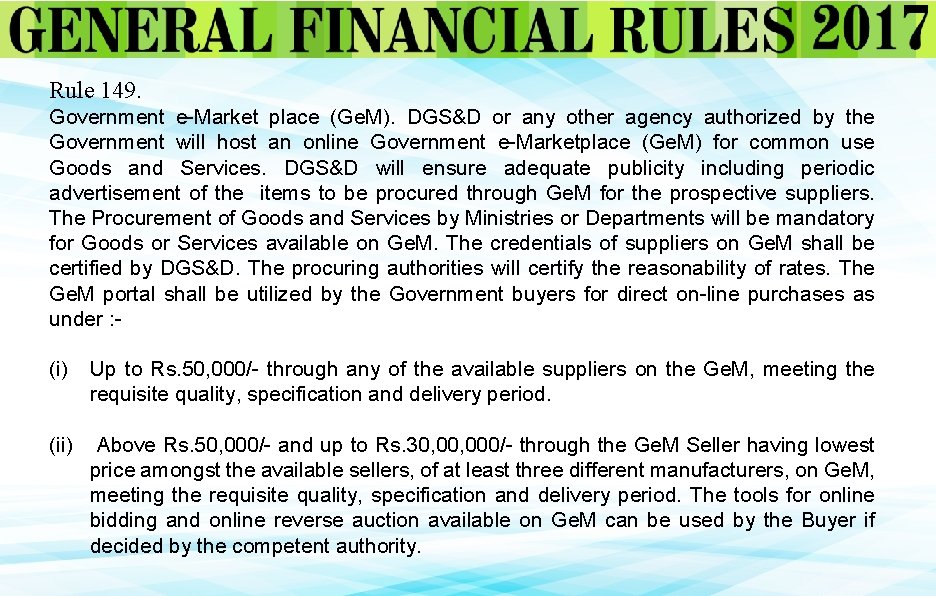
Rule 149. Government e-Market place (Ge. M). DGS&D or any other agency authorized by the Government will host an online Government e-Marketplace (Ge. M) for common use Goods and Services. DGS&D will ensure adequate publicity including periodic advertisement of the items to be procured through Ge. M for the prospective suppliers. The Procurement of Goods and Services by Ministries or Departments will be mandatory for Goods or Services available on Ge. M. The credentials of suppliers on Ge. M shall be certified by DGS&D. The procuring authorities will certify the reasonability of rates. The Ge. M portal shall be utilized by the Government buyers for direct on-line purchases as under : - (i) Up to Rs. 50, 000/- through any of the available suppliers on the Ge. M, meeting the requisite quality, specification and delivery period. (ii) Above Rs. 50, 000/- and up to Rs. 30, 000/- through the Ge. M Seller having lowest price amongst the available sellers, of at least three different manufacturers, on Ge. M, meeting the requisite quality, specification and delivery period. The tools for online bidding and online reverse auction available on Ge. M can be used by the Buyer if decided by the competent authority.
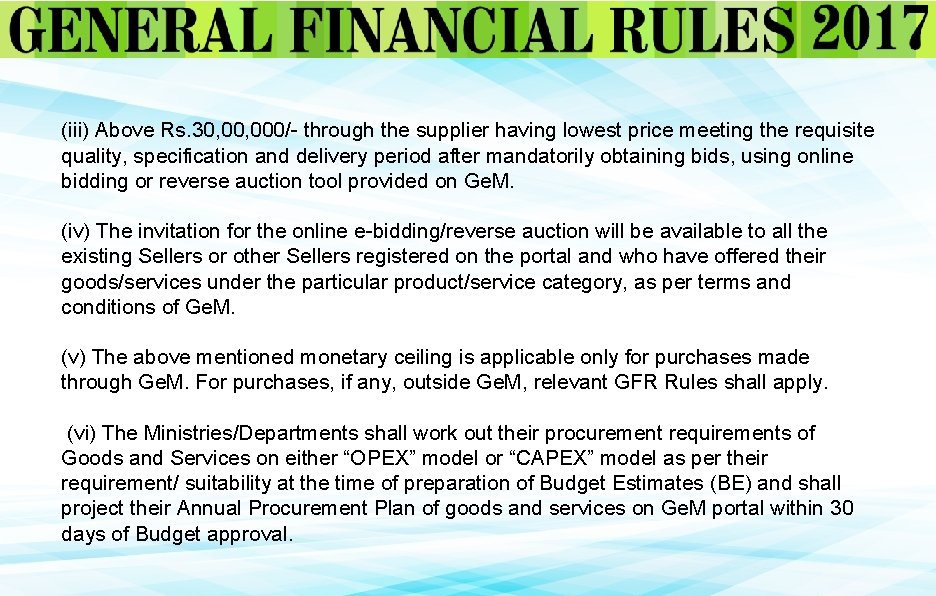
(iii) Above Rs. 30, 000/- through the supplier having lowest price meeting the requisite quality, specification and delivery period after mandatorily obtaining bids, using online bidding or reverse auction tool provided on Ge. M. (iv) The invitation for the online e-bidding/reverse auction will be available to all the existing Sellers or other Sellers registered on the portal and who have offered their goods/services under the particular product/service category, as per terms and conditions of Ge. M. (v) The above mentioned monetary ceiling is applicable only for purchases made through Ge. M. For purchases, if any, outside Ge. M, relevant GFR Rules shall apply. (vi) The Ministries/Departments shall work out their procurement requirements of Goods and Services on either “OPEX” model or “CAPEX” model as per their requirement/ suitability at the time of preparation of Budget Estimates (BE) and shall project their Annual Procurement Plan of goods and services on Ge. M portal within 30 days of Budget approval.
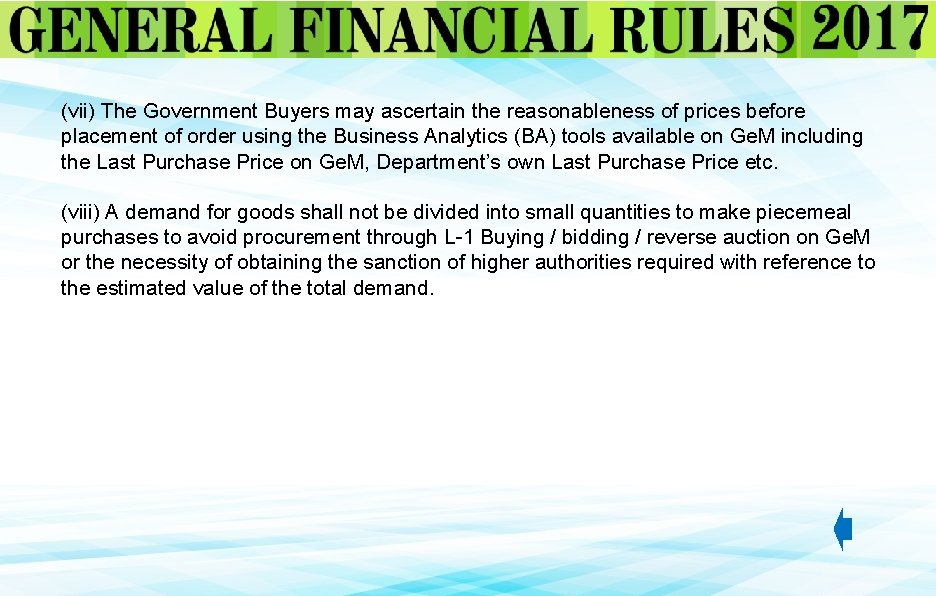
(vii) The Government Buyers may ascertain the reasonableness of prices before placement of order using the Business Analytics (BA) tools available on Ge. M including the Last Purchase Price on Ge. M, Department’s own Last Purchase Price etc. (viii) A demand for goods shall not be divided into small quantities to make piecemeal purchases to avoid procurement through L-1 Buying / bidding / reverse auction on Ge. M or the necessity of obtaining the sanction of higher authorities required with reference to the estimated value of the total demand.