
Ref Works Ref Works collects your citations into

- Slides: 47
Ref. Works
Ref. Works Øcollects your citations into one electronic location
Ref. Works Øallows full text of article to be attached to its citation
Ref. Works Øprovides “folders” for each research paper
Ref. Works Øcreates in-text citing Øformats Works Cited page
Ref. Works Best of all, Ref. Works can store your own research paper Once saved, it’s in the cloud Ø No more worries about losing your jump drive Ø No more worries about having your laptop stolen
Ref. Works Best Practice: use Mozilla Firefox in both: Ø Databases Ø Ref. Works
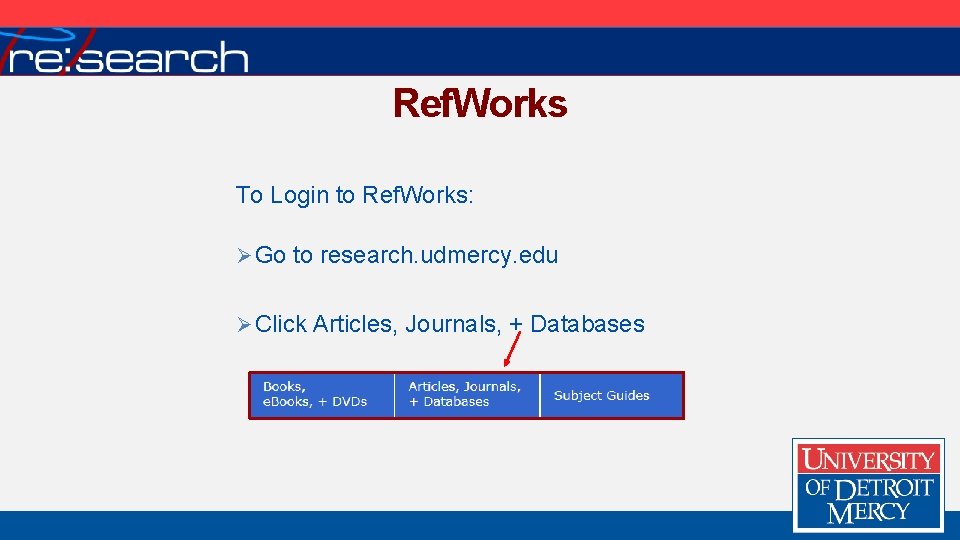
Ref. Works To Login to Ref. Works: Ø Go to research. udmercy. edu Ø Click Articles, Journals, + Databases
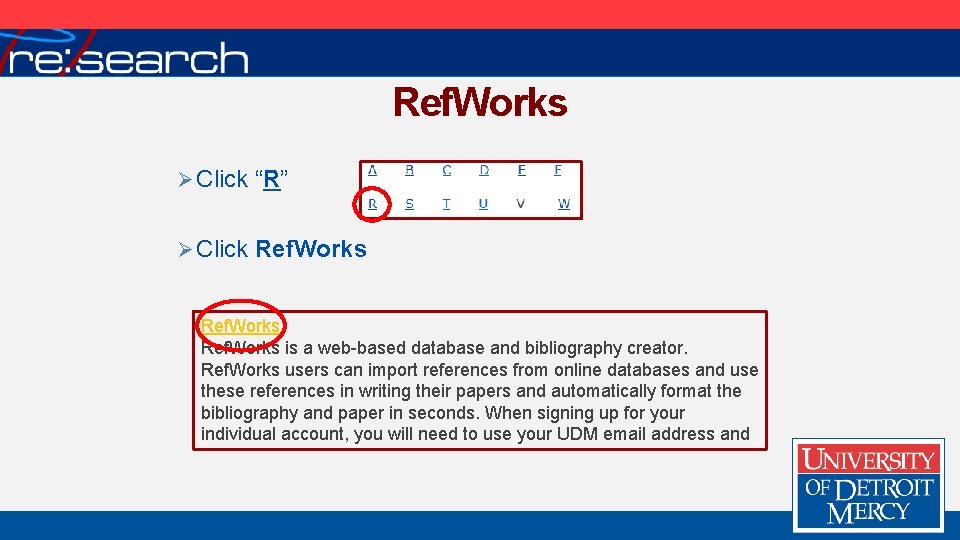
Ref. Works Ø Click “R” Ø Click Ref. Works is a web-based database and bibliography creator. Ref. Works users can import references from online databases and use these references in writing their papers and automatically format the bibliography and paper in seconds. When signing up for your individual account, you will need to use your UDM email address and
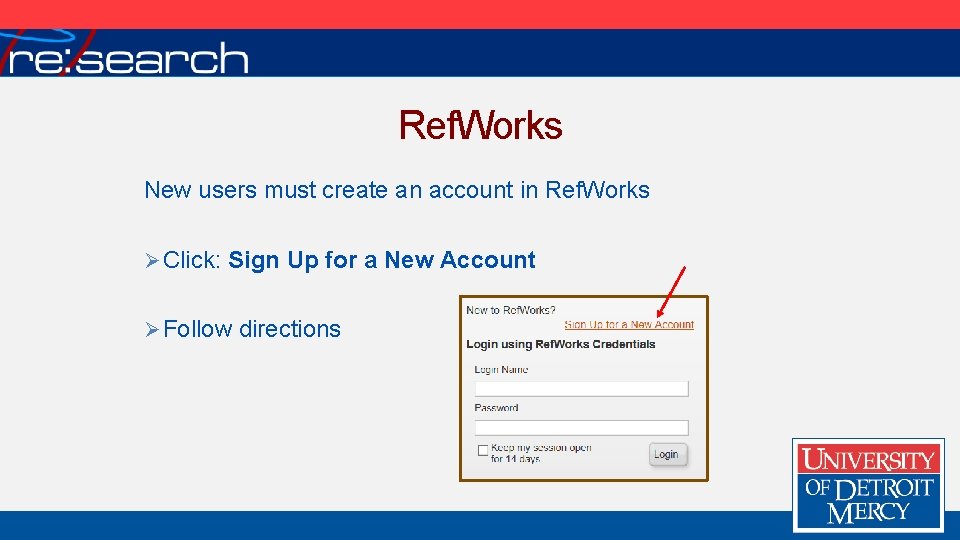
Ref. Works New users must create an account in Ref. Works Ø Click: Sign Up for a New Account Ø Follow directions
Ref. Works For remote access to Ref. Works: Ø Use the University’s Group. Code to complete login: RWUDetroit. Mer Ø It’s case sensitive!
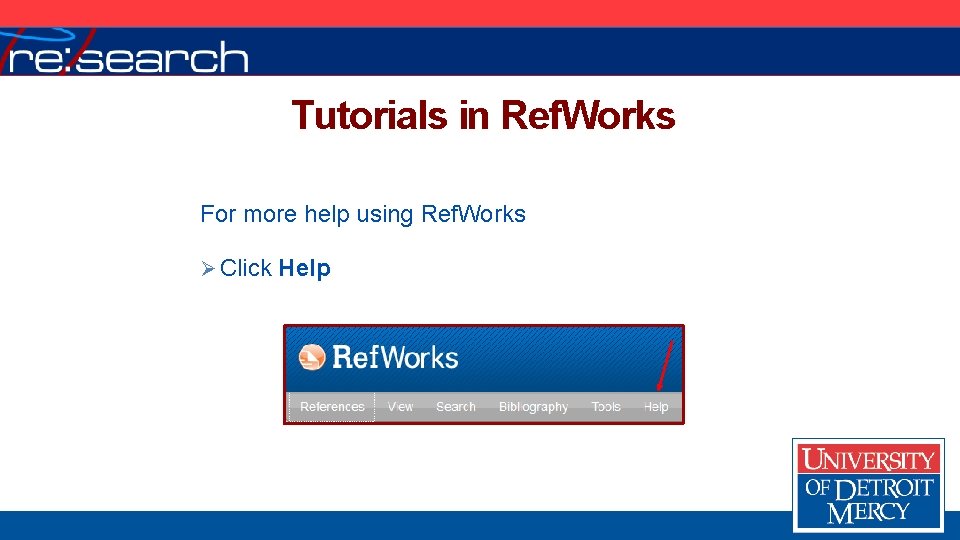
Tutorials in Ref. Works For more help using Ref. Works Ø Click Help
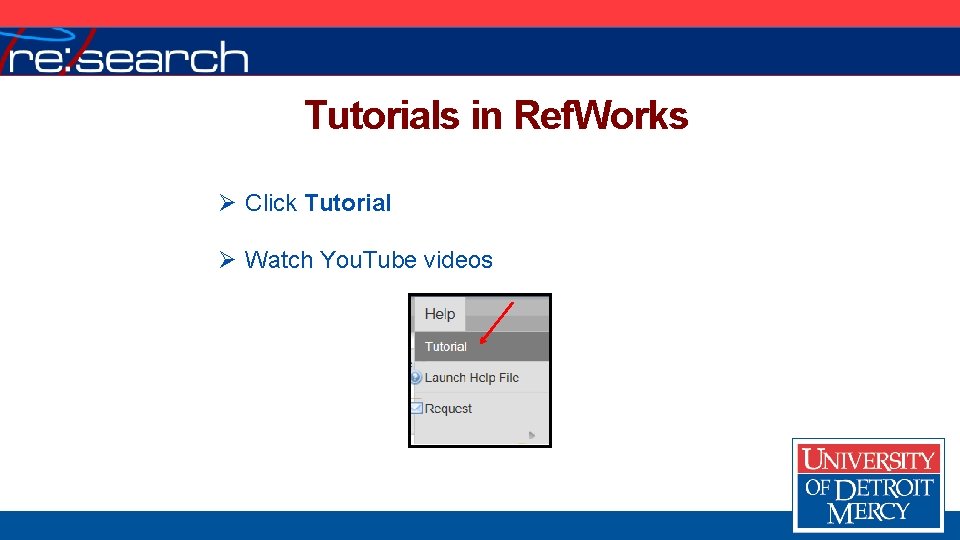
Tutorials in Ref. Works Ø Click Tutorial Ø Watch You. Tube videos
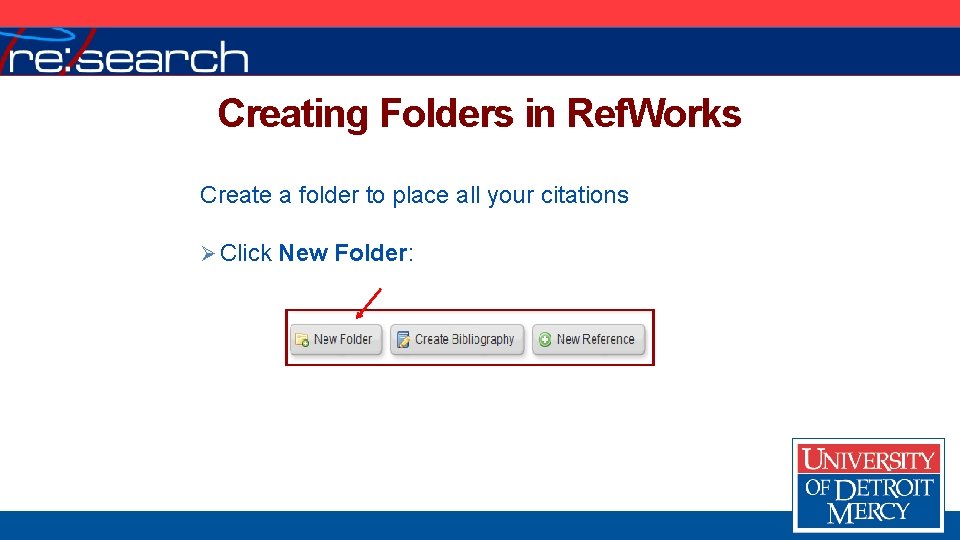
Creating Folders in Ref. Works Create a folder to place all your citations Ø Click New Folder:
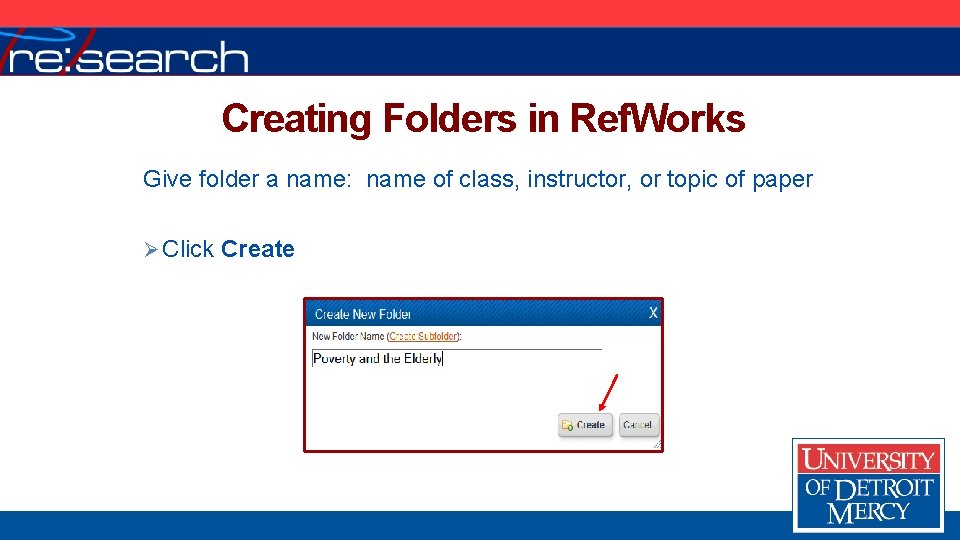
Creating Folders in Ref. Works Give folder a name: name of class, instructor, or topic of paper Ø Click Create
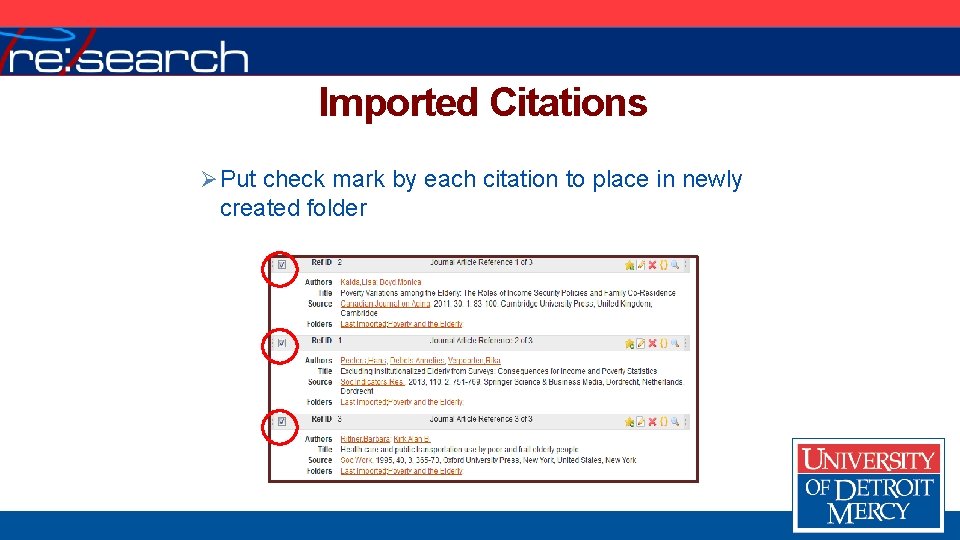
Imported Citations Ø Put check mark by each citation to place in newly created folder
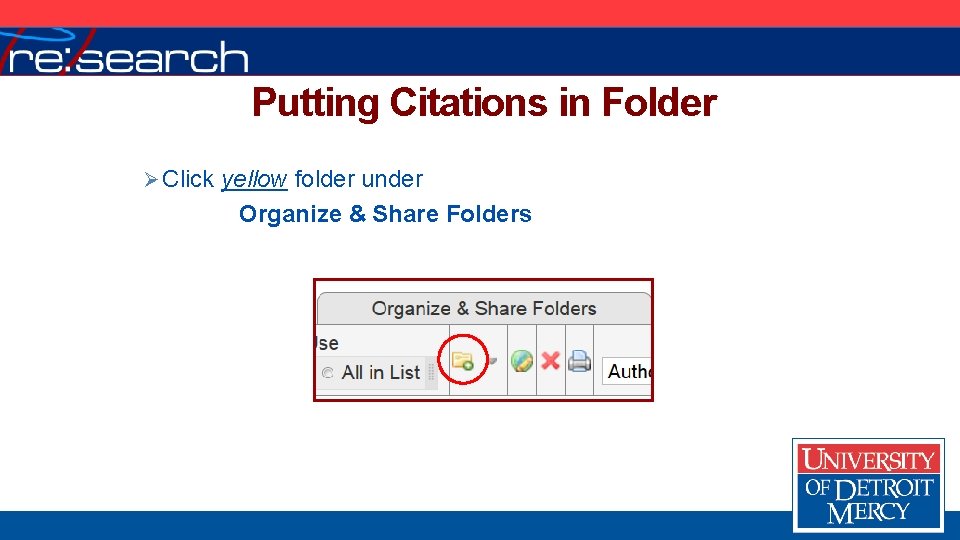
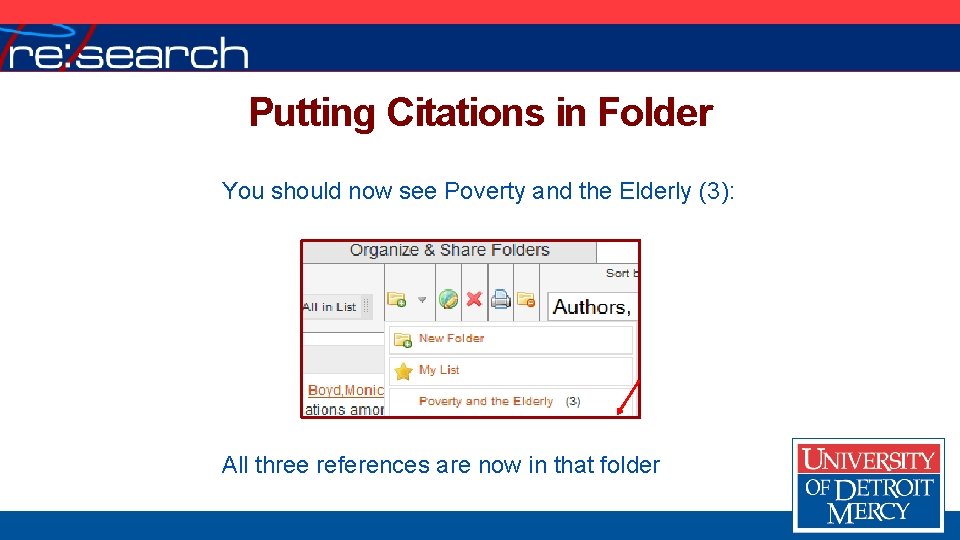
Putting Citations in Folder Ø Click yellow folder under Organize & Share Folders
Putting Citations in Folder You should now see Poverty and the Elderly (3): All three references are now in that folder
Exporting from a Database Worth Repeating: Best Practice: use Mozilla Firefox in both: Ø Databases Ø Ref. Works
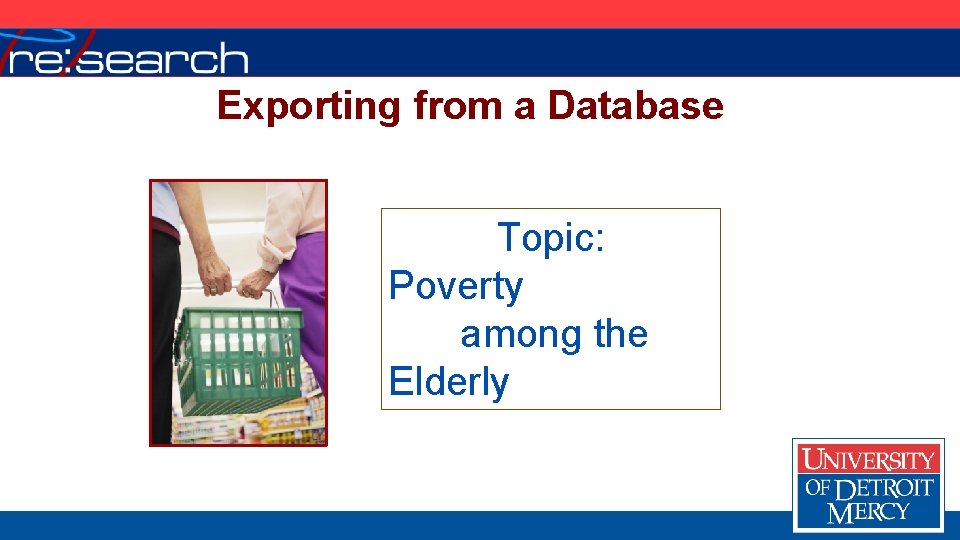
Exporting from a Database Topic: Poverty among the Elderly
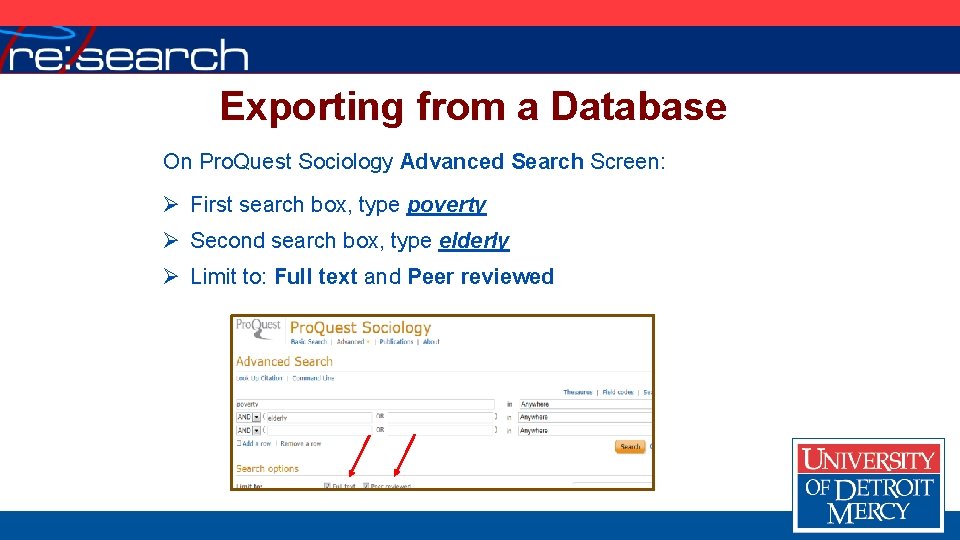
Exporting from a Database On Pro. Quest Sociology Advanced Search Screen: Ø First search box, type poverty Ø Second search box, type elderly Ø Limit to: Full text and Peer reviewed
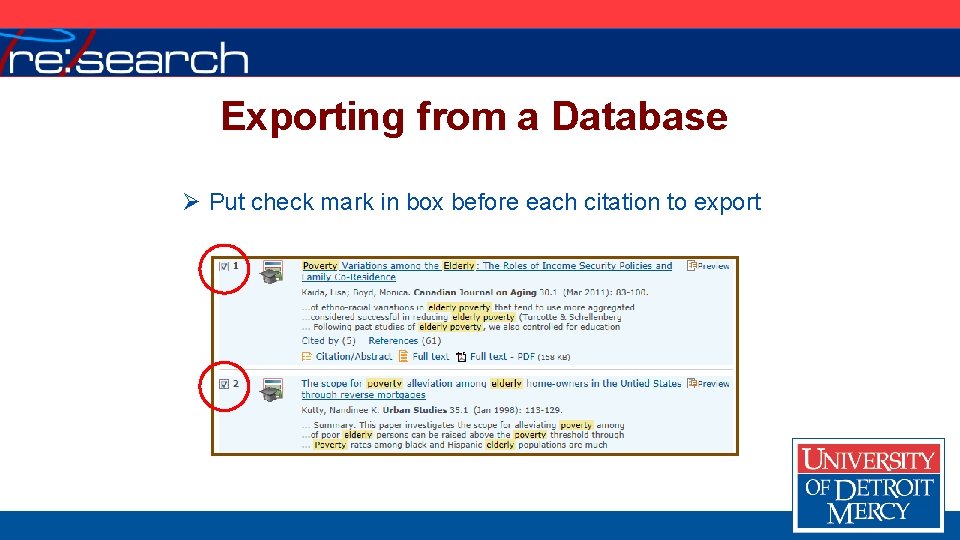
Exporting from a Database Ø Put check mark in box before each citation to export
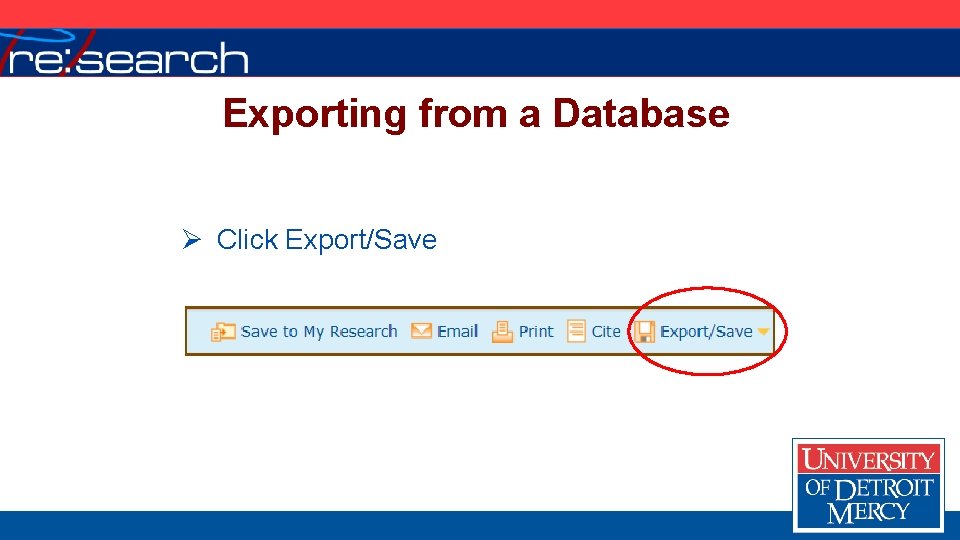
Exporting from a Database Ø Click Export/Save
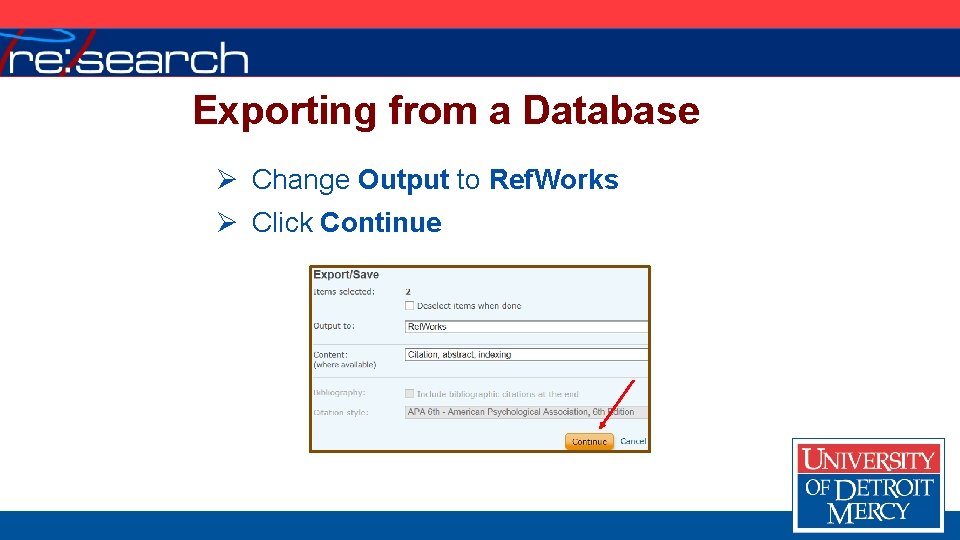
Exporting from a Database Ø Change Output to Ref. Works Ø Click Continue
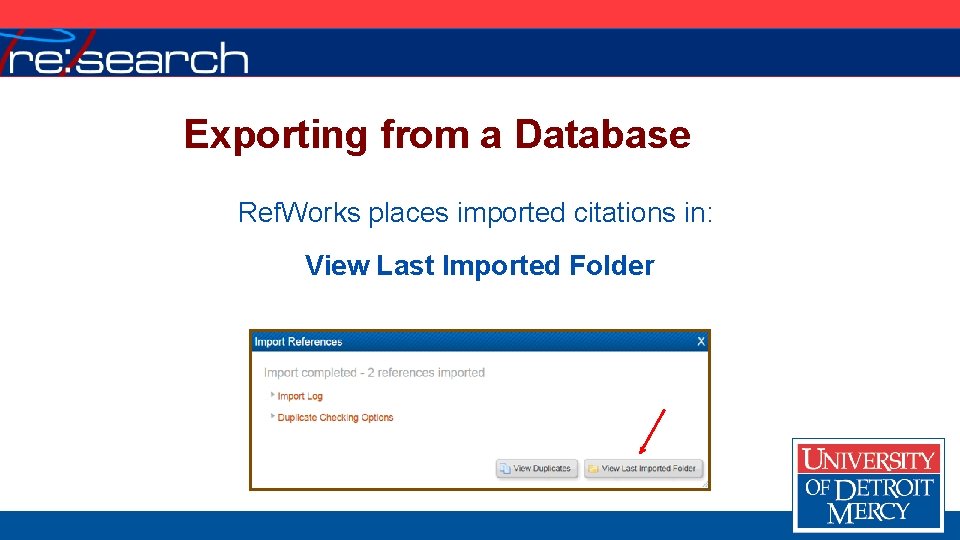
Exporting from a Database Ref. Works places imported citations in: View Last Imported Folder
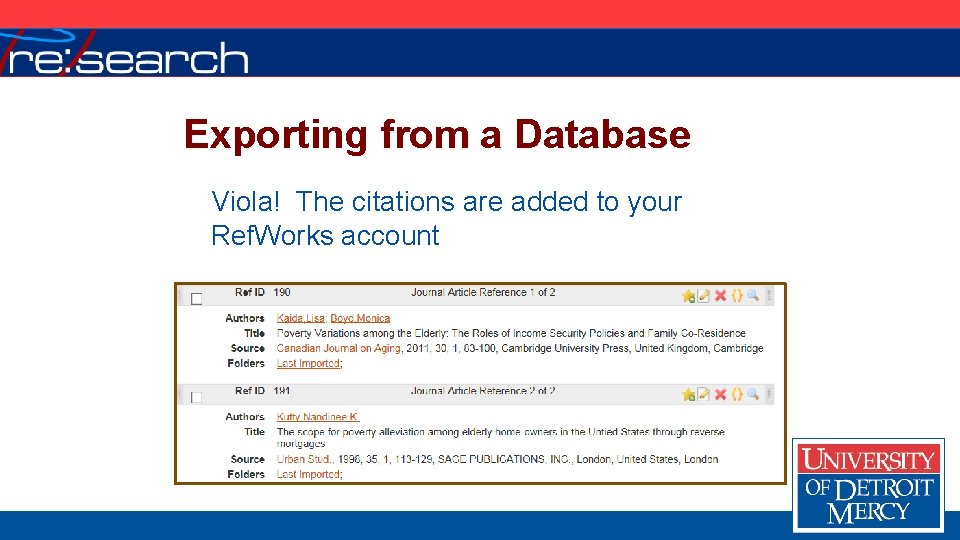
Exporting from a Database Viola! The citations are added to your Ref. Works account
Attaching a Full Text Article Ref. Works allows you to attach the full text of an article to its citation Ø First, save article to jump drive or computer desktop
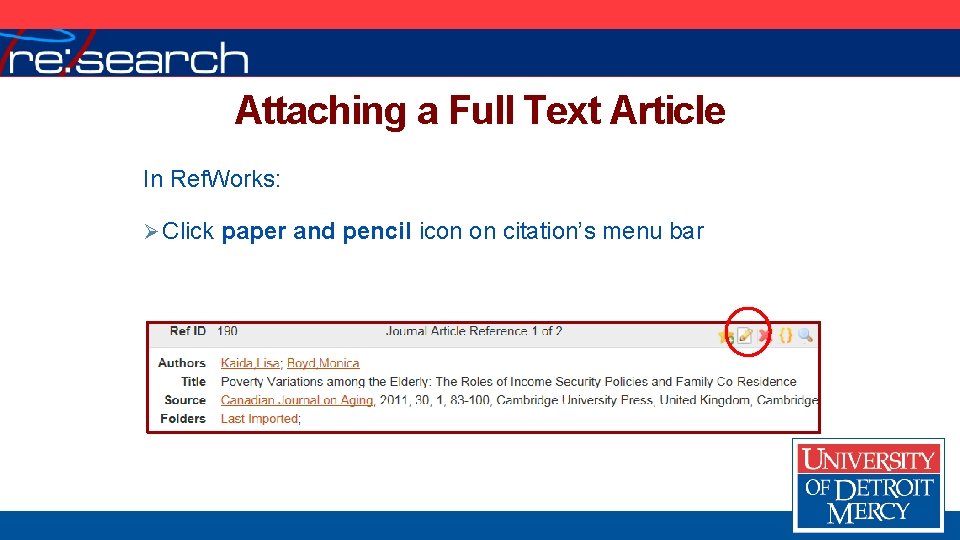
Attaching a Full Text Article In Ref. Works: Ø Click paper and pencil icon on citation’s menu bar
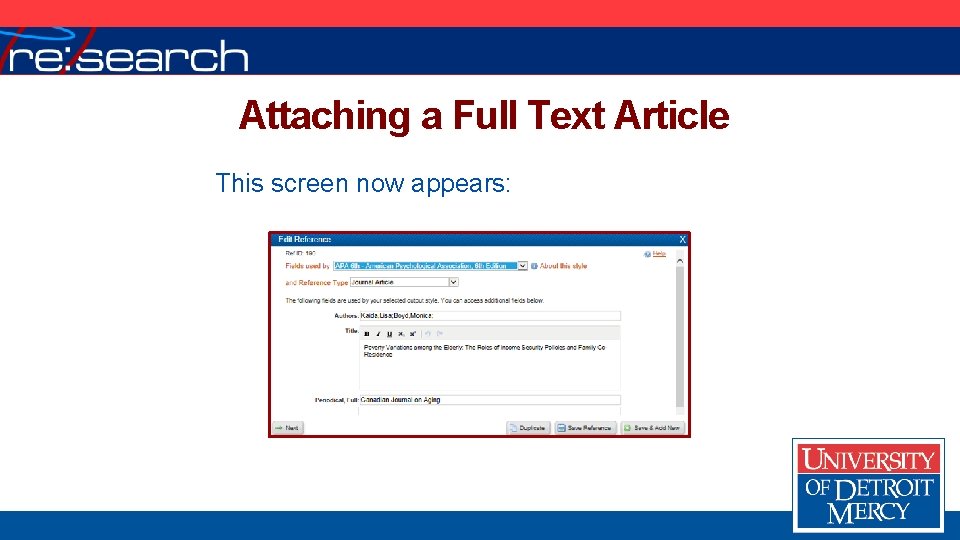
Attaching a Full Text Article This screen now appears:
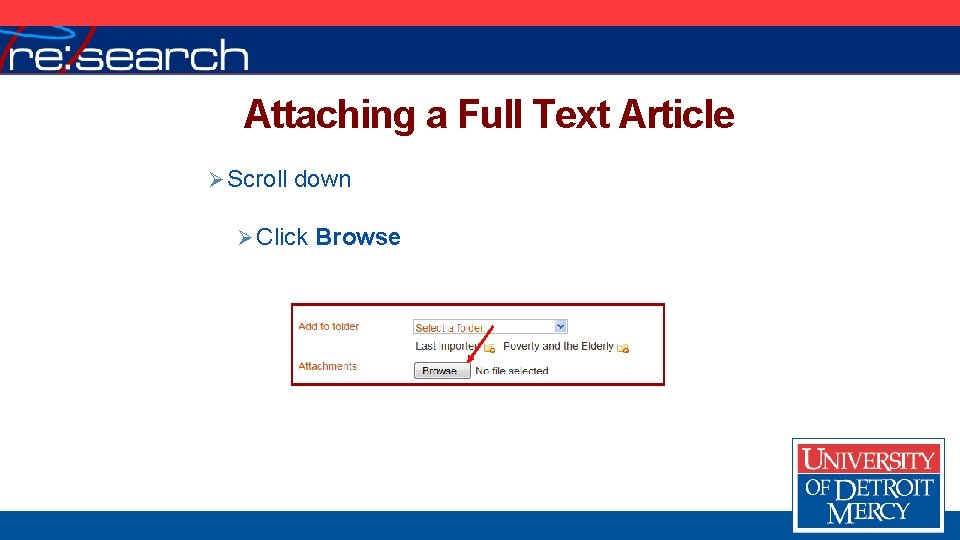
Attaching a Full Text Article Ø Scroll down Ø Click Browse
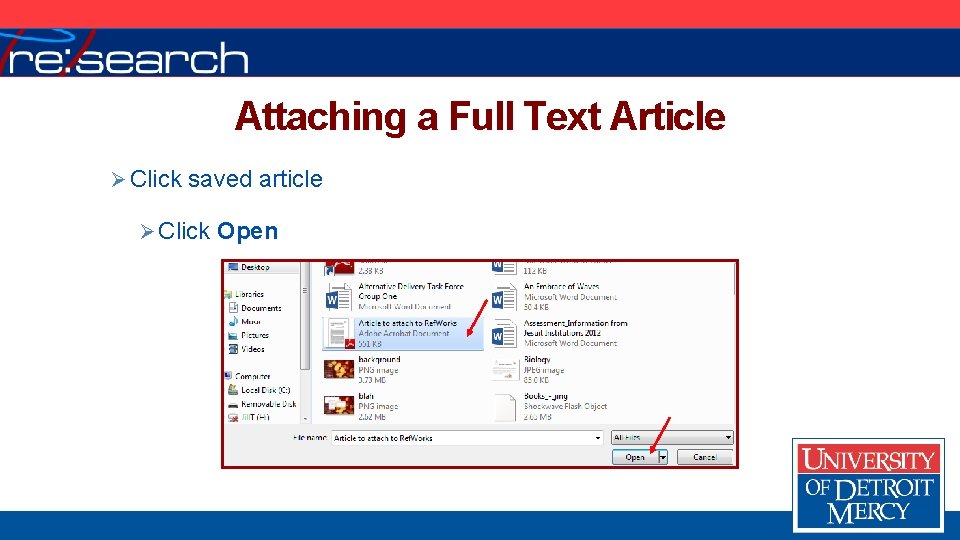
Attaching a Full Text Article Ø Click saved article Ø Click Open
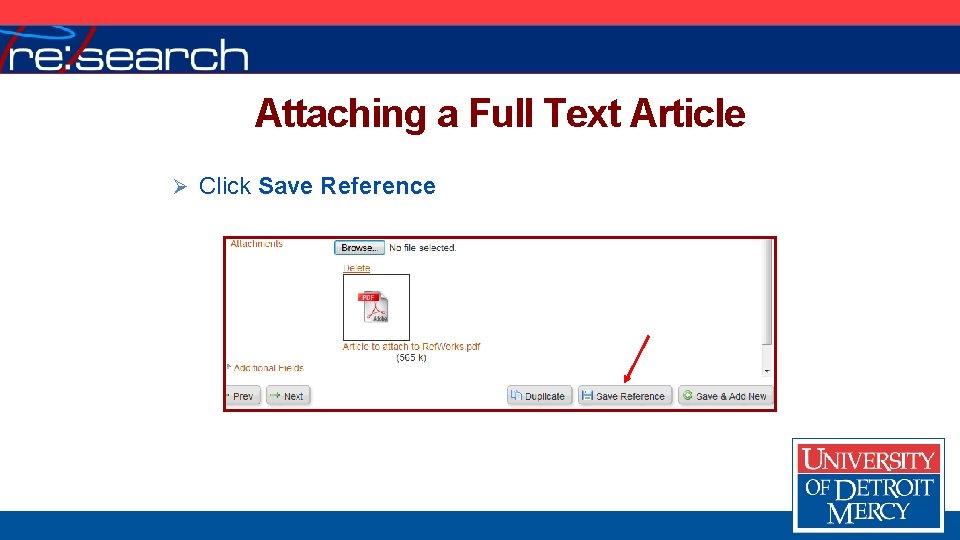
Attaching a Full Text Article Ø Click Save Reference
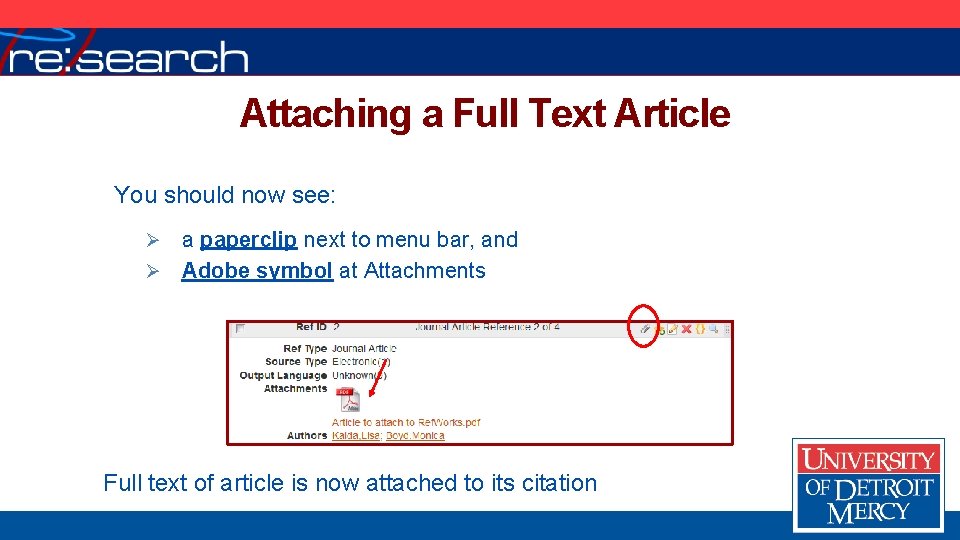
Attaching a Full Text Article You should now see: a paperclip next to menu bar, and Ø Adobe symbol at Attachments Ø Full text of article is now attached to its citation
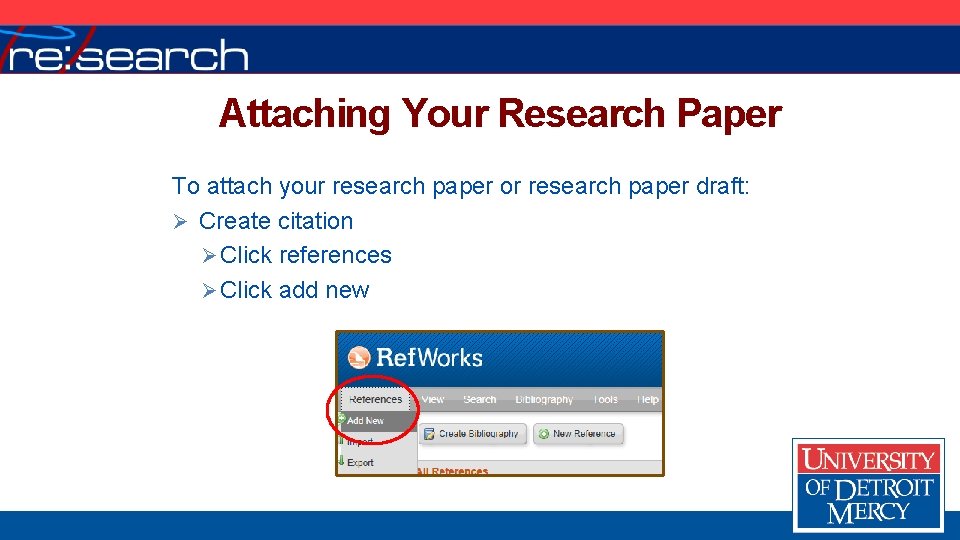
Attaching Your Research Paper To attach your research paper or research paper draft: Ø Create citation Ø Click references Ø Click add new
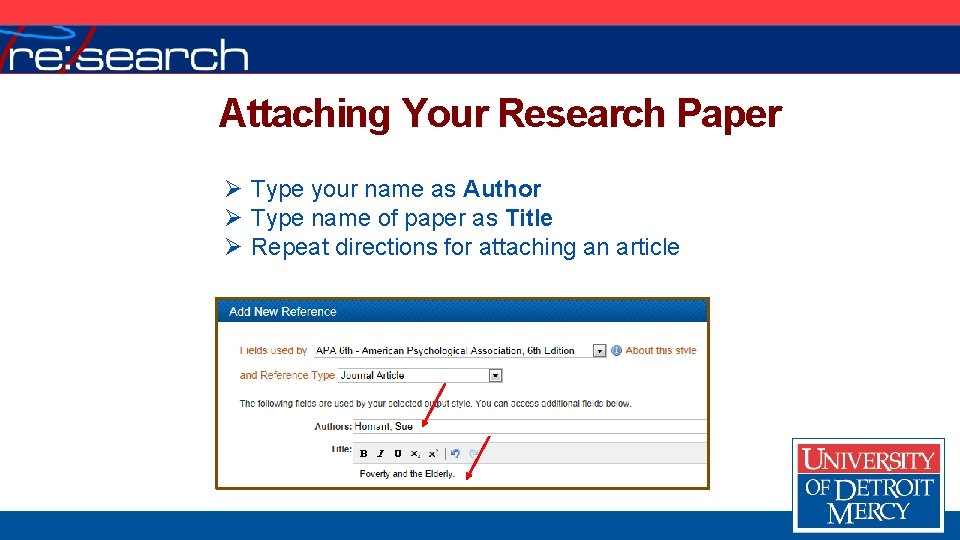
Attaching Your Research Paper Ø Type your name as Author Ø Type name of paper as Title Ø Repeat directions for attaching an article
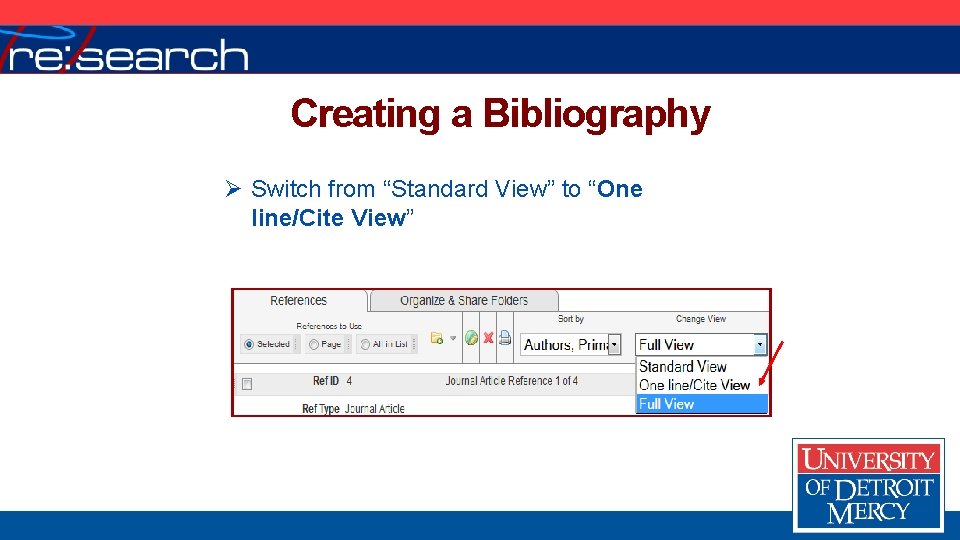
Creating a Bibliography Ø Switch from “Standard View” to “One line/Cite View”
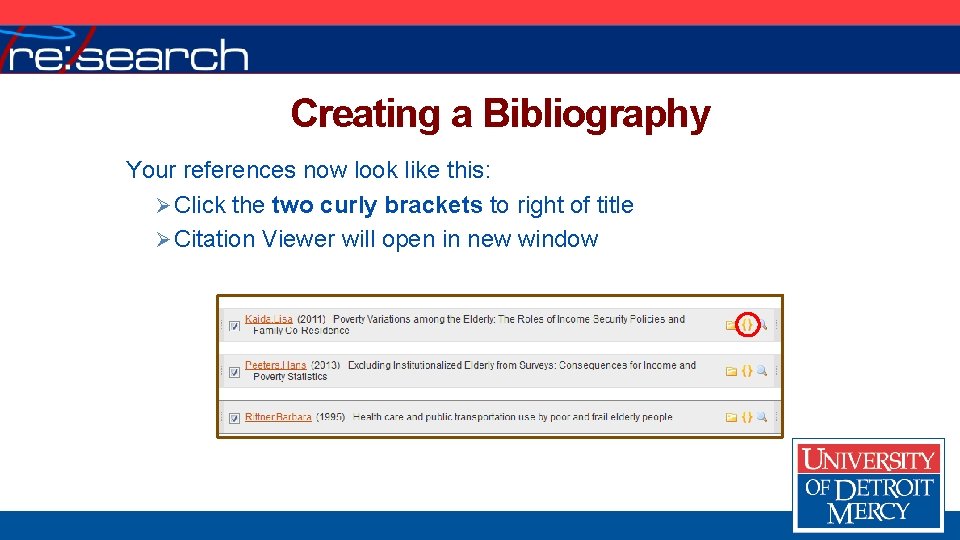
Creating a Bibliography Your references now look like this: Ø Click the two curly brackets to right of title Ø Citation Viewer will open in new window
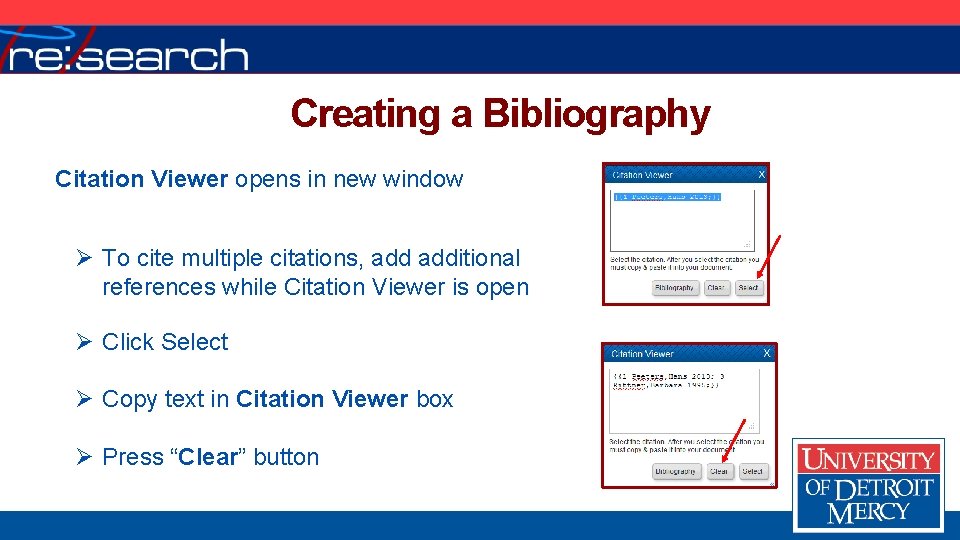
Creating a Bibliography Citation Viewer opens in new window Ø To cite multiple citations, additional references while Citation Viewer is open Ø Click Select Ø Copy text in Citation Viewer box Ø Press “Clear” button
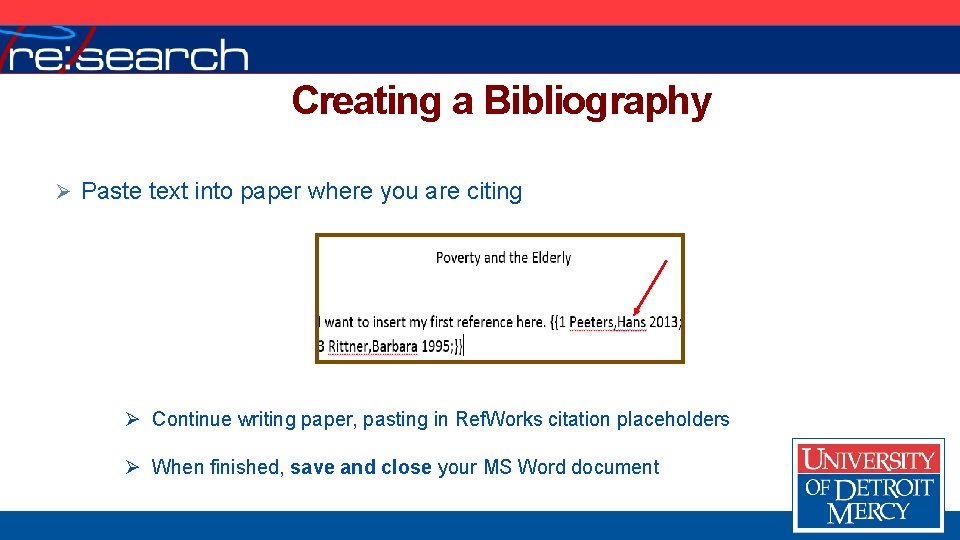
Creating a Bibliography Ø Paste text into paper where you are citing Ø Continue writing paper, pasting in Ref. Works citation placeholders Ø When finished, save and close your MS Word document
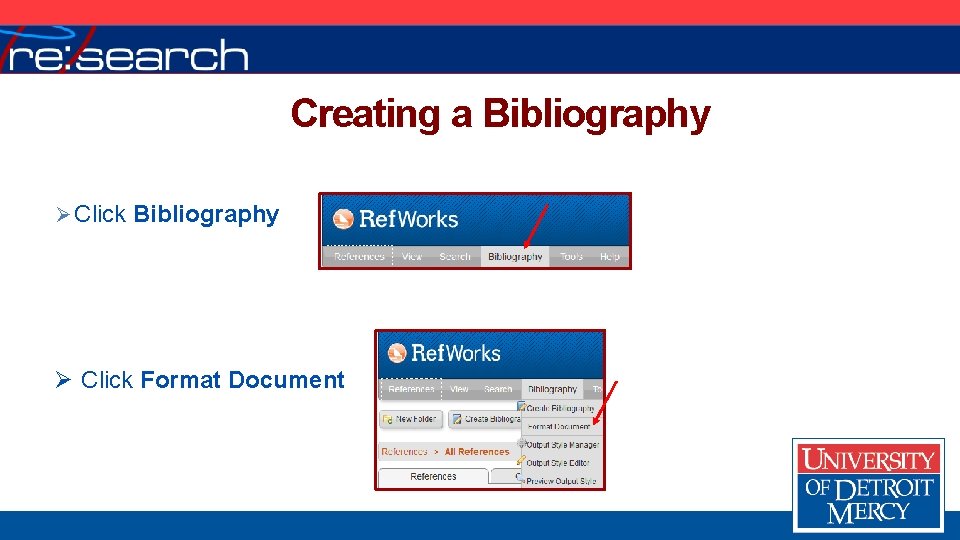
Creating a Bibliography Ø Click Format Document
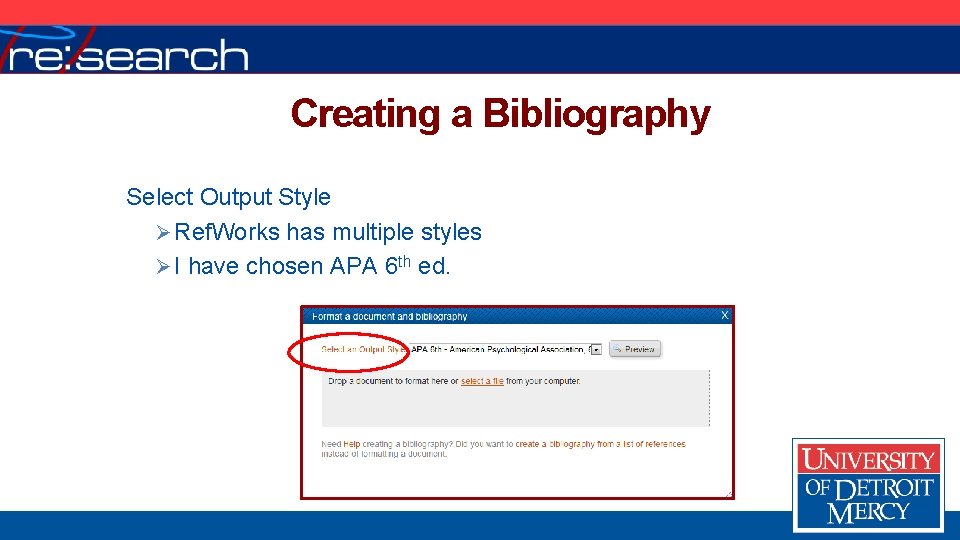
Creating a Bibliography Select Output Style Ø Ref. Works has multiple styles Ø I have chosen APA 6 th ed.
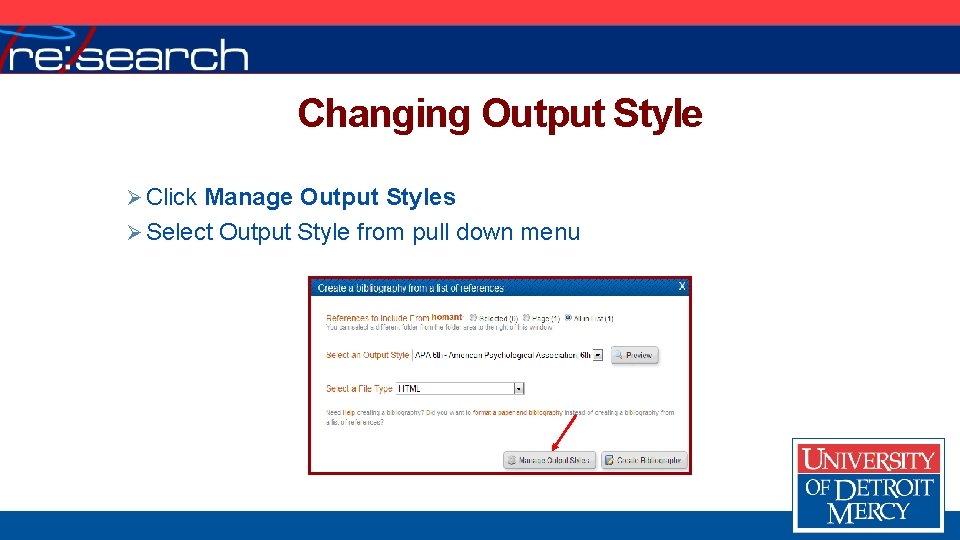
Changing Output Style Ø Click Manage Output Styles Ø Select Output Style from pull down menu
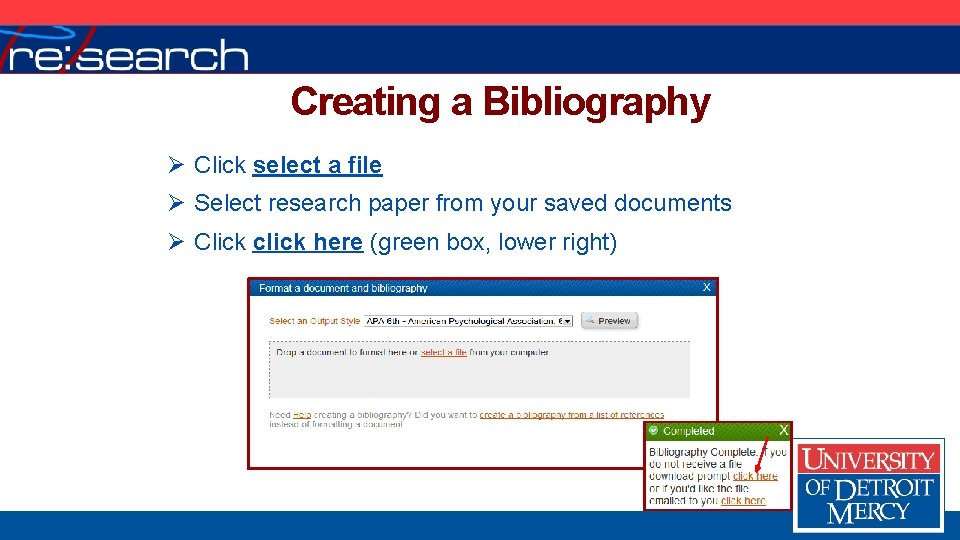
Creating a Bibliography Ø Click select a file Ø Select research paper from your saved documents Ø Click click here (green box, lower right)
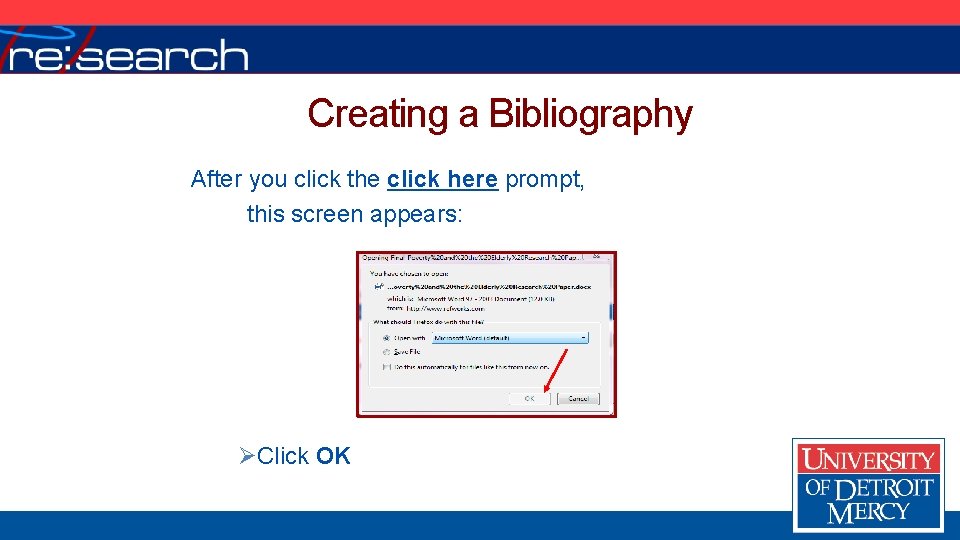
Creating a Bibliography After you click the click here prompt, this screen appears: ØClick OK
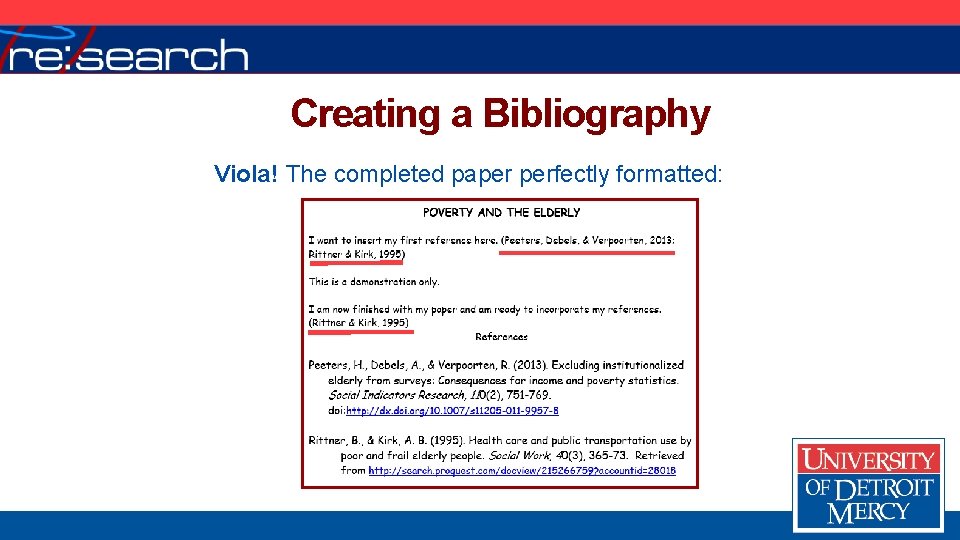
Creating a Bibliography Viola! The completed paper perfectly formatted:
Creating a Bibliography IMPORTANT NOTE: Do NOT assume all references are correctly formatted For example, proper nouns within a title may not be capitalized— YOU must do so [united states = United States] Consult Publication Manual of the American Psychological Association, 6 th ed. if necessary
Final Paper Ref. Works created a formatted, final document with bibliography in citation style you selected Ø Save with a different name A