
Redundant Bricks Configuration Example Lucent Security Products Configuration
Redundant Bricks Configuration Example Lucent Security Products Configuration Example Series
Redundant Bricks Note: Configuring a redundant pair of Bricks is a very simple process from a software standpoint. The protocol used is very similar to the VRRP protocol used in router redundancy. • The pair of Bricks is administratively treated as one Brick. • The physical layer connections on the two Bricks need to be identical to one another. • The Bricks share a virtual IP Address and virtual MAC addresses • The Session Cache of the two Bricks will be identical at all times. Lucent Technologies – Proprietary Use pursuant to company instruction

Redundant Bricks • Any models of Bricks can be configured as a redundant pair. • Redundant pairs should always consist of two, same model Bricks. • The failover time between Bricks is under 400 ms which means no lost sessions or VOIP calls in the event of a failover. • The Bricks will have identical configurations and must have all of the same network connections. • A dedicated fail over link can be used but is not required. • A dedicated fail over link is recommended though, especially in applications that involve real time (RT) protocols like VOIP or IPTV. Lucent Technologies – Proprietary Use pursuant to company instruction
Redundant Bricks • From a software standpoint you will do the following • Configure one Brick • Turn on the redundancy feature (enable Brick failover) • Make a USB flash drive or floppy package • Boot the second Brick from that flash drive or floppy. • The first step is to configure the physical layer. • Make sure that all of the interfaces on the pair of Bricks are going to all of the same places (switches, routers and so forth). • If Ethernet 1 on Brick one goes to Ethernet switch ABC then Ethernet 1 on Brick two must also go to Ethernet switch ABC and so on. • The next slide shows an example of the physical layer connections. Lucent Technologies – Proprietary Use pursuant to company instruction
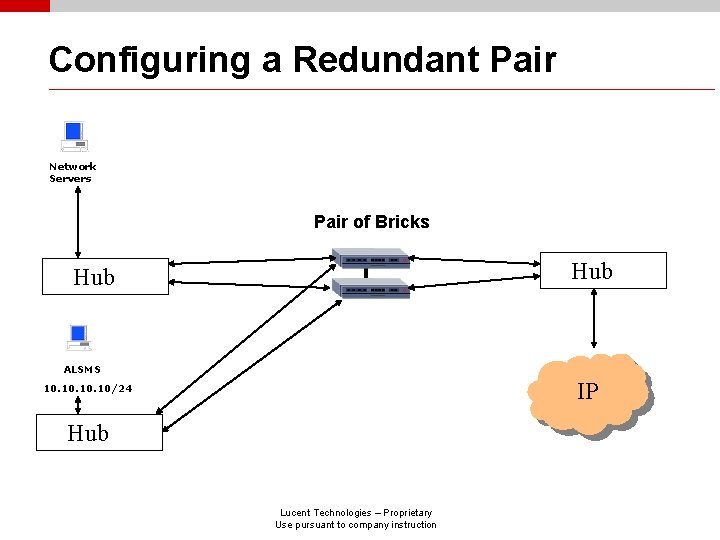
Configuring a Redundant Pair Network Servers Pair of Bricks Hub ALSMS IP 10. 10. 10/24 Hub Lucent Technologies – Proprietary Use pursuant to company instruction

Configuring a Redundant Pair • This configuration example assumes that you have one Brick already configured. If that is not the case go to the configuration example called “Configuring and Activating a Brick”. Once you have configured the first Brick return to this slide. • All we are going to do here is add a redundant Brick. This will require a reboot but can be done with a minor change to your configuration. • The two Bricks will appear as one Brick and will be identical in every way. Lucent Technologies – Proprietary Use pursuant to company instruction

Configuring a Redundant Pair • Once you have built the physical layer, check to see that Brick that Lucent Technologies – Proprietary Use pursuant to company instruction

Configuring a Redundant Pair • From the Brick Editor Screen click on the Failover tab. • Then click Enable Brick Failover. Lucent Technologies – Proprietary Use pursuant to company instruction

Configuring a Redundant Pair • Take a look at the options that you have here. All of these are covered in detail in the Administrative Guide. For now leave the options at default. • Once you have enabled Brick Failover click File>Save and Apply. • Reboot the Brick that you just saved to. • The next step is to make a Floppy or Flash drive package and boot the second Brick from it. Lucent Technologies – Proprietary Use pursuant to company instruction

Configuring a Redundant Pair • Insert your flash drive in the USB port of the ALSMS server. • From the menu at the top of the screen select: Brick_Utilities>Make Floppy Package • Choose option two: Make USB flash drive on ALSMS host. Click OK. • Once the flash drive is done, double click on the Safely Remove Hardware icon at the bottom right of your screen • Insert the flash drive in the USB port of the Brick and reboot the Brick. • You will hear a single beep notifying you that the process has started and then three beeps notifying you when the process is complete. • Remove the flash drive from the USB port on the Brick and reboot the Brick. Lucent Technologies – Proprietary Use pursuant to company instruction
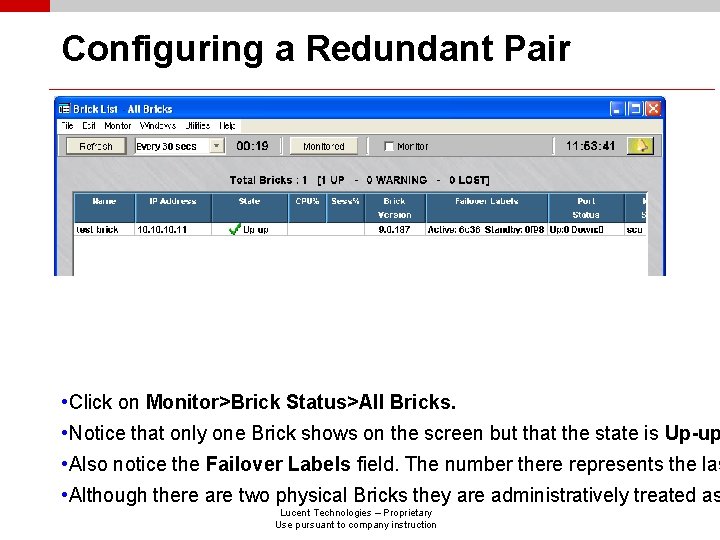
Configuring a Redundant Pair • Click on Monitor>Brick Status>All Bricks. • Notice that only one Brick shows on the screen but that the state is Up-up • Also notice the Failover Labels field. The number there represents the las • Although there are two physical Bricks they are administratively treated as Lucent Technologies – Proprietary Use pursuant to company instruction

Configuring a Redundant Pair • Failovers are generally caused by a power outage or a loss of communications making one Brick “healthier” than the other in which case the “unhealthy” Brick will yield. • You can also cause a failover manually from the ALSMS GUI, the ALSMS console or the Brick console. • Click on Brick Utilities>Open Brick Console. • Once you are at the console type display failover to see the statistics on your pair. • While you are at the console type help to see what other useful commands are available. Lucent Technologies – Proprietary Use pursuant to company instruction
Configuring a Redundant Pair • If you have an SVGA monitor available, connect it to one of your Bricks (an overhead projector would work also). • Once the monitor is connected click on Brick Utilities>Initiate Failover. • You will be able to see the failover occurring real time. • Initiate another failover and see the failover occur from the other Bricks perspective. • Of course the best test is to surf the web and turn off the primary Brick while doing so to make sure that your session is maintained by the backup Brick. • Be creative here and do some testing. Look for real time applications on the web and put the failover feature to the test. . Lucent Technologies – Proprietary Use pursuant to company instruction
Configuring a Redundant Pair • For more detailed information on configuring this feature click Help>On Line Product Manuals>Administration Guide • See the section on Brick Device Failover. • The Product Manuals can also be found on your ALSMS CD. Lucent Technologies – Proprietary Use pursuant to company instruction
- Slides: 14