
Reconciling Procurement Card Transactions Statements Concept Reconciling Procurement
- Slides: 42
Reconciling Procurement Card Transactions Statements Concept
Reconciling Procurement Card Transactions Statements
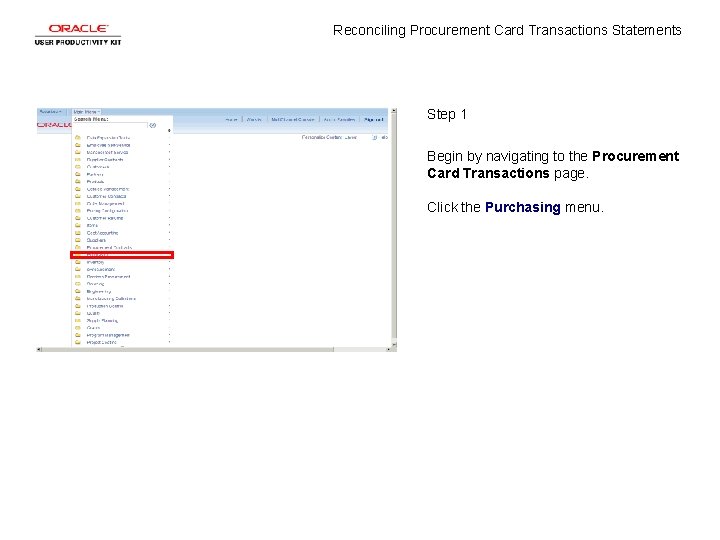
Reconciling Procurement Card Transactions Statements Step 1 Begin by navigating to the Procurement Card Transactions page. Click the Purchasing menu.
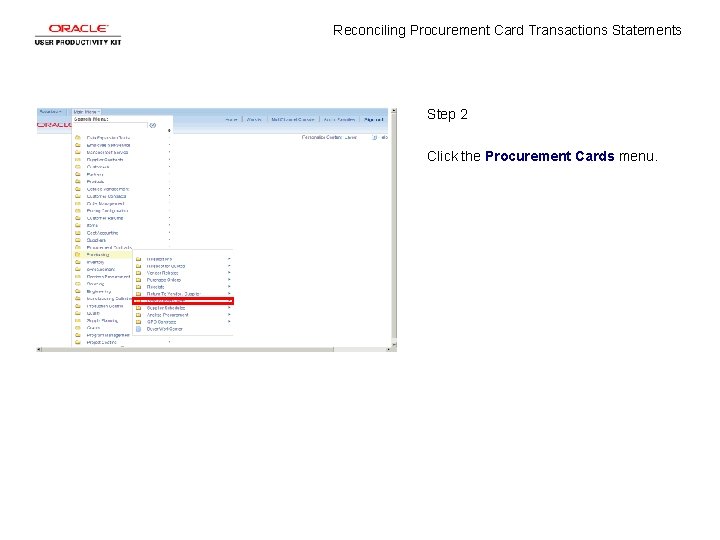
Reconciling Procurement Card Transactions Statements Step 2 Click the Procurement Cards menu.
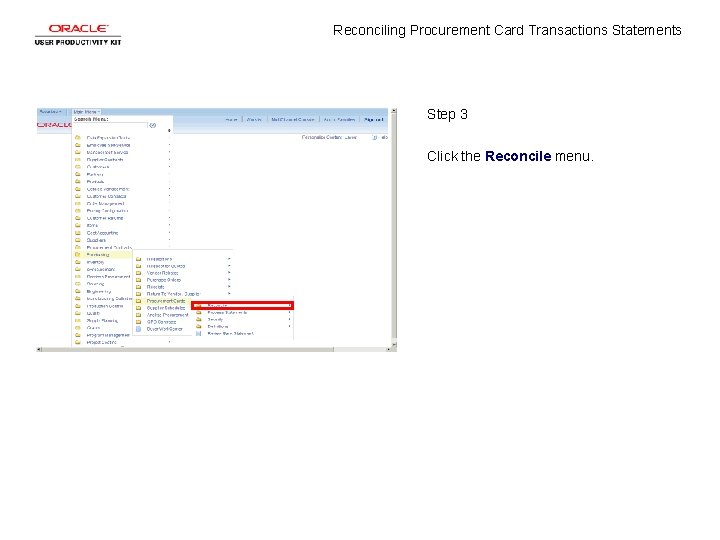
Reconciling Procurement Card Transactions Statements Step 3 Click the Reconcile menu.
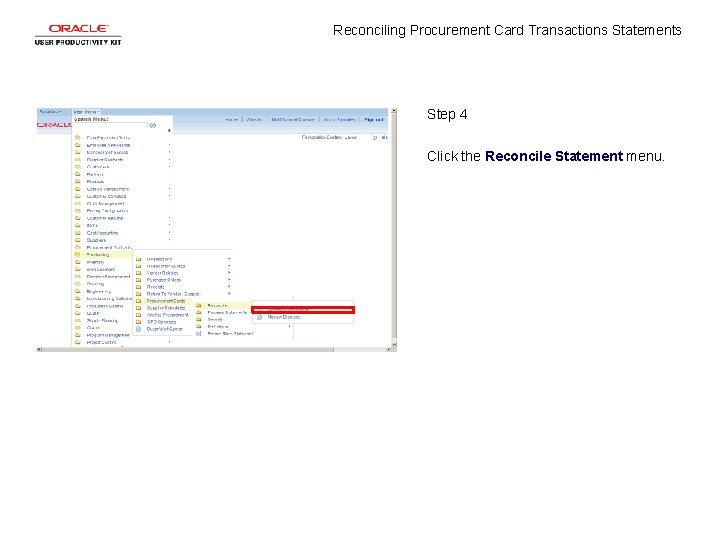
Reconciling Procurement Card Transactions Statements Step 4 Click the Reconcile Statement menu.
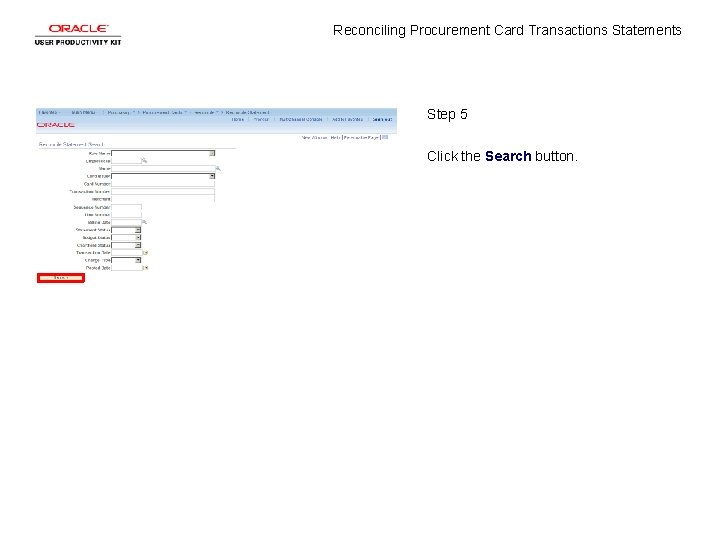
Reconciling Procurement Card Transactions Statements Step 5 Click the Search button.
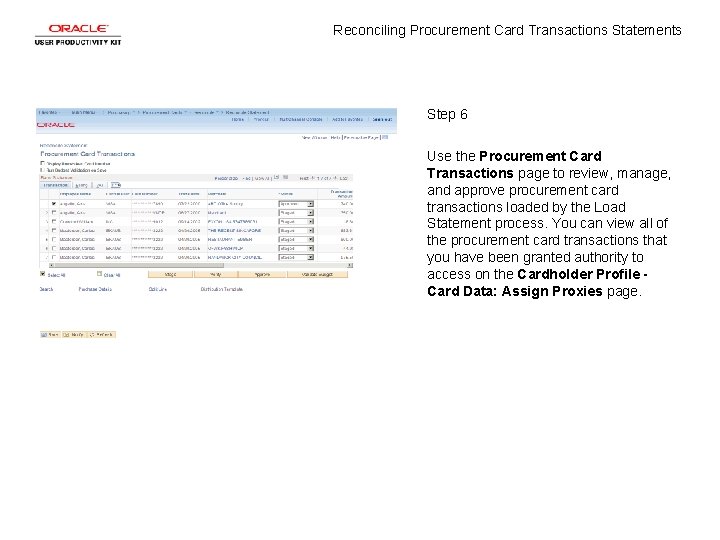
Reconciling Procurement Card Transactions Statements Step 6 Use the Procurement Card Transactions page to review, manage, and approve procurement card transactions loaded by the Load Statement process. You can view all of the procurement card transactions that you have been granted authority to access on the Cardholder Profile Card Data: Assign Proxies page.
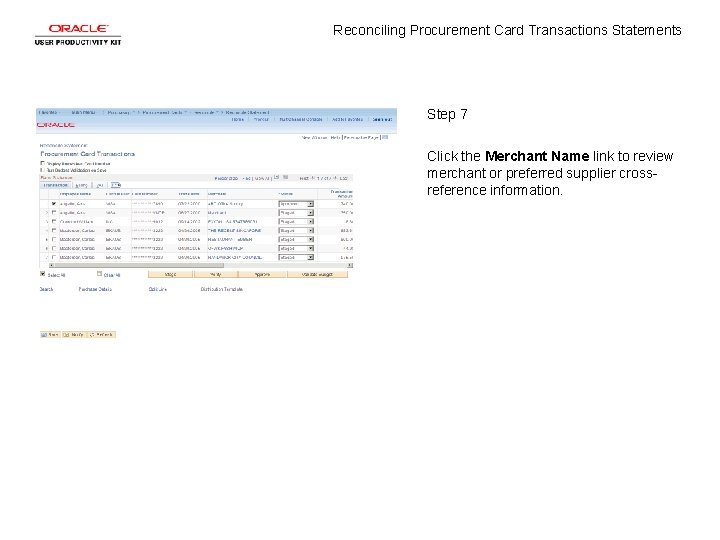
Reconciling Procurement Card Transactions Statements Step 7 Click the Merchant Name link to review merchant or preferred supplier crossreference information.
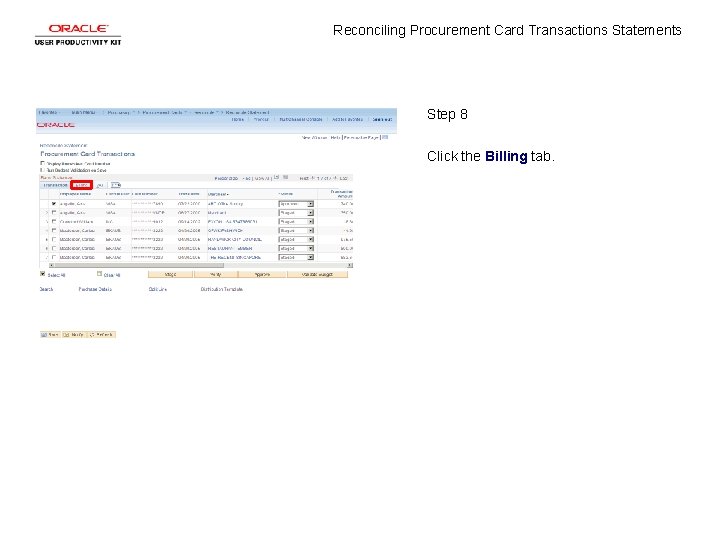
Reconciling Procurement Card Transactions Statements Step 8 Click the Billing tab.
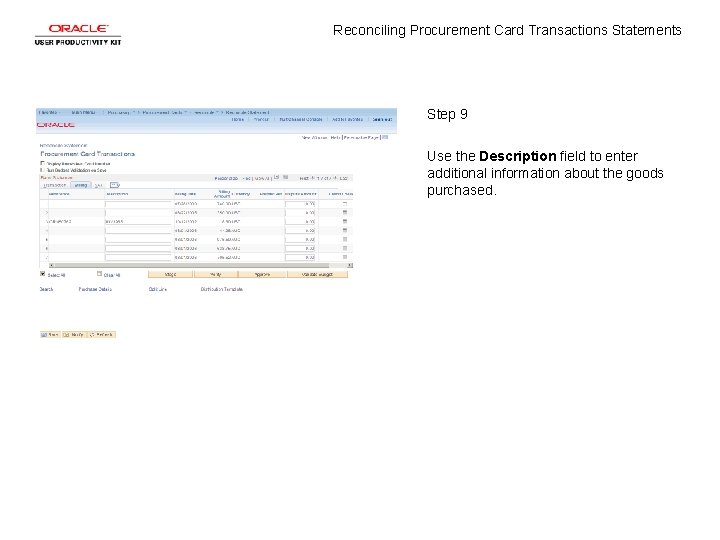
Reconciling Procurement Card Transactions Statements Step 9 Use the Description field to enter additional information about the goods purchased.
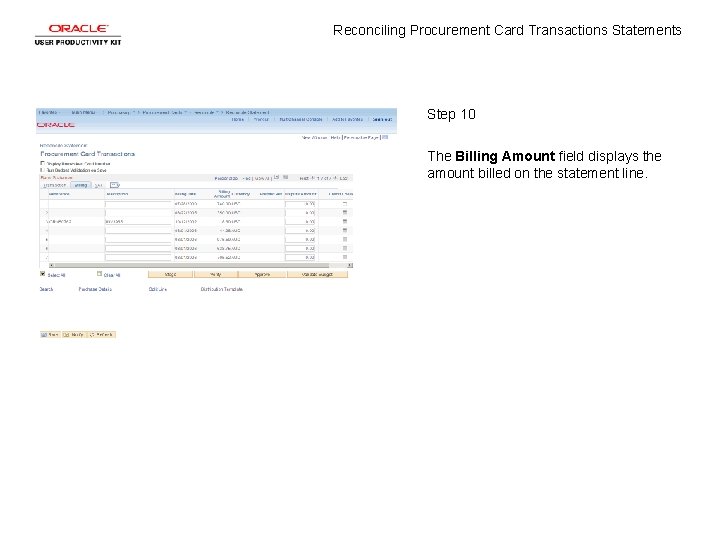
Reconciling Procurement Card Transactions Statements Step 10 The Billing Amount field displays the amount billed on the statement line.
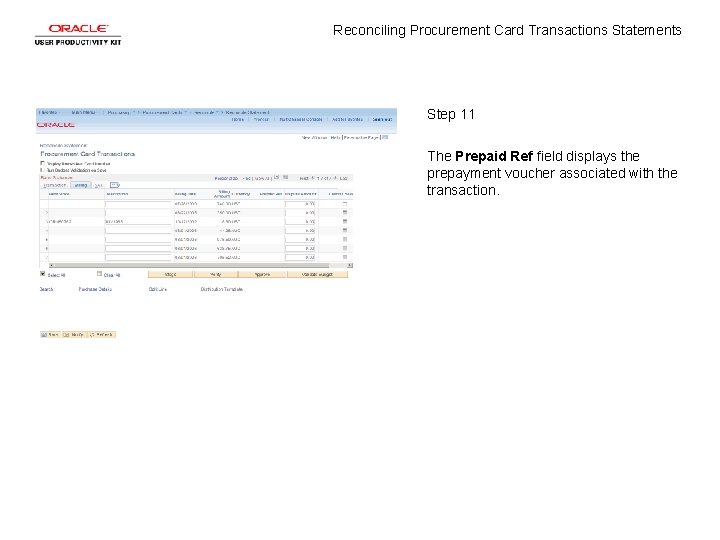
Reconciling Procurement Card Transactions Statements Step 11 The Prepaid Ref field displays the prepayment voucher associated with the transaction.
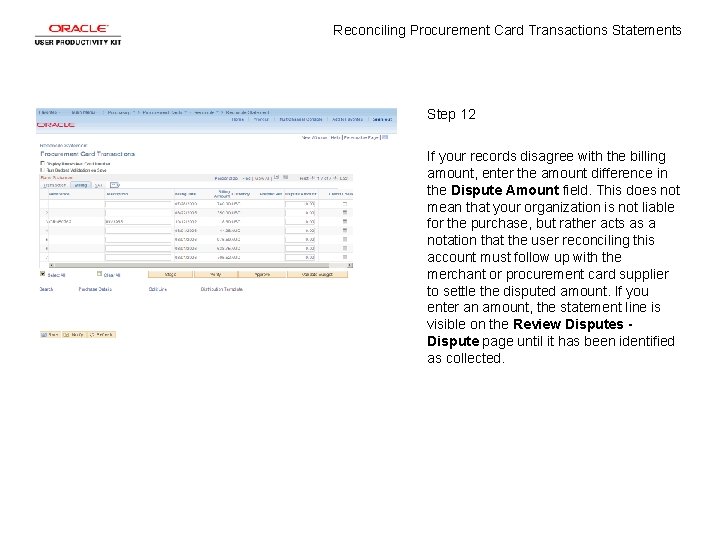
Reconciling Procurement Card Transactions Statements Step 12 If your records disagree with the billing amount, enter the amount difference in the Dispute Amount field. This does not mean that your organization is not liable for the purchase, but rather acts as a notation that the user reconciling this account must follow up with the merchant or procurement card supplier to settle the disputed amount. If you enter an amount, the statement line is visible on the Review Disputes Dispute page until it has been identified as collected.
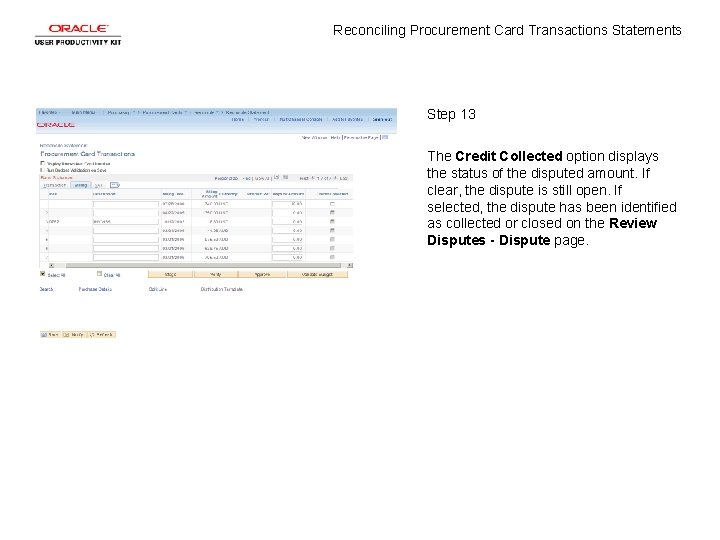
Reconciling Procurement Card Transactions Statements Step 13 The Credit Collected option displays the status of the disputed amount. If clear, the dispute is still open. If selected, the dispute has been identified as collected or closed on the Review Disputes - Dispute page.
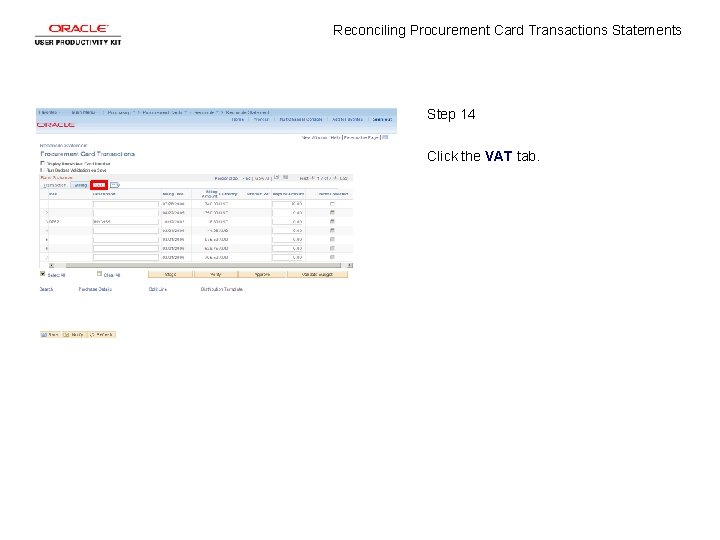
Reconciling Procurement Card Transactions Statements Step 14 Click the VAT tab.
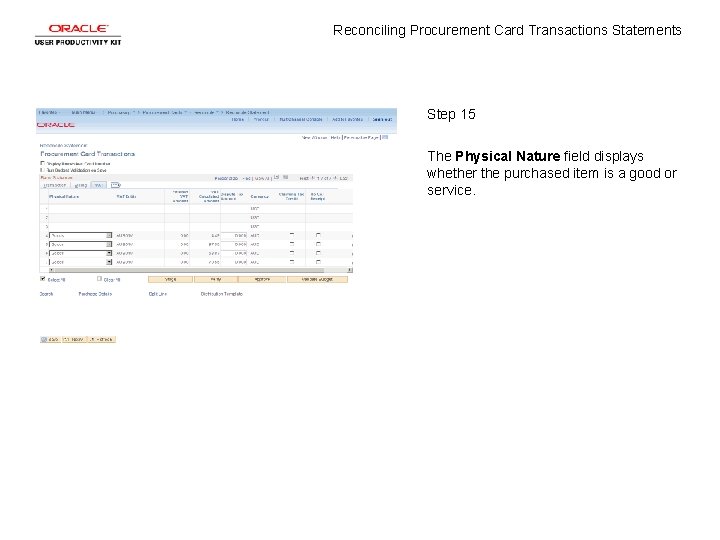
Reconciling Procurement Card Transactions Statements Step 15 The Physical Nature field displays whether the purchased item is a good or service.
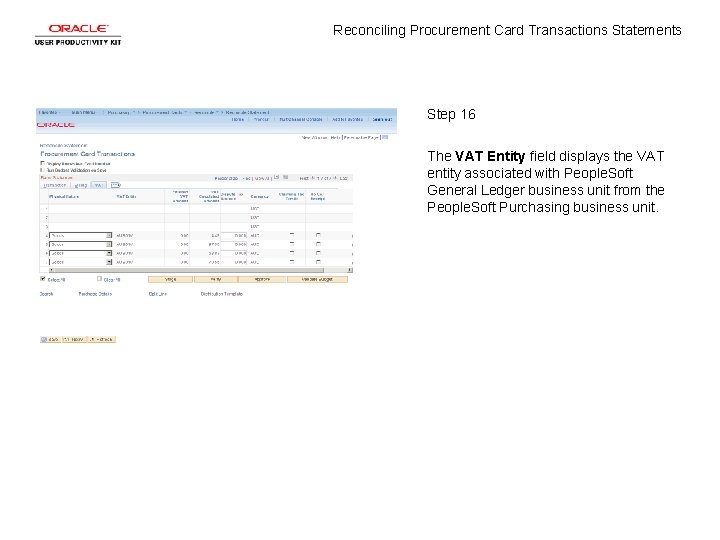
Reconciling Procurement Card Transactions Statements Step 16 The VAT Entity field displays the VAT entity associated with People. Soft General Ledger business unit from the People. Soft Purchasing business unit.
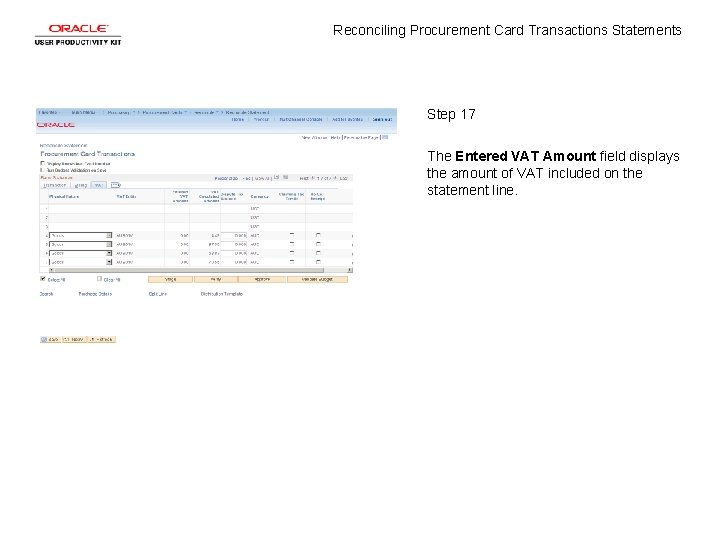
Reconciling Procurement Card Transactions Statements Step 17 The Entered VAT Amount field displays the amount of VAT included on the statement line.
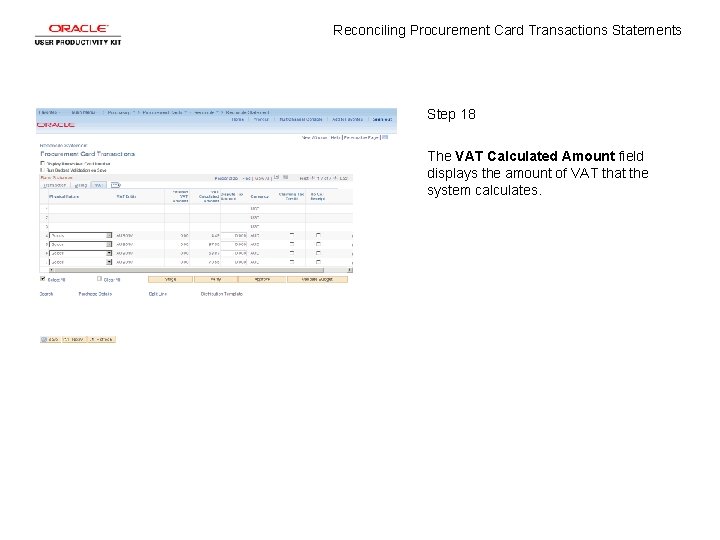
Reconciling Procurement Card Transactions Statements Step 18 The VAT Calculated Amount field displays the amount of VAT that the system calculates.
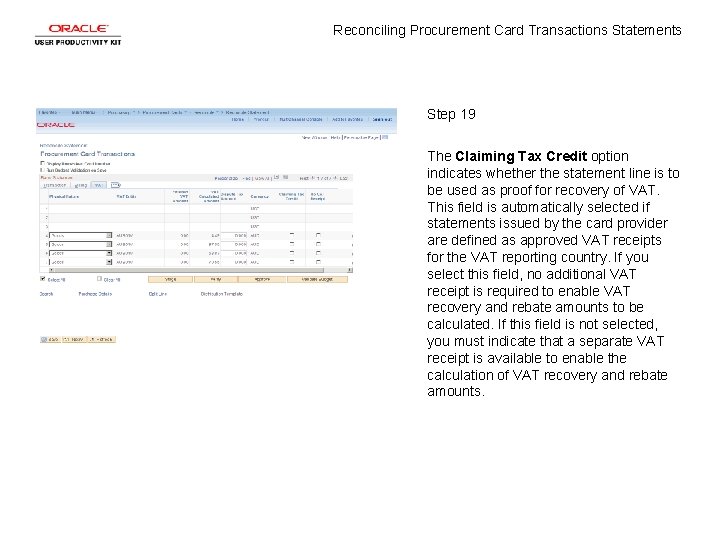
Reconciling Procurement Card Transactions Statements Step 19 The Claiming Tax Credit option indicates whether the statement line is to be used as proof for recovery of VAT. This field is automatically selected if statements issued by the card provider are defined as approved VAT receipts for the VAT reporting country. If you select this field, no additional VAT receipt is required to enable VAT recovery and rebate amounts to be calculated. If this field is not selected, you must indicate that a separate VAT receipt is available to enable the calculation of VAT recovery and rebate amounts.
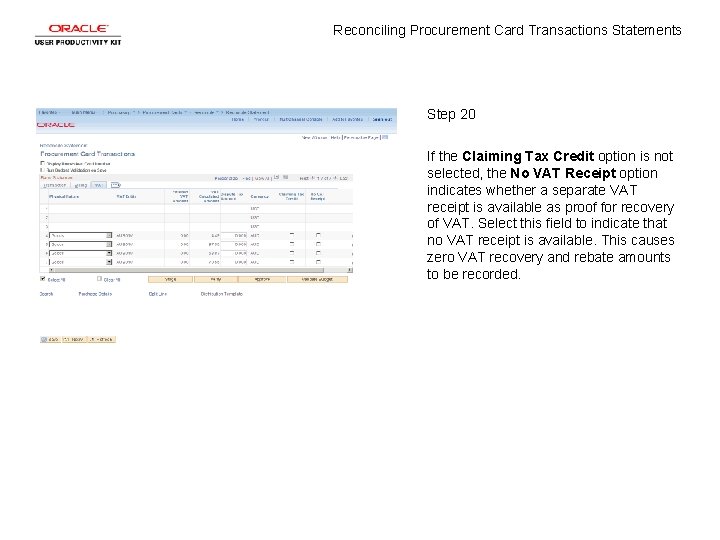
Reconciling Procurement Card Transactions Statements Step 20 If the Claiming Tax Credit option is not selected, the No VAT Receipt option indicates whether a separate VAT receipt is available as proof for recovery of VAT. Select this field to indicate that no VAT receipt is available. This causes zero VAT recovery and rebate amounts to be recorded.
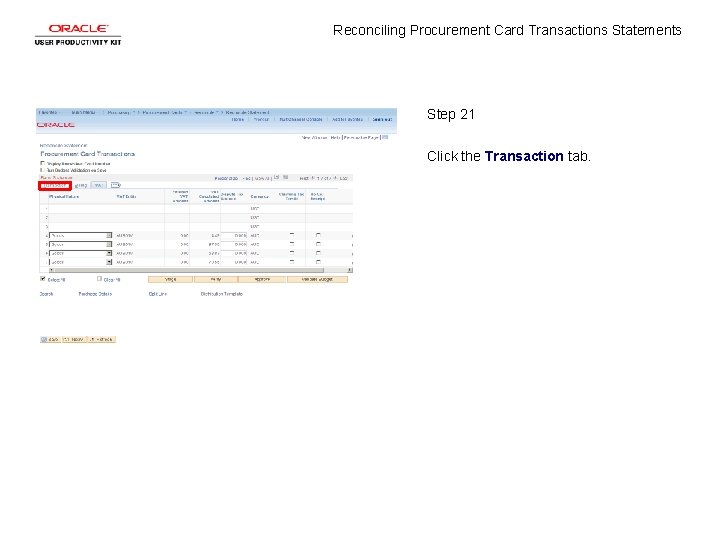
Reconciling Procurement Card Transactions Statements Step 21 Click the Transaction tab.
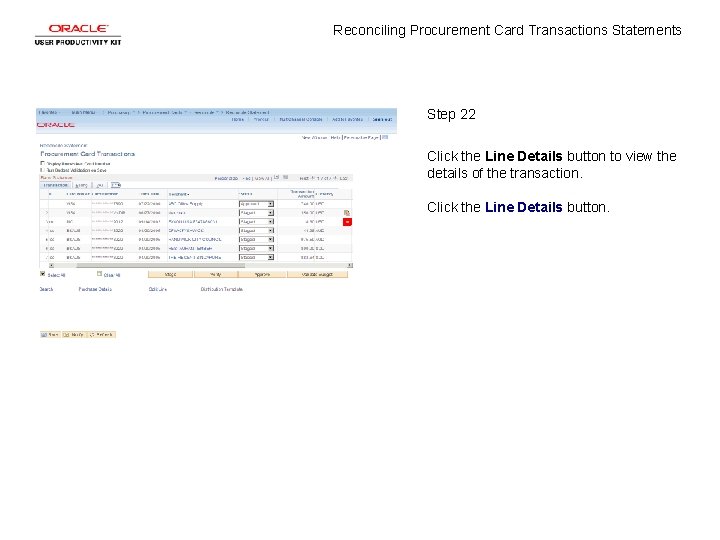
Reconciling Procurement Card Transactions Statements Step 22 Click the Line Details button to view the details of the transaction. Click the Line Details button.
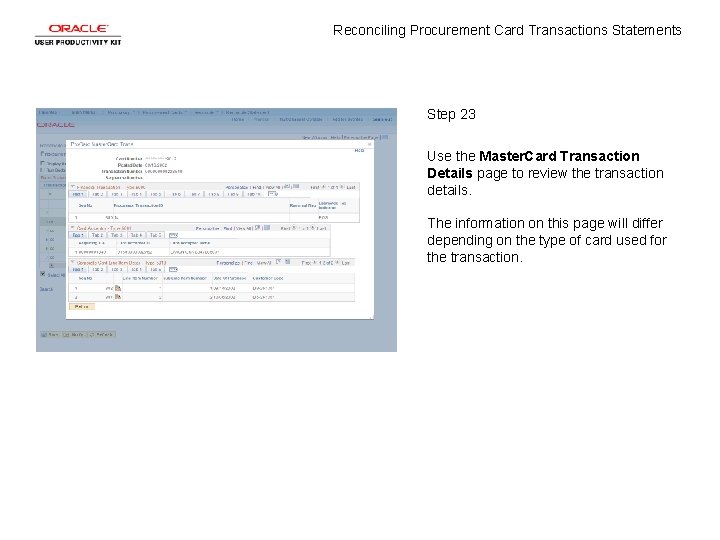
Reconciling Procurement Card Transactions Statements Step 23 Use the Master. Card Transaction Details page to review the transaction details. The information on this page will differ depending on the type of card used for the transaction.
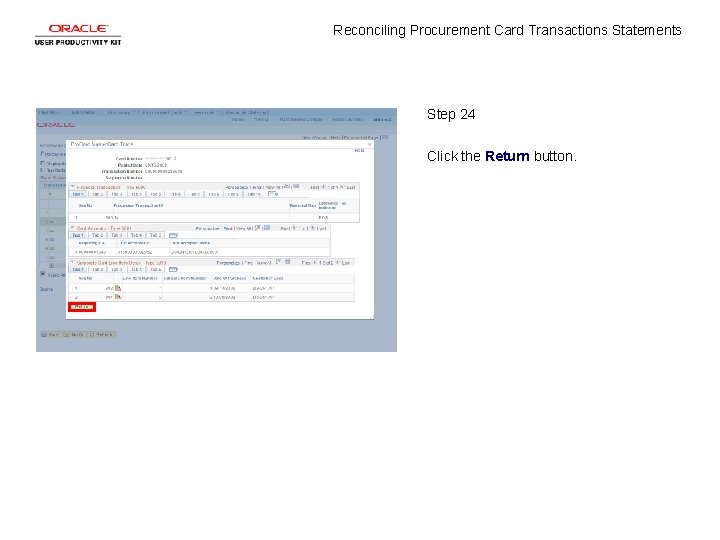
Reconciling Procurement Card Transactions Statements Step 24 Click the Return button.
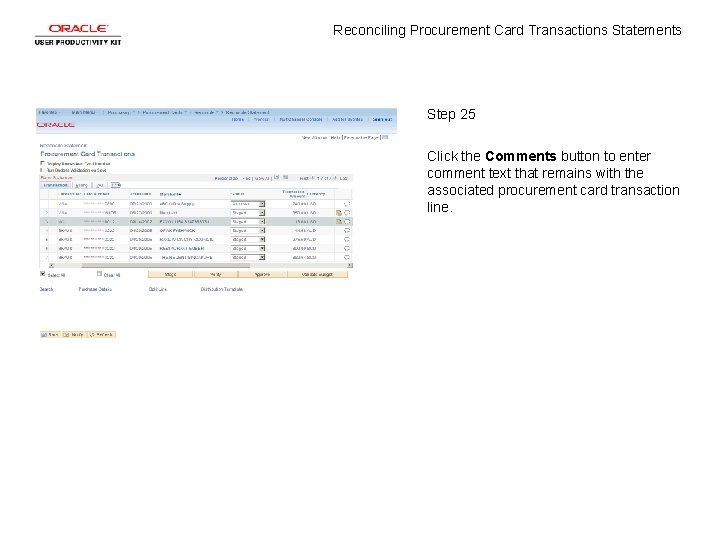
Reconciling Procurement Card Transactions Statements Step 25 Click the Comments button to enter comment text that remains with the associated procurement card transaction line.
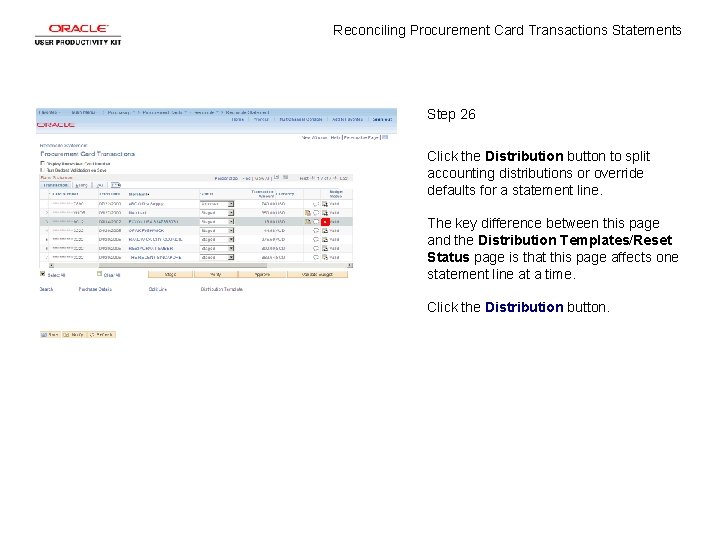
Reconciling Procurement Card Transactions Statements Step 26 Click the Distribution button to split accounting distributions or override defaults for a statement line. The key difference between this page and the Distribution Templates/Reset Status page is that this page affects one statement line at a time. Click the Distribution button.
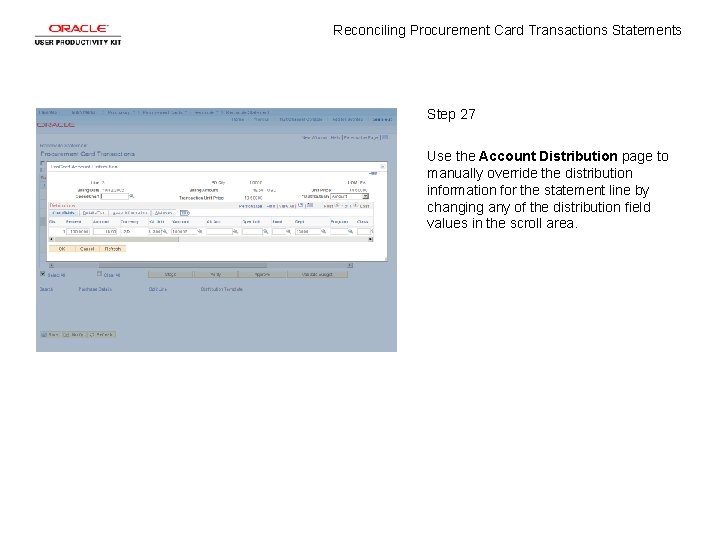
Reconciling Procurement Card Transactions Statements Step 27 Use the Account Distribution page to manually override the distribution information for the statement line by changing any of the distribution field values in the scroll area.
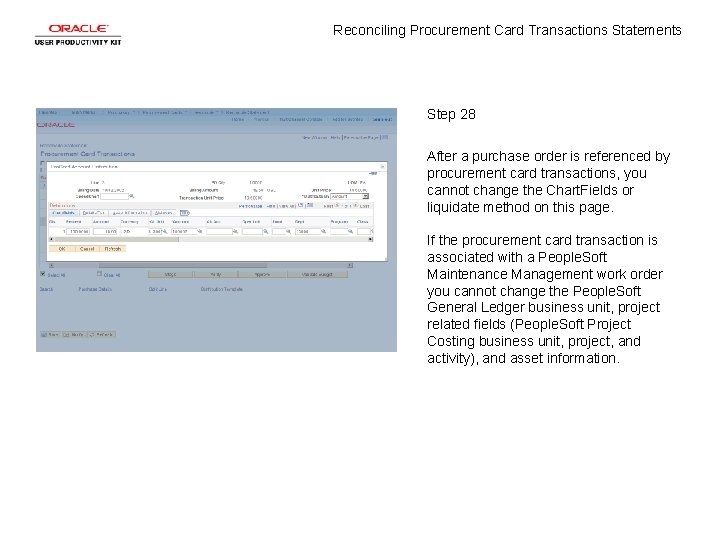
Reconciling Procurement Card Transactions Statements Step 28 After a purchase order is referenced by procurement card transactions, you cannot change the Chart. Fields or liquidate method on this page. If the procurement card transaction is associated with a People. Soft Maintenance Management work order you cannot change the People. Soft General Ledger business unit, project related fields (People. Soft Project Costing business unit, project, and activity), and asset information.
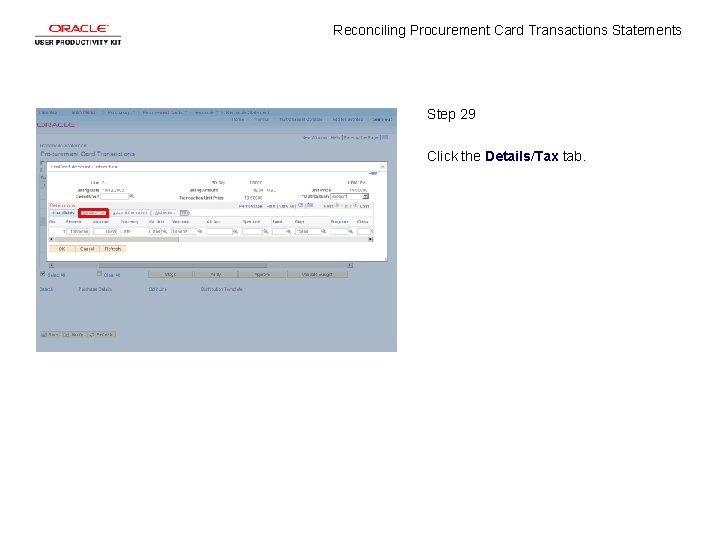
Reconciling Procurement Card Transactions Statements Step 29 Click the Details/Tax tab.
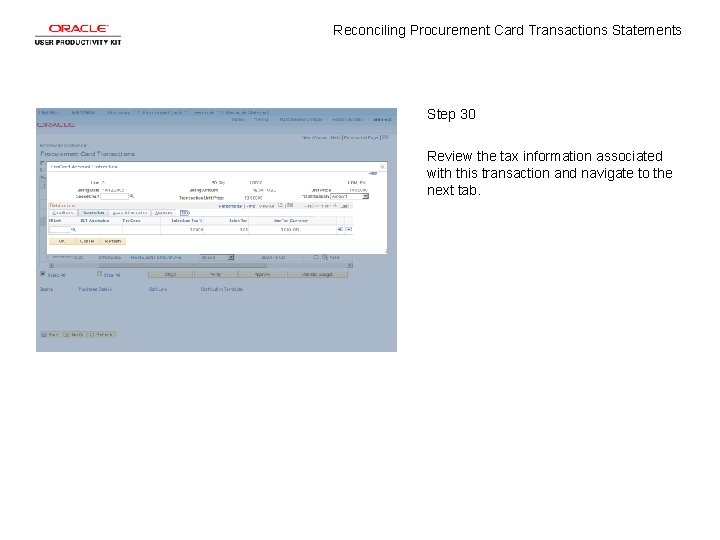
Reconciling Procurement Card Transactions Statements Step 30 Review the tax information associated with this transaction and navigate to the next tab.
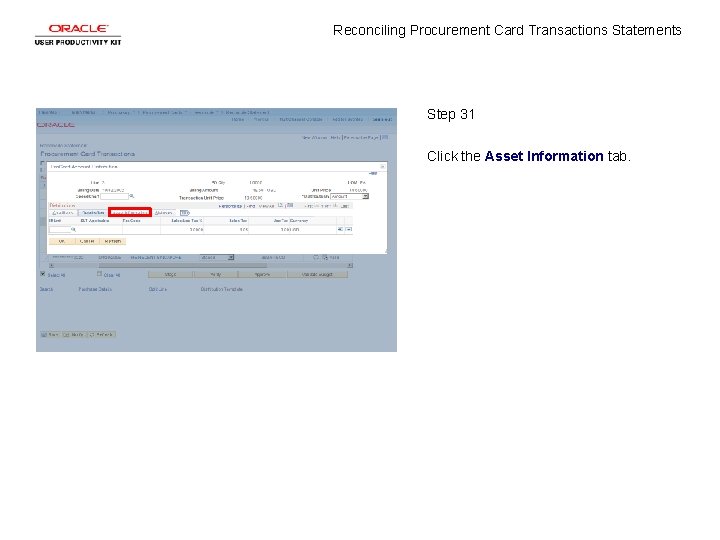
Reconciling Procurement Card Transactions Statements Step 31 Click the Asset Information tab.
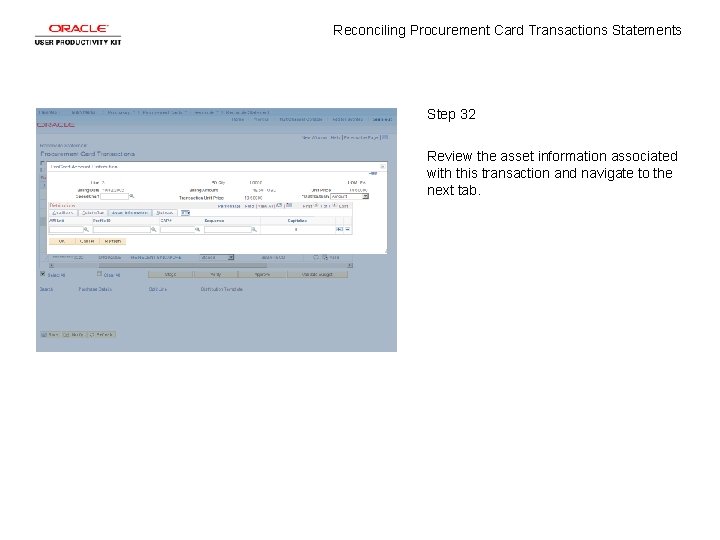
Reconciling Procurement Card Transactions Statements Step 32 Review the asset information associated with this transaction and navigate to the next tab.
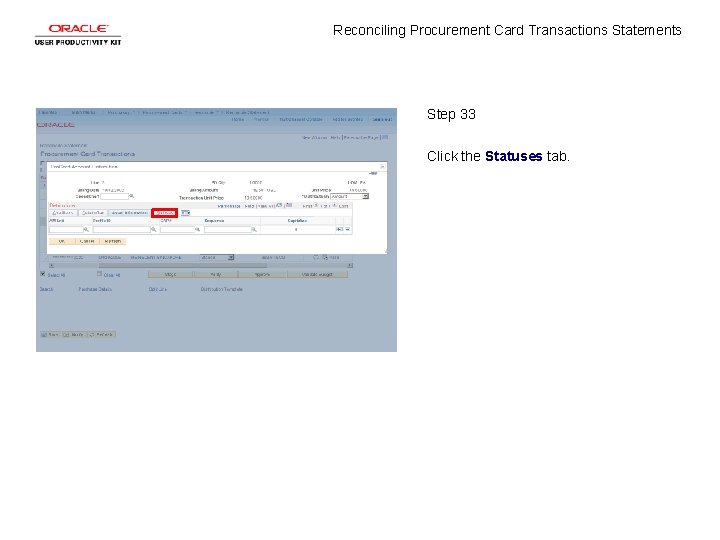
Reconciling Procurement Card Transactions Statements Step 33 Click the Statuses tab.
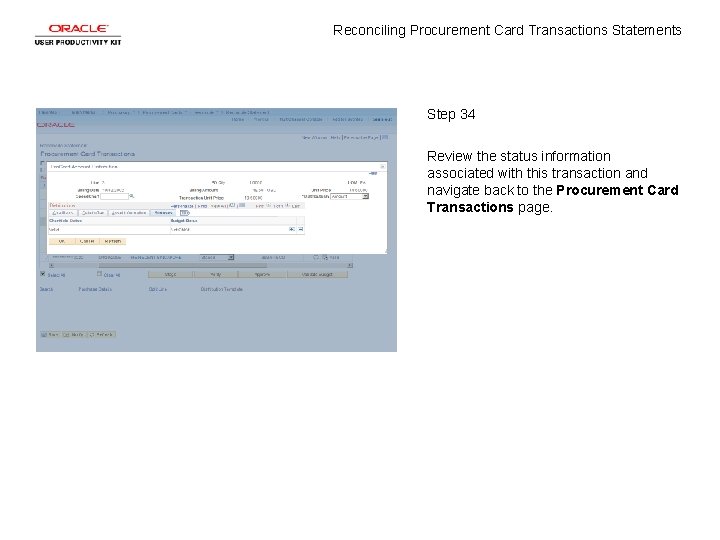
Reconciling Procurement Card Transactions Statements Step 34 Review the status information associated with this transaction and navigate back to the Procurement Card Transactions page.
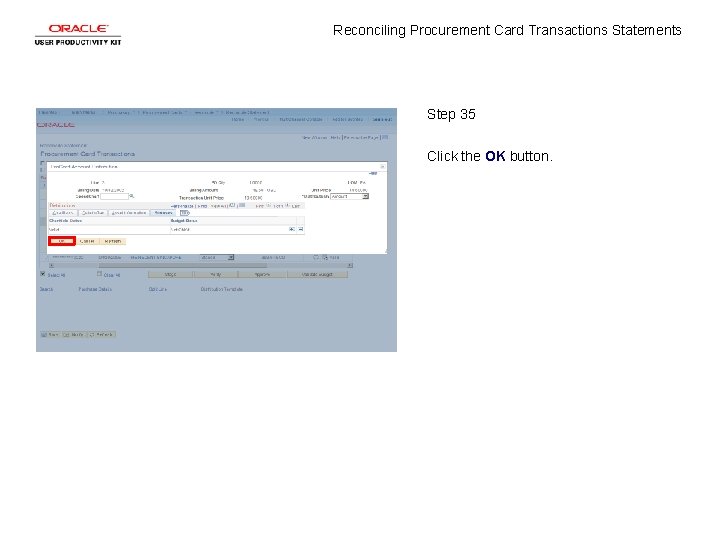
Reconciling Procurement Card Transactions Statements Step 35 Click the OK button.
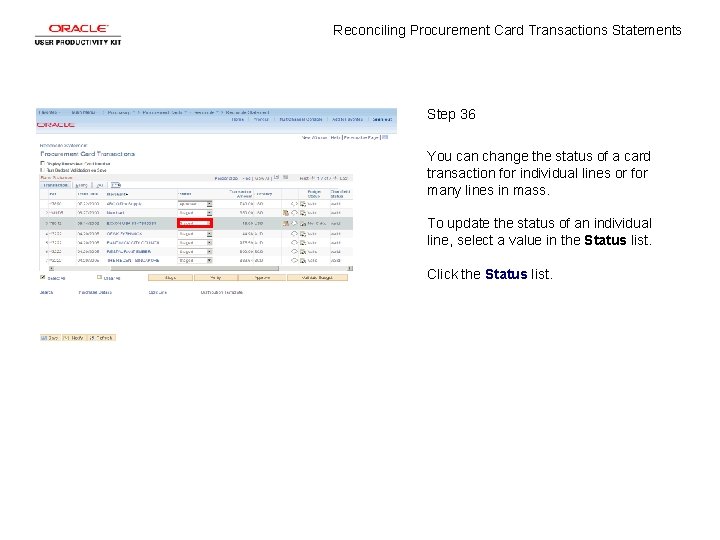
Reconciling Procurement Card Transactions Statements Step 36 You can change the status of a card transaction for individual lines or for many lines in mass. To update the status of an individual line, select a value in the Status list. Click the Status list.
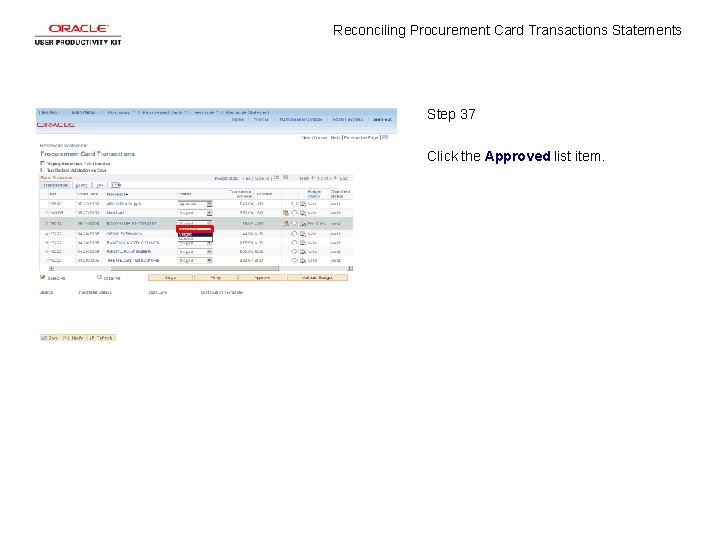
Reconciling Procurement Card Transactions Statements Step 37 Click the Approved list item.
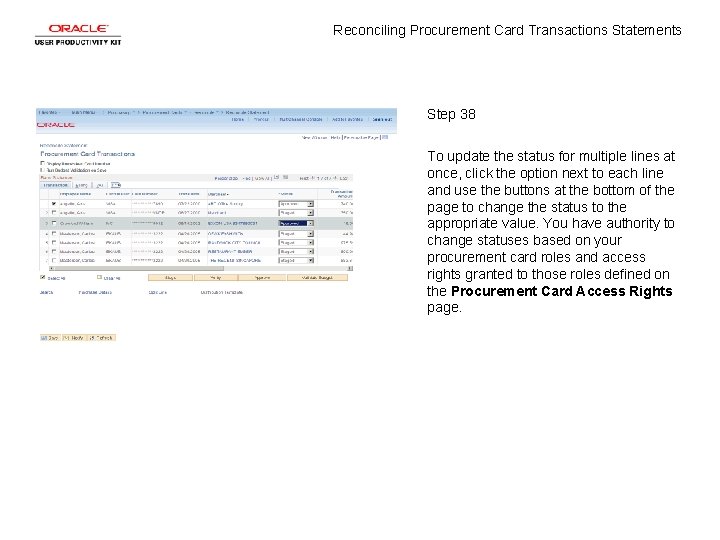
Reconciling Procurement Card Transactions Statements Step 38 To update the status for multiple lines at once, click the option next to each line and use the buttons at the bottom of the page to change the status to the appropriate value. You have authority to change statuses based on your procurement card roles and access rights granted to those roles defined on the Procurement Card Access Rights page.
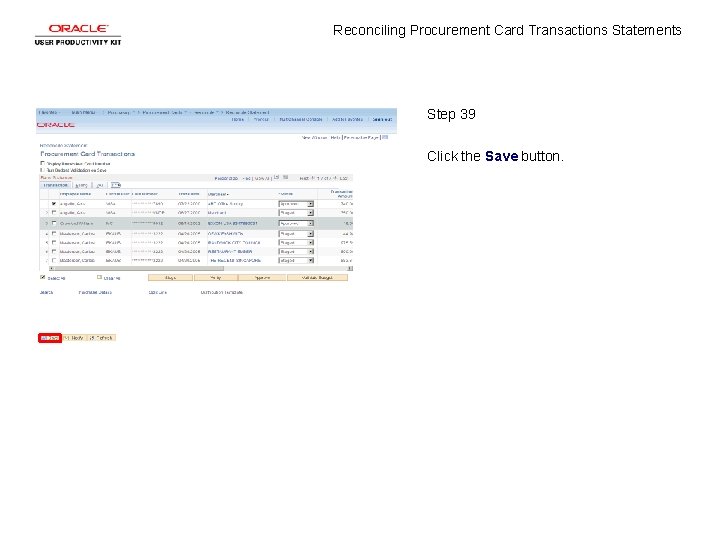
Reconciling Procurement Card Transactions Statements Step 39 Click the Save button.
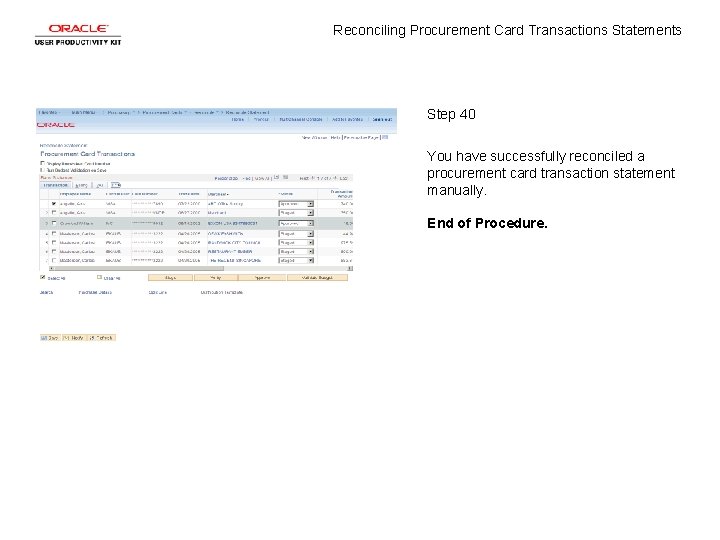
Reconciling Procurement Card Transactions Statements Step 40 You have successfully reconciled a procurement card transaction statement manually. End of Procedure.