
Recognizing the Benefits of Using CSS 1 The

Recognizing the Benefits of Using CSS 1
The Evolution of CSS • CSS was developed to standardize display information • CSS was slow to be supported by browsers • Newer browsers offer more complete support • Latest release is CSS 3 • CSS 3 is not yet evenly supported 2
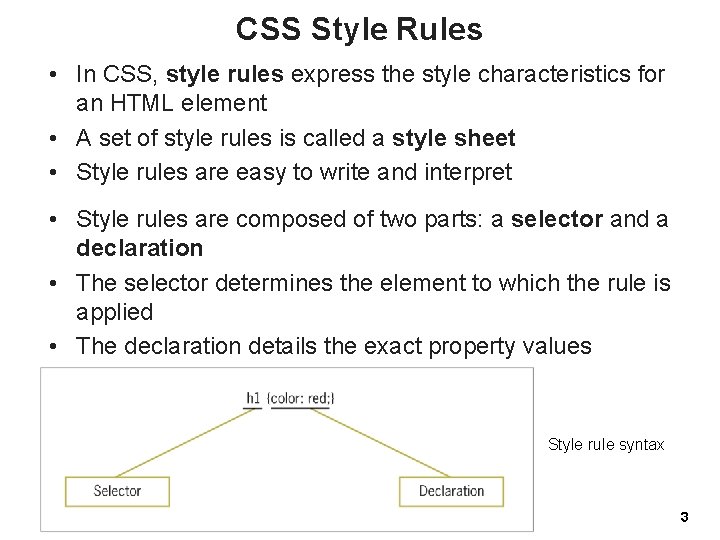
CSS Style Rules • In CSS, style rules express the style characteristics for an HTML element • A set of style rules is called a style sheet • Style rules are easy to write and interpret • Style rules are composed of two parts: a selector and a declaration • The selector determines the element to which the rule is applied • The declaration details the exact property values Style rule syntax 3
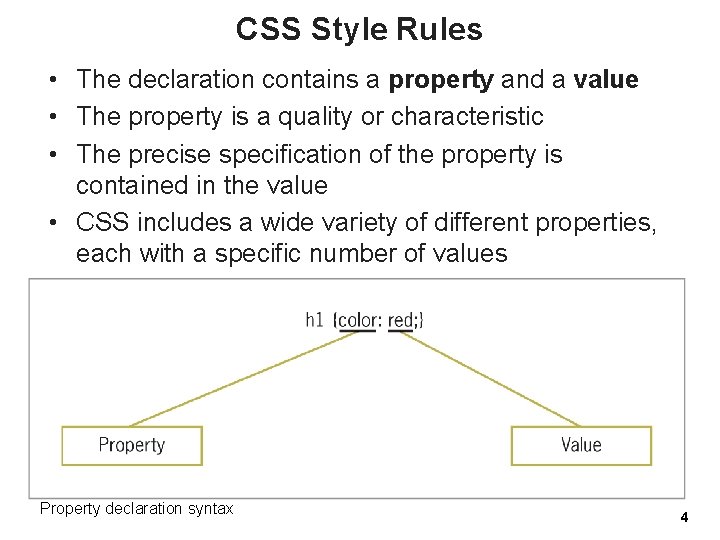
CSS Style Rules • The declaration contains a property and a value • The property is a quality or characteristic • The precise specification of the property is contained in the value • CSS includes a wide variety of different properties, each with a specific number of values Property declaration syntax 4
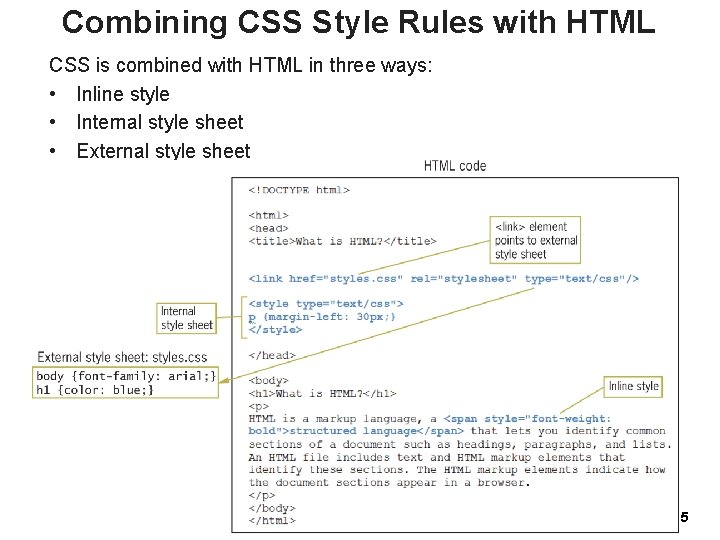
Combining CSS Style Rules with HTML CSS is combined with HTML in three ways: • Inline style • Internal style sheet • External style sheet 5
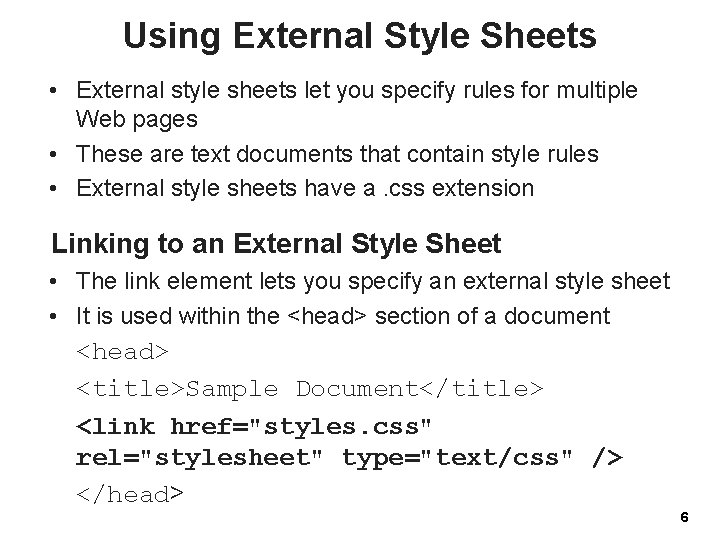
Using External Style Sheets • External style sheets let you specify rules for multiple Web pages • These are text documents that contain style rules • External style sheets have a. css extension Linking to an External Style Sheet • The link element lets you specify an external style sheet • It is used within the <head> section of a document <head> <title>Sample Document</title> <link href="styles. css" rel="stylesheet" type="text/css" /> </head> 6

Using Internal Style Sheets • Internal style sheets are contained within the <style> element • The style element is contained within the <head> section of the document • Style rules contained in an internal style sheet only affect the document in which they reside <head> <title>Sample Document</title> <style type="text/css"> h 1 {color: red; } </style> </head> 7
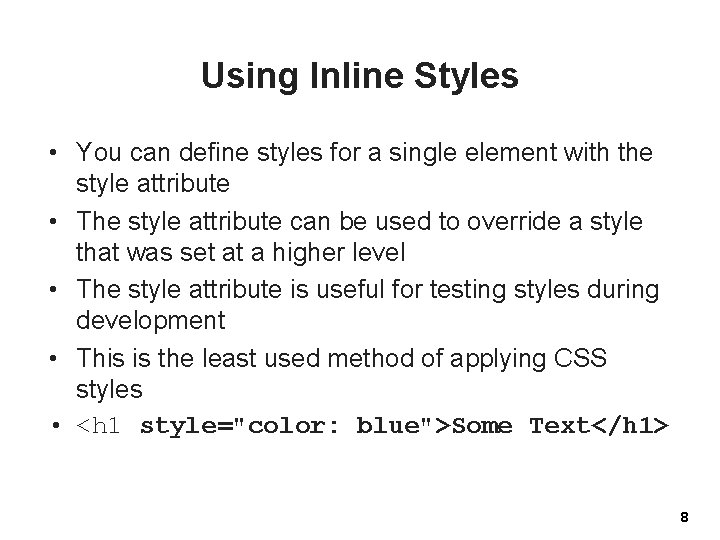
Using Inline Styles • You can define styles for a single element with the style attribute • The style attribute can be used to override a style that was set at a higher level • The style attribute is useful for testing styles during development • This is the least used method of applying CSS styles • <h 1 style="color: blue">Some Text</h 1> 8
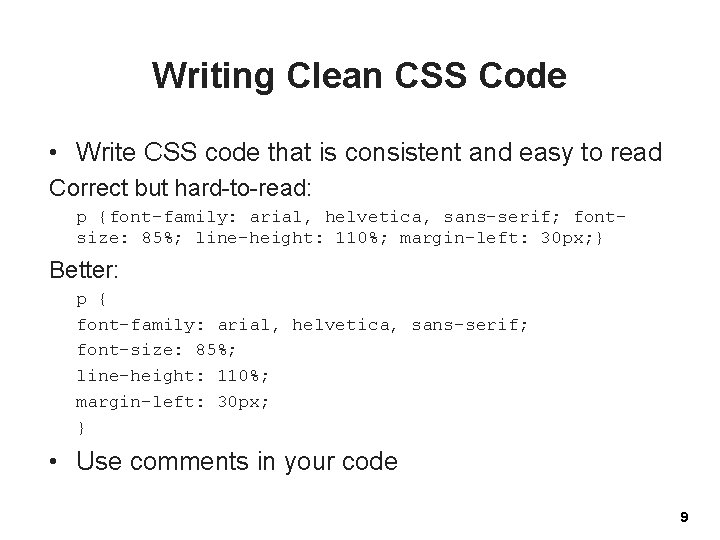
Writing Clean CSS Code • Write CSS code that is consistent and easy to read Correct but hard-to-read: p {font-family: arial, helvetica, sans-serif; fontsize: 85%; line-height: 110%; margin-left: 30 px; } Better: p { font-family: arial, helvetica, sans-serif; font-size: 85%; line-height: 110%; margin-left: 30 px; } • Use comments in your code 9
Using Inheritance to Write Simpler Style Rules 10
Using Inheritance to Write Simpler Style Rules • Elements in an HTML document are structured in a hierarchy • Parent elements contain child elements • Elements can be both parent and child elements • The CSS properties inherit from parent to child • The property descriptions list whether a property is inherited • You can style multiple document elements with just a few style rules using inheritance 11
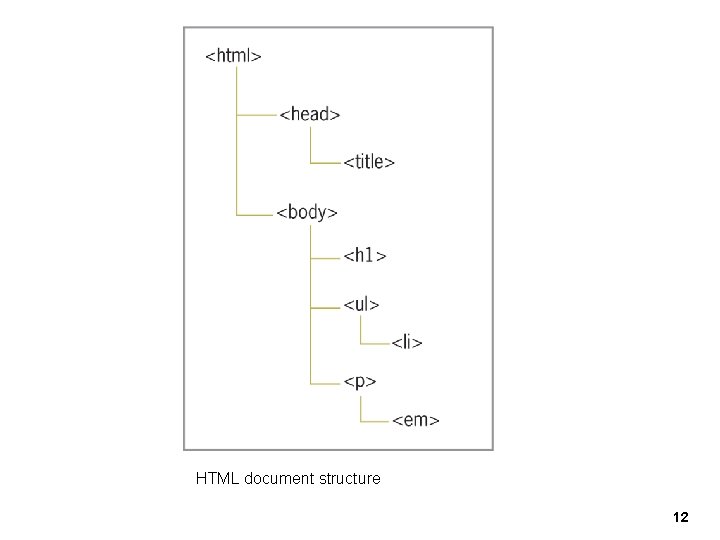
HTML document structure 12
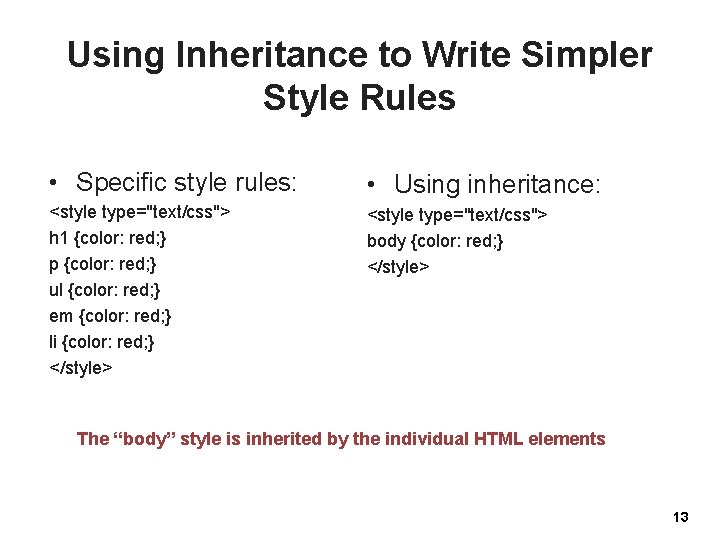
Using Inheritance to Write Simpler Style Rules • Specific style rules: • Using inheritance: <style type="text/css"> h 1 {color: red; } p {color: red; } ul {color: red; } em {color: red; } li {color: red; } </style> <style type="text/css"> body {color: red; } </style> The “body” style is inherited by the individual HTML elements 13

Examining Basic Selection Techniques 14
Examining Basic Selection Techniques • Selection of elements to which a certain style is to be applied. Basic selection techniques: – – Using type selectors Grouping selectors Combining declarations Using descendant selectors 15

Using Type Selectors • The selector determines the element to which a style declaration is applied • Type selectors are the simplest form of selector • They select every element in the document that matches the style rule • In the following example, all h 1 elements are red 16
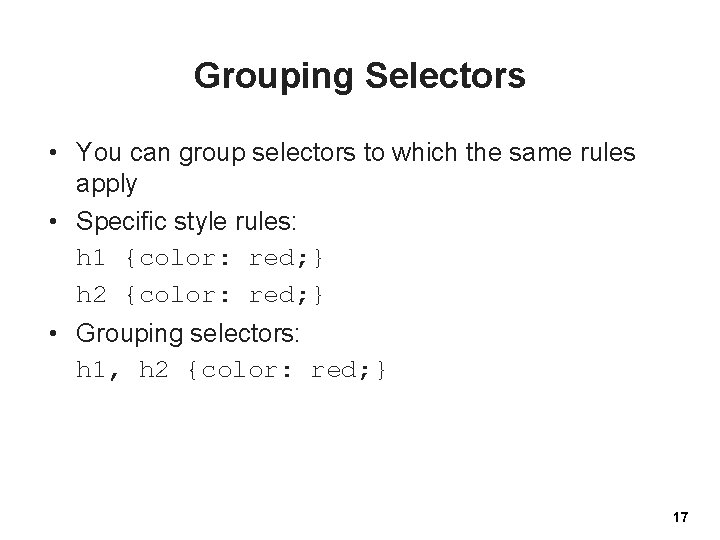
Grouping Selectors • You can group selectors to which the same rules apply • Specific style rules: h 1 {color: red; } h 2 {color: red; } • Grouping selectors: h 1, h 2 {color: red; } 17
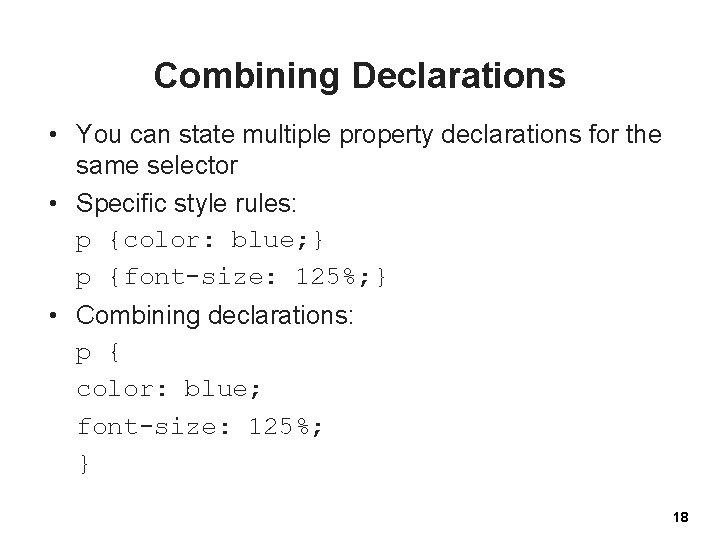
Combining Declarations • You can state multiple property declarations for the same selector • Specific style rules: p {color: blue; } p {font-size: 125%; } • Combining declarations: p { color: blue; font-size: 125%; } 18
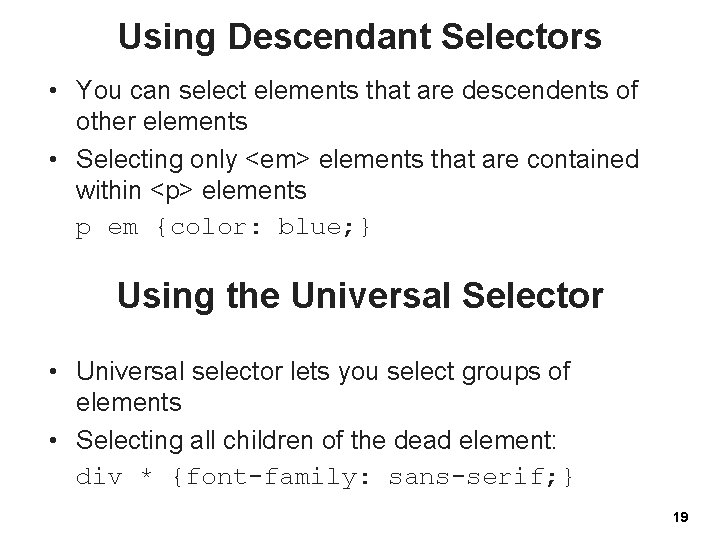
Using Descendant Selectors • You can select elements that are descendents of other elements • Selecting only <em> elements that are contained within <p> elements p em {color: blue; } Using the Universal Selector • Universal selector lets you select groups of elements • Selecting all children of the dead element: div * {font-family: sans-serif; } 19

Using Class and ID Selectors 20
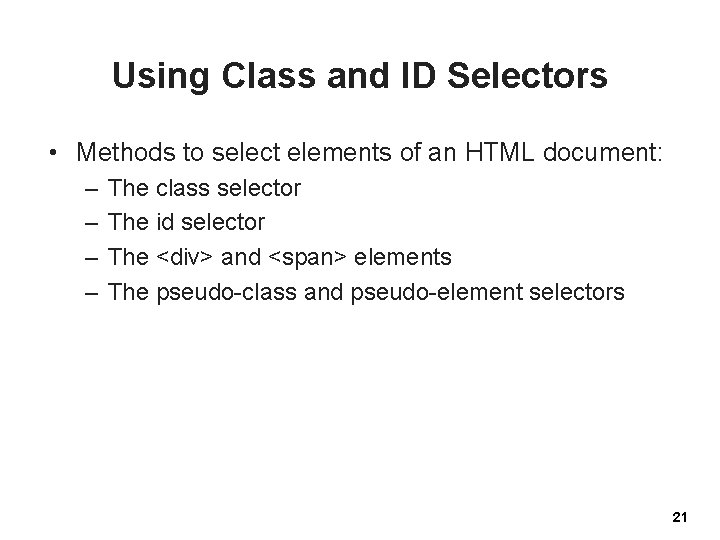
Using Class and ID Selectors • Methods to select elements of an HTML document: – – The class selector The id selector The <div> and <span> elements The pseudo-class and pseudo-element selectors 21
Using the Class Selector • The class selector lets you write rules and give them a name • You can apply that name to any element you choose • The class attribute lets you apply the style rule name to an element • The period (. ) flag character indicates the selector is a class selector 22
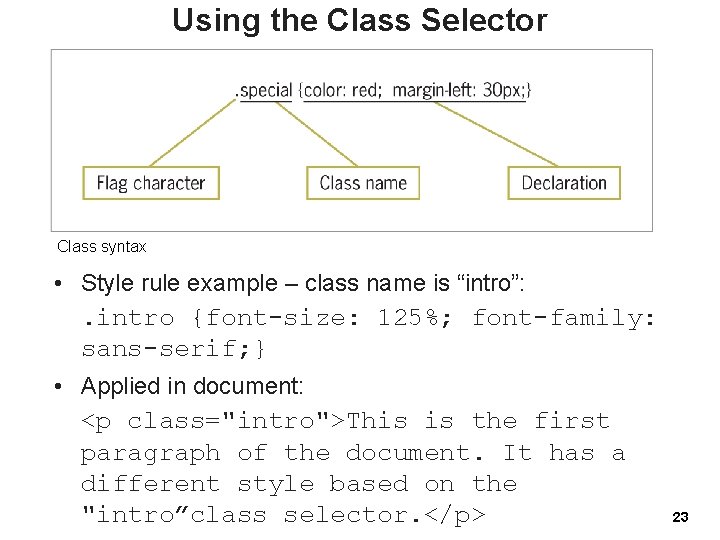
Using the Class Selector Class syntax • Style rule example – class name is “intro”: . intro {font-size: 125%; font-family: sans-serif; } • Applied in document: <p class="intro">This is the first paragraph of the document. It has a different style based on the "intro”class selector. </p> 23
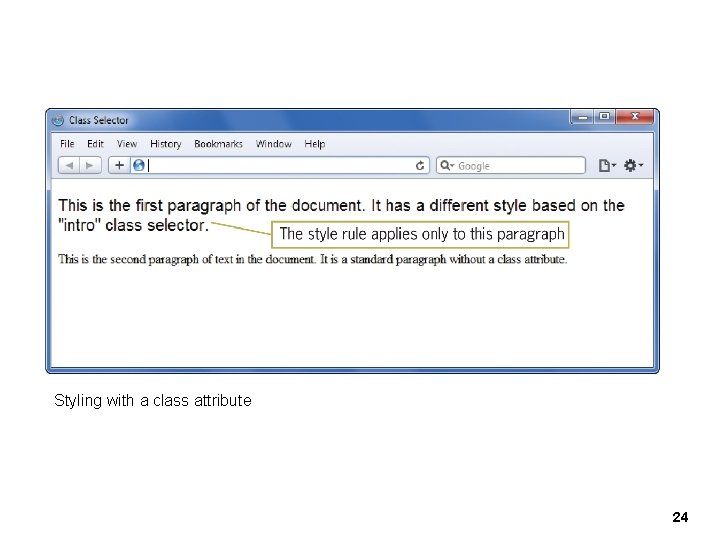
Styling with a class attribute 24
Using the id Attribute Selector • The difference between id and class is that id refers to only one instance of the id attribute value within a document (can’t have more than one element on a page with the same id) • The ID attribute is used to identify layout sections of the page • The ID attribute uses a pound sign (#) flag character • Any class selector can be turned into an id selector by changing the flag from (. ) to (#) (and viceversa) 25
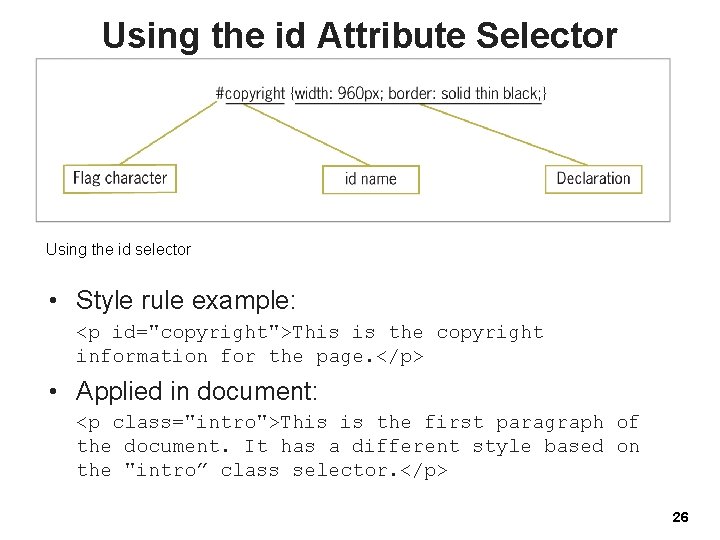
Using the id Attribute Selector Using the id selector • Style rule example: <p id="copyright">This is the copyright information for the page. </p> • Applied in document: <p class="intro">This is the first paragraph of the document. It has a different style based on the "intro” class selector. </p> 26
Using the <div> and <span> Elements 27
Using the <div> and <span> Elements • The <div> (division) and <span> (span of words) elements are designed to be used with CSS • They let you specify logical divisions within a document that have their own name and style properties 28
Working with <div> elements • Use <div> with the class and ID attributes to create logical divisions on a Web page • A division with an id named column as the selector: div#column { width: 200 px; height: auto; padding: 15 px; border: thin solid; } Applied in the document: <div id="column">This division displays… </div> 29
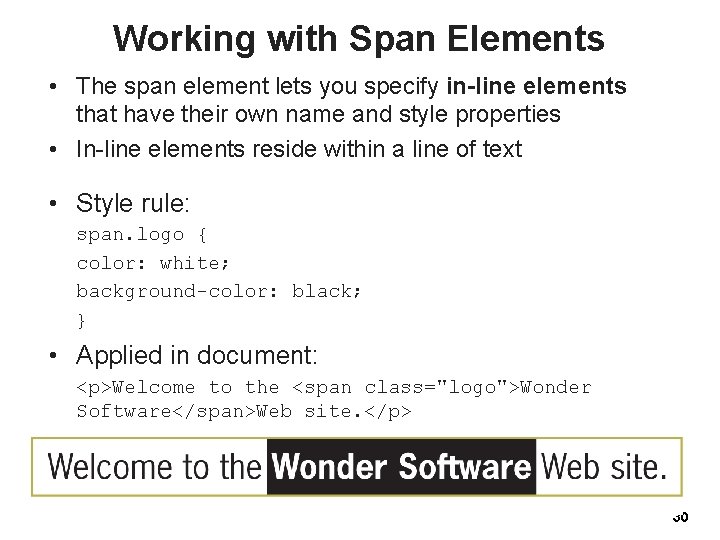
Working with Span Elements • The span element lets you specify in-line elements that have their own name and style properties • In-line elements reside within a line of text • Style rule: span. logo { color: white; background-color: black; } • Applied in document: <p>Welcome to the <span class="logo">Wonder Software</span>Web site. </p> 30
Using Other Selectors 31
Using Attribute Selectors • Attribute selectors let you select an element based on whether the element contains an attribute • Elements can be selected based on a specific value the attribute contains • Attribute selectors match against attributes and their values • To select this element: <img src="images/home. gif" title="home" alt="Home navigation button" /> using attribute selectors, you could use the value that the title attribute contains, as shown: img[title=home] {border-color: red; } 32
Using Pseudo-Class and Pseudo. Element Selectors • Pseudo-classes select elements based on characteristics other than their element name • For example, the characteristics of hypertext links can be changed with pseudo-classes • Pseudo-elements let you change other aspects of a document that are not classified by standard elements such as the first letter or line of a paragraph 33
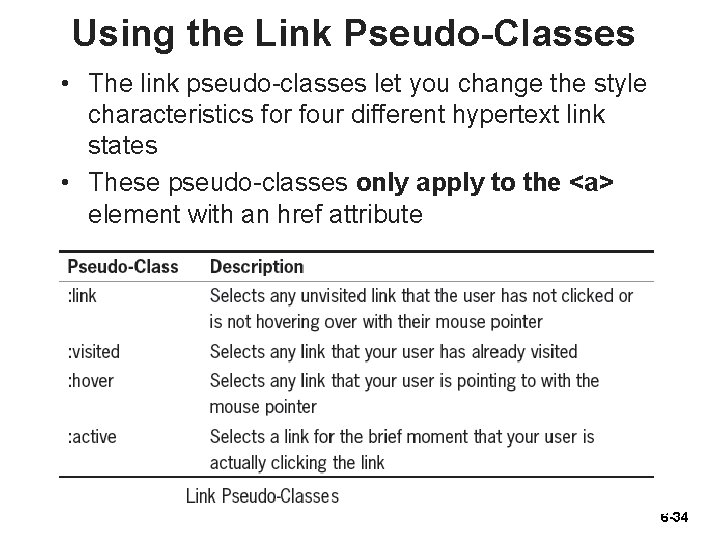
Using the Link Pseudo-Classes • The link pseudo-classes let you change the style characteristics for four different hypertext link states • These pseudo-classes only apply to the <a> element with an href attribute 6 -34
Using the Link Pseudo-Classes • Because of the specificity of the pseudo-class selectors, you should always place your link pseudo-class in the following order: 1. Link 2. Visited 3. Hover 4. Active • The following rules change the colors of the hypertext links: : link {color: red; } : visited {color: green; } 35
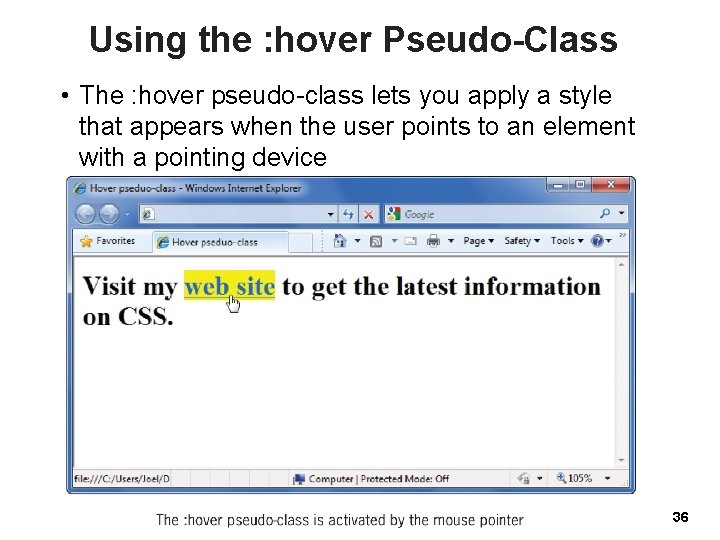
Using the : hover Pseudo-Class • The : hover pseudo-class lets you apply a style that appears when the user points to an element with a pointing device a: hover {background-color: yellow; } 36
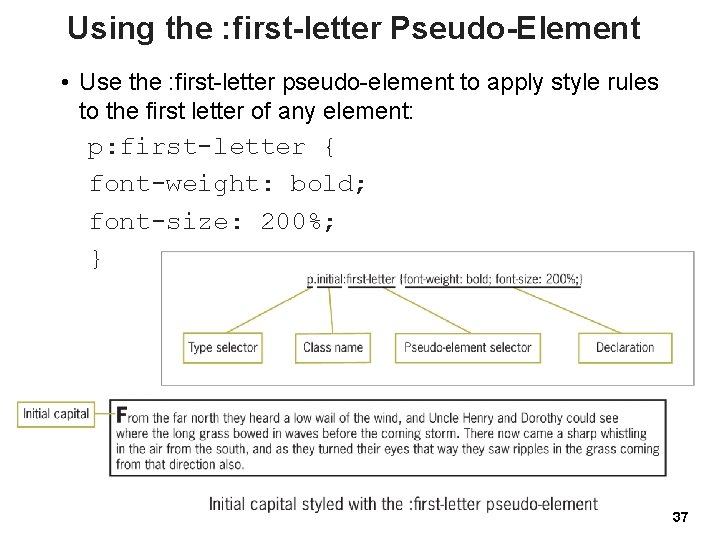
Using the : first-letter Pseudo-Element • Use the : first-letter pseudo-element to apply style rules to the first letter of any element: p: first-letter { font-weight: bold; font-size: 200%; } 37
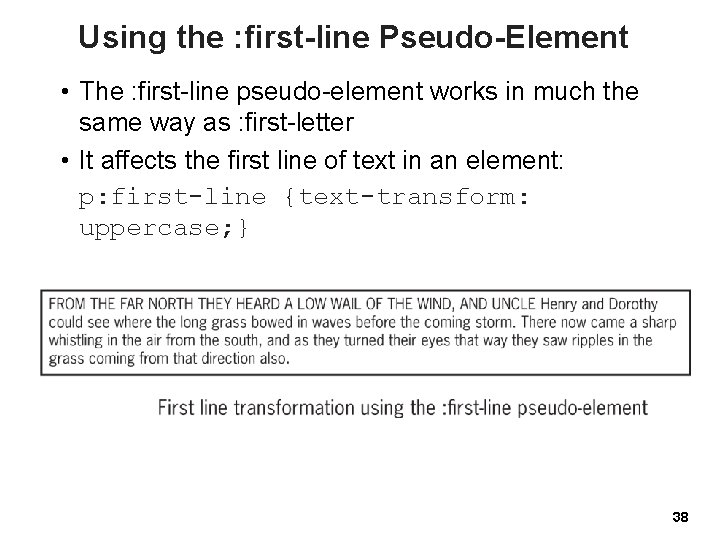
Using the : first-line Pseudo-Element • The : first-line pseudo-element works in much the same way as : first-letter • It affects the first line of text in an element: p: first-line {text-transform: uppercase; } 38
Understanding How the Cascade Affects Style Rules • To cascade means that multiple style sheets and style rules can apply to the same document • Only one rule can apply to an element • The CSS cascading mechanism determines which rules apply based on three variables: – Specificity of the selector – Order of the rule in the style sheet – Use of the !important keyword 39

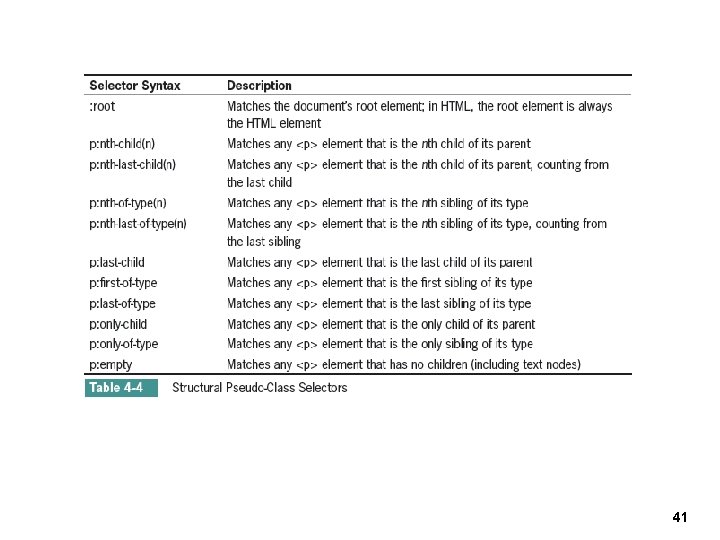
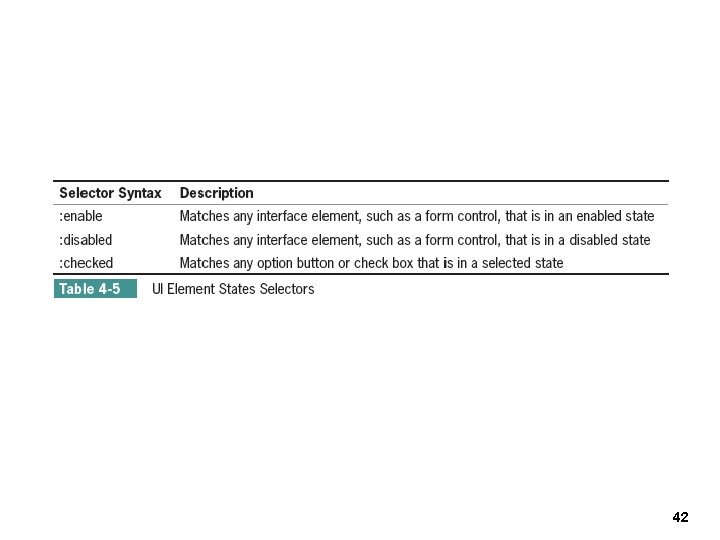
CSS 3 Selectors 40
41
42
- Slides: 42