
Recap Last lecture we looked at local shading
- Slides: 23
Recap • Last lecture we looked at local shading models – Diffuse and Phong specular terms – Flat and smooth shading • Some things were glossed over – Light source types and their effects – Distant viewer assumption • This lecture: – Clean up the odds and ends – Texture mapping and other mapping effects – A little more on the next project
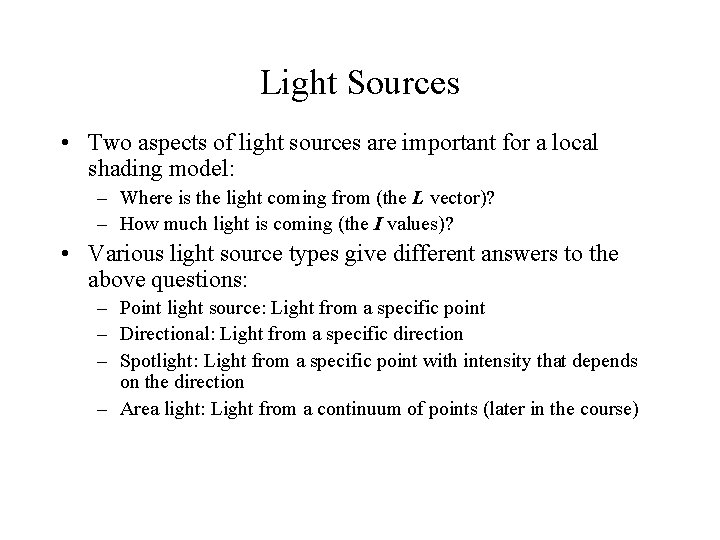
Light Sources • Two aspects of light sources are important for a local shading model: – Where is the light coming from (the L vector)? – How much light is coming (the I values)? • Various light source types give different answers to the above questions: – Point light source: Light from a specific point – Directional: Light from a specific direction – Spotlight: Light from a specific point with intensity that depends on the direction – Area light: Light from a continuum of points (later in the course)
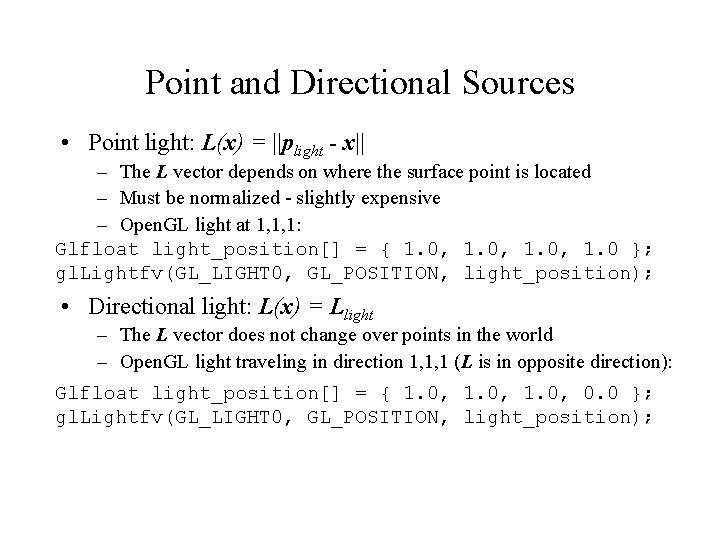
Point and Directional Sources • Point light: L(x) = ||plight - x|| – The L vector depends on where the surface point is located – Must be normalized - slightly expensive – Open. GL light at 1, 1, 1: Glfloat light_position[] = { 1. 0, 1. 0 }; gl. Lightfv(GL_LIGHT 0, GL_POSITION, light_position); • Directional light: L(x) = Llight – The L vector does not change over points in the world – Open. GL light traveling in direction 1, 1, 1 (L is in opposite direction): Glfloat light_position[] = { 1. 0, 0. 0 }; gl. Lightfv(GL_LIGHT 0, GL_POSITION, light_position);
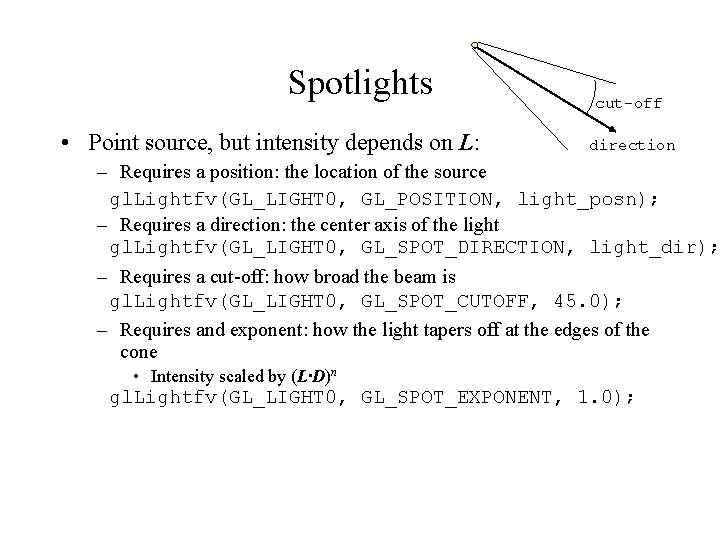
Spotlights • Point source, but intensity depends on L: cut-off direction – Requires a position: the location of the source gl. Lightfv(GL_LIGHT 0, GL_POSITION, light_posn); – Requires a direction: the center axis of the light gl. Lightfv(GL_LIGHT 0, GL_SPOT_DIRECTION, light_dir); – Requires a cut-off: how broad the beam is gl. Lightfv(GL_LIGHT 0, GL_SPOT_CUTOFF, 45. 0); – Requires and exponent: how the light tapers off at the edges of the cone • Intensity scaled by (L·D)n gl. Lightfv(GL_LIGHT 0, GL_SPOT_EXPONENT, 1. 0);
Distant Viewer Approximation • Specularities require the viewing direction: – V(x) = ||VRP-x|| – Slightly expensive to compute • Distant viewer approximation uses a global V – Independent of which point is being lit – Use the view plane normal vector – Error depends on the nature of the scene • Explored in the homework
Mapping Techniques • Consider the problem of rendering a soup can – The geometry is very simple - a cylinder – But the color changes rapidly, with sharp edges – With the local shading model, so far, the only place to specify color is at the vertices – To do a soup tin, would need thousands of polygons for a simple shape – Same things goes for an orange: simple shape but complex normal vectors • Solution: Mapping techniques use simple geometry modified by a mapping of some type
Texture Mapping (Watt 8. 1) • The soup tin is easily described by pasting a label on the plain cylinder • Texture mapping associates the color of a point with the color in an image: the texture – Soup tin: Each point on the cylinder get the label’s color • Question: Which point of the texture do we use for a given point on the surface? • Establish a mapping from surface points to image points – Different mappings are common for different shapes – We will, for now, just look at triangles (polygons)
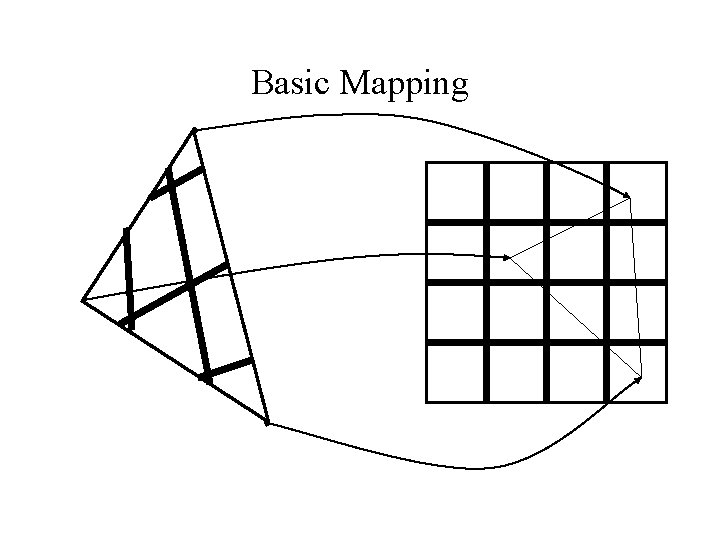
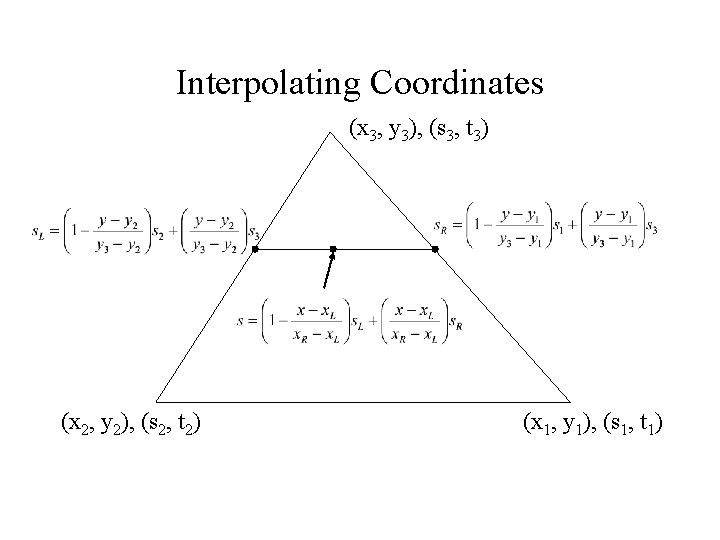
Basic Mapping • The texture lives in a 2 D space – Parameterize points in the texture with 2 coordinates: (s, t) – These are just what we would call (x, y) if we were talking about an image, but we wish to avoid confusion with the world (x, y, z) • Define the mapping from (x, y, z) in world space to (s, t) in texture space • With polygons: – Specify (s, t) coordinates at vertices – Interpolate (s, t) for other points based on given vertices
Basic Mapping
Interpolating Coordinates (x 3, y 3), (s 3, t 3) (x 2, y 2), (s 2, t 2) (x 1, y 1), (s 1, t 1)
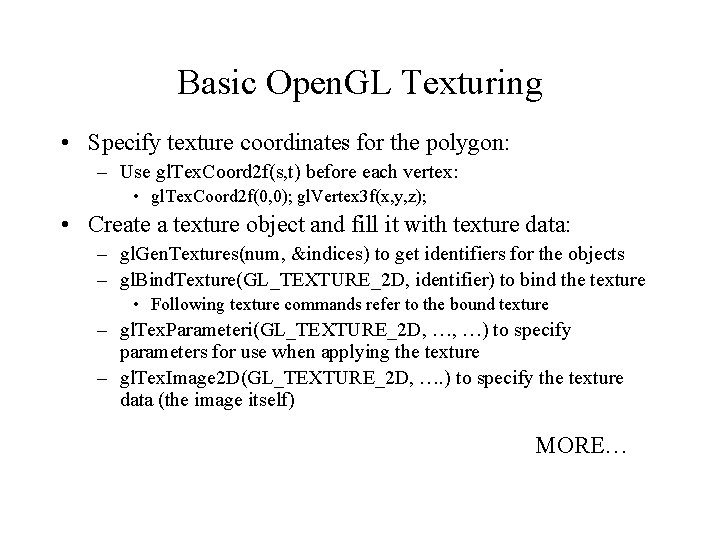
Basic Open. GL Texturing • Specify texture coordinates for the polygon: – Use gl. Tex. Coord 2 f(s, t) before each vertex: • gl. Tex. Coord 2 f(0, 0); gl. Vertex 3 f(x, y, z); • Create a texture object and fill it with texture data: – gl. Gen. Textures(num, &indices) to get identifiers for the objects – gl. Bind. Texture(GL_TEXTURE_2 D, identifier) to bind the texture • Following texture commands refer to the bound texture – gl. Tex. Parameteri(GL_TEXTURE_2 D, …, …) to specify parameters for use when applying the texture – gl. Tex. Image 2 D(GL_TEXTURE_2 D, …. ) to specify the texture data (the image itself) MORE…
Basic Open. GL Texturing (cont) • Enable texturing: gl. Enable(GL_TEXTURE_2 D) • State how the texture will be used: – gl. Tex. Envf(…) • Texturing is done after lighting • You’re ready to go…
Nasty Details • There a large range of functions for controlling the layout of texture data: – You must state how the data in your image is arranged – Eg: gl. Pixel. Storei(GL_UNPACK_ALIGNMENT, 1) tells Open. GL not to skip bytes at the end of a row – You must state how you want the texture to be put in memory: how many bits per “pixel”, which channels, … • For project 3, when you use this stuff, there will be example code, and the Red Book contains examples
Controlling Different Parameters • The “pixels” in the texture map may be interpreted as many different things: – As colors in RGB or RGBA format – As grayscale intensity – As alpha values only • The data can be applied to the polygon in many different ways: – Replace: Replace the polygon color with the texture color – Modulate: Multiply the polygon color with the texture color or intensity – Similar to compositing: Composite texture with base using operator
Example: Diffuse shading and texture • Say you want to have an object textured and have the texture appear to be diffusely lit • Problem: Texture is applied after lighting, so how do you adjust the texture’s brightness? • Solution: – – Make the polygon white and light it normally Use gl. Tex. Envi(GL_TEXTURE_2 D, GL_TEXTURE_ENV_MODE, GL_MODULATE) Use GL_RGB for internal format Then, texture color is multiplied by surface (fragment) color, and alpha is taken from fragment
Textures and Aliasing • Textures are subject to aliasing: – An polygon point maps into a texture image, essentially sampling the texture at a point • Standard approaches: – Pre-filtering: Filter the texture down before applying it – Post-filtering: Take multiple pixels from the texture and filter them before applying to the polygon fragment
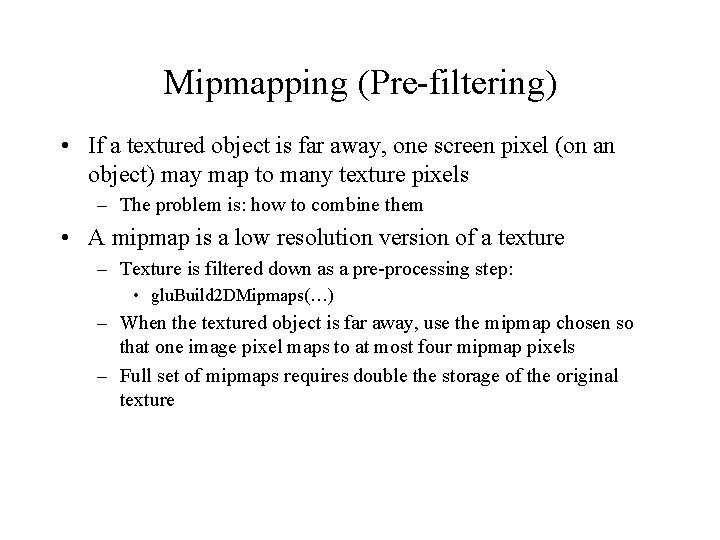
Mipmapping (Pre-filtering) • If a textured object is far away, one screen pixel (on an object) may map to many texture pixels – The problem is: how to combine them • A mipmap is a low resolution version of a texture – Texture is filtered down as a pre-processing step: • glu. Build 2 DMipmaps(…) – When the textured object is far away, use the mipmap chosen so that one image pixel maps to at most four mipmap pixels – Full set of mipmaps requires double the storage of the original texture
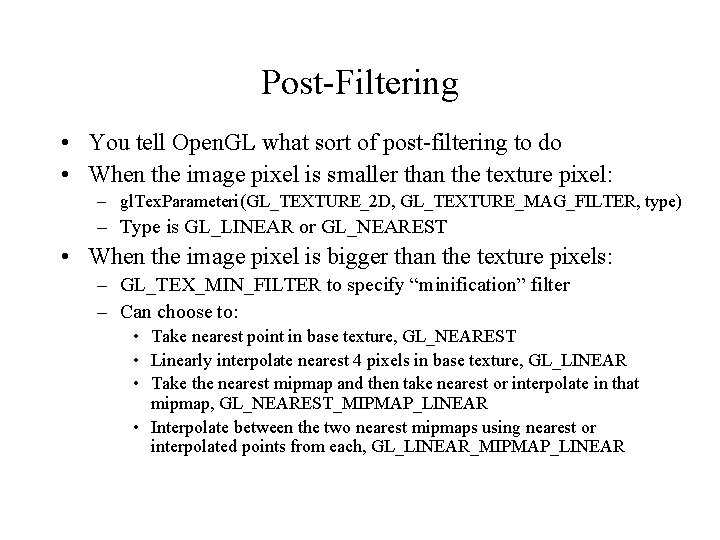
Post-Filtering • You tell Open. GL what sort of post-filtering to do • When the image pixel is smaller than the texture pixel: – gl. Tex. Parameteri(GL_TEXTURE_2 D, GL_TEXTURE_MAG_FILTER, type) – Type is GL_LINEAR or GL_NEAREST • When the image pixel is bigger than the texture pixels: – GL_TEX_MIN_FILTER to specify “minification” filter – Can choose to: • Take nearest point in base texture, GL_NEAREST • Linearly interpolate nearest 4 pixels in base texture, GL_LINEAR • Take the nearest mipmap and then take nearest or interpolate in that mipmap, GL_NEAREST_MIPMAP_LINEAR • Interpolate between the two nearest mipmaps using nearest or interpolated points from each, GL_LINEAR_MIPMAP_LINEAR
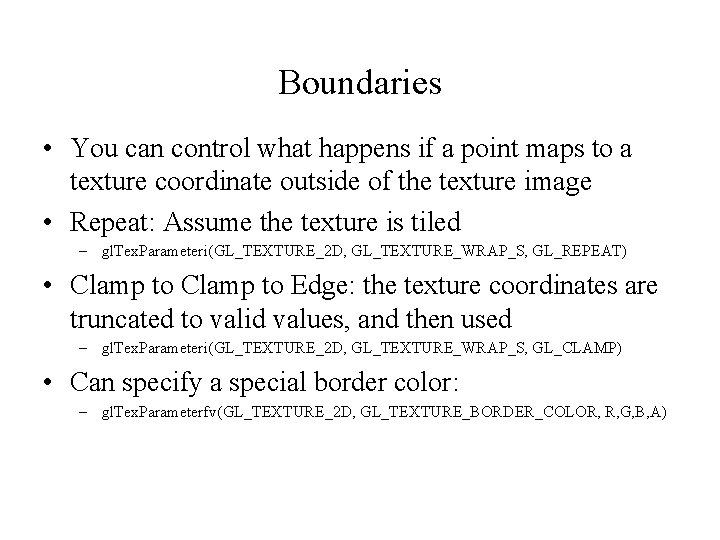
Boundaries • You can control what happens if a point maps to a texture coordinate outside of the texture image • Repeat: Assume the texture is tiled – gl. Tex. Parameteri(GL_TEXTURE_2 D, GL_TEXTURE_WRAP_S, GL_REPEAT) • Clamp to Edge: the texture coordinates are truncated to valid values, and then used – gl. Tex. Parameteri(GL_TEXTURE_2 D, GL_TEXTURE_WRAP_S, GL_CLAMP) • Can specify a special border color: – gl. Tex. Parameterfv(GL_TEXTURE_2 D, GL_TEXTURE_BORDER_COLOR, R, G, B, A)
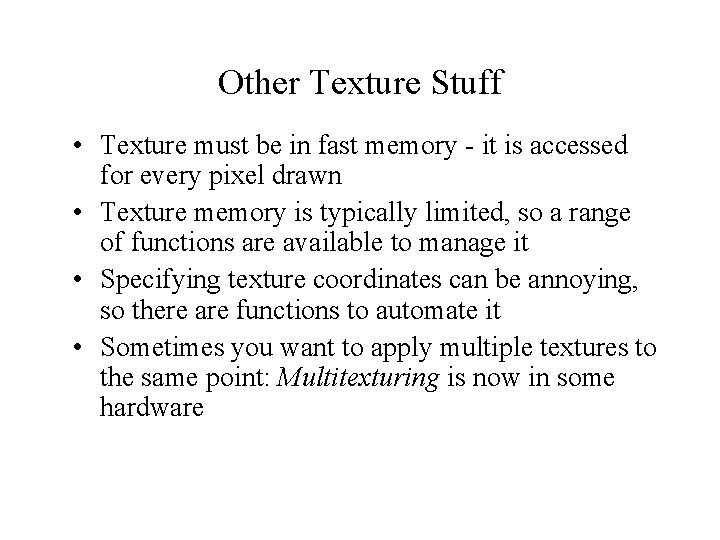
Other Texture Stuff • Texture must be in fast memory - it is accessed for every pixel drawn • Texture memory is typically limited, so a range of functions are available to manage it • Specifying texture coordinates can be annoying, so there are functions to automate it • Sometimes you want to apply multiple textures to the same point: Multitexturing is now in some hardware
Other Texture Stuff • There is a texture matrix: apply a matrix transformation to texture coordinates before indexing texture • There are “image processing” operations that can be applied to the pixels coming out of the texture • There are 1 D and 3 D textures – Instead of giving 2 d texture coordinates, give higher dimensions – Mapping works essentially the same – 3 D used in visualization applications, such a visualizing MRI or other medical data – 1 D saves memory if the texture is inherently 1 D, like stripes
Procedural Texture Mapping • Instead of looking up an image, pass the texture coordinates to a function that computes the texture value on the fly – Renderman, the Pixar rendering language, does this – Also now becoming available in hardware • Advantages: – Near-infinite resolution with small storage cost – Idea works for many other things • Has the disadvantage of being slow
Other Types of Mapping • Environment mapping looks up incoming illumination in a map – Simulates reflections from shiny surfaces • Bump-mapping computes an offset to the normal vector at each rendered pixel – No need to put bumps in geometry, but silhouette looks wrong • Displacement mapping adds an offset to the surface at each point – Like putting bumps on geometry, but simpler to model • All are available in software renderers like Render. Man compliant renderers • All these are becoming available in hardware