
Really Using Your BRAIN Advanced Applications TeacherMentor Workshop

Really Using Your BRAIN (Advanced Applications) Teacher-Mentor Workshop July 18 -19, 2008 Auburn University
Introduction • • • New programmable robot controller (BRAIN) 100% roll-out to all hubs in 2008 Current Cost: $100 per BRAIN (includes cables, software, etc) Expected delivery in July time-frame. Existing tether boxes can be used. 2007 BRAINS can be used. – Functionally equivalent to 2008 BRAINS – Improvements • Low Battery voltage impact enhancement • Tether noise suppression • Additional LED indicators installed Copyright © 2008 BEST Robotics, Inc. All rights reserved.
Objectives of this Class • Train Team personnel how to: • Setup their computers • Create their own C programs using the BRAIN API library • Compile, link & download user programs using the IAR Workbench programming environment • Explore a few of the capabilities of the BRAIN through some coding examples • Identify support material to be available to the Teams and where the current version may be located. Copyright © 2008 BEST Robotics, Inc. All rights reserved.
Who should take this Class? • Mentors and Teachers who will “Train the Trainers” in their respective Teams. • Should be limited to the individuals who have experience with the BRAIN from the 2007 game or have other previous experience. • Programming experience is desirable along with a reasonable knowledge of personal computers. Attendees should have some knowledge of “C” Copyright © 2008 BEST Robotics, Inc. All rights reserved.
Content of this Class • Hardware Architecture Overview • The Programming Environment • BRAIN Application Programming Interface (API) • Coding Examples • Simple Program Debugging • BRAIN Support & Feedback Copyright © 2008 BEST Robotics, Inc. All rights reserved.
BEST Robotics Advanced Instruction Node Advanced BRAIN Training Section 1 - Hardware Architecture Copyright © 2008 BEST Robotics, Inc. All rights reserved.

BRAIN Overview Dual 16 -bit microcontroller architecture (TI MSP 430) Easy program download via USB interface Electronics protected by removable cover Replaceable connectors Copyright © 2008 BEST Robotics, Inc. All rights reserved.

BRAIN Features • Interface with standard Futaba radio • PWM input from receiver • Dedicated “trainer” cable interface for tethered operation • • • 4 proportional motor control outputs 6 servo motor outputs 8 discrete digital inputs USB port for program download Onboard power switch and replaceable fuse Powered by a single 7. 2 volt RC hobby battery Copyright © 2008 BEST Robotics, Inc. All rights reserved.
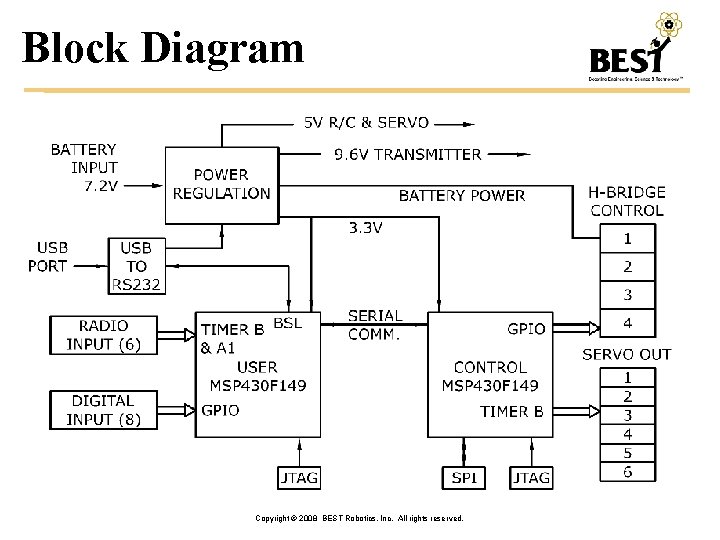
Block Diagram Copyright © 2008 BEST Robotics, Inc. All rights reserved.
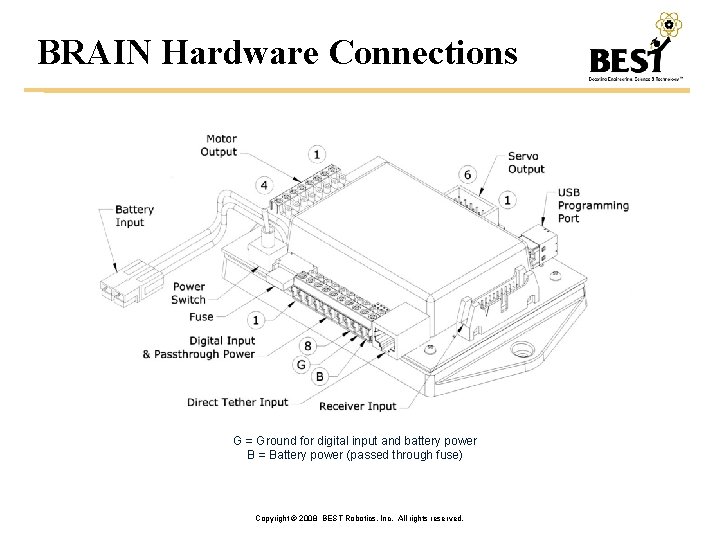
BRAIN Hardware Connections G = Ground for digital input and battery power B = Battery power (passed through fuse) Copyright © 2008 BEST Robotics, Inc. All rights reserved.
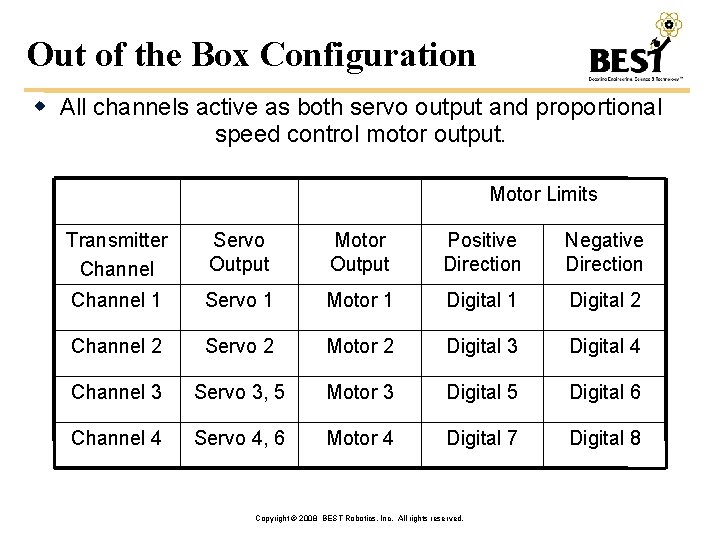
Out of the Box Configuration All channels active as both servo output and proportional speed control motor output. Motor Limits Transmitter Channel Servo Output Motor Output Positive Direction Negative Direction Channel 1 Servo 1 Motor 1 Digital 2 Channel 2 Servo 2 Motor 2 Digital 3 Digital 4 Channel 3 Servo 3, 5 Motor 3 Digital 5 Digital 6 Channel 4 Servo 4, 6 Motor 4 Digital 7 Digital 8 Copyright © 2008 BEST Robotics, Inc. All rights reserved.
Out of the Box Configuration Allows a team to hook up the BRAIN any way they wish and have it work without ever having to program the BRAIN. Referred to as the “default” project – described later. This is NOT the only configuration for the BRAIN! Good for initial checkout, but we want teams to load a unique configuration. Copyright © 2008 BEST Robotics, Inc. All rights reserved.
BRAIN STEM Self-Test Enabling Mechanism (STEM) Plug-in test fixture providing self-test of BRAIN functions. Under development for use by hubs. Out of the box configuration for BRAIN includes a self-test routine to work with STEM. The STEM is automatically detected by the diagnostic program (loopback to digital input). Simple wrap-around tests for all inputs/outputs. Diagnostic output via USB port. Copyright © 2008 BEST Robotics, Inc. All rights reserved.
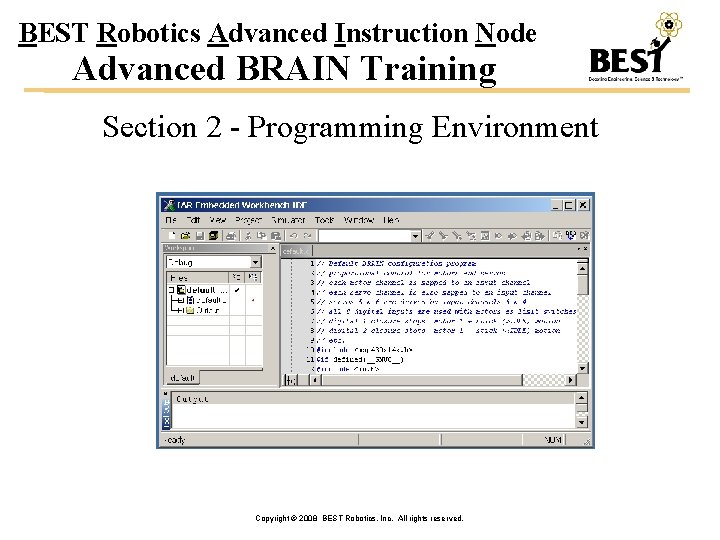
BEST Robotics Advanced Instruction Node Advanced BRAIN Training Section 2 - Programming Environment Copyright © 2008 BEST Robotics, Inc. All rights reserved.
What’s Included? • BRAIN Support Software includes: • IAR Workbench – A FREE C-programming environment for MSP 430 • Wizard, Libraries, USB drivers & download utilities • All software installed to PC via BRAIN installer program • Configures IAR Workbench for use with the BRAIN • Create programs via the BRAIN Wizard • Create your own user programs using BRAIN Applications Programming Interface (API) Copyright © 2008 BEST Robotics, Inc. All rights reserved.
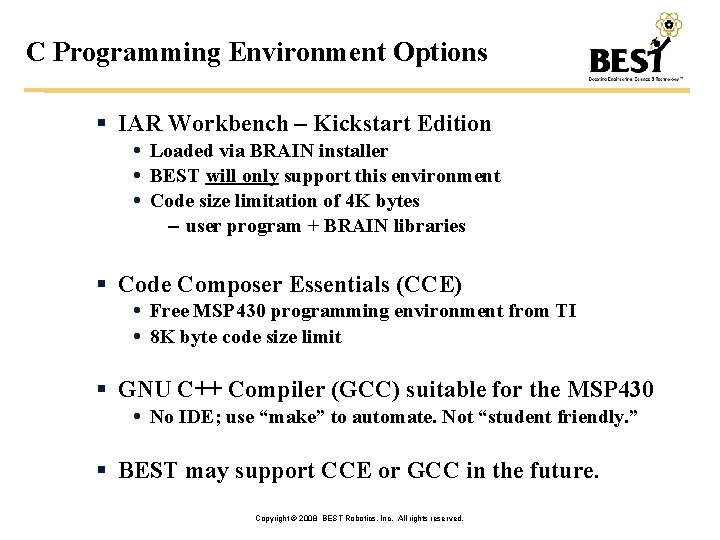
C Programming Environment Options IAR Workbench – Kickstart Edition Loaded via BRAIN installer BEST will only support this environment Code size limitation of 4 K bytes – user program + BRAIN libraries Code Composer Essentials (CCE) Free MSP 430 programming environment from TI 8 K byte code size limit GNU C++ Compiler (GCC) suitable for the MSP 430 No IDE; use “make” to automate. Not “student friendly. ” BEST may support CCE or GCC in the future. Copyright © 2008 BEST Robotics, Inc. All rights reserved.
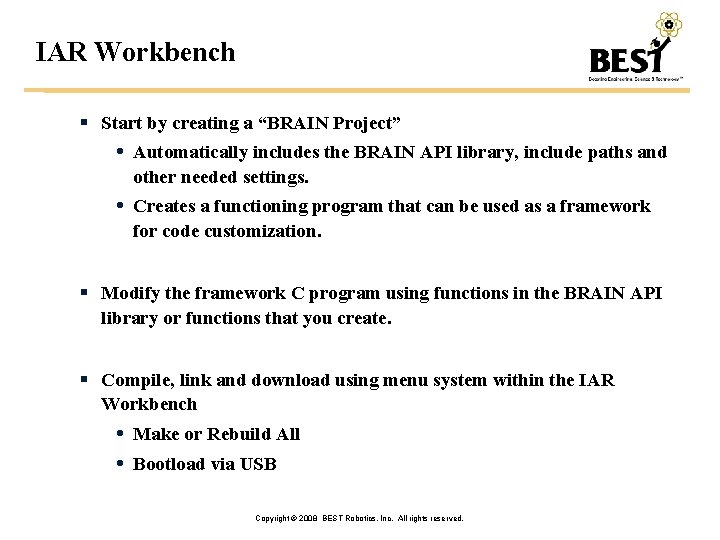
IAR Workbench Start by creating a “BRAIN Project” Automatically includes the BRAIN API library, include paths and other needed settings. Creates a functioning program that can be used as a framework for code customization. Modify the framework C program using functions in the BRAIN API library or functions that you create. Compile, link and download using menu system within the IAR Workbench Make or Rebuild All Bootload via USB Copyright © 2008 BEST Robotics, Inc. All rights reserved.
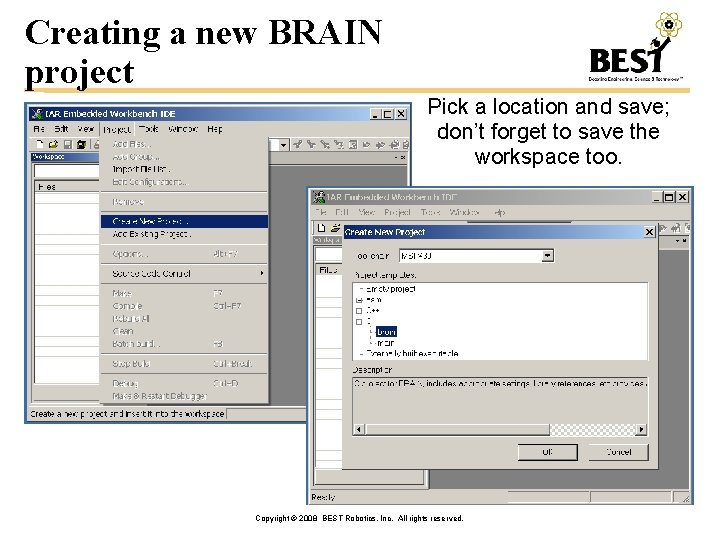
Creating a new BRAIN project Pick a location and save; don’t forget to save the workspace too. Copyright © 2008 BEST Robotics, Inc. All rights reserved.
BEST Robotics Advanced Instruction Node Advanced BRAIN Training Section 3 – BRAIN API (Application Programming Interface) Copyright © 2008 BEST Robotics, Inc. All rights reserved.
BRAIN API Currently, four groups of functions: Initialization – set up timers, input/output, etc – single call to initialize everything. First call to make. Input – read status of digital input channels and transmitter signals. Do this within a loop to provide real-time input Output – allows LED, motor channels and servo channels to be set. Do this within a loop to provide realtime control Serial output – allows feedback stream to PC to monitor BRAIN status. Copyright © 2008 BEST Robotics, Inc. All rights reserved.
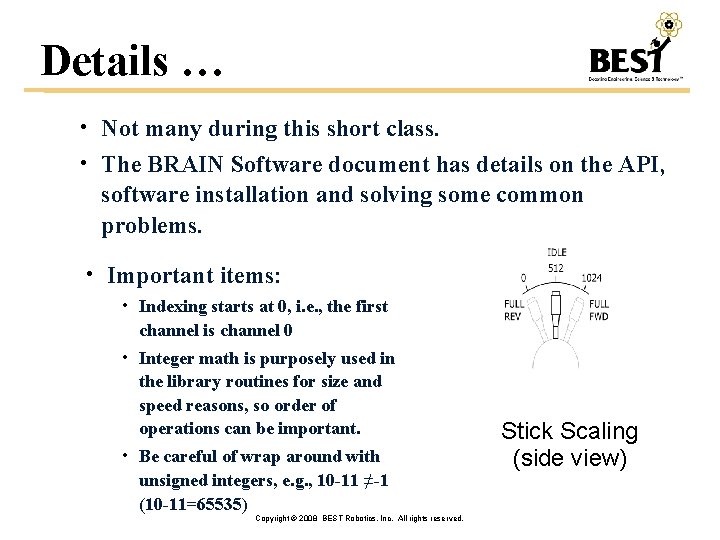
Details … • Not many during this short class. • The BRAIN Software document has details on the API, software installation and solving some common problems. • Important items: • Indexing starts at 0, i. e. , the first channel is channel 0 • Integer math is purposely used in the library routines for size and speed reasons, so order of operations can be important. • Be careful of wrap around with unsigned integers, e. g. , 10 -11 ≠-1 (10 -11=65535) Copyright © 2008 BEST Robotics, Inc. All rights reserved. Stick Scaling (side view)
API - Initialization void Init. Brain() This should be the first step in every BRAIN program. void Init. Cpu() provides a one-call initialization of the system by calling Init. Cpu(), then calling Init. Rc(), and finally enabling interrupts. initializes the state of the MSP 430 controller sets up various timers and interrupts. Call prior to Init. Rc(). Not normally called directly from the user program. void Init. Rc() initializes the state of the inputs used to capture the radio control signals from the receiver and tether system. Call after Init. Cpu(). Not normally called directly from the user program. Copyright © 2008 BEST Robotics, Inc. All rights reserved.
API - Input • short get. Rc. Value(short chan, unsigned short deadband, unsigned short gainval) returns input values between 0 and 1024 from either tether or RC. chan: 0 to 3 deadband: differential value from IDLE (center position) that must be exceeded to generate a value other than IDLE. gainval: scales output according to: output=IDLE+(inputvalue-IDLE)*gainval/100 Copyright © 2008 BEST Robotics, Inc. All rights reserved.
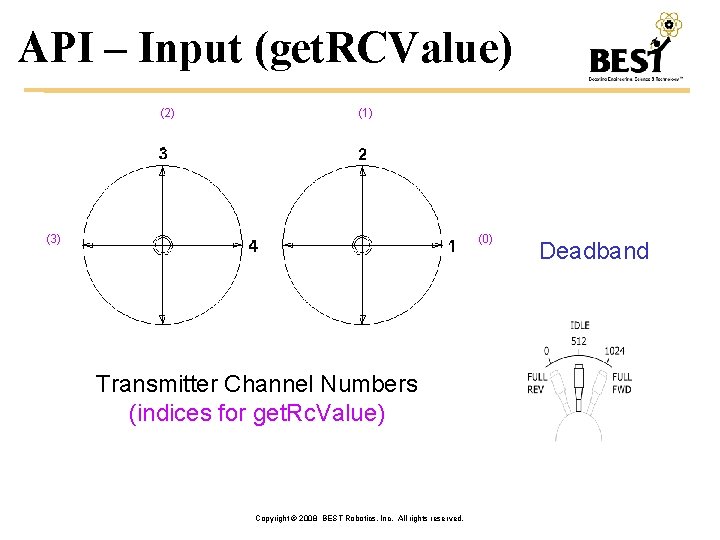
API – Input (get. RCValue) (2) (1) (3) (0) Transmitter Channel Numbers (indices for get. Rc. Value) Copyright © 2008 BEST Robotics, Inc. All rights reserved. Deadband
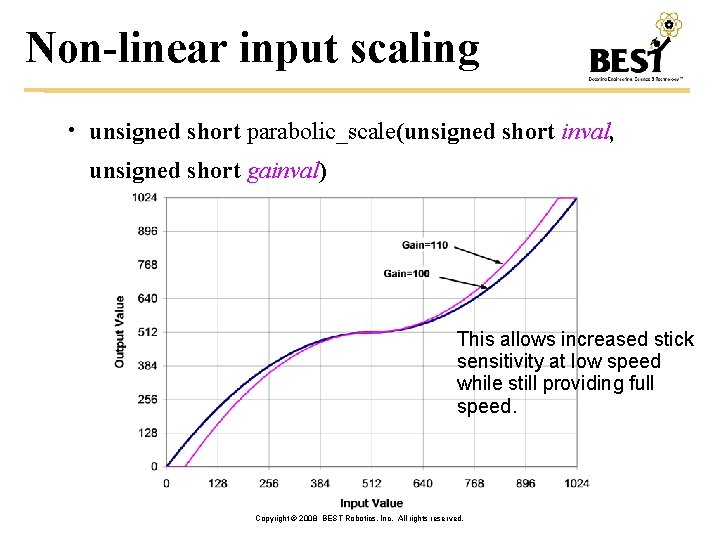
Non-linear input scaling • unsigned short parabolic_scale(unsigned short inval, unsigned short gainval) This allows increased stick sensitivity at low speed while still providing full speed. Copyright © 2008 BEST Robotics, Inc. All rights reserved.
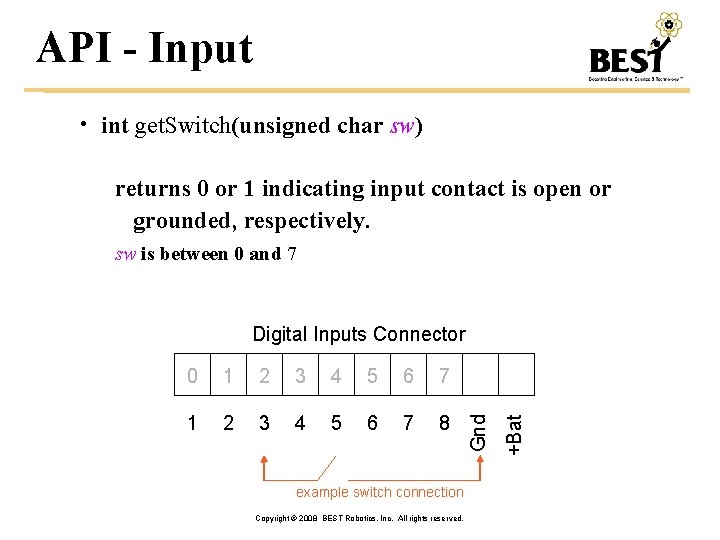
API - Input • int get. Switch(unsigned char sw) returns 0 or 1 indicating input contact is open or grounded, respectively. sw is between 0 and 7 1 2 3 4 5 6 7 8 example switch connection Copyright © 2008 BEST Robotics, Inc. All rights reserved. +Bat 0 Gnd Digital Inputs Connector
Not really an input function, but… • unsigned int get. Clock(unsigned int offset) returns clock ticks relative to offset, each tick is 0. 02 seconds (50 hz) wraps around after 65535*0. 02/60 min=21. 8 min allows time stamping and time-based controls Copyright © 2008 BEST Robotics, Inc. All rights reserved.

API - Output • int set. Servo(short channel, short value) sets the servo position for the specified channel: between 0 and 5 value: between 0 and 1024, 512 is the center position • int set. Motor(short channel, short value) sets the motor speed for the specified channel: between 0 and 3 value: between 0 and 1024, 512 is idle, 0 is full reverse, 1024 is full forward Copyright © 2008 BEST Robotics, Inc. All rights reserved.
API - Output • void set. Auto. LED(unsigned char flag) set flag to 1 to enable diagnostic LED functions for D 42. Set flag to 0 allow user LED macros (below) to work. • LEDON & LEDOFF macros Turn user LED D 42 on or off. • New functions or macros will be available for the LEDs added to the 2008 BRAIN hardware. Copyright © 2008 BEST Robotics, Inc. All rights reserved.
API - Serial Output • void out. Hostsz(char* pch) sends the null terminated string at pch out the BRAIN USB port. Communications settings for the port are 9600 baud, No Parity, 8 data bits, 1 stop bit. • String utilities: itoa, utoa, strcat, strlen • Part of the BRAIN API to help with formatting output – convert numbers to strings and provide concatenation. • Other utility functions are being developed. • Real. Term (http: //realterm. sourceforge. net) • can be used to monitor and capture the output. • A custom solution that will be easier to use is being developed. Copyright © 2008 BEST Robotics, Inc. All rights reserved.
BEST Robotics Advanced Instruction Node Advanced BRAIN Training Section 4 – Coding Examples Copyright © 2008 BEST Robotics, Inc. All rights reserved.
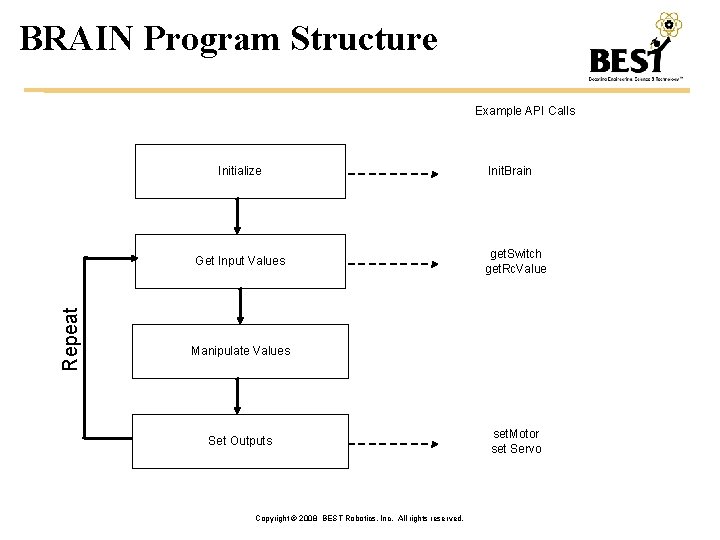
BRAIN Program Structure Example API Calls Initialize Repeat Get Input Values Init. Brain get. Switch get. Rc. Value Manipulate Values Set Outputs Copyright © 2008 BEST Robotics, Inc. All rights reserved. set. Motor set Servo
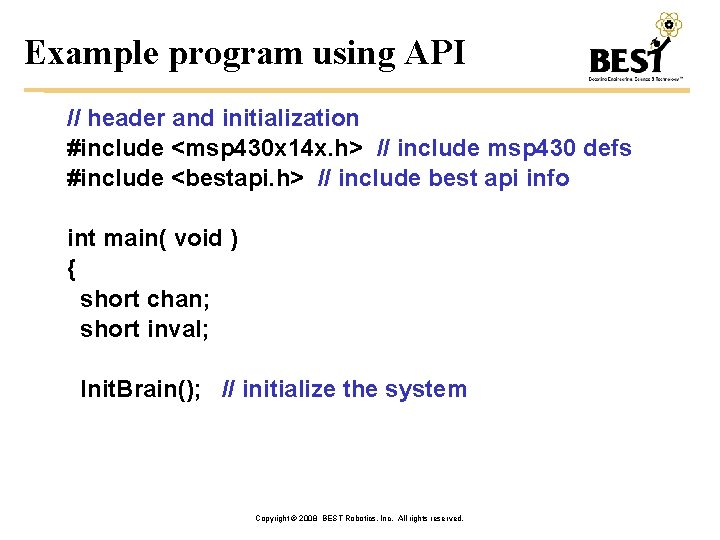
Example program using API // header and initialization #include <msp 430 x 14 x. h> // include msp 430 defs #include <bestapi. h> // include best api info int main( void ) { short chan; short inval; Init. Brain(); // initialize the system Copyright © 2008 BEST Robotics, Inc. All rights reserved.
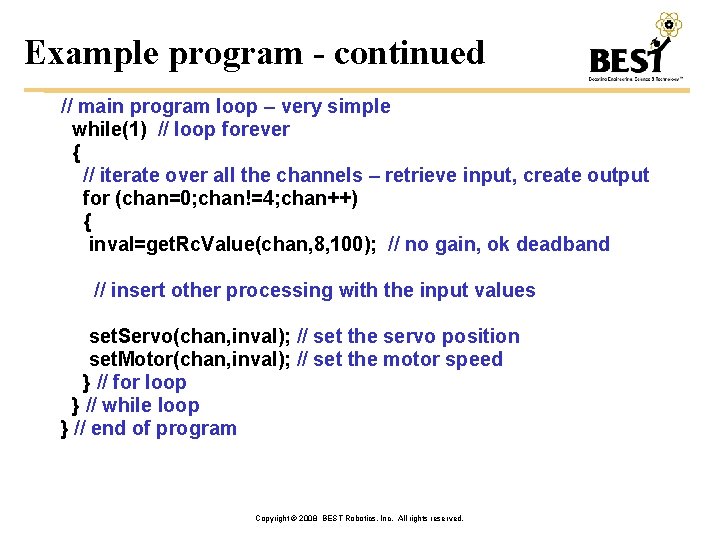
Example program - continued // main program loop – very simple while(1) // loop forever { // iterate over all the channels – retrieve input, create output for (chan=0; chan!=4; chan++) { inval=get. Rc. Value(chan, 8, 100); // no gain, ok deadband // insert other processing with the input values set. Servo(chan, inval); // set the servo position set. Motor(chan, inval); // set the motor speed } // for loop } // while loop } // end of program Copyright © 2008 BEST Robotics, Inc. All rights reserved.
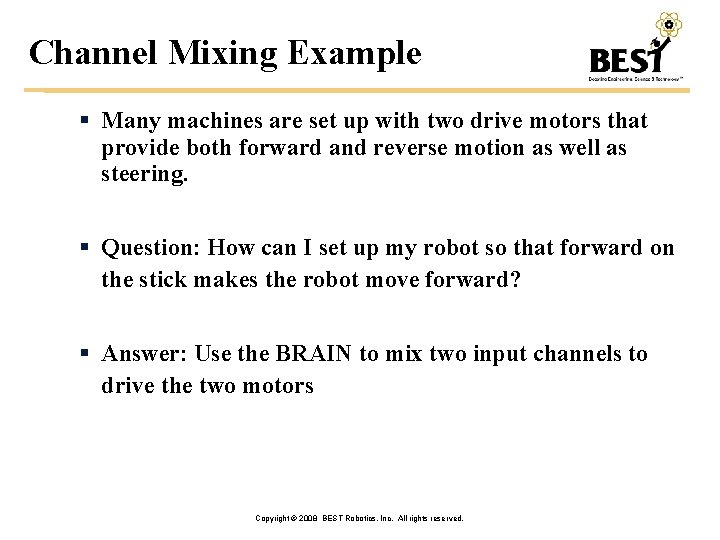
Channel Mixing Example Many machines are set up with two drive motors that provide both forward and reverse motion as well as steering. Question: How can I set up my robot so that forward on the stick makes the robot move forward? Answer: Use the BRAIN to mix two input channels to drive the two motors Copyright © 2008 BEST Robotics, Inc. All rights reserved.
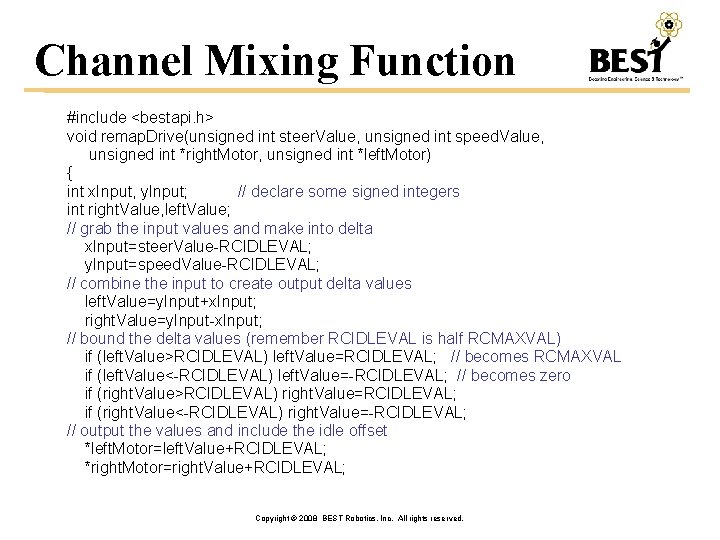
Channel Mixing Function #include <bestapi. h> void remap. Drive(unsigned int steer. Value, unsigned int speed. Value, unsigned int *right. Motor, unsigned int *left. Motor) { int x. Input, y. Input; // declare some signed integers int right. Value, left. Value; // grab the input values and make into delta x. Input=steer. Value-RCIDLEVAL; y. Input=speed. Value-RCIDLEVAL; // combine the input to create output delta values left. Value=y. Input+x. Input; right. Value=y. Input-x. Input; // bound the delta values (remember RCIDLEVAL is half RCMAXVAL) if (left. Value>RCIDLEVAL) left. Value=RCIDLEVAL; // becomes RCMAXVAL if (left. Value<-RCIDLEVAL) left. Value=-RCIDLEVAL; // becomes zero if (right. Value>RCIDLEVAL) right. Value=RCIDLEVAL; if (right. Value<-RCIDLEVAL) right. Value=-RCIDLEVAL; // output the values and include the idle offset *left. Motor=left. Value+RCIDLEVAL; *right. Motor=right. Value+RCIDLEVAL; Copyright © 2008 BEST Robotics, Inc. All rights reserved.
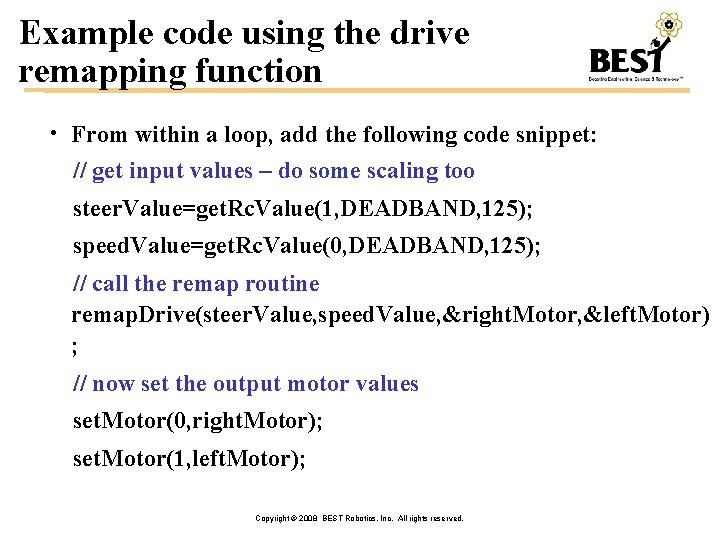
Example code using the drive remapping function • From within a loop, add the following code snippet: // get input values – do some scaling too steer. Value=get. Rc. Value(1, DEADBAND, 125); speed. Value=get. Rc. Value(0, DEADBAND, 125); // call the remap routine remap. Drive(steer. Value, speed. Value, &right. Motor, &left. Motor) ; // now set the output motor values set. Motor(0, right. Motor); set. Motor(1, left. Motor); Copyright © 2008 BEST Robotics, Inc. All rights reserved.
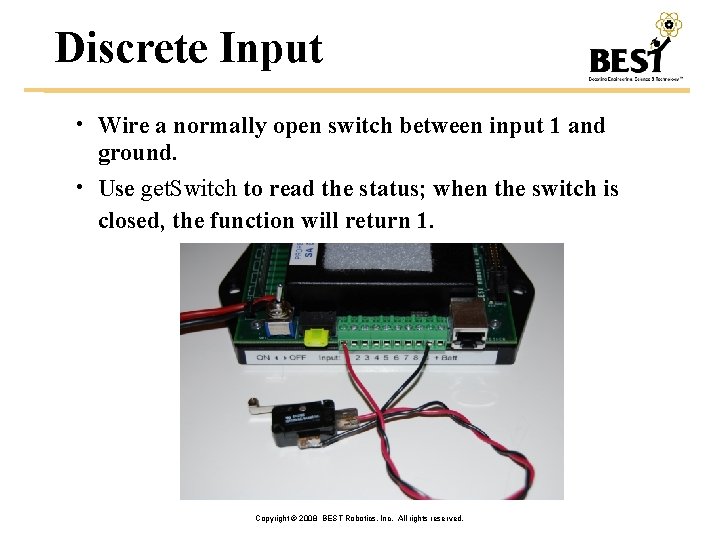
Discrete Input • Wire a normally open switch between input 1 and ground. • Use get. Switch to read the status; when the switch is closed, the function will return 1. Copyright © 2008 BEST Robotics, Inc. All rights reserved.
![Motor limit switch example for (chan=0; chan!=4; chan++) { inval=get. Rc. Value(chan, DEADBAND, gain[chan]);](http://slidetodoc.com/presentation_image_h2/b058eea77255f17c0f3cdd81df8c990e/image-39.jpg "Motor limit switch example for (chan=0; chan!=4; chan++) { inval=get. Rc. Value(chan, DEADBAND, gain[chan]);")
Motor limit switch example for (chan=0; chan!=4; chan++) { inval=get. Rc. Value(chan, DEADBAND, gain[chan]); // check the limit switches and set the speed to idle when switched if ((inval>RCIDLEVAL&&get. Switch(chan*2))|| (inval<RCIDLEVAL&&get. Switch(chan*2+1))) { inval=RCIDLEVAL; } Copyright © 2008 BEST Robotics, Inc. All rights reserved.
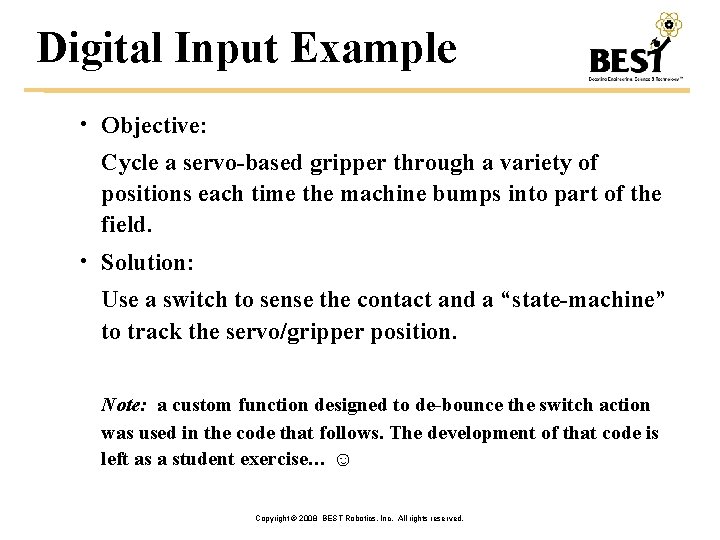
Digital Input Example • Objective: Cycle a servo-based gripper through a variety of positions each time the machine bumps into part of the field. • Solution: Use a switch to sense the contact and a “state-machine” to track the servo/gripper position. Note: a custom function designed to de-bounce the switch action was used in the code that follows. The development of that code is left as a student exercise… ☺ Copyright © 2008 BEST Robotics, Inc. All rights reserved.
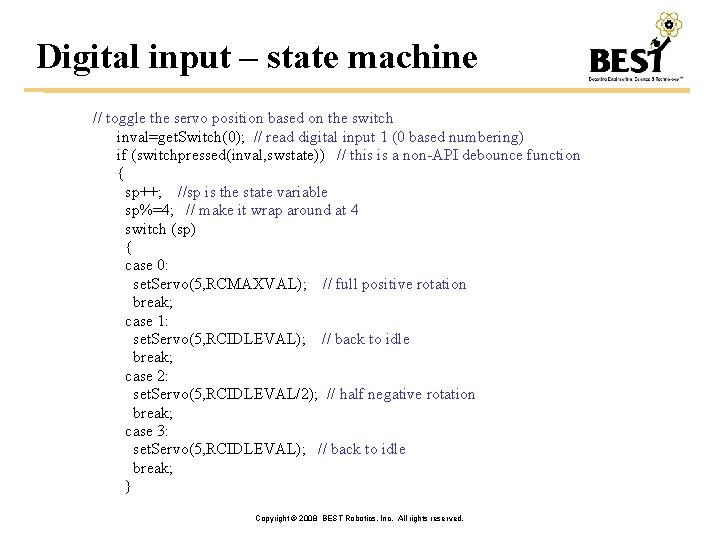
Digital input – state machine // toggle the servo position based on the switch inval=get. Switch(0); // read digital input 1 (0 based numbering) if (switchpressed(inval, swstate)) // this is a non-API debounce function { sp++; //sp is the state variable sp%=4; // make it wrap around at 4 switch (sp) { case 0: set. Servo(5, RCMAXVAL); // full positive rotation break; case 1: set. Servo(5, RCIDLEVAL); // back to idle break; case 2: set. Servo(5, RCIDLEVAL/2); // half negative rotation break; case 3: set. Servo(5, RCIDLEVAL); // back to idle break; } Copyright © 2008 BEST Robotics, Inc. All rights reserved.
We Encourage Development… We encourage development/sharing of new functions via the BRAIN message boards. We encourage hub development of tools for BRAIN. Copyright © 2008 BEST Robotics, Inc. All rights reserved.
BEST Robotics Advanced Instruction Node Advanced BRAIN Training Section 5 – Program Debugging Copyright © 2008 BEST Robotics, Inc. All rights reserved.
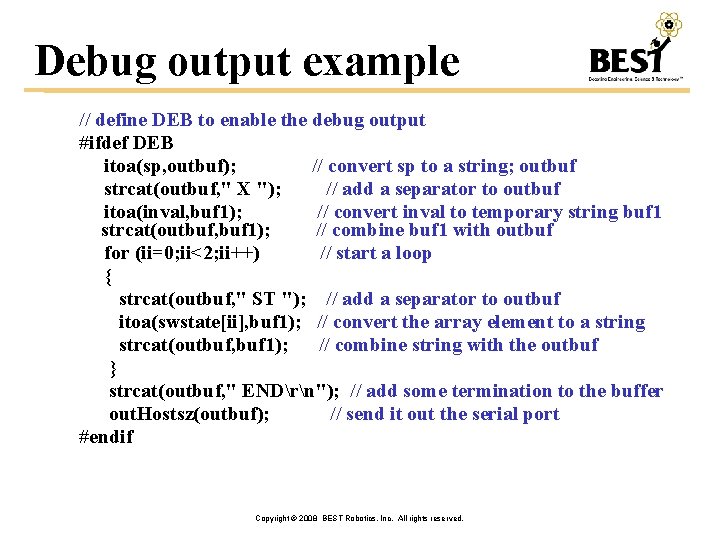
Debug output example // define DEB to enable the debug output #ifdef DEB itoa(sp, outbuf); // convert sp to a string; outbuf strcat(outbuf, " X "); // add a separator to outbuf itoa(inval, buf 1); // convert inval to temporary string buf 1 strcat(outbuf, buf 1); // combine buf 1 with outbuf for (ii=0; ii<2; ii++) // start a loop { strcat(outbuf, " ST "); // add a separator to outbuf itoa(swstate[ii], buf 1); // convert the array element to a string strcat(outbuf, buf 1); // combine string with the outbuf } strcat(outbuf, " ENDrn"); // add some termination to the buffer out. Hostsz(outbuf); // send it out the serial port #endif Copyright © 2008 BEST Robotics, Inc. All rights reserved.
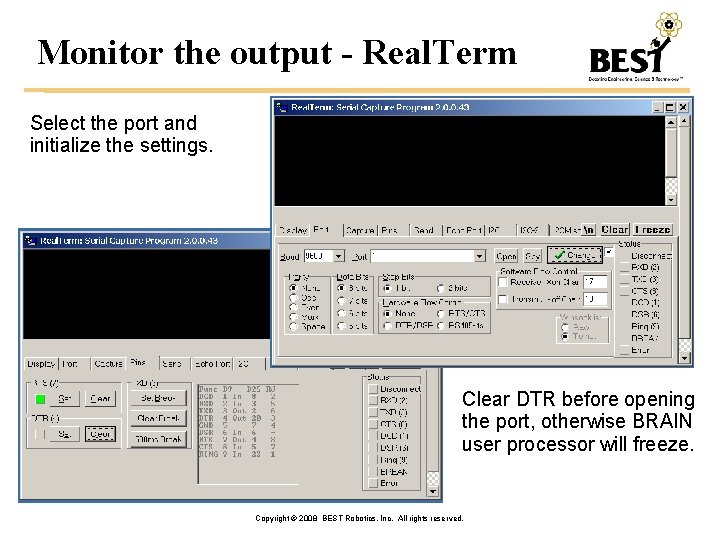
Monitor the output - Real. Term Select the port and initialize the settings. Clear DTR before opening the port, otherwise BRAIN user processor will freeze. Copyright © 2008 BEST Robotics, Inc. All rights reserved.
Real. Term tips • Identifying the correct port can be troublesome; different BRAINs will map to different port numbers. • The initialization sequence is critical. • Real. Term can also capture the output and write it to a file. • Captured data can be easily imported into Excel and analyzed – assuming it’s written with acceptable separators (commas or tabs are good choices). Copyright © 2008 BEST Robotics, Inc. All rights reserved.
BEST Robotics Advanced Instruction Node Advanced BRAIN Training Section 6 – BRAIN Support & Feedback Copyright © 2008 BEST Robotics, Inc. All rights reserved.
Basic Support • Diagnostic LEDs (D 41/D 42) indicate status: • D 41 – Control Processor; D 42 – User Processor • Slow blink (once per second) – normal operation • Fast blink (five times per second) – absence of tether/receiver signal, or absence of communication between processors. • Solid on/off – something is hung up, cycle power first then reprogram if power cycle doesn’t solve. • Low Battery LED Located near the battery connecter/ power switch. • LED OFF indicates battery needs charging. • Internal fuse/breaker, self-resets with a few seconds. • LED OFF by receiver indicates there is a short (5 V) • Find and fix the short. • Interference when using tether may require addition of ferrite to the cable. Copyright © 2008 BEST Robotics, Inc. All rights reserved.
Where to find help? • Online documentation (BRI Site) • Public Message Board (for anyone) • Must register for login account • Share ideas, resolve issues, … • Private Message Board (for hub personnel only) • Must register separate login account from BRI account • Must request access • Official Q&A “BRAIN” Category • Use “Official Q&A” page during contest for “rules specific” questions • Is this legal? Copyright © 2008 BEST Robotics, Inc. All rights reserved.
Online Documentation Public Information • http: //www. bestinc. org - 2008 Official Documents • BRAIN Description & Rules • BRAIN Quickstart Docs � Hardware � Software • 2008 BRAIN Tutorial • BRAIN Software API • Software Download Package Copyright © 2008 BEST Robotics, Inc. All rights reserved.
BRAIN Feedback… Online survey to be made available For hubs or teams Provide feedback on use or operation of BRAIN Not mandatory, a mechanism for improvements Weblink to be announced later and posted on BRI site Copyright © 2008 BEST Robotics, Inc. All rights reserved.
BEST Robotics Advanced Instruction Node Advanced BRAIN Training THANK YOU! Copyright © 2008 BEST Robotics, Inc. All rights reserved.
- Slides: 52