
Ramone Walker Internet Intranet Browser and Security Research
Ramone Walker Internet, Intranet, Browser and Security Research ITCore_PS_Jarnagin__March 2017 For Professor Jarnagin 05/04/2017 Created by Ramone Walker 1
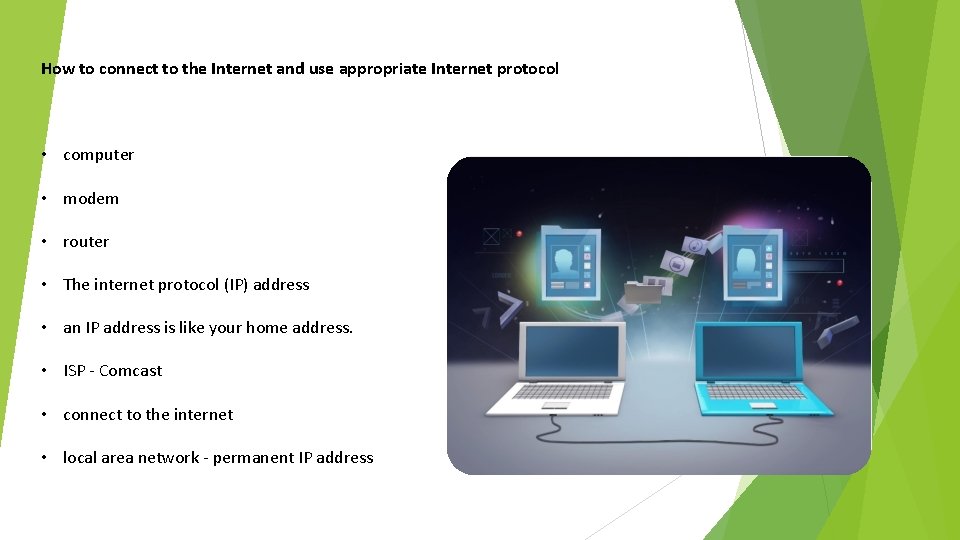
How to connect to the Internet and use appropriate Internet protocol • computer • modem • router • The internet protocol (IP) address • an IP address is like your home address. • ISP - Comcast • connect to the internet • local area network - permanent IP address
How do browsers work Web Browsers receives and displays information that were located and sent by web servers. When these browsers communicate with servers, information in pages are sent built with Hypertext Markup Language (HTML). The web Browsers interpret those pages and display them on your computer. Created by Ramone Walker 3
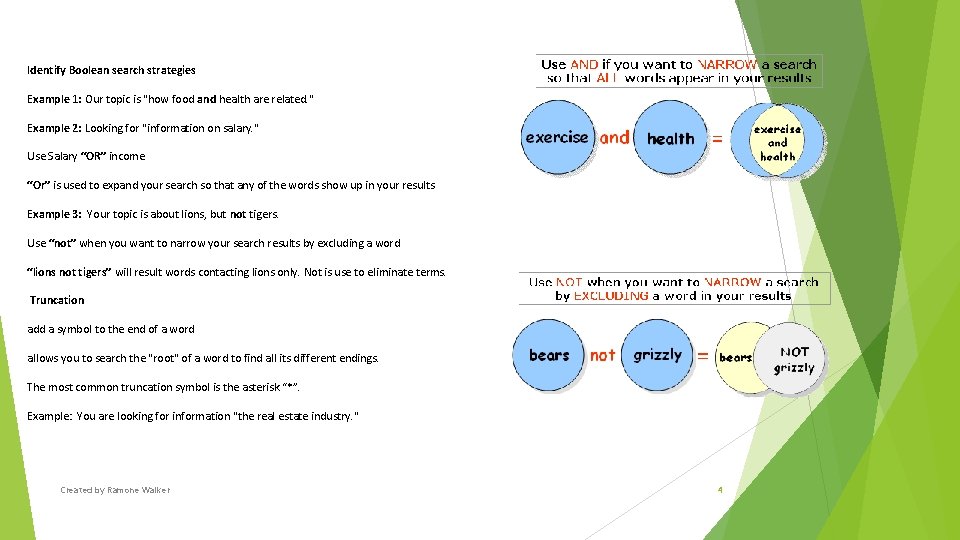
Identify Boolean search strategies Example 1: Our topic is "how food and health are related. " Example 2: Looking for "information on salary. " Use Salary “OR” income “Or” is used to expand your search so that any of the words show up in your results Example 3: Your topic is about lions, but not tigers. Use “not” when you want to narrow your search results by excluding a word “lions not tigers” will result words contacting lions only. Not is use to eliminate terms. Truncation add a symbol to the end of a word allows you to search the "root" of a word to find all its different endings. The most common truncation symbol is the asterisk “*”. Example: You are looking for information "the real estate industry. " Created by Ramone Walker 4

Describe basic features of GUI (graphical user interface) browsers and their basic configuration. Microsoft Windows Features: Pointer Pointing device Icons Desktop Windows Menus GUI is a program interface that is more user friendly than command prompt user interface. In this case the user doesn't have to learn complex command languages. GUI takes advantage of the computer's graphics capabilities to make the program easier to use. Created by Ramone Walker 5
Describe appropriate browser security configurations Appropriate browser security configurations are the process of securing your computer from internet attacks such as hackers and spammers. feature settings that you can change in your computer security center to make your browser more secure: Configure security settings by: o Set security zones o Set Internet zone security to “Medium High” or higher o Disable Java. Script Automatically clear history: o Configure privacy settings o Privacy setting- set to high o Turn off Location o Turn on Pop-up Blocker Configure Advanced Security settings Created by Ramone Walker 6
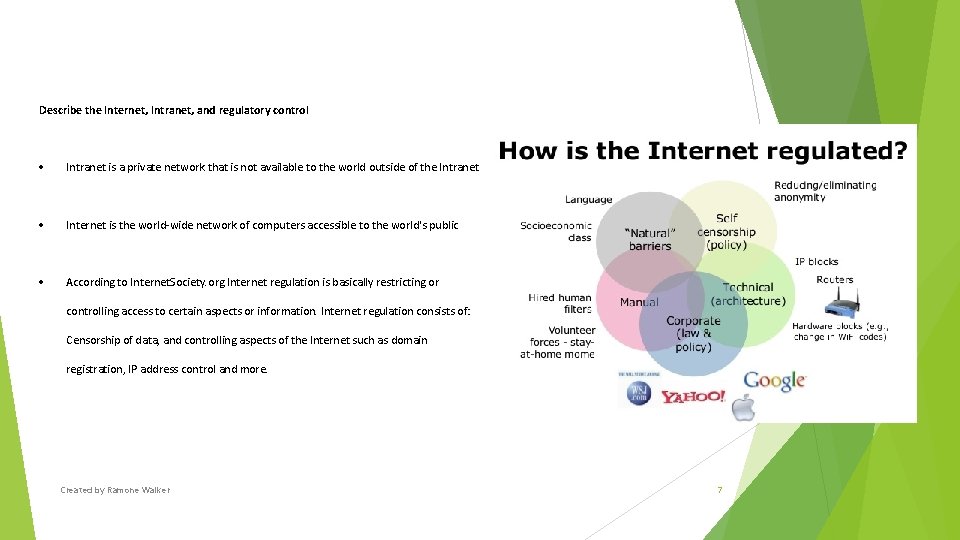
Describe the Internet, Intranet, and regulatory control Intranet is a private network that is not available to the world outside of the Intranet Internet is the world-wide network of computers accessible to the world's public According to Internet. Society. org Internet regulation is basically restricting or controlling access to certain aspects or information. Internet regulation consists of: Censorship of data, and controlling aspects of the Internet such as domain registration, IP address control and more. Created by Ramone Walker 7
List the Universal Resource Locators (URLs) for the sites researched www. fcc. gov www. internetsociety. org www. hcidata. info www. webopedia. com www. li. suu. edu www. google. com www. computerhope. com web. stanford. edu en. wikipedia. org www. pluralsight. com Created by Ramone Walker 8
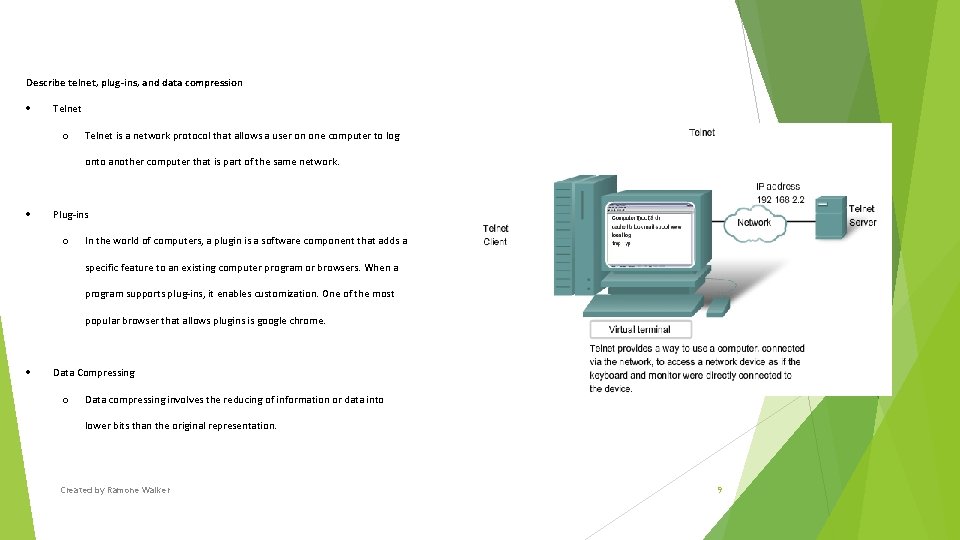
Describe telnet, plug-ins, and data compression Telnet o Telnet is a network protocol that allows a user on one computer to log onto another computer that is part of the same network. Plug-ins o In the world of computers, a plugin is a software component that adds a specific feature to an existing computer program or browsers. When a program supports plug-ins, it enables customization. One of the most popular browser that allows plugins is google chrome. Data Compressing o Data compressing involves the reducing of information or data into lower bits than the original representation. Created by Ramone Walker 9
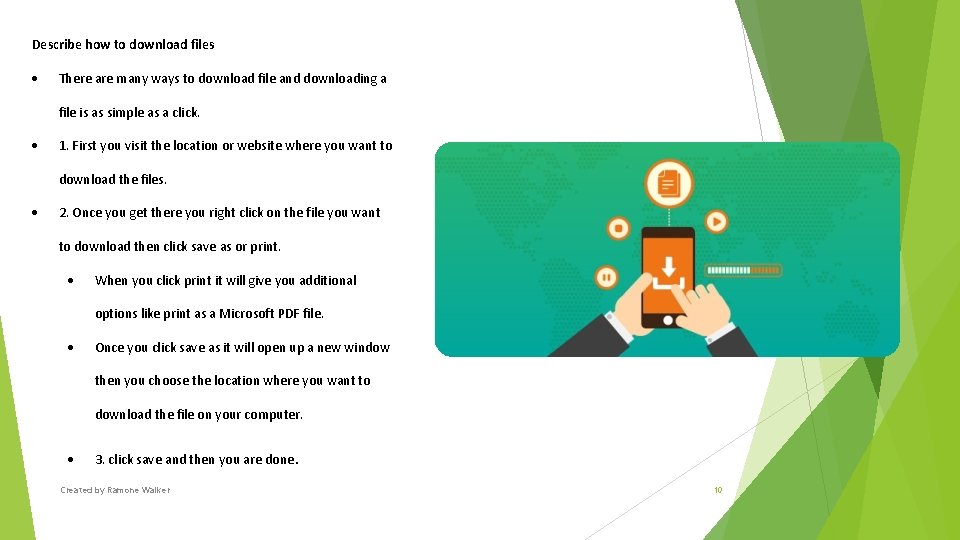
Describe how to download files There are many ways to download file and downloading a file is as simple as a click. 1. First you visit the location or website where you want to download the files. 2. Once you get there you right click on the file you want to download then click save as or print. When you click print it will give you additional options like print as a Microsoft PDF file. Once you click save as it will open up a new window then you choose the location where you want to download the file on your computer. 3. click save and then you are done. Created by Ramone Walker 10
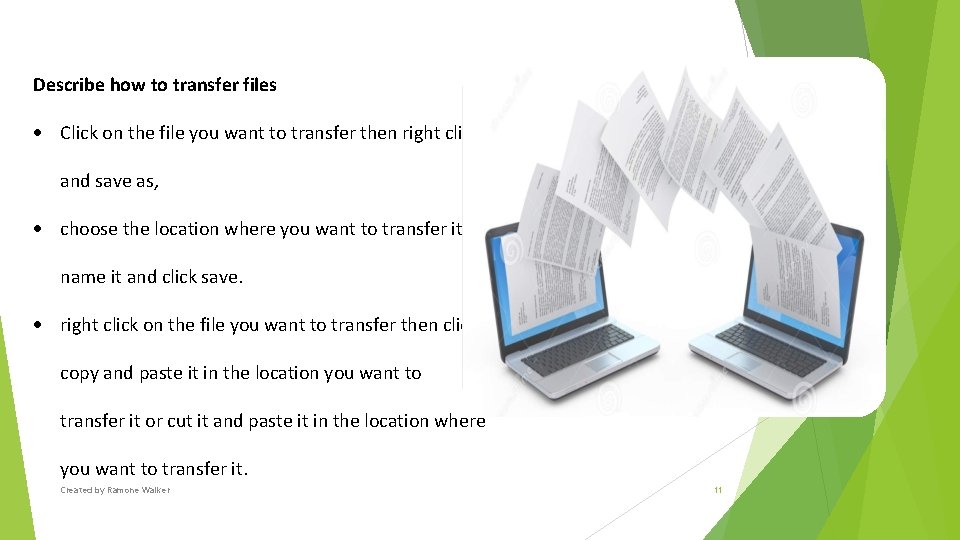
Describe how to transfer files Click on the file you want to transfer then right click and save as, choose the location where you want to transfer it name it and click save. right click on the file you want to transfer then click copy and paste it in the location you want to transfer it or cut it and paste it in the location where you want to transfer it. Created by Ramone Walker 11
How to effectively use slides and what "not to do" Create an outline Use Contrasting Colors Use a big enough font Stop the moving text Turn the pointer off Use visuals instead of text slides Number your slide so they are easy to be found and it helps the audience to keep track What not to do when create slides for a presentation: Reading Your Slides to The Audience Don't add too much picture on a slide to the point where it has an infinite clutter Avoid slide Transitions Don't use low quality images, Graphics, Images, Graphs, Word. Art, Smart. Art. Don't use too much different colors. . . don't make the audience wish they were color blind Created by Ramone Walker 12

The End Created by Ramone Walker 13
- Slides: 13