
RAD Application Basic Training Agenda Introduction The RAD
RAD Application Basic Training
Agenda • Introduction • The RAD Application Common Features and Concepts • Search, Edit and Manage Restrictions & Aerodrome Sets • Technical Prerequisites • • Accessing Applications – Common Features RAD Application Using the RAD application (home, export) • • Search Aerodrome Sets and Aerodrome Set Details • • • Map Controls Search Restrictions and Restriction Details Validity Periods & History Create and Update Aerodrome Set Create and Update Restriction Delegation RAD Grammar Validation • Workflow and Search, Edit, Manage • Map and Airspace DMR • Map Dossier • DMR Workflow • • Search DMR and DMR Details Create and Update DMR Validation Report DMR Documentation 20/02/2021 Restrictions on the Map Search CACD Entities • Conclusion RAD Application Training 2
Introduction 20/02/2021 RAD Application Training 3
Course Objectives 1. To get trained on the new RAD application. 2. Get familiar with the features and functionalities. 3. To be able to use operationally the RAD application in maintaining the RAD. 20/02/2021 RAD Application Training 4
Course Documentation • RAD Training Slides • RAD User Manual 20/02/2021 RAD Application Training 5
The RAD Application Common Features and Concepts 20/02/2021 RAD Application Training 6
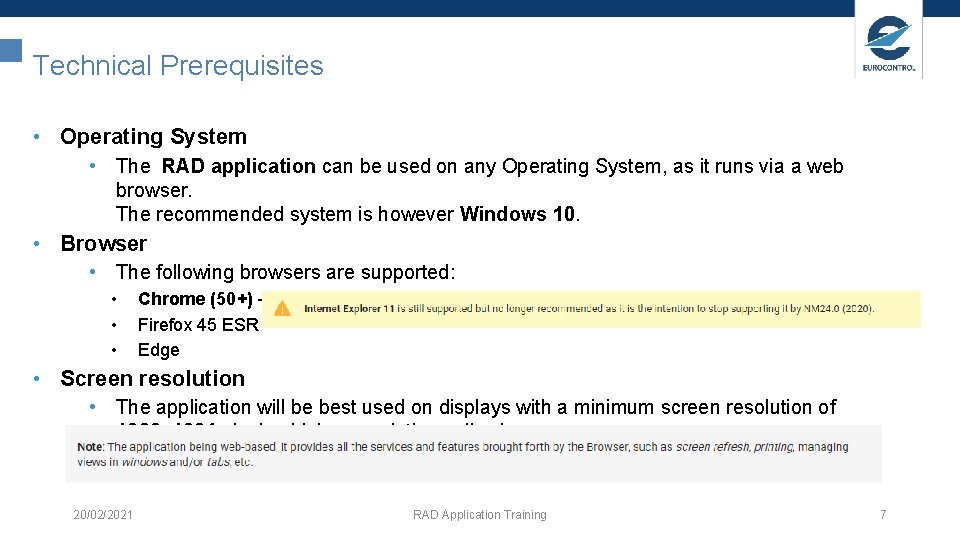
Technical Prerequisites • Operating System • The RAD application can be used on any Operating System, as it runs via a web browser. The recommended system is however Windows 10. • Browser • The following browsers are supported: • • • Chrome (50+) - recommended Firefox 45 ESR Edge • Screen resolution • The application will be best used on displays with a minimum screen resolution of 1280 x 1024 pixels - higher resolutions allowing more space. 20/02/2021 RAD Application Training 7
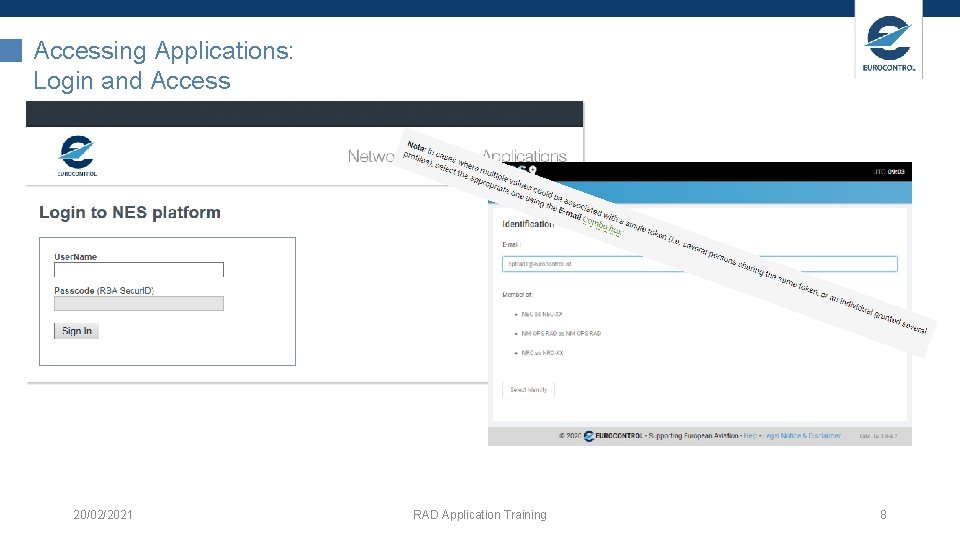
Accessing Applications: Login and Access 20/02/2021 RAD Application Training 8
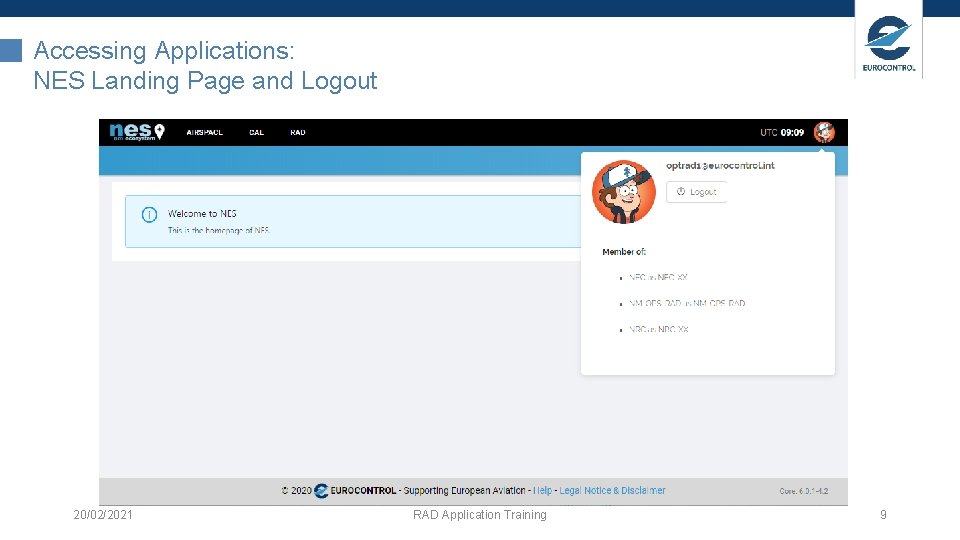
Accessing Applications: NES Landing Page and Logout 20/02/2021 RAD Application Training 9
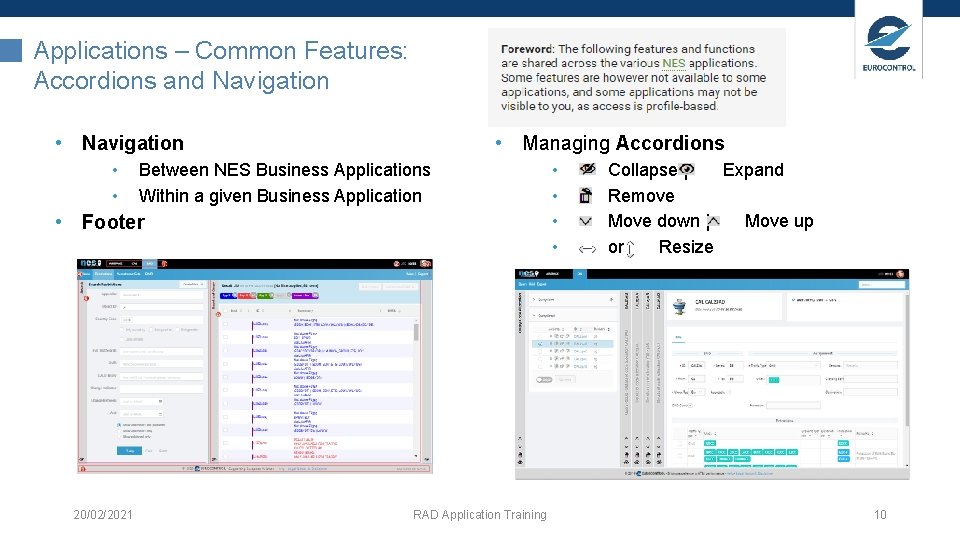
Applications – Common Features: Accordions and Navigation • • • Managing Accordions Between NES Business Applications Within a given Business Application • Footer 20/02/2021 RAD Application Training • • Collapse | Expand Remove Move down | Move up or Resize 10
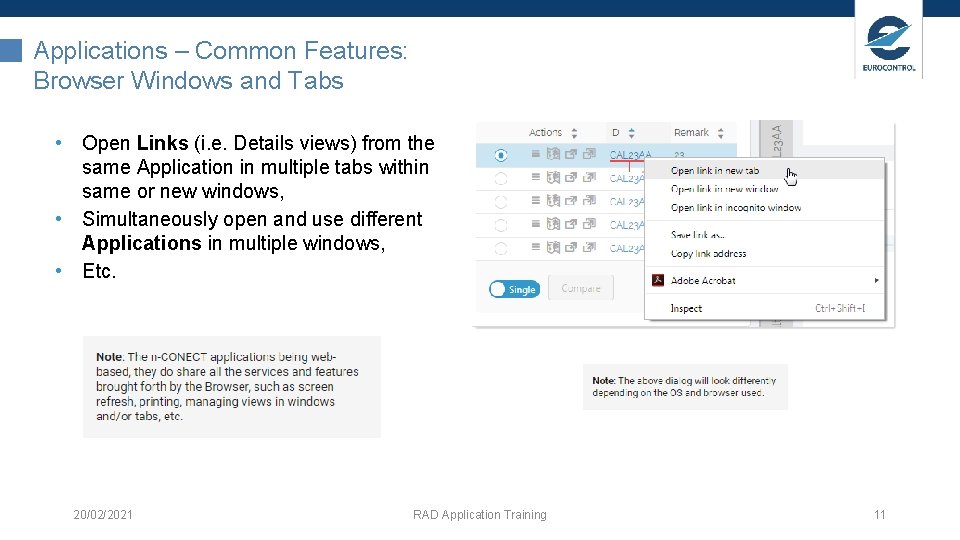
Applications – Common Features: Browser Windows and Tabs • Open Links (i. e. Details views) from the same Application in multiple tabs within same or new windows, • Simultaneously open and use different Applications in multiple windows, • Etc. 20/02/2021 RAD Application Training 11
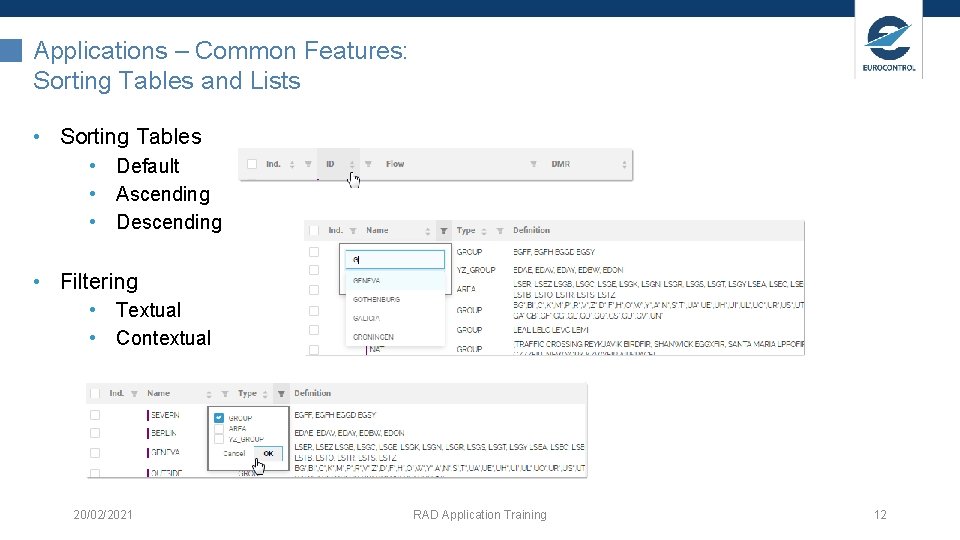
Applications – Common Features: Sorting Tables and Lists • Sorting Tables • Default • Ascending • Descending • Filtering • Textual • Contextual 20/02/2021 RAD Application Training 12
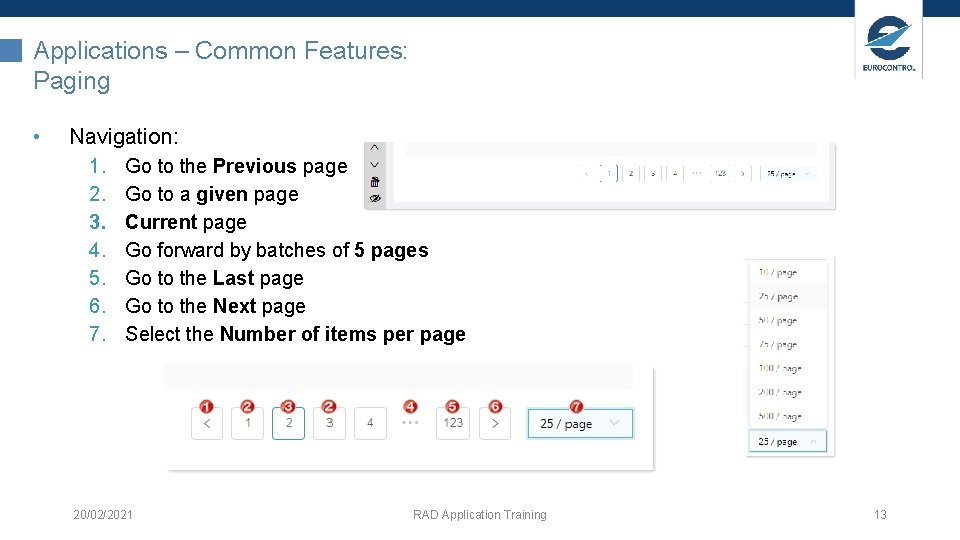
Applications – Common Features: Paging • Navigation: 1. 2. 3. 4. 5. 6. 7. Go to the Previous page Go to a given page Current page Go forward by batches of 5 pages Go to the Last page Go to the Next page Select the Number of items per page 20/02/2021 RAD Application Training 13
RAD Application: Why? • • • The online RAD (the RAD application as presented via internet browser) is largely different from the legacy RAD, since all the data is maintained in a database, instead of in a collection of Excel sheets. The purpose of RAD is to assist the Aviation Community and provide computer aid to the process by which restrictions are elaborated, to finally form, maintain and disseminate the RAD. The objective is to reduce the workload for the NM RAD team as well as all involved users, whilst providing higher quality of service: • • Formal workflow, based on RAD DMRs related to well-defined operational goals; Replacement of data exchange via Excel sheets by normalised and structured restriction data, which will enable more formal (and early) validations; Automated notification to users, when their input is required (e. g. cross-border NRC) or when users should be informed (e. g. FMPs, NMOC/ADS); Traceability of RAD DMRs, and therefore indirectly of restriction changes: restrictions will now come with a straightforward history, visible to all users; Improved documentation of restriction changes, e. g. attached documents (private or public) Rich restriction querying; Simple navigation between related data; Consolidated view of the RAD applicable in real time for the NM and Operational Stakeholders, no longer multiple documents to be consulted, RAD master documents plus increment file, etc. 20/02/2021 RAD Application Training 14
RAD Application: Main Concepts • RAD Data Modification Requests (DMRs) • DMRs are a central concept of the RAD application – this conceptual ‘amendment' approach is • furthermore shared with other applications, such as AIRSPACE. The purpose of a RAD DMR is to deliver RAD data for publication, while providing collaborative tools and flows to support and enhance the process (i. e. DMR Workflow). • RAD Objects • Restrictions (RS) and Aerodrome Sets (AZ) • • CP | DCT_P 2 P | DCT_LIM_AD & DCT_TP & DCT_DEP & DCT_ARR | FUA | PAN • Published vs. Under Work Validity Periods • Lifecycle of the RAD Object with or without gaps • Time Applicability within a Validity Period (sequential vs. cyclic restrictions) Restriction Delegation • Implicit vs. Explicit RAD Grammar • A Domain Specific Language (DSL) that would understand the restriction to the extend that the application could correctly explain a restriction’s meaning (i. e. normalization). 20/02/2021 RAD Application Training 15
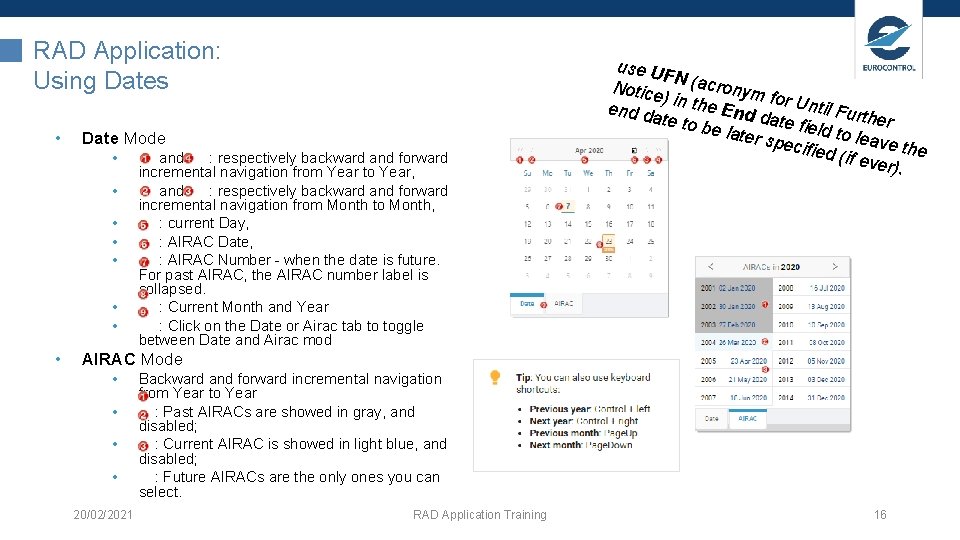
RAD Application: Using Dates • Date Mode • • and : respectively backward and forward incremental navigation from Year to Year, and : respectively backward and forward incremental navigation from Month to Month, : current Day, : AIRAC Date, : AIRAC Number - when the date is future. For past AIRAC, the AIRAC number label is collapsed. : Current Month and Year : Click on the Date or Airac tab to toggle between Date and Airac mod use U FN Notice (acronym fo ) end d in the End r Until Furt ate to be lat date field to her l er spe cified eave the (if eve r). AIRAC Mode • • 20/02/2021 Backward and forward incremental navigation from Year to Year : Past AIRACs are showed in gray, and disabled; : Current AIRAC is showed in light blue, and disabled; : Future AIRACs are the only ones you can select. RAD Application Training 16
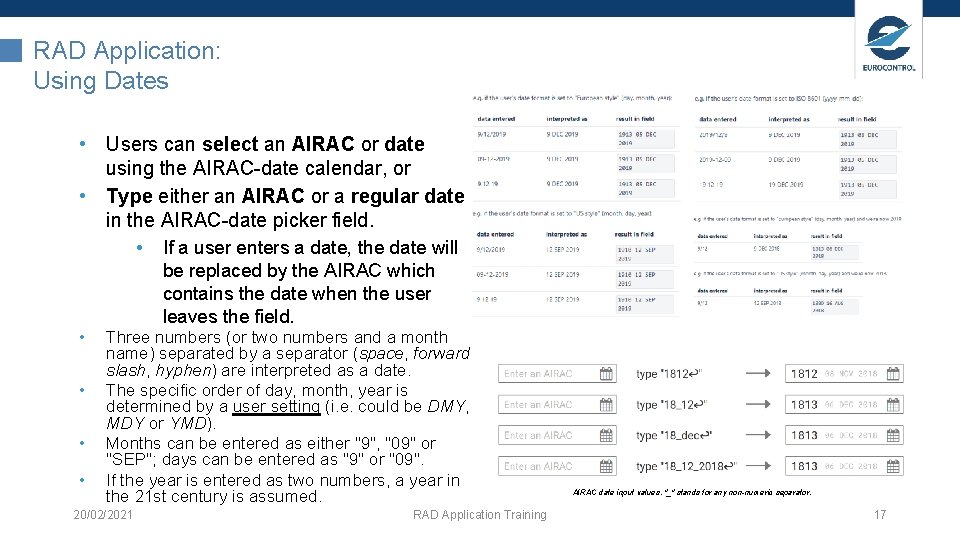
RAD Application: Using Dates • Users can select an AIRAC or date using the AIRAC-date calendar, or • Type either an AIRAC or a regular date in the AIRAC-date picker field. • If a user enters a date, the date will be replaced by the AIRAC which contains the date when the user leaves the field. • • Three numbers (or two numbers and a month name) separated by a separator (space, forward slash, hyphen) are interpreted as a date. The specific order of day, month, year is determined by a user setting (i. e. could be DMY, MDY or YMD). Months can be entered as either "9", "09" or "SEP"; days can be entered as "9" or "09". If the year is entered as two numbers, a year in the 21 st century is assumed. 20/02/2021 RAD Application Training AIRAC date input values. "_" stands for any non-numeric separator. 17
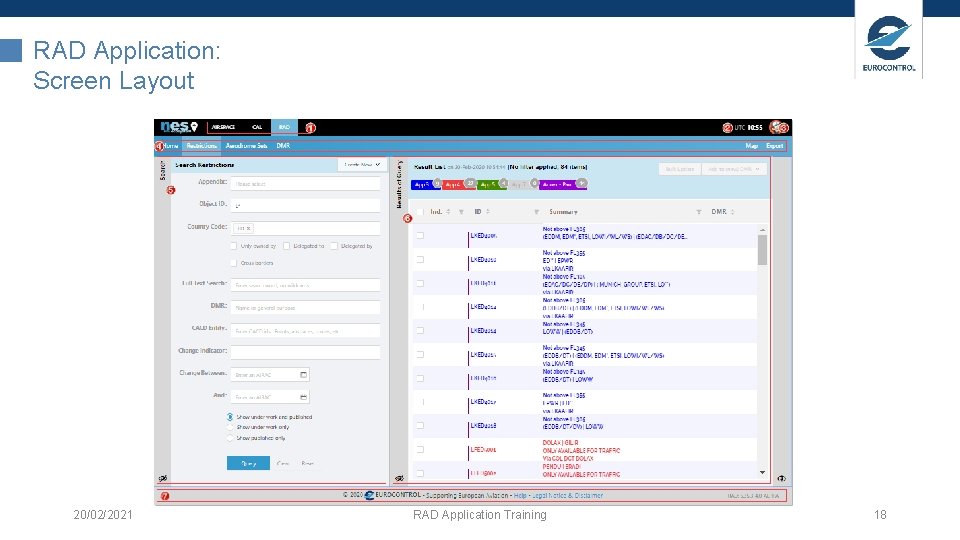
RAD Application: Screen Layout 20/02/2021 RAD Application Training 18
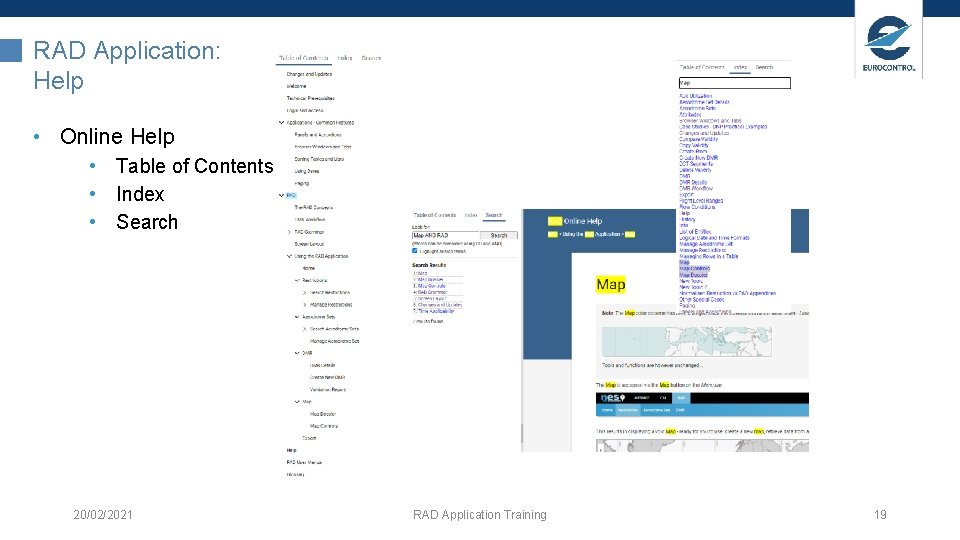
RAD Application: Help • Online Help • Table of Contents • Index • Search 20/02/2021 RAD Application Training 19
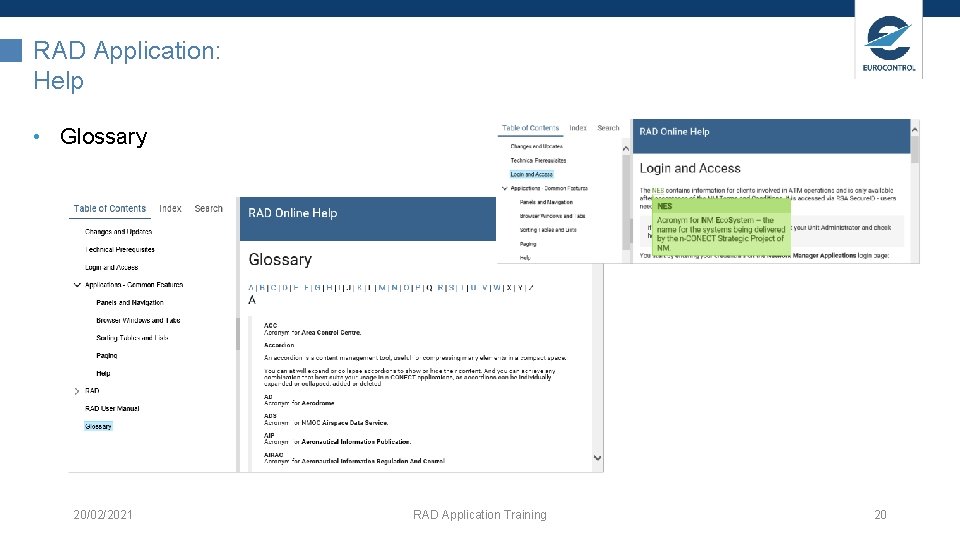
RAD Application: Help • Glossary 20/02/2021 RAD Application Training 20
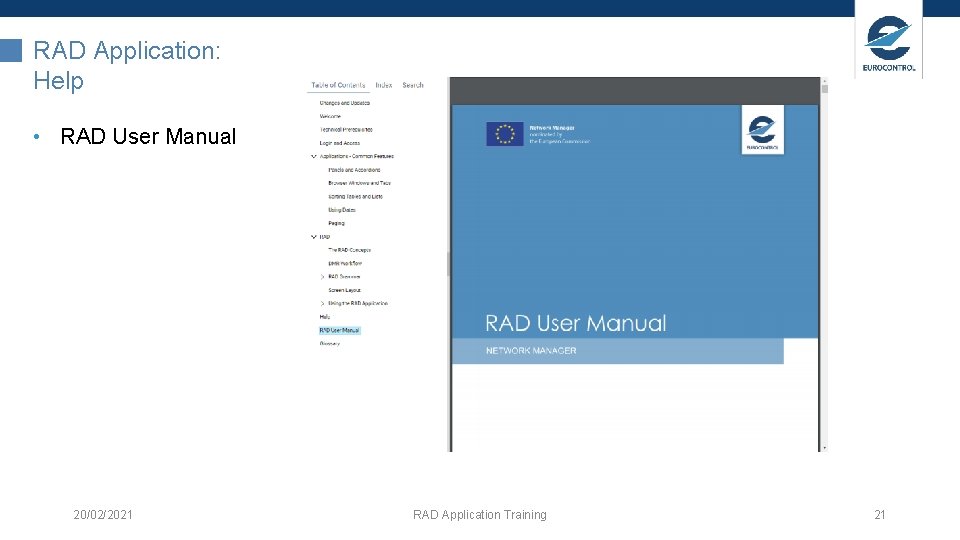
RAD Application: Help • RAD User Manual 20/02/2021 RAD Application Training 21
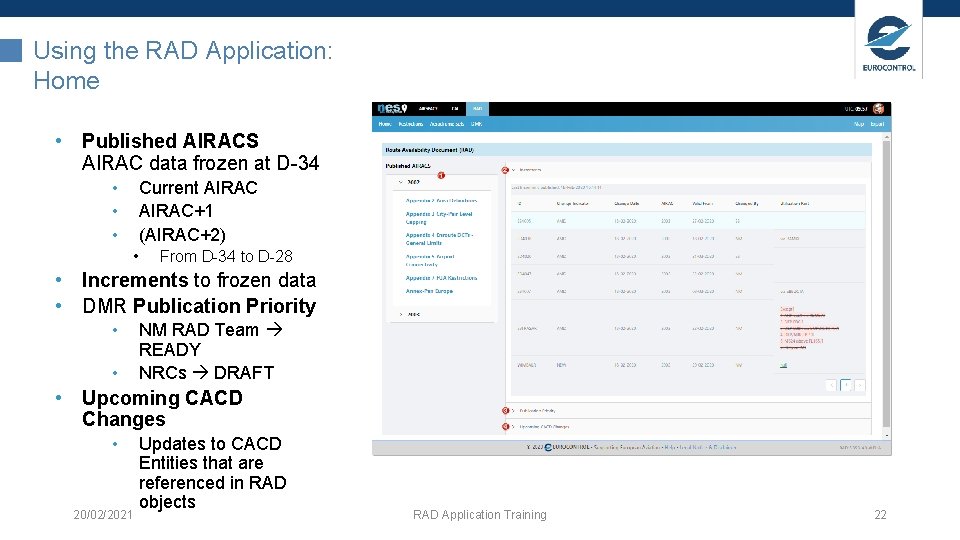
Using the RAD Application: Home • Published AIRACS AIRAC data frozen at D-34 • • • Current AIRAC+1 (AIRAC+2) • From D-34 to D-28 • Increments to frozen data • DMR Publication Priority • • NM RAD Team READY NRCs DRAFT • Upcoming CACD Changes • 20/02/2021 Updates to CACD Entities that are referenced in RAD objects RAD Application Training 22
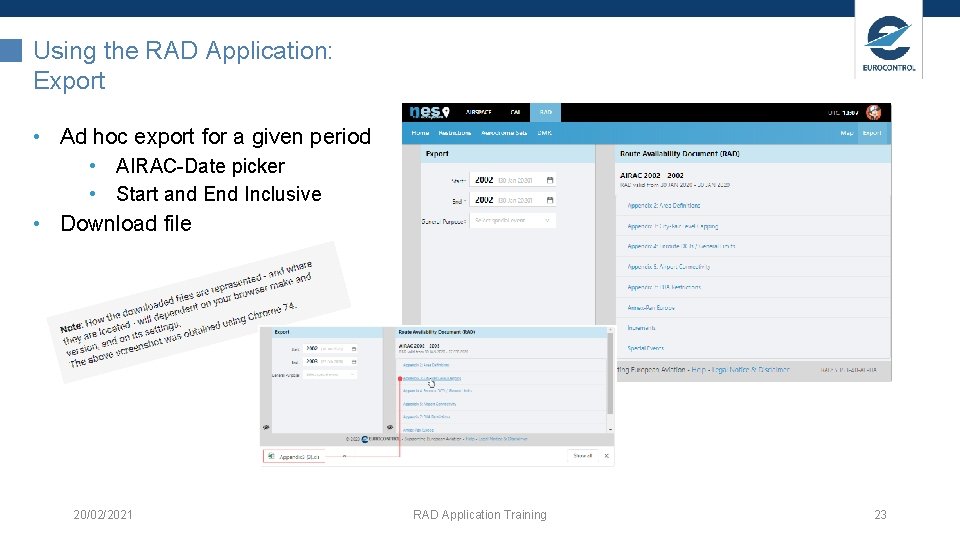
Using the RAD Application: Export • Ad hoc export for a given period • AIRAC-Date picker • Start and End Inclusive • Download file 20/02/2021 RAD Application Training 23
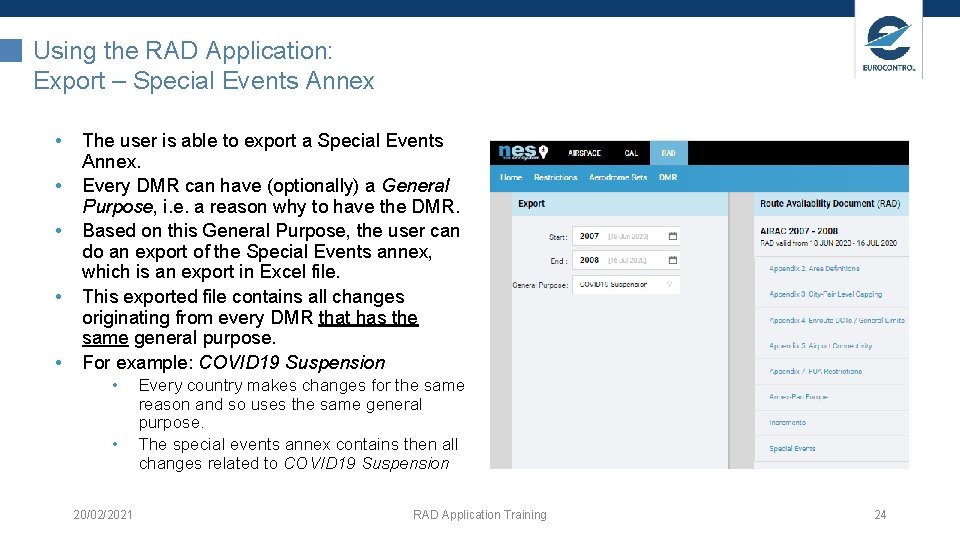
Using the RAD Application: Export – Special Events Annex • • • The user is able to export a Special Events Annex. Every DMR can have (optionally) a General Purpose, i. e. a reason why to have the DMR. Based on this General Purpose, the user can do an export of the Special Events annex, which is an export in Excel file. This exported file contains all changes originating from every DMR that has the same general purpose. For example: COVID 19 Suspension • • 20/02/2021 Every country makes changes for the same reason and so uses the same general purpose. The special events annex contains then all changes related to COVID 19 Suspension RAD Application Training 24
Exercise: The RAD Application Common Features and Concepts 1. 2. Login and Access to the NES Platform using Chrome browser. Panels and Navigation: 1. Open the RAD Application 2. Go to the Export page 3. Manage the Accordions: 1. 2. 3. 4. 5. 6. 7. Resize vertically Collapse and Expand the left accordion Browser Windows and Tabs: 1. Open the DMR view in a new browser tab 2. Open the Map view in a new browser window Sorting and Filtering Tables: 1. Open the Aerodrome Sets view (clear object owner and query) 2. Sort the table on Type 3. Textually filter the Name on characters ER Do export the files for AIRAC 2009 1. Enter the AIRAC number directly in the start field 2. Open the Annex PAN Europe Open the Online Help from the Home page. 1. Search for the section Export. Logout from the NES Platform. 20/02/2021 RAD Application Training 25
Workflow and Search, Edit, Manage DMR 20/02/2021 RAD Application Training 26
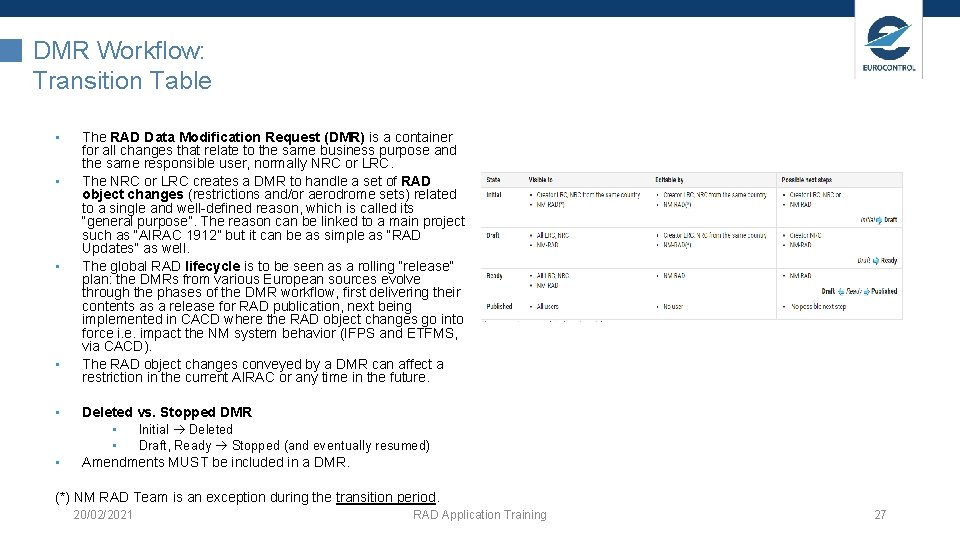
DMR Workflow: Transition Table • • • The RAD Data Modification Request (DMR) is a container for all changes that relate to the same business purpose and the same responsible user, normally NRC or LRC. The NRC or LRC creates a DMR to handle a set of RAD object changes (restrictions and/or aerodrome sets) related to a single and well-defined reason, which is called its “general purpose”. The reason can be linked to a main project such as “AIRAC 1912” but it can be as simple as “RAD Updates” as well. The global RAD lifecycle is to be seen as a rolling “release” plan: the DMRs from various European sources evolve through the phases of the DMR workflow, first delivering their contents as a release for RAD publication, next being implemented in CACD where the RAD object changes go into force i. e. impact the NM system behavior (IFPS and ETFMS, via CACD). The RAD object changes conveyed by a DMR can affect a restriction in the current AIRAC or any time in the future. Deleted vs. Stopped DMR • Initial Deleted • Draft, Ready Stopped (and eventually resumed) Amendments MUST be included in a DMR. (*) NM RAD Team is an exception during the transition period. 20/02/2021 RAD Application Training 27
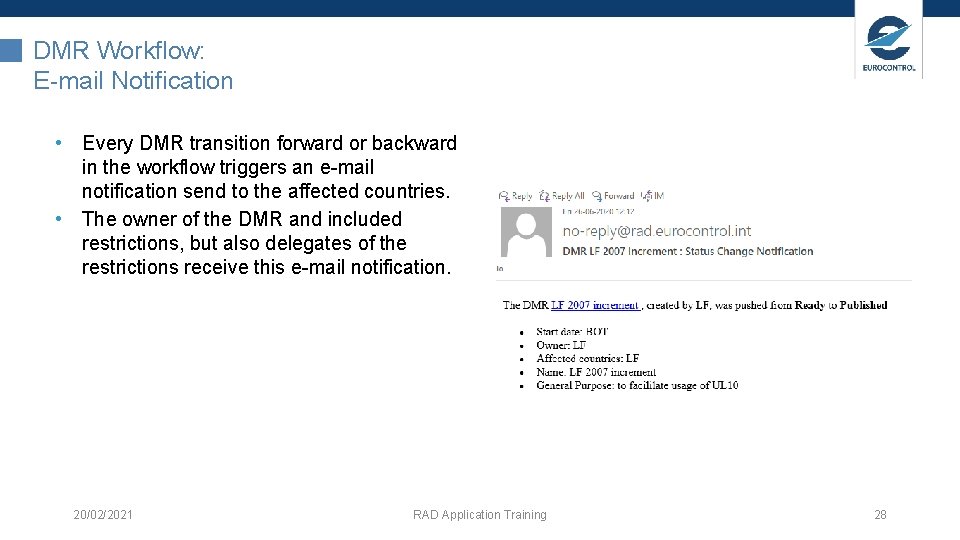
DMR Workflow: E-mail Notification • Every DMR transition forward or backward in the workflow triggers an e-mail notification send to the affected countries. • The owner of the DMR and included restrictions, but also delegates of the restrictions receive this e-mail notification. 20/02/2021 RAD Application Training 28
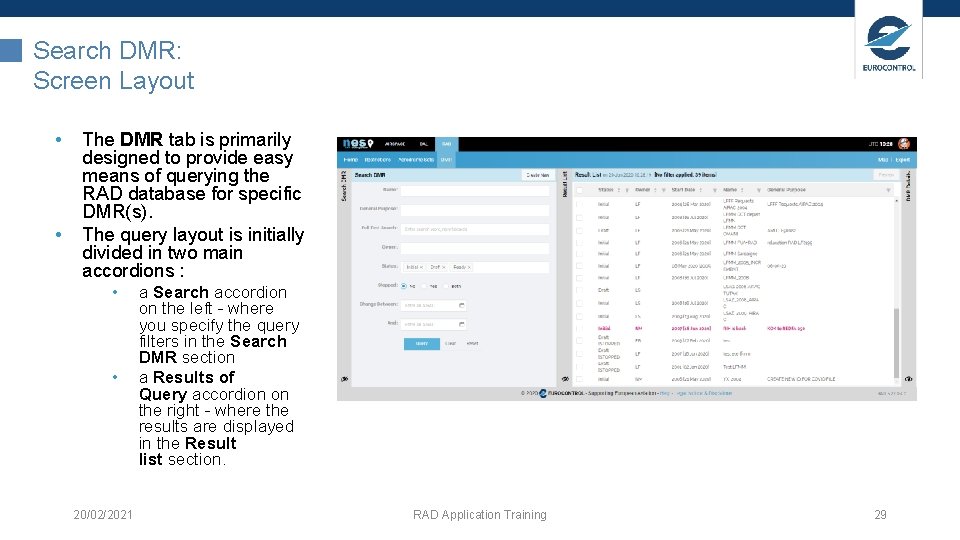
Search DMR: Screen Layout • • The DMR tab is primarily designed to provide easy means of querying the RAD database for specific DMR(s). The query layout is initially divided in two main accordions : • • 20/02/2021 a Search accordion on the left - where you specify the query filters in the Search DMR section a Results of Query accordion on the right - where the results are displayed in the Result list section. RAD Application Training 29
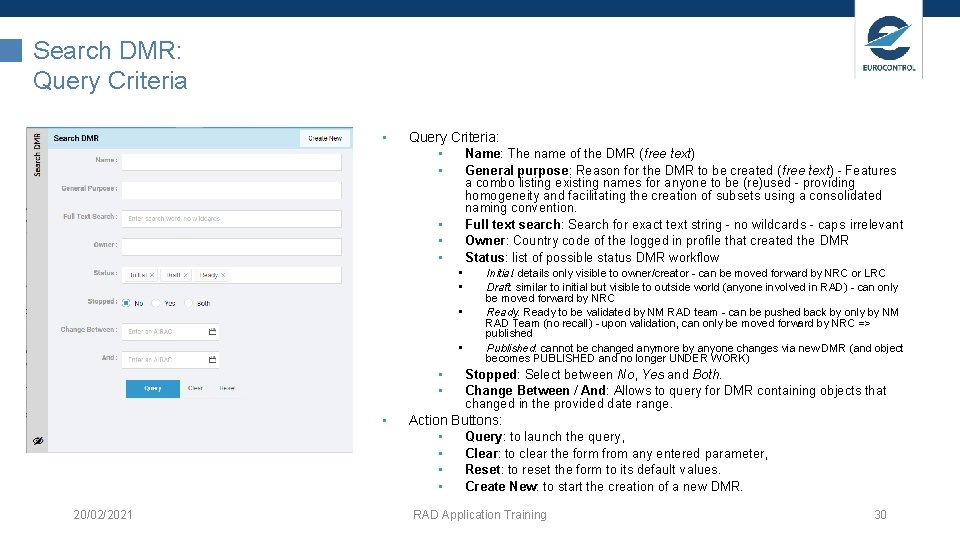
Search DMR: Query Criteria • Query Criteria: • Name: The name of the DMR (free text) • General purpose: Reason for the DMR to be created (free text) - Features a combo listing existing names for anyone to be (re)used - providing homogeneity and facilitating the creation of subsets using a consolidated naming convention. Full text search: Search for exact text string - no wildcards - caps irrelevant Owner: Country code of the logged in profile that created the DMR Status: list of possible status DMR workflow • • • 20/02/2021 Initial: details only visible to owner/creator - can be moved forward by NRC or LRC Draft: similar to initial but visible to outside world (anyone involved in RAD) - can only be moved forward by NRC Ready: Ready to be validated by NM RAD team - can be pushed back by only by NM RAD Team (no recall) - upon validation, can only be moved forward by NRC => published Published: cannot be changed anymore by anyone changes via new DMR (and object becomes PUBLISHED and no longer UNDER WORK) Stopped: Select between No, Yes and Both. Change Between / And: Allows to query for DMR containing objects that changed in the provided date range. Action Buttons: • Query: to launch the query, • Clear: to clear the form from any entered parameter, • Reset: to reset the form to its default values. • Create New: to start the creation of a new DMR. RAD Application Training 30
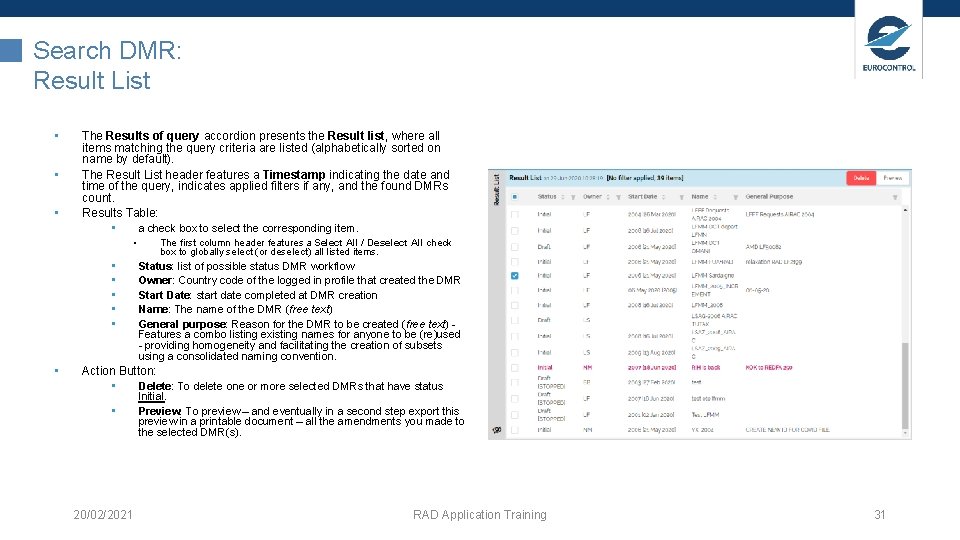
Search DMR: Result List • • • The Results of query accordion presents the Result list, where all items matching the query criteria are listed (alphabetically sorted on name by default). The Result List header features a Timestamp indicating the date and time of the query, indicates applied filters if any, and the found DMRs count. Results Table: • a check box to select the corresponding item. • • The first column header features a Select All / Deselect All check box to globally select (or deselect) all listed items. Status: list of possible status DMR workflow Owner: Country code of the logged in profile that created the DMR Start Date: start date completed at DMR creation Name: The name of the DMR (free text) General purpose: Reason for the DMR to be created (free text) - Features a combo listing existing names for anyone to be (re)used - providing homogeneity and facilitating the creation of subsets using a consolidated naming convention. Action Button: • Delete: To delete one or more selected DMRs that have status • 20/02/2021 Initial. Preview: To preview – and eventually in a second step export this preview in a printable document – all the amendments you made to the selected DMR(s). RAD Application Training 31
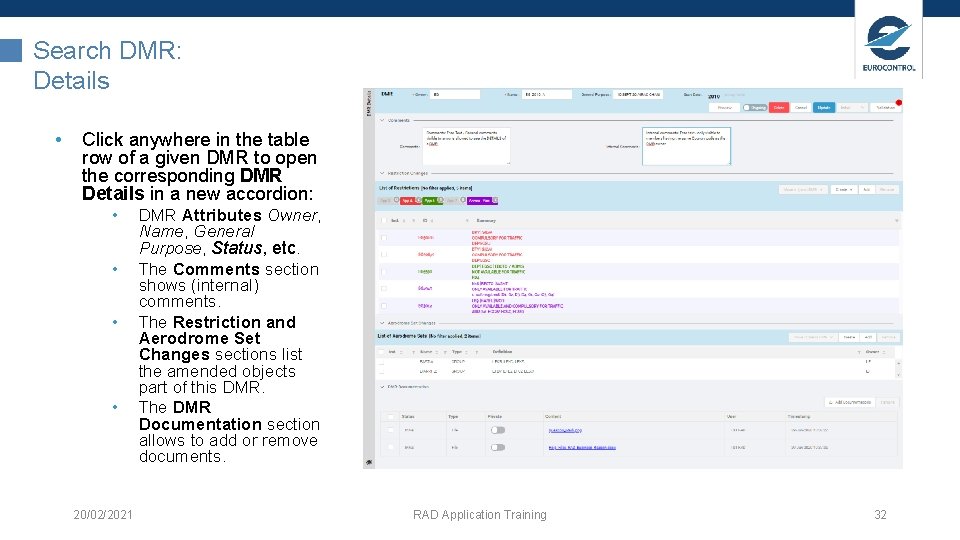
Search DMR: Details • Click anywhere in the table row of a given DMR to open the corresponding DMR Details in a new accordion: • • 20/02/2021 DMR Attributes Owner, Name, General Purpose, Status, etc. The Comments section shows (internal) comments. The Restriction and Aerodrome Set Changes sections list the amended objects part of this DMR. The DMR Documentation section allows to add or remove documents. RAD Application Training 32
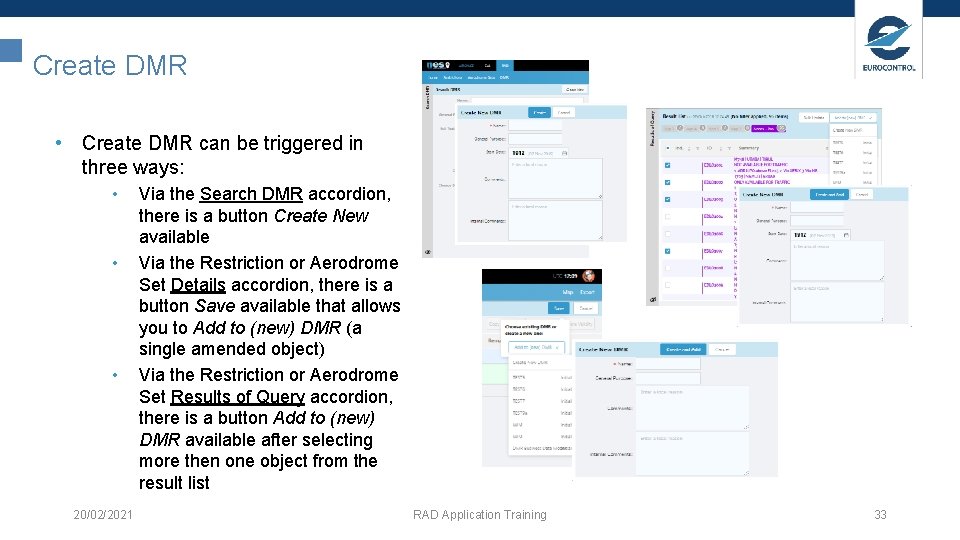
Create DMR • Create DMR can be triggered in three ways: • • • 20/02/2021 Via the Search DMR accordion, there is a button Create New available Via the Restriction or Aerodrome Set Details accordion, there is a button Save available that allows you to Add to (new) DMR (a single amended object) Via the Restriction or Aerodrome Set Results of Query accordion, there is a button Add to (new) DMR available after selecting more then one object from the result list RAD Application Training 33
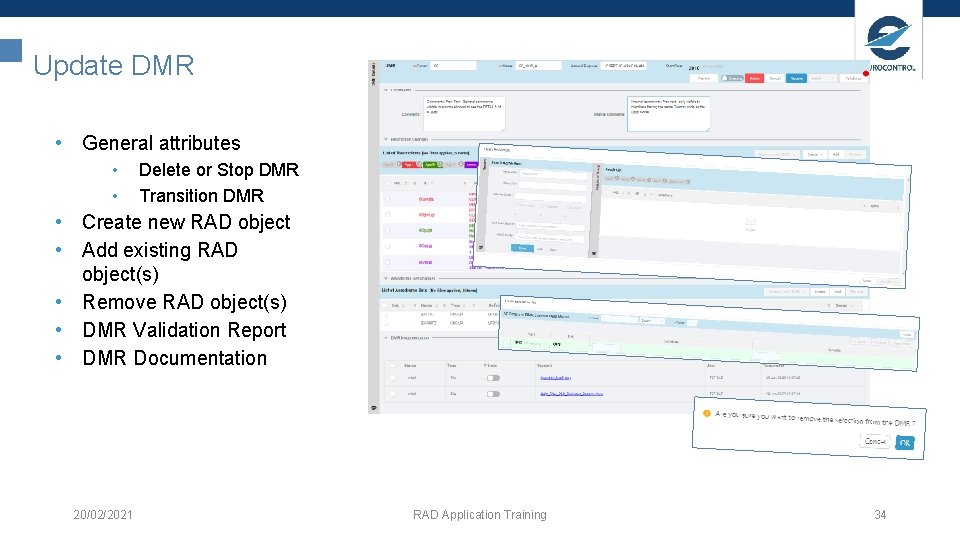
Update DMR • General attributes • • Delete or Stop DMR Transition DMR • Create new RAD object • Add existing RAD object(s) • Remove RAD object(s) • DMR Validation Report • DMR Documentation 20/02/2021 RAD Application Training 34
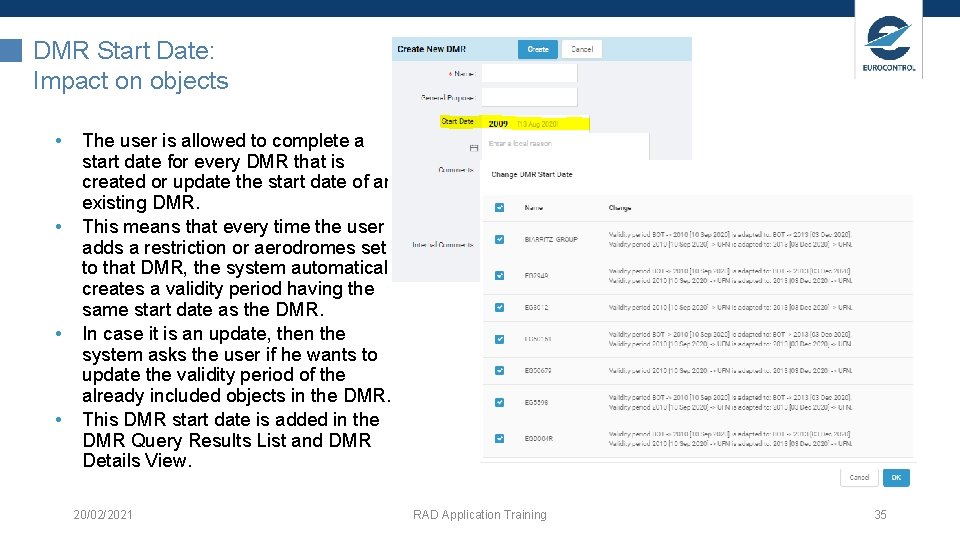
DMR Start Date: Impact on objects • • The user is allowed to complete a start date for every DMR that is created or update the start date of an existing DMR. This means that every time the user adds a restriction or aerodromes set to that DMR, the system automatically creates a validity period having the same start date as the DMR. In case it is an update, then the system asks the user if he wants to update the validity period of the already included objects in the DMR. This DMR start date is added in the DMR Query Results List and DMR Details View. 20/02/2021 RAD Application Training 35
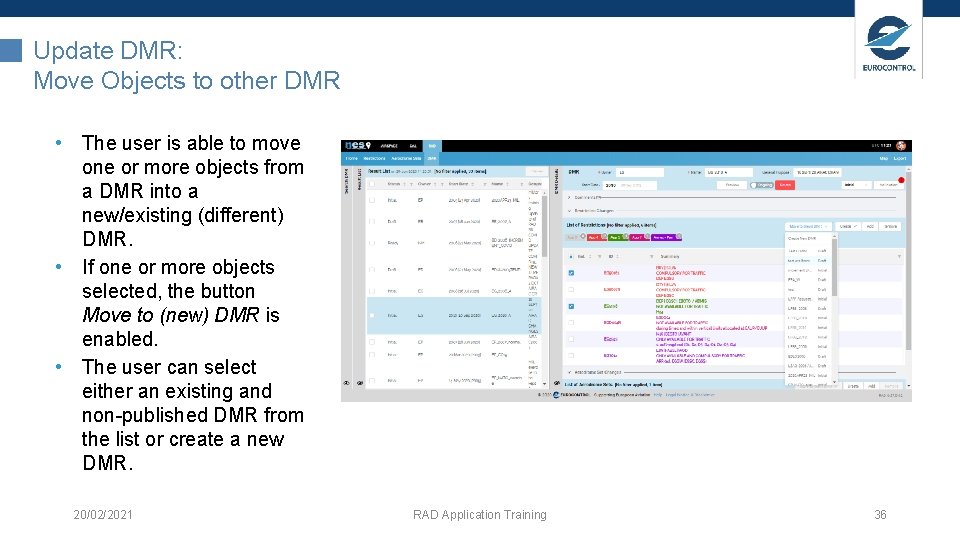
Update DMR: Move Objects to other DMR • The user is able to move one or more objects from a DMR into a new/existing (different) DMR. • If one or more objects selected, the button Move to (new) DMR is enabled. • The user can select either an existing and non-published DMR from the list or create a new DMR. 20/02/2021 RAD Application Training 36
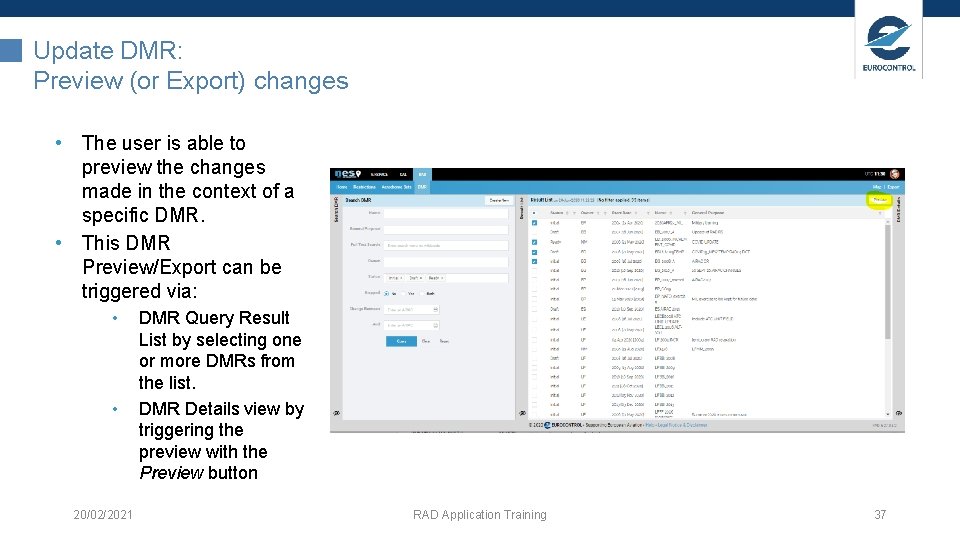
Update DMR: Preview (or Export) changes • The user is able to preview the changes made in the context of a specific DMR. • This DMR Preview/Export can be triggered via: • • 20/02/2021 DMR Query Result List by selecting one or more DMRs from the list. DMR Details view by triggering the preview with the Preview button RAD Application Training 37
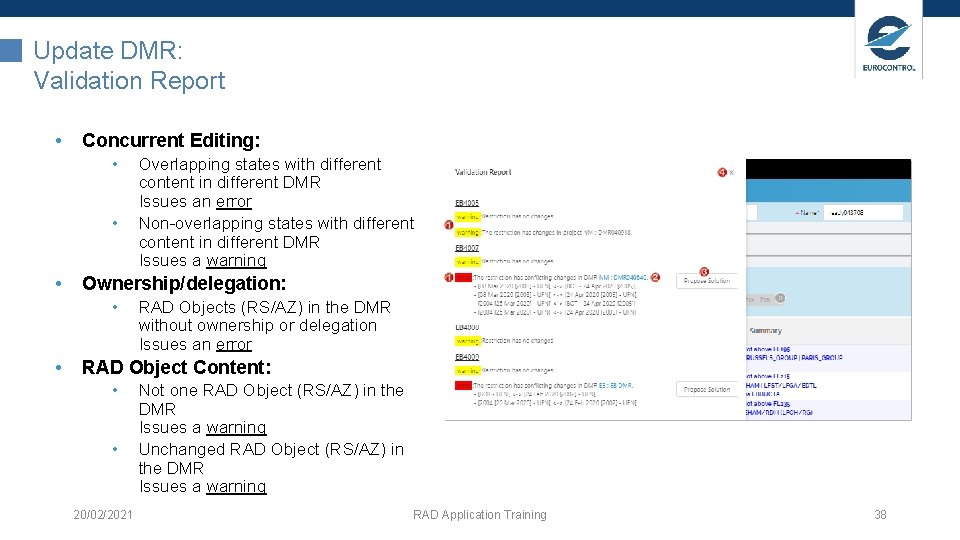
Update DMR: Validation Report • Concurrent Editing: • • • Ownership/delegation: • • Overlapping states with different content in different DMR Issues an error Non-overlapping states with different content in different DMR Issues a warning RAD Objects (RS/AZ) in the DMR without ownership or delegation Issues an error RAD Object Content: • • 20/02/2021 Not one RAD Object (RS/AZ) in the DMR Issues a warning Unchanged RAD Object (RS/AZ) in the DMR Issues a warning RAD Application Training 38
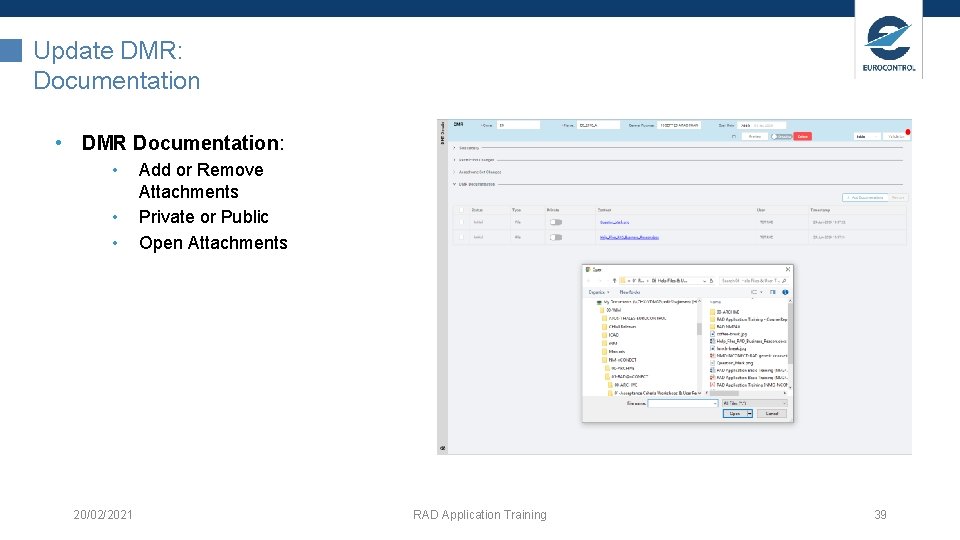
Update DMR: Documentation • DMR Documentation: • • • 20/02/2021 Add or Remove Attachments Private or Public Open Attachments RAD Application Training 39
Exercise: Workflow and Search, Edit, Manage DMR 1. Create a DMR 1. via the Search DMR accordion, where the button Create New is available 2. via the Restrictions Result List accordion, where the button Add to (New) DMR is available 3. via the Restriction Details accordion, where the button Add to (New) DMR is available Note: Give a unique DMR name and add a number of the same objects as in the first DMR 2. Search the DMRs that you created in step 1. 1. Based on Name, General Purpose, etc. 3. Update the DMR: 1. 2. 3. 4. Add one existing aerodrome set to the DMR Add three existing restrictions to the DMR Remove one restriction from the DMR Move the DMR one phase forward in the workflow (Initial to Draft) 20/02/2021 RAD Application Training 4. Repeat step 3 for every DMR created 40
Search, Edit and Manage Restrictions & Aerodrome Sets 20/02/2021 RAD Application Training 41
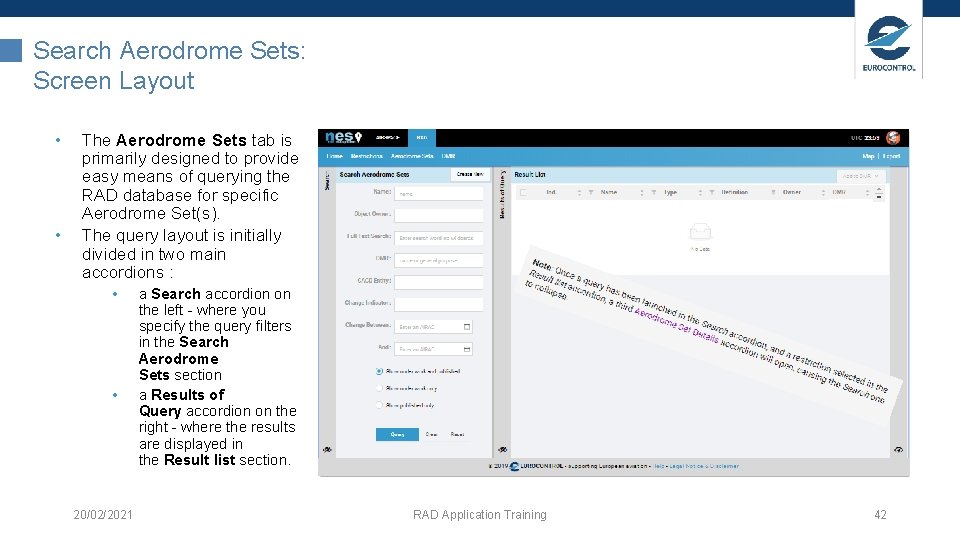
Search Aerodrome Sets: Screen Layout • • The Aerodrome Sets tab is primarily designed to provide easy means of querying the RAD database for specific Aerodrome Set(s). The query layout is initially divided in two main accordions : • • 20/02/2021 a Search accordion on the left - where you specify the query filters in the Search Aerodrome Sets section a Results of Query accordion on the right - where the results are displayed in the Result list section. RAD Application Training 42
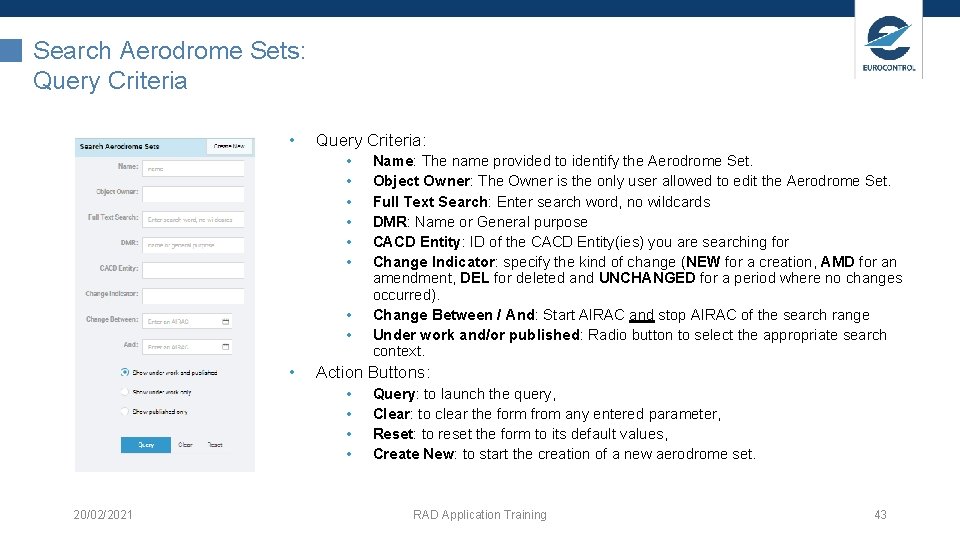
Search Aerodrome Sets: Query Criteria • Query Criteria: • • • Action Buttons: • • 20/02/2021 Name: The name provided to identify the Aerodrome Set. Object Owner: The Owner is the only user allowed to edit the Aerodrome Set. Full Text Search: Enter search word, no wildcards DMR: Name or General purpose CACD Entity: ID of the CACD Entity(ies) you are searching for Change Indicator: specify the kind of change (NEW for a creation, AMD for an amendment, DEL for deleted and UNCHANGED for a period where no changes occurred). Change Between / And: Start AIRAC and stop AIRAC of the search range Under work and/or published: Radio button to select the appropriate search context. Query: to launch the query, Clear: to clear the form from any entered parameter, Reset: to reset the form to its default values, Create New: to start the creation of a new aerodrome set. RAD Application Training 43
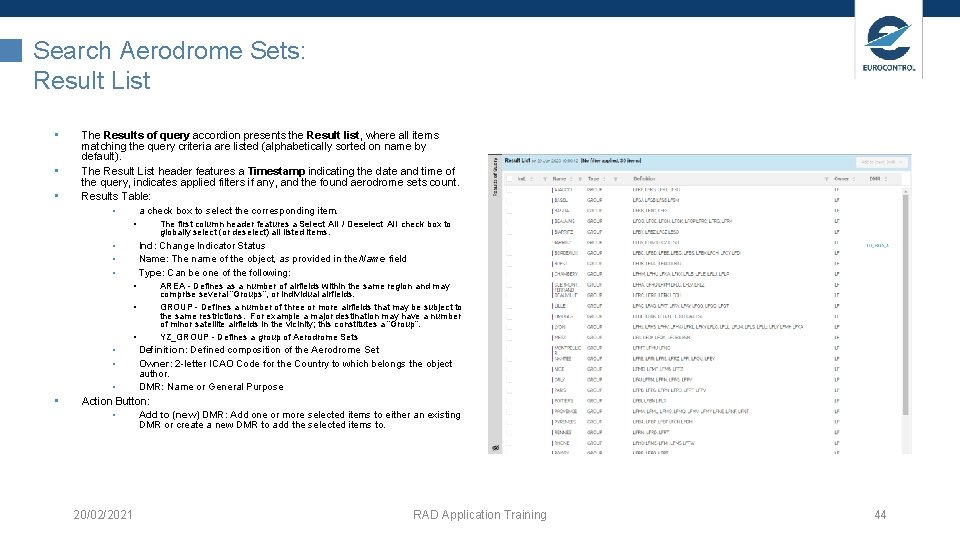
Search Aerodrome Sets: Result List • • • The Results of query accordion presents the Result list, where all items matching the query criteria are listed (alphabetically sorted on name by default). The Result List header features a Timestamp indicating the date and time of the query, indicates applied filters if any, and the found aerodrome sets count. Results Table: • a check box to select the corresponding item. • • Ind: Change Indicator Status Name: The name of the object, as provided in the Name field Type: Can be one of the following: • • • The first column header features a Select All / Deselect All check box to globally select (or deselect) all listed items. AREA - Defines as a number of airfields within the same region and may comprise several “Groups”, or individual airfields. GROUP - Defines a number of three or more airfields that may be subject to the same restrictions. For example a major destination may have a number of minor satellite airfields in the vicinity; this constitutes a “Group”. YZ_GROUP - Defines a group of Aerodrome Sets Definition: Defined composition of the Aerodrome Set Owner: 2 -letter ICAO Code for the Country to which belongs the object author. DMR: Name or General Purpose • Action Button: • Add to (new) DMR: Add one or more selected items to either an existing DMR or create a new DMR to add the selected items to. 20/02/2021 RAD Application Training 44
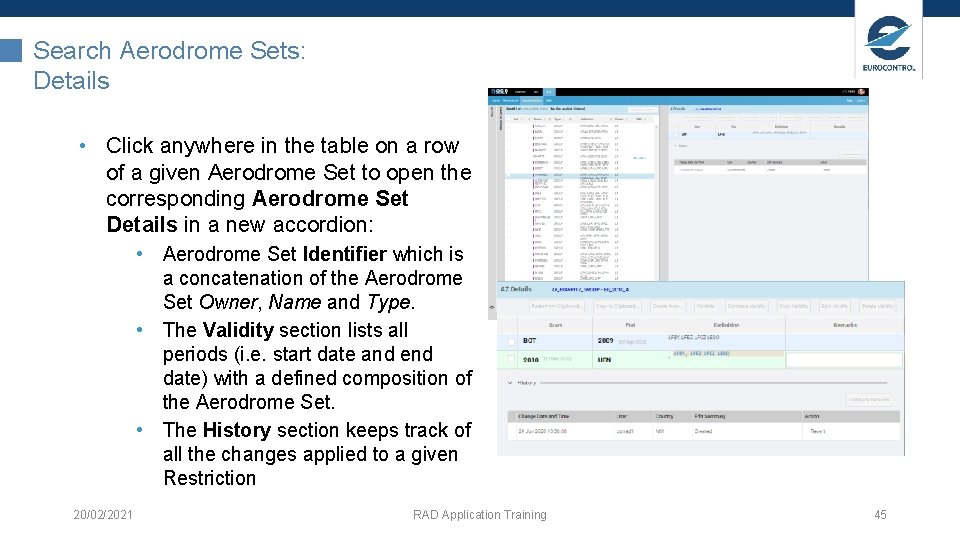
Search Aerodrome Sets: Details • Click anywhere in the table on a row of a given Aerodrome Set to open the corresponding Aerodrome Set Details in a new accordion: • Aerodrome Set Identifier which is a concatenation of the Aerodrome Set Owner, Name and Type. • The Validity section lists all periods (i. e. start date and end date) with a defined composition of the Aerodrome Set. • The History section keeps track of all the changes applied to a given Restriction 20/02/2021 RAD Application Training 45
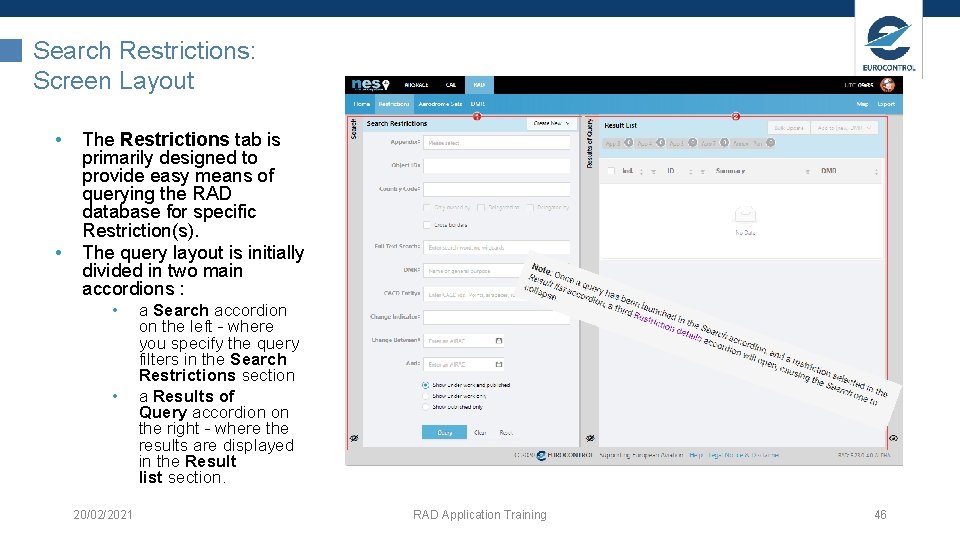
Search Restrictions: Screen Layout • • The Restrictions tab is primarily designed to provide easy means of querying the RAD database for specific Restriction(s). The query layout is initially divided in two main accordions : • • 20/02/2021 a Search accordion on the left - where you specify the query filters in the Search Restrictions section a Results of Query accordion on the right - where the results are displayed in the Result list section. RAD Application Training 46
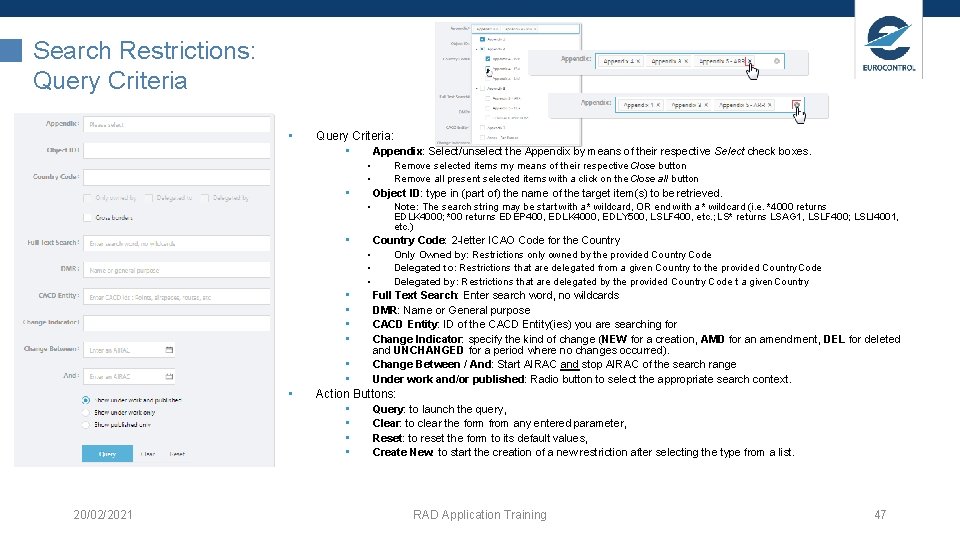
Search Restrictions: Query Criteria • Query Criteria: • Appendix: Select/unselect the Appendix by means of their respective Select check boxes. • • • Object ID: type in (part of) the name of the target item(s) to be retrieved. • • • 20/02/2021 Note: The search string may be start with a * wildcard, OR end with a * wildcard (i. e. *4000 returns EDLK 4000; *00 returns EDEP 400, EDLK 4000, EDLY 500, LSLF 400, etc. ; LS* returns LSAG 1, LSLF 400; LSLI 4001, etc. ) Country Code: 2 -letter ICAO Code for the Country • • Remove selected items my means of their respective Close button Remove all present selected items with a click on the Close all button Only Owned by: Restrictions only owned by the provided Country Code Delegated to: Restrictions that are delegated from a given Country to the provided Country Code Delegated by: Restrictions that are delegated by the provided Country Code t a given Country Full Text Search: Enter search word, no wildcards DMR: Name or General purpose CACD Entity: ID of the CACD Entity(ies) you are searching for Change Indicator: specify the kind of change (NEW for a creation, AMD for an amendment, DEL for deleted and UNCHANGED for a period where no changes occurred). Change Between / And: Start AIRAC and stop AIRAC of the search range Under work and/or published: Radio button to select the appropriate search context. • • Action Buttons: • Query: to launch the query, • Clear: to clear the form from any entered parameter, • Reset: to reset the form to its default values, • Create New: to start the creation of a new restriction after selecting the type from a list. RAD Application Training 47
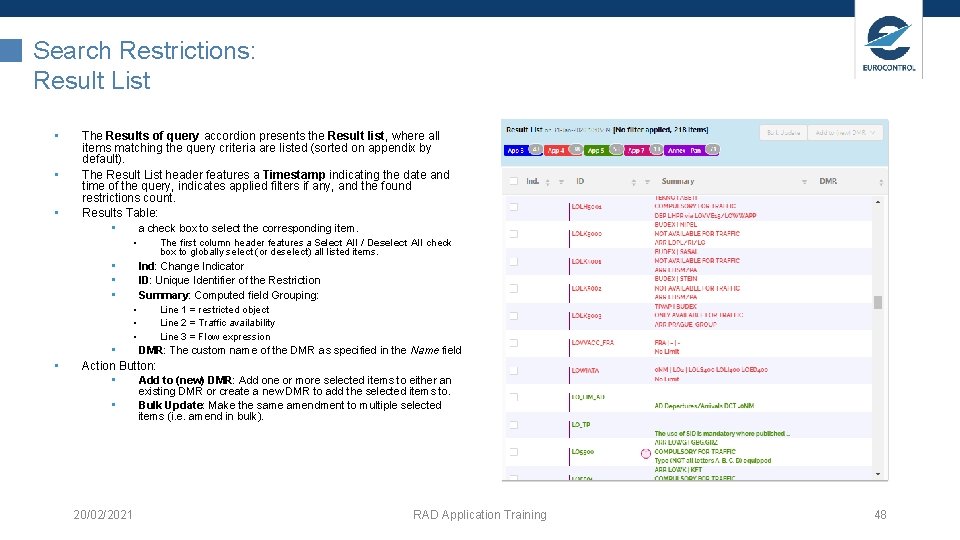
Search Restrictions: Result List • • • The Results of query accordion presents the Result list, where all items matching the query criteria are listed (sorted on appendix by default). The Result List header features a Timestamp indicating the date and time of the query, indicates applied filters if any, and the found restrictions count. Results Table: • a check box to select the corresponding item. • • Ind: Change Indicator ID: Unique Identifier of the Restriction Summary: Computed field Grouping: • • The first column header features a Select All / Deselect All check box to globally select (or deselect) all listed items. Line 1 = restricted object Line 2 = Traffic availability Line 3 = Flow expression • DMR: The custom name of the DMR as specified in the Name field Action Button: • Add to (new) DMR: Add one or more selected items to either an existing DMR or create a new DMR to add the selected items to. • Bulk Update: Make the same amendment to multiple selected items (i. e. amend in bulk). 20/02/2021 RAD Application Training 48
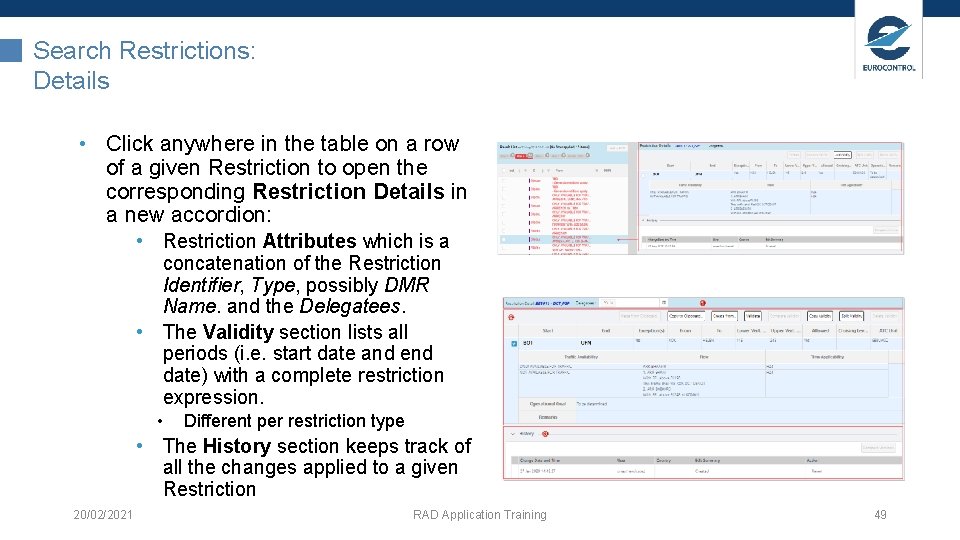
Search Restrictions: Details • Click anywhere in the table on a row of a given Restriction to open the corresponding Restriction Details in a new accordion: • Restriction Attributes which is a concatenation of the Restriction Identifier, Type, possibly DMR Name. and the Delegatees. • The Validity section lists all periods (i. e. start date and end date) with a complete restriction expression. • Different per restriction type • The History section keeps track of all the changes applied to a given Restriction 20/02/2021 RAD Application Training 49
Exercise: Search, Edit and Manage Restrictions & Aerodrome Sets 1. Search Restrictions: 1. Go to the menu Restrictions 2. Query for your own Published restrictions 3. Query for city-pair flight-level-capping and DCT arrival restrictions and this from one of your neighbouring countries. 2. Search Aerodrome Sets: 1. Go to the menu Aerodrome Sets 2. Query for your own Published aerodrome sets 3. Query for aerodrome sets from one of your neighbouring countries. 20/02/2021 RAD Application Training 50
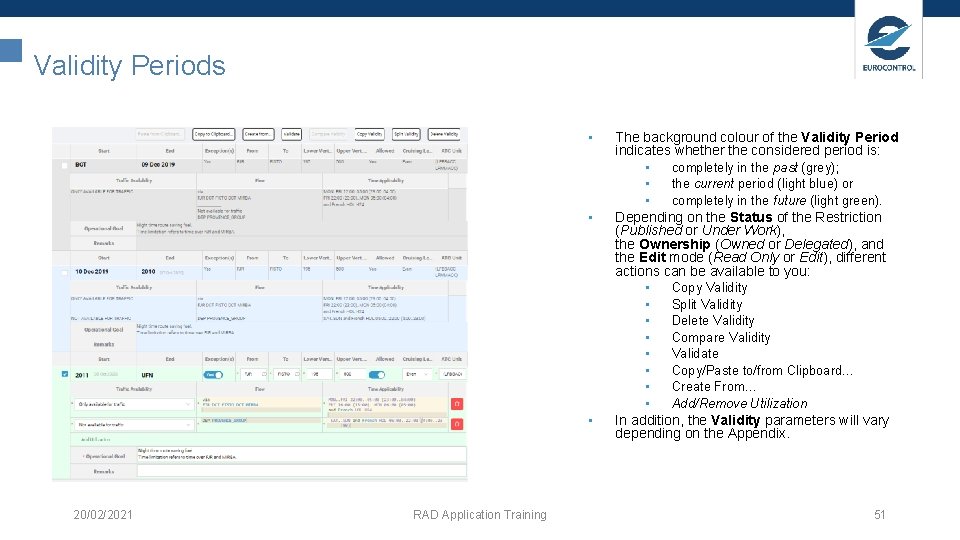
Validity Periods • • • 20/02/2021 RAD Application Training The background colour of the Validity Period indicates whether the considered period is: • completely in the past (grey); • the current period (light blue) or • completely in the future (light green). Depending on the Status of the Restriction (Published or Under Work), the Ownership (Owned or Delegated), and the Edit mode (Read Only or Edit), different actions can be available to you: • Copy Validity • Split Validity • Delete Validity • Compare Validity • Validate • Copy/Paste to/from Clipboard… • Create From… • Add/Remove Utilization In addition, the Validity parameters will vary depending on the Appendix. 51
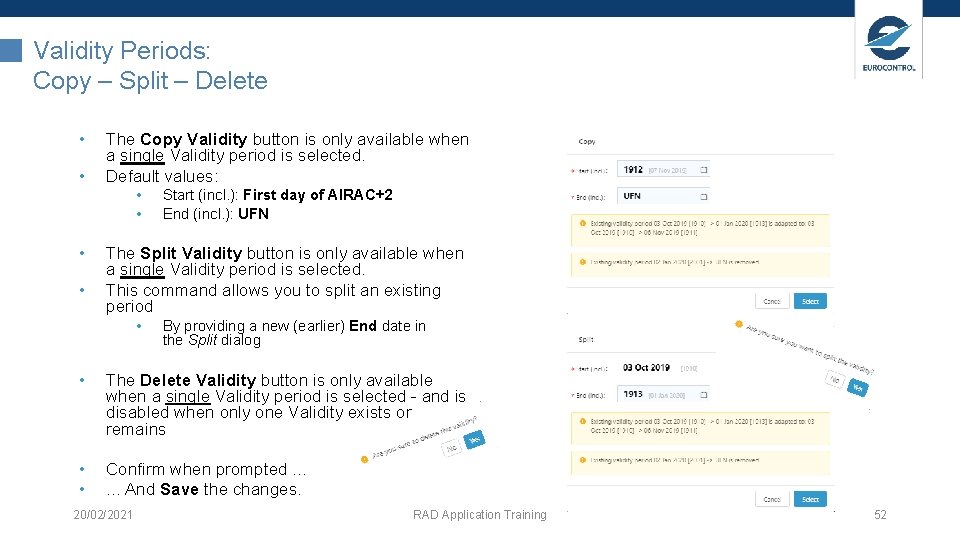
Validity Periods: Copy – Split – Delete • • The Copy Validity button is only available when a single Validity period is selected. Default values: • • Start (incl. ): First day of AIRAC+2 End (incl. ): UFN The Split Validity button is only available when a single Validity period is selected. This command allows you to split an existing period • By providing a new (earlier) End date in the Split dialog • The Delete Validity button is only available when a single Validity period is selected - and is disabled when only one Validity exists or remains • • Confirm when prompted. . . And Save the changes. 20/02/2021 RAD Application Training 52
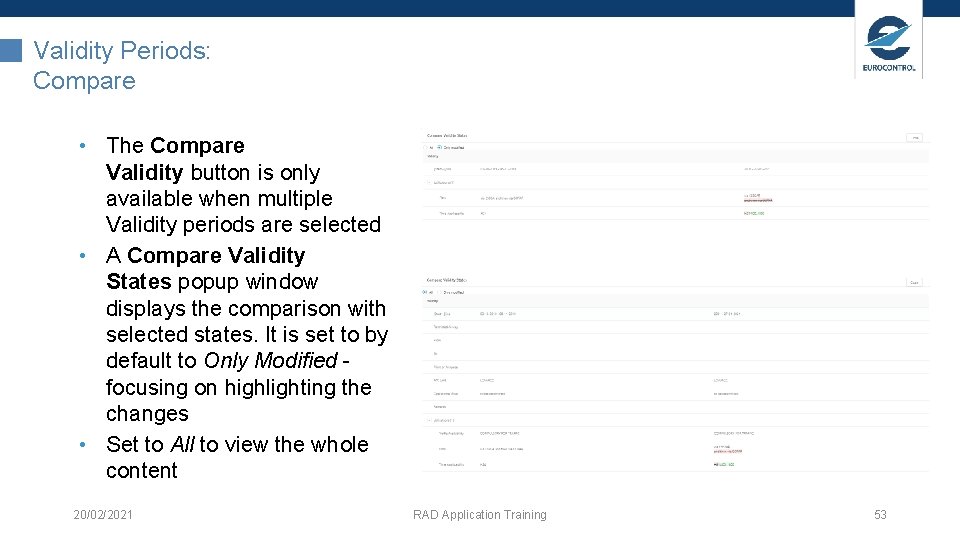
Validity Periods: Compare • The Compare Validity button is only available when multiple Validity periods are selected • A Compare Validity States popup window displays the comparison with selected states. It is set to by default to Only Modified - focusing on highlighting the changes • Set to All to view the whole content 20/02/2021 RAD Application Training 53
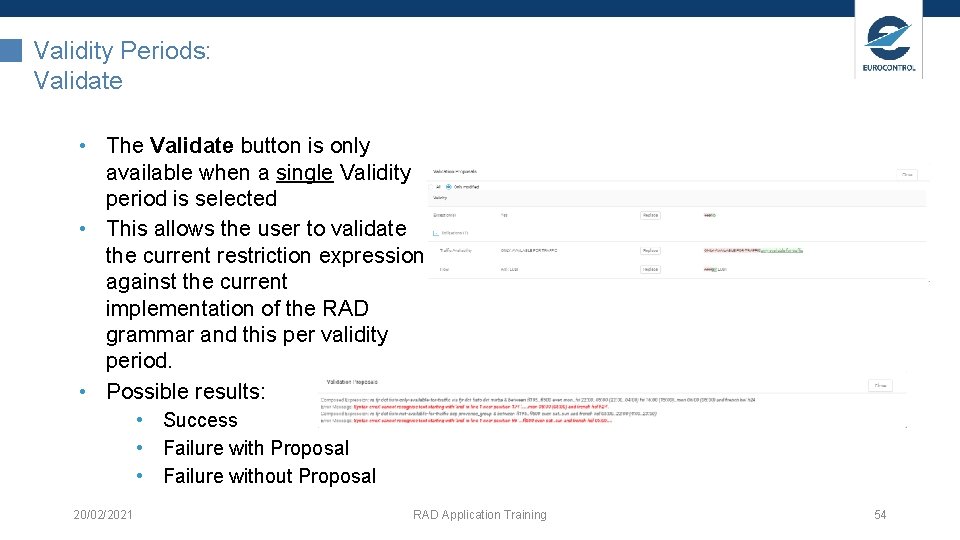
Validity Periods: Validate • The Validate button is only available when a single Validity period is selected • This allows the user to validate the current restriction expression against the current implementation of the RAD grammar and this per validity period. • Possible results: • Success • Failure with Proposal • Failure without Proposal 20/02/2021 RAD Application Training 54
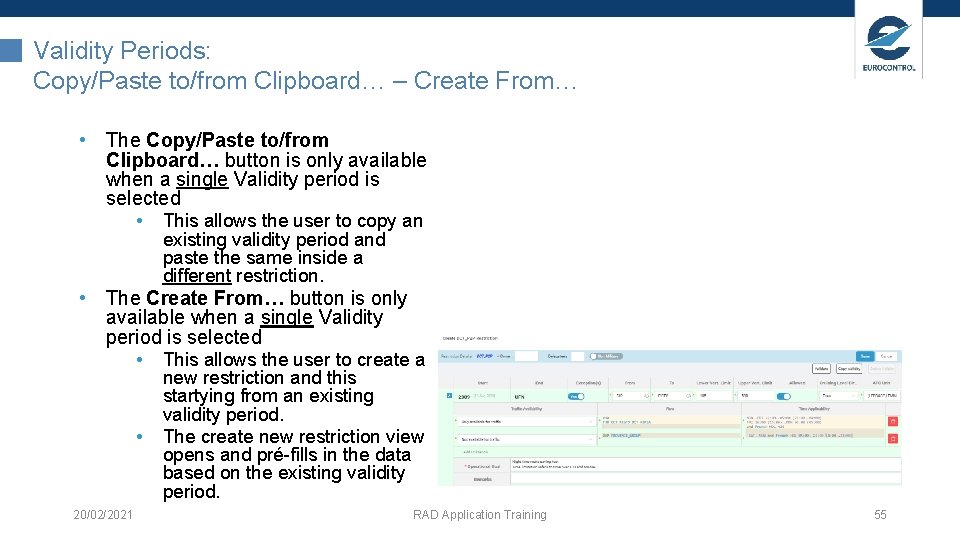
Validity Periods: Copy/Paste to/from Clipboard… – Create From… • The Copy/Paste to/from Clipboard… button is only available when a single Validity period is selected • This allows the user to copy an existing validity period and paste the same inside a different restriction. • The Create From… button is only available when a single Validity period is selected • This allows the user to create a • 20/02/2021 new restriction and this startying from an existing validity period. The create new restriction view opens and pré-fills in the data based on the existing validity period. RAD Application Training 55
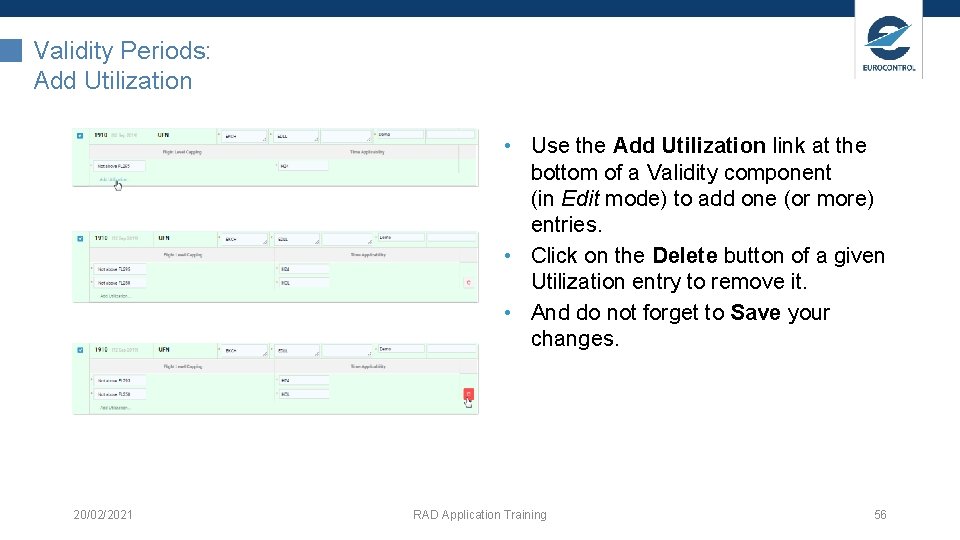
Validity Periods: Add Utilization • Use the Add Utilization link at the bottom of a Validity component (in Edit mode) to add one (or more) entries. • Click on the Delete button of a given Utilization entry to remove it. • And do not forget to Save your changes. 20/02/2021 RAD Application Training 56
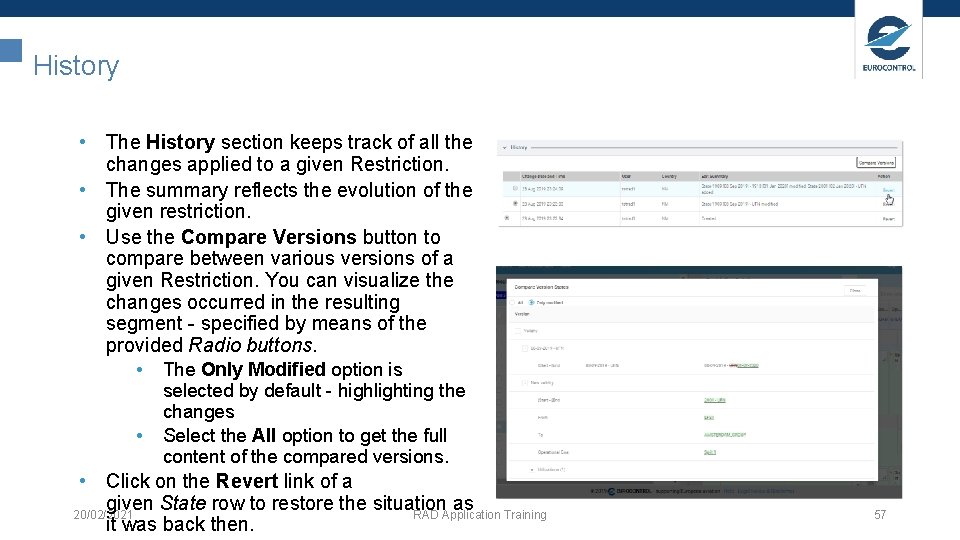
History • The History section keeps track of all the changes applied to a given Restriction. • The summary reflects the evolution of the given restriction. • Use the Compare Versions button to compare between various versions of a given Restriction. You can visualize the changes occurred in the resulting segment - specified by means of the provided Radio buttons. • The Only Modified option is • selected by default - highlighting the changes Select the All option to get the full content of the compared versions. • Click on the Revert link of a given State row to restore the situation as 20/02/2021 RAD Application Training it was back then. 57
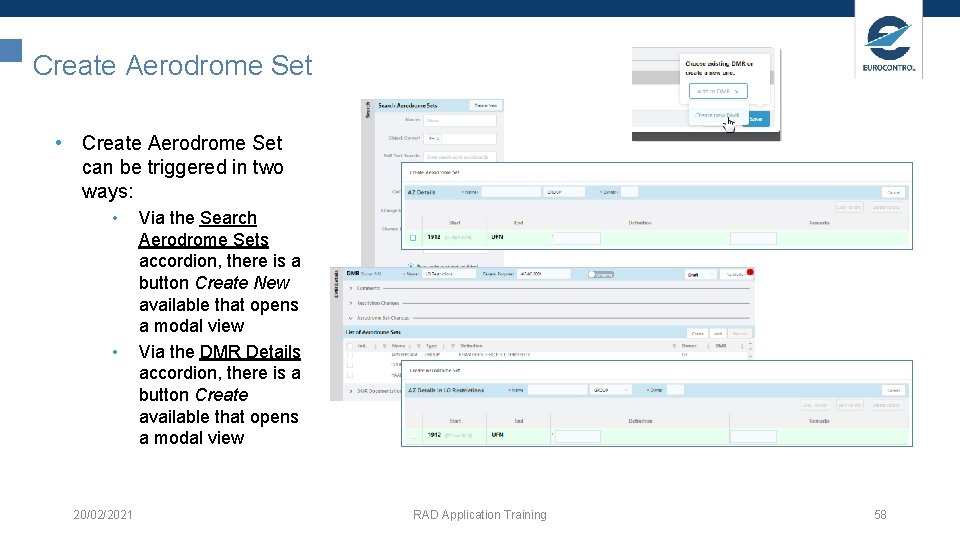
Create Aerodrome Set • Create Aerodrome Set can be triggered in two ways: • • 20/02/2021 Via the Search Aerodrome Sets accordion, there is a button Create New available that opens a modal view Via the DMR Details accordion, there is a button Create available that opens a modal view RAD Application Training 58
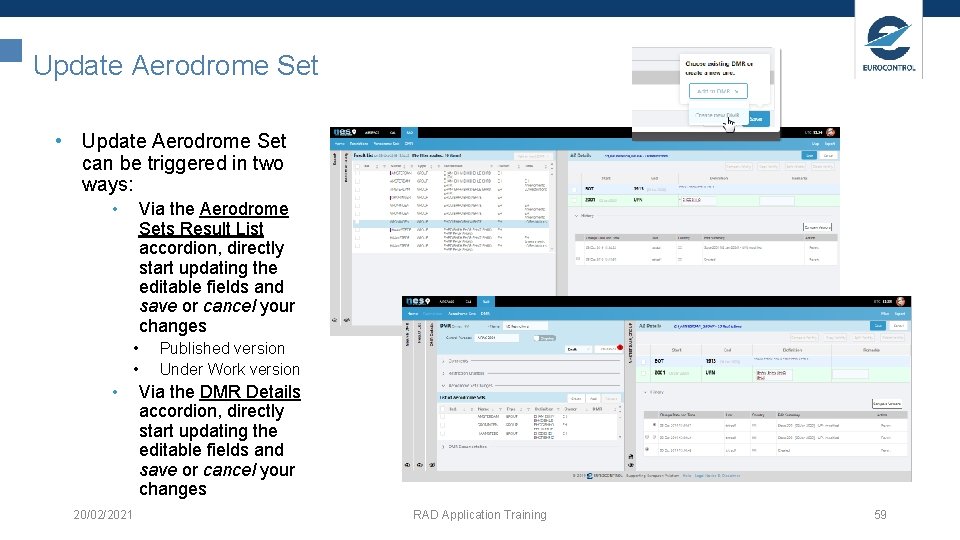
Update Aerodrome Set • Update Aerodrome Set can be triggered in two ways: • Via the Aerodrome Sets Result List accordion, directly start updating the editable fields and save or cancel your changes • • • 20/02/2021 Published version Under Work version Via the DMR Details accordion, directly start updating the editable fields and save or cancel your changes RAD Application Training 59
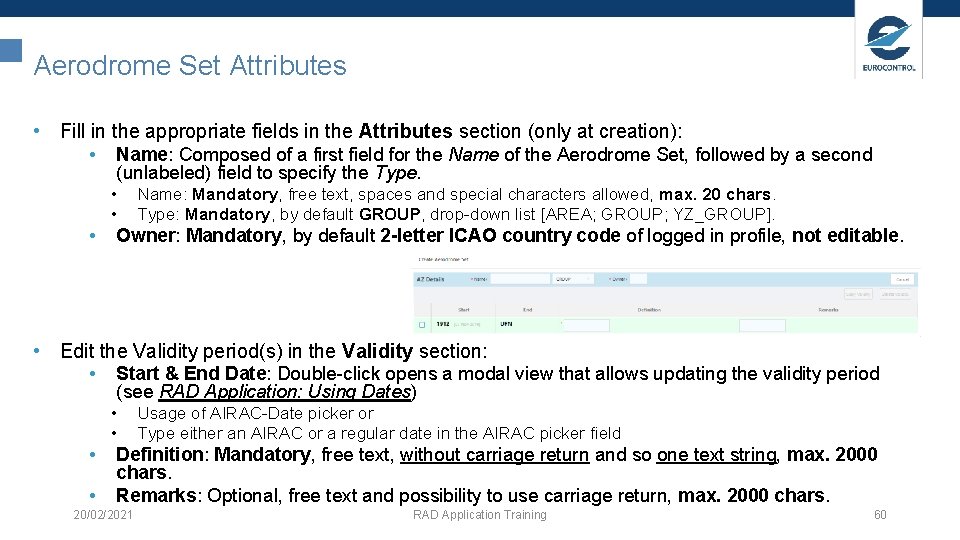
Aerodrome Set Attributes • Fill in the appropriate fields in the Attributes section (only at creation): • Name: Composed of a first field for the Name of the Aerodrome Set, followed by a second (unlabeled) field to specify the Type. • • • Name: Mandatory, free text, spaces and special characters allowed, max. 20 chars. Type: Mandatory, by default GROUP, drop-down list [AREA; GROUP; YZ_GROUP]. Owner: Mandatory, by default 2 -letter ICAO country code of logged in profile, not editable. • Edit the Validity period(s) in the Validity section: • Start & End Date: Double-click opens a modal view that allows updating the validity period (see RAD Application: Using Dates) • • Usage of AIRAC-Date picker or Type either an AIRAC or a regular date in the AIRAC picker field Definition: Mandatory, free text, without carriage return and so one text string, max. 2000 chars. Remarks: Optional, free text and possibility to use carriage return, max. 2000 chars. 20/02/2021 RAD Application Training 60
Aerodrome Set Attributes: Future Grammar Dependency • Definition: • Examples: • • CACD entities allowed: AD, AZ and AS. • • • Prefixes: ad: , az: and as: List notation using comma-separated values and optional rounded brackets (, , , ). Compact notation using forward slash ‘/’. Comments using curly brackets {text}. Keyword except to exclude an entity from the definition. • • • 20/02/2021 RAD Application Training EGGW, EGKB, EGKK, EGTO, EGWU, FARNBOROUGH_GROUP (EGGW, EGKB, EGKK, EGTO, EGWU, FARNBOROUGH_GROUP) EGGW/KB/KK, EGTO, EGWU, FARNBOROUGH_GROUP (EGGW/KB/KK, EGTO, EGWU, FARNBOROUGH_GROUP) {free text excluded from grammar validation} (EGGW/KB/KK, EGTO, EGWU, FARNBOROUGH_GROUP except EGHL) {free text excluded from grammar validation} 61
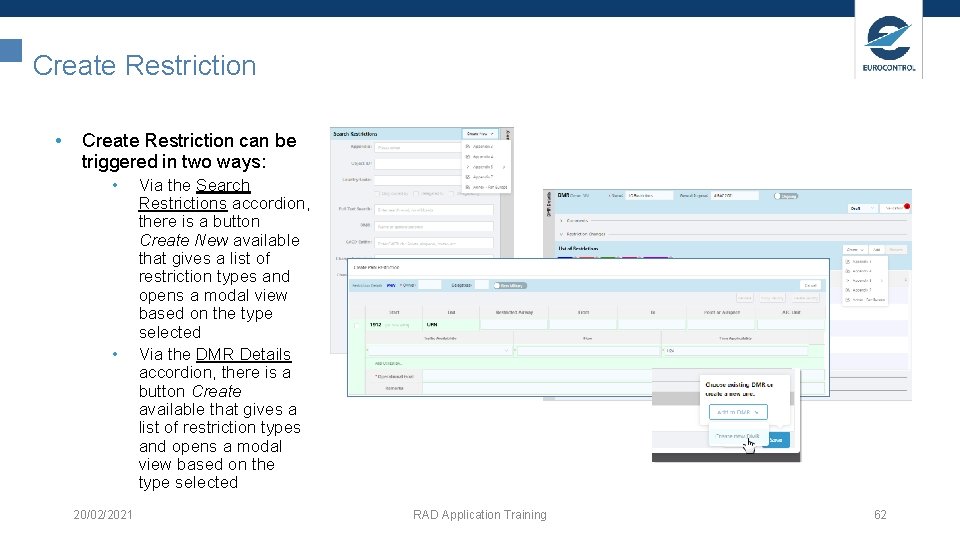
Create Restriction • Create Restriction can be triggered in two ways: • • 20/02/2021 Via the Search Restrictions accordion, there is a button Create New available that gives a list of restriction types and opens a modal view based on the type selected Via the DMR Details accordion, there is a button Create available that gives a list of restriction types and opens a modal view based on the type selected RAD Application Training 62
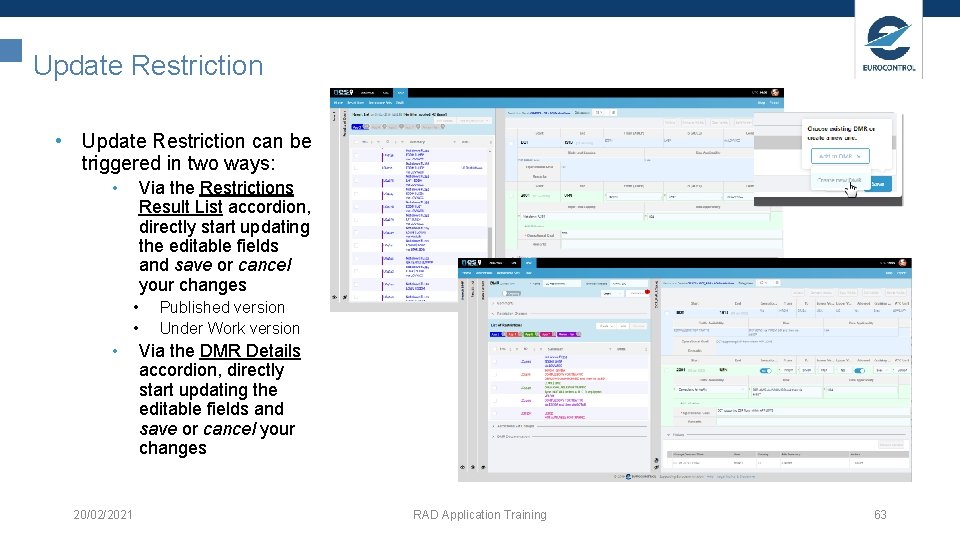
Update Restriction • Update Restriction can be triggered in two ways: • Via the Restrictions Result List accordion, directly start updating the editable fields and save or cancel your changes • • • 20/02/2021 Published version Under Work version Via the DMR Details accordion, directly start updating the editable fields and save or cancel your changes RAD Application Training 63
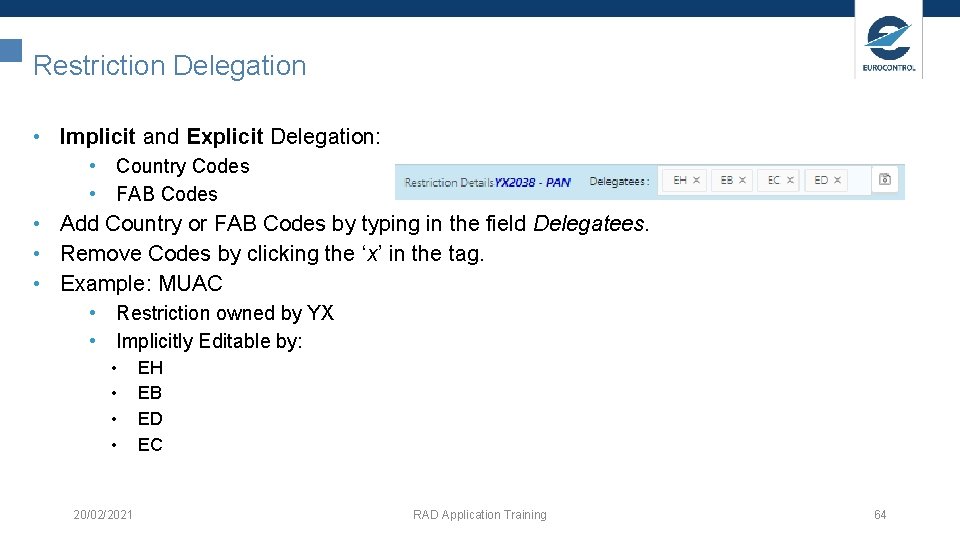
Restriction Delegation • Implicit and Explicit Delegation: • Country Codes • FAB Codes • Add Country or FAB Codes by typing in the field Delegatees. • Remove Codes by clicking the ‘x’ in the tag. • Example: MUAC • Restriction owned by YX • Implicitly Editable by: • • 20/02/2021 EH EB ED EC RAD Application Training 64
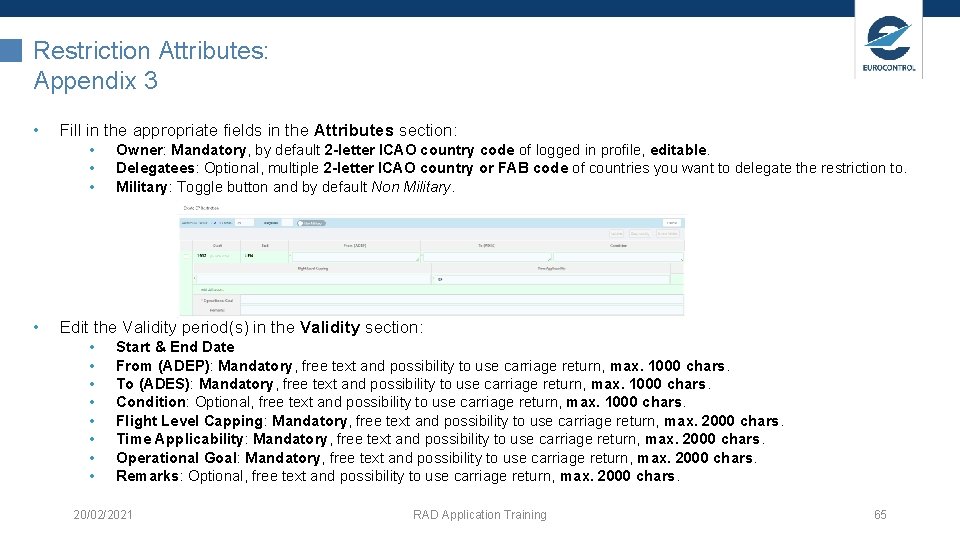
Restriction Attributes: Appendix 3 • Fill in the appropriate fields in the Attributes section: • • Owner: Mandatory, by default 2 -letter ICAO country code of logged in profile, editable. Delegatees: Optional, multiple 2 -letter ICAO country or FAB code of countries you want to delegate the restriction to. Military: Toggle button and by default Non Military. Edit the Validity period(s) in the Validity section: • • Start & End Date From (ADEP): Mandatory, free text and possibility to use carriage return, max. 1000 chars. To (ADES): Mandatory, free text and possibility to use carriage return, max. 1000 chars. Condition: Optional, free text and possibility to use carriage return, max. 1000 chars. Flight Level Capping: Mandatory, free text and possibility to use carriage return, max. 2000 chars. Time Applicability: Mandatory, free text and possibility to use carriage return, max. 2000 chars. Operational Goal: Mandatory, free text and possibility to use carriage return, max. 2000 chars. Remarks: Optional, free text and possibility to use carriage return, max. 2000 chars. 20/02/2021 RAD Application Training 65
Restrictions (Appendix 3) Attributes: Future Grammar Dependency • • Prefixes: ad: , az: and as: Wildcards: ‘*’ or ‘**’ List notation using comma-separated values and optional rounded brackets (, , , ). Compact notation using forward slash ‘/’. Comments using curly brackets {text}. Keywords allowed: • • • From (ADEP) & To (ADES): • CACD entities allowed: AD, AZ and AS. Except Type Via Etc. Flight Level Capping: • Keyword(s) + flight level (i. e. FL+number) • Keywords allowed: • • • Time Applicability: • Constants: • Condition: • CACD entities allowed: AD, AZ , AS , PT , RT and AC (i. e. Aircraft Types). • • • Prefixes: ad: , az: , as: , pt: , rt: and ac: Wildcards: ‘*’ or ‘**’ List notation using comma-separated values and optional rounded brackets (, , , ). Compact notation using forward slash ‘/’. Comments using curly brackets {text}. Keywords allowed: • • 20/02/2021 Above Below Not Etc. Except Type Via If Etc. RAD Application Training • • • H 24, BFR, HOL, HO-, HO+, etc. Weekdays: MON, TUE, WED, etc. Months: JAN, FEB, MAR, etc. AIRACs: first or last + AIRAC + month Time: hhmm or hh: mm Examples: • • • Time Range: 16: 00. . 22: 00 Day Range: MON. . FRI or BFR. . TUE or HO-. . HO+ Day w/o Year Range: 1 FEB. . 25 MAR Day and Time Range: MON 08: 00. . FRI 22: 00 Month Range: JUL. . AUG AIRAC Range: AIRAC JUL. . last AIRAC AUG or first AIRAC DEC. . 15 APR or 1 JUL. . AIRAC SEP 66
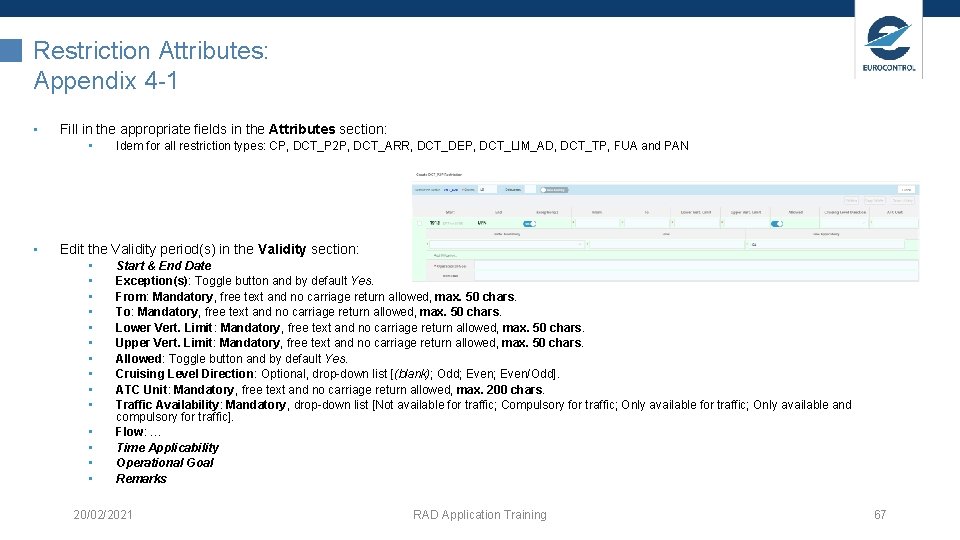
Restriction Attributes: Appendix 4 -1 • Fill in the appropriate fields in the Attributes section: • • Idem for all restriction types: CP, DCT_P 2 P, DCT_ARR, DCT_DEP, DCT_LIM_AD, DCT_TP, FUA and PAN Edit the Validity period(s) in the Validity section: • • • • Start & End Date Exception(s): Toggle button and by default Yes. From: Mandatory, free text and no carriage return allowed, max. 50 chars. To: Mandatory, free text and no carriage return allowed, max. 50 chars. Lower Vert. Limit: Mandatory, free text and no carriage return allowed, max. 50 chars. Upper Vert. Limit: Mandatory, free text and no carriage return allowed, max. 50 chars. Allowed: Toggle button and by default Yes. Cruising Level Direction: Optional, drop-down list [(blank); Odd; Even/Odd]. ATC Unit: Mandatory, free text and no carriage return allowed, max. 200 chars. Traffic Availability: Mandatory, drop-down list [Not available for traffic; Compulsory for traffic; Only available and compulsory for traffic]. Flow: … Time Applicability Operational Goal Remarks 20/02/2021 RAD Application Training 67
Restrictions (Appendix 4 -1) Attributes: Future Grammar Dependency • Flow: • • All normalised RS follow the same structure: • • • restricted-object traffic-availability conditioned-flow-tree time-applicability From & To: The user can reference following CACD entities in this field: PT (i. e. NAVAID or WAYPOINT) Lower Vert. Limit: It contains either relevant altitude or FL or abbreviation GND (Ground) provided/required by the States/FABs/ANSPs or abbreviation/s MSA (Minimum Sector Altitude) and/or MEA (Minimum En-route Altitude) if no altitude or FL defined by the States/FABs/ANSPs. Upper Vert. Limit: It contains either relevant FL or abbreviation UNL (Unlimited) provided/required by the States/FABs/ANSPs. ATC Unit: The user can reference following CACD entities in this field: UT (i. e. ATC Unit codes might be either for ACC or UAC. ) • CACD entities allowed: AS, AD, AZ, PT, RT and AC (i. e. Aircraft Types). • • • Prefixes: as: , ad: , az: , pt: , rt: and ac: Compact notation allowed: /// List notation allowed: (, , , ) Wildcards: ‘*’ or ‘**’ List notation using comma-separated values and optional rounded brackets (, , , ). Compact notation using forward slash ‘/’. Comments using curly brackets {text}. Keywords allowed: • • • 20/02/2021 arr, not-arr, dep, not-dep, dep-arr, not-dep-arr bidi <A> to-from <B>, crossing, not-crossing, overfly, not-overfly, via, not-via, except, and-then, &, ‘, ’, () actf-family, not-actf-family, actf-eqpt, not-actf-eqpt, actf-type, not-actf-type, eng-type, not-eng-type, etc. • • • RAD Application Training Prefixes: ut: Compact notation allowed: /// List notation allowed: (, , , ) Time Applicability 68
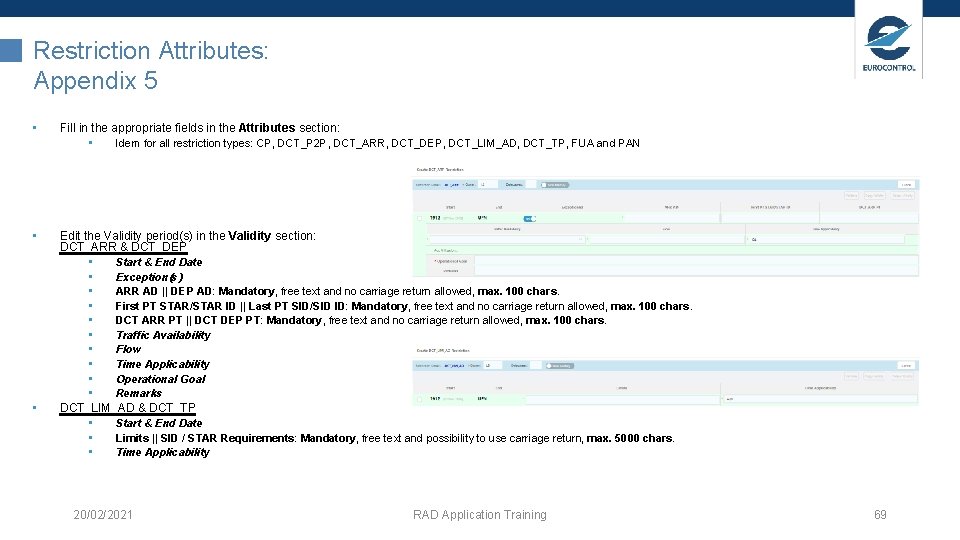
Restriction Attributes: Appendix 5 • Fill in the appropriate fields in the Attributes section: • Idem for all restriction types: CP, DCT_P 2 P, DCT_ARR, DCT_DEP, DCT_LIM_AD, DCT_TP, FUA and PAN • Edit the Validity period(s) in the Validity section: DCT_ARR & DCT_DEP • Start & End Date • Exception(s) • ARR AD || DEP AD: Mandatory, free text and no carriage return allowed, max. 100 chars. • First PT STAR/STAR ID || Last PT SID/SID ID: Mandatory, free text and no carriage return allowed, max. 100 chars. • DCT ARR PT || DCT DEP PT: Mandatory, free text and no carriage return allowed, max. 100 chars. • Traffic Availability • Flow • Time Applicability • Operational Goal • Remarks DCT_LIM_AD & DCT_TP • Start & End Date • Limits || SID / STAR Requirements: Mandatory, free text and possibility to use carriage return, max. 5000 chars. • Time Applicability • 20/02/2021 RAD Application Training 69
Restrictions (Appendix 5) Attributes: Future Grammar Dependency • ARR AD || DEP AD • CACD entities allowed: AD and AZ. • • • Flow Time Applicability Prefixes: ad: and az: Compact notation allowed: /// List notation allowed: (, , , ) • First PT STAR/STAR ID || Last PT SID/SID ID • CACD entities allowed: PT (i. e. NAVAID or WAYPOINT). • Prefixes: pt: • DCT ARR PT || DCT DEP PT • CACD entities allowed: PT (i. e. NAVAID or WAYPOINT). • 20/02/2021 Prefixes: pt: RAD Application Training 70
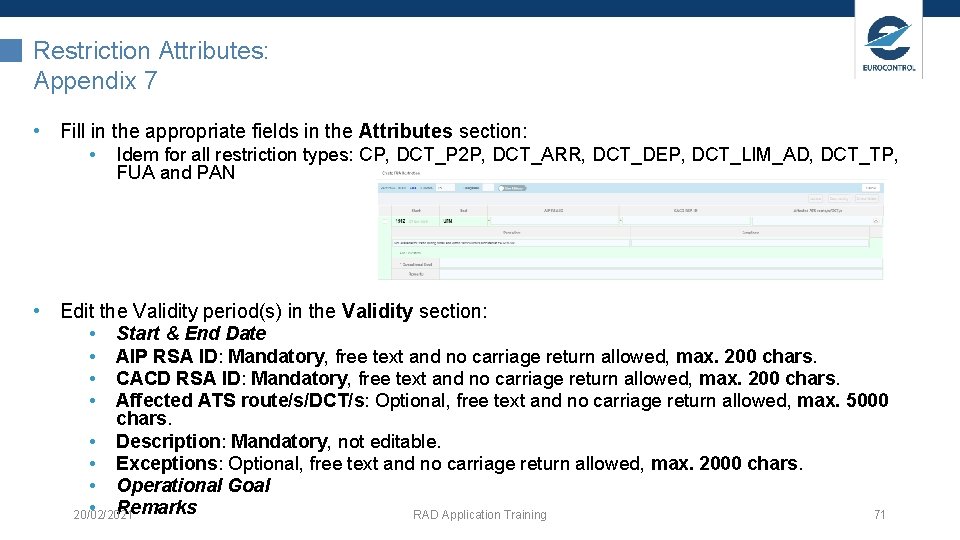
Restriction Attributes: Appendix 7 • Fill in the appropriate fields in the Attributes section: • Idem for all restriction types: CP, DCT_P 2 P, DCT_ARR, DCT_DEP, DCT_LIM_AD, DCT_TP, FUA and PAN • Edit the Validity period(s) in the Validity section: • Start & End Date • AIP RSA ID: Mandatory, free text and no carriage return allowed, max. 200 chars. • CACD RSA ID: Mandatory, free text and no carriage return allowed, max. 200 chars. • Affected ATS route/s/DCT/s: Optional, free text and no carriage return allowed, max. 5000 chars. • Description: Mandatory, not editable. • Exceptions: Optional, free text and no carriage return allowed, max. 2000 chars. • Operational Goal • Remarks 20/02/2021 RAD Application Training 71
Restrictions (Appendix 7) Attributes: Future Grammar Dependency • AIP RSA ID & CACD RSA ID • CACD entities allowed: AS (i. e. CRSA or ERSA). • • • Prefixes: as: Compact notation allowed: /// List notation allowed: (, , , ) • Exceptions: Similar to Flow • Time Applicability 20/02/2021 RAD Application Training 72
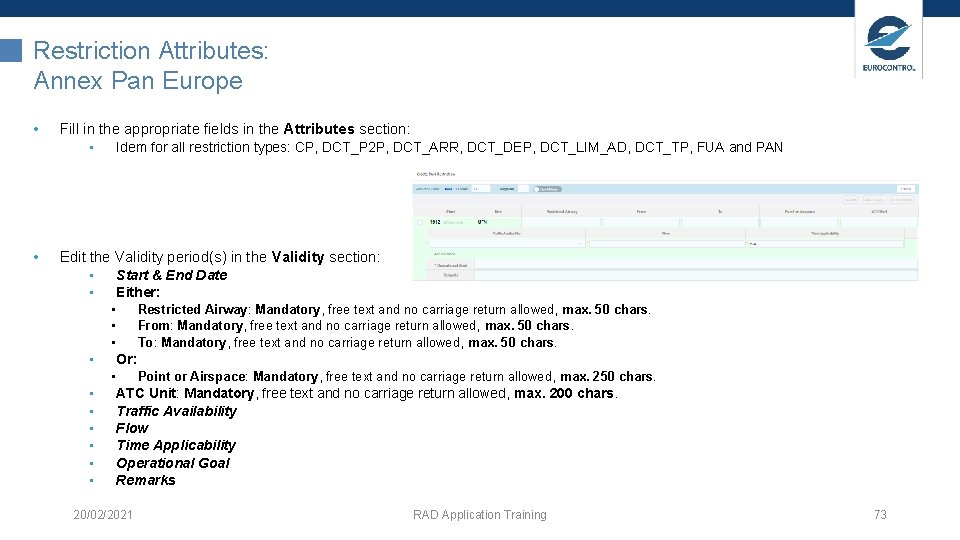
Restriction Attributes: Annex Pan Europe • Fill in the appropriate fields in the Attributes section: • Idem for all restriction types: CP, DCT_P 2 P, DCT_ARR, DCT_DEP, DCT_LIM_AD, DCT_TP, FUA and PAN • Edit the Validity period(s) in the Validity section: • Start & End Date • Either: • • Restricted Airway: Mandatory, free text and no carriage return allowed, max. 50 chars. From: Mandatory, free text and no carriage return allowed, max. 50 chars. To: Mandatory, free text and no carriage return allowed, max. 50 chars. Or: • • Point or Airspace: Mandatory, free text and no carriage return allowed, max. 250 chars. ATC Unit: Mandatory, free text and no carriage return allowed, max. 200 chars. Traffic Availability Flow Time Applicability Operational Goal Remarks 20/02/2021 RAD Application Training 73
Restrictions (Annex Pan Europe) Attributes: Future Grammar Dependency • • Restricted Airway • CACD entities allowed: RT. • • • Prefixes: rt: Compact notation allowed: /// List notation allowed: (, , , ) ATC Unit Flow Time Applicability • From & To • CACD entities allowed: PT (i. e. NAVAID or WAYPOINT). • Prefixes: pt: • Point or Airspace • CACD entities allowed: AS or PT (i. e. NAVAID or WAYPOINT). • 20/02/2021 Prefixes: as: or pt: RAD Application Training 74
Exercise: Search, Edit and Manage Restrictions & Aerodrome Sets 1. Create a new Aerodrome Set: 1. Scenario 1: Go to the details of an existing DMR (or create a new DMR) and click on the button Create and complete the creation until the DMR is in status DRAFT. 2. Scenario 2: Go to the Search Aerodrome Set view and click on the button Create New and complete the creation by adding the new Aerodrome Set in the DMR used in scenario 1. 2. Update an existing PAN restriction: 1. Scenario 1: Go to the details of an existing DMR (or create a new DMR) and click on the button Add and complete the update until the DMR is in status DRAFT. 2. Scenario 2: Go to the Search Restriction view, search for a PAN restriction to update and complete the update by adding the existing PAN restriction in the DMR used in scenario 1. 3. Delegate a CP restriction: 1. Search for a CP restriction and change the delegatees for the selected CP restriction and confirm the new delegation setting. 20/02/2021 RAD Application Training 75
Map and Airspace 20/02/2021 RAD Application Training 76
Airspace Application: Introduction The Airspace Application provides users, depending on their role, read and/or write access to the Central Airspace and Capacity Data (CACD). It consists of Aeronautical Information and additional Operational data, and is used by the Network Manager for Flight Planning, and Flow Capacity Management. 20/02/2021 RAD Application Training 77
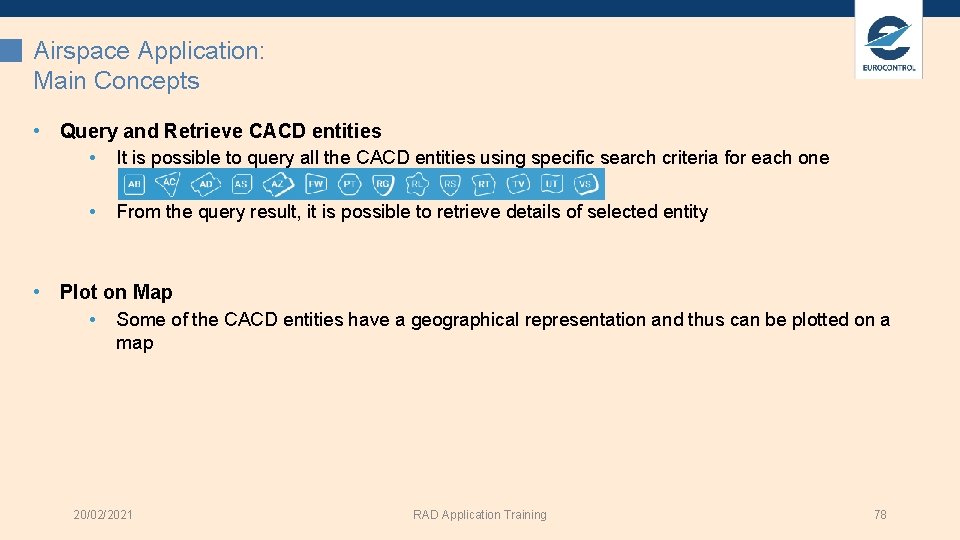
Airspace Application: Main Concepts • Query and Retrieve CACD entities • It is possible to query all the CACD entities using specific search criteria for each one • From the query result, it is possible to retrieve details of selected entity • Plot on Map • Some of the CACD entities have a geographical representation and thus can be plotted on a map 20/02/2021 RAD Application Training 78
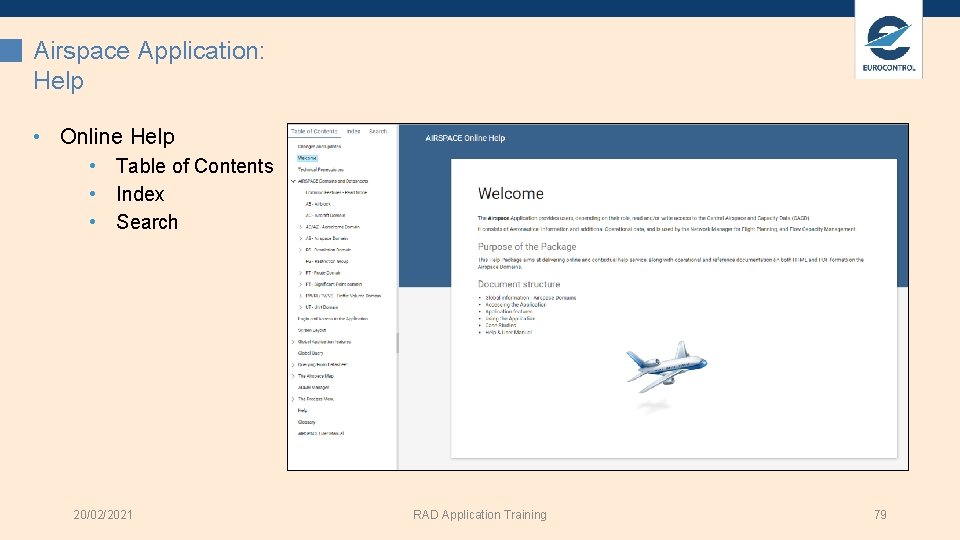
Airspace Application: Help • Online Help • Table of Contents • Index • Search 20/02/2021 RAD Application Training 79
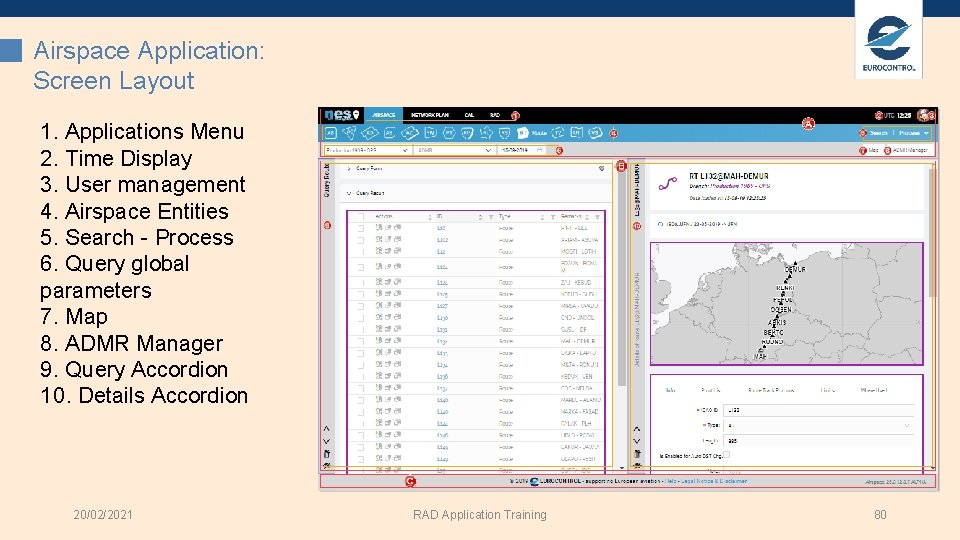
Airspace Application: Screen Layout 1. Applications Menu 2. Time Display 3. User management 4. Airspace Entities 5. Search - Process 6. Query global parameters 7. Map 8. ADMR Manager 9. Query Accordion 10. Details Accordion 20/02/2021 RAD Application Training 80
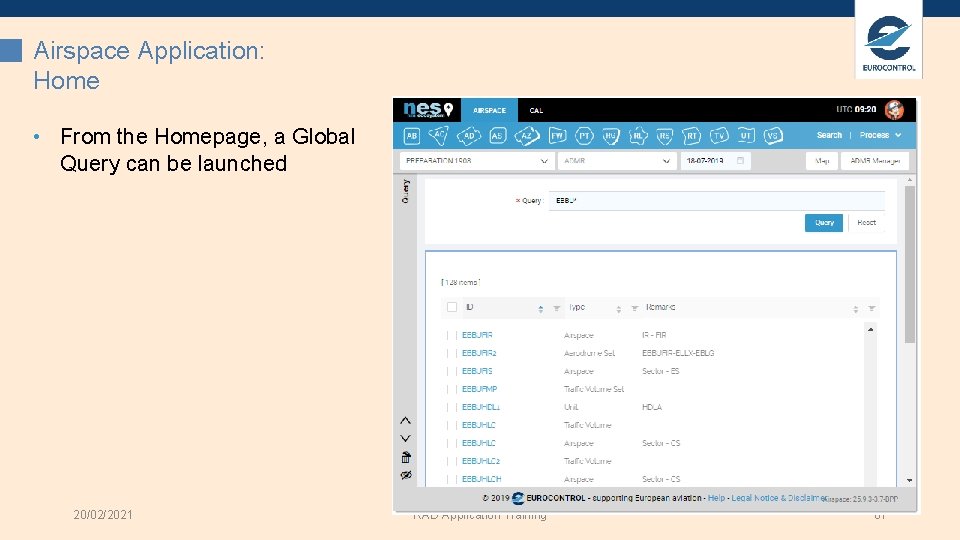
Airspace Application: Home • From the Homepage, a Global Query can be launched 20/02/2021 RAD Application Training 81
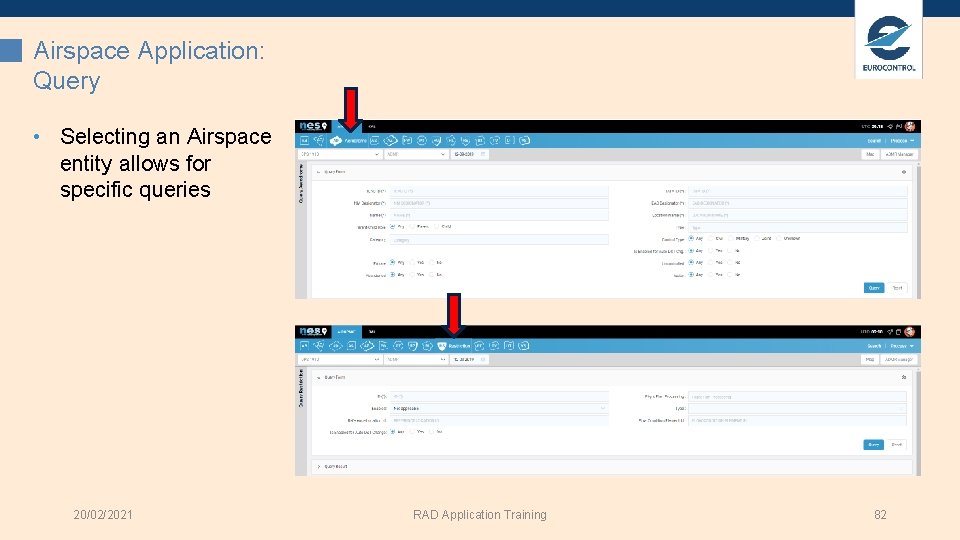
Airspace Application: Query • Selecting an Airspace entity allows for specific queries 20/02/2021 RAD Application Training 82
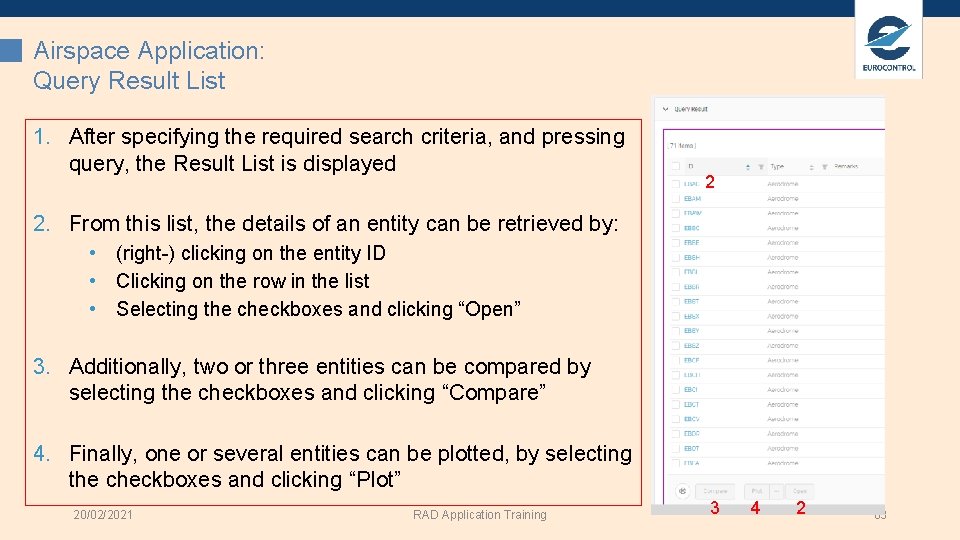
Airspace Application: Query Result List 1. After specifying the required search criteria, and pressing query, the Result List is displayed 2 2. From this list, the details of an entity can be retrieved by: • (right-) clicking on the entity ID • Clicking on the row in the list • Selecting the checkboxes and clicking “Open” 3. Additionally, two or three entities can be compared by selecting the checkboxes and clicking “Compare” 4. Finally, one or several entities can be plotted, by selecting the checkboxes and clicking “Plot” 20/02/2021 RAD Application Training 3 4 2 83
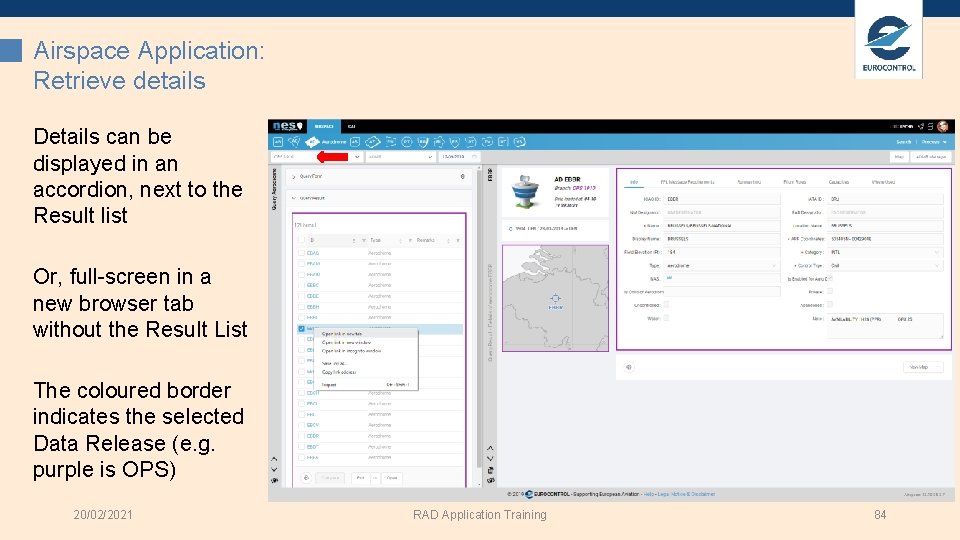
Airspace Application: Retrieve details Details can be displayed in an accordion, next to the Result list Or, full-screen in a new browser tab without the Result List The coloured border indicates the selected Data Release (e. g. purple is OPS) 20/02/2021 RAD Application Training 84
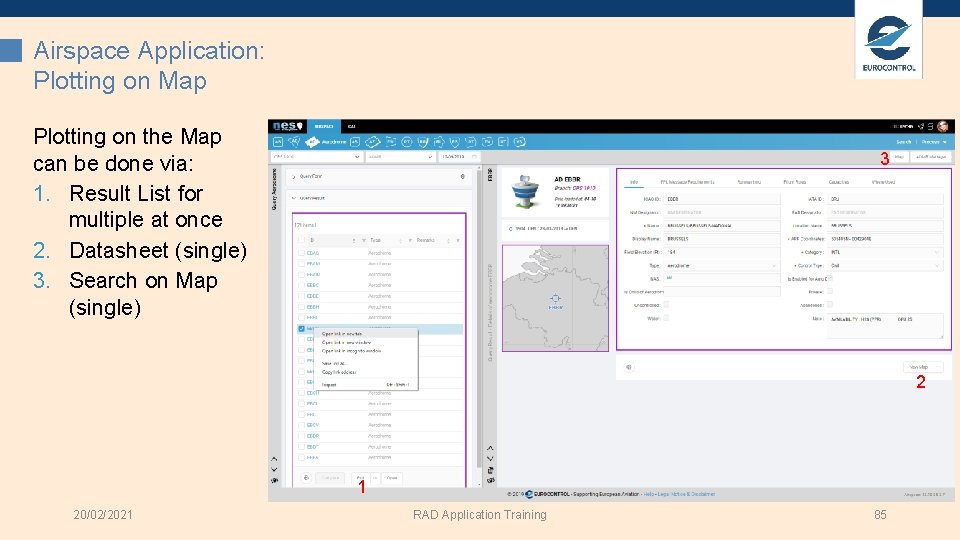
Airspace Application: Plotting on Map Plotting on the Map can be done via: 1. Result List for multiple at once 2. Datasheet (single) 3. Search on Map (single) 3 2 1 20/02/2021 RAD Application Training 85
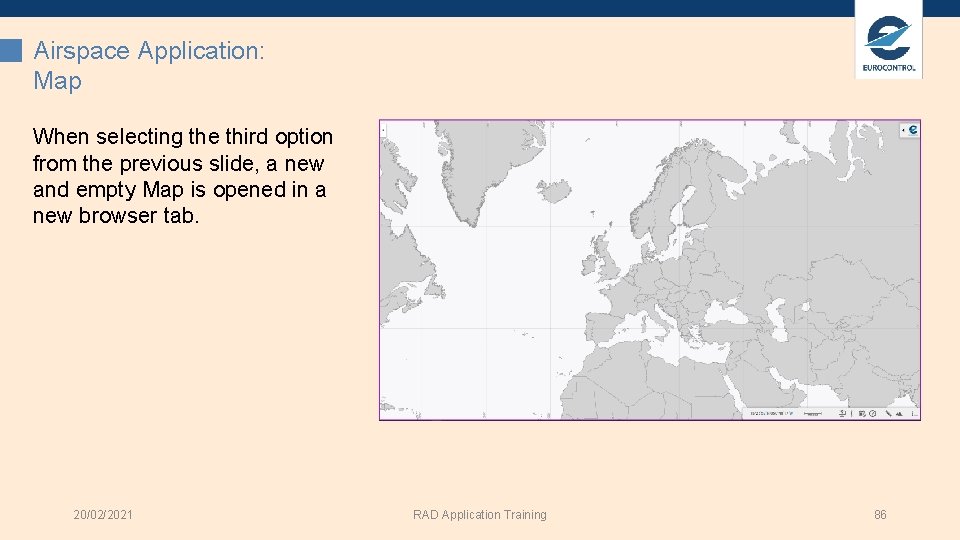
Airspace Application: Map When selecting the third option from the previous slide, a new and empty Map is opened in a new browser tab. 20/02/2021 RAD Application Training 86
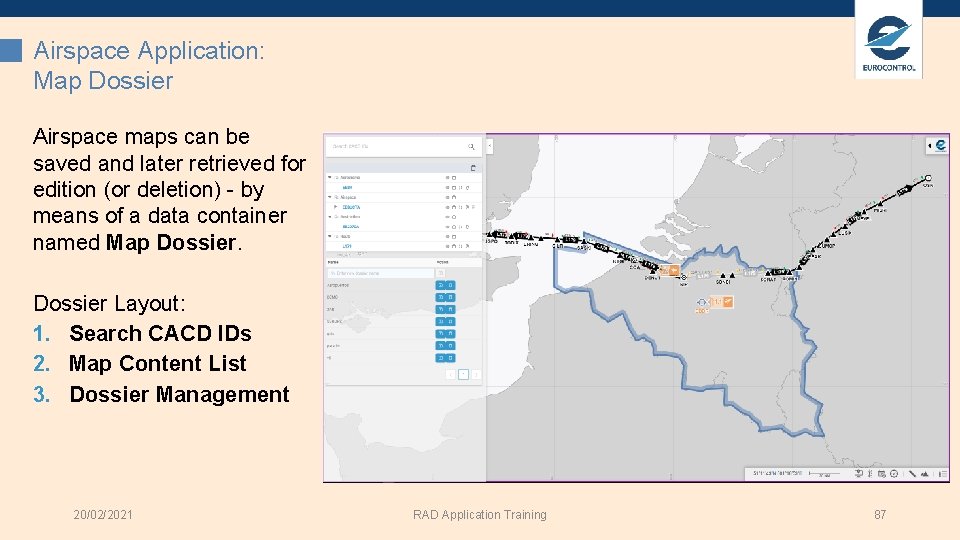
Airspace Application: Map Dossier Airspace maps can be saved and later retrieved for edition (or deletion) - by means of a data container named Map Dossier Layout: 1. Search CACD IDs 2. Map Content List 3. Dossier Management 20/02/2021 RAD Application Training 87
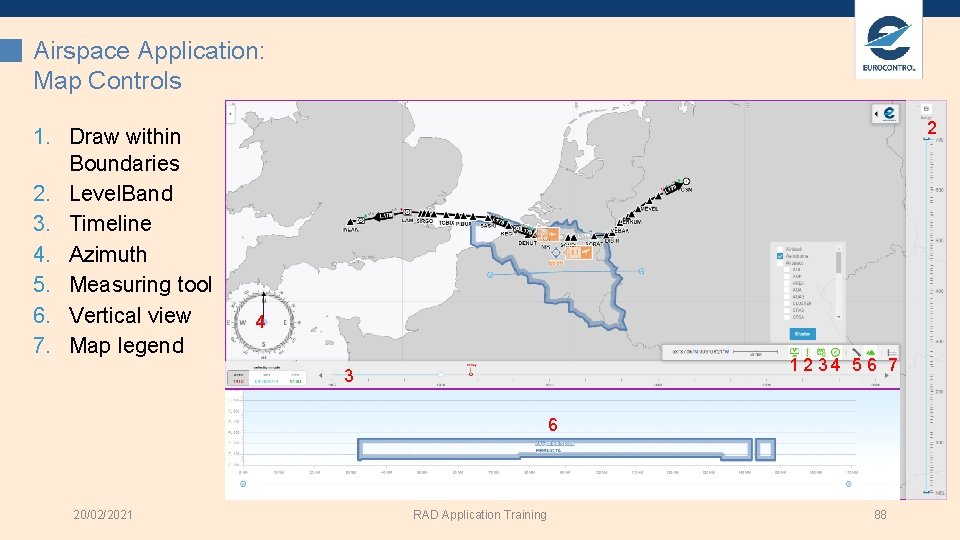
Airspace Application: Map Controls 1. Draw within Boundaries 2. Level. Band 3. Timeline 4. Azimuth 5. Measuring tool 6. Vertical view 7. Map legend 2 4 12 34 5 6 7 3 6 20/02/2021 RAD Application Training 88
Exercise: Map and Airspace 1. 2. 3. 4. Map Dossier Map Controls Restrictions on the Map Search CACD Entities 20/02/2021 RAD Application Training 89
Conclusion 20/02/2021 RAD Application Training 90
Wrap Up 1. To get trained on the new RAD application. • RAD Data Modification Requests (DMRs) and DMR Workflow • Published vs. Under Work RAD Objects (i. e. Restrictions (RS) and Aerodrome Sets (AZ)) • Validity Periods (i. e. lifecycle of RAD objects with or without gaps) • Implicit vs. Explicit Restriction Delegation (maintain on behalf of…) • Etc. 2. Get familiar with the features and functionalities. • NES Common Features and RAD Concepts • Search and Edit DMRs • Search and Edit RAD Objects • Airspace read-only details and Map • Etc. 3. To be able to use operationally RAD application in maintaining the RAD. Ø RAD Grammar • Currently a basic set of rules is present • Not blocking the user nor the workflow • Continuous improvement process 20/02/2021 RAD Application Training 91
MANY THANKS FOR ATTENDING THIS TRAINING ENJOY YOUR TRIP BACK 20/02/2021 RAD Application Training 92
- Slides: 92