
R Programming Language By Daniel Rozek Aubrey Nickerson
R Programming Language By Daniel Rozek, Aubrey Nickerson, Chris Mazur, Jack Humphrey, Helder Necker, Jesse Ayers
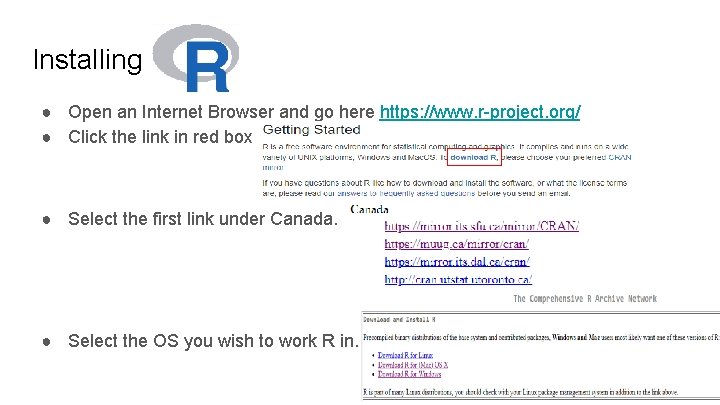
Installing ● Open an Internet Browser and go here https: //www. r-project. org/ ● Click the link in red box ● Select the first link under Canada. ● Select the OS you wish to work R in.
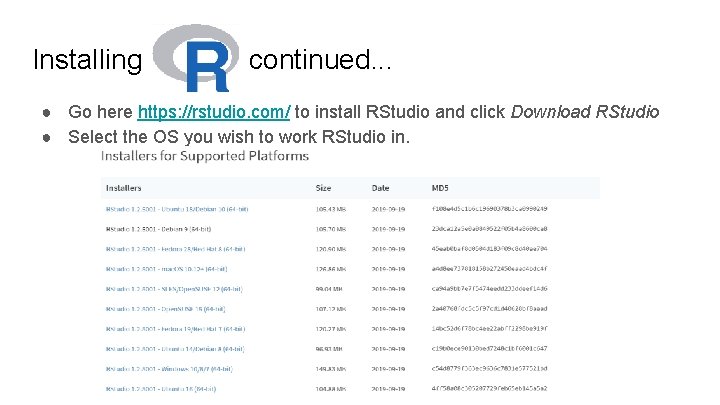
Installing c continued. . . ● Go here https: //rstudio. com/ to install RStudio and click Download RStudio ● Select the OS you wish to work RStudio in.
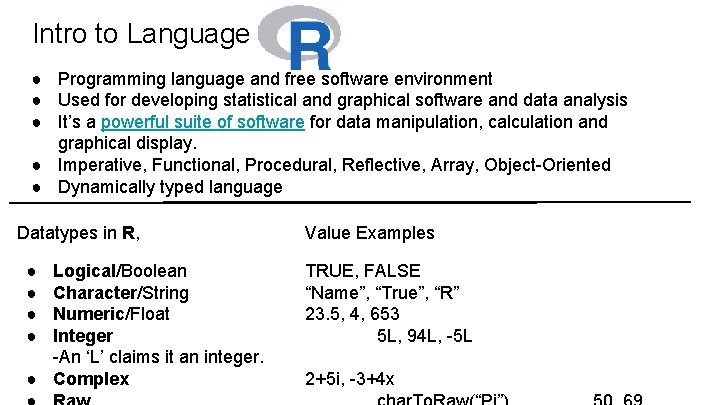
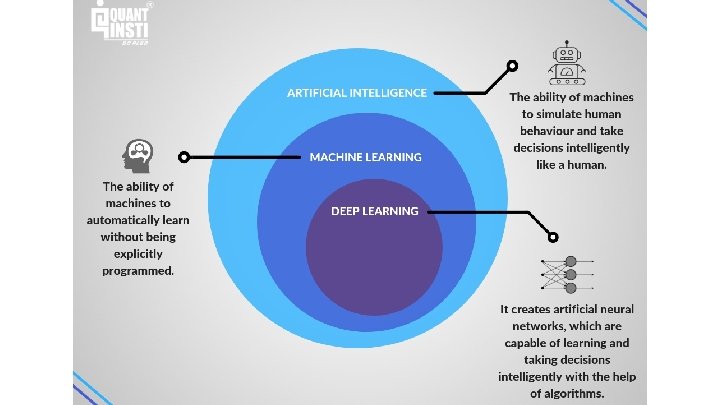
Intro to Language ● Programming language and free software environment ● Used for developing statistical and graphical software and data analysis ● It’s a powerful suite of software for data manipulation, calculation and graphical display. ● Imperative, Functional, Procedural, Reflective, Array, Object-Oriented ● Dynamically typed language Datatypes in R, ● ● Logical/Boolean Character/String Numeric/Float Integer -An ‘L’ claims it an integer. ● Complex Value Examples TRUE, FALSE “Name”, “True”, “R” 23. 5, 4, 653 5 L, 94 L, -5 L 2+5 i, -3+4 x
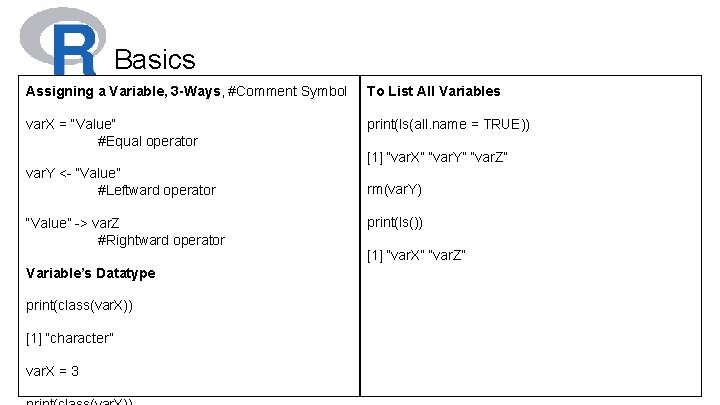
Basics Assigning a Variable, 3 -Ways, #Comment Symbol To List All Variables var. X = “Value” #Equal operator print(ls(all. name = TRUE)) [1] “var. X” “var. Y” “var. Z” var. Y <- “Value” #Leftward operator “Value” -> var. Z #Rightward operator Variable’s Datatype print(class(var. X)) [1] “character” var. X = 3 rm(var. Y) print(ls()) [1] “var. X” “var. Z”
What is Machine Learning? Provides software the ability to learn autonomously ● Experiences ● Observations ● Analyzing data within a data set
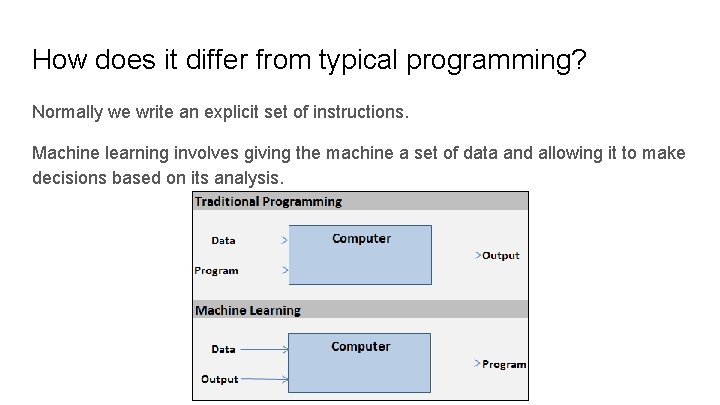
How does it differ from typical programming? Normally we write an explicit set of instructions. Machine learning involves giving the machine a set of data and allowing it to make decisions based on its analysis.
Why use Machine Learning? ● ● Easily identify trends and patterns Automation and continuous improvement Multi-dimensional data Many applications Video: How Machines Learn by CGP Grey https: //www. youtube. com/watch? v=R 9 OHn 5 ZF 4 Uo
Supervised Learning: Teachers, Builders, and Programmers Uses labeled data! Teachers - Can’t really “teach, ” but can test! Builders - Creates bots based on best results and modifies, discards bots with worse results. Programmers - Can observe outcomes, but may not truly understand the function under the surface.
Predictive Modeling ● Aspect of Supervised Learning ● What is it? Developing a model with historical data to make predictions on new data. ● Generally divided into Classification and Regression models. Typical output of a Classification model: Classes, ie. animal recognition in image. Typical output of a Regression model: Real numbers, ie. predict prices given some input. Qualitative vs Quantitative
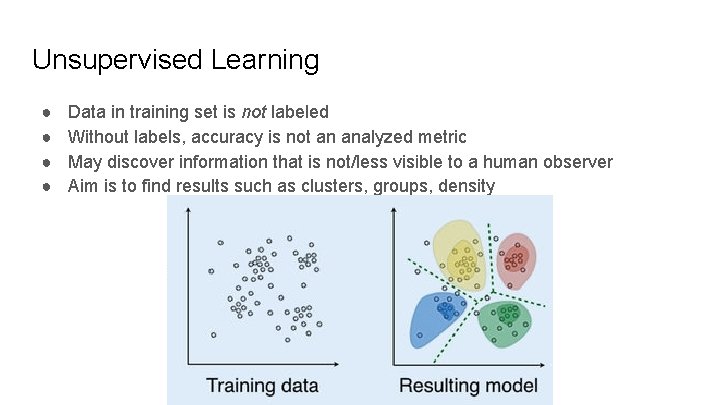
Unsupervised Learning ● ● Data in training set is not labeled Without labels, accuracy is not an analyzed metric May discover information that is not/less visible to a human observer Aim is to find results such as clusters, groups, density
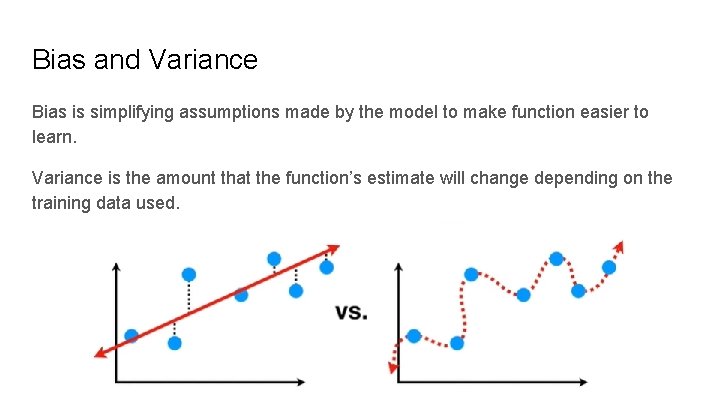
Bias and Variance Bias is simplifying assumptions made by the model to make function easier to learn. Variance is the amount that the function’s estimate will change depending on the training data used.
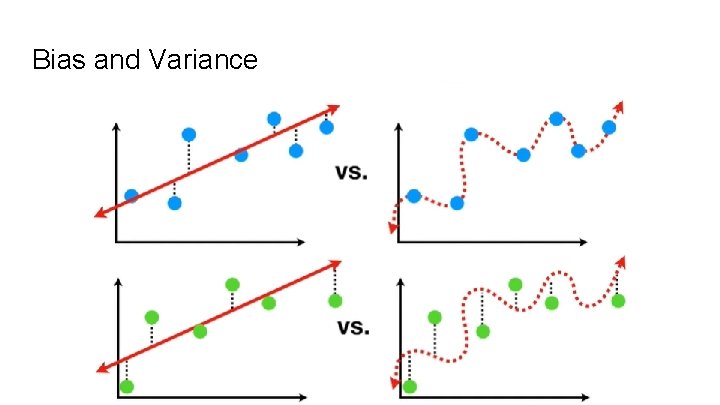
Bias and Variance
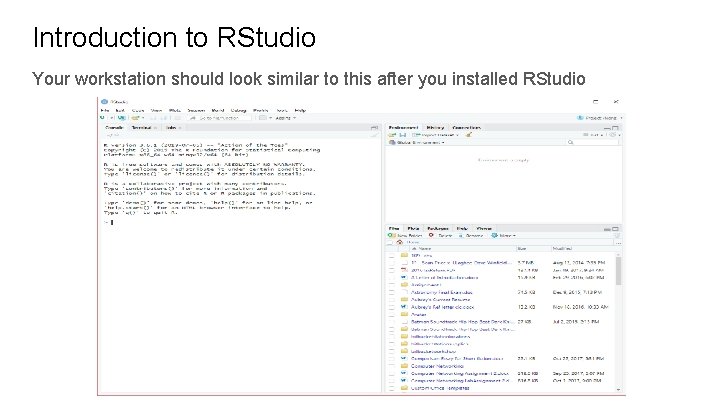
Introduction to RStudio Your workstation should look similar to this after you installed RStudio
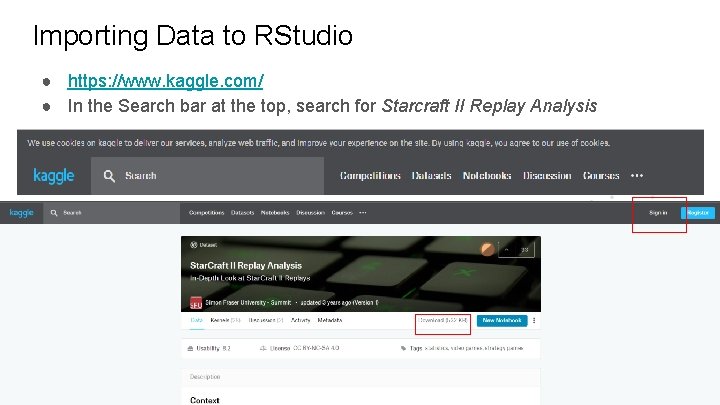
Importing Data to RStudio ● https: //www. kaggle. com/ ● In the Search bar at the top, search for Starcraft II Replay Analysis
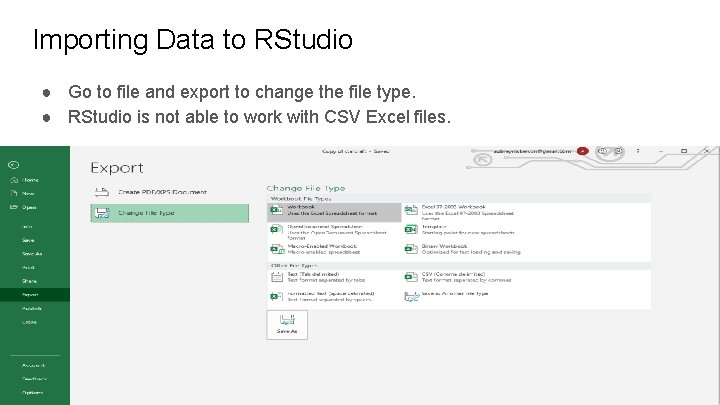
Importing Data to RStudio ● Go to file and export to change the file type. ● RStudio is not able to work with CSV Excel files.
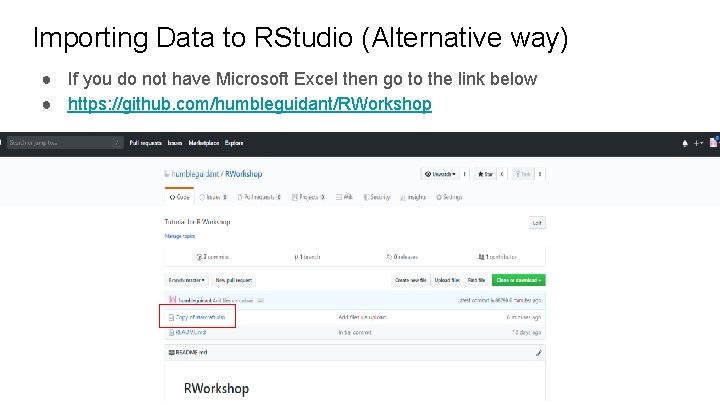
Importing Data to RStudio (Alternative way) ● If you do not have Microsoft Excel then go to the link below ● https: //github. com/humbleguidant/RWorkshop
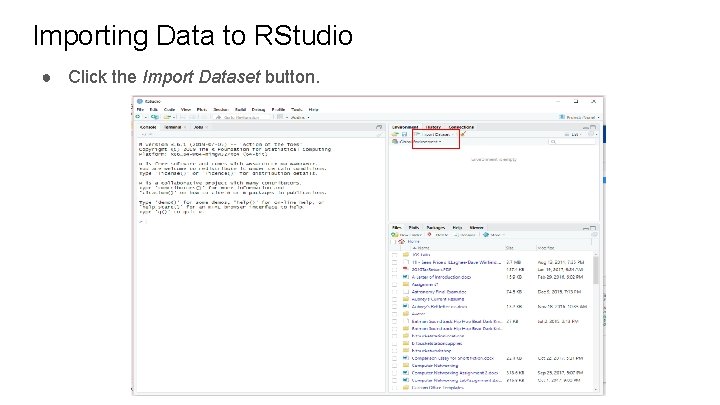
Importing Data to RStudio ● Click the Import Dataset button.
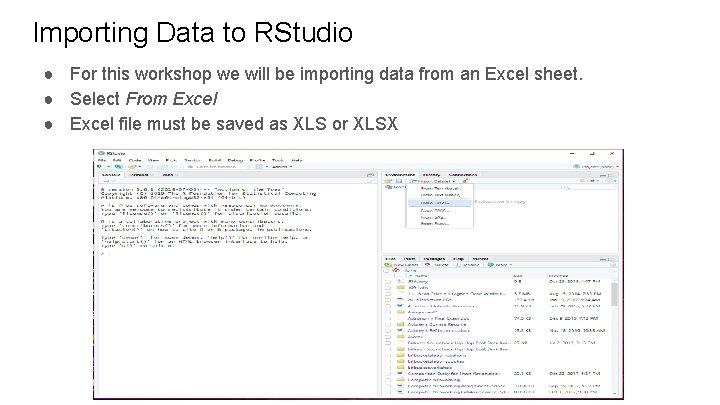
Importing Data to RStudio ● For this workshop we will be importing data from an Excel sheet. ● Select From Excel ● Excel file must be saved as XLS or XLSX
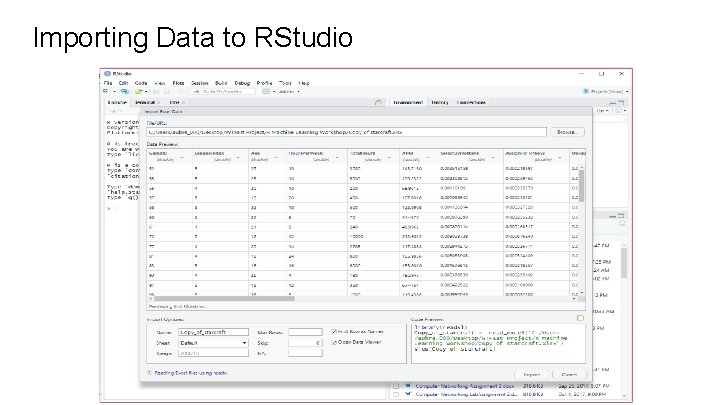
Importing Data to RStudio
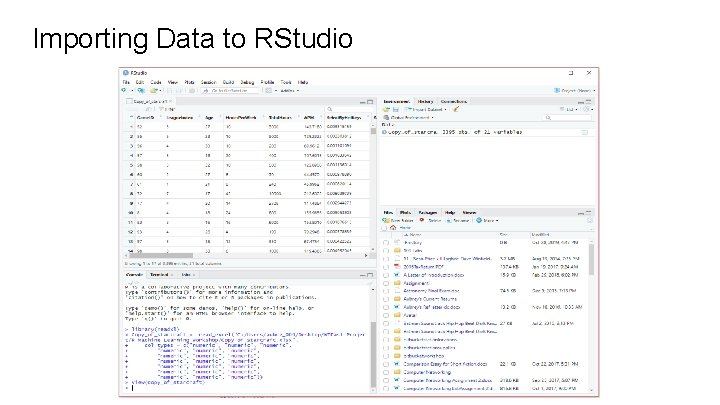
Importing Data to RStudio
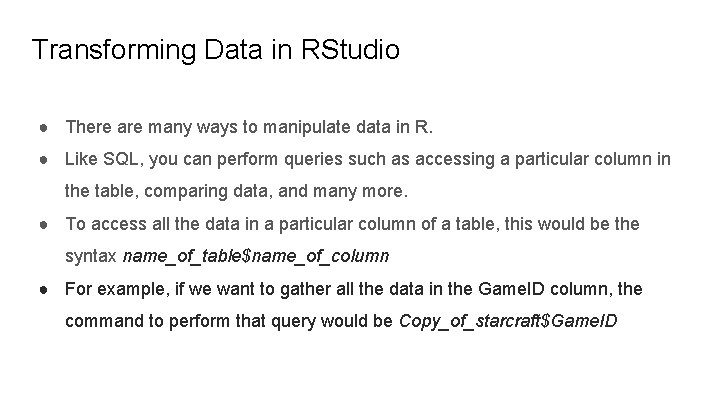
Transforming Data in RStudio ● There are many ways to manipulate data in R. ● Like SQL, you can perform queries such as accessing a particular column in the table, comparing data, and many more. ● To access all the data in a particular column of a table, this would be the syntax name_of_table$name_of_column ● For example, if we want to gather all the data in the Game. ID column, the command to perform that query would be Copy_of_starcraft$Game. ID
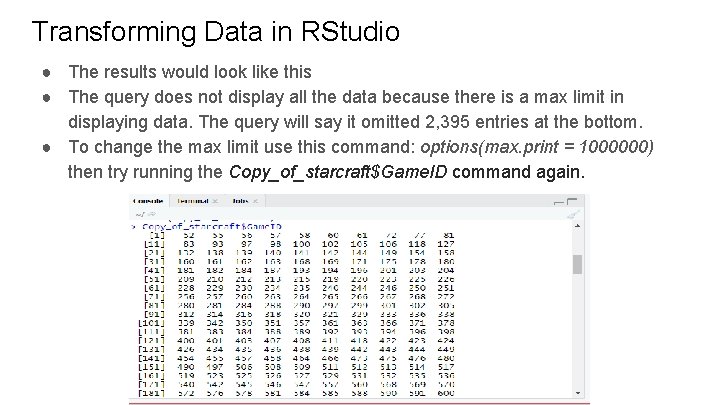
Transforming Data in RStudio ● The results would look like this ● The query does not display all the data because there is a max limit in displaying data. The query will say it omitted 2, 395 entries at the bottom. ● To change the max limit use this command: options(max. print = 1000000) then try running the Copy_of_starcraft$Game. ID command again.
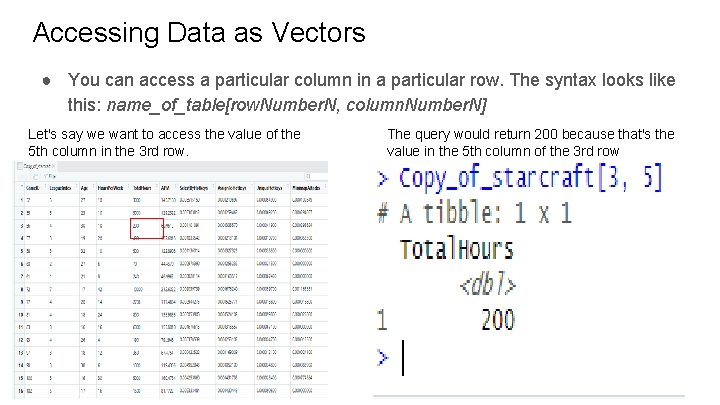
Accessing Data as Vectors ● You can access a particular column in a particular row. The syntax looks like this: name_of_table[row. Number. N, column. Number. N] Let's say we want to access the value of the 5 th column in the 3 rd row. The query would return 200 because that's the value in the 5 th column of the 3 rd row
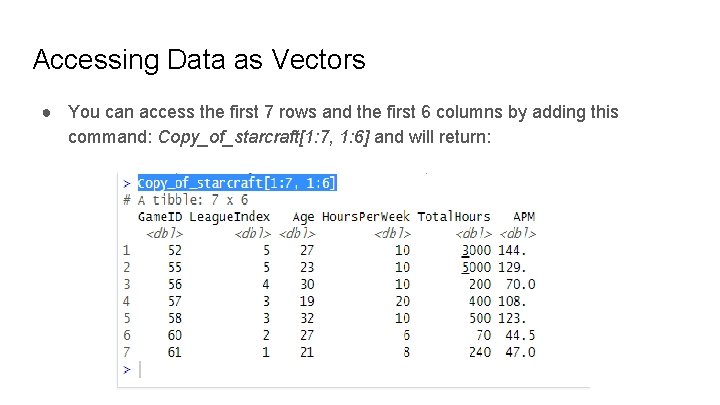
Accessing Data as Vectors ● You can access the first 7 rows and the first 6 columns by adding this command: Copy_of_starcraft[1: 7, 1: 6] and will return:
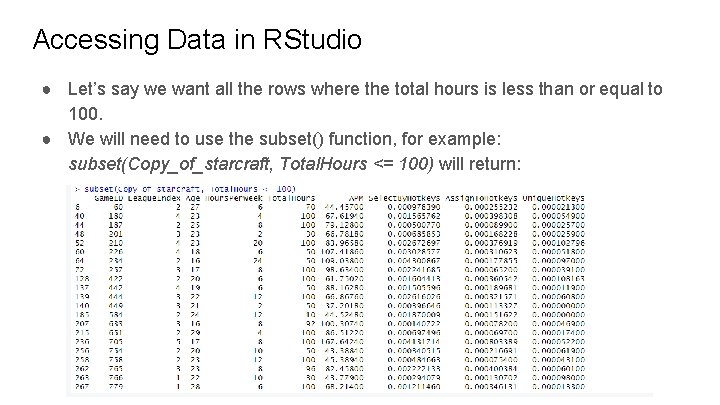
Accessing Data in RStudio ● Let’s say we want all the rows where the total hours is less than or equal to 100. ● We will need to use the subset() function, for example: subset(Copy_of_starcraft, Total. Hours <= 100) will return:
Getting Statistical Averages from Data ● RStudio has built in functions to calculate the averages of the dataset ● For mean of any column, run: mean(name_of_table$column_name) ● Median, run: median(name_of_table$column_name) ● Quantile, run: quantile(name_of_table$column_name) ● Variance, run: var(name_of_table$column_name) ● Standard Deviation, run: sd(name_of_table$column_name) ● Try these commands with the Starcraft data.
Other useful functions in RStudio ● head(Copy_of_starcraft) - Displays first handful of rows of the Starcraft data set. ● dim(Copy_of_starcraft) - tells you the dimensions of the data frame. ● names(Copy_of_starcraft) - Gets the names of all the columns associated with the Starcraft data set. ● str(Copy_of_starcraft) - Gets the structure of each column from the Starcraft data set. ● summary(Copy_of_starcraft) - Gets a quick summary of each column that shows minimum, maximum, missing values, and the stuff in between.
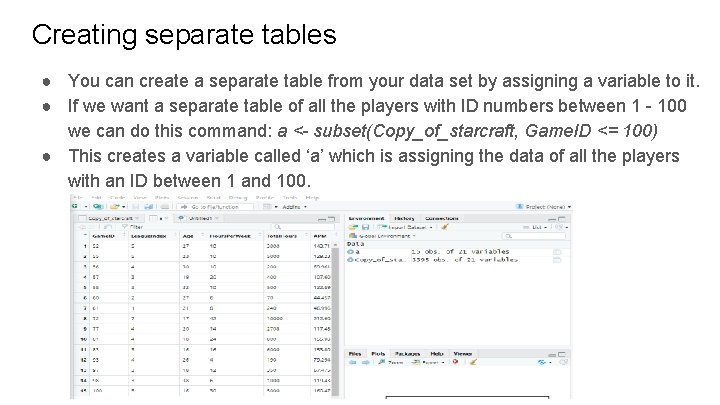
Creating separate tables ● You can create a separate table from your data set by assigning a variable to it. ● If we want a separate table of all the players with ID numbers between 1 - 100 we can do this command: a <- subset(Copy_of_starcraft, Game. ID <= 100) ● This creates a variable called ‘a’ which is assigning the data of all the players with an ID between 1 and 100.
Plotting Data ● A convenient feature of R Studio is it’s built in data visualizer for R. Any data set imported in R can be visualized using the plot and several other functions of R. ● For example, to create a scatter plot of a data set, you can run the following command: plot(x = name_of_table$column_one, y = name_of_table$column_two, type = ‘p’) ● Type ‘p’ sets the plot type as point. You can also choose line as ‘l’ and many other type variables.
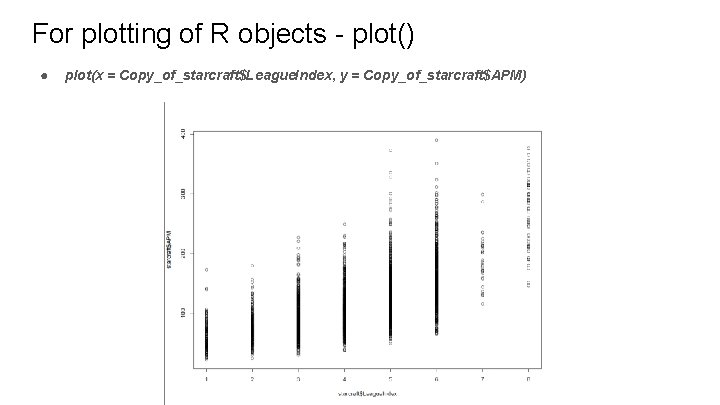
For plotting of R objects - plot() ● plot(x = Copy_of_starcraft$League. Index, y = Copy_of_starcraft$APM)
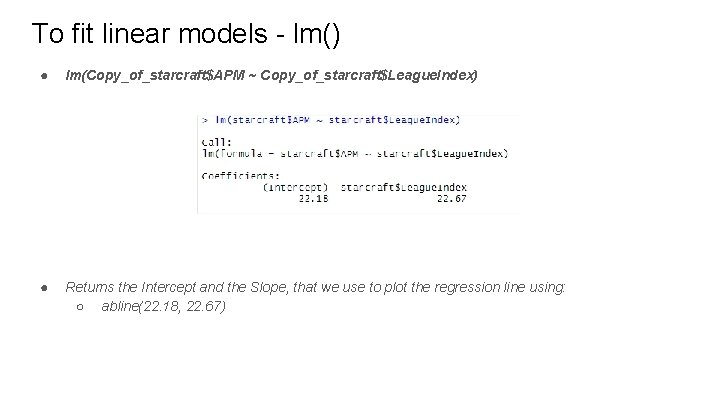
To fit linear models - lm() ● lm(Copy_of_starcraft$APM ~ Copy_of_starcraft$League. Index) ● Returns the Intercept and the Slope, that we use to plot the regression line using: ○ abline(22. 18, 22. 67)
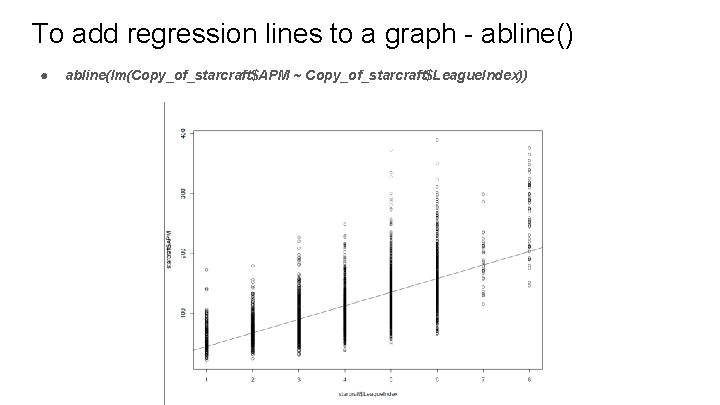
To add regression lines to a graph - abline() ● abline(lm(Copy_of_starcraft$APM ~ Copy_of_starcraft$League. Index))
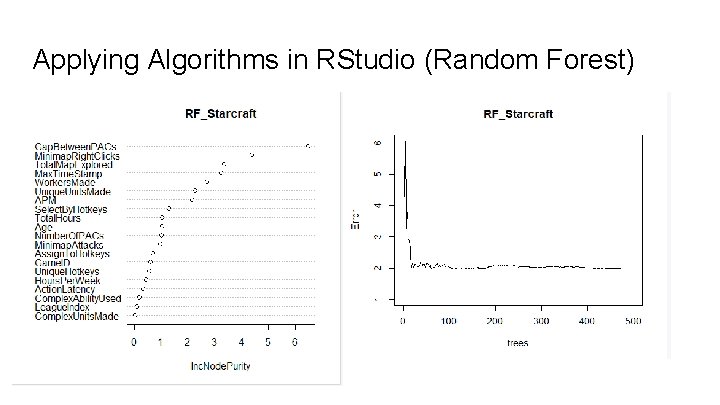
Applying Algorithms in RStudio (Random Forest)
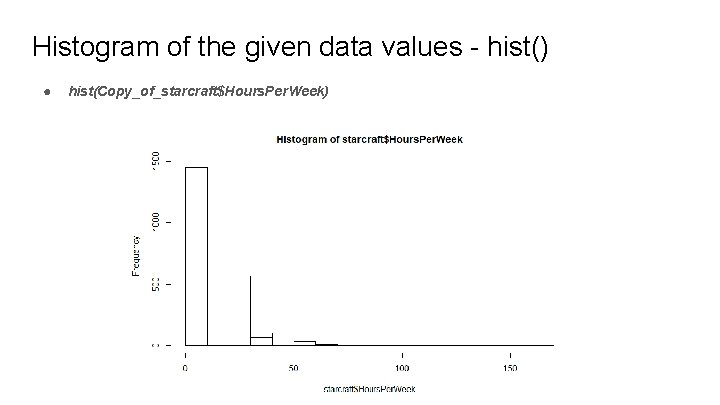
Histogram of the given data values - hist() ● hist(Copy_of_starcraft$Hours. Per. Week)
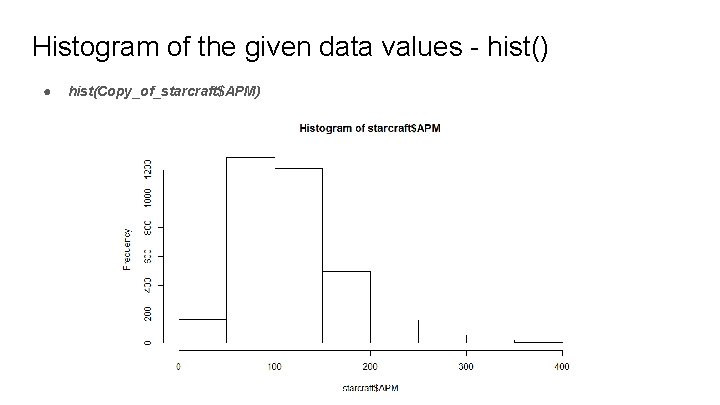
Histogram of the given data values - hist() ● hist(Copy_of_starcraft$APM)
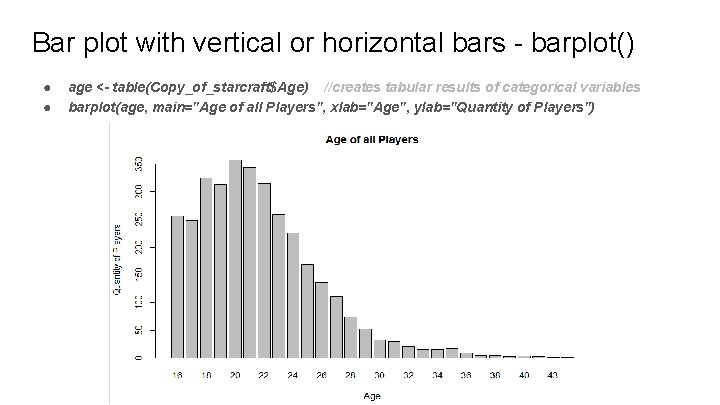
Bar plot with vertical or horizontal bars - barplot() ● ● age <- table(Copy_of_starcraft$Age) //creates tabular results of categorical variables barplot(age, main="Age of all Players", xlab="Age", ylab="Quantity of Players")
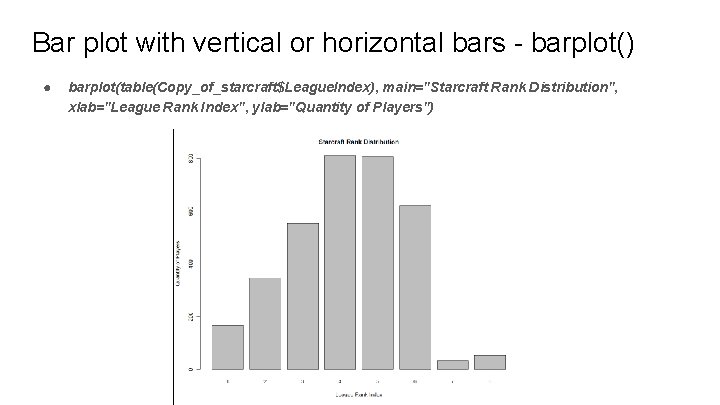
Bar plot with vertical or horizontal bars - barplot() ● barplot(table(Copy_of_starcraft$League. Index), main="Starcraft Rank Distribution", xlab="League Rank Index", ylab="Quantity of Players")
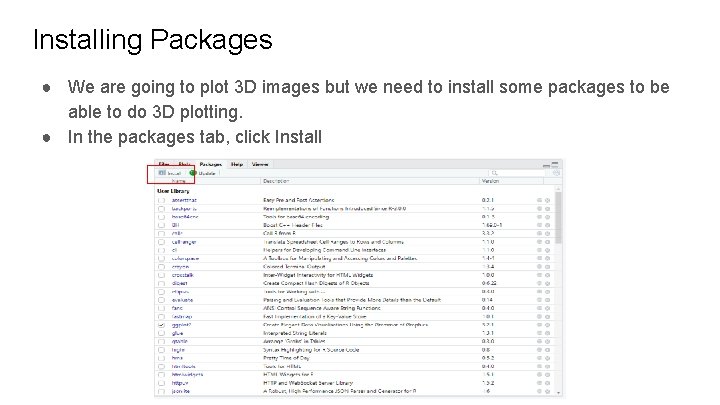
Installing Packages ● We are going to plot 3 D images but we need to install some packages to be able to do 3 D plotting. ● In the packages tab, click Install
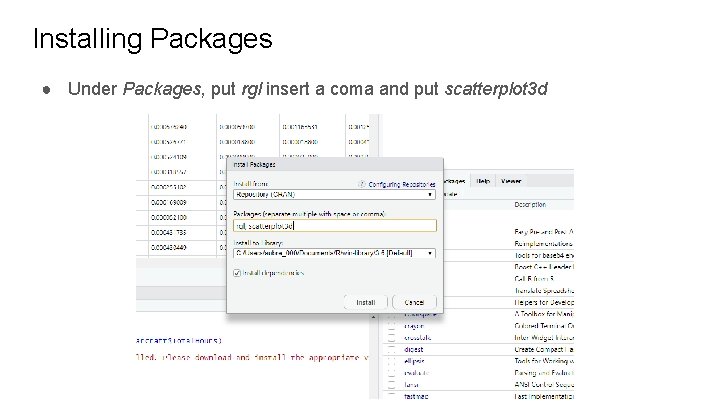
Installing Packages ● Under Packages, put rgl insert a coma and put scatterplot 3 d
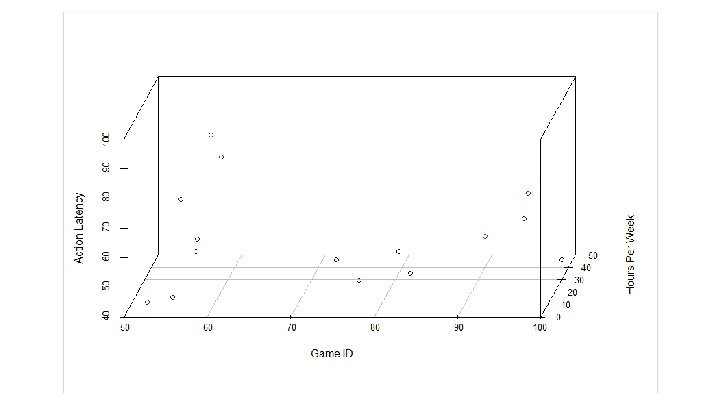
3 D Graphs ● After installing the packages open them up using the library() function, fill the parameter with the name of the packages you installed. ● you can now use the functions to create 3 D graphs ● On the ‘a’ table, we can use the scatterplot 3 d() function to display the action latency by all players, including the hours per week by doing this: scatterplot 3 d(a$Game. ID, a$Hours. Per. Week, a$Action. Latency, highlight. 3 d = T, angle = 75, scale. y =. 5, xlab='Game ID', ylab = 'Hours Per Week', zlab = ‘Action Latency’)
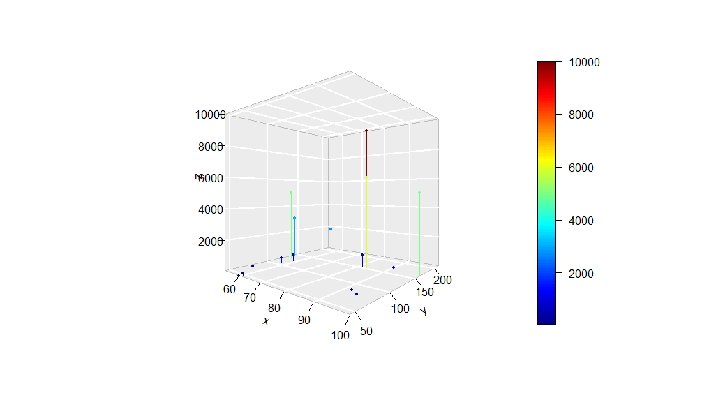
Installing More Packages ● We’re going to make more fancy 3 D graphs to show you just a tiny fraction of the sources that RStudio offers for designing graphs. ● On the console add this command install. packages(“plot 3 D”), after the installation add this command, library(“plot 3 D”) ● To get a visual representation of all the players APM and total hours played, use the scatter 3 D() function, for example: scatter 3 D(a$Game. ID, a$APM, a$Total. Hours, phi = 0, bty = "g", type = "h", ticktype = "detailed", pch = 19, cex = 0. 5)
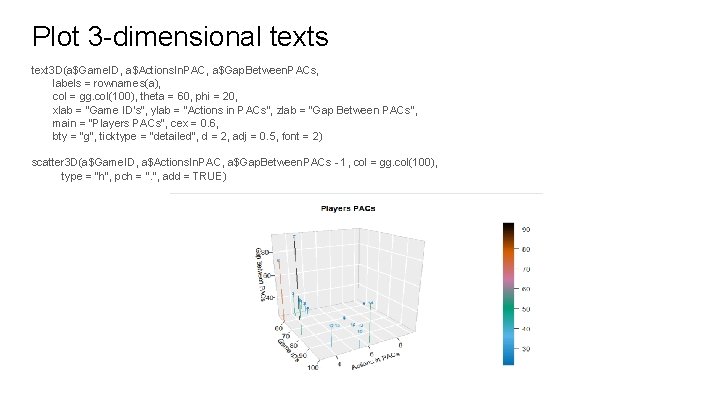
Plot 3 -dimensional texts text 3 D(a$Game. ID, a$Actions. In. PAC, a$Gap. Between. PACs, labels = rownames(a), col = gg. col(100), theta = 60, phi = 20, xlab = "Game ID's", ylab = "Actions in PACs", zlab = "Gap Between PACs", main = "Players PACs", cex = 0. 6, bty = "g", ticktype = "detailed", d = 2, adj = 0. 5, font = 2) scatter 3 D(a$Game. ID, a$Actions. In. PAC, a$Gap. Between. PACs - 1, col = gg. col(100), type = "h", pch = ". ", add = TRUE)
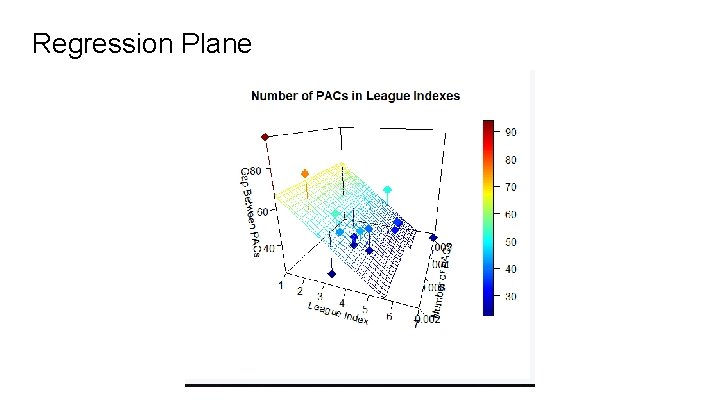
Regression Plane
- Slides: 47