
R Oh Mingyu A Joo Bongsoo I POSPIA
R Oh Mingyu A Joo Bongsoo I POSPIA 3. 0 Promotion Process Group (Procurement) Supplier User's Manual Contents I. Login and Sourcing II. Bidding III. Transaction POSPIA 3. 0 Promotion Process Group 1
Revision history Changed date Versio n Jul 01, 2013 1. 0 Modified details First draft - Left blank intentionally - 2 Author Reviewer Oh Mingyu Cho Yugyeong
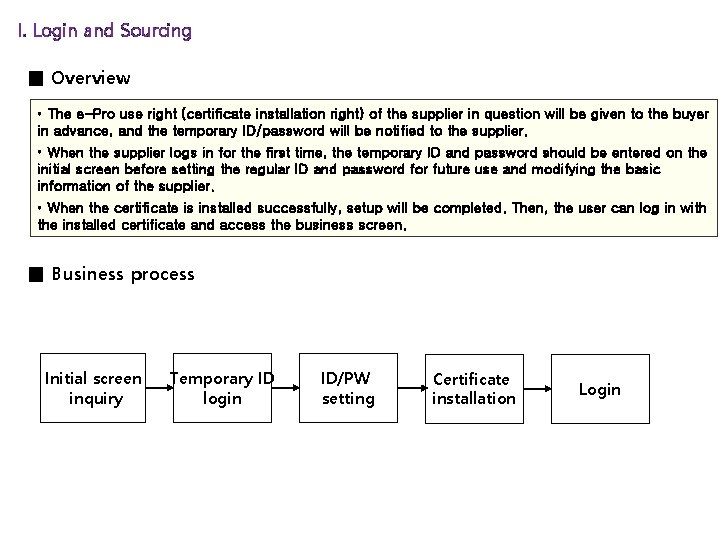
I. Login and Sourcing ■ Overview • The e-Pro use right (certificate installation right) of the supplier in question will be given to the buyer in advance, and the temporary ID/password will be notified to the supplier. • When the supplier logs in for the first time, the temporary ID and password should be entered on the initial screen before setting the regular ID and password for future use and modifying the basic information of the supplier. • When the certificate is installed successfully, setup will be completed. Then, the user can log in with the installed certificate and access the business screen. ■ Business process Initial screen inquiry Temporary ID login ID/PW setting Certificate installation Login
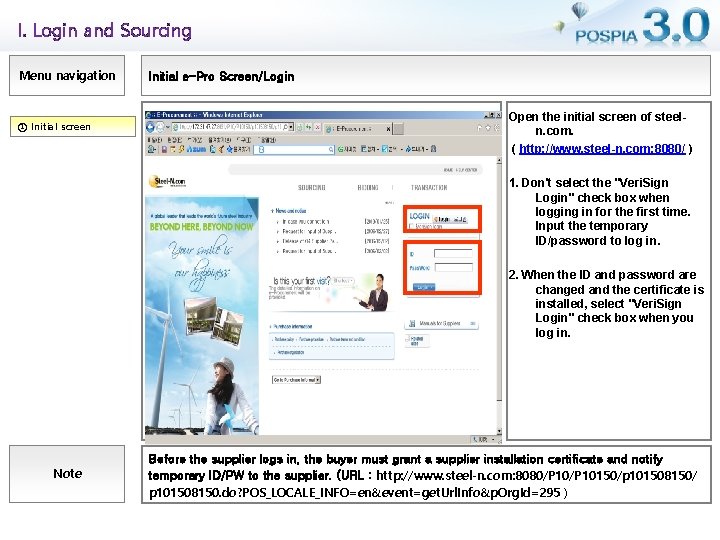
I. Login and Sourcing Menu navigation ① Initial screen Initial e-Pro Screen/Login Open the initial screen of steeln. com. ( http: //www. steel-n. com: 8080/ ) 1. Don't select the "Veri. Sign Login" check box when logging in for the first time. Input the temporary ID/password to log in. 2. When the ID and password are changed and the certificate is installed, select "Veri. Sign Login" check box when you log in. Note Before the supplier logs in, the buyer must grant a supplier installation certificate and notify temporary ID/PW to the supplier. (URL : http: //www. steel-n. com: 8080/P 10150/p 101508150/ p 101508150. do? POS_LOCALE_INFO=en&event=get. Url. Info&p. Org. Id=295 )
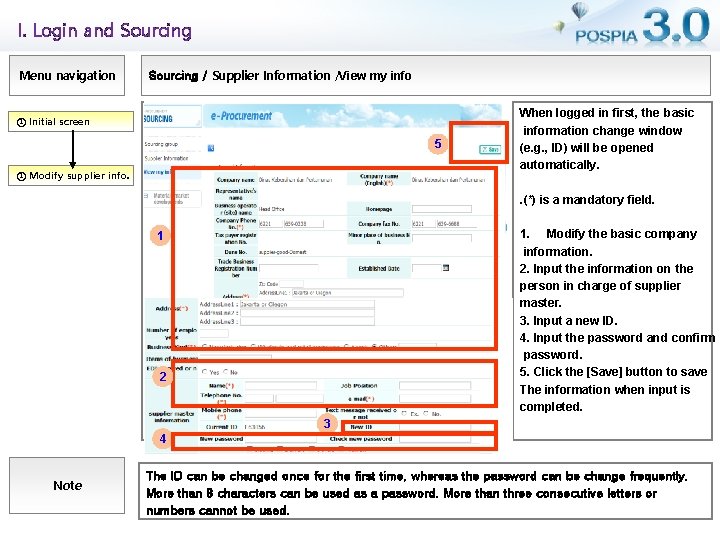
I. Login and Sourcing Menu navigation Sourcing / Supplier Information /View my info ① Initial screen 5 ① Modify supplier info. When logged in first, the basic information change window (e. g. , ID) will be opened automatically. . (*) is a mandatory field. 1. Modify the basic company information. 2. Input the information on the person in charge of supplier master. 3. Input a new ID. 4. Input the password and confirm password. 5. Click the [Save] button to save The information when input is completed. 1 2 3 4 Note The ID can be changed once for the first time, whereas the password can be change frequently. More than 8 characters can be used as a password. More than three consecutive letters or numbers cannot be used.
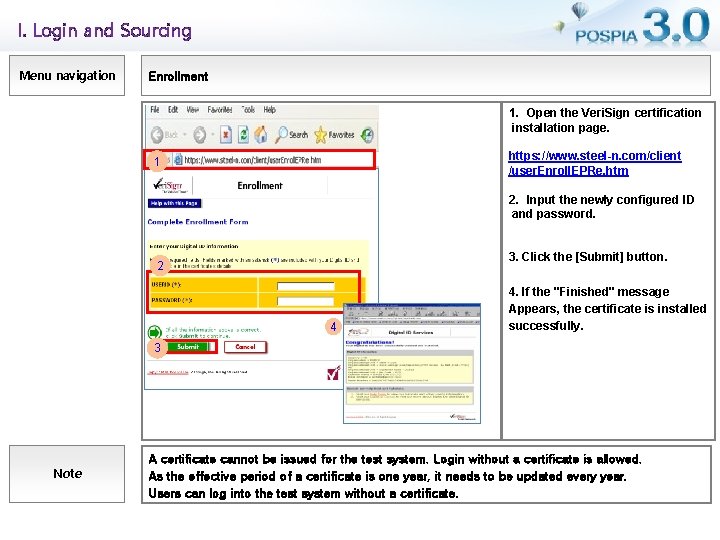
I. Login and Sourcing Menu navigation Enrollment 1. Open the Veri. Sign certification installation page. https: //www. steel-n. com/client /user. Enroll. EPRe. htm 1 2. Input the newly configured ID and password. 3. Click the [Submit] button. 2 4 4. If the "Finished" message Appears, the certificate is installed successfully. 3 Note A certificate cannot be issued for the test system. Login without a certificate is allowed. As the effective period of a certificate is one year, it needs to be updated every year. Users can log into the test system without a certificate.
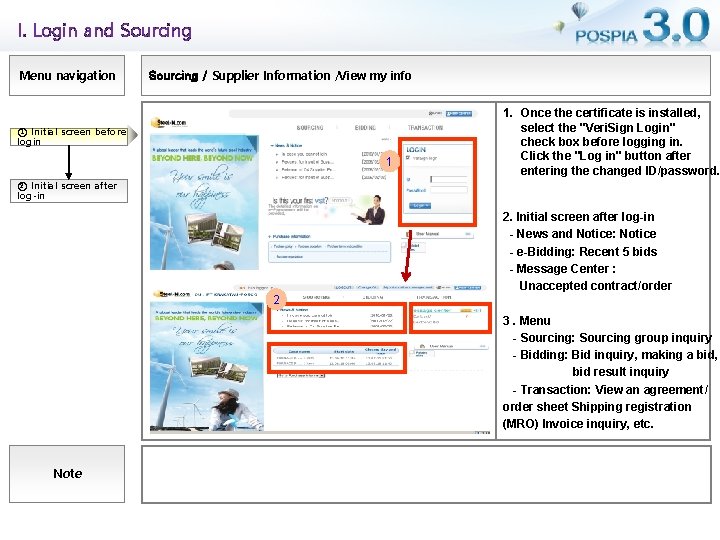
I. Login and Sourcing Menu navigation Sourcing / Supplier Information /View my info ① Initial screen before login 1 1. Once the certificate is installed, select the "Veri. Sign Login" check box before logging in. Click the "Log in" button after entering the changed ID/password. ② Initial screen after log-in 2. Initial screen after log-in - News and Notice: Notice - e-Bidding: Recent 5 bids - Message Center : Unaccepted contract/order 2 3. Menu - Sourcing: Sourcing group inquiry - Bidding: Bid inquiry, making a bid, bid result inquiry - Transaction: View an agreement/ order sheet Shipping registration (MRO) Invoice inquiry, etc. Note
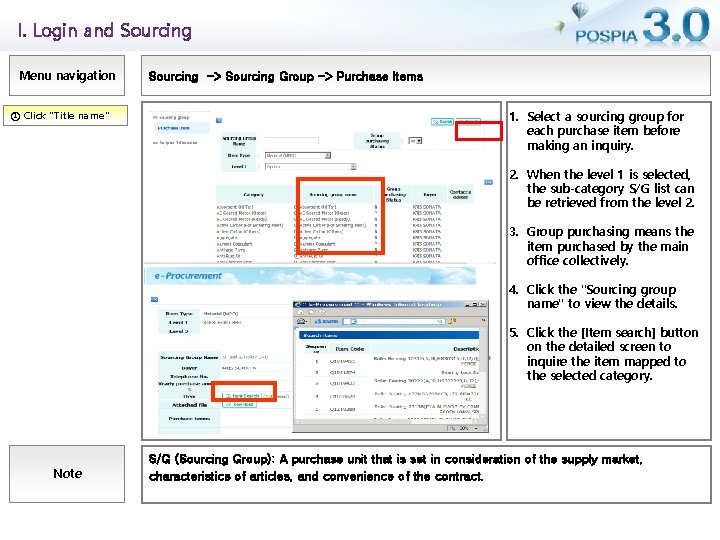
I. Login and Sourcing Menu navigation ① Click "Title name" Sourcing -> Sourcing Group -> Purchase Items 1. Select a sourcing group for each purchase item before making an inquiry. 2. When the level 1 is selected, the sub-category S/G list can be retrieved from the level 2. 3. Group purchasing means the item purchased by the main office collectively. 4. Click the "Sourcing group name" to view the details. 5. Click the [Item search] button on the detailed screen to inquire the item mapped to the selected category. Note S/G (Sourcing Group): A purchase unit that is set in consideration of the supply market, characteristics of articles, and convenience of the contract.
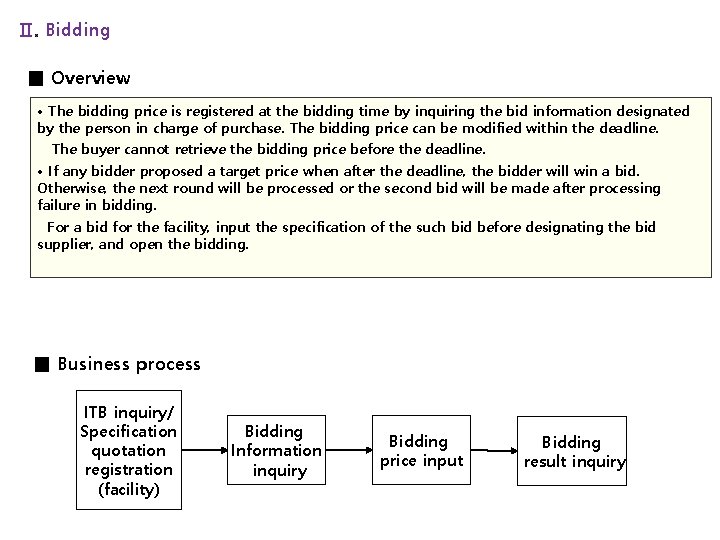
Ⅱ. Bidding ■ Overview • The bidding price is registered at the bidding time by inquiring the bid information designated by the person in charge of purchase. The bidding price can be modified within the deadline. The buyer cannot retrieve the bidding price before the deadline. • If any bidder proposed a target price when after the deadline, the bidder will win a bid. Otherwise, the next round will be processed or the second bid will be made after processing failure in bidding. For a bid for the facility, input the specification of the such bid before designating the bid supplier, and open the bidding. ■ Business process ITB inquiry/ Specification quotation registration (facility) Bidding Information inquiry Bidding price input Bidding result inquiry
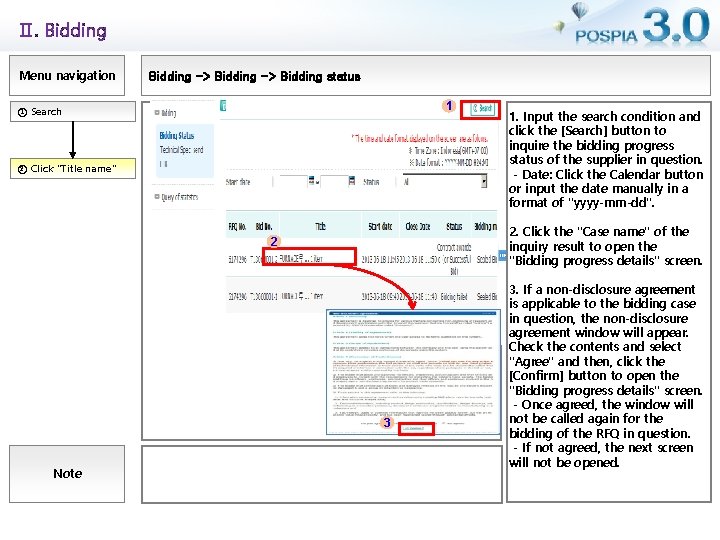
Ⅱ. Bidding Menu navigation Bidding -> Bidding status 1 ① Search ② Click "Title name" 2. Click the "Case name" of the inquiry result to open the "Bidding progress details" screen. 2 3 Note 1. Input the search condition and click the [Search] button to inquire the bidding progress status of the supplier in question. - Date: Click the Calendar button or input the date manually in a format of "yyyy-mm-dd". 3. If a non-disclosure agreement is applicable to the bidding case in question, the non-disclosure agreement window will appear. Check the contents and select "Agree" and then, click the [Confirm] button to open the "Bidding progress details" screen. - Once agreed, the window will not be called again for the bidding of the RFQ in question. - If not agreed, the next screen will not be opened.
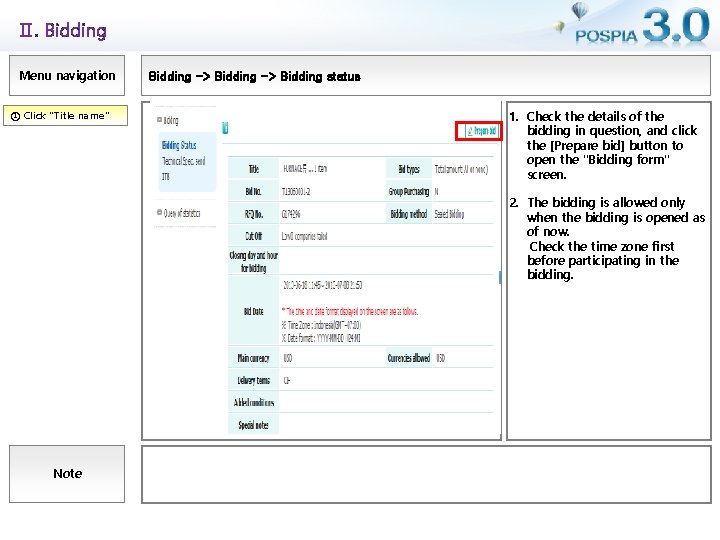
Ⅱ. Bidding Menu navigation ① Click "Title name" Bidding -> Bidding status 1. Check the details of the bidding in question, and click the [Prepare bid] button to open the "Bidding form" screen. 2. The bidding is allowed only when the bidding is opened as of now. Check the time zone first before participating in the bidding. Note
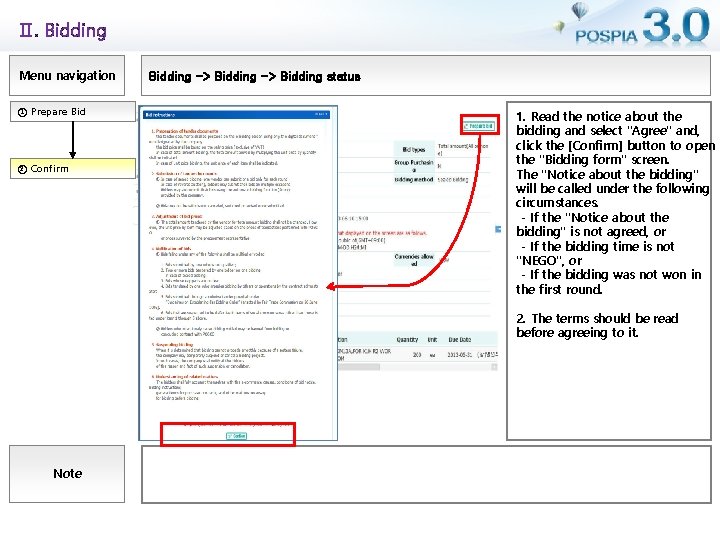
Ⅱ. Bidding Menu navigation ① Prepare Bid ② Confirm Bidding -> Bidding status 1. Read the notice about the bidding and select "Agree" and, click the [Confirm] button to open the "Bidding form" screen. The "Notice about the bidding" will be called under the following circumstances. - If the "Notice about the bidding" is not agreed, or - If the bidding time is not "NEGO", or - If the bidding was not won in the first round. 2. The terms should be read before agreeing to it. Note
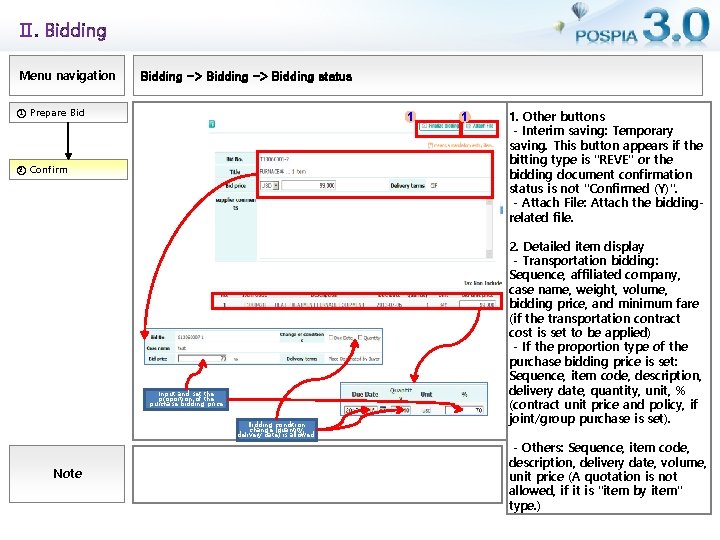
Ⅱ. Bidding Menu navigation Bidding -> Bidding status ① Prepare Bid 1 ② Confirm Input and set the proportion of the purchase bidding price Bidding condition change (quantity, delivery date) is allowed. Note 1 1. Other buttons - Interim saving: Temporary saving. This button appears if the bitting type is "REVE" or the bidding document confirmation status is not "Confirmed (Y)". - Attach File: Attach the biddingrelated file. 2. Detailed item display - Transportation bidding: Sequence, affiliated company, case name, weight, volume, bidding price, and minimum fare (if the transportation contract cost is set to be applied) - If the proportion type of the purchase bidding price is set: Sequence, item code, description, delivery date, quantity, unit, % (contract unit price and policy, if joint/group purchase is set). - Others: Sequence, item code, description, delivery date, volume, unit price (A quotation is not allowed, if it is "item by item" type. )
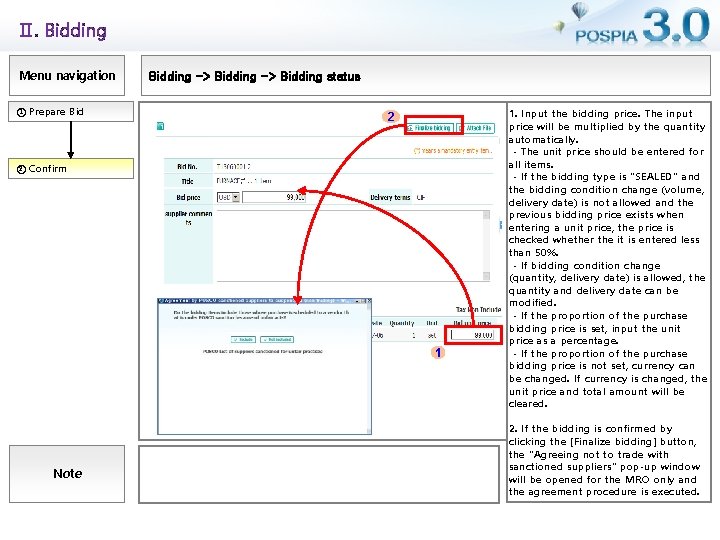
Ⅱ. Bidding Menu navigation ① Prepare Bidding -> Bidding status 2 ② Confirm 1 Note 1. Input the bidding price. The input price will be multiplied by the quantity automatically. - The unit price should be entered for all items. - If the bidding type is "SEALED" and the bidding condition change (volume, delivery date) is not allowed and the previous bidding price exists when entering a unit price, the price is checked whether the it is entered less than 50%. - If bidding condition change (quantity, delivery date) is allowed, the quantity and delivery date can be modified. - If the proportion of the purchase bidding price is set, input the unit price as a percentage. - If the proportion of the purchase bidding price is not set, currency can be changed. If currency is changed, the unit price and total amount will be cleared. 2. If the bidding is confirmed by clicking the [Finalize bidding] button, the "Agreeing not to trade with sanctioned suppliers" pop-up window will be opened for the MRO only and the agreement procedure is executed.
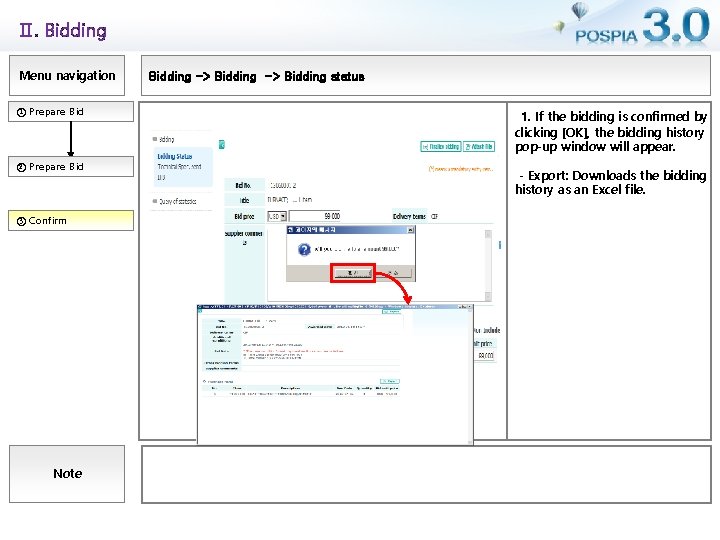
Ⅱ. Bidding Menu navigation ① Prepare Bid ② Prepare Bid ③ Confirm Note Bidding -> Bidding status 1. If the bidding is confirmed by clicking [OK], the bidding history pop-up window will appear. - Export: Downloads the bidding history as an Excel file.
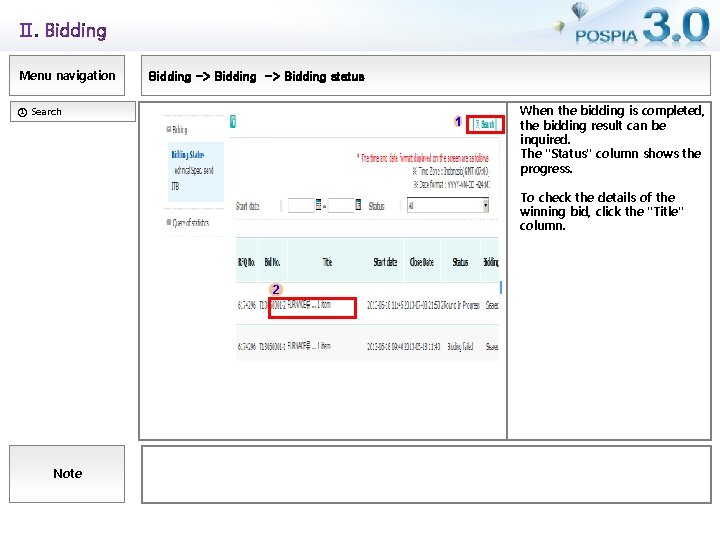
Ⅱ. Bidding Menu navigation Bidding -> Bidding status ① Search 1 When the bidding is completed, the bidding result can be inquired. The "Status" column shows the progress. To check the details of the winning bid, click the "Title" column. 2 Note
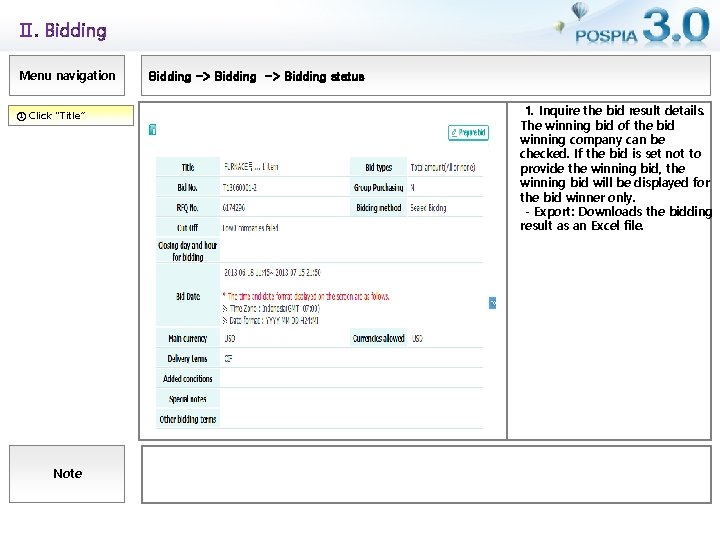
Ⅱ. Bidding Menu navigation ① Click “Title” Note Bidding -> Bidding status 1. Inquire the bid result details. The winning bid of the bid winning company can be checked. If the bid is set not to provide the winning bid, the winning bid will be displayed for the bid winner only. - Export: Downloads the bidding result as an Excel file.
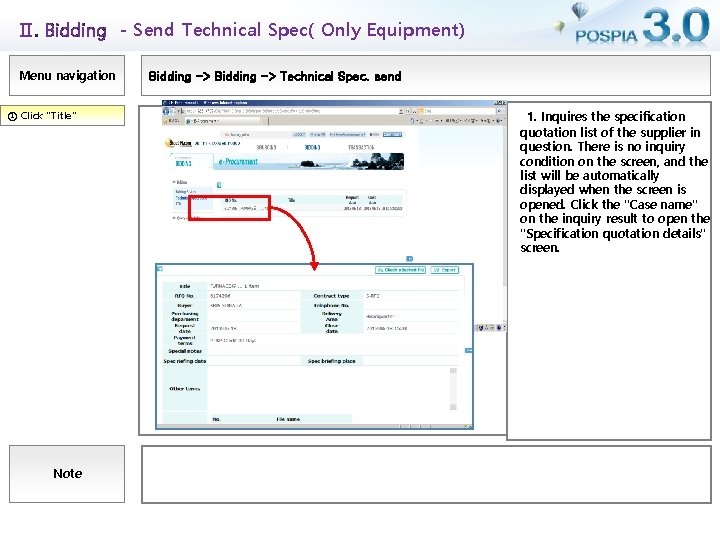
Ⅱ. Bidding - Send Technical Spec( Only Equipment) Menu navigation ① Click "Title" Note Bidding -> Technical Spec. send 1. Inquires the specification quotation list of the supplier in question. There is no inquiry condition on the screen, and the list will be automatically displayed when the screen is opened. Click the "Case name" on the inquiry result to open the "Specification quotation details" screen.
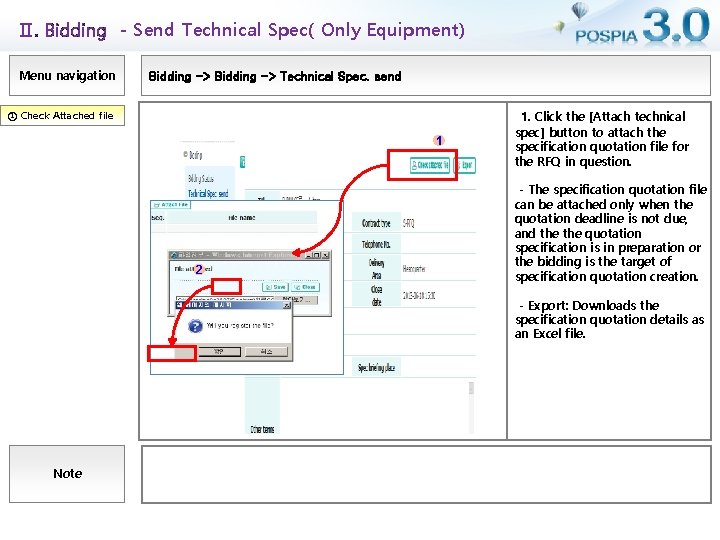
Ⅱ. Bidding - Send Technical Spec( Only Equipment) Menu navigation Bidding -> Technical Spec. send ① Check Attached file 1 2 1. Click the [Attach technical spec] button to attach the specification quotation file for the RFQ in question. - The specification quotation file can be attached only when the quotation deadline is not due, and the quotation specification is in preparation or the bidding is the target of specification quotation creation. - Export: Downloads the specification quotation details as an Excel file. Note
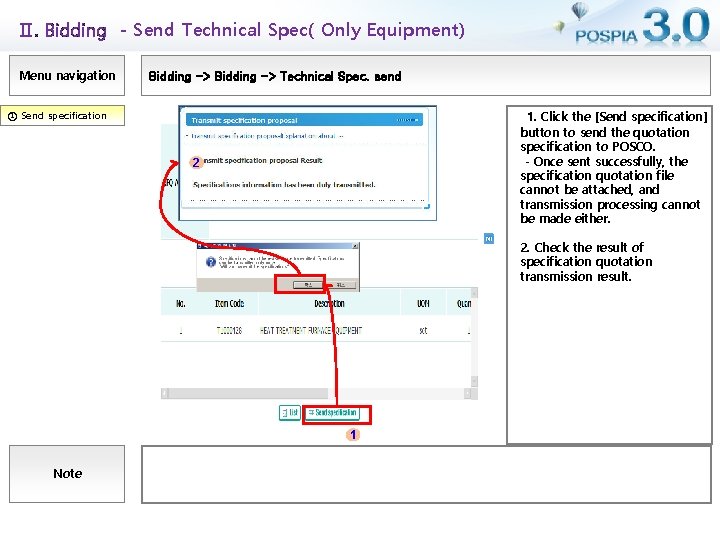
Ⅱ. Bidding - Send Technical Spec( Only Equipment) Menu navigation Bidding -> Technical Spec. send 1. Click the [Send specification] button to send the quotation specification to POSCO. - Once sent successfully, the specification quotation file cannot be attached, and transmission processing cannot be made either. ① Send specification 2 2. Check the result of specification quotation transmission result. 1 Note
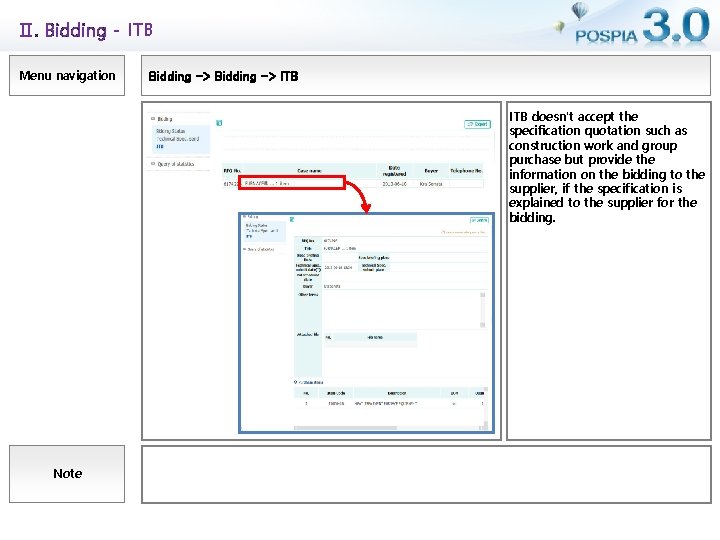
Ⅱ. Bidding - ITB Menu navigation Bidding -> ITB doesn't accept the specification quotation such as construction work and group purchase but provide the information on the bidding to the supplier, if the specification is explained to the supplier for the bidding. Note
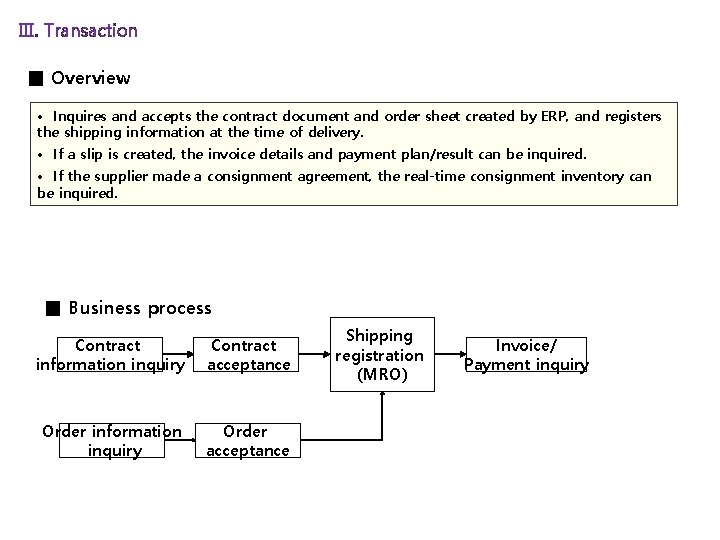
Ⅲ. Transaction ■ Overview • Inquires and accepts the contract document and order sheet created by ERP, and registers the shipping information at the time of delivery. • If a slip is created, the invoice details and payment plan/result can be inquired. • If the supplier made a consignment agreement, the real-time consignment inventory can be inquired. ■ Business process Contract information inquiry Contract acceptance Order information inquiry Order acceptance Shipping registration (MRO) Invoice/ Payment inquiry
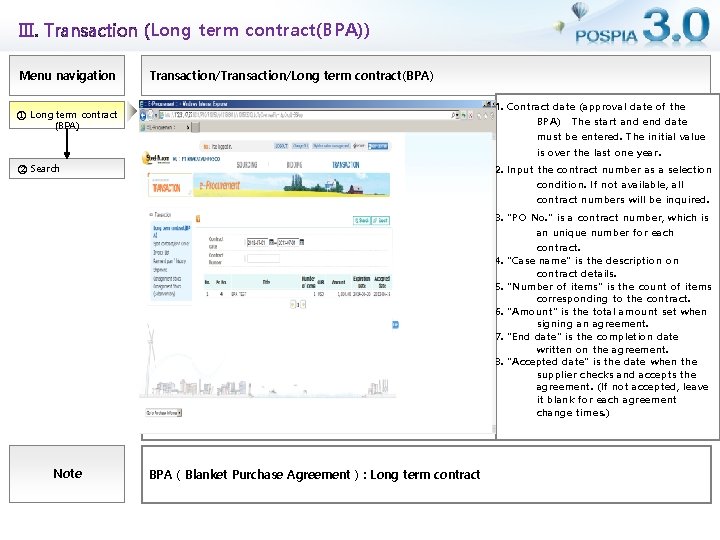
Ⅲ. Transaction (Long term contract(BPA)) Menu navigation Transaction/Long term contract(BPA) 1. Contract date (approval date of the BPA) The start and end date must be entered. The initial value is over the last one year. ① Long term contract (BPA) ② Search 2. Input the contract number as a selection condition. If not available, all contract numbers will be inquired. 3. "PO No. " is a contract number, which is an unique number for each contract. 4. "Case name" is the description on contract details. 5. "Number of items" is the count of items corresponding to the contract. 6. "Amount" is the total amount set when signing an agreement. 7. "End date" is the completion date written on the agreement. 8. "Accepted date" is the date when the supplier checks and accepts the agreement. (If not accepted, leave it blank for each agreement change times. ) Note BPA ( Blanket Purchase Agreement ) : Long term contract
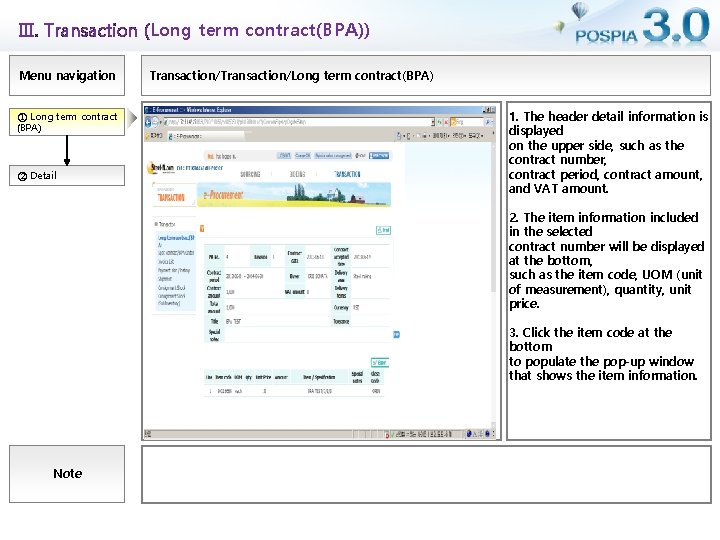
Ⅲ. Transaction (Long term contract(BPA)) Menu navigation ① Long term contract (BPA) ② Detail Transaction/Long term contract(BPA) 1. The header detail information is displayed on the upper side, such as the contract number, contract period, contract amount, and VAT amount. 2. The item information included in the selected contract number will be displayed at the bottom, such as the item code, UOM (unit of measurement), quantity, unit price. 3. Click the item code at the bottom to populate the pop-up window that shows the item information. Note
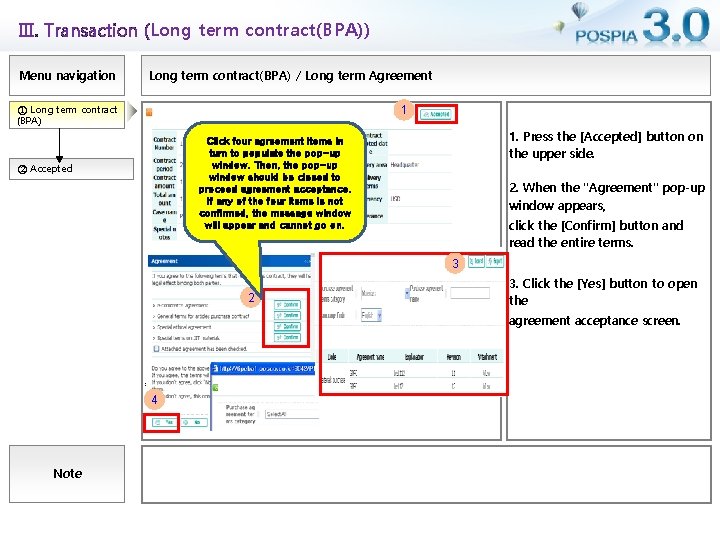
Ⅲ. Transaction (Long term contract(BPA)) Menu navigation Long term contract(BPA) / Long term Agreement ① Long term contract (BPA) 1 1. Press the [Accepted] button on the upper side. Click four agreement items in turn to populate the pop-up window. Then, the pop-up window should be closed to proceed agreement acceptance. If any of the four items is not confirmed, the message window will appear and cannot go on. ② Accepted 2. When the "Agreement" pop-up window appears, click the [Confirm] button and read the entire terms. 3 2 3. Click the [Yes] button to open the agreement acceptance screen. 4 Note
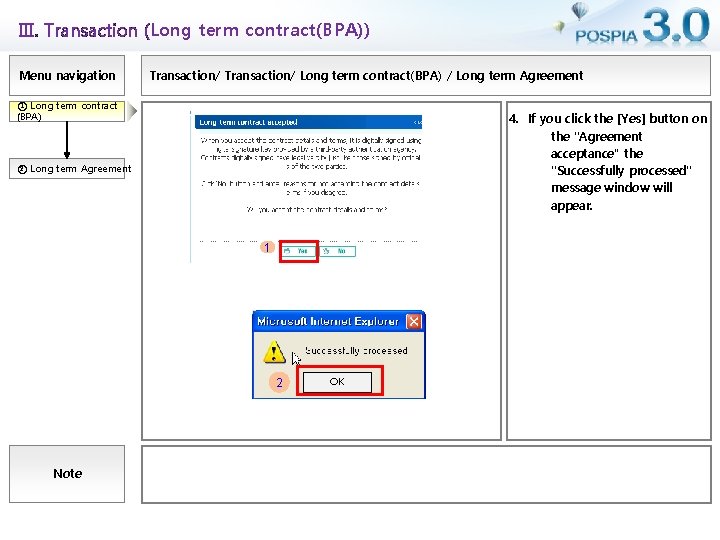
Ⅲ. Transaction (Long term contract(BPA)) Menu navigation Transaction/ Long term contract(BPA) / Long term Agreement ① Long term contract (BPA) 4. If you click the [Yes] button on the "Agreement acceptance“ the "Successfully processed" message window will appear. ② Long term Agreement 1 2 Note OK
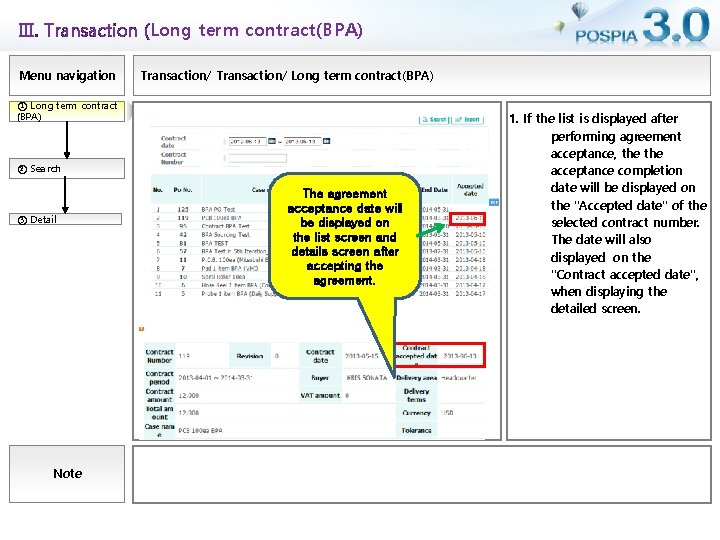
Ⅲ. Transaction (Long term contract(BPA) Menu navigation Transaction/ Long term contract(BPA) ① Long term contract (BPA) ② Search ③ Detail Note The agreement acceptance date will be displayed on the list screen and details screen after accepting the agreement. 1. If the list is displayed after performing agreement acceptance, the acceptance completion date will be displayed on the "Accepted date" of the selected contract number. The date will also displayed on the "Contract accepted date", when displaying the detailed screen.
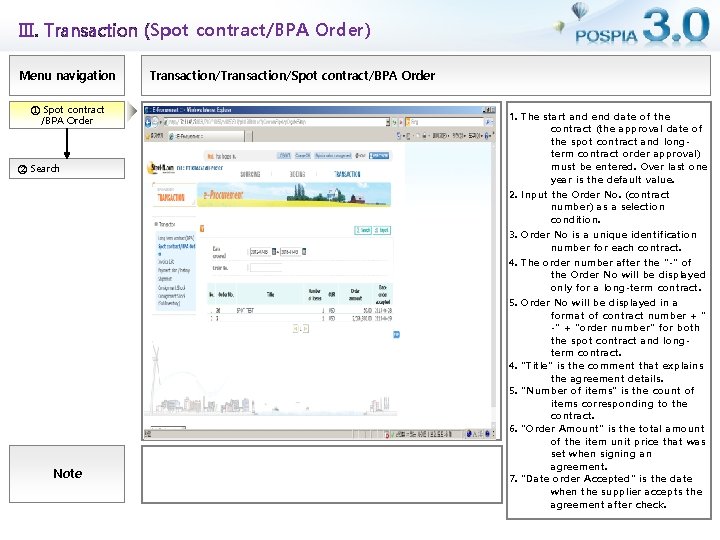
Ⅲ. Transaction (Spot contract/BPA Order) Menu navigation ① Spot contract /BPA Order ② Search Note Transaction/Spot contract/BPA Order 1. The start and end date of the contract (the approval date of the spot contract and longterm contract order approval) must be entered. Over last one year is the default value. 2. Input the Order No. (contract number) as a selection condition. 3. Order No is a unique identification number for each contract. 4. The order number after the "-" of the Order No will be displayed only for a long-term contract. 5. Order No will be displayed in a format of contract number + " -" + "order number" for both the spot contract and longterm contract. 4. "Title" is the comment that explains the agreement details. 5. "Number of items" is the count of items corresponding to the contract. 6. "Order Amount" is the total amount of the item unit price that was set when signing an agreement. 7. "Date order Accepted" is the date when the supplier accepts the agreement after check.
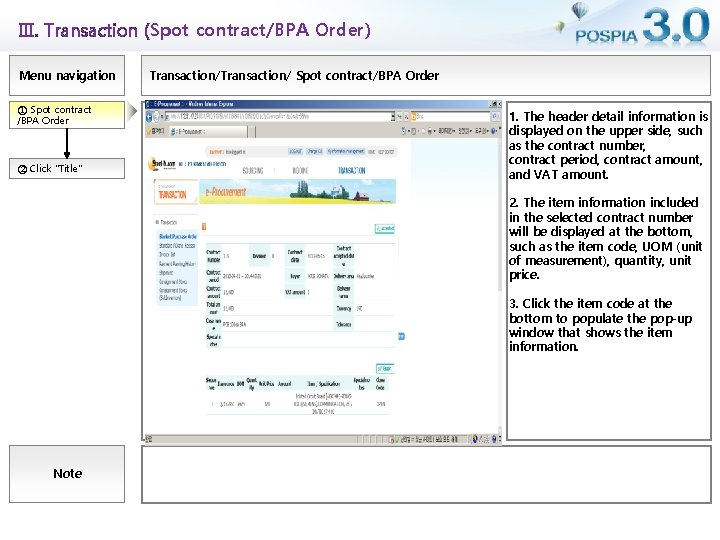
Ⅲ. Transaction (Spot contract/BPA Order) Menu navigation ① Spot contract /BPA Order ② Click "Title" Transaction/ Spot contract/BPA Order 1. The header detail information is displayed on the upper side, such as the contract number, contract period, contract amount, and VAT amount. 2. The item information included in the selected contract number will be displayed at the bottom, such as the item code, UOM (unit of measurement), quantity, unit price. 3. Click the item code at the bottom to populate the pop-up window that shows the item information. Note
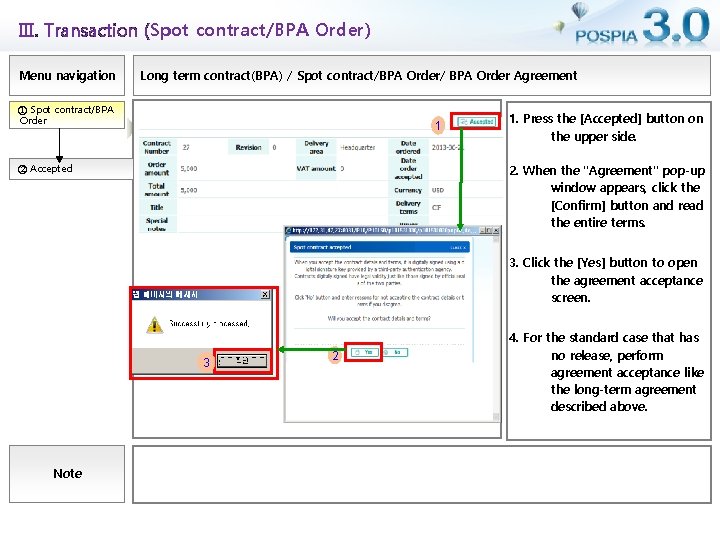
Ⅲ. Transaction (Spot contract/BPA Order) Menu navigation Long term contract(BPA) / Spot contract/BPA Order/ BPA Order Agreement ① Spot contract/BPA Order 1 ② Accepted 1. Press the [Accepted] button on the upper side. 2. When the "Agreement" pop-up window appears, click the [Confirm] button and read the entire terms. 3. Click the [Yes] button to open the agreement acceptance screen. 2 3 Note 2 4. For the standard case that has no release, perform agreement acceptance like the long-term agreement described above.
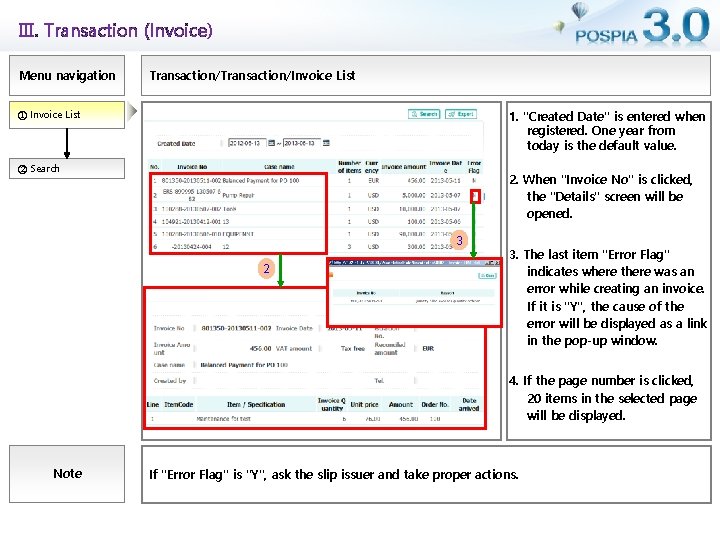
Ⅲ. Transaction (Invoice) Menu navigation Transaction/Invoice List ① Invoice List 1. "Created Date" is entered when registered. One year from today is the default value. ② Search 2. When "Invoice No" is clicked, the "Details" screen will be opened. 3 2 3. The last item "Error Flag" indicates where there was an error while creating an invoice. If it is "Y", the cause of the error will be displayed as a link in the pop-up window. 4. If the page number is clicked, 20 items in the selected page will be displayed. Note If "Error Flag" is "Y", ask the slip issuer and take proper actions.
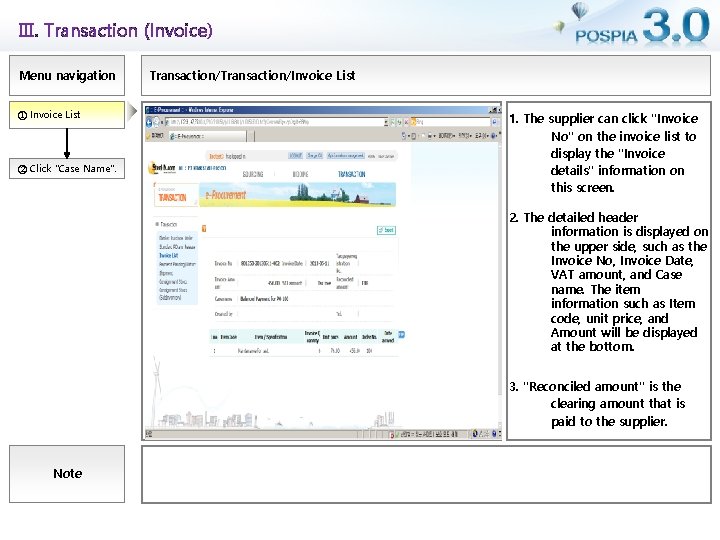
Ⅲ. Transaction (Invoice) Menu navigation ① Invoice List ② Click "Case Name". Transaction/Invoice List 1. The supplier can click "Invoice No" on the invoice list to display the "Invoice details" information on this screen. 2. The detailed header information is displayed on the upper side, such as the Invoice No, Invoice Date, VAT amount, and Case name. The item information such as Item code, unit price, and Amount will be displayed at the bottom. 3. "Reconciled amount" is the clearing amount that is paid to the supplier. Note
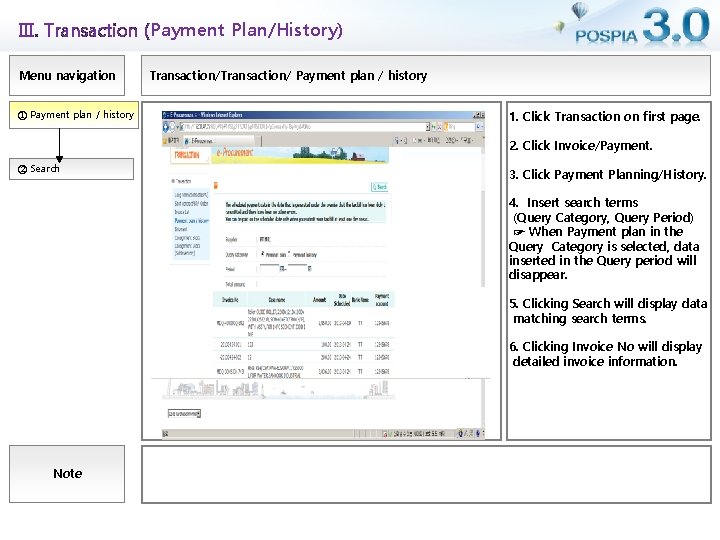
Ⅲ. Transaction (Payment Plan/History) Menu navigation ① Payment plan / history Transaction/ Payment plan / history 1. Click Transaction on first page. 2. Click Invoice/Payment. ② Search 3. Click Payment Planning/History. 4. Insert search terms (Query Category, Query Period) ☞ When Payment plan in the Query Category is selected, data inserted in the Query period will disappear. 5. Clicking Search will display data matching search terms. 6. Clicking Invoice No will display detailed invoice information. Note
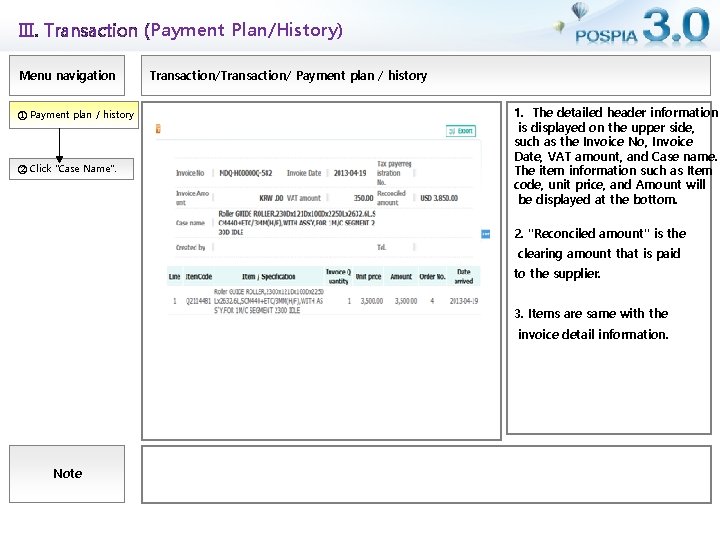
Ⅲ. Transaction (Payment Plan/History) Menu navigation ① Payment plan / history ② Click "Case Name". Transaction/ Payment plan / history 1. The detailed header information is displayed on the upper side, such as the Invoice No, Invoice Date, VAT amount, and Case name. The item information such as Item code, unit price, and Amount will be displayed at the bottom. 2. "Reconciled amount" is the clearing amount that is paid to the supplier. 3. Items are same with the invoice detail information. Note
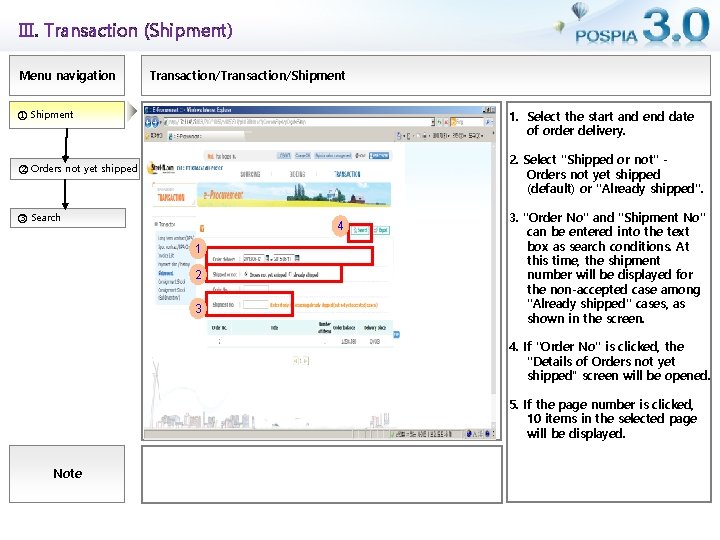
Ⅲ. Transaction (Shipment) Menu navigation Transaction/Shipment ① Shipment 1. Select the start and end date of order delivery. 2. Select "Shipped or not" Orders not yet shipped (default) or "Already shipped". ② Orders not yet shipped ③ Search 4 1 2 3 3. "Order No" and "Shipment No" can be entered into the text box as search conditions. At this time, the shipment number will be displayed for the non-accepted case among "Already shipped" cases, as shown in the screen. 4. If "Order No" is clicked, the "Details of Orders not yet shipped“ screen will be opened. 5. If the page number is clicked, 10 items in the selected page will be displayed. Note
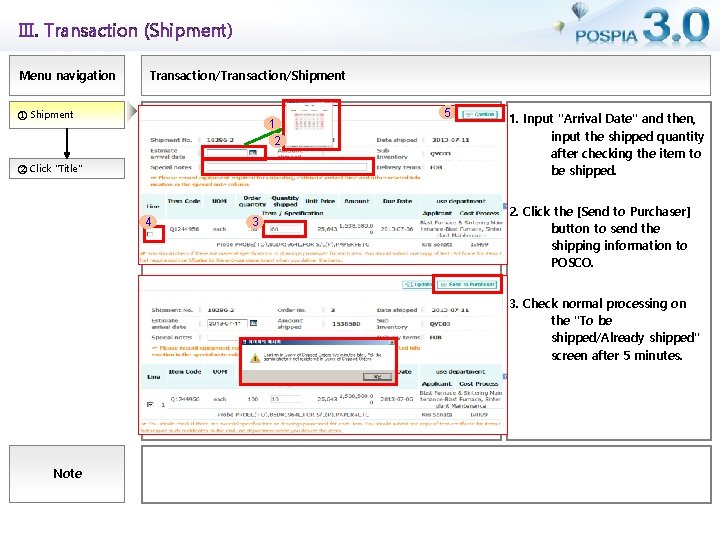
Ⅲ. Transaction (Shipment) Menu navigation Transaction/Shipment ① Shipment 1 2 5 1. Input "Arrival Date" and then, input the shipped quantity after checking the item to be shipped. ② Click "Title" 4 3 3 2. Click the [Send to Purchaser] button to send the shipping information to POSCO. 3. Check normal processing on the "To be shipped/Already shipped" screen after 5 minutes. Note
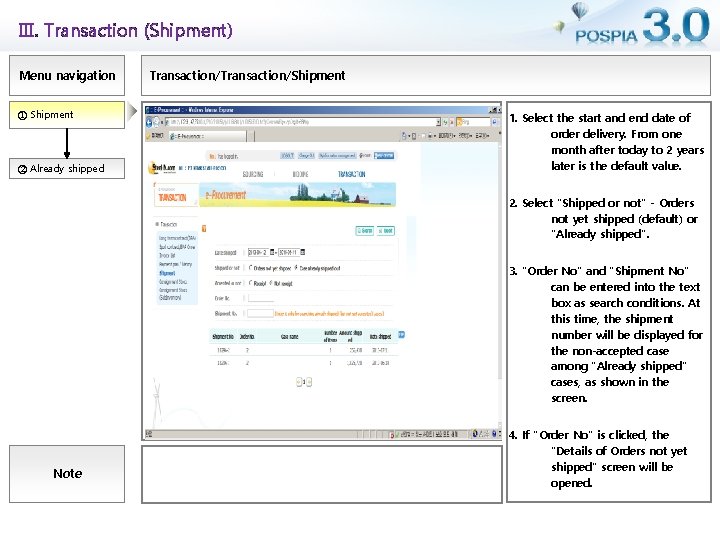
Ⅲ. Transaction (Shipment) Menu navigation ① Shipment ② Already shipped Transaction/Shipment 1. Select the start and end date of order delivery. From one month after today to 2 years later is the default value. 2. Select "Shipped or not" - Orders not yet shipped (default) or "Already shipped". 3. "Order No" and "Shipment No" can be entered into the text box as search conditions. At this time, the shipment number will be displayed for the non-accepted case among "Already shipped" cases, as shown in the screen. Note 4. If "Order No" is clicked, the "Details of Orders not yet shipped“ screen will be opened.
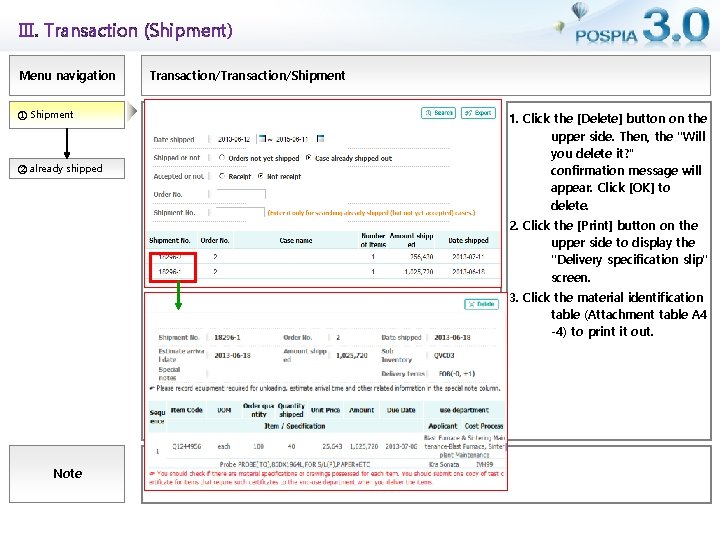
Ⅲ. Transaction (Shipment) Menu navigation ① Shipment ② already shipped Transaction/Shipment 1. Click the [Delete] button on the upper side. Then, the "Will you delete it? “ confirmation message will appear. Click [OK] to delete. 2. Click the [Print] button on the upper side to display the "Delivery specification slip" screen. 3. Click the material identification table (Attachment table A 4 -4) to print it out. Note
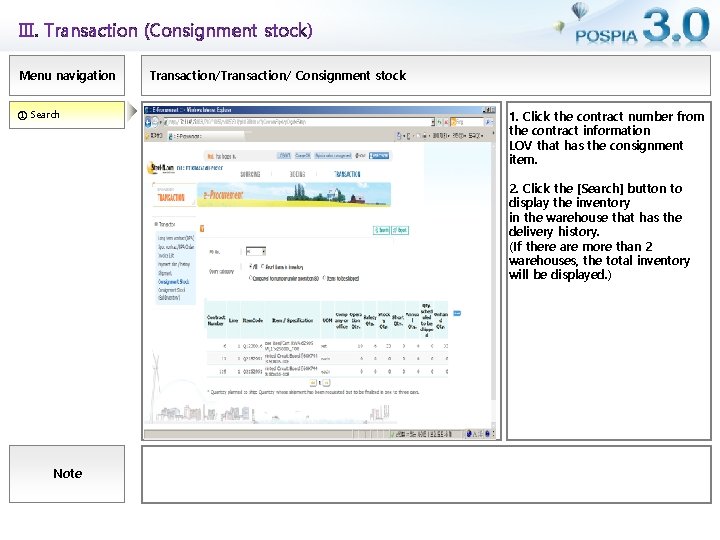
Ⅲ. Transaction (Consignment stock) Menu navigation ① Search Transaction/ Consignment stock 1. Click the contract number from the contract information LOV that has the consignment item. 2. Click the [Search] button to display the inventory in the warehouse that has the delivery history. (If there are more than 2 warehouses, the total inventory will be displayed. ) Note
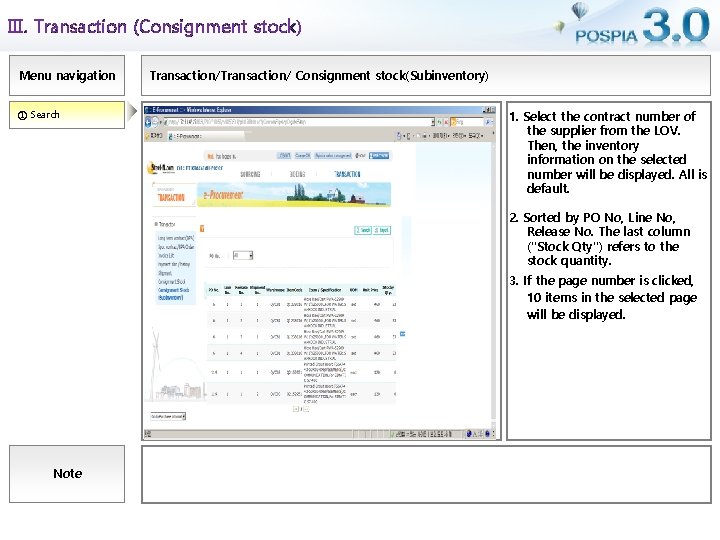
Ⅲ. Transaction (Consignment stock) Menu navigation ① Search Transaction/ Consignment stock(Subinventory) 1. Select the contract number of the supplier from the LOV. Then, the inventory information on the selected number will be displayed. All is default. 2. Sorted by PO No, Line No, Release No. The last column ("Stock Qty") refers to the stock quantity. 3. If the page number is clicked, 10 items in the selected page will be displayed. Note
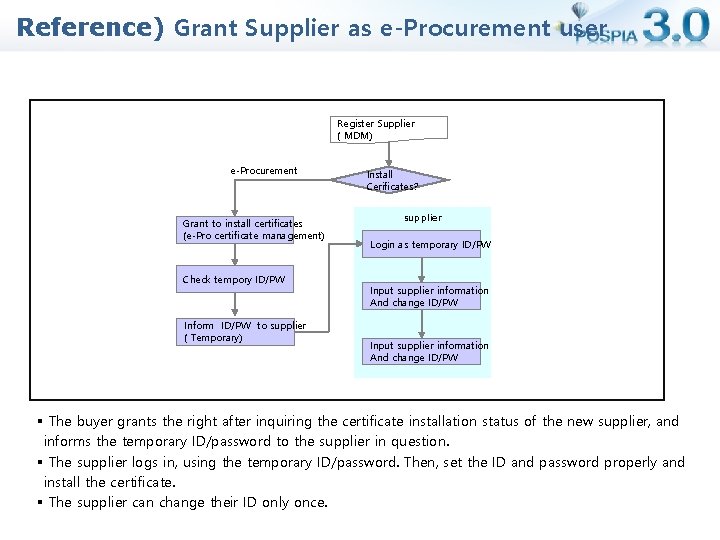
Reference) Grant Supplier as e-Procurement user Register Supplier ( MDM) e-Procurement Grant to install certificates (e-Pro certificate management) Check tempory ID/PW Inform ID/PW to supplier ( Temporary) Install Cerificates? supplier Login as temporary ID/PW Input supplier information And change ID/PW § The buyer grants the right after inquiring the certificate installation status of the new supplier, and informs the temporary ID/password to the supplier in question. § The supplier logs in, using the temporary ID/password. Then, set the ID and password properly and install the certificate. § The supplier can change their ID only once.
- Slides: 41