
Quiz Template Click on the match By Deborah
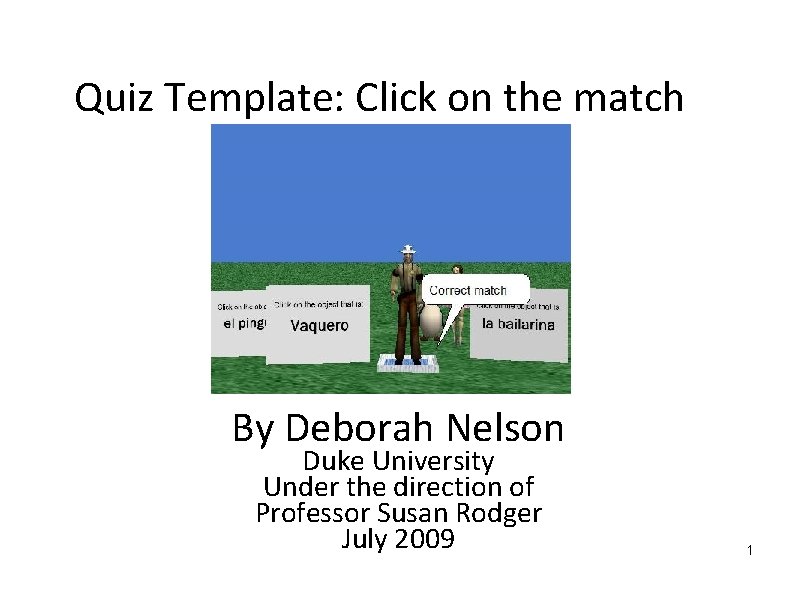
Quiz Template: Click on the match By Deborah Nelson Duke University Under the direction of Professor Susan Rodger July 2009 1
Overview The purpose of this tutorial is to demonstrate how to use a template for quizzes in which the user is shown an object (either a 3 D object, image or text) and asked to click on it’s “match” Many of the methods have been provided for you. Then you add your own animation to this template world. There are five basic steps to creating your quiz world. But first, understand the format of the quiz. 2
The format of this quiz: 1) 2) 3) 4) 5) An object, which I refer to as the Instructor, will ask each question Once the question is asked, a dialog box pops up, in which the user puts the answer The correct answer is either a number, text (known as a String) or either yes or no The user’s answer is then compared to the correct answer. It is possible to keep track of the score and allow the user to try again. Once the question has been evaluated, the instructor will repeat these steps for the next questions. 3
Step One: Set Up When you build your own quiz world, setting up the objects and camera views is the first step. For the sake of this tutorial, a starter world has been provided with three of the objects already present. When you downloaded this tutorial, you should have downloaded the starting world, it is called quiz. Match. Start. a 2 w. If not, do so now Be careful to save it in a directory that you can find again. 4
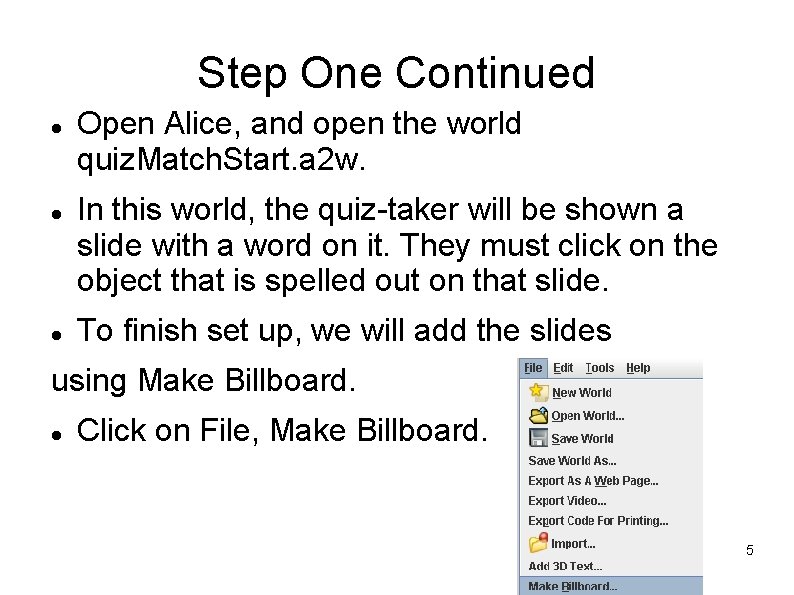
Step One Continued Open Alice, and open the world quiz. Match. Start. a 2 w. In this world, the quiz-taker will be shown a slide with a word on it. They must click on the object that is spelled out on that slide. To finish set up, we will add the slides using Make Billboard. Click on File, Make Billboard. 5
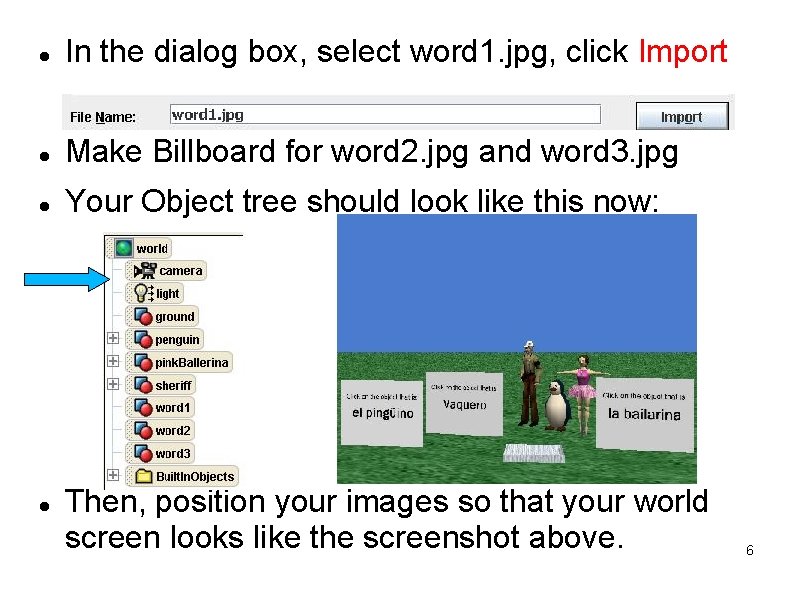
In the dialog box, select word 1. jpg, click Import Make Billboard for word 2. jpg and word 3. jpg Your Object tree should look like this now: Then, position your images so that your world screen looks like the screenshot above. 6
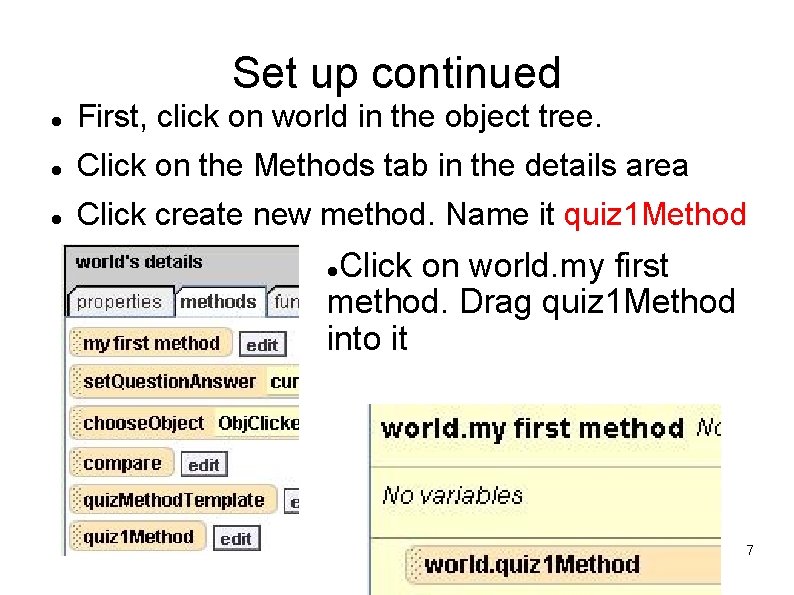
Set up continued First, click on world in the object tree. Click on the Methods tab in the details area Click create new method. Name it quiz 1 Method Click on world. my first method. Drag quiz 1 Method into it 7
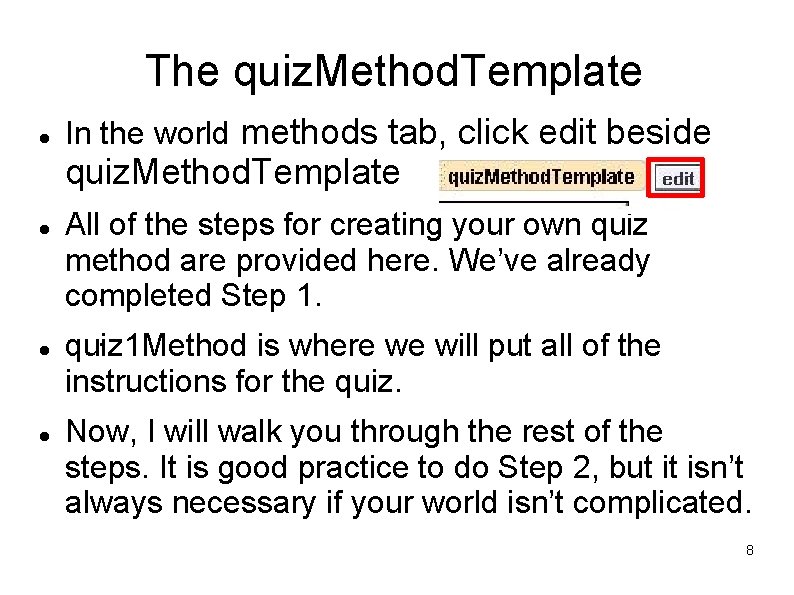
The quiz. Method. Template In the world methods tab, click edit beside quiz. Method. Template All of the steps for creating your own quiz method are provided here. We’ve already. completed Step 1. . quiz 1 Method is where we will put all of the instructions for the quiz. Now, I will walk you through the rest of the steps. It is good practice to do Step 2, but it isn’t always necessary if your world isn’t complicated. 8
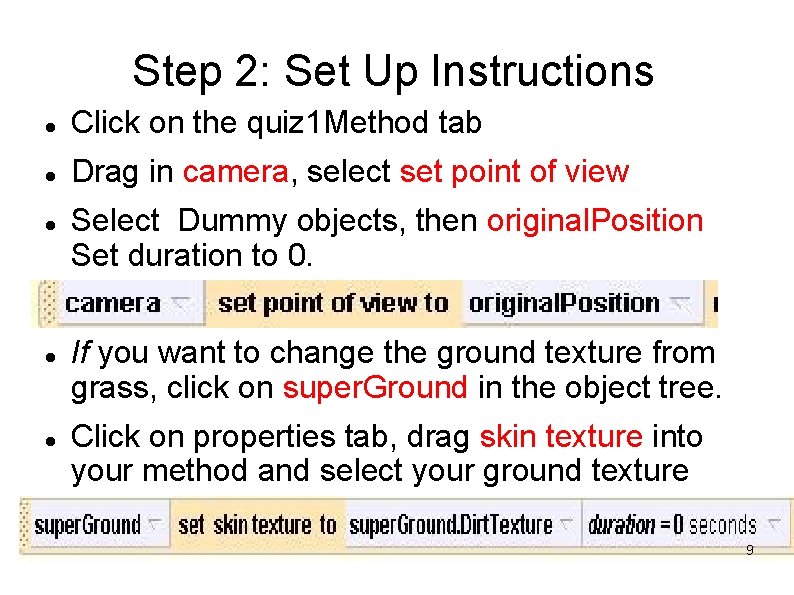
Step 2: Set Up Instructions Click on the quiz 1 Method tab Drag in camera, select set point of view Select Dummy objects, then original. Position Set duration to 0. If you want to change the ground texture from grass, click on super. Ground in the object tree. Click on properties tab, drag skin texture into your method and select your ground texture 9
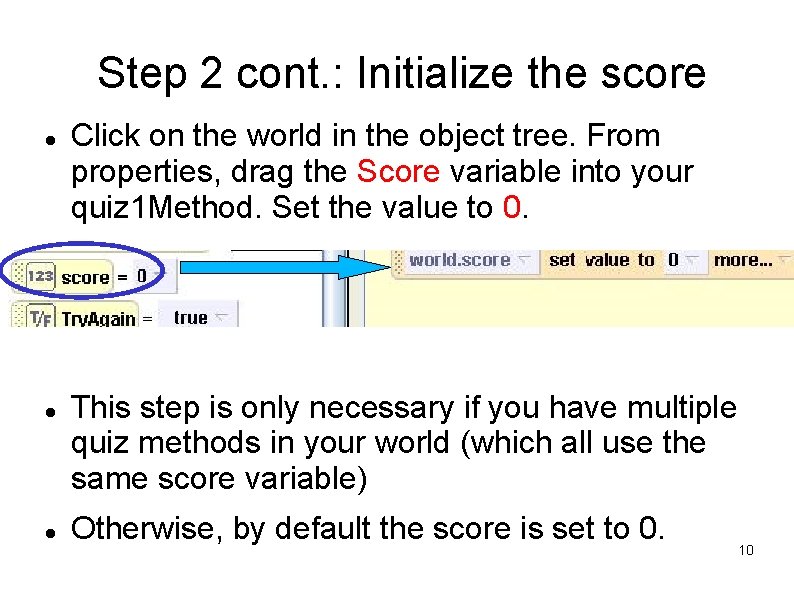
Step 2 cont. : Initialize the score Click on the world in the object tree. From properties, drag the Score variable into your quiz 1 Method. Set the value to 0. This step is only necessary if you have multiple quiz methods in your world (which all use the same score variable) Otherwise, by default the score is set to 0. 10
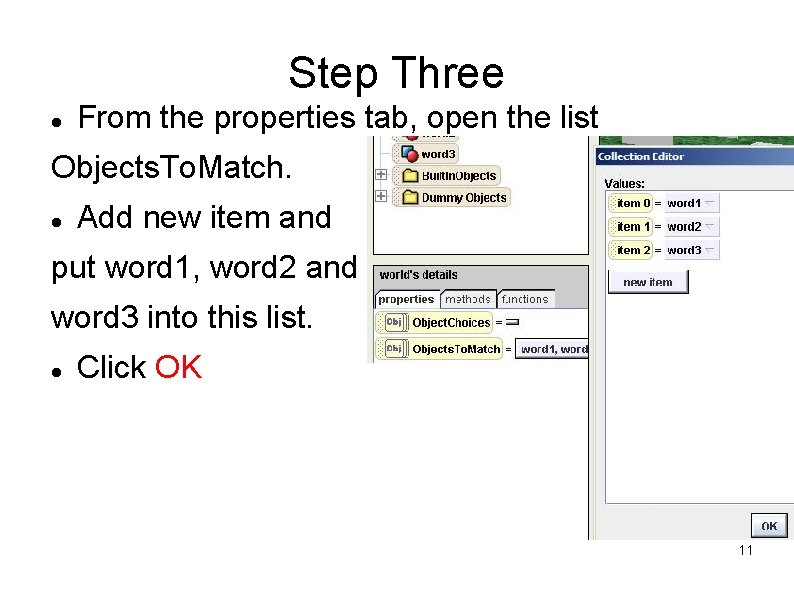
Step Three From the properties tab, open the list Objects. To. Match. Add new item and put word 1, word 2 and word 3 into this list. Click OK 11
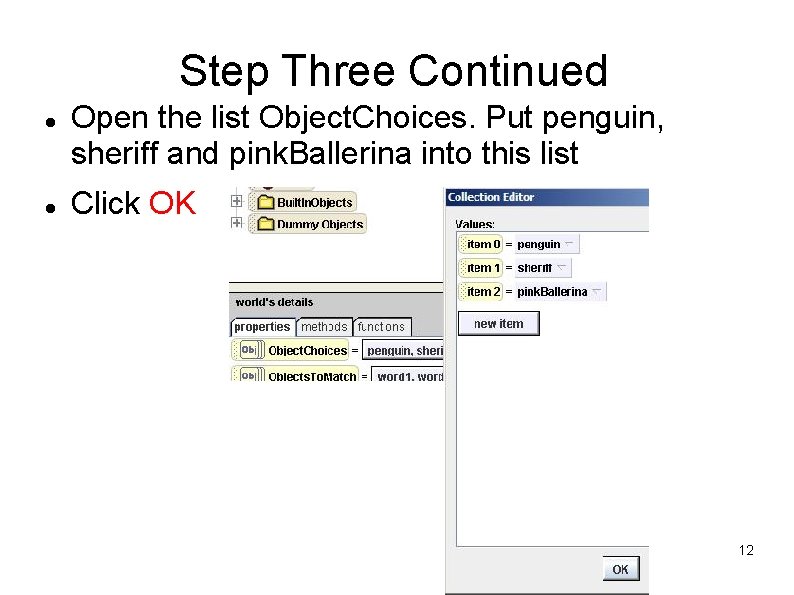
Step Three Continued Open the list Object. Choices. Put penguin, sheriff and pink. Ballerina into this list Click OK 12
The Purpose of these lists These lists are filled with these objects so that the quiz match methods and events won’t conflict with any other animations that you add to your world Click on world in the object tree. Then click on the methods tab 13
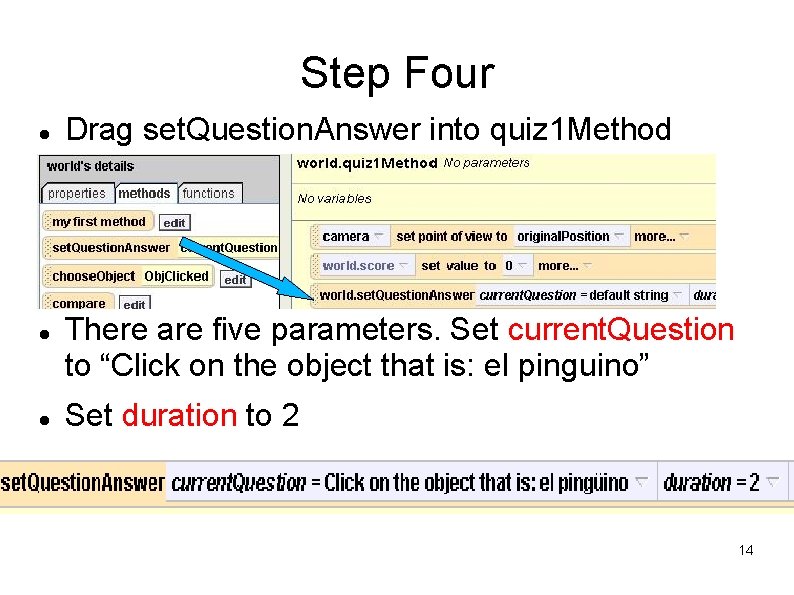
Step Four Drag set. Question. Answer into quiz 1 Method There are five parameters. Set current. Question to “Click on the object that is: el pinguino” Set duration to 2 14
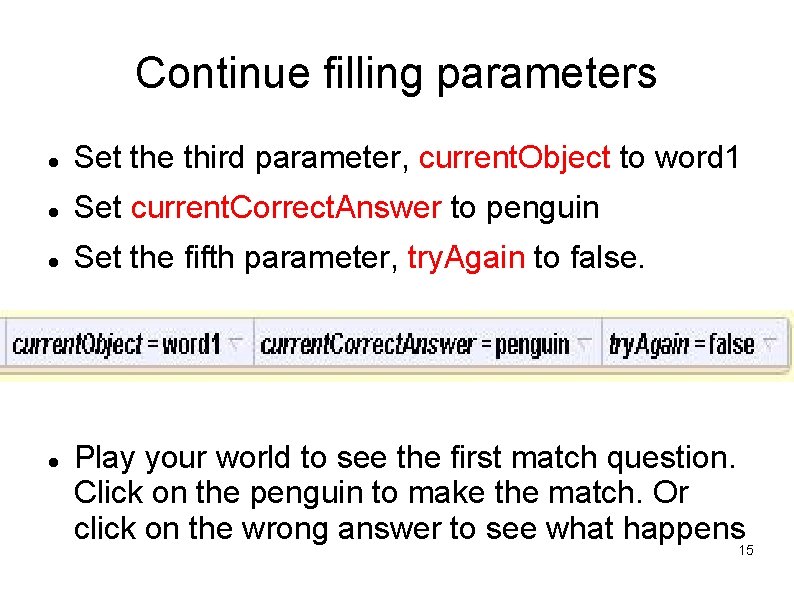
Continue filling parameters Set the third parameter, current. Object to word 1 Set current. Correct. Answer to penguin Set the fifth parameter, try. Again to false. Play your world to see the first match question. Click on the penguin to make the match. Or click on the wrong answer to see what happens 15
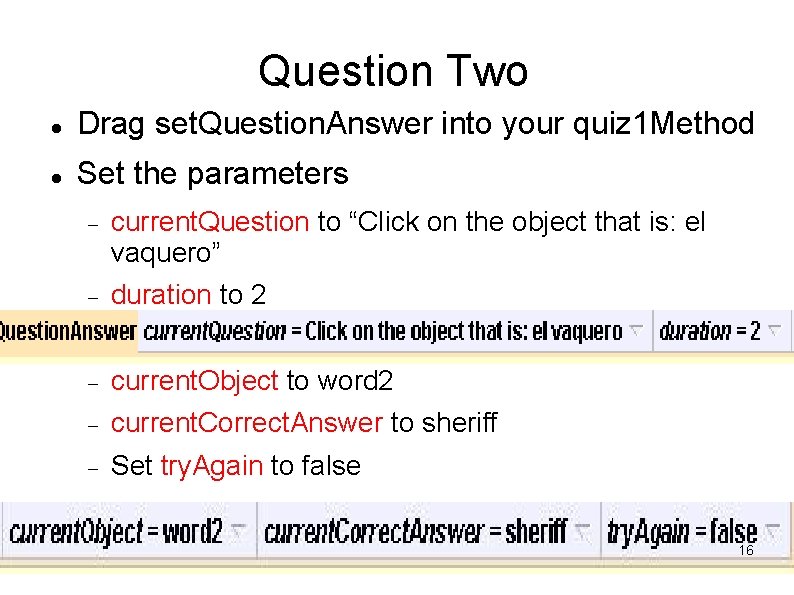
Question Two Drag set. Question. Answer into your quiz 1 Method Set the parameters current. Question to “Click on the object that is: el vaquero” duration to 2 current. Object to word 2 current. Correct. Answer to sheriff Set try. Again to false 16
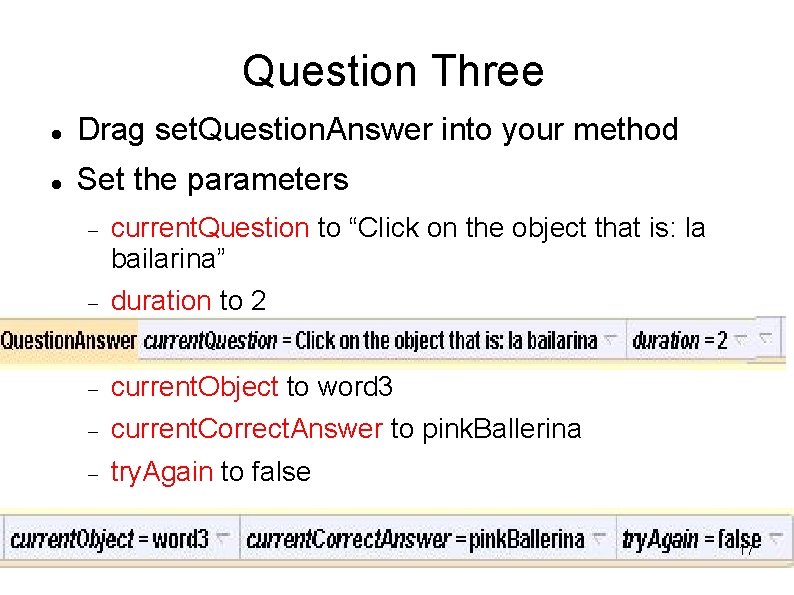
Question Three Drag set. Question. Answer into your method Set the parameters current. Question to “Click on the object that is: la bailarina” duration to 2 current. Object to word 3 current. Correct. Answer to pink. Ballerina try. Again to false 17
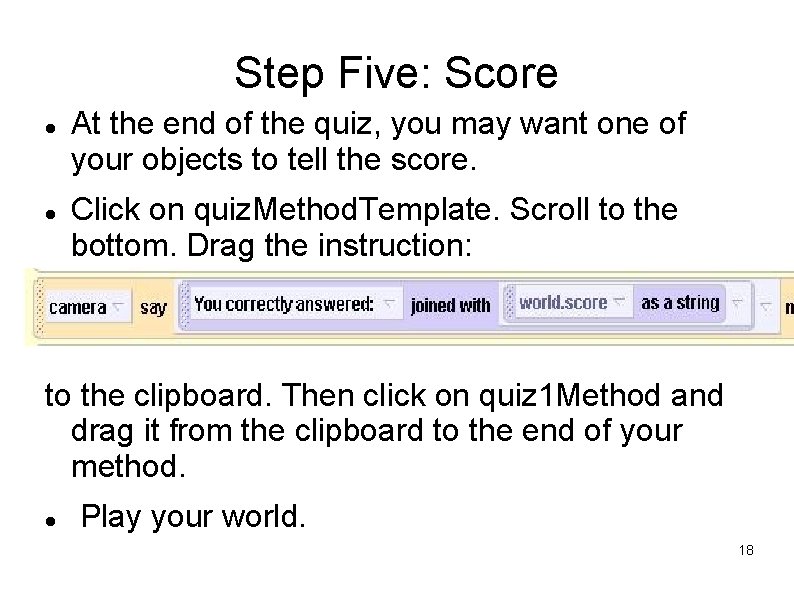
Step Five: Score At the end of the quiz, you may want one of your objects to tell the score. Click on quiz. Method. Template. Scroll to the bottom. Drag the instruction: to the clipboard. Then click on quiz 1 Method and drag it from the clipboard to the end of your method. Play your world. 18
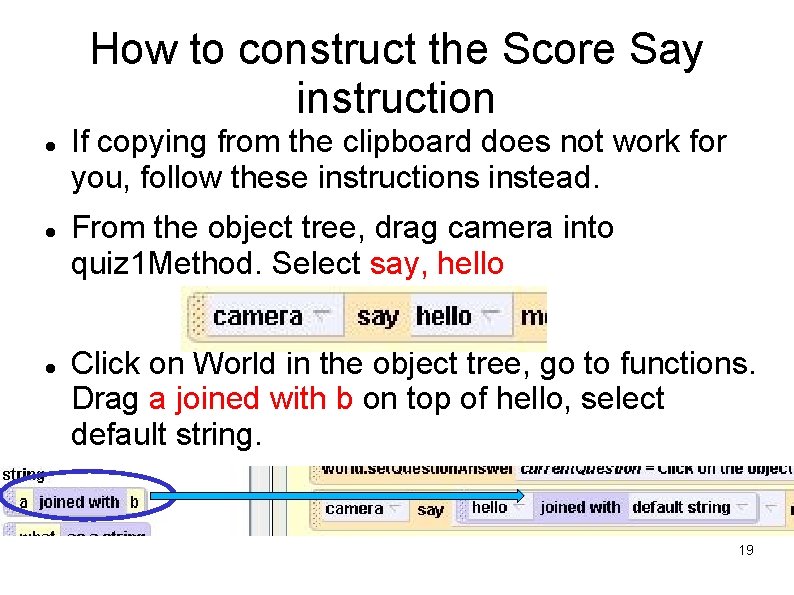
How to construct the Score Say instruction If copying from the clipboard does not work for you, follow these instructions instead. From the object tree, drag camera into quiz 1 Method. Select say, hello Click on World in the object tree, go to functions. Drag a joined with b on top of hello, select default string. 19
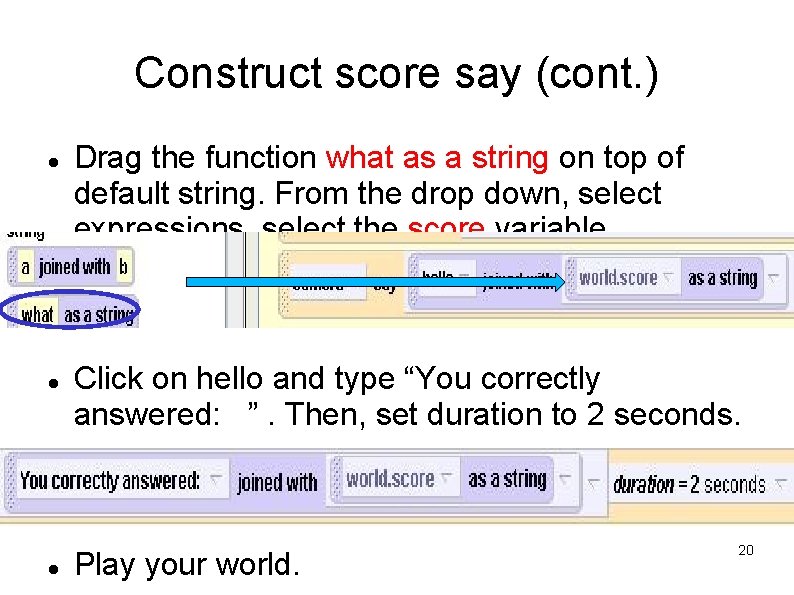
Construct score say (cont. ) Drag the function what as a string on top of default string. From the drop down, select expressions, select the score variable Click on hello and type “You correctly answered: ”. Then, set duration to 2 seconds. Play your world. 20
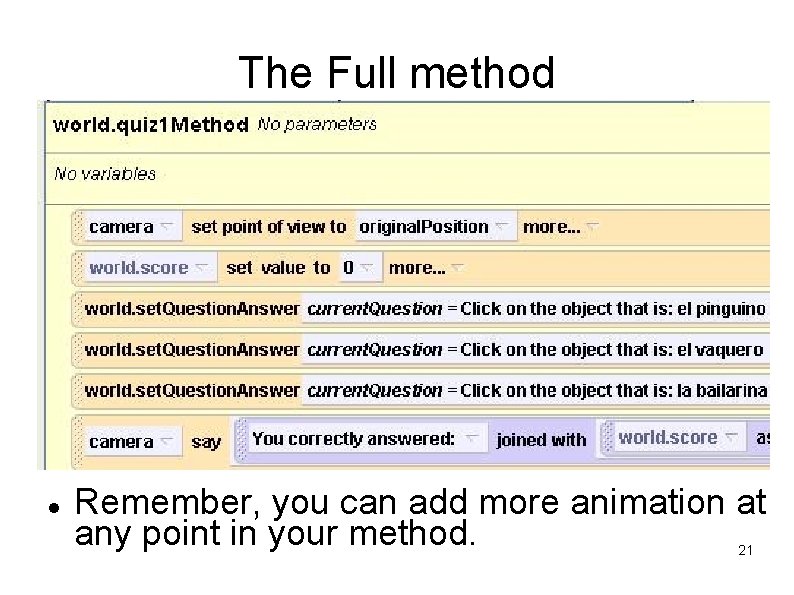
The Full method Remember, you can add more animation at any point in your method. 21
Recap To use the match world template: 1) Open the template world and set up your objects. 2) Fill the object. Choices and objects. To. Match lists 3) Create a quiz method and set the camera and ground texture 4) Call set. Question. Answer and fill in the parameters for each match you want to make 5) If you did not allow the user to try again, you may want to tell the score. 22
The template world Ø Ø Ø Now that you know how to use it, use match 1. a 2 w as your template world whenever you want to create a matching quiz or game. You can use this world for a lot of different things. See the example match worlds for more ideas. Also, if you want to make matches without moving the objects around, use match 2. a 2 w instead. See the example match worlds, 23
- Slides: 23