
QUICK REFERENCE GUIDE QRG HOW TO CHECK THAT
- Slides: 1
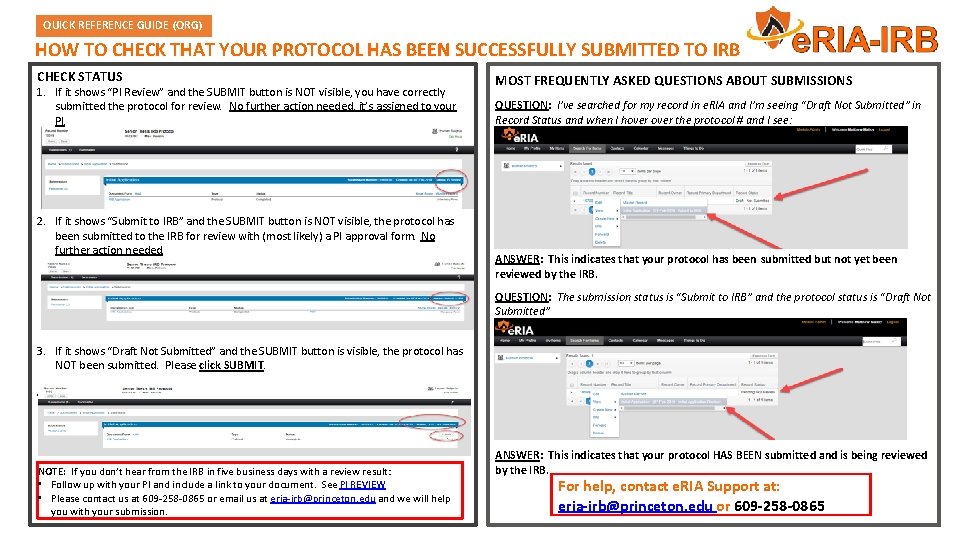
QUICK REFERENCE GUIDE (QRG) HOW TO CHECK THAT YOUR PROTOCOL HAS BEEN SUCCESSFULLY SUBMITTED TO IRB CHECK STATUS 1. If it shows “PI Review” and the SUBMIT button is NOT visible, you have correctly submitted the protocol for review. No further action needed, it’s assigned to your PI. 2. If it shows “Submit to IRB” and the SUBMIT button is NOT visible, the protocol has been submitted to the IRB for review with (most likely) a PI approval form. No further action needed. MOST FREQUENTLY ASKED QUESTIONS ABOUT SUBMISSIONS QUESTION: I’ve searched for my record in e. RIA and I’m seeing “Draft Not Submitted” in Record Status and when I hover the protocol # and I see: ANSWER: This indicates that your protocol has been submitted but not yet been reviewed by the IRB. QUESTION: The submission status is “Submit to IRB” and the protocol status is “Draft Not Submitted” 3. If it shows “Draft Not Submitted” and the SUBMIT button is visible, the protocol has NOT been submitted. Please click SUBMIT. 4. NOTE: If you don’t hear from the IRB in five business days with a review result: • Follow up with your PI and include a link to your document. See PI REVIEW • Please contact us at 609 -258 -0865 or email us at eria-irb@princeton. edu and we will help you with your submission. ANSWER: This indicates that your protocol HAS BEEN submitted and is being reviewed by the IRB. For help, contact e. RIA Support at: eria-irb@princeton. edu or 609 -258 -0865