
Quick Bites Making Virtual Meetings Accessible Josh Christianson
Quick Bites: Making Virtual Meetings Accessible Josh Christianson| PEAT Co-Director Jay Wyant | State of Minnesota CIAO
Housekeeping • CART info • Phone info • Where to get slides now/later
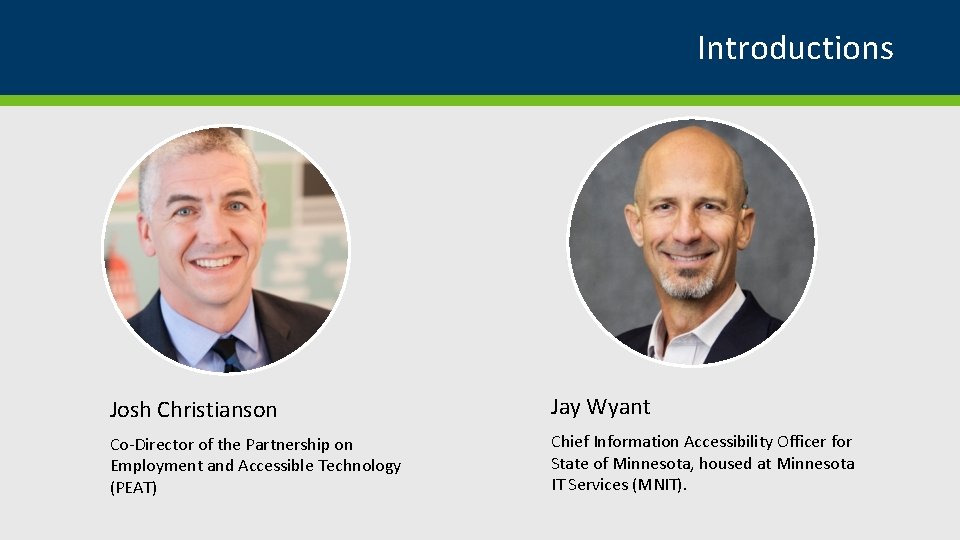
Introductions Josh Christianson Jay Wyant Co-Director of the Partnership on Employment and Accessible Technology (PEAT) Chief Information Accessibility Officer for State of Minnesota, housed at Minnesota IT Services (MNIT).
The Challenge: Inclusive, Accessible Virtual Meetings Framework: Everyone is blind, deaf, neurodiverse, or mobility challenged
Plan • Tools & considerations • Phone meeting • Web meeting with visuals or screen sharing • 10 -digit number • Captioning and CART • ASL interpreting • Use high-quality mic and webcam
What are you sharing? • Documents • Whiteboard • Chat • Polling/interaction tools • Showing videos (continue to follow typical accessibility best practices for videos) • How many people will speak during the meeting? • Are you sharing the captions with all attendees?
Who will have a role? • Meeting leader • Chat monitor/technology troubleshooter • Multiple presenters • Note taker
Meeting Rules • One person speaks at a time • All other mics muted • Say your name (every time) before speaking • Describe what you are showing/doing on screen • Make it easy to queue speakers • Send accessible documents in advance
Invitations • Note what accommodations you are providing (such as CART/captions) • Provide contact information for any accommodation requests • What if there isn’t time? • 10 -digit number for relay access • Automated captions • Monitor the chat
When starting the meeting • Review ground rules • Post call-in number, captioning info on opening slide and in chat • Re-post any links or attachments sent in invitation • Announce if you are recording • Note any post-meeting information/links
Facilitating a meeting • Mute email/other notifications • Close unrelated apps and content • Watch for alerts from chat monitor • Have chat monitor read aloud items/questions in the chat before answering • When multiple people have asked to speak, announce the order so they can plan ahead • Remember to describe visuals
Manage contributors • Allow time for participants to add notes in the chat or ask to speak • Provide multiple ways to collect feedback • Avoid letting any one person dominate the audio • The key is to recognize that there are many reasons people may not be quick to jump in
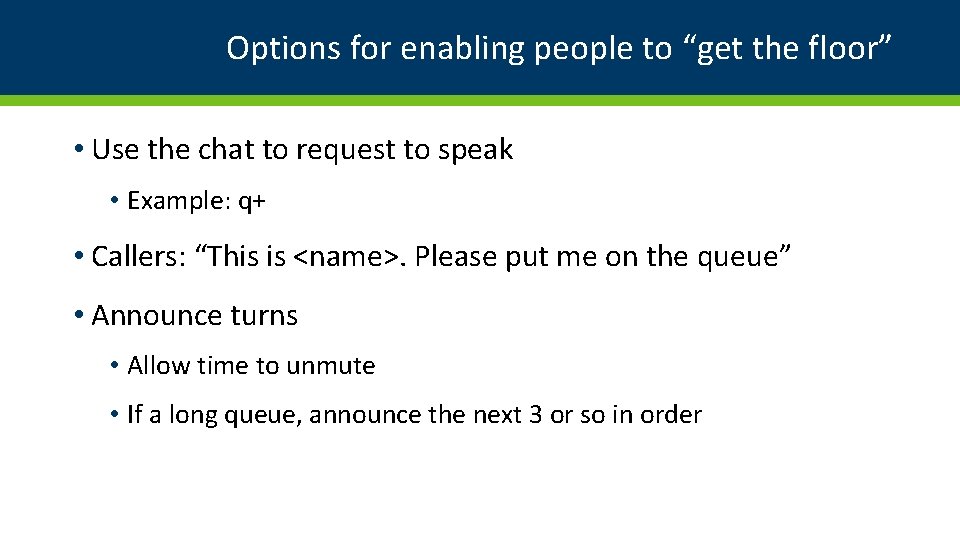
Options for enabling people to “get the floor” • Use the chat to request to speak • Example: q+ • Callers: “This is <name>. Please put me on the queue” • Announce turns • Allow time to unmute • If a long queue, announce the next 3 or so in order
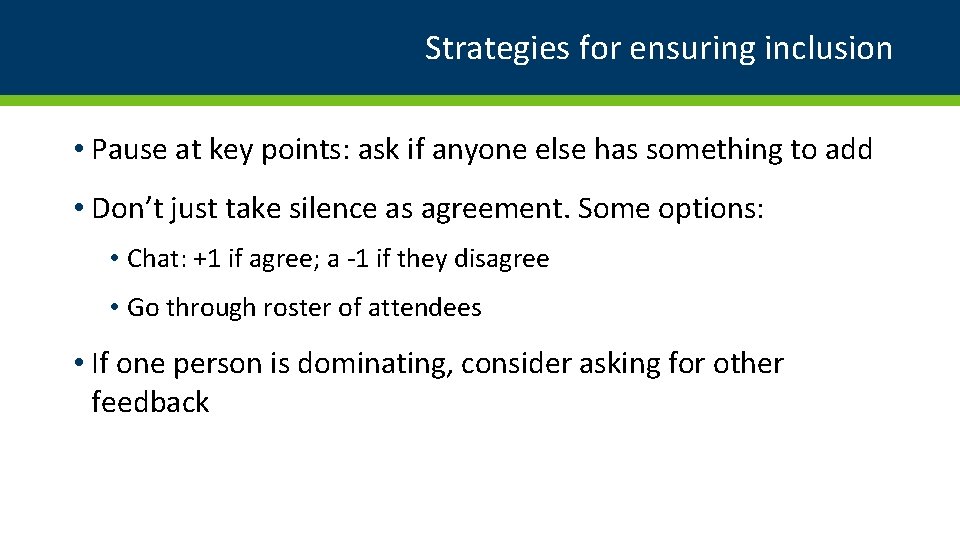
Strategies for ensuring inclusion • Pause at key points: ask if anyone else has something to add • Don’t just take silence as agreement. Some options: • Chat: +1 if agree; a -1 if they disagree • Go through roster of attendees • If one person is dominating, consider asking for other feedback
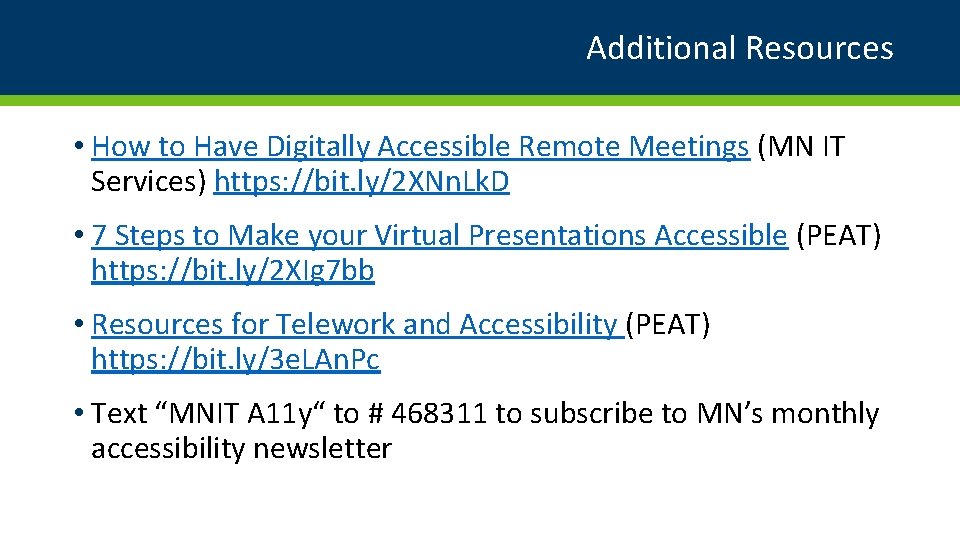
Additional Resources • How to Have Digitally Accessible Remote Meetings (MN IT Services) https: //bit. ly/2 XNn. Lk. D • 7 Steps to Make your Virtual Presentations Accessible (PEAT) https: //bit. ly/2 XIg 7 bb • Resources for Telework and Accessibility (PEAT) https: //bit. ly/3 e. LAn. Pc • Text “MNIT A 11 y“ to # 468311 to subscribe to MN’s monthly accessibility newsletter

Any Follow Up Questions?
Thank You! Josh Christianson Josh. christianson@wheelhousegroup. com Jay Wyant jay. wyant@state. mn. us
- Slides: 17