
Quick and Easy Tech Tools for collecting assessment
- Slides: 42
Quick and Easy Tech Tools for collecting assessment data (product, observations and conversations) http: //bit. ly/2 e. JVV 35
Plan for the workshop Assessment basics/the padagogy wheel Connecting with Google Tools for assessing: Conversations Observations Products
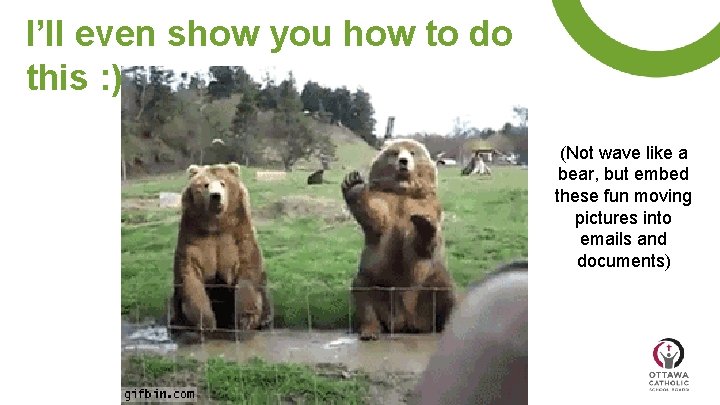
I’ll even show you how to do this : ) (Not wave like a bear, but embed these fun moving pictures into emails and documents)
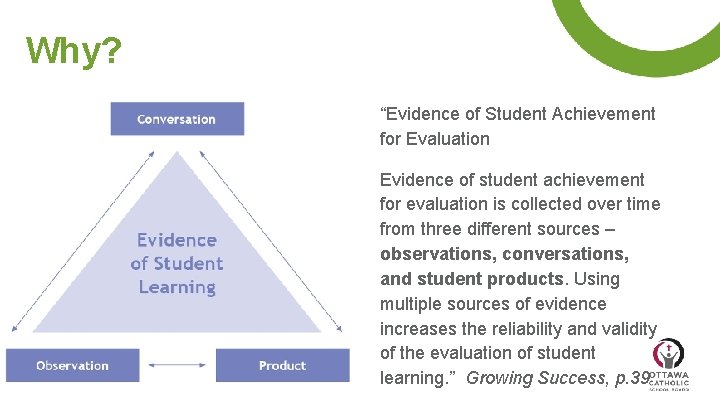
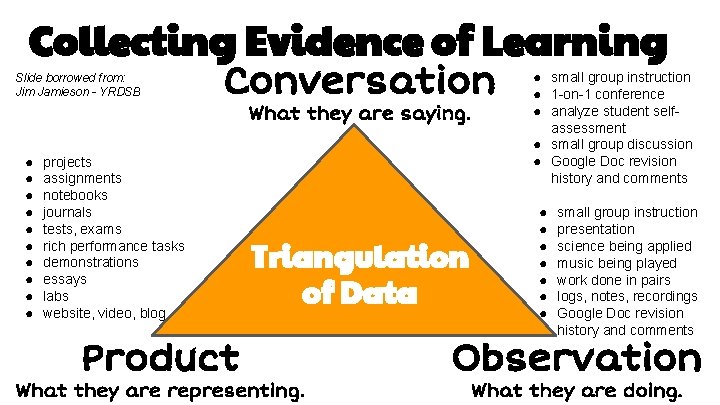
Why? “Evidence of Student Achievement for Evaluation Evidence of student achievement for evaluation is collected over time from three different sources – observations, conversations, and student products. Using multiple sources of evidence increases the reliability and validity of the evaluation of student learning. ” Growing Success, p. 39
Collecting Evidence of Learning Slide borrowed from: Jim Jamieson - YRDSB Conversation What they are saying. ● ● ● ● ● projects assignments notebooks journals tests, exams rich performance tasks demonstrations essays labs website, video, blog Product Triangulation of Data What they are representing. ● small group instruction ● 1 -on-1 conference ● analyze student selfassessment ● small group discussion ● Google Doc revision history and comments ● ● ● ● small group instruction presentation science being applied music being played work done in pairs logs, notes, recordings Google Doc revision history and comments Observation What they are doing.
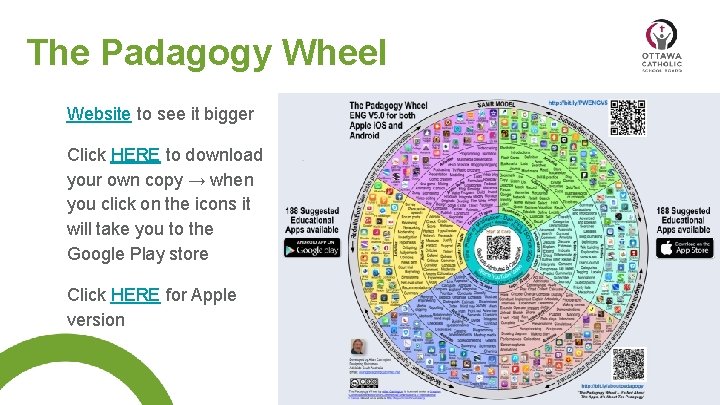
The Padagogy Wheel Website to see it bigger Click HERE to download your own copy → when you click on the icons it will take you to the Google Play store Click HERE for Apple version
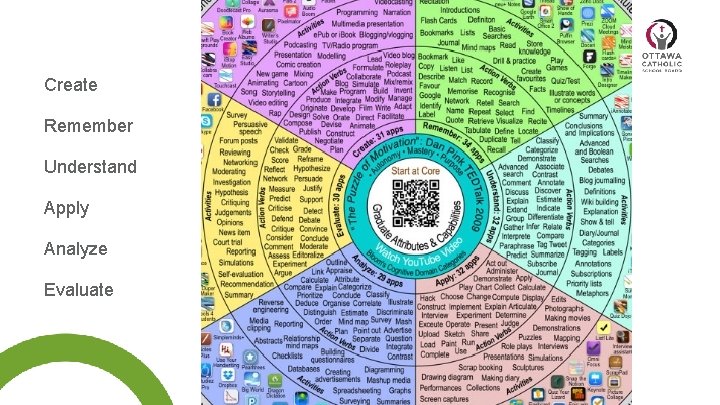
Create Remember Understand Apply Analyze Evaluate
Deep Learning When developing assessments → consider the 6 global competencies of deep learning. What are students getting out of the assessment? What skills are they learning or developing? Are you giving your students opportunities to practice these skills? 1. Critical thinking 2. Collaboration 3. Creativity 4. Communication 5. Citizenship
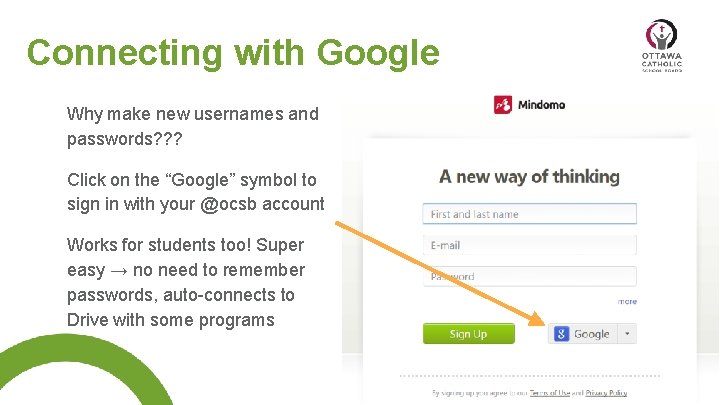
Connecting with Google Why make new usernames and passwords? ? ? Click on the “Google” symbol to sign in with your @ocsb account Works for students too! Super easy → no need to remember passwords, auto-connects to Drive with some programs
Assessment Tools for Conversations
Visual/Graphics Tools Google Draw, Adobe Spark, Piktochart
What it is: Web based tools that allow students to create posters, infographics, flow charts, etc. Google Draw → part of your Google Suite host of tools, available to you and to your students through Google Drive Adobe Spark → free, can connect through Google, allows you to create visually attractive posters, etc. Piktochart → infogrpahic creator tool
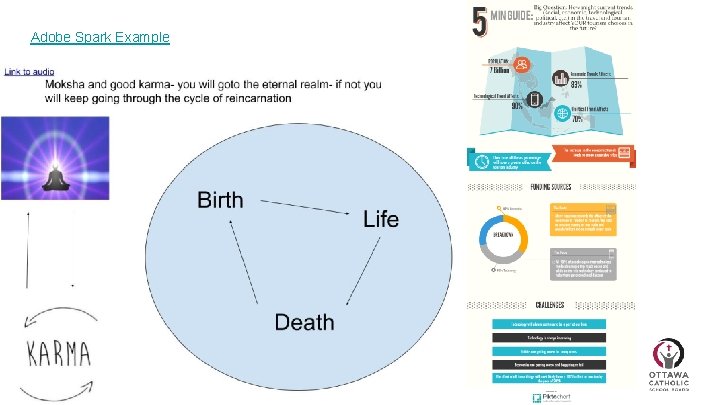
How to use it: Google Draw → collages, show me what you learned yesterday with pictures, posters Adobe Spark → fancy posters, pretty slides, interactive “blog” style creations Piktochart → teaching summary skills - students need to focus on what’s important (few words, lots of images) Infographics are used on the OSSLT → show students how to read them and then have students create their own - reading and then summary skills (what’s the big idea? ), students can then “read” each other Math! Students can summarize numbers, stats, can include graphs, etc.
Adobe Spark Example
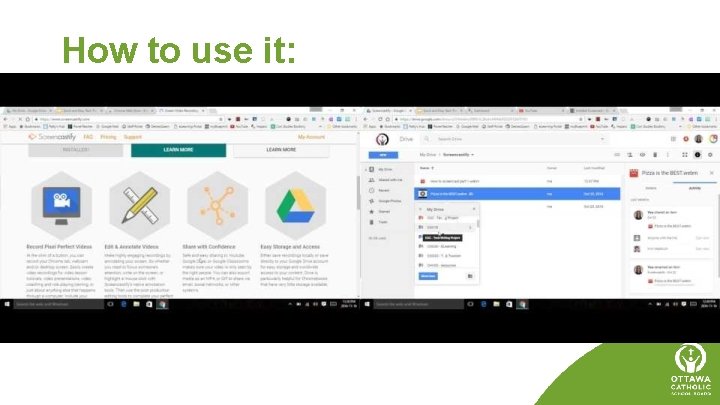
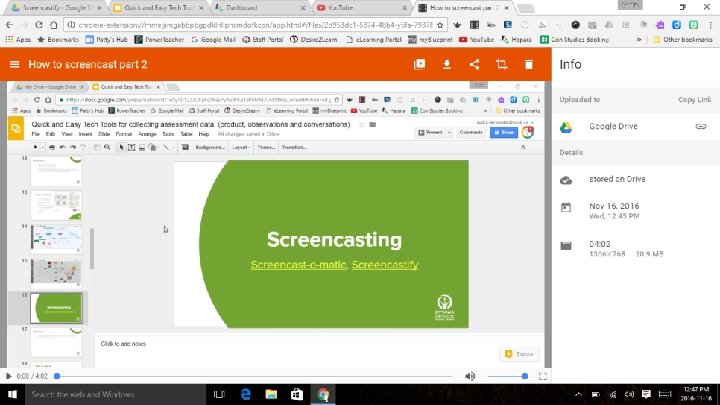
Screencasting Screencast-o-matic, Screencastify
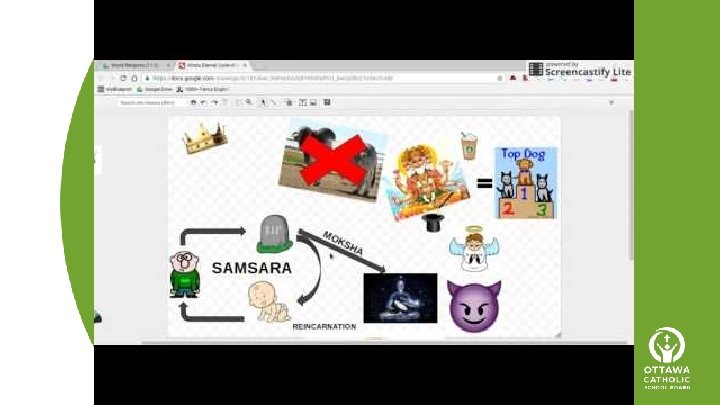
What it is: Using your computer microphone to record your voice talking while showing something on your screen. GREAT for capturing student voice → awesome with students who are weak writers Practicing writing IS important, BUT we also need to be aware that we aren’t always assessing their ability TO write, but their ideas and understanding about a topic. Are their writing skills limiting their abilities in your class?
How to use it:
Mind Mapping Mindomo
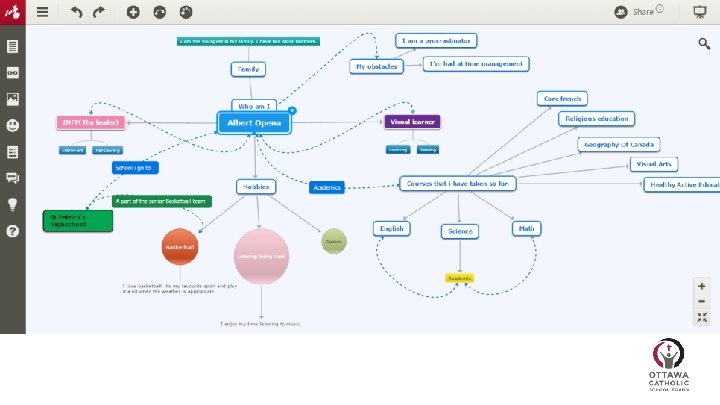
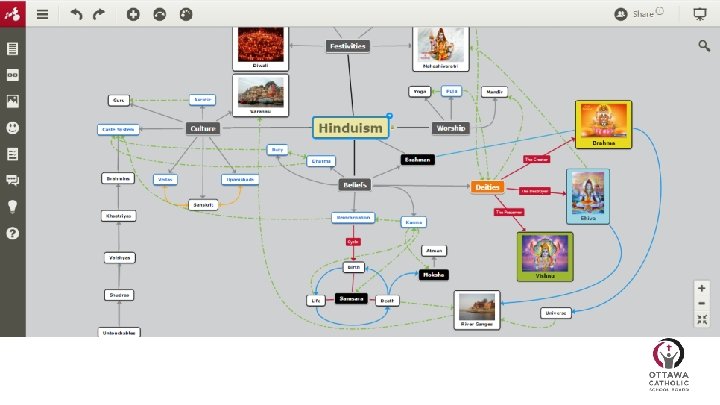
What it is: Web based mind-mapping tool Can link to your Google account Really easy to share with your teacher Can also create class mind maps or group mind maps and send them to your students → collaborate on mind maps together Great for brainstorming, showing students how to make connections, exploring relationships between ideas, etc.
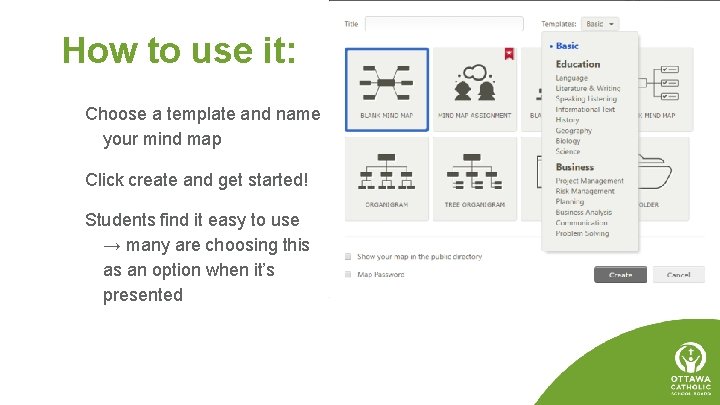
How to use it: Choose a template and name your mind map Click create and get started! Students find it easy to use → many are choosing this as an option when it’s presented
Assessment Tools for Observations
Google Forms
What it is: Survey creator tool Can use to collect evidence of student learning Can use to evaluate students Great for organizing evidence → generates a spreadsheet Has a quiz feature now Sample forms: (adapted from Jim Jamieson - YRDSB) On the fly questions Rubric
How to use it: Access through Google Drive New → more → Google Forms Step by step instructions
Assessment Tools for Products
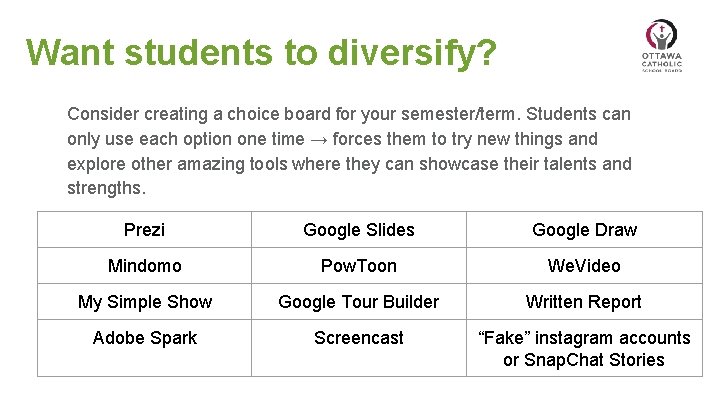
Want students to diversify? Consider creating a choice board for your semester/term. Students can only use each option one time → forces them to try new things and explore other amazing tools where they can showcase their talents and strengths. Prezi Google Slides Google Draw Mindomo Pow. Toon We. Video My Simple Show Google Tour Builder Written Report Adobe Spark Screencast “Fake” instagram accounts or Snap. Chat Stories
Animated Video Makers Pow. Toon, My. Simple. Show
What it is: Video creation tools Great for projects (because I’m so over Prezi) Less text/more visuals Students can be super creative Warning! Don’t let students use the “Premium features” in Pow. Toon → all kinds of problems. : )
How to use it: How to video’s inside both programs Link or access through Google account Students are great at “figuring them out” → let them play, experiment, help each other out
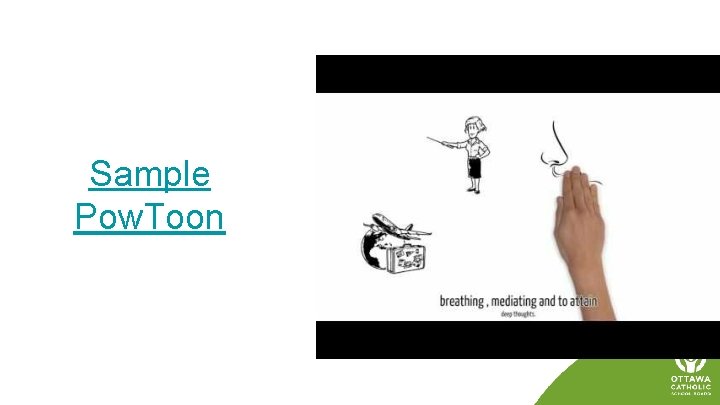
Sample Pow. Toon
Easy Bibliographies Easy. Bib
What it is: Web based bibliography tool (one of many)
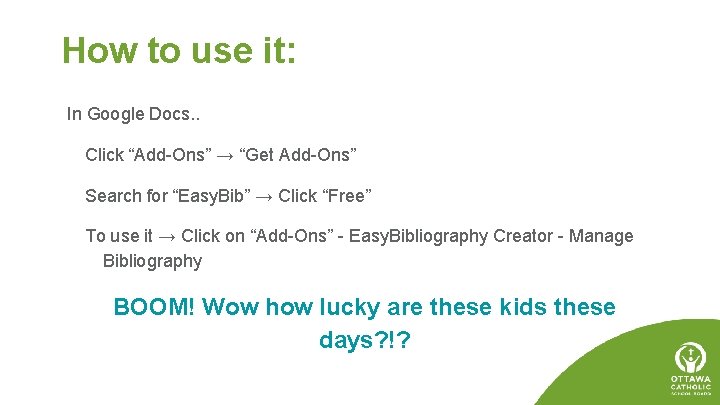
How to use it: In Google Docs. . Click “Add-Ons” → “Get Add-Ons” Search for “Easy. Bib” → Click “Free” To use it → Click on “Add-Ons” - Easy. Bibliography Creator - Manage Bibliography BOOM! Wow how lucky are these kids these days? !?
Google Tour Builder Tour. Builder
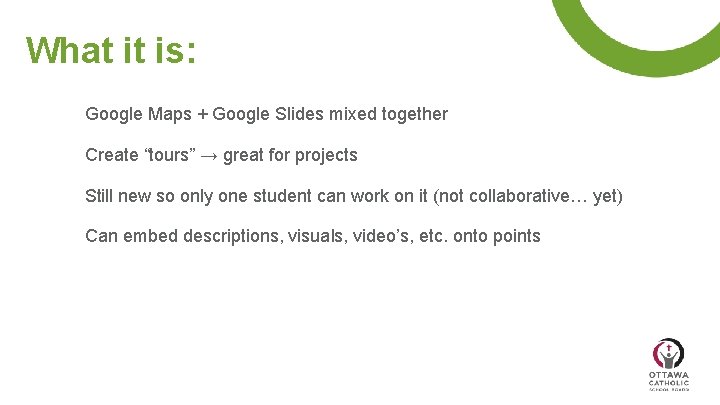
What it is: Google Maps + Google Slides mixed together Create “tours” → great for projects Still new so only one student can work on it (not collaborative… yet) Can embed descriptions, visuals, video’s, etc. onto points
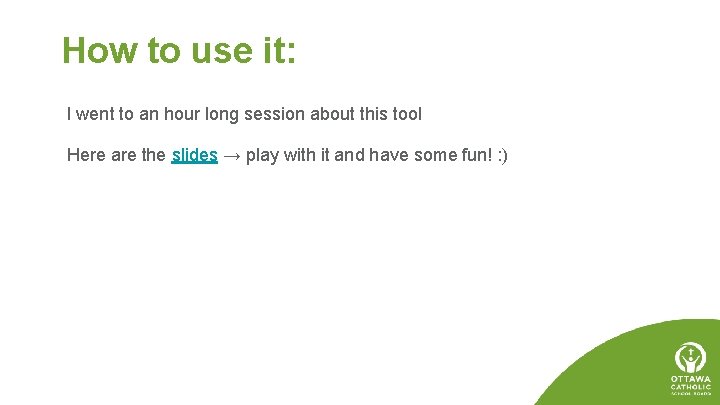
How to use it: I went to an hour long session about this tool Here are the slides → play with it and have some fun! : )
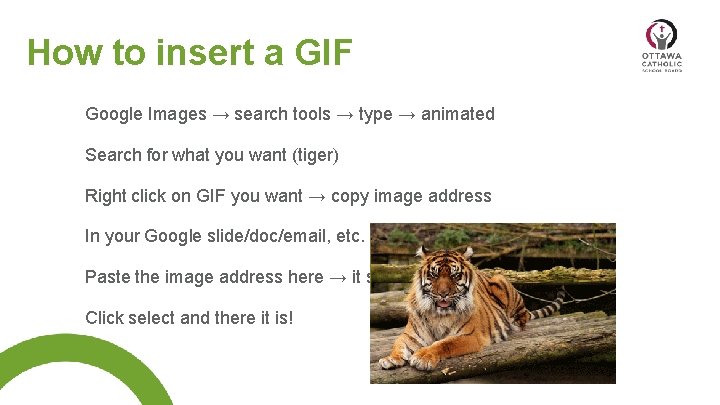
How to insert a GIF Google Images → search tools → type → animated Search for what you want (tiger) Right click on GIF you want → copy image address In your Google slide/doc/email, etc. → insert → image → by URL Paste the image address here → it should show up Click select and there it is!
Want to learn more? G Suite Learning Centre → learn how to use all the Google Tools Email me: audra. abromaitis@ocsb. ca Twitter: @msaudraabro