
Queries Comp 1000 Lecturer Ali Darejeh Resources Alexander
![Useful date functions • Date() Returns the current date • Date. Part("yyyy", [Hire. Date])](https://slidetodoc.com/presentation_image_h/18bfa262e7ba55062252f0af746171dd/image-28.jpg "Useful date functions • Date() Returns the current date • Date. Part(\"yyyy\", [Hire. Date])")


- Slides: 94
Queries Comp 1000 Lecturer: Ali Darejeh Resources: Alexander, M. , & Kusleika, R. , 2016, Access 2016 Bible, John Wiley & Sons. Darejeh, A. 2011. Reference guide to Access 2010. Saheer engineering group. Tutorialspoint: https: //www. tutorialspoint. com Quac kit: https: //www. quackit. com Gcflearnfree: https: //www. gcflearnfree. org Microsoft Office support website: https: //support. office. com
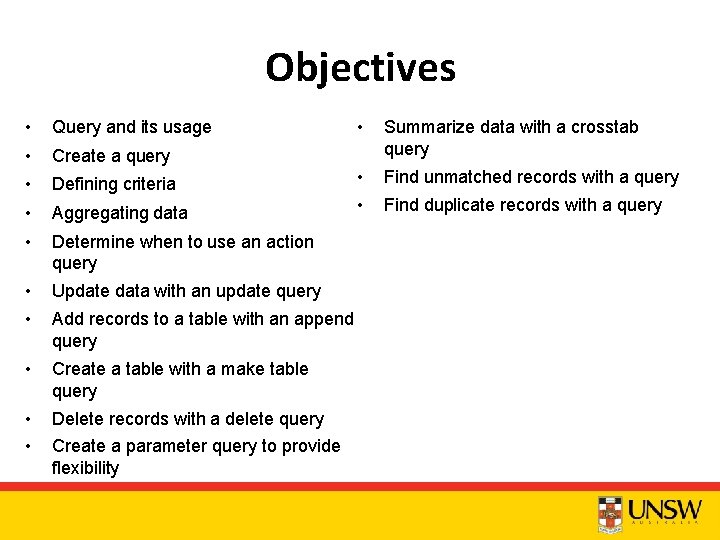
Objectives • Query and its usage • Create a query • • Summarize data with a crosstab query Defining criteria • Find unmatched records with a query • Aggregating data • Find duplicate records with a query • Determine when to use an action query • Update data with an update query • Add records to a table with an append query • Create a table with a make table query • • Delete records with a delete query Create a parameter query to provide flexibility
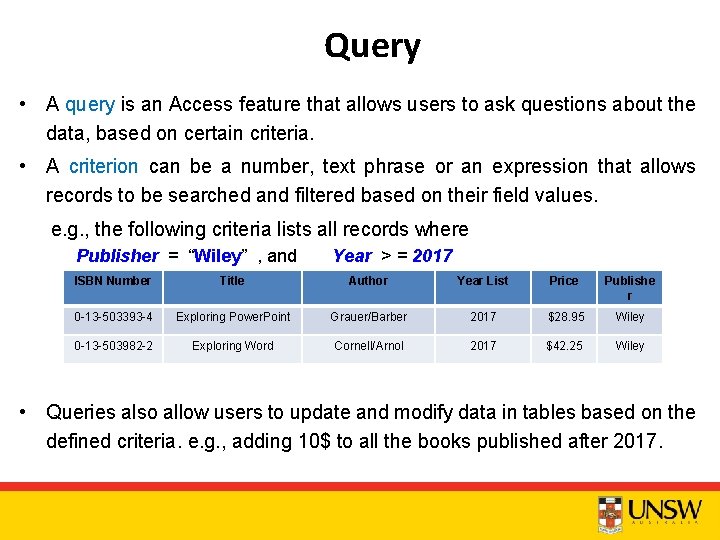
Query • A query is an Access feature that allows users to ask questions about the data, based on certain criteria. • A criterion can be a number, text phrase or an expression that allows records to be searched and filtered based on their field values. e. g. , the following criteria lists all records where Publisher = “Wiley” , and Year > = 2017 ISBN Number Title Author Year List Price Publishe r 0 -13 -503393 -4 Exploring Power. Point Grauer/Barber 2017 $28. 95 Wiley 0 -13 -503982 -2 Exploring Word Cornell/Arnol 2017 $42. 25 Wiley • Queries also allow users to update and modify data in tables based on the defined criteria. e. g. , adding 10$ to all the books published after 2017.
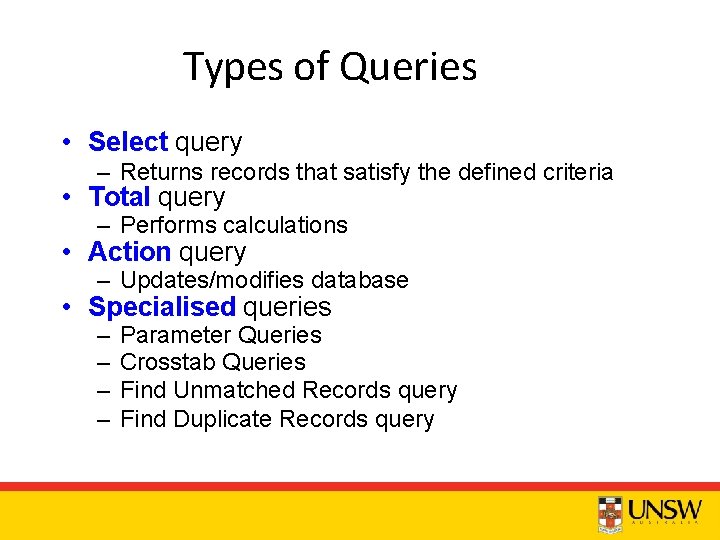
Types of Queries • Select query – Returns records that satisfy the defined criteria • Total query – Performs calculations • Action query – Updates/modifies database • Specialised queries – – Parameter Queries Crosstab Queries Find Unmatched Records query Find Duplicate Records query
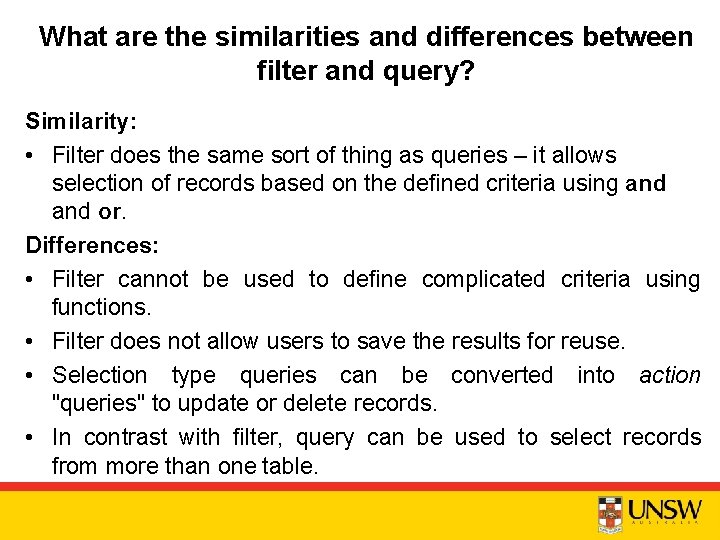
What are the similarities and differences between filter and query? Similarity: • Filter does the same sort of thing as queries – it allows selection of records based on the defined criteria using and or. Differences: • Filter cannot be used to define complicated criteria using functions. • Filter does not allow users to save the results for reuse. • Selection type queries can be converted into action "queries" to update or delete records. • In contrast with filter, query can be used to select records from more than one table.
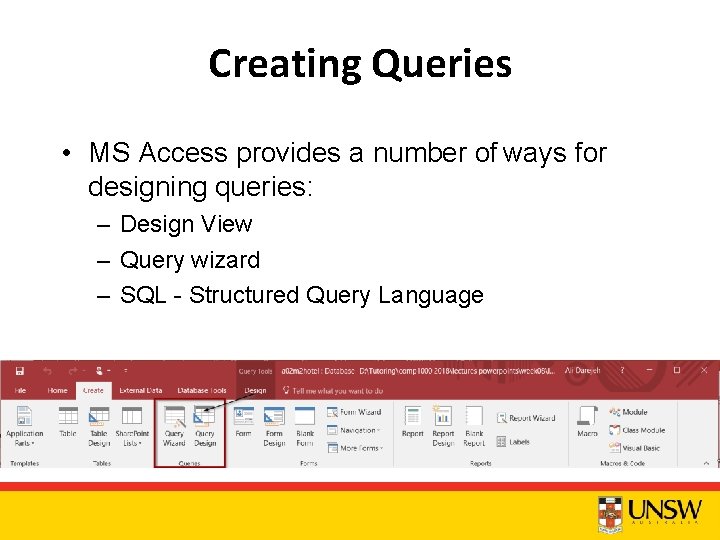
Creating Queries • MS Access provides a number of ways for designing queries: – Design View – Query wizard – SQL - Structured Query Language
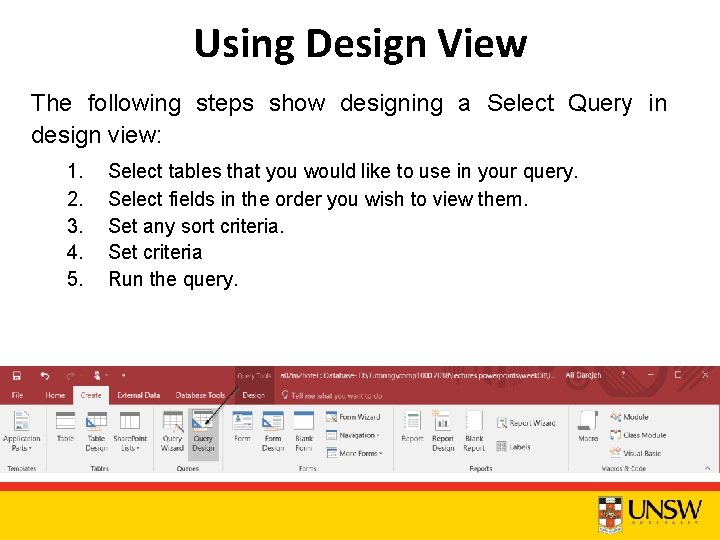
Using Design View The following steps show designing a Select Query in design view: 1. 2. 3. 4. 5. Select tables that you would like to use in your query. Select fields in the order you wish to view them. Set any sort criteria. Set criteria Run the query.
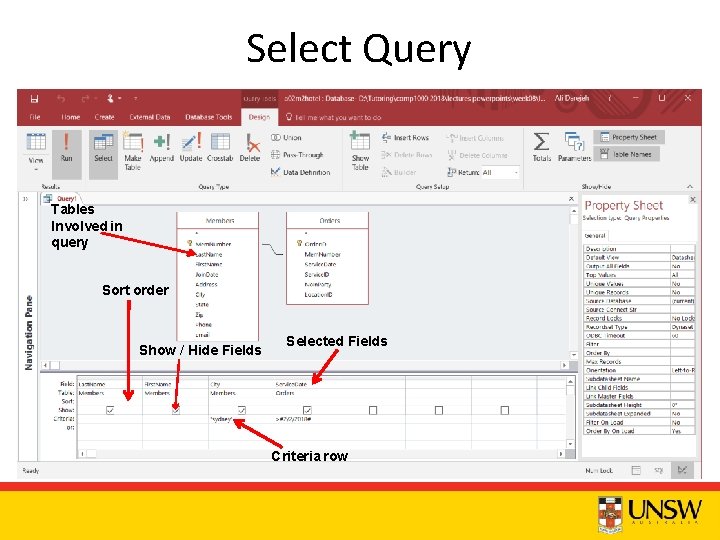
Select Query Tables Involved in query Sort order Show / Hide Fields Selected Fields Criteria row
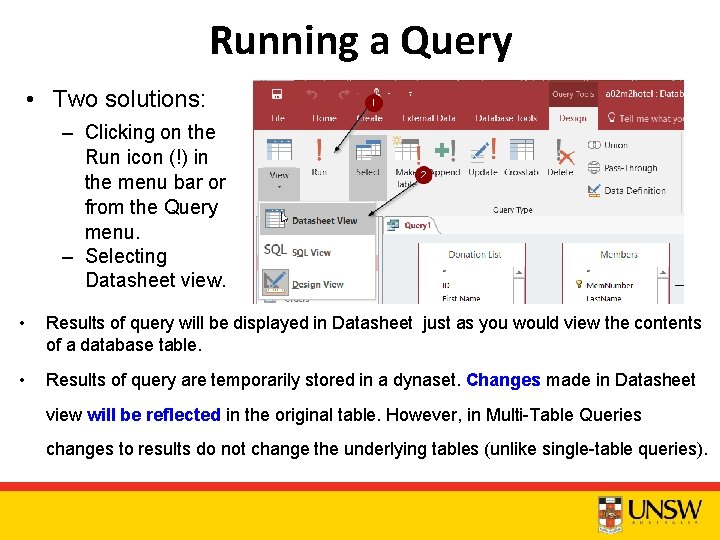
Running a Query • Two solutions: – Clicking on the Run icon (!) in the menu bar or from the Query menu. – Selecting Datasheet view. • Results of query will be displayed in Datasheet just as you would view the contents of a database table. • Results of query are temporarily stored in a dynaset. Changes made in Datasheet view will be reflected in the original table. However, in Multi-Table Queries changes to results do not change the underlying tables (unlike single-table queries).
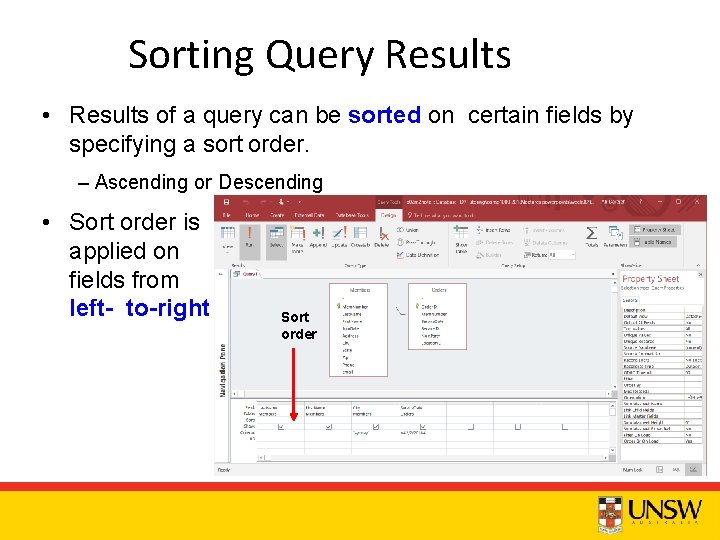
Sorting Query Results • Results of a query can be sorted on certain fields by specifying a sort order. – Ascending or Descending • Sort order is applied on fields from left- to-right Sort order
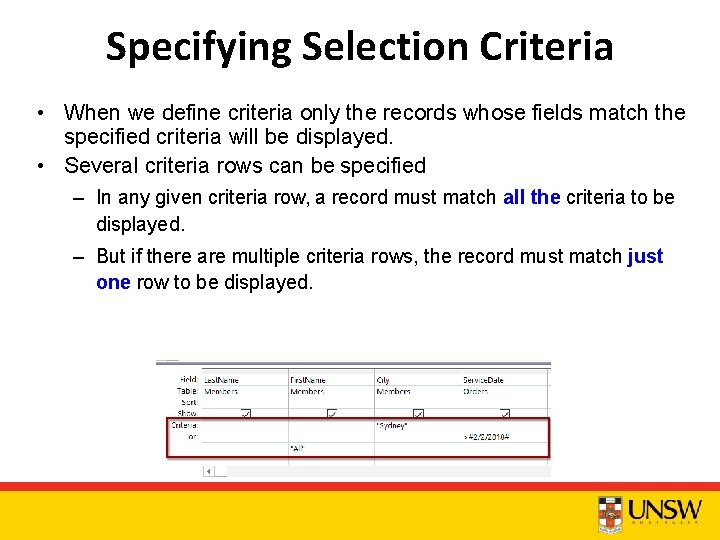
Specifying Selection Criteria • When we define criteria only the records whose fields match the specified criteria will be displayed. • Several criteria rows can be specified – In any given criteria row, a record must match all the criteria to be displayed. – But if there are multiple criteria rows, the record must match just one row to be displayed.
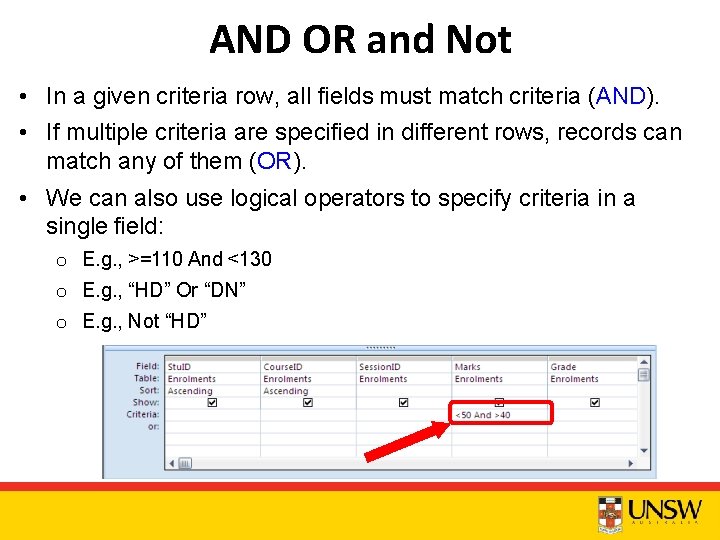
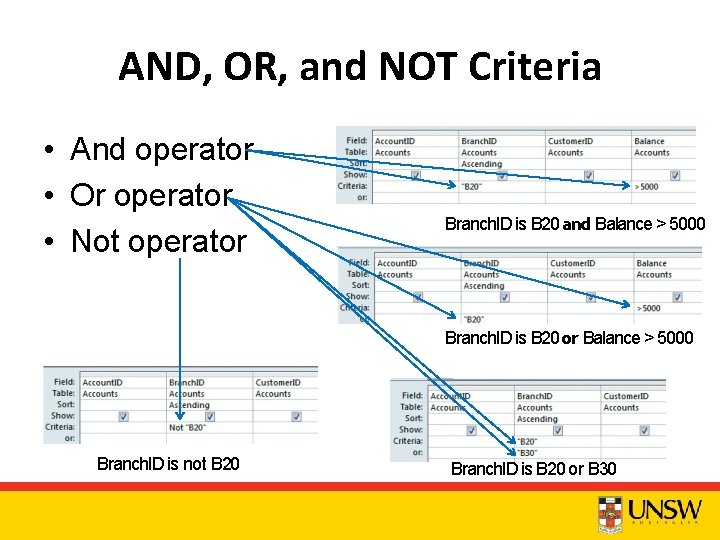
AND OR and Not • In a given criteria row, all fields must match criteria (AND). • If multiple criteria are specified in different rows, records can match any of them (OR). • We can also use logical operators to specify criteria in a single field: o E. g. , >=110 And <130 o E. g. , “HD” Or “DN” o E. g. , Not “HD”
AND, OR, and NOT Criteria • And operator • Or operator • Not operator Branch. ID is B 20 and Balance > 5000 Branch. ID is B 20 or Balance > 5000 Branch. ID is not B 20 Branch. ID is B 20 or B 30
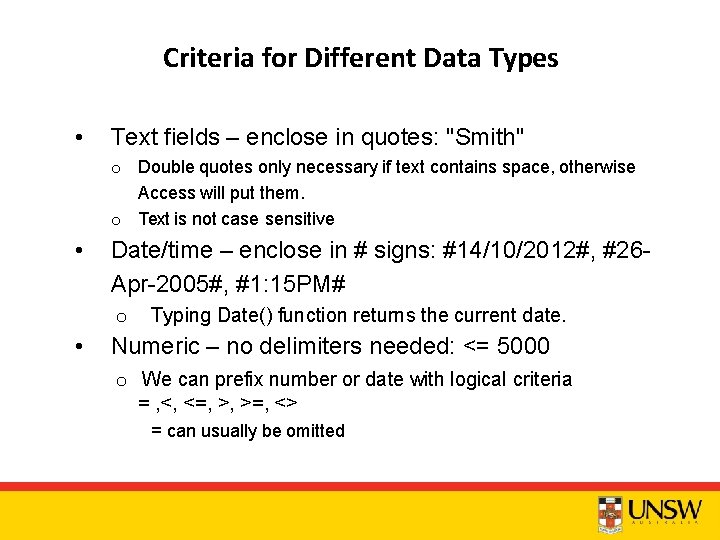
Criteria for Different Data Types • Text fields – enclose in quotes: "Smith" o Double quotes only necessary if text contains space, otherwise Access will put them. o Text is not case sensitive • Date/time – enclose in # signs: #14/10/2012#, #26 Apr-2005#, #1: 15 PM# o • Typing Date() function returns the current date. Numeric – no delimiters needed: <= 5000 o We can prefix number or date with logical criteria = , <, <=, >, >=, <> = can usually be omitted
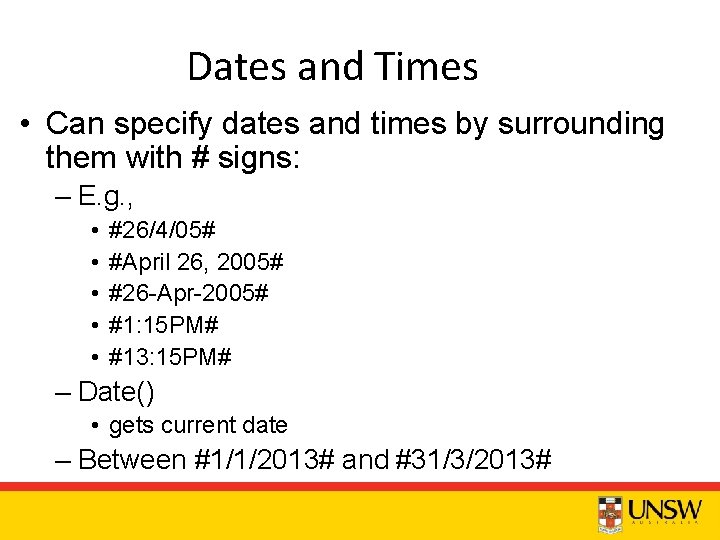
Dates and Times • Can specify dates and times by surrounding them with # signs: – E. g. , • • • #26/4/05# #April 26, 2005# #26 -Apr-2005# #1: 15 PM# #13: 15 PM# – Date() • gets current date – Between #1/1/2013# and #31/3/2013#
Demo 1 • List the employees whose salary is between 60000$ - 80000$ and they are female. • List the employees who are employed after >15/02/2011 or before <20/06/2008.
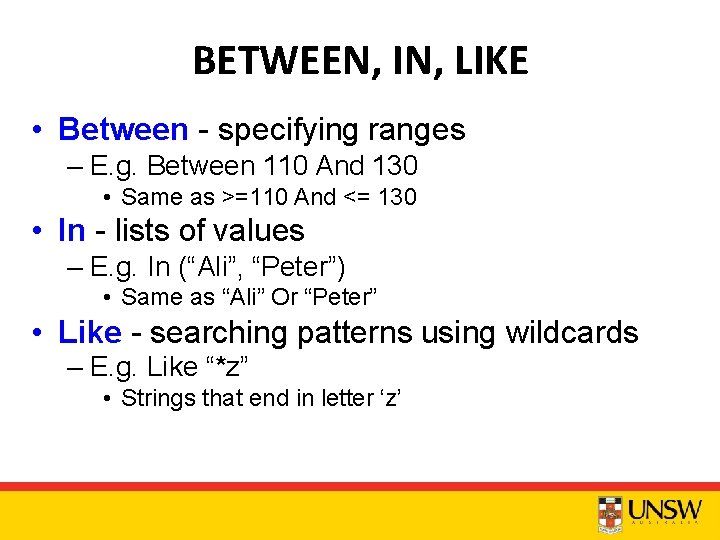
BETWEEN, IN, LIKE • Between - specifying ranges – E. g. Between 110 And 130 • Same as >=110 And <= 130 • In - lists of values – E. g. In (“Ali”, “Peter”) • Same as “Ali” Or “Peter” • Like - searching patterns using wildcards – E. g. Like “*z” • Strings that end in letter ‘z’
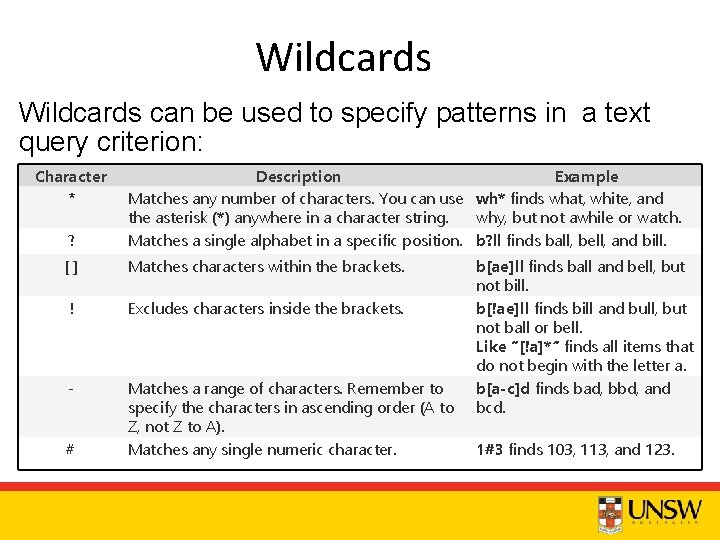
Wildcards can be used to specify patterns in a text query criterion: Character * ? Description Example Matches any number of characters. You can use wh* finds what, white, and the asterisk (*) anywhere in a character string. why, but not awhile or watch. Matches a single alphabet in a specific position. b? ll finds ball, bell, and bill. [] Matches characters within the brackets. ! Excludes characters inside the brackets. - Matches a range of characters. Remember to specify the characters in ascending order (A to Z, not Z to A). Matches any single numeric character. # b[ae]ll finds ball and bell, but not bill. b[!ae]ll finds bill and bull, but not ball or bell. Like “[!a]*” finds all items that do not begin with the letter a. b[a-c]d finds bad, bbd, and bcd. 1#3 finds 103, 113, and 123.
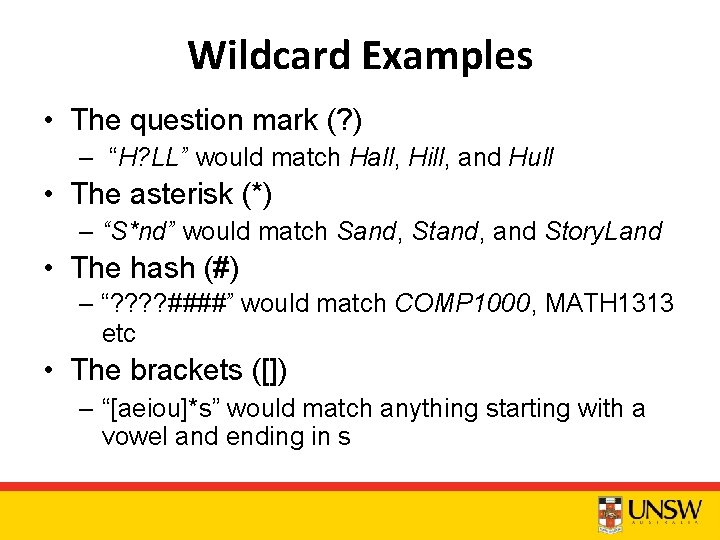
Wildcard Examples • The question mark (? ) – “H? LL” would match Hall, Hill, and Hull • The asterisk (*) – “S*nd” would match Sand, Stand, and Story. Land • The hash (#) – “? ? ####” would match COMP 1000, MATH 1313 etc • The brackets ([]) – “[aeiou]*s” would match anything starting with a vowel and ending in s
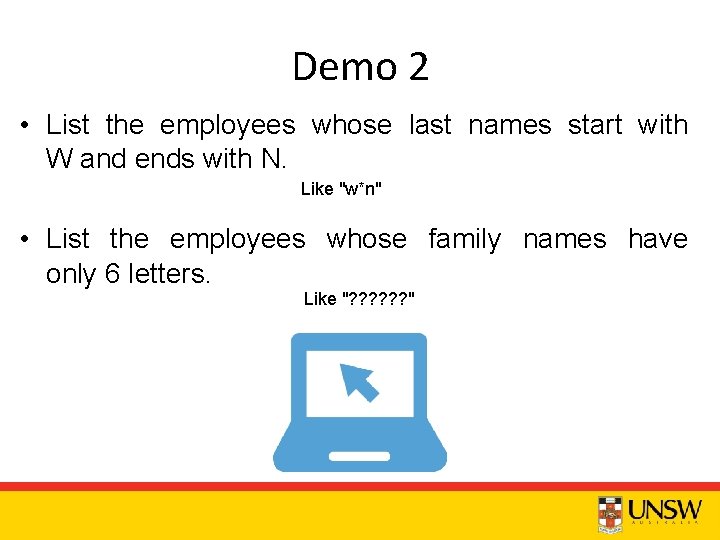
Demo 2 • List the employees whose last names start with W and ends with N. Like "w*n" • List the employees whose family names have only 6 letters. Like "? ? ? "
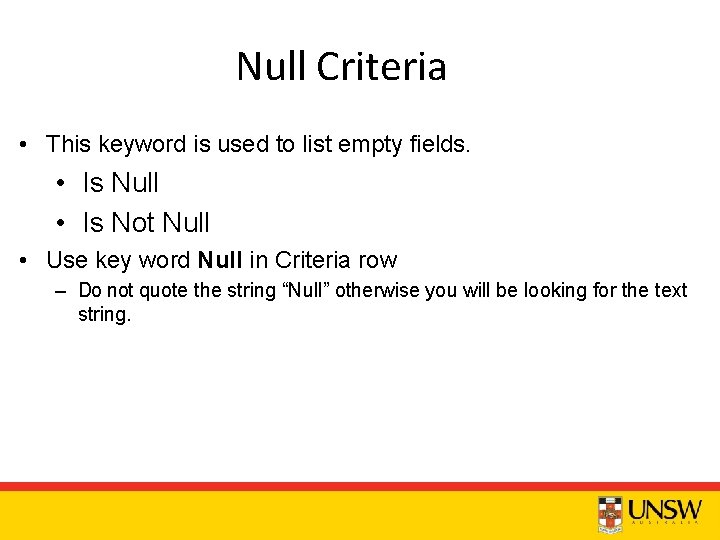
Null Criteria • This keyword is used to list empty fields. • Is Null • Is Not Null • Use key word Null in Criteria row – Do not quote the string “Null” otherwise you will be looking for the text string.
Demo 3 • List the employees whose family name was not entered.
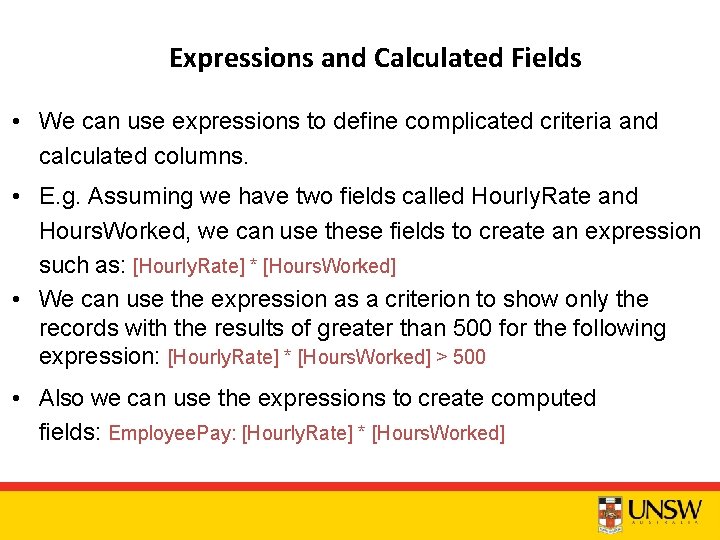
Expressions and Calculated Fields • We can use expressions to define complicated criteria and calculated columns. • E. g. Assuming we have two fields called Hourly. Rate and Hours. Worked, we can use these fields to create an expression such as: [Hourly. Rate] * [Hours. Worked] • We can use the expression as a criterion to show only the records with the results of greater than 500 for the following expression: [Hourly. Rate] * [Hours. Worked] > 500 • Also we can use the expressions to create computed fields: Employee. Pay: [Hourly. Rate] * [Hours. Worked]
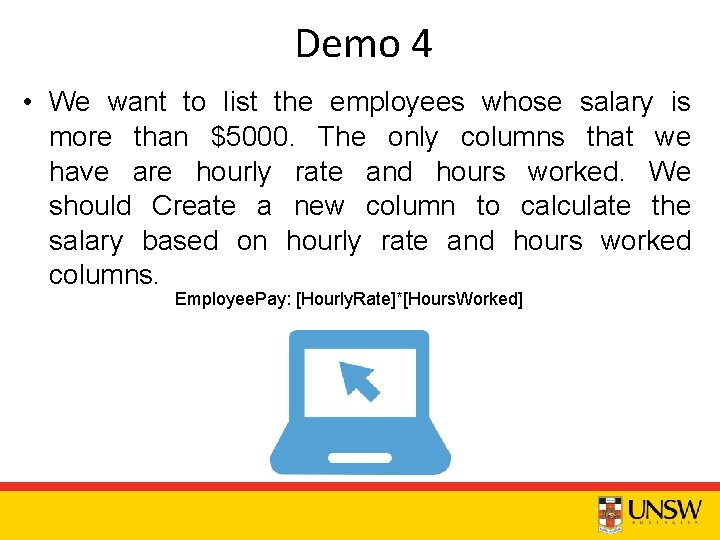
Demo 4 • We want to list the employees whose salary is more than $5000. The only columns that we have are hourly rate and hours worked. We should Create a new column to calculate the salary based on hourly rate and hours worked columns. Employee. Pay: [Hourly. Rate]*[Hours. Worked]
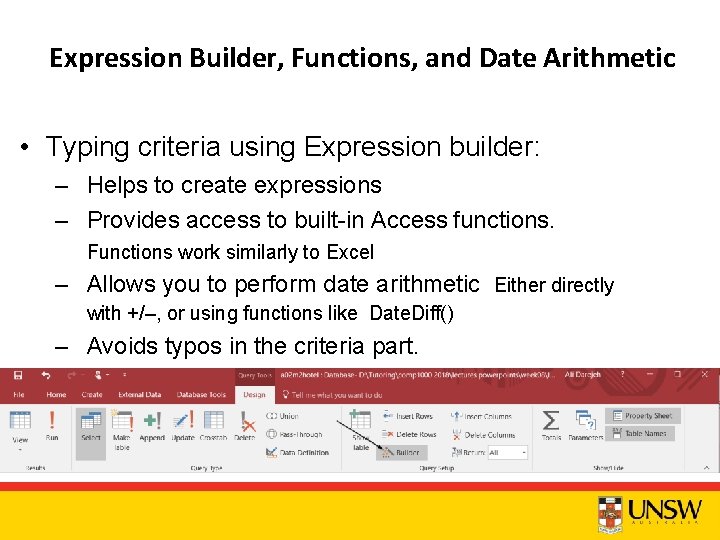
Expression Builder, Functions, and Date Arithmetic • Typing criteria using Expression builder: – Helps to create expressions – Provides access to built-in Access functions. Functions work similarly to Excel – Allows you to perform date arithmetic Either directly with +/–, or using functions like Date. Diff() – Avoids typos in the criteria part.
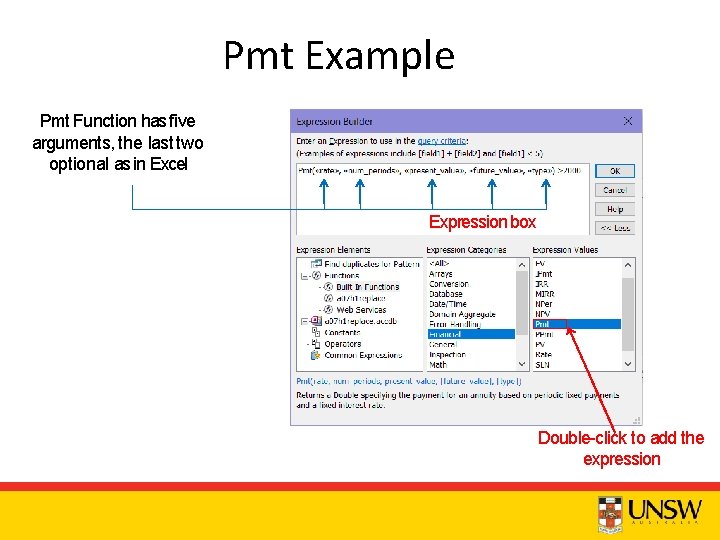
Pmt Example Pmt Function has five arguments, the last two optional as in Excel Expression box Double-click to add the expression
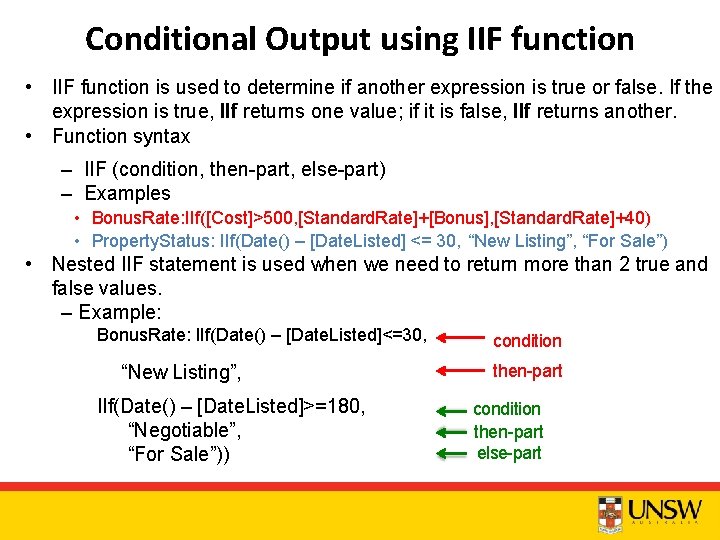
Conditional Output using IIF function • IIF function is used to determine if another expression is true or false. If the expression is true, IIf returns one value; if it is false, IIf returns another. • Function syntax – IIF (condition, then-part, else-part) – Examples • Bonus. Rate: IIf([Cost]>500, [Standard. Rate]+[Bonus], [Standard. Rate]+40) • Property. Status: IIf(Date() – [Date. Listed] <= 30, “New Listing”, “For Sale”) • Nested IIF statement is used when we need to return more than 2 true and false values. – Example: Bonus. Rate: IIf(Date() – [Date. Listed]<=30, “New Listing”, IIf(Date() – [Date. Listed]>=180, “Negotiable”, “For Sale”)) condition then-part condition then-part else-part
Useful date functions • Date() Returns the current date • Date. Part("yyyy", [Hire. Date]) Returns a part of the date. E. g. it returns the year part of the date that is entered in Hire. Date column. • Date. Diff("yyyy", date 1, date 2) returns the number of full years, month, days, … between date 1 and date 2 Setting Description yyyy q m y Day Weekday Week Hour Year Quarter Month Day of year d w ww h Setting n s Descriptio n Minute Second
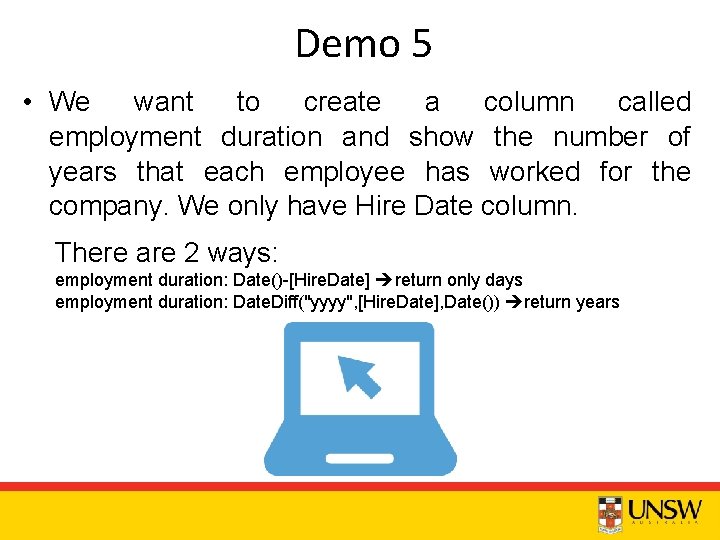
Demo 5 • We want to create a column called employment duration and show the number of years that each employee has worked for the company. We only have Hire Date column. There are 2 ways: employment duration: Date()-[Hire. Date] return only days employment duration: Date. Diff("yyyy", [Hire. Date], Date()) return years
Demo 6 • We want to create a column called employment status and show professional word if the employment duration is greater than 2 years and non-professional if it is less than 2 years. • Employment status: IIf(Date. Diff("yyyy", [Hire. Date], Date())>=2, "professional", "non-professional")
Total query Access provides a feature called Total to enable users perform calculations on an entire column of data instead of each field, and return a single value. • What can we do using Total? – Average – Count – Maximum – Minimum Standard Deviation Sum Variance
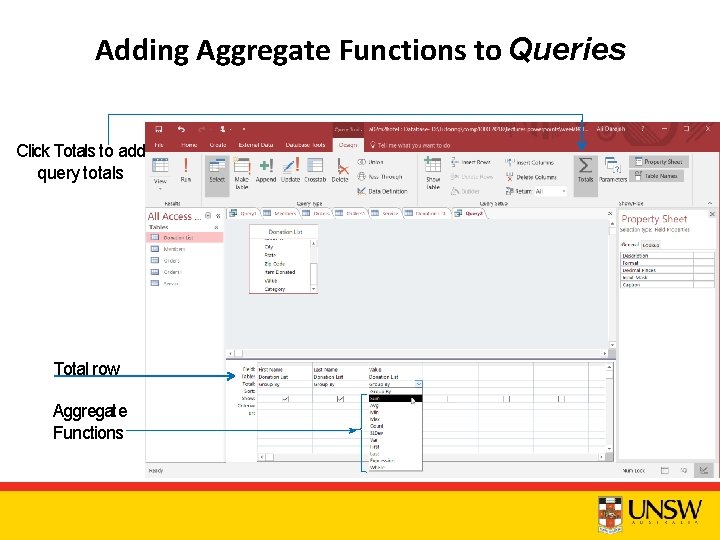
Adding Aggregate Functions to Queries Click Totals to add query totals Total row Aggregate Functions
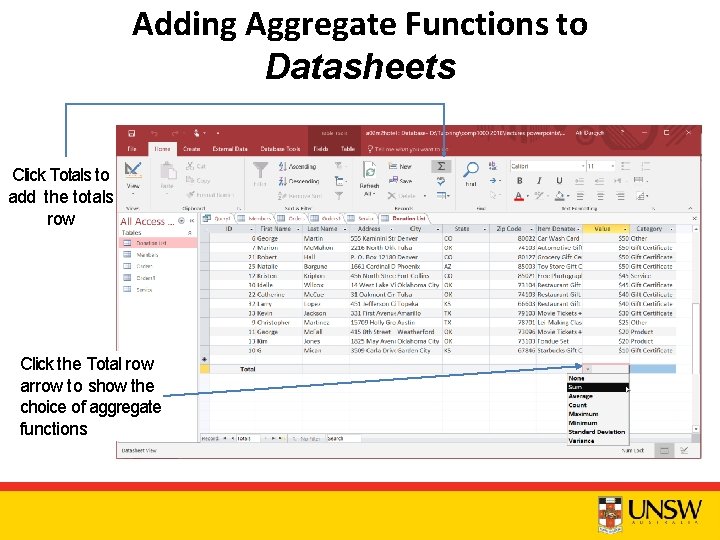
Adding Aggregate Functions to Datasheets Click Totals to add the totals row Click the Total row arrow to show the choice of aggregate functions
Demo 7 • We have a payment table of a company. The company had different payments in each month on the same day. We want to create a query to show the total payment of each month. Use: Payment demo 7 table
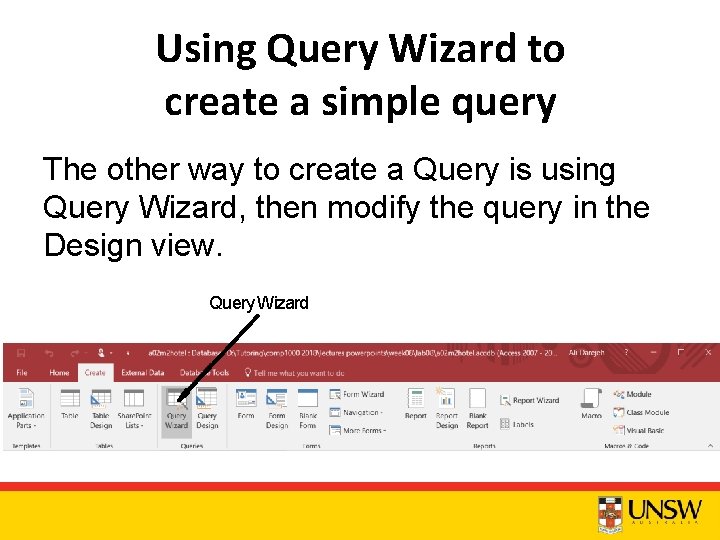
Using Query Wizard to create a simple query The other way to create a Query is using Query Wizard, then modify the query in the Design view. Query Wizard
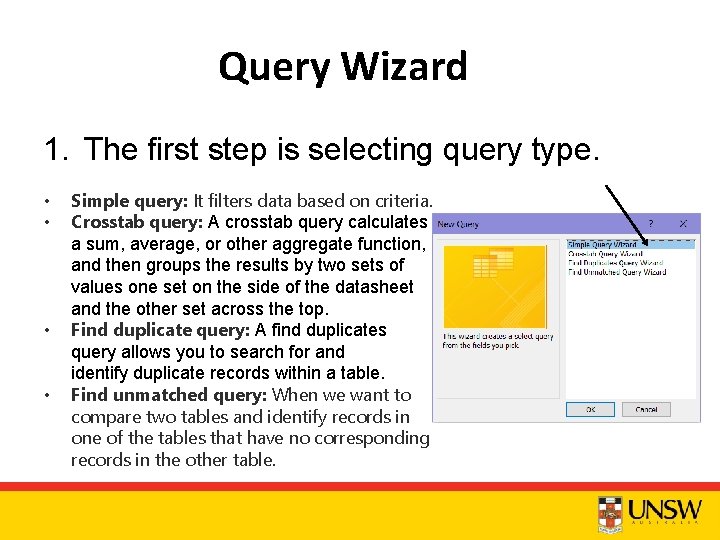
Query Wizard 1. The first step is selecting query type. • • Simple query: It filters data based on criteria. Crosstab query: A crosstab query calculates a sum, average, or other aggregate function, and then groups the results by two sets of values one set on the side of the datasheet and the other set across the top. Find duplicate query: A find duplicates query allows you to search for and identify duplicate records within a table. Find unmatched query: When we want to compare two tables and identify records in one of the tables that have no corresponding records in the other table.
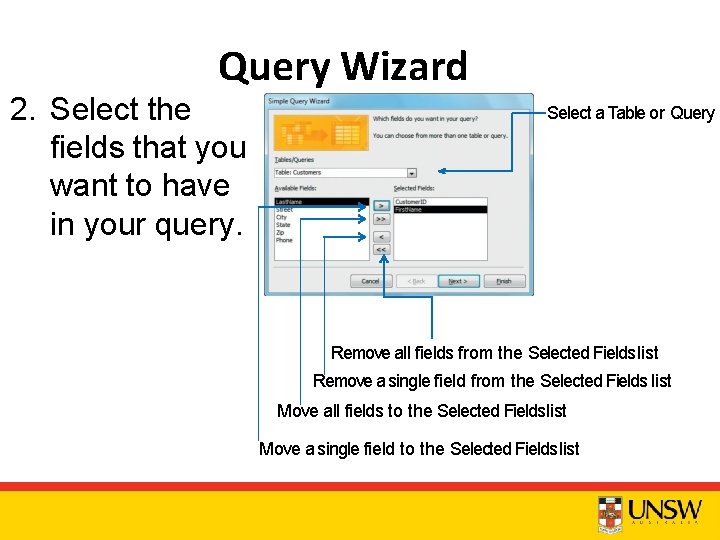
Query Wizard 2. Select the fields that you want to have in your query. Select a Table or Query Remove all fields from the Selected Fields list Remove a single field from the Selected Fields list Move all fields to the Selected Fields list Move a single field to the Selected Fields list
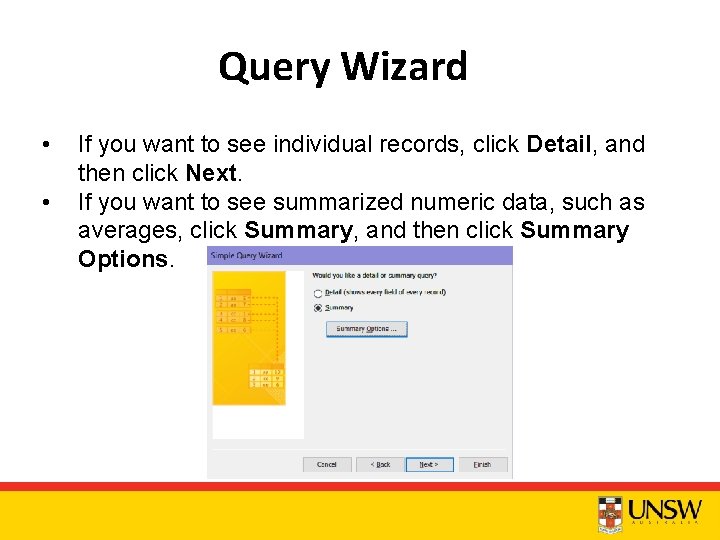
Query Wizard • • If you want to see individual records, click Detail, and then click Next. If you want to see summarized numeric data, such as averages, click Summary, and then click Summary Options.
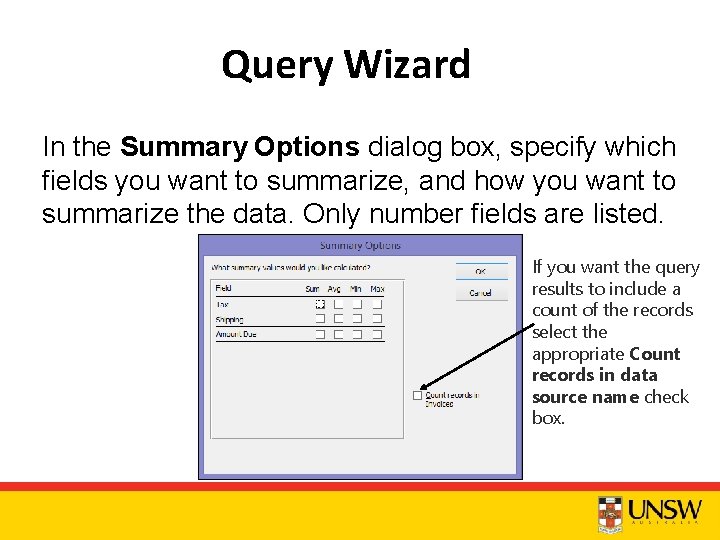
Query Wizard In the Summary Options dialog box, specify which fields you want to summarize, and how you want to summarize the data. Only number fields are listed. If you want the query results to include a count of the records select the appropriate Count records in data source name check box.
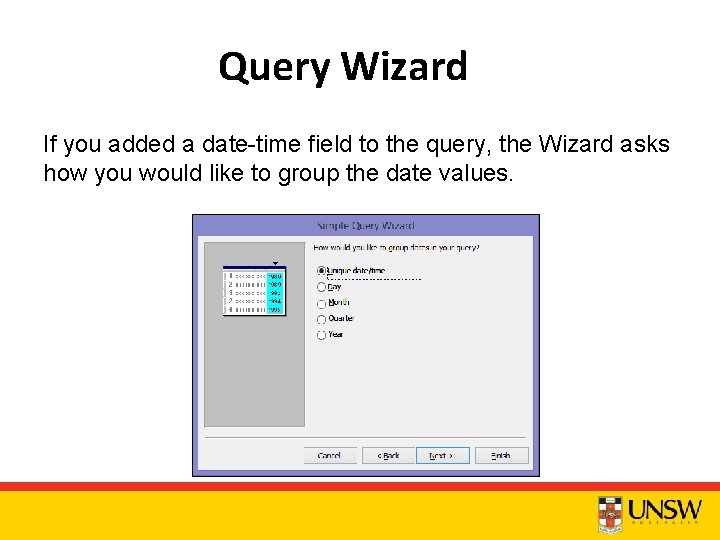
Query Wizard If you added a date-time field to the query, the Wizard asks how you would like to group the date values.
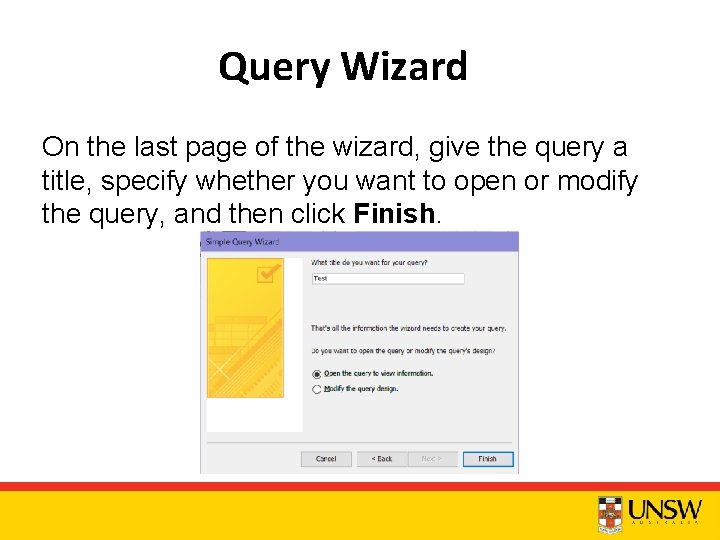
Query Wizard On the last page of the wizard, give the query a title, specify whether you want to open or modify the query, and then click Finish.
Demo 8 • We have a payment table of a company. The company had different payments in each month. We want to use wizard to create a query to show the total payment of each month. Use: Payment demo 7 table
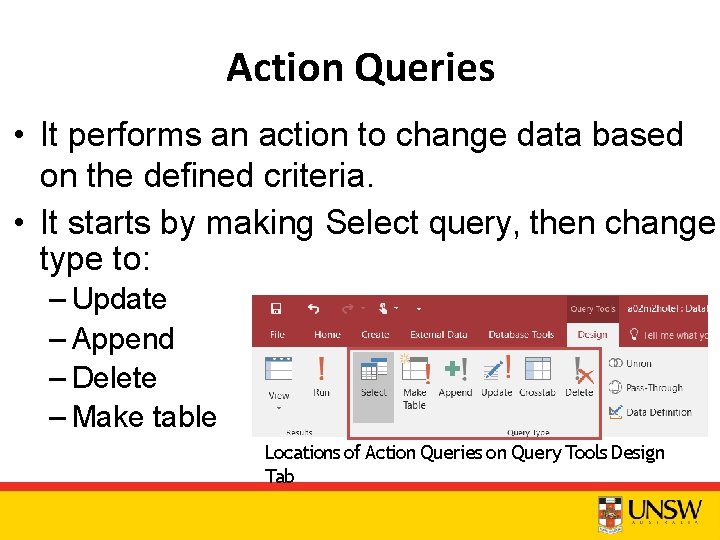
Action Queries • It performs an action to change data based on the defined criteria. • It starts by making Select query, then change type to: – Update – Append – Delete – Make table Locations of Action Queries on Query Tools Design Tab
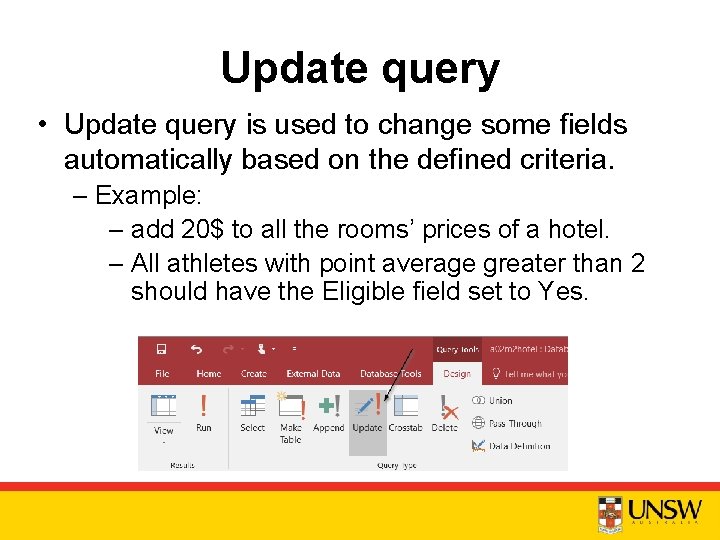
Update query • Update query is used to change some fields automatically based on the defined criteria. – Example: – add 20$ to all the rooms’ prices of a hotel. – All athletes with point average greater than 2 should have the Eligible field set to Yes.
Demo 9 • We want to add 2$ to the hourly rate of personnel who are employed after 2017 and 10$ if they are employed before 2017. • IIf([Hire. Date]>#1/1/2017#, [Hourly. Rate]+2, [Hourly. Rate]+10)
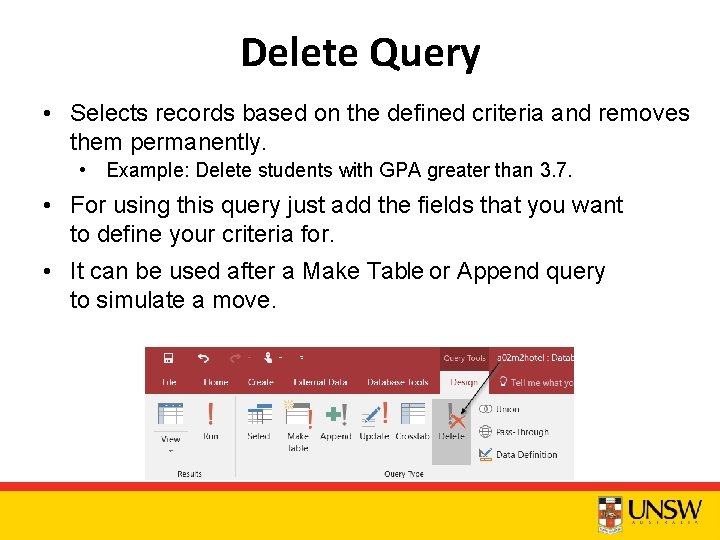
Delete Query • Selects records based on the defined criteria and removes them permanently. • Example: Delete students with GPA greater than 3. 7. • For using this query just add the fields that you want to define your criteria for. • It can be used after a Make Table or Append query to simulate a move.
Demo 10 • We want to delete all the personnel who are employed after 2017 or before 2010.
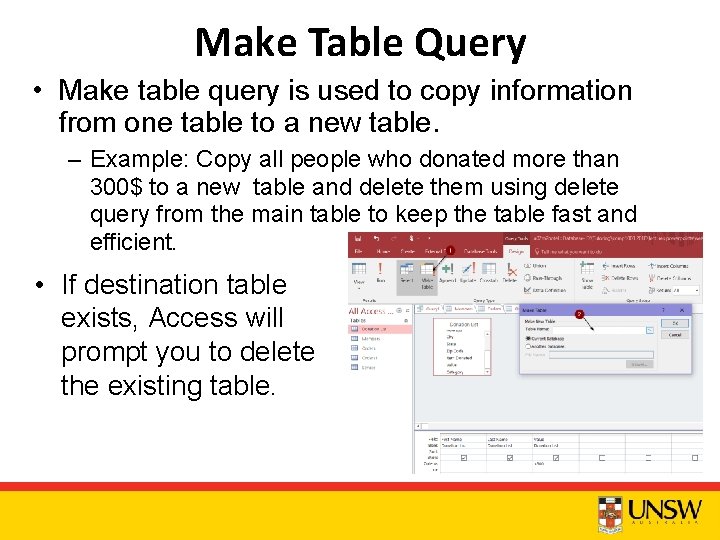
Make Table Query • Make table query is used to copy information from one table to a new table. – Example: Copy all people who donated more than 300$ to a new table and delete them using delete query from the main table to keep the table fast and efficient. • If destination table exists, Access will prompt you to delete the existing table.
Demo 11 • We want to create a query to copy first name and last name of employees who are employed after 2017 to a new table called “new employees”.
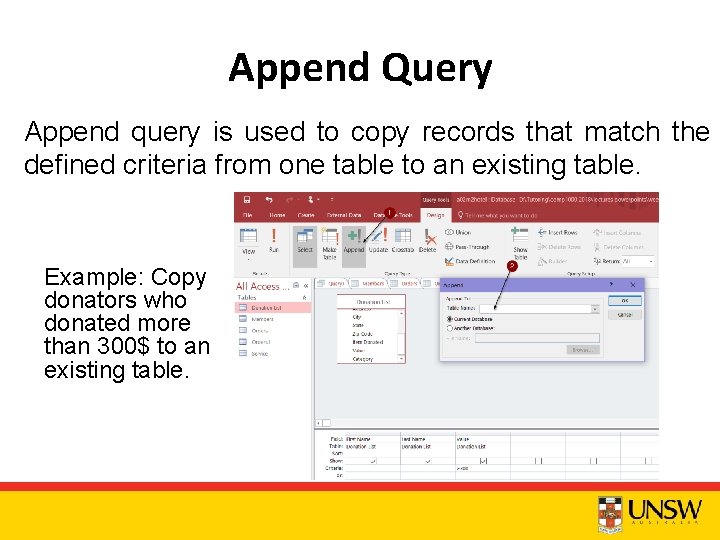
Append Query Append query is used to copy records that match the defined criteria from one table to an existing table. Example: Copy donators who donated more than 300$ to an existing table.
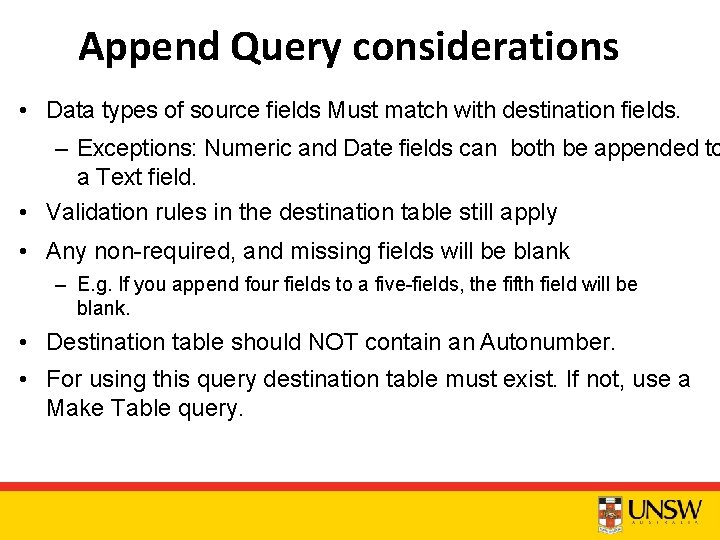
Append Query considerations • Data types of source fields Must match with destination fields. – Exceptions: Numeric and Date fields can both be appended to a Text field. • Validation rules in the destination table still apply • Any non-required, and missing fields will be blank – E. g. If you append four fields to a five-fields, the fifth field will be blank. • Destination table should NOT contain an Autonumber. • For using this query destination table must exist. If not, use a Make Table query.
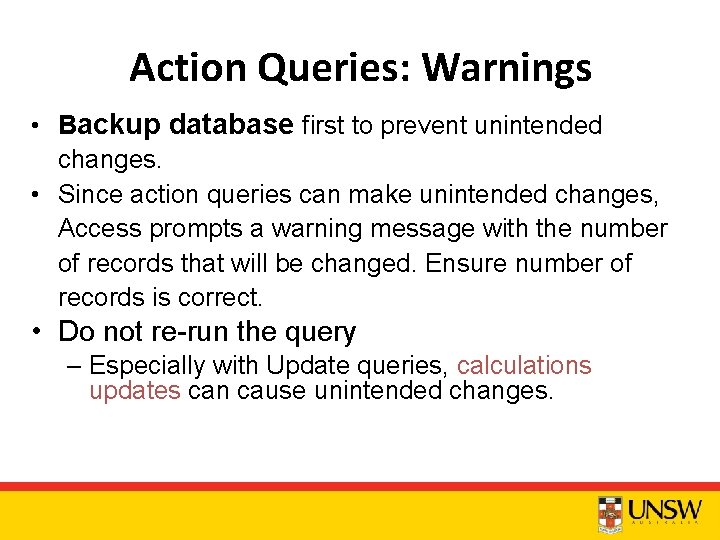
Action Queries: Warnings • Backup database first to prevent unintended changes. • Since action queries can make unintended changes, Access prompts a warning message with the number of records that will be changed. Ensure number of records is correct. • Do not re-run the query – Especially with Update queries, calculations updates can cause unintended changes.
Queries for Special Conditions There are 4 other types of query that can be used for Special Conditions: – Find Duplicate Records query – Find Unmatched Records query – Crosstab query – Parameter query
Find Duplicate Records query • Can help to analyze data to find repeated information in tables’ fields. • E. g. : finding customers who filled lucky draw form two times.
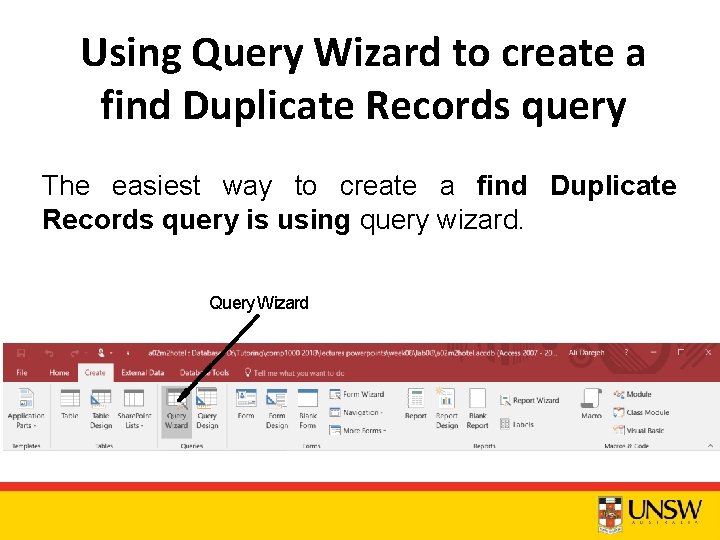
Using Query Wizard to create a find Duplicate Records query The easiest way to create a find Duplicate Records query is using query wizard. Query Wizard
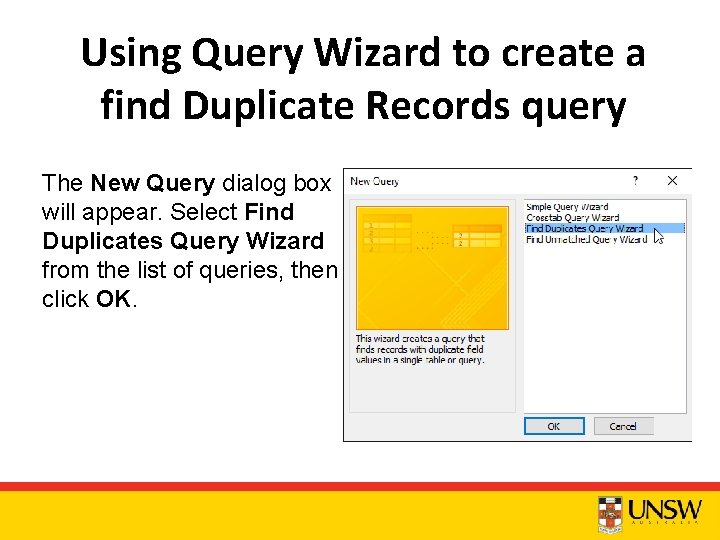
Using Query Wizard to create a find Duplicate Records query The New Query dialog box will appear. Select Find Duplicates Query Wizard from the list of queries, then click OK.
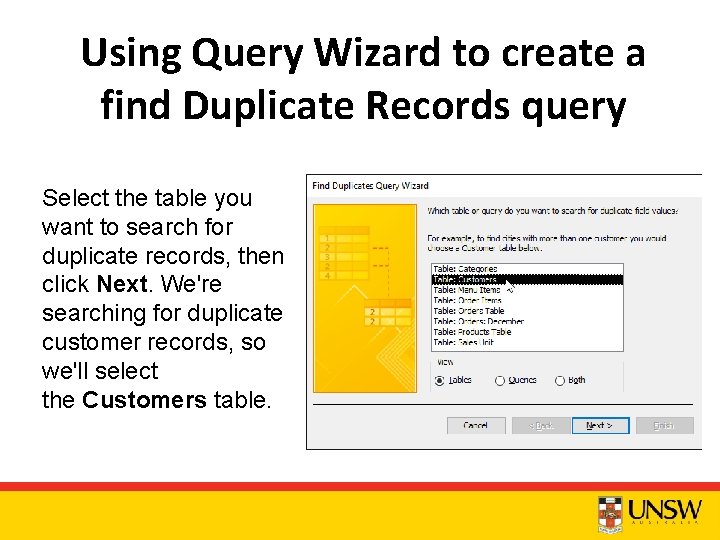
Using Query Wizard to create a find Duplicate Records query Select the table you want to search for duplicate records, then click Next. We're searching for duplicate customer records, so we'll select the Customers table.
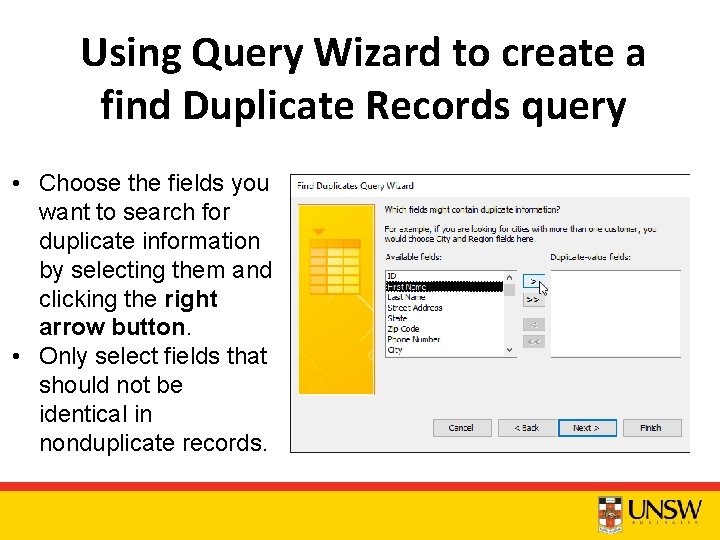
Using Query Wizard to create a find Duplicate Records query • Choose the fields you want to search for duplicate information by selecting them and clicking the right arrow button. • Only select fields that should not be identical in nonduplicate records.
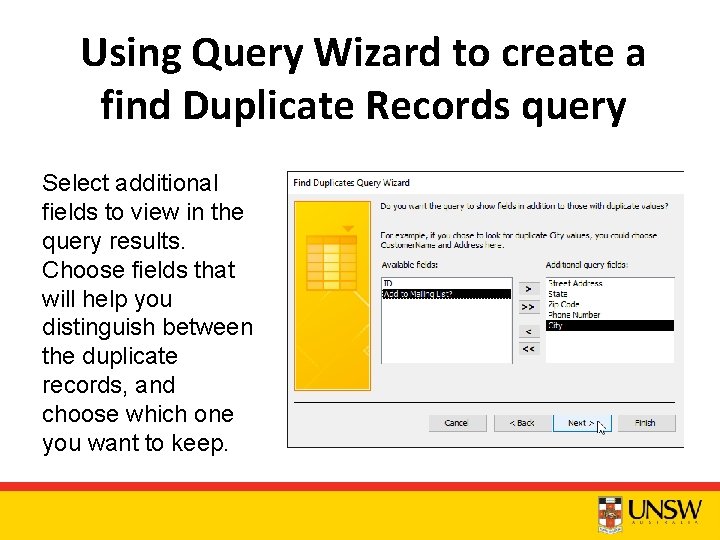
Using Query Wizard to create a find Duplicate Records query Select additional fields to view in the query results. Choose fields that will help you distinguish between the duplicate records, and choose which one you want to keep.
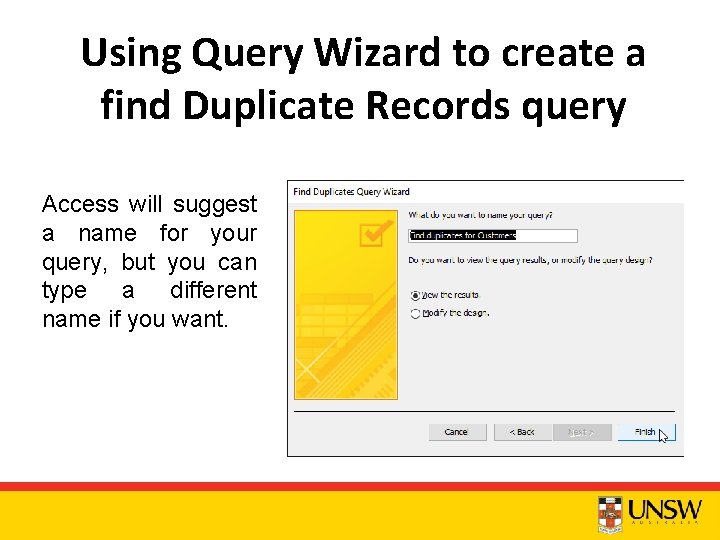
Using Query Wizard to create a find Duplicate Records query Access will suggest a name for your query, but you can type a different name if you want.
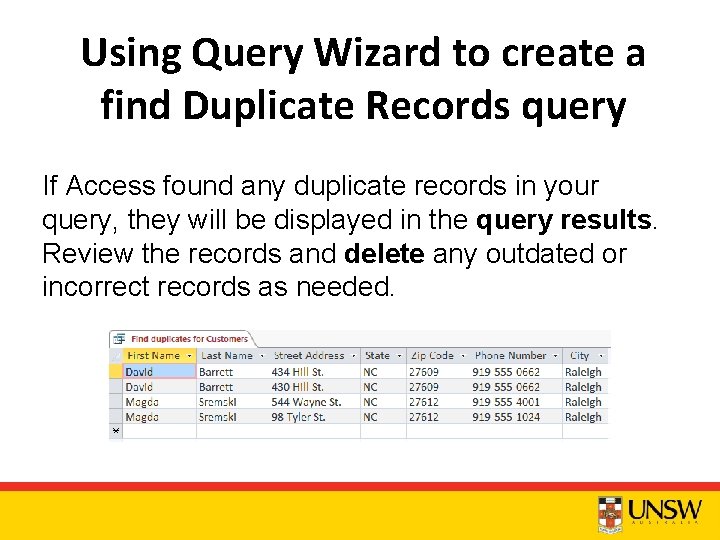
Using Query Wizard to create a find Duplicate Records query If Access found any duplicate records in your query, they will be displayed in the query results. Review the records and delete any outdated or incorrect records as needed.
Find Unmatched Records Query • Compares records in two related tables and displays the records found in one table, but not in the other table. • It requires a common field in both tables. • E. g. we can find all applicants to a college (from Student table) who have never registered for a class (they are not in the Registration table).
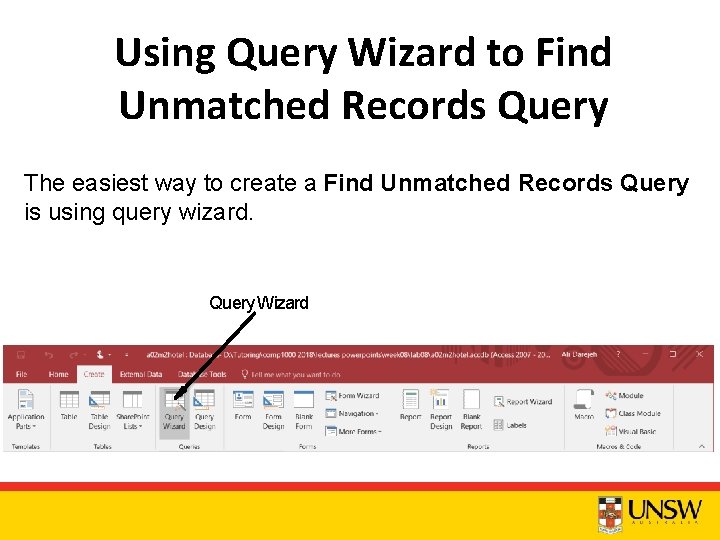
Using Query Wizard to Find Unmatched Records Query The easiest way to create a Find Unmatched Records Query is using query wizard. Query Wizard
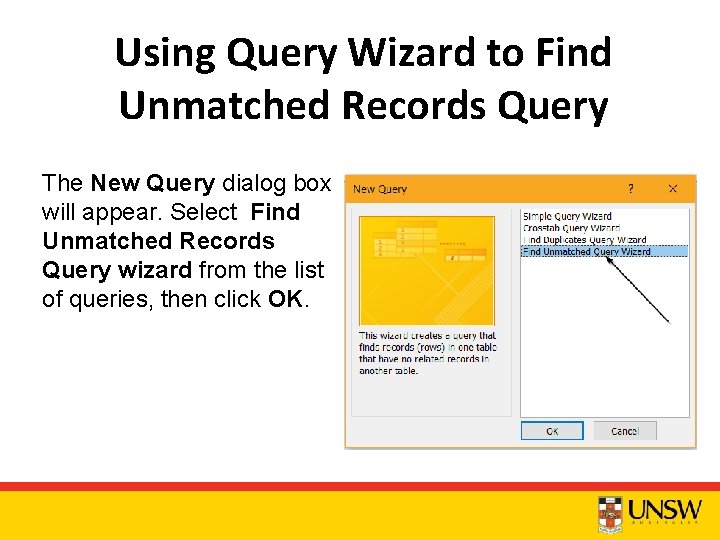
Using Query Wizard to Find Unmatched Records Query The New Query dialog box will appear. Select Find Unmatched Records Query wizard from the list of queries, then click OK.
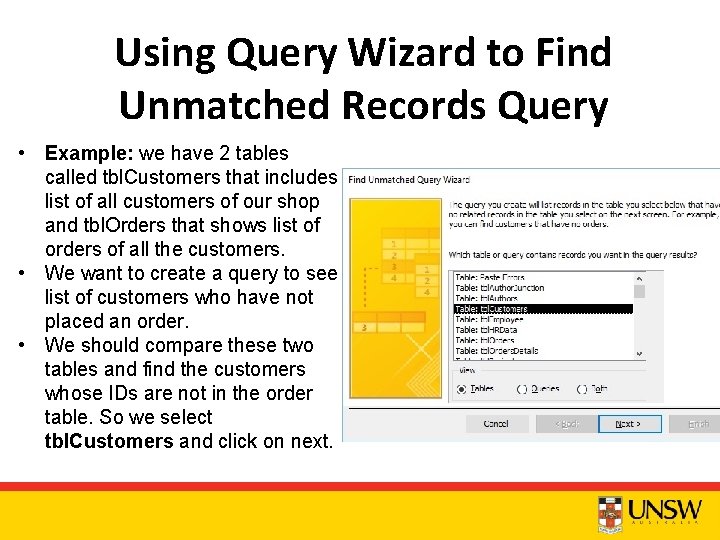
Using Query Wizard to Find Unmatched Records Query • Example: we have 2 tables called tbl. Customers that includes list of all customers of our shop and tbl. Orders that shows list of orders of all the customers. • We want to create a query to see list of customers who have not placed an order. • We should compare these two tables and find the customers whose IDs are not in the order table. So we select tbl. Customers and click on next.
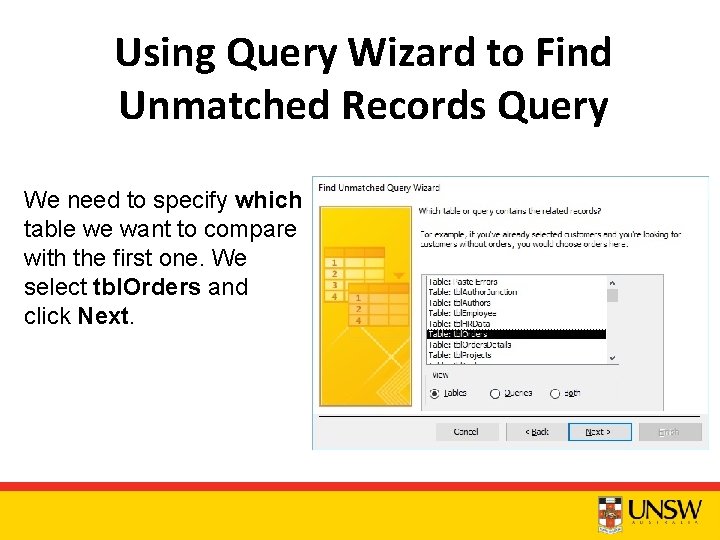
Using Query Wizard to Find Unmatched Records Query We need to specify which table we want to compare with the first one. We select tbl. Orders and click Next.
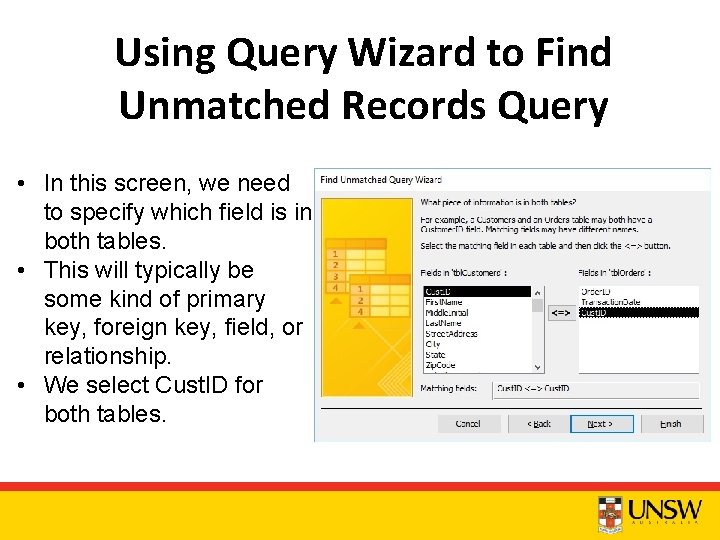
Using Query Wizard to Find Unmatched Records Query • In this screen, we need to specify which field is in both tables. • This will typically be some kind of primary key, foreign key, field, or relationship. • We select Cust. ID for both tables.
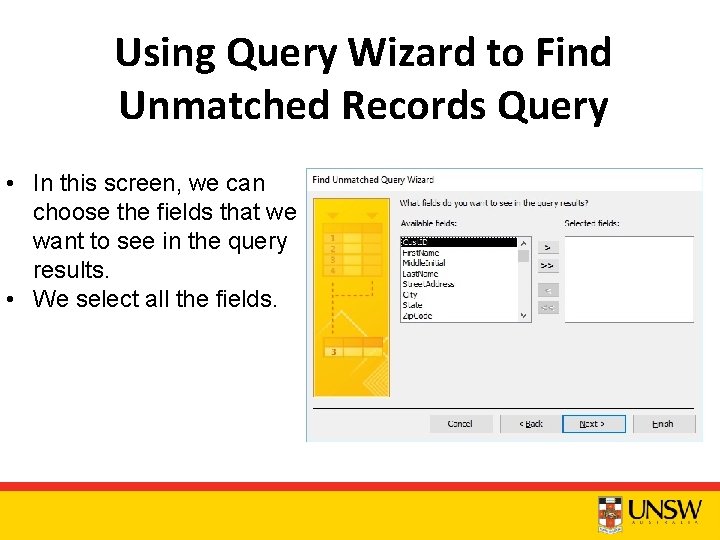
Using Query Wizard to Find Unmatched Records Query • In this screen, we can choose the fields that we want to see in the query results. • We select all the fields.
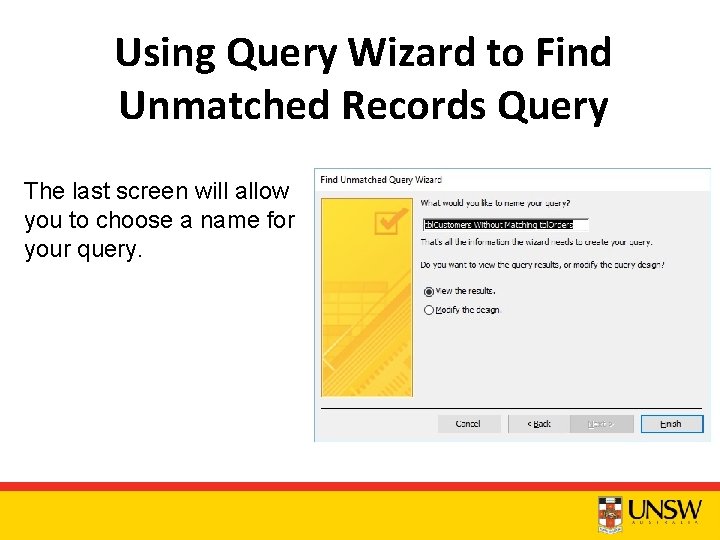
Using Query Wizard to Find Unmatched Records Query The last screen will allow you to choose a name for your query.
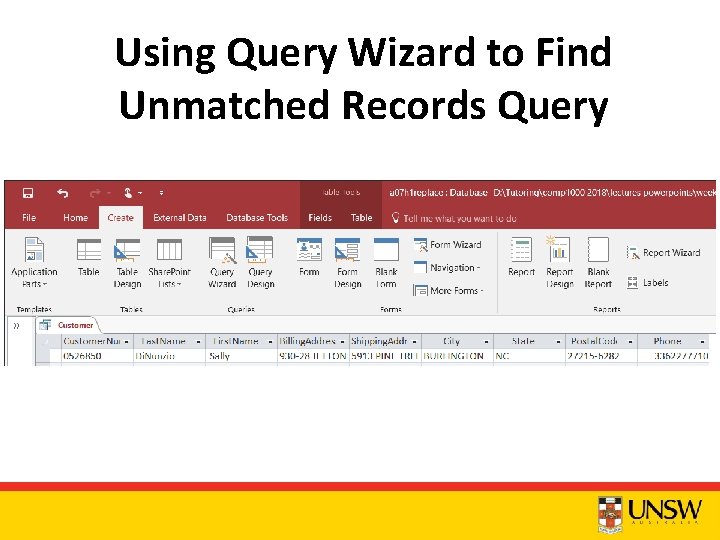
Using Query Wizard to Find Unmatched Records Query
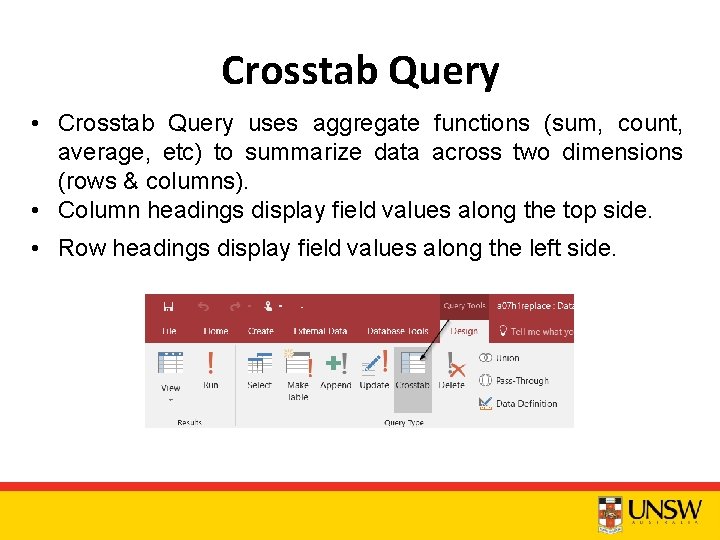
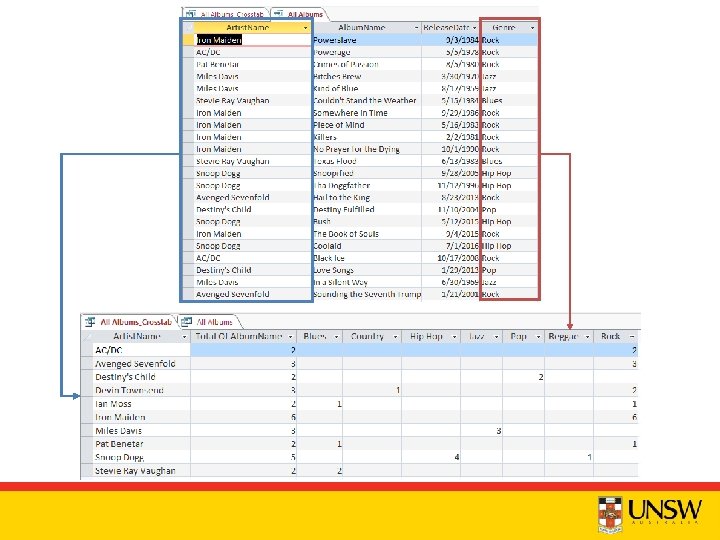
Crosstab Query • Crosstab Query uses aggregate functions (sum, count, average, etc) to summarize data across two dimensions (rows & columns). • Column headings display field values along the top side. • Row headings display field values along the left side.
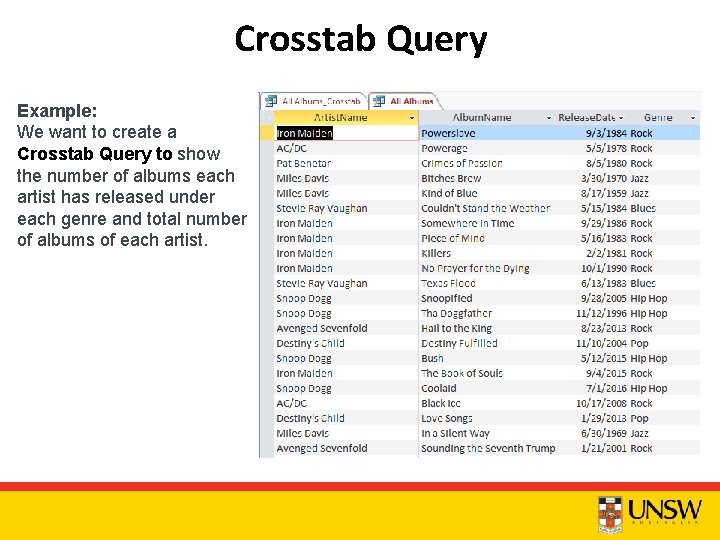
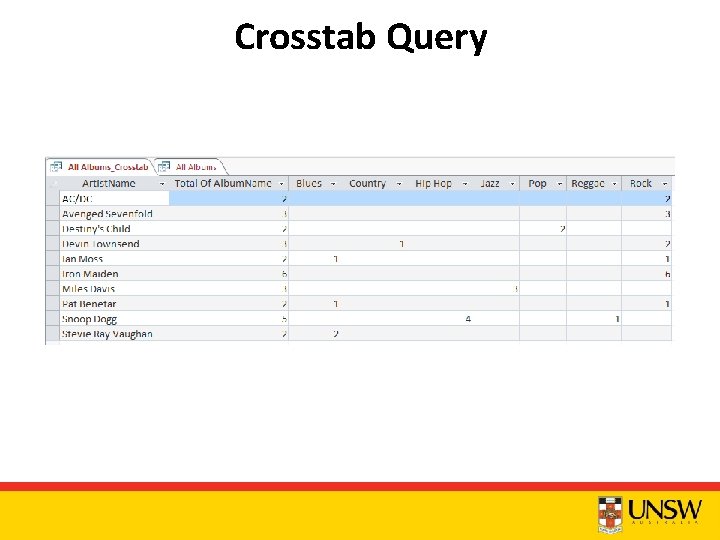
Crosstab Query Example: We want to create a Crosstab Query to show the number of albums each artist has released under each genre and total number of albums of each artist.
Crosstab Query
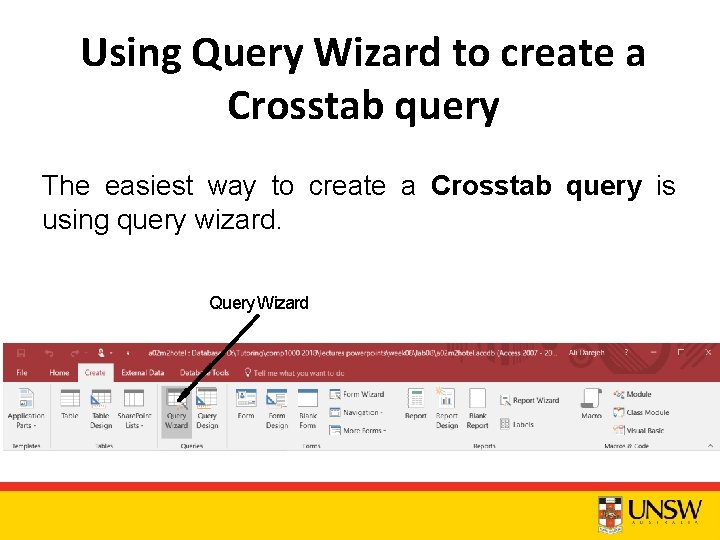
Using Query Wizard to create a Crosstab query The easiest way to create a Crosstab query is using query wizard. Query Wizard
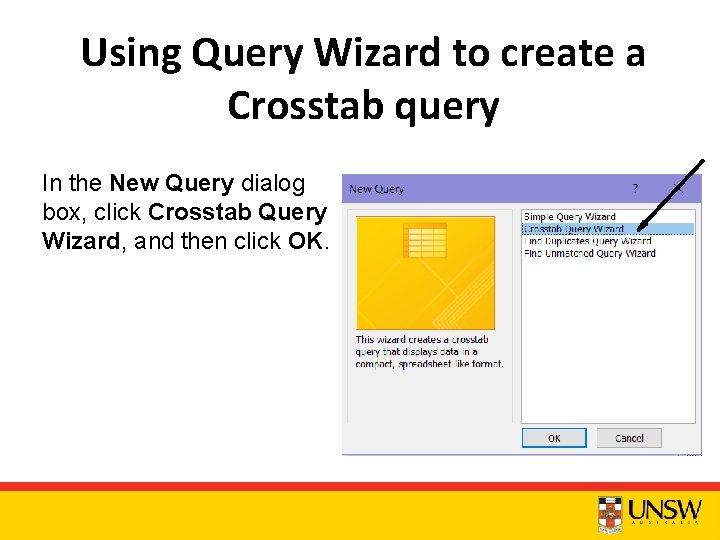
Using Query Wizard to create a Crosstab query In the New Query dialog box, click Crosstab Query Wizard, and then click OK.
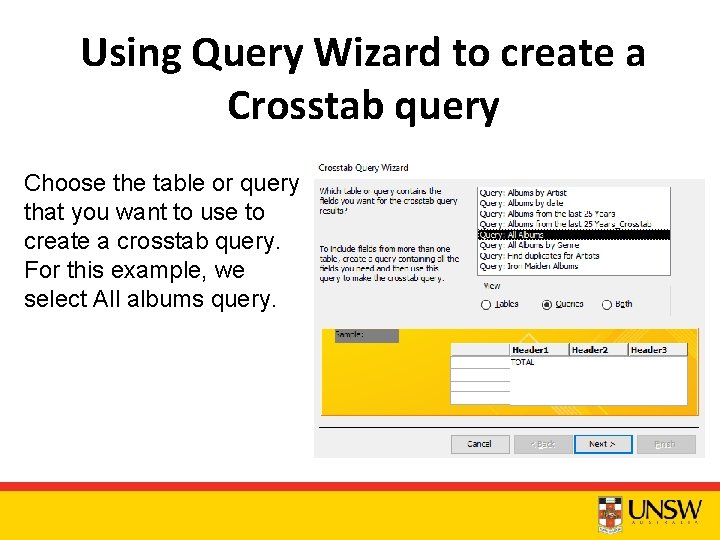
Using Query Wizard to create a Crosstab query Choose the table or query that you want to use to create a crosstab query. For this example, we select All albums query.
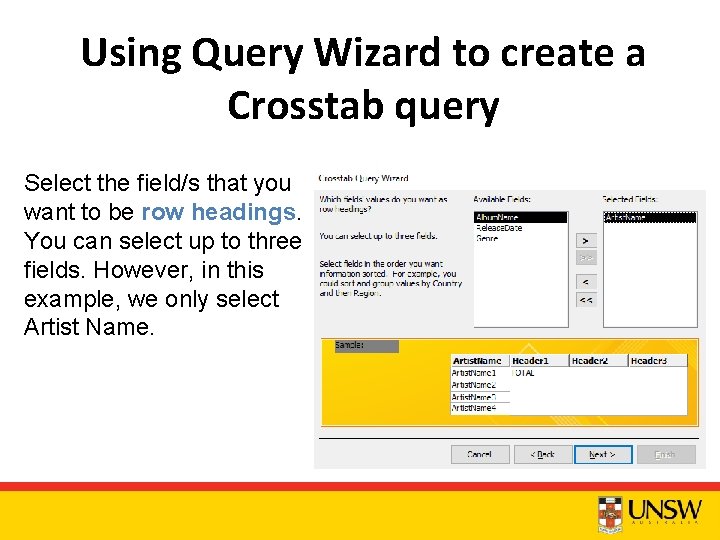
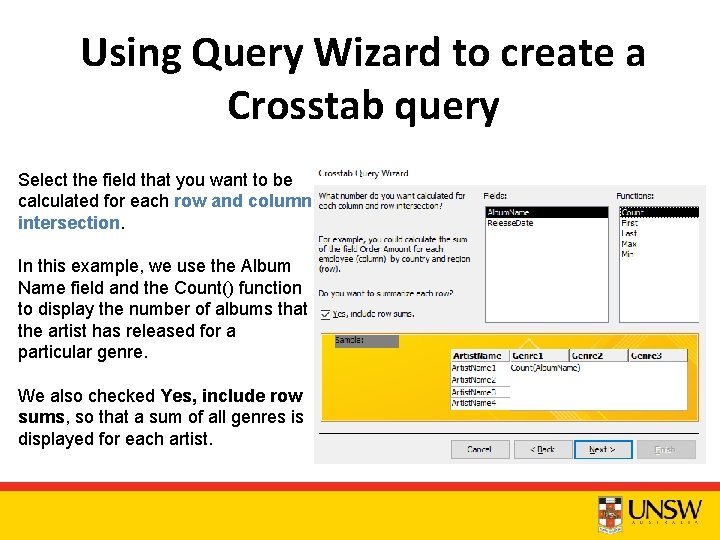
Using Query Wizard to create a Crosstab query Select the field/s that you want to be row headings. You can select up to three fields. However, in this example, we only select Artist Name.
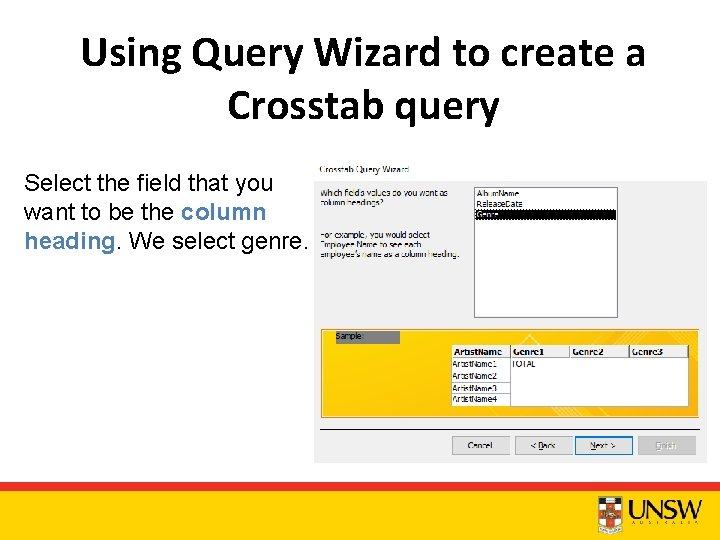
Using Query Wizard to create a Crosstab query Select the field that you want to be the column heading. We select genre.
Using Query Wizard to create a Crosstab query Select the field that you want to be calculated for each row and column intersection. In this example, we use the Album Name field and the Count() function to display the number of albums that the artist has released for a particular genre. We also checked Yes, include row sums, so that a sum of all genres is displayed for each artist.
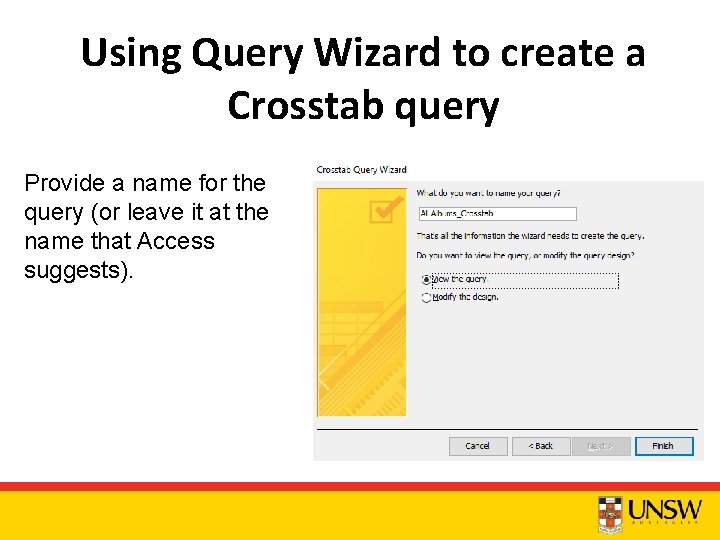
Using Query Wizard to create a Crosstab query Provide a name for the query (or leave it at the name that Access suggests).
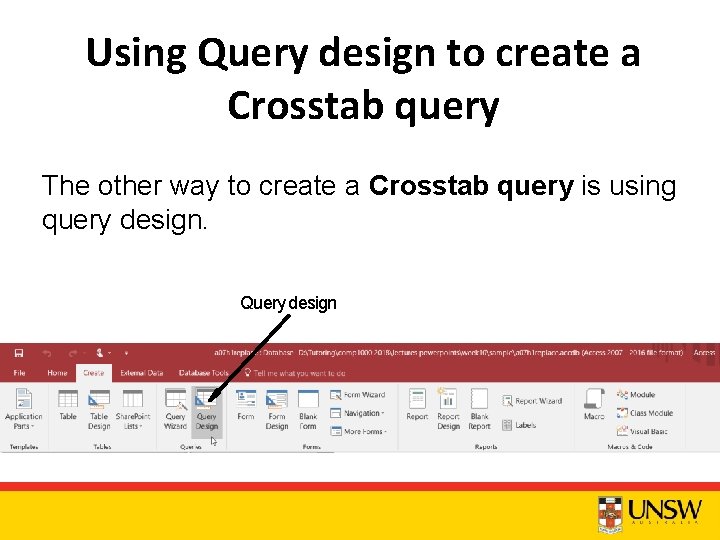
Using Query design to create a Crosstab query The other way to create a Crosstab query is using query design. Query design
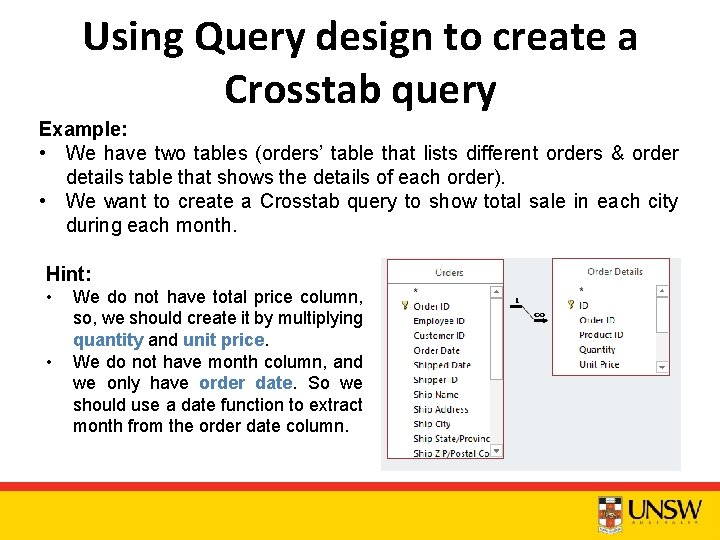
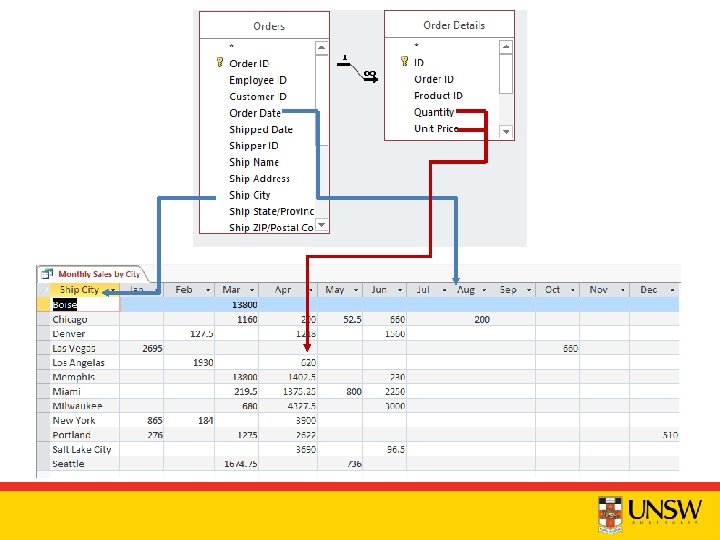
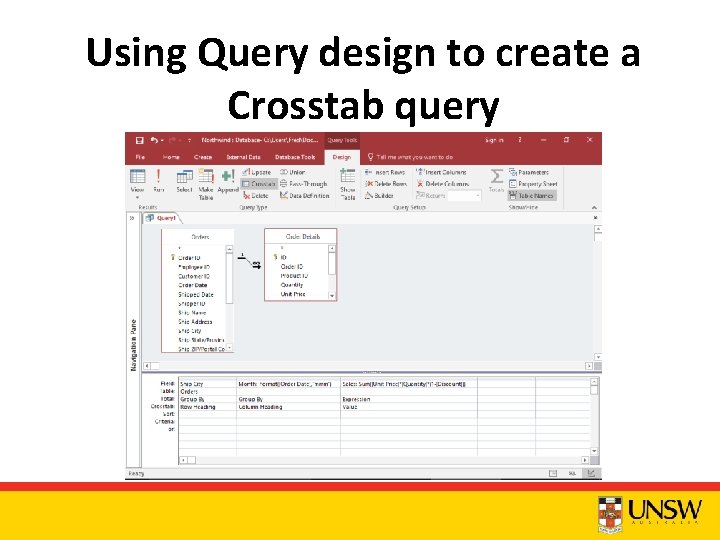
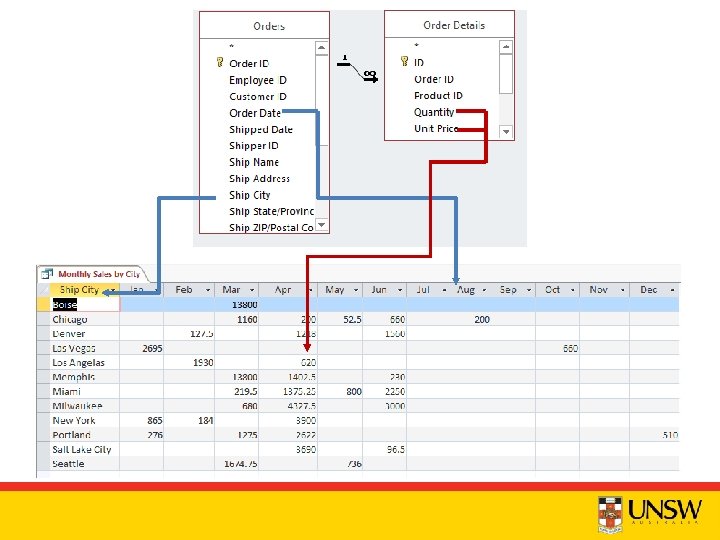
Using Query design to create a Crosstab query Example: • We have two tables (orders’ table that lists different orders & order details table that shows the details of each order). • We want to create a Crosstab query to show total sale in each city during each month. Hint: • • We do not have total price column, so, we should create it by multiplying quantity and unit price. We do not have month column, and we only have order date. So we should use a date function to extract month from the order date column.
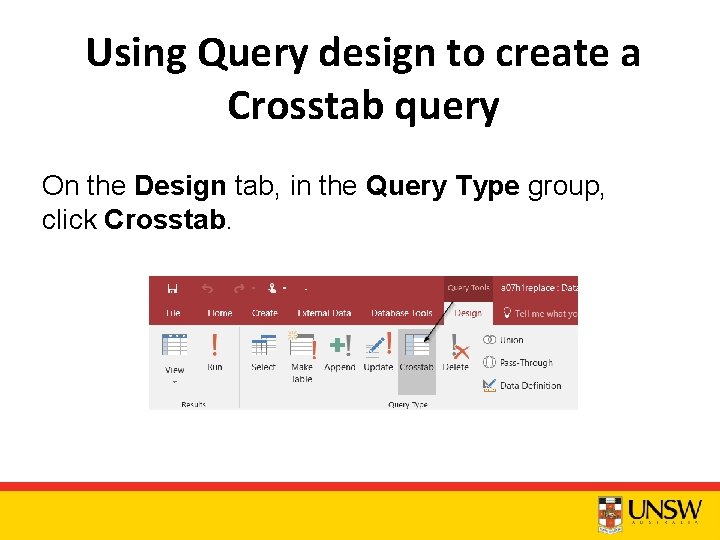
Using Query design to create a Crosstab query On the Design tab, in the Query Type group, click Crosstab.
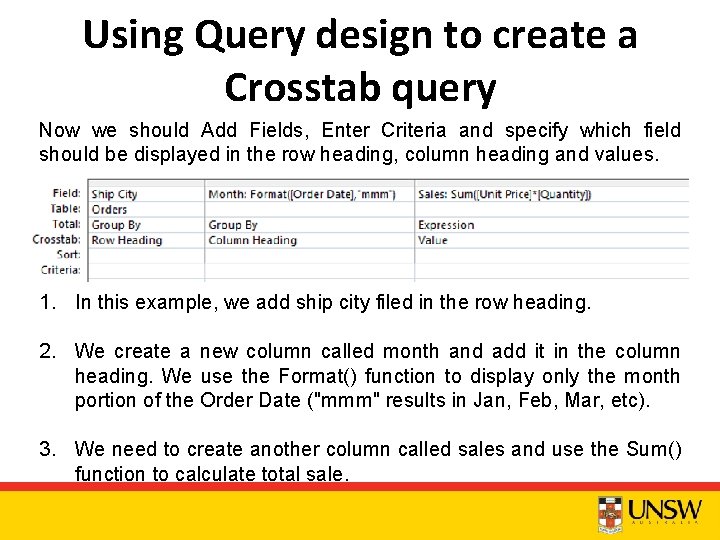
Using Query design to create a Crosstab query Now we should Add Fields, Enter Criteria and specify which field should be displayed in the row heading, column heading and values. 1. In this example, we add ship city filed in the row heading. 2. We create a new column called month and add it in the column heading. We use the Format() function to display only the month portion of the Order Date ("mmm" results in Jan, Feb, Mar, etc). 3. We need to create another column called sales and use the Sum() function to calculate total sale.
Using Query design to create a Crosstab query
Parameter query • By defining parameter for a column, every time that we run the query a message box is shown and asks to enter a criterion to show the records based on. • If multiple parameters exist, Access will start from the left most field and move right.
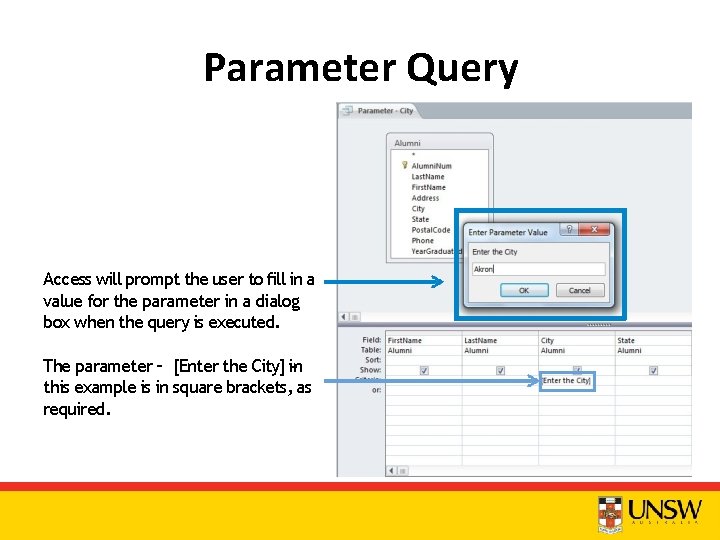
Parameter Query Access will prompt the user to fill in a value for the parameter in a dialog box when the query is executed. The parameter – [Enter the City] in ‐ ‐ this example is in square brackets, as required.
Parameter query How to Add a parameter? 1. Create regular Select query. 2. Add the parameter in the Criteria line of the fields that we want to get input from users surrounded by brackets. e. g. [Enter a year] 4. User will be prompted with your Instructions text and given a text box to enter data.
Parameter Query • Parameter Query Can be used for partial matches as well. • Example: ask users to enter an area code, then show all the phone numbers that start with that area code. – Enter criterion as Like [Enter Area Code] & '*' – & is a concatenation operator
Demo 12 • We want to create a parameter query to enable users filter records by entering first characters of the employees’ last name. Like [Enter last name] & '*' • See the employees whose salary is more than the entered value. >=[Enter the minimum salary]
Question time