
Quarterly Training Meeting Mail Merge Using MS Word
- Slides: 13
Quarterly Training Meeting Mail Merge Using MS Word
Training Purpose • Master the use of MS Word Mail-merge tools. w Introduction to MS Word mail-merge tools w Visual presentation of the process w Extensive hands-on workshops
MS Word • Why use MS Word for mail-merge? w Logical starting point for training skills w MS Word is resident on most user’s computers w Prospects are comfortable working with it w Mail-merge Wizard is easy to use § Letters § Envelopes
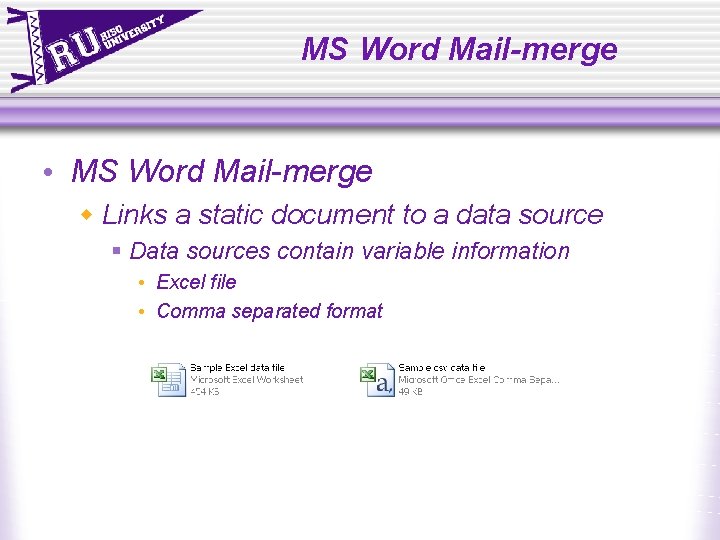
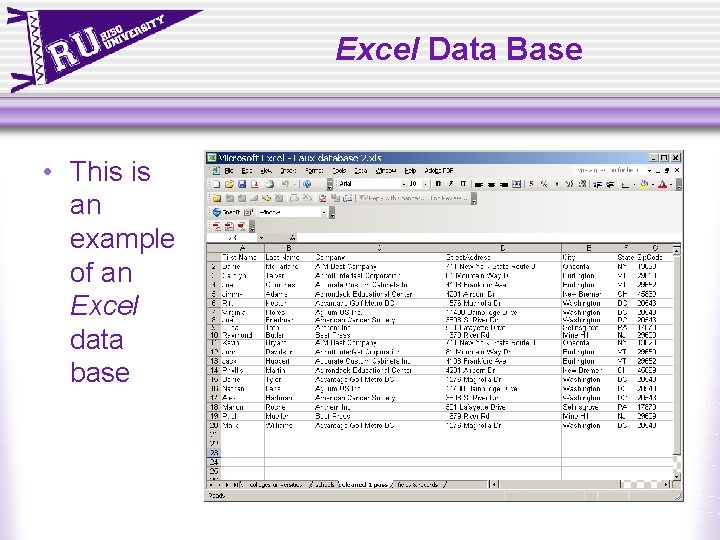
MS Word Mail-merge • MS Word Mail-merge w Links a static document to a data source § Data sources contain variable information • Excel file • Comma separated format
Excel Data Base • This is an example of an Excel data base
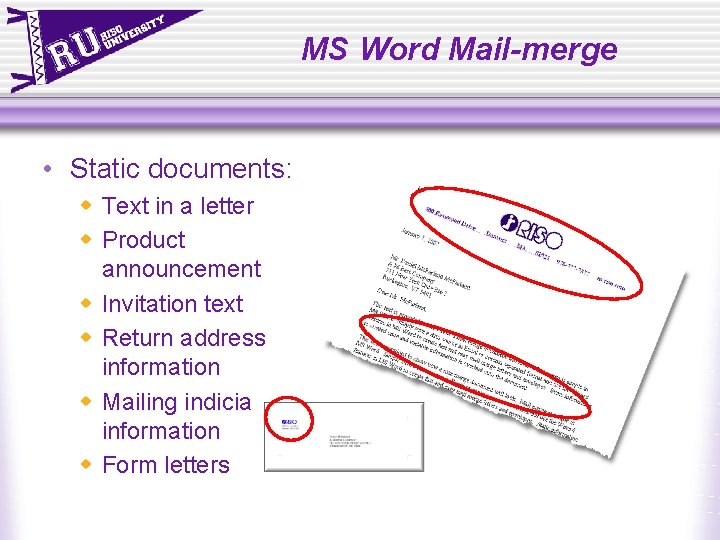
MS Word Mail-merge • Static documents: w Text in a letter w Product announcement w Invitation text w Return address information w Mailing indicia information w Form letters
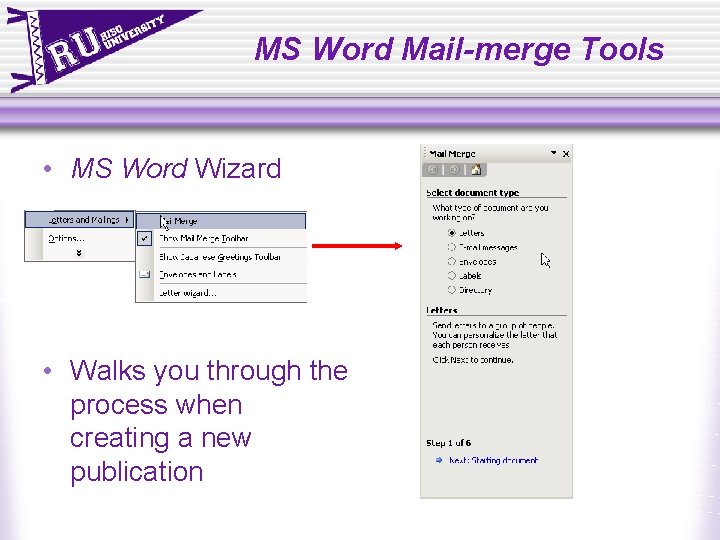
MS Word Mail-merge Tools • MS Word Wizard • Walks you through the process when creating a new publication
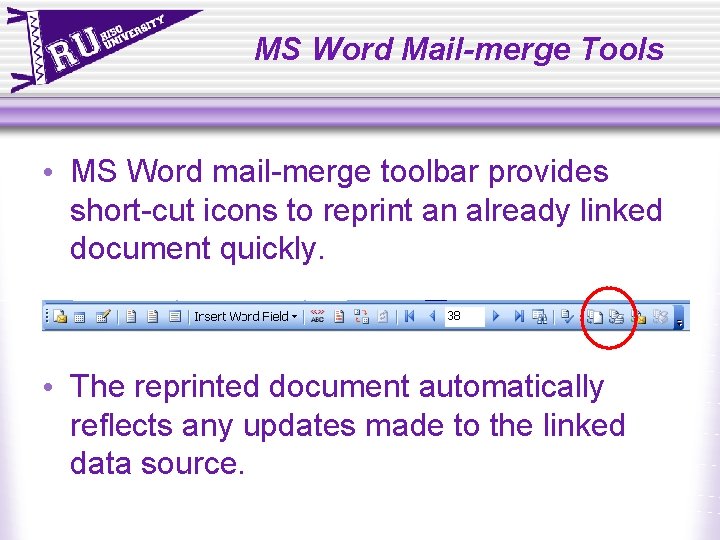
MS Word Mail-merge Tools • MS Word mail-merge toolbar provides short-cut icons to reprint an already linked document quickly. • The reprinted document automatically reflects any updates made to the linked data source.
Workshop Exercises • In the training workshops you will use MS Word Mail-merge tools to: w Create a new mailing of a letter w Reprint an already linked document w Merge to envelopes § #10 § 9 x 12
Video Presentation Mail-merge to a letter document
Training Tools • Workbooks contain w The presentation pieces w Workshop exercises: § Merging to a letter § Reprinting a document already linked to a data source § Merging to a #10 envelope § Merging to a 9 x 12 envelope
Training Tools • CDs contain § Video demonstrations of each of the mail-merge exercises § Workbooks § Power. Point presentations § Sample files
Mail Merge Workshops • Go to the workshop section of your workbook.