
Quantification Concepts and Integration In This Section We

![External Standard Calibration Equation: Absolute Amt of x = [(Responsex x RF) - yintercept]](https://slidetodoc.com/presentation_image_h/cbcebdddb53c11071ab4fdd886d75b54/image-4.jpg "External Standard Calibration Equation: Absolute Amt of x = [(Responsex x RF) - yintercept]")
- Slides: 33
Quantification – Concepts and Integration
In This Section, We Will Discuss: • Quantification calculations. • When to use peak area or peak height. • The difference between precision and accuracy. • How to properly integrate a chromatogram. 2
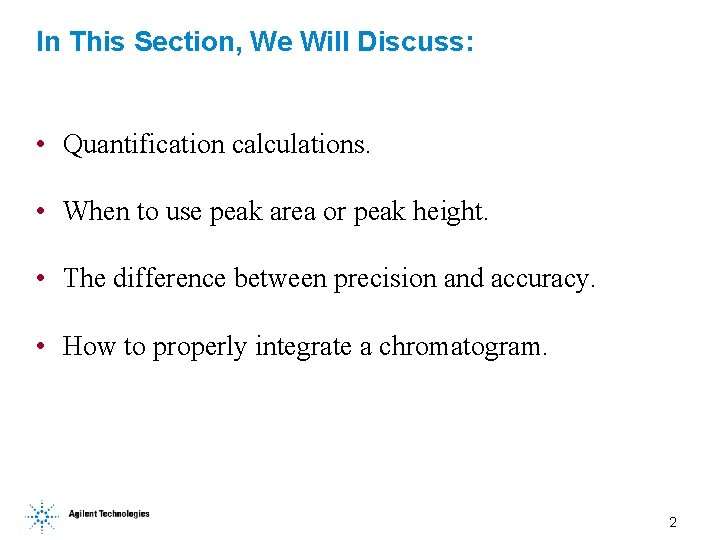
Beer’s Law and Quantification 3
External Standard Calibration Equation: Absolute Amt of x = [(Responsex x RF) - yintercept] x. Mx. D Responsex = peak area or height RFx = Amountx Responsex M = Multiplier D= Dilution Factor 4
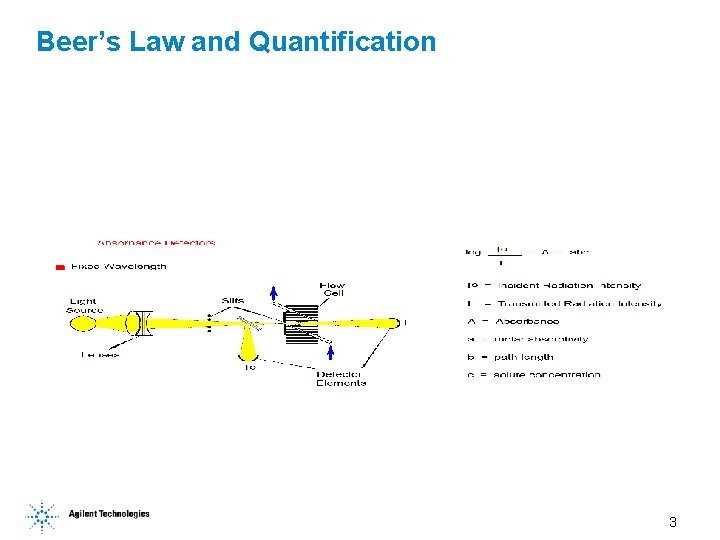
Increase the Precision with an Internal Standard Equation: Actual Amt of x = [(RFx x Response. Ratiox x Amount. ISTD) yintercept] x M x. D Response Ratio = Responsex Responseistd 5
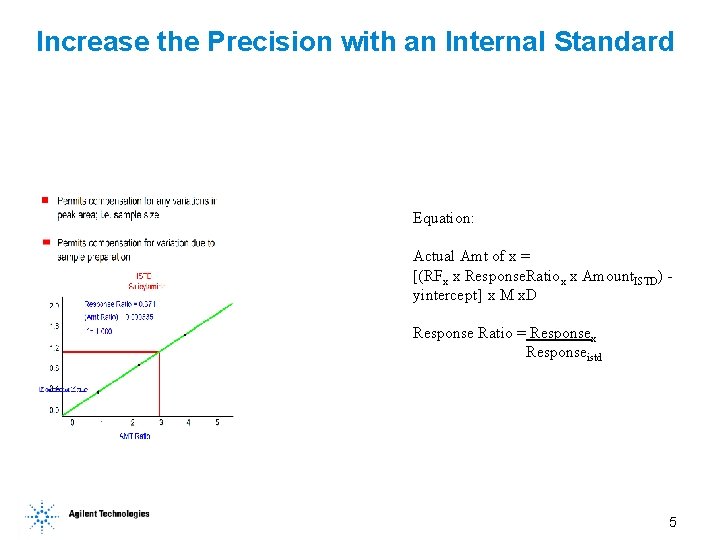
Choice of Internal Standard 6
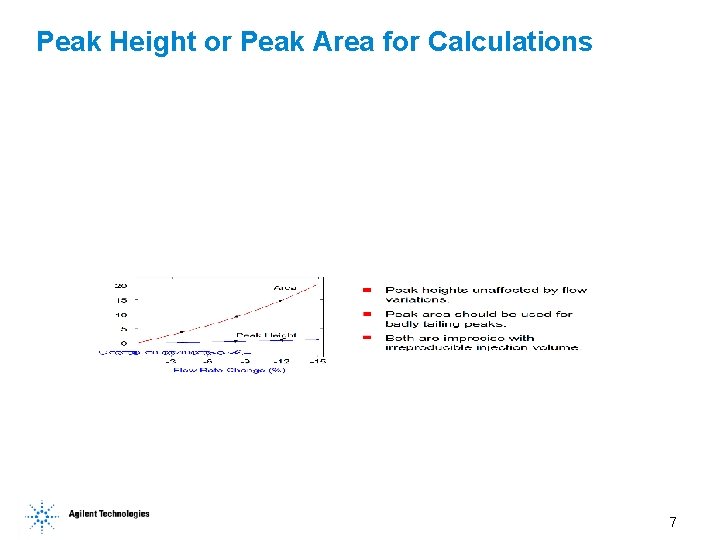
Peak Height or Peak Area for Calculations 7
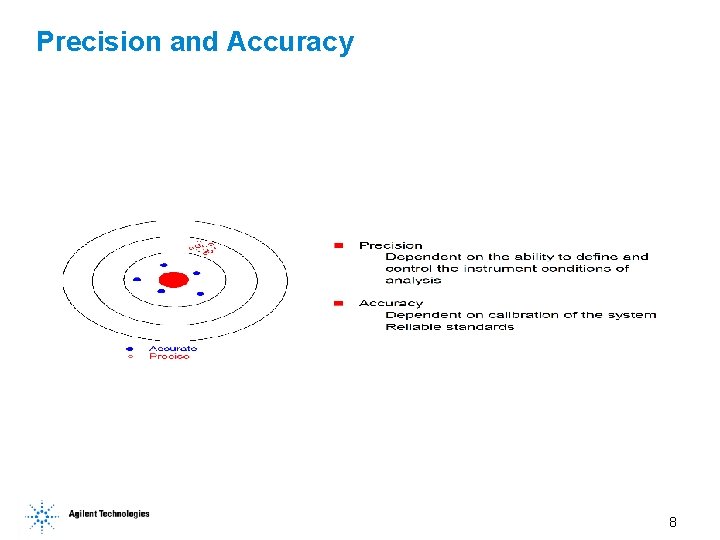
Precision and Accuracy 8
Building a Calibration Table • Inject standards with concentrations bracketing your unknowns. • Set-up appropriate integration events for the low standard. • Integrate to obtain the peak height or area. Save the integration events to the method. • Begin a new calibration table with level one, the lowest level. • Integrate each additional standard level and add to thecalibration table. • Examine the calibration curve and save it to the method. 9
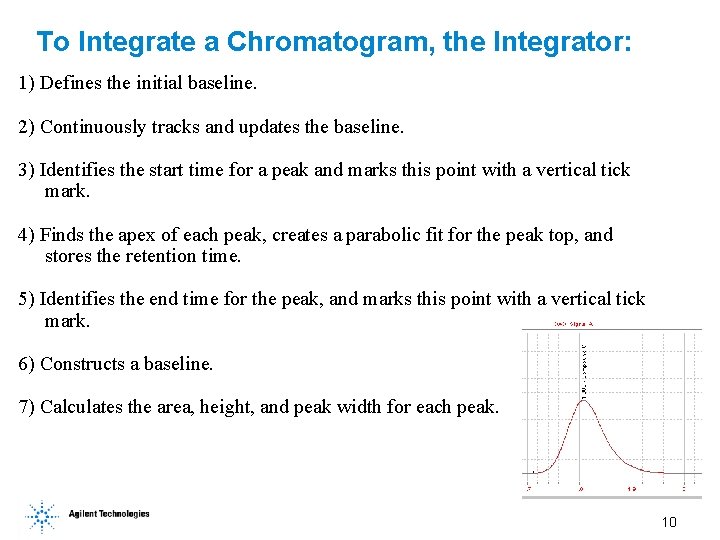
To Integrate a Chromatogram, the Integrator: 1) Defines the initial baseline. 2) Continuously tracks and updates the baseline. 3) Identifies the start time for a peak and marks this point with a vertical tick mark. 4) Finds the apex of each peak, creates a parabolic fit for the peak top, and stores the retention time. 5) Identifies the end time for the peak, and marks this point with a vertical tick mark. 6) Constructs a baseline. 7) Calculates the area, height, and peak width for each peak. 10
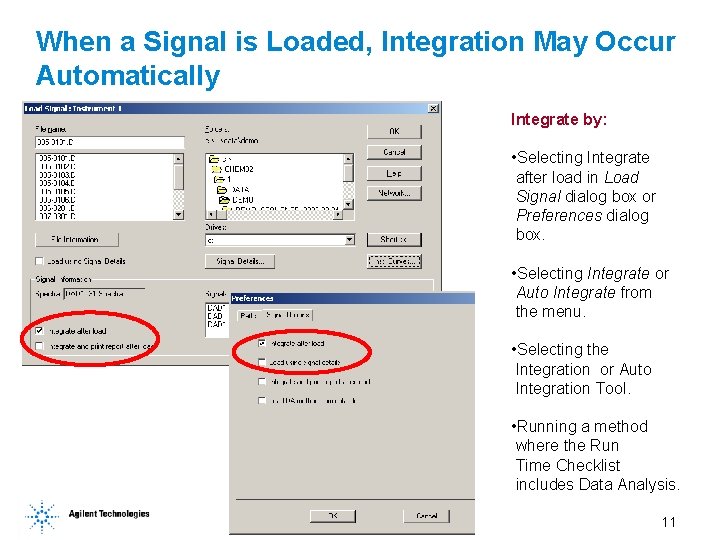
When a Signal is Loaded, Integration May Occur Automatically Integrate by: • Selecting Integrate after load in Load Signal dialog box or Preferences dialog box. • Selecting Integrate or Auto Integrate from the menu. • Selecting the Integration or Auto Integration Tool. • Running a method where the Run Time Checklist includes Data Analysis. 11
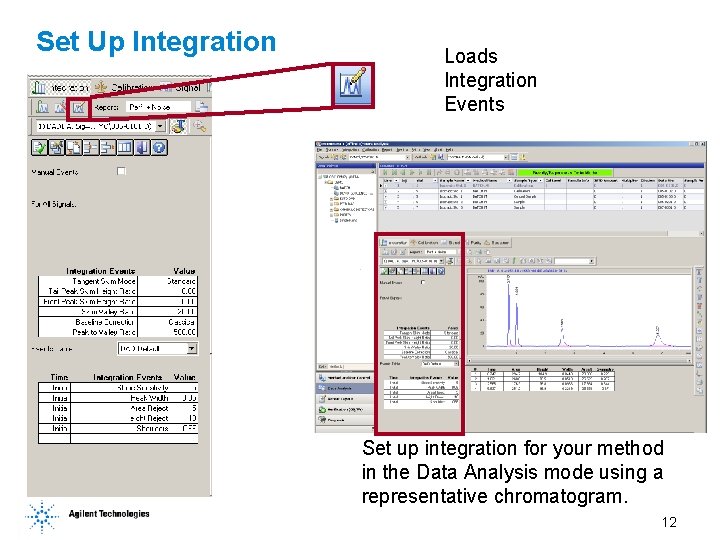
Set Up Integration Loads Integration Events Set up integration for your method in the Data Analysis mode using a representative chromatogram. 12
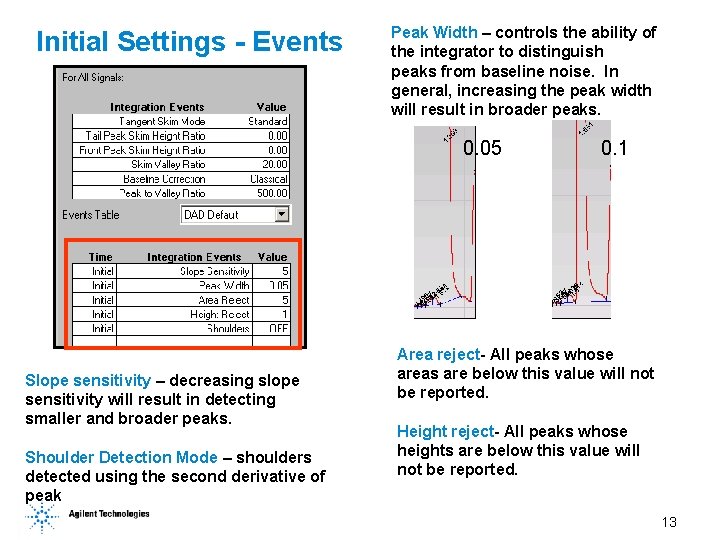
Initial Settings - Events Peak Width – controls the ability of the integrator to distinguish peaks from baseline noise. In general, increasing the peak width will result in broader peaks. 0. 05 Slope sensitivity – decreasing slope sensitivity will result in detecting smaller and broader peaks. Shoulder Detection Mode – shoulders detected using the second derivative of peak 0. 1 Area reject- All peaks whose areas are below this value will not be reported. Height reject- All peaks whose heights are below this value will not be reported. 13
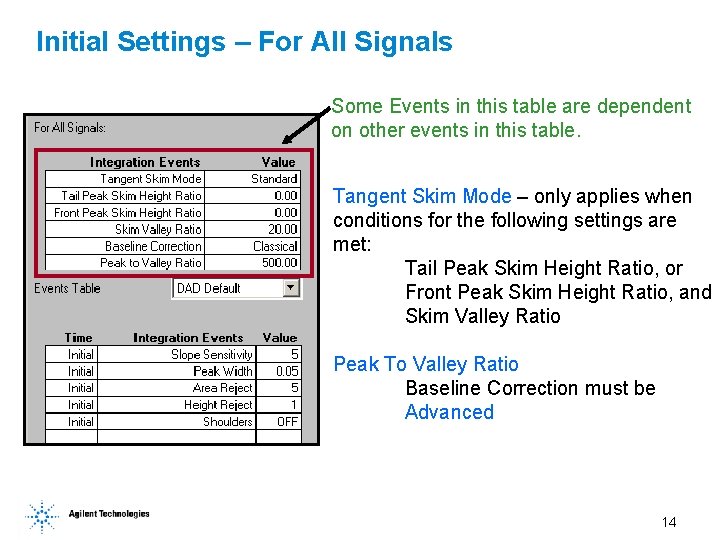
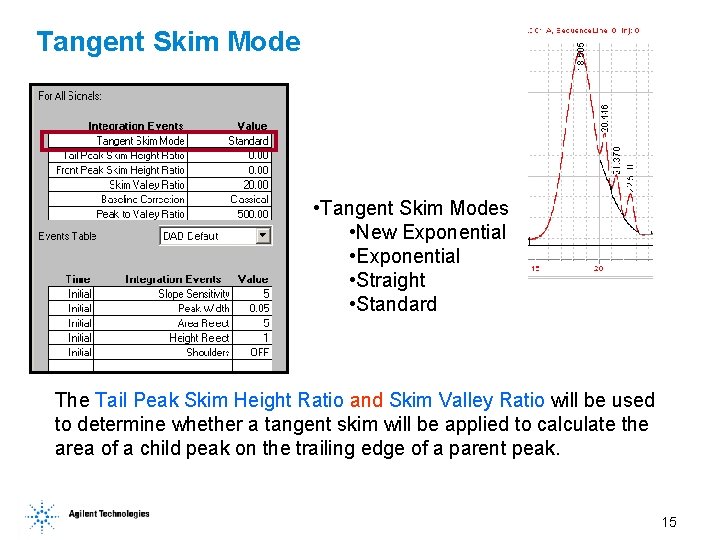
Initial Settings – For All Signals Some Events in this table are dependent on other events in this table. Tangent Skim Mode – only applies when conditions for the following settings are met: Tail Peak Skim Height Ratio, or Front Peak Skim Height Ratio, and Skim Valley Ratio Peak To Valley Ratio Baseline Correction must be Advanced 14
Tangent Skim Mode • Tangent Skim Modes • New Exponential • Straight • Standard The Tail Peak Skim Height Ratio and Skim Valley Ratio will be used to determine whether a tangent skim will be applied to calculate the area of a child peak on the trailing edge of a parent peak. 15
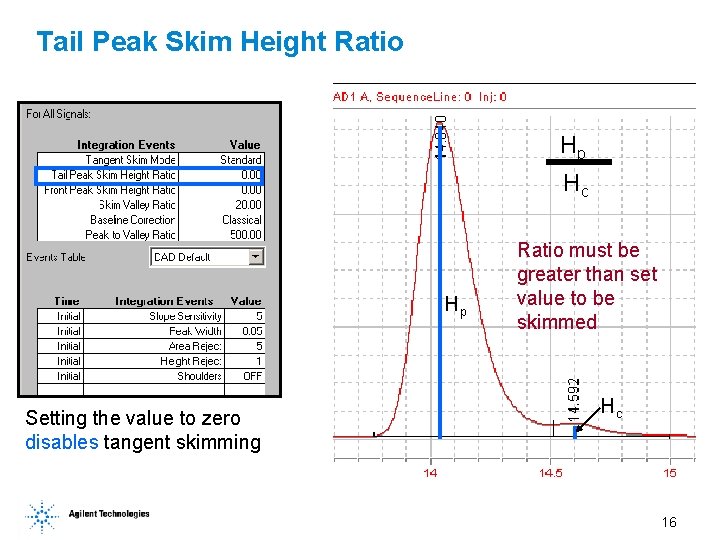
Tail Peak Skim Height Ratio Hp Hc Hp Setting the value to zero disables tangent skimming Ratio must be greater than set value to be skimmed Hc 16
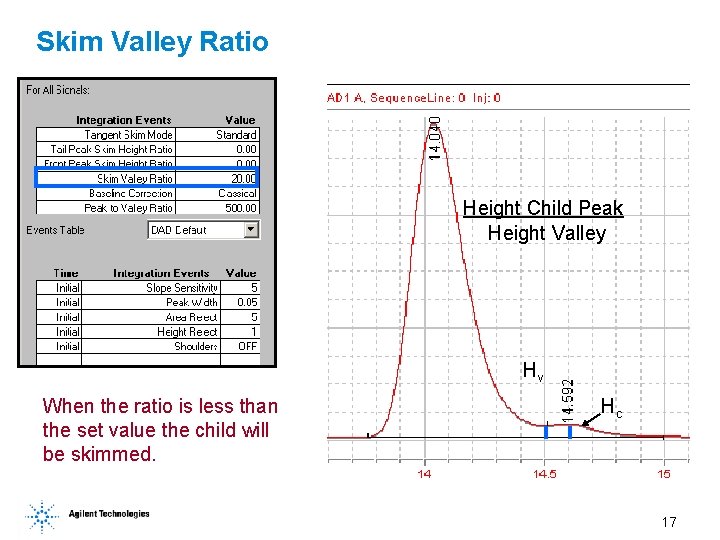
Skim Valley Ratio Height Child Peak Height Valley Hv When the ratio is less than the set value the child will be skimmed. Hc 17
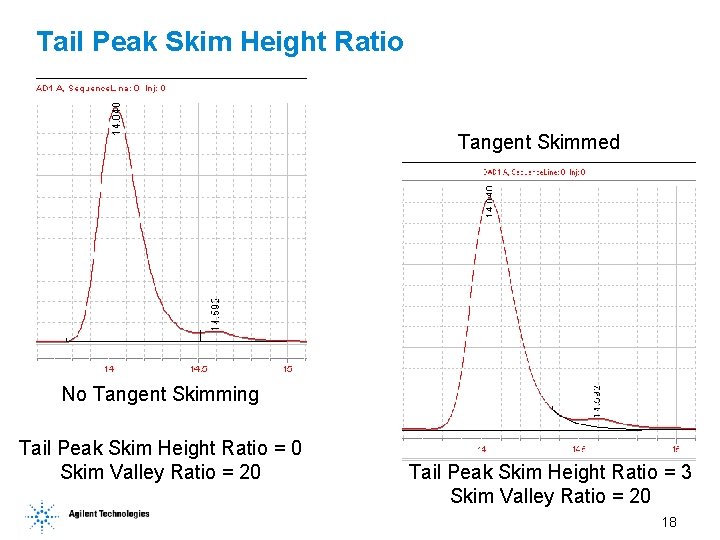
Tail Peak Skim Height Ratio Tangent Skimmed No Tangent Skimming Tail Peak Skim Height Ratio = 0 Skim Valley Ratio = 20 Tail Peak Skim Height Ratio = 3 Skim Valley Ratio = 20 18
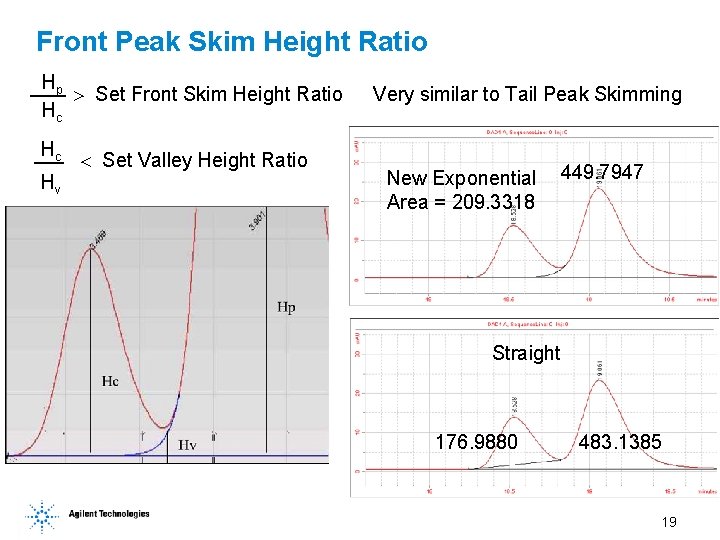
Front Peak Skim Height Ratio Hp Set Front Skim Height Ratio Hc Hc Hv Set Valley Height Ratio Very similar to Tail Peak Skimming New Exponential Area = 209. 3318 449. 7947 Straight 176. 9880 483. 1385 19
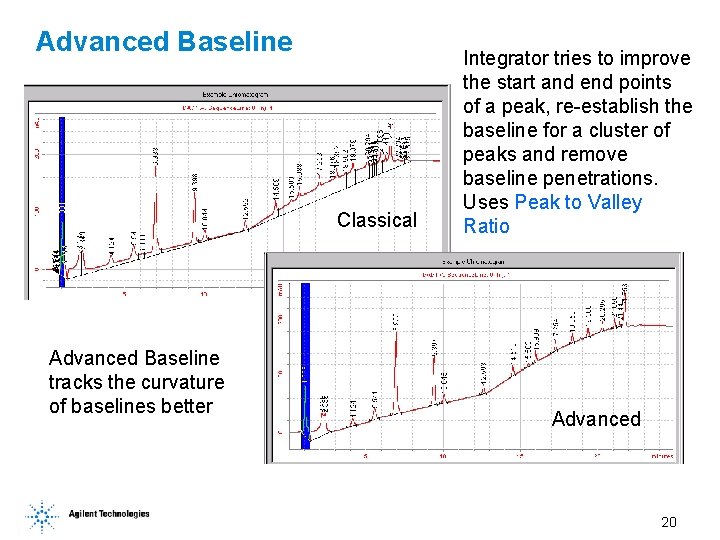
Advanced Baseline Classical Advanced Baseline tracks the curvature of baselines better Integrator tries to improve the start and end points of a peak, re-establish the baseline for a cluster of peaks and remove baseline penetrations. Uses Peak to Valley Ratio Advanced 20
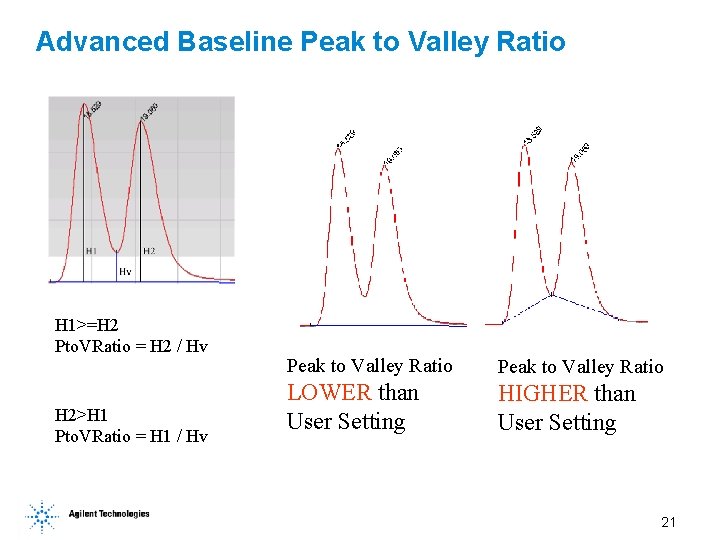
Advanced Baseline Peak to Valley Ratio H 1>=H 2 Pto. VRatio = H 2 / Hv H 2>H 1 Pto. VRatio = H 1 / Hv Peak to Valley Ratio LOWER than User Setting HIGHER than User Setting 21
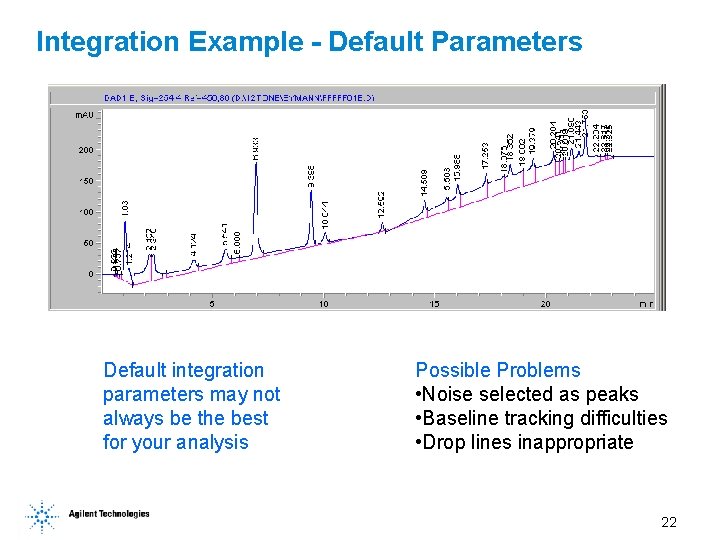
Integration Example - Default Parameters Default integration parameters may not always be the best for your analysis Possible Problems • Noise selected as peaks • Baseline tracking difficulties • Drop lines inappropriate 22
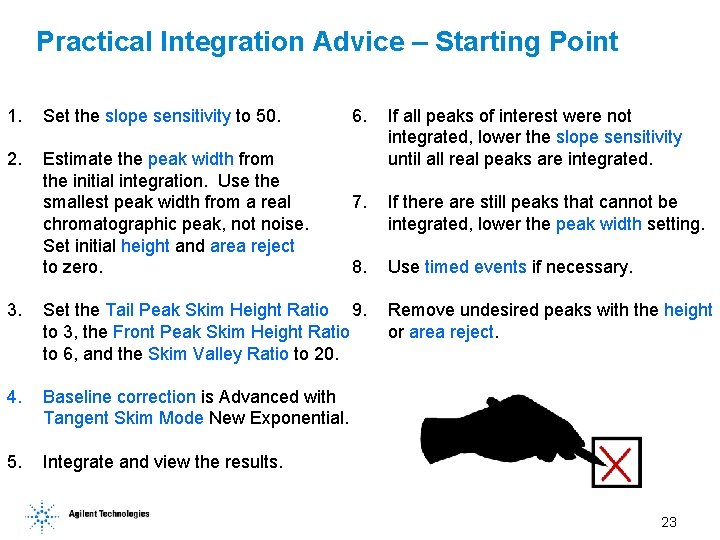
Practical Integration Advice – Starting Point 1. Set the slope sensitivity to 50. 2. Estimate the peak width from the initial integration. Use the smallest peak width from a real chromatographic peak, not noise. Set initial height and area reject to zero. 6. If all peaks of interest were not integrated, lower the slope sensitivity until all real peaks are integrated. 7. If there are still peaks that cannot be integrated, lower the peak width setting. 8. Use timed events if necessary. 3. Set the Tail Peak Skim Height Ratio 9. to 3, the Front Peak Skim Height Ratio to 6, and the Skim Valley Ratio to 20. 4. Baseline correction is Advanced with Tangent Skim Mode New Exponential. 5. Integrate and view the results. Remove undesired peaks with the height or area reject. 23
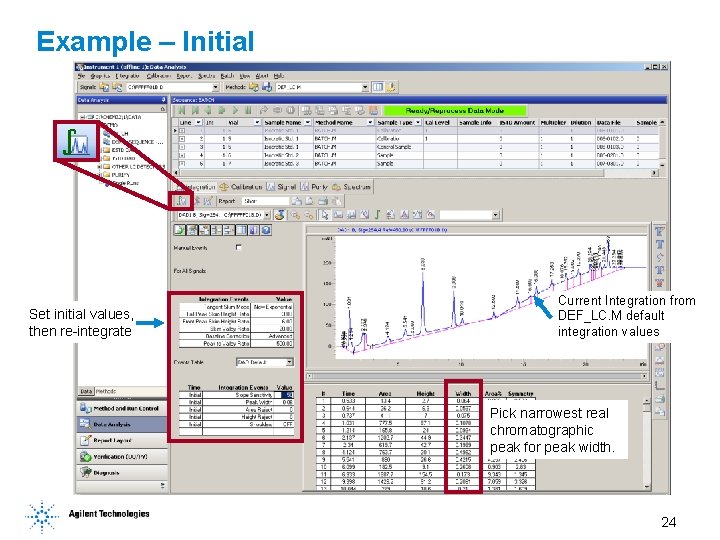
Example – Initial Set initial values, then re-integrate Current Integration from DEF_LC. M default integration values Pick narrowest real chromatographic peak for peak width. 24
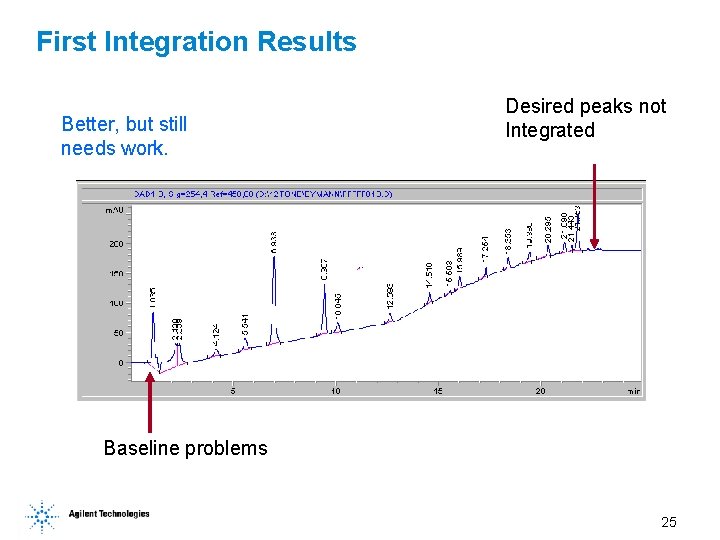
First Integration Results Better, but still needs work. Desired peaks not Integrated Baseline problems 25
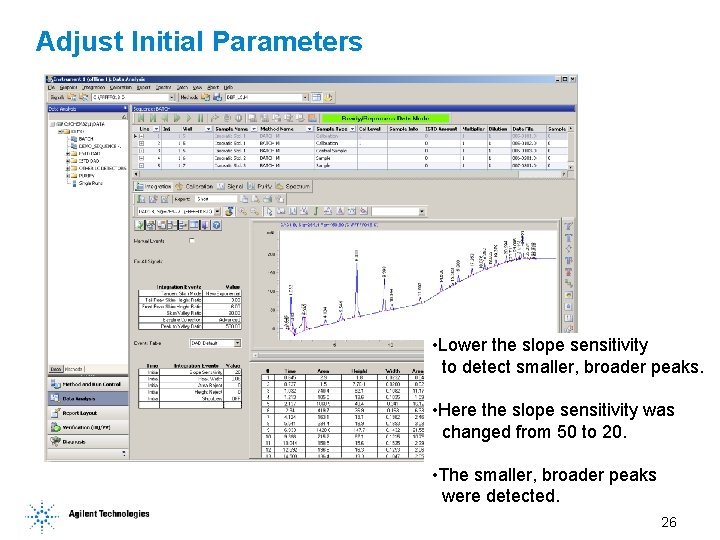
Adjust Initial Parameters • Lower the slope sensitivity to detect smaller, broader peaks. • Here the slope sensitivity was changed from 50 to 20. • The smaller, broader peaks were detected. 26
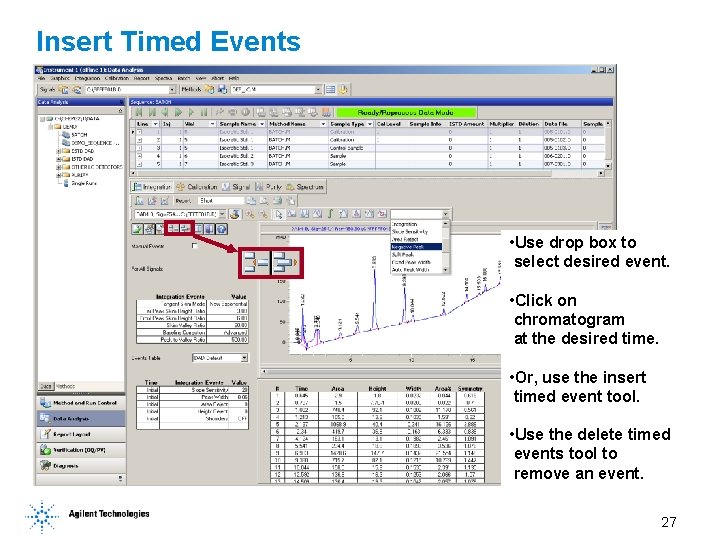
Insert Timed Events • Use drop box to select desired event. • Click on chromatogram at the desired time. • Or, use the insert timed event tool. • Use the delete timed events tool to remove an event. 27
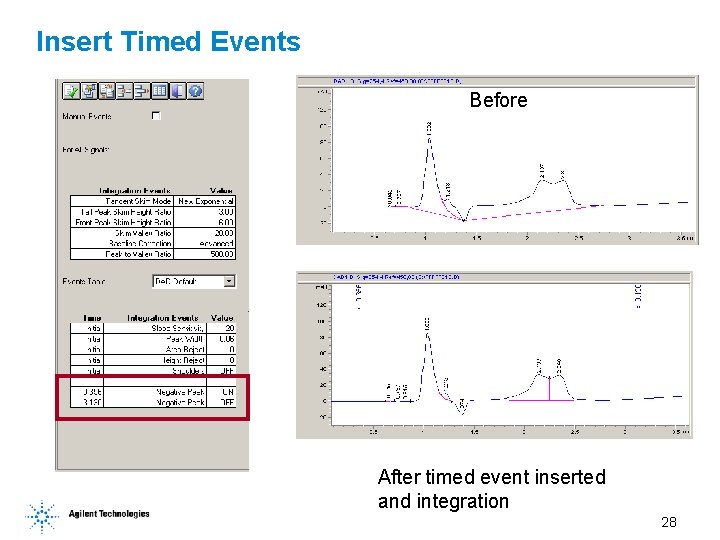
Insert Timed Events Before After timed event inserted and integration 28
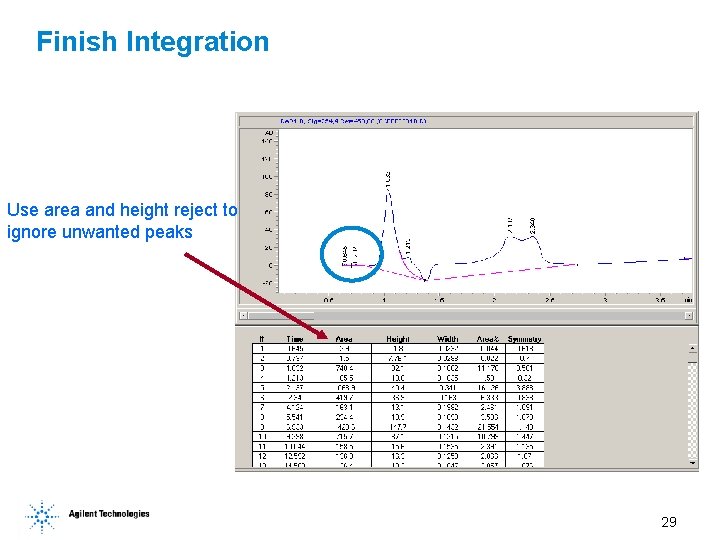
Finish Integration Use area and height reject to ignore unwanted peaks 29
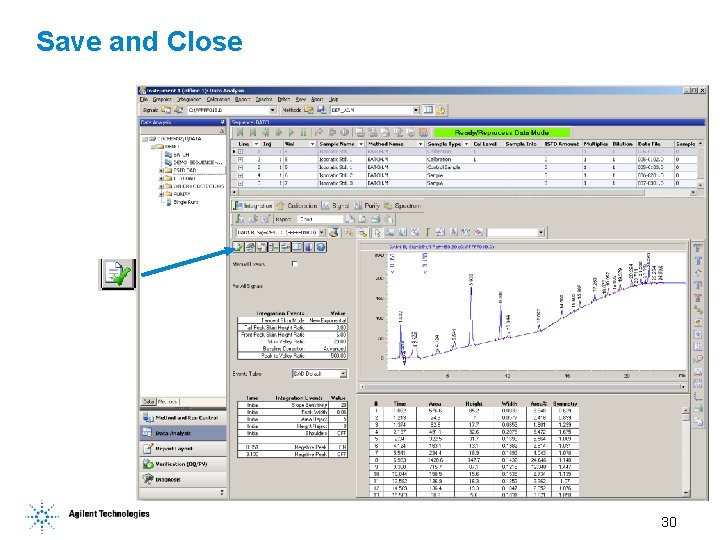
Save and Close 30
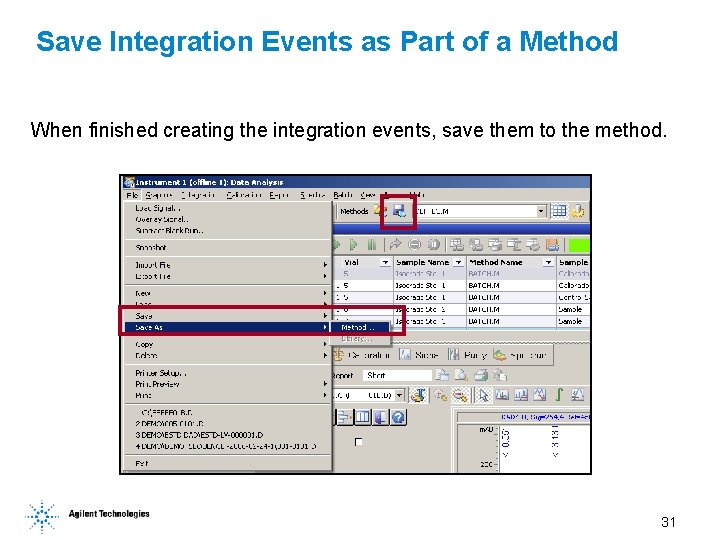
Save Integration Events as Part of a Method When finished creating the integration events, save them to the method. 31
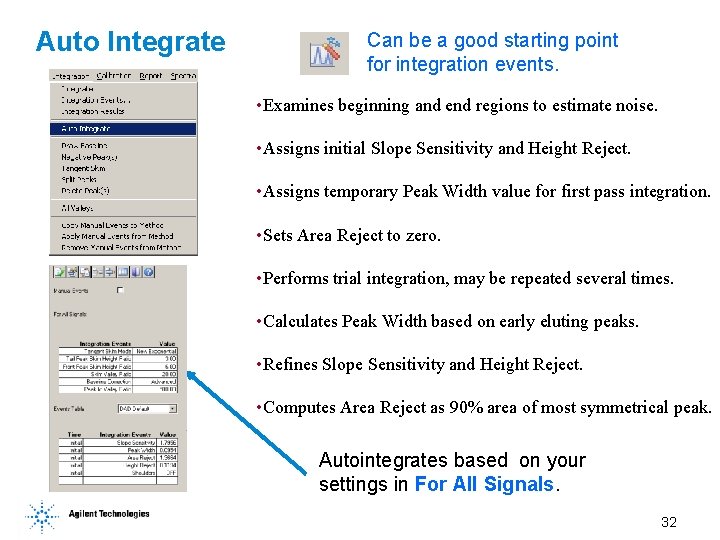
Auto Integrate Can be a good starting point for integration events. • Examines beginning and end regions to estimate noise. • Assigns initial Slope Sensitivity and Height Reject. • Assigns temporary Peak Width value for first pass integration. • Sets Area Reject to zero. • Performs trial integration, may be repeated several times. • Calculates Peak Width based on early eluting peaks. • Refines Slope Sensitivity and Height Reject. • Computes Area Reject as 90% area of most symmetrical peak. Autointegrates based on your settings in For All Signals. 32
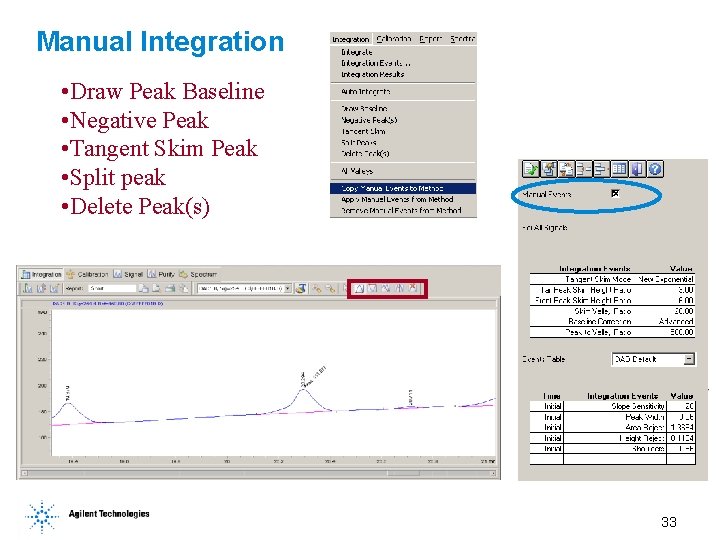
Manual Integration • Draw Peak Baseline • Negative Peak • Tangent Skim Peak • Split peak • Delete Peak(s) 33