
QML Qt Quick with QML and you can
- Slides: 19
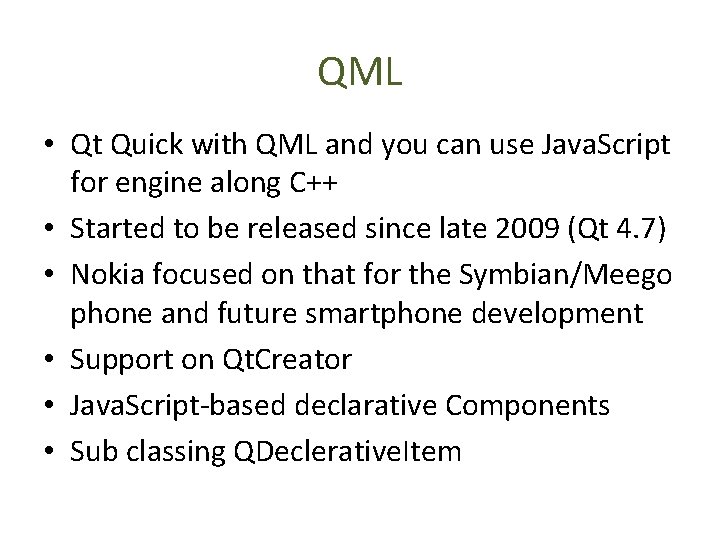
QML • Qt Quick with QML and you can use Java. Script for engine along C++ • Started to be released since late 2009 (Qt 4. 7) • Nokia focused on that for the Symbian/Meego phone and future smartphone development • Support on Qt. Creator • Java. Script-based declarative Components • Sub classing QDeclerative. Item
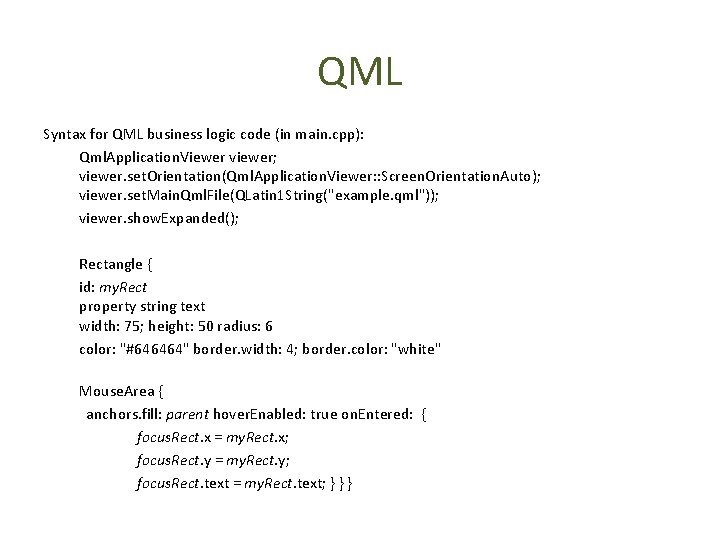
QML Syntax for QML business logic code (in main. cpp): Qml. Application. Viewer viewer; viewer. set. Orientation(Qml. Application. Viewer: : Screen. Orientation. Auto); viewer. set. Main. Qml. File(QLatin 1 String("example. qml")); viewer. show. Expanded(); Rectangle { id: my. Rect property string text width: 75; height: 50 radius: 6 color: "#646464" border. width: 4; border. color: "white" Mouse. Area { anchors. fill: parent hover. Enabled: true on. Entered: { focus. Rect. x = my. Rect. x; focus. Rect. y = my. Rect. y; focus. Rect. text = my. Rect. text; } } }
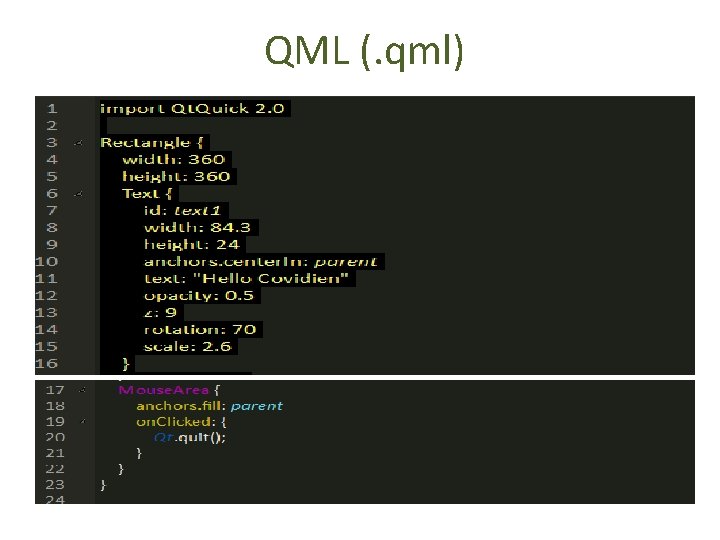
QML (. qml)
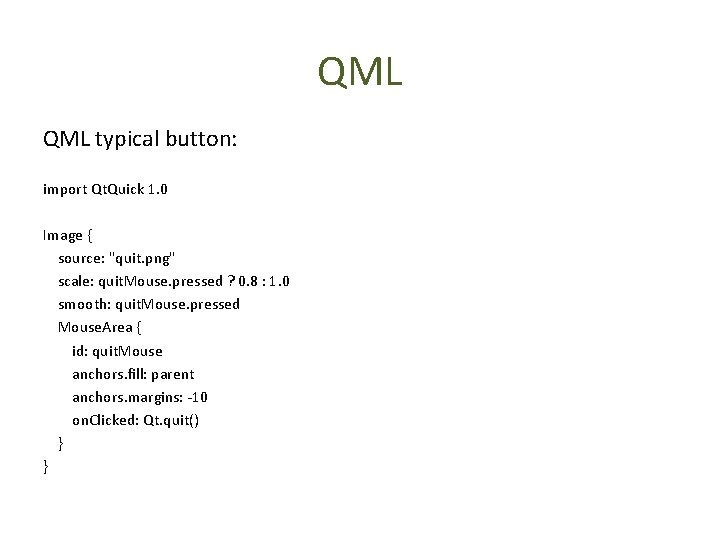
QML typical button: import Qt. Quick 1. 0 Image { source: "quit. png" scale: quit. Mouse. pressed ? 0. 8 : 1. 0 smooth: quit. Mouse. pressed Mouse. Area { id: quit. Mouse anchors. fill: parent anchors. margins: -10 on. Clicked: Qt. quit() } }
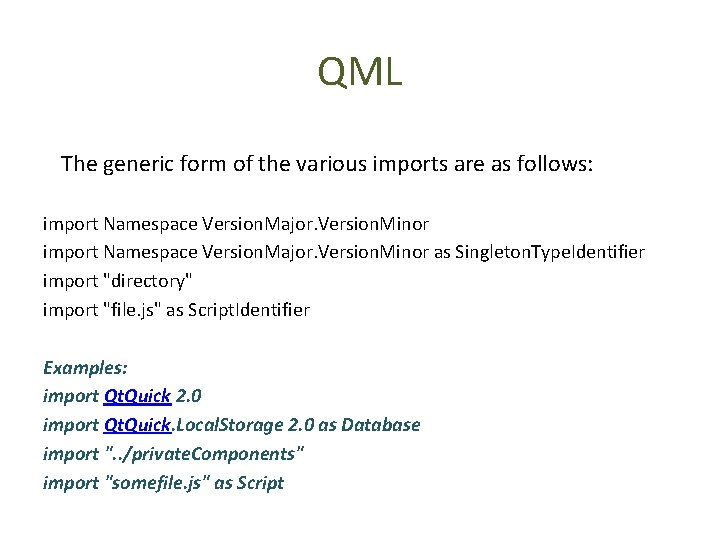
QML The generic form of the various imports are as follows: import Namespace Version. Major. Version. Minor as Singleton. Type. Identifier import "directory" import "file. js" as Script. Identifier Examples: import Qt. Quick 2. 0 import Qt. Quick. Local. Storage 2. 0 as Database import ". . /private. Components" import "somefile. js" as Script
QML • Animations • Easing Curves • Animation Groups
Animations Handle form factor changes • Outline application state changes • Orchestrate high level logic • Natural transitions • Our brain expects movement • Helps the user find its way around the GUI
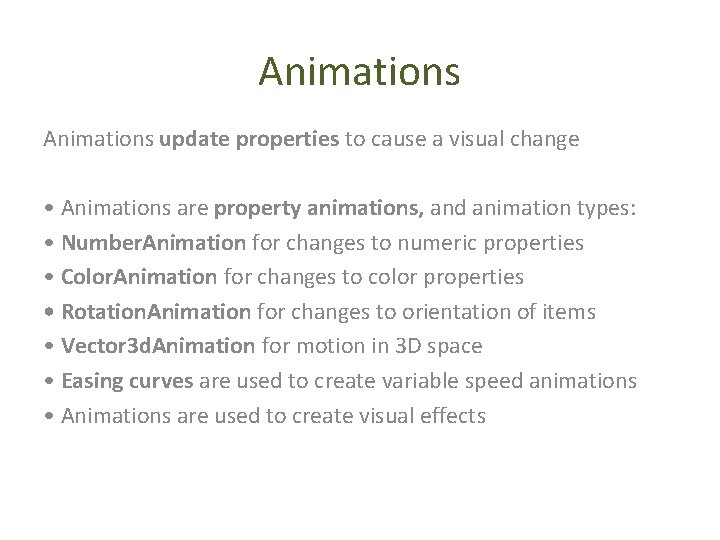
Animations update properties to cause a visual change • Animations are property animations, and animation types: • Number. Animation for changes to numeric properties • Color. Animation for changes to color properties • Rotation. Animation for changes to orientation of items • Vector 3 d. Animation for motion in 3 D space • Easing curves are used to create variable speed animations • Animations are used to create visual effects
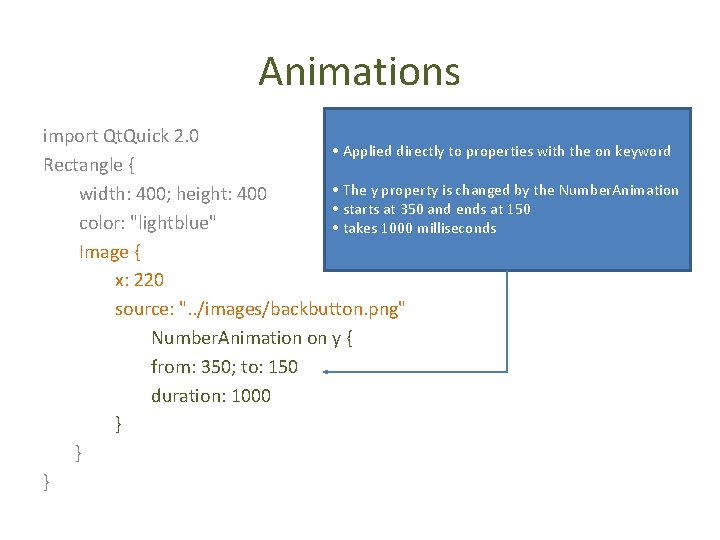
Animations import Qt. Quick 2. 0 • Applied directly to properties with the on keyword Rectangle { • The y property is changed by the Number. Animation width: 400; height: 400 • starts at 350 and ends at 150 color: "lightblue" • takes 1000 milliseconds Image { x: 220 source: ". . /images/backbutton. png" Number. Animation on y { from: 350; to: 150 duration: 1000 } } }
Animations can be performed sequentially and in parallel • Sequential. Animation defines a sequence • with each child animation run in sequence (Example: a rescaling animation, followed by an opacity changing animation) • Parallel. Animation defines a parallel group • with all child animations run at the same time (Example: simultaneous rescaling and opacity changing animations Sequential and parallel animations can be nested)
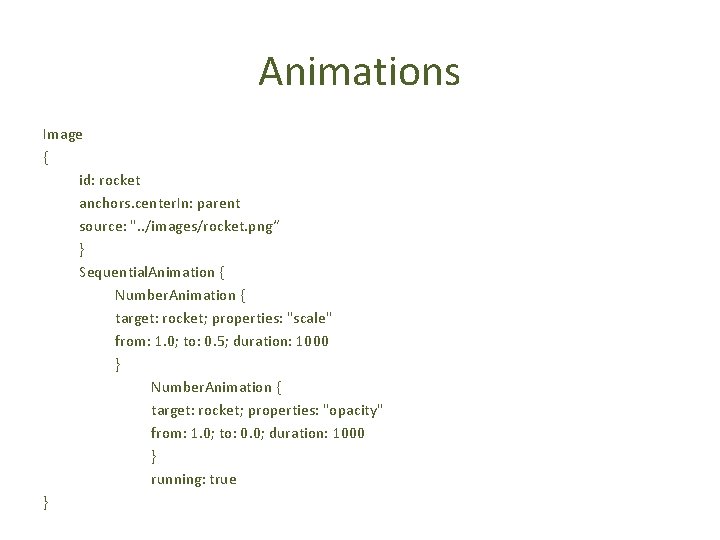
Animations Image { id: rocket anchors. center. In: parent source: ". . /images/rocket. png“ } Sequential. Animation { Number. Animation { target: rocket; properties: "scale" from: 1. 0; to: 0. 5; duration: 1000 } Number. Animation { target: rocket; properties: "opacity" from: 1. 0; to: 0. 0; duration: 1000 } running: true }
Animations Other animations • Color. Animation for changes to color properties • Rotation. Animation for changes to orientation of items • Vector 3 d. Animation for motion in 3 D space • Anchor. Animation animate an anchor change • Parent. Animation animates changes in parent values. • Spring. Animation allows a property to track a value in a spring-like motion • Property. Action the Property. Action element allows immediate property changes during animation • Script. Action allows scripts to be run during an animation
Qt Quick Using Qt Quick, the business logic and everything critical to performance can be implemented using C++. The user interface is implemented using QML ( The idea is for QML to be a language that is designed for handling many objects in a setting where many states and transitions between states need to be handled). QML, the language for building Qt Quick-based user interfaces Qt. Declarative Qt module. It contains classes for executing QML (an engine, a context and a view) It also contains bindings for QML and mechanisms for integrating C++ and QML.
Qt Quick - Components The most commonly used components are: Item: Basic visual object type inherited by visual object types Rectangle: A rectangle type Image : For incorporating bitmaps into a scene Border. Image: Allows the use of images as borders Animated. Image: Playing animations stored as an animated gif Animated. Sprite: Playing animations stored as a series of frames Sprite. Sequence - Playing and transitioning between multiple animations stored as a series of frames Text - For inserting formatted text into a scene Window - Provides a top-level window
Qt Quick - Properties For all the basic elements, a range of common properties • For placement and size, use x, y, width and height • The color and opacity can be controlled • The element can be shown or hidden • It can be transformed, e. g. scaled and rotated • Also id property and the parent property • Anchor layout as well as Grid, Row and Column for layout •
Qt Quick – Vidual Item Utils Visual Item Utility • Accessible - Attached property to make components accessible • Gradient - For defining a color gradient • Gradient. Stop - Used to define a color within a Gradient • System. Palette - Provides access to the Qt palettes • Screen - Provides information about the screen on which an Item is displayed • Sprite - Specifies sprite animations for other Items to display • Font. Loader - Loads fonts by name or URL
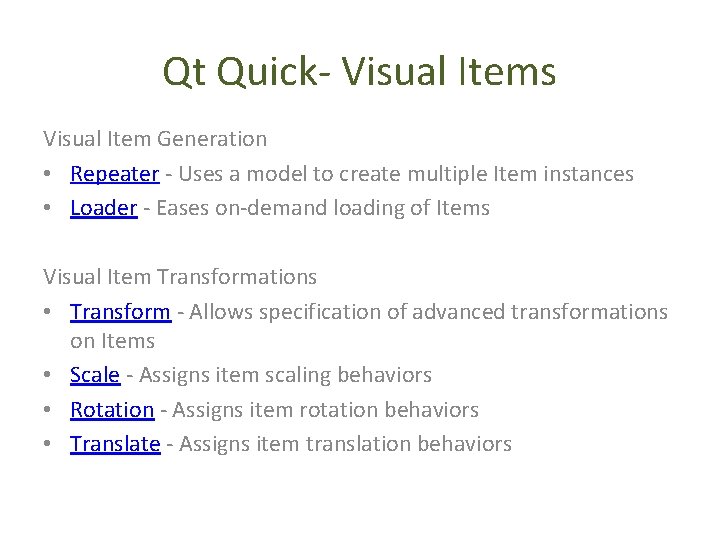
Qt Quick- Visual Items Visual Item Generation • Repeater - Uses a model to create multiple Item instances • Loader - Eases on-demand loading of Items Visual Item Transformations • Transform - Allows specification of advanced transformations on Items • Scale - Assigns item scaling behaviors • Rotation - Assigns item rotation behaviors • Translate - Assigns item translation behaviors
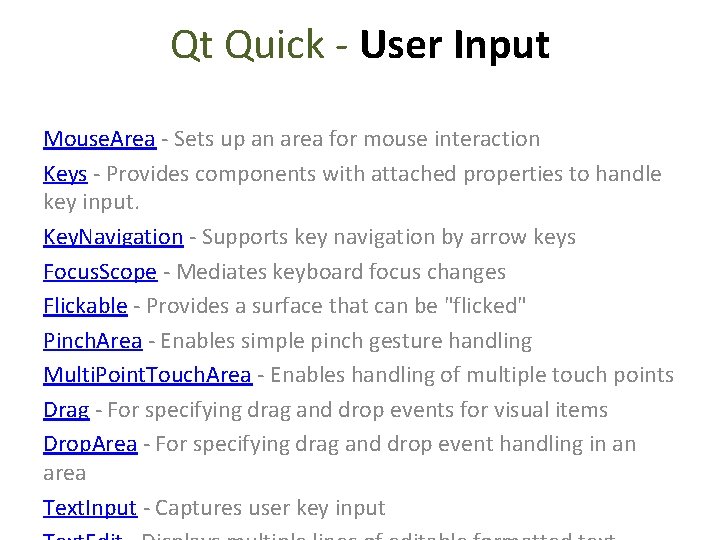
Qt Quick - User Input Mouse. Area - Sets up an area for mouse interaction Keys - Provides components with attached properties to handle key input. Key. Navigation - Supports key navigation by arrow keys Focus. Scope - Mediates keyboard focus changes Flickable - Provides a surface that can be "flicked" Pinch. Area - Enables simple pinch gesture handling Multi. Point. Touch. Area - Enables handling of multiple touch points Drag - For specifying drag and drop events for visual items Drop. Area - For specifying drag and drop event handling in an area Text. Input - Captures user key input
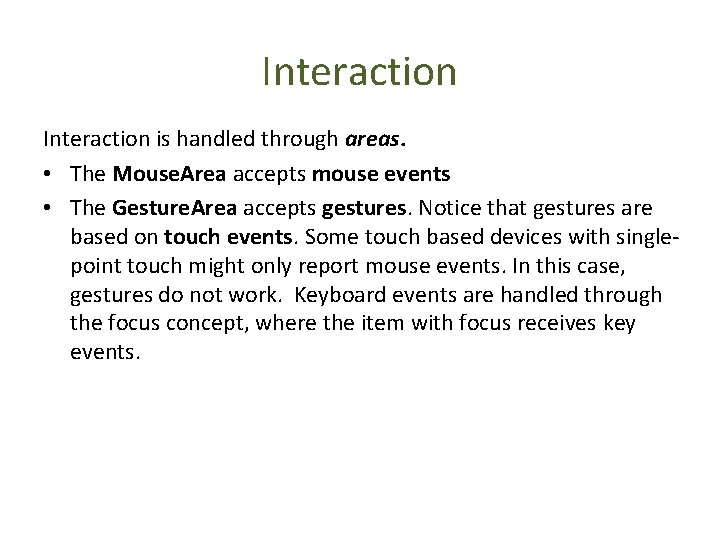
Interaction is handled through areas. • The Mouse. Area accepts mouse events • The Gesture. Area accepts gestures. Notice that gestures are based on touch events. Some touch based devices with singlepoint touch might only report mouse events. In this case, gestures do not work. Keyboard events are handled through the focus concept, where the item with focus receives key events.