
QAD Supplier Portal Supplier Schedules Supplier Portal Supplier

- Slides: 22
QAD Supplier Portal: Supplier Schedules
Supplier Portal — Supplier Schedules Course Overview • • Summarizes supplier schedules as a general concept Introduces the Schedules view and its features Lists important Schedules view columns Exercise on schedules in the context of QAD Supplier Portal 2
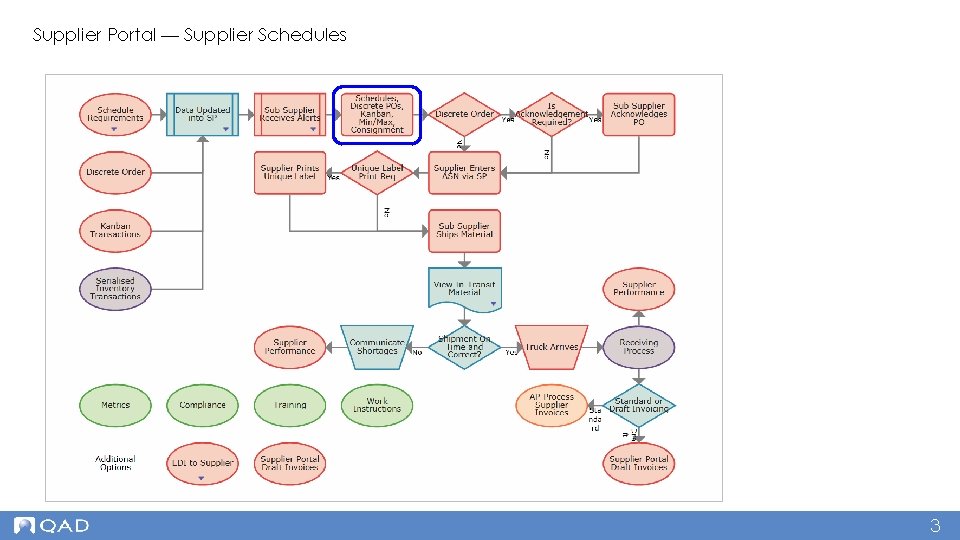
Supplier Portal — Supplier Schedules 3
Supplier Portal — Supplier Schedules • Cumulative, schedule-driven POs • Used by companies with long-term supplier contracts with weekly or daily deliveries - For example, in the automotive industry • Schedules specify delivery dates • May or may not include blanket contracts for service components 4
Supplier Portal — Supplier Schedules — Continued • Customers can use the Schedules view to indicate forecasted requirements • Schedules in Supplier Portal originate in QAD ERP or in another ERP - Schedules from QAD ERP are automatically loaded to Supplier Portal by a poller • Planning, Shipping, and Aggregate types 5
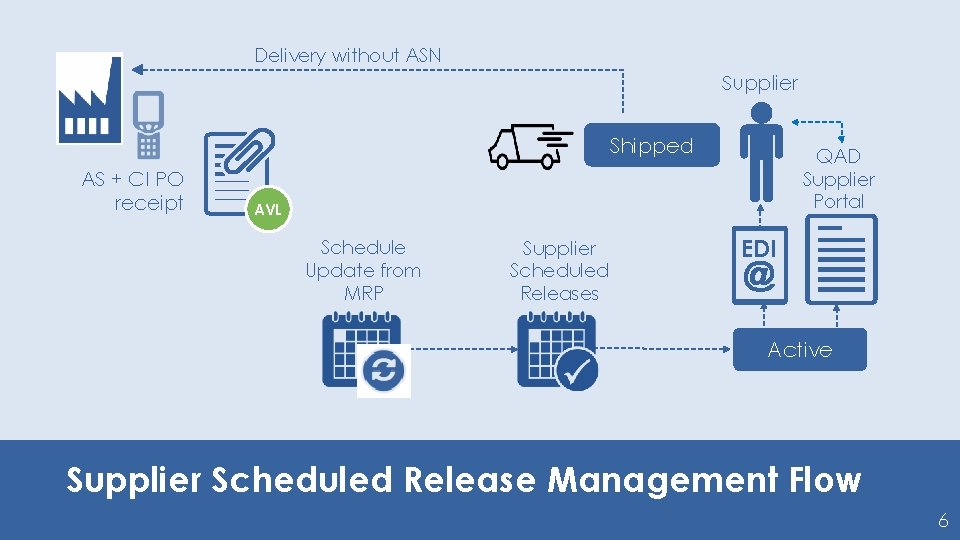
Delivery without ASN Supplier Shipped AS + CI PO receipt QAD Supplier Portal AVL Schedule Update from MRP Supplier Scheduled Releases EDI Active Supplier Scheduled Release Management Flow 6 6
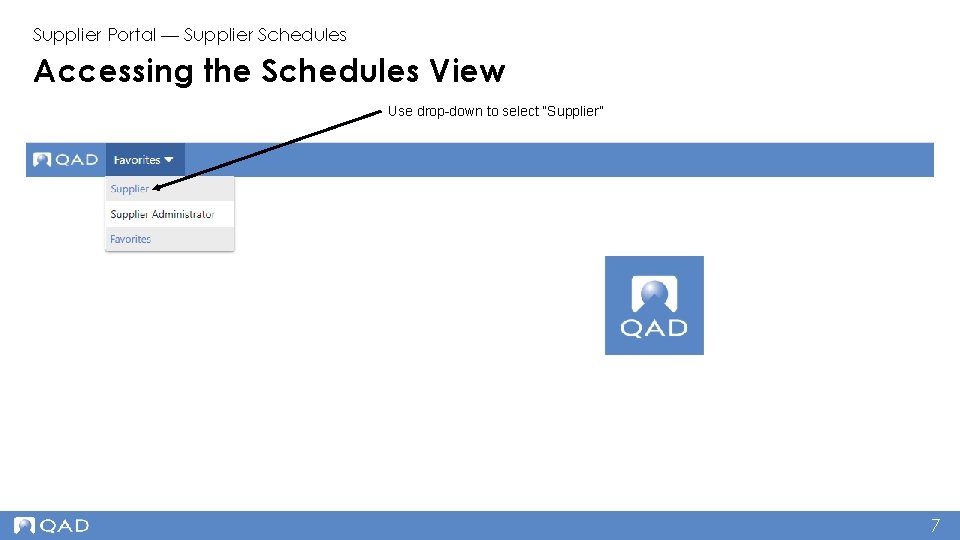
Supplier Portal — Supplier Schedules Accessing the Schedules View Use drop-down to select “Supplier” 7
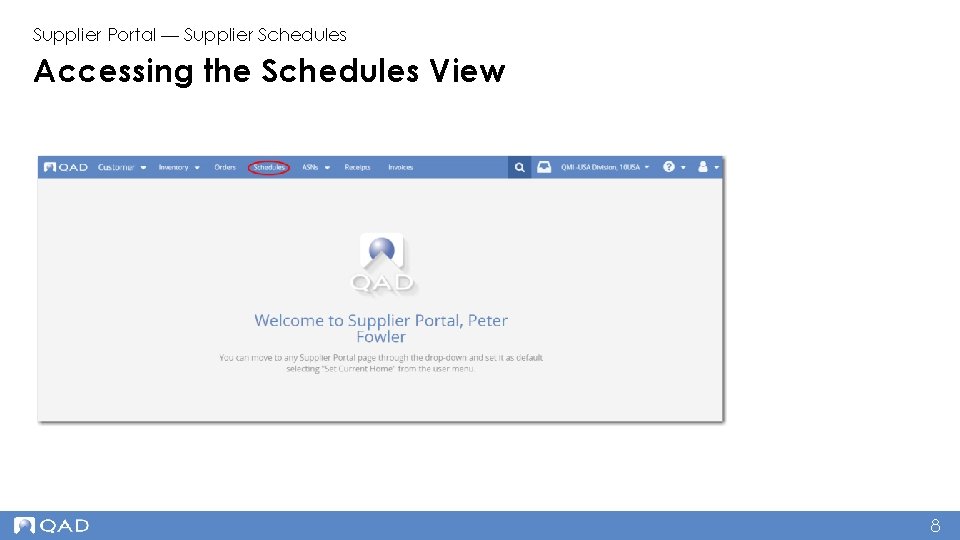
Supplier Portal — Supplier Schedules Accessing the Schedules View 8
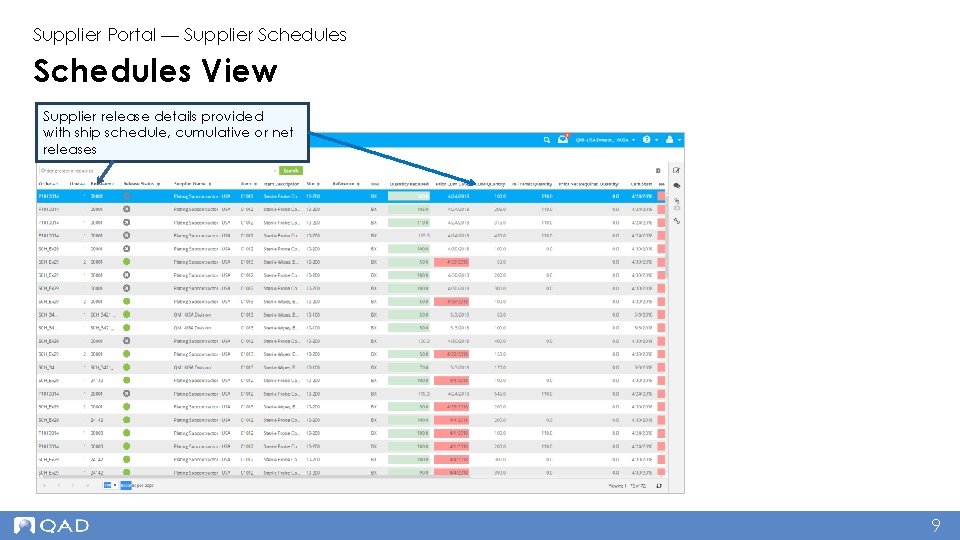
Supplier Portal — Supplier Schedules View Supplier release details provided with ship schedule, cumulative or net releases 9
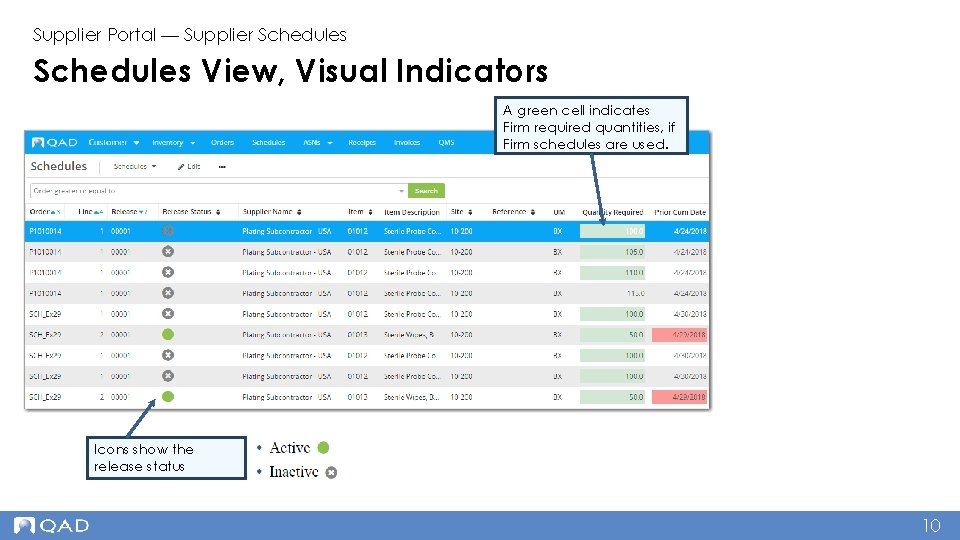
Supplier Portal — Supplier Schedules View, Visual Indicators A green cell indicates Firm required quantities, if Firm schedules are used. Icons show the release status 10
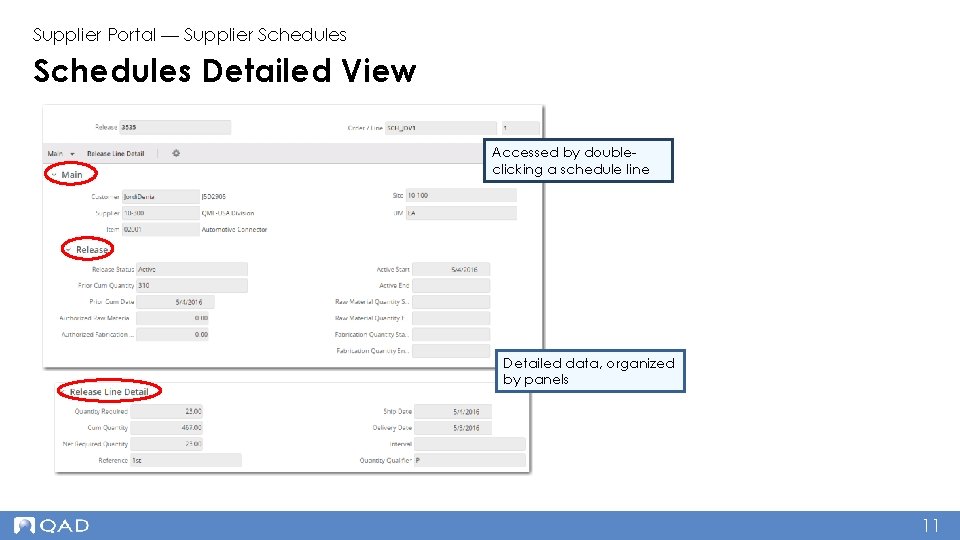
Supplier Portal — Supplier Schedules Detailed View Accessed by doubleclicking a schedule line Detailed data, organized by panels 11
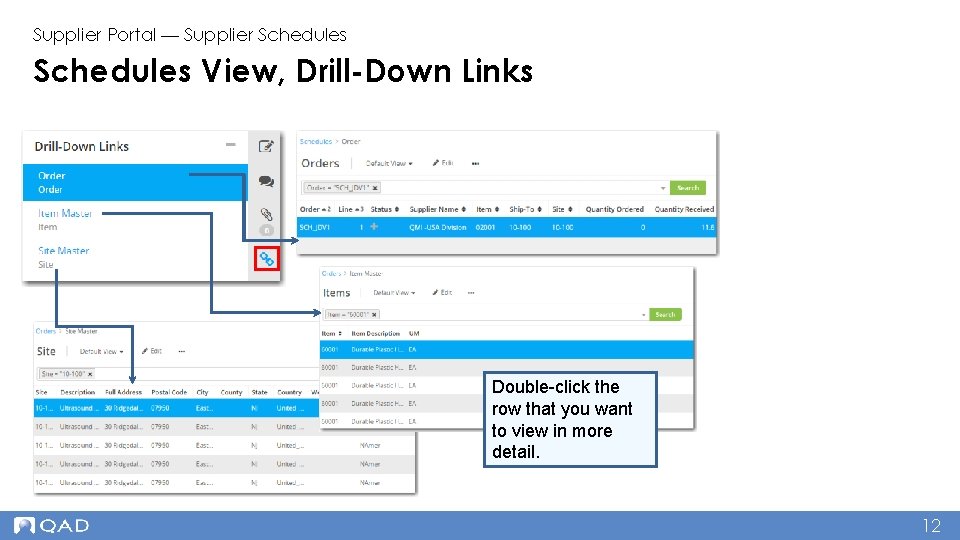
Supplier Portal — Supplier Schedules View, Drill-Down Links Double-click the row that you want to view in more detail. 12
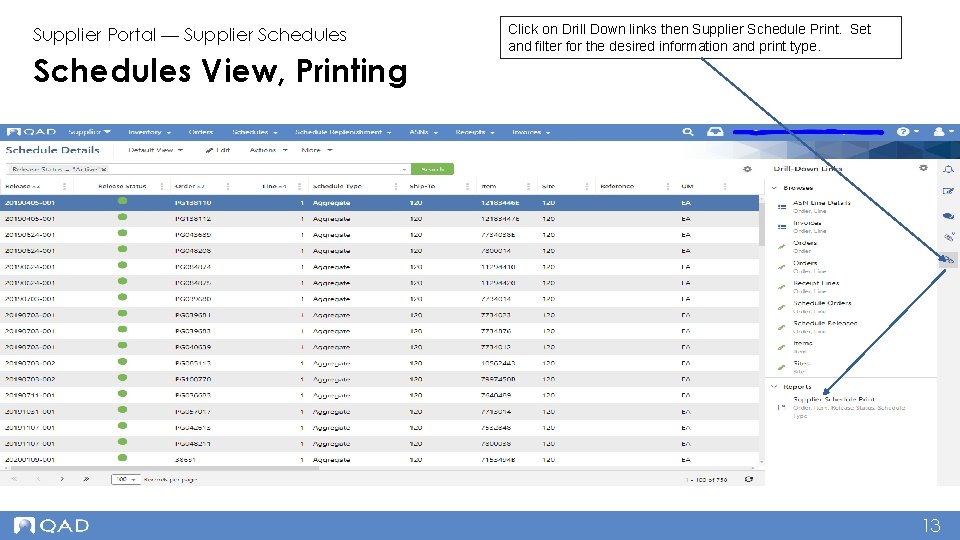
Supplier Portal — Supplier Schedules View, Printing Click on Drill Down links then Supplier Schedule Print. Set and filter for the desired information and print type. 13
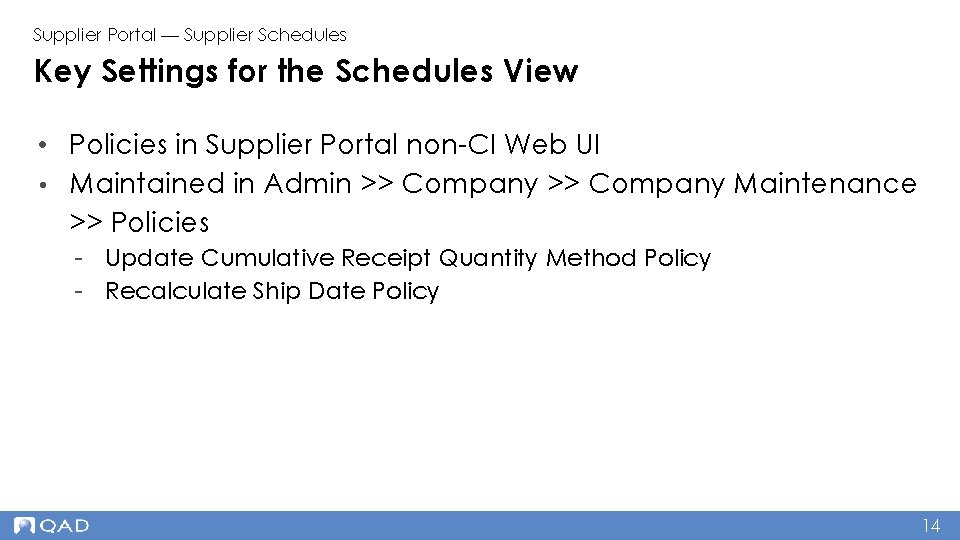
Supplier Portal — Supplier Schedules Key Settings for the Schedules View • Policies in Supplier Portal non-CI Web UI • Maintained in Admin >> Company Maintenance >> Policies - Update Cumulative Receipt Quantity Method Policy - Recalculate Ship Date Policy 14
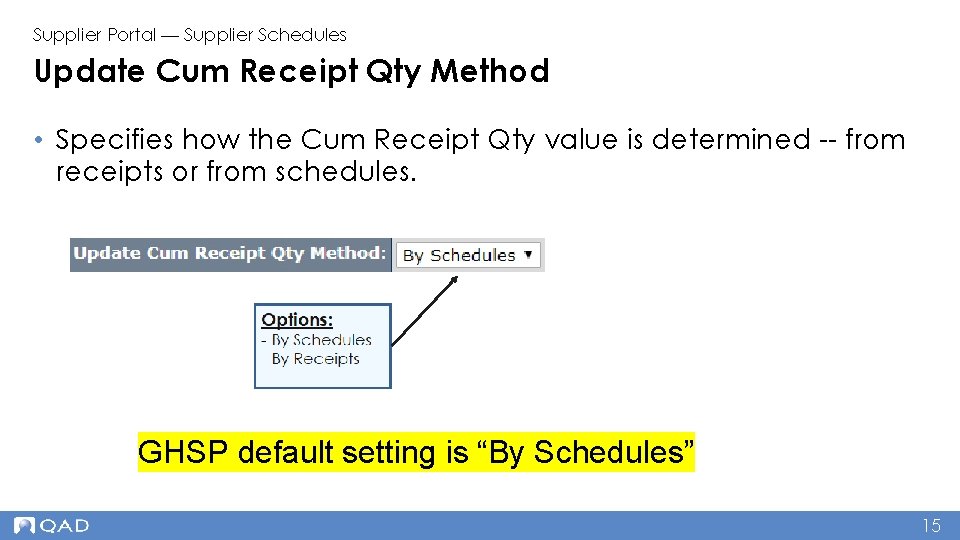
Supplier Portal — Supplier Schedules Update Cum Receipt Qty Method • Specifies how the Cum Receipt Qty value is determined -- from receipts or from schedules. GHSP default setting is “By Schedules” 15
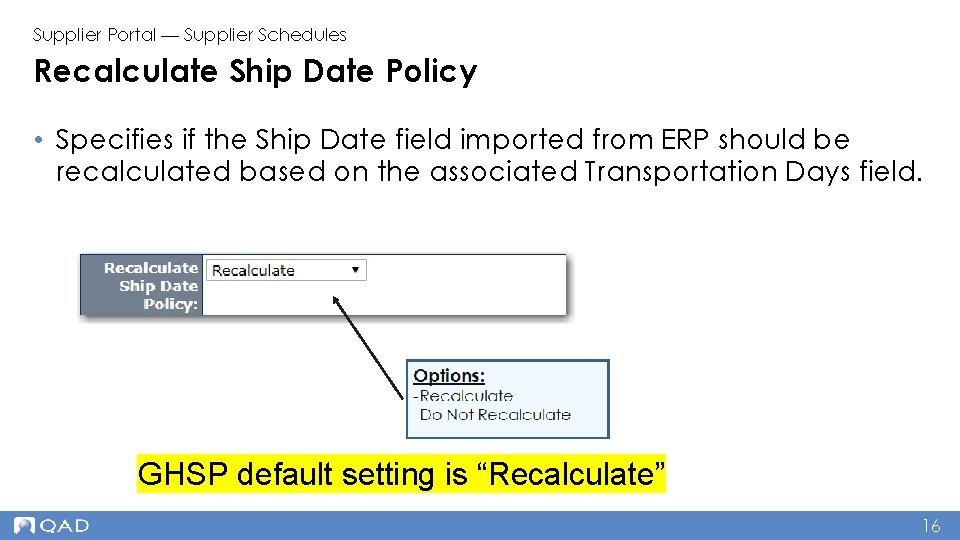
Supplier Portal — Supplier Schedules Recalculate Ship Date Policy • Specifies if the Ship Date field imported from ERP should be recalculated based on the associated Transportation Days field. GHSP default setting is “Recalculate” 16
Supplier Portal — Supplier Schedules Choosing Columns for the Schedules View • Primarily, the columns you require depend on your particular business processes • Often, customers recommend how they want suppliers to set up the Schedules view • In Schedule Details, filter for Release then either Ship Date or Delivery Date columns (depending on the type of release customer plant provides) to view upcoming shipment requirements 17
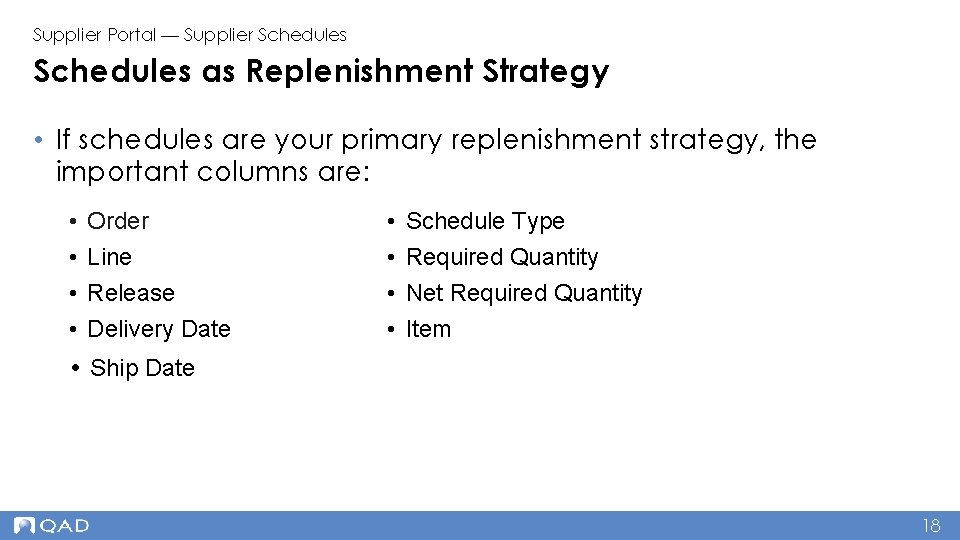
Supplier Portal — Supplier Schedules as Replenishment Strategy • If schedules are your primary replenishment strategy, the important columns are: • Order • Schedule Type • Line • Required Quantity • Release • Net Required Quantity • Delivery Date • Item • Ship Date 18
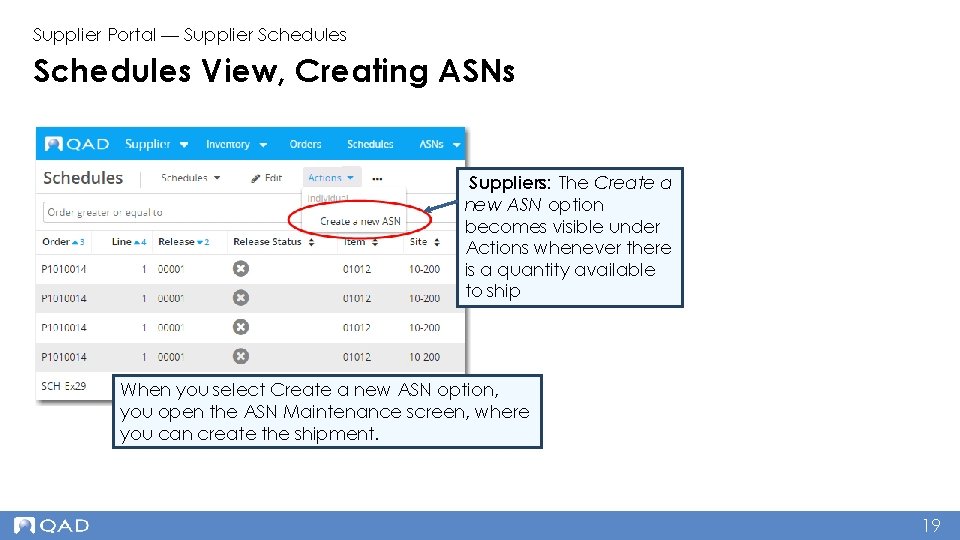
Supplier Portal — Supplier Schedules View, Creating ASNs Suppliers: The Create a new ASN option becomes visible under Actions whenever there is a quantity available to ship When you select Create a new ASN option, you open the ASN Maintenance screen, where you can create the shipment. 19
Supplier Portal — Supplier Schedules Advanced Training Topics • Shipping Forecasts - Produced by suppliers to provide information and visibility about their planned shipping schedules - QAD SP stores two types of related information: • Supplier schedules (demand provided by customers) • Shipping forecasts (supply provided by suppliers) 20
Supplier Portal — Supplier Schedules Advanced Training Topics — Continued • Schedule Replenishment - Displays the next scheduled deliveries, arrears, overshipments, and replenishment quantities for all schedule-controlled items - The replenishment quantity automatically refreshes when receipts, ASNs, or schedules are created or updated 21
www. qad. com © QAD Inc 22