
QAD Reporting Framework Stacy Green Brave Point MWUG
QAD Reporting Framework Stacy Green, Brave. Point MWUG Mar 2013
Agenda 5 Introduction 5 What is it 5 What’s included 5 Sample Reports 5 Creating a Simple Report 5 Adding the Report to the Menu 5 Questions and Answers 5 Next Steps
Reporting Framework – What is it? 5 Better looking reports, including logos, font changes, barcodes, highlighting, totals, etc. 5 Use a browse or a query as the basis for the report 5 Save Report Criteria to simplify entry 5 Send reports directly to PDF or Excel 5 Schedule jobs
Reporting Framework – Where to get it 5 Included as of QAD 2009, both Standard Edition and Enterprise Edition 5“Free” if you are current on QAD Maintenance 5 Sample Reports – Included with QAD 2009, 2010 SE (. NET UI 2. 9. 1) – Otherwise, need to request Reporting Framework Source and Samples (currently version 1. 3) from your QAD sales rep 5 Possible to retro-fit it to QAD e. B 2. 1 SP 4 – QAD 2008 via a services engagement. Requires a schema change.
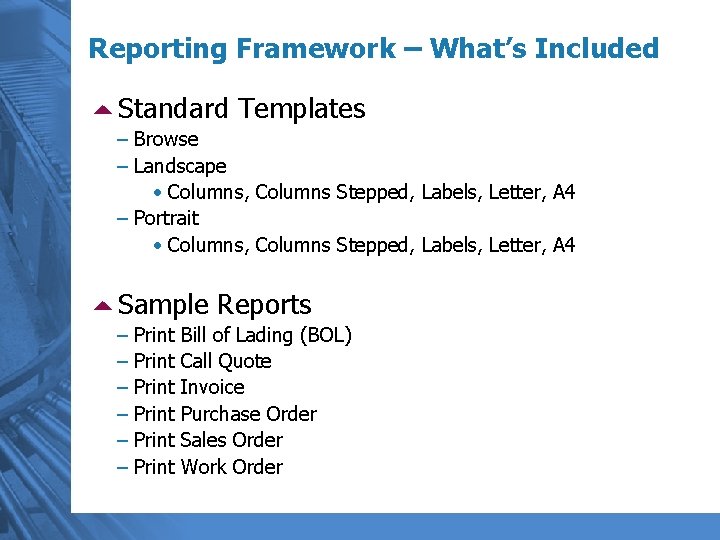
Reporting Framework – What’s Included 5 Standard Templates – Browse – Landscape • Columns, Columns Stepped, Labels, Letter, A 4 – Portrait • Columns, Columns Stepped, Labels, Letter, A 4 5 Sample Reports – – – Print Print Bill of Lading (BOL) Call Quote Invoice Purchase Order Sales Order Work Order
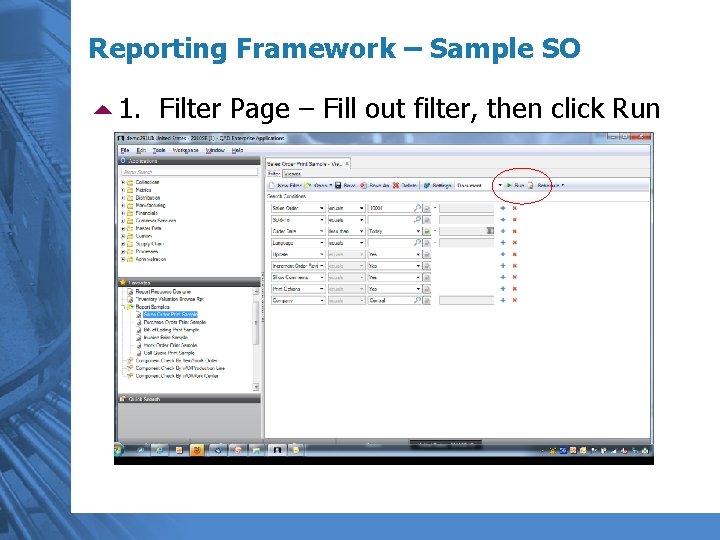
Reporting Framework – Sample SO 51. Filter Page – Fill out filter, then click Run –
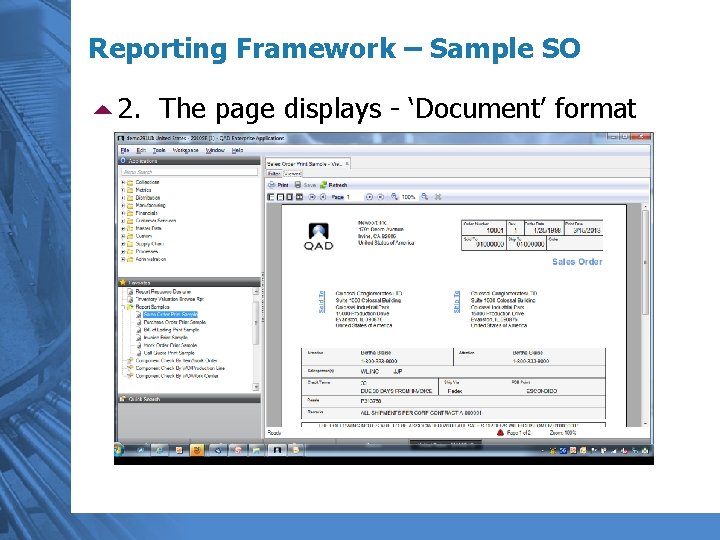
Reporting Framework – Sample SO 52. The page displays - ‘Document’ format –
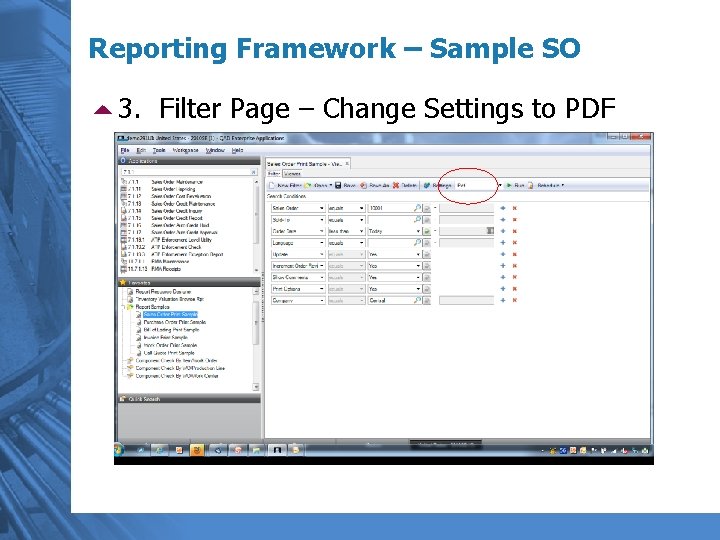
Reporting Framework – Sample SO 53. Filter Page – Change Settings to PDF –
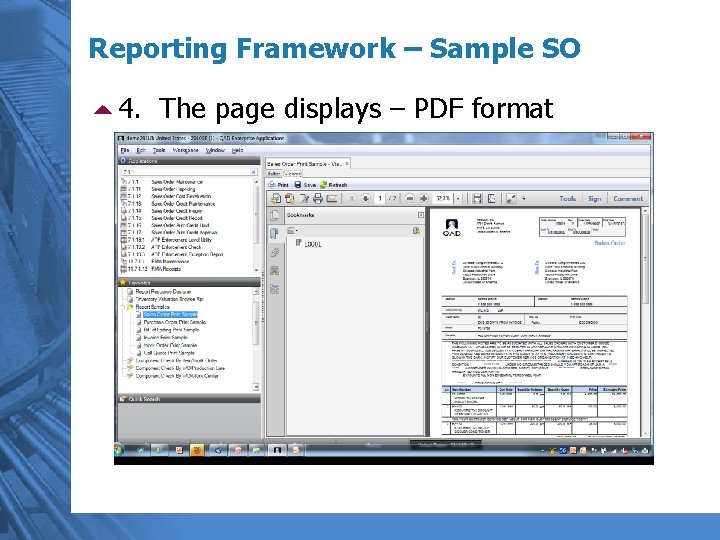
Reporting Framework – Sample SO 54. The page displays – PDF format –
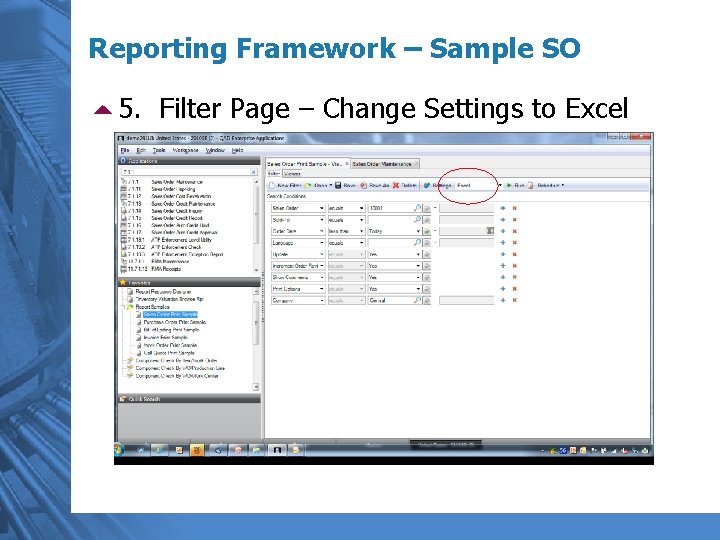
Reporting Framework – Sample SO 55. Filter Page – Change Settings to Excel –
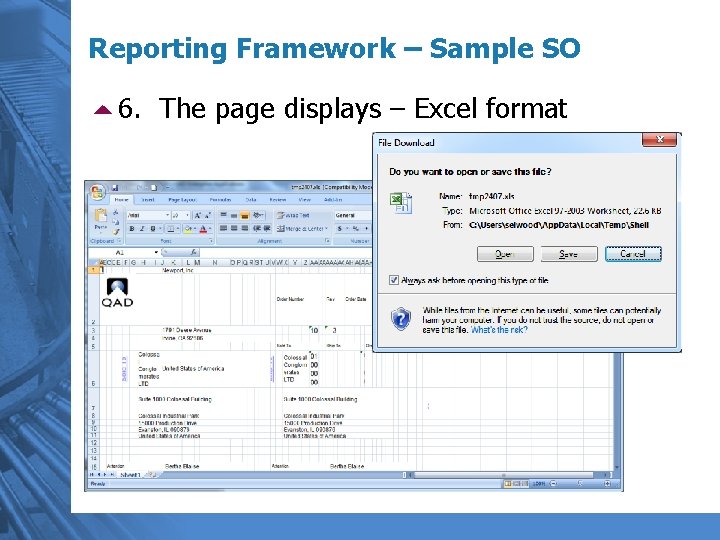
Reporting Framework – Sample SO 56. The page displays – Excel format
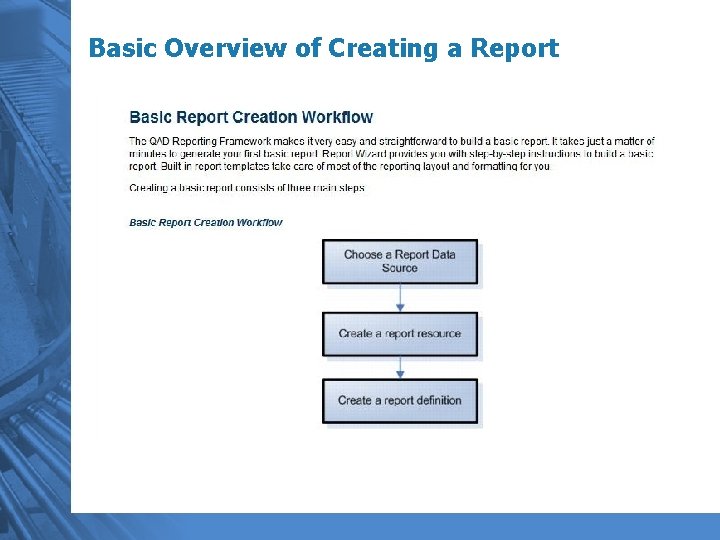
Basic Overview of Creating a Report
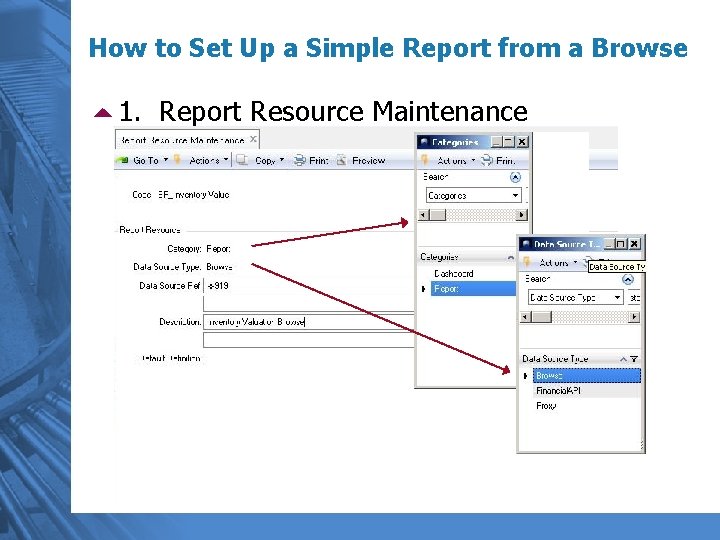
How to Set Up a Simple Report from a Browse 51. Report Resource Maintenance
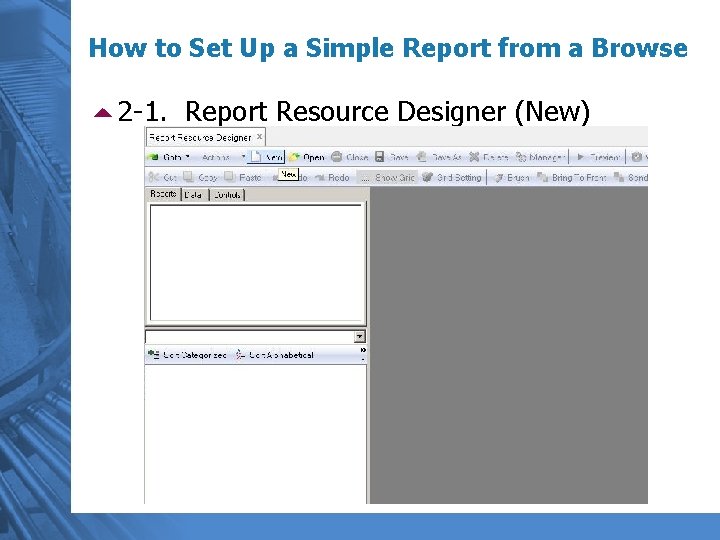
How to Set Up a Simple Report from a Browse 52 -1. Report Resource Designer (New)
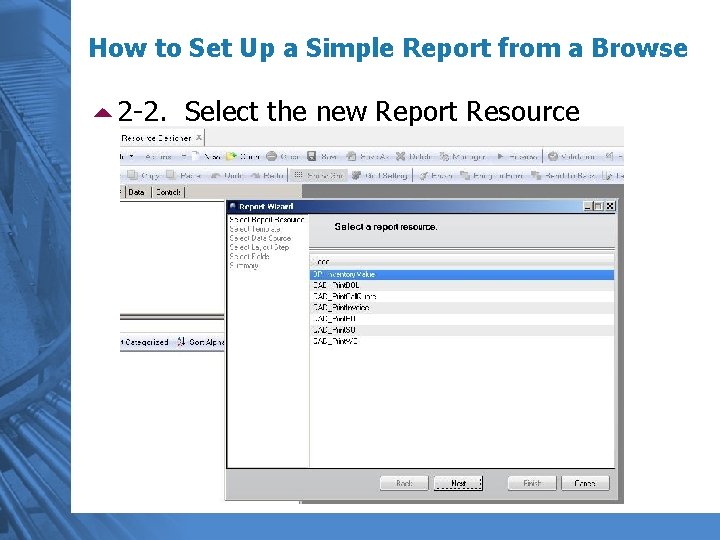
How to Set Up a Simple Report from a Browse 52 -2. Select the new Report Resource
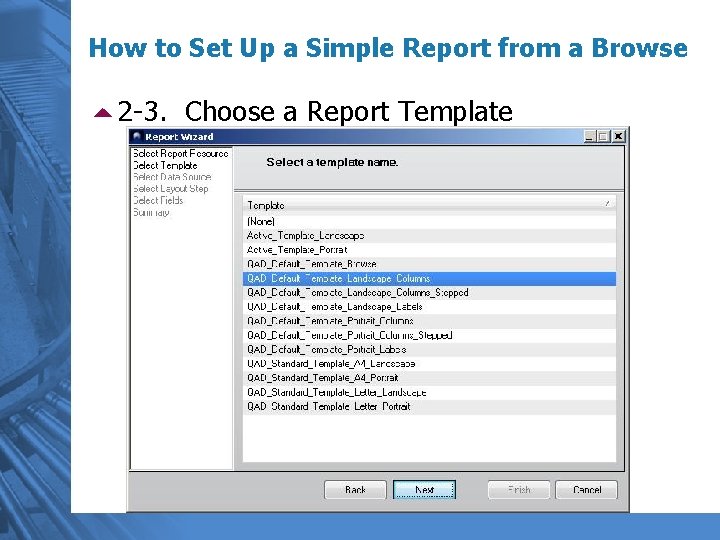
How to Set Up a Simple Report from a Browse 52 -3. Choose a Report Template
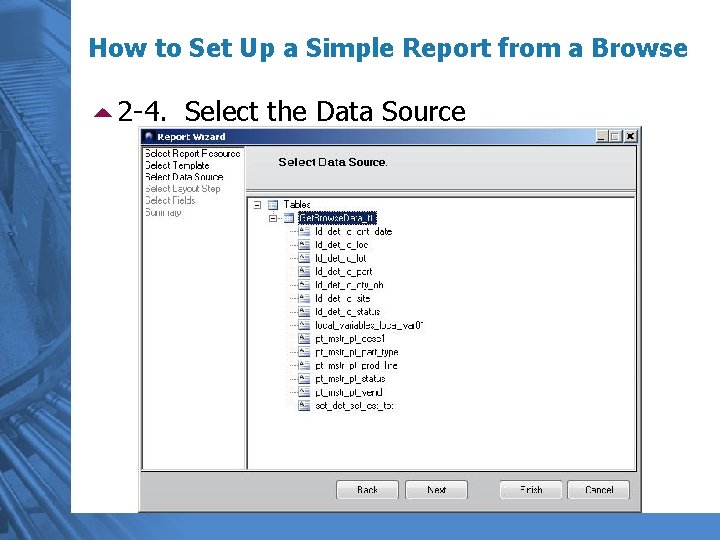
How to Set Up a Simple Report from a Browse 52 -4. Select the Data Source
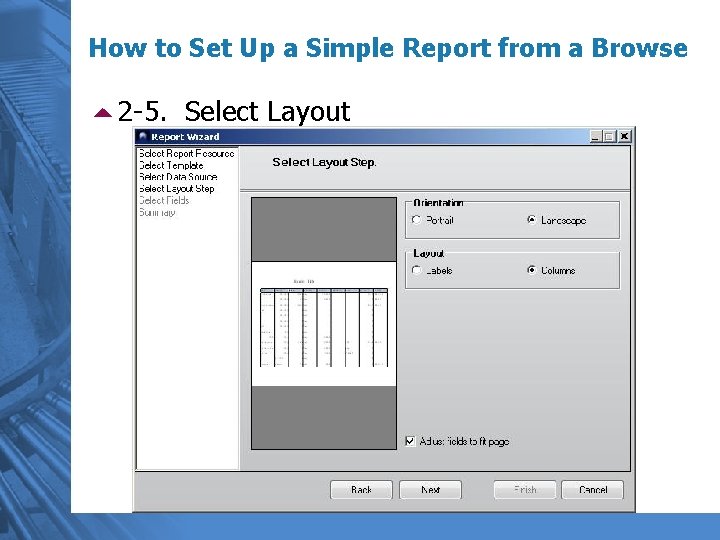
How to Set Up a Simple Report from a Browse 52 -5. Select Layout
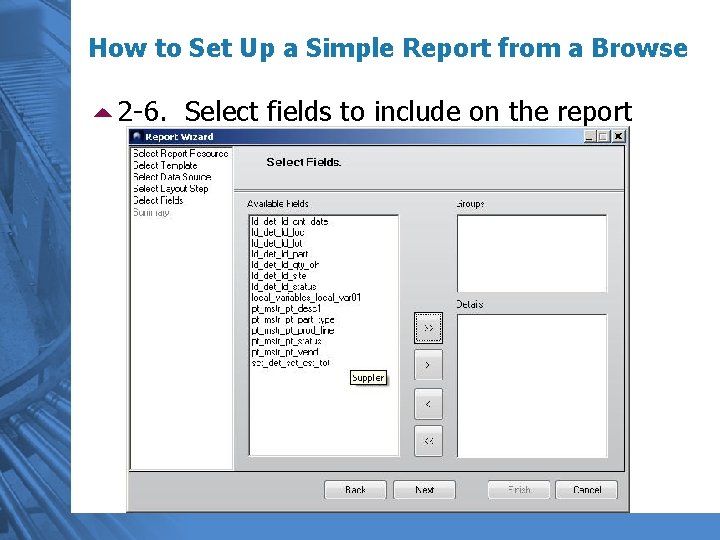
How to Set Up a Simple Report from a Browse 52 -6. Select fields to include on the report
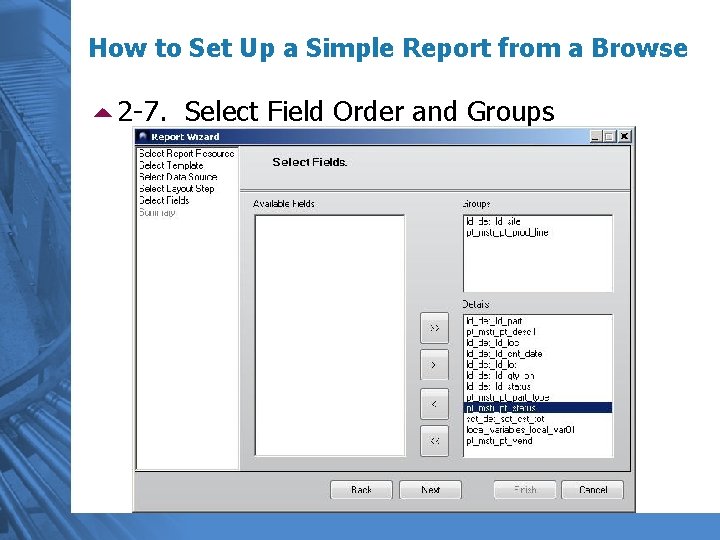
How to Set Up a Simple Report from a Browse 52 -7. Select Field Order and Groups
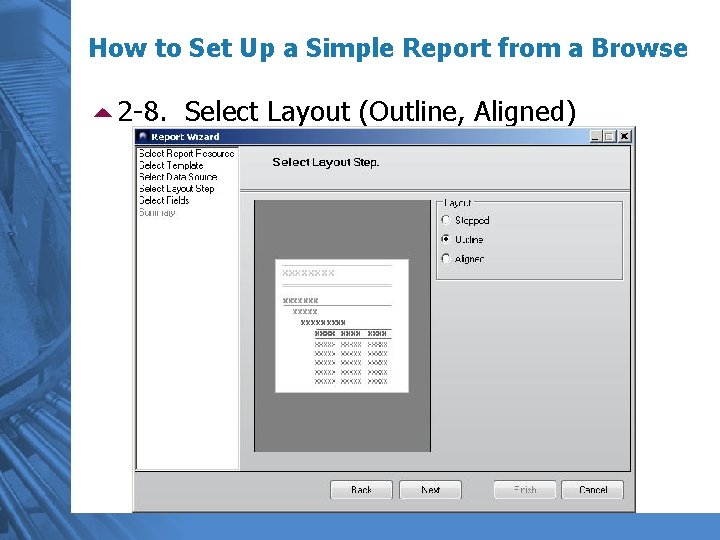
How to Set Up a Simple Report from a Browse 52 -8. Select Layout (Outline, Aligned)
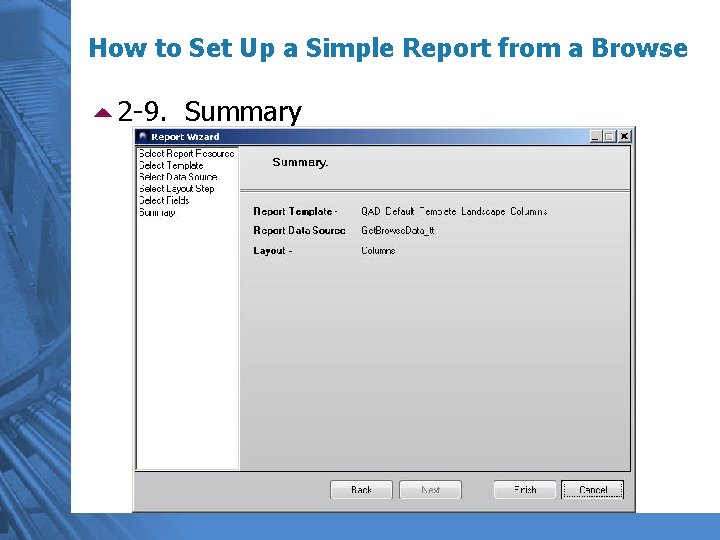
How to Set Up a Simple Report from a Browse 52 -9. Summary
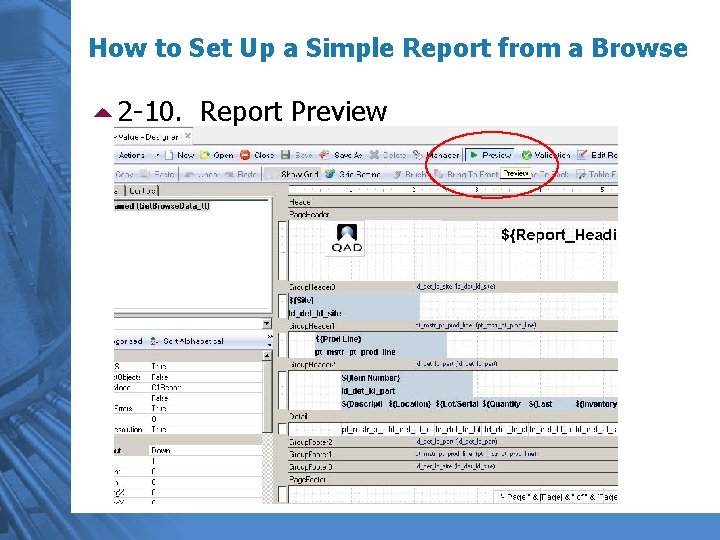
How to Set Up a Simple Report from a Browse 52 -10. Report Preview
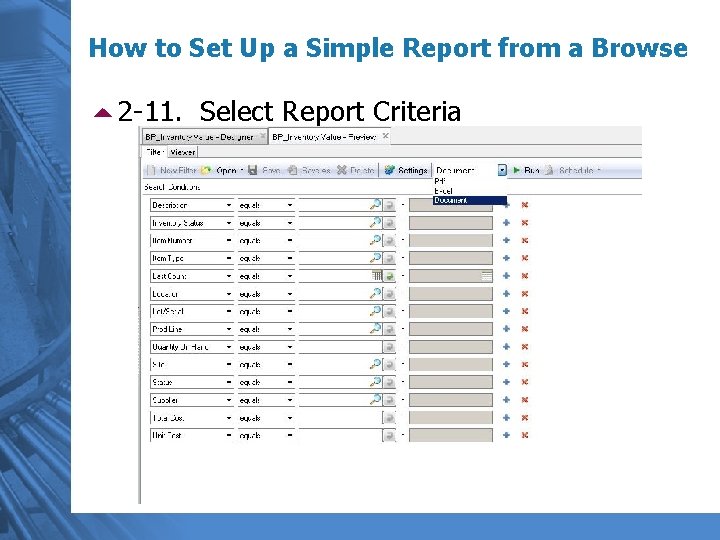
How to Set Up a Simple Report from a Browse 52 -11. Select Report Criteria
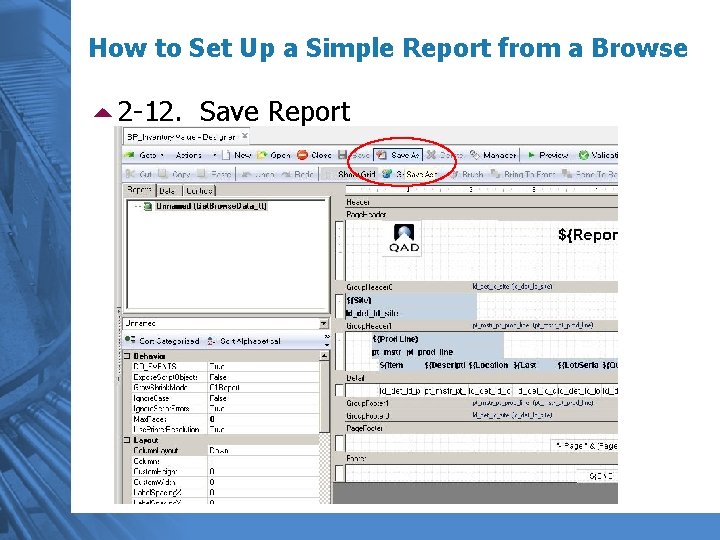
How to Set Up a Simple Report from a Browse 52 -12. Save Report
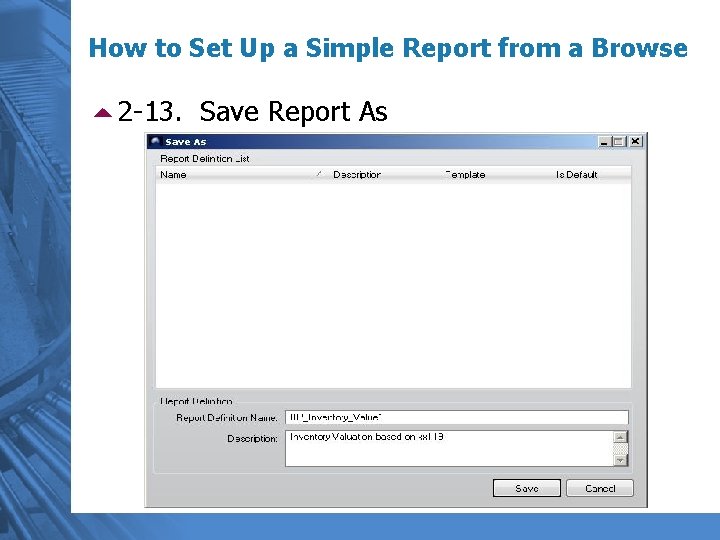
How to Set Up a Simple Report from a Browse 52 -13. Save Report As
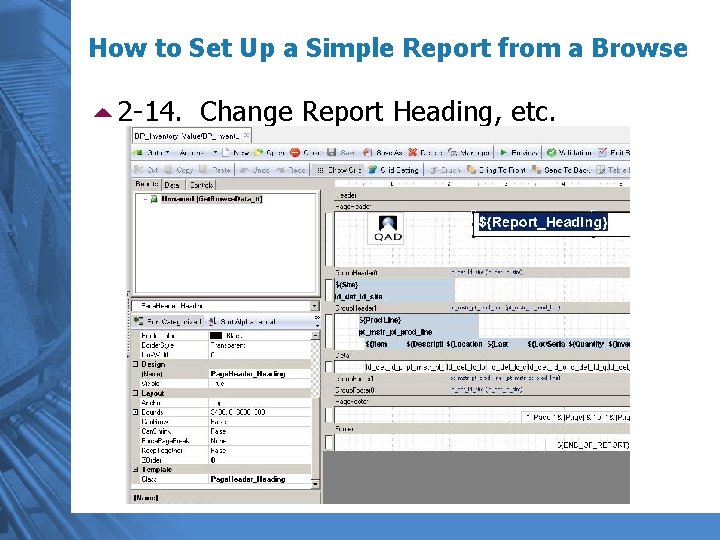
How to Set Up a Simple Report from a Browse 52 -14. Change Report Heading, etc.
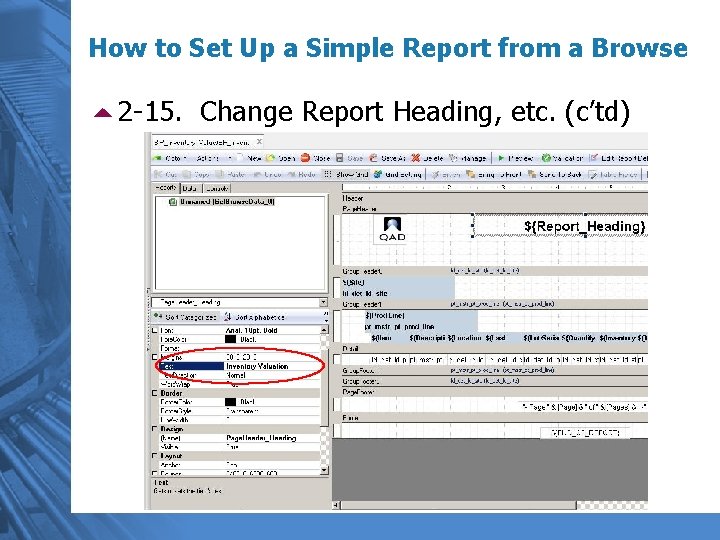
How to Set Up a Simple Report from a Browse 52 -15. Change Report Heading, etc. (c’td)
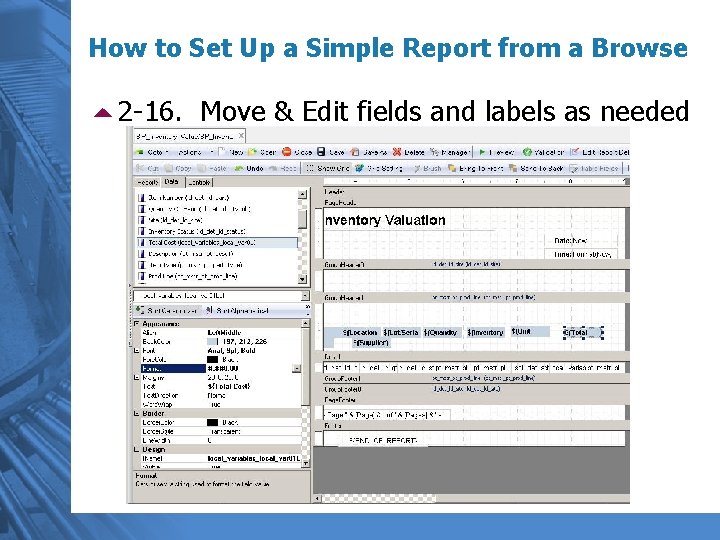
How to Set Up a Simple Report from a Browse 52 -16. Move & Edit fields and labels as needed
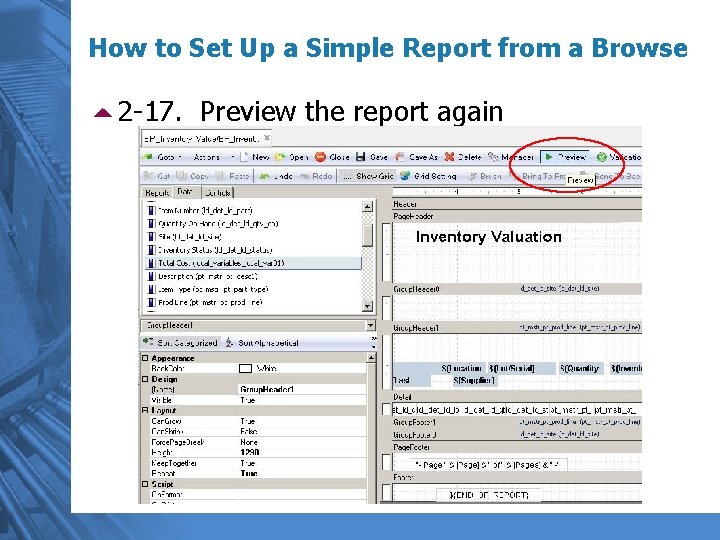
How to Set Up a Simple Report from a Browse 52 -17. Preview the report again
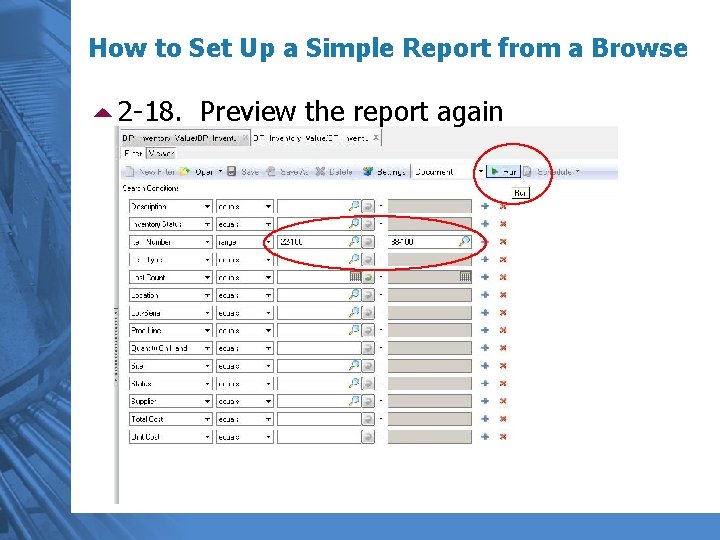
How to Set Up a Simple Report from a Browse 52 -18. Preview the report again
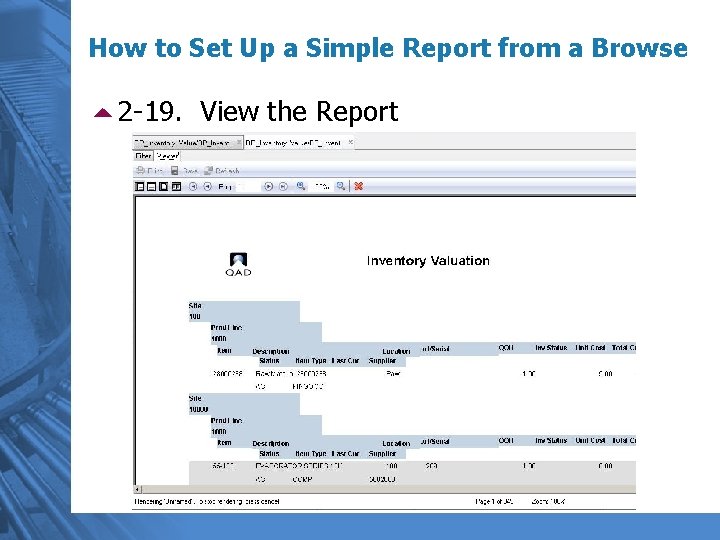
How to Set Up a Simple Report from a Browse 52 -19. View the Report
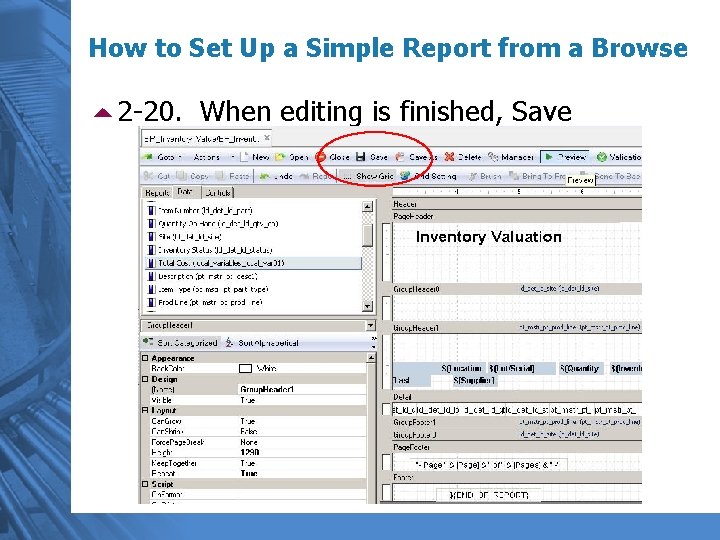
How to Set Up a Simple Report from a Browse 52 -20. When editing is finished, Save
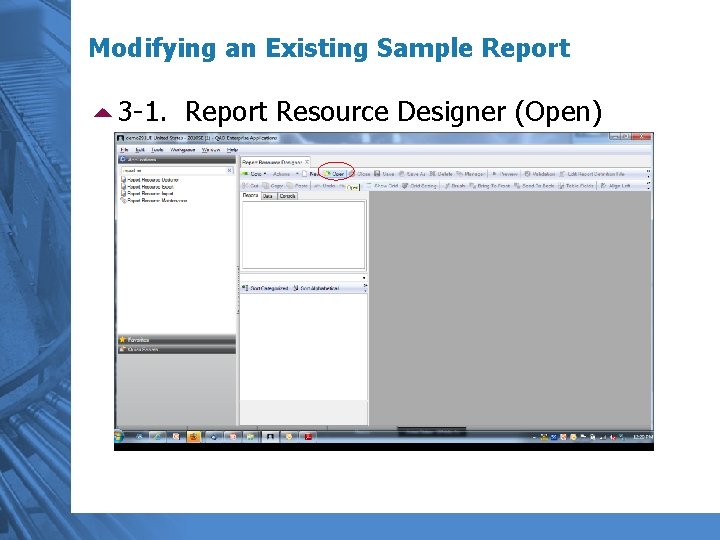
Modifying an Existing Sample Report 53 -1. Report Resource Designer (Open)
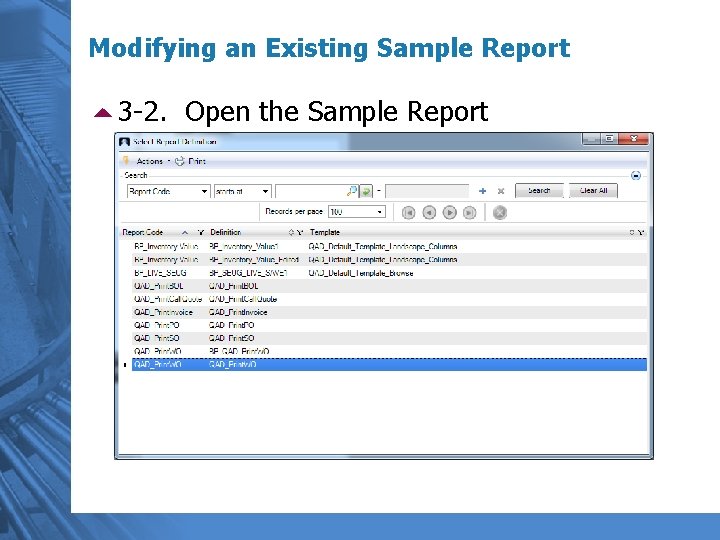
Modifying an Existing Sample Report 53 -2. Open the Sample Report
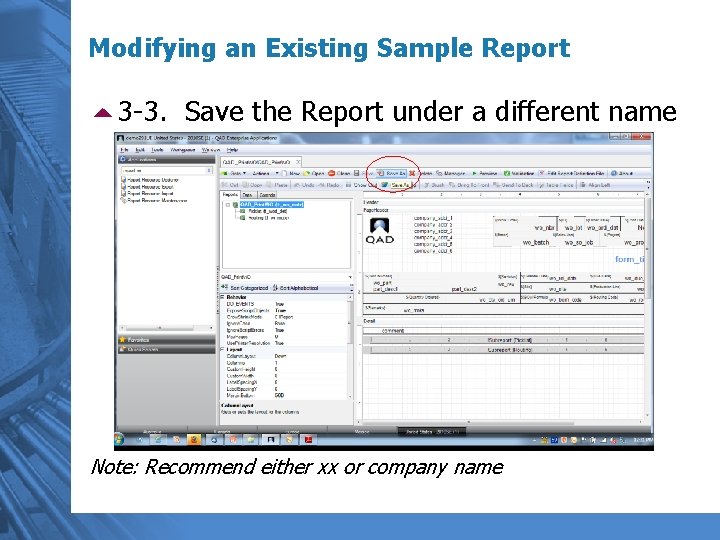
Modifying an Existing Sample Report 53 -3. Save the Report under a different name Note: Recommend either xx or company name
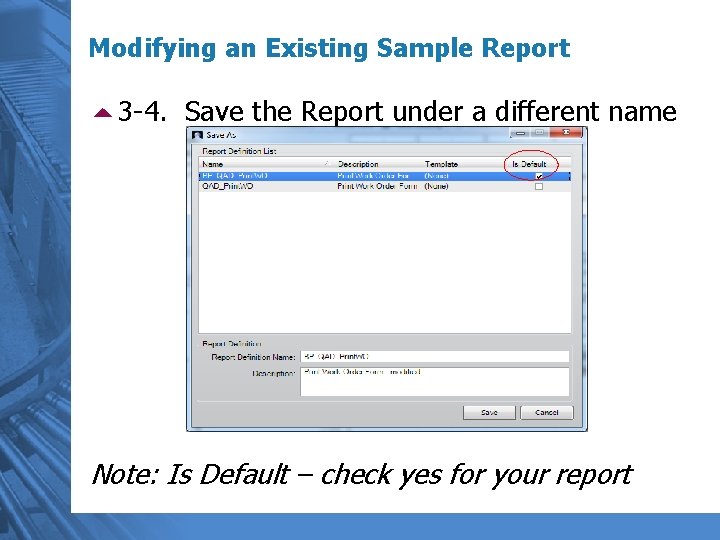
Modifying an Existing Sample Report 53 -4. Save the Report under a different name Note: Is Default – check yes for your report
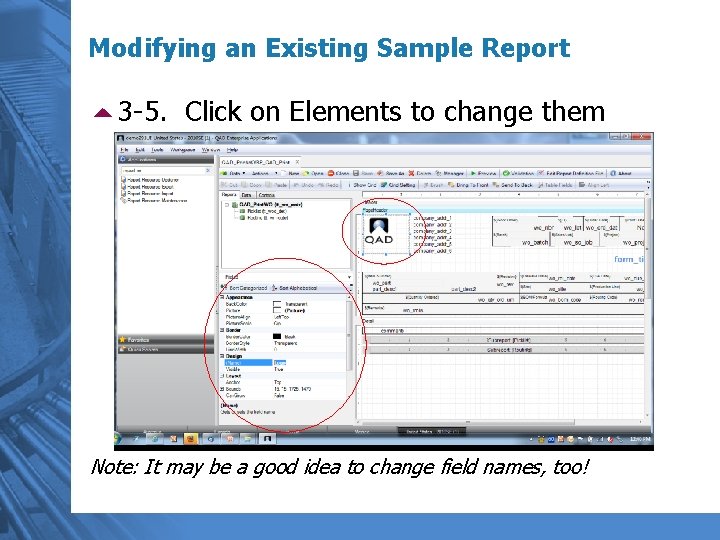
Modifying an Existing Sample Report 53 -5. Click on Elements to change them Note: It may be a good idea to change field names, too!
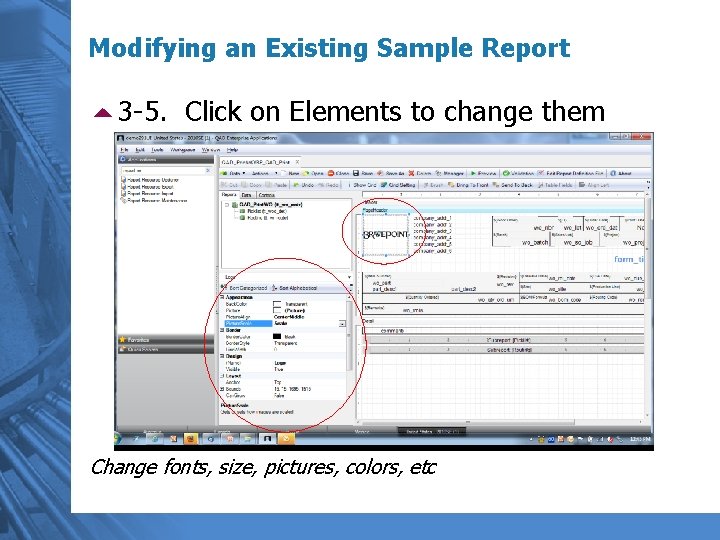
Modifying an Existing Sample Report 53 -5. Click on Elements to change them Change fonts, size, pictures, colors, etc
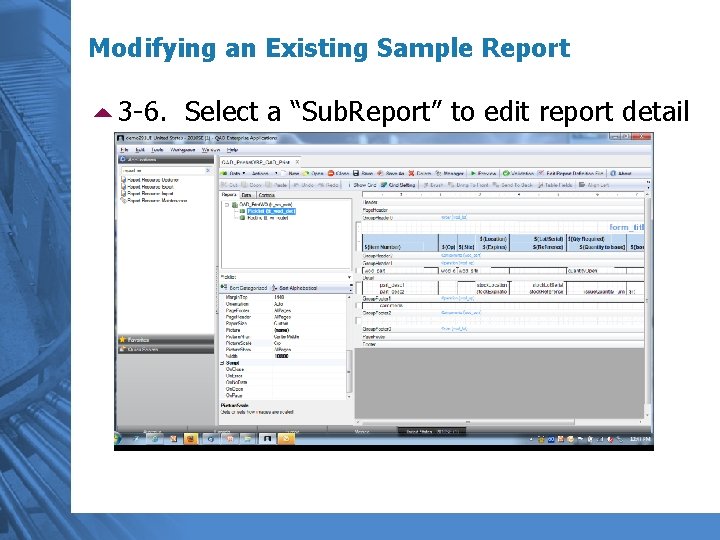
Modifying an Existing Sample Report 53 -6. Select a “Sub. Report” to edit report detail
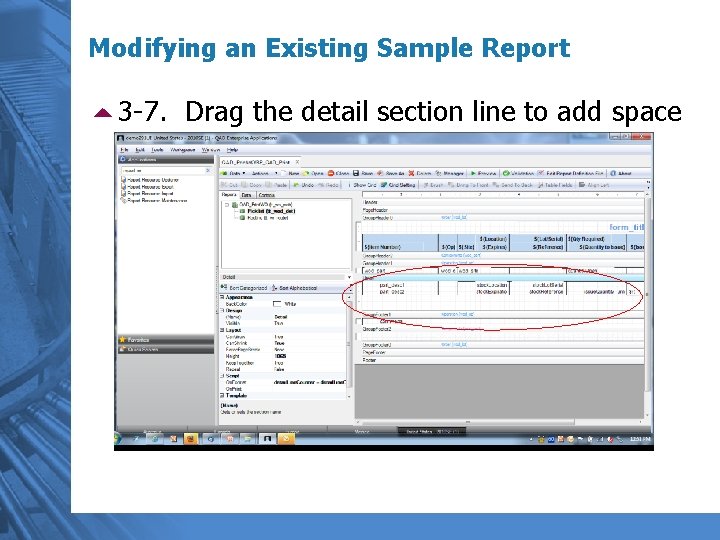
Modifying an Existing Sample Report 53 -7. Drag the detail section line to add space
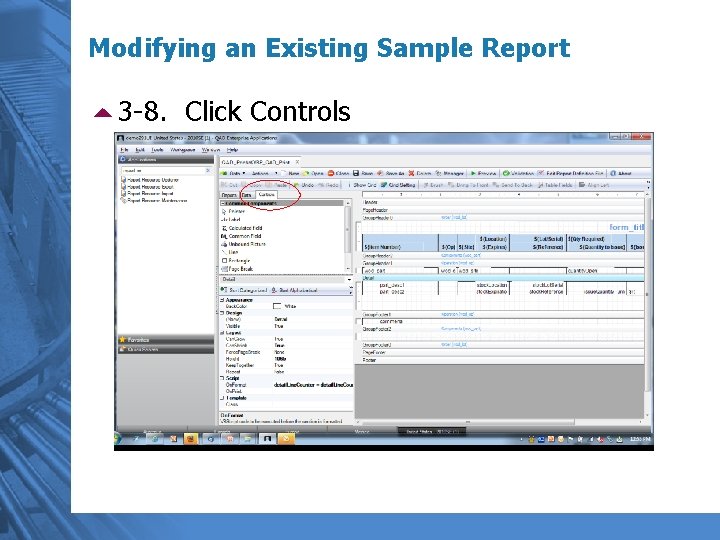
Modifying an Existing Sample Report 53 -8. Click Controls
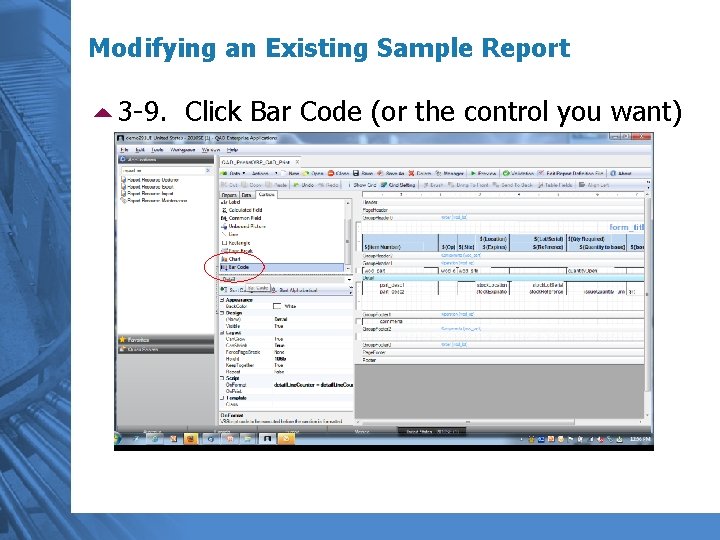
Modifying an Existing Sample Report 53 -9. Click Bar Code (or the control you want)
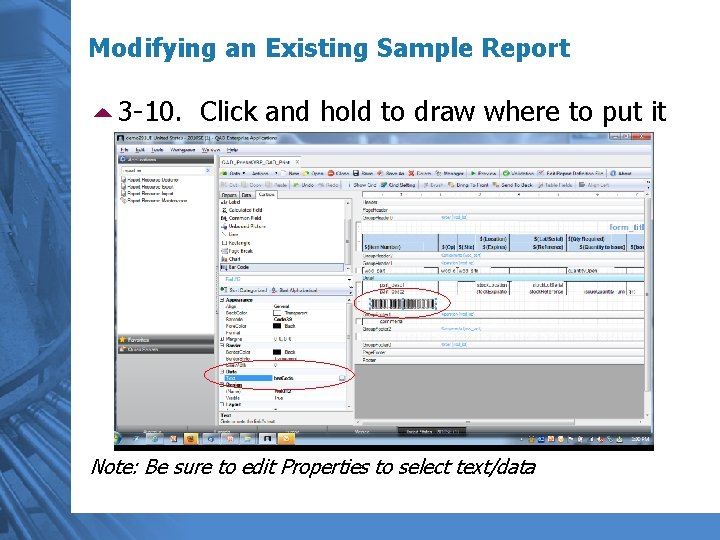
Modifying an Existing Sample Report 53 -10. Click and hold to draw where to put it Note: Be sure to edit Properties to select text/data
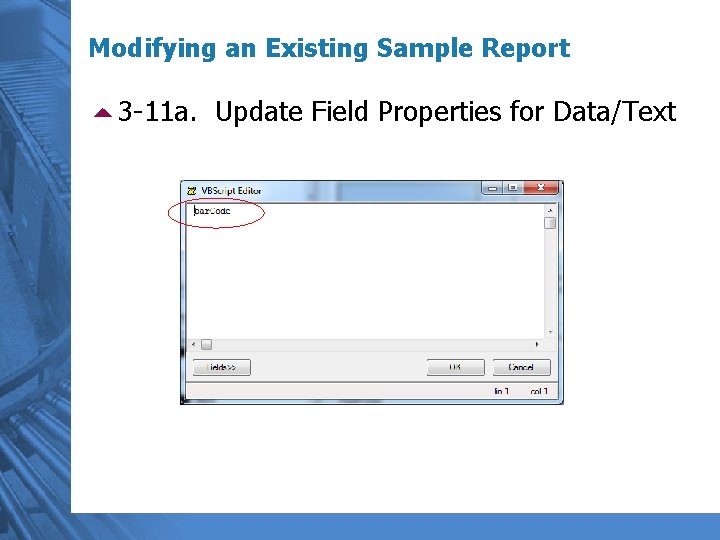
Modifying an Existing Sample Report 53 -11 a. Update Field Properties for Data/Text
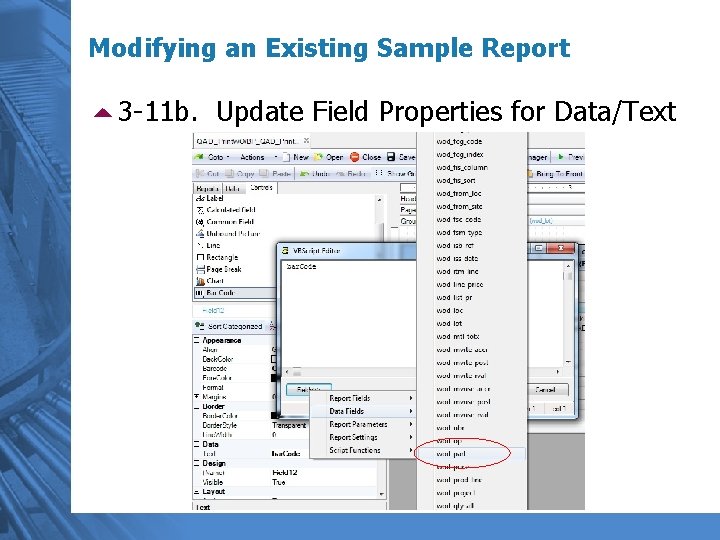
Modifying an Existing Sample Report 53 -11 b. Update Field Properties for Data/Text
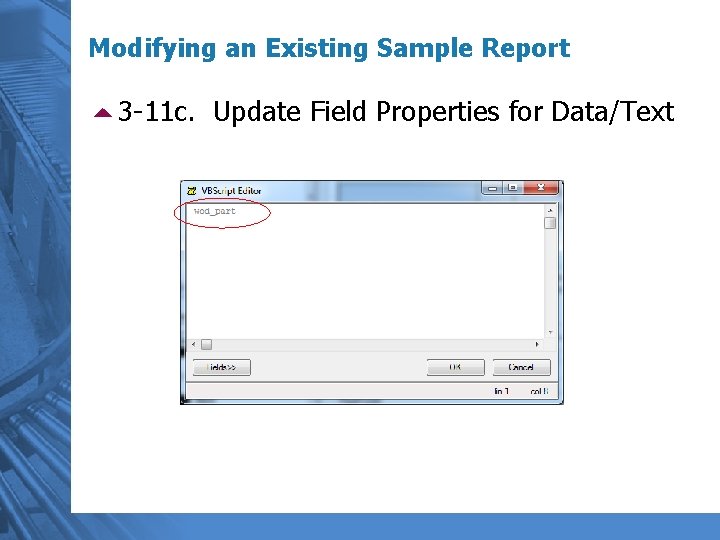
Modifying an Existing Sample Report 53 -11 c. Update Field Properties for Data/Text
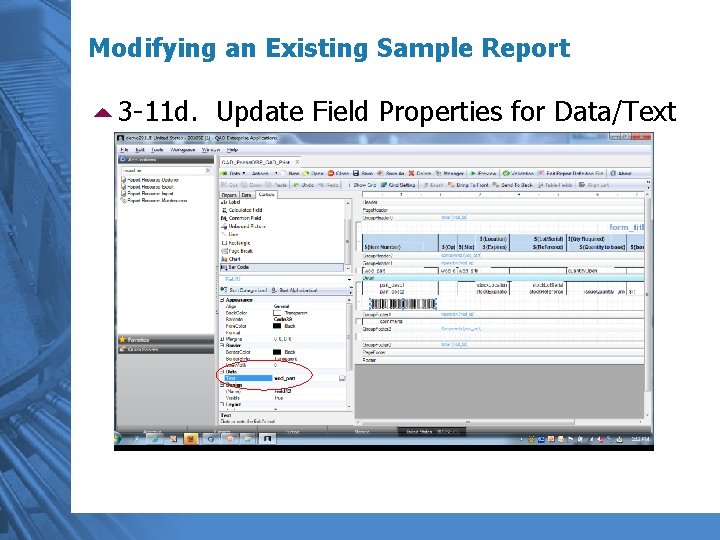
Modifying an Existing Sample Report 53 -11 d. Update Field Properties for Data/Text
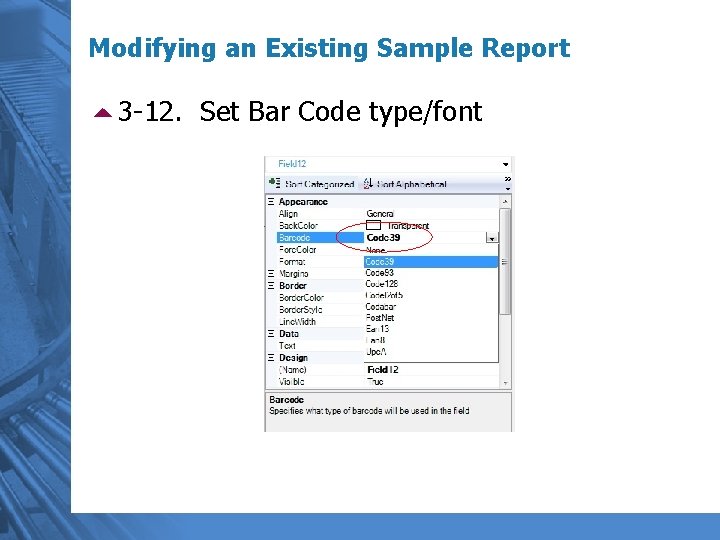
Modifying an Existing Sample Report 53 -12. Set Bar Code type/font
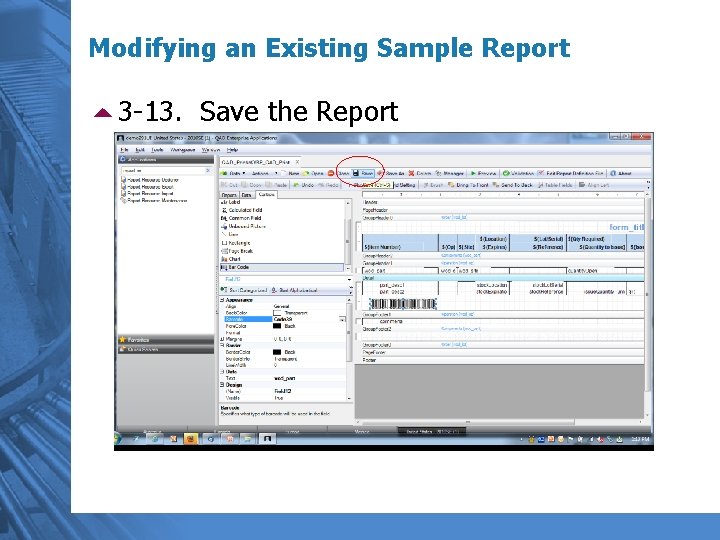
Modifying an Existing Sample Report 53 -13. Save the Report
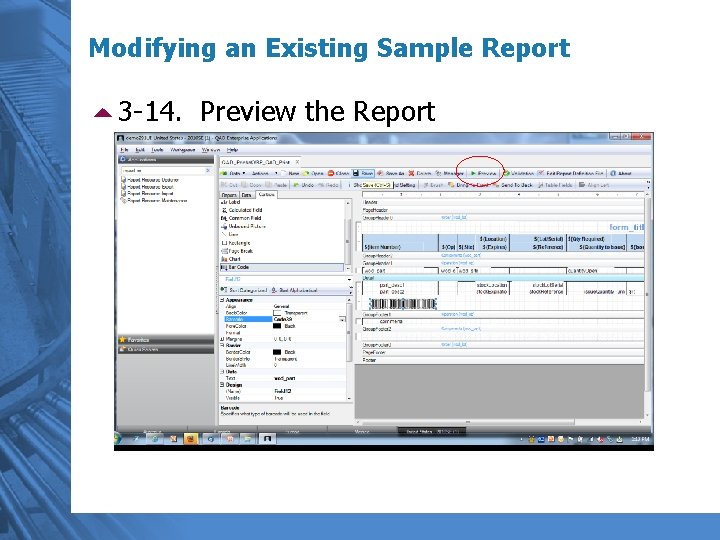
Modifying an Existing Sample Report 53 -14. Preview the Report
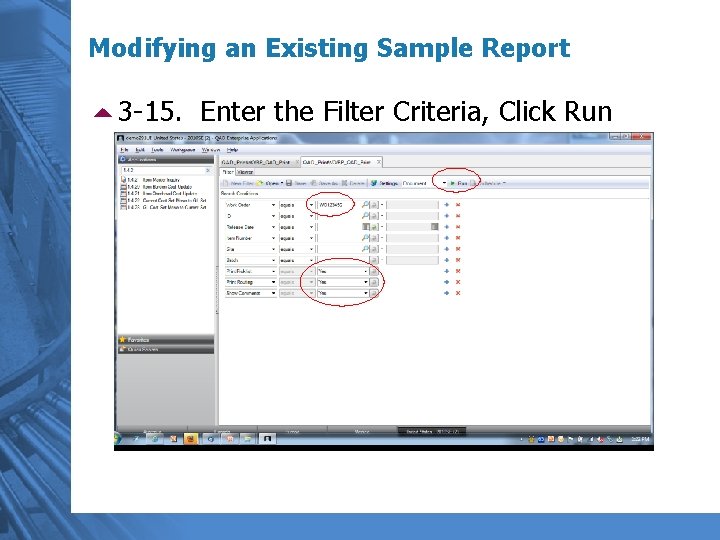
Modifying an Existing Sample Report 53 -15. Enter the Filter Criteria, Click Run
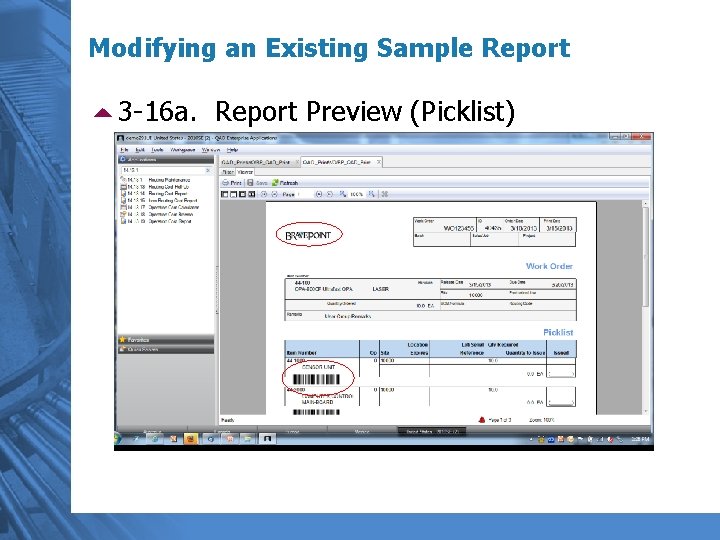
Modifying an Existing Sample Report 53 -16 a. Report Preview (Picklist)
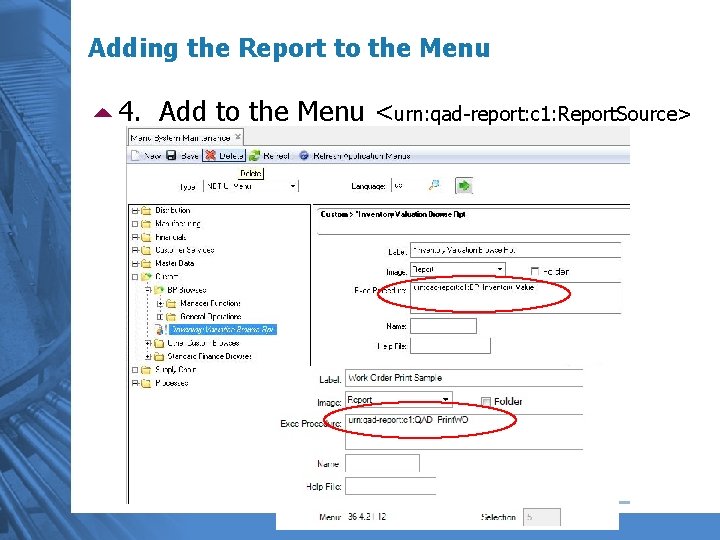
Adding the Report to the Menu 54. Add to the Menu <urn: qad-report: c 1: Report. Source>
Reporting Framework DEMO
Questions?
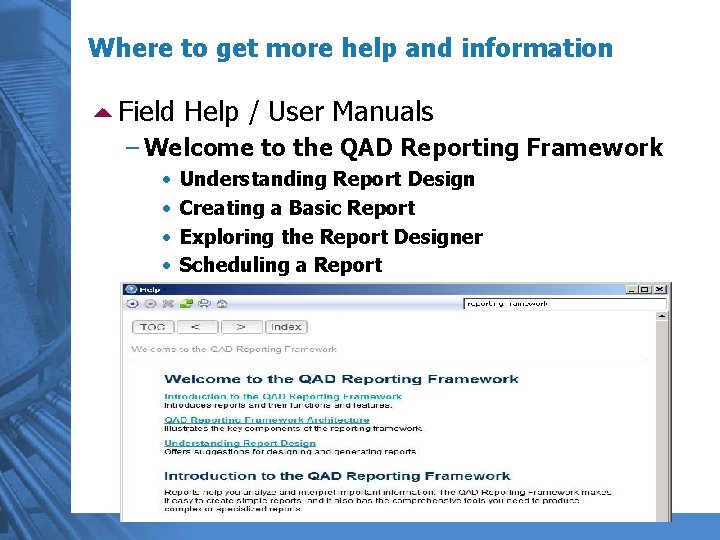
Where to get more help and information 5 Field Help / User Manuals – Welcome to the QAD Reporting Framework • • Understanding Report Design Creating a Basic Report Exploring the Report Designer Scheduling a Report
Next Steps – The Future’s So Bright… 5 Run reports to Excel or PDF on a schedule, which could feed web pages, BI systems, etc. 5 Run time-sensitive reports (eg. Month-End) to an Excel or PDF file during network and server slow time 5 Save money on expensive, third-party report builders
Thank You! Stacy Green sgreen@bravepoint. com
- Slides: 59