
Purecloud Supervisor training Agenda Call Forwarding Recording Playback
Purecloud Supervisor training

Agenda ◦ Call Forwarding ◦ Recording Playback & Listen to Live Calls ◦ Contact Centre Operations • ACD Skill • Utilization • Creating Queues • Wrap-Up Codes • Canned Responses ◦ Alerts • Statistic alerts ◦ Assistance Response ◦ Q&A ◦ Contact Centre Real-Time Views • Contact Centre Overview • Queues Activity • Queues Performance • Agents • Scheduled Callback • Interactions
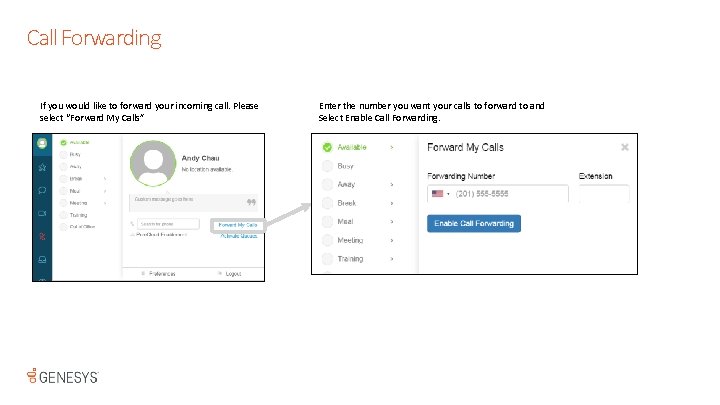
Call Forwarding If you would like to forward your incoming call. Please select “Forward My Calls” Enter the number you want your calls to forward to and Select Enable Call Forwarding.
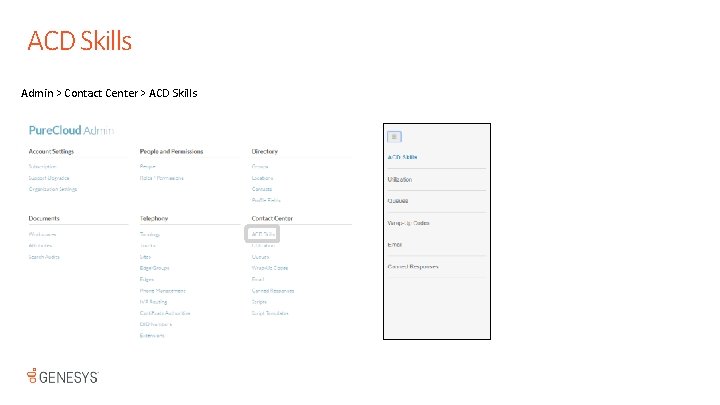
ACD Skills Admin > Contact Center > ACD Skills
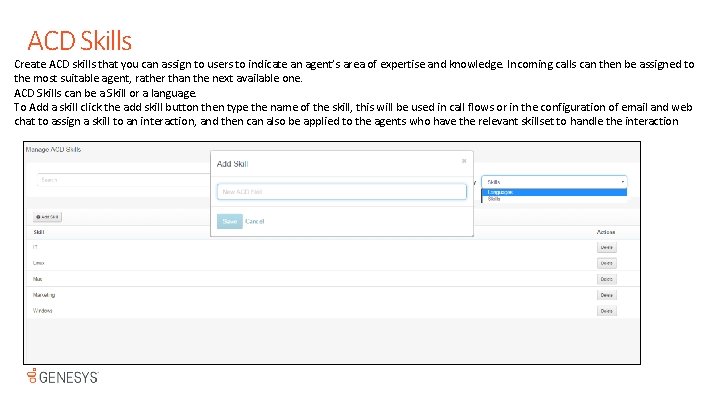
ACD Skills Create ACD skills that you can assign to users to indicate an agent’s area of expertise and knowledge. Incoming calls can then be assigned to the most suitable agent, rather than the next available one. ACD Skills can be a Skill or a language. To Add a skill click the add skill button then type the name of the skill, this will be used in call flows or in the configuration of email and web chat to assign a skill to an interaction, and then can also be applied to the agents who have the relevant skillset to handle the interaction
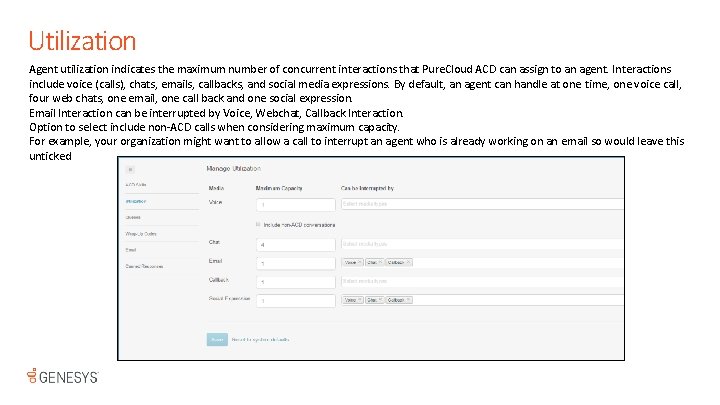
Utilization Agent utilization indicates the maximum number of concurrent interactions that Pure. Cloud ACD can assign to an agent. Interactions include voice (calls), chats, emails, callbacks, and social media expressions. By default, an agent can handle at one time, one voice call, four web chats, one email, one call back and one social expression. Email Interaction can be interrupted by Voice, Webchat, Callback Interaction. Option to select include non-ACD calls when considering maximum capacity. For example, your organization might want to allow a call to interrupt an agent who is already working on an email so would leave this unticked
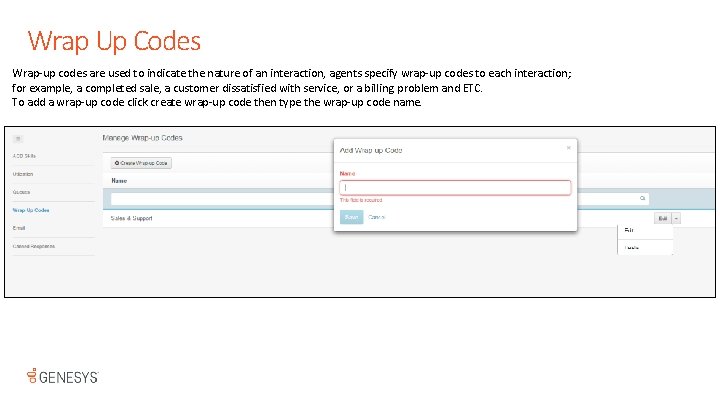
Wrap Up Codes Wrap-up codes are used to indicate the nature of an interaction, agents specify wrap-up codes to each interaction; for example, a completed sale, a customer dissatisfied with service, or a billing problem and ETC. To add a wrap-up code click create wrap-up code then type the wrap-up code name.
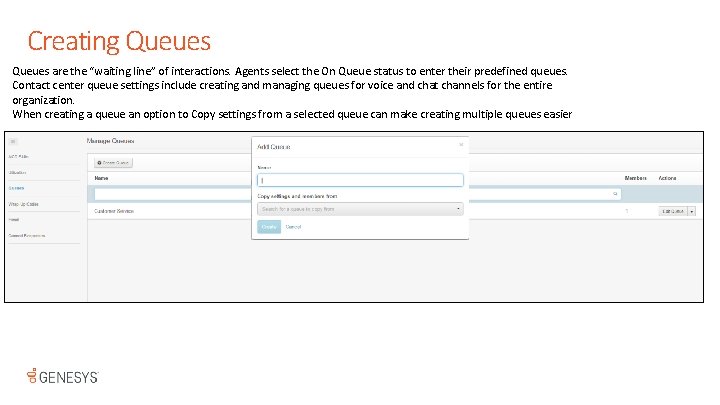
Creating Queues are the “waiting line” of interactions. Agents select the On Queue status to enter their predefined queues. Contact center queue settings include creating and managing queues for voice and chat channels for the entire organization. When creating a queue an option to Copy settings from a selected queue can make creating multiple queues easier
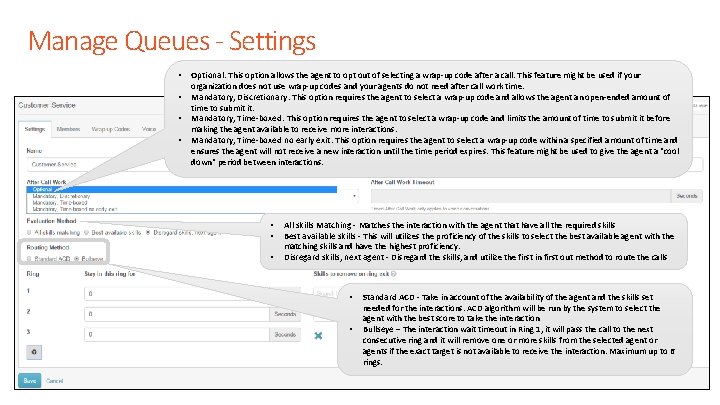
Manage Queues - Settings • • Optional. This option allows the agent to opt out of selecting a wrap-up code after a call. This feature might be used if your organization does not use wrap-up codes and your agents do not need after call work time. Mandatory, Discretionary. This option requires the agent to select a wrap-up code and allows the agent an open-ended amount of time to submit it. Mandatory, Time-boxed. This option requires the agent to select a wrap-up code and limits the amount of time to submit it before making the agent available to receive more interactions. Mandatory, Time-boxed no early exit. This option requires the agent to select a wrap-up code within a specified amount of time and ensures the agent will not receive a new interaction until the time period expires. This feature might be used to give the agent a "cool down" period between interactions. • • • All skills Matching - Matches the interaction with the agent that have all the required skills Best available skills - This will utilizes the proficiency of the skills to select the best available agent with the matching skills and have the highest proficiency. Disregard skills, next agent - Disregard the skills, and utilize the first in first out method to route the calls • • Standard ACD - Take in account of the availability of the agent and the skills set needed for the interactions. ACD algorithm will be run by the system to select the agent with the best score to take the interaction Bullseye – The interaction wait timeout in Ring 1, it will pass the call to the next consecutive ring and it will remove one or more skills from the selected agent or agents if the exact target is not available to receive the interaction. Maximum up to 6 rings.

Manage Queues - Members To add members to a queue type the names in the select new members box, you may select as many people as you require, to make this easier click Advanced then Click the search drop down arrow and select from the options, this will a return a list of people to choose from, click show selected to reduce the view to only the people you have selected. Ring Number assigned to agent for bulls-eye routing
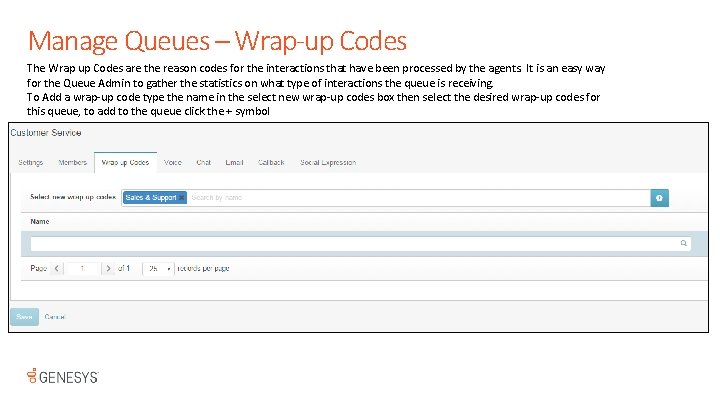
Manage Queues – Wrap-up Codes The Wrap up Codes are the reason codes for the interactions that have been processed by the agents. It is an easy way for the Queue Admin to gather the statistics on what type of interactions the queue is receiving. To Add a wrap-up code type the name in the select new wrap-up codes box then select the desired wrap-up codes for this queue, to add to the queue click the + symbol
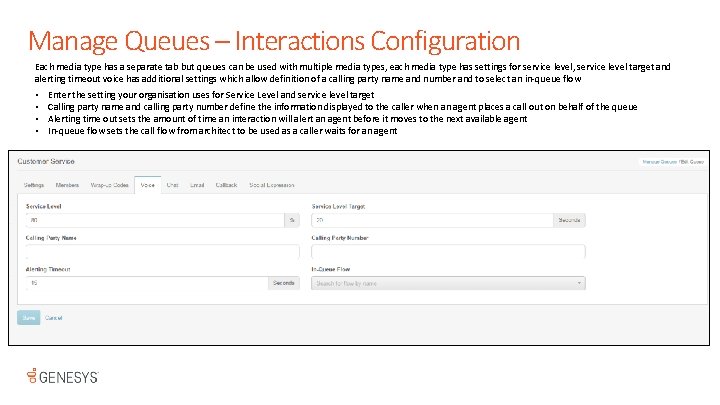
Manage Queues – Interactions Configuration Each media type has a separate tab but queues can be used with multiple media types, each media type has settings for service level, service level target and alerting timeout voice has additional settings which allow definition of a calling party name and number and to select an in-queue flow • • Enter the setting your organisation uses for Service Level and service level target Calling party name and calling party number define the information displayed to the caller when an agent places a call out on behalf of the queue Alerting time out sets the amount of time an interaction will alert an agent before it moves to the next available agent In-queue flow sets the call flow from architect to be used as a caller waits for an agent
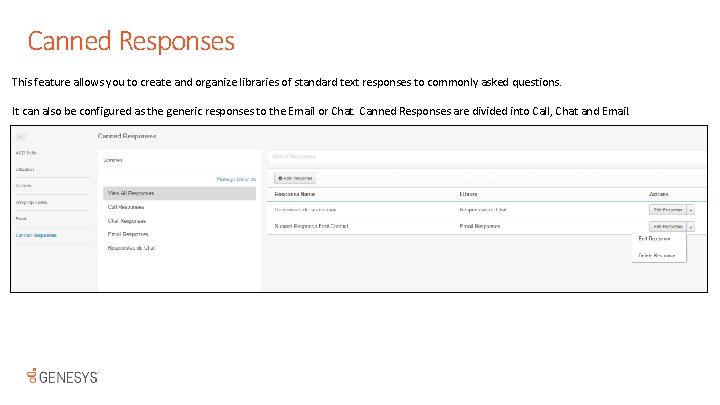
Canned Responses This feature allows you to create and organize libraries of standard text responses to commonly asked questions. It can also be configured as the generic responses to the Email or Chat. Canned Responses are divided into Call, Chat and Email.
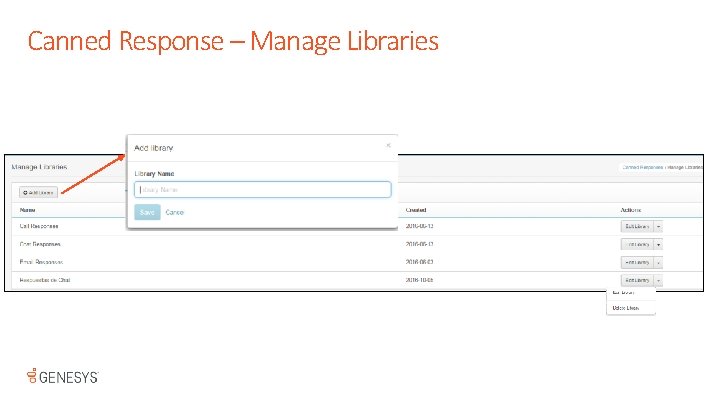
Canned Response – Manage Libraries
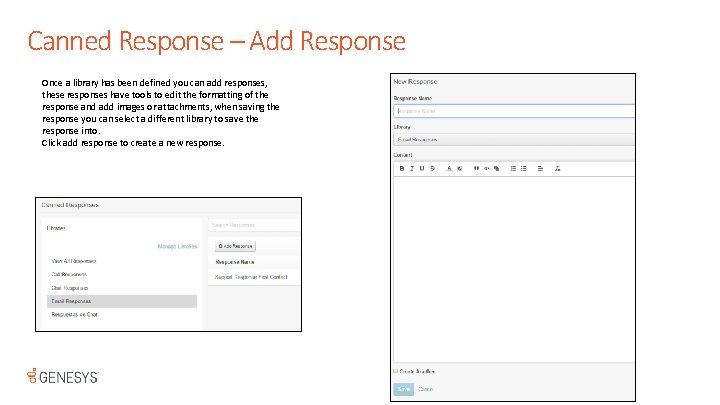
Canned Response – Add Response Once a library has been defined you can add responses, these responses have tools to edit the formatting of the response and add images or attachments, when saving the response you can select a different library to save the response into. Click add response to create a new response.

Performance Overview Interactive dashboards and views display real-time metrics for the contact center, queues, agents, and interactions. Click performance and select the view you want to use, in this example we have selected Overview
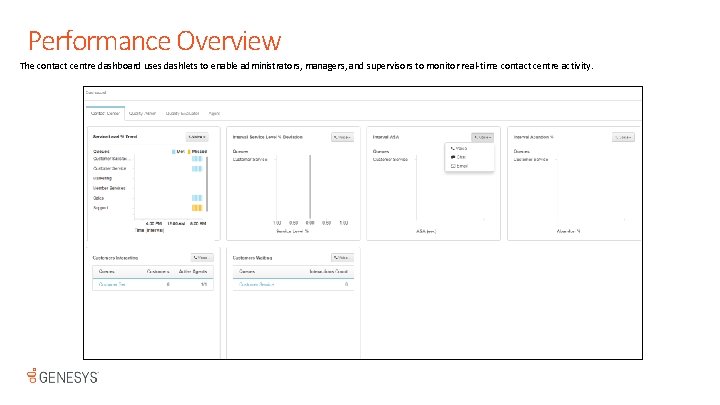
Performance Overview The contact centre dashboard uses dashlets to enable administrators, managers, and supervisors to monitor real-time contact centre activity.
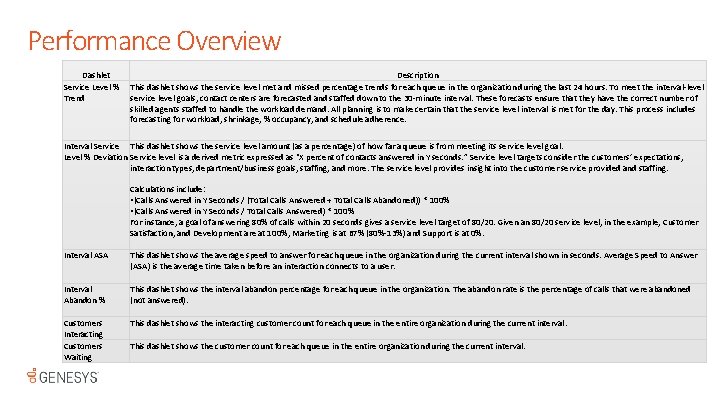
Performance Overview Dashlet Service Level % Trend Description This dashlet shows the service level met and missed percentage trends for each queue in the organization during the last 24 hours. To meet the interval-level service level goals, contact centers are forecasted and staffed down to the 30 -minute interval. These forecasts ensure that they have the correct number of skilled agents staffed to handle the workload demand. All planning is to make certain that the service level interval is met for the day. This process includes forecasting for workload, shrinkage, % occupancy, and schedule adherence. Interval Service This dashlet shows the service level amount (as a percentage) of how far a queue is from meeting its service level goal. Level % Deviation Service level is a derived metric expressed as “X percent of contacts answered in Y seconds. ” Service level targets consider the customers’ expectations, interaction types, department/business goals, staffing, and more. The service level provides insight into the customer service provided and staffing. Calculations include: • (Calls Answered in Y Seconds / (Total Calls Answered + Total Calls Abandoned)) * 100% • (Calls Answered in Y Seconds / Total Calls Answered) * 100% For instance, a goal of answering 80% of calls within 20 seconds gives a service level target of 80/20. Given an 80/20 service level, in the example, Customer Satisfaction, and Development are at 100%, Marketing is at 67% (80%-13%) and Support is at 0%. Interval ASA This dashlet shows the average speed to answer for each queue in the organization during the current interval shown in seconds. Average Speed to Answer (ASA) is the average time taken before an interaction connects to a user. Interval Abandon % This dashlet shows the interval abandon percentage for each queue in the organization. The abandon rate is the percentage of calls that were abandoned (not answered). Customers Interacting Customers Waiting This dashlet shows the interacting customer count for each queue in the entire organization during the current interval. This dashlet shows the customer count for each queue in the entire organization during the current interval.

Performance – Queues are the “waiting line” of interactions. To view real-time and historical queue metrics, click Performance > Queues. To view voice interaction or chat interaction queues, click the applicable Voice or Chat option. To show or hide columns, click Customize and then select Show/Hide Columns. After you customize the view, your changes persist. To return the columns to the default settings, click Customize and then select Reset to Defaults. Click the queue name view a single queue
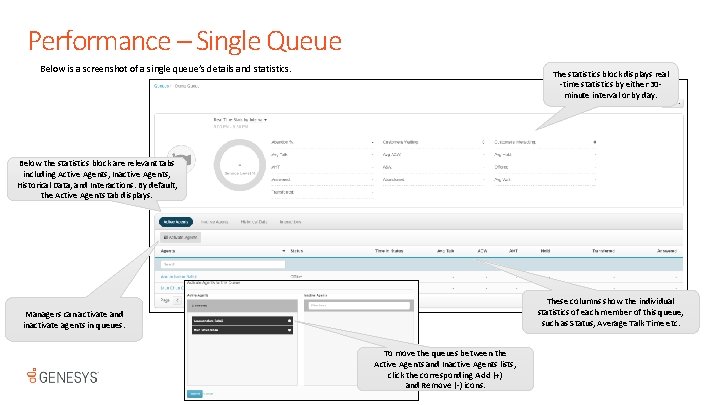
Performance – Single Queue Below is a screenshot of a single queue’s details and statistics. The statistics block displays real -time statistics by either 30 minute interval or by day. Below the statistics block are relevant tabs including Active Agents, Inactive Agents, Historical Data, and Interactions. By default, the Active Agents tab displays. These columns show the individual statistics of each member of this queue, such as Status, Average Talk Time etc. Managers can activate and inactivate agents in queues. To move the queues between the Active Agents and Inactive Agents lists, click the corresponding Add (+) and Remove (-) icons.
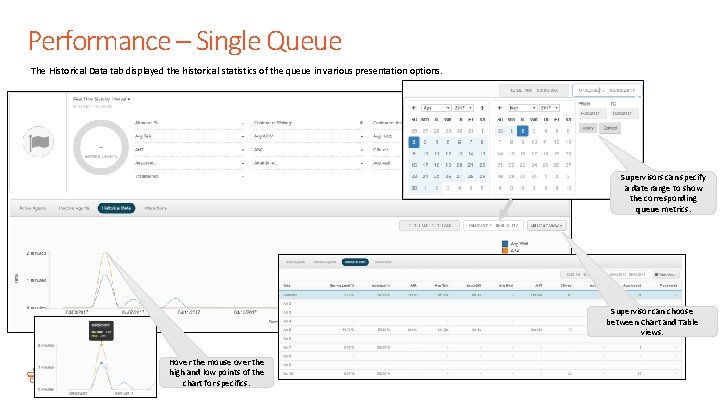
Performance – Single Queue The Historical Data tab displayed the historical statistics of the queue in various presentation options. Supervisors can specify a date range to show the corresponding queue metrics. Supervisor can choose between Chart and Table views. Hover the mouse over the high and low points of the chart for specifics.
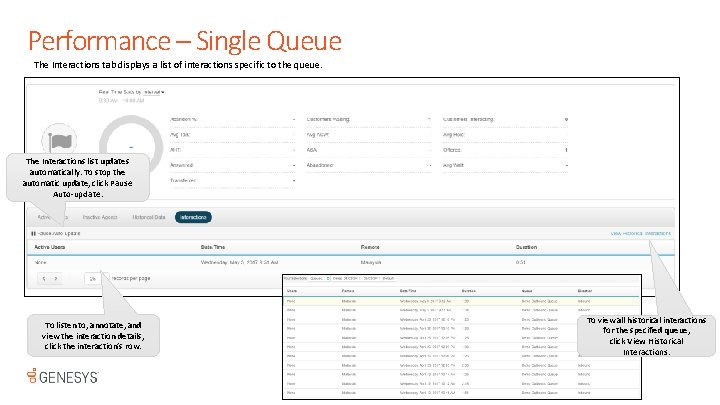
Performance – Single Queue The Interactions tab displays a list of interactions specific to the queue. The Interactions list updates automatically. To stop the automatic update, click Pause Auto-update. To listen to, annotate, and view the interaction details, click the interaction’s row. To view all historical interactions for the specified queue, click View Historical Interactions.

Performance – Queues Activity To see real-time statistics for all queues at the same time, go to Performance > Queues Activity. Note: The number of On Queue plus Off Queue agents can equal more than the total number of agents in a queue. For example, an agent can select a system status, such as Break, while still on an interaction. In this case, the system includes the agent in counts for On Queue and Interacting and for Off Queue and Break. When the agent completes the interaction, the system includes the agent in only Off Queue and Break counts. More Details for Terms included in the View: https: //help. mypurecloud. com/articles/queues-activity-views/ Displays the time period represented by the current metrics.
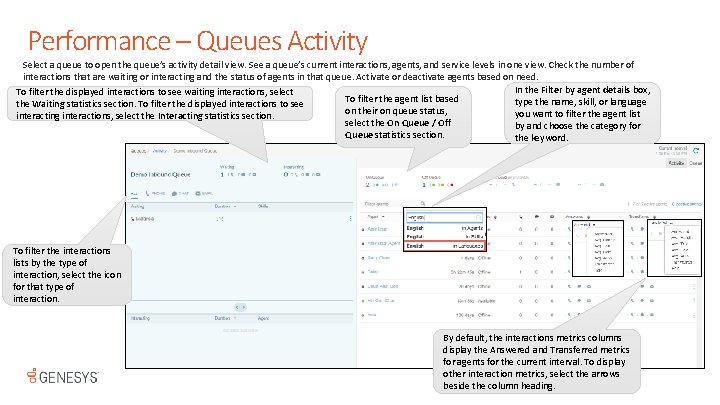
Performance – Queues Activity Select a queue to open the queue’s activity detail view. See a queue’s current interactions, agents, and service levels in one view. Check the number of interactions that are waiting or interacting and the status of agents in that queue. Activate or deactivate agents based on need. In the Filter by agent details box, To filter the displayed interactions to see waiting interactions, select To filter the agent list based type the name, skill, or language the Waiting statistics section. To filter the displayed interactions to see on their on queue status, you want to filter the agent list interacting interactions, select the Interacting statistics section. select the On Queue / Off by and choose the category for Queue statistics section. the keyword. To filter the interactions lists by the type of interaction, select the icon for that type of interaction. By default, the interactions metrics columns display the Answered and Transferred metrics for agents for the current interval. To display other interaction metrics, select the arrows beside the column heading.
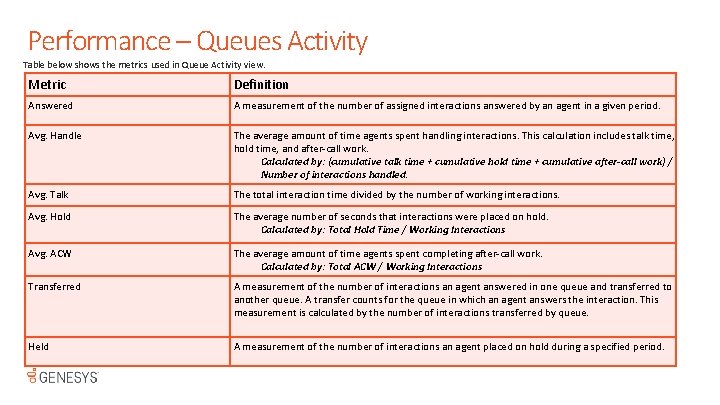
Performance – Queues Activity Table below shows the metrics used in Queue Activity view. Metric Definition Answered A measurement of the number of assigned interactions answered by an agent in a given period. Avg. Handle The average amount of time agents spent handling interactions. This calculation includes talk time, hold time, and after-call work. Calculated by: (cumulative talk time + cumulative hold time + cumulative after-call work) / Number of interactions handled. Avg. Talk The total interaction time divided by the number of working interactions. Avg. Hold The average number of seconds that interactions were placed on hold. Calculated by: Total Hold Time / Working Interactions Avg. ACW The average amount of time agents spent completing after-call work. Calculated by: Total ACW / Working Interactions Transferred A measurement of the number of interactions an agent answered in one queue and transferred to another queue. A transfer counts for the queue in which an agent answers the interaction. This measurement is calculated by the number of interactions transferred by queue. Held A measurement of the number of interactions an agent placed on hold during a specified period.
Performance – queues activity Most of the information on the Queues Activity view updates in real time, except for the interactions lists and the agent list. The interactions list updates every 10 seconds. The information in the agent list usually updates in real time, except when you filter the list by agent status. After you filter the agent list, or if you want to update the interactions list immediately, then, at the top of the page, click the Refresh button to update the list manually. For example, you want to see a list of agents who are on break, so you filter the agent list by the Break status. After you filtered the list, an agent who was on break goes back on queue. Until you click the refresh button to update the list, the filtered list still includes that agent.
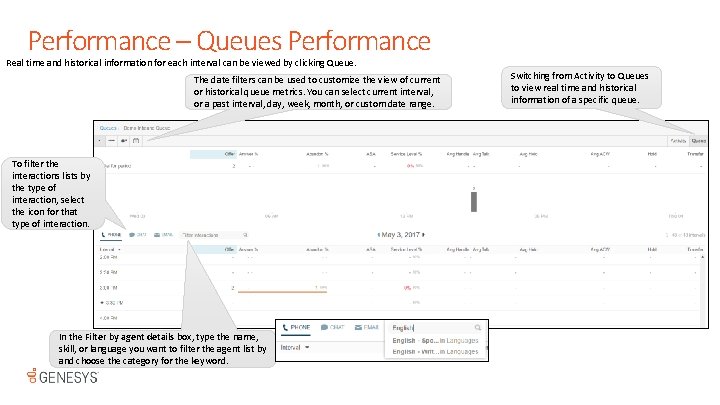
Performance – Queues Performance Real time and historical information for each interval can be viewed by clicking Queue. The date filters can be used to customize the view of current or historical queue metrics. You can select current interval, or a past interval, day, week, month, or custom date range. To filter the interactions lists by the type of interaction, select the icon for that type of interaction. In the Filter by agent details box, type the name, skill, or language you want to filter the agent list by and choose the category for the keyword. Switching from Activity to Queues to view real time and historical information of a specific queue.

Performance – Queues Performance The queues performance detail view shows statistics for a single queue. The selected date filter determines whether the data is displayed by interval, day, or week. To view bar graphs for different statistics, click a header in the Total for period section. For example, click Answer % to view a graph of offered answered interactions. Each row shows the statistics of a week for the period selected. The graphs update every 30 minutes or on page reload: they do not update in real time.
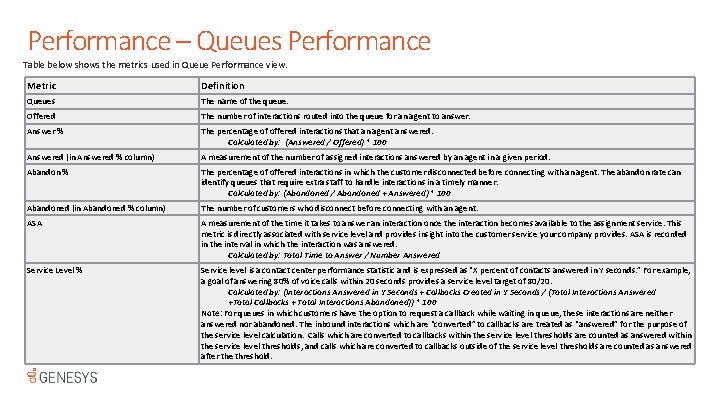
Performance – Queues Performance Table below shows the metrics used in Queue Performance view. Metric Definition Queues The name of the queue. Offered The number of interactions routed into the queue for an agent to answer. Answer % The percentage of offered interactions that an agent answered. Calculated by: (Answered / Offered) * 100 Answered (in Answered % column) A measurement of the number of assigned interactions answered by an agent in a given period. Abandon % The percentage of offered interactions in which the customer disconnected before connecting with an agent. The abandon rate can identify queues that require extra staff to handle interactions in a timely manner. Calculated by: (Abandoned / Abandoned + Answered) * 100 Abandoned (in Abandoned % column) The number of customers who disconnect before connecting with an agent. ASA A measurement of the time it takes to answer an interaction once the interaction becomes available to the assignment service. This metric is directly associated with service level and provides insight into the customer service your company provides. ASA is recorded in the interval in which the interaction was answered. Calculated by: Total Time to Answer / Number Answered Service Level % Service level is a contact center performance statistic and is expressed as “X percent of contacts answered in Y seconds. ” For example, a goal of answering 80% of voice calls within 20 seconds provides a service level target of 80/20. Calculated by: (Interactions Answered in Y Seconds + Callbacks Created in Y Seconds / (Total Interactions Answered +Total Callbacks + Total Interactions Abandoned)) * 100 Note: For queues in which customers have the option to request a callback while waiting in queue, these interactions are neither answered nor abandoned. The inbound interactions which are “converted” to callbacks are treated as “answered” for the purpose of the service level calculation. Calls which are converted to callbacks within the service level thresholds are counted as answered within the service level thresholds, and calls which are converted to callbacks outside of the service level thresholds are counted as answered after the threshold.
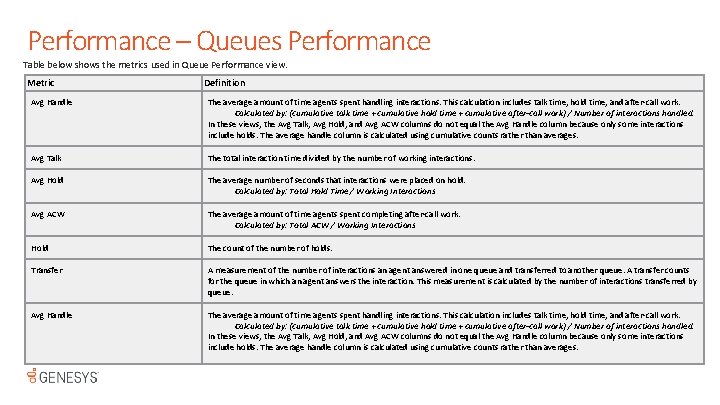
Performance – Queues Performance Table below shows the metrics used in Queue Performance view. Metric Definition Avg Handle The average amount of time agents spent handling interactions. This calculation includes talk time, hold time, and after-call work. Calculated by: (cumulative talk time + cumulative hold time + cumulative after-call work) / Number of interactions handled. In these views, the Avg Talk, Avg Hold, and Avg ACW columns do not equal the Avg Handle column because only some interactions include holds. The average handle column is calculated using cumulative counts rather than averages. Avg Talk The total interaction time divided by the number of working interactions. Avg Hold The average number of seconds that interactions were placed on hold. Calculated by: Total Hold Time / Working Interactions Avg ACW The average amount of time agents spent completing after-call work. Calculated by: Total ACW / Working Interactions Hold The count of the number of holds. Transfer A measurement of the number of interactions an agent answered in one queue and transferred to another queue. A transfer counts for the queue in which an agent answers the interaction. This measurement is calculated by the number of interactions transferred by queue. Avg Handle The average amount of time agents spent handling interactions. This calculation includes talk time, hold time, and after-call work. Calculated by: (cumulative talk time + cumulative hold time + cumulative after-call work) / Number of interactions handled. In these views, the Avg Talk, Avg Hold, and Avg ACW columns do not equal the Avg Handle column because only some interactions include holds. The average handle column is calculated using cumulative counts rather than averages.
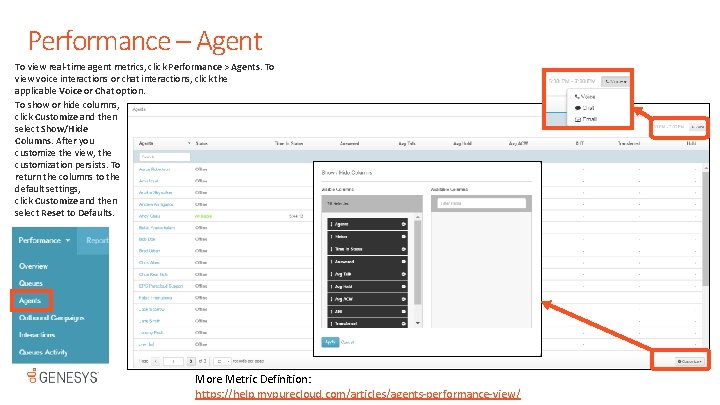
Performance – Agent To view real-time agent metrics, click Performance > Agents. To view voice interactions or chat interactions, click the applicable Voice or Chat option. To show or hide columns, click Customize and then select Show/Hide Columns. After you customize the view, the customization persists. To return the columns to the default settings, click Customize and then select Reset to Defaults. More Metric Definition: https: //help. mypurecloud. com/articles/agents-performance-view/
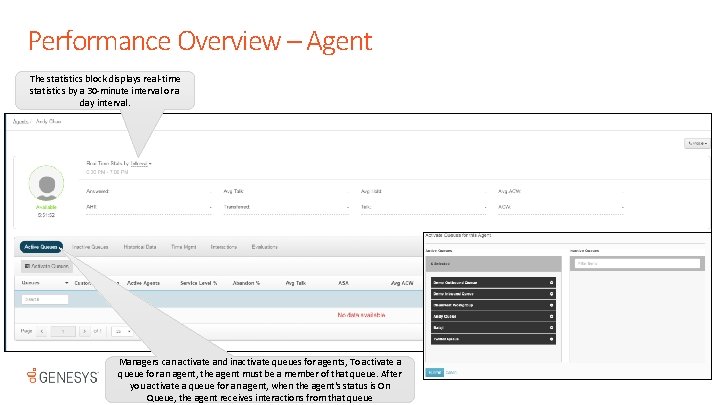
Performance Overview – Agent The statistics block displays real-time statistics by a 30 -minute interval or a day interval. Managers can activate and inactivate queues for agents, To activate a queue for an agent, the agent must be a member of that queue. After you activate a queue for an agent, when the agent's status is On Queue, the agent receives interactions from that queue
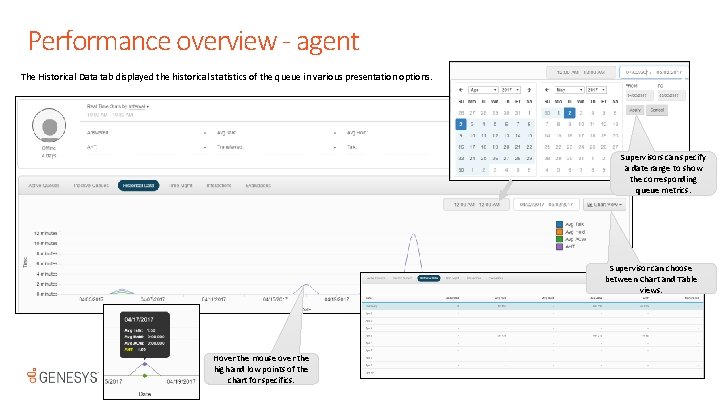
Performance overview - agent The Historical Data tab displayed the historical statistics of the queue in various presentation options. Supervisors can specify a date range to show the corresponding queue metrics. Supervisor can choose between Chart and Table views. Hover the mouse over the high and low points of the chart for specifics.
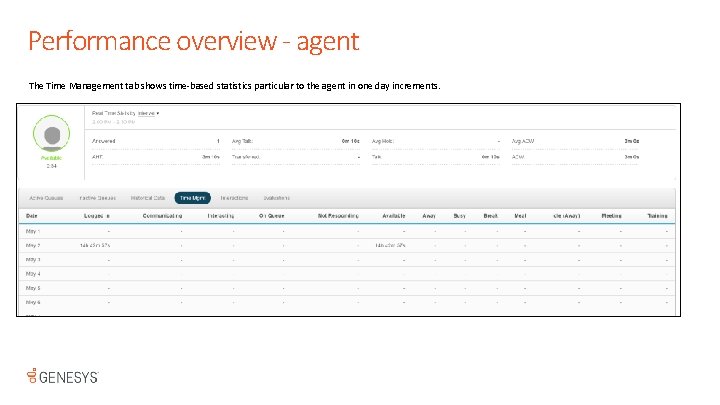
Performance overview - agent The Time Management tab shows time-based statistics particular to the agent in one day increments.
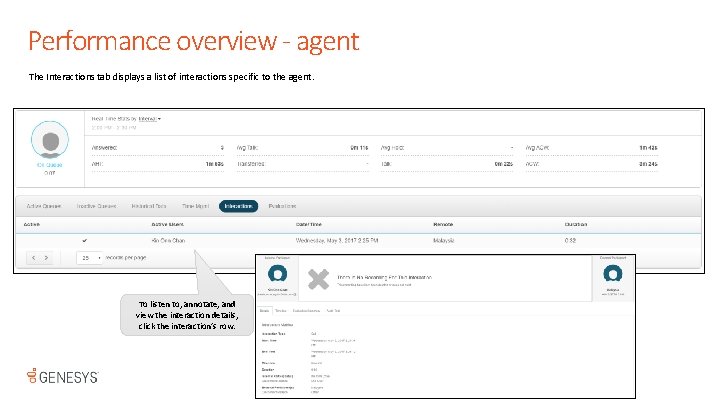
Performance overview - agent The Interactions tab displays a list of interactions specific to the agent. To listen to, annotate, and view the interaction details, click the interaction’s row.
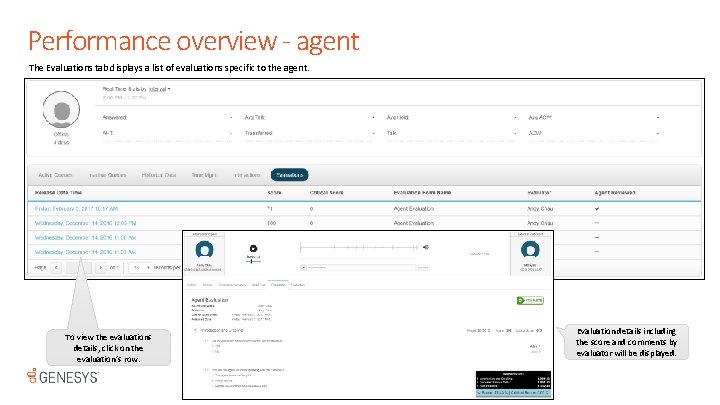
Performance overview - agent The Evaluations tab displays a list of evaluations specific to the agent. To view the evaluations details, click on the evaluation’s row. Evaluation details including the score and comments by evaluator will be displayed.
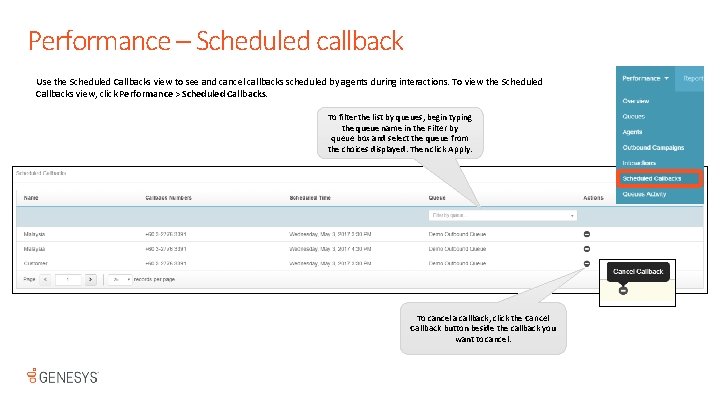
Performance – Scheduled callback Use the Scheduled Callbacks view to see and cancel callbacks scheduled by agents during interactions. To view the Scheduled Callbacks view, click Performance > Scheduled Callbacks. To filter the list by queues, begin typing the queue name in the Filter by queue box and select the queue from the choices displayed. Then click Apply. To cancel a callback, click the Cancel Callback button beside the callback you want to cancel.
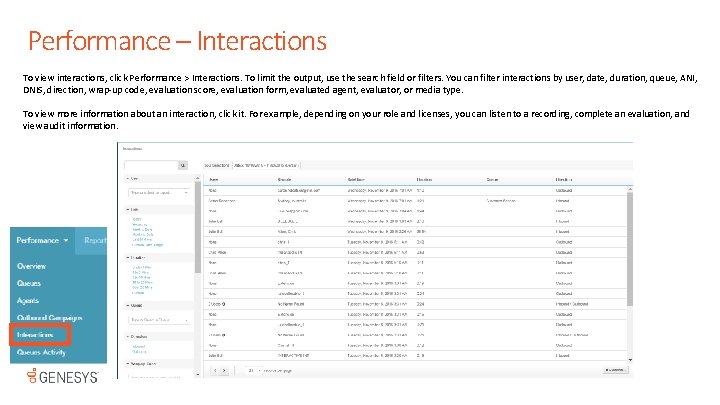
Performance – Interactions To view interactions, click Performance > Interactions. To limit the output, use the search field or filters. You can filter interactions by user, date, duration, queue, ANI, DNIS, direction, wrap-up code, evaluation score, evaluation form, evaluated agent, evaluator, or media type. To view more information about an interaction, click it. For example, depending on your role and licenses, you can listen to a recording, complete an evaluation, and view audit information.
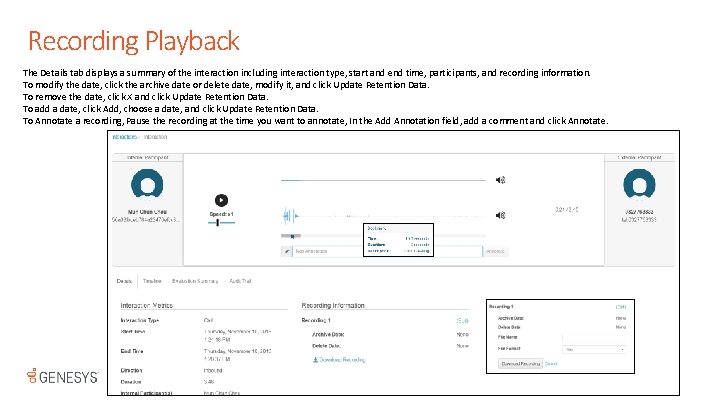
Recording Playback The Details tab displays a summary of the interaction including interaction type, start and end time, participants, and recording information. To modify the date, click the archive date or delete date, modify it, and click Update Retention Data. To remove the date, click X and click Update Retention Data. To add a date, click Add, choose a date, and click Update Retention Data. To Annotate a recording, Pause the recording at the time you want to annotate, In the Add Annotation field, add a comment and click Annotate.
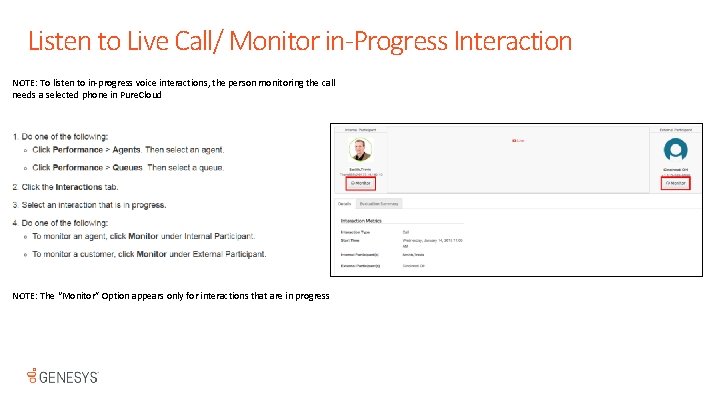
Listen to Live Call/ Monitor in-Progress Interaction NOTE: To listen to in-progress voice interactions, the person monitoring the call needs a selected phone in Pure. Cloud NOTE: The “Monitor” Option appears only for interactions that are in progress
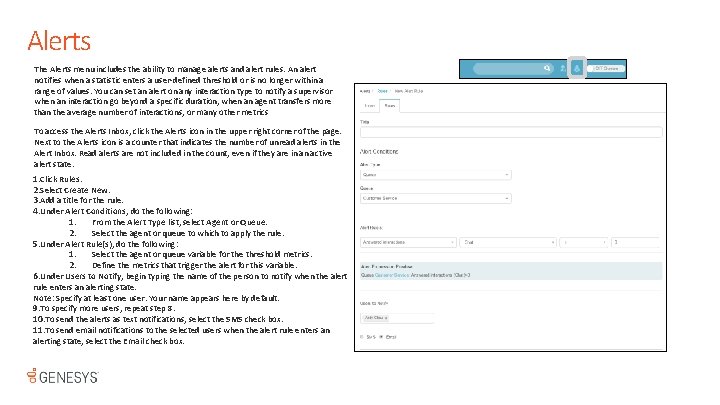
Alerts The Alerts menu includes the ability to manage alerts and alert rules. An alert notifies when a statistic enters a user-defined threshold or is no longer within a range of values. You can set an alert on any interaction type to notify a supervisor when an interaction go beyond a specific duration, when an agent transfers more than the average number of interactions, or many other metrics To access the Alerts Inbox, click the Alerts icon in the upper right corner of the page. Next to the Alerts icon is a counter that indicates the number of unread alerts in the Alert Inbox. Read alerts are not included in the count, even if they are in an active alert state. 1. Click Rules. 2. Select Create New. 3. Add a title for the rule. 4. Under Alert Conditions, do the following: 1. From the Alert Type list, select Agent or Queue. 2. Select the agent or queue to which to apply the rule. 5. Under Alert Rule(s), do the following: 1. Select the agent or queue variable for the threshold metrics. 2. Define the metrics that trigger the alert for this variable. 6. Under Users to Notify, begin typing the name of the person to notify when the alert rule enters an alerting state. Note: Specify at least one user. Your name appears here by default. 9. To specify more users, repeat step 8. 10. To send the alerts as text notifications, select the SMS check box. 11. To send email notifications to the selected users when the alert rule enters an alerting state, select the Email check box.
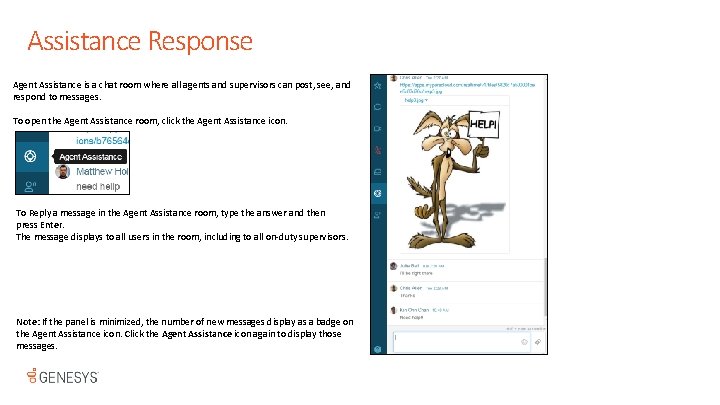
Assistance Response Agent Assistance is a chat room where all agents and supervisors can post, see, and respond to messages. To open the Agent Assistance room, click the Agent Assistance icon. To Reply a message in the Agent Assistance room, type the answer and then press Enter. The message displays to all users in the room, including to all on-duty supervisors. Note: If the panel is minimized, the number of new messages display as a badge on the Agent Assistance icon. Click the Agent Assistance icon again to display those messages.

Q&A Copyright © 2017 Genesys. 2001 Junipero Serra Blvd. , Daly City, CA 94014 All Rights reserved. Genesys and the Genesys logo are registered trademarks of Genesys. All other company names and logos may be registered trademarks or trademarks of their respective companies.
- Slides: 43