
Purchase Orders Training Presentation for Raytheon Supply Chain
- Slides: 65
Purchase Orders Training Presentation for Raytheon Supply Chain Platform (RSCP) April 2016
Course Objectives • After completing this course, you should be able to: > Understand the purchase order management process in RSCP > Explain the various purchase order (PO) states > Access and print a PO > View the details and attachments for a PO > Respond to a PO > Review changes to a PO > Locate a reconfirmation request > Respond to a reconfirmation request Note: For information on creating Shipments or Invoices – see separate training materials for these topics. RSCP: Copyright 2016 Exostar LLC. All Rights Reserved. 1
Purchase Order Management through RSCP: Copyright 2016 Exostar LLC. All Rights Reserved. 2
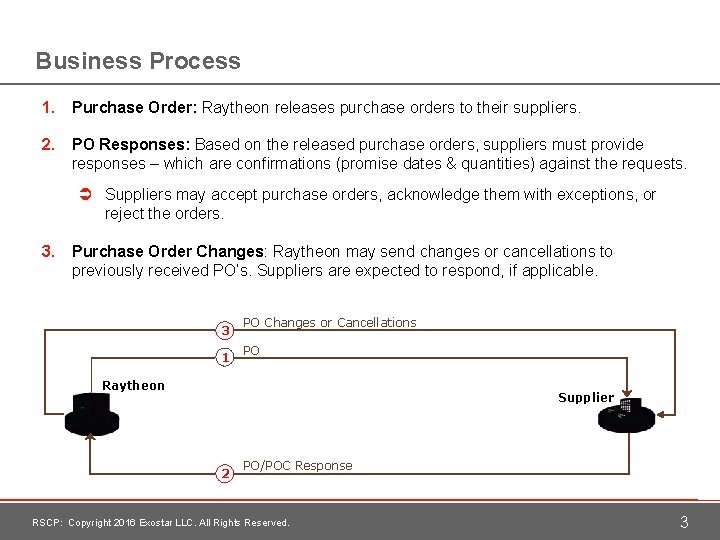
Business Process 1. Purchase Order: Raytheon releases purchase orders to their suppliers. 2. PO Responses: Based on the released purchase orders, suppliers must provide responses – which are confirmations (promise dates & quantities) against the requests. Ü Suppliers may accept purchase orders, acknowledge them with exceptions, or reject the orders. 3. Purchase Order Changes: Raytheon may send changes or cancellations to previously received PO’s. Suppliers are expected to respond, if applicable. 3 1 PO Changes or Cancellations PO Raytheon Supplier 2 PO/POC Response RSCP: Copyright 2016 Exostar LLC. All Rights Reserved. 3
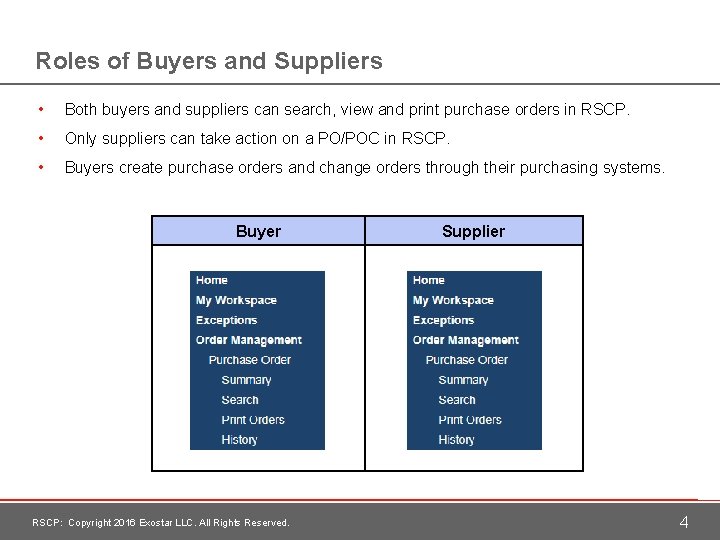
Roles of Buyers and Suppliers • Both buyers and suppliers can search, view and print purchase orders in RSCP. • Only suppliers can take action on a PO/POC in RSCP. • Buyers create purchase orders and change orders through their purchasing systems. Buyer RSCP: Copyright 2016 Exostar LLC. All Rights Reserved. Supplier 4
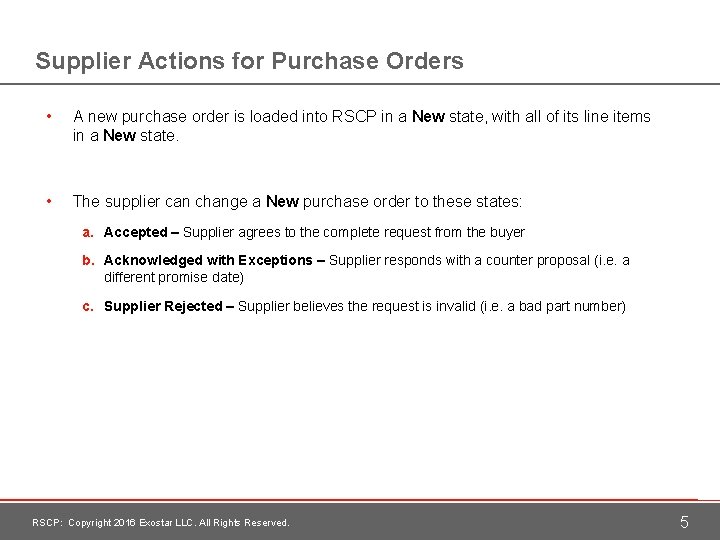
Supplier Actions for Purchase Orders • A new purchase order is loaded into RSCP in a New state, with all of its line items in a New state. • The supplier can change a New purchase order to these states: a. Accepted – Supplier agrees to the complete request from the buyer b. Acknowledged with Exceptions – Supplier responds with a counter proposal (i. e. a different promise date) c. Supplier Rejected – Supplier believes the request is invalid (i. e. a bad part number) RSCP: Copyright 2016 Exostar LLC. All Rights Reserved. 5
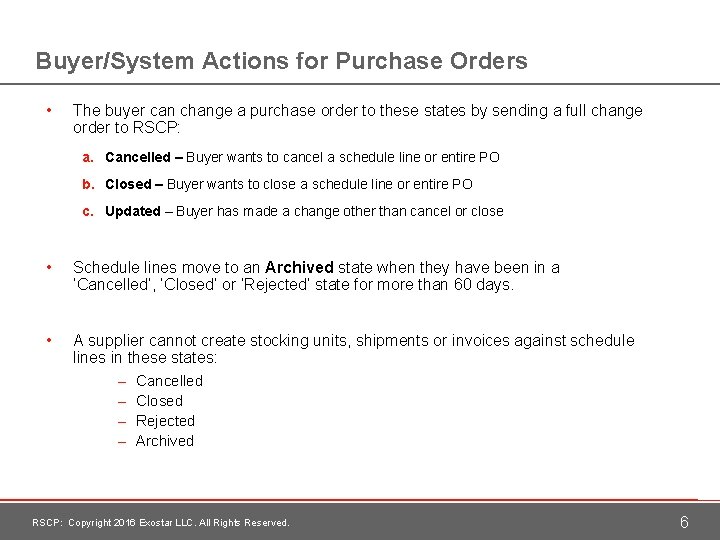
Buyer/System Actions for Purchase Orders • The buyer can change a purchase order to these states by sending a full change order to RSCP: a. Cancelled – Buyer wants to cancel a schedule line or entire PO b. Closed – Buyer wants to close a schedule line or entire PO c. Updated – Buyer has made a change other than cancel or close • Schedule lines move to an Archived state when they have been in a ‘Cancelled’, ‘Closed’ or ‘Rejected’ state for more than 60 days. • A supplier cannot create stocking units, shipments or invoices against schedule lines in these states: – Cancelled – Closed – Rejected – Archived RSCP: Copyright 2016 Exostar LLC. All Rights Reserved. 6
How to View a Purchase Order RSCP: Copyright 2016 Exostar LLC. All Rights Reserved. 7
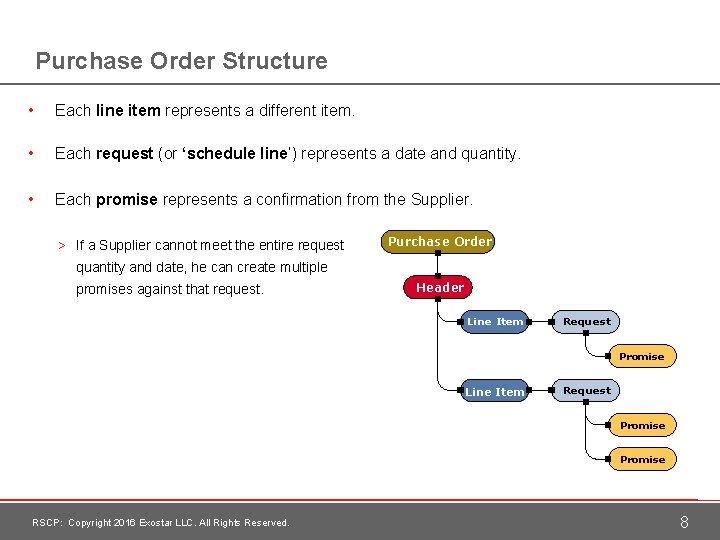
Purchase Order Structure • Each line item represents a different item. • Each request (or ‘schedule line’) represents a date and quantity. • Each promise represents a confirmation from the Supplier. > If a Supplier cannot meet the entire request Purchase Order quantity and date, he can create multiple promises against that request. Header Line Item Request Promise RSCP: Copyright 2016 Exostar LLC. All Rights Reserved. 8
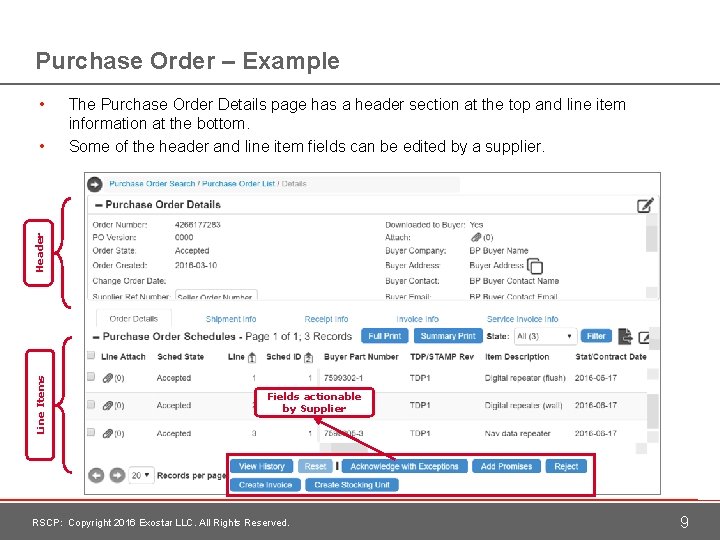
Purchase Order – Example • Line Items Header • The Purchase Order Details page has a header section at the top and line item information at the bottom. Some of the header and line item fields can be edited by a supplier. Fields actionable by Supplier RSCP: Copyright 2016 Exostar LLC. All Rights Reserved. 9
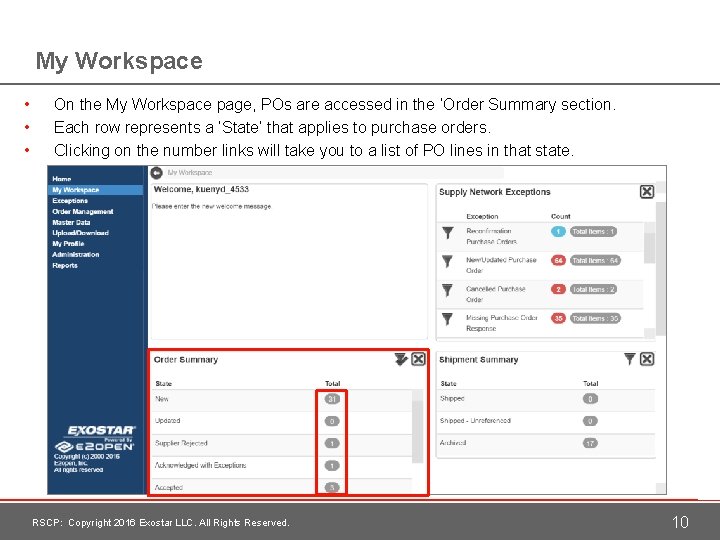
My Workspace • • • On the My Workspace page, POs are accessed in the ‘Order Summary section. Each row represents a ‘State’ that applies to purchase orders. Clicking on the number links will take you to a list of PO lines in that state. RSCP: Copyright 2016 Exostar LLC. All Rights Reserved. 10
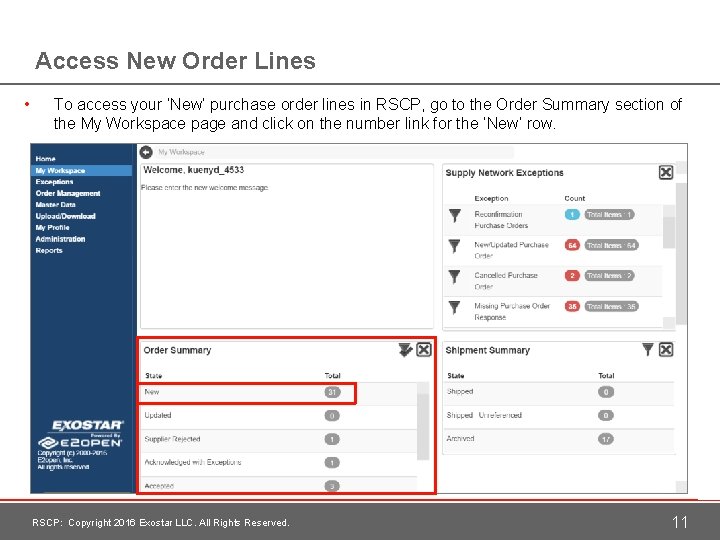
Access New Order Lines • To access your ‘New’ purchase order lines in RSCP, go to the Order Summary section of the My Workspace page and click on the number link for the ‘New’ row. RSCP: Copyright 2016 Exostar LLC. All Rights Reserved. 11
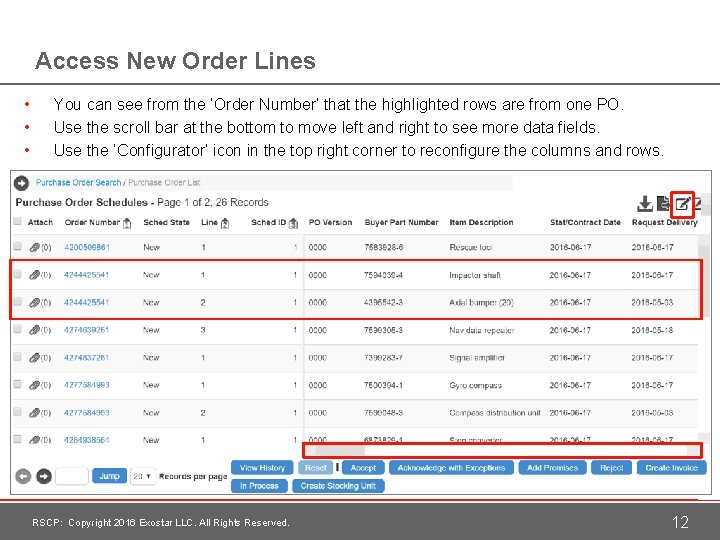
Access New Order Lines • • • You can see from the ‘Order Number’ that the highlighted rows are from one PO. Use the scroll bar at the bottom to move left and right to see more data fields. Use the ‘Configurator’ icon in the top right corner to reconfigure the columns and rows. RSCP: Copyright 2016 Exostar LLC. All Rights Reserved. 12
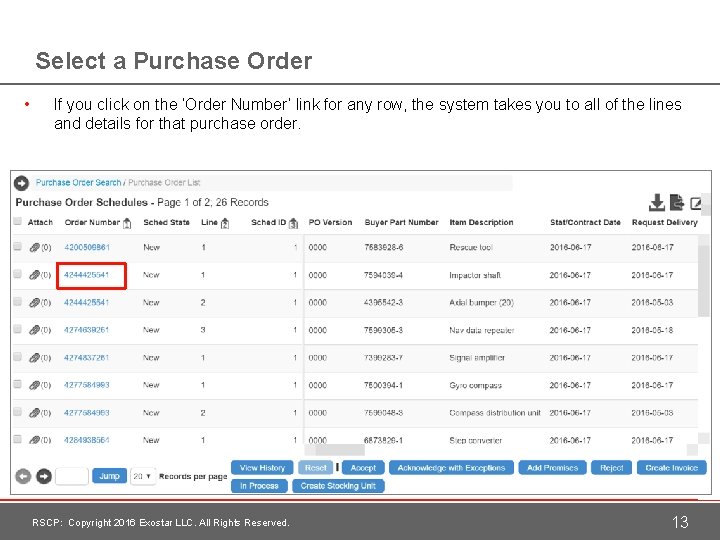
Select a Purchase Order • If you click on the ‘Order Number’ link for any row, the system takes you to all of the lines and details for that purchase order. RSCP: Copyright 2016 Exostar LLC. All Rights Reserved. 13
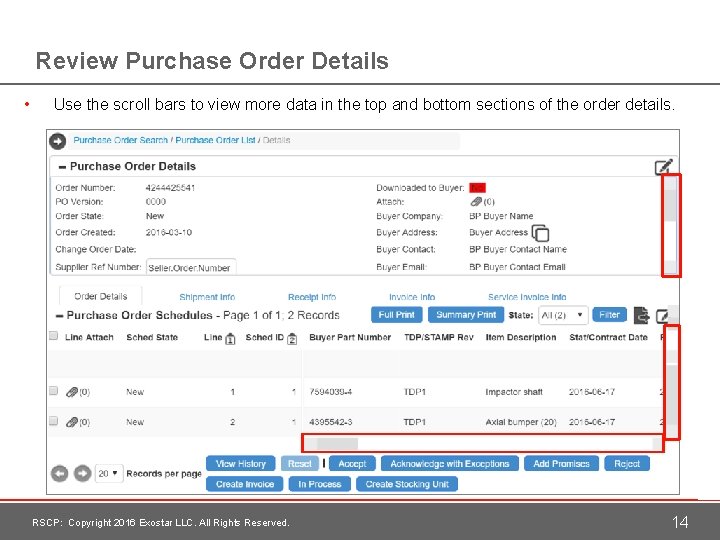
Review Purchase Order Details • Use the scroll bars to view more data in the top and bottom sections of the order details. RSCP: Copyright 2016 Exostar LLC. All Rights Reserved. 14
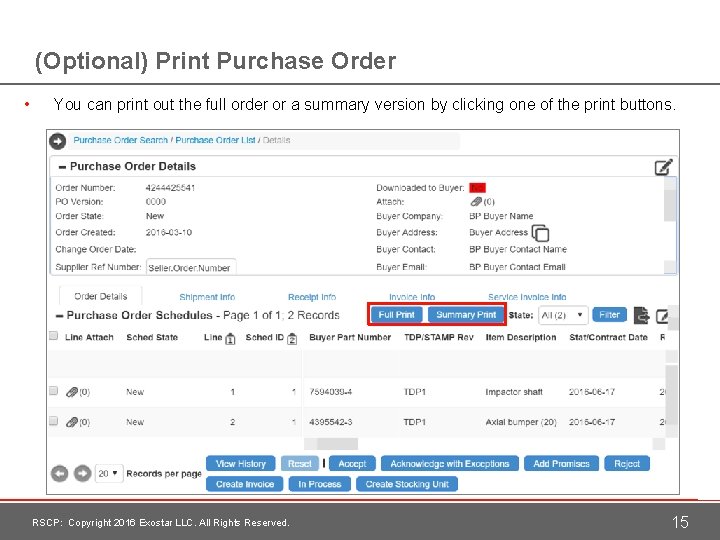
(Optional) Print Purchase Order • You can print out the full order or a summary version by clicking one of the print buttons. RSCP: Copyright 2016 Exostar LLC. All Rights Reserved. 15
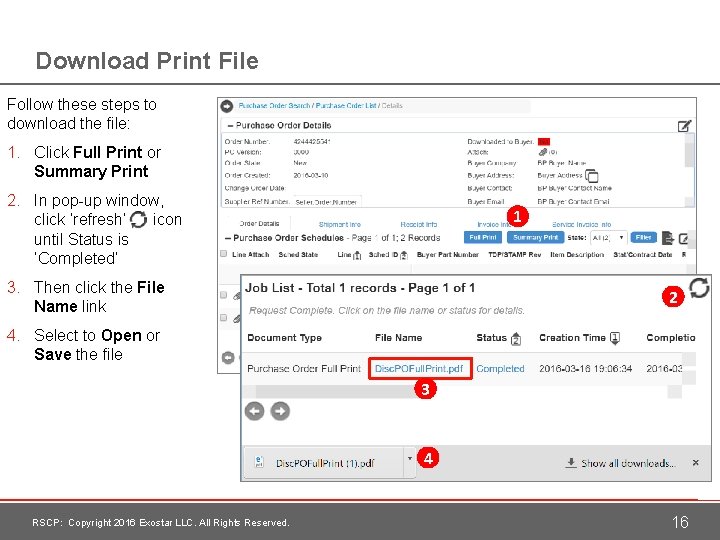
Download Print File Follow these steps to download the file: 1. Click Full Print or Summary Print 2. In pop-up window, click ‘refresh’ icon until Status is ‘Completed’ 1 3. Then click the File Name link 2 4. Select to Open or Save the file 3 4 RSCP: Copyright 2016 Exostar LLC. All Rights Reserved. 16
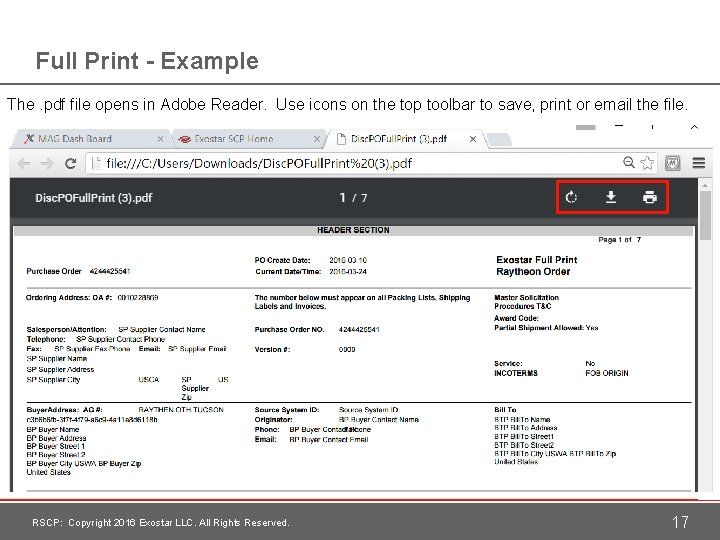
Full Print - Example The. pdf file opens in Adobe Reader. Use icons on the top toolbar to save, print or email the file. RSCP: Copyright 2016 Exostar LLC. All Rights Reserved. 17
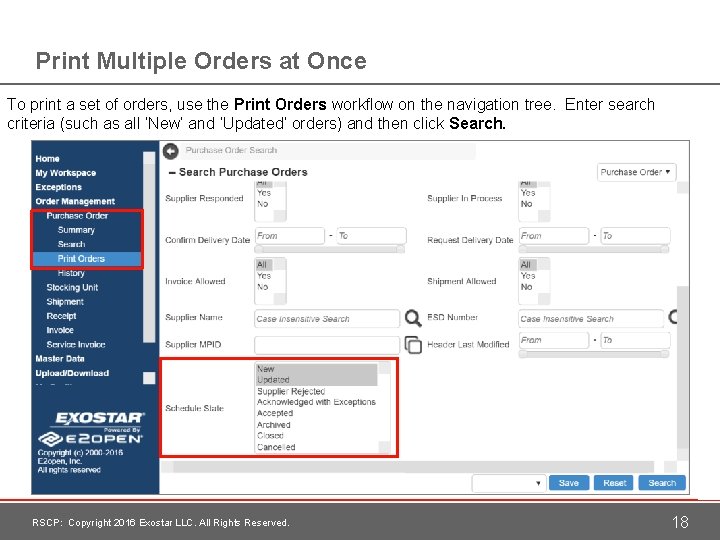
Print Multiple Orders at Once To print a set of orders, use the Print Orders workflow on the navigation tree. Enter search criteria (such as all ‘New’ and ‘Updated’ orders) and then click Search. RSCP: Copyright 2016 Exostar LLC. All Rights Reserved. 18
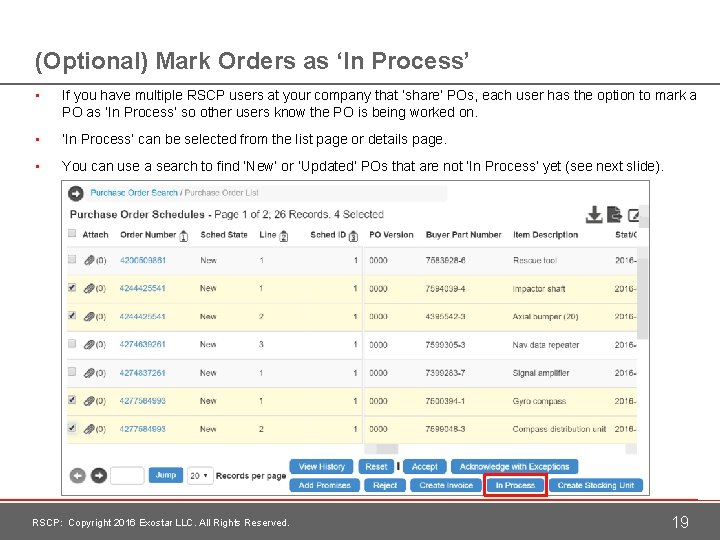
(Optional) Mark Orders as ‘In Process’ • If you have multiple RSCP users at your company that ‘share’ POs, each user has the option to mark a PO as ‘In Process’ so other users know the PO is being worked on. • ‘In Process’ can be selected from the list page or details page. • You can use a search to find ‘New’ or ‘Updated’ POs that are not ‘In Process’ yet (see next slide). RSCP: Copyright 2016 Exostar LLC. All Rights Reserved. 19
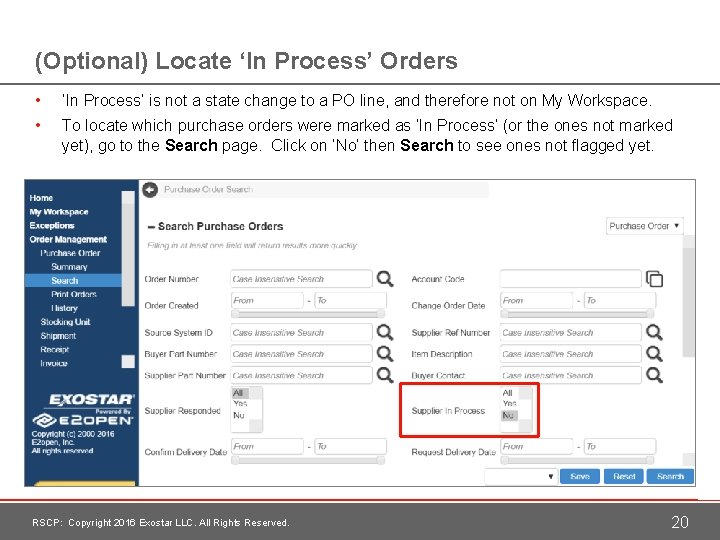
(Optional) Locate ‘In Process’ Orders • ‘In Process’ is not a state change to a PO line, and therefore not on My Workspace. • To locate which purchase orders were marked as ‘In Process’ (or the ones not marked yet), go to the Search page. Click on ‘No’ then Search to see ones not flagged yet. RSCP: Copyright 2016 Exostar LLC. All Rights Reserved. 20
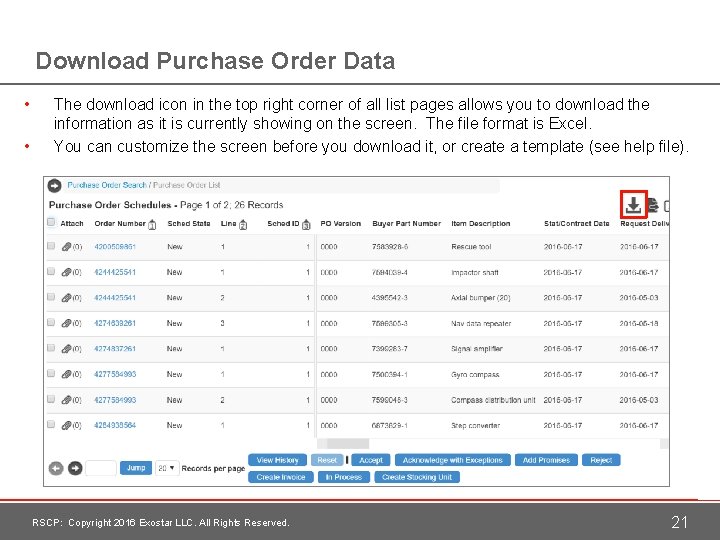
Download Purchase Order Data • • The download icon in the top right corner of all list pages allows you to download the information as it is currently showing on the screen. The file format is Excel. You can customize the screen before you download it, or create a template (see help file). RSCP: Copyright 2016 Exostar LLC. All Rights Reserved. 21
How to Respond to a Purchase Order RSCP: Copyright 2016 Exostar LLC. All Rights Reserved. 22
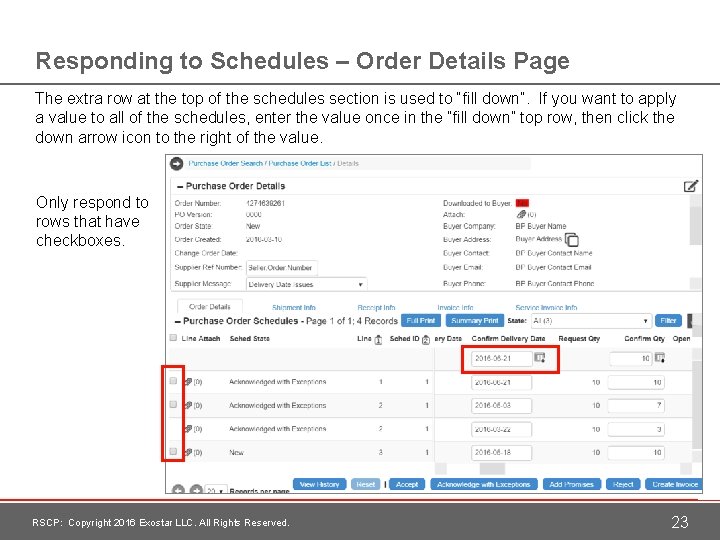
Responding to Schedules – Order Details Page The extra row at the top of the schedules section is used to “fill down”. If you want to apply a value to all of the schedules, enter the value once in the “fill down” top row, then click the down arrow icon to the right of the value. Only respond to rows that have checkboxes. RSCP: Copyright 2016 Exostar LLC. All Rights Reserved. 23
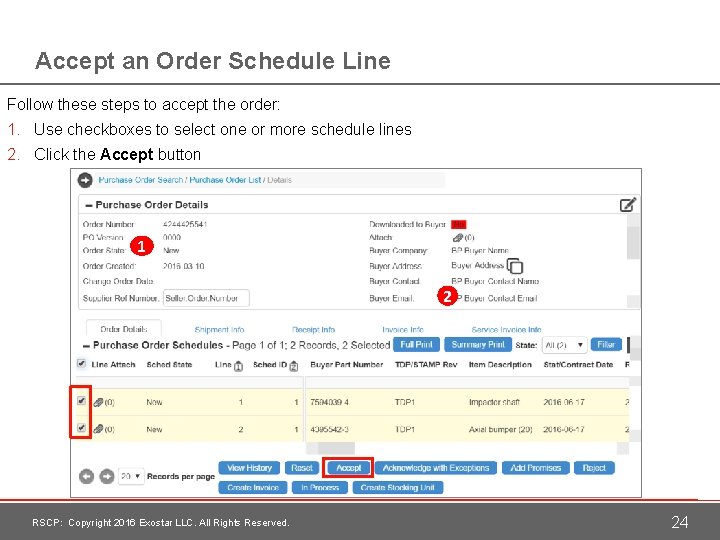
Accept an Order Schedule Line Follow these steps to accept the order: 1. Use checkboxes to select one or more schedule lines 2. Click the Accept button 1 2 RSCP: Copyright 2016 Exostar LLC. All Rights Reserved. 24
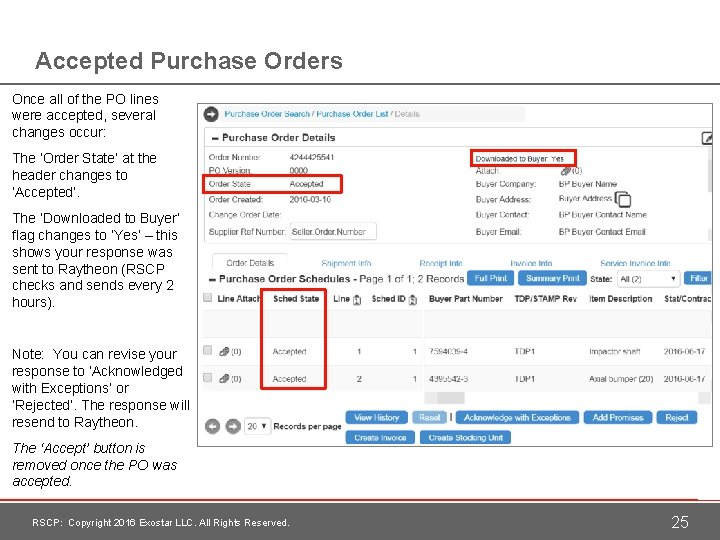
Accepted Purchase Orders Once all of the PO lines were accepted, several changes occur: The ‘Order State’ at the header changes to ‘Accepted’. The ‘Downloaded to Buyer’ flag changes to ‘Yes’ – this shows your response was sent to Raytheon (RSCP checks and sends every 2 hours). Note: You can revise your response to ‘Acknowledged with Exceptions’ or ‘Rejected’. The response will resend to Raytheon. The ‘Accept’ button is removed once the PO was accepted. RSCP: Copyright 2016 Exostar LLC. All Rights Reserved. 25
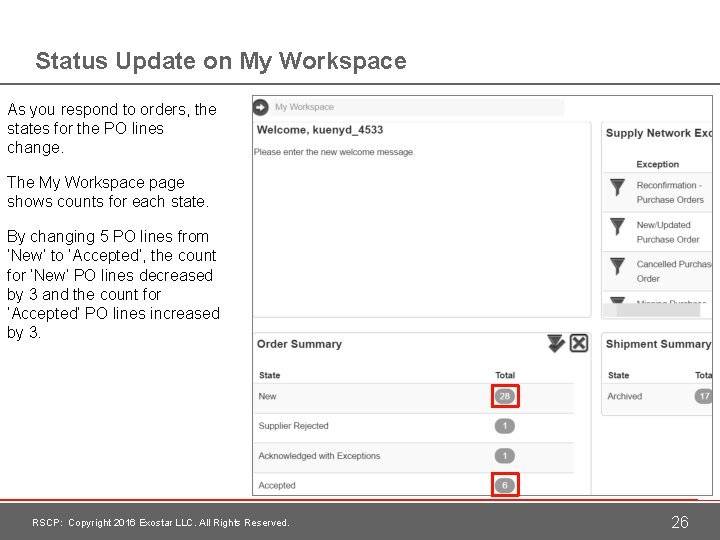
Status Update on My Workspace As you respond to orders, the states for the PO lines change. The My Workspace page shows counts for each state. By changing 5 PO lines from ‘New’ to ‘Accepted’, the count for ‘New’ PO lines decreased by 3 and the count for ‘Accepted’ PO lines increased by 3. RSCP: Copyright 2016 Exostar LLC. All Rights Reserved. 26
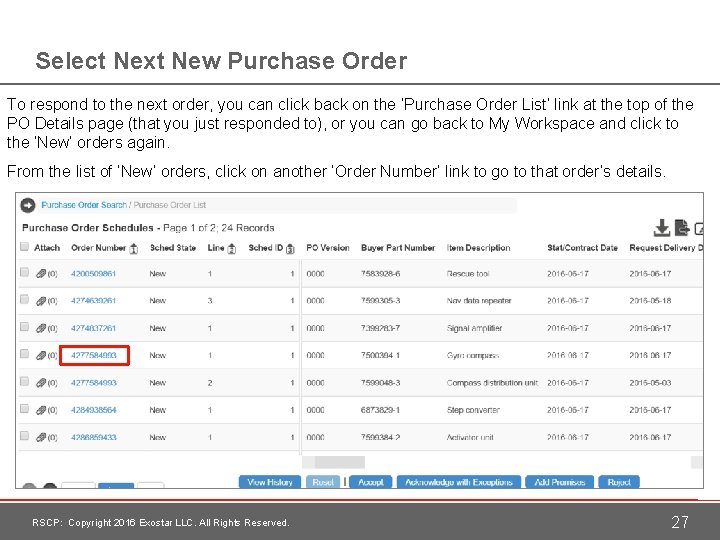
Select Next New Purchase Order To respond to the next order, you can click back on the ‘Purchase Order List’ link at the top of the PO Details page (that you just responded to), or you can go back to My Workspace and click to the ‘New’ orders again. From the list of ‘New’ orders, click on another ‘Order Number’ link to go to that order’s details. RSCP: Copyright 2016 Exostar LLC. All Rights Reserved. 27
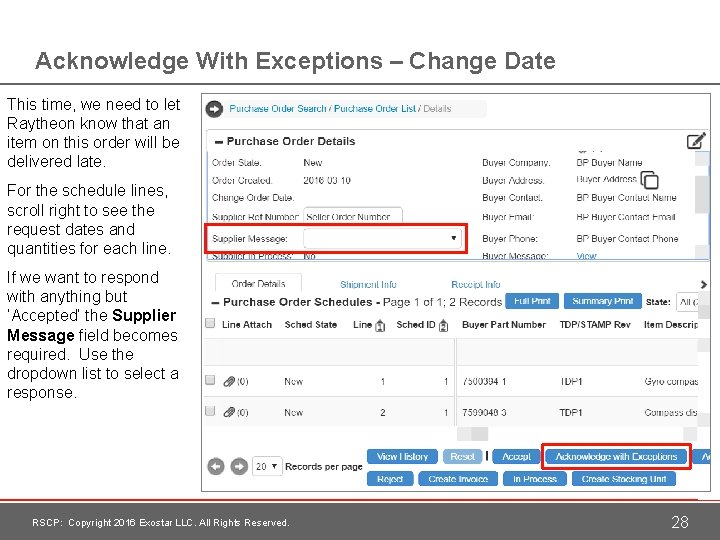
Acknowledge With Exceptions – Change Date This time, we need to let Raytheon know that an item on this order will be delivered late. For the schedule lines, scroll right to see the request dates and quantities for each line. If we want to respond with anything but ‘Accepted’ the Supplier Message field becomes required. Use the dropdown list to select a response. RSCP: Copyright 2016 Exostar LLC. All Rights Reserved. 28
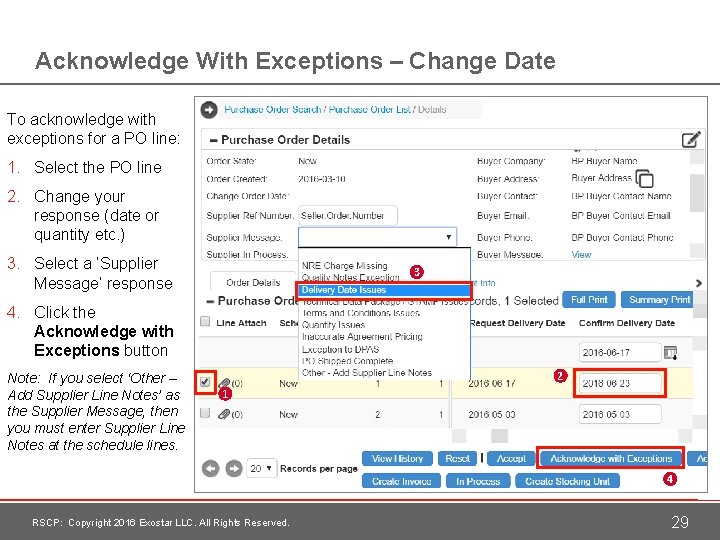
Acknowledge With Exceptions – Change Date To acknowledge with exceptions for a PO line: 1. Select the PO line 2. Change your response (date or quantity etc. ) 3. Select a ‘Supplier Message’ response 3 4. Click the Acknowledge with Exceptions button Note: If you select ‘Other – Add Supplier Line Notes’ as the Supplier Message, then you must enter Supplier Line Notes at the schedule lines. 2 1 4 RSCP: Copyright 2016 Exostar LLC. All Rights Reserved. 29
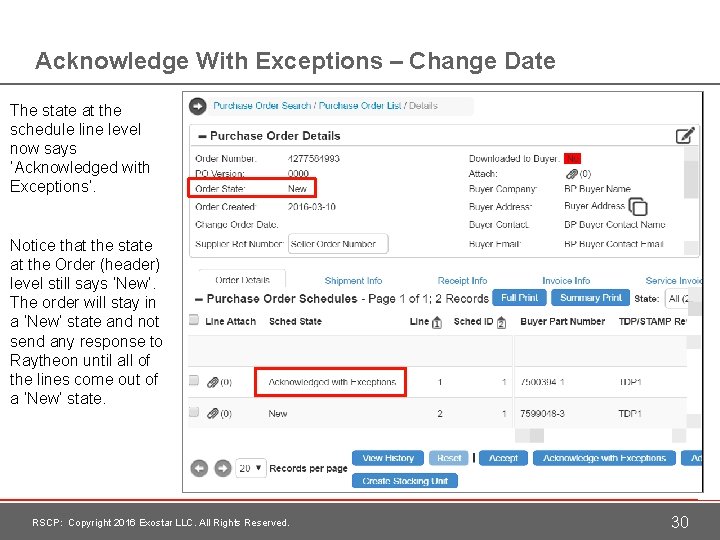
Acknowledge With Exceptions – Change Date The state at the schedule line level now says ‘Acknowledged with Exceptions’. Notice that the state at the Order (header) level still says ‘New’. The order will stay in a ‘New’ state and not send any response to Raytheon until all of the lines come out of a ‘New’ state. RSCP: Copyright 2016 Exostar LLC. All Rights Reserved. 30
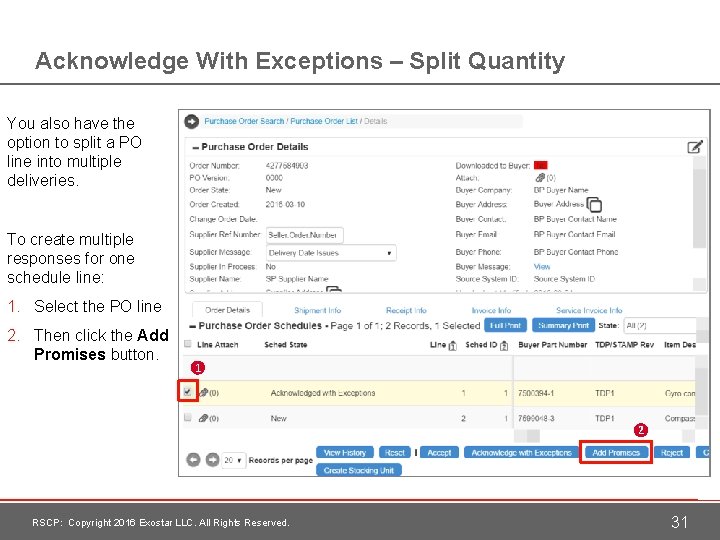
Acknowledge With Exceptions – Split Quantity You also have the option to split a PO line into multiple deliveries. To create multiple responses for one schedule line: 1. Select the PO line 2. Then click the Add Promises button. 1 2 RSCP: Copyright 2016 Exostar LLC. All Rights Reserved. 31
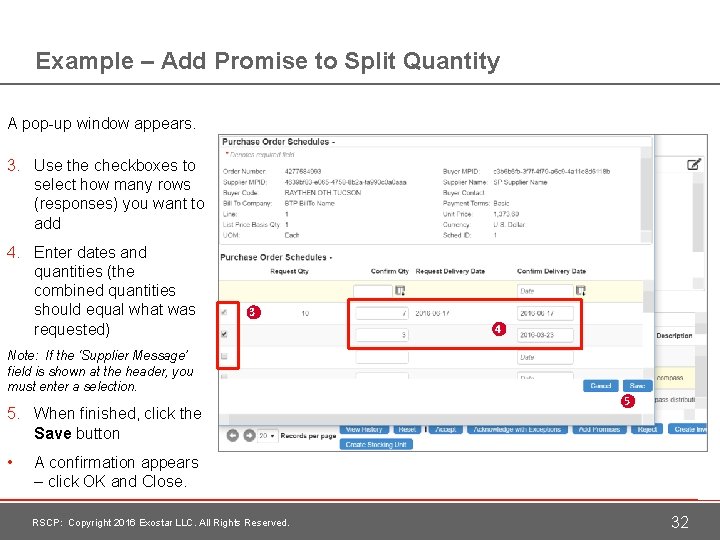
Example – Add Promise to Split Quantity A pop-up window appears. 3. Use the checkboxes to select how many rows (responses) you want to add 4. Enter dates and quantities (the combined quantities should equal what was requested) 3 Note: If the ‘Supplier Message’ field is shown at the header, you must enter a selection. 5. When finished, click the Save button • 4 5 A confirmation appears – click OK and Close. RSCP: Copyright 2016 Exostar LLC. All Rights Reserved. 32
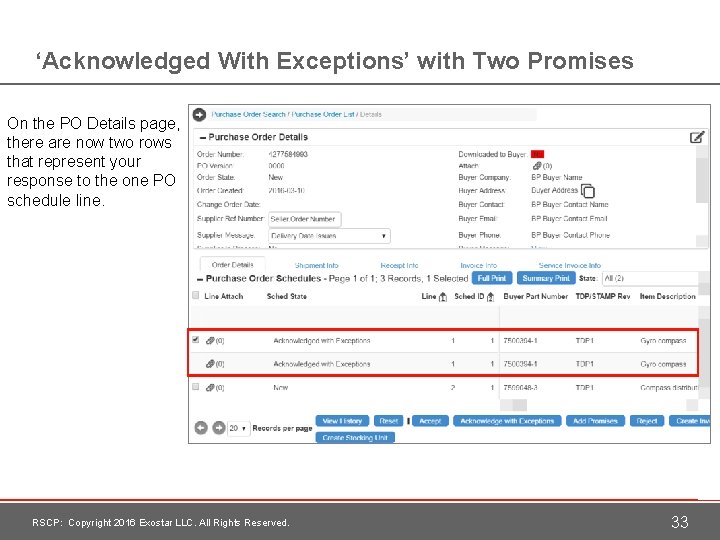
‘Acknowledged With Exceptions’ with Two Promises On the PO Details page, there are now two rows that represent your response to the one PO schedule line. RSCP: Copyright 2016 Exostar LLC. All Rights Reserved. 33
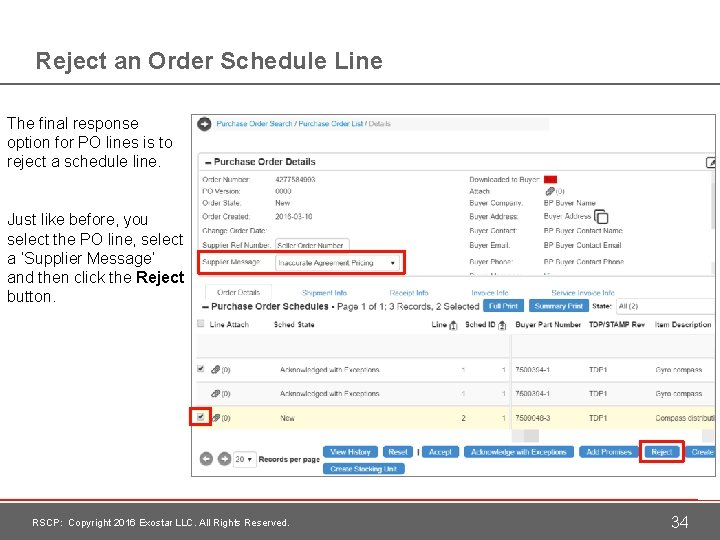
Reject an Order Schedule Line The final response option for PO lines is to reject a schedule line. Just like before, you select the PO line, select a ‘Supplier Message’ and then click the Reject button. RSCP: Copyright 2016 Exostar LLC. All Rights Reserved. 34
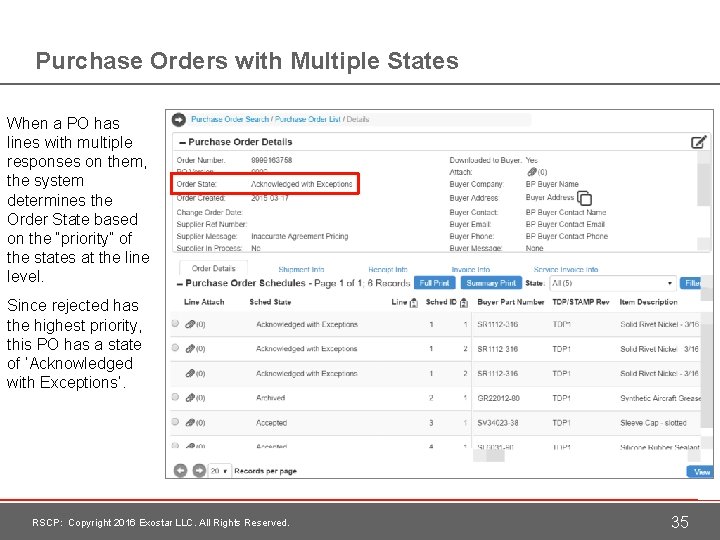
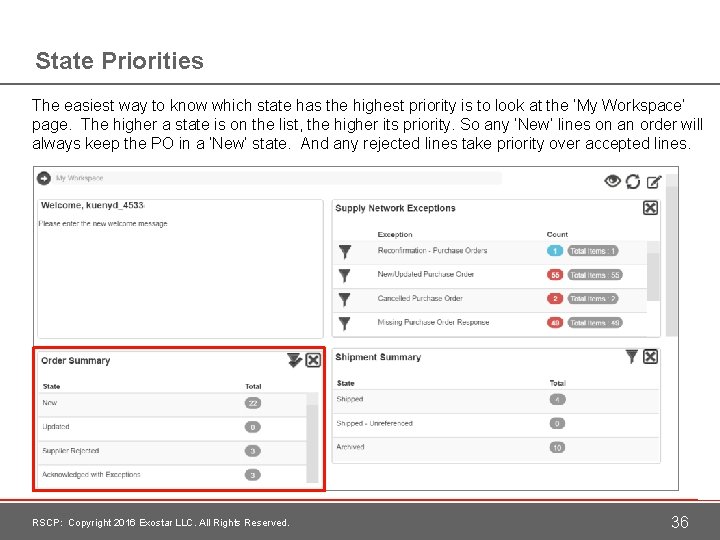
Purchase Orders with Multiple States When a PO has lines with multiple responses on them, the system determines the Order State based on the “priority” of the states at the line level. Since rejected has the highest priority, this PO has a state of ‘Acknowledged with Exceptions’. RSCP: Copyright 2016 Exostar LLC. All Rights Reserved. 35
State Priorities The easiest way to know which state has the highest priority is to look at the ‘My Workspace’ page. The higher a state is on the list, the higher its priority. So any ‘New’ lines on an order will always keep the PO in a ‘New’ state. And any rejected lines take priority over accepted lines. RSCP: Copyright 2016 Exostar LLC. All Rights Reserved. 36
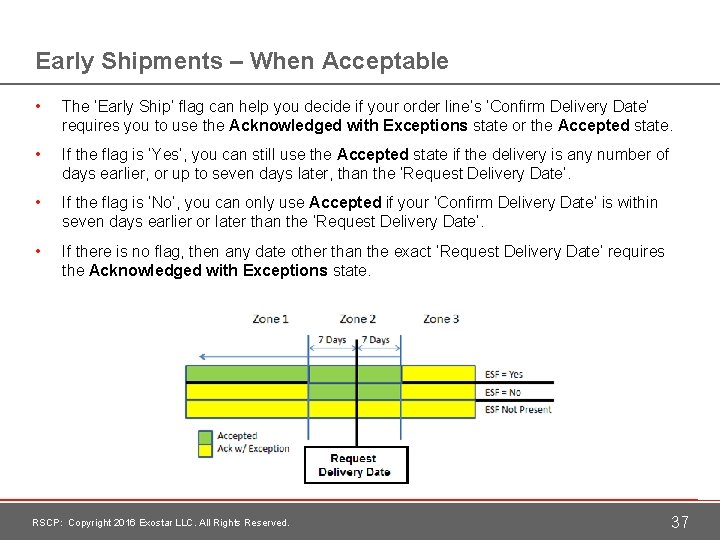
Early Shipments – When Acceptable • The ‘Early Ship’ flag can help you decide if your order line’s ‘Confirm Delivery Date’ requires you to use the Acknowledged with Exceptions state or the Accepted state. • If the flag is ‘Yes’, you can still use the Accepted state if the delivery is any number of days earlier, or up to seven days later, than the ‘Request Delivery Date’. • If the flag is ‘No’, you can only use Accepted if your ‘Confirm Delivery Date’ is within seven days earlier or later than the ‘Request Delivery Date’. • If there is no flag, then any date other than the exact ‘Request Delivery Date’ requires the Acknowledged with Exceptions state. RSCP: Copyright 2016 Exostar LLC. All Rights Reserved. 37
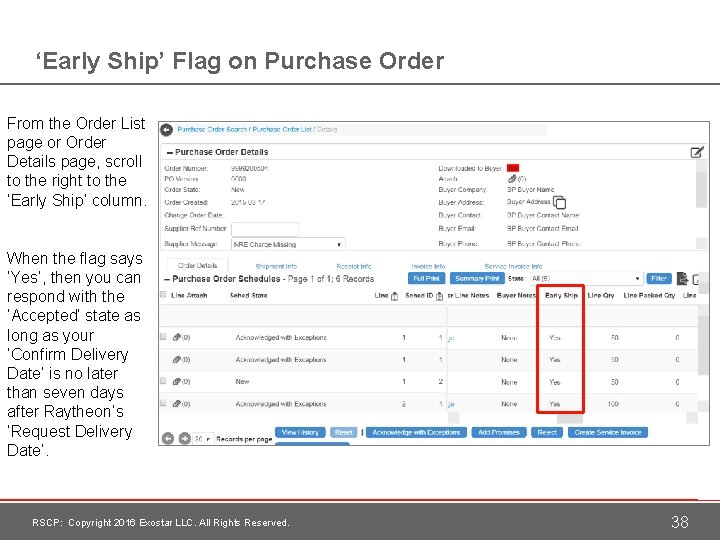
‘Early Ship’ Flag on Purchase Order From the Order List page or Order Details page, scroll to the right to the ‘Early Ship’ column. When the flag says ‘Yes’, then you can respond with the ‘Accepted’ state as long as your ‘Confirm Delivery Date’ is no later than seven days after Raytheon’s ‘Request Delivery Date’. RSCP: Copyright 2016 Exostar LLC. All Rights Reserved. 38
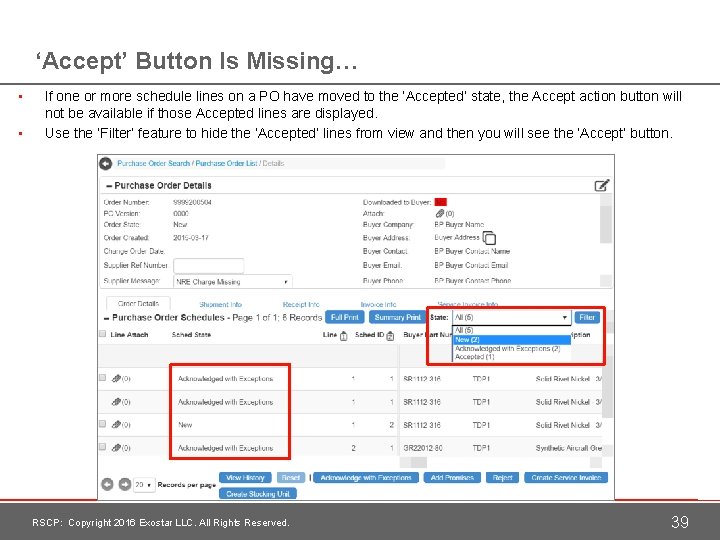
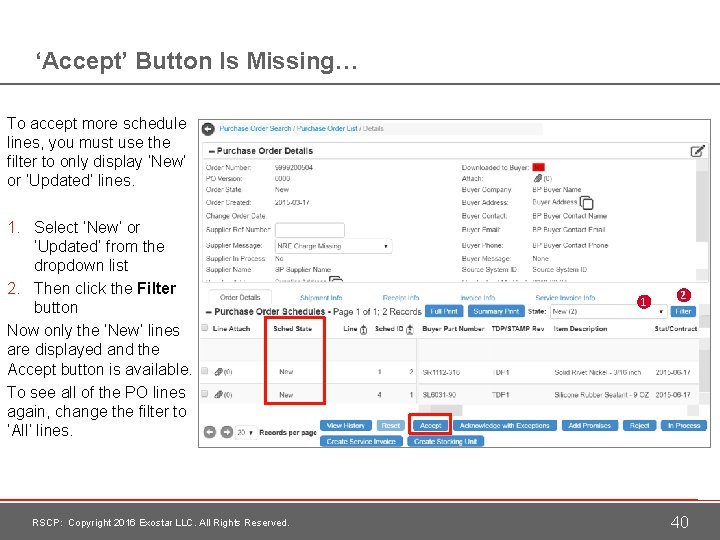
‘Accept’ Button Is Missing… • • If one or more schedule lines on a PO have moved to the ‘Accepted’ state, the Accept action button will not be available if those Accepted lines are displayed. Use the ‘Filter’ feature to hide the ‘Accepted’ lines from view and then you will see the ‘Accept’ button. RSCP: Copyright 2016 Exostar LLC. All Rights Reserved. 39
‘Accept’ Button Is Missing… To accept more schedule lines, you must use the filter to only display ‘New’ or ‘Updated’ lines. 1. Select ‘New’ or ‘Updated’ from the dropdown list 2. Then click the Filter button Now only the ‘New’ lines are displayed and the Accept button is available. To see all of the PO lines again, change the filter to ‘All’ lines. RSCP: Copyright 2016 Exostar LLC. All Rights Reserved. 1 2 40
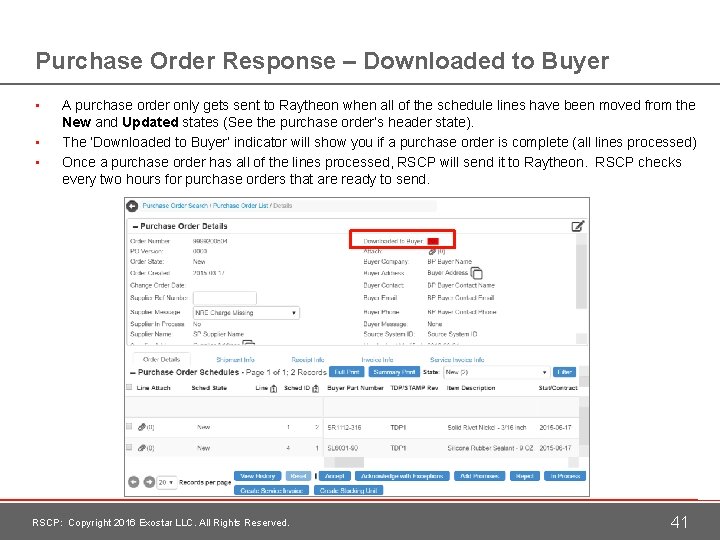
Purchase Order Response – Downloaded to Buyer • • • A purchase order only gets sent to Raytheon when all of the schedule lines have been moved from the New and Updated states (See the purchase order’s header state). The ‘Downloaded to Buyer’ indicator will show you if a purchase order is complete (all lines processed) Once a purchase order has all of the lines processed, RSCP will send it to Raytheon. RSCP checks every two hours for purchase orders that are ready to send. RSCP: Copyright 2016 Exostar LLC. All Rights Reserved. 41
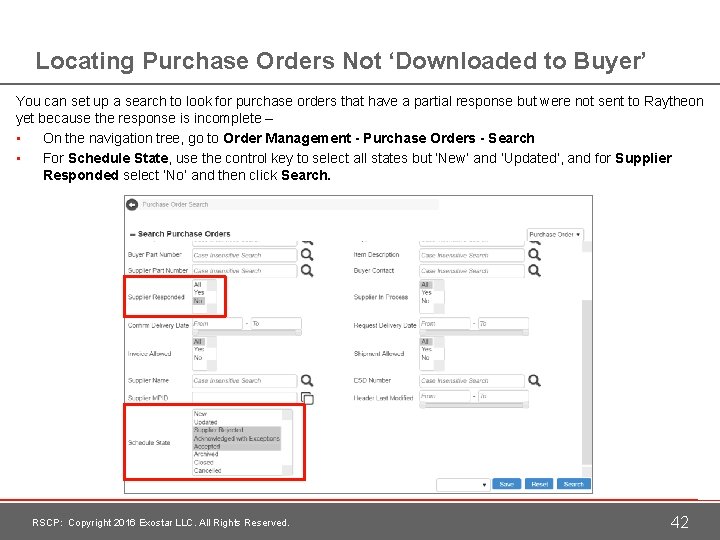
Locating Purchase Orders Not ‘Downloaded to Buyer’ You can set up a search to look for purchase orders that have a partial response but were not sent to Raytheon yet because the response is incomplete – • On the navigation tree, go to Order Management - Purchase Orders - Search • For Schedule State, use the control key to select all states but ‘New’ and ‘Updated’, and for Supplier Responded select ‘No’ and then click Search. RSCP: Copyright 2016 Exostar LLC. All Rights Reserved. 42
Purchase Order Changes RSCP: Copyright 2016 Exostar LLC. All Rights Reserved. 43
Purchase Order Changes • If you responded to a PO with ‘Acknowledge with Exceptions’, the buyer will receive your response automatically and be able to review it • If your exceptions are agreeable to the buyer, a PO Change (POC) should be issued by the buyer • A POC may also be issued to correct an error on a purchase order • You can respond to a POC with ‘Accept’, ‘Acknowledge with Exceptions’ or ‘Reject’ RSCP: Copyright 2016 Exostar LLC. All Rights Reserved. 44
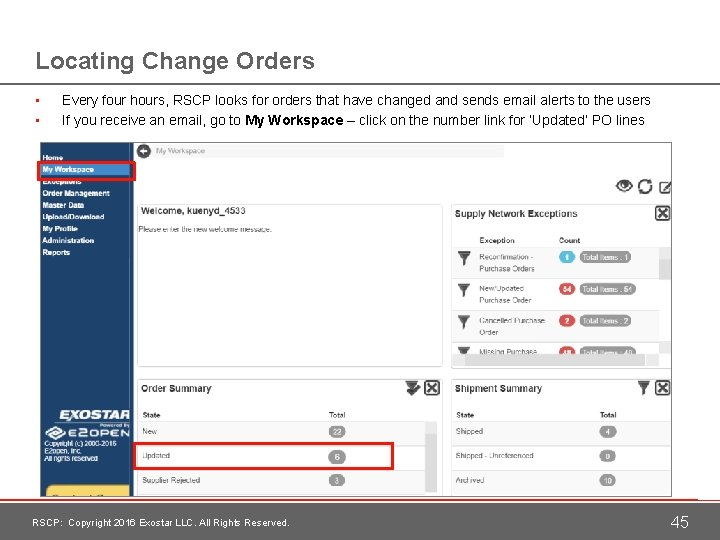
Locating Change Orders • • Every four hours, RSCP looks for orders that have changed and sends email alerts to the users If you receive an email, go to My Workspace – click on the number link for ‘Updated’ PO lines RSCP: Copyright 2016 Exostar LLC. All Rights Reserved. 45
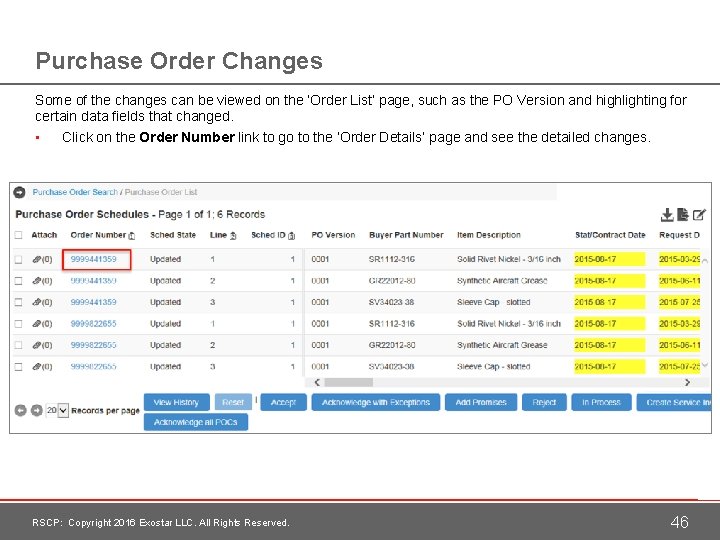
Purchase Order Changes Some of the changes can be viewed on the ‘Order List’ page, such as the PO Version and highlighting for certain data fields that changed. • Click on the Order Number link to go to the ‘Order Details’ page and see the detailed changes. RSCP: Copyright 2016 Exostar LLC. All Rights Reserved. 46
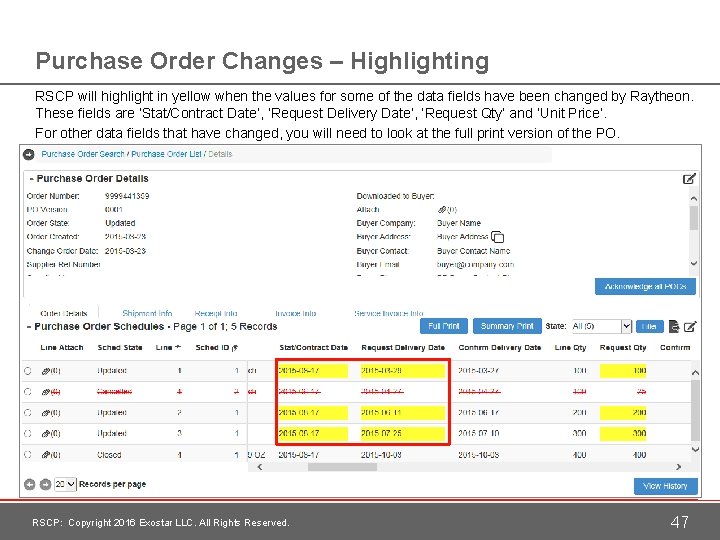
Purchase Order Changes – Highlighting RSCP will highlight in yellow when the values for some of the data fields have been changed by Raytheon. These fields are ‘Stat/Contract Date’, ‘Request Delivery Date’, ‘Request Qty’ and ‘Unit Price’. For other data fields that have changed, you will need to look at the full print version of the PO. RSCP: Copyright 2016 Exostar LLC. All Rights Reserved. 47
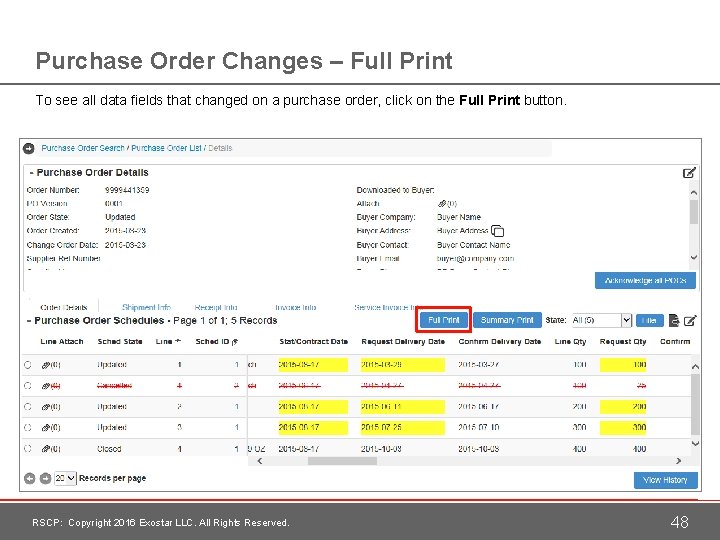
Purchase Order Changes – Full Print To see all data fields that changed on a purchase order, click on the Full Print button. RSCP: Copyright 2016 Exostar LLC. All Rights Reserved. 48
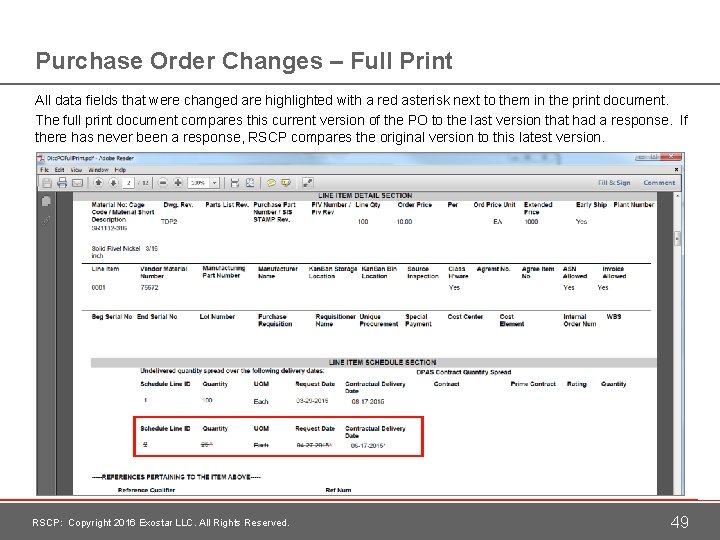
Purchase Order Changes – Full Print All data fields that were changed are highlighted with a red asterisk next to them in the print document. The full print document compares this current version of the PO to the last version that had a response. If there has never been a response, RSCP compares the original version to this latest version. RSCP: Copyright 2016 Exostar LLC. All Rights Reserved. 49
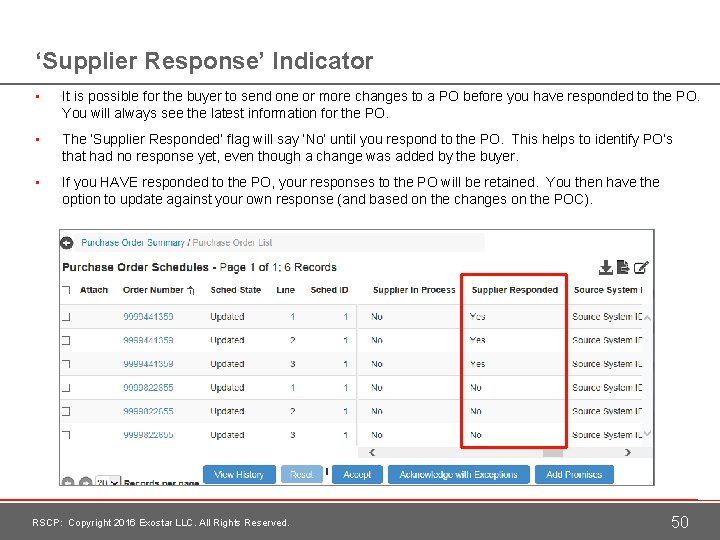
‘Supplier Response’ Indicator • It is possible for the buyer to send one or more changes to a PO before you have responded to the PO. You will always see the latest information for the PO. • The ‘Supplier Responded’ flag will say ‘No’ until you respond to the PO. This helps to identify PO’s that had no response yet, even though a change was added by the buyer. • If you HAVE responded to the PO, your responses to the PO will be retained. You then have the option to update against your own response (and based on the changes on the POC). RSCP: Copyright 2016 Exostar LLC. All Rights Reserved. 50
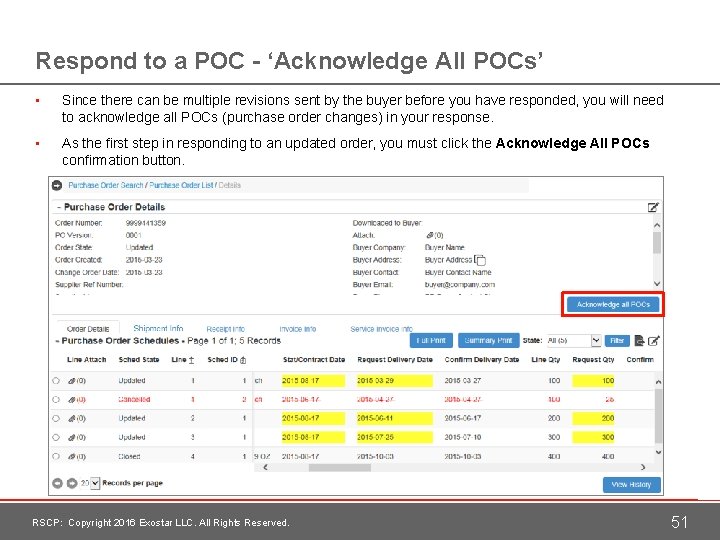
Respond to a POC - ‘Acknowledge All POCs’ • Since there can be multiple revisions sent by the buyer before you have responded, you will need to acknowledge all POCs (purchase order changes) in your response. • As the first step in responding to an updated order, you must click the Acknowledge All POCs confirmation button. RSCP: Copyright 2016 Exostar LLC. All Rights Reserved. 51
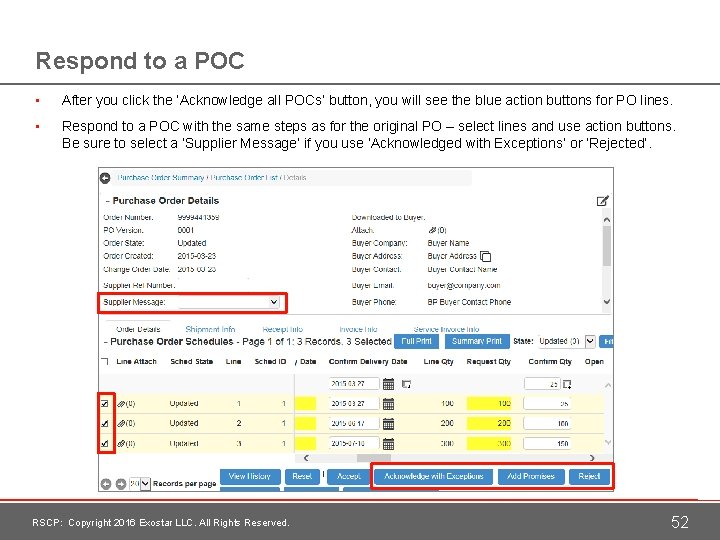
Respond to a POC • After you click the ‘Acknowledge all POCs’ button, you will see the blue action buttons for PO lines. • Respond to a POC with the same steps as for the original PO – select lines and use action buttons. Be sure to select a ‘Supplier Message’ if you use ‘Acknowledged with Exceptions’ or ‘Rejected’. RSCP: Copyright 2016 Exostar LLC. All Rights Reserved. 52
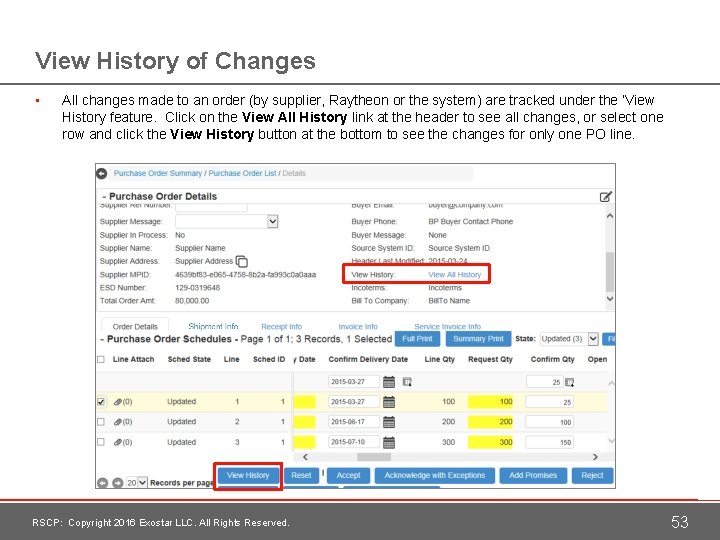
View History of Changes • All changes made to an order (by supplier, Raytheon or the system) are tracked under the ‘View History feature. Click on the View All History link at the header to see all changes, or select one row and click the View History button at the bottom to see the changes for only one PO line. RSCP: Copyright 2016 Exostar LLC. All Rights Reserved. 53
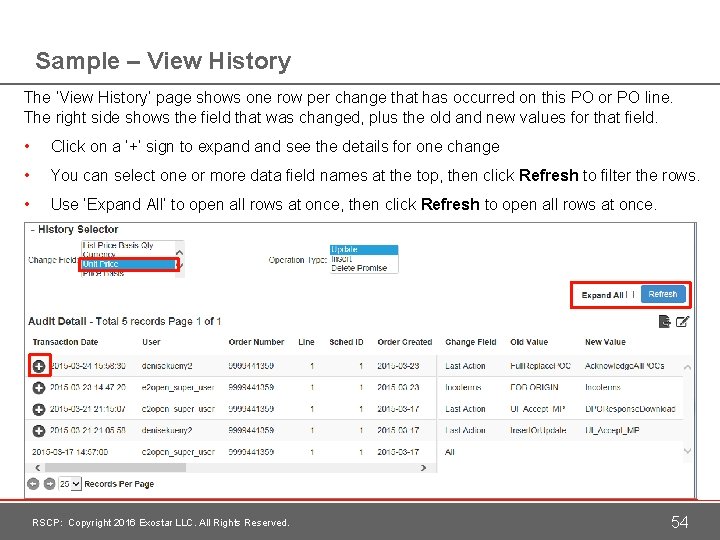
Sample – View History The ‘View History’ page shows one row per change that has occurred on this PO or PO line. The right side shows the field that was changed, plus the old and new values for that field. • Click on a ‘+’ sign to expand see the details for one change • You can select one or more data field names at the top, then click Refresh to filter the rows. • Use ‘Expand All’ to open all rows at once, then click Refresh to open all rows at once. RSCP: Copyright 2016 Exostar LLC. All Rights Reserved. 54
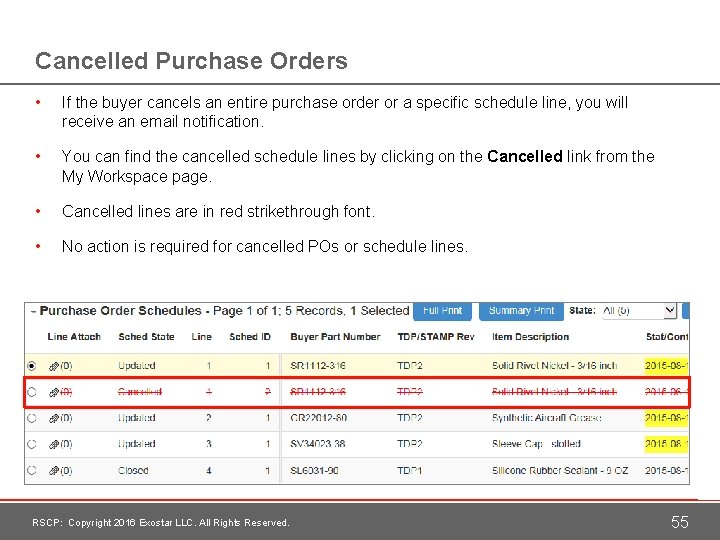
Cancelled Purchase Orders • If the buyer cancels an entire purchase order or a specific schedule line, you will receive an email notification. • You can find the cancelled schedule lines by clicking on the Cancelled link from the My Workspace page. • Cancelled lines are in red strikethrough font. • No action is required for cancelled POs or schedule lines. RSCP: Copyright 2016 Exostar LLC. All Rights Reserved. 55
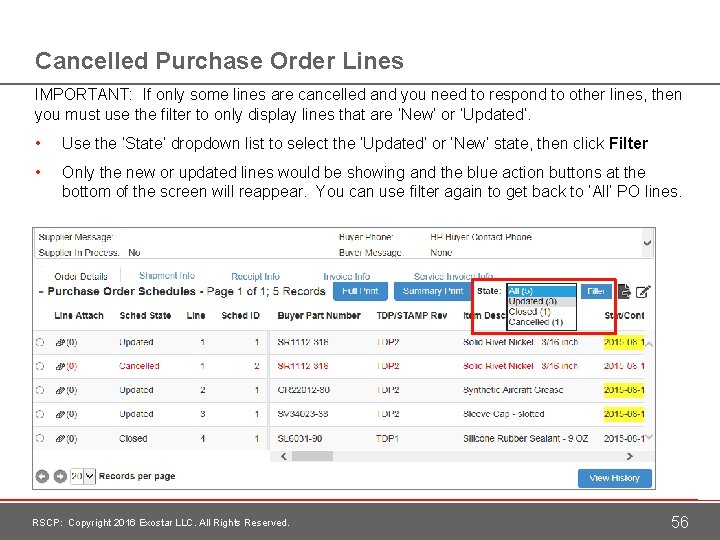
Cancelled Purchase Order Lines IMPORTANT: If only some lines are cancelled and you need to respond to other lines, then you must use the filter to only display lines that are ‘New’ or ‘Updated’. • Use the ‘State’ dropdown list to select the ‘Updated’ or ‘New’ state, then click Filter • Only the new or updated lines would be showing and the blue action buttons at the bottom of the screen will reappear. You can use filter again to get back to ‘All’ PO lines. RSCP: Copyright 2016 Exostar LLC. All Rights Reserved. 56
PO Changes at Header Level Only • If a POC is only making changes to the header level of a purchase order, then RSCP will change the state of all of the lines to the Updated status. • To process a header level only POC, you must take action on all of the lines. RSCP: Copyright 2016 Exostar LLC. All Rights Reserved. 57
Reconfirmation of Purchase Order Responses RSCP: Copyright 2016 Exostar LLC. All Rights Reserved. 58
Reconfirm Your Response • As receivable items get closer to the ‘Requested Deliver Date’, Raytheon looks for a reconfirmation of your promise to deliver the items. • Raytheon sets a time horizon in RSCP, so that any items that are due within that time frame must be reconfirmed. > The default for this horizon is ‘items that are due within the next 60 days’ (but buyers can change this setting and not all items will need to be reconfirmed). • Items requiring a ‘reconfirm’ can be accessed from My Workspace or Exceptions – Order Management. > Raytheon updates the reconfirm requests on the 1 st of each month. RSCP: Copyright 2016 Exostar LLC. All Rights Reserved. 59
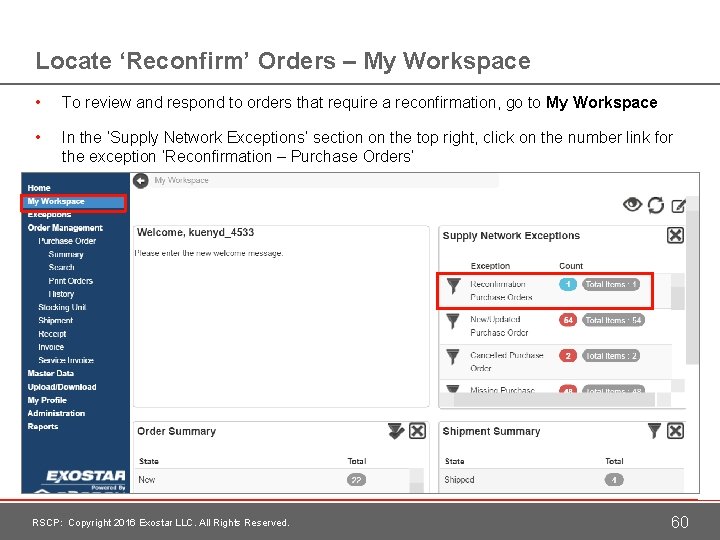
Locate ‘Reconfirm’ Orders – My Workspace • To review and respond to orders that require a reconfirmation, go to My Workspace • In the ‘Supply Network Exceptions’ section on the top right, click on the number link for the exception ‘Reconfirmation – Purchase Orders’ RSCP: Copyright 2016 Exostar LLC. All Rights Reserved. 60
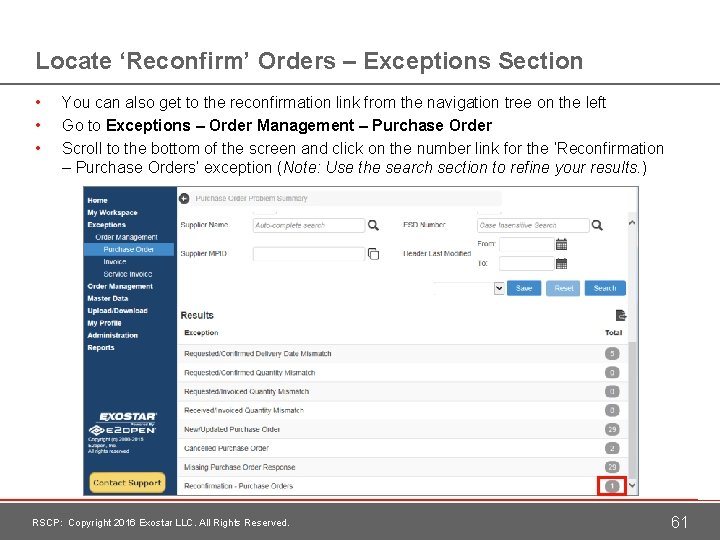
Locate ‘Reconfirm’ Orders – Exceptions Section • • • You can also get to the reconfirmation link from the navigation tree on the left Go to Exceptions – Order Management – Purchase Order Scroll to the bottom of the screen and click on the number link for the ‘Reconfirmation – Purchase Orders’ exception (Note: Use the search section to refine your results. ) RSCP: Copyright 2016 Exostar LLC. All Rights Reserved. 61
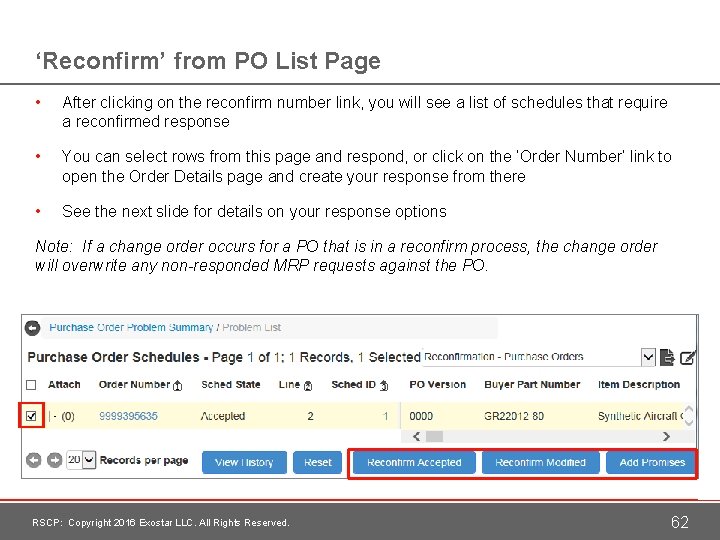
‘Reconfirm’ from PO List Page • After clicking on the reconfirm number link, you will see a list of schedules that require a reconfirmed response • You can select rows from this page and respond, or click on the ‘Order Number’ link to open the Order Details page and create your response from there • See the next slide for details on your response options Note: If a change order occurs for a PO that is in a reconfirm process, the change order will overwrite any non-responded MRP requests against the PO. RSCP: Copyright 2016 Exostar LLC. All Rights Reserved. 62
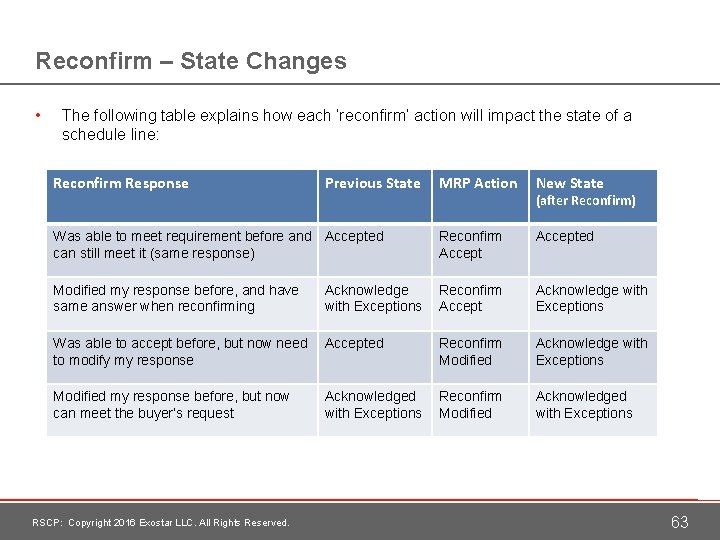
Reconfirm – State Changes • The following table explains how each ‘reconfirm’ action will impact the state of a schedule line: Reconfirm Response MRP Action New State Was able to meet requirement before and Accepted can still meet it (same response) Reconfirm Accepted Modified my response before, and have same answer when reconfirming Acknowledge with Exceptions Reconfirm Accept Acknowledge with Exceptions Was able to accept before, but now need to modify my response Accepted Reconfirm Modified Acknowledge with Exceptions Modified my response before, but now can meet the buyer’s request Acknowledged with Exceptions Reconfirm Modified Acknowledged with Exceptions RSCP: Copyright 2016 Exostar LLC. All Rights Reserved. Previous State (after Reconfirm) 63
Section Summary We have learned… • How to access new purchase orders • How to accept purchase orders • How to reject purchase orders • How to acknowledge with exceptions – changing quantities and promise date • How to review purchase order changes • How to reconfirm a purchase order RSCP: Copyright 2016 Exostar LLC. All Rights Reserved. 64