
Provincial Survey Records Index A Quick Start Guide
- Slides: 12
Provincial Survey Records Index A Quick Start Guide
Quick Start This presentation will show any user; • How to access and complete the Bulk Load template • How to Search for records by their attributes • How to select records of interest, order them and keep a copy of what was ordered
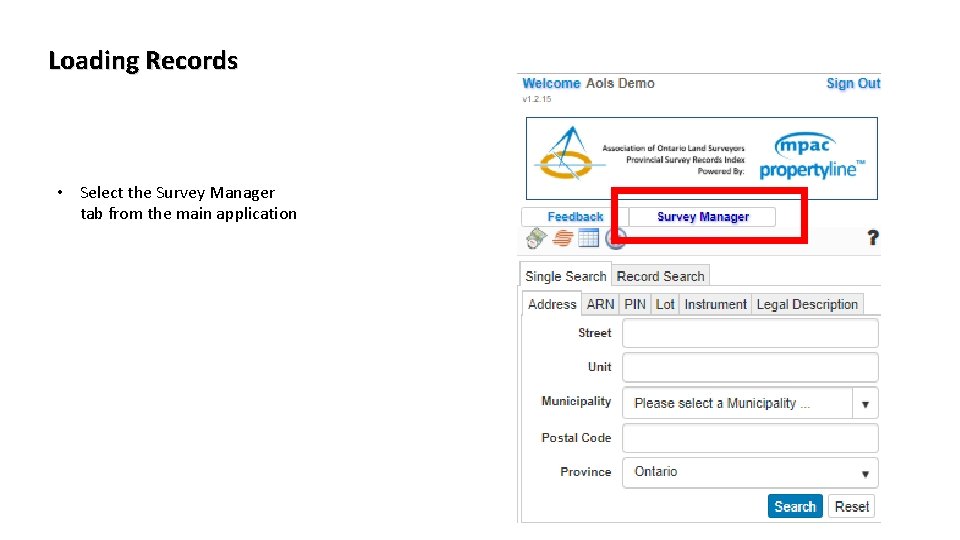
Loading Records • Select the Survey Manager tab from the main application
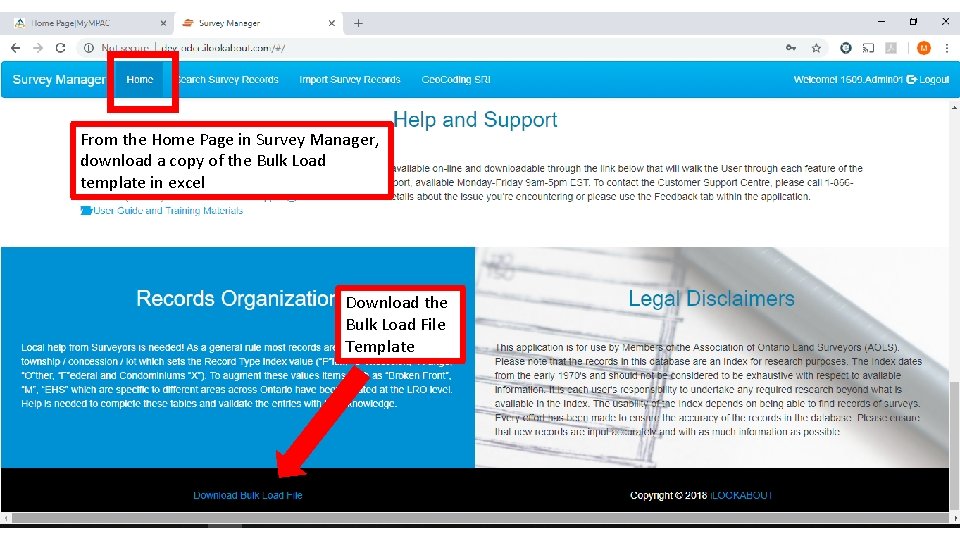
From the Home Page in Survey Manager, download a copy of the Bulk Load template in excel Download the Bulk Load File Template
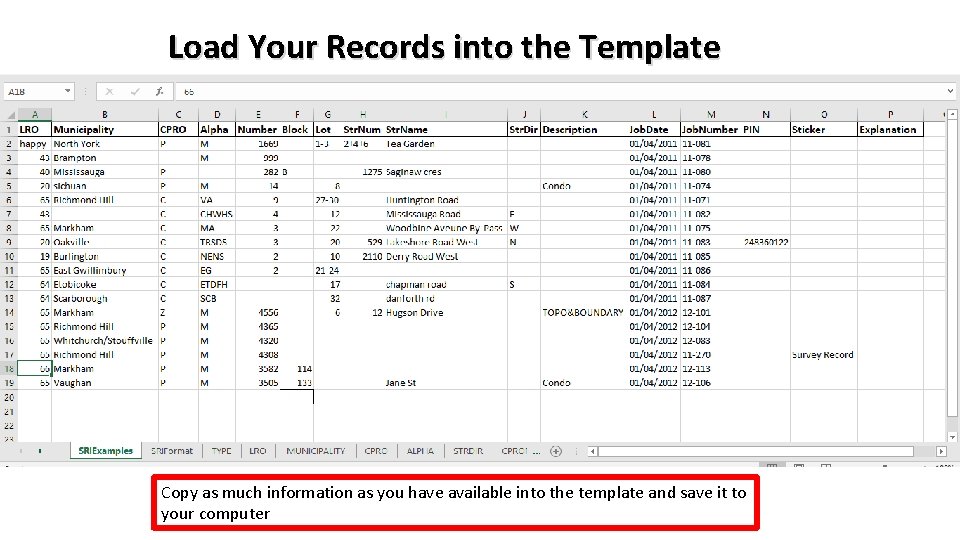
Load Your Records into the Template Copy as much information as you have available into the template and save it to your computer
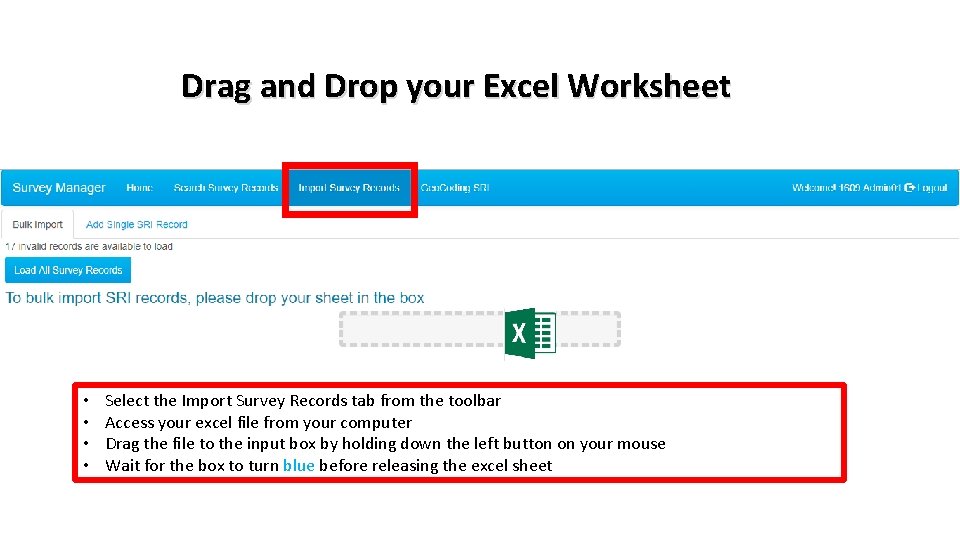
Drag and Drop your Excel Worksheet • • Select the Import Survey Records tab from the toolbar Access your excel file from your computer Drag the file to the input box by holding down the left button on your mouse Wait for the box to turn blue before releasing the excel sheet
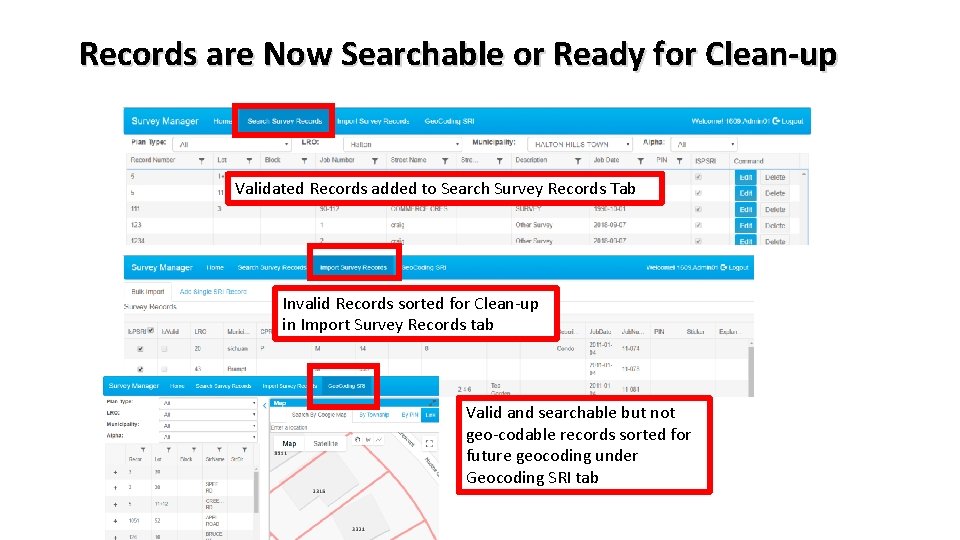
Records are Now Searchable or Ready for Clean-up Validated Records added to Search Survey Records Tab Invalid Records sorted for Clean-up in Import Survey Records tab Valid and searchable but not geo-codable records sorted for future geocoding under Geocoding SRI tab
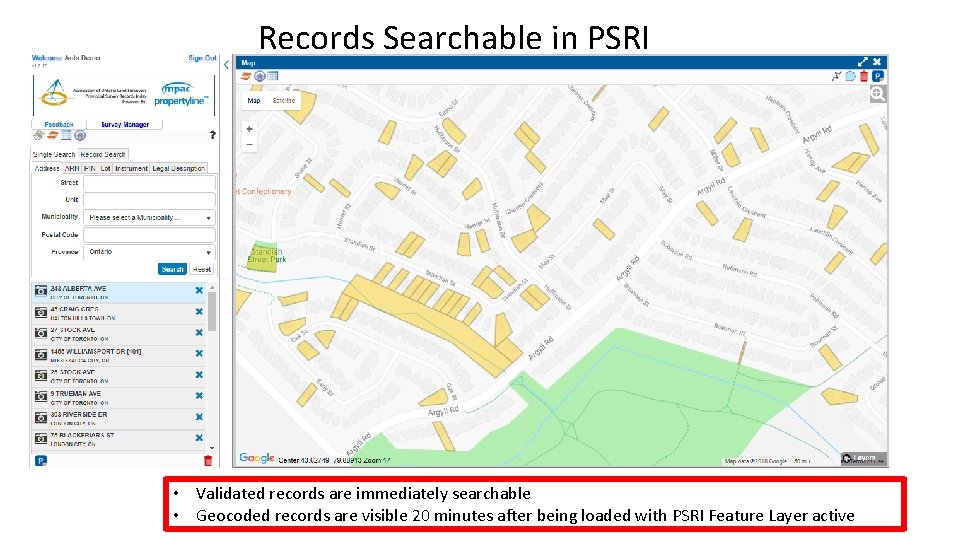
Records Searchable in PSRI • Validated records are immediately searchable • Geocoded records are visible 20 minutes after being loaded with PSRI Feature Layer active
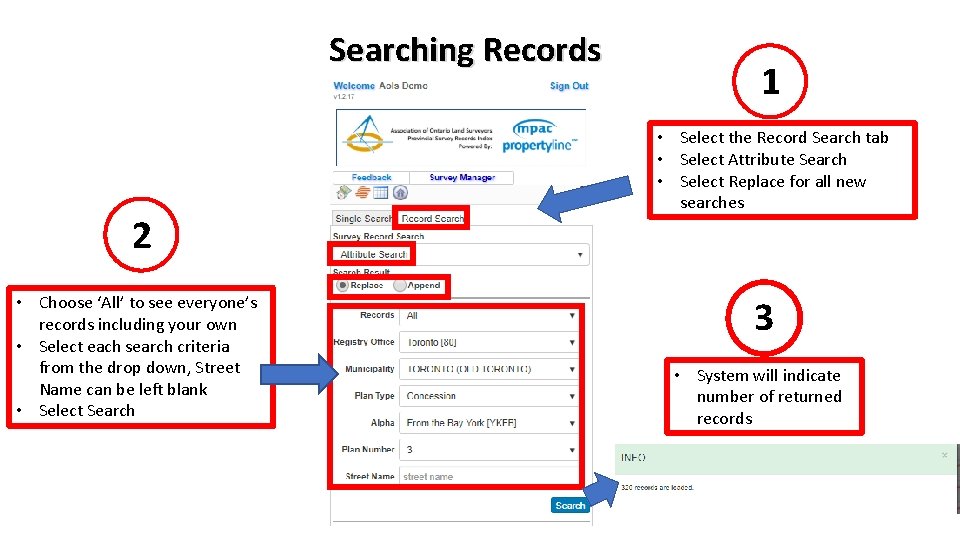
Searching Records 2 • Choose ‘All’ to see everyone’s records including your own • Select each search criteria from the drop down, Street Name can be left blank • Select Search 1 • Select the Record Search tab • Select Attribute Search • Select Replace for all new searches 3 • System will indicate number of returned records
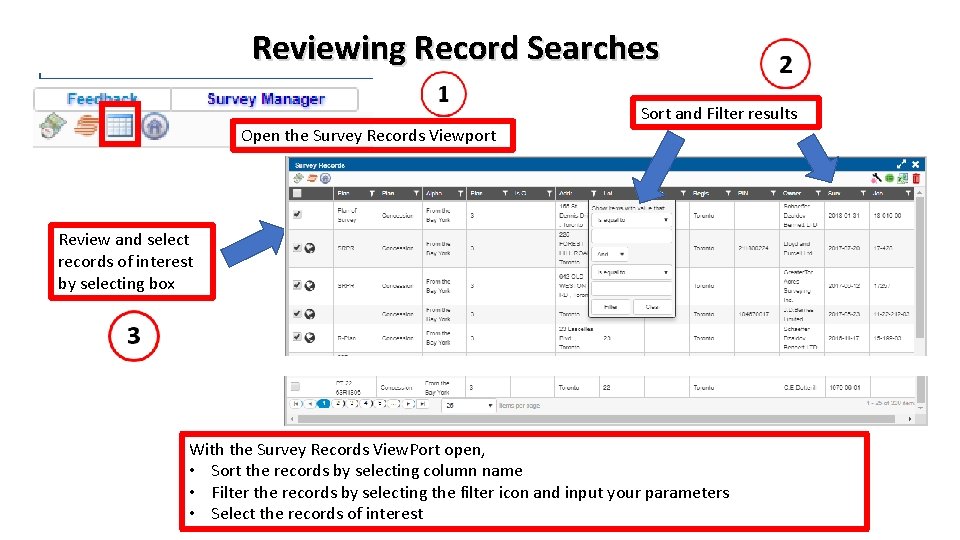
Reviewing Record Searches Sort and Filter results Open the Survey Records Viewport Review and select records of interest by selecting box With the Survey Records View. Port open, • Sort the records by selecting column name • Filter the records by selecting the filter icon and input your parameters • Select the records of interest
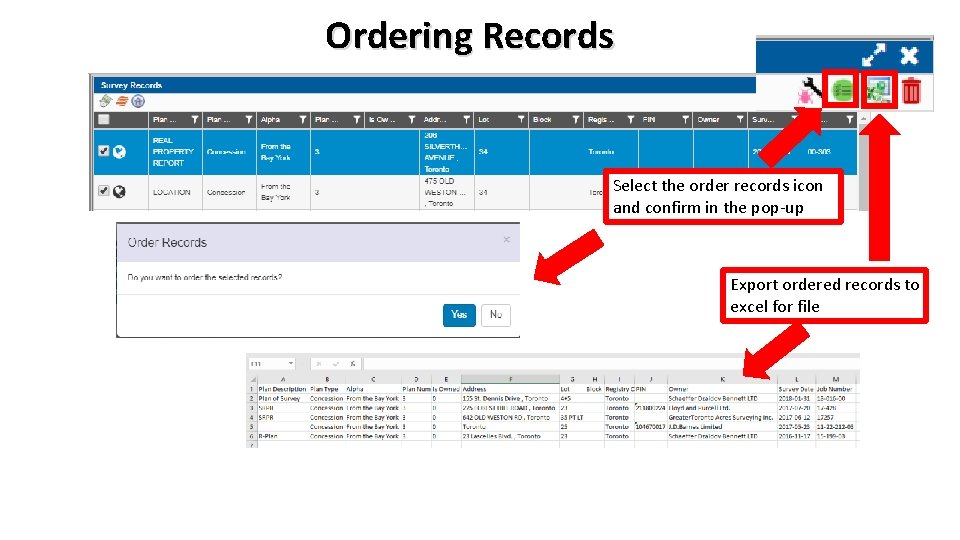
Ordering Records Select the order records icon and confirm in the pop-up Export ordered records to excel for file
Please review the User Manual or PSRI Overview Presentation for an introduction to all features