
PROTOTYPING WITH MICROCONTROLLERS SENSORS MATERIALS VIRTUAL EG 1003

- Slides: 25
PROTOTYPING WITH MICROCONTROLLERS, SENSORS & MATERIALS (VIRTUAL) EG 1003 | LAB 5
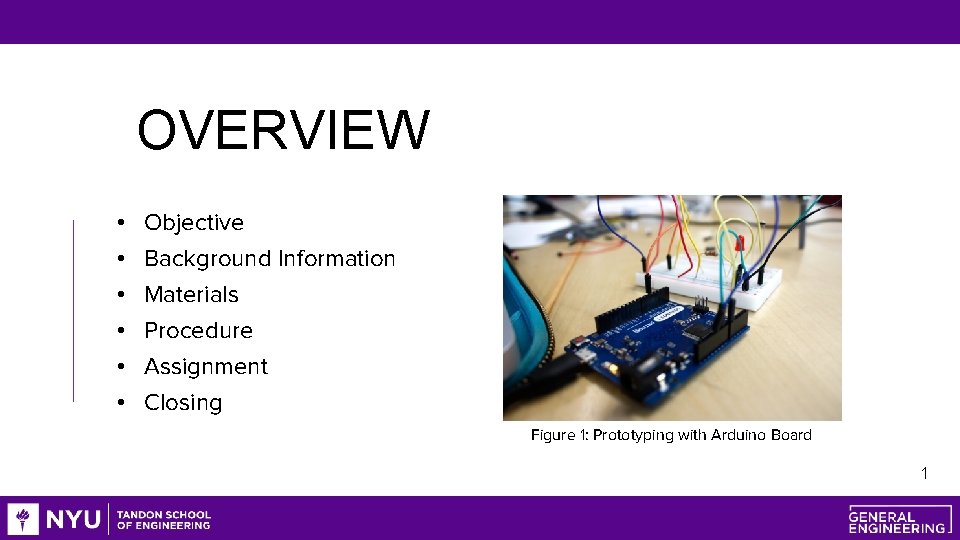
OVERVIEW • • • Objective Background Information Materials Procedure Assignment Closing Figure 1: Prototyping with Arduino Board 1
OBJECTIVE • Utilize electrical components, an Arduino board, and the Arduino IDE virtually in Tinker. CAD to: • Control an LED with and without a button • Build a TMP 36 temperature sensing circuit • To analyze different designs for a device to slow the rate of heat loss • Use given data to evaluate the minimal design ratio of the designs 2
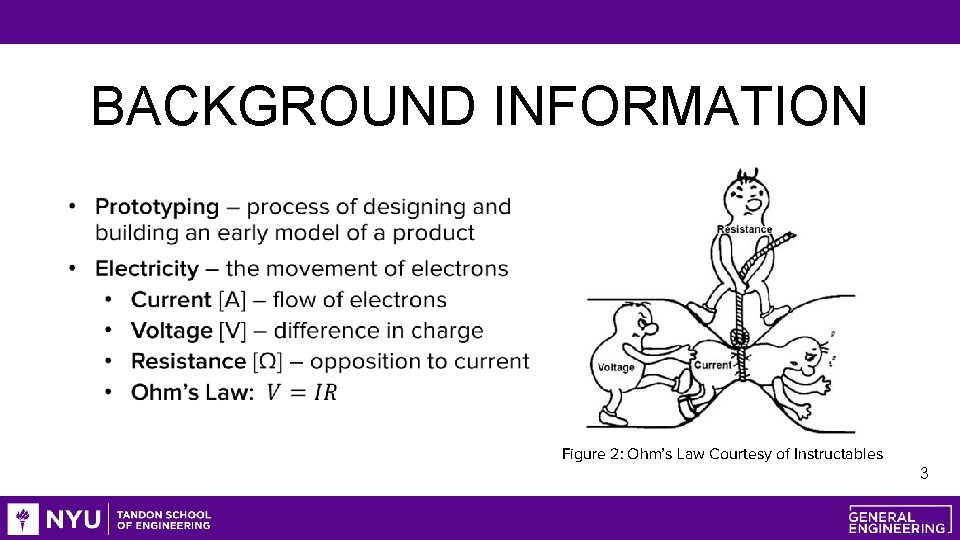
BACKGROUND INFORMATION Figure 2: Ohm’s Law Courtesy of Instructables 3
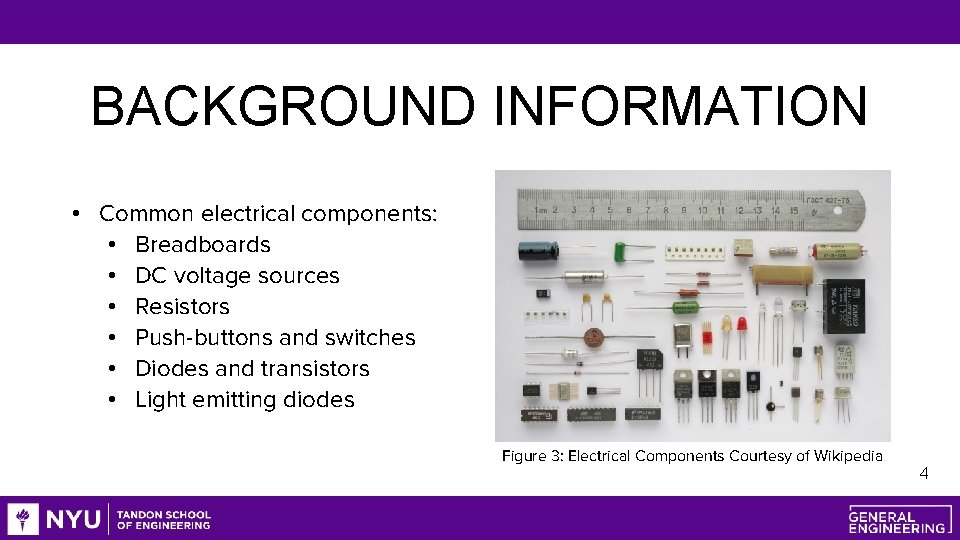
BACKGROUND INFORMATION • Common electrical components: • Breadboards • DC voltage sources • Resistors • Push-buttons and switches • Diodes and transistors • Light emitting diodes Figure 3: Electrical Components Courtesy of Wikipedia 4
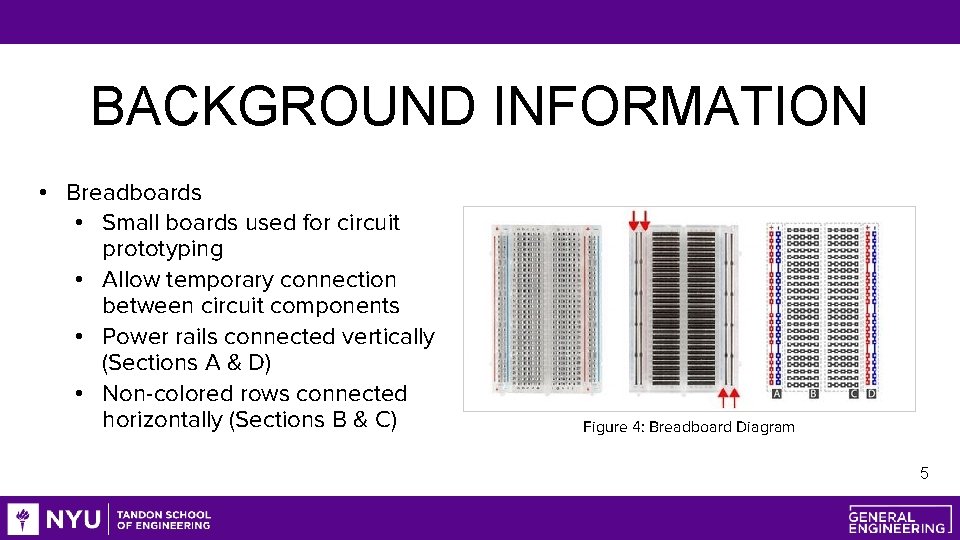
BACKGROUND INFORMATION • Breadboards • Small boards used for circuit prototyping • Allow temporary connection between circuit components • Power rails connected vertically (Sections A & D) • Non-colored rows connected horizontally (Sections B & C) Figure 4: Breadboard Diagram 5
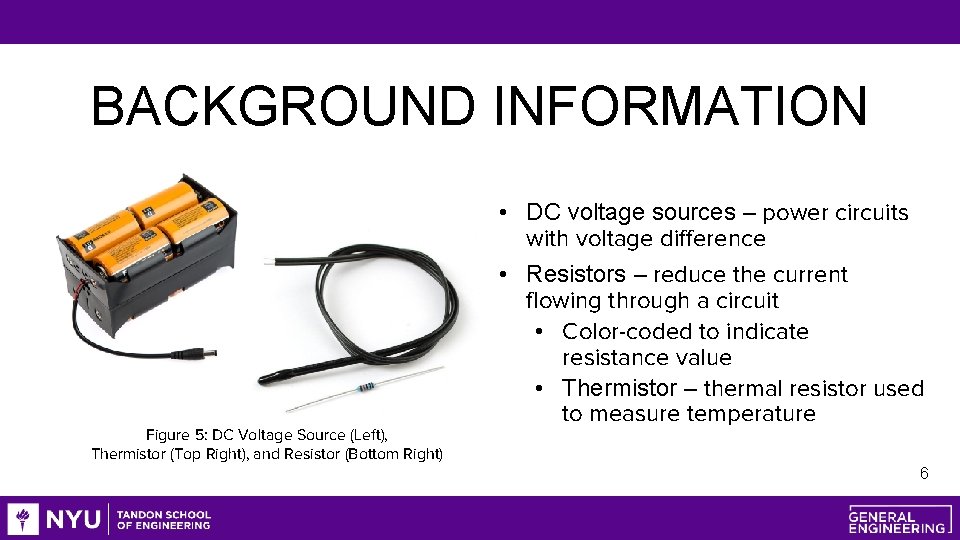
BACKGROUND INFORMATION • DC voltage sources – power circuits with voltage difference • Resistors – reduce the current flowing through a circuit • Color-coded to indicate resistance value • Thermistor – thermal resistor used to measure temperature Figure 5: DC Voltage Source (Left), Thermistor (Top Right), and Resistor (Bottom Right) 6
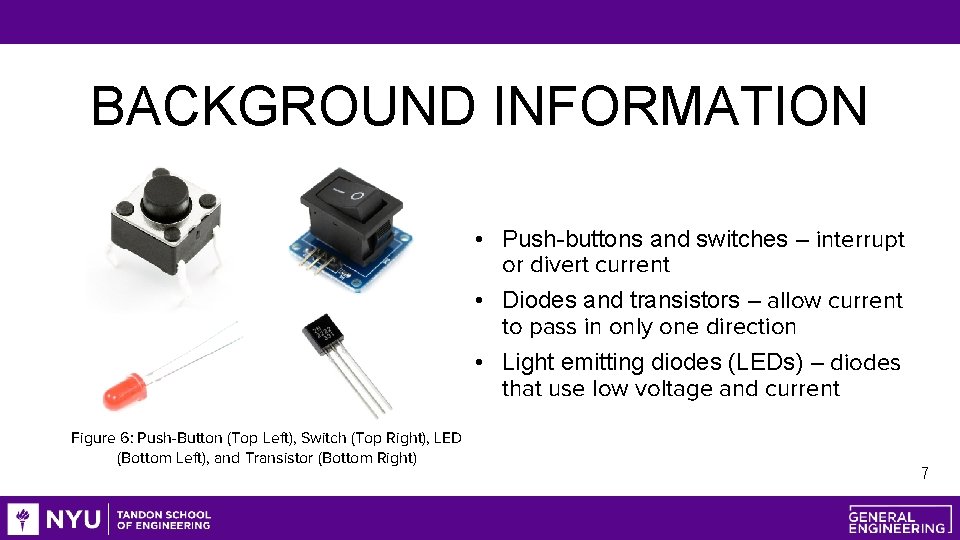
BACKGROUND INFORMATION • Push-buttons and switches – interrupt or divert current • Diodes and transistors – allow current to pass in only one direction • Light emitting diodes (LEDs) – diodes that use low voltage and current Figure 6: Push-Button (Top Left), Switch (Top Right), LED (Bottom Left), and Transistor (Bottom Right) 7
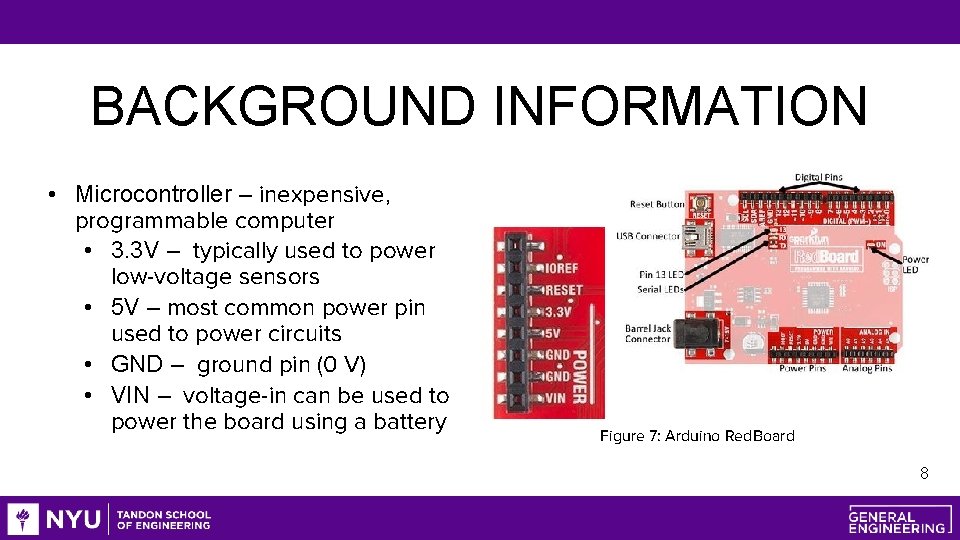
BACKGROUND INFORMATION • Microcontroller – inexpensive, programmable computer • 3. 3 V – typically used to power low-voltage sensors • 5 V – most common power pin used to power circuits • GND – ground pin (0 V) • VIN – voltage-in can be used to power the board using a battery Figure 7: Arduino Red. Board 8
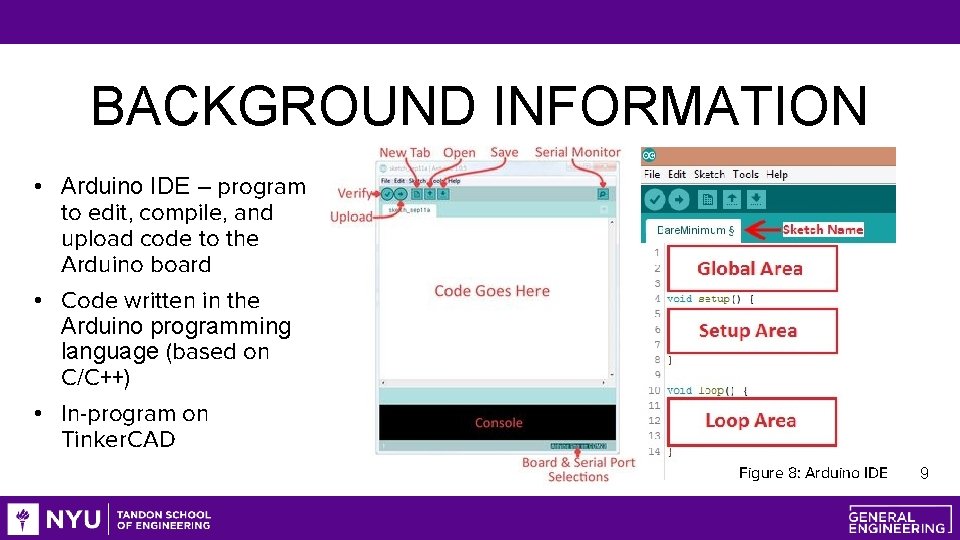
BACKGROUND INFORMATION • Arduino IDE – program to edit, compile, and upload code to the Arduino board • Code written in the Arduino programming language (based on C/C++) • In-program on Tinker. CAD Figure 8: Arduino IDE 9
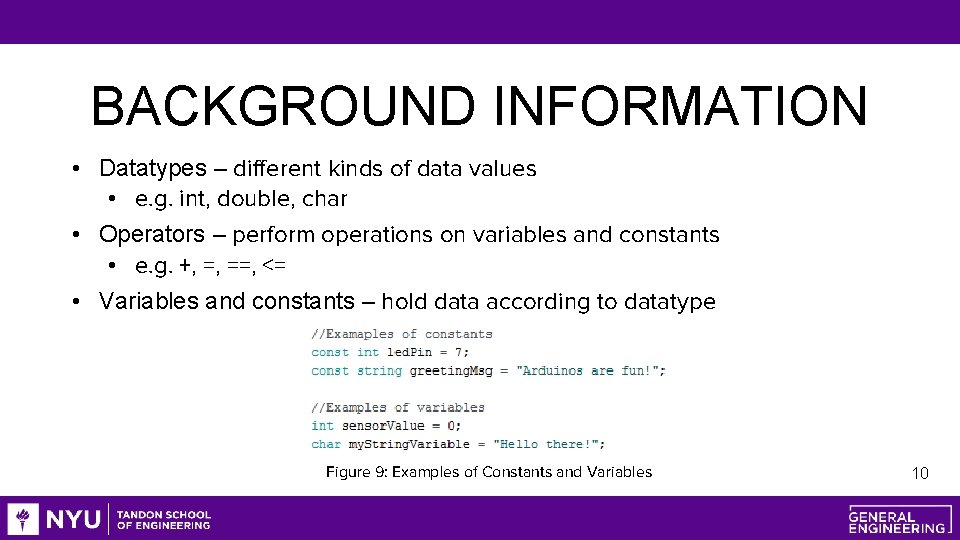
BACKGROUND INFORMATION • Datatypes – different kinds of data values • e. g. int, double, char • Operators – perform operations on variables and constants • e. g. +, =, ==, <= • Variables and constants – hold data according to datatype Figure 9: Examples of Constants and Variables 10
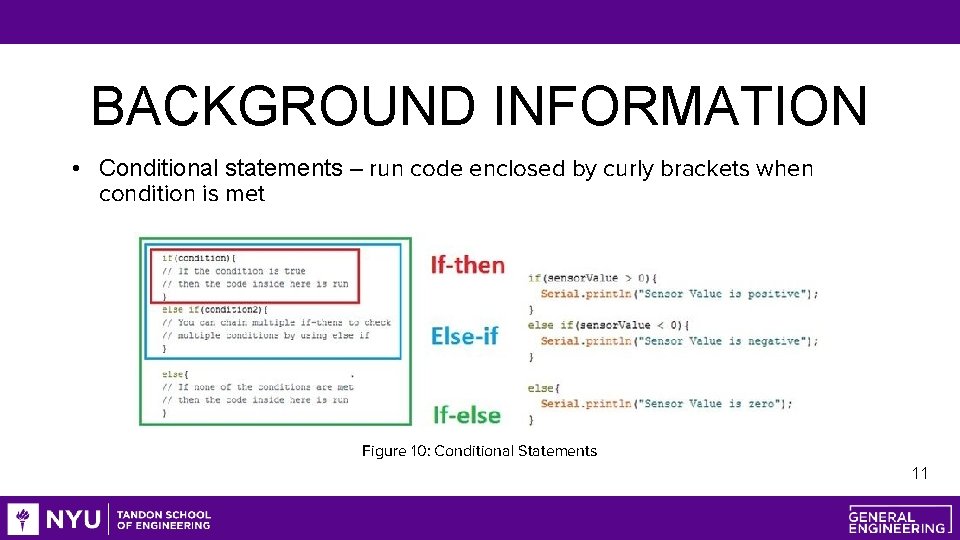
BACKGROUND INFORMATION • Conditional statements – run code enclosed by curly brackets when condition is met Figure 10: Conditional Statements 11
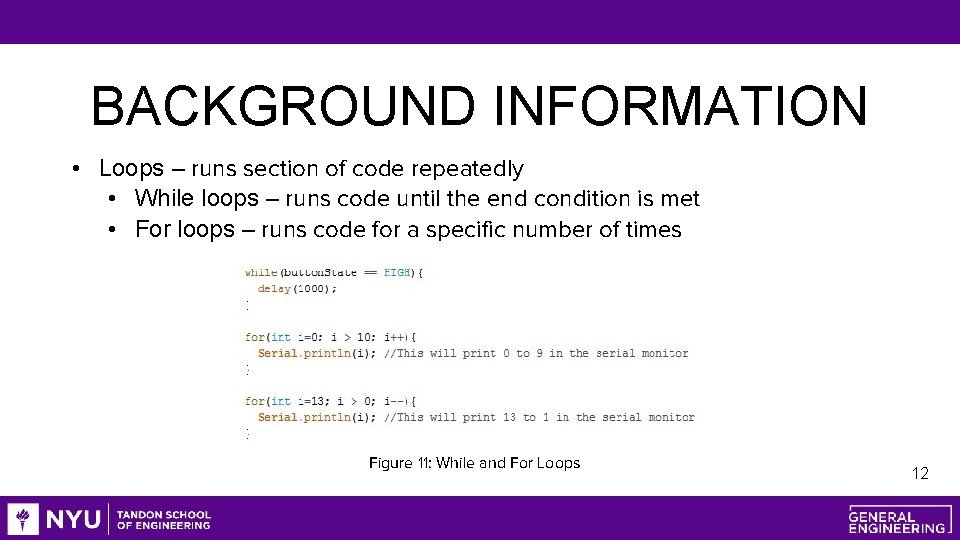
BACKGROUND INFORMATION • Loops – runs section of code repeatedly • While loops – runs code until the end condition is met • For loops – runs code for a specific number of times Figure 11: While and For Loops 12
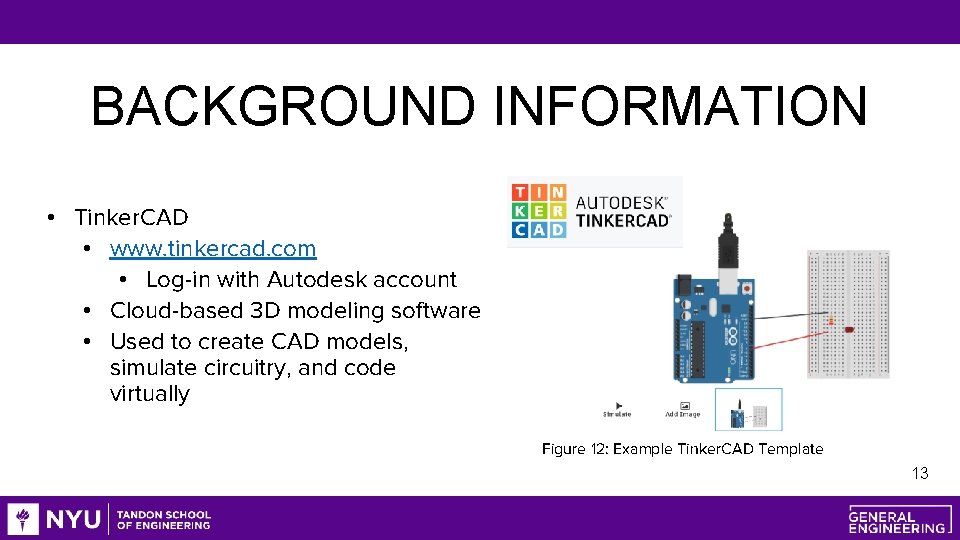
BACKGROUND INFORMATION • Tinker. CAD • www. tinkercad. com • Log-in with Autodesk account • Cloud-based 3 D modeling software • Used to create CAD models, simulate circuitry, and code virtually Figure 12: Example Tinker. CAD Template 13
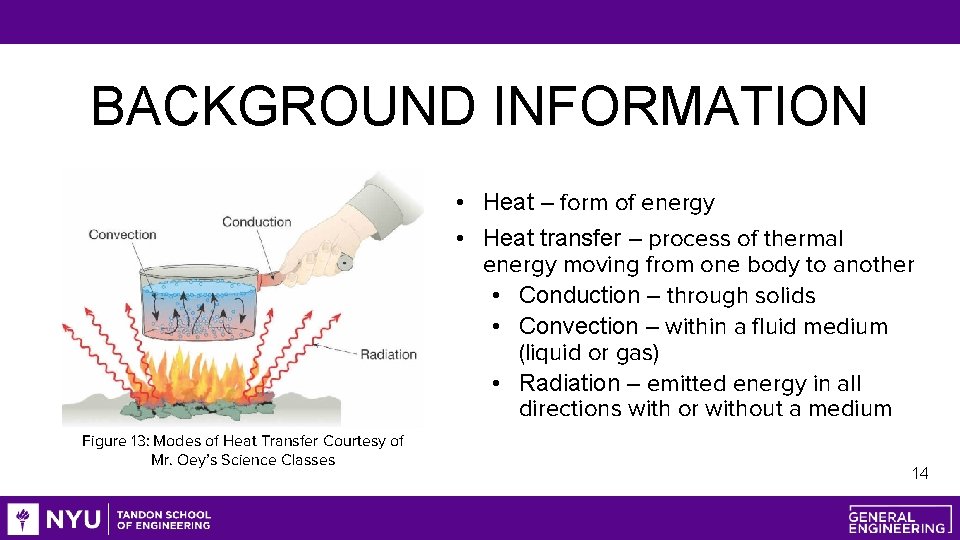
BACKGROUND INFORMATION • Heat – form of energy • Heat transfer – process of thermal energy moving from one body to another • Conduction – through solids • Convection – within a fluid medium (liquid or gas) • Radiation – emitted energy in all directions with or without a medium Figure 13: Modes of Heat Transfer Courtesy of Mr. Oey’s Science Classes 14
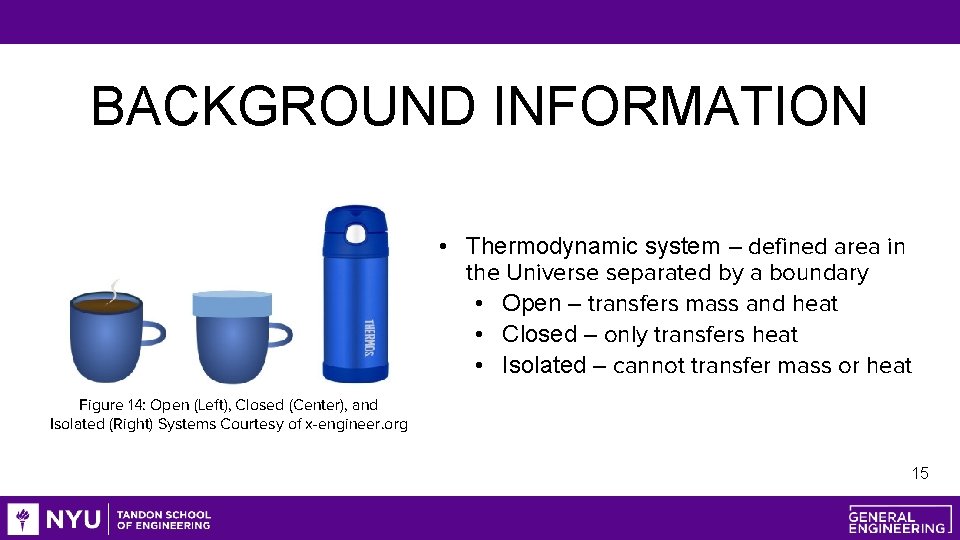
BACKGROUND INFORMATION • Thermodynamic system – defined area in the Universe separated by a boundary • Open – transfers mass and heat • Closed – only transfers heat • Isolated – cannot transfer mass or heat Figure 14: Open (Left), Closed (Center), and Isolated (Right) Systems Courtesy of x-engineer. org 15
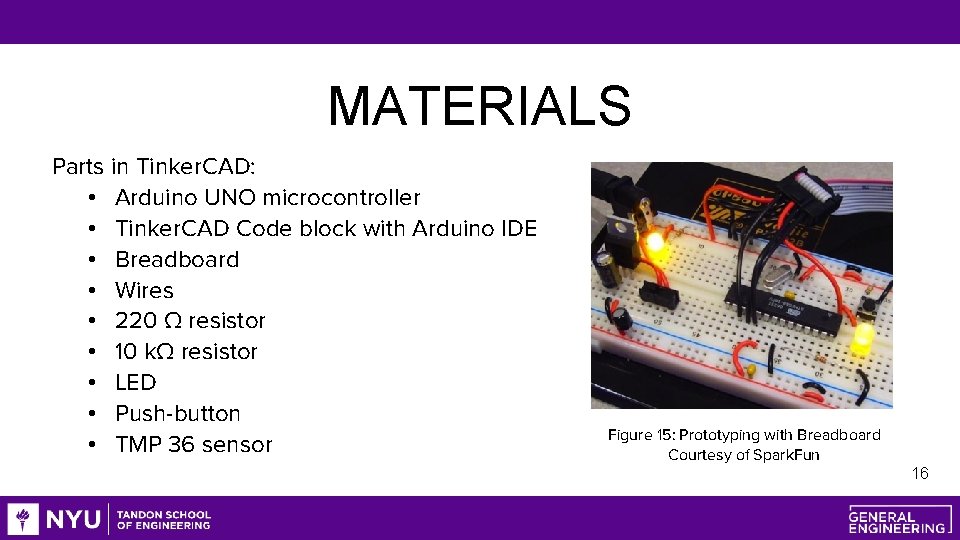
MATERIALS Parts in Tinker. CAD: • Arduino UNO microcontroller • Tinker. CAD Code block with Arduino IDE • Breadboard • Wires • 220 Ω resistor • 10 kΩ resistor • LED • Push-button • TMP 36 sensor Figure 15: Prototyping with Breadboard Courtesy of Spark. Fun 16
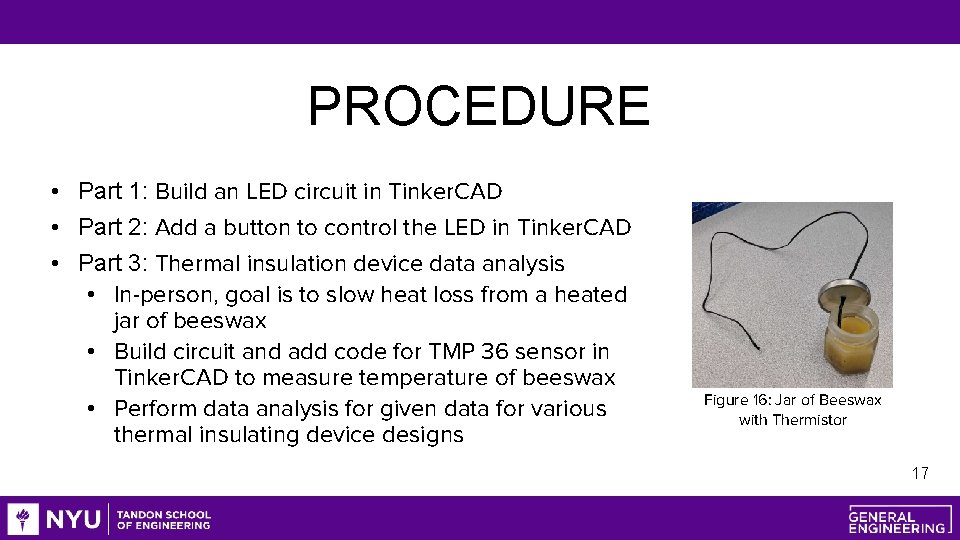
PROCEDURE • Part 1: Build an LED circuit in Tinker. CAD • Part 2: Add a button to control the LED in Tinker. CAD • Part 3: Thermal insulation device data analysis • In-person, goal is to slow heat loss from a heated jar of beeswax • Build circuit and add code for TMP 36 sensor in Tinker. CAD to measure temperature of beeswax • Perform data analysis for given data for various thermal insulating device designs Figure 16: Jar of Beeswax with Thermistor 17
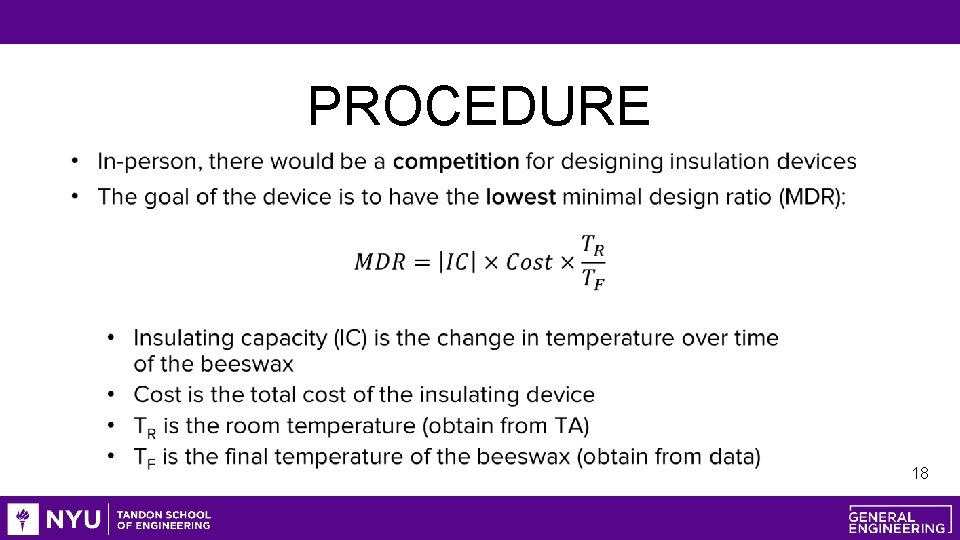
PROCEDURE 18
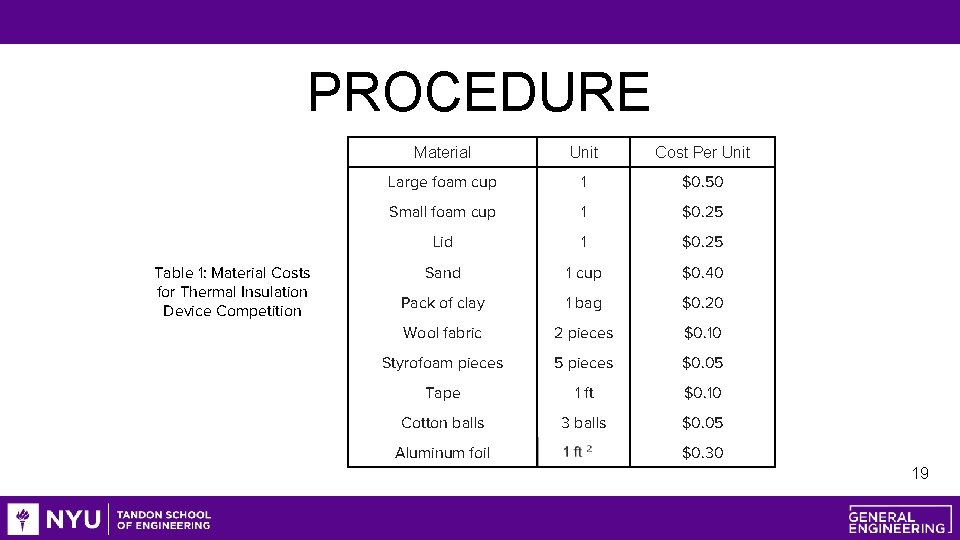
PROCEDURE Table 1: Material Costs for Thermal Insulation Device Competition Material Unit Cost Per Unit Large foam cup 1 $0. 50 Small foam cup 1 $0. 25 Lid 1 $0. 25 Sand 1 cup $0. 40 Pack of clay 1 bag $0. 20 Wool fabric 2 pieces $0. 10 Styrofoam pieces 5 pieces $0. 05 Tape 1 ft $0. 10 Cotton balls 3 balls $0. 05 Aluminum foil $0. 30 19
PROCEDURE • Extra credit option: • Design a thermal insulation device from materials at home • If you don’t have the materials, try to make reasonable replacements • Ex: Paper towels instead of wool fabric • You can use materials not listed and approximate the price based on those in Table 1 • Don’t exaggerate the prices • Explain why your design would be competitive • Must include pictures of design sketch, cost table, and prototype in assignment 20
ASSIGNMENT • Individual lab report: • Answer discussion questions in manual • Include original graph (temperature vs. time) of insulating device • Provide minimal design ratio calculation • Provide price list and design improvements • Due at 11: 59 PM the night before Lab 6 • Team presentation: • Address discussion points in manual • Describe the design of the insulating device 21
CLOSING • Be sure to compare results between different designs • Submit all work electronically • Take screenshots of the virtual circuitry and temperature vs. time graph 22
SOFTWARE FOR NEXT LAB • In preparation for the next virtual lab, download these software ahead of time: • Autodesk Fusion 360 (BMD & RAD Groups) • Autodesk Revit (HIR Groups) • Fritzing (BMD & RAD Groups) 22
QUESTIONS?