
PROJECT Webbased Database Applications Lecture 1 Basic Internet
PROJECT Web-based Database Applications Lecture 1: Basic Internet Concepts & Databases - the History 1
From “local” database applications to “web -based” or web-enabled applications Characteristics q Requirements q Advantages / disadvantages q Approaches, mechanisms, and tools q… q © H. Afsarmansesh, 2003 2
Remote database access q What if you are in an airport and need to access the information stored on your DB? Ø Characteristics (limitations) of the traditional “local” database applications q What is needed to make it happen? Ø Geographical location independence Ø User interface Ø Access rights and security © H. Afsarmansesh, 2003 3
History of Hypertext & Hypermedia - 1 Centralized Sequential text handling: q In 60 s – Simple text Ø Print, store, edit, visualize q In 70 s – Text processors (programs, text, etc. ) Ø Interpreters Ø Reserved symbols, and characters Ø E. g. Vi , emacs © H. Afsarmansesh, 2003 4
History of Hypertext & Hypermedia - 2 Sequential text handling: Late 70 s / early 80 s – word processors (documents) Ø Centralized, User friendly Ø Interpreting symbols and commands Ø Troff, Nroff, Latex q Late 70 s / early 80 s – Internet Ø Network of computers around the world Ø Email Ø File transfer (ftp) Ø Telnet (login to remote computers) q © H. Afsarmansesh, 2003 5
History of Hypertext & Hypermedia - 3 Linking document blocks: Mid 80 s –Hypertext / Hyperlinks Ø Breaking the sequentiality Ø Interpreting symbols & commands + file names Ø Centralized Ø Hypercard on Mac. Ø Hyperlinks - file names (addresses) introducing links q Mid 80 s – (S)GML (Generalized Mark-up Lang. ) Ø Mark up language to describe Documents formatting and printing q © H. Afsarmansesh, 2003 6
History of Hypertext & Hypermedia - 4 Linking document blocks: Early 90 s –Hypermedia Ø Hypertext + multi-media (audio, visual, …) q Early 90 s – WWW Ø Generalization of hypermedia + internet Ø documents located at different network nodes Ø Hyperlinks also include the address of the machines q § 2 § physicists at CERN used hyperlinks over the internet, to exchange documents Mid 90 s – A graphical interface to fetch Docs from the WWW © H. Afsarmansesh, 2003 7
History of Hypertext & Hypermedia - 5 Linking document blocks: q Mid 90 s –Static HTML page Ø Special case of hypermedia developed for WWW Ø Other languages also exist / hyperlinks § Encyclopedia CD-ROMs’ mark ups are not HTML The interpreter of the HTML (for www) is called a browser Ø A set of opening / closing tags format different parts of the HTML page Ø © H. Afsarmansesh, 2003 8
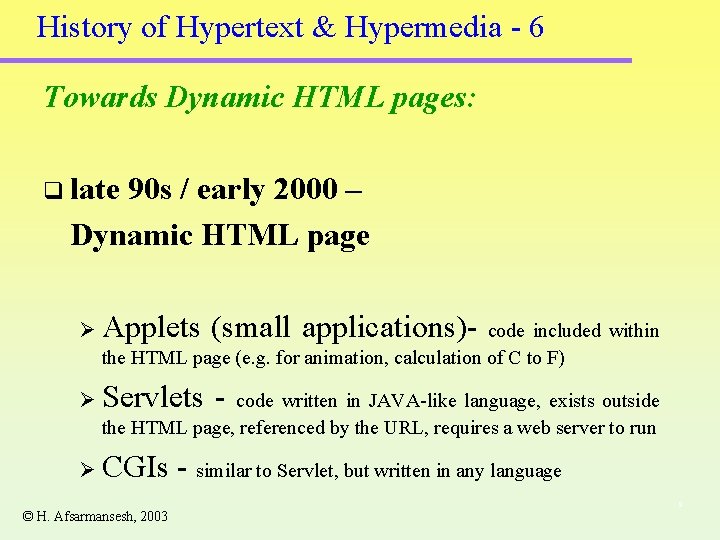
History of Hypertext & Hypermedia - 6 Towards Dynamic HTML pages: q late 90 s / early 2000 – Dynamic HTML page Ø Applets (small applications)- Ø Servlets - code included within the HTML page (e. g. for animation, calculation of C to F) code written in JAVA-like language, exists outside the HTML page, referenced by the URL, requires a web server to run Ø CGIs © H. Afsarmansesh, 2003 - similar to Servlet, but written in any language 9
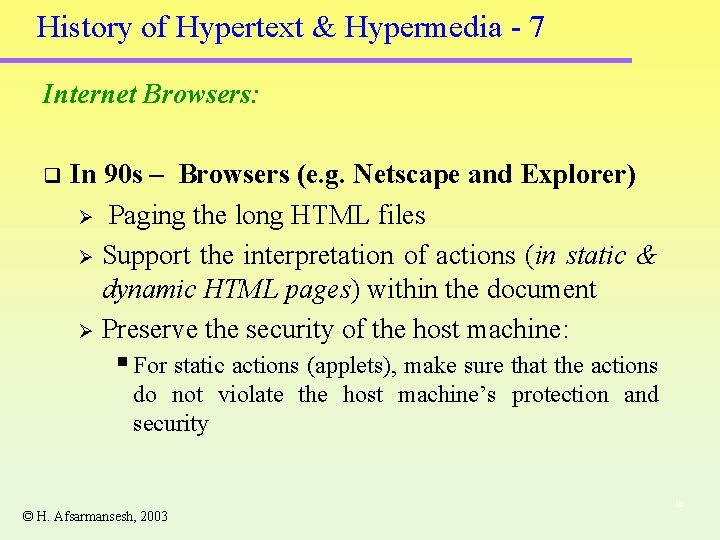
History of Hypertext & Hypermedia - 7 Internet Browsers: q In 90 s – Browsers (e. g. Netscape and Explorer) Ø Paging the long HTML files Ø Support the interpretation of actions (in static & dynamic HTML pages) within the document Ø Preserve the security of the host machine: § For static actions (applets), make sure that the actions do not violate the host machine’s protection and security © H. Afsarmansesh, 2003 10
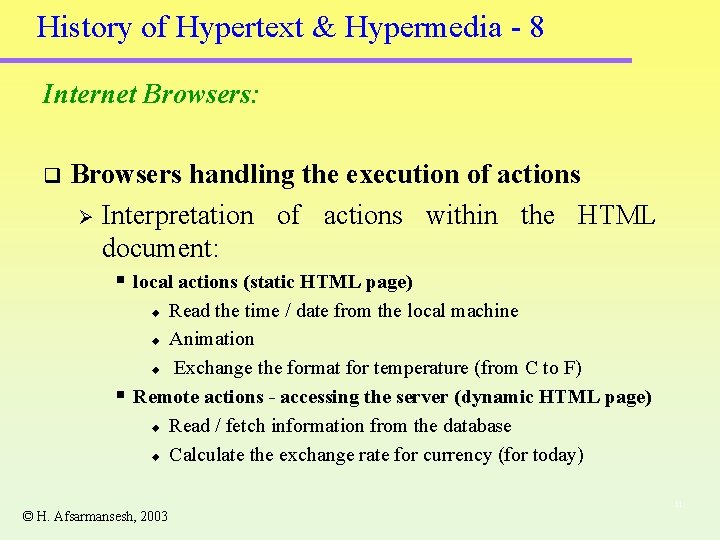
History of Hypertext & Hypermedia - 8 Internet Browsers: q Browsers handling the execution of actions Ø Interpretation of actions within the HTML document: § local actions (static HTML page) Read the time / date from the local machine u Animation u Exchange the format for temperature (from C to F) Remote actions - accessing the server (dynamic HTML page) u Read / fetch information from the database u Calculate the exchange rate for currency (for today) u § © H. Afsarmansesh, 2003 11
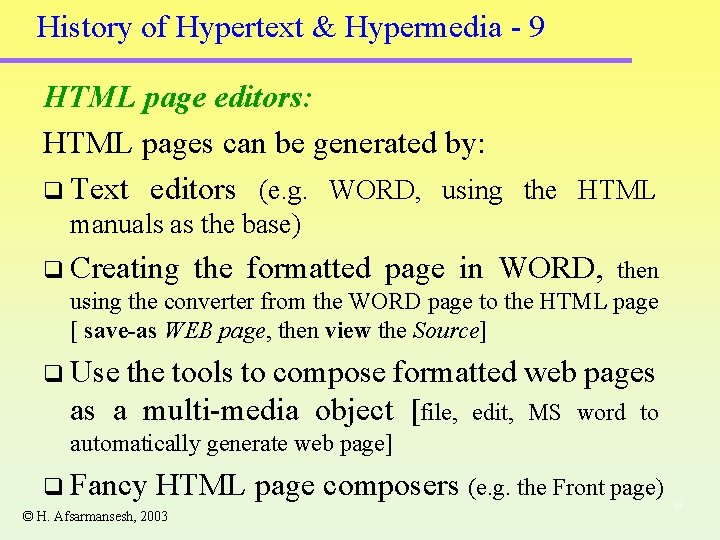
History of Hypertext & Hypermedia - 9 HTML page editors: HTML pages can be generated by: q Text editors (e. g. WORD, using the HTML manuals as the base) q Creating the formatted page in WORD, then using the converter from the WORD page to the HTML page [ save-as WEB page, then view the Source] q Use the tools to compose formatted web pages as a multi-media object [file, edit, MS word to automatically generate web page] q Fancy HTML page composers (e. g. the Front page) © H. Afsarmansesh, 2003 12
- Slides: 12