
Project Portfolio Management PPM User Guide Project Managers





![ã ]project-opem[ 2007, Title / Speaker / 31](https://slidetodoc.com/presentation_image_h2/5f079020ddcbbfe20ab6a4fa83599c6e/image-31.jpg "ã ]project-opem[ 2007, Title / Speaker / 31")
- Slides: 31
Project Portfolio Management PPM User Guide Project Managers Version 1. 0
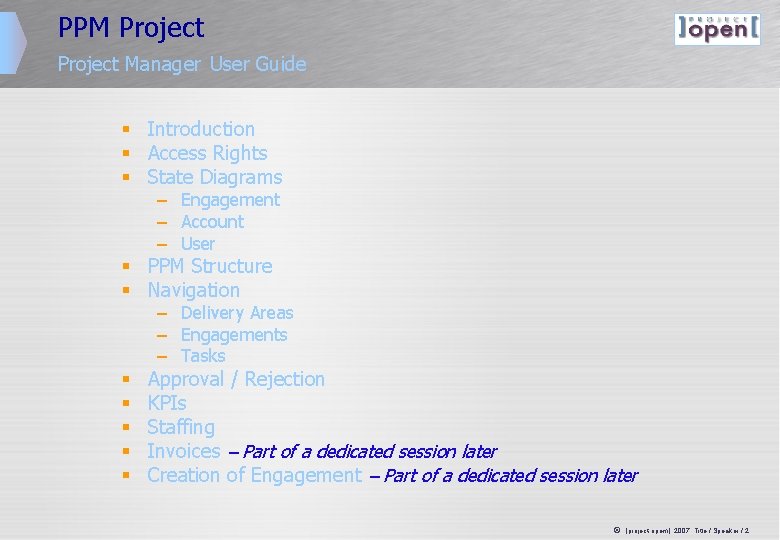
PPM Project Manager User Guide § Introduction § Access Rights § State Diagrams – Engagement – Account – User § PPM Structure § Navigation – Delivery Areas – Engagements – Tasks § § § Approval / Rejection KPIs Staffing Invoices – Part of a dedicated session later Creation of Engagement – Part of a dedicated session later ã ]project-opem[ 2007, Title / Speaker / 2
Introduction
Introduction This document is intended to act as reference for the operations that a Project Manager will need to carry out within the PPM system. For a complete system overview, basic navigation and simple tasks, please refer to the Consultants & Employees User Guide. ã ]project-opem[ 2007, Title / Speaker / 4
Access Rights
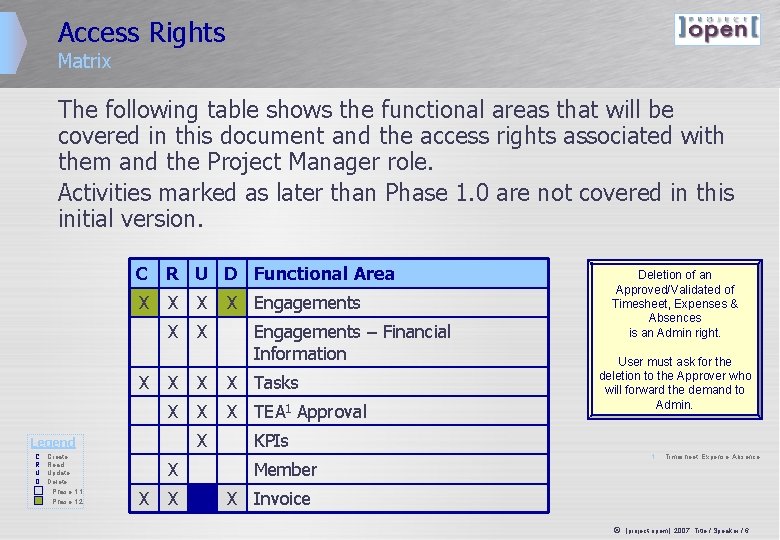
Access Rights Matrix The following table shows the functional areas that will be covered in this document and the access rights associated with them and the Project Manager role. Activities marked as later than Phase 1. 0 are not covered in this initial version. C R U D Functional Area X X X Create Read Update Delete Phase 1. 1 Phase 1. 2 X X Tasks X X X TEA 1 Approval X X X Engagements – Financial Information X Legend C R U D X Engagements X Deletion of an Approved/Validated of Timesheet, Expenses & Absences is an Admin right. User must ask for the deletion to the Approver who will forward the demand to Admin. KPIs 1 Member Timesheet, Expense, Absence. X Invoice ã ]project-opem[ 2007, Title / Speaker / 6
State Diagrams
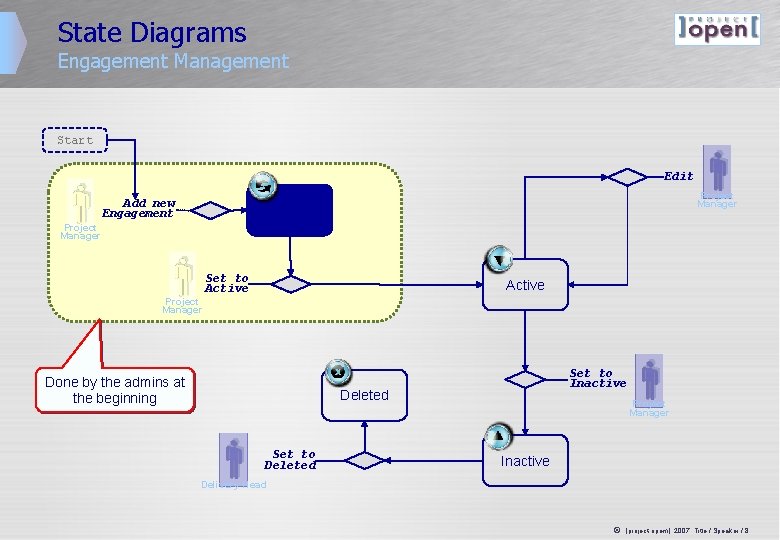
State Diagrams Engagement Management Start Edit Add new Engagement Project Manager Pre-Active Project Manager Set to Active Project Manager Done by the admins at the beginning Set to Inactive Deleted Set to Deleted Project Manager Inactive Delivery Head ã ]project-opem[ 2007, Title / Speaker / 8
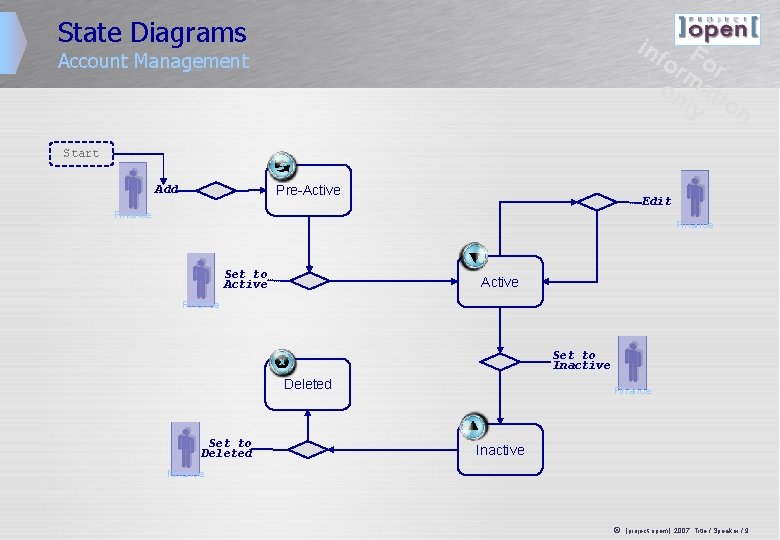
State Diagrams inf F or or m on ati ly o Account Management n Start Pre-Active Add Edit Finance Set to Active Finance Set to Inactive Deleted Set to Deleted Finance Inactive Finance ã ]project-opem[ 2007, Title / Speaker / 9
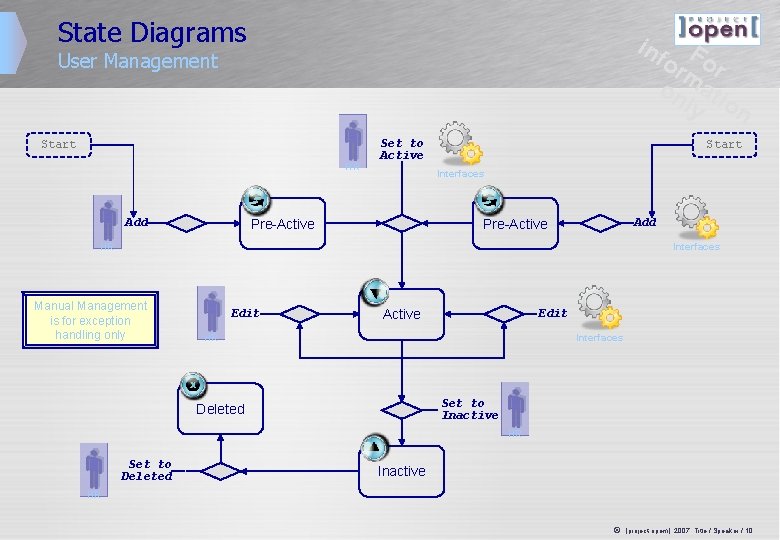
State Diagrams inf F or or m on ati ly o User Management n Start HR Set to Active Interfaces Pre-Active Add Start Pre-Active Add HR Interfaces Manual Management is for exception handling only Edit Active Interfaces HR Set to Inactive Deleted HR Set to Deleted Inactive HR ã ]project-opem[ 2007, Title / Speaker / 10
Structure
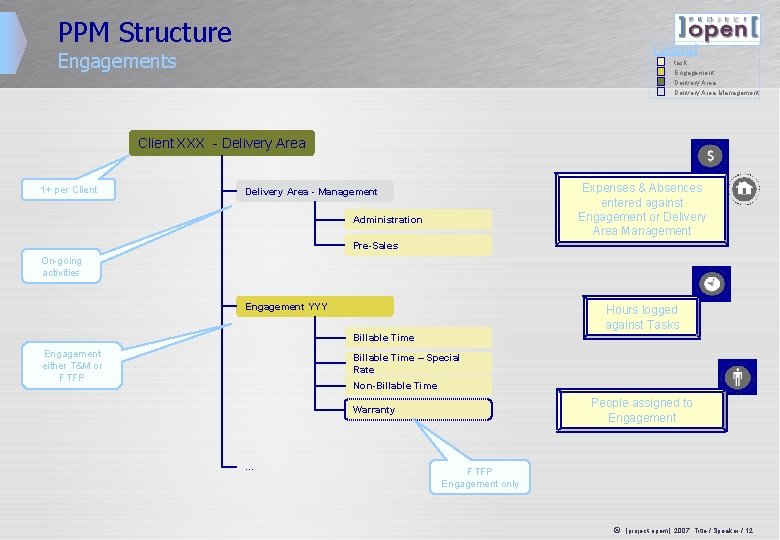
PPM Structure Legend Engagements task Engagement Delivery Area Management Client XXX - Delivery Area 1+ per Client Expenses & Absences entered against Engagement or Delivery Area Management Delivery Area - Management Administration Pre-Sales On-going activities Engagement YYY Hours logged against Tasks Billable Time Engagement either T&M or FTFP Billable Time – Special Rate Non-Billable Time People assigned to Engagement Warranty . . . FTFP Engagement only ã ]project-opem[ 2007, Title / Speaker / 12
Navigation Delivery Areas & Engagements
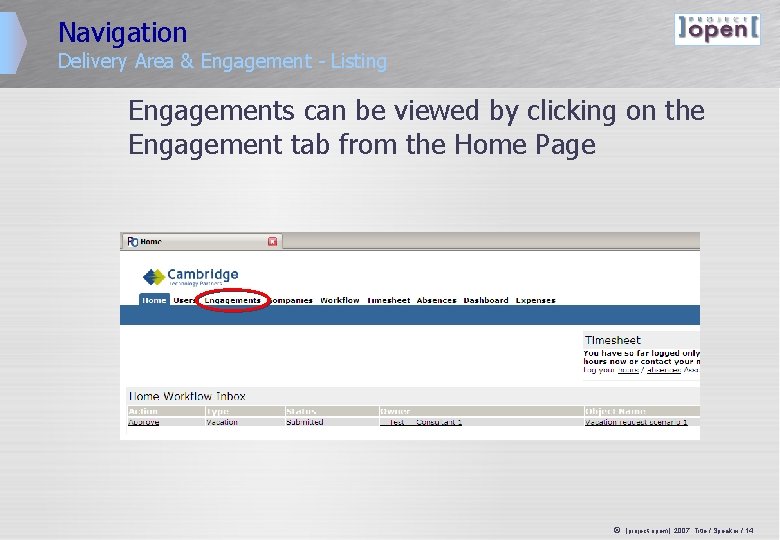
Navigation Delivery Area & Engagement - Listing Engagements can be viewed by clicking on the Engagement tab from the Home Page ã ]project-opem[ 2007, Title / Speaker / 14
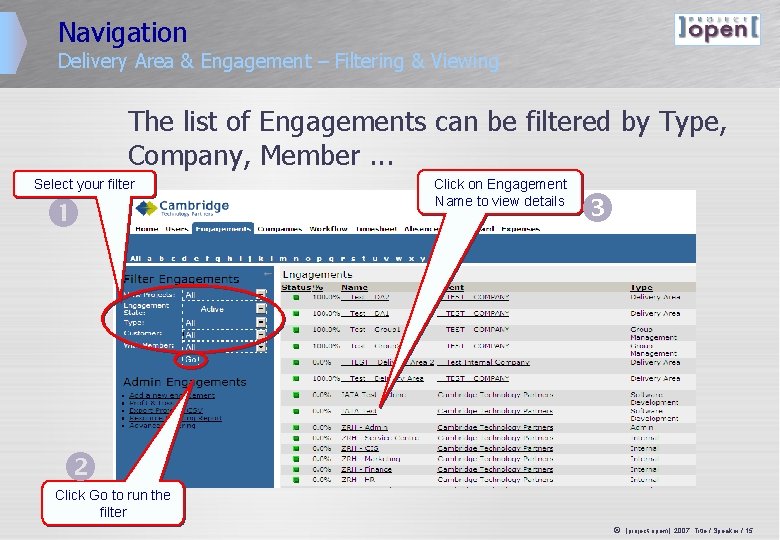
Navigation Delivery Area & Engagement – Filtering & Viewing The list of Engagements can be filtered by Type, Company, Member. . . Select your filter Click on Engagement Name to view details Click Go to run the filter ã ]project-opem[ 2007, Title / Speaker / 15
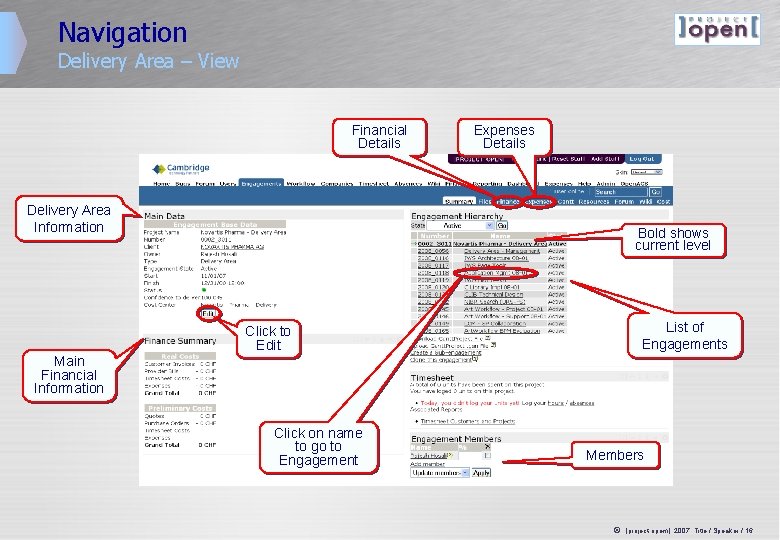
Navigation Delivery Area – View Financial Details Expenses Details Delivery Area Information Bold shows current level List of Engagements Click to Edit Main Financial Information Click on name to go to Engagement Members ã ]project-opem[ 2007, Title / Speaker / 16
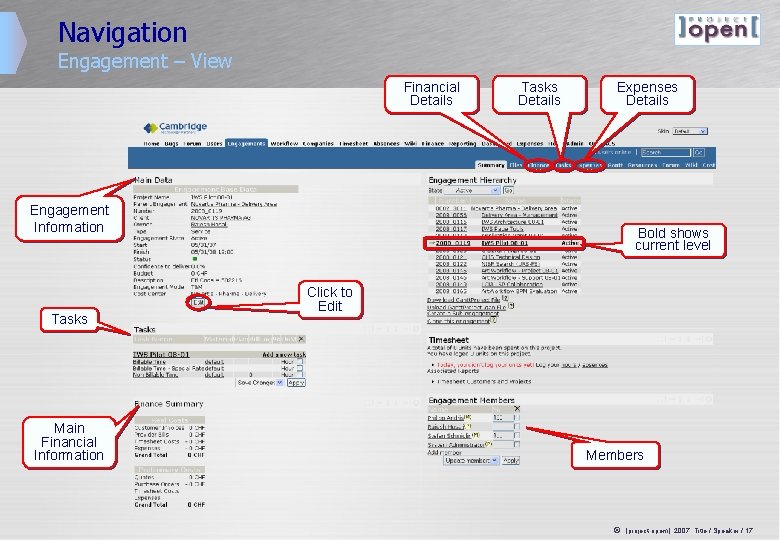
Navigation Engagement – View Financial Details Tasks Details Expenses Details Engagement Information Tasks Main Financial Information Bold shows current level Click to Edit Members ã ]project-opem[ 2007, Title / Speaker / 17
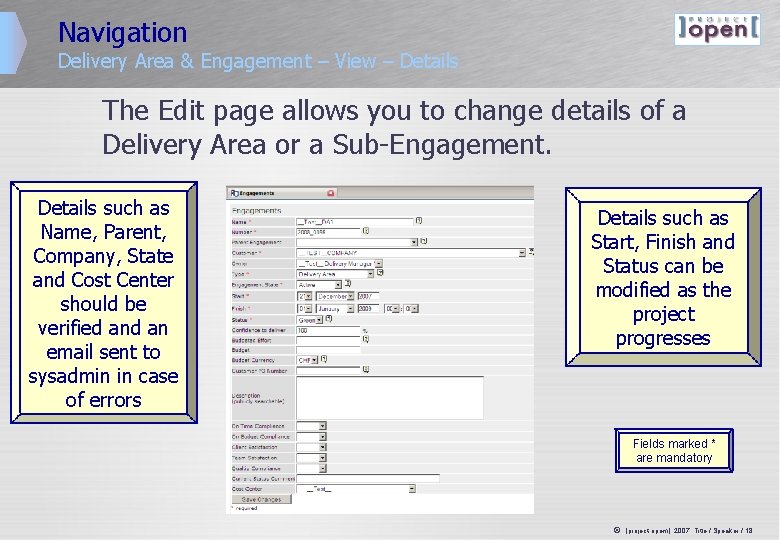
Navigation Delivery Area & Engagement – View – Details The Edit page allows you to change details of a Delivery Area or a Sub-Engagement. Details such as Name, Parent, Company, State and Cost Center should be verified an email sent to sysadmin in case of errors Details such as Start, Finish and Status can be modified as the project progresses Fields marked * are mandatory ã ]project-opem[ 2007, Title / Speaker / 18
Navigation Tasks
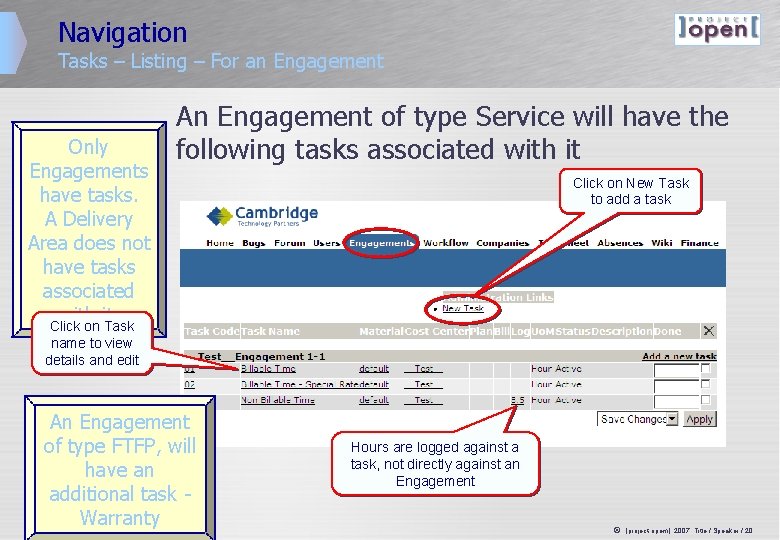
Navigation Tasks – Listing – For an Engagement Only Engagements have tasks. A Delivery Area does not have tasks associated with it. Click on Task An Engagement of type Service will have the following tasks associated with it Click on New Task to add a task name to view details and edit An Engagement of type FTFP, will have an additional task Warranty Hours are logged against a task, not directly against an Engagement ã ]project-opem[ 2007, Title / Speaker / 20
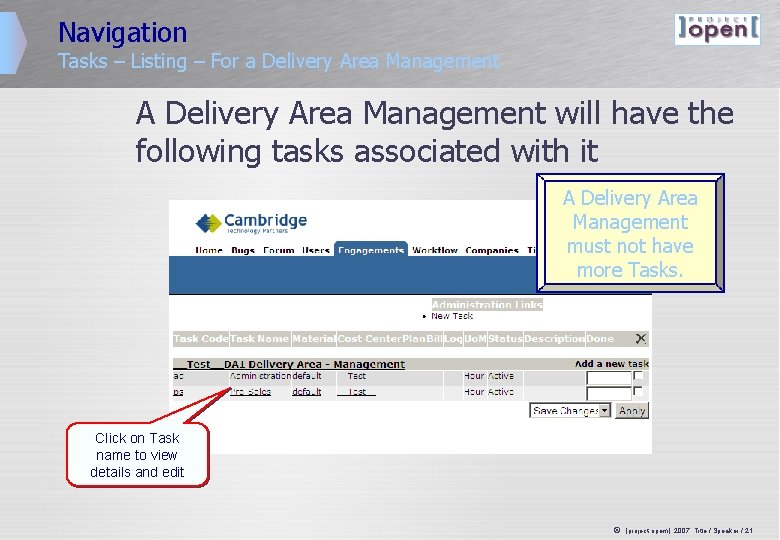
Navigation Tasks – Listing – For a Delivery Area Management A Delivery Area Management will have the following tasks associated with it A Delivery Area Management must not have more Tasks. Click on Task name to view details and edit ã ]project-opem[ 2007, Title / Speaker / 21
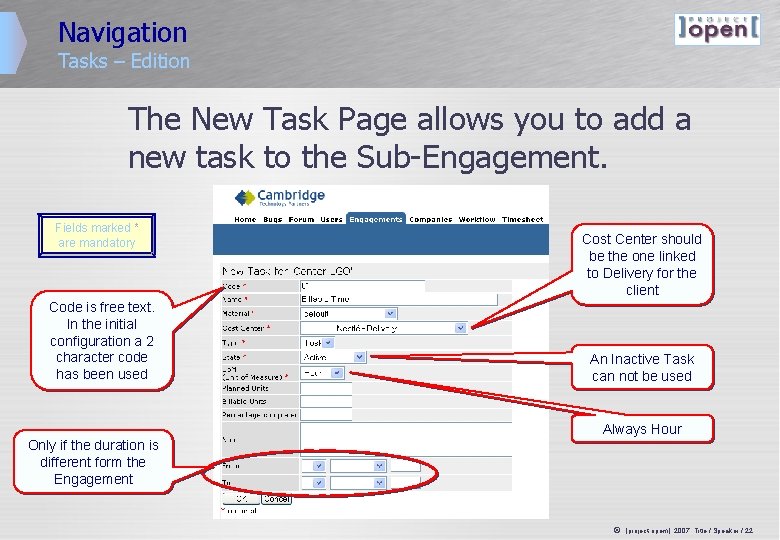
Navigation Tasks – Edition The New Task Page allows you to add a new task to the Sub-Engagement. Fields marked * are mandatory Code is free text. In the initial configuration a 2 character code has been used Cost Center should be the one linked to Delivery for the client An Inactive Task can not be used Always Hour Only if the duration is different form the Engagement ã ]project-opem[ 2007, Title / Speaker / 22
Approval / Rejection
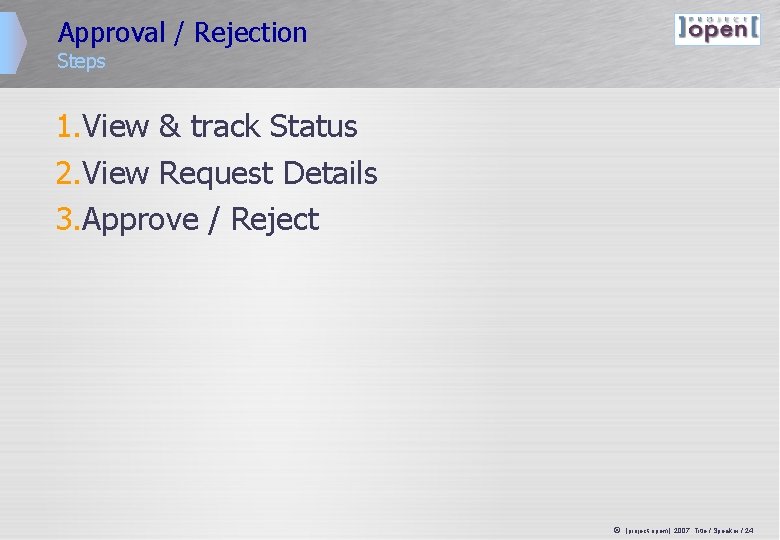
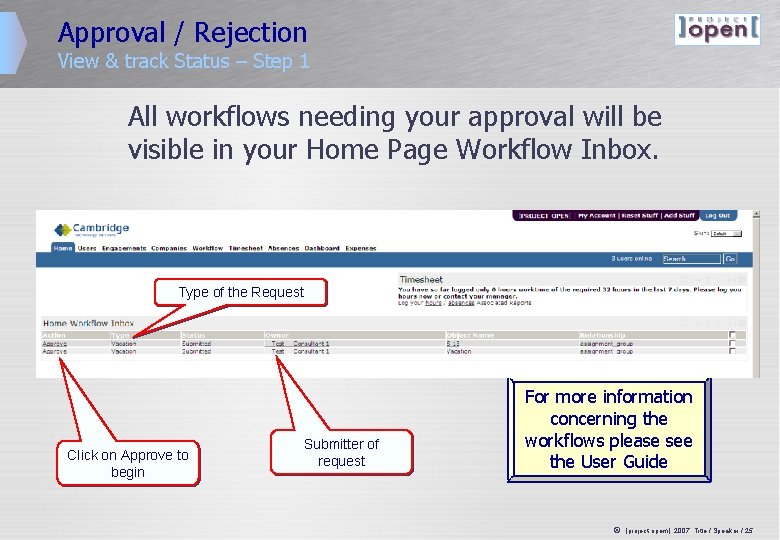
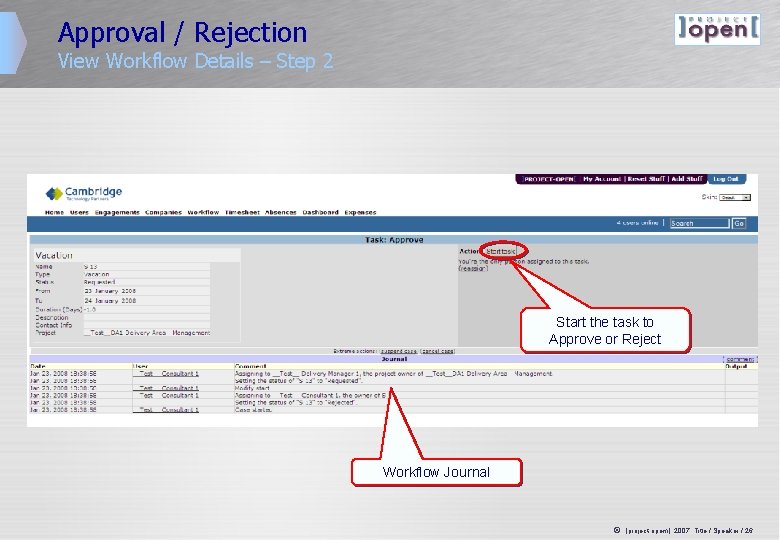
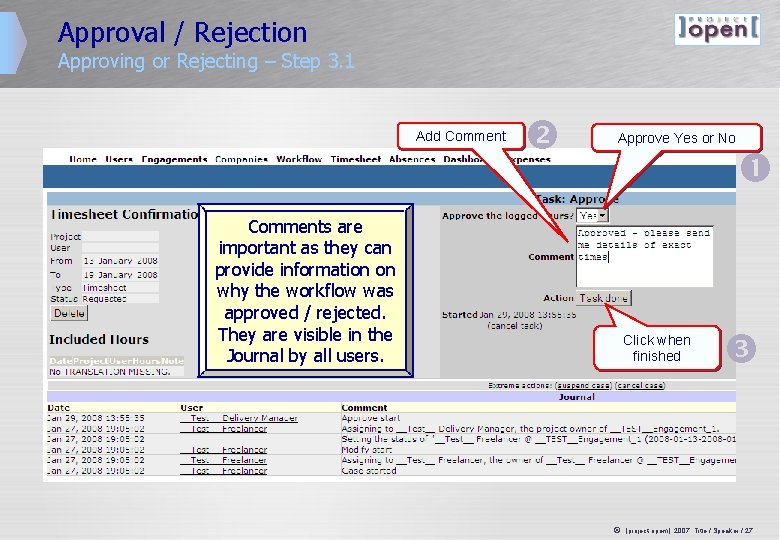
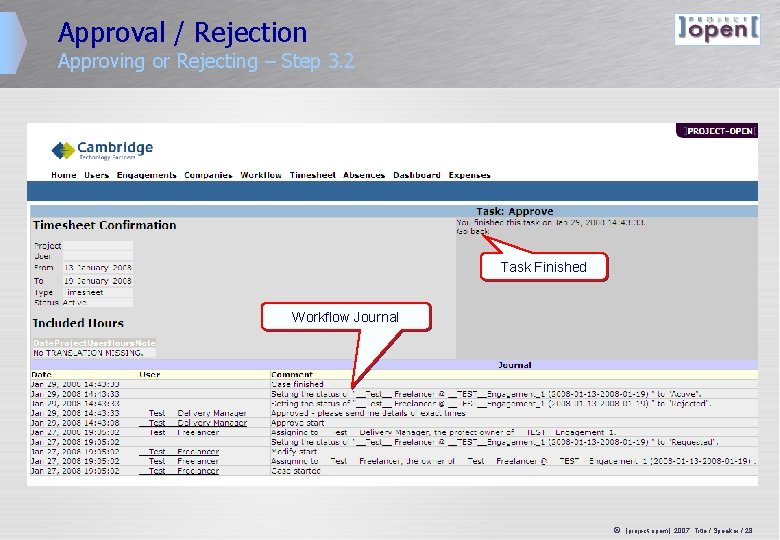
Approval / Rejection Steps 1. View & track Status 2. View Request Details 3. Approve / Reject ã ]project-opem[ 2007, Title / Speaker / 24
Approval / Rejection View & track Status – Step 1 All workflows needing your approval will be visible in your Home Page Workflow Inbox. Type of the Request Click on Approve to begin Submitter of request For more information concerning the workflows please see the User Guide ã ]project-opem[ 2007, Title / Speaker / 25
Approval / Rejection View Workflow Details – Step 2 Start the task to Approve or Reject Workflow Journal ã ]project-opem[ 2007, Title / Speaker / 26
Approval / Rejection Approving or Rejecting – Step 3. 1 Add Comment Approve Yes or No Comments are important as they can provide information on why the workflow was approved / rejected. They are visible in the Journal by all users. Click when finished ã ]project-opem[ 2007, Title / Speaker / 27
Approval / Rejection Approving or Rejecting – Step 3. 2 Task Finished Workflow Journal ã ]project-opem[ 2007, Title / Speaker / 28
Members
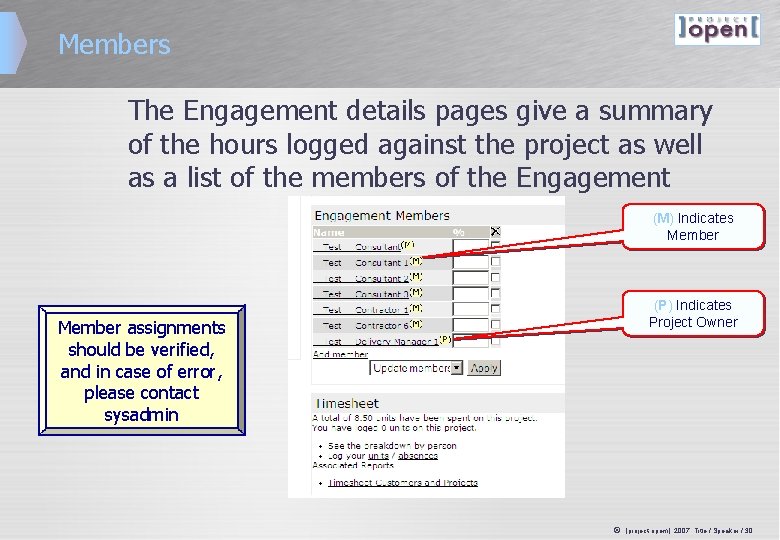
Members The Engagement details pages give a summary of the hours logged against the project as well as a list of the members of the Engagement (M) Indicates Member (P) Indicates Project Owner Member assignments should be verified, and in case of error, please contact sysadmin ã ]project-opem[ 2007, Title / Speaker / 30
ã ]project-opem[ 2007, Title / Speaker / 31