
Project Planning with Primavera Course Objectives Plan Schedule
Project Planning with Primavera®
Course Objectives • • • Plan, Schedule, & Manage projects Cost & Resource management decisions Team collaboration and workflow productivity Contributor's skills & responsibilities Track progress & Optimize capacity Deliver on‐time and within budget Source: docs. oracle. com
Course Contents ‐ Lesson 1 Introduction to Primavera ‐ Lesson 2 The Project Management Life Cycle ‐ Lesson 3 Data, Navigating, and Layouts ‐ Lesson 4 Enterprise Project Structure ‐ Lesson 5 Creating a Project ‐ Lesson 6 Creating a Work Breakdown Structure ‐ Lesson 7 Adding Activities
Course Contents ‐ Lesson 8 Creating Relationships ‐ Lesson 9 Scheduling ‐ Lesson 10 Assigning Constraints ‐ Lesson 11 Maintaining Project Document Library ‐ Lesson 12 Formatting Schedule Data ‐ Lesson 13 Roles and Resources ‐ Lesson 14 Assigning Roles
Course Contents ‐ Lesson 15 Assigning Resources & Costs ‐ Lesson 16 Analyzing Resources ‐ Lesson 17 Optimizing the Project Plan ‐ Lesson 18 Baselining the Project Plan ‐ Lesson 19 Project Execution & Control ‐ Lesson 20 Reporting Performance ‐ Lesson 21 Project Website
Lesson 1 Introduction to Primavera
Introduction to Primavera • History • Oracle Primavera P 6
History • Primavera roots go back to 1983 when it was first launched as PC based software for construction and engineering projects [1]. • In 2008, Oracle announced it has agreed to acquire Primavera Software, Inc. , a leading provider of Project Portfolio Management (PPM) solutions, to accelerate its momentum in delivering mission‐critical operational applications [2]. • Current version P 6, v 8. 3 released in March 2013 [3]. [1]: Primavera System Inc. [2]: http: //www. oracle. com/us/corporate/press/017594_EN [3]: http: //www. oracle. com/us/products/applications/primavera/
Oracle Primavera P 6 • Oracle Primavera P 6 Enterprise Project Portfolio Management (P 6 EPPM) is a robust and easy‐to‐use integrated solution for globally – Prioritizing – Planning – Managing – Executing projects, programs, and portfolios
Oracle Primavera P 6 (cont’d) • It optimizes role‐specific functionality to satisfy each team member's – Needs – Responsibilities – Skills
Oracle Primavera P 6 (cont’d) • It provides a single solution for managing projects • of any size • adapts to various levels of complexity within a project • intelligently scales to meet the needs of – Various roles – Functions – Skill levels (In the organization and on project team)
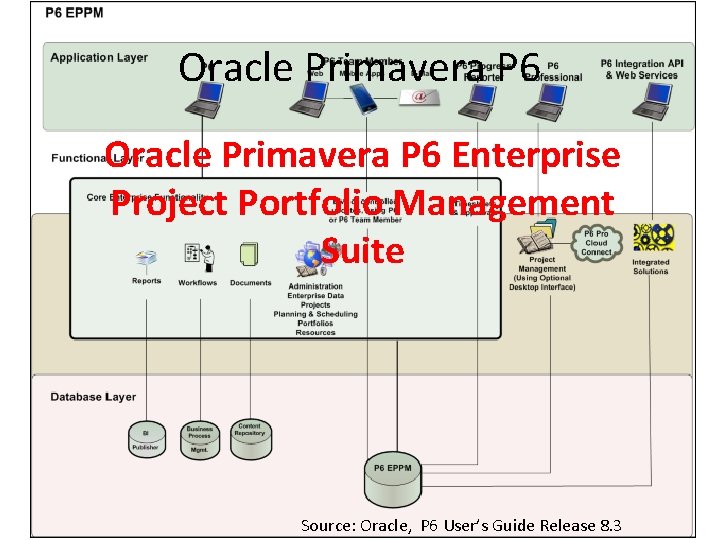
Oracle Primavera P 6 Enterprise Project Portfolio Management Suite Source: Oracle, P 6 User’s Guide Release 8. 3
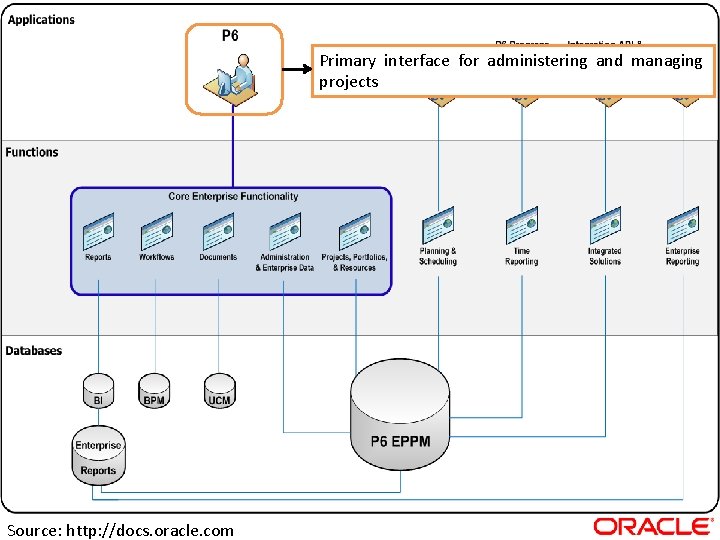
Primary interface for administering and managing projects Source: http: //docs. oracle. com
Application • P 6: Most users will rely almost exclusively on the P 6 web application running in a standard web browser. Simply termed P 6, it is the primary interface for administering and managing projects. Source: http: //docs. oracle. com
Application (cont’d) • P 6 Team Member Interfaces: Optional interfaces for team members to use to provide status on their tasks. – P 6 Team Member Web: This web interface allows team members to provide status on their tasks using a web browser. – P 6 Team Member for i. OS and P 6 Team Member for Android: These mobile apps allows team members to provide status on their tasks while working "on the go". – P 6 Team Member E-mail Statusing Service: This method allows team members to provide status on their tasks using any HTML or plain text e‐mail application.
Application (cont’d) • P 6 Professional for EPPM: The P 6 web application is the main interface for all project management functionality. You can also use the P 6 Professional software to take advantage of its core project planning and scheduling functionality. The P 6 Professional application and its features, including P 6 Visualizer, run on Microsoft Windows. P 6 Professional is also available for users who need to work on their projects in an offline mode. P 6 Professional is available for P 6 EPPM users working in a Cloud environment.
Application (cont’d) • P 6 Professional Cloud Connect: Connects P 6 Professional to an EPPM Oracle database on the cloud. P 6 Integration API (in remote mode) is installed by default. Using this, P 6 EPPM users working on a WAN environment can achieve performance levels comparable to compression server installation. This is optional for on premises users.
Application (cont’d) • P 6 Progress Reporter: P 6 EPPM includes the P 6 Progress Reporter integrated timesheet entry software. Resources use P 6 Progress Reporter to record their time spent working on assignments via electronic timesheets, and approving managers use P 6 to review and approve them. • P 6 Integration API: A Java‐based application programming interface (API) enabling your P 6 EPPM deployment to interface with other components and systems. Source: http: //docs. oracle. com
Application (cont’d) • P 6 EPPM Web Services : P 6 EPPM Web Services is an integration technology that extends P 6 business objects and functionality. Based on open standards including SOAP, XML and WSDL, P 6 EPPM Web Services enables developers to leverage standard interfaces to create integrated software solutions that interoperate with a wide variety of enterprise software applications running on a diversity of hardware and operating system platforms. • P 6 Analytics: An optional integrated dynamic reporting tool with advanced visual features, including dashboards. Source: http: //docs. oracle. com
Functionality • Core Enterprise Functionality: Use P 6 for all of the following core enterprise functionality: • Administration and Enterprise Data: Administer user accounts, preferences, views, application settings, and enterprise data. • Project, Portfolio, and Resource Management: P 6 provides an extensive array of features designed to optimize all phases of Project Management, Resource Management, and Portfolio Management. It includes full support for activities, work breakdown structures, costs, resource administration and assignment, roles, teams, portfolio analysis, capacity planning, and convenient dashboards for measuring status at any level at every moment. Source: http: //docs. oracle. com
Functionality (cont’d) • Document Management: P 6 includes document management support with or without the optional document repository option. Use the optional document collaboration features to conduct document reviews with key stakeholders to keep projects moving or meet regulatory compliance. Source: http: //docs. oracle. com
Functionality (cont’d) • Workflows: The workflow engine bundled with P 6 EPPM provides Business Process Modeling Notation (BPMN) compliant graphical notation that depicts the steps in your project initiation workflows. Use the integrated Workflows portlet to coordinate the sequence of tasks that flow between different process participants in a series of stages. Source: http: //docs. oracle. com
Functionality (cont’d) • Reports: Generate and view reports using your standard web browser running P 6. Reports can be generated electronically and routed via e‐mail, saved to a shared or local file, or printed to a traditional printer. • Planning and Scheduling: The optional P 6 Professional component of the suite provides a robust set of features primarily for planners and schedulers, including reflections, schedule comparison (Claim Digger), and a report designer. Use the new built‐ in Time Scaled Logic Diagram (TSLD) viewer to create and customize condensed visual depictions of complex project schedule information. Source: http: //docs. oracle. com
Functionality (cont’d) • Time Reporting: P 6 EPPM includes P 6 Progress Reporter, an optional integrated timesheet entry application. • Integrated Solutions: Build or deploy other systems and use the P 6 Integration API or P 6 EPPM Web Services to integrate them with P 6 EPPM. • P 6 Analytics: Extend your solution by adding P 6 Analytics with the Oracle Business Intelligence (OBI) metadata layer to facilitate the creation of ad‐hoc reports and interactive custom dashboards reflecting trends and metrics for activities, portfolios, resource assignments, utilization, and project history. Also receive proactive alerts based on integrated report data mined from the ODS and star databases. Source: http: //docs. oracle. com
Technology • The P 6 EPPM Database: The main database for all your P 6 EPPM data. • BPM Workflow: The separate workflow engine bundled with P 6 EPPM. • Oracle BI Publisher: The database server hosting the reporting library, templates, and views required to build complex reports with ease. Source: http: //docs. oracle. com
Technology (cont’d) • The Reporting Database: The P 6 Reporting Database portion of the suite consists of the Star database and the Operational Data Store (ODS) database used to extract, transform, and load data from the P 6 EPPM database. This data is specifically designed to be used to create reports. • Oracle Universal Content Management: This server hosts documents in a shared repository enabling collaborative functionality such as document check‐out/check‐in and versioning. Source: http: //docs. oracle. com
Lesson 2 Project Management Life Cycle
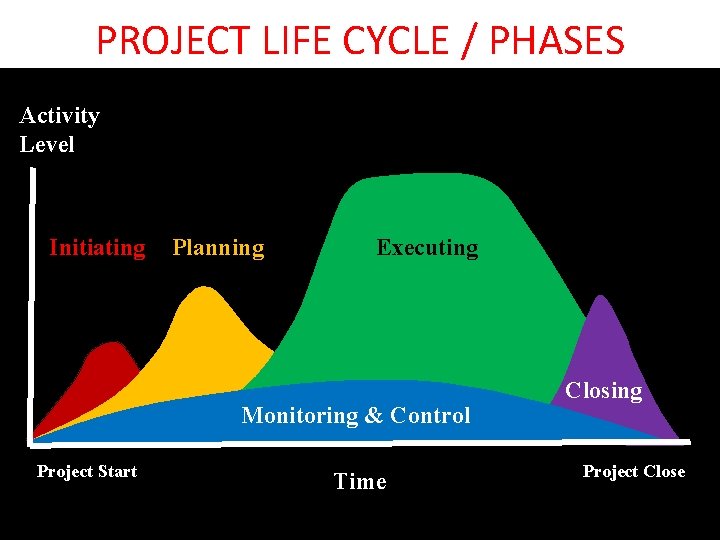
PROJECT LIFE CYCLE / PHASES Activity Level Initiating Planning Executing Monitoring & Control Project Start Time Closing Project Close
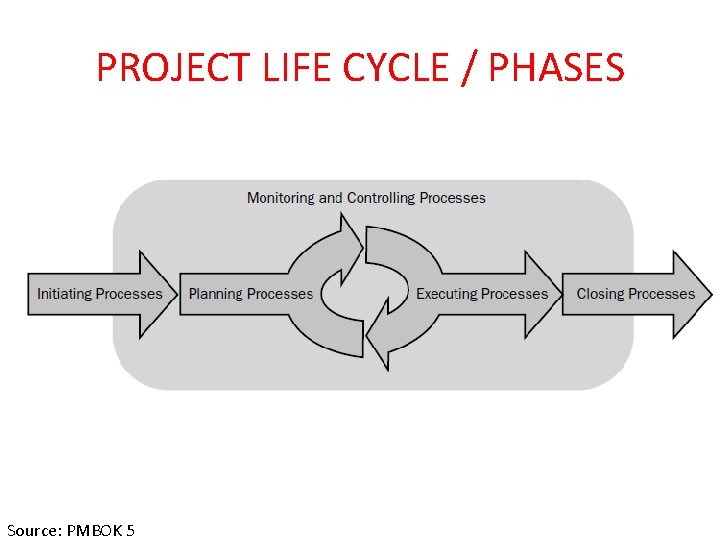
PROJECT LIFE CYCLE / PHASES Source: PMBOK 5
Lesson 3 Data, Navigating, and Layouts
Enterprise data • It provides a global structure needed to manage multiple projects. • Available to all projects across the organization. • Provides the structure necessary for centralized project and resource management. • Enterprise data is defined and maintained by administrator • For example – – – – Enterprise Project Structure (EPS) Organizational breakdown Structure (OBS) Resource codes Project codes Resources Cost accounts Admin categories and references Source: Primavera System Inc.
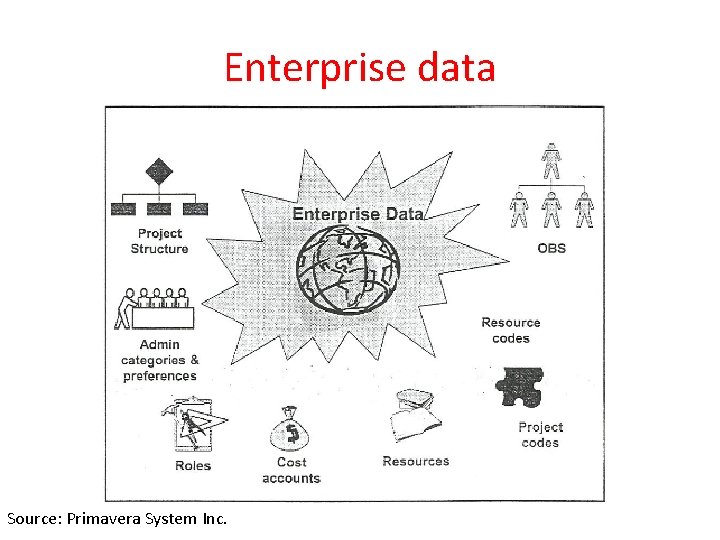
Enterprise data Source: Primavera System Inc.
Project Specific Data • Project specific data is only available to the project in which it is defined. • Project Manager defines project specific data to further control his/her project. • For Examples – Dates ‐‐ Baselines – Work Breakdown Structure ‐‐ Expenses – Activities ‐‐ Risks – Relationships ‐‐ Project Website – Thresholds and Issues – Work Products and Documents Source: Primavera System Inc.
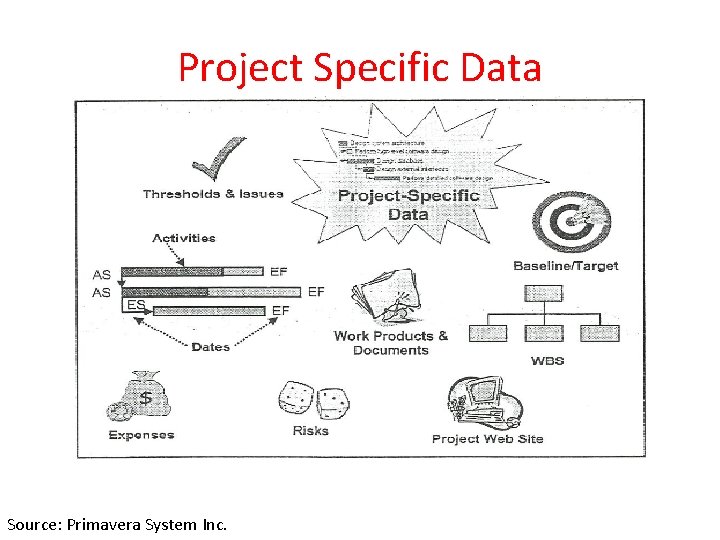
Project Specific Data Source: Primavera System Inc.
Enterprise/ Project Specific Data • Following data are both enterprise data as well as project specific data – Calendars – Reports – Activity codes Source: Primavera System Inc.
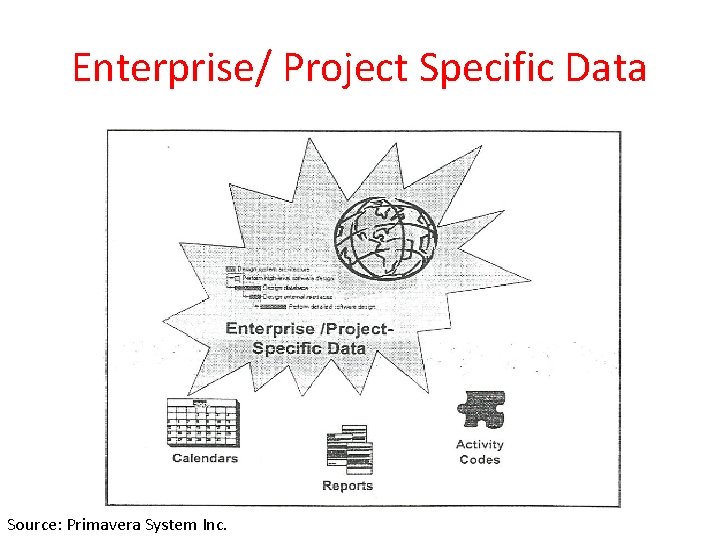
Enterprise/ Project Specific Data Source: Primavera System Inc.
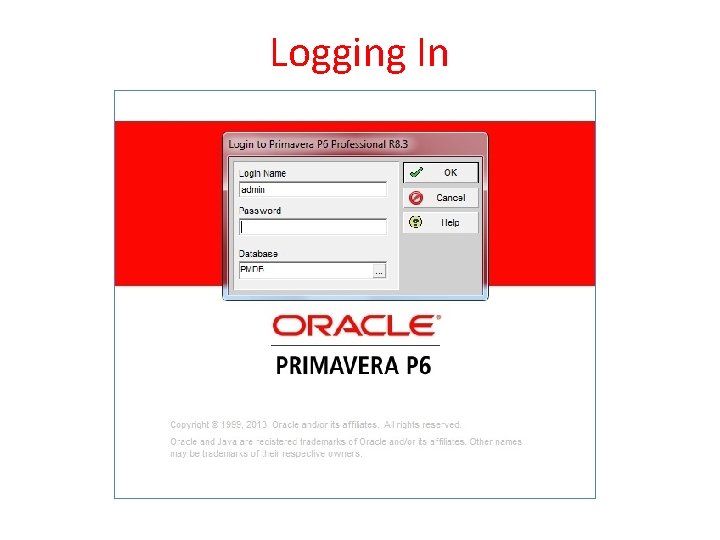
Logging In
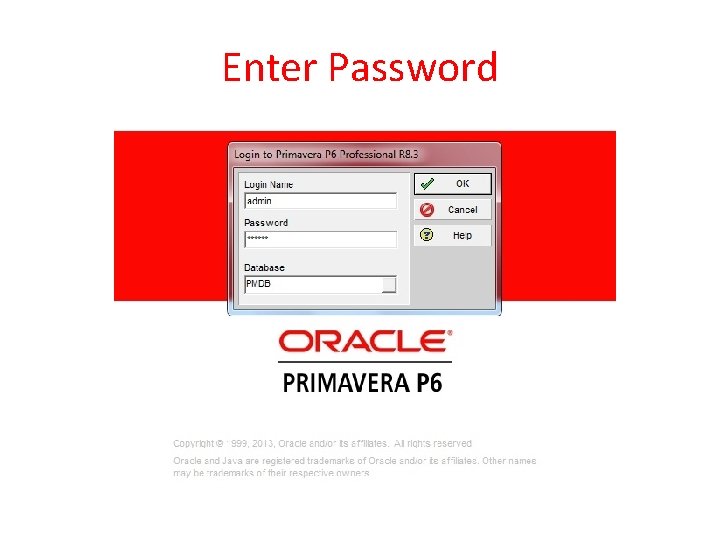
Enter Password
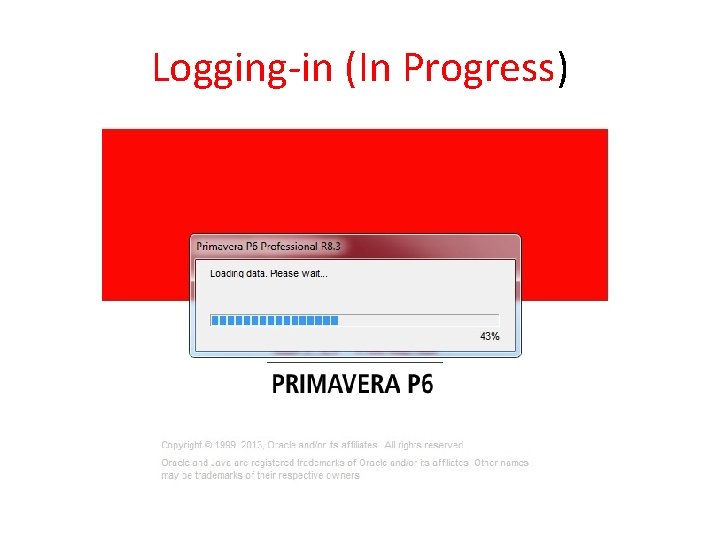
Logging‐in (In Progress)
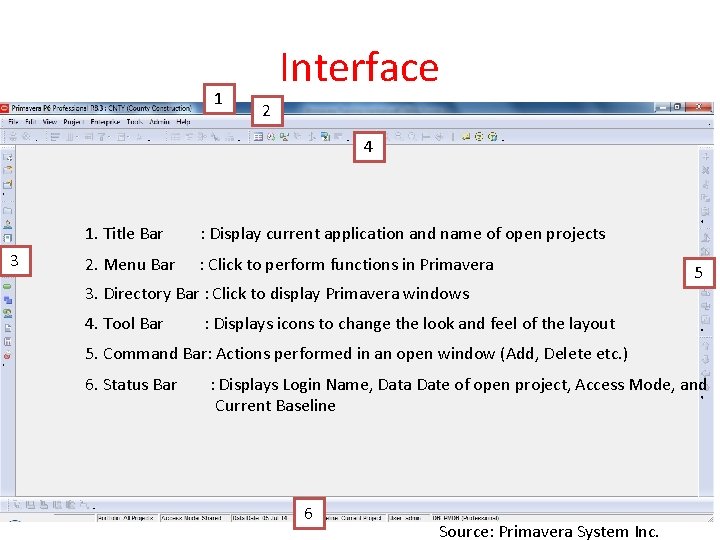
1 Interface 2 4 3 1. Title Bar : Display current application and name of open projects 2. Menu Bar : Click to perform functions in Primavera 3. Directory Bar : Click to display Primavera windows 4. Tool Bar 5 : Displays icons to change the look and feel of the layout 5. Command Bar: Actions performed in an open window (Add, Delete etc. ) 6. Status Bar : Displays Login Name, Data Date of open project, Access Mode, and Current Baseline 6 Source: Primavera System Inc.
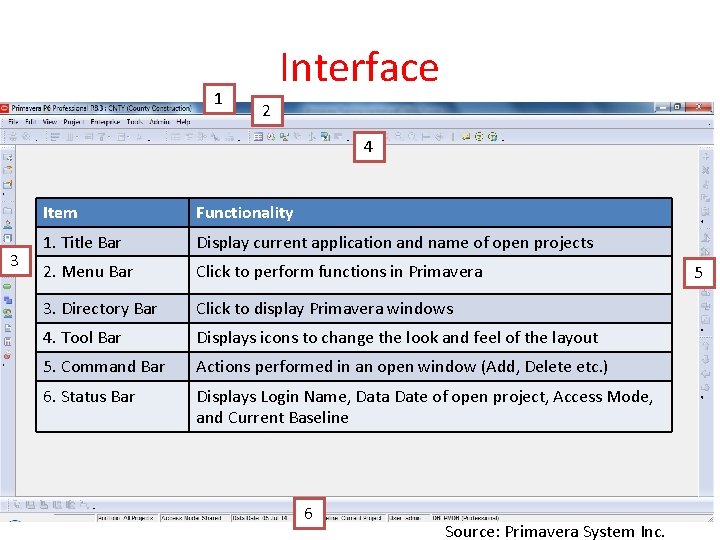
1 Interface 2 4 3 Item Functionality 1. Title Bar Display current application and name of open projects 2. Menu Bar Click to perform functions in Primavera 3. Directory Bar Click to display Primavera windows 4. Tool Bar Displays icons to change the look and feel of the layout 5. Command Bar Actions performed in an open window (Add, Delete etc. ) 6. Status Bar Displays Login Name, Data Date of open project, Access Mode, and Current Baseline 6 Source: Primavera System Inc. 5
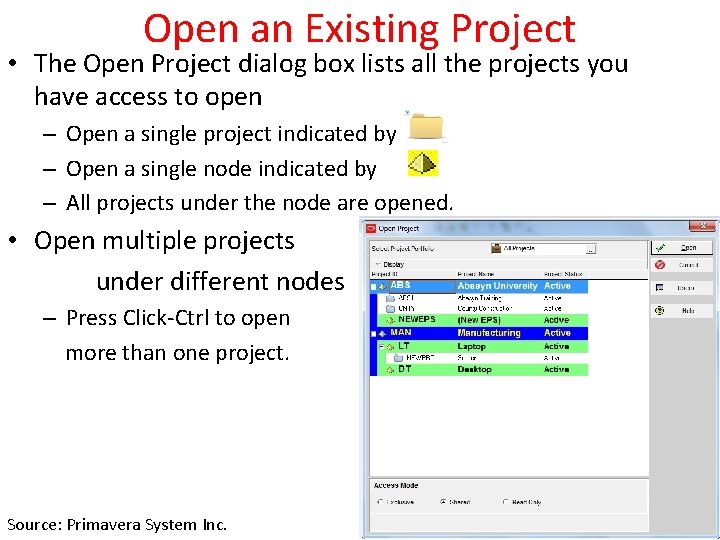
Open an Existing Project • The Open Project dialog box lists all the projects you have access to open – Open a single project indicated by – Open a single node indicated by – All projects under the node are opened. • Open multiple projects under different nodes – Press Click‐Ctrl to open more than one project. Source: Primavera System Inc.
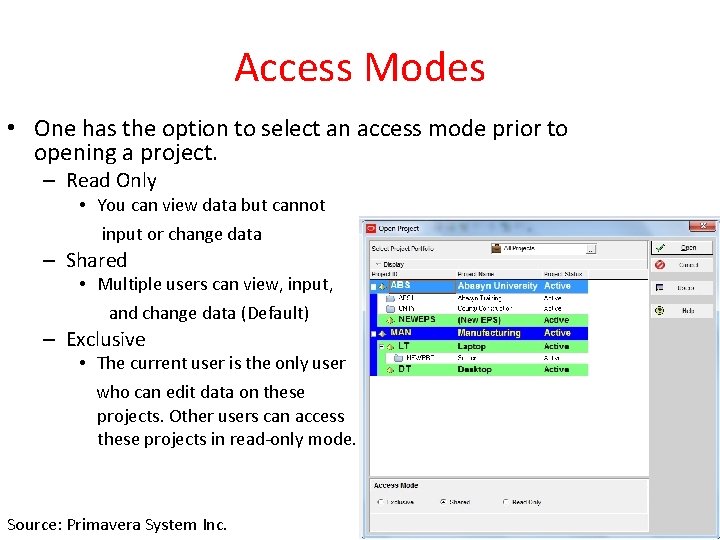
Access Modes • One has the option to select an access mode prior to opening a project. – Read Only • You can view data but cannot input or change data – Shared • Multiple users can view, input, and change data (Default) – Exclusive • The current user is the only user who can edit data on these projects. Other users can access these projects in read‐only mode. Source: Primavera System Inc.
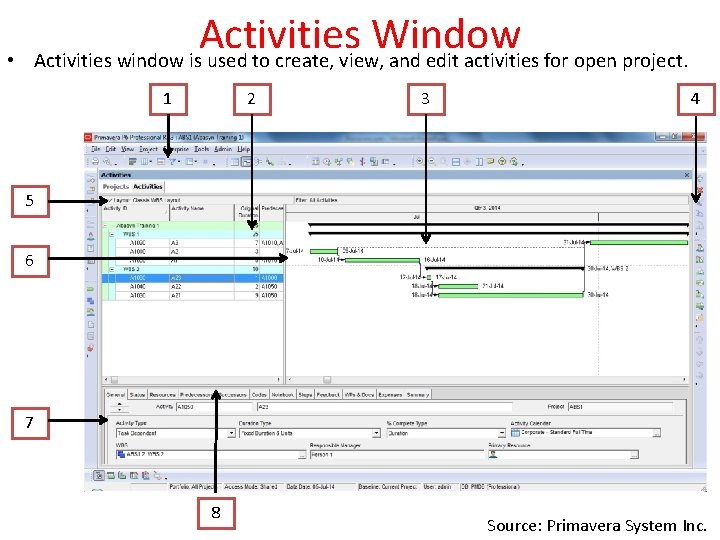
• Activities Window Activities window is used to create, view, and edit activities for open project. 1 2 3 4 5 6 7 8 Source: Primavera System Inc.
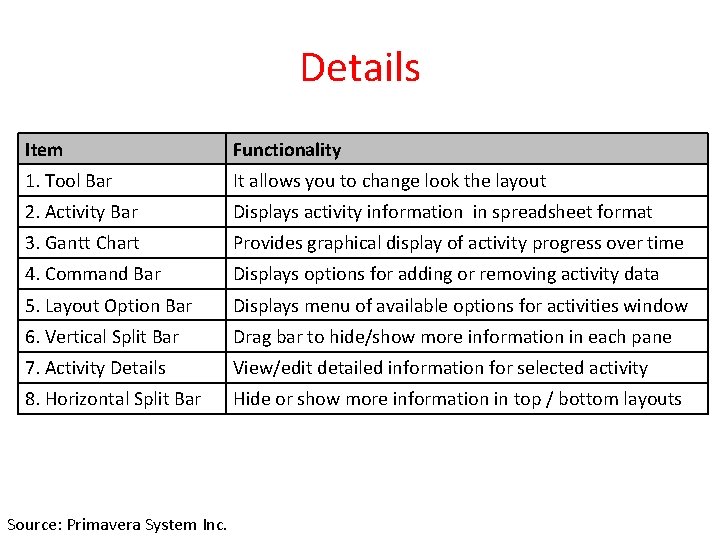
Details Item Functionality 1. Tool Bar It allows you to change look the layout 2. Activity Bar Displays activity information in spreadsheet format 3. Gantt Chart Provides graphical display of activity progress over time 4. Command Bar Displays options for adding or removing activity data 5. Layout Option Bar Displays menu of available options for activities window 6. Vertical Split Bar Drag bar to hide/show more information in each pane 7. Activity Details View/edit detailed information for selected activity 8. Horizontal Split Bar Hide or show more information in top / bottom layouts Source: Primavera System Inc.
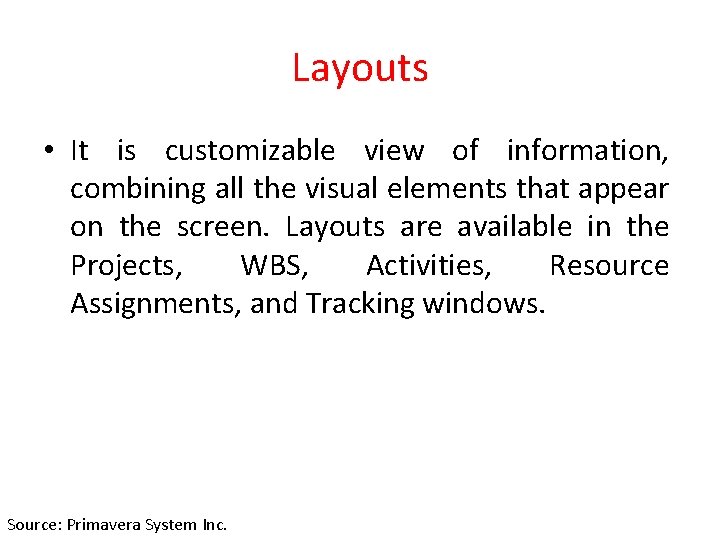
Layouts • It is customizable view of information, combining all the visual elements that appear on the screen. Layouts are available in the Projects, WBS, Activities, Resource Assignments, and Tracking windows. Source: Primavera System Inc.
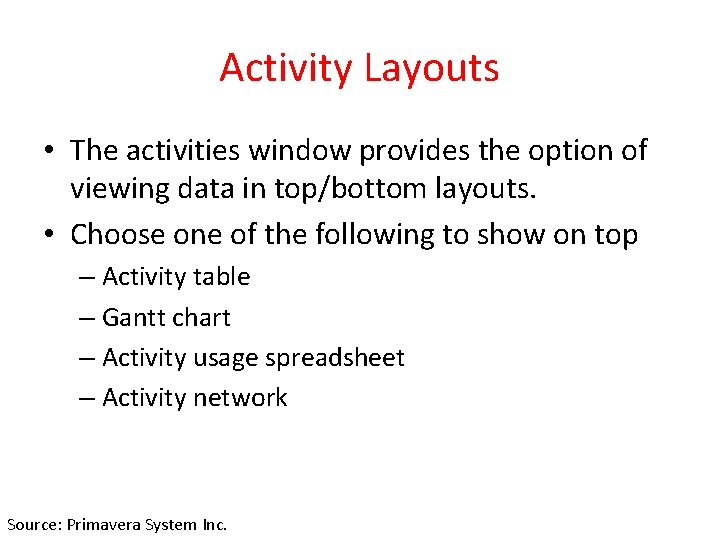
Activity Layouts • The activities window provides the option of viewing data in top/bottom layouts. • Choose one of the following to show on top – Activity table – Gantt chart – Activity usage spreadsheet – Activity network Source: Primavera System Inc.
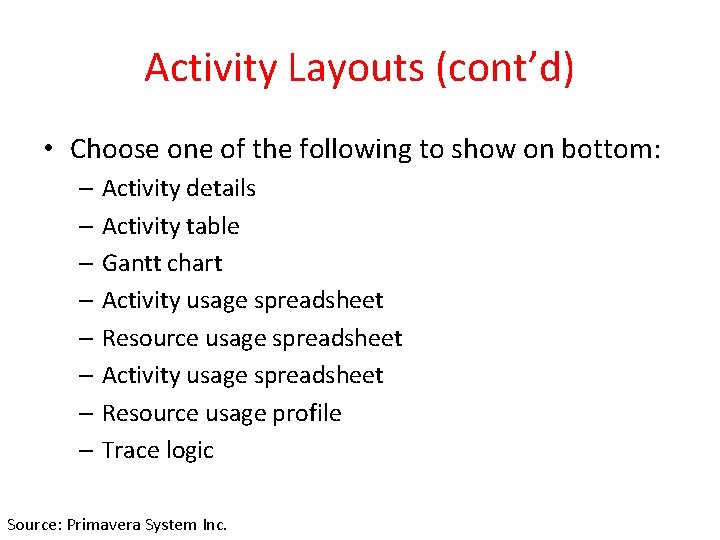
Activity Layouts (cont’d) • Choose one of the following to show on bottom: – Activity details – Activity table – Gantt chart – Activity usage spreadsheet – Resource usage spreadsheet – Activity usage spreadsheet – Resource usage profile – Trace logic Source: Primavera System Inc.

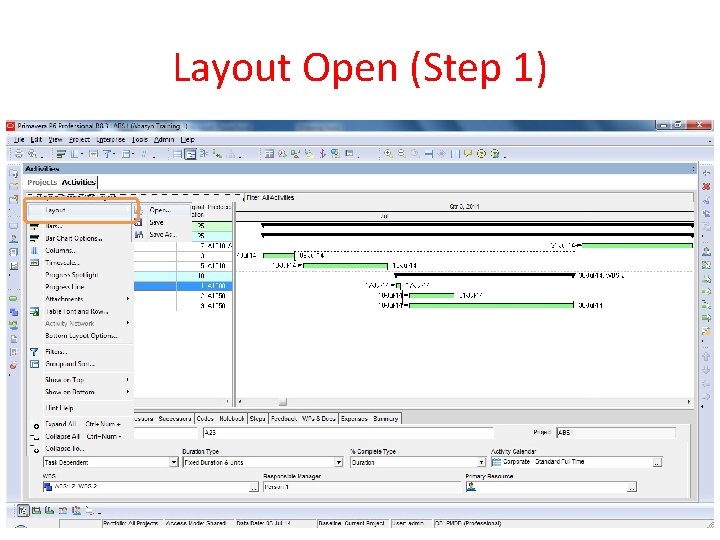
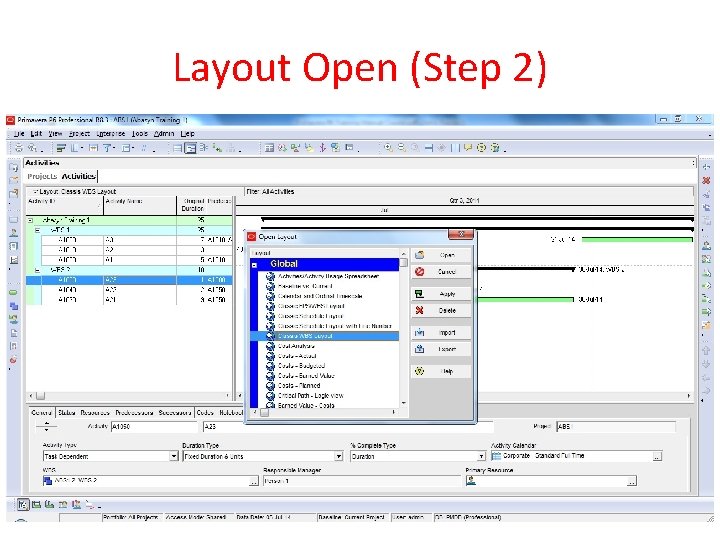
Opening an Existing Activity Layout • A variety of layouts are available to present activity data from different perspectives. One can create user specific layouts and project specific layouts, or use global layouts provided by the company. • After selecting a layout one can either click Apply or Open – Apply – displays layout but keeps Open Layout dialog box open. – Open – displays layout and closes Open Layout dialog box. Source: Primavera System Inc.
Layout Open (Step 1)
Layout Open (Step 2)
Exercise • In the layout option bar click layout, click Open • If you make changes to current layout and want to keep the changes choose “Yes” otherwise “No”. In most cases choose “No” • When prompted to save change to the layout click “No”. • Select a layout, “Classic EPS/WBS Layout”. • Click Apply. Source: Primavera System Inc.
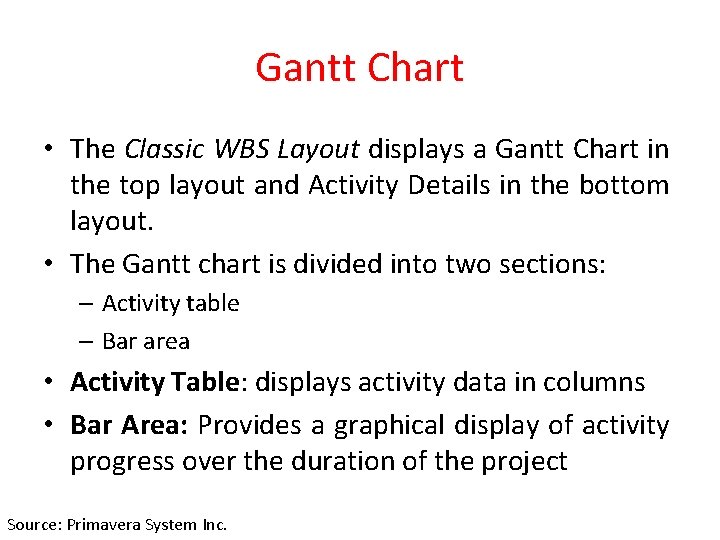
Gantt Chart • The Classic WBS Layout displays a Gantt Chart in the top layout and Activity Details in the bottom layout. • The Gantt chart is divided into two sections: – Activity table – Bar area • Activity Table: displays activity data in columns • Bar Area: Provides a graphical display of activity progress over the duration of the project Source: Primavera System Inc.
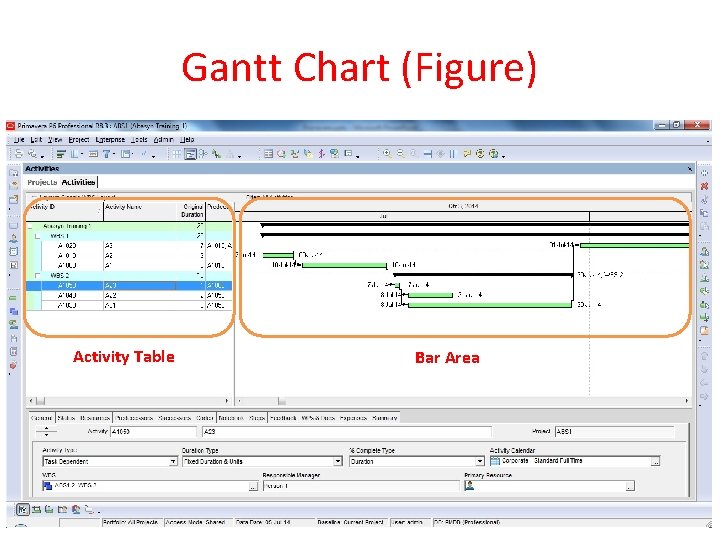
Gantt Chart (Figure) Activity Table Bar Area
Activity Usage Spreadsheet • It displays unit, cost, or earned value data by activity over time. Use this type of layout to review period and rolled up activity resource/cost data. • One can customize the timescale of the Activity Usage Spreadsheet: • Move the timescale to focus on a specific time period – Point in timescale until cursor displays and then slide cursor left or right. • Expand the timescale to widen/ narrow width of columns – Point in minor date interval until the cursor displays and then slide cursor left or right. Source: Primavera System Inc.
Exercise • In the Layout Options bar, click Show on Top, Activity Usage Spreadsheet. • In the Layout Options bar, click Show on Bottom, No Bottom Layout. • Expand the Time scale • Move the timescale to display current month of last year. Source: Primavera System Inc.
Activity Network • Use the Activity Network to view the relationships between activities and the logical flow of activities in the project • Left pane: displays the WBS hierarchy • Right pane: shows a graphical display of activities and their relationships Source: Primavera System Inc.
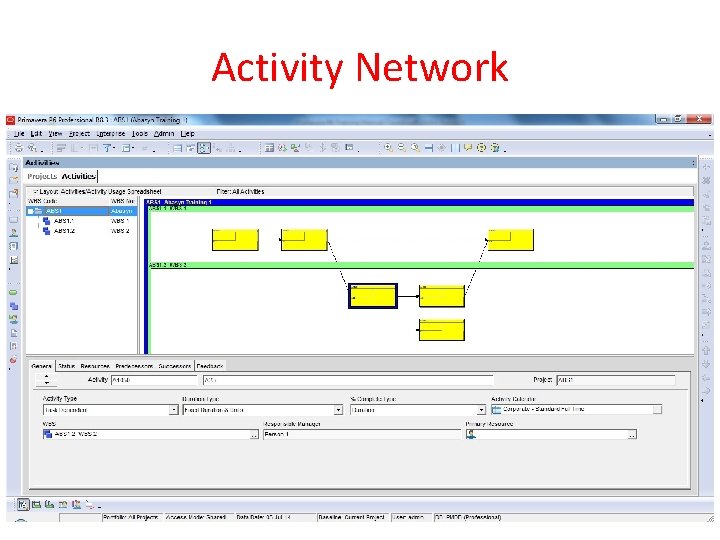
Activity Network
Exercise • In the Layout Options bar, click Show on Top, Activity Network. • In the Toolbar click several times to have a closer look at the activities. Source: Primavera System Inc.
Activity Table • It enables to see the project data in spreadsheet format. One can also modify the columns displayed in the Activity Table to meet the needs. • It can be displayed on the entire sheet as well. Source: Primavera System Inc.
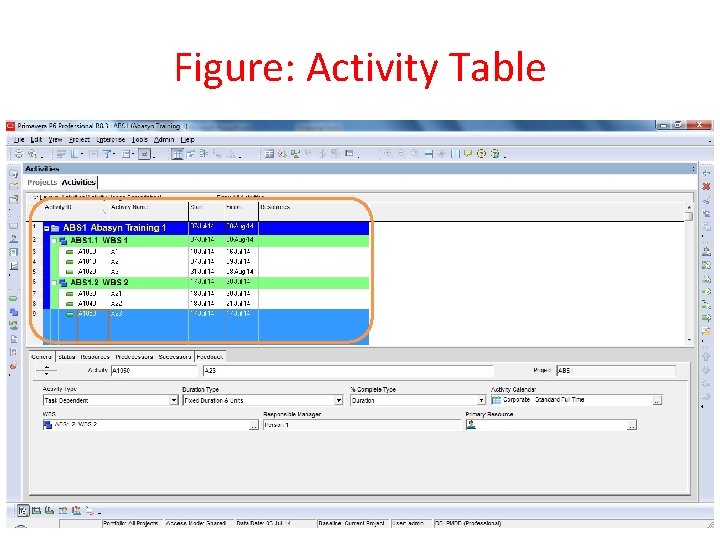
Figure: Activity Table
Exercise • In the Layout Options bar, click Show on Top, Table. Source: Primavera System Inc.
Customizing a Layout • Activities windows can be customized and saved as a layout. Saving layouts for future use allows you to quickly retrieve information. • The Layout Option bar is the centralize menu for layout customization. • Layout elements’ list that are customizable • Bars ‐‐ Timescale • Columns ‐‐ Table font and Colors • Row heights ‐‐ Filters • Activity grouping and sorting • Top/bottom layouts. Source: Primavera System Inc.
Selecting Columns • The Column dialog box enables you to select columns to display in the Activity Table and specify the order in which they appear: • Available Options section – lists data items in groups or in list • Selected Options section – lists items one has chosen to display • Single arrows – move highlighted data items to the other section • Double arrow – move all data items to the other section • Up/down arrow – configure the order of the data items • Click Edit Columns to edit the selected item’s title and choose its alignment in the display Source: Primavera System Inc.
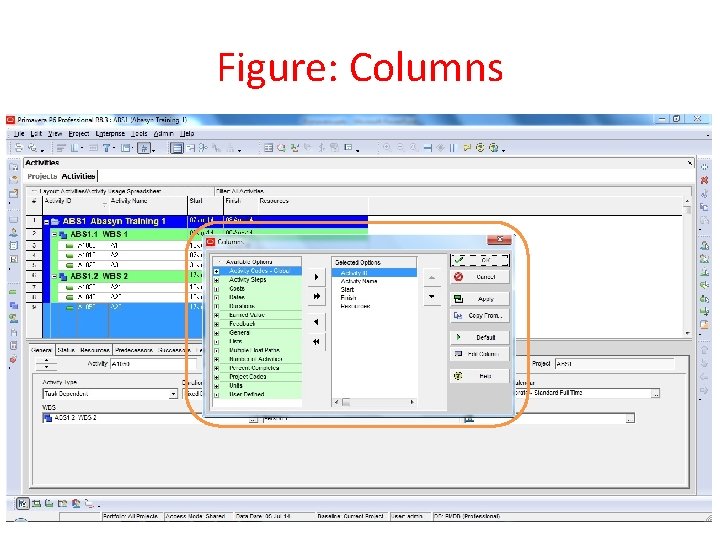
Figure: Columns
Exercise • In the “Layout Options” bar, click “Columns” • In the Available Option Bar, click Group & Sort By List • Select a data item to display in the Activity Table; Budgeted Labor Cost • Click to move the selected data item into the Selected Options • Use the Navigation Arrow to configure the order of the data item • Click Apply Source: Primavera System Inc.
Using Hint Help in Columns Dialog Box • It can be used to view a definition for any data item Source: Primavera System Inc.
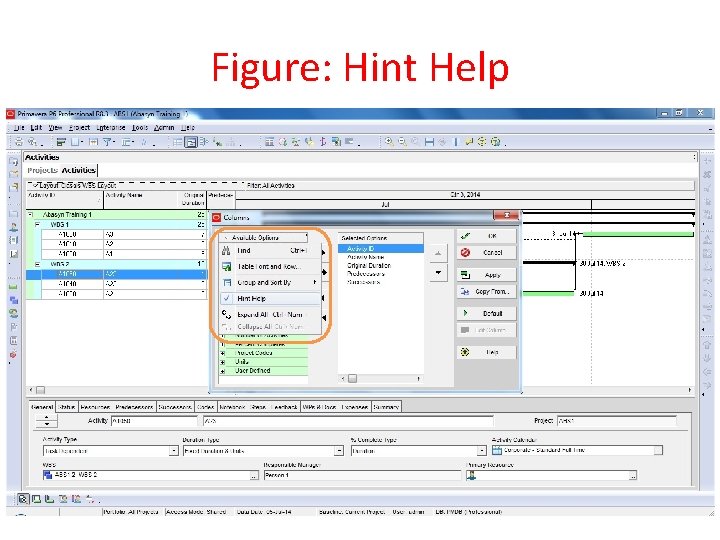
Figure: Hint Help
Exercise • In the Available options bar, click Hint Help • Click a data item, Budgeted Labor Cost. • In the Available Options bar, click Hint Help to disable the onscreen help dialog box. • Click OK Source: Primavera System Inc.
Displaying Activities Details • Activities Details displays detailed information for the activity highlighted in the Activity Table or Activity Network. Source: Primavera System Inc.
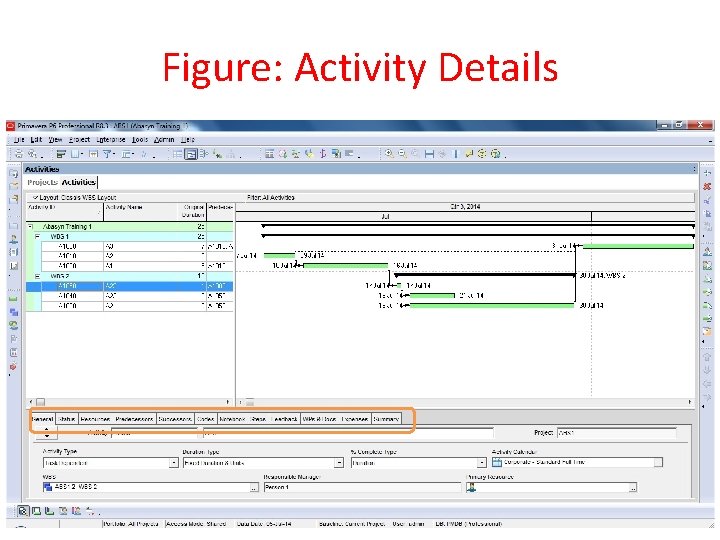
Figure: Activity Details
Exercise • In the Layout Options bar, click Show on Bottom, Activity Details. Source: Primavera System Inc.
Selecting Details Tab • The tabs displayed in Activity Details can be customized Source: Primavera System Inc.
Exercise • In the Layout Options bar, click Bottom Layout Options • In the Available Tabs Sections, select Feedback • Click to move the selected data item into the Display Tabs section. • Click OK. • Figures Follows … Source: Primavera System Inc.
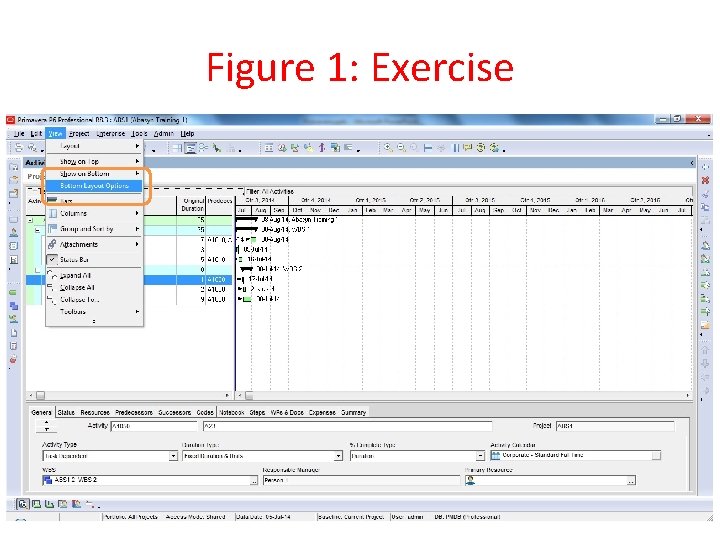
Figure 1: Exercise
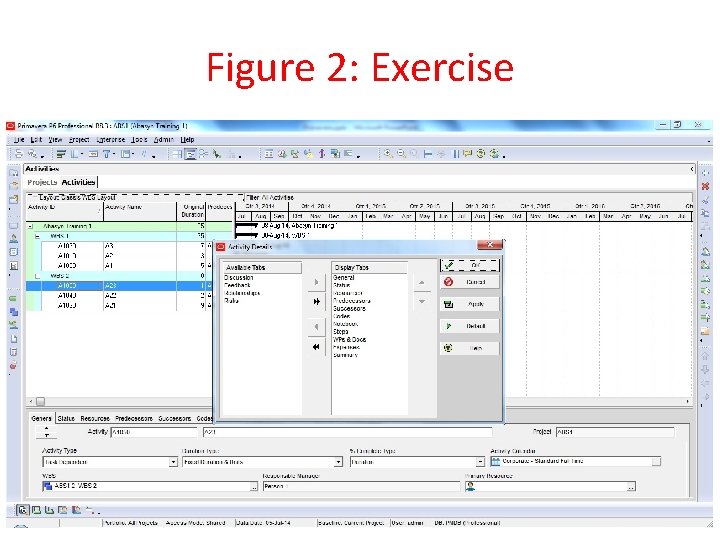
Figure 2: Exercise
Saving Layouts • Layouts can be saved and shared with other users to facilitate project communication. • Use the save Layout dialog box to save a layout in the Activities, WBS, Projects, Assignments, or Tracking Windows • Layout, Save – Save changes to existing layout. • Layout, Save as – only the user saving the layout will have access to it in the future. – All Users – All licensed users will have access to the layout (Global). – Another User – A specified user will have access to the layout. Note however, that the current user will not have the access to the layout. Source: Primavera System Inc.
Saving Layouts (cont’d) – Project – Apply the layout to any project that is currently open in the Primavera. Though Project‐ specific layouts can be applied to multiple projects, you can only select one project a time in the Layout, Save As dialog box. After a project specific layout is saved, it can be viewed in the project band in the Open Layout dialog box. Project specific layouts offer two advantages. • Exported with the project when it is exported • Enhanced organization of multi‐user layouts. Source: Primavera System Inc.
Exercise • In the Layout Options bar, click Layout, Save As. • Type a Layout name <Classic WBS with Budgeted with Labor Cost> • Verify Current User is selected in the Available to drop‐down list. • Click Save • Figures follow Source: Primavera System Inc.
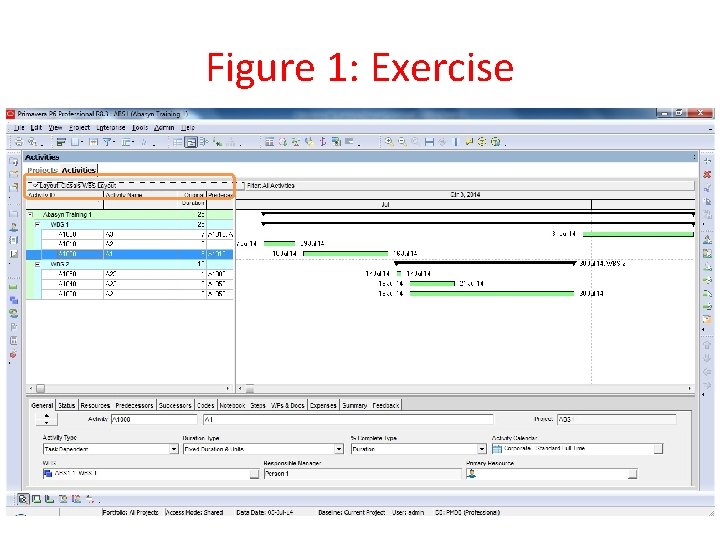
Figure 1: Exercise
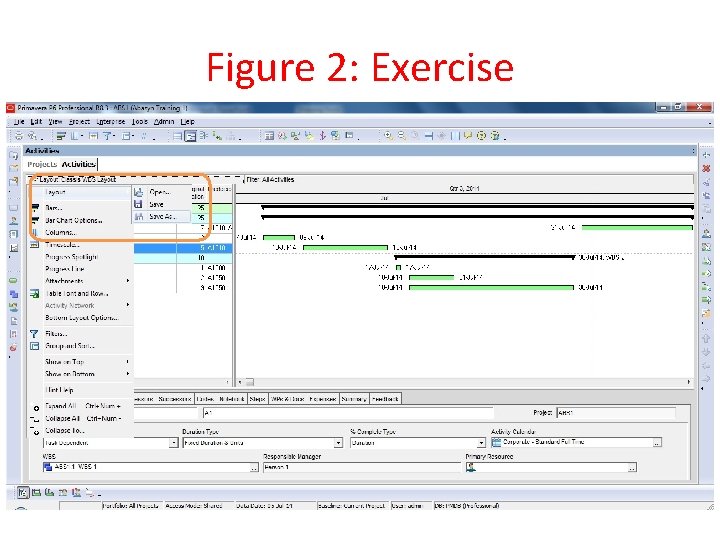
Figure 2: Exercise
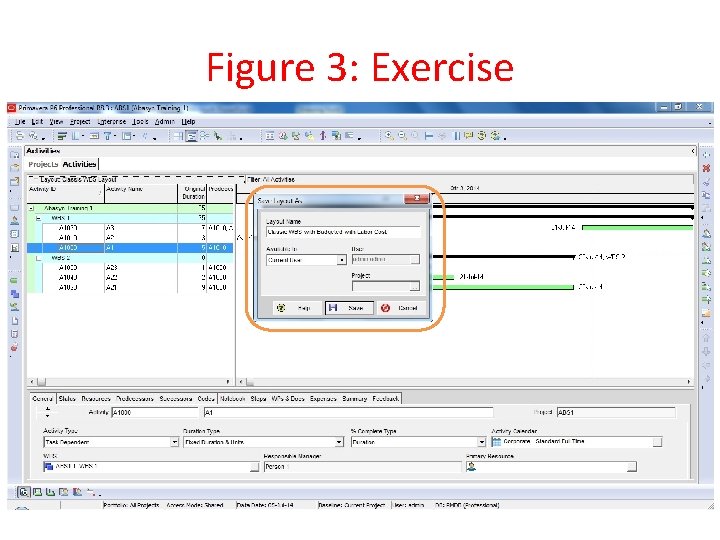
Figure 3: Exercise
Closing a Project • Close the project when you are finished working with it. You are prompted to verify that you want to close the project. • Closing the project takes you back to the Home window. Source: Primavera System Inc.
Exercise • In the File menu, click Close All • When prompted, click Yes. • Figures follow Source: Primavera System Inc.
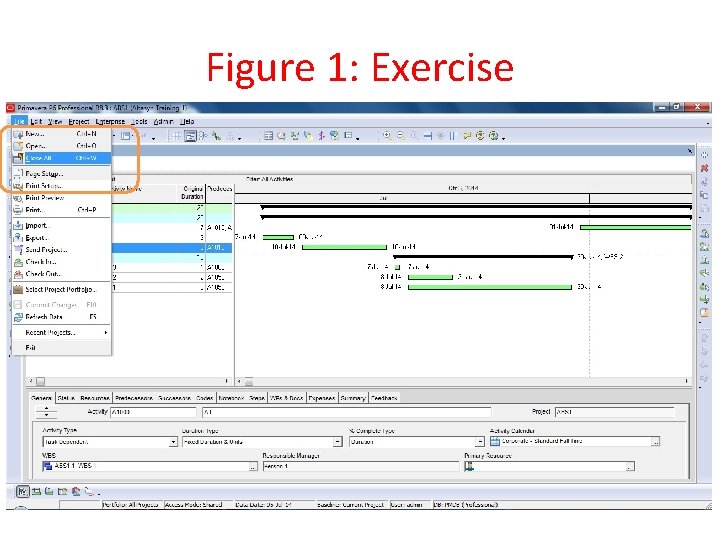
Figure 1: Exercise
- Slides: 85