
Project 5 programming Arc Object with VBA Part
Project 5 : programming Arc. Object with VBA Part I Vector data Sherry Fu CE 697 V Nov. 30, 2006
Part I • Project Part I – Vector data • Move an assigned polygon right border 25 unit to the right.
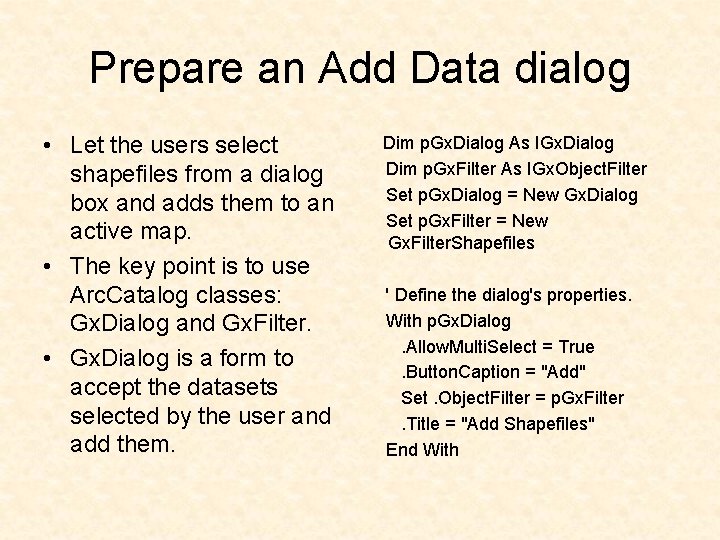
Prepare an Add Data dialog • Let the users select shapefiles from a dialog box and adds them to an active map. • The key point is to use Arc. Catalog classes: Gx. Dialog and Gx. Filter. • Gx. Dialog is a form to accept the datasets selected by the user and add them. Dim p. Gx. Dialog As IGx. Dialog Dim p. Gx. Filter As IGx. Object. Filter Set p. Gx. Dialog = New Gx. Dialog Set p. Gx. Filter = New Gx. Filter. Shapefiles ' Define the dialog's properties. With p. Gx. Dialog. Allow. Multi. Select = True. Button. Caption = "Add" Set. Object. Filter = p. Gx. Filter. Title = "Add Shapefiles" End With
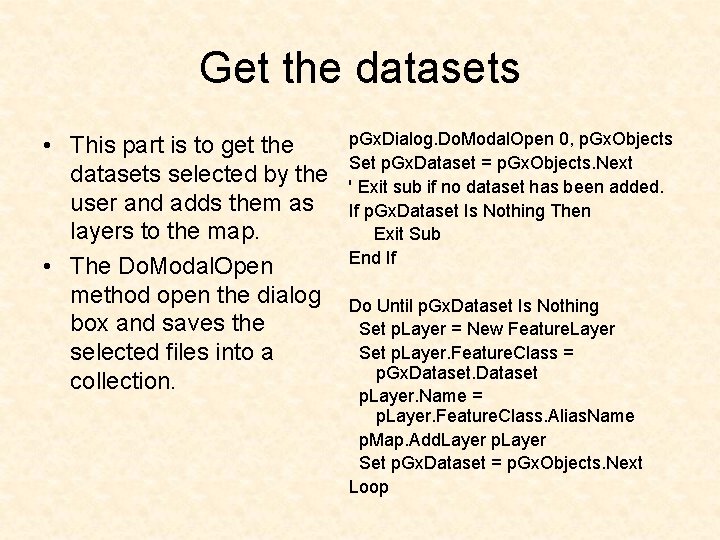
Get the datasets • This part is to get the datasets selected by the user and adds them as layers to the map. • The Do. Modal. Open method open the dialog box and saves the selected files into a collection. p. Gx. Dialog. Do. Modal. Open 0, p. Gx. Objects Set p. Gx. Dataset = p. Gx. Objects. Next ' Exit sub if no dataset has been added. If p. Gx. Dataset Is Nothing Then Exit Sub End If Do Until p. Gx. Dataset Is Nothing Set p. Layer = New Feature. Layer Set p. Layer. Feature. Class = p. Gx. Dataset p. Layer. Name = p. Layer. Feature. Class. Alias. Name p. Map. Add. Layer p. Layer Set p. Gx. Dataset = p. Gx. Objects. Next Loop
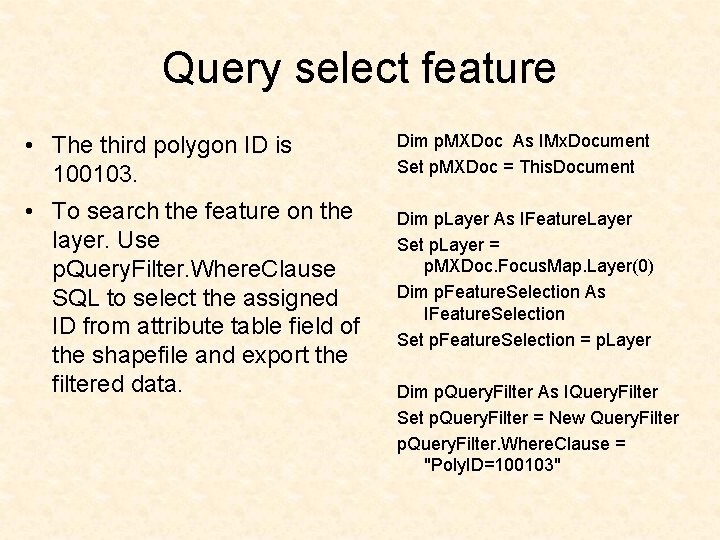
Query select feature • The third polygon ID is 100103. • To search the feature on the layer. Use p. Query. Filter. Where. Clause SQL to select the assigned ID from attribute table field of the shapefile and export the filtered data. Dim p. MXDoc As IMx. Document Set p. MXDoc = This. Document Dim p. Layer As IFeature. Layer Set p. Layer = p. MXDoc. Focus. Map. Layer(0) Dim p. Feature. Selection As IFeature. Selection Set p. Feature. Selection = p. Layer Dim p. Query. Filter As IQuery. Filter Set p. Query. Filter = New Query. Filter p. Query. Filter. Where. Clause = "Poly. ID=100103"
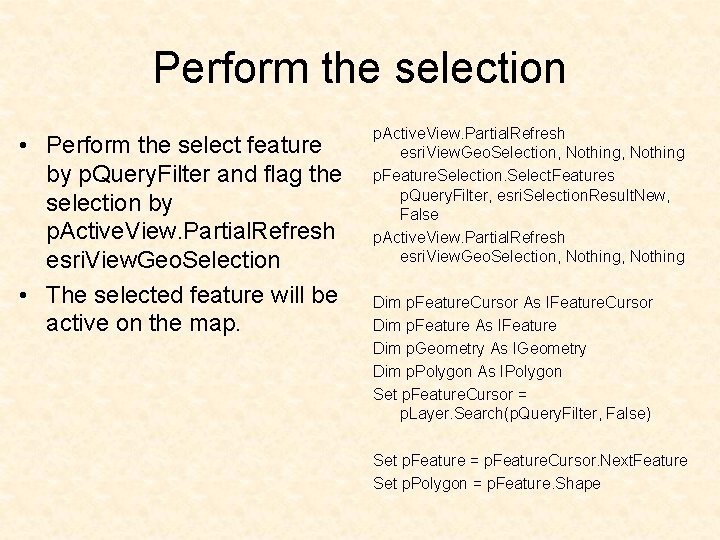
Perform the selection • Perform the select feature by p. Query. Filter and flag the selection by p. Active. View. Partial. Refresh esri. View. Geo. Selection • The selected feature will be active on the map. p. Active. View. Partial. Refresh esri. View. Geo. Selection, Nothing p. Feature. Selection. Select. Features p. Query. Filter, esri. Selection. Result. New, False p. Active. View. Partial. Refresh esri. View. Geo. Selection, Nothing Dim p. Feature. Cursor As IFeature. Cursor Dim p. Feature As IFeature Dim p. Geometry As IGeometry Dim p. Polygon As IPolygon Set p. Feature. Cursor = p. Layer. Search(p. Query. Filter, False) Set p. Feature = p. Feature. Cursor. Next. Feature Set p. Polygon = p. Feature. Shape
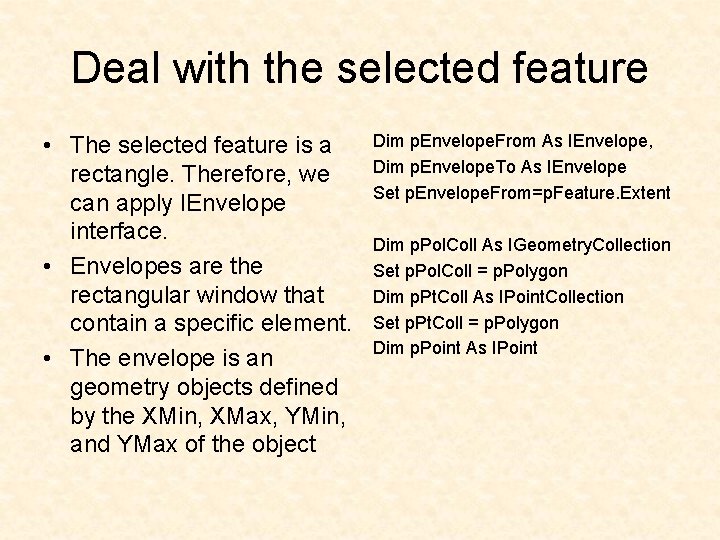
Deal with the selected feature • The selected feature is a rectangle. Therefore, we can apply IEnvelope interface. • Envelopes are the rectangular window that contain a specific element. • The envelope is an geometry objects defined by the XMin, XMax, YMin, and YMax of the object Dim p. Envelope. From As IEnvelope, Dim p. Envelope. To As IEnvelope Set p. Envelope. From=p. Feature. Extent Dim p. Pol. Coll As IGeometry. Collection Set p. Pol. Coll = p. Polygon Dim p. Pt. Coll As IPoint. Collection Set p. Pt. Coll = p. Polygon Dim p. Point As IPoint
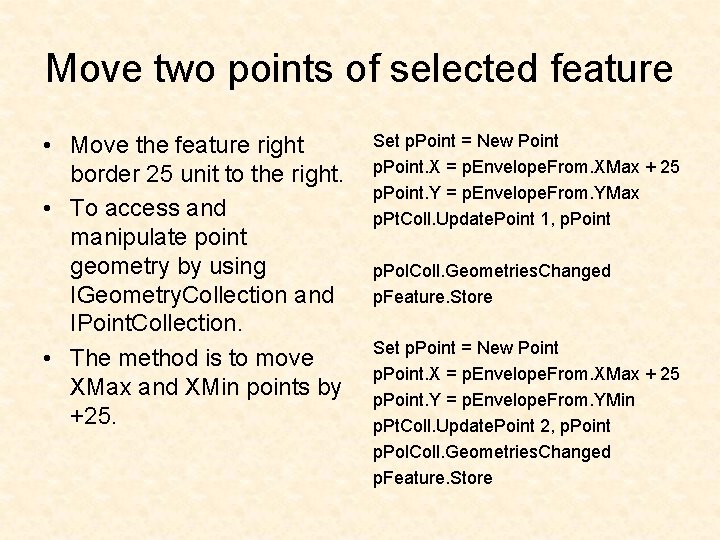
Move two points of selected feature • Move the feature right border 25 unit to the right. • To access and manipulate point geometry by using IGeometry. Collection and IPoint. Collection. • The method is to move XMax and XMin points by +25. Set p. Point = New Point p. Point. X = p. Envelope. From. XMax + 25 p. Point. Y = p. Envelope. From. YMax p. Pt. Coll. Update. Point 1, p. Point p. Pol. Coll. Geometries. Changed p. Feature. Store Set p. Point = New Point p. Point. X = p. Envelope. From. XMax + 25 p. Point. Y = p. Envelope. From. YMin p. Pt. Coll. Update. Point 2, p. Point p. Pol. Coll. Geometries. Changed p. Feature. Store
- Slides: 8